Monday, March 27, 2023

How to Easily Import Google Docs to WordPress (4 Ways)

Are you looking for a way to easily import Google Docs to WordPress?

You may prefer to write your posts in Google Drive, but importing that content into WordPress isn’t straightforward. If you try to copy and paste a Google Doc into WordPress, then you might get lots of unwanted HTML tags, and sometimes you may even lose all the original formatting.

In this article, we will show you how you can easily add Google Drive documents to your WordPress website.
How to easily import Google Docs to WordPress

Why Import Google Docs to WordPress?

You may prefer to write blogs in Google Docs, rather than in the WordPress post editor.

If you accept guest posts in WordPress, then you might even ask authors to send their work as a Google Doc, rather than giving them access to the dashboard by allowing user registration in WordPress.

However, when it’s time to import the document from Google Drive to WordPress, you may run into some problems. If you copy/paste the Google Doc’s text directly into the WordPress editor, then it can add extra tags, particularly <span> and <font tags> tags.

You may also get unwanted line breaks and lose some of the original Google Doc formatting. This means you’ll need to manually go through each post and fix these problems, which can take a lot of time and effort.
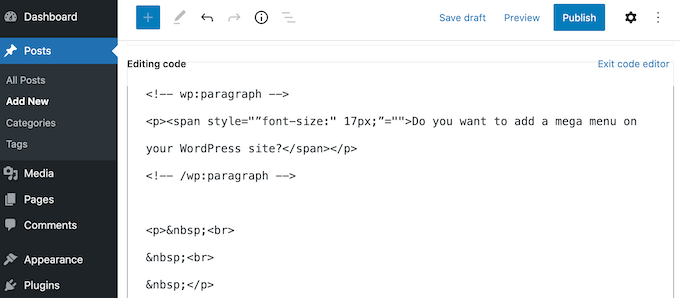
Unwanted HTML tags and WordPress in the code editor

With that being said, let’s see how you can easily import Google Docs to WordPress without any formatting problems or extra code.

Simply follow the quick links below to jump straight to the method you want to use.

Method 1. Using the Copy/Paste Method (Quick and Easy)

If you regularly import Google Docs to WordPress, then we recommend taking the time to set up a WordPress plugin mentioned in our other methods.

However, if you simply want to import a single document, then you can always use another web tool to help make sure the document is clean and ready to go.

This typically involves copying the text from your Google Doc into a third-party app or online service. Often, this removes the unwanted tags and formatting errors.

You can then go ahead and copy the text from the middleman app or online service, and paste it into the WordPress block editor.

This is a workaround rather than a fix, and the results can sometimes be unpredictable. There’s always a chance your chosen middleman might remove some errors, and not others. It may also add its own code, which can cause common WordPress errors.

However, you won’t need to set up a new plugin or service. With that in mind, this is a good option if you simply want to import a small number of Google Docs into WordPress.

There are lots of different services you can use, but we recommend using Grammarly.

Grammarly does a great job of preserving the formatting from Google Docs, while removing unwanted HTML tags. It’s also an online service, so you can access it from any place that has an internet connection.

As an added bonus, Grammarly will highlight any spelling mistakes, typos, and punctuation errors. It can also suggest ways to improve your writing by changing the tone, clarifying confusing text, and much more.

In this way, you can improve the quality of your writing before importing it into your WordPress website. Just be aware that Grammarly doesn’t support images, so you’ll need to upload any image files separately using the WordPress media library.

If you don’t already have a Grammarly account, then you can head over to the website and click on the ‘Get Grammarly It’s Free’ button.
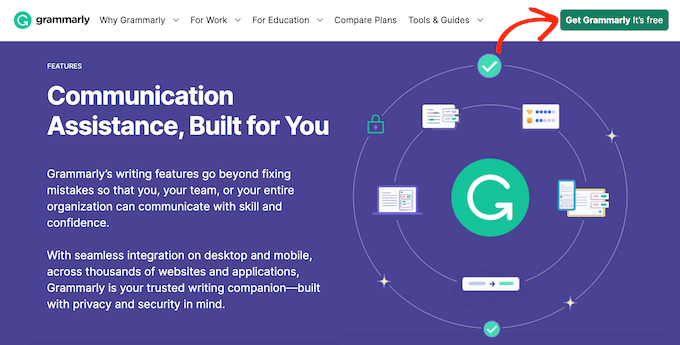
Registering for a Grammarly account

You can then sign up for Grammarly using an existing Google, Facebook, or Apple account. Another option is to type in your email address, and then create a password and username.

After creating an account, you’ll be taken to the the Grammarly dashboard. To import a Google Doc, go ahead and click on ‘New.’
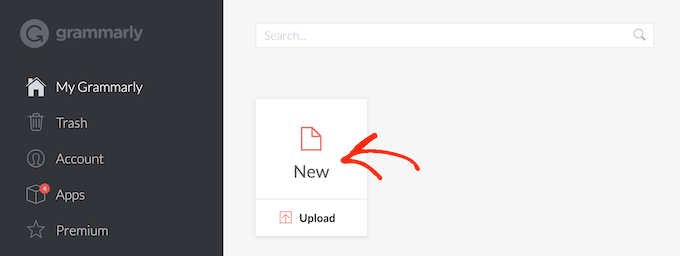
Creating a new document in Grammarly

This opens the Grammarly editor.

In a new tab, open the Google Doc that you want to import into WordPress and copy all of its text. You can then paste this content into the Grammarly editor.
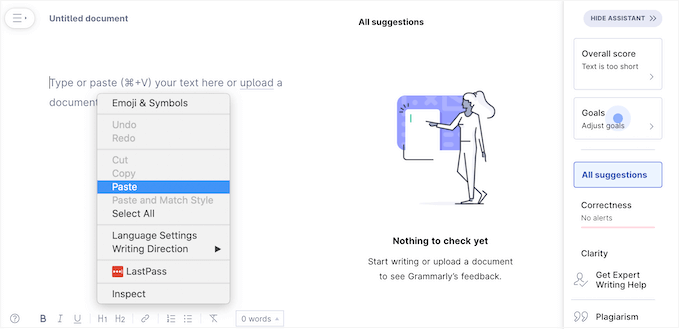
Pasting a Google Doc into the Grammarly writing assistant

Grammarly will highlight any problems with your text and show its recommendations in the right-hand menu. It’s a good idea to read through this feedback and optimize your post before moving onto the next step.

When you’re ready to import the Google Doc into WordPress, go ahead and copy the text in the Grammarly editor.
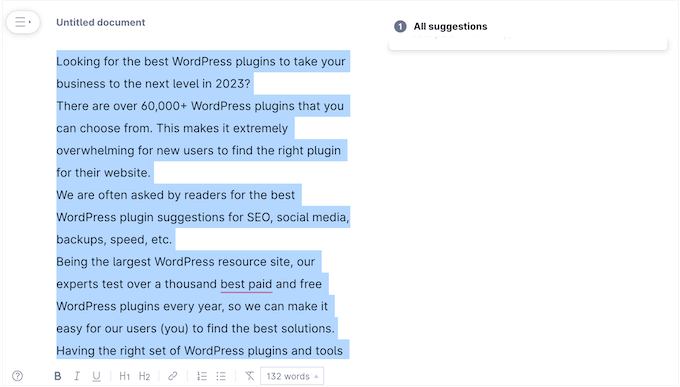
How to copy Google Drive content into an online middleman

Now, switch over to the WordPress dashboard and open the post or page in where you want to import the Google Doc.

After that, simply go ahead and paste the content into the content editor.

Importing a Google Doc into WordPress using copy and paste

Grammarly does a good job of removing unwanted HTML tags while preserving the Google Drive formatting. However, we still recommend looking through the page’s code, to make sure there aren’t any problems.

This is very easy to do using the WordPress code editor, that’s built right into Gutenberg.

To access it, just click on the three-dotted icon in the upper-right corner of the screen, and then select ‘Code editor.’
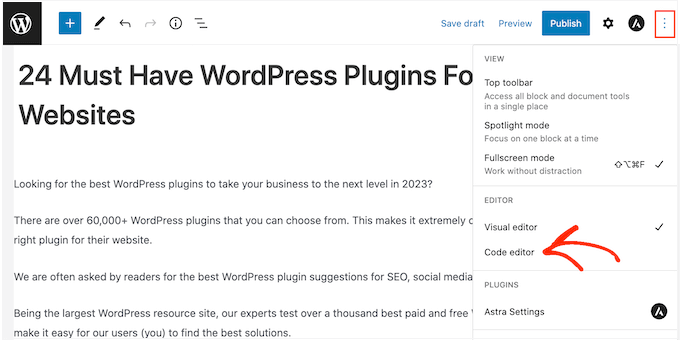
Opening the WordPress code editor

You can now delete any unwanted HTML tags or errors from the post.

When you’re happy with how the page looks, go ahead and click on the ‘Update’ or ‘Publish’ button to make the content live.
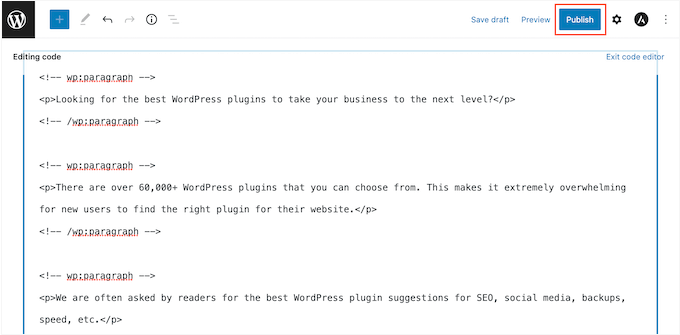
Removing HTML tags from an imported Google Doc

There are other tools that you can use for this such as StripHTML, but this tool and many others you can find on line will remove all code and return plain text.

That’s why we recommend using Grammarly for the best results at preserving rich formatting.

Method 2. Download the Google Doc as a Web Page (Imports Text and Images)

Copying and pasting Google Drive documents into a middleman service like Grammarly is quick, but it can give unpredictable results. Another option is to download the Google Doc as a web page, and then import the file into WordPress.

This tends to be more predictable, and once again you don’t have to configure a separate plugin or service.

This method also pastes any images from the original Google Doc into the page or post, along with the text.

However, we recommend ignoring this feature and instead adding any image files separately using the WordPress media library. This allows you to set the image caption and image alt text for each file, which makes it easier to re-use the images across your website.

To download a Google Doc as a web page, open the document in your Google Drive account. Then, click on ‘File’ in the toolbar, followed by ‘Download’ and ‘Web Page.’
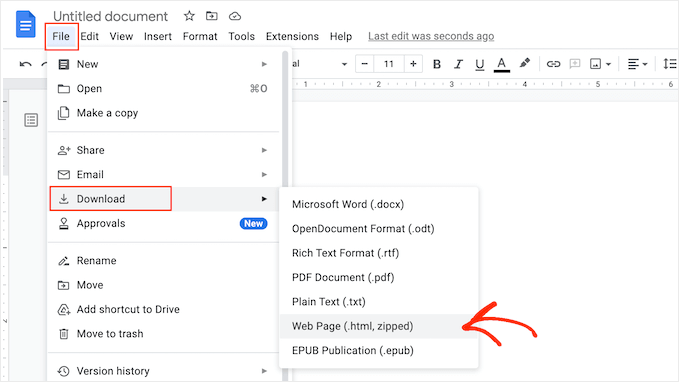
Downloading a Google Doc as a web page

This will save the Google Doc as a zip archive. The document itself will be an HTML file, and each image will be included as its own file.

If you’re a Mac user, then simply find the file on your computer, and then either right-click or Control-click it. In the menu that appears, select ‘Open With’ and then ‘Google Chrome.’
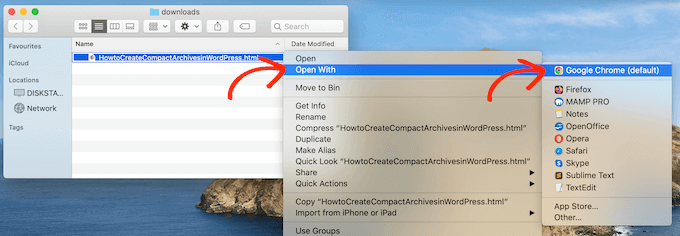
An example of a Google Drive document, downloaded as a zip file

If you don’t see ‘Google Chrome’ as an option, then click on ‘Other…’ and then choose Google Chrome in the popup that appears.

If you’re on a Windows computer, then right-click on the folder and select ‘Extract All.’ You can then right-click on the .html file and select ‘Open,’ followed by ‘Google Chrome.’

This will open a HTML version of your Google Doc in a new tab, with all the correct formatting and images. You can now go ahead and copy this content.
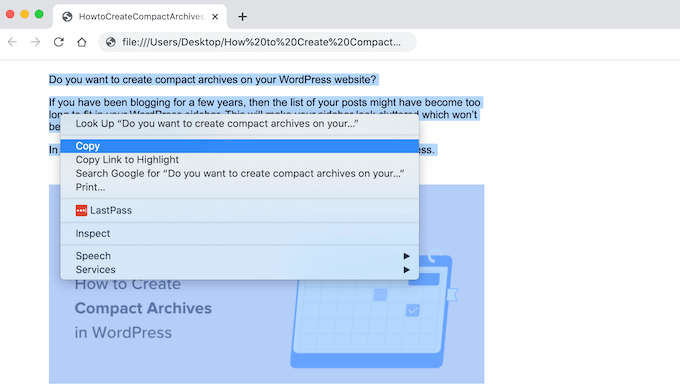
Importing a Google Drive document into a WordPress website

With that done, go to the WordPress dashboard and open the page or post where you want to add the content.

You’re now ready to paste the Google Doc into WordPress.
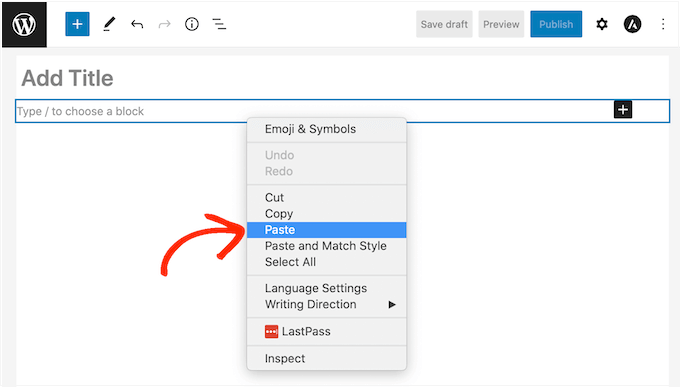
Pasting a Google Doc into a WordPress blog or website

Most of the time, this should keep all the formatting in place, but it’s still a good idea to look through the post’s code for any errors. You can open the WordPress code editor by following the same process described above.

If you want to use any images in the page or post, then you can now add them manually using the WordPress media library. For step-by-step instructions, please see our guide on how to add images in the WordPress block editor.

When you’re ready to make the document live on your WordPress blog, simply click on the ‘Update’ or ‘Publish’ button.

Method 3. Using the Mammoth .docx Converter Plugin (Recommended)

If you need to import lots of Google Docs into WordPress, then it’s well worth installing a separate plugin.

We recommend Mammoth .docx converter as it takes all the formatting and images from a Google Doc and converts it into error-free HTML code.

If the Google Doc has any images, then Mammoth will import them into WordPress automatically, so this is also a great choice if you want to transfer images.

Just be aware that Mammoth uses the image’s original filename, so you may want to rename the images before adding them to the Google Doc and starting the import.

With that done, you’ll need to install and activate the Mammoth plugin. If you need help, then please see our guide on how to install a WordPress plugin.

To import a document using Mammoth, start by opening it in your Google Drive. In the toolbar, select ‘File.’

In the dropdown menu that appears, click on ‘Download’ and then ‘Microsoft Word (.docx).’ You won’t need to open this document, so you don’t need Microsoft Word.
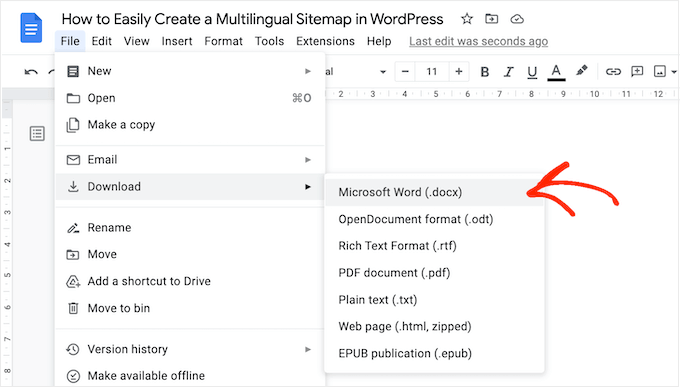
Downloading a Google Doc

Google will now download the file to your computer as a .docx file.

In the WordPress dashboard, open the page or post where you want to import the Google Doc. Directly beneath the editor, you’ll see a new Mammoth .docx converter section.

You can now go ahead and click on the ‘Choose file’ button.
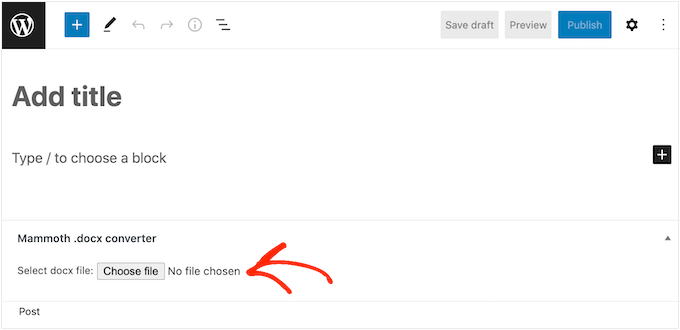
Importing a Google Doc into WordPress

In the popup, select your .docx file and then click on ‘Open.’

Mammoth will now import all the content from the Google Doc. By default, Mammoth will display this content in its ‘Visual’ view, which is similar to how it will look on your website.
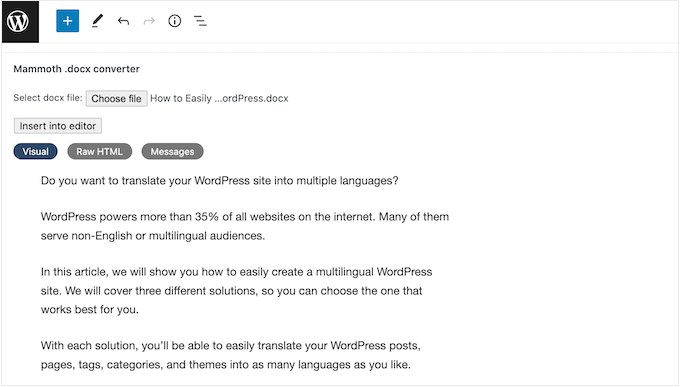
Importing the content from a Google Doc into WordPress without errors

If you want to check the code for errors, then simply click on the ‘Raw HTML’ button.

You can now make any changes to the post’s HTML.
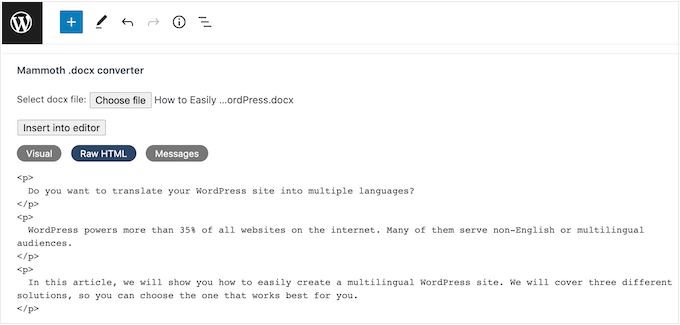
Importing a Google Drive document using HTML code

When you’re happy with how the content looks, you can add it to the page or post by clicking on the ‘Insert into editor’ button.

Mammoth will now go ahead and add the content to the main post editor. If you’re happy with how it looks, then click on ‘Publish’ or ‘Update’ to make the content live on your website.

Method 4. Using Wordable (Import Google Docs With a Single Click)

Do you want to import lots of Google Docs into WordPress?

You might have a team of writers who all use Google Drive, or accept posts from guest bloggers. You might even have an entire catalog of Google Docs that you want to import into a new WordPress website.

If you need to transfer dozens or even hundreds of documents, then you can use Wordable. This service lets you fine-tune how Wordable imports the Google Doc’s text, images, videos, and more.

After creating the first import, you can save your settings as a template. This allows you to transfer any future Google Docs with a single click, which will save you a ton of time.

You can import 5 documents per month using the free Wordable plan, so you can try the service before you buy. If you need to move more documents, then you can upgrade to any of the premimum Wordable plans.

Connect Wordable to Your WordPress Website

The easiest way to connect Wordable to your WordPress website is by installing and activating the Wordable plugin. If you need help, then please see our guide on how to install a WordPress plugin.

Upon activation, go to Settings » Wordable in the WordPress dashboard.
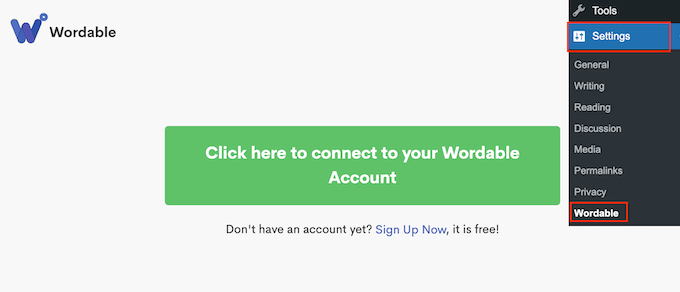
Connecting Wordable to your WordPress website

If you already have a Wordable account, then you can go ahead and select ‘Click here to connect to your Wordable account.’ This opens a popup where you can type in your Wordable email address and password.

If you don’t have a Wordable account, then click on the ‘Sign up now’ link instead. This opens a new browser tab where you can select ‘Signup with Google Drive.’
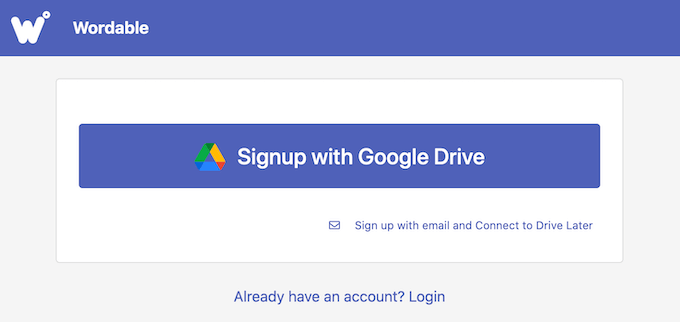
Creating a Wordable account

Wordable needs permission to see, edit, create, delete, and download your Google Drive files. To grant these permissions, simply check all the boxes on the ‘Wordable wants access to your Google Account’ page.

After that, click on the ‘Continue’ button.
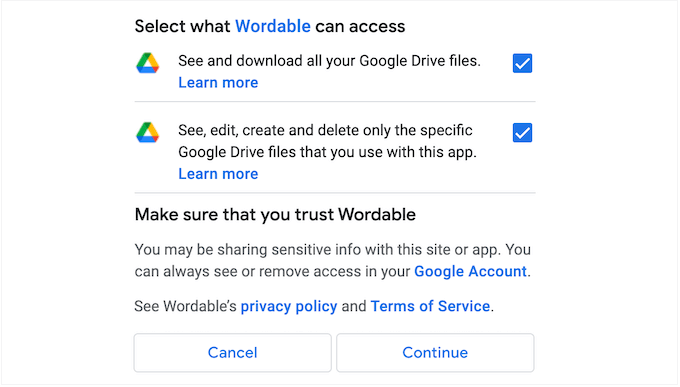
Giving Wordable access to your Google Drive

After creating an account, Wordable will send an email to your Google address.

Open the email, and then click on the following link: ‘Please confirm your account email now to get started.’
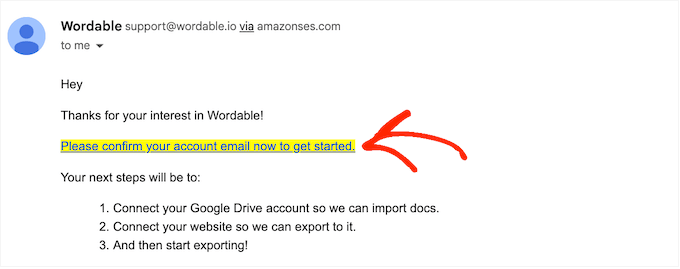
Confirming your Wordable Google Doc account

After that, go to Settings » Wordable in the WordPress dashboard and select ‘Click here to connect to your Wordable account.’

Then, simply refresh your WordPress dashboard. You should now see an ‘Export Your First Document’ button, which means WordPress is connected to your Wordable account.
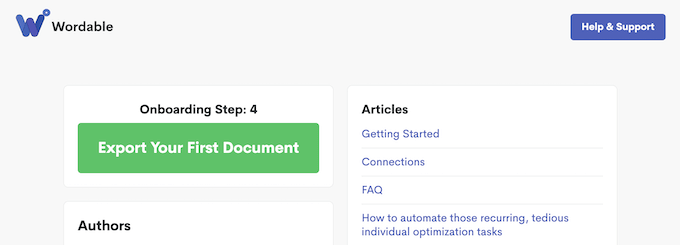
Connecting a Wordable account to a WordPress website

Select a Google Drive Document or Folder

To import a document, go ahead and click on the ‘Export Your First Document’ button. This opens your Wordable account in a new browser tab.

Your next task is finding the document or folder that you want to import.

If you select a folder, then you can still choose exactly which Google Docs to transfer, and which to ignore, so you won’t be forced to import the entire folder.

If you want to search for a folder, then simply open the dropdown menu next to your email address and select ‘Folders.’
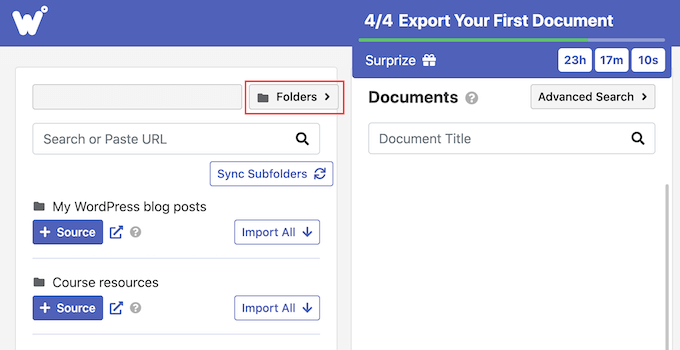
Searching for a Google Doc using Wordable

After that, type the name of the file or folder into the ‘Search’ field. Another option is to paste the item’s link directly into the ‘Search’ field.

To add a document to the import queue, go ahead and click on its ‘Import’ button.
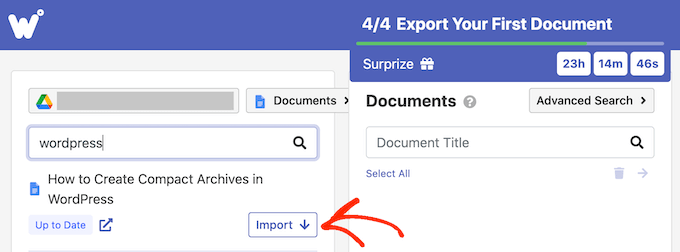
Importing a Google document into WordPress using Wordable

After a few moments, the file will appear in the ‘Documents’ section. To add more documents to the queue, just repeat the same process described above.

If you want to add a folder to the import queue, then click on its ‘+ Source’ button.
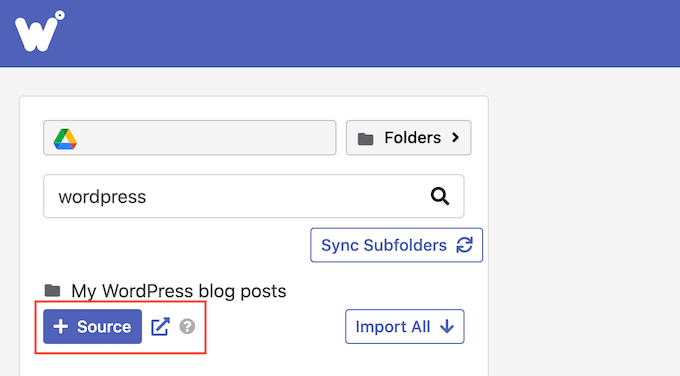
Choosing a source folder in your Google Drive account

You’ll now see all the Google Docs that are inside that folder.

After that, it’s time to choose exactly which files you want to export from your Google Drive account. For each file, simply click on its ‘Export’ button, which adds the document to the export queue.
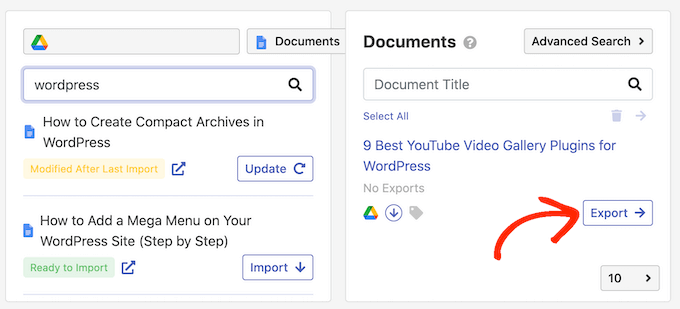
How to import Google Docs into WordPress

Configure the Google Doc Export

When you’re happy with the export queue, it’s time to configure your export. For example, Wordable can turn YouTube links into embedded videos, optimize images, add nofollow attributes to the Google Doc’s links, and more.

To get started, click on the ‘Export Options’ button.
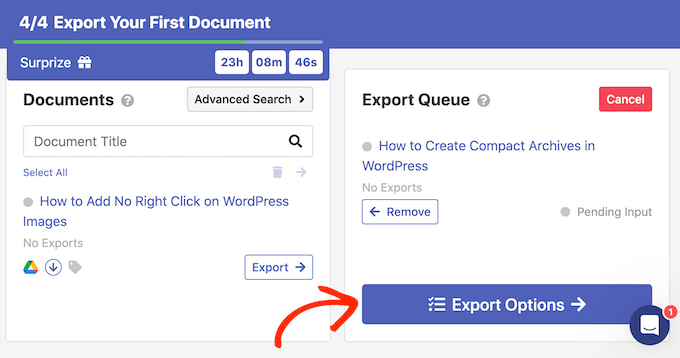
Importing Google Docs into WordPress with a single click

Wordable does a good job of importing Google Docs into WordPress, but it’s still smart to manually check the imported content before publishing it.

With that being said, we recommend setting the ‘Publish Status’ to ‘Save as Draft.’
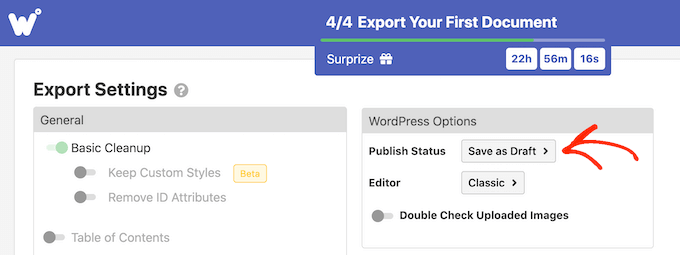
Importing a Google Doc into WordPress as a draft

The plugin uses the Classic WordPress editor by default.

However, we recommend using the modern block-based editor instead, so open the ‘Editor’ dropdown and choose ‘Gutenberg.’
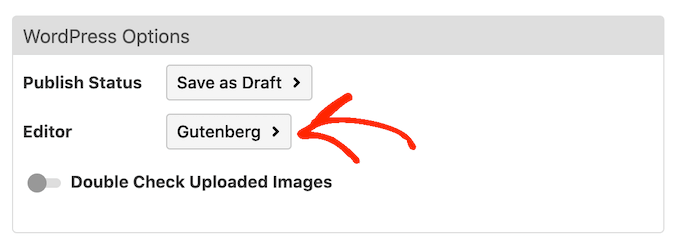
Importing Google Docs into the WordPress block-based editor

Note: If you leave this set to ‘Classic’ then Wordable will import the document into a new Classic block within the block editor, unless you completely disable it. For more information on this topic, please see our guide on how to keep the classic editor.

By default, Wordable does some basic cleanup, which typically removes most of the HTML tags and errors. However, there are lots more options you can customize.

In this guide, we’ll cover some of the major settings, but you can learn more about any setting by hovering your mouse over it, and then reading the tooltip that appears.

If you write longer documents with lots of headings, then you may want to start by enabling the ‘Table of Contents’ slider. This creates a table of contents using the headings in the Google Doc.

After enabling this slider, you can choose which headings Wordable will add to its table of contents, using the ‘Depth’ dropdown menu. You can also choose between the numbered and bullet list styles using the ‘List Style’ dropdown.
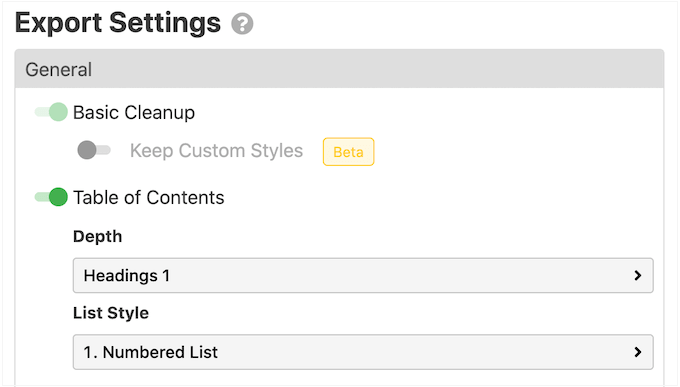
Turning a Google Drive document into a table of contents automatically

If you’re running an affiliate marketing website or regularly link to external websites, then it’s usually a good idea to mark these links as no-follow. A nofollow link tells search engines not to pass any link authority to the website you’re linking to.

To mark all the Google Doc links as nofollow, enable the following slider: ‘Apply nofollow Attribute to All Links.’ You may also want to enable the ‘Open Links in New Tab’ slider, as this will help keep visitors on your website.
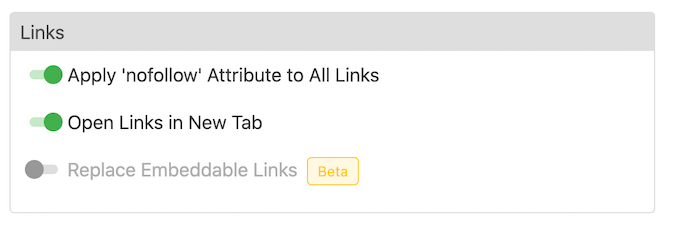
Automatically marking links as nofollow

If your document has links to Instagram or YouTube content, then Wordable can try to convert this content into embedded media.

To use this feature, enable the ‘Replace Embeddable Links’ slider.

If your Google Doc contains any images, then we recommend scrolling to the ‘Images’ section. Here, you can change how Wordable shows those images.

For example, you can open the ‘Default Image Alignment’ dropdown and change how Wordable aligns images in the WordPress block editor.
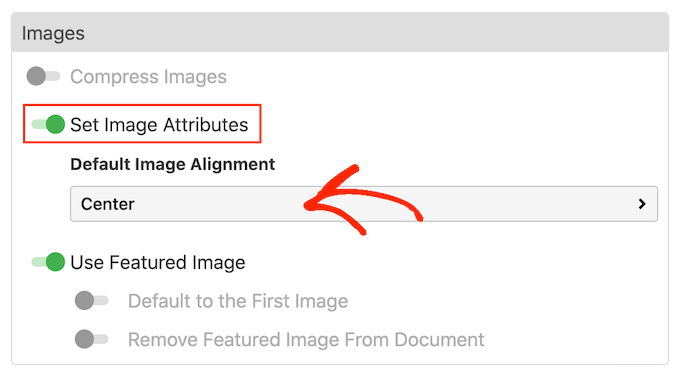
Setting image attributes automatically

Wordable can also use the post’s first image as the featured image, which is the post’s primary graphic. Featured images often appear next to the heading on your home page, and may also appear on social media.

Most popular WordPress themes come with built-in support for featured images, so it’s a good idea to enable the ‘Use Featured Image’ and ‘Default to the First Image’ slider.

Automatically setting the featured image for an imported Google Doc

If you prefer to set the featured image manually, then you can disable the ‘Use Featured Image’ slider instead.

Large images can slow your website, which will have a negative effect on the visitor experience and can even damage your search engine rankings. With that in mind, it’s a bad idea to import images from Google Drive without optimizing them.

For the best results, we recommend optimizing your images before adding them to your Google Docs. This gives you complete control over the process, so you can reduce the size of your images without losing quality.

For more information, please see our guide on how to optimize images for web performance.

If you prefer, then Wordable can optimize your images during the import process. If you want to try this automatic optimization, then click to enable the ‘Compress Images’ slider.

You can then choose whether Wordable should perform lossless or lossy compression. Lossless is a better choice if you want to preserve image quality, while lossy will save you more space but may lose some quality.
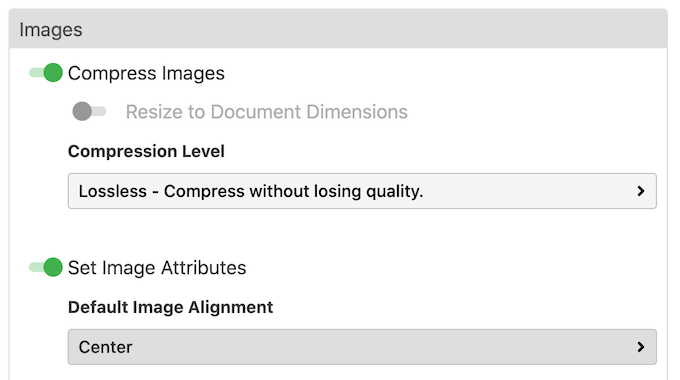
Optimizing images automatically using Wordable

There are more settings you can look at, but this should be enough to configure the import.

When you’re happy with the changes you’ve made, go ahead and click on ‘Export Now.’
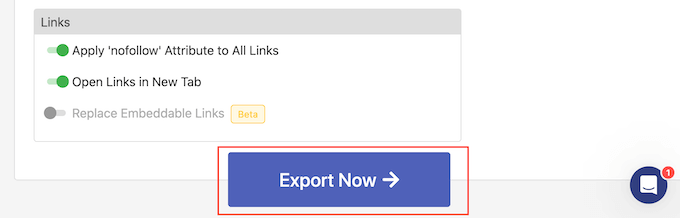
Exporting text and images from your Google account

At this point, you can save the settings as a template that you can apply to future imports.

In the following image, we simply need to click ‘One Click Export’ to apply the template and import the document.
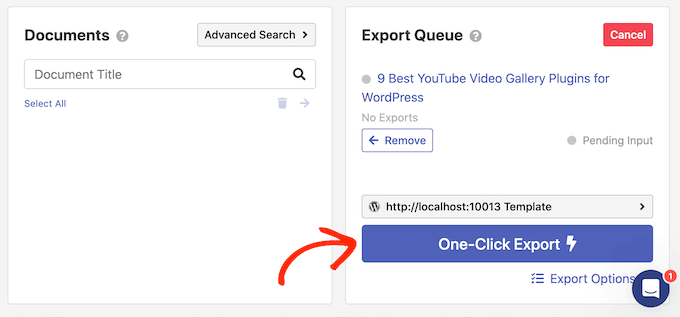
Importing Google documents into WordPress using a single click

This can save you a ton of time, especially if you use the same settings over and over.

To create a template, type a title into the ‘Template name’ field and then click on the ‘Enable One-Click Exports’ button.
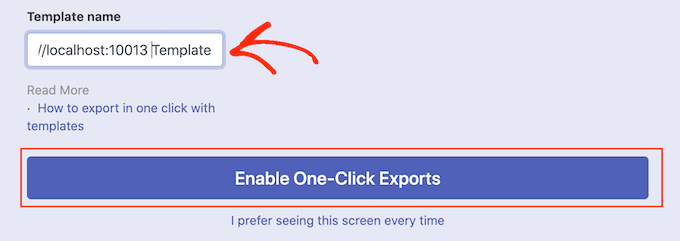
Creating a template for your imported WordPress pages and posts

If you don’t want to use templates, then click on the following link instead: ‘I prefer seeing this screen every time.’

No matter what you click, Wordable will start exporting the Google Document.

After a few moments, go to Posts » All Posts in the WordPress dashboard and you’ll see the Google Doc as a new draft.
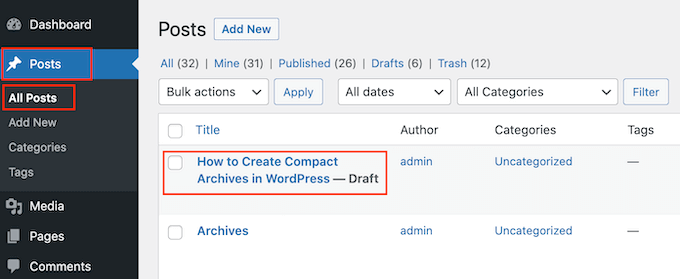
An example of an imported Google Drive document in WordPress

To import more Google Drive documents into WordPress, simply follow the same process described above.

We hope this article helped you learn how to easily import Google Docs to WordPress. You may also want to check out how to create a file upload form in WordPress and our list of 24 expert tips to speed up WordPress performance.

If you liked this article, then please subscribe to our YouTube Channel for WordPress video tutorials. You can also find us on Twitter and Facebook.

The post How to Easily Import Google Docs to WordPress (4 Ways) first appeared on WPBeginner.


March 27, 2023 at 02:22PM

Saturday, March 25, 2023

How to Easily Translate Your WordPress with TranslatePress

Do you want to translate your website into another language?

By default, WordPress does not offer an easy way to manage multilingual content. However, you can easily translate your WordPress website by using plugins.

In this article, we’ll show you how to easily translate your WordPress website with TranslatePress.

How to translate your WordPress with TranslatePress

Why Use TranslatePress for Translating a WordPress Website?

The best part about WordPress is that it can be used in any language. Most WordPress themes and plugins can also be used and translated into any language as well.

If your business website has a multilingual audience, then it can be super beneficial to translate your content.

You can rely on machine translations like Google Translate, but these translations are not good and sometimes can be quite misleading.

On the other hand, if you’re using a multilingual WordPress plugin, then you need to create multiple posts which require switching back and forth between different languages.

With the TranslatePress plugin, you can translate your website and content using a live editor and won’t need to create multiple posts for the same content.

You can instantly switch languages from the live editor and can also translate themes and plugins using TranslatePress.

Having said that, let’s see how you can easily translate your WordPress website with TranslatePress.

Step 1: Install TranslatePress in WordPress

The first thing you need to do is install and activate the TranslatePress plugin. For more details, see our step-by-step guide on how to install a WordPress plugin.

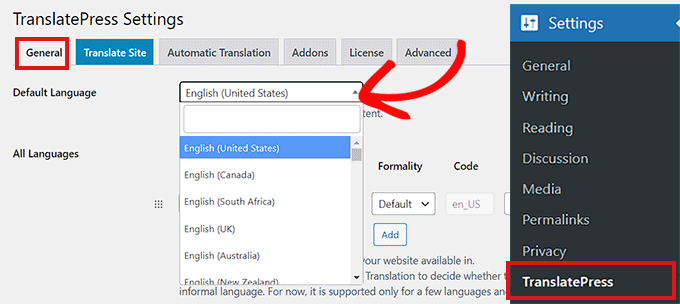
Upon activation, head over to the Settings » TranslatePress page from the WordPress admin dashboard to configure your plugin settings.

From here, you need to switch to the ‘General’ tab.

Now, you first need to choose the default language of your website from the dropdown menu beside the ‘Default Language’ option.

This is the language your WordPress is already downloaded in.

Choose a default language in TranslatePress

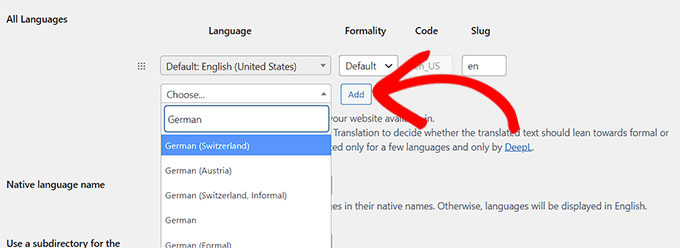
After that, you need to choose the language that you want to translate your site into.

Simply head over to the ‘All Languages’ section, and choose a language you want to translate your website into from the dropdown menu below the ‘Language’ option.

After that, you need to click the ‘Add’ button.

Choose a translation language

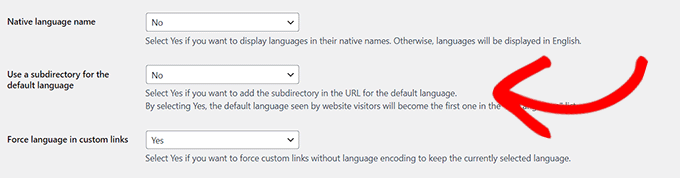
Now scroll down to the ‘Native Language Name’ setting on the page.

Here, you need to select whether you want to display language names in their own language or in English. You can choose ‘Yes’ or ‘No’ accordingly.

The next option is to choose if you want to display the default language name in the URL as a subdirectory. For example, http://example.com/en/.

We recommend leaving this setting as it is because it is better for search engine optimization.

After that, head over to the ‘Force language in custom links’ setting.

The default option for it is ‘Yes’ which will allow the plugin to change custom links for translated languages, making the URLs more SEO-friendly.

Configure other General settings

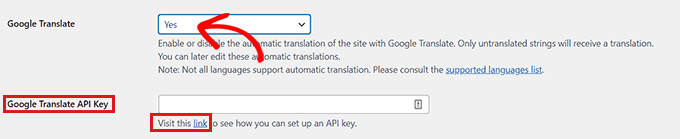
In the next option, you can choose if you want to use Google Translate for automatic translations.

The default choice is ‘No’, but you can change that if you would like to use Google Translate.

All you would need to do is provide a Google Translate API key in the next option. You will find a link under the option which will show you instructions on how to get one.

Provide Google Translate API if you want to activate it

Finally, you will come to the options on how you want to display the language switcher on your website. TranslatePress provides you with three choices.

You can use a shortcode, add a switcher to your navigation menu, or display a floating menu. We will show you how to add the language switcher to your website later in this article.

Now, simply go ahead and click on the ‘Save Changes’ button to store your settings.

Step 2: Translating Your Website Content

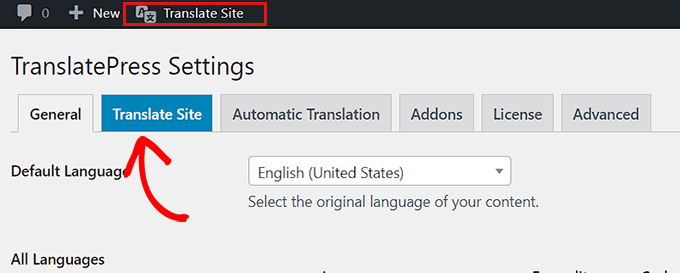
To translate your website, you can either click the ‘Translate Site’ tab on the plugin’s settings page or the ‘Translate Site’ button in your WordPress admin bar.

This will open the live translation editor in a new browser tab.

Click Translate Site button

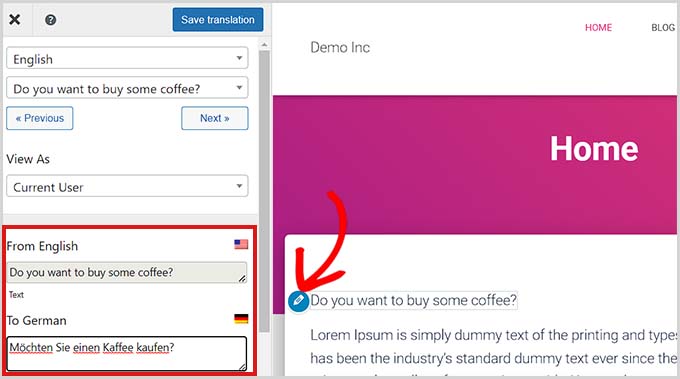
Now, you need to simply click the blue translate icon present next to any text on your website that you want to translate.

After that, TranslatePress will automatically load the chosen text in the left column of the translation editor.

Translate website

Once the text is loaded in the column, simply add its transition in the box below and then click the ‘Save Translation’ button at the top to store your changes.

This way, you can translate all the content on any page of your site including navigation menus, buttons, sidebar, widgets, meta-text, and more.

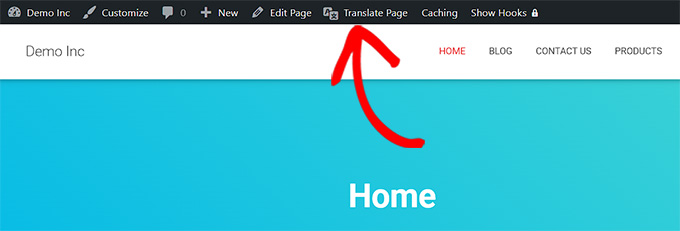
With TranslatePress, you can also instantly start translating any page or post on your site when logged in.

All you would need to do is click on the ‘Translate Page’ button on the top to open up the live editor.

Directly translate page

Another benefit of this plugin is that you only need to translate a specific string once.

Once you have translated a string, the plugin will automatically translate it for you in other places.

Step 3: Adding Language Switcher to Your Website

After translating your site, you will need to add a language switcher to your website.

A language switcher allows users to select a language when they visit your website. It usually displays the flag of each country to indicate languages available on your site.

TranslatePress allows you to add a language switcher by using a shortcode, as a navigation menu item, or as a floating banner.

The language switcher can be displayed as flags, language names, or both.

Adding language switcher in WordPress using shortcode

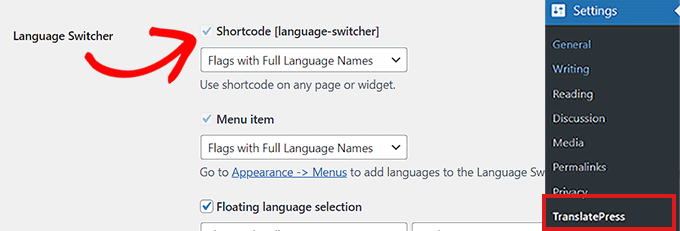
If you want to add a language switcher in WordPress using shortcode, then head over to the Settings » TranslatePress page from the admin dashboard.

Once you’re on the ‘Settings’ page, scroll down on the ‘General’ tab and then copy the [language-switcher] shortcode in the ‘Language Switcher’ section.

Copy shortcode for the language switcher

You can now paste this shortcode on any page, post, or sidebar widget where you want to display the language switcher.

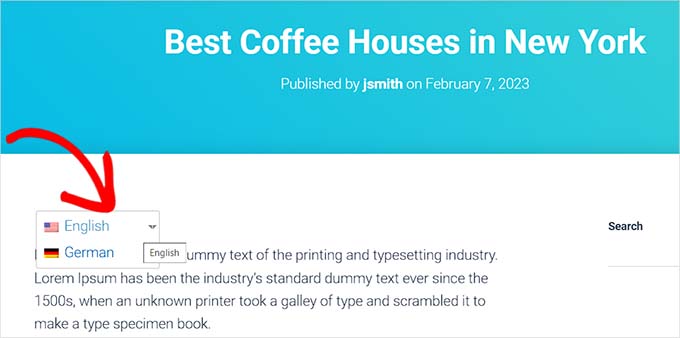
This is how the language switcher looked on our demo site.

Shortcode language switcher

Adding a language switcher to your WordPress navigation menu

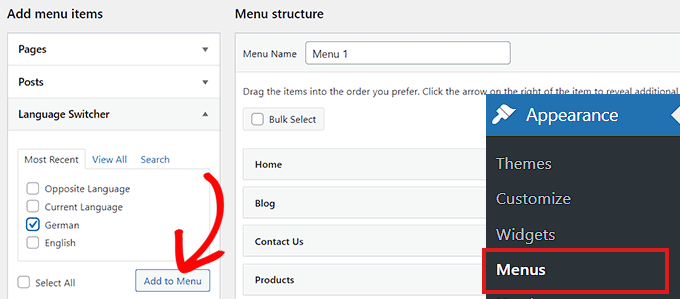
If you want to add a language switcher as a navigation menu item, then go to the Appearance » Menus page from the dashboard.

Note: If you are using a block-based theme with a full site editor, then this method won’t work for you.

From here, you need to click on the ‘Language Switcher’ tab in the ‘Add Menu Items’ section on the left corner of the screen.

Once the tab expands, simply check the languages that you want to display in the language switcher.

After that, click the ‘Add Menu’ button to add the language switcher as a menu item.

Add language switcher in navigation menu

Finally, don’t forget to click on the ‘Save Menu’ button to store your changes.

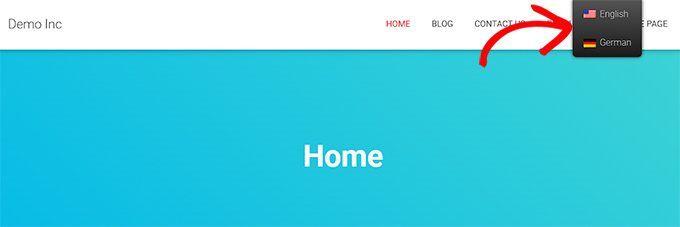
You will now see a language switcher added to your WordPress navigation menu.

This is how it looked on our test site.

Language switcher added in nav menu

Adding a floating language switcher

If you want to add a floating language switcher, then you simply need to head over to the Settings » TranslatePress page from the admin dashboard.

First, you need to scroll down to the ‘Language Switcher’ section in the ‘General’ tab.

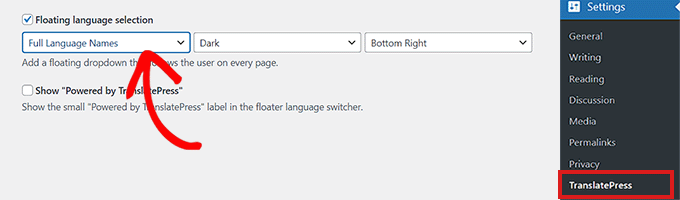
From here, make sure to check the box next to the ‘Floating language selection’ option.

You can also switch the position of the floating language switcher from the dropdown menu on the right corner of the screen.

Add a floating language switcher

After that, don’t forget to click on the save changes button to store your settings.

You can now visit your website to see the floating language switcher at the bottom of every page on your website.

Add floating switcher

We hope this article helped you learn how to translate your WordPress site with TranslatePress. You may also want to see our article on how to create a multilingual sitemap in WordPress and our list of the best WordPress plugins for business websites.

If you liked this article, then please subscribe to our YouTube Channel for WordPress video tutorials. You can also find us on Twitter and Facebook.

The post How to Easily Translate Your WordPress with TranslatePress first appeared on WPBeginner.


March 25, 2023 at 03:49PM

Friday, March 24, 2023

54 Best ChatGPT Prompts for Bloggers, Marketers, and Social Media

Are you looking for ChatGPT prompts ideas to improve blog and marketing strategy?

ChatGPT prompts are the instructions that you type in ChatGPT AI to speed up your workflow. You can use ChatGPT to draft social media posts, come up with blog post ideas, and so much more. The key to getting best results with AI is to make your ChatGPT prompts better and more specific.

In this article, we’ll share the best ChatGPT prompt ideas for bloggers, marketers, and social media, so you can improve your marketing results.

Ultimate list of ChatGPT prompt ideas

This article will cover a lot of topics, so you can click on any of the links below to jump to a particular section that best suits your needs.

What is a ChatGPT Prompt?

A ChatGPT prompt is the starting point of a conversation in the form of a question or instruction given to an AI language model like ChatGPT.

ChatGPT is an AI-based software that uses machine-learning technology called Natural Language Processing.

To see it in action, you need to sign up for ChatGPT by visiting the OpenAI website.

Signup for ChatGPT

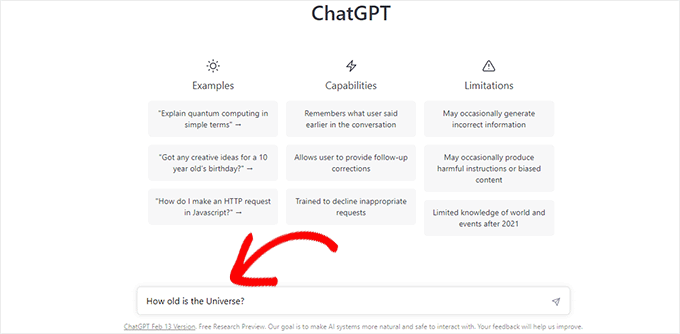
After that, you’ll see a simple chatroom. At the bottom, you can input your prompt in plain language.

For instance, ‘How old is the Universe?’ and hit the send button.

Entering your text prompt in ChatGPT

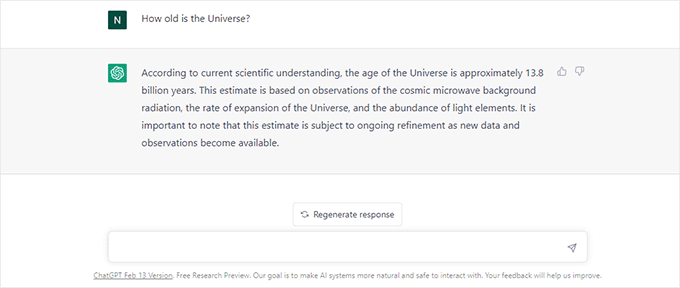
ChatGPT AI will then respond to your question in plain language.

The answer length and style may vary based on the prompt you entered.

ChatGPT conversation view

Writing better prompts allows AI to narrow down its approach and provide you with more specific details.

If you want to start a blog, then ChatGPT can help you find article ideas, the article outline, rough drafts, SEO optimization, proofreading, research, and more.

Many bloggers and marketers are exploring opportunities to generate content ideas using AI.

By learning some quick prompt ideas, you can speed up the process and unlock maximum benefits from ChatGPT AI to improve your workflow.

Note: ChatGPT and other AI apps are usually not able to create content that can be simply copied and pasted without any human edits. When you use an AI tool, be sure to go through the results thoroughly to be sure that all information is correct and that the messages are appropriate for your audience.

How to Write Better ChatGPT Prompts?

ChatGPT uses natural language processing which means you can write your prompts in a plain conversational style.

For instance, instead of typing a smaller sentence, you can instruct GPT on how to respond, which style to use, length limitations, ask for examples, and more.

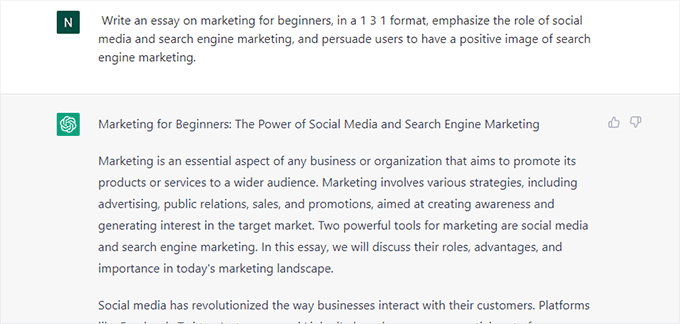
Instead of asking ‘What is Marketing?’ a better prompt would be:

‘Write an essay on marketing for beginners, in a 1 3 1 format, emphasize the role of social media and search engine marketing, and persuade users to have a positive image of search engine marketing.’

Longer prompt example

While writing your prompts in natural language might seem really simple, many beginners may still be unsure about where to start. It can take a lot of practice to find a style of prompt that works best for your projects.

That being said, let’s take a look at some easy and quick ChatGPT prompt ideas bloggers and marketers and marketers can use to succeed.

Using AIPRM Extension to Generate ChatGPT Prompts

The easiest way to generate ChatGPT prompts is by using AIPRM for ChatGPT.

It is a Google Chrome browser extension with a curated list of ChatGPT prompts for SEO, blogging, content creation, and marketing.

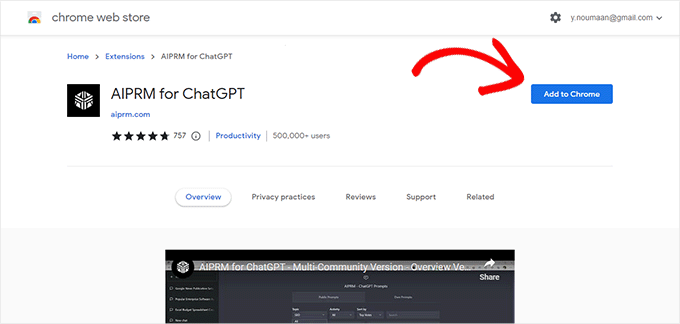
Go to the AIPRM for ChatGPT extension page on the Chrome web store and then click the Add to Chrome button.

AIPRM for ChatGPT

Once the extension is added to your browser, it will automatically take you to the ChatGPT website.

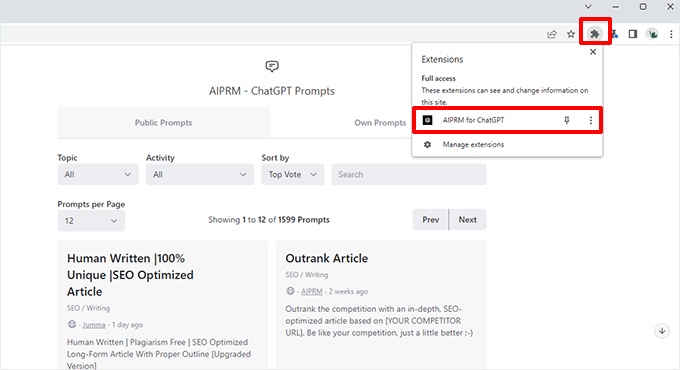
If it doesn’t, you can click on the extensions button in your browser menu and click on the AIPRM for ChatGPT to launch it in a new tab.

AIPRM ChatGPT prompts

You’ll need to sign in to your OpenAI account. After that, you will see a curated list of ChatGPT prompts.

At the time of writing this article, AIPRM had 1600+ ChatGPT prompts.

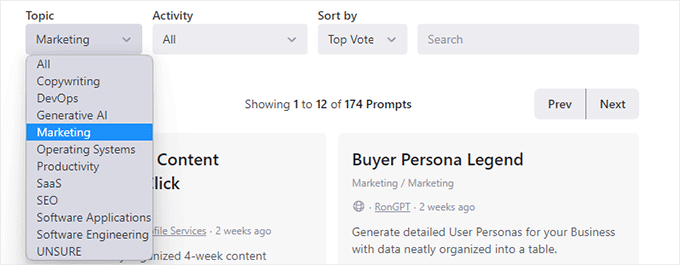
You can browse the prompts by Topic and Activity, sort them, or search for specific prompts from the top toolbar.

Browse ChatGPT prompts

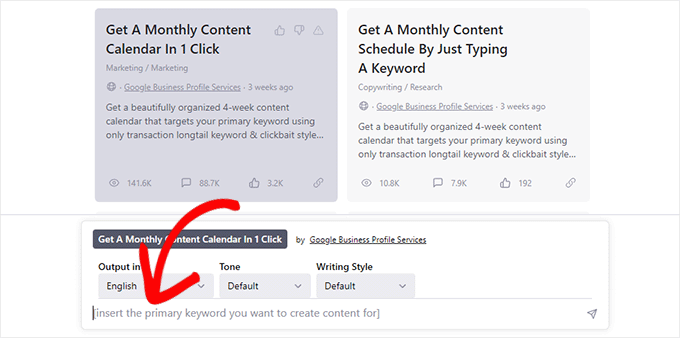
To use a prompt, simply click on it and it will appear in the prompt toolbar below.

If the prompt you are using requires user input, then you can provide it in the chatbox.

For instance, here it wants us to enter a keyword that we would like to target to make a content calendar.

User input requried for the prompt

You can also choose language, style, and tone for your response.

Hit the enter button after entering your input and ChatGPT will respond to the prompt.

You can regenerate a response or ask ChatGPT to modify or extend it by adding your instructions into chat.

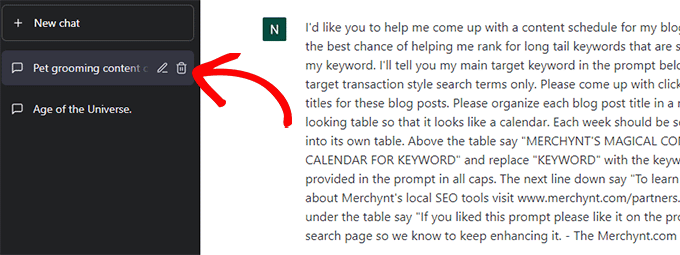
You won’t be able to see the prompt that AIRPM uses at first. However, refreshing the page or switching back and forth between chats will reveal the actual prompt at the beginning of the chat.

Switch chats

AIPRM makes it extremely easy to find detailed, tested, and well-written prompts that you can use on your WordPress website.

Best ChatGPT Prompt Ideas for Bloggers and Marketers

With so many prompt ideas available with AIPRM extension, it could still be a bit overwhelming for users to find or use a prompt.

Here is our top pick of the most useful ChatGPT prompt ideas for blogs, SEO, and marketing.

Blogging ChatGPT Prompts

1. Generate a month-long content calendar targeting specific keywords.

“Make me a month-long calendar for the following keywords [Enter Keywords here]. Add [number of articles] articles each week, and use persuasive SEO-friendly titles for each article.”

2. Generate Blog Post Ideas

“Create a list of at least 10 blog post ideas on the following topics: [Enter topics separated by commas]. Suggest SEO-Friendly title for each post, and use an emotional and persuasive tone in post titles.”

3. Generate SEO title and meta description for a blog post

“Suggest at least 5 SEO-friendly titles and meta descriptions for the following blog post [Enter your blog post text here]. Use a persuasive and intriguing tone.”

4. Suggest tags for a blog post

“Suggest at least 5 tags for the following blog post [Enter your blog post text here].”

5. Generate related long-tail keywords for a blog post

“I want you to generate a list of long-tail keywords that are related to the following blog post [Enter blog post text here].”

6. Create an article outline

“Write an article outline for the following topic [Enter topic or blog post title here].”

7. Write an article on a specific topic

“Write an article on the following topic [Enter topic here]. The article should be at least [number of words] words in length. Use a persuasive tone and pretend to be an expert on the topic.”

8. Outrank a competitor for a specific keyword

“Write an article based on the topics covered in the following article [Enter competitor URL here]. Make the article more comprehensive than the URL provided by adding details that the source URL has missed or didn’t cover. Answer the most commonly asked questions about the topic at the end of the article.”

9. Write a motivational blog post

“I want you to write a motivational blog post about overcoming [fear/failure/challenge goes here].”

10. Generate call-to-action ideas

“I want you to come up with 5 effective call-to-action button ideas based on the contents of the following URL [Your website or landing page URL goes here].”

11. Generate a pros and cons outline for a topic

“Write down an essay on the pros and cons of [Your topic goes here].”

12. Write questions for an interview blog post

“Write interview questions for a blog post with [Guest Name] who is an expert in [Guest profession or area of expertise].”

13. Proofread a text and optimize it for the focus keyword

“I want you to act as SEO editor and copywriter. I need you to proofread and analyze the following text and optimize it for the focus keyword. I also need you to correct any grammar mistakes you find in the article. Ask me to provide you with the article text and focus keyword.”

14. Reuse a blog post for social media content

“I want you to act as a topic authority and social media influencer. I will provide you with the text or URL of an article. You need to summarize it and create content for social media platforms. Ask me to provide you with the text or URL of the article.”

15. Generate a list of tools to mention in a blog post

“Create a list of the most popular tools used by the [Field of Interest] professionals with the pros and cons of each tool.”

16. Write a conclusion for a blog post

“I want you to pretend to be a topic expert, and write a persuasive conclusion for the following blog post. [Your blog post text goes here].”

17. Come up with best practices for using something

“Pretend to be a topic expert and write down an essay on the best practices to follow when using [mention the tool or topic here].”

18. Write a comparison blog post

“I want you to pretend to be a topic expert and compare [Item 1] vs [Item 2] with pros and cons. I need you to show that [item 1] is better than [item 2] and persuade the reader to have a positive feeling about [item 1].”

19. Build reader personas to learn more about a target audience

“Build a reader persona for a blog post titled “[Your blog post title goes here].”

20. Polish your content to look more creative

“Analyze and improve the following content to make it more creative. Use an [Select tone style] tone and write in a casual and conversational style. “[Your content goes here]”

Social Media ChatGPT Prompts

21. Generate captions for Instagram posts, reels, and reels.

“Write an Instagram post description or caption using a few sentences for the post about “[Enter a description of what your Instagram post is about]”. Start the caption with an intriguing sentence and don’t make the first sentence a question. Use emojis in each sentence and add a paragraph after two sentences to make it more readable. Add the most popular hashtags related to the post.”

22. Write an Instagram post about a product / service

“Write an Instagram post promoting [product/services] using a few sentences. Start the post with a captivating sentence and end with a sentence including a call to action to check the link in bio. Use emojis and add the related hashtags at the bottom.”

23. Generate Instagram carousel ideas with slide descriptions

“Write me an Instagram carousel topic idea example. Also, write slide by slide with titles. Explain each slide with the exact content example I should use, not instructions. Also, give me images for every slide that explain all the titles for [Your Instagram Carousel Topic Here]. Do not include content instructions, instead, only write me an actionable text that I can just copy and paste.

After writing the carousel slides. Write me the Instagram post description/caption in just a few sentences. Format every new sentence with new lines so the text is more readable.

Include emojis and the best Instagram hashtags for that post.
The first caption sentence should be intriguing and captivating to the readers.”

24. Write Twitter Bio

“I want you to write an interesting Twitter bio for a [Your brand niche and industry / Profession ].”

25. Suggest Twitter Header Image Ideas

“Give me at least 5 ideas to create a Twitter header image for a [Profession/Industry niche].”

26. Generate Tweets for a specific profession, niche, or business

“I want you to act as a social media manager and come up with at least 20 Tweets for a [Profession/ Business niche or industry] include popular hashtags in each tweet.”

27. Generate a viral Twitter thread

“I am looking for a Twitter thread idea that will go viral and showcase [mention your service, product. or blog] to the ideal customer persona in a creative and engaging way. Include hashtags and emojis in each tweet.”

28. Generate a Twitter content strategy

“I need you to act as my social media manager promoting [Describe your business or brand and what it does]. Generate a Twitter content calendar for the next two weeks. Generate at least three tweets for each day targeting relevant customer persona. Include hashtags and emojis in each tweet.”

29. Generate YouTube Video Description

“Write a unique and intriguing description for a YouTube video titled [Enter your video title here]. Pretend you are an expert on the niche and give your personal best advice in 1st person. Explain why you thought sharing this video would be useful and what users will get out of watching this video.”

30. Generate an entire YouTube video script

“Create an attractive and captivating YouTube video script that is informative. I want you to create a persuasive headline, write a video description repeating keywords used in the headline, cite relevant keywords and tags, create the youtube video script and suggest ideas for a persuasive thumbnail to use for the video, from the following description: [Your video description].”

31. Create thumbnail Ideas for Your YouTube video

“Give me at least 3 ideas for creating an interesting and persuasive thumbnail for a YouTube video using the following description: [Enter your video description].”

32. Generate a YouTube content strategy with video ideas

“I want you to act as my social media manager promoting [mention your brand and what services or products it offers] and come up with a content calendar for our YouTube channel. Give me a monthly calendar of posts with at least one video each week. Suggest video ideas with detailed descriptions of what that particular video will be about. Include keywords and hashtags for each video.”

33. Generate a LinkedIn content calendar with post ideas

“I want you to act as my social media manager for my [Explain your business, brand, profession, and what you typically write about]. I need you to create a month-long content calendar with at least one post each day. Write the post for me including the relevant hashtags and use emojis. Write posts specifically for LinkedIn. My target audience is [companies/professionals interested in my brand product or services].”

34. Write a LinkedIn About section

“I want you to act as my social media manager for my [Explain your business, brand, or profession and what you usually post about]. Give me at least 5 examples of an interesting About section for my LinkedIn profile.”

35. Write a caption for Facebook Photo

“I want you to act as my social media manager and write at least 5 captions for a Facebook photo about [explain what the photo is about]. Use hashtags and emojis in the caption.”

36. Write a Facebook Ad Copy

“I want you to act as a professional copyrighter with experience in writing high-converting Facebook ads. I want you to write a Facebook ad copy for the following products/services [Describe your brand name, products and services you offer]. Produce ad copy that is between 100-150 words, with an attention-grabbing headline and a strong call to action that persuades users to take action. I want you to research the potential target audience and optimize the ad copy so that it appeals to that particular target audience.”

37. Plan a Facebook content strategy

“I want you to act as my social media manager promoting [explain your business brand and what you offer]. I need you to provide me with a two-week content calendar for Facebook posts that are highly engaging and generate emotional responses from the readers. Add one post for each day, using hashtags and emojis.”

E-Commerce ChatGPT Prompts

38. Write an eCommerce product description

“I want you to pretend that you are an eCommerce SEO expert who writes compelling product descriptions. I will provide you with one product title and I want you to come up with three distinct content sections for product description, each section should have its own headline.”

39. Write an eCommerce product short description

“I want you to pretend that you are an eCommerce SEO expert who writes compelling product descriptions. I will provide you with one product title and I want you to come up with a short product description of between 250-300 characters.”

40. Generate product ideas for your eCommerce store

“I want you to pretend as a product specialist for an eCommerce store with a specialty in finding and sourcing products to sell online. My store sells [define your store industry and product types] and I need you to come up with a list of [number of product ideas] product ideas that I can sell on my online store.”

41. Write an SEO Optimized landing page copy for a product

“I want you to pretend as a copywriter specializing in writing landing page copy for better SEO rankings and higher conversions. I need you to write the landing page copy for [Your product name]. I want you to start with an intriguing headline to captivate the target audience followed by a call to action button. Below that I want you to add three content sections with different headings each targeting a specific keyword for the product. I need you to end the landing page copy with a FAQ section answering at least 5 customer questions about the product.”

42. Create and sort products into product categories

“I need you to sort the products into product categories. Ask me to provide you with a list of products. Use hierarchal categories and create child categories as needed. Products can be placed into multiple categories. Show which products are placed under a category. Write a catchy short description for each category. Use this product list [enter your product list].

43. Create an ad strategy for an eCommerce product

“I want you to act as an advertiser. You will create a campaign to promote a product or service. You will choose a target audience, develop key messages and slogans, select the media channels for promotion, and decide on any additional activities needed to reach your goals. The product you will be promoting is: [Enter your product title and description here].”

ChatGPT Prompts for Businesses

44. Polish an email text to be more effective and professional

“Fix this email to write it in a human voice in perfect English, as someone with a charismatic personality, that is extremely professional and concise with their language. Also, give at least three samples to use as the email subject. [Enter your email text here].”

45. Write a job posting ad for hiring

“I want you to act as a recruitment manager specializing in finding talented professionals for a job. I need you to write a job posting for [job title] we are offering the following benefits [mention benefits here] and we are looking for [job requirements such as experience and skills].”

46. Generate a business model canvas

“I need you to help me create a business model canvas for a [explain what your business is about] company. Organize your answers in a table that reproduces the original format used in consulting. I want you to write detailed answers that are focused on adding value and act as an expert consultant in digital marketing.”

47. Generate logo design ideas

“I want you to act as a graphic designer specializing in brand identity development. I want you to come up with detailed ideas for unique and interesting logos for a business. Come up with at least 3 ideas and mention what is unique about each idea and how it is different from the other two ideas. The business name is [Enter your company name] and it offers [mention products/services]. I need you to present your ideas in a format that can be given to a professional graphic designer as initial instructions.”

48. Instantly generate domain name ideas

“I need you to help me find domain name ideas for a business. My company name is [enter business name] and it offers [products/services/industry]. Only give .com domain name ideas. domain name should not be more than 8 characters long.”

49. Write an email to terminate an employee

“Write an email to an employee informing them that they are being fired for the following reason [mention the reason for firing]. Make the email text sound professional and polite. Use a sympathetic and kind tone and thank the employee for their work.”

50. Write a job offer email

“I want you to write a job offer email using the following parameters:
1. Candidate name
2. Job position
3. Company name
4. Salary offered
Ask me to input these parameters one by one before writing the email.”

Miscellaneous ChatGPT Prompts

51. Generate a cover letter for a job application

“I need you to write me a professional cover letter to send with a job application using the following parameters:
1. Job Title
2. Years of Experience
3. Skills to mention
Ask me to input each parameter one by one before writing the cover letter.”

52. Plan your day

“I need you to help me plan my day. Starting at 9 am and ending at 5 pm. Ask me to input the task I will be performing and then ask me for the start time and end time for that particular task. Repeat until the end time of a task is 5 pm. Create a table and add one row for each task with start time, end time, and task detail as columns.”

53. TL:DR Summarize a text or article

“I want you to act as a very proficient researcher. I want you to pretend that you can extract all relevant information from a text or a URL I give you. Your task is to extract all facts and summarize the text in all relevant aspects, presented in bullet points and a 1-liner summary, pick a good matching emoji for each bullet point, and then add it after the 1-liner summary. Ask me to input text or provide you a URL.”

54. Generate a list of popular websites on any topic

“I want you to act as a topic expert. I will provide you with a topic and you will provide me with a list of at least 10 most influential websites on that particular topic. Present the websites in a table with serial number, website name, website URL, 1-liner website summary as columns. Ask me to provide you with a topic.”

Bonus WordPress AI Plugins & Tools Using ChatGPT

AI usage is becoming increasingly popular among marketers and bloggers. As the most popular blogging platform, WordPress has tons of add-ons and plugins that you can use to speed things up.

1. All in One SEO for WordPress

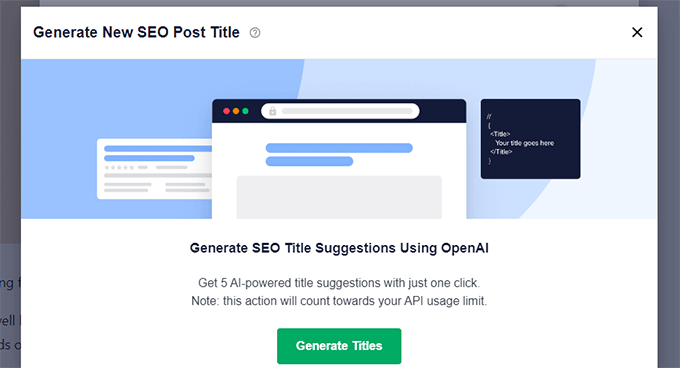
As the best WordPress SEO plugin on the market, All in One SEO comes with built-in ChatGPT integration to generate SEO-friendly headlines and meta descriptions.

Add your SEO post title

2. Uncanny Automator

Uncanny Automator is the best WordPress automation plugin on the market. It allows your WordPress plugins to talk to each other.

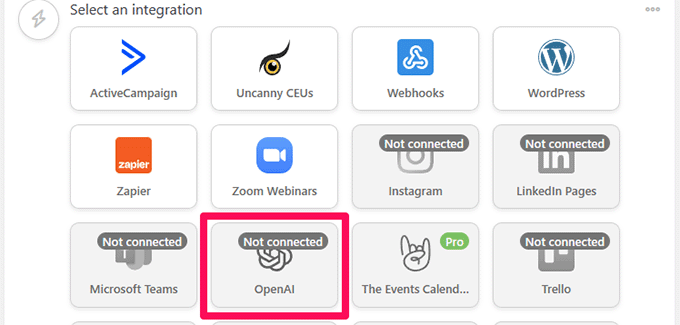
It comes with OpenAI integration that allows you to connect your WordPress website to ChatGPT.

Uncanny Automator OpenAI integration

You can then use ChatGPT with WordPress or your plugins to automatically perform certain tasks.

For instance, when a user submits a contact form you can use ChatGPT to create a new post in WordPress.

3. GPT AI Power

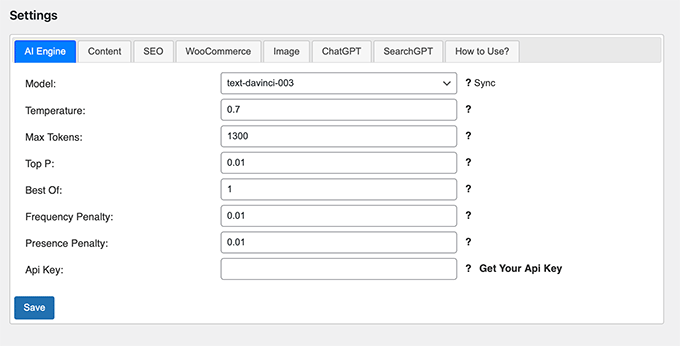
Allows you to generate content inside your WordPress admin area. It allows you to choose the writing style, tone, call to action, and more.

You can then copy the content and paste it into the block editor to create a new post or page and further editing.

GPT AI Power plugin settings

For details, see our tutorial on how to write content using AI in WordPress.

4. Imaajinn AI

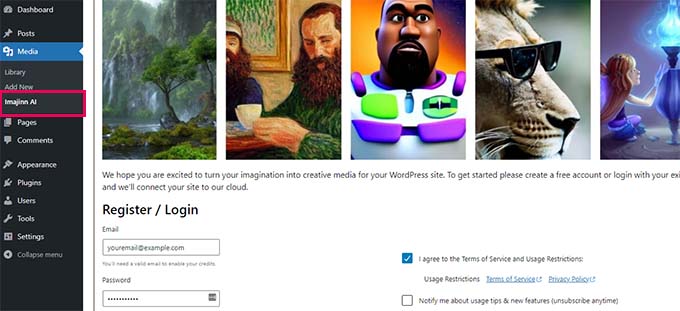
Finding royalty-free images for blog posts is always a challenge for bloggers. Similar to Dall-E, Imajinn AI uses text prompts to generate images using machine learning AI.

All the images generated by the plugin are copyright-free and you can use them in your blog posts.

Imajinn AI WordPress plugin

To learn more, see our tutorial on how to use AI to generate images in WordPress.

We hope this article helped you find some useful ChatGPT prompt ideas for your blog and marketing campaigns. You may also want to see our pick of some more useful AI-powered WordPress plugins or take a look at our guide on how to grow your business online.

If you liked this article, then please subscribe to our YouTube Channel for WordPress video tutorials. You can also find us on Twitter and Facebook.

The post 54 Best ChatGPT Prompts for Bloggers, Marketers, and Social Media first appeared on WPBeginner.


March 24, 2023 at 02:28PM