Tuesday, March 28, 2023

How to Password Protect Your WordPress Admin (wp-admin) Directory

Do you want to learn how to password-protect your WordPress admin directory?

Adding another layer of password protection to your WordPress admin directory can be a great way to improve your WordPress security.

In this article, you’ll learn how you can password-protect your wp-admin directory easily.
How to Password Protect Your WordPress Admin (wp-admin) Directory

Why Password Protect Your WordPress Admin Directory?

By password-protecting your WordPress admin directory, you improve the security of the most important entry point to your

WordPress website.

Your WordPress admin dashboard is the central hub of your site. It’s where you’ll publish posts and pages, customize your theme, install WordPress plugins, and more.

Often, when hackers try to get into your website, they’ll do it through the wp-admin screen. You can help to protect your website against potential attacks by using a secure password and limiting login attempts.

To be even more secure, you can also password-protect the wp-admin directory. Then when someone attempts to access your admin area, they’ll need to enter a username and password before they ever make it to the WordPress login screen.

With that said, let’s take a look at how you can password-protect your WordPress admin directory step by step.

The first method is recommended for most users, and you can use the quick links below to jump straight to the method you want to use.

Method 1: Password-Protect wp-admin Using Directory Privacy (Recommended)

The easiest way to password-protect your WordPress admin directory is by using your WordPress hosting provider’s Directory Privacy app.

First, you need to log in to your hosting account dashboard and click on the ‘Directory Privacy’ option in the Files section of your website’s advanced settings.
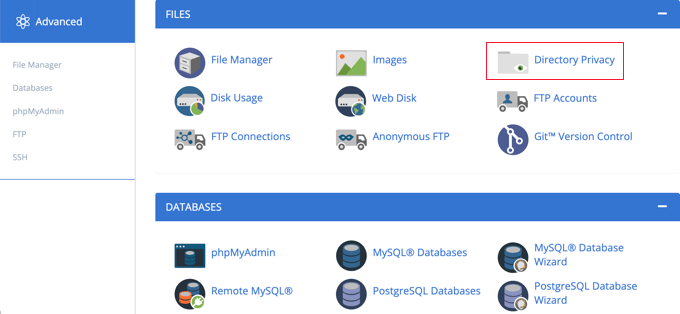
Click Directory Privacy
Note: Most web hosts using cPanel, like Bluehost, will have similar steps. However, your dashboard might be slightly different from our screenshots depending on your hosting provider.

This brings you to a screen that lists all of the different directories on your server. You need to find the folder that contains your website files.

For most website owners, this can be found by clicking on the ‘public_html’ folder.
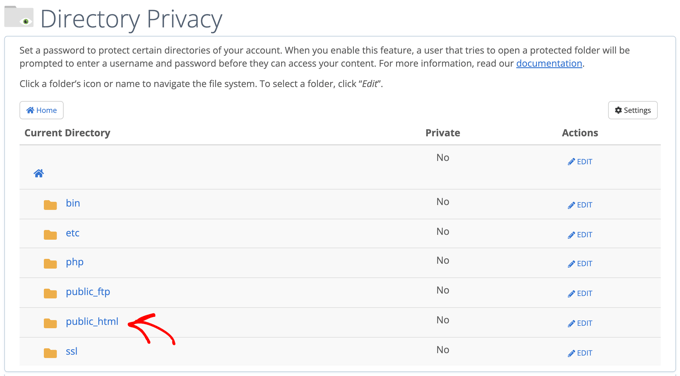
Click public_html

This brings up all of the website files you’ve installed on your server.

Next, you’ll need to click on the folder with your website’s domain name.
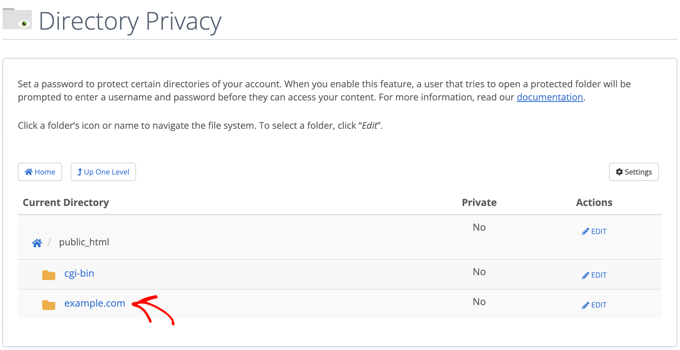
Click domain name folder

In that folder, you’ll see a ‘wp-admin’ folder.

Instead of clicking the folder name, you’ll need to click the ‘Edit’ button next to that folder.
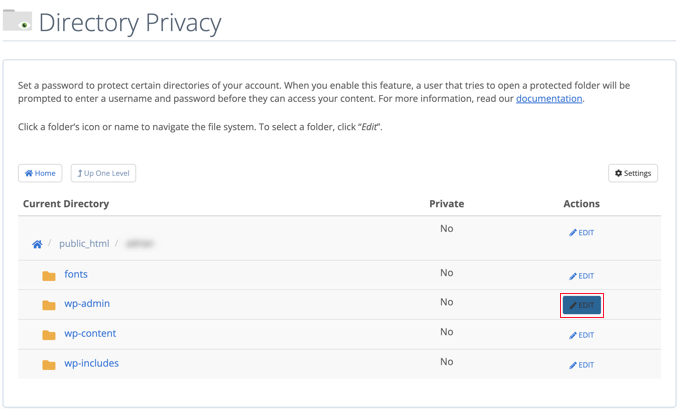
Click edit wp-admin folder

This brings you to a screen where you can turn on password protection.

Simply check the box that says ‘Password protect this directory’. If you like, you can also give your directory a name like ‘Admin Area’ to help you remember.
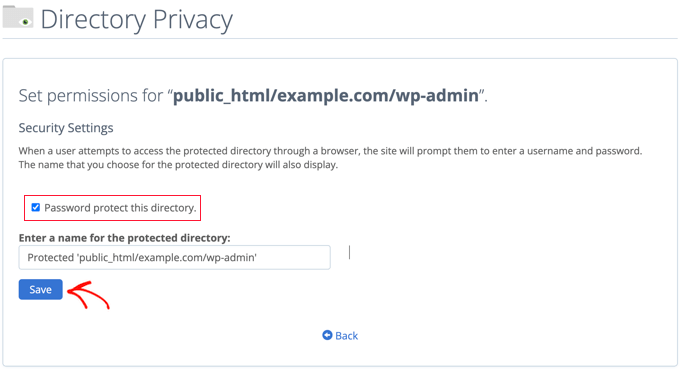
Check password protect directory box

Once you’ve done that, you’ll need to click the ‘Save’ button.

This will take you to a page where the confirmation message will appear.
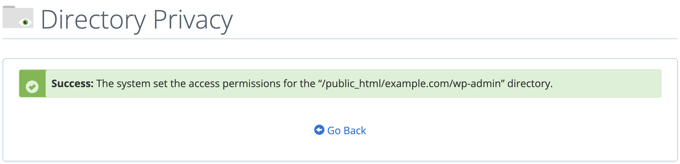
Confirmation message click back button

Now you’ll need to click the ‘Go Back’ button and you’ll be taken to a screen where you can create a user that will be able to access this directory.

You will be asked to enter a username and password, and then confirm the password. Make sure to note your username and password in a safe place, such as a password manager app.
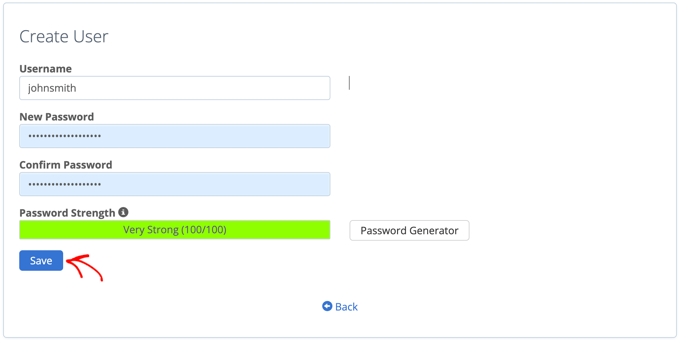
Create a User

Make sure you click the ‘Save’ button when you’ve done that.

Now, when someone tries to access your wp-admin directory, they will be prompted to enter the username and password you created above.
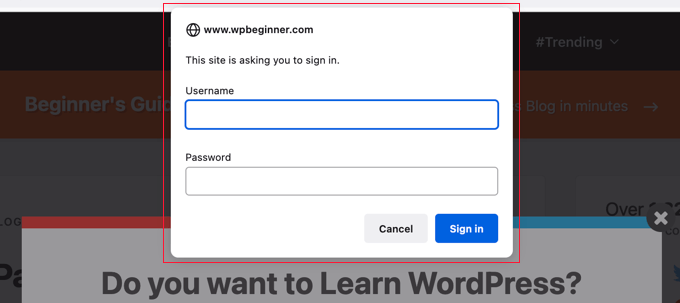
Password protect WordPress admin example

Method 2: Password-Protect wp-admin Using Code

You can also password-protect your WordPress admin directory manually. To do this you’ll need to create two files called .htpasswd and .htaccess.

Note: Adding any code to your website can be dangerous. Even a small mistake can cause major errors on your site. We only recommend this method for advanced users.

Creating the .htaccess File

First, open up your preferred text editor and name the new file .htaccess.

After that, you need to copy the following code snippet and add it to the file.

AuthName "Admins Only"
AuthUserFile /home/user/public_html/example.com/wp-admin/.htpasswd
AuthGroupFile /dev/null
AuthType basic
require user yourusername

Make sure you change the ‘AuthUserFile’ path to the location where you’ll upload the .htpasswd file and change ‘yourusername’ to the username you want to use to log in.

Don’t forget to save the file when you’re finished.

Creating the .htpasswd File

Once you’ve done that, you need to create a .htpasswd file.

To do this, open up a text editor and create a file called .htpasswd. This file will list your username along with your password in an encrypted format.

The easiest way to generate the encrypted password is with a htpasswd generator.

Simply enter your username and password, select the encryption format, and click the ‘Create .htpasswd file’ button.
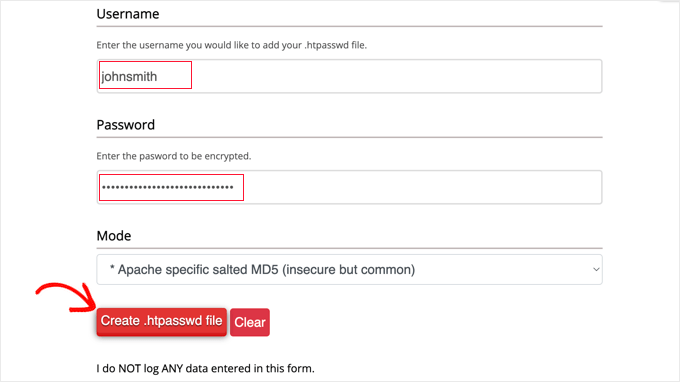
Create htpasswd file

The htpasswd generator will display a line of text that you need to paste into your .htpasswd file. Make sure you save the file once you’ve done that.

Uploading .htaccess and .htpasswd to the wp-admin Directory

The last step is to upload both of the files you created to your website’s wp-admin folder.

You will need to connect to your WordPress hosting account using an FTP client or the online file manager tool provided by your hosting provider. For more details, see our beginner’s guide on how to use FTP to upload files to WordPress.

For this tutorial, we’ll use FileZilla because it’s free and works on both Mac and Windows.

Once you have connected to your website, you will see the files on your computer in the left window, and the files on your website in the right. On the left, you need to navigate to the location where you saved the .htaccess and .htpasswd files.

Then on the right, you

need to go to the wp-admin directory for the website you wish to protect. Most users will need to double-click the ‘ public_html’ folder, then the folder with their domain name, then the ‘wp-admin’ folder.

Now you can select the two files on the left and click ‘Upload’ from the right-click menu or simply drag the files onto the left window.
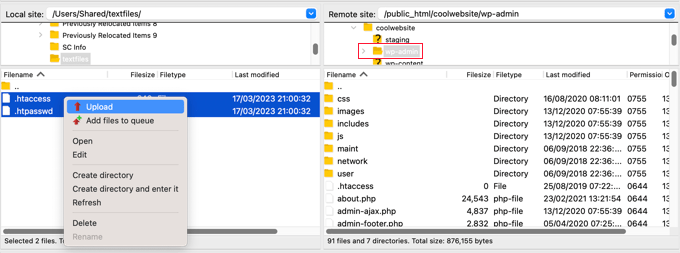
Uploading the Files to Your Website's wp-admin Directory

Now your ‘wp-admin’ directory will be password protected.

Troubleshooting wp-admin Password Protection

Depending on how your server and website are set up, there’s a chance you might run into errors. These errors can be fixed by carefully adding code to your .htaccess file.

Note: This is the .htaccess file located in your main website folder, not the one you uploaded to the ‘wp-admin’ folder. If you’re having trouble finding it, then see our guide on why you can’t find .htaccess and how to locate it.

Fixing the Ajax Not Working Error

One of the most common errors is that Ajax functionality may stop working on the front end of your site. If you have WordPress plugins that require Ajax, such as live Ajax search or Ajax contact forms, then you will notice that these plugins won’t work anymore.

To fix this, simply add the following code to the .htaccess file that’s located in your ‘wp-admin’ folder.

<Files admin-ajax.php>
    Order allow,deny
    Allow from all
    Satisfy any 
</Files>

Fixing the 404 Error and Too Many Redirects Error

Two other errors you might run into are the 404 error and the too many redirects error.

The simplest way to fix them is to open up your main .htaccess file located in your website directory and add the following line of code before the WordPress rules.

ErrorDocument 401 default

We hope this article helped you learn how to password-protect your WordPress admin (wp-admin) directory. You may also want to see our expert picks of the best email marketing services for small businesses and our guide on how to get a free email domain.

If you liked this article, then please subscribe to our YouTube Channel for WordPress video tutorials. You can also find us on Twitter and Facebook.

The post How to Password Protect Your WordPress Admin (wp-admin) Directory first appeared on WPBeginner.


March 28, 2023 at 09:00PM

How to Fade Images on Mouseover in WordPress (Simple & Easy)

Do you want to fade images on mouseover in WordPress?

A simple fade-in or fade-out animation when a user moves their mouse over an image can make your site more engaging. It also encourages visitors to interact with your content, which can keep them on your site for longer.

In this article, we’ll show you how to add a fade image effect on mouseover in WordPress.

How to fade images on mouseover in WordPress

Why Fade Images on Mouseover in WordPress?

Animations are an easy way to make your website more interesting, and can even draw the visitor’s attention toward your page’s most important content, such as your website logo or a call to action.

There are lots of different ways to use CSS animations in WordPress, but adding a hover effect to images is particularly effective. The fade animation means your images will slowly appear or disappear when visitors hover over them.

Adding a fade animation to WordPress

This encourages people to interact with your images, and can even add a storytelling element to the page. For example, different images might fade in and out as the visitor moves around the page.

Unlike some other animations, the fade image on mouseover effect is subtle so it won’t negatively impact the visitor’s reading experience or any image optimization you’ve done.

With that said, let’s show you how to add a fade to your images on mouseover in WordPress.

Adding Image Fade on Mouseover to all WordPress Images

The easiest way to add a fade effect to all your images is by using WPCode. This free plugin allows you to easily add custom code in WordPress without having to edit your theme files.

With WPCode, even beginners can edit their website’s code without risking mistakes and typos that can cause many common WordPress errors.

The first thing you need to do is install and activate the free WPCode plugin. For more details, see our step-by-step guide on how to install a WordPress plugin.

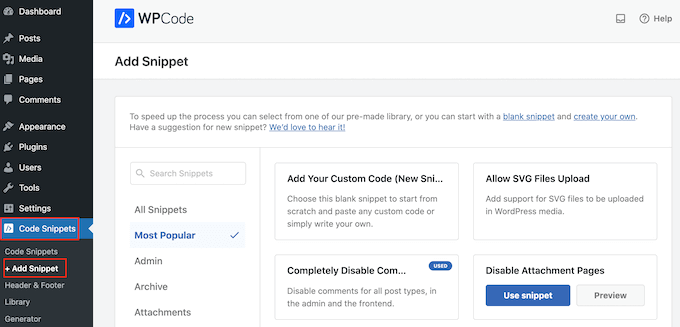
Upon activation, head over to Code Snippets » Add Snippet.

Adding custom code to your WordPress website with WPCode

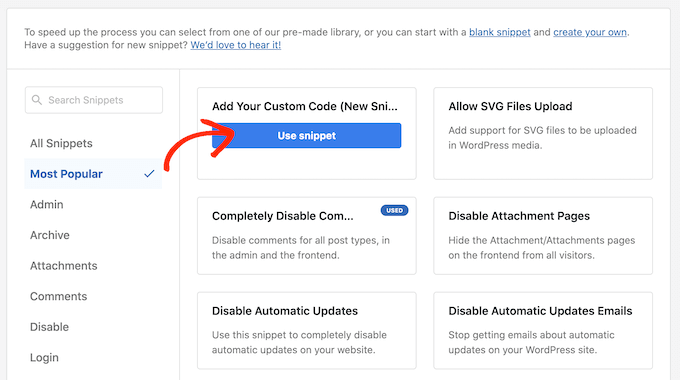
Here, simply hover your mouse over ‘Add Your Custom Code.’

When it appears, click on ‘Use snippet.’

Creating a custom CSS snippet on your WordPress website

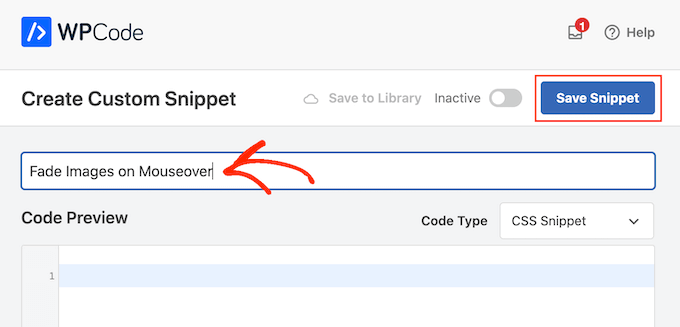
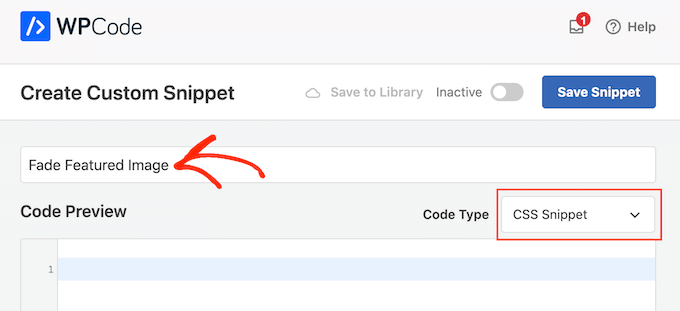
To start, type in a title for the custom code snippet. This can be anything that helps you identify the snippet in the WordPress dashboard.

We need to add custom CSS to WordPress, so open the ‘Code Type’ dropdown and select ‘CSS Snippet.’

Add a fade on mouseover animation to images using WPCode

In the code editor, add the following code snippet:

.post img:hover{
opacity:0.6;
filter:alpha(opacity=60); /* For IE8 and earlier */
-webkit-transition: all 2s ease;
-moz-transition: all 2s ease;
-ms-transition: all 2s ease;
-o-transition: all 2s ease;
transition: all 2s ease;
}

This code snippet will fade each image for 2 seconds when the user hovers their mouse over it. To make the image fade slower, simply replace ‘2s ease’ with a higher number. If you want to make the picture fade faster, then use ‘1s ease’ or smaller.

You can also make the ‘opacity’ higher or lower by changing the opacity:0.6 line.

If you change any of these numbers then make sure you change them across all the properties (webkit, moz, ms, and o), so the fade effect looks the same on every browser.

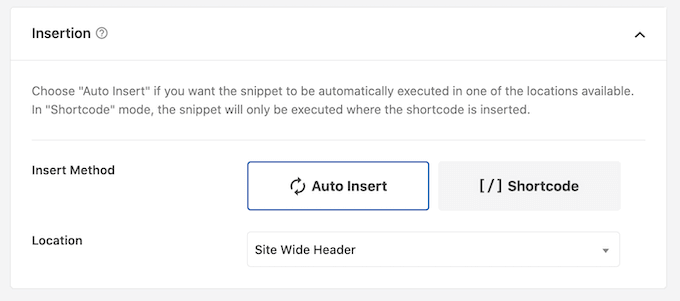
When you’re happy with the snippet, scroll to the ‘Insertion’ section. WPCode can add your code to different locations, such as after every post, frontend only, or admin only.

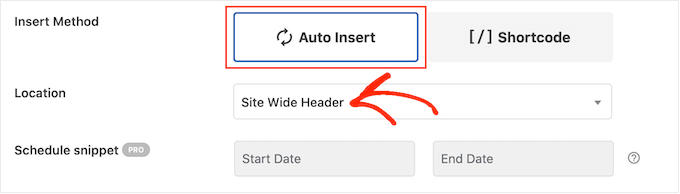
To add a fade effect to all your images, click on ‘Auto Insert.’ Then, open the ‘Location’ dropdown menu and choose ‘Site Wide Header.’

Inserting custom CSS across your WordPress website

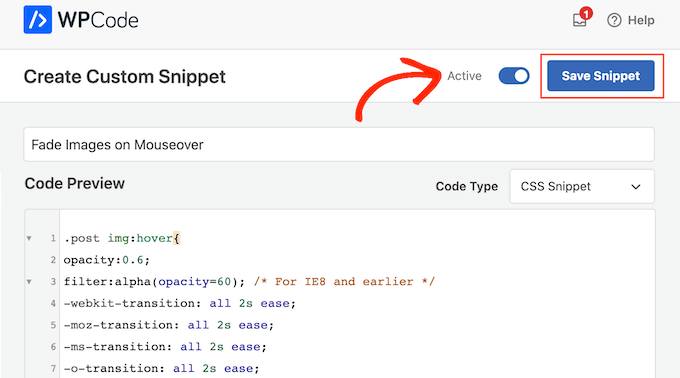
After that, you’re ready to scroll to the top of the screen and click on the ‘Inactive’ toggle, so it changes to ‘Active.’

Finally, click on ‘Save Snippet’ to make the CSS snippet live.

Adding a fade effect to images using CSS

Now, if you hover the mouse over any image on your WordPress website, you’ll see the fade effect in action.

Adding Image Fade Animations to Individual Pages

Using a fade effect for every single image can become distracting, especially if you’re running a photography website, a stock photo store, or any other site that has lots of images.

With that in mind, you may want to use fade effects on a specific page or post only.

The good news is that WPCode allows you to create custom shortcodes. You can place this shortcode on any page, and WordPress will show fade effects on that page only.

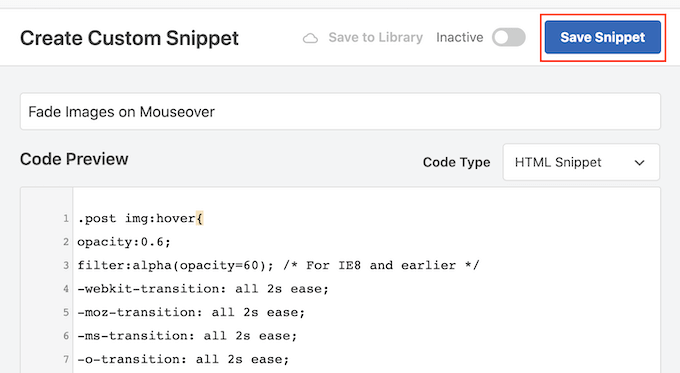
To do this, simply create a custom code snippet and add the fade animation code following the same process described above. Then, click on the ‘Save snippet’ button.

Fade images on mouseover in WordPress using custom code

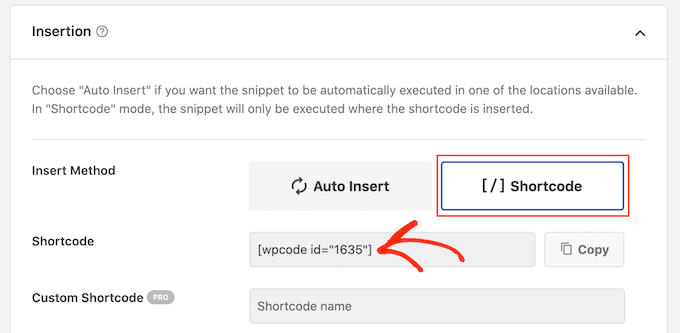
After that, scroll to the ‘Insertion’ section, but this time select ‘Shortcode.’

This creates a shortcode that you can add to any page, post, or widget-ready area.

Creating a shortcode in WPCode

After that, go ahead and make the snippet live following the same process described above.

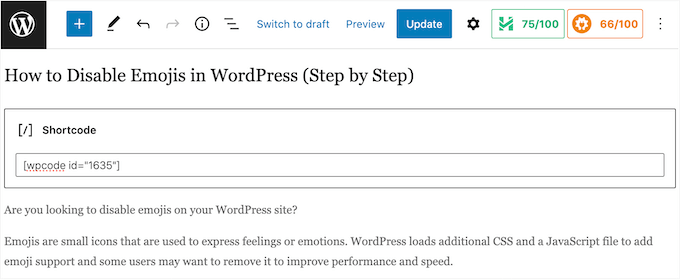
You can now go to any page, post, or widget-ready area and create a new ‘Shortcode’ block. Then, simply paste the WPCode shortcode into that block.

How to create fade animations for images using shortcode

For more information on how to place the shortcode, please see our guide on how to add a shortcode in WordPress.

With that done, either click on the ‘Update’ or ‘Publish’ button to make the shortcode live. You can then visit that page, page, or widget-ready area to see the fade on mouseover effect.

Adding Image Fade Animations to Featured Images

Another option is to add fade animations to your featured images or post thumbnails. These are the post’s primary image and they often appear next to the heading on your home page, archive pages, and other important areas of your website.

By fading featured images on mouseover, you can make your site more eye-catching and engaging, without animating every single image across your WordPress blog or website.

To add a fade animation to your post thumbnails, simply create a new custom code snippet following the same process described above.

Adding a fade on mouseover effect to individual images

However, this time add the following code to the editor:

img.wp-post-image:hover{
opacity:0.6;
filter:alpha(opacity=60); /* For IE8 and earlier */
-webkit-transition: all 2s ease;
-moz-transition: all 2s ease;
-ms-transition: all 2s ease;
-o-transition: all 2s ease;
transition: all 2s ease;
}

After that, scroll to the ‘Insertion’ box and select ‘Auto Insert.’ Then, open the ‘Location’ dropdown menu and choose ‘Site Wide Header.’

Adding an animation to images on mouseover

After that, you can go ahead and make the code snippet live using the same process described above.

Now, you can hover the mouse over any featured image to see the fade animation in action.

If you want to add even more image mouseover effects, then see our guide on how to add image hover effects in WordPress.

Bonus: Animate Any Image, Text, Button, and More

Fade effects are a fun way to make images more interesting, but there are lots more ways to use animations in WordPress. For example, you might use flipbox animations to reveal text when a visitor hovers over an image, or use zoom effects so users can explore a picture in more detail.

If you want to try different effects, then SeedProd has over 40 animations that you can add to images, text, buttons, videos, and more. You can even animate entire sections and columns with just a few clicks.

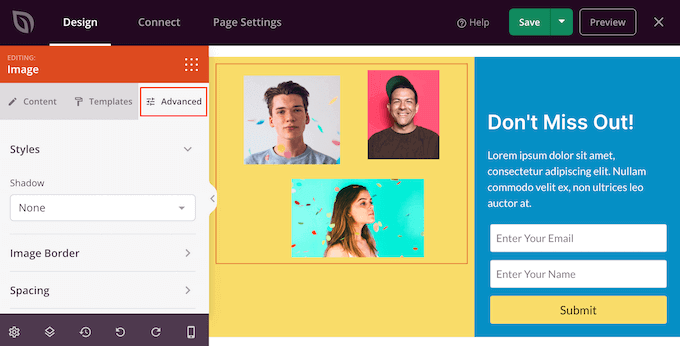
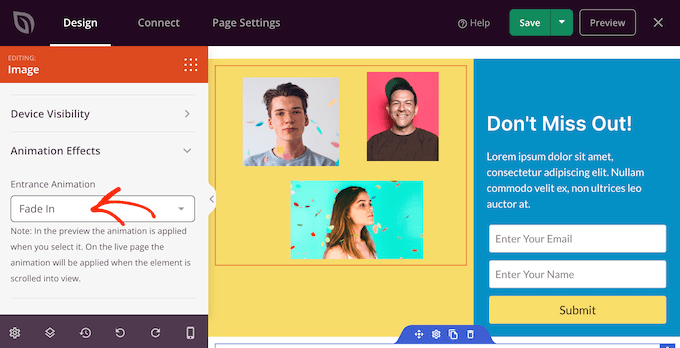
Inside the SeedProd editor, simply click on the content you want to animate, and then select the ‘Advanced’ tab in the left-hand menu.

Adding fade animations using SeedProd

You can then go ahead and click to expand the ‘Animation Effects’ section.

After that, simply choose an animation from the ‘Entrance Animation’ dropdown, including a wide range of different fade effects.

Adding animations to WordPress using SeedProd

For more information, please see our guide on how to create a landing page with WordPress.

We hope this article helped you learn how to fade images on mouseover in WordPress. You may also want to see our guide on how to choose the best web design software, and our expert picks of the best WordPress popup plugins.

If you liked this article, then please subscribe to our YouTube Channel for WordPress video tutorials. You can also find us on Twitter and Facebook.

The post How to Fade Images on Mouseover in WordPress (Simple & Easy) first appeared on WPBeginner.


March 28, 2023 at 01:40PM

Monday, March 27, 2023

How to Add WhatsApp Chatbox and Share Buttons in WordPress

Do you want to add WhatsApp chatbox and share buttons in WordPress?

WhatsApp is one of the most popular messaging platforms and has about 2.2 billion users worldwide. Adding a Whatsapp share button will allow you to connect with the customers and build user engagement, and adding a chatbox button will let users message you directly through your website.

In this article, we’ll show you how to easily add a WhatsApp share button in WordPress.

How to add WhatsApp share button in WordPress

Why Add a WhatsApp Button in WordPress?

WhatsApp is an instant messaging app that allows people worldwide to easily contact each other.

Adding a WhatsApp share button to your WordPress website will allow visitors to easily share your content with their contacts.

Moreover, you can also add a WhatsApp chatbox enabling users to have a direct conversation with you.

For instance, if you have an online store, then a WhatsApp chat button can be used by customers to make product queries without having to fill out any forms or go through customer support.

It can result in increased user engagement and lower cart abandonment rates.

Having said that, let’s see how you can easily add a WhatsApp share button in WordPress.

Method 1: Add a WhatsApp Share button in WordPress

If you want to add a WhatsApp share button to your website, then this method is for you.

First, you need to install and activate the Sassy Social Share plugin. For more instructions, please see our beginner’s guide on how to install a WordPress plugin.

Upon activation, you need to visit the Sassy Social Share menu from the admin sidebar.

From here, you need to switch to the ‘Standard Interface’ tab at the top.

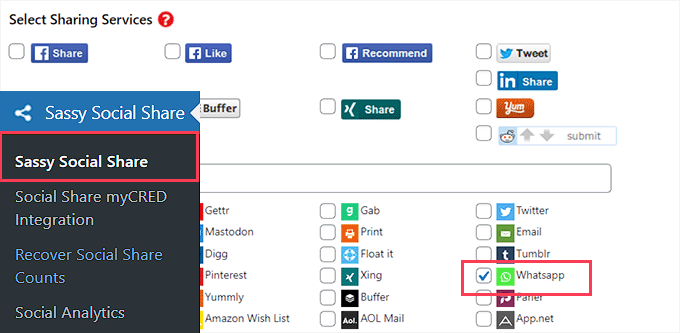
Then, you need to scroll down to the ‘Select Sharing Services’ section and simply check the box next to the WhatsApp option.

Check WhatsApp share option

You can also add the Share button for other social media platforms including Facebook, Instagram, Pinterest, Twitter, and more.

Once, you’re done, don’t forget to click on the ‘Save Changes’ button to store your settings, and then you can head to the ‘Theme Selection’ tab.

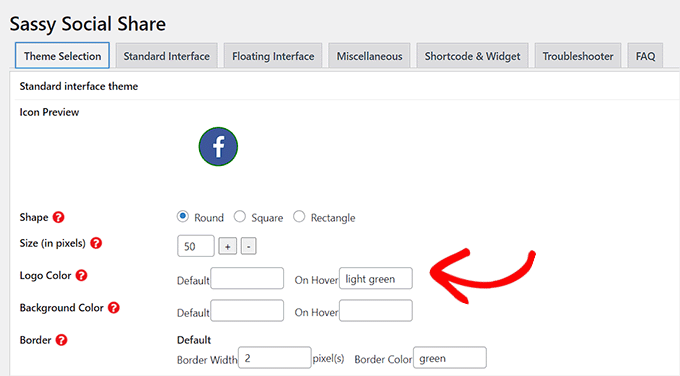
From here, you can customize the share buttons by changing their size, shape, logo or background color, and more. It’s a good idea to go with the WhatsApp brand colors for the share button so that users will recognize it more easily.

Customize the WhatsApp share button

Once you are finished, don’t forget to click on the ‘Save Changes’ button to store your settings.

You can now visit your website to see your WhatsApp share button in action.

Here is how it looked on our demo website.

WhatsApp Share button

Don’t want to add WhatsApp button to every page? Don’t worry, the plugin also allows you to easily add it to single posts and pages as well.

Adding WhatsApp Share Button in Block Editor

If you only want to show the WhatsApp share button on specific posts and pages, then first you need to turn off the global display of sharing buttons.

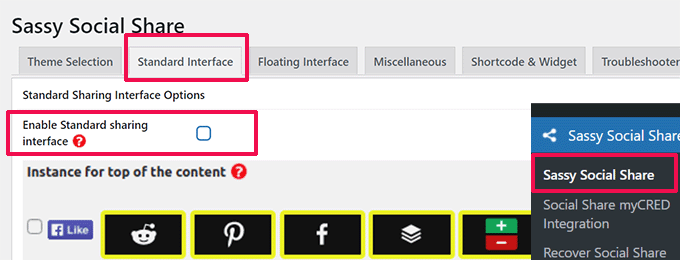
To do that, simply go to the Sassy Social Share page in the WordPress admin sidebar and switch to the ‘Standard Interface’ tab.

Next, you need to uncheck the box for the ‘Enable Standard sharing interface’ option.

Disable standard buttons

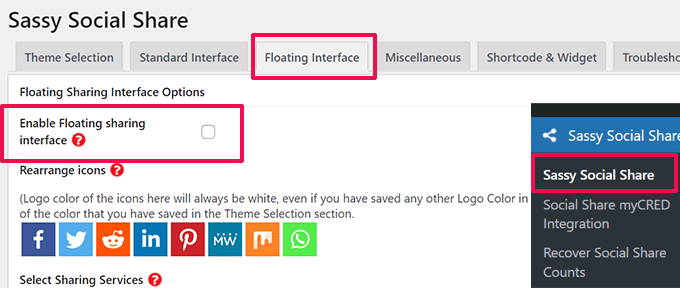
Next, switch to the ‘Floating Interface’ tab.

From here, uncheck the box next to the ‘Enable Floating sharing interface’ option.

Disable floating buttons

Now that you have disabled the standard and floating social sharing buttons, you go ahead and WhatsApp share button to any page or post on your website using a shortcode.

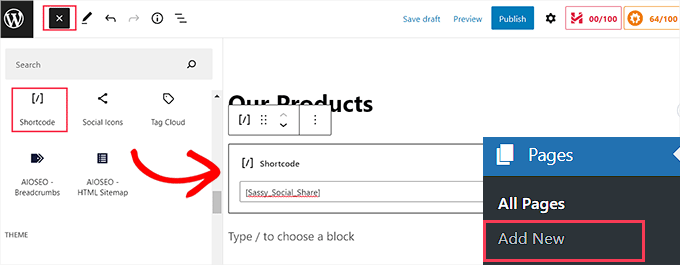
Simply open the post or page where you want to display the WhatsApp share button in the content editor, or you can just create a new one.

From here, simply click on the Add Block (+) button at the top left corner and search for the ‘Shortcode’ block. After that, simply add the block to the page.

Add shortcode in the block editor

Next, you need to copy the following shortcode and paste it into the ‘Shortcode’ block.

[Sassy_Social_Share]

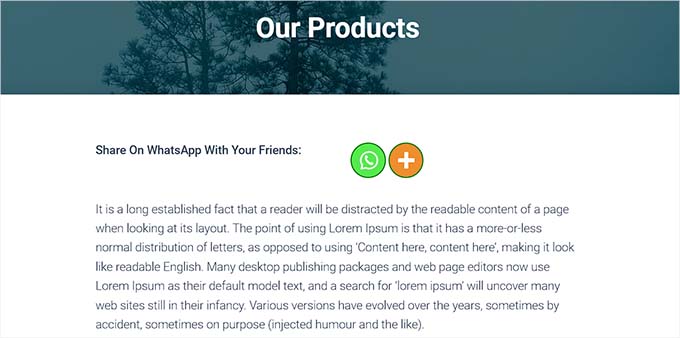
Once you’re done, simply click on the ‘Publish’ or ‘Update’ button to store your changes. Your WhatsApp Share button will look like this.

WhatsApp share button on a page

Adding WhatsApp Share Button as a Widget

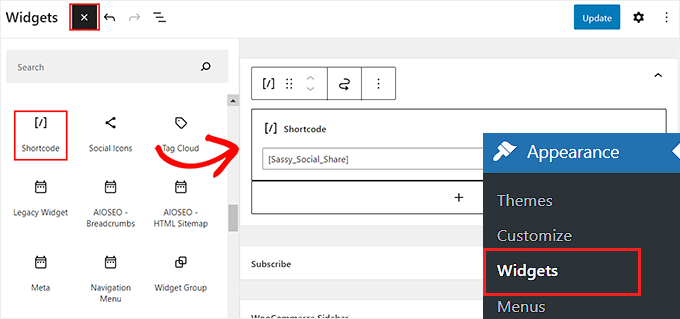
To add the WhatsApp share button to the sidebar of your website, you need to visit the Appearance » Widgets page from the admin sidebar.

From here, simply click on the Add Block (+) button at the top left corner and locate the ‘Shortcode’ block.

Next, you need to add the ‘Shortcode’ block to the sidebar.

WhatsApp share button as a widget

After that, simply copy and paste the following shortcode into the block.

[Sassy_Social_Share]

Next, click on the ‘Update’ button to store your settings.

This is how your WhatsApp share button will look once it’s added to the website sidebar.

WhatsApp share button in the sidebar

Adding the WhatsApp Share Button in the Full Site Editor

If you’re using a block theme, then you’ll be using the full site editor and won’t have access to the ‘Widgets’ page.

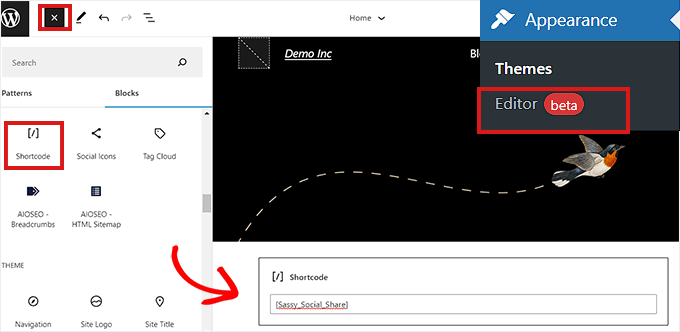
First, you need to visit the Appearance » Editor option from the admin sidebar to launch the full site editor.

Next, you need to click on the ‘Add Block’ (+) button at the top of the screen and add the ‘Shortcode’ block to any suitable place on your website.

After that, add the following shortcode to the block.

[Sassy_Social_Share]
Add WhatsApp share button in Full site editor

Once, you’re done, click on the ‘Save’ button at the top.

This is how the WhatsApp share button looked on our demo website.

WhatsApp share button preview in FSE

Method 2: Add a WhatsApp Chatbox Button in WordPress

This method allows you to add a WhatsApp chatbox button in WordPress.

This means that when a user clicks on the WhatsApp chat button, they’ll be able to send you a direct message on your WhatsApp phone number.

Note: You won’t be getting any messages directly inside your WordPress dashboard, but you will be able to chat like normal in the WhatsApp mobile app, web interface, and desktop software.

First, you need to install and activate the Click to Chat plugin. For more instructions, see our step-by-step guide on how to install a WordPress plugin.

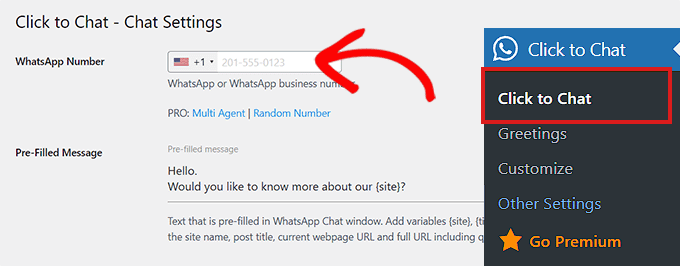
Upon activation, you need to head over to the Click to Chat menu item that has been added to your WordPress admin dashboard’s sidebar.

From here, you need to start by typing your business phone number in the ‘WhatsApp Number’ field.

This will be the phone number where you’ll receive messages from users.

After that, you need to type a simple message in the ‘Pre-Filled Message’ field. This will be the default message that will be displayed in your WhatsApp chat window.

Provide your WhatsApp phone number

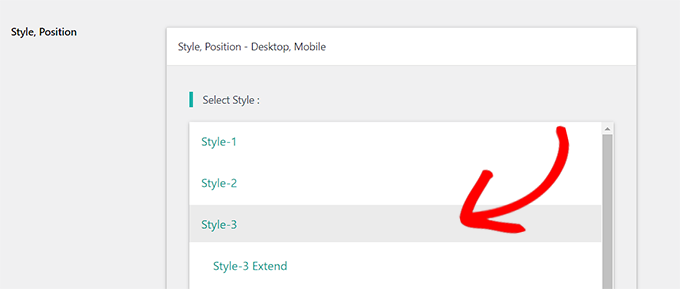
Next, you need to scroll down to the ‘Style, Position’ section.

You can start by choosing a style for your WhatsApp chatbox from the dropdown menu. By default, this plugin offers about 8 different styles. Simply choose the one that you prefer.

Select a style for the WhatsApp chat box

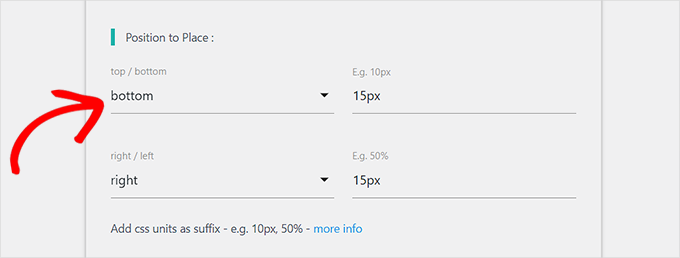
After that, you need to scroll down to the ‘Position to Place’ section.

From here, you can choose the position and size of your chatbox from the dropdown menus.

Select the position of your chatbox

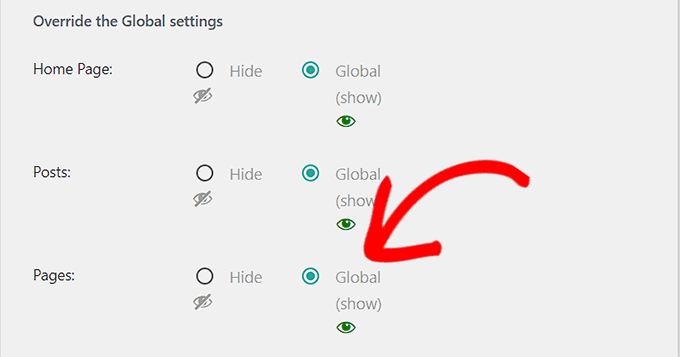
Next, you need to go to the ‘Display Settings’ section.

Here, you just need to check the ‘Global’ box next to the options where you want to display your WhatsApp chatbox.

For instance, if you want to display the chatbox on your posts, pages, and categories pages, you need to check the ‘Global’ option.

You can also choose the ‘Hide’ option if you don’t want to display the WhatsApp chatbox on a certain page.

Check the Global box

Finally, don’t forget to click the ‘Save Changes’ button to store your settings.

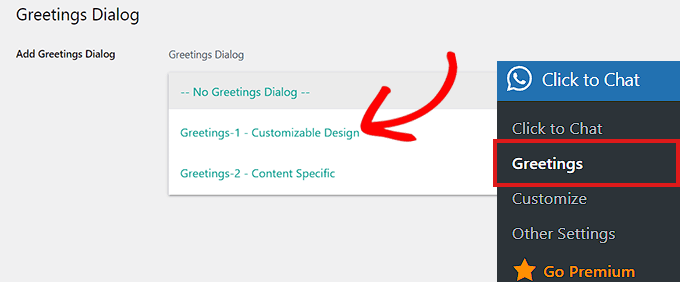
Now, you need to head over to the Click to Chat » Greetings page to select a Greeting dialog from a dropdown menu.

This greeting dialog will be shown along with the WhatsApp button on your page.

Choose a Greeting dialog from the dropdown menu

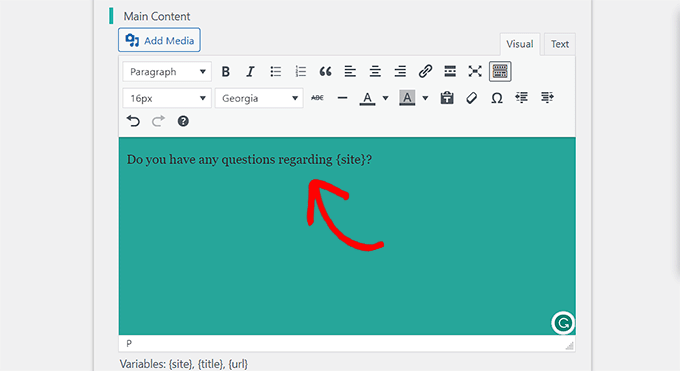
Once you’ve made your choice, you will need to type the content for the header, main content, and call to action of your greeting dialog.

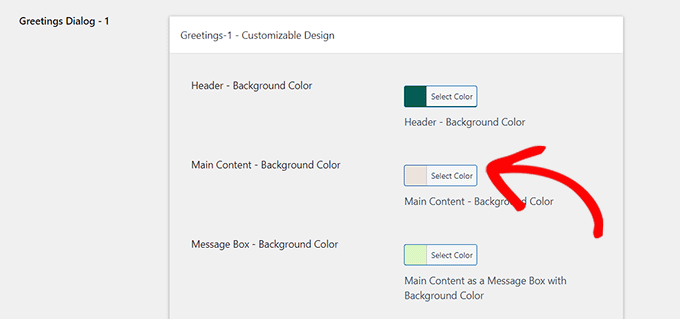
After that, scroll down to the ‘Customizable Design’ section.

Type content for the greeting dialog

Once here, you can choose the background colors of your main content, header, and message box.

After that, simply click the ‘Save Changes’ button to store your settings

Choose background color for the greeting dialog

Next, you need to visit your website.

By default, this is how your WhatsApp chatbox will look like.

WhatsApp chatbox on a website

Now, we will show you how you can easily add the WhatsApp chat button in the block editor, as a widget, and in the full site editor.

Add the WhatsApp Chat Button in the Block Editor

You can easily add the WhatsApp button to a specific page or post on your WordPress website using the block editor.

For this tutorial, we will be adding the WhatsApp button to a page.

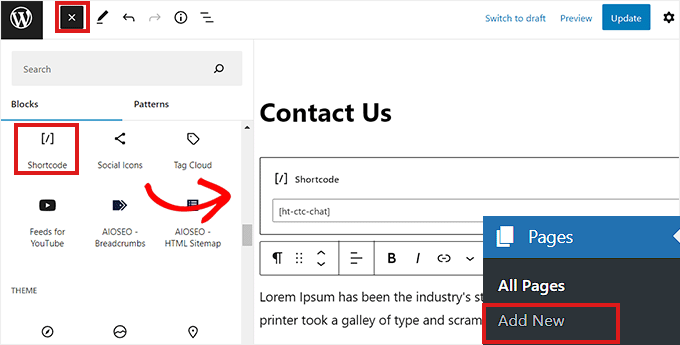
First, you need to go to the Pages » Add New page from the admin sidebar.

This will launch the block editor.

Now, you need to click the ‘Add Block’ (+) button at the top left corner of the screen and click on the ‘Shortcode’ block.

Add shortcode in the block editor

Once the ‘Shortcode’ block is added, you need to copy and paste the following shortcode into the block.

[ht-ctc-chat]

After that, simply click the ‘Publish’ button at the top.

This is how the WhatsApp button looked on our demo website.

WhatsApp button on a page

Adding the WhatsApp Chat Button as a Widget

In this method, we will show you how to easily add the WhatsApp button as a widget in the sidebar of your website.

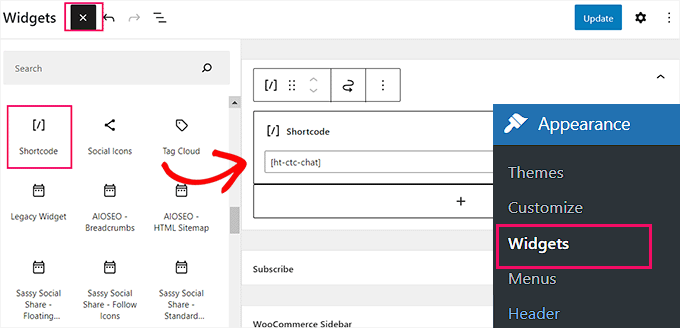
First, you need to head over to the Appearance » Widgets page from the WordPress sidebar.

Once there, simply click on the ‘Sidebar’ tab to expand it and then click the ‘Add Block’ (+) button at the top.

Next, simply locate and add the ‘Shortcode’ block to the sidebar.

Add the shortcode block in the sidebar

Now, simply copy and paste the following shortcode into the block.

[ht-ctc-chat]

Finally, don’t forget to click the ‘Update’ button to store your settings.

This is how the WhatsApp button looked after being added to the sidebar on our demo website.

WhatsApp button in sidebar

Adding the WhatsApp Chat Button in Full Site Editor

If you’re using a block-based theme with a full site editor, then this method is for you.

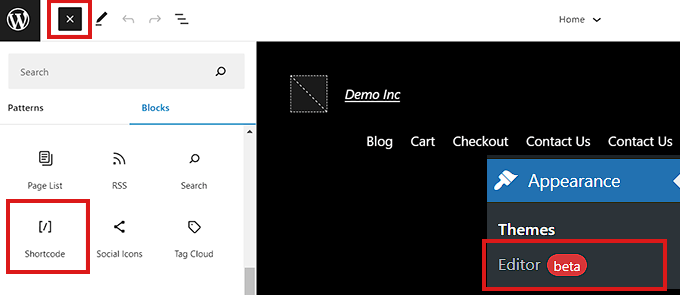
First, head over to the Appearance » Editor page to launch the full site editor.

Once there, simply click the ‘Add Block’ (+) button at the top left corner of the screen.

Now, simply locate and add the ‘Shortcode’ block to your preferred place on the site.

Add the shortcode block in the FSE

Once the block is added, simply copy and paste the following shortcode into the block.

[ht-ctc-chat]

In the end, don’t forget to click the ‘Update’ button at the top to save your changes.

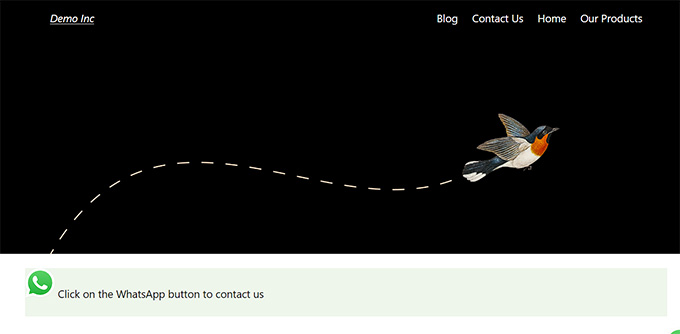
This is how the WhatsApp button looked on our site.

WhatsApp button in FSE

We hope this article helped you learn how to add a WhatsApp share button in WordPress. You may also want to see our top picks of the best social media monitoring tools for WordPress users, and our beginner’s guide on how to build an email list.

If you liked this article, then please subscribe to our YouTube Channel for WordPress video tutorials. You can also find us on Twitter and Facebook.

The post How to Add WhatsApp Chatbox and Share Buttons in WordPress first appeared on WPBeginner.


March 28, 2023 at 12:04AM