Monday, April 3, 2023

How Does WordPress Search Work (+ Tips to Make It Better)

Do you want to learn how WordPress search works, and how you can make it better?

By understanding and improving the built-in WordPress search, you can help visitors find what they’re looking for. This can get you more conversions while keeping people on your site for longer.

In this article, we’ll look at how the default WordPress search works, and share tips on how to make it better.

How does WordPress search work + tips to make It better

How Does WordPress Search Work?

WordPress comes with a search system that will look for content within your website.

How the search bar looks and where it appears will vary depending on your WordPress theme, but most themes show the search bar in the top right corner.
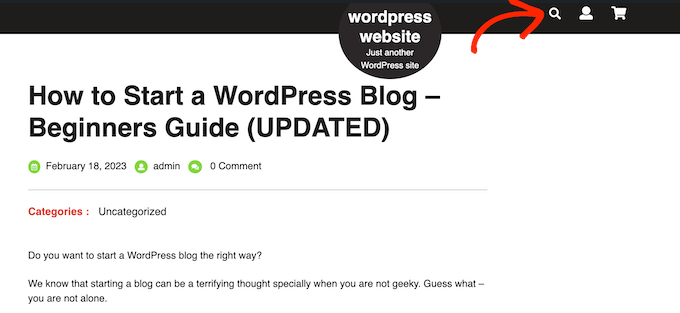
The built-in WordPress search bar

Note: If your theme doesn’t show the WordPress search bar by default, then skip ahead to our FAQs, where we’ll show you how to add it.

Visitors can type a search query into this field, and WordPress will search:

  • Page titles
  • Page content
  • Single-image titles and captions
  • Image alt text
  • File names

As you can see, it doesn’t search widgets, user comments, categories, tags, WooCommerce products, or PDF documents. It also doesn’t search image gallery titles, captions, or alt text, although you can search this content using a search engine plugin like SearchWP.

WordPress performs this search using the WP_Query class. It will start by displaying any posts that have the search term in the post title, arranged in reverse-chronological order, meaning that the newest entries will be displayed at the top of the results.

After that, it’ll show any posts that have the matching term in the post content.

For example, imagine you’ve just published a post about cats titled ‘My Favorite Pet’, and you also have an older post titled ‘Best Cat Photos.’ In this case, searching for ‘Cat’ will display the older ‘Best Cat Photos’ post first, since it has the search term in the title.

This may not a problem for WordPress blogs or websites that only have small amounts of content. However, this ordering logic will often show inaccurate or confusing results for bigger blogs, online stores, or business websites.

The built-in system is also missing some of the features that people expect from modern search engines. This includes autocomplete, live Ajax search, filtering, and spellcheck.

Why Improve the Default WordPress Search?

An advanced, fast, and accurate on-site search can help visitors find interesting and relevant content, which will keep them on your website for longer. This can increase pageviews and reduce bounce rate in WordPress.

Since visitors are spending more time on your site, this will send positive signals to the search engines. This can improve your WordPress SEO, which means search engines like Google will show your content to more people and drive more visitors to your website.

For more information, please see our guide on how to increase your blog traffic.

People who are using your site’s internal search are already highly engaged. They’re actively looking for specific content, which may mean they’re ready to take actions such as buying a product, signing up to your WordPress membership site, or booking an appointment.

If these people can’t find what they’re looking for, they may give up and go to a different website. This means you’re losing out on visitors who were ready to convert.

A search results page is also an example of personalized content since you’re showing the visitor results that match their unique search query. By providing personalized content that’s accurate and helpful, you can improve the visitor experience. Once again, this can encourage them to convert.

Performance is another reason why it’s a good idea to replace the default WordPress search with a better alternative.

The larger your WordPress website gets, the longer it’ll take WP_Query to scan your database and get the results. This means your site’s search will get slower, as your website gets bigger.

How to Make the WordPress Native Search Better

On-site search helps visitors find what they’re looking for, including products to buy and interesting blogs to read. Since it’s such an important part of your site, it’s a bad idea to rely on the limited built-in WordPress search.

With that being said, let’s see how you can improve the native WordPress search.

Show Instant Results With Live Ajax Search

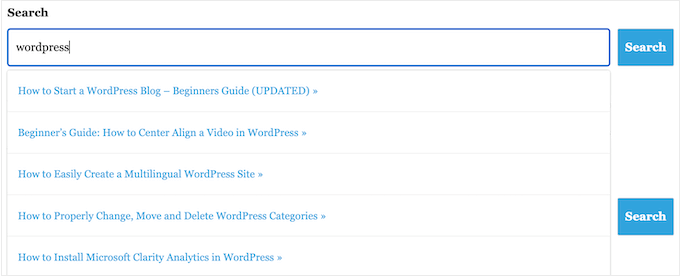
Live Ajax search adds a dropdown and autocomplete feature that’s common in search engines like Google.

As the user types, live search guesses what they want to search for and then shows them results without even reloading the page.
How to improve WordPress search with live ajax results

This can help visitors find the right content, without having to manually press the ‘Search’ button or wait for the page to reload.

The easiest way to add Ajax live search to WordPress is using the free SearchWP Live Ajax Lite Search plugin. It enables instant search automatically and there are no settings for you to configure, so it’s very easy to set up.

The first thing you need to do is install and activate the plugin. For more details, see our step-by-step guide on how to install a WordPress plugin.

Upon activation, the default WordPress search form will automatically use the Ajax live search feature. If you visit your site and start typing into the search bar, then you’ll see the instant search in action.

Change the Default Search URL Slug

By default, WordPress search URLs typically look something like this:

http://example.com/?s=search-term

The extra ?s= characters make this URL more difficult to read and understand, which can confuse visitors who are trying to find their way around your site.

Even worse, these URLs aren’t optimized for search engines which can stop them from correctly indexing your site’s contents.

The easiest way to change these URLs is by adding custom code to WordPress using a plugin such as WPCode.

You can go ahead and use the following custom code to replace the ‘/?s=search-term’ characters with ‘search.’ Your slug will look something like this when finished: https://ift.tt/zZAkiol

To use something other than ‘search’ in your URL, simply customize the code snippet below.

function wpb_change_search_url() {
    if ( is_search() && ! empty( $_GET['s'] ) ) {
        wp_redirect( home_url( "/search/" ) . urlencode( get_query_var( 's' ) ) );
        exit();
    }
}
add_action( 'template_redirect', 'wpb_change_search_url' );

For detailed instructions on how to insert this code to your WordPress website, please see our guide on how to change the default search URL slug in WordPress.

Make PDF Files Searchable in WordPress

By uploading PDFs to your WordPress website, you can share information about your services and products in a format that works on all devices. They’re also perfect for offering your visitors ebooks, user manuals, menus, and more.

However, WordPress only searches the contents of its database by default, so it will only look at the title and description of your PDF files, and not their contents. As a result, your visitors may struggle to find the best PDF for their search query.

The good news is that you can use a custom search plugin to improve the default WordPress search experience. If your PDFs are unencrypted, then the right search plugin will index the contents and metadata of your PDFs and add them to the search results.

For step-by-step instructions, please see our guide on how to add PDF indexing and searching in WordPress.

Add a Search By Category Feature to WordPress

If you have multiple categories of content on your website, then you might want to let users restrict their search to a specific category. This can help visitors find the right content, faster.

An example of search by category on a WordPress website

For example, if you have an online store then it often makes sense to let customers search within a particular product category.

If you run a membership site, then you might use search by category to help visitors find other members, groups, forums, online courses, and other specific kinds of content. For more information, please see our guide on how to add search by category in WordPress.

Make a Smart WooCommerce Product Search

WooCommerce has its own built-in search, but it doesn’t look for matches in product attributes, reviews, or product descriptions. This omission can stop shoppers from finding products they want to buy on your online store, so you get fewer sales.
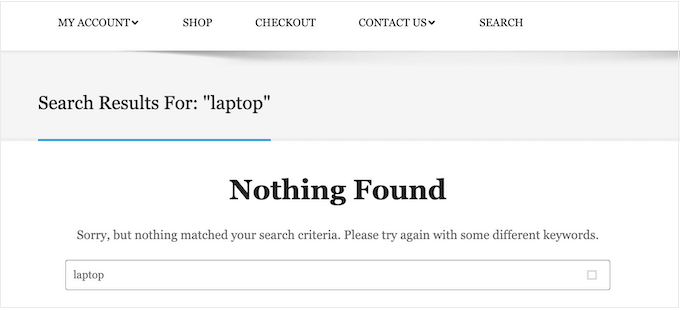
The built-in WooCommerce search feature

Luckily, there are some excellent WooCommerce plugins that can show more helpful search results, and fetch them faster. To learn more, please see our guide on how to make a smart WooCommerce product search.

To get even more sales, you may want to fine-tune the kind of products WooCommerce includes in its search results. For example, you might only show products that are on sale or come with free shipping.

To learn more, please see our guide on how to customize WooCommerce product search results page.

Create a Search Form for Custom Post Types

Custom post types allow you to go beyond posts and pages and create different content types for your website. Custom post types can have different custom fields and their own custom category structure.

For example, if you run a movie review website, then you would probably want to create a ‘movie reviews’ post type that has fields for the director, release date, and more.

At WPBeginner, we use custom post types for our Glossary section to keep it separate from our blog posts.
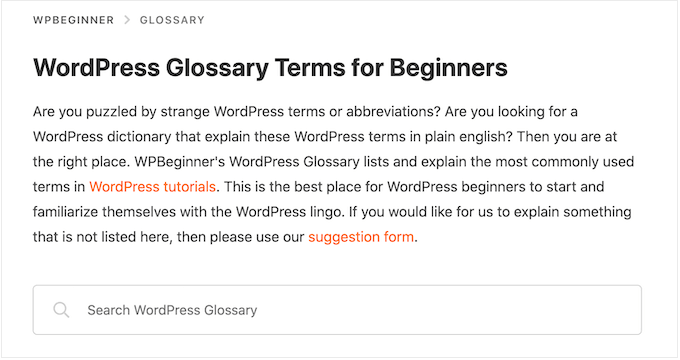
How to improve your WordPress search with searchable categories

If you use custom post types, then you may want to create a form that allows visitors to search only that content.

For example, we also have a form that only searches WPBeginner’s coupon codes.
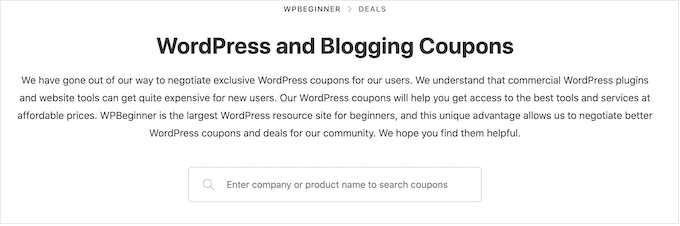
Searching coupons and deals on the WPBeginner website

This can help visitors find the right content faster, even when you have lots of different content types. For step-by-step instructions, check out our guide on how to create advanced search forms in WordPress for custom post types.

You can also make custom fields searchable in WordPress, which is ideal if you’ve added extra metadata to your pages and posts.

Exclude Content From WordPress search

By default, the built-in WordPress search will include all posts and pages in its search results.

However, you may want to exclude certain pages and posts from the search results. For example, if you’re running a WordPress membership website or selling online courses, then you’ll typically want to exclude your premium content from public search results.

If you’re running an online store, then you may want to hide content like your account page, checkout page, and thank you page. To help you out, we’ve created a guide on how to exclude pages from the WordPress search results.

Do you want to exclude posts, authors, custom post types, categories, tags, or even custom taxonomies? Then you can take a look at our guide on how to exclude specific pages, authors, and more from WordPress search.

WordPress Search FAQs

In this guide, we’ve explored how the default WordPress search works and shared lots of tips on how to improve it.

However, you may still have some questions about this important feature. That said, here are some of the most frequently asked questions about WordPress search.

How Do I Improve WordPress Search?

The best way to improve the built-in WordPress search is by using SearchWP.

SearchWP is the best custom search plugin for WordPress and allows visitors to search any content on your site including documents, WooCommerce products, custom fields, tags, comments, and more.

It also lets you customize the WordPress search algorithm, so you can control exactly where the content appears in the search results.

For more information, please see our guide on how to improve WordPress search.

Does WordPress Search Include Tags?

By default, WordPress search doesn’t include tags. The easiest way to make tags searchable is by using a custom search plugin like SearchWP.

SearchWP also has a relevancy slider, so you can control exactly how much tags influence where an item appears in the search results.

How Do I Add Search to My WordPress Theme?

If your theme doesn’t have a built-in search form, then we recommend adding a search bar to the WordPress navigation menu.

Since the main navigation menu typically appears across your entire site, visitors will be able to search for pages, posts, products, and more, from any page of your website.
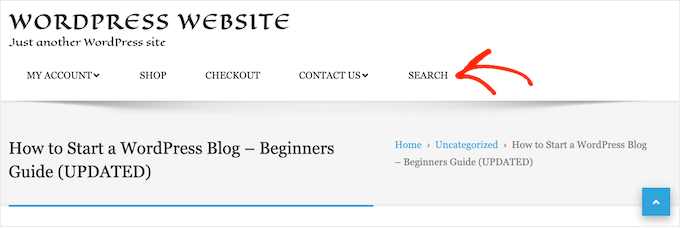
An example of a search bar, in a navigation menu

If you’re using a block-based theme such as ThemeIsle’s Hestia Pro or Twenty Twenty-Three, then you can add a search bar to your theme using the full-site editor (FSE).

To do this, go to Appearance » Editor in the WordPress dashboard.
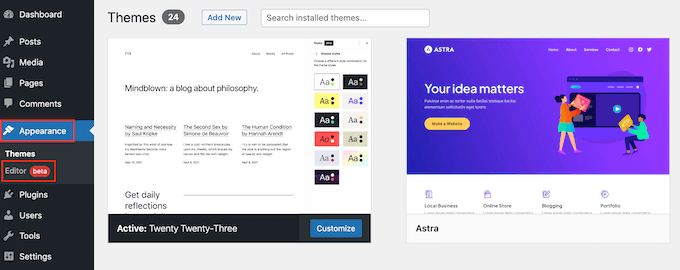
Opening the WordPress full site editor (FSE)

By default, the editor will show your theme’s home template. If you want to add the search bar to a different template, then click on the small arrow icon in the toolbar.

Then, select ‘Browse all templates.’
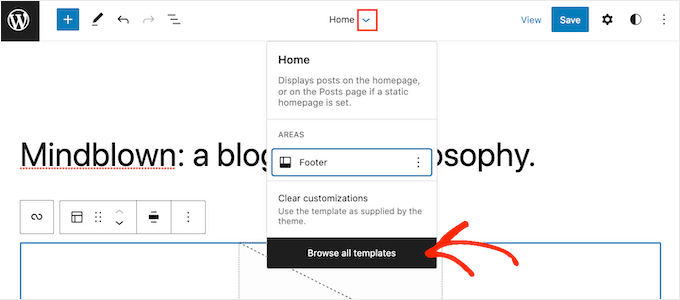
How to browse all FSE templates in WordPress

You’ll now see all the templates that make up your WordPress theme. Simply find the template where you want to add the search bar, and then click on its title.

For example, if you wanted to add a search form in your WordPress posts then you’d select the ‘Single’ template.
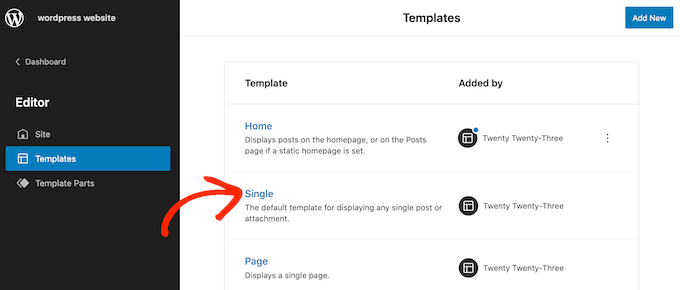
How to add the search bar to a single template in WordPress

You will now see this template in the full-site editor.

To go ahead and add a search bar, click on the blue ‘+’ icon.
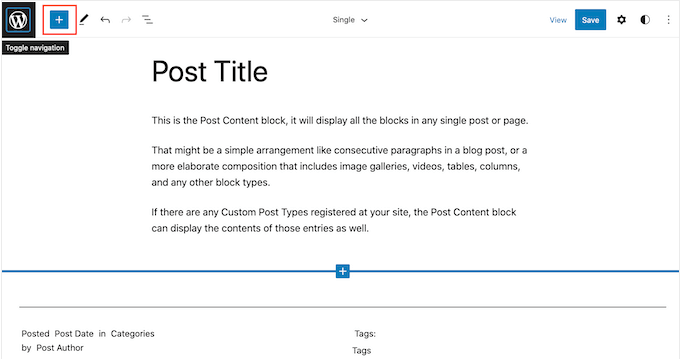
Adding widgets to a single template in WordPress

In the popup that appears, type in ‘Search’ to find the right block.

You can then drag the block to the location where you want to show the search bar.
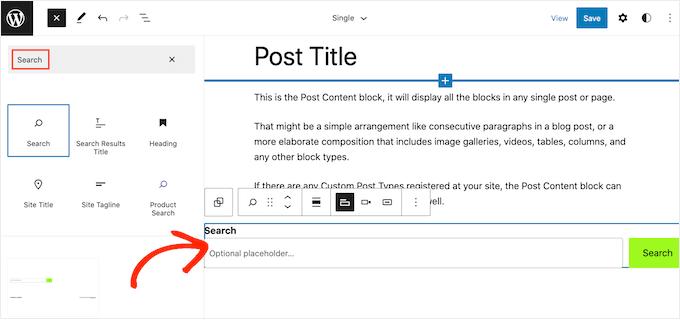
Adding a search block to a block-enabled theme template

To customize the block title or placeholder text, simply type it into the search block where it says ‘search’ or ‘optional placeholder.’

When you’re happy with how the block looks, click on ‘Save’ to make the search bar live.
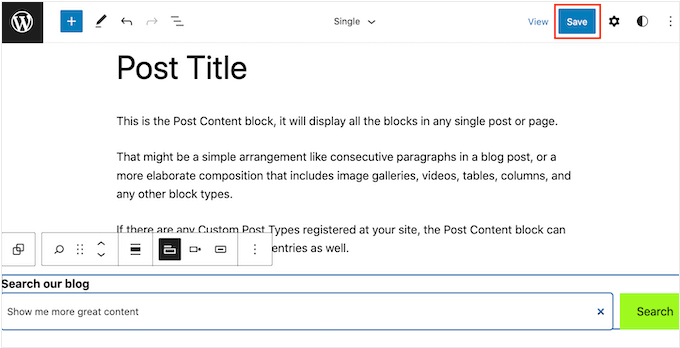
Publishing a block-enabled template with a search bar

How Do I Add Search to a WordPress Page or Post?

You can add a search bar to a specific page or post using the built-in Search block.

This is a good choice if you want to control exactly where the search bar appears on every page and post, or you only need to offer search on specific areas of your website.
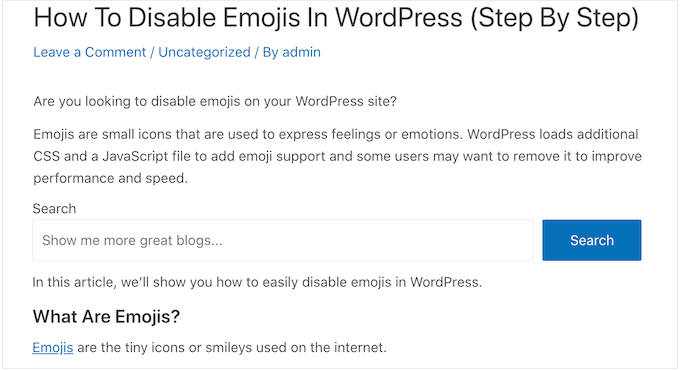
How to improve the default WordPress search

To get started, simply open the page where you want to add a search form and then click on the + icon.

In the popup that appears, type ‘Search’ to find the right block. Once you click on the Search block, it will add the block to your page.
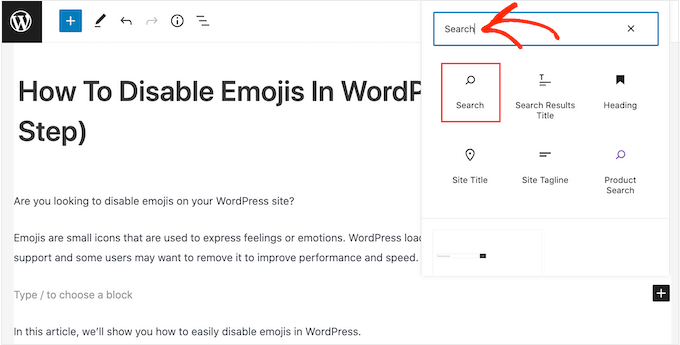
Adding the Search block to a WordPress page or post

By default, the block uses ‘Search’ for both its label and the button text.

This will be visible to visitors, so you may want to replace it with something more descriptive by typing into the text fields.
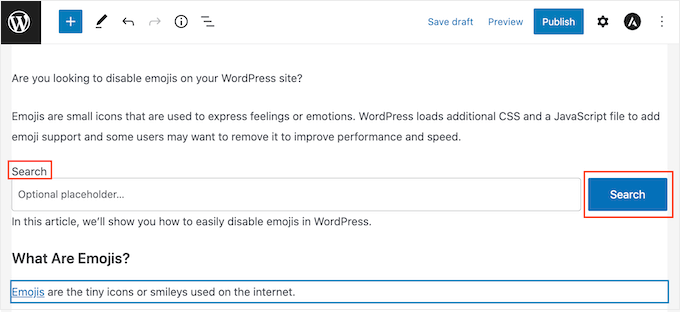
Customizing the WordPress search block

You can also add some placeholder text to the search bar. This text will disappear automatically when the visitor starts typing.

To add a placeholder, simply click on ‘Optional placeholder…’ and then start typing.
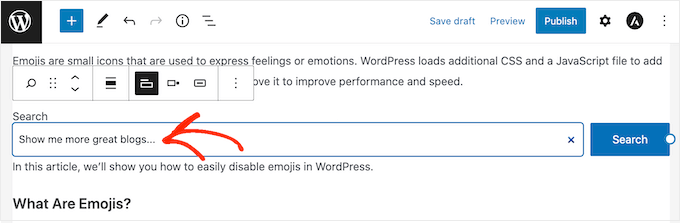
How to improve the WordPress search

When you’re happy with how the Search block looks, you can go ahead and either publish or update the post.

We hope this tutorial helped you learn how WordPress search works, and how to make it better. You may also want to learn how to make money online blogging with WordPress, or check out our list of the best email marketing services for small businesses.

If you liked this article, then please subscribe to our YouTube Channel for WordPress video tutorials. You can also find us on Twitter and Facebook.

The post How Does WordPress Search Work (+ Tips to Make It Better) first appeared on WPBeginner.


April 03, 2023 at 03:56PM

Friday, March 31, 2023

How to Add No Right Click on WordPress Images

Do you want to add no right-click to your WordPress images?

If you’re a photographer, artist, or content creator, then you’re probably worried about people stealing your images. While it’s difficult to completely stop image theft, you can make it more difficult for people to steal pictures from your website.

In this article, we’ll show you how to add no right-click on WordPress images and galleries.

How to add no right click on WordPress images

Why Add No Right-Click on WordPress Images?

The Internet has made it easier to share your work with the world, but it’s also made it easier for people to steal your images.

These people might use your content to promote scams or fraudulent products. They might even sell your digital art and graphics online, making money from your hard work while you make none.

If you’re an online influencer or have a big social media following, then people might even steal your photos and impersonate you online. For example, they might pretend you’re an affiliate marketing partner.

Even if you simply write a WordPress blog, people might still use your personal photos as part of online scams like fake ads or reviews.

Scammers could even scrape your WordPress blog content and images, and then republish it on other websites. This duplicate content can damage your WordPress SEO.

While there’s no single solution that can completely prevent image theft, you can make your site a less attractive target.

With that being said, let’s see how you can add no right-click on WordPress images and galleries. Simply use the quick links below to jump straight to the method you want to use.

Method 1. How to Add No Right Click to All Your WordPress Images

The easiest way to protect your images is by using No Right Click Images. This free plugin allows you to disable right-clicking for images only, so users can still right-click on your other content including links.

You can also enable and disable right-click based on whether the visitor is logged into their account. This is perfect if you run a subscribers-only stock photo website or some other form of membership site.

First, you’ll need to install and activate the plugin. If you need help, then please see our guide on how to install a WordPress plugin.

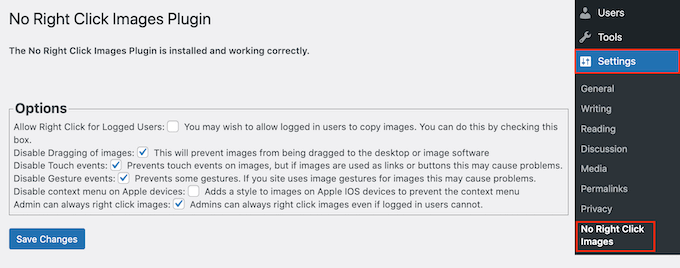
Upon activation, go to Settings » No Right Click Images to configure the plugin settings.

How to add no right-click on WordPress images

The default options should work for most users, but it’s still worth checking whether you need to make any changes. In particular, these settings can help you close any loopholes that people might use to get around the no right-click protection.

Out of the box, the plugin disables dragging images so users can’t copy an image by dragging it onto their desktop or another tab. With that in mind, we always recommend leaving ‘Disable Dragging of images’ checked.

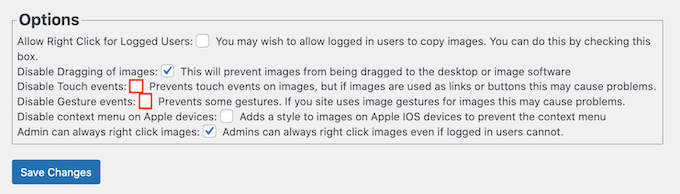
No Right Click Images also disables touch and gesture events, which can stop people from stealing images on devices that make use of those sorts of actions. However, this can cause problems if you use images as links or buttons, or if your visitors interact with your pictures using gestures, such as before-and-after images.

If you do encounter problems, then you can re-enable support for touch events and gestures by unchecking the following boxes: ‘Disable Touch events’ and ‘Disable Gesture events.’

How to disable touch events and gestures on your WordPress website

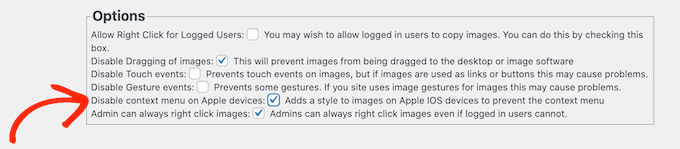
By default, visitors can still open a context menu and save your images on Apple devices.

That said, you may want to check the box next to ‘Disable context menu on Apple devices.’ This adds a style to images on iPhones and iPads, which stops users from opening the Apple context menu and stealing your images.

How to disable the Apple context menu on your WordPress blog or website

When you’re happy with how the plugin is set up, don’t forget to click on ‘Save Changes’ to store your settings.

You can now log out of your WordPress admin account and visit your website. Then, simply right-click on any image to check the plugin is working.

Method 2. How to Add No Right Click to Image Galleries

If you want to protect individual images across your website, then the first method is a good choice. However, sometimes you may want to create an image gallery in WordPress, and then disable right-clicking for the entire gallery. For example, you might build a photography portfolio or display your most popular products in a nice gallery layout.

This is where Envira Gallery comes in.

It is one of the best WordPress gallery plugins on the market and comes with a protection addon that disables the ability to right-click on any galleries you create using the plugin.

How to disable right-click for a WordPress gallery

The first thing you need to do is install and activate the Envira Gallery plugin. For more details, see our step-by-step guide on how to install a WordPress plugin.

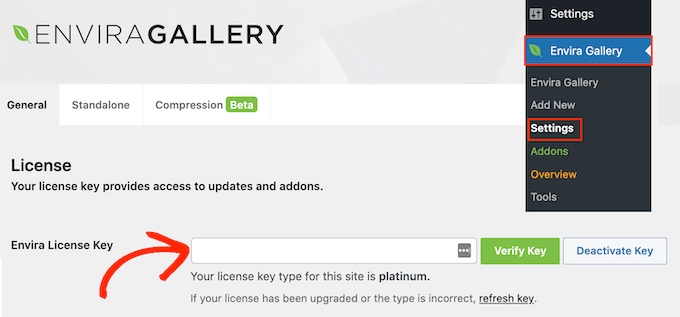
Upon activation, go to Envira Gallery » Settings and enter your license key.

Activating the Envira Gallery WordPress plugin

You can find this information under your account on the Envira Gallery website.

With that done, click on ‘Verify Key.’

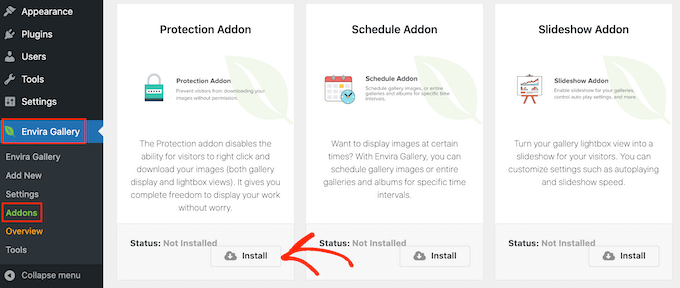
Next, head over to the Envira Gallery » Addons page. Here, find the Protection addon and click on its ‘Install’ button.

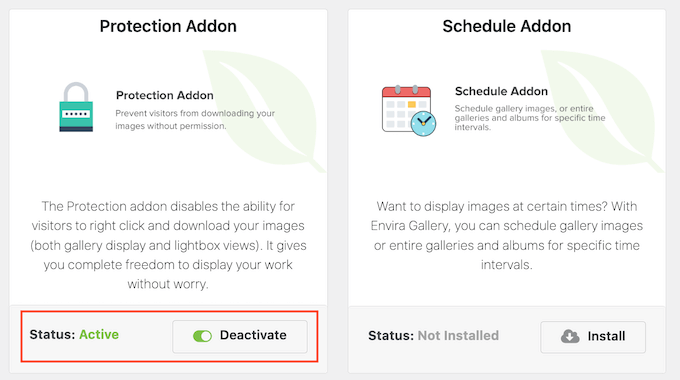
Activating the Protection addon for Envira Gallery

When you see the ‘Inactive’ slider, give it a click so it shows ‘Active’ instead.

After that, you’re ready to start creating protected image galleries.

How to protect your galleries using the Protection addon

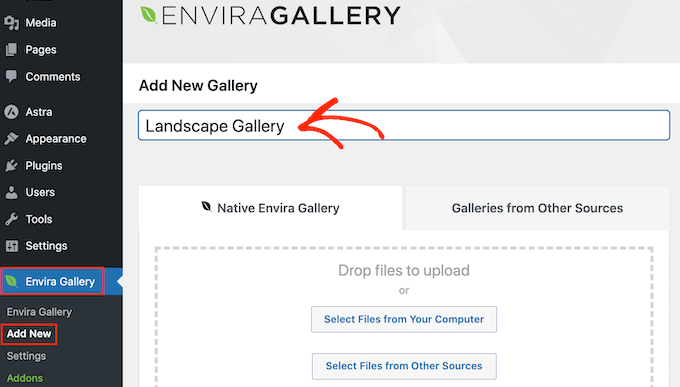
To get started, go to the Envira Gallery » Add New page and type in a name for your gallery.

This is just for your reference so you can use anything that helps you identify the gallery in your WordPress dashboard.

Creating a new gallery using a WordPress plugin

You’re now ready to add images to the gallery. You can click on ‘Select Files from Your Computer,’ or ‘Select Files from Other Sources’ and then choose images from the WordPress media library.

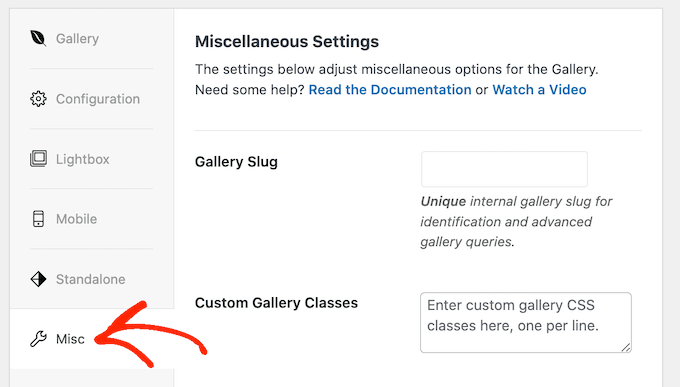
After that, scroll to the ‘Currently in your Gallery’ section and click on the ‘Misc’ tab.

How to disable no right-click for your image gallery

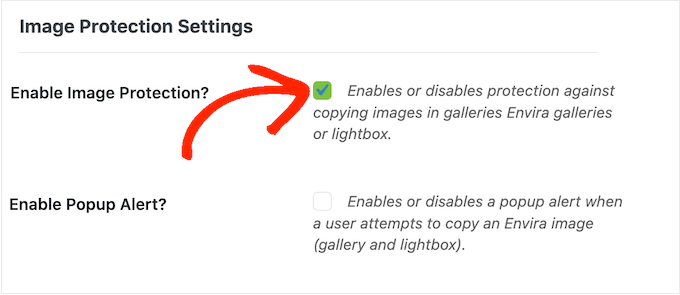
Under ‘Image Protection Settings,’ check the box next to ‘Enable Image Protection.’

This disables the right-click action for all your Envira galleries.

Enabling image protection for your image galleries

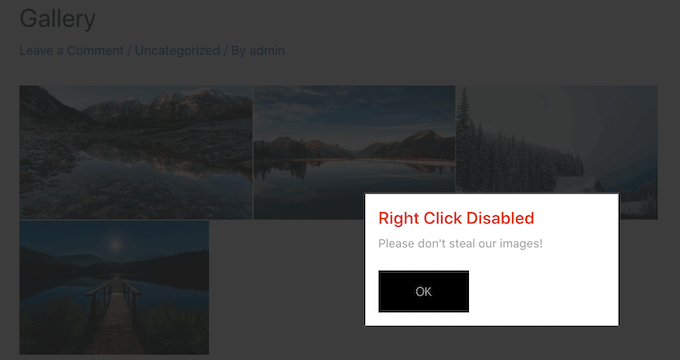
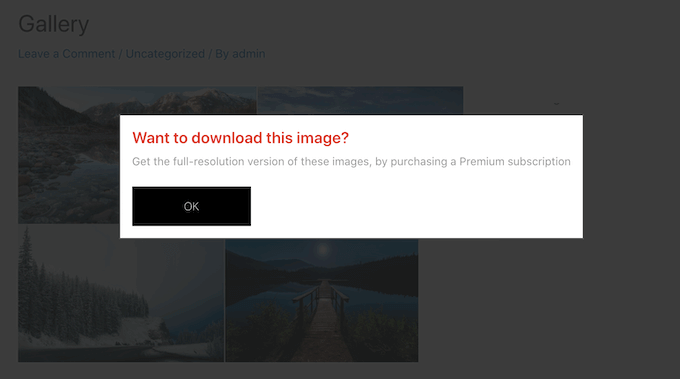
If a visitor tries to right-click a gallery, you may want to show a popup on your WordPress website. For example, you might let this person know your images are copyrighted, and can’t be downloaded without your permission.

If you’re selling your digital artwork or photos, then you can even use the popup to get more sales on your online store.

Showing a popup on right-click

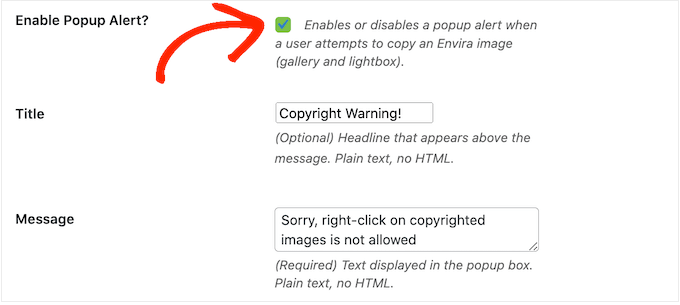
To create a popup, check the box next to ‘Enable Popup Alert.’

You can then type in a title and message.

Show a popup when a visitor right-clicks an image

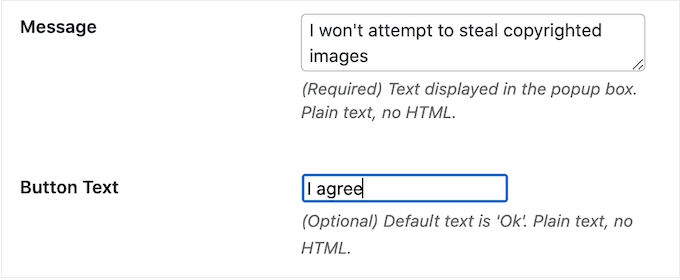
By default, visitors will click an ‘OK’ button to close the popup.

You can replace ‘OK’ with your own custom messaging by typing into the ‘Button Text’ field.

Adding a custom message to an image protection popup

When you’re happy with how the gallery is set up, click on ‘Publish’ to save your settings.

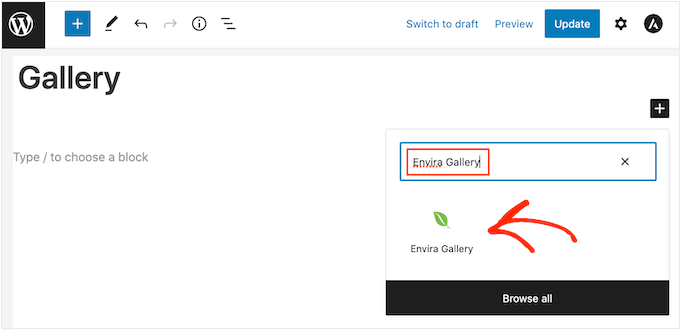
To add the gallery to your website, simply edit the post or page where you want to show the images and then click on the ‘+’ icon.

In the popup, type in ‘Envira Gallery’ and then click on the right block when it appears.

Add the Envira Gallery block to WordPress

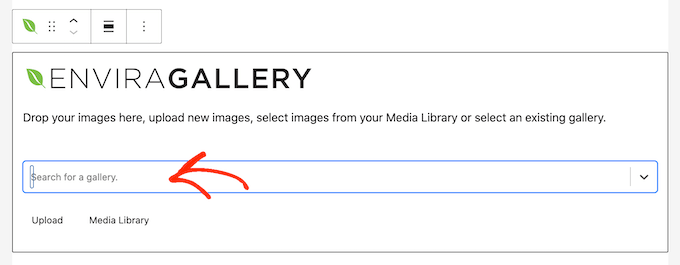
This adds the Envira Gallery block to the page.

You can now open the dropdown menu and select the gallery you just created.

Publishing an image gallery to your website or blog

When you’re happy with how the page looks, either click on ‘Publish’ or ‘Update’ to make the protected gallery live.

Pros and Cons of Disabling Right-Click on WordPress Images

Disabling the right-click action makes it more difficult for people to steal your images. It also reminds users that they can’t simply download files without the owner’s permission.

Sometimes, this will be enough to stop people from stealing your photos. This is particularly true for scammers, who tend to look for easy ways to download as many images as possible. It can also discourage genuine visitors, who may assume they can download and use any online content.

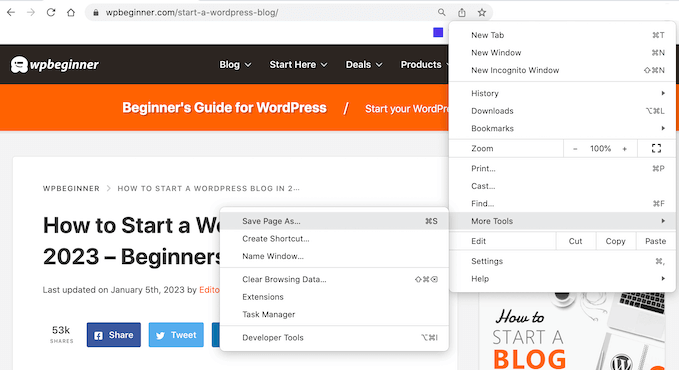
However, there are still ways to get around a website’s no right-click protection. For example, users can still download an entire page.

How to download images using the browser tools

This will copy the page’s content into a file, including all the images.

People can even use their browser’s view source or inspect tool to directly access an image file without right-clicking.

Inspecting an image using the built-in browser tool

With that in mind, you shouldn’t assume that disabling right-click is enough to keep your images safe.

On the other hand, some visitors may have a genuine reason why they need to download your images. For example, they may want to share your work with a potential future customer or post it on social media.

You might even allow people to reuse your images in specific ways, such as using your digital artwork on a non-profit website. In this case, disabling right-click can stop genuine users from accessing your images, which is a poor visitor experience.

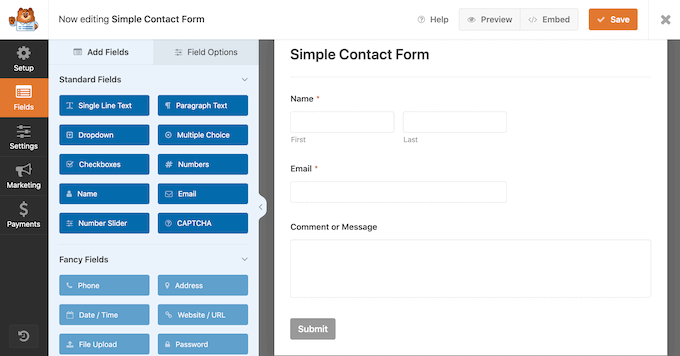
If you do add no right-click to your website, then we recommend giving people an easy way to request access to your images. You can do this by adding a contact form to WordPress using a plugin such as WPForms.

How to create a contact form using WPForms

If there’s a chance your visitors may need immediate access, then you can also add live chat to your site. This allows people to send their requests and get a response in real time, which is a great user experience.

Alternative Ways to Discourage Image Theft on Your Website

When it comes to protecting your images, disabling right-click is a good first step. However, if you really want to stop thieves then we recommend taking some extra measures.

With that in mind, here are some additional ways to stop people from downloading, reusing, and selling images without your consent.

1. Add a Copyright Notice Below Your Images

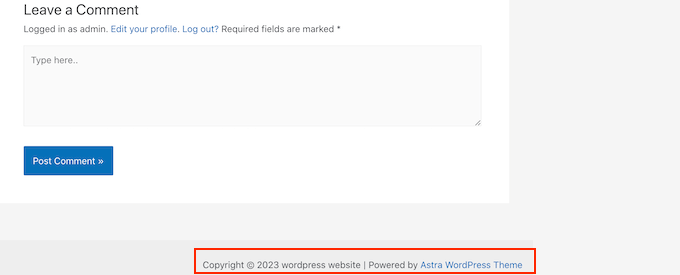
If you haven’t already, then you should add a copyright notice to your website. We recommend adding a dynamic copyright date to the WordPress footer so it appears on every page and always shows the current date.

An example of a copyright notice, in a website footer

This is a great start, but it’s also a good idea to add a copyright notice below each image in plain text. This discourages people from stealing your photos, without affecting how that image looks on your website.

Some visitors simply assume they can download and re-use any images they see online. By adding a copyright notice, you can clear up any confusion and stop people from making this innocent mistake.

How to protect your photos with a copyright disclaimer

2. Add Watermarks to Your Images

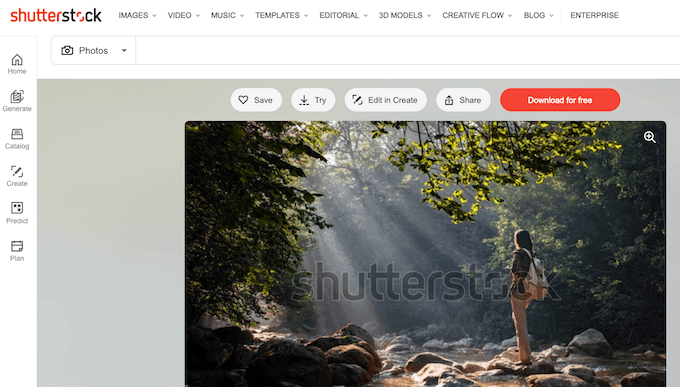
Another option is adding a watermark to your images. This works great for stock photography websites where visitors expect to see a watermark, but your images might not look their best.

An example of a stock photography website with watermarks

This can be a problem for some websites, particularly if you’re a photographer or digital artist who’s promoting their work.

For that reason, we recommend positioning your watermarks carefully so they discourage people from stealing the image, without ruining how that image looks on your website.

To learn more, please see our guide on how to automatically add watermarks to images.

3. Set Up Automatic Content Theft Notifications

Sometimes, websites will mention your business or brand name next to the stolen images, particularly if they’ve scraped an entire page from your site.

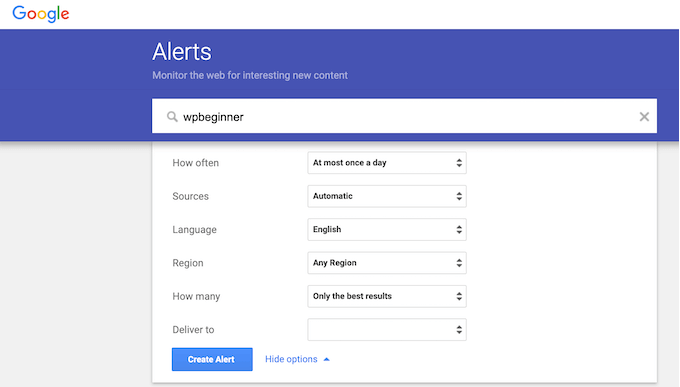
With that in mind, it’s a good idea to set up brand name notifications using a service such as Google Alerts. Simply head over to the Google Alerts page and type in the name of your site, brand, products, or any other important text.

If there’s a specific phrase or call to action that you add to every post, then you may also want to type this into Google Alerts.

Set up content theft notifications using Google Alerts

After that, use the dropdown menus to configure the alert and type in the email address where you want to get the notifications.

When you’re happy with how the alert is set up, go ahead and click on ‘Create Alert.’

Now, when someone publishes scraped content of yours, you will get an email letting you know about it.

4. Reverse Image Search with Google

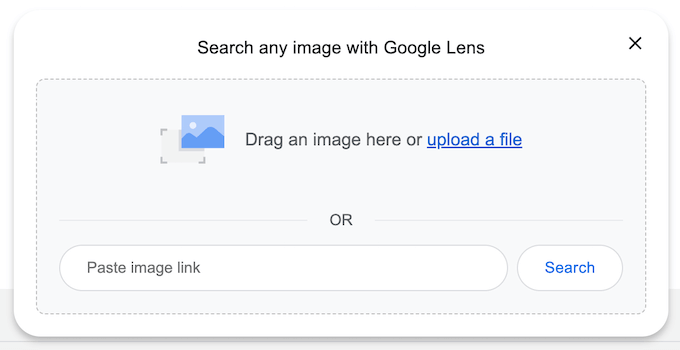
You can use Google image search to find all the places where a particular image is used online. Simply head over to the Google Images page and click on the small camera icon.

Protect your site against content theft

This will add a section where you can paste a direct link to the image or upload a copy from your computer.

After that, click on ‘Search.’

How to do a Google Reverse Image Search

Google will now show all the images that are similar to your picture. If you find the exact image on another website, then you can click through to see how that picture is being used.

If you have lots of photos, then checking each one manually can take a lot of time and effort. However, Google reverse image is a great way to uncover sites that re-using your images, so it’s smart to do a search from time to time.

Alternatively, you can use an advanced reverse image service such as Pixsy.

5. Contact the Website’s Host or Registrar

If someone has stolen and re-published your images, then we recommend contacting that person. There’s a chance they may be unaware they’re using copyrighted images illegally.

However, if it’s a spam website then you may struggle to find contact information. Instead, you can use the IsItWP lookup tool to find out where the domain and website are hosted.

The IsItWP lookup tool

The tool will pull up any available information, including the web hosting company.

Stealing content is an illegal activity and most web hosting companies don’t want to host sites that are breaking the law. With that in mind, you can contact the host and registrar directly to try and get the site taken down.

Most reputable web hosting companies take DMCA (Digital Millennium Copyright Act) complaints seriously, so this method usually gets good results.

We hope this article helped you add no right-click on WordPress images. You may also want to see our ultimate WordPress security guide or check out our expert pick of the best Instagram WordPress plugins.

If you liked this article, then please subscribe to our YouTube Channel for WordPress video tutorials. You can also find us on Twitter and Facebook.

The post How to Add No Right Click on WordPress Images first appeared on WPBeginner.


April 01, 2023 at 12:30AM
9 Best Front-End Posting Plugins for WordPress (2023)

Do you want to allow users to submit content and upload files on the front end?

Using a front-end posting plugin, you can allow people to upload different types of files without giving them access to the WordPress dashboard. They can submit documents, images, videos, PDFs, guest posts, and more.

In this article, we will show you the best front-end posting plugins for WordPress.

Best front end posting plugins for WordPress

Why Use a Front-End Posting Plugin for WordPress?

By default, WordPress doesn’t allow users to upload or submit content on the front end.

This means if you want to accept guest posts from a user, or want them to upload files on your site, then you would have to give them access to the admin area of your website.

This can be a time-consuming process and a security risk, as unknown users could then view your WordPress dashboard.

That’s where a front-end posting plugin can help. It allows you to collect user-generated content and accept all types of files without editing code or giving anyone access to the admin area.

For example, you can allow guest post submissions, real estate listing submissions, create a multi-vendor marketplace, collect testimonials from users, and more.

That being said, let’s look at the best front-end posting plugins for WordPress.

1. WPForms

The WPForms form builder plugin and signature addon

WPForms is the best WordPress form builder plugin in the market used by over 5 million websites. It offers a drag-and-drop interface that you can use to create any type of form.

They have a post-submission addon that lets you collect user-generated content without creating an account. Your visitors can easily submit content on the front end. Plus, you can accept payments for a post submission, like property listings or business directories.

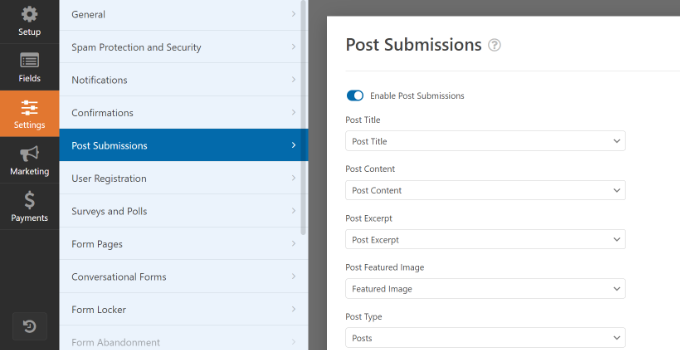
WPForms also gives you full control over which content to accept, and how you’d like to receive it. For example, you can map certain fields in your form to a new WordPress post such as Post Title, Content, and Featured Image.

Post submission settings in WPForms

You can also create a file upload form to collect user-generated content. It comes with a file upload form field that lets people submit guest posts, upload images, share presentations and documents, and more.

Besides that, WPForms offers other powerful features such as spam protection, conditional logic, form abandonment, online signatures, locking specific forms, tracking user journeys, and more.

WPForms also easily integrates with payment services like PayPal, email marketing tools like Constant Contact, and other third-party tools like Zapier, Google Sheets, and Uncanny Automator.

2. Formidable Forms

The Formidable Forms plugin and Signature addon

Formidable Forms is another powerful form builder plugin for WordPress that you can use to allow front-end posting.

It offers a user-submitted posts and pages feature that allows front-end publishing. Your visitors can create new posts using the plugin, and they don’t require admin access. This way, you can gather community content, guest posts, resources, databases, listings, and other user-generated content.

Formidable Forms also offers a file upload feature that lets users submit different files without the need to log in to the admin area.

When a user submits a file using the form, it is automatically stored in your WordPress media library. From here, you can easily browse, view, and filter different submissions.

With Formidable Forms, you can also create advanced forms, like mortgage calculators, payment forms, quote calculators, surveys, and more. The plugin offers a drag-and-drop form builder, pre-built templates, and powerful integrations.

3. Easy Digital Downloads

The Easy Digital Downloads WordPress plugin

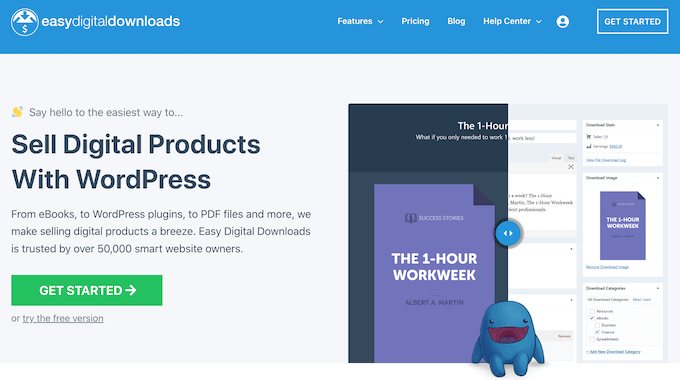
Easy Digital Downloads (EDD) is one of the best eCommerce plugins for WordPress. You can use it to sell digital products like ebooks, music, PDFs, spreadsheets, recipes, software, and more.

Easy Digital Downloads offers a frontend submissions extension that lets you create websites that work like Amazon, AirBnB, and eBay.

The EDD extension allows you to create a multi-vendor marketplace where users can register as vendors from the front end, and then they can use your site to upload and sell digital products.

Users can create new products, update existing products, access earning details, communicate with customers, and more from the front end.

Besides that, you can use Easy Digital Downloads to track and record vendor commissions, review new vendor registrations, and get email notifications when a vendor adds a new product.

The best part is that you get a drag-and-drop form builder to create forms for vendor registration, product submission, and vendor profiles.

On top of that, EDD also integrates with payment services like PayPal and Stripe. You can connect the plugin with email marketing tools and other third-party software.

4. MemberPress

MemberPress

MemberPress is the best membership plugin for WordPress that is super easy to use. You can create unlimited premium memberships and restrict access to pages, content, and files for subscribers only.

Using MemberPress, you can create a membership site to get user-generated content. For instance, you can set up members-only associations like Young Entrepreneur Council. This way, premium members submit guest posts for the site itself. In addition, they can get access to forum discussions, share other content, and more.

MemberPress offers a file upload option that you can show in the account area. This way, subscribers can share different content on your membership site.

The plugin also offers powerful content restrictions and access controls. You can lock premium forums and upload content for members only. Other than that, MemberPress easily integrates with different payment providers, email services, WordPress plugins, and third-party tools.

5. Thrive Ovation

Thrive Ovation

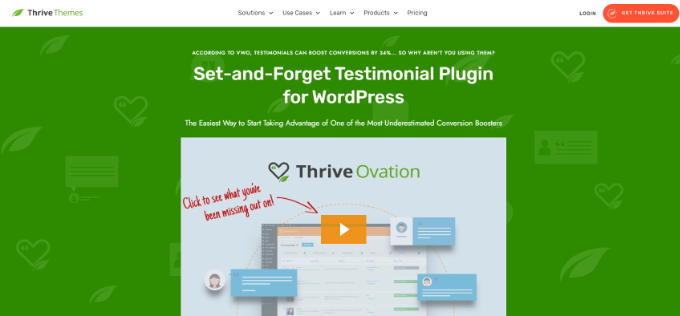
Thrive Ovation is a popular testimonial plugin for WordPress. You can use the plugin to collect user-generated content in the form of testimonials.

Testimonials are incredibly powerful for driving sales and getting new users, and this plugin makes it super easy to gather reviews and feedback from existing customers.

It has an autopilot feature that automates the process of asking for feedback from customers.

Besides that, you can use Thrive Ovation to convert WordPress comments into testimonials with a single click. It also helps convert social media comments into testimonials for your website.

The plugin offers a testimonial library where you can easily manage user-submitted content, WordPress comments, and other imported feedback from your WordPress dashboard.

6. WordPress File Upload

WordPress File Upload

WordPress File Upload is the next free front-end posting plugin on our list. It allows users to submit content from any page, post, or sidebar on your WordPress site.

You can simply use a shortcode to add a file upload form to your website or use the sidebar widget. The plugin also lets you manage the uploaded content from your WordPress dashboard. The uploaded files can be added to the media library or stored in an FTP location.

Besides that, you can set up file upload filters for multiple WordPress user roles, add file size limits, and control which file extensions users can upload.

WordPress File Upload also offers different customization options and lets you show an upload progress bar. However, if you’re looking for more options to edit your forms, then you can use other plugins on our list, like WPForms and Formidable Forms.

7. WP User Front-end

WP User Frontend

WP User Front-end is a flexible and beginner-friendly WordPress plugin for accepting front-end submissions.

The plugin comes with a drag-and-drop form builder and offers multiple customization options. You can place the form anywhere on your site to allow users to create a new post and submit guest posts, images, and other content.

It also lets users edit their profiles from the front end. This is great as you don’t have to give access to the main dashboard for users to set up a profile.

Besides that, you can use the WP User Front-end plugin to create subscriptions and membership packs. It lets you add pay-per-post, manage transactions, and easily receive payments.

8. User Submitted Posts

User submitted posts

User Submitted Posts is a simple and free WordPress plugin that you can use to allow file upload on the front end of your website.

It is a great solution to accept guest posts, customer reviews, testimonials, images, and other user-generated content. The plugin offers basic form fields like name, email, URL, post title, content, post category, post images, and agree to terms.

You can display the front-end posting form anywhere on your site using a shortcode. The User Submitted Posts plugin also offers a login and registration form, so users can create a profile without requiring access to your site’s dashboard.

That said, the plugin doesn’t offer a lot of customization options, form templates, and features to control file upload compared to other plugins like WPForms.

9. AccessPress Anonymous Post

AccessPress anonymous post

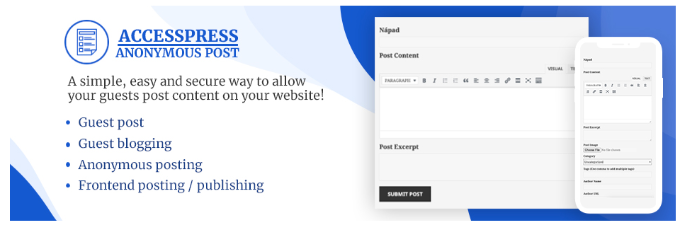
AccessPress Anonymous Post is another free WordPress plugin you can use to accept guest posts and allow front-end posting. It offers a responsive form that is easy to customize and place anywhere on your website.

Users can simply use the form to upload content, add a title, and enter tags, categories, URLs, images, and more. All the submitted content is stored in the WordPress database, and you can access it from your dashboard.

Besides that, you can also add a captcha for verification, receive emails when someone uploads a file, and make different form fields required.

Bonus: File Upload Types by WPForms

File Upload Types

File Upload Types by WPForms is a free WordPress plugin that lets you accept different file extensions on your WordPress site. By default, WordPress only allows a handful of file types that users can upload to the media library.

If someone is submitting a post for the site on the front end, but uploads a file that has an extension not supported by WordPress, then they’ll see a ‘Sorry, this file type is not permitted for security reasons’ error message.

This is where the File Upload Types by WPForms plugin comes in handy. It allows users to post any type of file. For instance, you can accept file extensions like .zip, .xml, .ai, .csv, .svg, and more.

An important thing to note is that the plugin will let you accept additional file types, but it doesn’t have a feature to accept front-end posting. That’s where you’ll need another plugin like WPForms or any other on our list.

Which is the Best Front-End Posting Plugin for WordPress?

In our research, we found that WPForms is the best front-end posting plugin. It allows you to allow file upload and accept guest posts, images, quotes, and other user-generated content.

On top of that, you get over 600+ pre-built from templates, a drag-and-drop form builder, and lots of customization options to edit your form. You can add a file upload form field and display your form anywhere on the website.

Plus, its field-mapping feature makes drafting and editing on the front-end a breeze and is perfect for sites that have user-submitted content like real-estate listings or guest posts.

If you want to create complex and advanced forms like mortgage calculators, then you can use Formidable Forms. It also comes with a file upload feature and allows easy front-end posting.

On the other hand, you can use Easy Digital Downloads if you’re selling digital products. The plugin offers an upload file extension that allows users to submit documents, images, and other content on the front end. And their front-end submissions extension allows you to create a multi-vendor marketplace.

We hope this article helped you find the best front-end posting plugin for WordPress. You can also see our guide to the best WooCommerce plugins for your store and how to increase your blog traffic.

If you liked this article, then please subscribe to our YouTube Channel for WordPress video tutorials. You can also find us on Twitter and Facebook.

The post 9 Best Front-End Posting Plugins for WordPress (2023) first appeared on WPBeginner.


March 31, 2023 at 04:21PM