Wednesday, October 2, 2019

How To Bulk Install Your Favorite Plugins in WordPress

Are you looking for an easy way to bulk install your favorite plugins in WordPress?

If you frequently create new WordPress sites, then you likely have a list of must have plugins which you install on every website that you create.

By default, WordPress allows you to install one plugin at a time. Manually installing multiple one by one can take few extra minutes. This can become annoying if you do it quite often.

Wouldn’t it be nice if you could quickly install all your favorite WordPress plugins at once? In this article, we will show you how to easily bulk install your favorite plugins in WordPress step by step.
Simple Guide on How to Bulk Install Plugins in WordPress

Installing WordPress Plugins in Bulk (Step by Step)

There are more than 55,000+ plugins available in the free WordPress.org directory alone. However, most users stick to a set of must have WordPress plugins that they install on each new website.

Let’s see how you can bulk install all your favorite plugins in one go.

Step 1: Install WPCore Plugin Manager Plugin

The first thing you need to do is install and activate the WPCore Plugin Manager plugin. For more details, see our step by step guide on how to install a WordPress plugin.

WPCore Plugin Manager is a free online tool which lets you create a collection of your favorite WordPress plugins and quickly install them on your site.

Upon activation, the plugin will add a new menu labeled ‘WPCore’ in your WordPress admin panel. You need to click on it to configure settings.
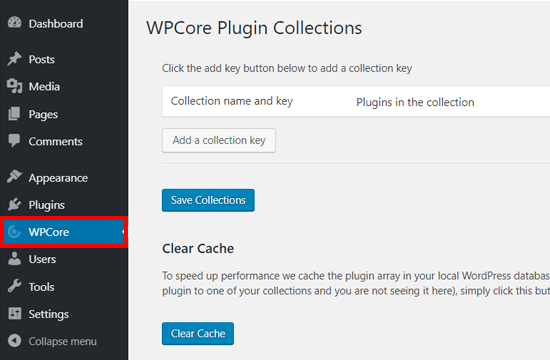
WPCore Plugin Manager Plugin Settings

On the WPCore plugin collections page, you will be prompted to add a collection key to import plugins.

So, the next step is to create a plugin collection with your selected plugins and get the key. Alternatively you can use many other pre-made collections from their website such as WPBeginner’s Favorite Plugins collection.

Step 2: Create a Collection of Your Favorite Plugins

To create a collection of your favorite plugins, you need to visit WPCore website and click on the ‘Create your FREE account’ button.
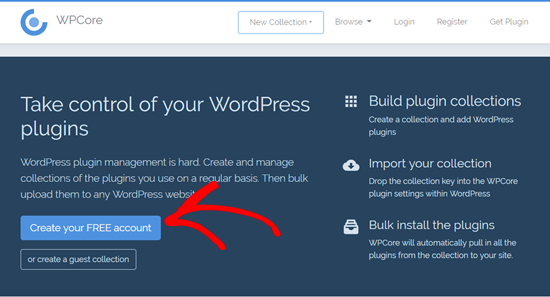
Create a Free Account on WPCore

Next, you will see the registration page. Enter your username, email, and password, accept the terms, verify reCAPTCHA, and then click on the ‘Create Account’ button.
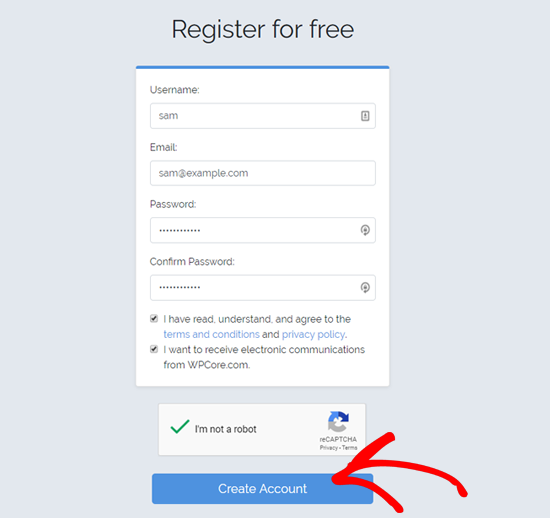
Register FREE on WPCore Website

On the next screen, it will allow you to create your new plugin collection. Add your collection title, description, choose ‘Public’ or ‘Private’ collection you want to make and then click on the ‘Continue’ button.
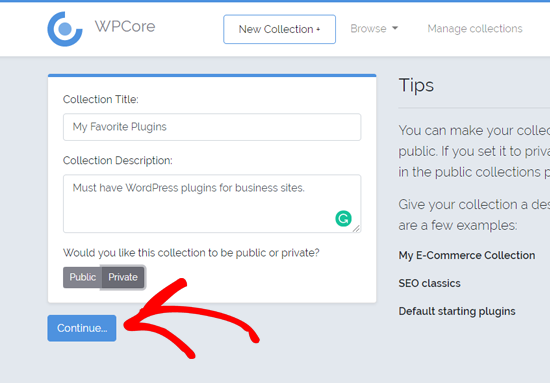
Create a New Plugin Collection on WPCore

After that, it will create the collection where you can add your favorite plugins in it. Simply click on the ‘Add’ icon next to ‘WordPress.org plugins’ to add plugins from the official WordPress plugin repository.
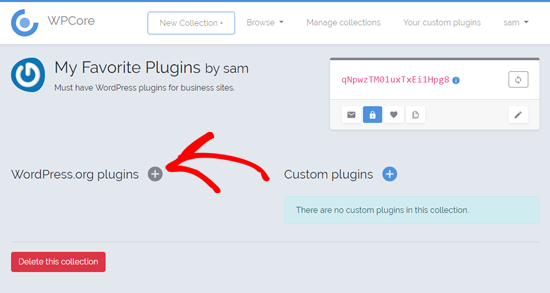
Add Plugins on Your Plugin Collection on WPCore

After that, a new popup window will appear where you can search for a WordPress plugin by its name. For example, we will search ‘MonsterInsights’.

Now it will search the plugin and show all the results related to the search term. Once the results are loaded, you need to choose the right option and click on it to add the plugin to your collection.
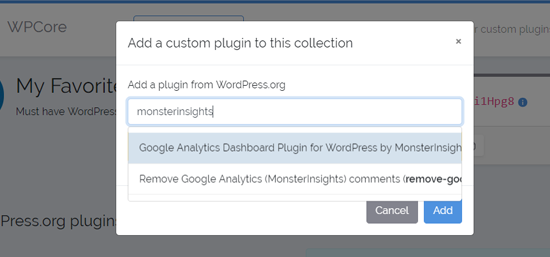
Search Plugin to Add in Your WPCore Plugin Collection

Once you select it, the plugin will be added to the collection.
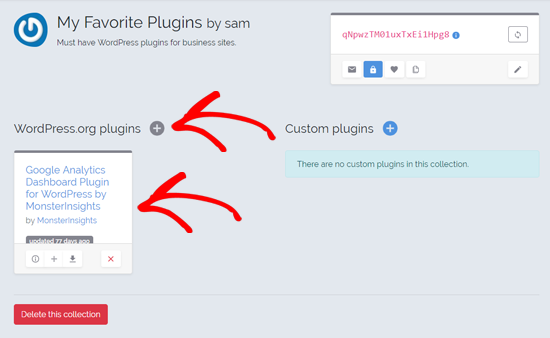
Plugin Added to WPCore Plugin Collection

Now you can add more plugins by following the same steps.

The free version of the WPCore Plugin Manager lets you add only the free plugins from WordPress.org. If you want to bulk install custom plugins and premium WordPress plugins from other third-party sites, then you need to use their paid plan.

Once you have added all the best WordPress plugins of your choice, navigate to a small box at the top right side of your screen. The code in the red color inside the box is your plugin collection key.
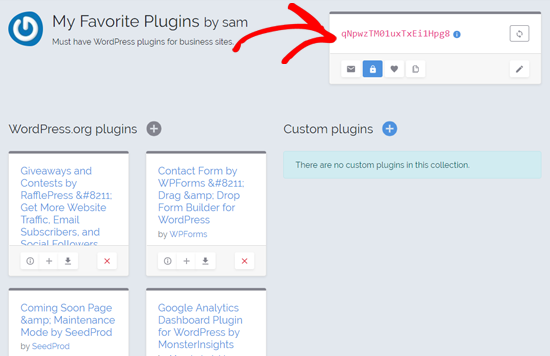
WPCore Plugin Collection Key

Go ahead and copy the code. Next, you have to add the key on your WordPress site using the WPCore plugin which you installed earlier.

Step 3: Bulk Install Your Favorite Plugins

Go ahead and open the ‘WPCore’ option on your admin panel and click on the ‘Add a collection key’ button there.
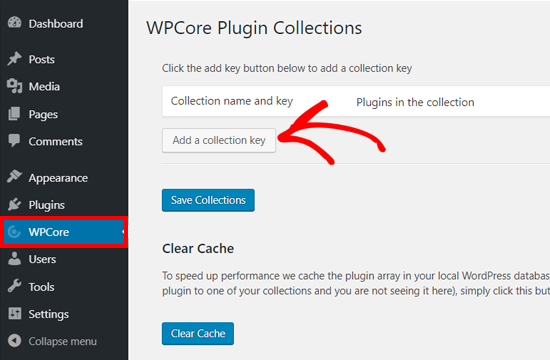
Add Collection key on WPCore Plugin Manager Plugin

After that, it will show a field where you need to paste the plugin collection key. Paste the key that you copied earlier and click on the ‘Save Collections’ button. You can also use our collection key here too for installing WPBeginner’s Favorite Plugins collection.
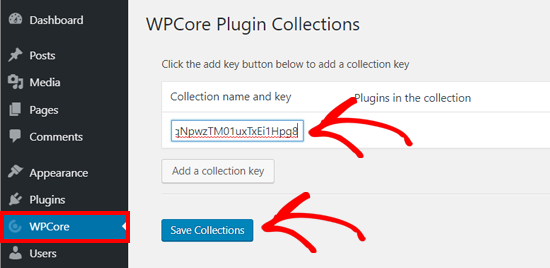
Save WPCore Plugin Collection Key on WordPress

WPCore plugin will now load your plugin collection and prepare for installation. It will add a notification which reads ‘WPCore recommends the following plugins:’ at the top. and shows the list of the plugins

Now you just need to click on the ‘Begin installing plugins’ option, and the plugin will start the job.
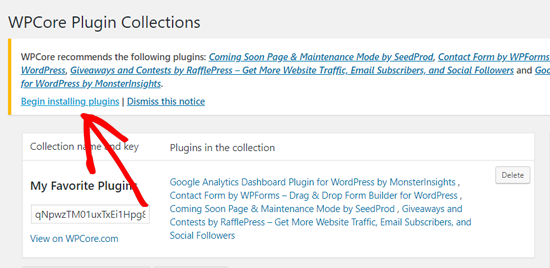
Click Begin Installing Plugins Option on WPCore

On the next screen, you will see the ‘Install Plugins’ page with your list of favorite plugins. To install the plugins in bulk, select all by clicking on the box next to ‘Plugin’ option at the top.
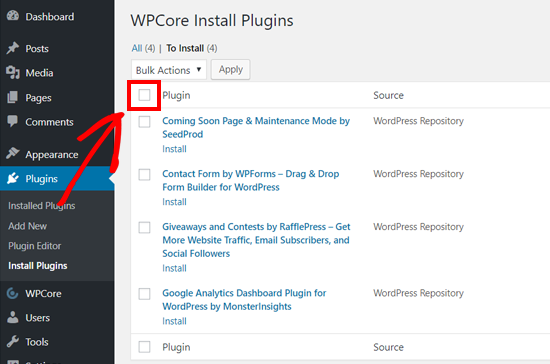
Select All Plugins to Bulk Install on WordPress with WPCore

Once all the plugins are selected, click on the dropdown option and choose the ‘Install’ option. Next, click on the ‘Apply’ button.
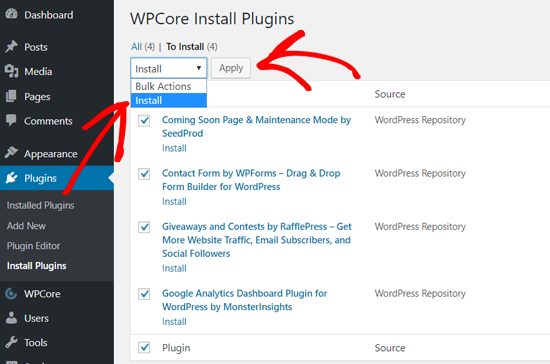
Install WordPress Plugins in Bulk with WPCore

After that, WordPress will install the plugins one by one. Once done, it will notify you with ‘All installations have been completed’ message.
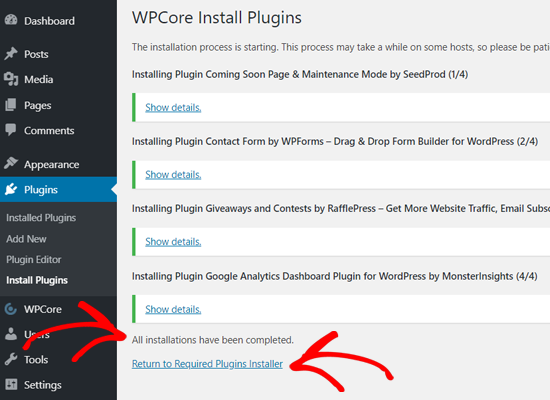
All Plugins Installed in WordPress with WPCore

Simply click on the ‘Return to Required Plugins Installer.’

On the next screen, you will see the list of plugins that you just installed. Now you have to activate these plugins.

First, select all plugins by clicking on the checkbox and choose ‘Activate’ option from the dropdown. Next, click on the ‘Apply’ button.
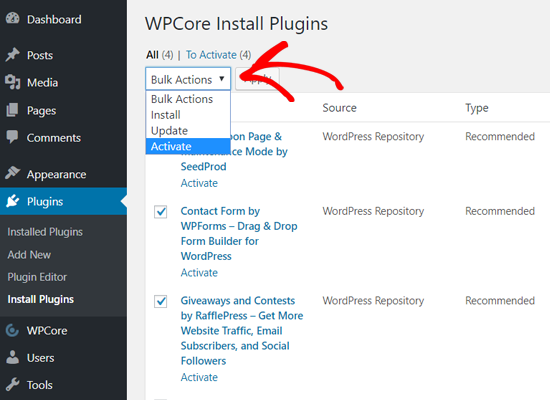
Activate Plugins in Bulk with WPCore

Now WordPress will activate all the plugins one by one. Once done, it will display a notification message to inform you that all plugins are active.
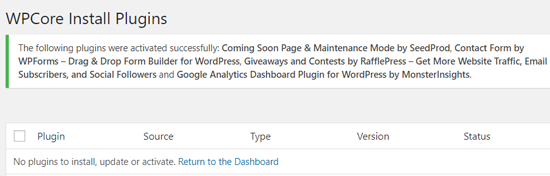
All Plugins Activated Message on WordPress with WPCore

After that, you can see your installed plugins by going to Plugins » Installed Plugins page from your dashboard.
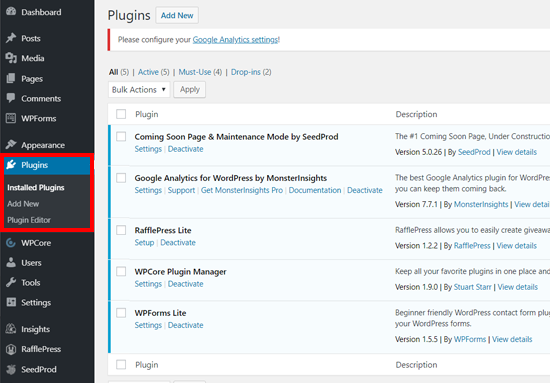
Installed Plugins Page in WordPress

Now you can start configuring your plugin settings and other configurations on your website.

We hope this article helped you learn how to bulk install plugins in WordPress. You may also want to see our guide on how to speed up WordPress and improve your WordPress security.

If you liked this article, then please subscribe to our YouTube Channel for WordPress video tutorials. You can also find us on Twitter and Facebook.

The post How To Bulk Install Your Favorite Plugins in WordPress appeared first on WPBeginner.


October 02, 2019 at 06:45PM

How to Setup a Business Voicemail Greeting (with Examples)

When you call a business phone number, you are often greeted with an automated voicemail greeting that helps guide you through the phone directory and next steps.

These voicemail greeting makes your small business look professional, and they can help increase sales as well as boost customer satisfaction.

In this article, we will show you how to set up a voicemail greeting for your online store, business, or blog. We’ll also show you the best voicemail greeting examples that you can use as a template.

Setting up a voicemail greeting for your business

Why Voicemail Greeting is Important for Your Business?

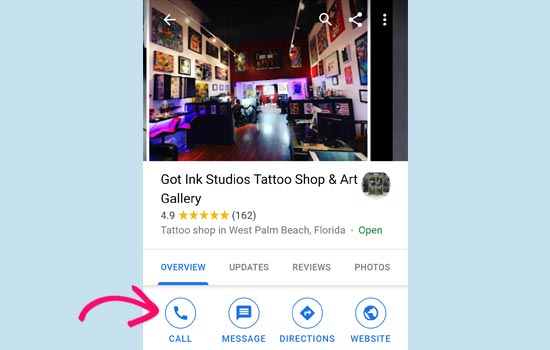
More than 88% of local searches on mobile devices end up in a phone call. Mainly thanks to the nifty click to call buttons that appear in Google local search results.

Click to call button in mobile search results

For many small businesses, it may not be possible to answer all the calls immediately. Sometimes customers may call after business hours, and you may be busy or have no staff available at that time.

This is where your voicemail greeting comes in.

For many customers, this will be their first contact with your business. Not setting up a voicemail greeting can cause you to lose a customer to your competitor.

On the other hand, not getting the voicemail greeting right can also have serious consequences. Customers may hang up, not follow through, or simply reach out to your competitors.

That being said, let’s take a look at how to properly set up voicemail greeting for your online business.

The Best Way to Set up a Voicemail Greeting

Normally, small business owners use a landline or mobile phone number to manage calls. While it may get the job done, they do not allow you to properly manage business calls or set up an effective automated voicemail greeting.

The best way to manage business calls is by using a business phone service. A lot of small businesses use a virtual business phone number because it lets them effectively manage business calls without sacrificing their privacy.

Unlike a landline or mobile number, it uses the internet to manage calls. The official term for this technology is called business VoIP phone service (Voice over Internet Protocol).

Using a business phone service gives you the following advantages over the landline and mobile.

  • You can set your business hours and record different voice greetings to be played based on the time of the day.
  • You can set up auto attendant, add extensions to route the calls, let users leave a voice message, and more.
  • It works on your computer, tablet, a desk phone, and even on your mobile phone using apps.
  • Multiple users can use the same phone number regardless of their location.
  • You can easily give access to new employees without calling in a technician or buying new equipment.

We recommend using Nextiva because it is the best business phone service provider on the market. They offer a comprehensive set of features with an easy to use web-based admin panel and apps for your phone.

Nextiva

We use Nextiva in our business to manage calls for WPBeginner and other Awesome Motive properties.

If you want a different solution, then take a look at RingCentral. It is another great business phone service. They offer an incredibly feature-rich platform, with lots of tools to manage voice greetings, auto-attendants, voice messages, call transcripts, and more.

Once you have set up a business phone service, you can set up voice greetings using their easy to follow settings.

Voice Greeting Examples for Businesses

There are some basic rules that you must follow to create the most effective voicemail greetings.

  • Avoid cliches like ‘Your call is important to us’ they are overused and don’t feel sincere anymore.
  • Make sure that your voicemail recording sounds friendly and personal.
  • Try not to sound like you are reading from a script.
  • If you can, then hire a voice artist to help you record voicemail greetings. You can even find someone on Fiverr.
  • Make sure that your voicemail provides important information like business hours and contact information.

Following are some voicemail greeting templates that you can use for your business.

Off Hours Voicemail Greeting Examples

This voicemail greeting will be played when customers call you after business hours or during weekends. Make sure that this voicemail greeting informs users about office hours, alternative ways to reach customer service, or store location.

“Hi, you’ve reached [business name]. We are available by phone from [9 am] to [6 pm] [PST] Monday to Friday. You can also use the contact form on our website, [www.example.com] to leave us a message and we’ll get back to you via email. If you’d like us to call you back, then please leave your name and number after along with a short message, and our team will get back to you as soon as possible.”

“Hi, you’ve reached [business name]. We are currently unable to answer your call. Our office hours are [business hours] Monday to Friday. Our store at [store location] remains open for customers during weekends. You can also contact us via live chat on our website [www.example.com] [24 hours a day 7 days a week]. If this is not urgent, and you’d like us to callback then please leave your name and number after the beep.”

As you can see both examples deliver important information and offer customers alternate ways to contact via live chat or contact form.

Vacation Voicemail Greeting Examples

These greeting messages can be recorded during the holidays.

“Hello, you’ve reached [business name]. Our team is currently out of the office to spend holidays with friends and family. We’ll be back to work on [day and time]. Please leave us your name and number and we will get back to you ASAP. [Happy Holidays (or suitable greeting for that holiday)]”.

“Happy holidays! Our team at [business name] is away until [date]. If you are an existing customer, you can still open a support ticket on our website, we will try to get back to you within the next 24 hours. You can also contact us via live chat or contact form on our website [www.example.com]. If it is not urgent, then you can leave us your name and number after the beep. We will return your call as soon as possible.”

“Hi, you have reached [company name]. We are closed for (holiday name) and will get back to work on [date and time]. If you need an urgent response you can email us at (email_address) we will try to answer all emails within 24 hours. You can also leave us a message and we will get back to you after the holidays (Happy New Year / Holiday)”.

As you can see these voicemail greetings provide customers as much information as possible. These greetings also ensure that customers know how to get a quicker response using alternate contact methods during the holidays.

Away / Busy Voicemail Greeting Examples

If you are busy, away, or understaffed and cannot answer the customer calls immediately, then you can use these greetings as an example.

“Hi, you have reached [business name], we are unable to take your call right now but we would love to call you back ASAP. Please leave us your name and number after the beep.”

“Hi, we are currently away from the phone. If it isn’t too urgent, then you can email us at (email address). Otherwise please leave your name and number after the beep and we’ll call you back right away.”

If you are the only person answering calls, then you can make it a personal voicemail greeting.

“Hi, you have reached (Your Name). I am currently unable to answer the phone. You can send me an email to (email address) or you can leave your name and number after the beep and I’ll call you back as soon as possible.”

Test and Improve Your Voicemail Greetings

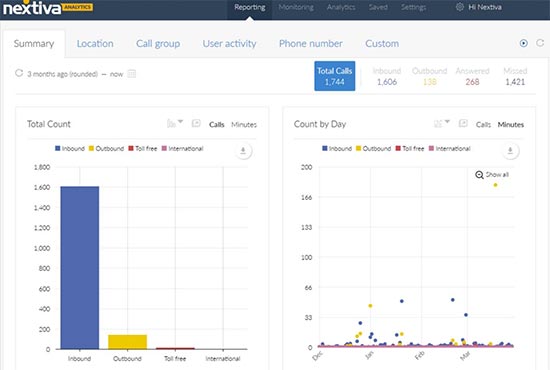
Another great reason to use a professional phone service is that you can track all your calls and view detailed reports about them. For example, this is how Nextiva’s call analytics page looks like.

Call analytics page in Nextiva

You would need to track how many users hear each voicemail greeting and how they responded. Voicemail greetings with a higher score of customers leaving a message are working efficiently.

Voicemail messages that are not even heard completely are a failure.

We recommend trying different voicemail greetings to find the perfect balance. Updating your voicemail greeting periodically can also help you fill communication gaps that you didn’t even know existed.

Follow up Your Voicemail Messages

Now that you have set up balanced, informative, and friendly voicemail greeting, the next step is even more crucial.

What happens after a customer leaves you a voice message?

If you are using a professional business phone system, then you’ll be easily able to track and respond to those messages.

Make sure that you and your staff are equally well prepared for a quick followup. A prompt callback goes a long way in strengthening business relationships and closing sales.

We hope this article helped you learn how to set up voicemail greeting for your online business. You may also want to see our guide on how to create an email newsletter for your business.

If you liked this article, then please subscribe to our YouTube Channel for WordPress video tutorials. You can also find us on Twitter and Facebook.

The post How to Setup a Business Voicemail Greeting (with Examples) appeared first on WPBeginner.


October 02, 2019 at 06:30PM

How to Hide a Post From Home Page in WordPress

Have you ever wanted to hide a blog post from your WordPress homepage or blog archive page?

While you can make WordPress posts password protected or private, in some cases you may simply want to hide the post from your homepage while still allowing others to view it if they have the direct link.

In this article, we will show you how to hide posts from selected pages in WordPress such as homepage, category archives, search results, and more.

Hide Posts from Home Page in WordPress

Method 1. Hide a WordPress Post from Homepage Using a Plugin

This method is easier, and it is recommended for beginners.

First thing you need to do is install and activate the WordPress Hide Posts plugin. For more details, see our step by step guide on how to install a WordPress plugin.

Once the plugin is activated, go ahead and edit the post you want to hide. You will notice a new ‘Hide Posts’ section in the right column of the editor.

Hide posts settings

Clicking on it will reveal plugin options. You can hide the post on the front page and blog page, category or tag pages, authors page, and site search results.

Simply select the options you like and then save your post.

Depending on the options you selected, you can now visit those pages and that particular post will not be listed.

All users who have the direct post URL (permalink) can still see it by entering the URL.

While this method is the easiest, it lacks several powerful options.

For example, you cannot hide a page or a custom post type like a WooCommerce products. It also does not have an option to hide a post from WordPress RSS feed.

Method 2. Manually Hide WordPress Posts and Pages

This method requires you to add code to your WordPress site. If you have not done this before then see our guide on how to copy and paste code snippets in WordPress.

WordPress uses a database query to fetch and display posts based on the page a user is viewing. It also provides built-in hooks to modify the query before running it.

We will be using those hooks to modify the WordPress query and hide the WordPress posts, pages, and custom post types in different sections.

You can add custom code using the code snippets plugin which is safer and does not break your site. Alternatively, you can add the custom code to your theme’s functions.php file or a site-specific plugin.

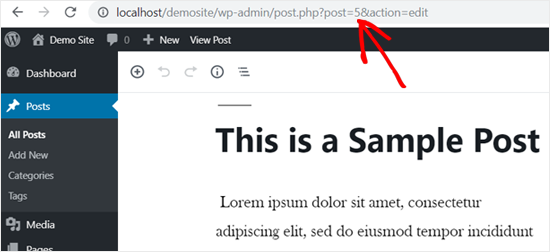
You will also need the IDs of the post or pages that you want to hide. We have a quick tutorial on how to find a post ID in WordPress that shows how to get this information.

Basically, you can just edit a post or page to view its ID in your browser’s address bar.

Finding a post ID in the address bar

That being said, let’s dive into the code part.

Hide WordPress Posts or Pages from Homepage

The following code uses is_home() conditional tag to find out if the user is viewing the homepage. If they are, then it excludes the post IDs from the query.

function wpb_exclude_from_home($query) {
          if ($query->is_home() ) {
                  $query->set('post__not_in', array(1737, 1718));
          }
}
add_action('pre_get_posts', 'wpb_exclude_from_home');

Don’t forget to replace the IDs inside the array with the actual IDs of posts or pages that you want to exclude.

Hide WordPress Posts or Pages from RSS Feed

If you want to hide a WordPress post from the homepage as well as the WordPress RSS feed, then you can simply use the is_feed conditional tag in the code.

function wpb_exclude_from_feed($query) {
          if ($query->is_feed() ) {
                  $query->set('post__not_in', array(1737, 1718));
          }
}
add_action('pre_get_posts', 'wpb_exclude_from_feed');

Now if you are logged in as an administrator and tried to visit your WordPress RSS feed, then you will still see the posts listed there. Other users will not be able to see the excluded posts when they view your RSS feed.

Hide WordPress Post or Page from Site Search

Now, what if you wanted to hide specific posts from WordPress site search? To do that, you’ll simply need to add the is_search conditional tag to the code.


function wpb_exclude_from_search($query) {
          if ( $query->is_search() ) {
                  $query->set('post__not_in', array(1737, 1718));
          }
}
add_action('pre_get_posts', 'wpb_exclude_from_search');

You can now visit your website and search for the posts you wanted to hide. Even though these posts are public, they will not appear in search results.

Post excluded from search results

Hide WordPress Post or Page from Archives

How about hiding specific WordPress posts or pages from archive pages like category, tags, and date archives? To do that, we will use the is_archive() conditional tag.

function wpb_exclude_from_archives($query) {
          if ( $query->is_archive() ) {
                  $query->set('post__not_in', array(1737, 1718));
          }
}
add_action('pre_get_posts', 'wpb_exclude_from_archives');

Hiding WordPress Post or Page from Everywhere

So far we have learned how to hide a WordPress post or page from specific areas. Now, what about completely hiding a WordPress post from all these areas at once?

To do that, you can combine all the conditional tags we have used earlier in a single code snippet.


function wpb_exclude_from_everywhere($query) {
          if ( $query->is_home() || $query->is_feed() ||  $query->is_search() || $query->is_archive() ) {
                  $query->set('post__not_in', array(1737, 1718));
          }
}
add_action('pre_get_posts', 'wpb_exclude_from_everywhere');

This code will hide the given posts from homepage, RSS feed, search results, and archive pages.

Controlling Content Visibility in WordPress

You can hide WordPress posts or pages using the two methods we described above. Let’s answer some of the most frequently asked questions about content visibility control options in WordPress.

Do these methods perfectly hide content?

No, they don’t.

For example, search engines may have already crawled and indexed the post before you can hide it. If you want to prevent search engines, then see our guide on how to hide a WordPress page from Google.

This also will not work if a WordPress plugin uses a custom query that skips your checks and reveals the content you are trying to hide.

A better approach would be to password protect a post so that only users with the password can view it.

You can also create a private post which is only visible to the administrators, editors and authors on your website.

Can I use these methods to create content for specific users?

No, these methods do not allow you to efficiently share content with specific users. A better approach would be to use a WordPress membership plugin.

Membership plugins like MemberPress allow you to create and publish restricted content. You can even sell subscription plans to access premium content.

For more details, see our guide on how to create a WordPress membership website with step by step instructions.

We hope this article helped you learn how to hide a WordPress post from the homepage and other areas of your website. You may also want to see our guide on how to make a WordPress site completely private.

If you liked this article, then please subscribe to our YouTube Channel for WordPress video tutorials. You can also find us on Twitter and Facebook.

The post How to Hide a Post From Home Page in WordPress appeared first on WPBeginner.


October 01, 2019 at 05:00PM