Wednesday, November 13, 2019

How to Detect AdBlock Users in WordPress

Do you want to detect AdBlock users in WordPress and show them targeted messages?

Adblock Plus is a popular software which blocks advertisements on the internet. It is available as an add-on for all top browsers, mobile apps, and even as a dedicated browser.

Now the problem is that most bloggers rely on the ad revenue to support their website. Software like AdBlock plus hurt their revenue potential and ultimately their plans to grow their business.

In this article, we will show you how to detect Adblock users in WordPress and share ways to bypass the Adblock software.
Detect and bypass AdBlock users in WordPress

What is AdBlock and How it Hurts Website Owners?

Adblock Plus and other adblocking software allow users to automatically detect and block advertisement on websites.

While Adblock brings a cherished ad-free experience to users, it can hurt bloggers and website owners who rely solely on ad revenues.

Research published by Global Web Index shows that adblocker usage has increased over the past few years.

Nearly 47% of internet users have some kind of adblocking software installed on their devices.
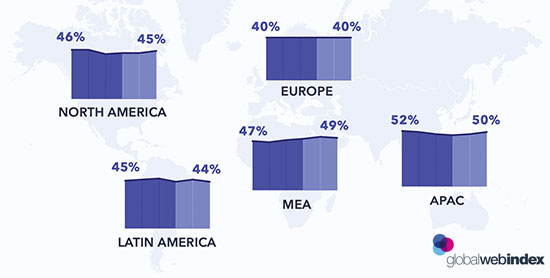
Adblock usage study

Adblocking on mobile devices has increased many folds and is now higher than desktop computers.

Another research conducted by Ovum estimates that publishers will lose $32 Billion to Adblock software by the year 2020.

This is a serious problem affecting many websites particularly blogs that rely on advertisements as their primary source of revenue.

What should you do about Adblock as a publisher?

There are several measures that website owners have taken in this regard.

1. The Do-Nothing Approach

As the title says, you do nothing about the users with Adblock. You simply learn to live with the loss of revenue for the sake of happy users.

2. Passive Approach

You can nicely ask your users to whitelist your website with a promise of quality content and non-obtrusive ads. There is no way to know how effective such an appeal would be.

Another alternative is to create a membership website with paid subscription plans. You can promote paid plans as an ad-free experience with additional content and features.

Reddit is a great example of this approach with its ad-free Reddit Premium plan.

Reddit premium

3. Aggressive Approach

In this approach, you simply block access to your website for all users with AdBlock enabled. If they want to view your content, then they must disable AdBlock.
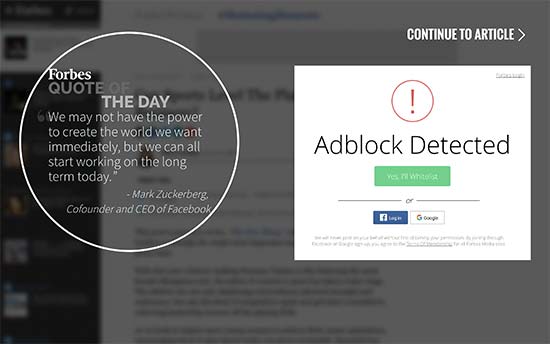
AdBlock wall on Forbes

This kind of anti Adblock approach is rather aggressive, and it will turn away users from your site. Studies show that 77% of Adblock users leave websites with Adblock walls.

It’s best to use the passive approach that we mentioned above.

How to Detect AdBlock Users in WordPress

Before you can request users to whitelist and support your website, you need to be able to detect the AdBlock users. Fortunately, there are plenty of ways to do that in WordPress.

We will show you a few different methods, and you can choose the one that best suits you.

1. Detect and Target AdBlock Users with OptinMonster

OptinMonster is the best lead generation software in the market. It helps you convert website visitors into subscribers and customers.

OptinMonster comes with a built-in ad blocking detector which allows you to show targeted campaigns to users with ad-blocking software installed on their devices. This includes popular software like AdBlock, AdBlock Plus, and uBlock Origin.

First you will need to sign up for an OptinMonster account. You’ll need at least their Growth plan to access the AdBlock targeting.

Once you have signed up, you can head over to your WordPress site to install and activate the OptinMonster plugin. For more details, see our step by step guide on how to install a WordPress plugin.

This plugin acts as a connector between your website and OptinMonster.

Upon activation, you need to click on the OptinMonster icon in your WordPress admin bar. You’ll be asked to connect your OptinMonster account authorizing your website or entering an API key.
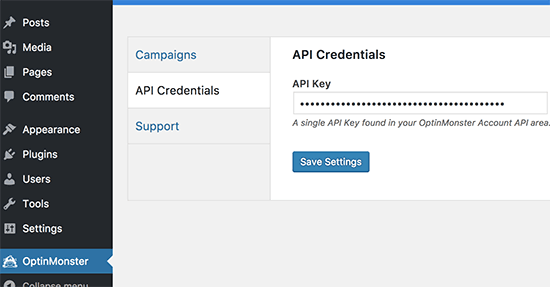
OptinMonster API key

After authorizing OptinMonster, click on the ‘Create new campaign’ button at the top.
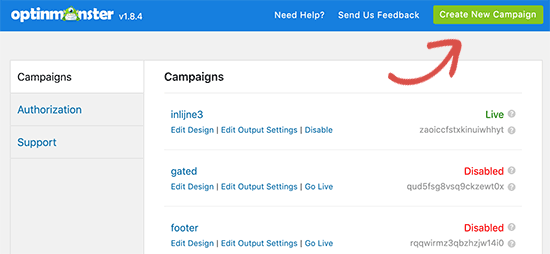
Create new campaign

This will take you to the OptinMonster website.

First, you will need to choose a campaign type. If you want to take the passive approach, then you can use the lightbox popup campaign type. On the other hand, if you want to aggressively lockout AdBlock users, then you can use the Fullscreen campaign type.
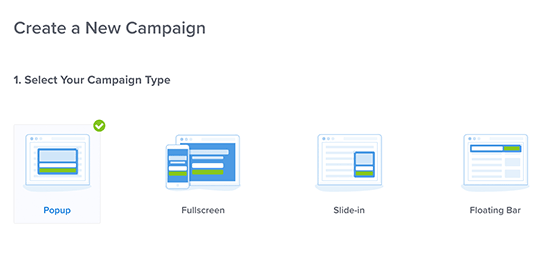
Choose a campaign type

Next, you need to choose a template for your campaign. For this tutorial, we are using the ‘Target’ theme, but you can choose a different template if you want.
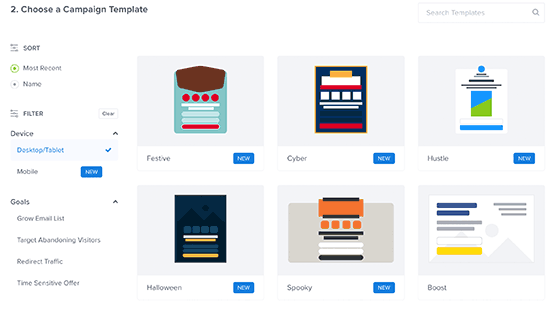
Choose template

Now you will be asked to choose a title for your campaign. After that, you will be redirected to the OptinMonster’s campaign designer.

From here, you need to change your optin view to the ‘Yes/No’ view by clicking on the buton at the top and then turning on ‘Display Yes/No view’.
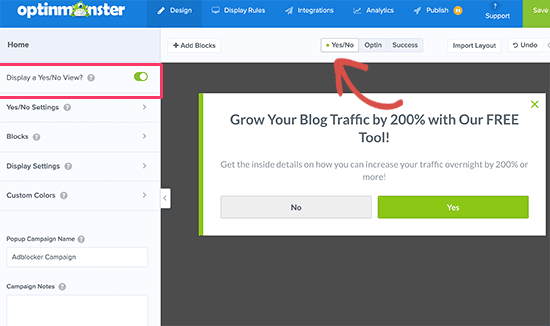
Enable Yes / No view

After that, you need to simply point on any element in the optin preview to edit it. You can click on the text to add your own copy.
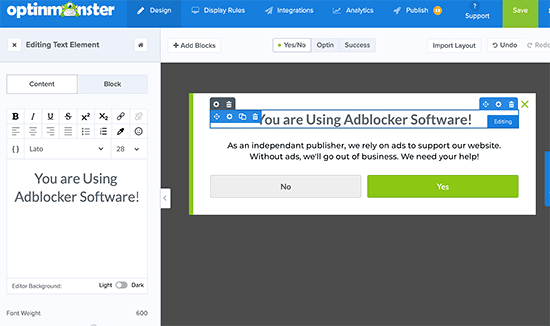
Change campaign text

Next, you need to click on the yes and no buttons to edit their text. We have changed the yes button to ‘I have disabled AdBlock’ and the no button to ‘I will think about it’.

After that, you need to click on the ‘Display Rules’ tab. Under the first rule, you need to select ‘user has adblock enabled’.
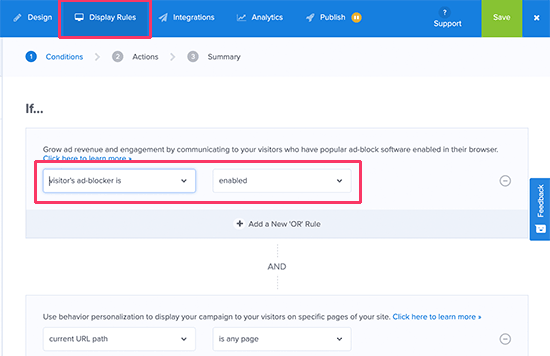
Enable adblock detection rule

After that, make sure that the current URL path is set to every page. This will display the popup on all pages of your website.
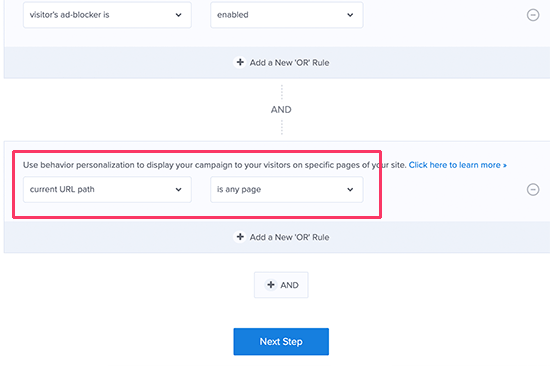
Display popup on everypage

Click on the ‘Next step’ button to continue.

Now you’ll be asked to select the default view. Make sure that it is set to Yes/No view and then click on the ‘Next Step’ button.
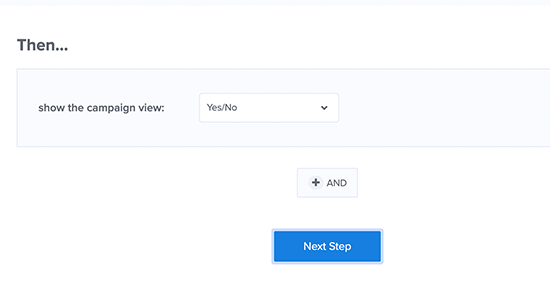
Select view for your campaign

Your Adblock campaign is almost ready. Let’s publish it to make it available on your website.

Switch to the ‘Publish’ tab in the builder and change the status option to live.
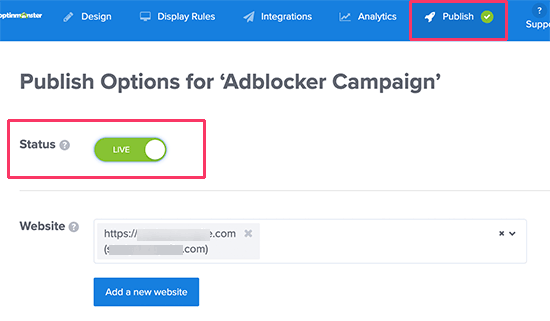
Publish your Adblock tracking campaign

You can now save your campaign to store your changes.

Next, switch back to your WordPress admin area and click on the OptinMonster menu from the admin sidebar. You’ll see your new Adblocker tracking popup under ‘Campaigns’ tab. If you don’t see it, then click on the ‘Refresh campaigns’ button.
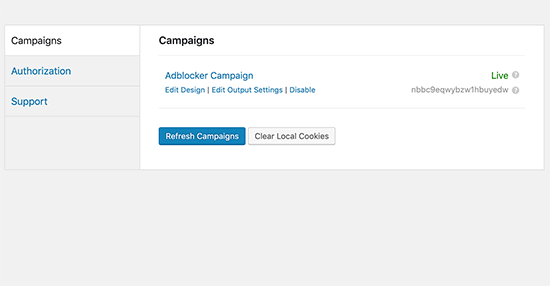
OptinMonster campaigns

Make sure that the campaign status is set to live.

That’s all, your Adblocker campaign is now live on your WordPress website.

You can test out your campaign by installing the AdBlock extension in your browser and visiting your website. You will see a popup asking users to support your website by disabling AdBlock.

AdBlock detector popup

For an aggressive approach, you may want to see this guide on how to lock out AdBlock users with OptinMonster’s AdBlock targeting feature. This will allow you to block adblock users from viewing your content until they disable adblock software.
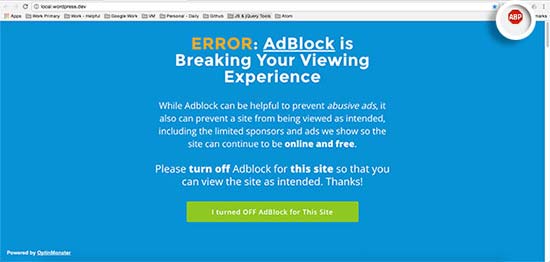
AdBlock lockout

2. Target AdBlock Users with AdSanity Plugin

AdSanity is one of the best ad management plugins for WordPress. It has a paid ‘Adblock Detection’ add-on that allows you to detect users with ad blocking software and restrict their access to your website until they disable ad blocking.

First, you need to install and activate the AdSanity plugin. After that you need to install and activate their Ad Block Detection add-on. For more details, see our step by step guide on how to install a WordPress plugin.

Upon activation of both plugins, you need to visit AdSanity » Settings page and click on the Add-Ons tab.
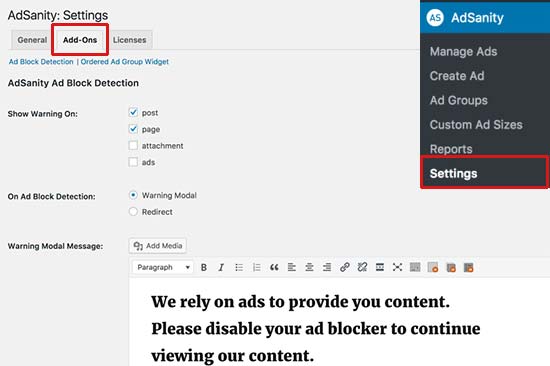
AdSanity Ad Block detection settings

AdSanity allows you to detect AdBlock on posts and pages. You can show a warning popup to AdBlock users with your custom message, or you can redirect them to a custom page.

Both methods are aggressive and would require users to disable AdBlock to continue browsing your site.

3. Detect AdBlock Users with deAdblocker

If you are looking for a free option that allows you to detect AdBlock users, then you can try this method.

First, you will need to install and activate the deAdblocker plugin. For more details, see our step by step guide on how to install a WordPress plugin.

Note: this plugin shows an outdated notice in WordPress, but we tested it, and it works just fine with the latest version.

Upon activation, head over to Settings » deAdblocker page to configure plugin settings.
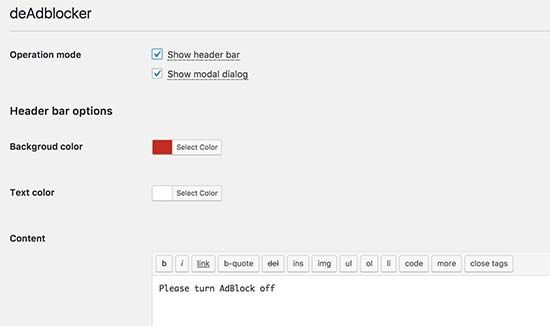
deAdblocker settings

The plugin allows two methods to show a custom message to AdBlock users. You can either display a notification bar on the top of your website or show a lightbox popup.

Both options are dismissible, and users will be able to ignore the message to continue browsing your website.

Don’t forget to save your settings. You can now visit your website with AdBlock extension installed in your browser to test the plugin.
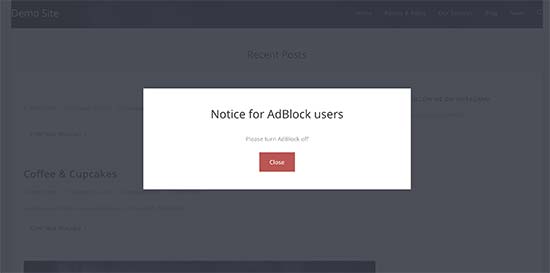
AdBlock popup

Tips on Mitigating Adblock Losses

Internet users are finding more ways to block ads across the internet. Fighting ad blocking software can be tiresome and an unending struggle to recover lost revenue.

One thing to consider is changing the way you make money on your website. Finding new ways to monetize your content will give you the freedom to rely less on ads and build a sustainable business in the long run.

Diversify Your Revenue Streams

Publishers are finding new ways to combat ad blocking and protect their earnings. At the same time, ad blocking software are getting better every day.

Research shows that privacy, security, and bad user experience are the most common complaints among AdBlock users. Publishers can address these complaints by adapting different monetization methods that address those issues.

1. Affiliate marketing

Affiliate marketing is one of the most common ways to earn money from your content. You can recommend products and services to your users and earn commission when users make a purchase using your affiliate link.

There are plenty of plugins and tools for affiliate marketers that will help you get started.

For more details, see our beginner’s guide to affiliate marketing.

2. Selling direct ads

Advertise page on Buzzfeed

If you are serving ads through a third-party advertising network like Google AdSense, then you have limited control on ads, privacy, and the CPC.

Selling ads directly to advertisers allows you to ensure privacy, limit tracking, and control what you get paid.

WordPress ad management plugins like AdSanity allow you to serve your own ads as well. You can use hosted images on your own websites for ads and easily bypass most adblocking software.

Tip: Don’t wrap your ads around HTML elements with CSS classes like ads, advertisement, promo, etc. This is how AdBlocking software detect and block ads.

3. Sponsored Content

Allow advertisers to sponsor content on your website. You can write content about their product or service, and you can even include an affiliate link to get referral commission. You can also accept user-submitted posts directly on your website.

4. Premium Content

Another helpful strategy used by many online publications is premium content. You can adapt a pay per view model, membership plans, sell online courses, or simply restrict pages to paid users.

Paywall on the Washington Post website

For more ways to diversify your website’s revenue, take a look at our guide on different ways to make money online from your website and easy to start new online business ideas.

We hope this article helped you learn how to detect and bypass AdBlock in WordPress. You may also want to see our guide on how to create an email newsletter or 10 marketing data that you must track on every website.

If you liked this article, then please subscribe to our YouTube Channel for WordPress video tutorials. You can also find us on Twitter and Facebook.

The post How to Detect AdBlock Users in WordPress appeared first on WPBeginner.


November 13, 2019 at 07:00PM

Tuesday, November 12, 2019

What’s New in WordPress 5.3 (Features and Screenshots)

WordPress 5.3 was released just a few hours ago. It will be the last major WordPress release of 2019.

This release is packed with some new features and lots of improvements including a brand new default theme.

In this article, we will show you what’s new in WordPress 5.3 and which features you should try after updating your websites.

What's new in WordPress 5.3

WordPress 5.3 is a major release, and unless you are on a managed WordPress hosting service, you’ll have to manually initiate the update.

Important: Don’t forget to create a complete WordPress backup before starting the update.

A Design and User Interface Upgrade

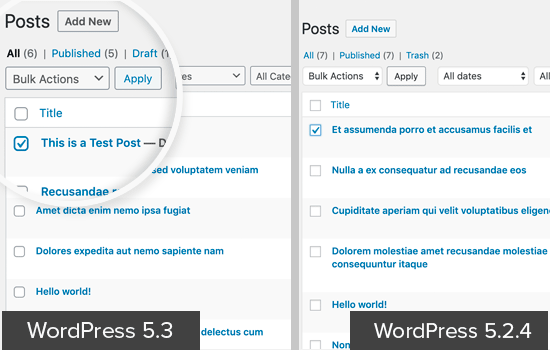
WordPress 5.3 comes with several changes in the overall appearance of the WordPress user interface. These changes are not highly noticeable, but they bring coherency to the overall appearance of the admin area.

Form fields in WordPress 5.3 UI

The new user interface adds borders around form fields to make them more noticeable. It also improves the accessibility of the WordPress admin area to make it a good experience for all users.

Twenty Twenty The New Default WordPress Theme

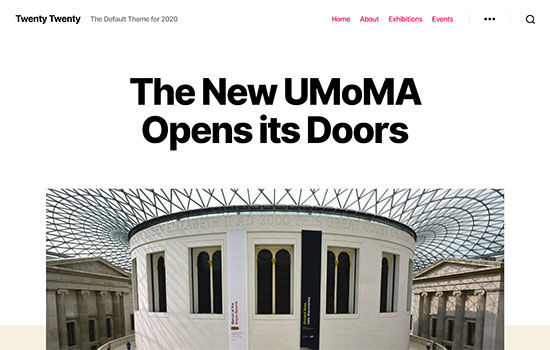
WordPress traditionally releases a new default theme each year which is usually named after the year. WordPress 5.3 now ships with Twenty Twenty as the new default WordPress theme.

Twenty Twenty the new default theme in WordPress 5.3

This new theme is designed to take full advantage of the WordPress block editor. It allows you to easily create beautiful content layouts for your articles and pages.

Twenty Twenty uses the Inter typeface (font), which looks great for headlines. It also looks great on smaller screens and provides a better reading experience across devices.

It is a single column WordPress theme which means there is no sidebar for your blog posts or pages. It does have a widget ready area at the bottom.

You can also use the cover or the fullwidth template with your posts and pages. The full-width template works really well not just with block editor but also with other page builder plugins.

Overall, this is a beautiful theme suitable for both business websites as well as personal blogs.

New Features in The WordPress Block Editor

In 2018, WordPress released a new editor interface code-named ‘Gutenberg’. This new WordPress content editor, completely changed the writing interface in WordPress.

Subsequent WordPress releases has continued to improve upon it, and WordPress 5.3 will come with tons of enhancements to the block editor.

Here are a few block editor changes in WordPress 5.3 that you’d find useful.

The Group Block

The group block allows you to group blocks together. This handy block helps you organize your layout by dividing it into different groups.

Adding group block in WordPress 5.3

You can set the group width to be wide or full-width, and choose a background color for the group container.

You can add new blocks into a blank group or select multiple blocks, and add them to the group. This allows you to interact with these blocks together. For example, you can put different blocks into one group, and then save it as a reusable block.

The Columns Block

Columns provide another way to create interesting layouts in the WordPress editor. WordPress 5.3 comes with some major changes to the columns block.

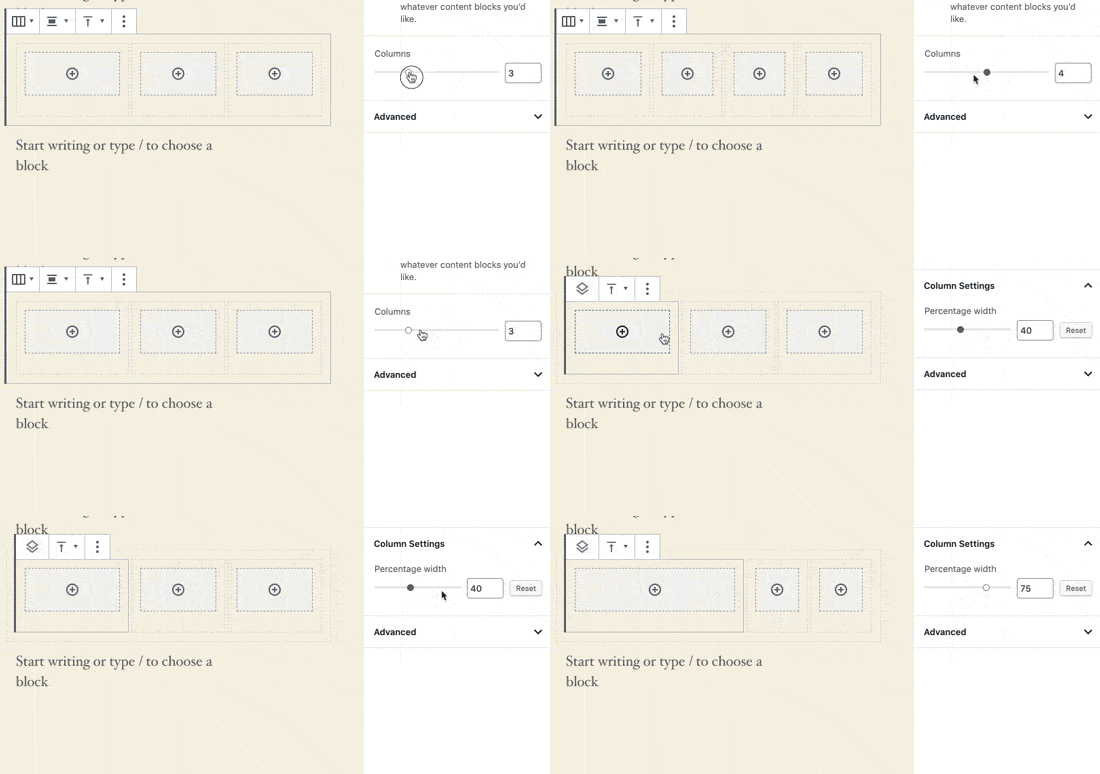
First, you can set a layout for columns and adjust their width.

Adjusting columns width

Secondly, you can set an individual column to be wider, and the rest of the columns will automatically adjust.

The placeholder to add blocks inside a column is now clearly visible making it easier to use.

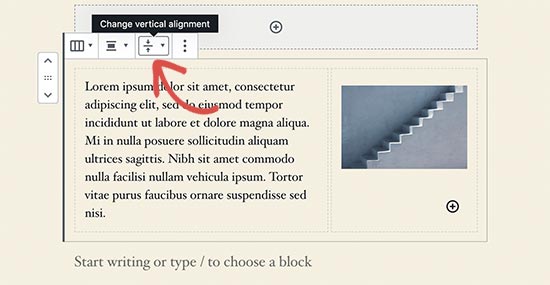
You can also set vertical alignment for columns. This means you no longer need to add spaces for proper alignment of content in each column.

Vertical alignment

Improved Button Block

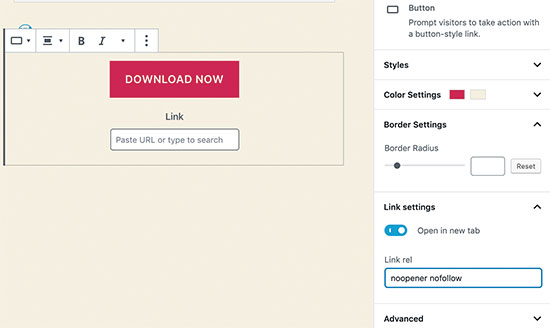
WordPress 5.3 makes it easier to add button in posts or pages with an improved button block which will allow you to select border-radius yourself.

New button block

You can also open button links in a new window and make it nofollow if needed.

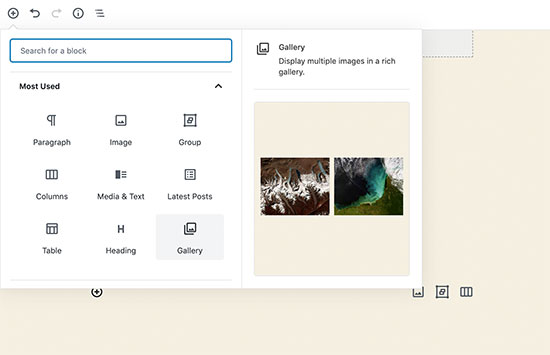
Block Previews

The block editor in WordPress 5.3 shows a block preview. However, the preview is only available when you are using the Add new block icon on the top.

Block preview in WordPress 5.3

Heading Colors

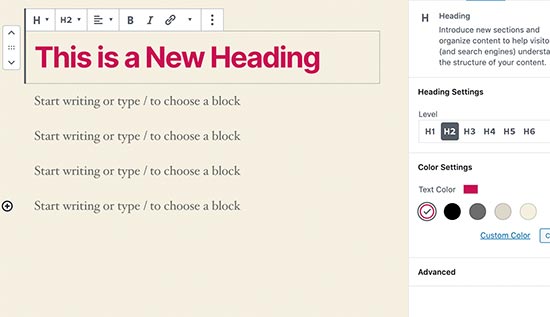
WordPress 5.3, now lets you choose a color for sub-headings inside your articles.

Change heading colors

Reorder Gallery Images

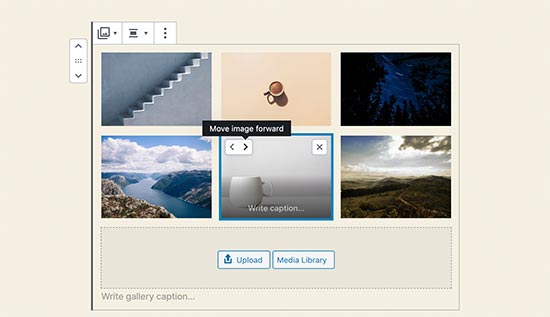
The new and improved gallery block in WordPress 5.3 allows you to reorder images inside the gallery.

Reorder gallery images

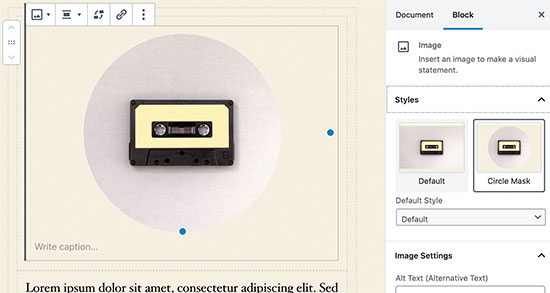
Image Block Styles

Image block now lets you choose a style for your images. Currently, it ships with two styles: Default and Circle mask.

Image block settings in WordPress 5.3

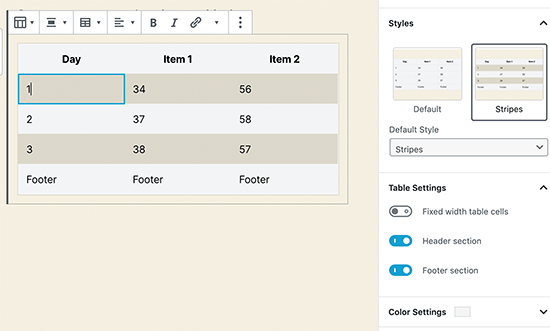
Improved Table Block

Table block in WordPress 5.3 has some much-needed improvements. You can now select styles and add stripes to table rows. You can also add header and footer rows.

Table block

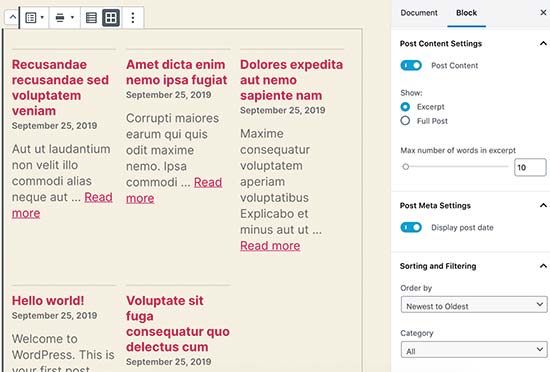
Improved Latest Posts

Previously, the latest posts block only added a list of links to recent posts. WordPress 5.3 allows to add the latest posts with excerpts and display them in a grid layout.

Latest Posts in WordPress 5.3

It does not show featured images for the latest posts. For an alternative method, see our guide on how to show recent posts with thumbnails.

The Block Editor is Now Even Faster

The WordPress editor relies heavily on PHP and JavaScript. While PHP only runs on your WordPress hosting server, JavaScript runs on your user’s browser.

A big task for the WordPress core team is to keep the editor interface smooth and responsive no matter how many blocks and content you add.

In WordPress 5.3, the block editor team has shaved off 1.5 seconds of loading time while testing with 1000 blocks and 36,000 words long post.

Improved Image Uploads in WordPress 5.3

Previously when you uploaded large images from your phone or camera, there was always a chance that your server would time out before the upload could finish.

WordPress 5.3 has addressed this issue. It will now automatically save the image creation process and allow you to resume uploads without breaking anything.

WordPress also fixed the image rotation issue using the EXIF metadata which is something added by your camera or phone to the original image.

You can now use very large image sizes in WordPress posts and pages.

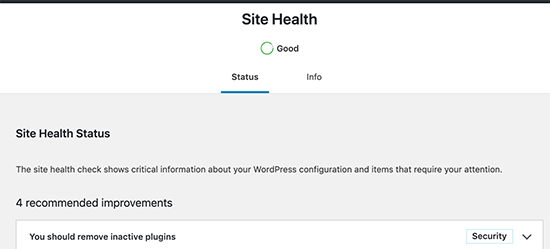
Improved Site Health Reports in WordPress 5.3

WordPress introduced a site health score feature with WordPress 5.1. This helped website owners improve WordPress speed and performance and address common WordPress security issues.

It showed a site health score in percentages, which was a bit arbitrary and confusing to beginners. WordPress 5.3 has replaced it with a status message like ‘Should be improved’ and ‘Good’.

Site Health score in WordPress 5.3

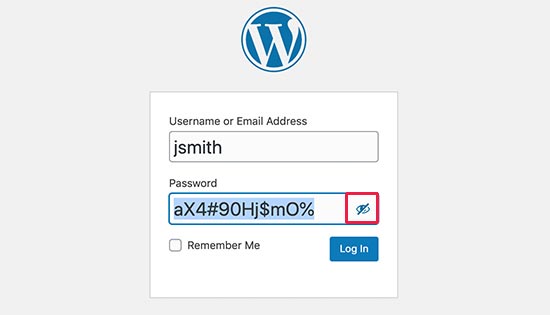
Show Password Button on Login Screen

WordPress 5.3 adds a show password button on the WordPress login screen. This is a really handy tool and makes it easier to type complex passwords, or see that you have entered a password correctly.

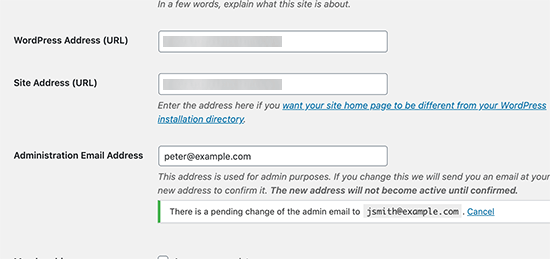
WordPress Admin Email Address Verification

Previously, WordPress allowed you to simply change the admin email address from Settings » General page.

This address is very important as WordPress sends password reset and other notification emails to the address.

WordPress 5.3, now makes it mandatory to verify the new email address to ensure that you don’t miss those future emails.

Verify site admin email address

Note: Please make sure that you’re using a WordPress SMTP plugin, so your WordPress site emails actually make it to your inbox. See our guide on how to fix WordPress not sending email issue.

Under The Hood Changes

WordPress 5.3 brings ton of features and improvements targeted towards developers. The following are some of the most significant under the hood changes.

WordPress 5.3 offers a better way to discourage search engines from indexing a website when you check the option ‘Discourage search engines from indexing this website’ option. (#43590)

Improved compatability with PHP 7.4. (#47441, #47704, #47746, #47783)

Better handling of date and timezone functionality, which will allow developers to use them more efficiently in their projects. (See details)

On a WordPress multisite network, developers can filter sites by status. (#37392, #37684)

Multisite will now store database version as meta (#41685)

We hope this guide helped you explore what’s new in WordPress 5.3. We are particularly excited about the block editor improvements in this release.

If you liked this article, then please subscribe to our YouTube Channel for WordPress video tutorials. You can also find us on Twitter and Facebook.

The post What’s New in WordPress 5.3 (Features and Screenshots) appeared first on WPBeginner.


November 13, 2019 at 03:51AM

7 Ways to Get a 800 Toll-Free Number for Your Business in 2019

Do you want to get a 800 toll-free number for your business?

Toll-free numbers help new and existing customers reach out to your business directly. Many customers also prefer to call a business phone number instead of writing an email.

A toll-free number encourages them to do so because they’re free for the caller. It also helps you win new customers and build lasting relationships with your existing customers.

In the past, toll-free numbers were used by large businesses only. But now they’re extremely affordable, so even small business owners can get a 800 toll-free number for their business.

In this guide, we’ll share 7 ways to easily get an 800 toll-free number for your business. You wouldn’t need to install expensive phone sets, purchase new hardware, or even hire new staff.

Sounds good? Let’s get started.

Ways to easily get a toll-free number for your business

Why Get a Toll-Free Number for Your Business?

Toll-free numbers are the phone numbers that can be dialed without any charge to the person placing the call.

They start with a unique 3 digit code as a prefix. 800 is the most commonly used prefix for toll-free numbers, but you can also get one with the following toll free prefixes 888, 877, 866, 855, 844 or 833.

These toll-free codes are well recognized and customers know that they will not be charged for the call by their phone company.

Apart from the free call, talking to a human feels more natural and offers better customer satisfaction.

Toll-free numbers are not restricted to a particular geographic location. Your customers across the world can use the same number to reach you.

It looks more professional and gives credibility to your business. It is also easier to promote because you can select a memorable phone number and use it in all your marketing campaigns. Some companies even buy vanity phone numbers which are available on a first-come-first-serve basis.

They are not too expensive and using a VoIP service provider also allows you to make cheaper calls. You don’t need any special hardware, in fact, you can use a computer or even your phone to receive calls.

That being said, let’s take a look at the best ways to get a 800 toll-free number for your business.

1. Nextiva

Nextiva

Nextiva is the best business phone service provider on the market. They offer the easiest way to get a toll free number for your small business.

You get a free toll-free number with each Nextiva plan. You can also get a local number from anywhere in the United States.

Nextiva offers a simple dashboard to monitor your calls, set up voicemail greeting, set caller ID for outbound calls, call routing, caller ID, logs, and more. This enables you to efficiently manage your business calls and make the most out of them.

You can get calls on your toll-free number via laptop, a desk phone set, or even on cell phone using their app. This reduces the dependency on specific hardware and gives you the flexibility to take your business phone with you.

Pricing: Starting from $20 / month per user.

2. RingCentral

RingCentral

RingCentral is another excellent way to get a toll-free number for your business. They offer all popular toll-free codes including 800, 888, 877, 866, 855, and 844.

You can forward the calls to an existing number or use an existing toll-free number with RingCentral. They offer an extensive set of features like call routing, voicemail, call analytics, message alerts, answering rules, and more.

They have an easy to use dashboard that you can manage from your browser, desktop app, or use mobile apps to receive calls on the go.

Pricing Starting from $15.99 / month

3. Grasshopper

Grasshopper

Grasshopper is a leading provider of virtual phone number for small business with toll-free, local, and vanity numbers.

You get all the usual features of a VoIP service like call management, extensions, call forwarding, voicemail transcript, and more. You can use your business number to send and receive texts.

Call management tools like call waiting, custom greetings, simultaneous call handling, allow small businesses to easily manage more calls with limited staff.

Pricing: Starting from $26 per month with 1 number and 3 extensions.

4. Ooma Office Phone

Ooma Office Phone

Ooma is a popular business VOIP phone provider that offers 1-800 toll free phone numbers at affordable prices. You can add a toll free number to any Ooma office plan. By default they will pre-select a toll-free phone number for you, but you also have the option to choose a new one.

Ooma office platform comes with all powerful features that you would expect such as virtual receptionist, extension dialing, music-on-hold, smart mobile phone apps, and more. Best of all the setup is very easy, and you can do it within minutes.

Pricing: Their plan starts at $19.95 per month which comes with a free toll-free number and 500 minutes included for free. They also allow you to purchase additional minutes at discounted rates.

5. Phone.com

Phone.com

Phone.com is another easy way to get a toll free number. It allows you to easily manage your businness calls using your computers and mobile apps.

They offer vanity and toll-free numbers that you can use with your existing number. It comes with all the usual features you may expect from a cloud phone service.

Pricing: Pay per minute plans start from $12.99 per month and Unlimited plans start from $29.99 per month.

6. 8×8

8x8

8×8 is another easy option to get a toll-free number for your small business. They offer toll-free and local numbers for several countries which makes them a good choice if your target customers are in multiple regions.

You also get all the usual call management features plus integrations with G Suite and Office 365.

Pricing: Starting from $12 per month per user.

7. Vonage

Vonage

Vonage is another business phone service offering toll-free and local numbers. You can choose from the popular 888, 877 or 866 codes and it will ring on your existing business phone number.

They have an easy to use web-based control panel to manage your calls. It includes all the additional features you may expect from a VoIP service provider including voicemail, auto-attendant, forwarding and routing, simultaneous call ring on multiple devices, and more.

Pricing: Their mobile plan starts from $19.99 / month per user with limited features. The premium plan starts at $29.99 / month per user and unlocks advanced features.

FAQs about 800 Toll Free Numbers

Many beginners who are just starting their first business are quite unfamiliar with how toll-free number works. Here are some frequently asked questions about toll-free numbers and how they work.

1. What are toll-free numbers?

Toll-free numbers are telephone numbers where a person or business receiving the call is charged for it instead of the caller. Mostly, these numbers are used for customer services by businesses and organizations.

To distinguish them from regular landline numbers, toll-free numbers start with specific codes like 800, 888, 877, 866, 855, 844 and 833.

The rules for toll-free numbers are controlled by the FCC, but they don’t assign the specific phone numbers.

The toll-free numbers registry database is maintained by a company called Somos, Inc. This company then gives permission to other companies called RespOrgs (Responsible Organizations) to assign toll-free numbers.

This allows any small business owner to get a toll-free number for their WordPress website or online store.

2. Is there a difference between a toll-free number and vanity number?

A vanity phone number is the industry term used to describe numbers that spell a business name or a more memorable phrase, for example, 800-FLOWERS.

If a vanity number starts with a toll-free code, then it is not different than any other toll-free number in terms of functionality and purpose.

3. Can I get a vanity number that spells a business name and then sell it?

No, FCC rules prohibit hoarding or purchasing toll-free numbers for the purpose of reselling them.

4. Can I transfer my toll-free number to another company?

Yes, toll-free numbers are portable ,and you can use the same number with any business phone service provider of your choice.

5. Can I receive international calls on a US toll-free number?

Yes, you can. However, those calls will not be free for the caller, and they will be charged by their phone company for an international call.

Most toll-free numbers are considered local calls in the US and Canada. Customers calling from Canada will not be charged for an international call.

If your customers are located in different countries, then many of the toll-free number providers mentioned above offer toll-free numbers for other countries as well.

6. Can I forward toll-free calls to my existing number?

Yes, you can forward toll-free calls to your existing phone numbers. Many of the phone companies above also allow you to set forwarding rules for inbound calls based on business hours, availability, and other factors.

7. How do I add the toll-free phone number on my website?

You can easily add your toll-free number to any of the popular website builders or blogging platforms.

If you’re using WordPress for your website, then you can follow our step by step guide on how to add a click to call button in WordPress.

Which is The Best Toll-Free Number Service?

The basic service which assigns you the toll-free number is offered by almost all virtual phone service providers.

However, call management tools, costs, and integrations are equally crucial for growing your business by using a toll-free number.

Keeping these factors in mind, we believe Nextiva to be the best toll-free number for small businesses. They offer competitive rates, an extensive set of features, and integrations to take full advantage of a business phone system.

We use Nextiva for our own business.

RingCentral comes as the close second in terms of features, ease of use, and simplicity of adding toll-free number to your plan.

We hope this article helped you get a 800 toll-free number for your business. You may also want to see our guide on how to get a free business email address and our comparison of the best email marketing services for small business.

If you liked this article, then please subscribe to our YouTube Channel for WordPress video tutorials. You can also find us on Twitter and Facebook.

The post 7 Ways to Get a 800 Toll-Free Number for Your Business in 2019 appeared first on WPBeginner.


November 12, 2019 at 08:41PM