Another year is about to end and it is time to take a look back at 2019 to gain some perspective and reflect upon the progress.
It was a particularly fantastic year for WPBeginner, WordPress community, and many of our new users who started new websites and businesses this year.
We want to thank all of you for your continued support that keeps us motivated and energized.
To keep up with our tradition, in this article we will share our staff-pick of the best of best WordPress tutorials on WPBeginner. We’ll also share an overview of 2019 from our CEO.
WPBeginner Recap 2019 by Syed Balkhi
Like every year, 2019 has been the best year ever for me both personally and professionally.
This year, WPBeginner turned 10 years old. It still feels quite unreal to say that.
I’m truly grateful for all the support from WPBeginner readers and the larger WordPress community, and I’m more motivated than ever to continue our mission to help small businesses grow and compete with the big guys.

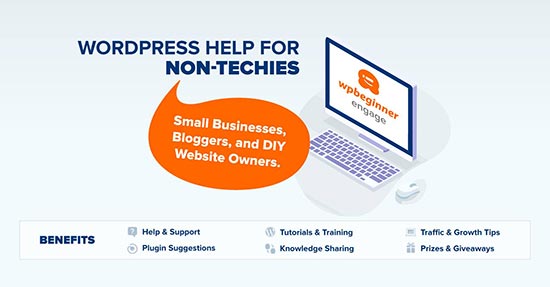
After a lot of requests from the community, we finally launched a free Facebook group called WPBeginner Engage that’s focused on helping beginners and non-techy users do more with WordPress. In less than 6 months, we have over 22,000+ members, and I’m really proud of the discussions and knowledge-sharing that’s happening there.
I have been doing exclusive Facebook Lives, recording training videos, our teams of WordPress experts have been answering user questions, and the best part is that it’s 100% free. Go ahead and join now!
Our community on YouTube has also been growing stronger. WPBeginner YouTube channel passed over 150,000 subscribers (currently at 157k subscribers). This was one of my goals for 2019, and I’m very glad that we met it.
We have been creating original YouTube content series to help you get more traffic, grow your email list, and make money blogging. Check out our playlists.
We invested in Rymera Web, parent company of Wholesale Suite, Advanced Coupons, and Inventoroo through our WPBeginner Growth Fund.
We are in the final stages of wrapping up few more growth fund investments that will be announced in the new year.
2019 was a great year for WPBeginner’s family of products.
WPForms
WPForms passed over 3 million active installs, and it’s now one of the top 15 most popular WordPress plugins of all time. Considering that we only launched it in 2016, it’s amazing to see how far we have come.
We added a lot of powerful features in WPForms including: form landing pages, conversational forms, Google AMP support, smart phone and email fields, complete language translations in popular languages, and a whole lot more.
WPForms is the most beginner friendly WordPress form plugin, and that’s why it has continued to maintain a 4.9 out of 5 star rating average with over 5000+ five star ratings (read WPForms user reviews).
Not using WPForms yet? You can try the free version and then upgrade to Pro when you’re ready.
RafflePress
We launched a brand new WordPress giveaway plugin called RafflePress. This is a tool that I have been wanting to build for the last 5 years, and I’m so glad that we did. It is by far the best contest plugin for WordPress in the market.
I successfully used it on many of our websites and blogs to grow our traffic, sales, and subscribers. I’m really excited to do more giveaways in 2020 because they just work!
If you’re serious about growing your website in 2020, then definitely give RafflePress a try.
WP Mail SMTP
We also launched a pro version of our popular free WP Mail SMTP plugin. After our acquisition, the plugin grew from 600k to over 1 million active installs. In the pro version, we added a lot of highly requested features such as Amazon SES integration, Email Logs for WordPress, and more.
This is a plugin that I recommend installing on all website because it helps fix WordPress not sending email issue.
MonsterInsights
As I promised in last year’s update, our WordPress analytics plugin, MonsterInsights saw major improvements.
We completely redesigned the plugin, added a brand new setup wizard, improved affiliate tracking, enabled automatic scroll tracking, added front-end page insights, and launched integrations with MemberPress, LifterLMS, and other popular plugins.
MonsterInsights is my most favorite plugins because it helps me grow our business with confidence. I sincerely believe that it’s easy to double your traffic and sales when you know exactly how people find and use your website. You can start with free version here.
OptinMonster & TrustPulse
Last but not least, our flagship product, OptinMonster, continued to push the limits in 2019. OptinMonster helps you get more subscribers and sales from your existing website traffic. Simply put, it’s the #1 conversion optimization software in the market.
In 2019, we added gamified spin a wheel optins, chatbot integrations for Facebook Messenger, tons of new personalization and targeting rules, mobile-specific templates, improved WooCommerce integration, attention activation feature, improved native analytics, brand new dashboard, and integrations with tons of third-party services like Zapier, Jilt, Bronto, etc.
OptinMonster team also launched a powerful social-proof plugin called TrustPulse that helps you boost site conversions with real-time social proof notifications.
As for personal life, 2019 was a great year for my family. My son, Solomon, turned 3 years old. He now tries to imitate my work habits on his mini computer. It’s quite funny to watch that.
We traveled to 8 countries this year. Solomon attended 1 WordCamp in 2019 (WordCamp US) and he went to few other conferences with me as well.
Below is a picture of our family, since I know many of you often ask for it.

If you want to see more of my personal journey, then please visit my personal blog and subscribe. I will be doing a detailed writeup there in the next few days. It will contain everything that happened to me in 2019 both personally & professionally along with lessons that I learned, and my goals for 2020.
With that said, let’s take a look at the best of WPBeginner in 2019.
January
Gutenberg vs page builders – What’s the real difference – 2018 ended with the release of WordPress 5.0. So we spent early months of 2019 helping our users learn and adapt to the new WordPress editor called Gutenberg. In this article, we explained the difference between the new WordPress editor and page builder plugins.
How to create a free business email address in 5 minutes (step by step) – Having a business email address makes your business look more trustworthy and legit. In this guide, we showed you how to get a free business email address with step by step instructions.
Cover Image vs. Featured Image in WordPress Block Editor (Beginner’s Guide) – The new WordPress block editor introduced a new feature called cover image. In this article, we explained how to use the cover image feature and how it is different than the featured image in WordPress.
How to Choose the Best Products to Sell Online (Beginner’s Guide) – A lot of our users want to start their online store using WooCommerce and WordPress. In this article, we tried to answer one of their most frequently asked question which is how to choose the best products to sell online.
Common Gutenberg questions answers (WordPress 5.0. FAQs) – In this article, we answered the most frequently asked questions about Gutenberg editor in WordPress 5.0.
February
How to setup a professional email address with Gmail and G Suite – In this article, we showed you how to setup a professional business email address with G Suite. It is Google’s productivity suite for businesses and professionals that allows you to use the same Google apps (Gmail, Docs, Calendar, and more) with your own domain name.
How to build an Amazon affiliate store using WordPress – In this guide, we showed you how to easily make an Amazon affiliate store using WordPress. Basically, you promote products on Amazon’s website to earn an affiliate commission on each sale.
How to easily create a quiz in WordPress – Quizzes are fun and can help you build an engaged audience on your website. In this guide, we showed you how to easily create a quiz in WordPress.
March
How to create a custom WordPress theme (without any code) – Do you want to create a completely custom WordPress theme of your own but don’t want to learn coding? In this guide, we showed you how to easily create a custom WordPress theme without writing any code.
How to create an online marketplace using WordPress – An online marketplace website allows users to buy and sell items by setting up their own mini-stores within your eCommerce platform. In this guide, we showed you how to easily create your own online marketplace using WordPress to make money on the side.
How to create conversational forms in WordPress (Typeform Alternative) – Conversational forms make your forms interactive and a fun experience for your users. In this article, we showed you how to easily create conversational forms in WordPress without using a third-party service.
What is a blog and how is it different from a website? (Explained) – Many users asked us about the difference between a blog and a website and which one they should start. In this beginner’s guide, we explained the difference between a blog and a website.
April
How to add Google Maps store locator in WordPress – In this guide, we showed you how to easily add a Google Maps store locator to your WordPress website and provide your customers directions to your store location.
Beginner’s guide to image SEO – Optimize images for search engines – In this guide, we walked you through the image SEO and how to properly optimize your images to get more traffic from search engines.
How to easily create a staging site for WordPress (step by step) – A WordPress staging site is a test site that you can use to “safely” make plugin updates and other changes before going live. In this guide, we showed you how to easily set up a WordPress staging site with just a few clicks.
How to do basic image editing in WordPress (Crop, rotate, scale, flip) – In this guide, we showed you how to do some basic image editing in WordPress without leaving the admin area.
May
How to create a web directory in WordPress – In this step by step guide, we showed how to easily create a web directory in WordPress.
BigCommerce vs WooCommerce – Which one is better? – We compared WooCommerce and BigCommerce side by side to weigh the pros and cons of both platforms and find out which one is better.
Beginner’s guide to WordPress template hierarchy (cheat sheet) – In this guide, we broke down the WordPress template hierarchy and what each template does in WordPress themes. Must read for any users getting started in WordPress theme development.
How to create an email newsletter (step by step) – In this step by step tutorial we showed you how to easily create an email newsletter and start building an email list.
85+ most useful time-saving WordPress keyboard shortcuts – In this beginner’s guide, we compiled an ultimate cheat sheet of all the useful WordPress keyboard shortcuts that would allow you to work faster on your websites.
June
How to add nofollow links in WordPress (Beginner’s guide) – Adding nofollow to external links is important for SEO. In this guide, we showed you how to easily add nofollow links in WordPress.
how to add scroll depth tracking in WordPress with Google Analytics – Want to learn how much users scroll on your website? In this guide, we showed you how to easily track users’ scroll depth activity on your WordPress site with Google Analytics.
Tips for mastering the WordPress content editor – We updated our ultimate guide on using the WordPress content editor with new tips and techniques.
How to host a website (Simple guide for beginners) – We have been often asked by beginners about how they can host a website. In this beginner’s guide, we showed how to easily host a website.
Best Beaver Builder themes and templates – We compiled our expert pick of the best Beaver Builder compatible themes and templates that you can use.
July
How to choose the best business VoIP provider (Compared) – In this guide, we explained how to choose the best business VoIP service provider and listed our pick of the best business phone companies.
Dropshipping made simple – A step by step guide for WordPress – We prepared a complete dropshipping guide for WordPress users who want to start their own dropshipping business.
Best SMTP service providers with high deliverability – We compared the top SMTP service providers to help users pick the best email delivery service for their WordPress websites.
How to create an online course with WordPress (The right way) – Our complete step by step guide on how to easily create an online course with WordPress.
Best WooCommerce dropshipping plugins (Compared) – We compared all the top dropshipping plugins for WooCommerce to help users pick the best option to start their dropshipping business.
August
How to use FOMO on your WordPress site to increase conversions – FOMO or fear of missing out is a psychological phenomenon used by marketers to encourage sales. In this article, we showed you how to easily use FOMO on your WordPress site to increase conversions.
Best Mailchimp alternatives (Better features and fair pricing) – We were asked by users to suggest Mailchimp alternatives. In this article, we picked the best Mailchimp alternatives with much better features and reasonable pricing.
How to add a click-to-call button in WordPress – In this tutorial, we showed you how to easily add a click-to-call button to your WordPress website or WooCommerce store.
How to run a giveaway / contest in WordPress with RafflePress – In this guide, we showed you how to easily run a viral giveaway /contest in WordPress with RafflePress.
How to add infinite scroll to your WordPress site – Speed is a dominant factor in improving time users spend on a website. In this guide, we showed how to easily add infinite scroll to your WordPress website and improve performance.
September
Wordfence vs Sucuri – Which one is better? (Compared) – Wordfence and Sucuri are the most popular WordPress security and firewall plugins. In this guide, we compared Sucuri vs Wordfence side by side in terms of features, pricing, and ease of use.
WooCommerce made simple: A step-by-step tutorial [+ Resources] We made a complete beginner’s guide to WooCommerce with step by step instructions to setup an online store. We also added resources to help you grow your business like a total pro.
Best WordPress giveaway and contest plugins compared – In this article, we compared the top WordPress giveaway and contest plugins. We analyzed them for features, ease of use, and which one of them is more suitable to grow your business with viral contests and giveaway.
How much do eCommerce websites cost (real numbers) – In this beginner’s guide we compared how much it costs to start eCommerce websites with real numbers. We analyzed the costs of plaforms like WooCommerce, Shopify, and BigCommerce with additional costs of addons and online payments.
October
Best affiliate marketing tools and plugins for WordPress – In this article, we shared our pick of the top affiliate marketing tools and plugins for WordPress that will help boost your affiliate earnings.
Best podcast hosting compared (most are free) – In this guide, we compared all the best podcast hosting options with both free and paid plans. You may also want to see our complete guide on how to start a podcast with WordPress.
How to get a free email domain (5 quick and easy methods) – Looking for a domain to use for your professional email address? In this guide, we showed 5 quick and easy methods to get a free email domain.
How to stop and prevent a DDoS attack on WordPress – DDoS attacks can take any website down or disrupt its performance. In this tutorial, we showed how you to stop and prevent DDoS attacks on your WordPress website.
November
How to properly install and set up WP Rocket in WordPress – WP Rocket is the best WordPress caching plugin on the market. In this article, we showed you how to easily install and setup WP Rocket in WordPress to instantly boost your website speed and performance.
How to setup email logs in WordPress and WooCommerce – A typical WordPress website or WooCommerce store sends emails for various functions like password reset, customer orders, new user registrations, etc. In this guide, we showed you how to easily keep email logs on your WordPress site or WooCommerce store to keep an eye on all email activity.
how to add a Facebook giveaway in WordPress to boost engagement – Facebook has a massive userbase but it limits your reach based on how users engage with your posts. In this guide, we showed you how to boost user engagement by running a Facebook giveaway in WordPress.
Ways to get a 800 toll-free number for your business – A lot of our users wanted to get a toll-free number for their business. In this article, we showed you all the best ways to get an 800 toll-free number for your business.
How to create a photo contest in WordPress – Another great way to build user engagement and loyalty is by running a photo contest. In this tutorial, we showed you how to easily run a photo contest in WordPress to boost user engagement and gain new users.
December
How much does a domain name really cost? – In this article, we answered your questions about how much does a domain name really cost. We explained different scenarios and ways to get free, cheap, premium, and exclusive domain names.
How to add your WordPress site to Google Search Console – We wrote step by step instructions on how to easily add your WordPress site to Google Search Console. Don’t forget to check out our companion article on tips on using Google Search Console to grow your traffic.
How to create a WooCommerce contest – One of the quickest ways to get users to spend time and bring new users to your site is by running a contest. In this guide, we showed you how to easily create a WooCommerce contest to boost loyalty and engagement.
How to track link and button clicks in WordPress – Users interact with your website by clicking on links and buttons but how do you measure where they are clicking and how often? In this guide, we showed you how to easily track link and button clicks in WordPress.
These were some of the best WordPress tutorials on WPBeginner in 2019. We hope that you found them helpful.
We want to thank all WPBeginner users, who visited our website, offered feedback, left comments, and shared it with others. We truly appreciate you.
We look forward to adding even more useful WordPress tutorials in 2020. Have a Happy New Year.
If you liked this article, then please subscribe to our YouTube Channel for WordPress video tutorials. You can also find us on Twitter and Facebook.
The post Best of Best WordPress Tutorials of 2019 on WPBeginner appeared first on WPBeginner.
December 31, 2019 at 08:25PM