Monday, January 13, 2020

How to Save Contact Form Data in the WordPress Database

Recently one of our readers asked if it’s possible to save WordPress contact form data in the database?

Typically most popular WordPress form plugins will send a notification email to administrators after a form entry is submitted on the website.

But what happens to this data after it’s sent? In this article, we will share how to save contact form data in the WordPress database, and what does it actually mean.
Saving your contact form data in your WordPress database

Contact Form and the WordPress Database (Behind the Scenes)

When a visitor submits a contact form on your WordPress site, the most prominent visible action that you as a website owner will see is an email notification in your inbox that contains all the details that specific visitor submitted.

However behind the scenes, most WordPress form plugins will also store this data in your WordPress database.

A WordPress database is a system of storing and fetching data in an organized way. This allows plugin developers to manage data in a programmable way.

As a user, if you wanted to display the data in your WordPress database, then you would need to login to your WordPress hosting account and go to the phpMyAdmin tool.

For example, if you’re using Bluehost, then the link to phpMyAdmin is at the bottom of the control panel under Helpful Links » Advanced » phpMyAdmin.

Once you’re in phpMyAdmin, you’d need to select your WordPress database, then click on the database table of your respective WordPress form plugin. Since we use WPForms, this is our form table: wp_wpforms_entries.
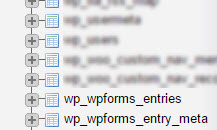
The wp_wpforms_entries and wp_wpforms_entry_meta tables shown in the phpMyAdmin list

Once you’ve clicked on the table, you’ll find all your form entries in the fields column.
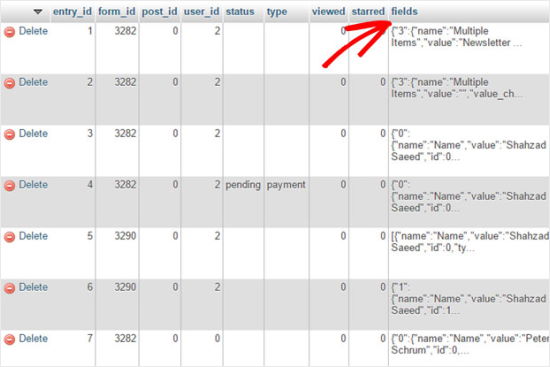
Contact Form Data Fields in WordPress Database phpMyAdmin View

Giving the looks of it, you will agree with us when we say that this is not the most user-friendly way to see data.

This is why most premium WordPress form plugins come with a user-friendly entry management solution that allows you to access form entries inside your WordPress dashboard.

Yes, all contact form data is still stored in your WordPress database, but you can view it in a user-friendly interface like your WordPress admin instead of the screenshot above.

Let’s take a look at an example of what it looks like when using WPForms, which is the fastest growing premium WordPress form plugin, and it’s currently being used by over 3 million websites.

How to Manage Contact Form Entries in WordPress

For the sake of this example, we will be using WPForms because that’s the plugin built by our team, and it is what we use on WPBeginner. However similar process exists in other popular WordPress form plugins like Formidable Forms, and others.

First, you will of course need to create a contact form with WPForms. If you need instructions for this, then you can follow our step by step guide on how to create a contact form in WordPress.

After you have added the contact form on your website, you need to go ahead and make a test entry submission. Here’s an example of our simple contact form:
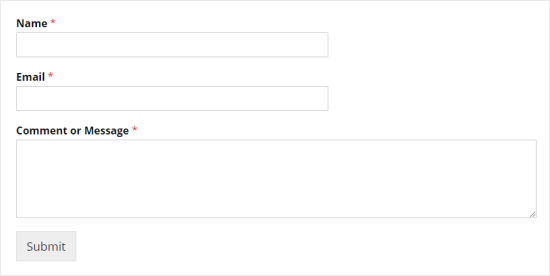
A simple contact form, showing fields for Name, Email, and Comment or Message

Once you have filled it out with sample information, click on Submit.

This will cause two things to happen. First, it will send you, the site admin, an email with all the information from the form. Second, it will store the contact form data in your WordPress database which you can view on the WPForms » Entries section in the WordPress dashboard.
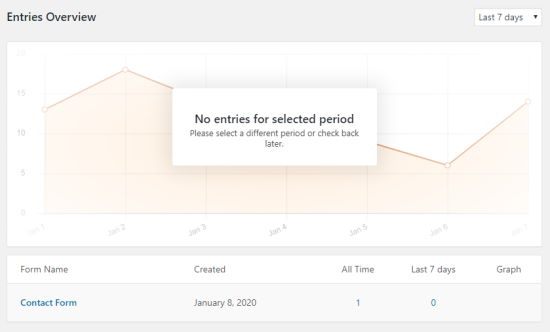
The WPForms Entries Overview page, showing a graph and a table with the form name and number of entries

From this screen, you can click on your form’s name, or the count under the All Time to see your entry.
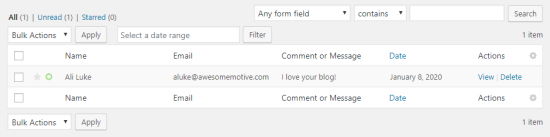
Table showing entered form data for name, email, and comment or message

The field labels (in this case, Name, Email, and Comment or Message) are listed at both the top and the bottom of the table.

The entry management screen also gives you an ability to star (favorite) entries in the table, mark them as read, or even delete them.

You can click on the View link next to the entry item to see more details such as date of submission, other contact form fields, etc.
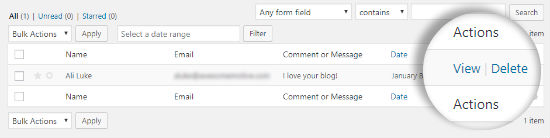
The View link, indicated by a red arrow, that you click to view the contact form entry details

On the WPForms entry details page, you can add notes about the contact form entry, print or export it, star it, and more.
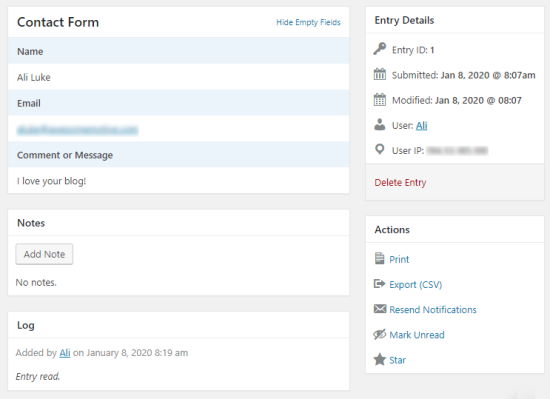
The page showing all the details about the contact form entry

As a user, this interface is much more user friendly way to view the contact form data stored in a WordPress database.

Bonus Tip: How to Disable Form Data from being Stored in WordPress Database

In some cases, you may not want to store your contact form data in a WordPress database. WPForms also allows you to do that. All you need to do is edit the respective WordPress form, and it will open the WPForms form builder.

You need to go to the Settings » General tab inside the builder and scroll to the bottom. You need to make sure to check the option that says: Disable storing entry information in WordPress.
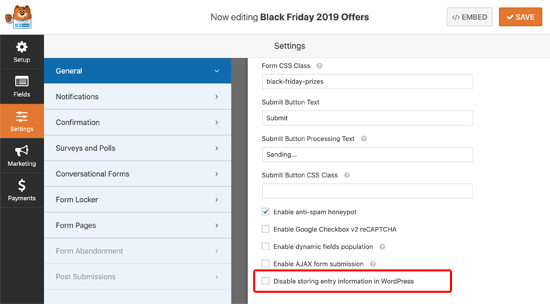
Disable Entry Storing on WPForms

After that, simply click on the Save Button and you’re done.

Now you need to go back to this form and submit a test entry to make sure that you’re receiving email notifications. This is very important because the contact form entry will NOT be stored in the database when you have the above setting checked.

If you’re running into the WordPress not sending email issue, then you need to install and activate WP Mail SMTP plugin. It helps you improve WordPress email deliverability by letting you connect with top SMTP providers like Amazon SES, SendGrid, etc.

That’s all. We hope this article helped you learn how to save contact form data in the WordPress database. You may also want to see our guide on the best email marketing services to help increase your website traffic and sales.

If you liked this article, then please subscribe to our YouTube Channel for WordPress video tutorials. You can also find us on Twitter and Facebook.

The post How to Save Contact Form Data in the WordPress Database appeared first on WPBeginner.


January 13, 2020 at 06:06PM

Friday, January 10, 2020

11 Things You Should Do When Inheriting a WordPress Site

Recently one of our readers asked what are some of the things we recommend doing immediately after inheriting a WordPress site?

Whether you’re a business owner who recently acquired a new website, or an office assistant who’s inheriting your company’s existing website from another team member, you might be wondering what are the most important next steps.

In this article, we will show you the top things you need to do when inheriting a WordPress site.

Things you need to do when inheriting a WordPress website

1. Get All The Passwords

Managing passwords

When inheriting a WordPress site, the first thing you must do is gather all the username and password information. This includes your web hosting password, FTP password, CDN password, domain management password, email marketing service passwords, and password to all third party premium plugins or services that the website is using.

From our experience, scheduling a video call with the old developer or site owners works best because they can explain everything in detail.

The best way to manage all your website passwords is by using a password manager. We recommend using LastPass because it works with all your devices and allows you to store passwords in group, share them securely, and use stronger passwords.

2. Change All Admin Password and Emails

Once you have received all the passwords, you need to change all of them.

This ensures that the previous developer or site owner cannot modify anything. Another thing you want to do is update all admin contact emails, so only you have the ability to reset passwords in the future.

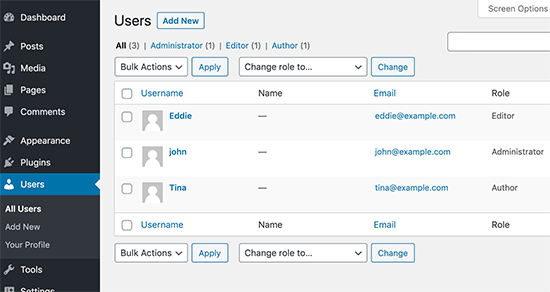
You can do this by going to Users » All Users page in WordPress admin area and editing all user passwords along with contact details.

Edit all user passwords in WordPress

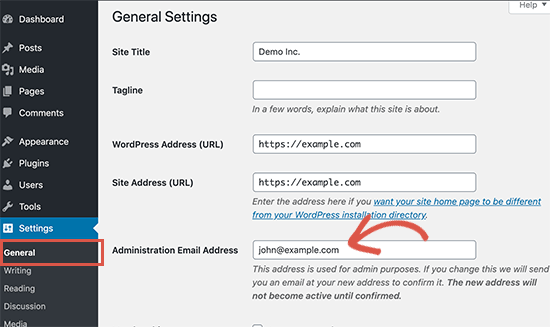
Next, you need to change the WordPress site admin email address. WordPress uses it to send important website notifications. Simply go to Settings » General page and enter a new email address there.

Change admin email address

3. Take Notes and Familiarize Yourself

take notes

Before you make any other changes to the site, it is important to take notes and familiarize yourself with the website. If you’re not familiar with WordPress, then we recommend that you watch our WordPress 101 videos.

It is very important that you understand the importance and functionality of each WordPress plugin used on the website.

You would also want to review theme settings and the widgets you’re using.

You can take notes of different functionalities, features you would like to change, and more.

Note: please write all these notes down in Google Docs, Dropbox Paper, or somewhere else that you won’t lose it.

This information will help you understand everything. If you need help understanding something, then you can try contacting the previous owner or developer.

4. Setup an Automated Backup Solution

Automated backups

Backups are your first layer of defense against any online mishap. The previous site owner may have their own backup plugins setup which may be storing backup files to one of their remote storage accounts.

You would want to set up your own backups. There are plenty of excellent WordPress backup plugins that you can choose from.

You need to make sure that you set up your backups on a remote location like Google Drive, Dropbox, etc.

You also need to create a complete WordPress backup before making any further changes to your website. This would help you revert back your website in case anything goes wrong.

5. Update User Roles and Permissions

If you are a developer working on a website, then you’ll need to work with your client to assign user roles and permissions to their staff.

Your goal should be to limit the administrator user role to people who actually need to perform admin tasks. These tasks include things like changing the theme, installing new plugins, or adding new users to the website.

If you are working on your own site, then you will need to review user access. Create a new user account for your authors if needed.

If there are older author and editor accounts that you will not be working with, then you need to edit those user accounts and change their email address and password. See our guide on how to disable user accounts without deleting them.

6. Run Security and Performance Scans

WordPress security

Next, you need to make sure that your new WordPress website is secure and performing well.

For security scans, we recommend using Sucuri. It is the best WordPress security plugin on the market and allows you to easily scan your website for malicious code, security threats, and vulnerabilities.

For performance, you can use any of the online website speed test tools. We recommend using IsItWP website speed test tool which is easy to use and gives you a detailed overview of your website speed.

It is also important that you check to see that caching is configured properly.

Many WordPress hosting companies like Bluehost and SiteGround offer built-in caching solutions that you can turn on from your hosting account. You can also use a WordPress caching plugin like WP Rocket to instantly improve your website speed.

If the site is not running a CDN, then you should consider using a CDN service. Although this is not required, we always recommend users to use a CDN. For more details, see our guide on why you should use CDN.

7. Check for Proper Tracking and SEO Integration

Track user analytics

If you have inherited the ownership of a new website, then old website owner may have transferred the Google Analytics property to you.

A lot of website owners simply add the Google Analytics code to their WordPress theme. This code disappears as soon as you update the theme or install a new one.

Make sure that the Google Analytics is properly installed on the website by either using MonsterInsights plugin or by adding the tracking code outside WordPress theme.

Similarly, they may have also transferred Google Search Console property to you as well.

Make sure that your site has XML Sitemaps in place for search console. You may also want to look at Google Search Console reports making sure there are no crawling issues or errors on the site.

8. Implement Version Control and/or Staging Site

Version control

If you’re a developer, then it is highly recommended that you implement version control for the site. It is fairly easy to use GitHub or BitBucket.

If you’re not a developer, then at the very least we recommend setting up a WordPress staging site which ensures that you have a stable testing environment before pushing things live. We recommend this step for all users.

For those who’re scared to set this up, then WP Engine a managed WordPress hosting provider offers a robust staging environment and git version control integration.

Other small business hosting providers like SiteGround and Bluehost are also offering staging features at affordable prices.

9. Run a Website Clean up

Cleanup WordPress

Now that you have familiarized yourself with the project, it is best to clean out all the unnecessary things. Delete all inactive themes and plugins. Delete all user accounts that are not needed.

Login to your WordPress database and optimize the database. Some bad plugins leave their database tables even after they’re deleted. If you notice any of those, then it is best to delete them. See our beginners guide to WordPress database management to safely optimize WordPress database.

10. Review Plugin Settings

Review plugin settings

A typical WordPress website uses several plugins that may still be referring to old owners. If you have taking the ownership of a website, then you would want to change that.

For example, the contact form plugin on the website may still be sending notifications to old email addresses. WordPress SEO plugin may still be pointing to previous owners’ social media profiles.

You can discover some of these things by looking at the website and testing all its features. You can also review plugin settings and update them if needed.

11. Upgrade Your Hosting Service

Web Hosting

After running the website speed test, if your website is still slow despite using caching, then it is time to upgrade your hosting.

If it is a client website, then your performance tests would help you convince the client for the move. If you own the website yourself, then you just need to choose the right move.

We recommend using SiteGround or Bluehost as they are one of the biggest hosting companies and officially recommended WordPress hosting provider.

If your website has outgrown shared hosting, then you may want to consider using a managed WordPress hosting service like WP Engine.

See our guide on how to move WordPress to a new host for step by step instructions to move your website.

We hope that this article offered some insights on what you should do when inheriting a WordPress site. You may also want to see our guide on the must have WordPress plugins for business websites.

If you liked this article, then please subscribe to our YouTube Channel for WordPress video tutorials. You can also find us on Twitter and Facebook.

The post 11 Things You Should Do When Inheriting a WordPress Site appeared first on WPBeginner.


January 10, 2020 at 05:33PM

Thursday, January 9, 2020

How to Setup WooCommerce Conversion Tracking (Step by Step)

Do you want to track conversions on your WooCommerce store? Conversion tracking helps you understand what’s working on your online store and what needs more attention.

It helps you keep track of your best-performing products while also allowing you to see what’s stopping customers from completing a purchase.

In this guide, we’ll show you how to easily setup WooCommerce conversion tracking, step by step.

Setting up conversion tracking on your WooCommerce store

Why Set up WooCommerce Conversion Tracking?

WooCommerce makes it easy to sell anything online. However, once you have set up your WooCommerce store, you would need to learn what works on your website to grow your business.

You will need to learn which products are popular among your users, what they are viewing the most, how many users end up making a purchase, how are they finding your website, and more.

To get all this information, you need to set up conversion tracking on your WooCommerce store. This helps you get access to insights you need to make informed decisions about growing your business.

Conversion tracking helps you unlock key performance indicators including your eCommerce conversion rate, average order value, shopping cart abandonment, cost per acquisition, top referral sources, and more.

Apart from that you also get to learn about:

  • Shopping behavior – It tells you what products users are adding to carts, which products are being abandoned, what pages lead users to a successful purchase, and more.
  • Checkout behavior – Helps you view how users successfully complete a checkout.
  • Product performance – Tells you which products are bringing you most sales.
  • Product list performance – This report allows you to group products and see their performance as a list. This comes in handy when you want to see how different product categories are doing on your store.

That being said, let’s take a look at how to unlock all this useful information by setting up conversion tracking on your store.

Setting up WooCommerce Conversion Tracking

The easiest way to track WooCommerce conversions is by using Google Analytics. It shows you where your visitors are coming from and what they do when they are on your website.

The challenge is that setting up Google Analytics with WooCommerce requires a lot of custom coding, event tracking, etc. The good news is that there are plugins that can make it super easy to setup conversion tracking, and you can do it without writing any code.

For this tutorial, we will be using MonsterInsights. It is the best Google Analytics plugin for WooCommerce, and comes with an eCommerce addon that literally enables all the tracking within few clicks.

See our guide on how to install Google Analytics in WordPress for complete installation instructions.

Once you have installed Google Analytics using MonsterInsights, you can move on to setting up WooCommerce conversion tracking.

Step 1. Turn on Enhanced Ecommerce Tracking in Google Analytics

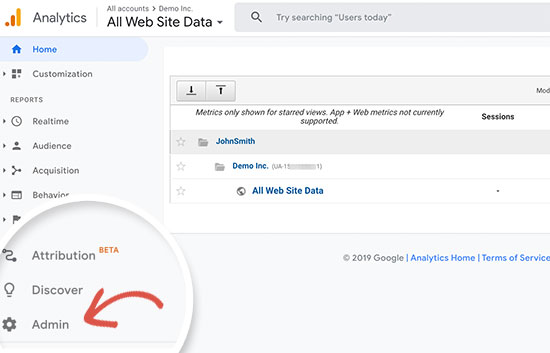
First, you need to enable enhanced eCommerce tracking in your Google Analytics account. Go to your Google Analytics dashboard and select your website.

From here, you need to click on the Admin button located at the bottom left corner of the screen.

Google analytics admin

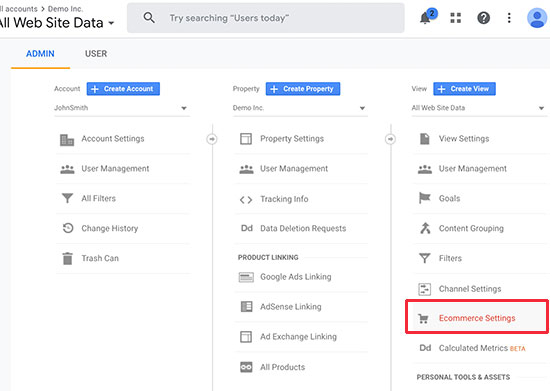
Next, you need to click on the ‘Ecommerce settings’ option.

eCommerce settings

After that, you need to turn on ‘Enable eCommerce’ and ‘Enable Enhanced Commerce’ options.

Google Analytics will now turn on the eCommerce reporting feature for your account.

Step 2. Install eCommerce Addon in MonsterInsights

MonsterInsights comes with the eCommerce addon which helps you properly set up WooCommerce conversion tracking in Google Analytics.

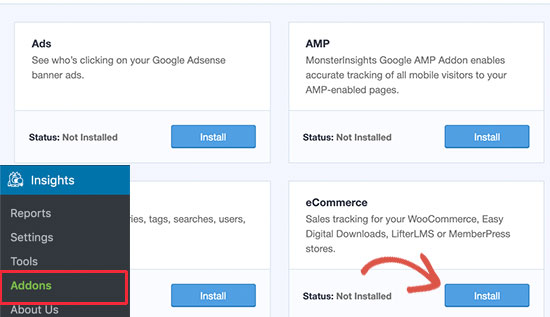
First, you need to visit the Insights » Addons page to install and activate the eCommerce addon.

Ecommerce addon

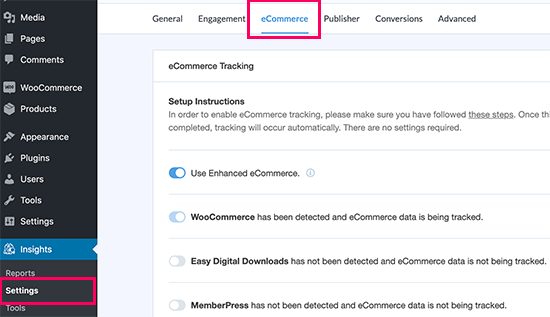
Next, you need to head over to Insights » Settings page and switch to the eCommerce tab. From here, you need to turn on ‘Use Enhanced Ecommerce’ option.

Turn on eCommerce reporting in MonsterInsights

MonsterInsights will automatically detect your eCommerce software. Currently, it supports WooCommerce, Easy Digital Downloads, MemberPress, and LifterLMS.

That’s all, you have successfully setup WooCommerce conversion tracking on your store.

Viewing WooCommerce Conversion Reports

Now that you have setup conversion tracking on your WooCommerce store, you need to give Google Analytics some time to collect data.

After a while, you would be able to view your eCommerce reports in both MonsterInsights and Google Analytics.

Let’s start with your eCommerce reports in MonsterInsights.

Ecommerce Reporting in MonsterInsights

Log in to your WordPress site and go to Insights » Reports page and switch to the eCommerce tab.

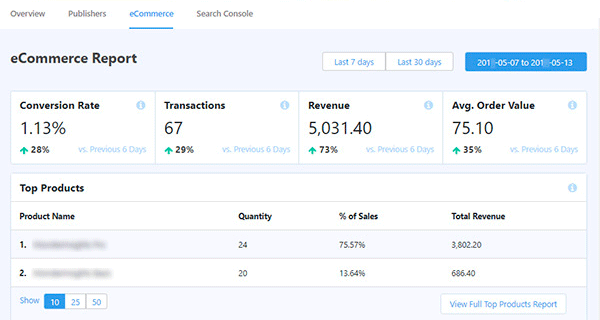
MonsterInsights eCommerce reporting overview

At the top, you’ll get your most important conversion metrics including the conversion rate, transactions, revenue, and average order value.

Below that you will see a list of your top products with quantity, sale percentage, and total revenue.

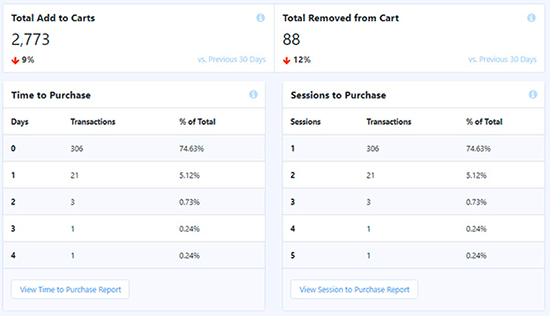
Next, you’ll see your top conversion sources and shopper behavior reports including the number of times products were added and removed from the cart.

Add to cart and abandoned cart reports

That’s not all the data. You can dig down deeper with more advanced reports under your Google Analytics account.

WooCommerce Tracking in Google Analytics

Google Analytics provides even more in-depth reporting for your WooCommerce store.

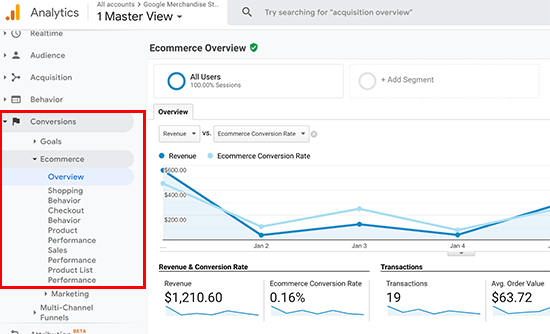
Simply visit your Google Analytics dashboard and click on Conversions » Ecommerce from the left column.

Google Analytics eCommerce conversion reports

First, the overview report will provide you important numbers such as revenue, conversion rate, transactions, and average order value.

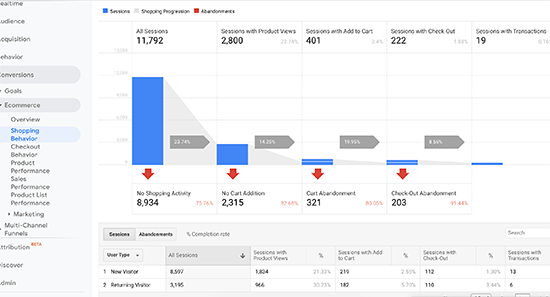
You can then switch to different reports for more in-depth analysis. For example, shopping behavior report will break down user sessions to add to cart, cart abandonment, and sessions that resulted in the checkout.

Shopping behavior

Boost Your WooCommerce Conversions and Increase Sales

Now that you have the data you needed to track your WooCommerce conversions, let’s take a look at how to improve your conversion rates and make more sales.

1. Improve Speed and Performance

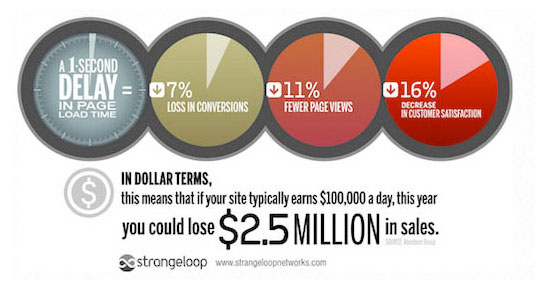
According to a StrangeLoop case study, a 1 second delay in page load time can lead to 7% loss in conversions, 11% fewer page views, and 16% decrease in customer satisfaction.

Strangeloop case study

Slower websites create bad user experience which results in lower conversion rates. See our complete step by step guide to improve your WooCommerce speed and performance.

2. Recover Abandoned Cart Sales

On average 60 – 80% of people who “add to cart” do not end up buying. This means if you have an online store, then you’re losing out on a lot of sales.

Luckily, there are several best practices that help you recover some of those abandoned cart sales. See our tips on how to recover abandoned cart sales and increase your conversions.

3. Provide Users Alternatives

If users decide to leave your website without making a purchase, then there is very little chance that they will ever see your website again.

You need to provide users a chance to stay in touch even if they don’t end up making a purchase.

You can do this by creating an email newsletter for your WooCommerce store.

We recommend using Constant Contact or SendinBlue. Both of them are in our list of the best email marketing service for small businesses.

For more techniques, see our guide on how to convert WooCommerce visitors into customers.

We hope this article helped you setup WooCommerce conversion tracking on your eCommerce store. You may also want to see our list of the best WooCommerce plugins that you can install right away.

If you liked this article, then please subscribe to our YouTube Channel for WordPress video tutorials. You can also find us on Twitter and Facebook.

The post How to Setup WooCommerce Conversion Tracking (Step by Step) appeared first on WPBeginner.


January 09, 2020 at 04:03PM