Wednesday, January 29, 2020

7 Best WordPress Activity Log and Tracking Plugins (Compared)

Are you looking for an activity log and tracking plugin for your WordPress site?

If multiple users log in to your website, then keeping an activity log helps you monitor all user activity on your website.

In this article, we’ll show you the best WordPress activity log and tracking plugins that you can use.
Comparing the best WordPress activity log and monitoring plugins

Why Use a WordPress Activity Log and Tracking Plugin?

Keeping an activity log in WordPress helps you track and monitor user actions on your website.

For instance, on a WordPress membership site, you’d be able to keep track of user login, downloads, and other actions.

Online stores and ccommerce websites using WooCommerce will be able to track customer activity and keep track of downloads, logins, emails sent, and more.

These plugins can also help you identify suspicious activities like fake user accounts, spam, and even DDoS attacks.

That being said, let’s take a look at some of the best WordPress activity log and tracking plugins.

1. Sucuri

Sucuri

Sucuri is the best WordPress security plugin on the market. It comes with comprehensive WordPress activity log and monitoring with instant email alerts to notify you of important changes as they happen.

Sucuri monitors your WordPress files, plugins and themes for any changes. This enables you to be notified if a malicious script is added to your site. It also keeps track of plugins installed, activated, or deactivated on your website.

The plugin keeps an activity log of all user sessions, login/logout activity, and changes made to your WordPress posts and pages. You can also export the logs and view them on your computer for in-depth analysis.

2. WP Security Audit Log

WP Security Audit Log

WP Security Audit Log is a comprehensive WordPress activity log and monitoring plugin. It allows you to monitor user sessions and keep track of who logged in and out of your website.

It comes with a detailed event view showing each user activity with their IP address. You can also view changes they make like creating posts, pages, comments, media uploads, theme changes, plugins, and more.

You can terminate a user session from the dashboard at any time which would log them out of your website. The plugin also supports WordPress multisite networks and helps network admins monitor activities across all sites.

This plugin also allows you to create any kind of reports for different activities, keep track of them, and download them on demand when needed. This comes in handy if you are looking for an activity log plugin for regulatory compliance in your region.

3. Simple History
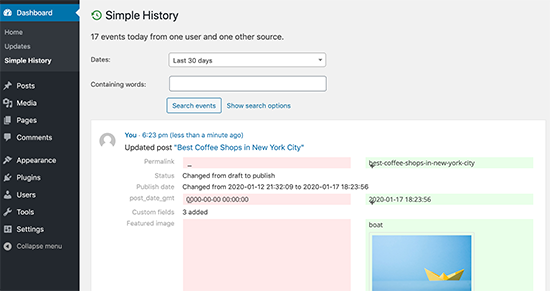
Simple History

Simple History is a simpler but excellent WordPress activity monitor plugin. It is easy to use and shows you complete website activity status inside WordPress admin or any page you want.

It keeps track of all user activity on your site. This includes post and page editing, image uploads, comments, widgets, user profiles, login sessions, theme changes, and more.

It also works seamlessly with many popular WordPress plugins like Beaver Builder, Redirection, Limit Login Attempts, and more.

All log events are kept for 60 days, after that they are discarded. You can click on any event to view full details including user ID, changes made, time and date, IP address, and more.

4. ActivityLog
ActivityLog

ActivityLog is another useful WordPress activity monitoring and logging plugin. It is easy to use and allows you to view all website activity inside the WordPress dashboard.

The plugin keeps a log of all user sessions, any changes made to posts, pages, comments, themes, plugins, or widgets, plugins, and theme changes.

You can set the plugin to send you notification emails for certain events. The plugin also allows you to easily export activity logs as a CSV file to your computer.

5. User Activity Log
User Activity Log

User Activity Log is another simple option to set up a WordPress activity log and monitoring system. The plugin tracks all user activities including any changes made to content, media, or WordPress settings.

You can also set up notifications for specific users and receive an email alert when those users login. There is a built-in export feature that allows you to export activity log to your computer.

It also offers additional support for several popular plugins such as WooCommerce, Yoast SEO, Easy Digital Downloads, Advanced Custom Fields, and more.

6. Error Log Monitor
Error Log Monitor

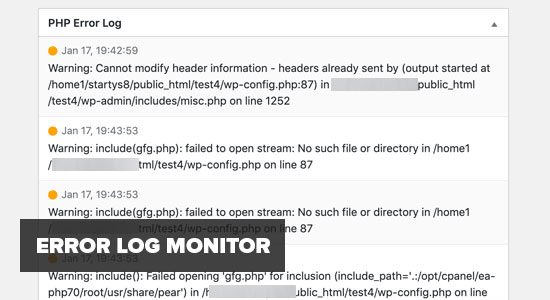
WordPress is written in the PHP programming language which comes with its own error reporting feature.

By default, WordPress does not show several less important messages for notices and warnings. However, these messages can be really helpful in troubleshooting WordPress issues.

Error Log Monitor helps you track those errors and displays them inside the WordPress admin dashboard. This helps you easily look for problematic plugins and address those issues quickly.

7. WP Mail SMTP
WP Mail SMTP Pro

If multiple users access your website by logging in, then this means your website often sends email notifications. This includes password reset requests, email changes, membership website emails, orders, receipts, etc.

WP Mail SMTP Pro ensures that all those emails reach users inbox by using a proper SMTP service to send your WordPress emails. It also keeps an email log of all the emails sent by your WordPress website.

Looking at this log, you can find a lot of useful information that you would otherwise miss as many activity log monitoring plugins don’t save email logs.

For more details, see our article on how to set up email logs for WordPress and WooCommerce

Which is The Best WordPress Activity Log and Tracking Plugin?

If you are considering an overall activity monitoring solution, then Sucuri is hands down the best option. Not only does it keep an activity log, but you also get the complete WordPress security for your website.

It is an activity monitor, vulnerability scanner, malware removal, and the best WordPress firewall against any threats.

If you already have a security plugin, but need a more detailed activity log solution, then WP Security Audit Log is the best option.

You would also want to keep a log of all emails sent by your website, and for that you’ll need WP Mail SMTP Pro.

We hope this article helped you find the best WordPress activity log and tracking plugin for your website. You may also want to check out our complete WordPress security guide to protect your website against common internet threats.

If you liked this article, then please subscribe to our YouTube Channel for WordPress video tutorials. You can also find us on Twitter and Facebook.

The post 7 Best WordPress Activity Log and Tracking Plugins (Compared) appeared first on WPBeginner.


January 29, 2020 at 05:26PM
Tuesday, January 28, 2020

Forget PowerPoint, How to Create Presentations in WordPress

Are you looking to create a PowerPoint presentation on your WordPress site, but not sure where to start?

What if we told you that you can now use WordPress to design and share presentations and leave PowerPoint behind.

In this article, we will show you how to use your WordPress website to deliver PowerPoint type presentations.

Creating presentations in WordPress

Why Create Presentations in WordPress?

A presentation on your website helps create visual appeal, keeps viewers on your pages longer, and boosts search engine optimization.

There are several different ways to add presentation slides to a WordPress website.

The problem with these methods is that you have to create your presentation in other software like PowerPoint, Keynote, or Google Slides. After that, you can embed the original document to your WordPress posts and pages.

These embeds sometimes don’t work with all devices, look ugly, difficult to browse, and not very SEO friendly.

An easier alternative is to create your presentation in WordPress using HTML 5 and JavaScript. It is SEO friendly, works with any device, and looks great.

It is also easy to share, which brings direct traffic to your website instead of a third-party service.

That being said, let’s take a look at how to easily create a presentation in WordPress without using external software.

How to Create a Presentation in WordPress

First, you need to install and activate the Slides & Presentations plugin. If you need help, we have written a handy step-by-step guide on how to install WordPress plugins.

Upon activation, you need to visit Presenation » Add New page to create your first presenation.

If you are familiar with making PowerPoint presentations, then the process of creating one using the Slides and Presentations plugin will be simple.

Your presentation will be made up of slides. The plugin comes with a Slide block which you can use to add more slides to your presentation.

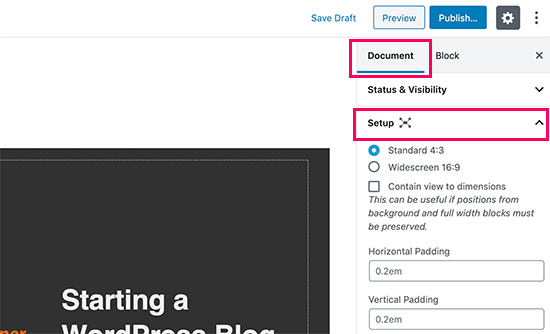
First, you need to click on the Setup tab under the Document settings. From here you can select your presentation size by choosing either the standard 4:3 or widescreen 16:9.

Set up presentation

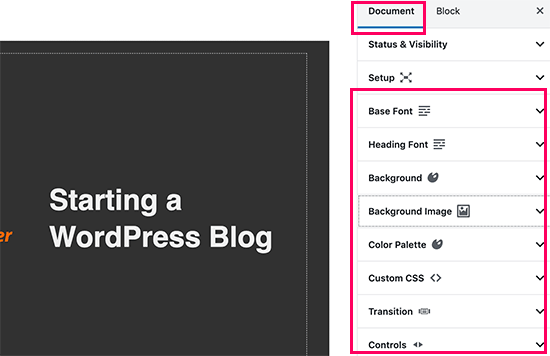
Below that, you will find the options to set background color/image, font, transition effects, and controls for your entire presentation.

Set presentation defaults

You can also change these settings for individual slides as you add them.

Now let’s start working on your slides.

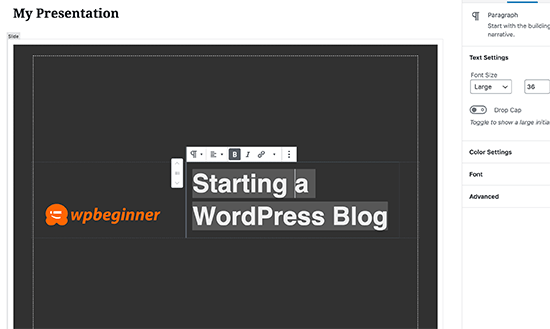
In the content area, you will see a large box. This is where you will add your slide’s content.

Editing your first slide

Yes, this is the same WordPress block editor that you use to write blog posts. You can add text, headings, lists, images, media, and embeds to your slide.

If you are new to the WordPress editor, then see our complete WordPress block editor tutorial to familiarize yourself with the blocks.

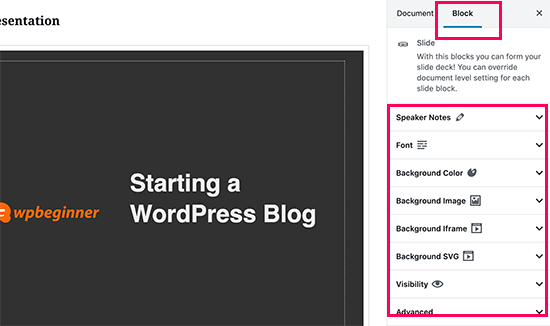
While editing a slide, you will see a number of editing and formatting options in the right column. From here, you can change the background, font, and other settings for a specific slide.

Individual slide settings

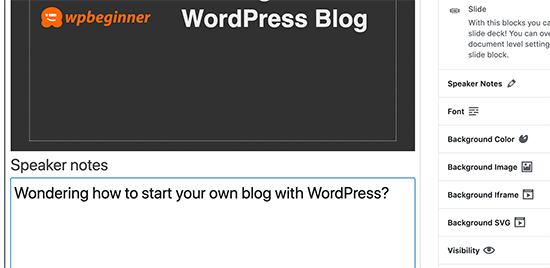
Below each Slide, you’ll also see a small box to add speaker notes. This is where you’ll add anything you want to remember when giving your presentation.

Adding speaker notes to a slide

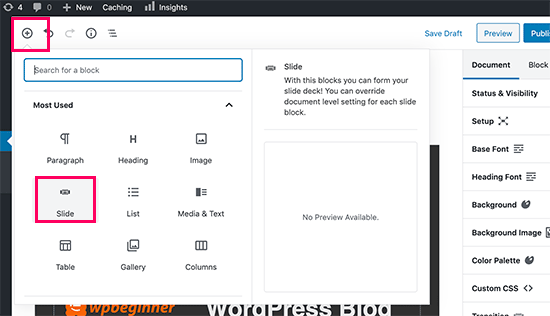
You can add a new slide by clicking on the + icon or adding a new Slide block from the top similar to adding any other block when creating content in WordPress.

Adding a new slide to your presentation

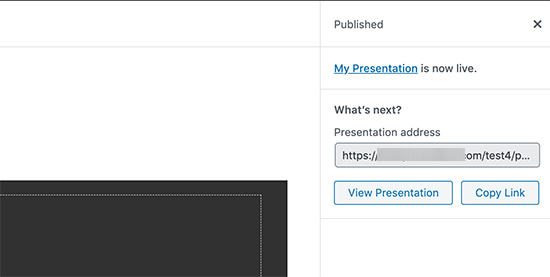
Once you are done working on your presentation, you can save and publish it. You can then copy the presentation link to share it or to view your presentation.

Presentation published

Presenting Your Slideshow

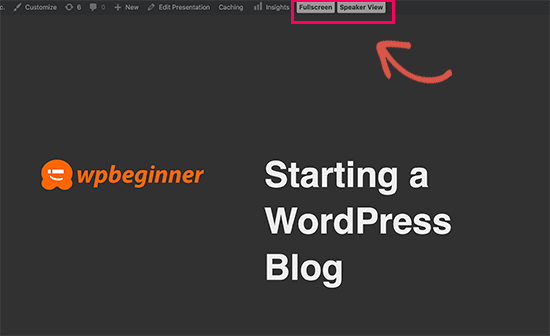
You can visit your presentation in a browser window. If you are logged in, then you’ll see the buttons to view your presentation in fullscreen and switch to the speaker view.

Viewing presentation in the browser

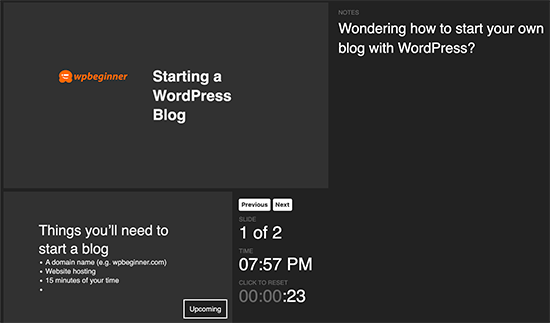
Switching to the speaker’s view will show speaker notes in a pop-up window showing speaker notes, the current slide, and the upcoming slide preview.

Speaker view

We hope this article helped you learn how to create presentations in WordPress. You may also want to see our list of the best WordPress plugins and tools for a business website.

If you liked this article, then please subscribe to our YouTube Channel for WordPress video tutorials. You can also find us on Twitter and Facebook.

The post Forget PowerPoint, How to Create Presentations in WordPress appeared first on WPBeginner.


January 28, 2020 at 06:00PM

Monday, January 27, 2020

How to Enable Author Tracking in WordPress

Do you want to enable author tracking on your WordPress website?

If you run a multi-author WordPress site, then you’re probably wondering which of your authors write the most popular posts.

In this article, we’ll share how to enable author tracking in WordPress, so you can see all the authors related data that you need to make smart decisions for growing your website.

How to enable author tracking in WordPress

Why and Who Should Enable Author Tracking in WordPress?

If you run a multi-author blog, then you need to enable author tracking in WordPress. It allows you to gather data about how each author’s posts are performing on your website.

You can then promote high performing authors and offer some extra help to those who are struggling.

It is also a great way to find out whose posts bring in the most traffic and which articles are engaging readers.

For instance, you might have an author who’s great at writing posts that get lots of visitors, but those visitors may not stick around on your site. This may result in a high bounce rate, fewer page views, and less time spent on the website.

After gathering this data, you can make informed decisions by improving your editorial workflow and offering more tips and help to the struggling writers.

Setting up Author Tracking in WordPress

First, you need to install and activate the MonsterInsights plugin. For more details, see our step by step guide on how to install a WordPress plugin.

MonsterInsights is the best Google Analytics plugin for WordPress. You’ll need at least the Pro plan of the plugin to access the custom dimensions feature.

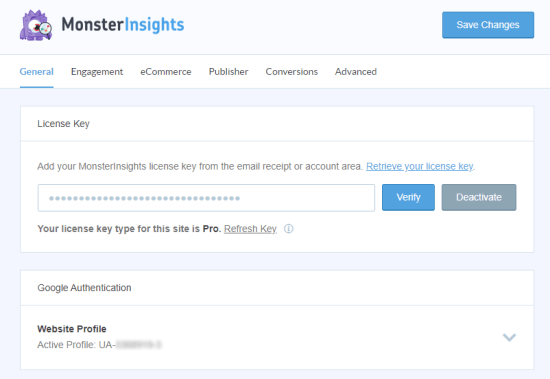
Upon activation, go to the Insights » Settings page in your WordPress dashboard to enter your license key. You can find this information under your account on the MonsterInsights website.

Enter your license number into MonsterInsights

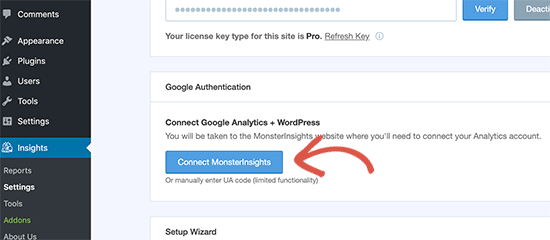
After verifying your license key, you need to connect your WordPress site to your Google Analytics account.

On the Settings page, click on the ‘Connect MonsterInsights’ button to proceed.

Connect MonsterInsights to Google Analytics

Follow the on-screen instructions to connect your website to Google Analytics using MonsterInsights.

Once connected, Google Analytics will start tracking all your website traffic.

You are now ready to set up author tracking on your WordPress site.

Setting up Author Custom Dimensions for Accurate Tracking

Now that everything is up and running, let’s tell Google Analytics to start tracking authors by adding a custom dimension.

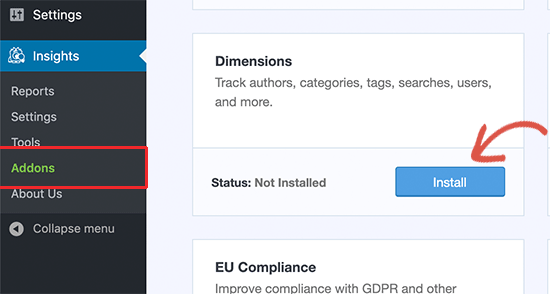
You need to start by visiting Insights » Addons page. From here you need to click on the Install button next to the Custom Dimensions addon.

Dimensions addon

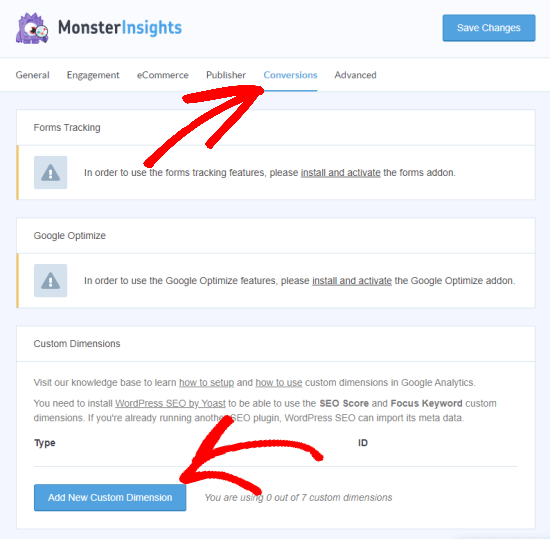
Once it is installed and activated, go to Insights » Settings page and switch to the ‘Conversions’ tab.

Add a new custom dimension (under the MonsterInsights Conversions tab)

Scroll down a little and you’ll see the Custom Dimensions box. This is where you can add a new custom dimension.

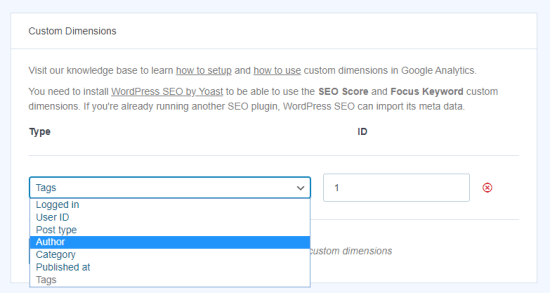
Click on the ‘Add New Custom Dimension’ button and select ‘Author’ from the drop-down menu. The ID will be filled in for you.

Select Author from the dropdown menu

Don’t forget to click the ‘Save Changes’ button at the top of the page to store your settings.

Now that you have set up custom dimensions in MonsterInsights, the next step is to do the same in Google Analytics.

Open your Google Analytics dashboard and switch to the All Website Data view.

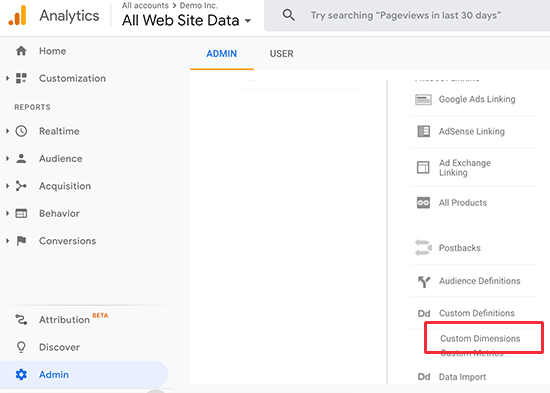
From here, you need to click on the ‘Admin’ button at the bottom left corner of the screen and then select Custom Definitions » Custom Dimensions under the Property column.

Setting up custom dimensions in Google Analytics

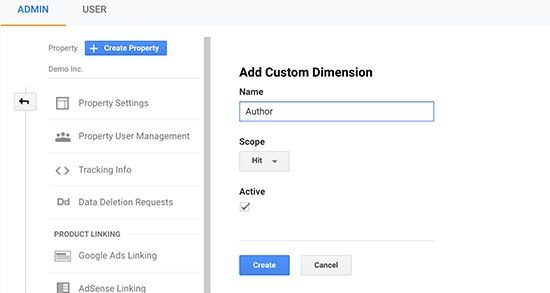
You will need to click the New Custom Dimension button. On the next screen, type in ‘Author’ for the name and leave the other details unchanged.

Creating author custom dimension

After that click on the ‘Create’ button and Google Analytics will save it for you. You’ll see some code on the next screen. You don’t need to do anything with this, as MonsterInsights handles everything for you. Just click ‘Done’ to continue.

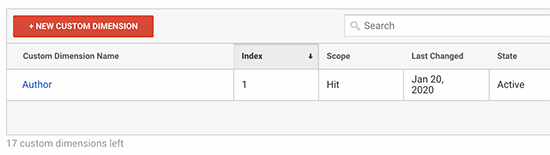
Next, you will see your ‘Author’ custom dimension listed in a table with an Index value.

Author custom dimension in Google Analytics

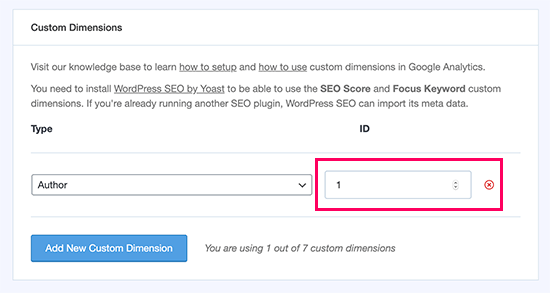
Make sure that the Author Index value is the same as the ID given to that custom dimension in MonsterInsights.

If not, then don’t worry, you can edit your custom dimension in MonsterInsights and change the ID to match the Index value in Google Analytics.

Edit author custom dimension ID in MonsterInsights

You have successfully set up author tracking on your WordPress website. Now, let’s get to the fun part of viewing the reports and finding out how your authors are doing.

Viewing Your Author Tracking Reports

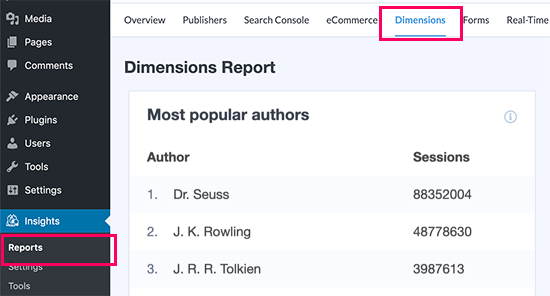
After your website has collected some traffic data, you can view your top authors inside the WordPress dashboard.

Simply go to the Insights » Reports page and switch to the Dimensions tab.

Top authors report in MonsterInsights

From here you can see your top authors that generate the most traffic on your website.

That’s not all the data. You can compare this data with your overall traffic report to get even more insights.

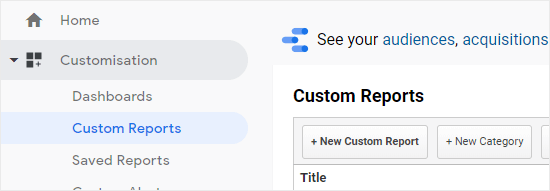
Switch to your Google Analytics dashboard and go to Customization » Custom Reports section.

Viewing Customization - Custom Reports in Google Analytic

Next, click on the ‘New Custom Report’ button to continue.

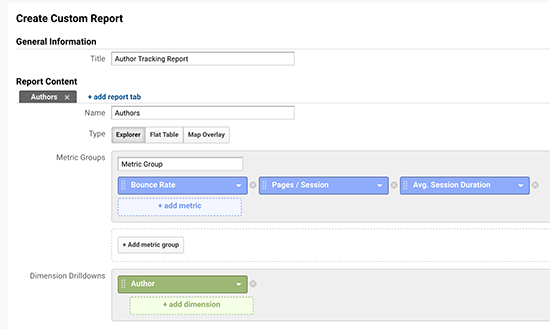
You’ll be asked to give your report a title. Enter something useful that helps you easily identify that report.

Author tracking custom report

After that, you need to choose the metric group. These are the things that you want Google Analytics to show for this report. For instance, we would like to see the bounce rate, pages per session, and average session duration.

Under the Dimensions Drilldowns section, select ‘Author’ and then click on the ‘Save’ button to create your custom report.

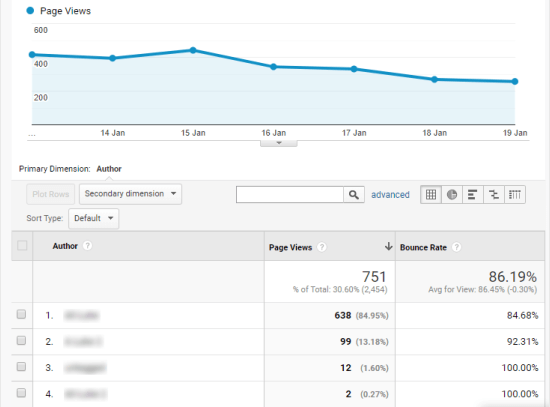
You’ll now be redirected to the custom report you just created.

The Author report in Google analytics, showing several days' worth of data

Tip: If there doesn’t appear to be any data in your report, try setting the report date to the current day. If there’s still no data, then that’s likely because you haven’t had any visitors since adding the Author custom dimension in MonsterInsights.

We hope this article helped you learn how to enable author tracking in WordPress. You may also want to check out our guide on how to grow your website traffic with actionable tips that are proven to work. Once you’re done reading that, check out our list of must have WordPress plugins to grow your website.

If you liked this article, then please subscribe to our YouTube Channel for WordPress video tutorials. You can also find us on Twitter and Facebook.

The post How to Enable Author Tracking in WordPress appeared first on WPBeginner.


January 27, 2020 at 02:21PM