Monday, February 3, 2020

How to Uninstall and Delete a WordPress Theme (Step by Step)

Do you want to delete a WordPress theme but are worried that it might be unsafe?

If you have recently switched your WordPress theme, then you may want to delete the old one. You may also have a few other WordPress themes that come pre-installed on your website that you may want to remove.

In this article, we’ll show you why and how to easily delete a WordPress theme without affecting your website.

How to easily delete a WordPress theme

Why Delete a WordPress Theme?

If you are not using a WordPress theme, then it is recommended to delete it from your website. There are a number of reasons for deleting unused WordPress themes.

  • WordPress theme files are written in PHP and can be used to hide malicious code or malware on your website (that is if your website was ever compromised). Sometimes rogue developers can hide backdoors in unused themes as well.
  • Keeping them installed on your server increases your backup sizes and your WordPress security plugin takes longer to finish a scan.
  • You’ll also keep getting updates for those themes, even though you are not using them at all.

Now a lot of users install WordPress themes on their live websites just to test them out. This is not the best way to test drive a WordPress theme.

We recommend using a staging site or a local WordPress install to do all your testing. This way it doesn’t affect your live website and allows you to offer a consistent experience to your users.

What’s the difference between uninstalling vs deleting a WordPress theme?

WordPress allows you to only keep one theme as your active theme. However, you can install as many themes as you want on your website.

These themes will not be active, but they are still installed on your site, and you’ll continue to receive updates for them.

To completely uninstall a WordPress theme, you need to delete it. This will remove all theme files from your website.

Is it safe to delete old WordPress themes?

Yes, it is safe to delete a WordPress theme that you are not using.

Each WordPress site needs at least one theme installed to function properly. This is the theme that WordPress will use to display your website.

You can view which WordPress theme you are currently using by visiting Appearance » Themes page. Your current theme will appear as ‘Active’ theme.
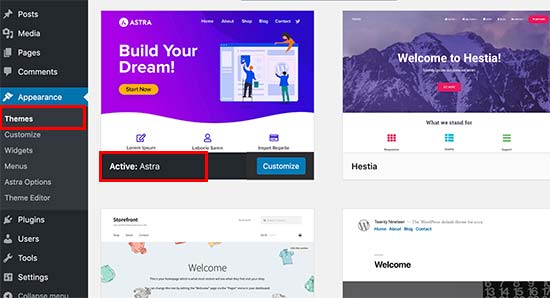
Active theme

We also recommend keeping one default WordPress theme (e.g. Twenty Twenty or Twenty Nineteen) installed on your website. It acts as the fallback theme in case your current theme is not working.

If your current theme is a child theme, then you will also need to keep the parent theme installed on your website.

Apart from these themes, you can safely delete any other themes installed on your website.

That being said, let us show you how to delete a WordPress theme.

Preparing Before Deleting a WordPress Theme

If you have customized a WordPress theme and want to preserve those customizations before deleting it, then you can create a complete WordPress backup.

You can also just download the theme folder to your computer as a backup.

To do that, you can use an FTP client or the File Manager app in your WordPress hosting account dashboard. Once connected, go to /wp-content/themes/ folder and download the inactive theme folder to your computer.
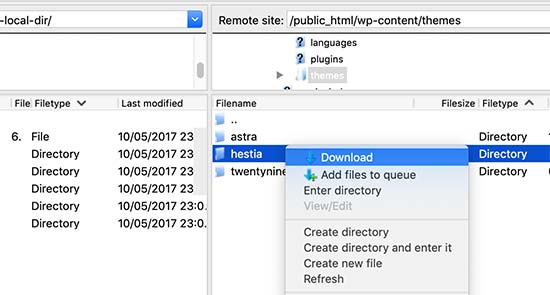
Download WordPress theme folder to your computer as backup

Once you have safely backed-up your old theme, you can proceed to delete it.

Deleting a WordPress Theme

There are multiple ways to delete a WordPress theme. We’ll start with the easiest one first.

1. Deleting a WordPress theme via admin dashboard

This is the easiest and the recommended way to delete a WordPress theme.

First, you need to go to Appearance » Themes page and click on the theme that you want to delete.

WordPress will now open theme details in a popup window. You need to click on the Delete button at the bottom right corner of the popup screen.
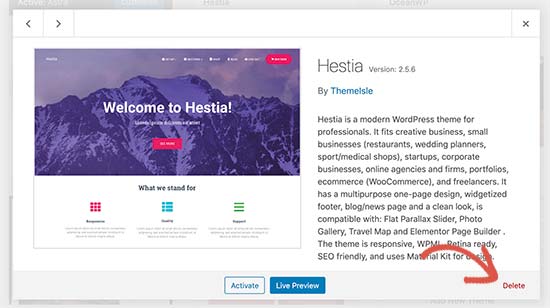
Deleting a WordPress theme via WordPress admin dashboard

Next, you’ll be asked to confirm that you want to delete the theme. Simply click the OK button to continue, and WordPress will delete your selected theme.

2. Deleting a WordPress theme via FTP

This method is a bit advanced, but it comes in handy if you are unable to access the WordPress admin area.

Simply connect to your WordPress site using an FTP client and then go to /wp-content/themes/ folder.
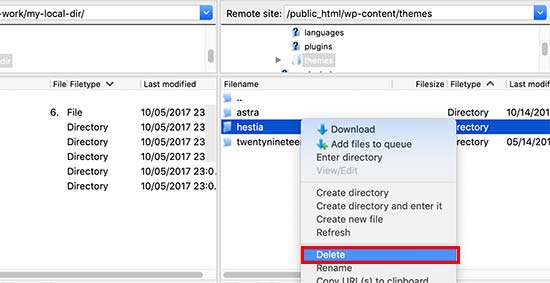
Deleting a theme via FTP client

From here you need to locate the theme folder that you want to delete. Right-click on the folder name and then select delete.

Your FTP client will now delete your selected theme.

3. Delete a WordPress theme using File Manager

If you are uncomfortable using an FTP client, then you can also use the File Manager app in your web hosting control panel.

For this example, we’ll be showing screenshots from Bluehost’s hosting dashboard. Depending on your hosting provider, your hosting dashboard may look a bit different.

Login to your hosting account dashboard and click on the File Manager icon under the Advanced tab.
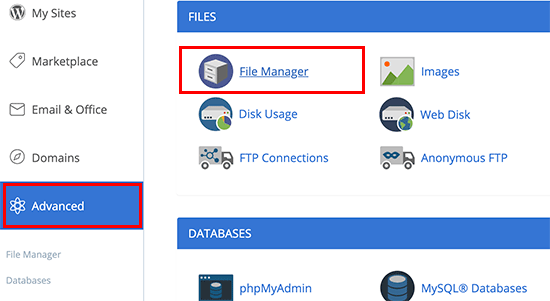
File manager app

This will launch the file manager where you can browse the contents of your web server like you would using an FTP client. You need to go to the /public_html/wp-content/themes/ folder.
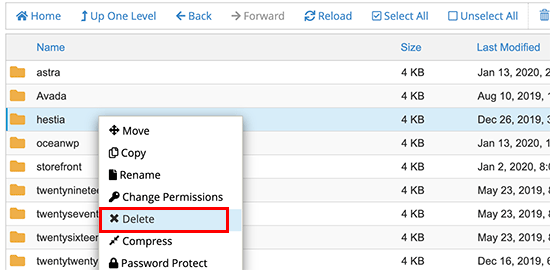
Deleting a WordPress theme using the file manager

Next, you just need to right-click and delete the theme that you want to get rid of, and that’s all.

What to Do If You Accidentally Delete a WordPress Theme?

If you accidentally deleted a WordPress theme, then there are multiple ways to restore it back.

First, you can restore the theme from the backup. This is easier as many WordPress backup plugins allow you to quickly restore your website to an earlier stage.

However, if you didn’t make a backup, then you can restore the theme by downloading and installing a fresh copy of the same theme.

The downside of the second approach is that you would lose any customizations you made to the theme.

We hope this article helped you learn how to easily delete a WordPress theme. You may also want to see our list of the best WordPress plugins and best email marketing services for small business.

If you liked this article, then please subscribe to our YouTube Channel for WordPress video tutorials. You can also find us on Twitter and Facebook.

The post How to Uninstall and Delete a WordPress Theme (Step by Step) appeared first on WPBeginner.


February 03, 2020 at 06:16PM

Friday, January 31, 2020

23 Best WordPress Themes for Membership Sites (2020)

Are you looking for the best WordPress themes for membership websites?

Unlike blogs and business themes, membership websites need a wide variety of templates to use in different membership areas.

In this article, we have hand-picked some of the best WordPress themes for membership sites. These themes offer more flexibility and choices, which you’ll need to build a strong online community.

Best WordPress Themes for Membership Sites

Making a Membership Website with WordPress

WordPress is the top website builder in terms of popularity and global usage.

There are two types of WordPress, and you must choose the right one for your membership site. See the difference in our WordPress.com vs WordPress.org comparison chart.

We recommend using WordPress.org because it gives you all the powerful features without any limitations.

To start a membership website with WordPress, you’ll need a domain name, website hosting, and an SSL certificate (you need it to accept payments online). You can buy them from different companies, and prices may vary from one company to another.

We recommend using Bluehost. They are one of the largest hosting companies and officially recommended by WordPress. They have agreed to offer our users a free domain, free SSL, and 60% off web hosting.

Once you have purchased hosting, you will need a WordPress membership plugin. We recommend using MemberPress which is the best WordPress membership plugin in the market. It will turn your WordPress site into a full-fledged membership and subscriptions based community.

We have created a complete guide on how to make a WordPress membership website with step by step instructions for beginners.

That being said, let’s take a look at some of the best WordPress themes for membership websites that you can use.

1. Astra

Astra

Astra has become one of the most popular WordPress themes available due to its flexibility. The theme comes with dozens of starter sites that you can install with a single click.

It has a built-in template for LearnDash if you want to start selling courses online.

Astra also works with MemberPress and WooCommerce making it super easy to build subscription-based websites. It is easy to use and gives you full control to change any aspect of your theme’s appearance.

2. Divi

Divi

Divi is an ultimate WordPress theme and page builder for WordPress. It is a perfect choice for any website, including a membership site.

It features hundreds of built-in layout combinations for several business and membership sites. These layouts help set up a website and get started quickly.

The Divi theme also comes with unlimited color choices, animations, fonts, backgrounds, and more. It works seamlessly with all top WordPress plugins.

3. Ultra

Ultra

Ultra is the ultimate all-purpose WordPress theme designed to create any kind of website without editing any code. It includes several ready-made layouts that you can install with full demo content.

It is also equipped with a powerful drag and drop page builder to edit existing pages or create new page layouts. The Ultra theme ships with features like custom widgets, social media integration, multiple header styles, unlimited layout combinations, and more.

It is ecommerce ready and also works well with MemberPress or any other popular WordPress membership plugin.

4. OceanWP

OceanWP

OceanWP is a free WordPress multipurpose theme. It comes with several built-in demos and ready-made websites, including templates for membership sites.

Other notable features include premium extensions, color choices, custom widgets, and more. It integrates with popular drag and drop builder plugins to customize your website easily.

5. Hestia Pro

Hestia Pro

Hestia Pro is an excellent WordPress multi-purpose theme built for any kind of website. It includes 1-page and multipage layouts with all the modern design elements.

With flexible theme settings, you can customize theme colors, fonts, and background of your site. It fully supports WooCommerce and all top page builder plugins.

6. Authority Pro

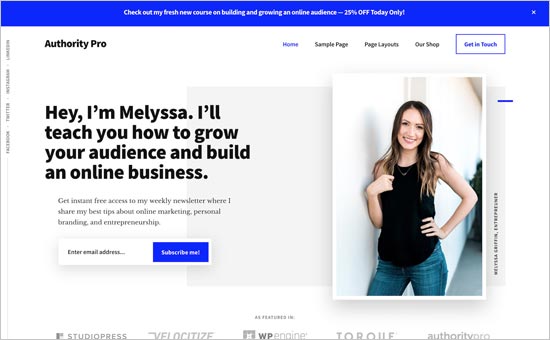
Authority Pro

Authority Pro is a premium WordPress theme built on top of the Genesis framework. It is a beautifully designed WordPress theme that features an optimized homepage layout to boost conversions and signup.

It is easy to set up with all theme options neatly organized under customizer. It uses crisp typography and lots of white space to create an incredible user experience.

7. Binder Pro

Binder Pro

Binder Pro is a multi-purpose WordPress business theme suitable for membership websites. It includes ready to use modules that you can drag and drop to create your own unique page layouts.

It comes with several website designs available on 1-click installation. It also includes contact form support, pricing tables, Google Fonts, custom widgets, social media icons, and full WooCommerce support.

8. Shoppe

Shoppe

Shoppe is an eCommerce WordPress theme built specifically for membership websites. It comes with 4 website skins, multiple layouts, several header styles, and unlimited colors.

It integrates with drag and drop page builder to quickly create landing pages. The Shoppe theme is easy to set up with a quick 1-click demo installer, custom theme dashboard, and live customizer.

9. Zelle

Zelle

Zelle is a stylish WordPress theme built with an all-purpose approach to create a membership website. It features parallax effects, moveable sections, and custom content blocks on the homepage.

With the 1-minute setup, you can launch your site and replace the content to add your images and text. It is fully optimized for speed and performance.

10. Elegant

Elegant

Elegant is a neat WordPress theme for business and membership websites. It has multiple homepage styles available in 6 color schemes and quick 1-click demo content importer.

Other notable features include multi-column layouts, social icons, portfolio section, contact form, and full WooCommerce support. It has a custom theme settings page with flexible options.

11. Public Opinion

Public Opinion

Public Opinion is a magazine style WordPress theme for membership sites. Its homepage and category pages are designed to showcase your content in a beautiful grid layout.

It has a primary navigation menu below the header and a secondary menu on top with an additional social profiles menu. You can use the live WordPress customizer to make changes to your site easily.

12. Minimal Lite

Minimal Lite

Minimal Lite is a free WordPress theme that you can use to build membership, travel, food, and photography website. It comes with demo data that you can import on your site to get started quickly.

It has a sticky floating navigation menu on the right side of the screen. Minimal Lite is WooCommerce ready out of the box and supports all popular WordPress plugins.

13. Composition

Composition

Composition is a WordPress theme for stock photography websites. It can be used to sell your photographs and illustrations with a subscription option using a membership plugin.

It features a stunning homepage layout with a fullscreen background image and a search box. It also includes beautiful templates to display your articles in a masonry grid layout.

14. The Thinker

The Thinker

The Thinker is a premium WordPress theme for bloggers, magazines, and membership websites. It is a simple and minimalist theme with beautiful typography and gorgeous display of featured images.

It includes multiple page templates, several widget-ready areas, premium WordPress slider, contact form support, and more. It is beginner-friendly and can also be used to create a multilingual website.

15. Neve

Neve

Neve is a modern WordPress multipurpose theme ideally built for any online publication and membership website. It is fast and lightweight to load your website pages quickly.

It comes with color control, custom widgets, social media integrations, and multiple built-in layouts. You can use it with your favorite page builder plugin to create custom page templates in WordPress.

16. Mesmerize

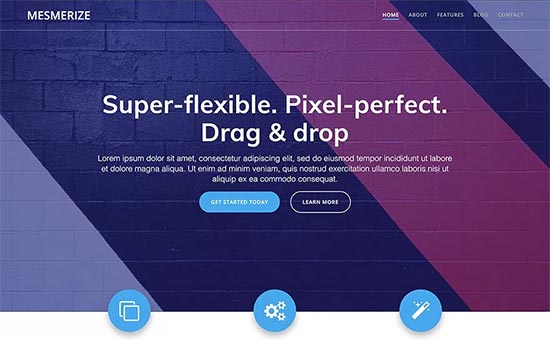
Mesmerize

Mesmerize is a beginner-friendly WordPress theme. It comes with flexible options allowing you to easily create a professional website without writing any code.

It features a beautiful homepage with 5 header designs and over 30 ready-to-use content sections that you can customize. Other notable features include video background, slideshows, header content types, gradient overlays, and more.

17. Indigo

Indigo

Indigo is an excellent WordPress multi-purpose theme with flexible features. Its homepage has two navigation menus, featured slider, 3-column widget area, sticky menu, featured categories, and more.

It also includes custom widgets to add popular posts, recent tweets, newsletter signup form, social icons, and more. Indigo comes with multiple color schemes, font choices, and custom backgrounds.

18. Blockchain

Blockchain

Blockchain is a powerful WordPress theme to build cryptocurrency and membership websites. It features a beautiful modern design with a fully functioning cryptocurrency exchange rates module.

It includes custom post types for projects, services, case studies, and job listings. Inside you will also find custom widgets, page templates, support for page builders, and more.

19. OpenEvent

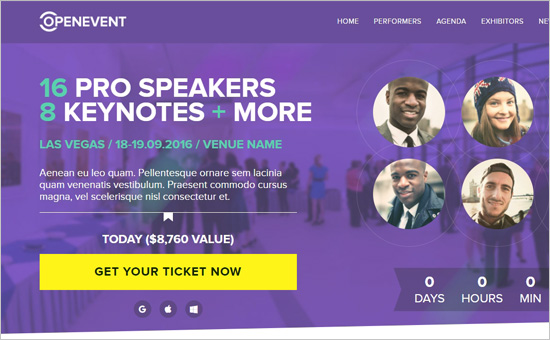
OpenEvent

OpenEvent is a fantastic WordPress event theme built ideally for memberships and ticket selling purposes. It lets you add events on your site with a professional frontend editor.

The theme has a flexible header to display event details, speakers, call-to-actions, and videos. You can also import events from Facebook and other resources.

20. Flash

Flash

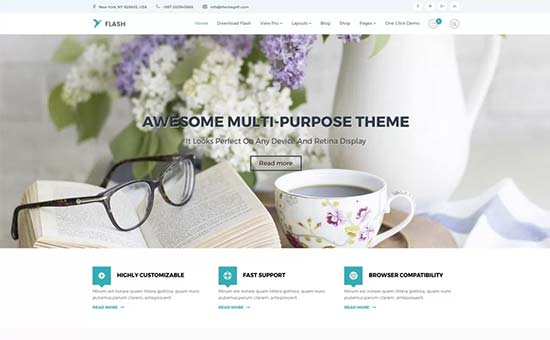
Flash is another great free WordPress theme for membership websites. It is WooCommerce ready and comes with a beautiful design that looks very clean and professional.

It features a companion plugin that allows you to import demo content into your website easily. It also includes multiple blog layouts, page builder templates, multiple header styles, multiple color choices, and more.

21. Digital Pro

Digital Pro

Digital Pro is a clean and professional WordPress business theme. It is built on top of the Genesis theme framework, which is known for its rock-solid code, speed, and performance.

The homepage is fully widgetized, and you can drag and drop widgets to set it up. It has a theme options panel, 3 custom widget areas, customizable header, and full support for WooCommerce.

22. Tusant

Tusant

Tusant is a dark-colored WordPress theme designed specifically for podcasts and membership sites. You can use this theme for music streaming, online webinars, and video purposes.

The theme supports multiple audio and video resources to add content to your site. It also lets you embed custom media files seamlessly.

23. Spencer

Spencer

Spencer is a professional WordPress business theme for your membership site. It has a clean and elegant design that is perfect for blogs and portfolio sites.

It has custom widgets, unlimited colors, multiple layouts, and support for all essential WordPress plugins. Spencer is beginner-friendly and very easy to use.

We hope this article helped you find the best WordPress themes for membership sites. You may also want to see our ultimate step by step WordPress SEO guide for beginners.

If you liked this article, then please subscribe to our YouTube Channel for WordPress video tutorials. You can also find us on Twitter and Facebook.

The post 23 Best WordPress Themes for Membership Sites (2020) appeared first on WPBeginner.


January 31, 2020 at 06:10PM

Thursday, January 30, 2020

What, Why, and How-To’s of Trackbacks and Pingbacks in WordPress

Recently a user asked us about trackbacks and pingbacks in WordPress. They also wanted to know how these two features can be used more effectively.

Trackbacks and pingbacks are modes of communication between WordPress blogs. They have been around since the early days of blogging, but very few users know about these features.

In this article, we’ll explain trackbacks and pingbacks in WordPress. We’ll talk about their difference, how they work, and how to use them.

What, Why, and How to's of WordPress Pingbacks and Trackbacks

What is a Trackback?

Trackbacks give bloggers the ability to communicate between websites. Its almost like one person saying to another “This is something you may be interested in”.

Here is how trackbacks work in WordPress:

  • We write a post on our blog.
  • You want to comment on our post, but you want your own readers to see what you have to say and able to comment on it.
  • You’ll then write a post on your own blog and send a trackback to our blog post. (By default, WordPress does not allow you to send manual trackbacks while writing a blog post).
  • We’ll receive your trackback, and choose to display it as a comment or not. The comment display will be a title, excerpt and a link to your blog post.

What is a Pingback?

Pingbacks give blogs the ability to communicate through an automated system. It is almost like remote comments.

Here is how pingbacks work in WordPress.:

  • We write a post on our blog.
  • After that you write a post on your blog mentioning/linking to our article.
  • Your blogging software will automatically send our blog platform a pingback.
  • Our blogging software will receive the pingback. It will then automatically go to your blog to confirm that the pingback originates there, and the link is present.
  • After that, we will have the ability to display your pingback as a comment. This will solely be a link to your site.

Pingbacks also work within your site. This means that if you link to one of your own articles on the same site, then WordPress would automatically send a pingback to itself.

This is called a self-ping, and once you start blogging regularly you may find them annoying. Don’t worry, they can be easily turned off as we’ll show you later in this article.

What is the difference between Trackbacks and Pingbacks?

Not much really. They both do the same thing but take a slightly different approach.

The first difference is that the trackbacks are manual whereas pingbacks are automatic (different communication technology).

Secondly, pingbacks do not send any content while trackbacks are accompanied by an excerpt of the content.

How to Send Trackbacks and Pingbacks in WordPress

Since WordPress 5.0, the ability to manually send a trackback to other blogs has been removed from the post edit screen.

The feature was not used that much and WordPress already has automatic pingbacks enabled by default.

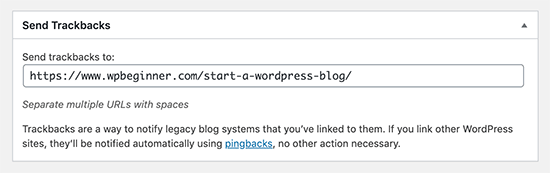
However, the functionality is still there and available with the old classic editor. Simply edit a post in the classic editor, and you’ll find the option to send trackbacks below the edit area.

Send trackbacks in classic editor

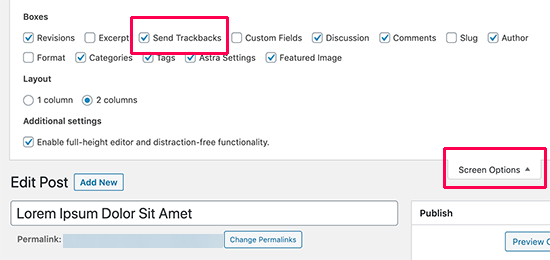
If you cannot find the trackbacks metabox in the classic editor, then click on the Screen Options button at the top right corner of the screen. Check the box next to ‘Send trackbacks’ option and WordPress will start showing send trackbacks box below the edit area.

Show send trackbacks box

How to Moderate Pingbacks and Trackbacks in WordPress?

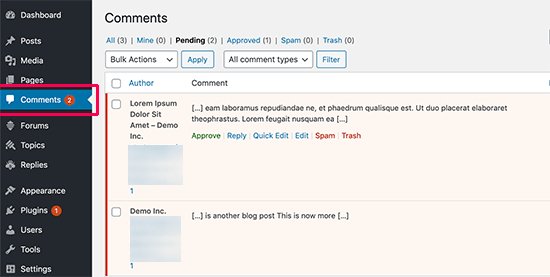
The moderation is fairly simple. Both trackbacks and pingbacks show up under the comment moderation area. From here, you can approve, delete, or mark them as spam.

Moderate pingbacks and trackbacks

From our experience, 99% of all trackbacks and pingbacks are spam. This is the easiest way for spammers to get a backlink from your site.

In our case, often we see pingbacks from content scrappers (content thieves) who copy our entire articles word-by-word including all the links.

Due to those links, their blogging software automatically send pingbacks to our articles.

The few times when we found trackbacks/pingbacks to be helpful when legit bloggers linked to us, they actually helped us find that we were featured in Mashable and NYTimes.

In short, we have found 99% of all trackbacks/pingbacks to be spam. This is the reason why we have disabled them entirely. It is not worth the time to moderate a ton of spam.

There are other ways to find out who linked to your articles. The easiest one is to use Google Analytics to find who links to your site.

How to Disable Trackbacks, Pingbacks, and Self Pings

If you are tired of getting spammy trackbacks and pingbacks, then there is an option for you to disable them entirely.

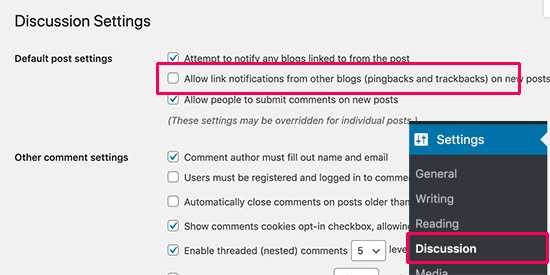
Simply go to the Settings » Discussion page and uncheck “Allow link notifications from other blogs (pingbacks and trackbacks)” option.

Disable incoming trackbacks and pingbacks in WordPress

Unchecking that box will only disable trackbacks and pingbacks for future posts (not existing posts).

To disable trackbacks on existing posts, you must follow our tutorial on how to disable trackbacks and pingbacks on existing WordPress posts.

If you are tired of your blog self-pinging itself, then you can simply install and activate the No Self Pings plugin. For more details, see our step by step guide on how to install a WordPress plugin.

Upon activation, the plugin will disable self pings on your WordPress site.

We hope this article helped you learn about WordPress trackbacks and pingbacks, you may also want to see our list of the must have WordPress plugins and the best email marketing services for small businesses.

If you liked this article, then please subscribe to our YouTube Channel for WordPress video tutorials. You can also find us on Twitter and Facebook.

The post What, Why, and How-To’s of Trackbacks and Pingbacks in WordPress appeared first on WPBeginner.


January 30, 2020 at 05:00PM