Wednesday, February 26, 2020

How to Enable Maintenance Mode for WooCommerce

Recently some of our readers asked us if it’s possible to put a WooCommerce store in maintenance mode without affecting other parts of a website?

The good news is that it’s not only possible, but it’s also very easy to do.

In this article, we’ll show you how to enable maintenance mode for WooCommerce. You will have the option to restrict maintenance mode only to your store pages, or you can enable it for the entire website.
How to enable maintenance mode for WooCommerce

Why and When You Need to Enable Maintenance Mode for WooCommerce

There are couple of key reasons why you might want to put your WooCommerce store (but not your whole site) into maintenance mode or coming soon mode:

  • Your store is still under construction and you haven’t launched it yet. This is a great time to use a “coming soon” page to build excitement while you work on your store behind the scenes.
  • Something’s gone wrong with your store. If there’s a problem, being able to quickly put the store into maintenance mode will give you the time you need to fix things (without any Google penalties).
  • You are adding an online store section to an existing website, but want to test it properly before opening it for the general public.

Putting your WooCommerce store under maintenance mode helps you improve overall user experience and avoid any misplaced orders as you work on your site.

That being said, let’s take a look at how to easily enable WooCommerce maintenance mode without affecting rest of your website.

Tip: If you do want to hide your entire WordPress site from visitors, check out our article that explains how to put your WordPress site in maintenance mode.

Enabling Maintenance Mode for WooCommerce

The first thing you need to do is install and activate the SeedProd plugin. For more details, see our step by step guide on how to install a WordPress plugin.

Upon activation, you’ll need to enter your license key by going to Settings » Coming Soon Pro and clicking on the ‘License’ tab:
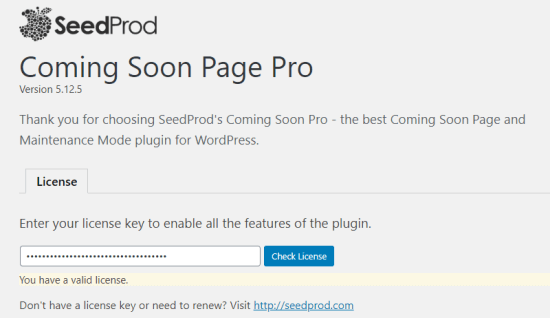
Entering your license key on the SeedProd Coming Soon Pro settings page

Now you’re ready to put your WooCommerce store under maintenance mode.

Creating Your Maintenance Mode or Coming Soon Page

To start designing your page, you need to visit Settings » Coming Soon Pro page and click on the ‘Edit Coming Soon/Maintenance Page’ button.
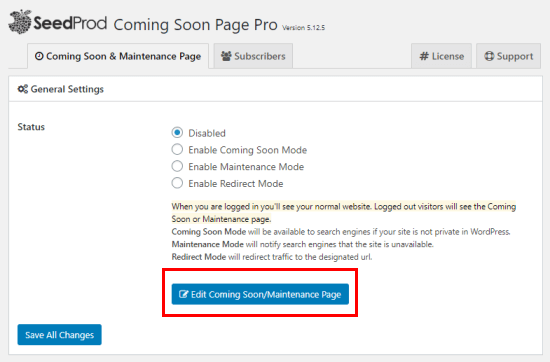
Click the button Edit Coming Soon/Maintenance Page

On the next page, you’ll see many different templates to choose from. Each of them can be easily customized to match your needs.

Furthermore, you can switch to a different theme at any time without losing the changes you’ve made to the text and other fields on your maintenance page.
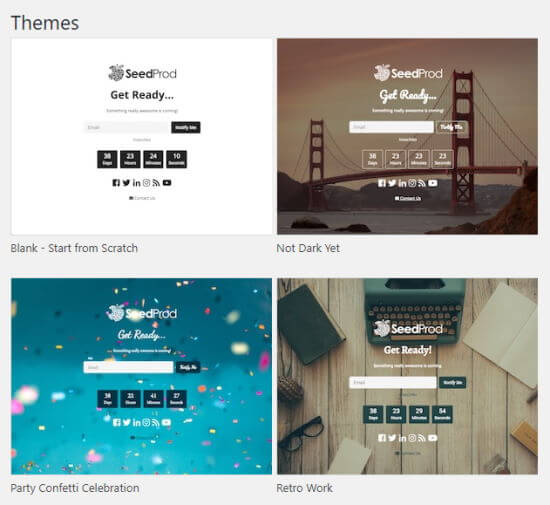
Viewing the available maintenance page themes

Once you’ve chosen a theme, your page will be automatically created for you, with the header ‘Coming Soon’. We’re using the ‘Party Confetti Celebration’ theme here.
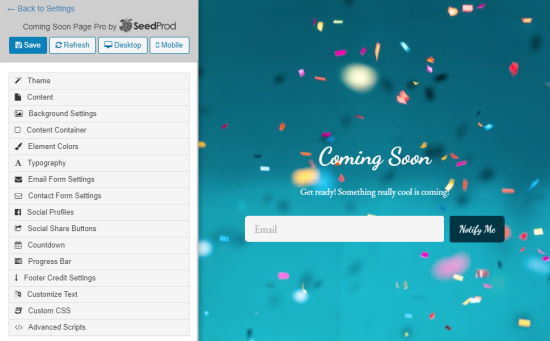
The Party Confetti theme, with colorful confetti in the background

To change the text on the page, click the ‘Content’ tab on the left, and you will see the option to edit the text.

You can also change the order of the different areas of the page by simply moving them up and down under the ‘Sections Order’.

If you want to add extra sections to your maintenance page, you can do that too. Simply close the ‘Content’ tab by clicking on it, and then open the tab for the new section that you want.

Here, we’re adding a countdown timer to the page. This can be a great way to build excitement when your store is about to launch.
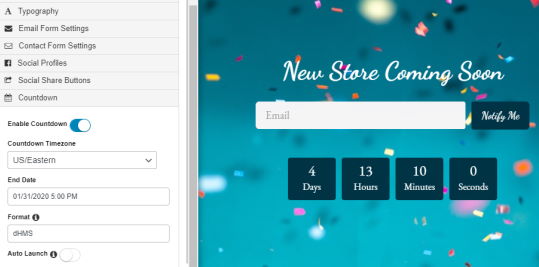
Adding a countdown to your maintenance page

Tip: If you want to launch your store automatically when the countdown finishes, then just turn on ‘Auto Launch’ in the countdown timer settings.

The page you create can act as a type of landing page, allowing you to start building an email list straight away.

When you’re happy with how your maintenance page looks, make sure you click ‘Save’ at the top of the page.

Turn on Maintenance or Coming Soon Mode for Your WooCommerce Store

Now that you have created your custom coming soon or maintenance mode page, let’s go ahead and enable it.

In your WordPress dashboard, go to Settings » Coming Soon Pro.

Under ‘Status’ you can choose either ‘Enable Coming Soon Mode’ or ‘Enable Maintenance Mode’.

Although these terms often get used interchangeably, they each have a different meaning and purpose here.

Coming Soon Mode

If you haven’t yet launched your online shop, you should normally pick ‘Enable Coming Soon Mode’. This mode lets your page start getting indexed by Google, without potential customers being able to view any of the pages.

Coming Soon Mode is for sites that are under construction.

Maintenance Mode

If your store is genuinely down for maintenance, you should normally pick ‘Maintenance Mode’. For instance, if you installed a new plugin that’s caused problems, you might need to take your site down while you fix things.

Maintenance Mode tells search engines that your site is temporarily down, using the special header code 503.

Once you’ve chosen the appropriate option, you need to ensure that just your store is being put into coming soon or maintenance mode, not your entire site.

To do this, scroll down to ‘Advanced Settings’ and click ‘Include URLs’.
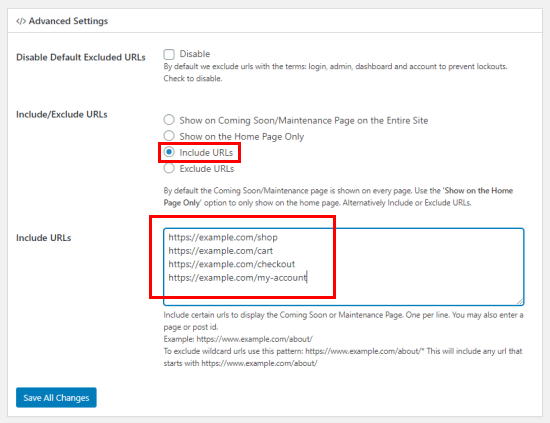
Enter the URLs you want to include in coming soon / maintenance mode

In the text box, you need to enter the URLs for your WooCommerce store. You’ll want to include all the default WooCommerce pages. (Don’t forget to replace example.com with your own domain name.)

https://ift.tt/1W0hfQd
https://ift.tt/2vkpf9T
https://ift.tt/2TanfZG
https://ift.tt/381t9Sg

If your store has products, then you’ll need to also add these URLs:

https://ift.tt/2TjlGc2
https://ift.tt/2HUvmVa
https://ift.tt/2Th6fRJ

The asterisk at the end of each of those URLs is a wildcard character. That means that the SeedProd will include all URLs that match the pattern before the asterisk.

Once you’ve done this, click the ‘Save All Changes’ button.

Checking Your Store is In Maintenance Mode

Once you’re done, we recommend opening up a guest or incognito browser window where you’re not logged in, and head to your WooCommerce store. You should see the coming soon or maintenance mode page, and not your online store.

Don’t forget to check a page that’s not part of your store, too, to make sure you didn’t accidentally put your whole site into maintenance mode.

Now you can login and work on your WordPress store without worrying about others potentially seeing a broken area on your site while it’s under construction or maintenance.

We hope this article helped you learn how to enable maintenance mode for WooCommerce. You may also want to take a look at our list of the the best WooCommerce plugins, and our complete step-by-step WooCommerce SEO guide for beginners.

If you liked this article, then please subscribe to our YouTube Channel for WordPress video tutorials. You can also find us on Twitter and Facebook.

The post How to Enable Maintenance Mode for WooCommerce appeared first on WPBeginner.


February 26, 2020 at 06:45PM
Tuesday, February 25, 2020

WordPress vs Joomla vs Drupal – Which One is Better?

While WordPress powers more than 35% of all websites on the internet, it’s not the only open-source content management system (CMS) in the market. There are other poplar software like Joomla and Drupal.

All three of them have a lot in common and many significant differences. Each one of them is a unique website builder with pros and cons.

In this article, we will compare WordPress vs Joomla vs Drupal to find out which one is the best choice for you.

WordPress vs Joomla vs Drupal

Note: We are comparing WordPress.org, and not the WordPress.com hosting service. Please see our guide on the difference between WordPress.org and WordPress.com.

What’s Common in WordPress, Joomla and Drupal

All three of the web’s most popular CMS have a lot in common in terms of technology, philosophy, and community.

WordPress, Joomla, and Drupal are released under GNU GPL license

  • WordPress, Joomla, and Drupal are all free and open source software licensed under GPL. See our article on why is WordPress free to learn more about free software.
  • All three of them are written primarily in PHP.
  • They all support MySQL as their database management system. WordPress exclusively supports only MySQL, while Joomla and Drupal support other database management systems.
  • All three of them use themes and templates for visual appearance of sites, and plugins, modules, or extensions for extending features.
  • As open source software, they are all community-driven projects.

While there are a lot of similarities, they are different in many aspects.

For instance, they have different policies about what to include in the core software, how to handle modules and templates, how to deal with security, etc.

These differences make a big impact on users, and how they build their websites.

Having that said, let’s take a look at how WordPress, Joomla and Drupal compare to each other, so you can choose the best website builder platform for your business.

Ease of Use and Beginner Friendliness

Most people creating their websites are not web developers, designers, or programmers. They are average users who just want to build a website. Ease of use is the most important factor for majority of users.

WordPress

WordPress comes with a famous five minute install. Most WordPress hosting providers also offer one click install of WordPress. This makes it fairly easy for a new user start a WordPress blog or website in minutes, not hours.

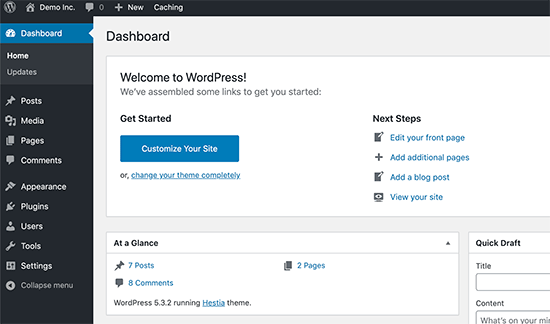
WordPress dashboard

The post-install user experience of WordPress is way better than Joomla or Drupal. The user sees a simple clean-cut user interface with the menus to create posts, pages, or start customizing appearance and themes.

Joomla

Joomla installation may not look as quick as WordPress, but it has very similar steps. Apart from that many shared hosting providers offer one-click install packages for Joomla as well.

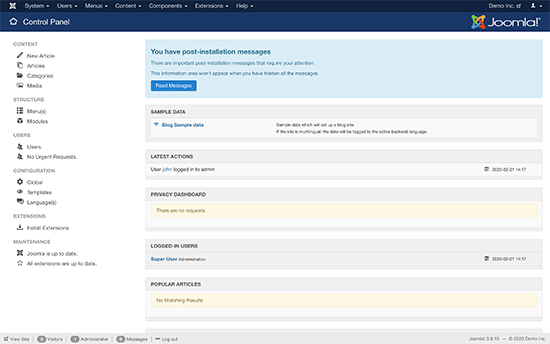
Joomla dashboard after a fresh install

After the installation, the user lands on a control panel that is not as straight forward as WordPress. There are just too many menus to click on and customize your site.

Joomla fans would say that’s because Joomla is a lot more powerful than WordPress, but we don’t believe that to be true.

Drupal

Drupal’s installation is similar to both Joomla and WordPress. Simply download and upload the package and run the installation script.

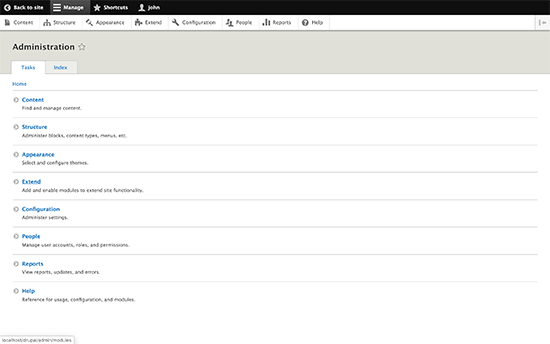
Drupal admin

Drupal also offers distributions. These are pre-packaged Drupal bundles with modules and configurations to create specific types of websites.

The post-installation experience for absolute beginners is a bit complicated. Users will find it difficult to figure out how to change things on their site. Drupal makes it very obvious how to add the content, but changing appearance and adding non-content elements is not very obvious.

Winner: WordPress

Themes and Addons

All three of these popular CMS come with themes and plugins / modules as a way to extend the features and appearance of the software.

Themes control the appearance of your website and how it looks to your users. Plugins or Modules are like apps for your CMS.

Let’s see how these three major CMS software perform in this category.

WordPress

WordPress allows users to change their site’s appearance using themes. WordPress comes with a few default themes pre-installed.

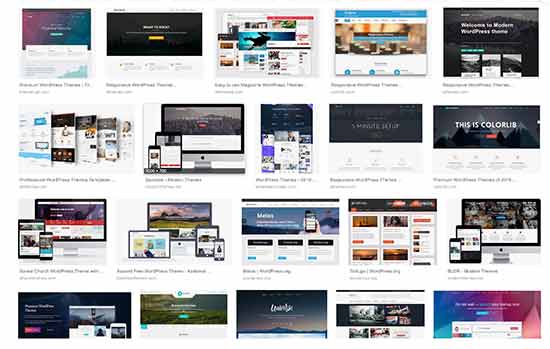
At any time, you can click on the add new button from your Appearance page and install free WordPress themes from the official WordPress.org theme directory.

Wordpress themes

Apart from free themes, you will find many more premium WordPress themes developed by third-party theme shops like StudioPress, Astra Theme, Elegant Themes, and more. These are paid themes and come with premium support options.

The real power of WordPress lies in plugins. There are more than 55,000 WordPress plugins available for free in the official WordPress plugin directory. You can also buy premium plugins that come with paid support provided by plugin developers. Check out our list of must-have WordPress plugins to see how plugins make WordPress awesome.

Joomla

Just like WordPress, Joomla also comes with templates and extensions. There are great extensions to do just about anything from creating an eCommerce store to managing email.

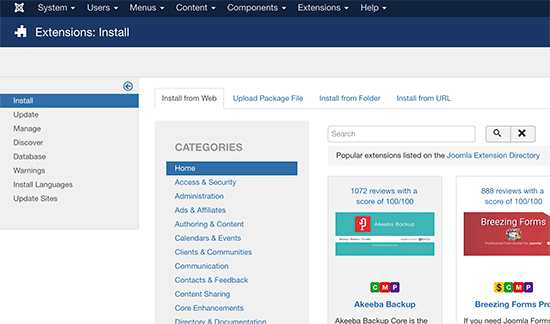
Joomla extensions

However, the quantity of these templates and extensions is not as high as WordPress. This could make finding the perfect template and the perfect extensions a bit difficult.

By default, Joomla does not have a feature that would allow users to search and install extensions or templates from the administration area. There is an extension that allows you to add “install from web” feature for extensions. But for templates, users will still have to manually search templates and then install them by adding their URL.

Drupal

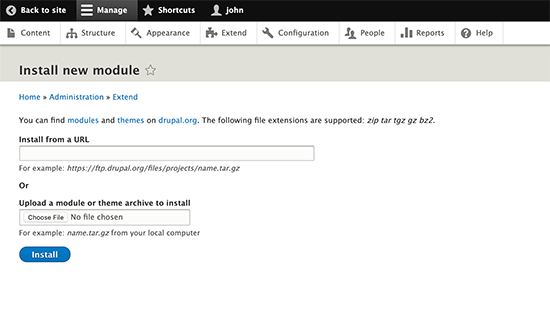
Drupal has the same issue with the availability of themes and modules. Users will have to leave their site, search for the module and theme they want to add, then locate the project’s zip file URL. Finally, they can enter the URL in the Modules or Themes page to install them.

Drupal Modules

There are modules to do just about anything and new ones are added regularly. Still, the overall quantity of modules is lacking when compared to WordPress.

Winner: WordPress.

Support Options

The availability of help and support options is very important for beginner users. There will surely be some hurdles when you are trying new software. That’s ok as long as you can get help.

WordPress

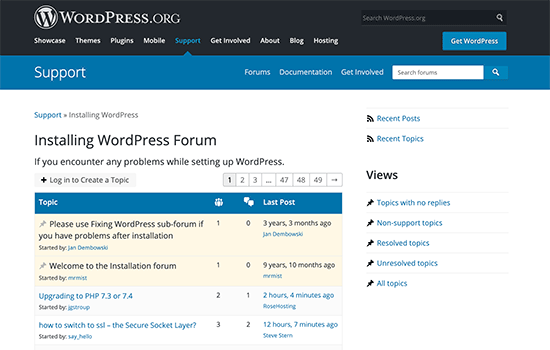
WordPress has a strong community of users. You can find WordPress help on official support forums, docs, handbooks, codex, Slack channels, Stack Exchange, WPBeginner Engage facebook group, and almost every forum on the internet about web design and development.

WordPress support forums

There are sites like WPBeginner, containing hundreds of tutorials, video tutorials, and articles catering to beginner level WordPress users. There are many ways to ask for free WordPress support and get it.

Apart from the free support options, there are ways to get paid support for WordPress as well.

Online platforms like Codeable, UpWork, Fiverr, etc. are just some of the places where you can hire WordPress professionals to help you. Due to the immense popularity of WordPress, finding WordPress developers is easy and affordable for small businesses and individuals.

Joomla

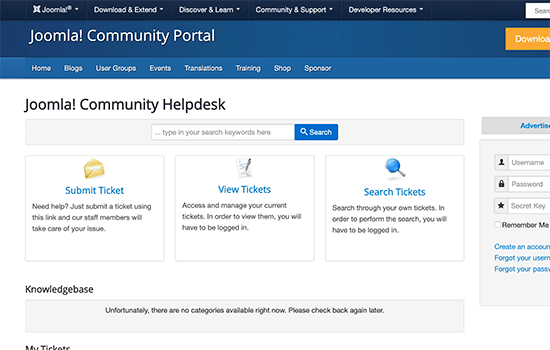
Joomla, just like WordPress has a large and very helpful community. There is extensive documentation on the Joomla website which is a valuable resource for beginners. For more interactive support, users can join forums, mailing lists, user groups, etc.

Joomla support forum

Apart from community support, there are third party resources, paid training, and development agencies that can be helpful.

Unlike WordPress, finding affordable expert help is quite difficult for Joomla. Hiring a developer or expert for Joomla development, troubleshooting or assistance can cost way more than WordPress.

Drupal

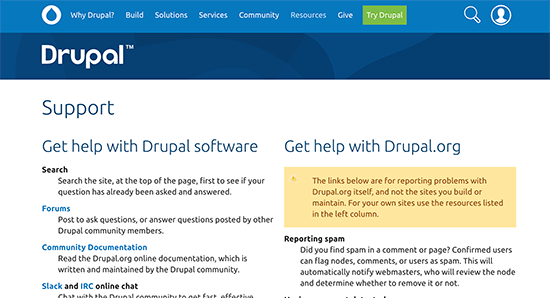
Drupal has a very proactive community of fans and users. You will find all the community support options for Drupal just like WordPress and Joomla. There is extensive documentation, support forum, mailing lists, user groups, irc chatrooms. All good places to get advice and free help.

Drupal community support

Drupal tries to connect users to developers and companies offering professional Drupal services. You may find them in Drupal Marketplace.

However Drupal developer similar to Joomla are very expensive when compared to WordPress.

Winner: WordPress

Localization & Multilingual Support

A large percentage of websites created each day, are non-English or multilingual sites. It is much more likely that many beginners would probably be looking for a CMS that can handle multiple languages or has support for different locales and languages.

WordPress

WordPress does an excellent job of offering a good platform to build a multilingual site. It does not support multiple languages out of the box, but there are some excellent plugins that allow you to easily create a WordPress multilingual site.

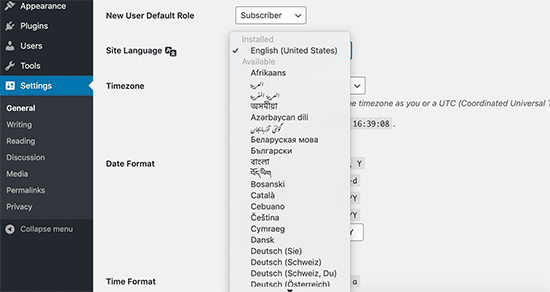
WordPress is available in more than 57 languages. New languages can be installed with just a click from the WordPress admin area.

Select language in WordPress

Most popular themes and plugins are also available in multiple languages. Theme and plugin developers are actively seeking help to translate their packages into other languages.

All these efforts make WordPress a great platform to build a non-English or multilingual website.

Joomla

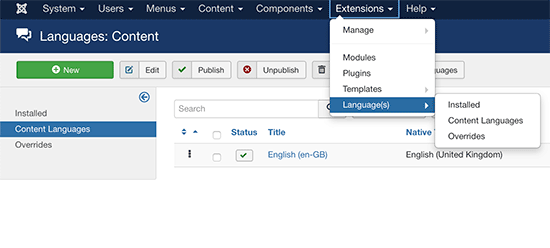
Joomla comes with out of the box capability to handle a multilingual website without installing any extension. Simply go to language manager, add a content language and start creating multilingual content on your website.

Adding language support in Joomla

Translations are also available for the admin interface in many languages and can be easily installed from the admin area.

Drupal

Drupal comes with built-in support to handle non-English or multilingual sites. You will need to enable locale and content translation modules. After that, you can add site and admin interface languages from Drupal’s configuration section.

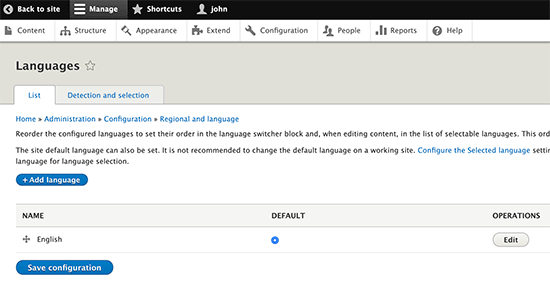
Drupal multilingual support

Winner: Tie – All three of them support multilingual sites and are available in multiple languages.

Security

Security is a very important factor when choosing a CMS for your website. Almost every website on the internet is vulnerable to security threats.

WordPress

Being the most popular CMS in the world, WordPress based websites are often targeted by hackers. However, WordPress is built on a very secure code, and it responds to security vulnerability very quickly.

WordPress also has an auto-update mechanism which allows WordPress websites to automatically update when there is a new security patch.

WordPress sites can be further secured with automated backups, two-factor authentication, and other WordPress security best practices.

There is also a built-in mechanism to show updates for WordPress themes and plugins. This allows themes and plugin developers to rapidly respond to any security vulnerability.

Joomla

Joomla is very similar to WordPress when it comes to security. They actively respond to any security vulnerability and are very quick to patch it up. However, maintaining a website and installing updates is still up to the user.

There are extensions available to backup your Joomla site. You can also strengthen your Joomla site’s security by following the same best practices as WordPress.

Drupal

Drupal takes a very serious approach to security. They publish security vulnerabilities on their own site as they are discovered and patched. There is a perception that Drupal is more secure because you don’t hear about Drupal sites being hacked as often, but that could because it’s not as popular Joomla or WordPress.

Winner: Tie – All three follow proper security standards.

Conclusion:

Drupal, Joomla, and WordPress are all fantastic content management systems. Drupal and Joomla come with many more built-in features than WordPress.

However, WordPress beats them with its ease of use, huge global community, plugins, and themes. We feel that most non-developer users would find it much easier to build with WordPress than Joomla or Drupal.

With over 55,000 WordPress plugins, you can add just about any feature or build any type of website that you like (without writing code).

Overall Winner: WordPress

How to Get Started With Your Favorite CMS

Whether you choose WordPress, Joomla, or Drupal, you will need a domain name and website hosting to make a website.

Luckily, all three of these top CMS software have quite similar requirements which means all top web hosting companies support them.

We recommend using either Bluehost or SiteGround. They are both among the largest hosting companies in the world and specialize in hosting WordPress, Joomla, and Drupal websites.

For more recommendations, see our complete web hosting guide for beginners.

If you are starting with WordPress, then see our beginner’s guide on how to make a website with step by step instructions.

We hope this article helped you compare WordPress vs Joomla vs Drupal, to find out the best CMS for your site. You may also want to see our comparison of the best email marketing services and best live chat software for small business.

If you liked this article, then please subscribe to our YouTube Channel for WordPress video tutorials. You can also find us on Twitter and Facebook.

The post WordPress vs Joomla vs Drupal – Which One is Better? appeared first on WPBeginner.


February 25, 2020 at 07:00PM

Monday, February 24, 2020

How to Create a Contract Agreement Form With Digital Signatures in WordPress

Do you want to add a contract agreement form to your WordPress website that people can e-sign?

Typically to get contracts signed, you either have to manually print / scan the signature, or pay for an expensive third-party e-sign service.

Wouldn’t it be nice if you could get users to sign forms with a digital signature in WordPress without the high costs?

In this article, we’ll show you how to easily create a contract agreement form with digital signatures in WordPress.

Why Create an Online Contract Agreement Form?

An online contract agreement form is easy to fill and submit. Normally, you’ll send the agreement as PDF, which the other party will have to print, fill-in, scan, and send back.

That’s a lot of work.

By creating an online contract agreement form on your website, users can fill it right away and sign it digitally with an e-signature.

It does not require any overly priced SaaS software and works very well for many different kinds of legal documents.

For instance, you can use it to create a code of conduct form, employment forms, non-profit or volunteer application forms, and more.

Are Digital Signatures Legal?

Yes, digital signatures and digitally signed documents are legally enforceable. If both parties agree to digital signatures, and the software used keeps a record of digital signatures, then they are legally binding.

However, they cannot be used for all kinds of legal documents. For example, legal documents or forms that require to be notarized, need court stamps, or witnesses.

With that said, this article is not legal advice, please consider a lawyer for practical legal advice and guidance.

Preparing Your Contract Agreement Form

If you don’t already have a contract drawn up, it’s a very good idea to consult a lawyer. You want to be sure that your contract is legal and that it won’t cause you any possible problems in the future.

Apart from the contract terms themselves, your contract form will probably need space for:

  • The name of the person signing.
  • The address of the person signing.
  • The date the contract is signed.
  • Space for your client (or new employee) to actually sign the contract.

That being said, let’s create a contract agreement form with a digital signature field.

How to Create a Digitally Signed Contract Form in WordPress

The first thing you need to do is install and activate the WPForms plugin. For more details, see our step by step guide on how to install a WordPress plugin.

WPForms is a premium plugin, and you’ll need at least their Pro plan to access the Signatures addon.

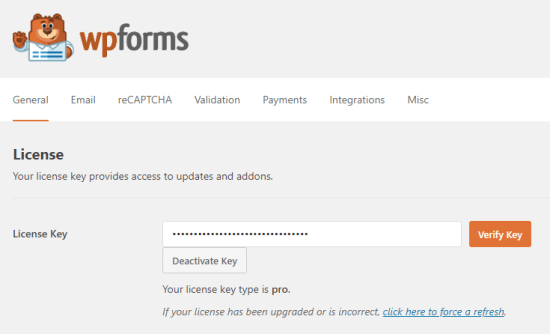
Upon activation, you need to visit the WPForms » Settings page to enter your license key. You can find this information under your account on the WPForms website.

Entering your license key for WPForms

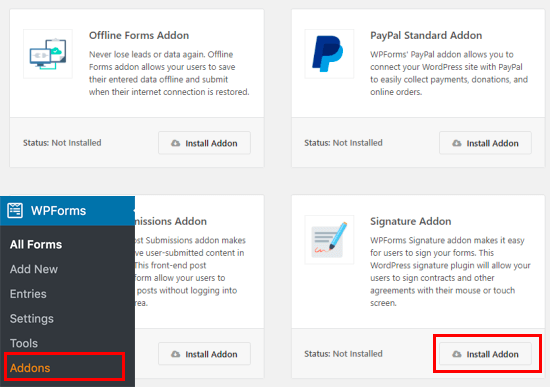
Next, you need to visit the WPForms » Addons page and install the Signature addon.

Installing the Signature addon

You are now ready to create your contract agreement form with the digital signature feature.

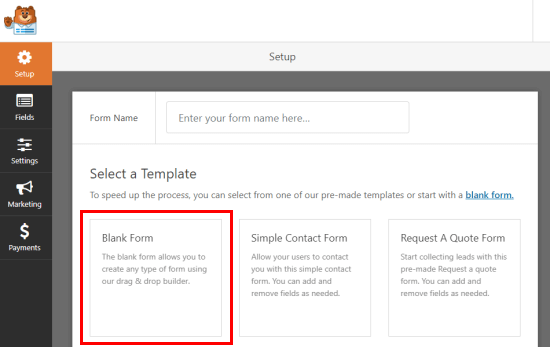
Simply go to the WPForms » Add New page to create your form. This will launch the WPForms form builder interface where you need to provide a title for your form and then choose a template.

We’re going to use the ‘Blank Form’ template for this example, but you can choose a different one if you prefer. Just click on the template to load it.

Selecting the Blank Form template

You’ll probably want to include the text of your contract itself on the page above the form. This could include your own signature as an image.

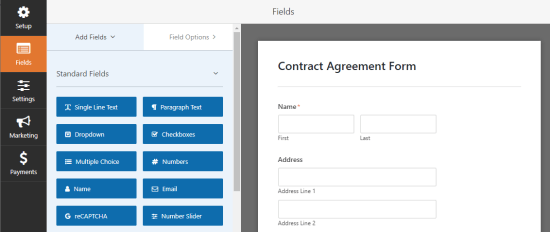
In the form itself, you just need to add the fields (form elements) that need to be filled in.

To add a new field, simply click on a field from the left column. You can rearrange fields by moving them up and down in the preview column.

Adding new fields to the contract agreement form

If you want to send a copy of the signed form to the user as well, then don’t forget to add an email field where users can provide their email address.

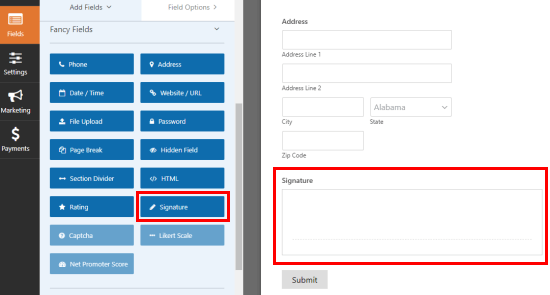
Once you’re happy with the fields you’ve added, it’s time to add the most important form field: the signature field.

Scroll down to the ‘Fancy Fields’ section and click to add the Signature field to your form.

Adding the Signature field to the contract agreement form

That’s it. You’ve created your form. Next, we need to make sure the settings are correct.

Configuring Your Contract Agreement Form’s Settings

Click on the ‘Settings’ tab to view your form’s settings. The default settings will work in most cases, but you may want to make some changes.

In particular, you’ll want to check that the ‘Notifications’ are correct.

By default, the signed contract agreement form will be sent to the administrator’s email address. This is normally the email address of whoever set up your WordPress site. If that’s not you, then enter your email address here instead.

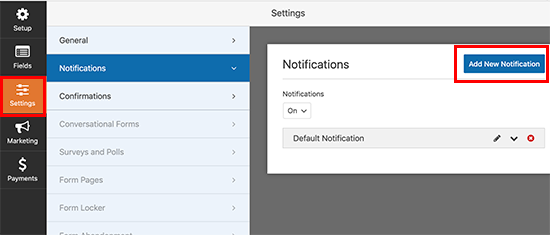
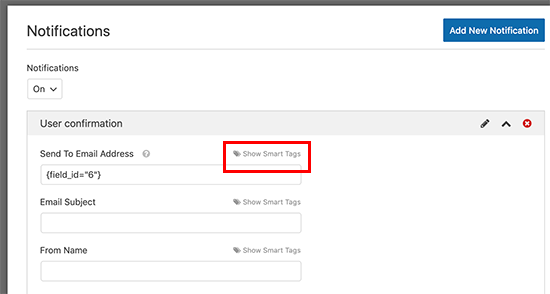
You may also want to send a copy of the form to the user as well. To do that, go to Settings » Notifications tab and click on the Add New Notification button.

Add new notification

In the ‘Send to Email Address’ section, click on the Smart Tags link and select the Email field.

Add email field

Review all other settings and adjust them to your requirements. WPForms will now send the form confirmation email to the user as well.

Next, switch to the ‘Confirmation’ tab, you can edit the confirmation message that the client (or employee or volunteer) signing the form will see.

Once you’re happy with the settings, click the ‘Save’ button at the top of the screen. You can now close and exit the form builder.

Add Your Contract Agreement Form to Your Site

Finally, you need to put your contract agreement form onto your website.

Create a new page or edit an existing one. First, you’ll need to add the text of your contract terms here before including the form itself.

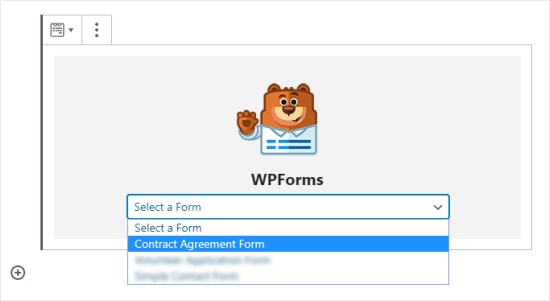
After that, simply add the WPForms block to your content area.

Adding a WPForms block to your page

Select your contract agreement form from the drop-down box, and WPForms will automatically load a preview of the form in the editor.

Select your contract agreement form from the drop down menu

You can now save or publish your page to make your form publicly available.

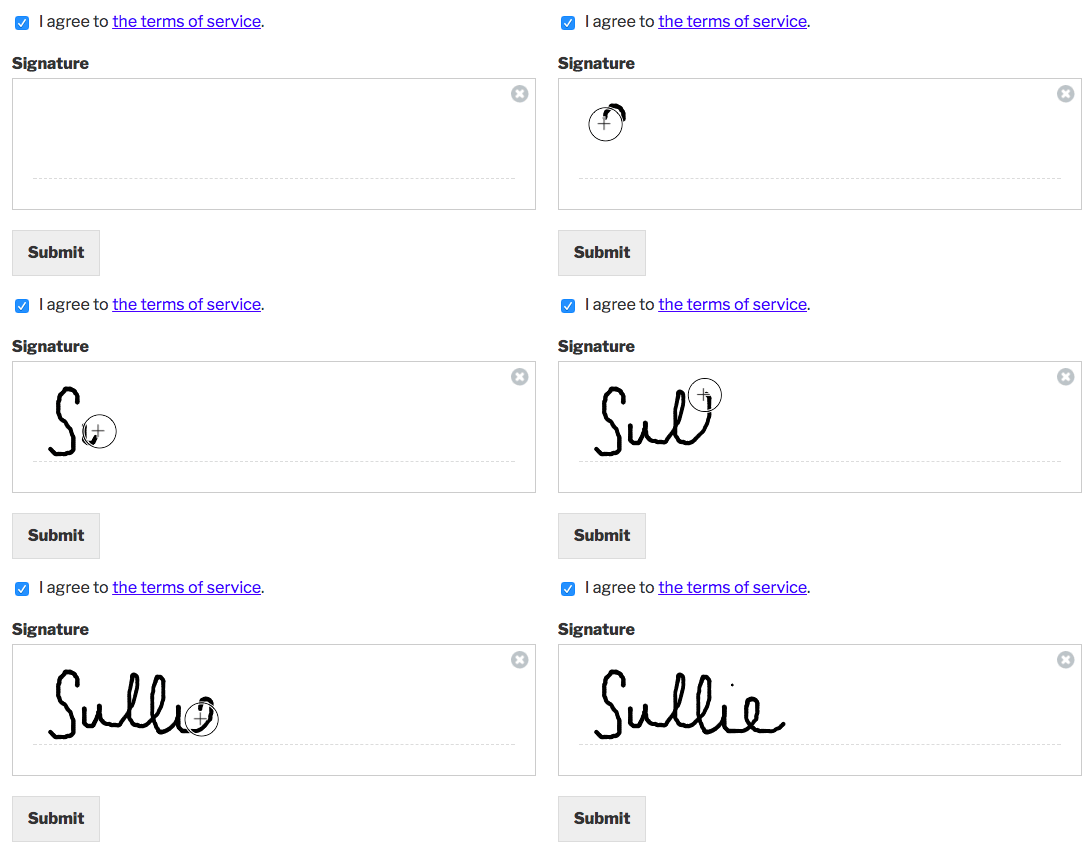
After that, visit the page to see your contract agreement form in action. Don’t forget to test out the contract agreement form. You should be able to enter your signature by using your mouse, trackpad, or a touchscreen.

WPForms Signature Field Example

Make sure you see the confirmation message and receive an email after submitting the form.

If you don’t get an email, don’t worry. It’s quite a common problem and we’ve got instructions on how to fix WordPress not sending emails.

We hope this article helped you learn how to create a contract agreement form with digital signatures in WordPress. You may also be interested in our articles on the best WordPress plugins and the best business phone services for small businesses.

If you liked this article, then please subscribe to our YouTube Channel for WordPress video tutorials. You can also find us on Twitter and Facebook.

The post How to Create a Contract Agreement Form With Digital Signatures in WordPress appeared first on WPBeginner.


February 24, 2020 at 06:55PM