Wednesday, April 8, 2020

How to Create a Buy One Get One Free Offer in WooCommerce

Do you want to create “buy one get one” (BOGO) offers in your WooCommerce store? BOGO deals are an effective way to drive more sales and win new customers.

While it’s not a built-in feature in WooCommerce, you can easily add it using a WooCommerce plugin.

In this article, we’ll show you how to easily create a WooCommerce buy one get one free offer to drive more sales.

How to easily add buy one get one free offer in WooCommerce

Why and When to Offer BOGO Deals in WooCommerce?

BOGO or Buy one Get One Free deals are an effective way to make more sales on your online store.

Now many beginners believe that they will be giving away products for free. Obviously, that’s not the case.

Most online stores only offer BOGO deals for products / inventory that they want to move. Some do it to recover abandoned cart sales and acquire a new customer.

Think of BOGO offers as a way to acquire new customers. You can then reach out to those customers and turn them into repeat buyers.

Considering the cost of online advertising like PPC and social media ads, BOGO discounts can be a cheaper way to build a loyal customer base.

You can also use BOGO deal to offer significant discounts on the second product instead of giving it for free. This technique is typically used by retailers to promote offers like Buy One Get One 50% off, or Buy 2 Get 1 free, etc.

That being said, let’s take a look at how to easily add buy one get one offer in WooCommerce.

Creating a Buy One Get One Offer in WooCommerce

The easiest way to add a buy one get one free offer in WooCommerce is by using Advanced Coupons. It is the best WooCommerce coupon code plugin on the market and allows you to easily create coupons and deals for your eCommerce store.

First, you’ll need to install and activate the Advanced Coupons plugin. For detailed instructions, see our guide on how to install a WordPress plugin.

Upon activation, you need to click on the Advanced Coupons tab in the admin sidebar to enter your license key. You can find this information under your account on the Advanced Coupons website.
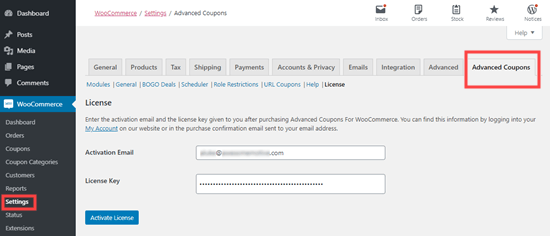
Activate the advanced coupons plugin by entering the license key

To create your BOGO deal, go to the WooCommerce » Coupons page and click on the Add Coupon button.
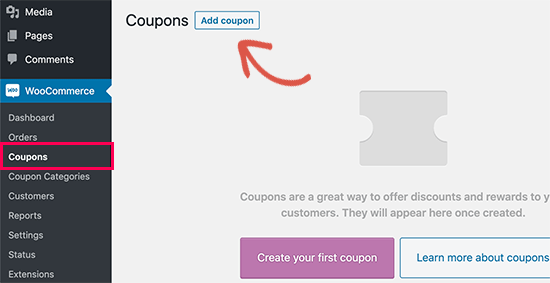
Add coupon button

On the next screen, you need to provide a title for your coupon. This will also become the actual coupon that customers will be able to enter into the coupon field.
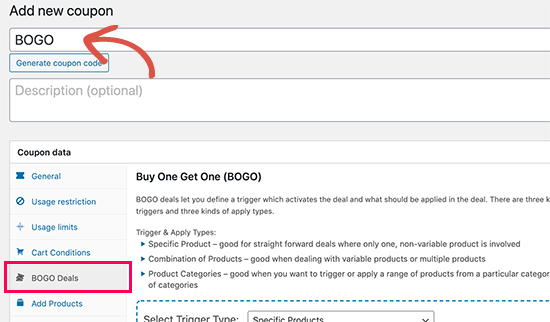
Add coupon code

You’ll notice a button to automatically generate a coupon code below the title. This button generates a random string of letters and numbers which makes the coupon code hard to remember.

It’s best if you create your own coupon code which is easy to remember for your customers.

Next, scroll down to the ‘Coupon Data’ section. From here you can select what kind of coupon deal you want to create. You need to switch to the ‘BOGO Deals’ tab.
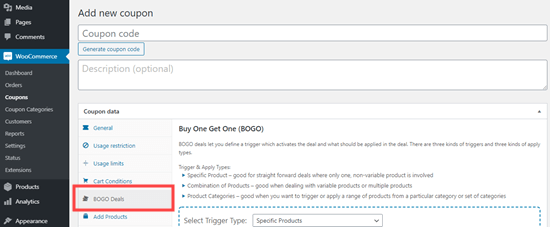
Create a "buy one get one" deal by clicking the BOGO deals tab

You can create a range of different BOGO deals using Advanced Coupons by setting up specific triggers. These activate the deal and determine what products should be added.

There are three types of triggers that you can use:

  • Specific Product: This is for simple, straight-forward deals on a single product.
  • Combination of Products: You can use this for products that have variations, or deals that apply to multiple products.
  • Product Categories: Great for running a sale on a range of products from a category or even several categories.
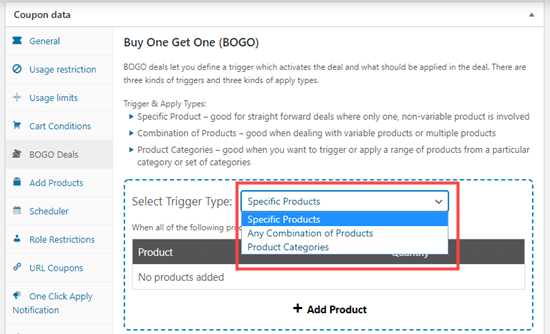
Selecting the trigger type for your "buy one, get one" deal

Once you’ve chosen the trigger type, you’ll need to pick what products can trigger the deal. Click ‘Add Product’ then select the product(s) you want to add.

You can have more than one product here. For instance, the customer might need to buy 2 products from the category ‘T-Shirts’ to get a 3rd t-shirt free.

It’s important to note that you don’t necessarily have to make the second product free. You could run a deal where the second t-shirt is significantly discounted such as 50% off instead.

All of these options are easy to create with Advanced Coupons.

Once you’ve set up your trigger, you’ll need to pick what product the customer gets for free. This could be the same product as before, or it could be a different product or even a range of products.

Here’s an example showing a deal where the customer can buy any t-shirt and get another one for free.
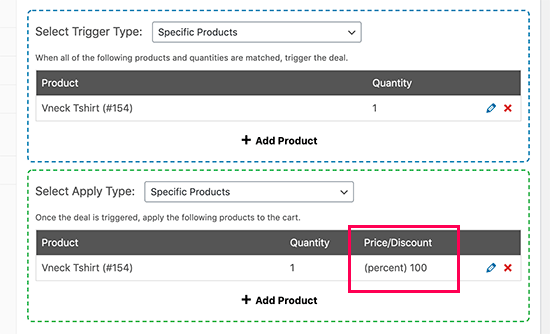
Setting up a buy one and get one free coupon

If you choose a single product, it’ll be automatically placed in the customer’s shopping cart. If you set the ‘Apply Type’ to ‘Any Combination of Products’ or ‘Product Categories’ then the customer will need to choose a product from your store and add it to their cart.

If you want to create a deal where the “get one” item is discounted rather than free, you can do that using the dropdown beneath the ‘Price/Discount’ heading. You can offer a percentage or a fixed discount:
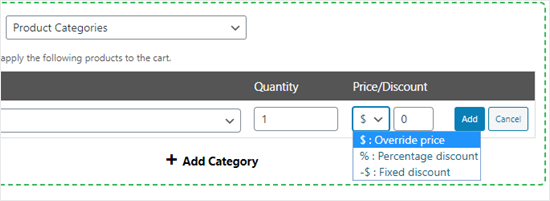
Offering a discount instead of a free item

Under ‘Additional Settings’, you can choose whether you want the deal to only be applied once or whether it can be repeated.
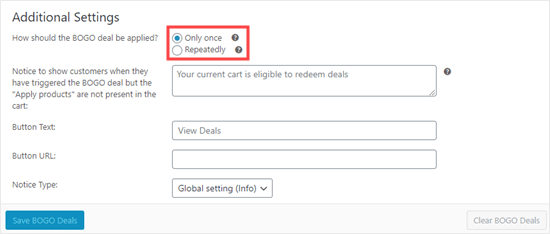
The BOGO deal's additional settings

For instance, if you’re offering a “buy two get one free” offer on t-shirts, you might be happy for the customer to keep adding more t-shirts. That way, they could “buy four, get two free” or “buy six, get three free” and so on.

You can also type in a notice that customers will see when they trigger the deal. This has a special button they can use to view the deal.

Applying The Buy One Get One Free Coupon

Customers will simply add the product to their cart and add the BOGO deal coupon code.
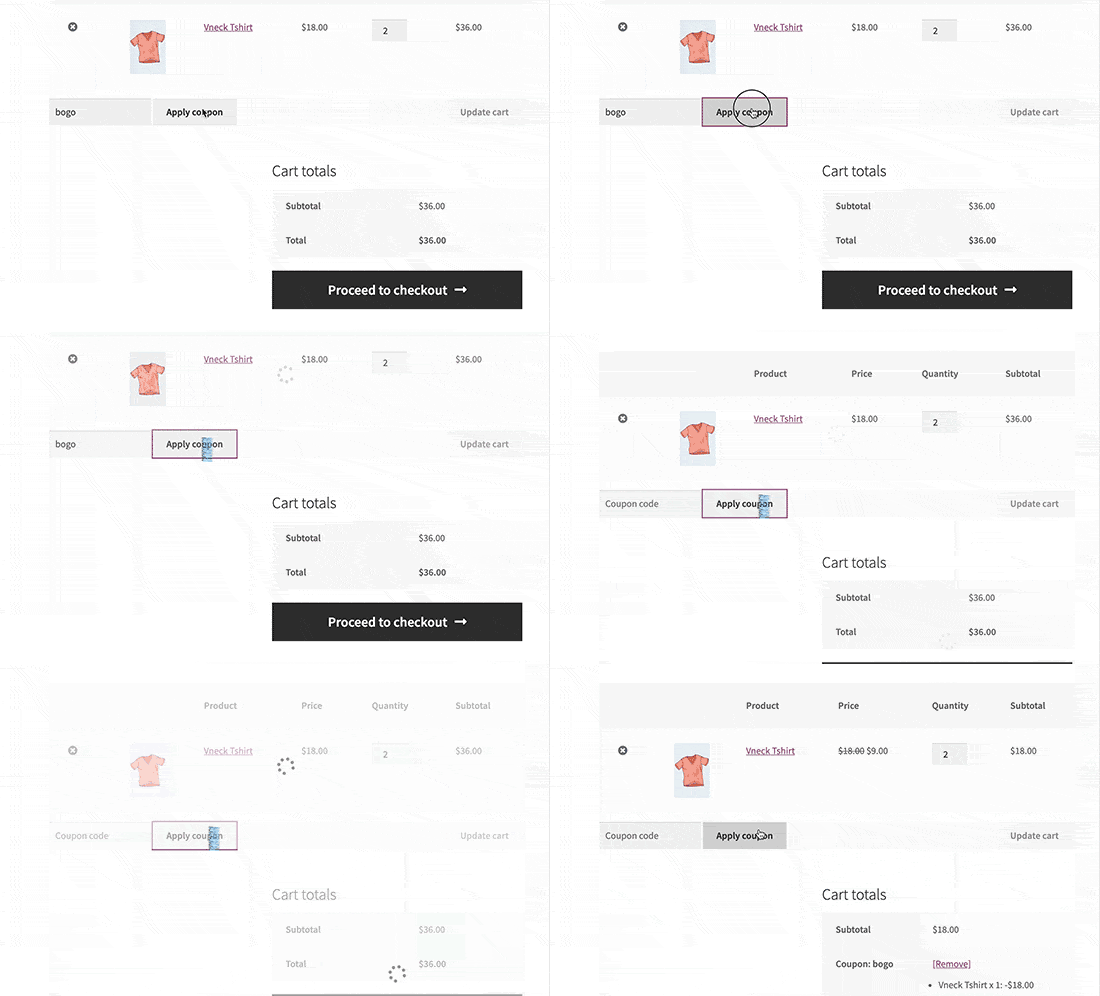
Add product to cart

The coupon code will apply the deal based on the settings you selected. For instance, here it gives a 100% discount to make the other product free.

The cart discounts will depend on the quantity and triggers you have selected when creating the BOGO deal. The discount will not apply if the user has an incorrect quantity or product in their cart.

How to Promote Your BOGO Deal in WooCommerce

Now that you have created the buy one get one free offer, the next step is to promote it across your website so that your customers can find and use it.

The easiest way to do this is by using OptinMonster. It is the best conversion optimization tool on the market and allows you to easily convert website visitors into paying customers.

It comes with beautiful lightbox popups where you can display your coupon code. With smart page targeting features, you can display the coupon on specific products or across your website.
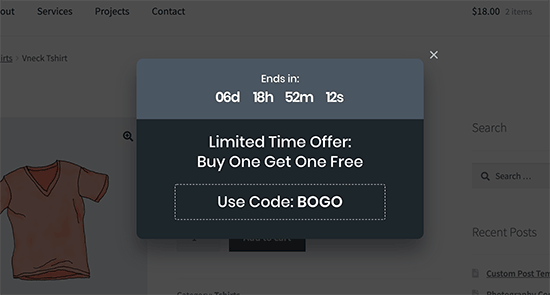
BOGO coupon popup

For details see our tutorial on how to create a coupon popup in WordPress.

Apart from popups, OptinMonster also allows you to promote your BOGO deals using floating bars, countdown timers, inline optins, and slide-in popups.

We hope this tutorial has helped you learn how to create a WooCommerce BOGO “Buy One Get One” free offer. You might also like our expert pick of the the best WooCommerce plugins to grow your online store.

If you liked this article, then please subscribe to our YouTube Channel for WordPress video tutorials. You can also find us on Twitter and Facebook.

The post How to Create a Buy One Get One Free Offer in WooCommerce appeared first on WPBeginner.


April 08, 2020 at 05:56PM
Tuesday, April 7, 2020

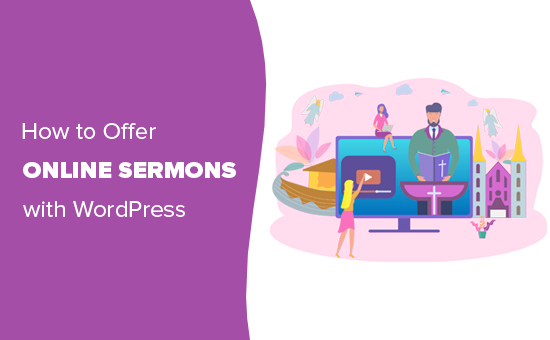
How Churches Can Offer Online Sermons with WordPress

Do you need an easy way to share sermons with your church members online?

Recording and uploading sermons to your church website is a great way to reach members who can’t attend church. This can also help you to attract new church members as well.

In this article, we’ll teach you how you can record audio or video sermons, add them to your church website, and let your members subscribe, so they don’t miss a single update.

Bonus, if your church doesn’t have a website, then we will cover that too.

Ready? Let’s get started.

Offering online sermons on a church website

Why Record and Upload Sermons?

You’ve probably already created a website for your church. Most church websites include the basic information like location, service times, and a contact form.

But when it comes to putting sermons online, or even putting your whole church services online, you might think it takes too much time or would cost a lot of money.

There are a lot of reasons it makes sense to put your sermons online:

  • Many new visitors to your church can listen online before they ever come through the doors.
  • You may have church members who missed service because they were sick, or because they are elderly and unable to get out as much.
  • Some members might miss part of the service to take care of a crying infant, and want to hear the rest.

Even for members who are present for the whole service, you may find that when you offer your sermons online, people are able to listen again and get even more out of the message.

Plus, adding sermons can even help you get more website traffic. That’s because websites that publish new content more often tend to rank higher in search results.

And the good news is that in terms of both dollars and volunteer hours, it doesn’t have to break the bank. Many small churches and church plants need to make a website as inexpensively as possible.

We’ll include instructions for how to record sermons on a tight budget, as well as give a few options for those who may have a higher production budget and are looking for more professional solutions.

Ready to learn how to record sermons and upload them to your site? We’ll walk you through each step.

Here’s a quick outline that you can use to easily browse the article:

Step 1: Set Up Your Church Website

If you already have a WordPress website set up, then you can click here to skip to step 2 which is focused on choosing your recording equipment.

You can watch this video tutorial, or read our step-by-step guide on how to create a WordPress website to get started.

If you’re just getting started, we highly recommend using Bluehost to host your website.

They are offering WPBeginner readers a free domain name and 60% discount on web hosting. Basically, you can get started for $2.75 per month.

→ Click here to Claim this Exclusive Bluehost offer ←

You might also want to see our roundup of the best WordPress themes for churches, so you can customize your site design.

Once your website is set up, the next step is to make sure you have the equipment you need to record your sermons.

Step 2: Get the Right Recording Equipment

The equipment you need will depend on whether you want to record your live sermons while you’re preaching in the church, or record sermons separately by yourself.

The good news is, if you want to record live sermons, you may already have everything you need.

If your church already has a soundboard and an available laptop for recording sermons, you may just need to purchase a small cable like this 3.5mm to XLR Cable to run from your soundboard to a laptop.

Once connected, you can then use a program like Audacity to record the sermon (more on that in the next step).

If you don’t have a soundboard for your church, you could use a portable recorder like this Handheld Digital Audio Recorder. You can easily set this on your podium so you don’t have to hold it the whole time.

You might also want to record sermons privately by yourself, instead of recording the live sermon, or even record additional teaching for deeper study.

In that case, you’ll need a good microphone. You might think about using your laptop’s built-in mic to record sermons, but we don’t recommend that. Your church members will notice the bad sound quality and may have trouble understanding your sermon.

We recommend investing in one of these 3 mics that are popular for podcasting:

Buying a professional microphone for podcasting

At WPBeginner, we also use the Rode Podcaster kit that came with a mic arm and shock mount.

You should also consider using a decent pair of headphones like Sony MDR7506 for recording and editing your audio files.

How do you record a sermon video?

For recording video sermons, you’ll need to use a video camera.

If you need to begin with an absolute minimal budget, you can record on your smartphone using a tripod. This is the cheapest way to go.

GripTight GorillaPod Stand PRO

GripTight GorillaPod Stand PRO is a good tripod for any type of phone. It has adjustable legs that can be used to attach it to any surface.

For churches with a modest budget, you can use SlingStudio’s HD Video Production Unit to create a high-quality video recording that uses multiple cameras. SlingStudio lets you switch between video feeds in real-time from an iPad or laptop. You can add feeds from camcorders, DSLR cameras, or even use your smartphone.

Once you’ve chosen your equipment, you’re ready to start recording.

Step 3: Record Your Sermon

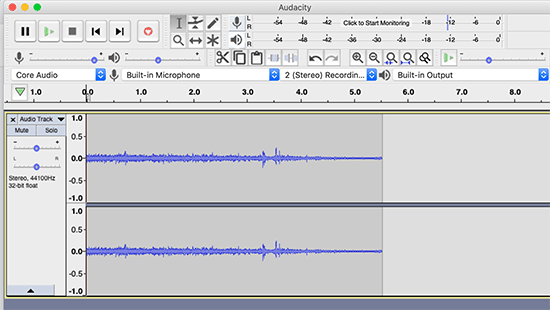
To record your sermons, we recommend using the program Audacity.

Audacity is a completely free program that, like WordPress, is licensed under the GPL. You can use it to record your sermons, and also edit the files for noise reduction and enhanced sound quality.

After you install Audacity, you’ll need to open the program and click the File menu to start a new project.

Then, click on the record button to start recording your sermon.

Don’t feel like you need to start over if you make a mistake. Just keep going, and then you can edit out the mistakes after you’re finished recording.

Audacity

If you want, you can also import music files from File » Import to use at the beginning or end of your sermon.

Since Audacity is a powerful tool, you may want to check out these Audacity tutorials to learn more about all the features.

After you’re done recording your sermon, you can export it. We recommend the MP3 format because it creates smaller file sizes with good quality.

Once you’ve saved the file, you’re ready to upload it to your website.

Step 4: Upload Your Sermon Recording

Both audio and video recordings produce large files. You might be able to get away with hosting your audio files on your website for a short time, but you’re likely going to run into space issues after a while.

If you want to keep your WordPress website fast, you shouldn’t upload audio or video files to your own site.

We recommend you use a separate church sermon hosting service. If you’re looking for the best podcast host for churches, we recommend using Podbean to upload your sermon audio recordings. You can also check out our list of the best podcast hosting services for other options.

Podbean

For video files, we recommend you get started on YouTube. It is easy to use, super-fast, and free. It is also the world’s second-largest search engine which means additional chances for your sermons to be viewed by someone new.

Once you’ve recorded your sermons and put them online, it’s time to add them to your website so your own members and visitors can easily find them.

You will begin by adding the Sermon Manager for WordPress plugin. For more details see our step-by-step guide on how to install a plugin.

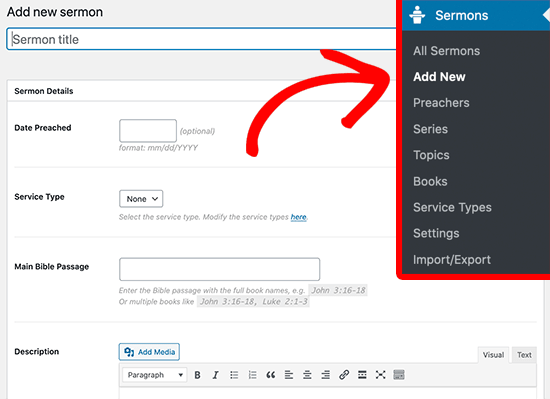
You will begin by adding your first sermon. Simply go to Sermons » Add New page.

Add new sermon to WordPress

First, you will need to add the title of your sermon and the date it was preached on. You must add the date preached to be able to publish your sermon.

After those two fields, there are many fields that are optional but we encourage you to fill out as many as possible. Adding thoughtful descriptions helps your sermon be discoverable by search engines.

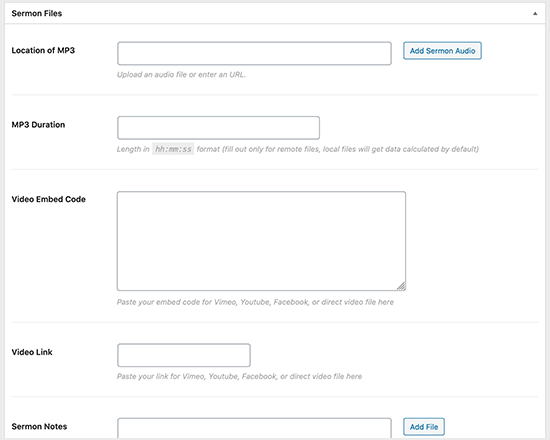
The second set of fields will allow you to paste the URL for your files, whether you’re adding audio, video, or both. There’s also a place where you can add sermon notes if you’d like to attach a PDF.

add sermon recording details

Fill out the meta on the right column for things like the preacher’s name, the sermon series, and then click publish. And that’s it! If you’re using pretty permalinks, your first sermon will now be available at:

https://ift.tt/2Xf5CLY

Submit your Podcast to Apple’s iTunes and Google Play

Another great feature in the Sermon Manager plugin is that you can easily submit your feed to podcasts. This makes it easier for your members to subscribe and receive notifications on their phones when you publish a new sermon.

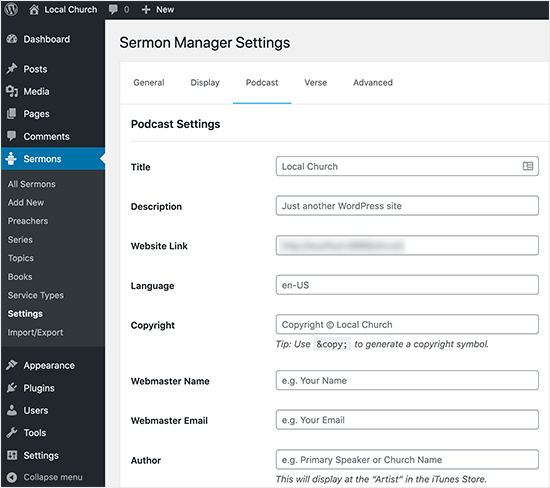
To get started go to Sermons » Settings and click on the Podcast tab. The folks behind the Sermon Manager for WordPress plugin have made this section very self-explanatory so you will be able to follow along, filling in your own data and seeing what they recommend in light gray text.

Go through each field and fill in the information so it matches your church.

enter your church podcast settings

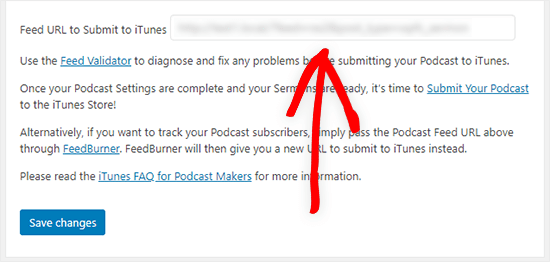
At the bottom, click the save button. Next, you’ll use the link for the feed validator so you can be sure you’ve filled out everything correctly. When your feed validates you’ll copy the link and submit your podcast to both Apple Podcasts and Google Play Podcasts.

copy the church podcast feed URL to submit to podcast services

How Do I Live Stream Sermons?

Plenty of churches are asking how do I live stream sermons, so you may be wanting to do that as well.

We recommend live streaming in addition to having sermons on your own website. If you only live stream and don’t record your sermons, then you’re missing out on all the benefits we listed above.

Having sermons on your website means your church members can access past sermons more easily. It can also help you to grow your website traffic.

That said, live streaming sermons can be a good way to reach new audiences on social media.

Two of the best ways are YouTube and Facebook. Facebook especially can be a good option because a lot of your members are already there and connected to your page.

But Facebook Live isn’t always reliable. We’ve heard reports of churches having issues with their livestream crashing in the middle of the service. Using a broadcasting service instead can offer a smoother experience.

Restream will allow you to broadcast your service on your own website, YouTube, your Facebook page, a Facebook group, and other services, all at the same time.

You can also record your sermons or services in advance and schedule them to go live at the right time for a less stressful experience.

If you’re live streaming your sermon using your smartphone, you’ll want to make sure you’re using a tripod for the best results.

After your live stream is over, you can add the video to your own site following our tutorial above.

We hope this article helped you learn how to record sermons. You may also want to check out our guide on how to accept online donations.

If you liked this article, then please subscribe to our YouTube Channel for WordPress video tutorials. You can also find us on Twitter and Facebook.

The post How Churches Can Offer Online Sermons with WordPress appeared first on WPBeginner.


April 07, 2020 at 07:48PM

Monday, April 6, 2020

How to Perform a WordPress Security Audit (Complete Checklist)

Do you want to perform a WordPress security audit to make sure that your website is secure?

WordPress out of the box is very secure. However, if you suspect that something is not right with your website, then you may want to perform a complete security audit to make sure that your website is secure.

In this article, we’ll show you how to easily perform a WordPress security audit without taking down your site.

Easily perform a complete WordPress security audit

What is a WordPress Security Audit?

WordPress security audit is the process of checking your website for signs of a security breach. You can perform a WordPress check to look for suspicious activity, malicious code, or an unusual drop in performance.

The basic WordPress security contains simple steps that you can perform manually.

For a more thorough audit, you can use a WordPress security audit tool to automatically perform the checks for you.

There are also online WordPress security audit services that you can use to evaluate your website’s security.

If you find something suspicious, then you can isolate, remove, and fix it.

When to Perform a WordPress Security Audit?

You should perform a WordPress security audit at least once a quarter. This allows you to stay on top of everything and close security loopholes even before they cause any trouble.

However if you see something suspicious, then you should perform a security audit immediately.

The following are some of the signs which indicate that you may need a security audit.

  • Your website is suddenly too slow and sluggish
  • You witness a drop in website traffic
  • There are suspicious new accounts, forgot password requests, or login attempts on your website
  • You see suscpious links appear on your website

That being said, let’s take a look at how to easily perform a WordPress security audit on your website.

WordPress Security Audit Checklist

The following are some of the steps you can take to perform a basic WordPress security audit on your website.

1. Software updates

WordPress updates are really important for the security and stability of your website. They patch security vulnerabilities, bring new features, and improve performance.

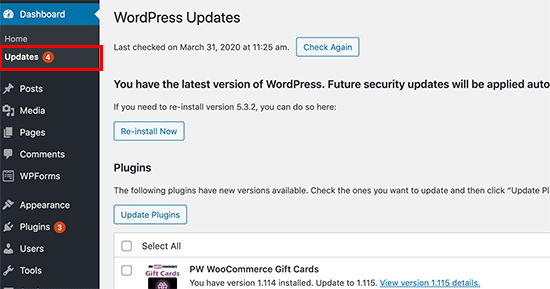
Make sure your WordPress core software, all plugins, and themes are up to date. You can easily do that by visiting Dashboard » Updates page inside WordPress admin area.

WordPress updates

WordPress will look up if any updates are available and then list them for you to install. If you need more help, then see our guides on how to properly update WordPress and how to properly update WordPress plugins.

2. Check user accounts and passwords

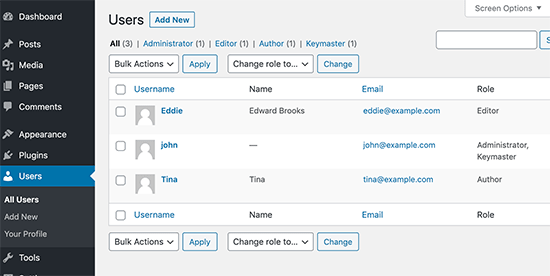
Next, you need to review WordPress user accounts by visiting Users » All Users page. You’ll be looking for suspicious user accounts that shouldn’t be there.

If you run an online store, a membership site, or sell online courses, then you may have user accounts for your customers to sign in.

However, if you run a blog or a business website, then you should only see user accounts for yourself, or any other user that you have manually added.

WordPress users

If you see suspicious user accounts, then you need to delete them.

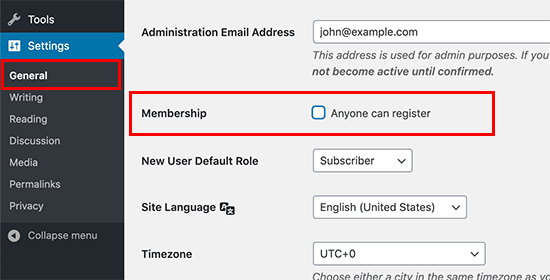
Now if your website doesn’t require users to create an account, then you need to visit Settings » General page and make sure that the box next to the ‘Anyone can register’ option is unchecked.

WordPress user registration

As an extra precaution, you need to change your WordPress admin password. We highly recommend adding two-factor authorization to strengthen password security on your website.

3. Run a WordPress security scan

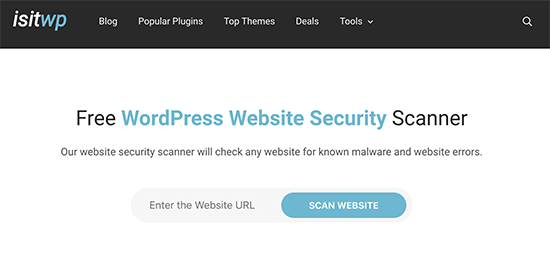
IsItWP Security Scanner

The next step is to check your website for security vulnerabilities. Luckily, there are several online security scanners that you can use to check for malware.

We recommend using IsItWP Security Scanner which checks your website for malware and other security vulnerabilities.

These tools are good, but they can only scan the public-facing pages of your website. We’ll show you how to perform deeper audits later in this article.

4. Check your website analytics

Website analytics help you keep track of your website traffic. They are also a pretty good indicator of your website’s health.

If your website has been blacklisted by search engines, then you’ll see a sudden drop in your website traffic. If your website is slow or unresponsive, then your overall page views will also drop.

We recommend using MonsterInsights to track your website traffic. It not only shows your overall pageviews, but you can also use it to track registered users, your WooCommerce customers, form conversions and more.

5. Check or set up WordPress backups

If you haven’t already done so, then you need to immediately set up a WordPress backup plugin. This ensures that you always have a back up available in case anything goes wrong.

On the other hand, many beginners forget about their WordPress backup plugin after setting it up. Sometimes backup plugins may stop working without any notice. It is a good idea to make sure that your backup plugin is still working and saving backups.

Automatically Perform WordPress Security Audit

The above checklist allows you to go through the most important aspects of a security audit. However, it is not a very thorough process which means your website may still be vulnerable.

For instance, it is difficult to keep a manual record of all user activity, file differences, suspicious codes, and more. This is where you need a plugin to automate security auditing and keeping a record of everything.

You can automate this process with the help of a few WordPress security and monitoring plugins.

1. WordPress Security Audit Log

WP Security Audit Log

WordPress Security Audit Log is the best WordPress activity monitoring plugin on the market.

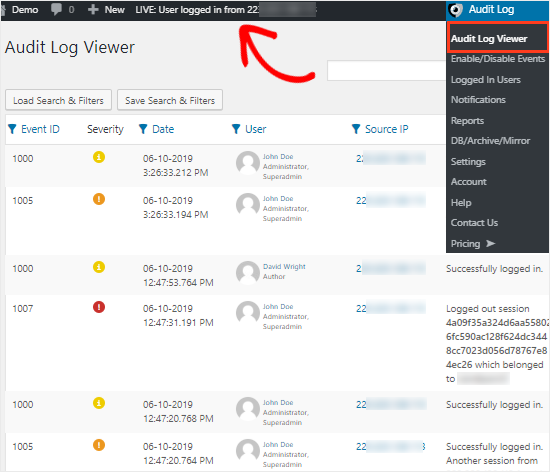
It allows you to keep track of all user activity on your website. You can view all user logins, IP addresses, and what they did on your website.

Audit log viewer

You can track WooCommerce users, editors, authors, and other members who have an account on your website.

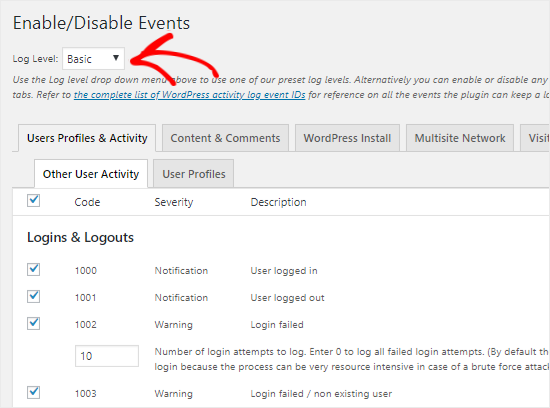
You can also turn on events that you want to track and switch-off events that you don’t want to monitor.

Track events in WP Security Audit Log

The plugin also shows you a live view of all the users logged in to your website. If you see a suspicious account, then you can end their session right away and lock them out.

For more details, see our guide on how to monitor user activity in WordPress using WP Security Audit log.

2. Sucuri

Sucuri

Sucuri is the best WordPress firewall plugin on the market, and it is also the best all-in-one WordPress security solution that you can get for your website.

It provides real-time protection against DDoS attacks by blocking suspicious activity even before it reaches your website. This removes load from your server and improves your website speed / performance.

It comes with a built-in security plugin that checks your WordPress files for suspicious code. You also get a detailed look at the user activity across your website.

Most importantly, Sucuri offers malware removal for free with all their paid plans. This means, that even if your website is already affected, their security experts will clean it for you.

We hope this article helped you learn how to perform a WordPress security audit on your website. You may also want to see our complete WordPress security guide for step by step instructions on how to protect your website.

If you liked this article, then please subscribe to our YouTube Channel for WordPress video tutorials. You can also find us on Twitter and Facebook.

The post How to Perform a WordPress Security Audit (Complete Checklist) appeared first on WPBeginner.


April 06, 2020 at 04:00PM