Wednesday, May 13, 2020

How to Auto-Apply Coupons in WooCommerce Using Coupon URLs

Do you want to give your WooCommerce customers a special link that automatically applies a coupon for them?

Normally, users need to add their coupon code before checking out. However, coupon URLs make it easy to auto-apply coupons and make it even faster for users to finish the purchase.

In this article, we’ll be showing you how to auto-apply coupons in WooCommerce using coupon URLs.

Auto applying coupon URLs in WooCommerce

Why Use Coupon URLs in WooCommerce?

Coupon links can be a great way to increase sales on your online store because they’re quick and easy for your customers to use.

Customers don’t have to write down or remember a code to put in at checkout. You can send the discount via your email newsletter or in a social media message, and all customers have to do is click on the link to claim the coupon.

Smart business owners use coupon URLs to boost sales during seasonal holidays, such as for Black Friday. This means the coupon is quick and straightforward for your customers to use when they’re likely getting a lot of coupon emails.

Another great time to use coupon URLs is for a flash sale on social media. Again, the coupon is easy for your customers to use, plus only giving the URL (not the coupon code) means you can keep your message short.

Creating a Coupon Link for WooCommerce

The best way to create coupon links in WooCommerce is by using the Advanced Coupons. It is the best WordPress coupon code plugin on the market and allows you to easily create and manage coupons on your eCommerce store.

First, you need to install and activate the Advanced Coupons plugin. If you’re not sure how, our step by step guide on how to install a WordPress plugin will walk you through the process.

Next, you can go to WooCommerce » Coupons to create your coupon link. Click ‘Create your first coupon’ or ‘Add coupon’ to create a new coupon.
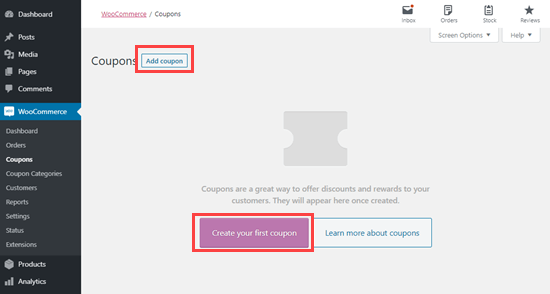
Create a new coupon using the Advanced Coupons plugin

At the top of the page, enter your chosen coupon code and (optionally) a description.
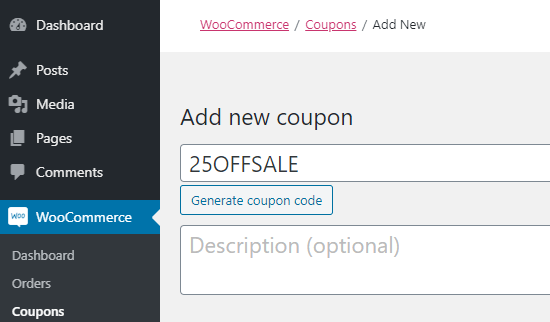
Adding the code for your coupon in Advanced Coupons

Next, you’ll need to enter the coupon’s details in the ‘Coupon Data’ section. Start with ‘General’, where you can set the discount.

For our example, we’re going to use a ‘Fixed cart discount’ for the discount type. We’ll give the customer a discount of 25%.
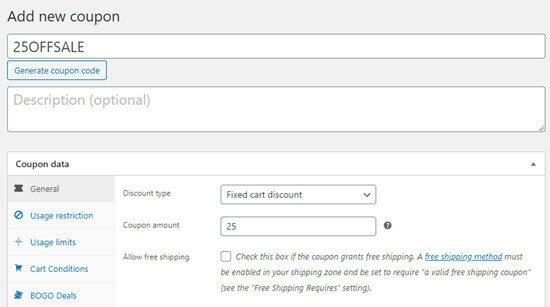
Creating a 25% discount coupon

If you want to, you can set specific restrictions for your coupon under the ‘Usage restriction’ and ‘Usage limits’ tabs. For instance, you might want to set a usage limit so that the coupon can only be used once per user.
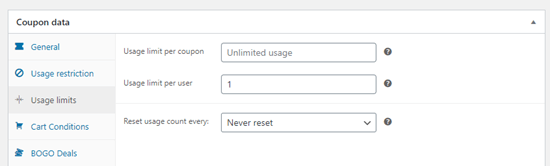
Setting a usage limit using Advanced Coupons

You can also schedule coupons with a start and end date. This is useful if you want to set it up for use in the future, or if you want to automatically end your promotion at a specific point.
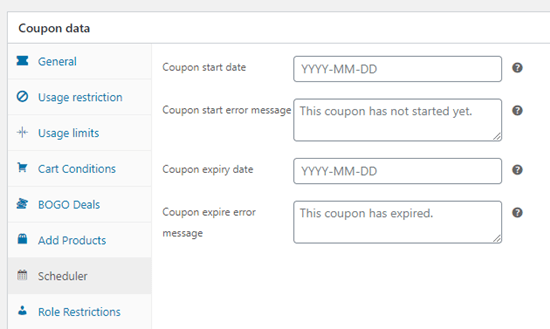
Setting a start and end date for your coupon in Advanced Coupons

Next, click the ‘URL Coupons’ tab. This is where you can enter the details of your coupon.
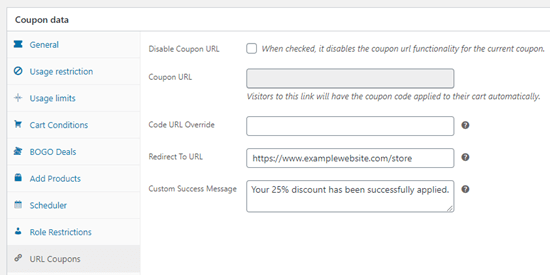
Entering the details for your auto-apply coupon in Advanced Coupons

The ‘Coupon URL’ in WooCommerce is automatically generated for you, so you don’t need to enter anything here.

If you want to use something other than your coupon code itself at the end of the URL, then you can type it in the ‘Code URL Override’ box.

In ‘Redirect To URL’, you should paste the link of the page you want the customer to go to. This might be your storefront or a specific area of your store.

Your ‘Custom Success Message’ can be whatever you like.

To get your coupon URL, you’ll need to click ‘Publish’ on the right hand side of your screen. Then, you can go back to the ‘URL Coupons’ tab and you’ll see your URL in place:
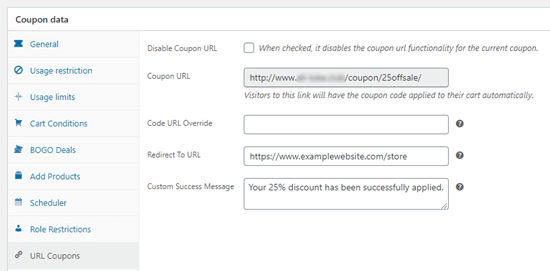
The auto-generated URL for your coupon

Now, you can send out your URL by email or social media. When someone clicks on it, the coupon will be automatically applied to their cart.

How to Promote Your Coupon URLs in WooCommerce

The next step is to promote your Coupon URLs.

First, you would obviously want to promote it to your email newsletter subscribers and social media followers.

Next, you can promote the coupon URL on your website.

The easiest way to do this is by using OptinMonster. It is the best conversion optimization software on the market and helps you convert website visitors into paying customers.

It comes with beautiful lightbox popups, slide-in popups, fullscreen welcome mats, and more.
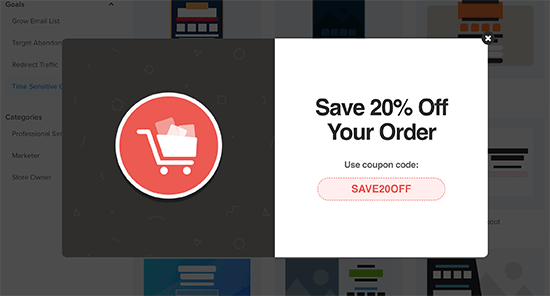
Promoting your coupon URL in WooCommerce

You can simply add popups on the individual product pages with a button to auto-apply coupon URL. For details, see our article on how to add coupon popup in WooCommerce.

We hope this article helped you learn how to auto-apply coupons in WooCommerce using URLs. You might also like our expert pick of the best WooCommerce plugins for your online store, and our guide on how to create a WooCommerce contest to boost loyalty and engagement.

If you liked this article, then please subscribe to our YouTube Channel for WordPress video tutorials. You can also find us on Twitter and Facebook.

The post How to Auto-Apply Coupons in WooCommerce Using Coupon URLs appeared first on WPBeginner.


May 13, 2020 at 05:04PM
Tuesday, May 12, 2020

How to Easily Change the Font Size in WordPress

Do you want to change the font size in your WordPress posts or pages?

Sometimes, you may want to make a line or a paragraph larger, or you might want to increase the font size of your entire page content.

In this article, we’ll show you how to easily change the font size in WordPress. You’ll learn not only how to change font size in your WordPress posts, but also how to do it across your website.

Change font size in WordPress

Method 1: Using Paragraph Headings

It takes your visitors just a couple of seconds to decide whether they want to stay or leave your website. This gives you very little time to convince them to stay on your website.

Using Headings in your content is a great way to grab user attention.

They allow you to break your posts and pages into sections using different headings (often called “subheadings”).

Headings are great for SEO as well. Search engines give proper headings more weight than normal paragraph text.

How to add a heading in the default WordPress block editor

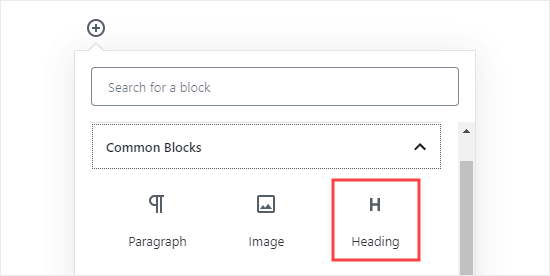
You can add a heading to your posts or pages by simply adding the ‘Heading’ block. You can search for it or find it in the ‘Common Blocks’ section in the WordPress block editor.

Adding a heading block in Gutenberg

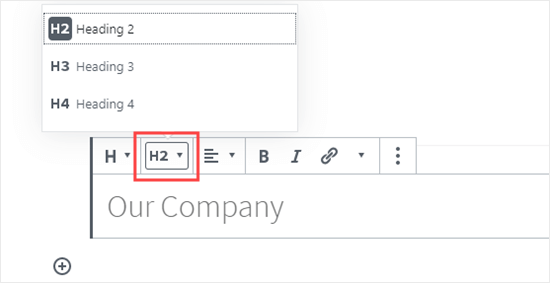
The block will default to Heading 2. Normally, it makes sense to stick with Heading 2 for your subheadings. If you want to change this, then you can simply click on the ‘H2’ drop-down to select a different size.

Selecting your Heading size in the block editor

Alternatively, you can change this in the block settings on the right-hand side of the screen. You can also change the heading’s color there as well.

How to add a heading in the older Classic Editor

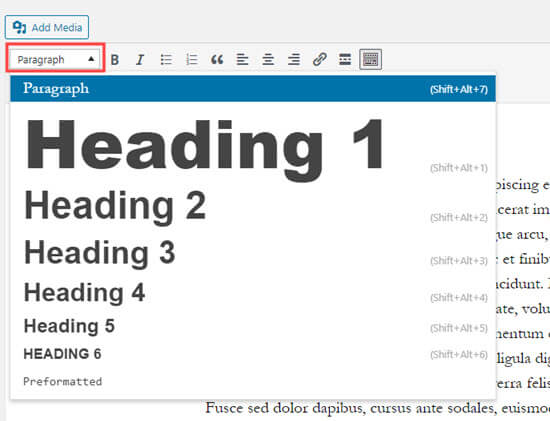
If you are still using the older classic editor in WordPress, then you can add headings using the ‘Paragraph’ drop-down.

Just highlight the text that you want to turn into a heading, click the ‘Paragraph’ drop-down, and select your heading size.

Creating a heading by clicking on the Paragraph drop-down in the classic editor

The sizes and colors of the different Heading styles are controlled by your theme’s stylesheet (style.css).

If you’re using a premium WordPress theme, then you may have the option to change these settings under Appearance » Customize.

Using subheadings in your articles makes it easier for readers to follow what you’re telling them. At the same time, it also makes your WordPress posts SEO friendly.

Method 2: Changing the Size of the Text in the Block Editor

What if you want to have a paragraph or even your whole post in a larger font? You can do this really easily using the default WordPress block editor.

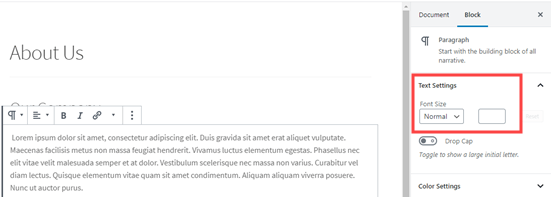
Just click on any paragraph block, then select the font size under ‘Text Settings’ on the right-hand side.

Changing the text size of a paragraph block

You can select from the drop-down, which covers Small, Normal, Medium, Large, and Huge. If you change your mind, then just click the ‘Reset’ button to set your paragraph back to the default text.

There’s also a ‘Custom’ option where you can simply type in the pixel size that you’d like. If you want, you can also set a large Drop Cap to appear at the start of your paragraph.

These options aren’t available in the older classic editor for WordPress. If you want to use them, then think about making the switch. Our tutorial on how to use the new WordPress block editor will help you.

If you are determined to stick with the classic editor, then this next option is for you.

Method 3: Change Font Size Using The TinyMCE Advanced Plugin

TinyMCE Advanced is a WordPress plugin that gives you more control over font sizes and text formatting, as well as a range of other features.

This is particularly useful with the older classic editor, but it also works with the block editor. It adds a new block called “Classic Paragraph” that has all the TinyMCE controls.

To use it, you’ll first need to install and activate the TinyMCE Advanced plugin. If you’re not sure how to do that, check out our step by step guide on how to install a WordPress plugin.

Next, go to Settings » TinyMCE Advanced to configure the editor settings. This is where you can set up the buttons you want to use in the TinyMCE Advanced toolbar.

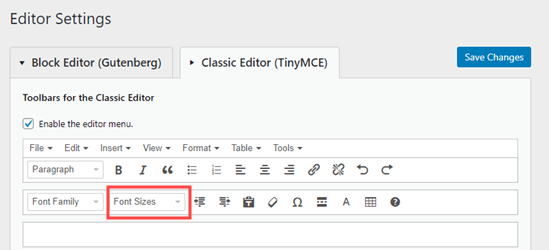
If you’re using it with the Classic editor, then you should see that TinyMCE has the ‘Font Size’ drop-down enabled by default in the second row of icons.

You can move it to the first row by dragging it upwards if you want.

The font sizes drop-down button on the TinyMCE Advanced menu for the classic editor

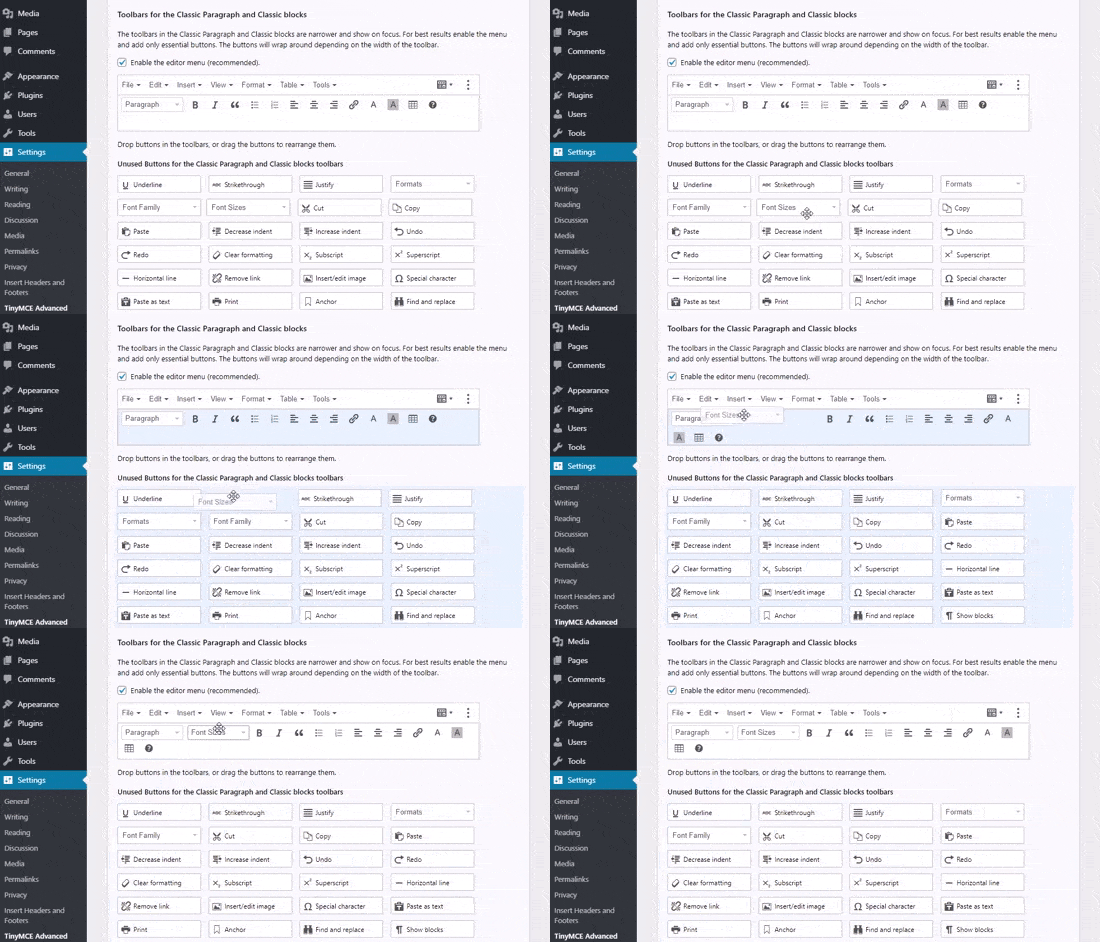
If you’re using the block editor, then you’ll need to scroll down the screen and add the Font Sizes drop-down to the toolbar by dragging and dropping it:

Adding the font sizes button to the TinyMCE Advanced block toolbar

Make sure you click ‘Save Changes’ at the bottom of the screen.

To see the button in action, create a new post or edit an existing one.

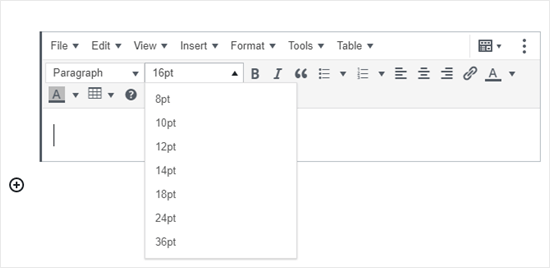
In the block editor, you’ll now have the option to add a ‘Classic Paragraph’ block. It will have the TinyMCE Advanced controls, like this:

The Classic Paragraph block in the block editor, added by the TinyMCE Advanced plugin

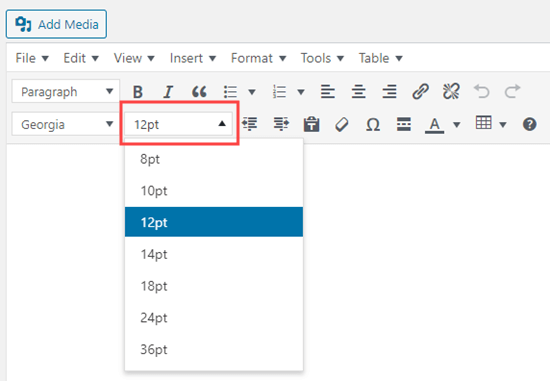
In the classic editor, you’ll see the TinyMCE Advanced toolbars with a font size drop-down:

Changing the font size using the TinyMCE Advanced editor

You can select any font size from the drop-down.

Note: this doesn’t give you as many options as the WordPress block editor, and you can’t type in your own font size.

Method 4: Change Site-Wide Font Size Using CSS

If you are changing font sizes every time you edit a post, then you may want to make it easier by changing it permanently in your theme.

The good news is that you can change the default paragraph size across your whole site. The best way to do this is by using the Theme Customizer under Appearance » Customize.

Some WordPress themes may come with an option for you to change the font size. If you can find this option, then you can use it without writing CSS code.

However, if your theme does not have that feature, then you can add custom CSS to add your own font size rules.

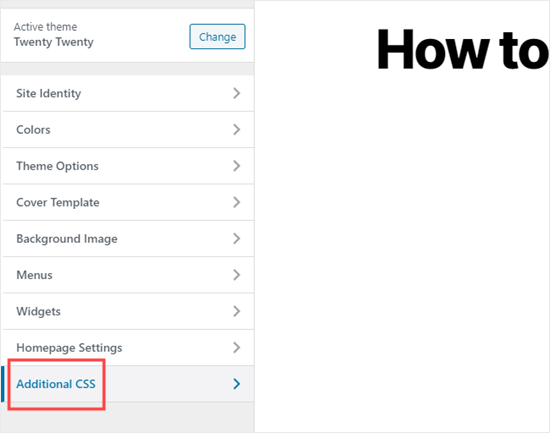
Simply click on the ‘Additional CSS’ option in the theme customizer. This is where you can store all your custom CSS code.

Using the Customizer to add CSS code to your site

Now under the additional CSS text box, simply add your CSS code. In this example, we are changing the font size to ’16px’, you can choose a different font size.

p { 
font-size:16px; 
} 

You’ll immediately see the changes on the preview on the right-hand side of the screen. If you’re happy with the font size, click the ‘Publish’ button at the top of your screen to make it live.

Note: Your custom CSS will only be applied to the theme you’re using. If you later choose to switch to a different WordPress theme, you’ll need to copy and paste it into the Customizer again.

The above code only applies to paragraph text. What if you wanted to change the font size of all h2 sub-headings?

Simply modify the above code to target the h2 element in your theme like this:

h2 { 
font-size:32px; 
} 

You can do the same thing with other headings as well by simply changing h2 to h3, h4, or h5.

We hope this article helped you learn how to easily change the font size in WordPress. You may also want to see our guide on how to use custom fonts in WordPress or our list of the best drag & drop WordPress page builder plugins.

If you liked this article, then please subscribe to our YouTube Channel for WordPress video tutorials. You can also find us on Twitter and Facebook.

The post How to Easily Change the Font Size in WordPress appeared first on WPBeginner.


May 12, 2020 at 03:20PM

Monday, May 11, 2020

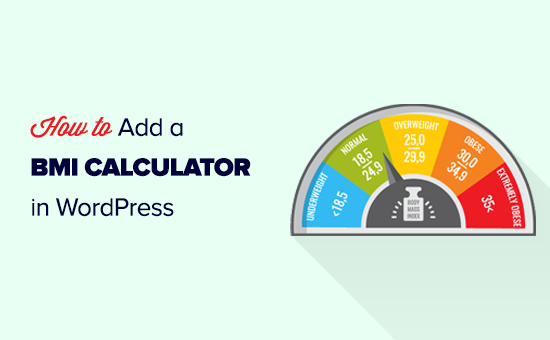
How to Add a BMI Calculator in WordPress (Step by Step)

Do you want to add a BMI calculator to your WordPress site?

If you offer health and fitness related content, products, or services, then a BMI calculator could be really useful for your audience.

In this article, we’ll be showing you how to easily add a BMI calculator in WordPress. No math or code required!

Adding a BMI calculator to your WordPress website

What is BMI and Why is it Important?

BMI stands for Body Mass Index. It’s a rough measure of body fat based on height and weight. Calculating your BMI gives you a quick indication of whether you’re underweight, overweight, or about the right weight for your height.

If you’ve started a blog about fitness or health, then it could make a lot of sense to offer a BMI calculator for your visitors.

Adding a BMI calculator to your site can get people to spend more time on your site. They might even end up buying something from you, or one of your affiliate offers.

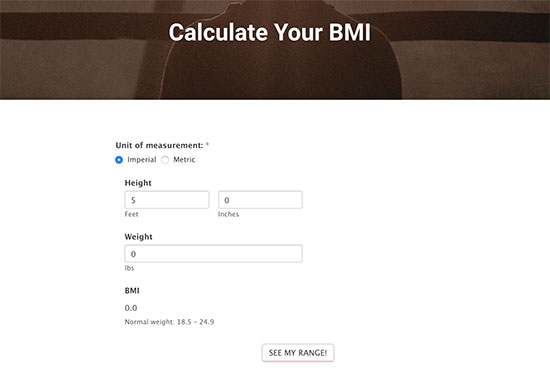
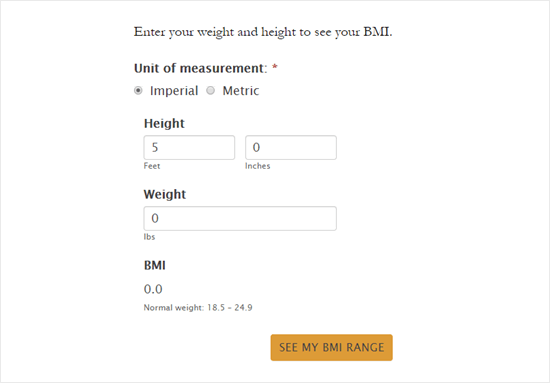
Preview of a BMI calculator form on a website

It’s also a good way to encourage repeat traffic. If someone is trying to lose weight, they may return to your site to see if their BMI has improved.

How Do I Calculate BMI?

You can work out BMI using the following calculation:

BMI = kg/m2

The kg is a person’s weight in kilograms and m2 is their height in meters squared.

If you would prefer to calculate BMI using the imperial units, then you can use the following formula:

BMI = [weight lbs / height inches2] x 703

A healthy BMI is in the 18.5 – 25 range. A BMI below 18.5 indicates that the person is underweight, and a BMI over 25 indicates that they’re overweight.

Obviously, asking your readers to get out their calculator isn’t very helpful.

You can add a simple calculator on your website where users can input their height and weight, so the calculator can show them their BMI. This way users stay engaged on your website and are more likely to convert into a customer.

Creating a BMI Calculator in WordPress

For this tutorial, we’ll be using the Formidable Forms plugin. It is one of the best WordPress form builder plugins on the market and allows you to create advanced forms using simple drag and drop tools.

It comes with tons of form templates, calculators, advanced repeater fields, and other tools. This allows you to create highly interactive advanced forms for your website.

First, you’ll need to sign up for a Formidable Forms account, then install and activate the plugin. For more details, check out our instructions on how to install a WordPress plugin.

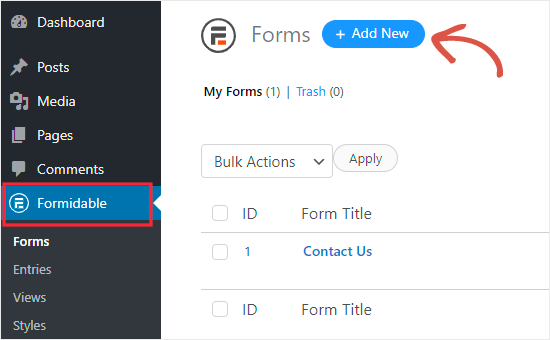
Upon activation, you need to visit Formidable » Forms page and then click on the ‘Add New’ button at the top to create your BMI calculator.

Create new BMI calculator form

Once you’ve done that, you’ll see a variety of templates that you can use to create a form.

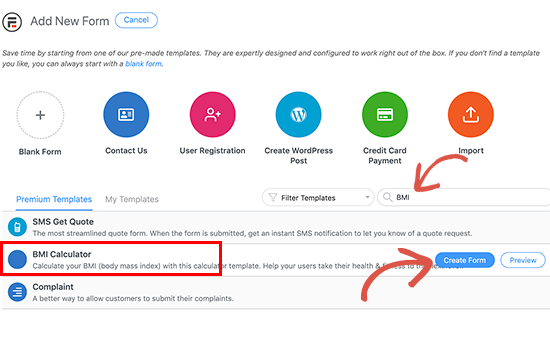
Scroll down to find the BMI calculator or simply type ‘BMI’ into the search bar to locate it.

Load BMI Calculator form template

Now that you’ve got the BMI Calculator template up on the screen, run your mouse cursor over it and click the Create Form button.

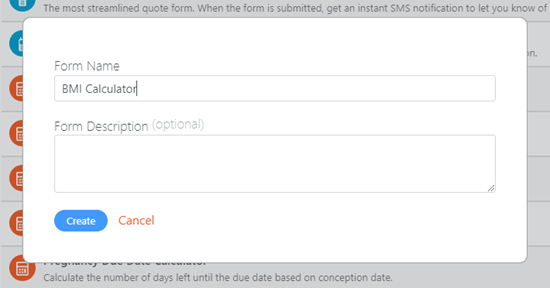
Next, you’ll be asked to provide a name for your form and a description. You can use the default name and skip the description if you want. Once you’re ready, click the ‘Create’ button.

Type in a name for your BMI calculator form

Once you’ve done that, Formidable Forms will automatically create your BMI calculator form for you.

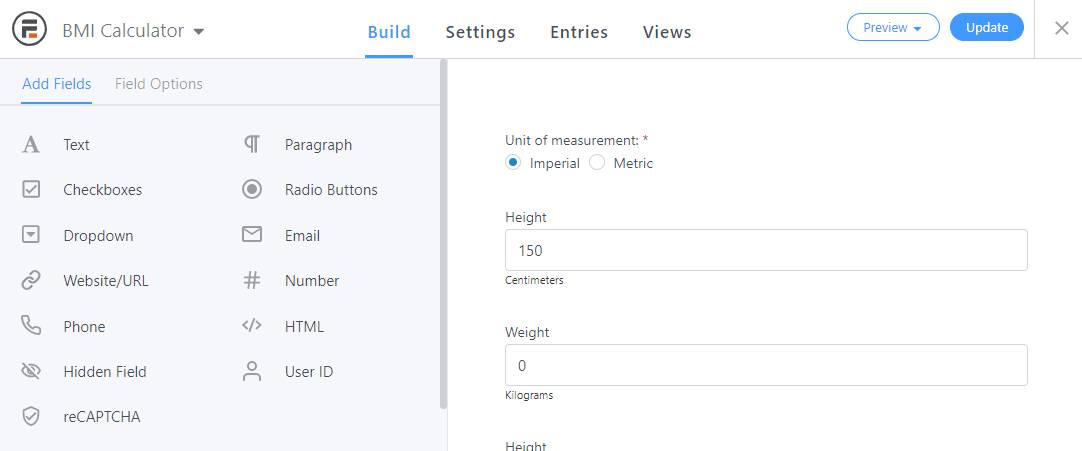
You’ll be taken straight to the ‘Build’ view of your form. As you can see, you’ve got the form itself on the right hand side of the screen. On the left, there’s an area where you can add or edit your form’s fields.

The default Build view in Formidable Forms

The BMI calculator will work perfectly with the default settings in place. If you want to add any extra fields, then you can do so by clicking on the field on the left, and it’ll be automatically added to your form.

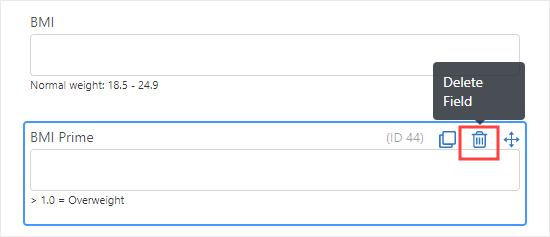
You may want to remove the BMI Prime box if you want to keep the form simple. It isn’t required for the form to work.

To remove the field, just click on it, then click the trash can icon.

Deleting the BMI Prime field from the form

If you want the user to submit the form in order to see their BMI results, then you could also remove the Underweight, Healthy weight, Overweight, and Obese fields.

Adjusting the Settings for Your BMI Calculator

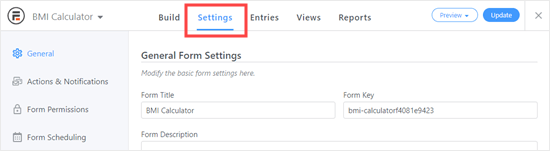
Once you’re happy with your BMI calculator, click on the ‘Settings’ tab at the top of the screen.

The Settings tab for the BMI Calculator form

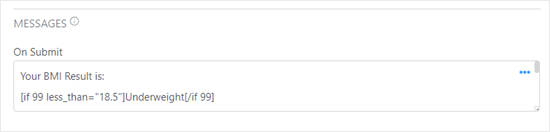
You may want to make changes here. For instance, you can change the default messages shown to users after they submit the form. If you scroll to the bottom of the page, you can see these listed in the On Submit box.

The Formidable Forms messages

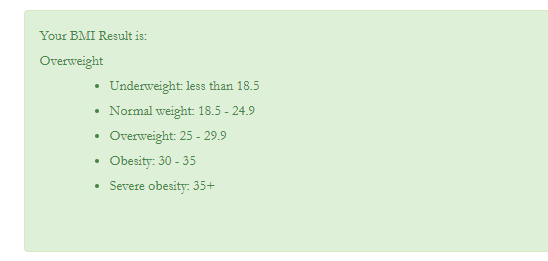
When someone uses the calculator their result will display like this:

The default BMI calculator result

You might want to tweak the wording to be appropriate for your audience.

Another option here is to add links to further guidance. For instance, you might have content that offers diet or exercise tips.

You can enter HTML code in the box. To change the font size and background color of the box, you can use the Styles feature of Formidable Forms. We’ll come onto that later in this tutorial.

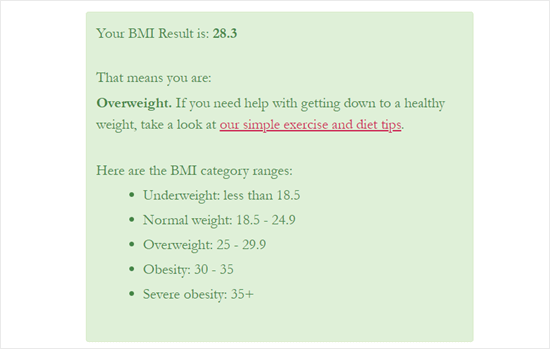
Here’s an example of the result message with a relevant link included:

A customized results message in Formidable Forms

Tip: The box where you can edit the results message is quite small. You can copy the message from the box and paste it into a code editor to make it easier to edit. Copy it back into the message box when you’re done.

Changing Your BMI Calculator’s Button Text

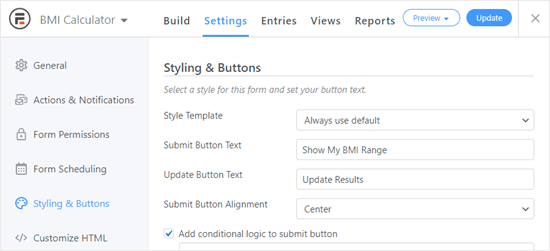
If you want to change your form’s button text, you can do so under Settings » Styling & Buttons.

Just type in the text that you want to use. We’re going to use the text “Show My BMI Range” instead of “See my range!” for the button text.

We’ve also changed “Update Results” instead of “Update” for the text on the button that appears after the form has been submitted the first time.

Changing the Submit and Update button messages in Formidable Forms

Changing the Styling for Your BMI Calculator

By default, the BMI calculator looks quite plain. The text is also quite small, like this:

The default styling for the BMI form

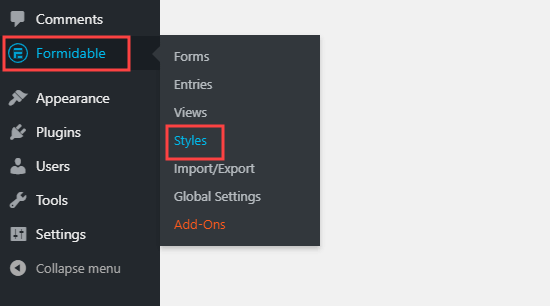
You can change the style of your form by using different colors, font sizes, and much more. To do so, first you’ll need to go to Formidable » Styles in your WordPress dashboard.

The Styles tab of Formidable Forms

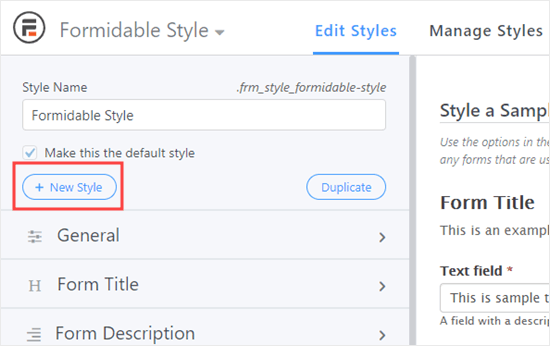
Next, you can click the ‘+New Style’ button to start creating a new style. Alternatively, you can edit the existing default style, if you want to use the same style for all your forms.

We’re going to make a new style just for our BMI Calculator form.

Adding a new style in Formidable Forms

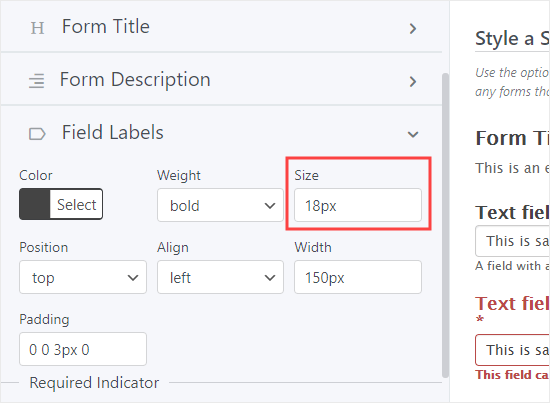
If you click on the dropdown next to the Field Labels tab, you can change the size of the labels on your form’s fields. We’ll boost this from the original 14px to 18px.

Changing the size of the field labels

On the right of the screen, you’ll see a preview of your form’s styling. As you make changes, this will automatically update.

You’ll likely want to increase the font size and field height of the fields themselves too, under ‘Field Settings’. You can change the size of the radio buttons (Imperial vs Metric) under the ‘Check Box & Radio Fields’ tab.

You can also increase the button font size under the Buttons tab. You can choose a color for the button, too.

If you want to make the results message larger or change the background color, you can do this under the Form Messages tab.

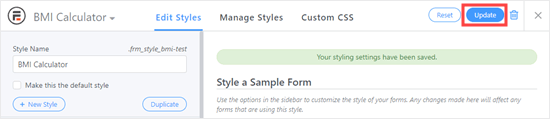
Once you’ve made all the changes you want, click ‘Update’ on the top right to save your changes to the style.

Updating the new style that you've created

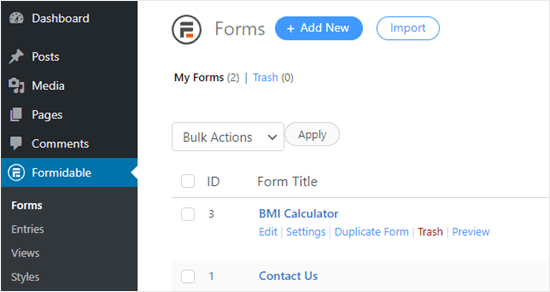
You can then apply the style to your form. First, go Formidable » Forms then find your form. Click on the form title to edit it, or run your cursor over the form and click the ‘Edit’ link just beneath it.

Editing the BMI calculator form that you created

You can then go to the Settings tab and click Styling & Buttons to set your form’s styles.

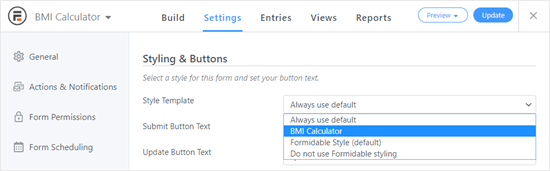
Here, you can use the Style Template dropdown to select your new style template. Just click on the dropdown and then click the style you want to use.

Choosing the style for your BMI calculator from the dropdown list

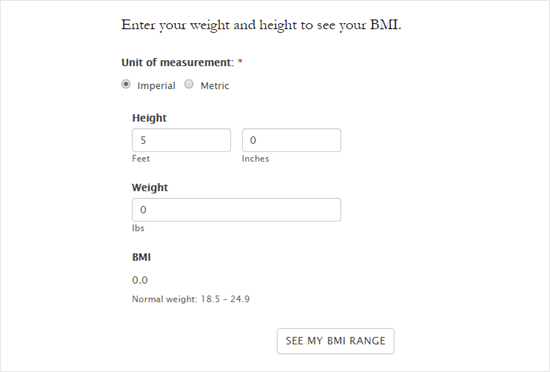
Now, your form will be styled according to the template. Here’s how ours looks:

The BMI calculator form with the new styles applied

Adding The BMI Calculator Form to Your Website

Once you’re ready, you can put your form live on your site. First, you’ll want to click the ‘Update’ button on the top right to save your changes:

Updating your BMI calculator

Next, you’ll need to edit an existing post or page or create a new one.

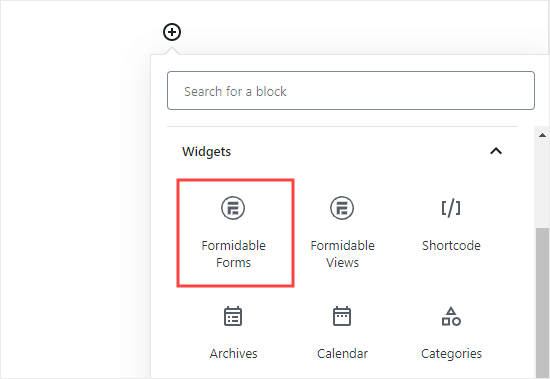
Once you’ve done that, you can click the (+) button to add a new block. Go to the Widgets section and click on the Formidable Forms block. Or, if you prefer, you can use the search bar to find it.

Selecting the Formidable Forms block to add to your post or page

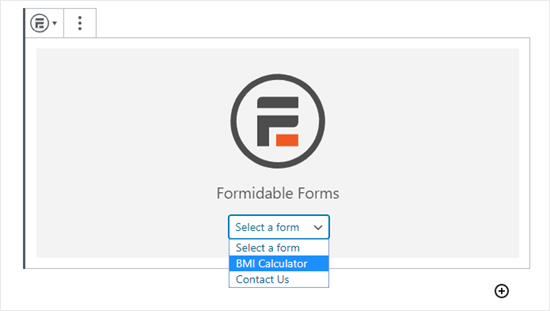
Now, you can simply pick your BMI form. Click on the ‘Select a form’ dropdown and choose your BMI calculator, like this:

Selecting the correct form from the Formidable Forms dropdown

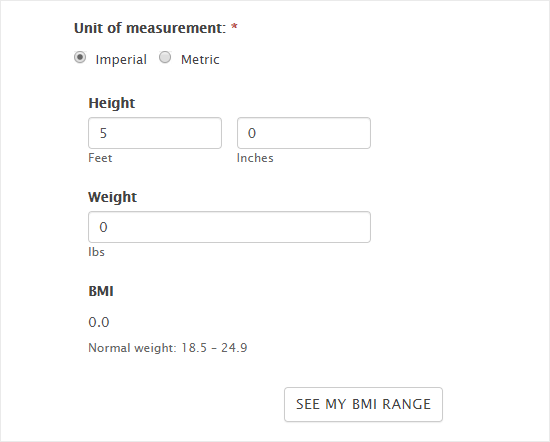
You might want to preview your page to see how your finished BMI calculator looks live on your site. Here’s ours:

Viewing the BMI calculator on the website

If there’s anything you want to change or tweak, just go back to your form in the WordPress dashboard. You can find it under Formidable » Forms.

Whenever you make changes to your form, it’ll automatically update everywhere on your site. You don’t need to change the shortcode or do anything extra.

We hope this tutorial helped you learn how to add a BMI calculator in WordPress using Formidable Forms. You might also like our articles on the most useful WordPress widgets and must have WordPress plugins for business sites.

If you liked this article, then please subscribe to our YouTube Channel for WordPress video tutorials. You can also find us on Twitter and Facebook.

The post How to Add a BMI Calculator in WordPress (Step by Step) appeared first on WPBeginner.


May 11, 2020 at 06:00PM