Tuesday, July 7, 2020

How to Easily Add Title Attribute to Images in WordPress

Do you want to add the title attribute to images in WordPress? The title attribute makes images on your WordPress site more accessible and SEO friendly.

Similar to the alternate text, the title tag allows you to provide additional information about your image. This helps screen readers and search engines understand the context of the image inside your article.

In this article, we’ll show you how to easily add title attributes to images in WordPress.

Adding the title attribute to images in WordPress

What is the Title Attribute in Images?

The title attribute in images allows you to add a text description of your image. This makes it easy for screen readers and search engine bots to understand the image and it’s context.

We will show you some code examples to explain how the title attribute is used in HTML. But don’t worry, you wouldn’t need to add any HTML code to your website.

Normally, you can display images with the HTML tag like this:

<img src="/path/to/image/fruits.jpg" width="100" height="100" />

However, web crawlers, bots, and screen reading devices cannot actually see your images. To help those devices, you can use the alternate text and title text attribute in your images.

So, to help search engines and bots learn what your images are, you can add an alternate text attribute to your image tag.

The alternate tag attribute describes what your image is, and it is more important than title attribute. Here’s what it looks like:

<img src="/path/to/image/fruits.jpg" width="100" height="100" alt="A fruit basket" />

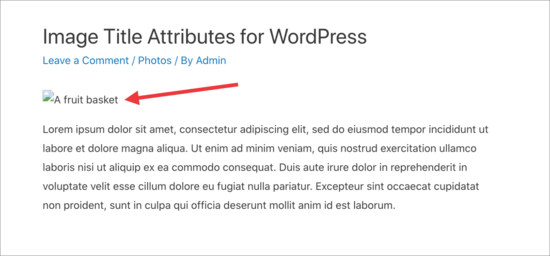
The alternate tag is also displayed when an image link is broken, not found, or when a browser is unable to load images. You’ll see the little image icon with the alternate tag next to it.

Broken image path

To make it easier for users with screen readers and accessibility needs, you can also add a title attribute to the image, like this:

<img src="/path/to/image/fruits.jpg" width="100" height="100" alt="A fruit basket" title="Fruit Basket" />

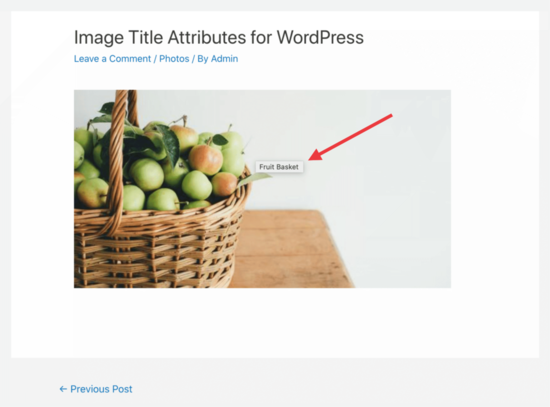
This title attribute appears in a popup when you hover your mouse over the image. Those who use screen reader software can configure their software to read this title.

Image title attribute

Using both the alternate text and the title attribute helps your image SEO, so you can bring more traffic to your site from search engines.

Adding Title Attribute to Images in WordPress

WordPress allows you to easily add alt text and title attributes within the content editor. First, go to Posts » Add New and create a post.

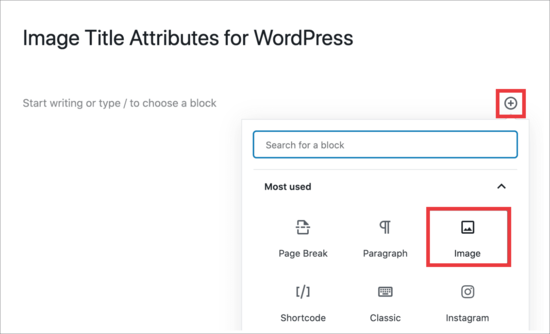
Click on the ‘+’ icon, and select the ‘image’ block to insert an image into your post or page.

Add image block

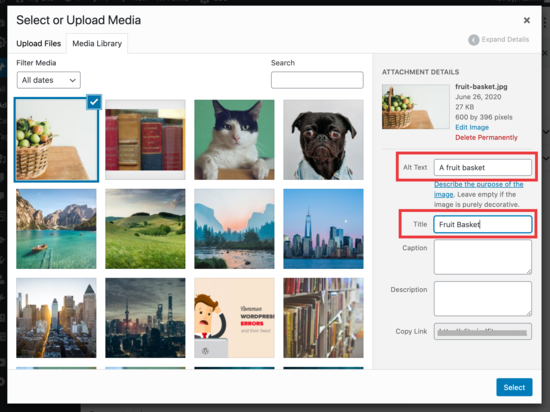
You’ll be prompted to upload or select an image from your media library. When you select your image, you’ll have the option to give it a title and enter your alt text.

Add alt and title to image

Important: This title is not the title attribute used in HTML. This one is used by WordPress internally to show your images in Media Library.

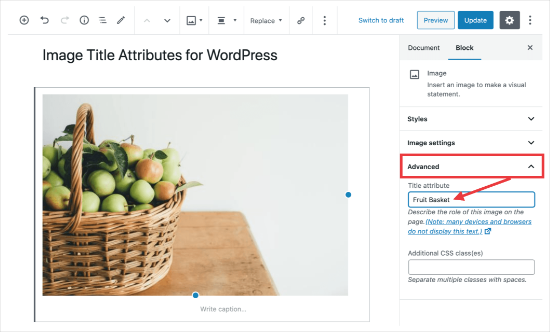
To add the actual title attribute, you will need to click on your image to view image settings in the right column.

Now click to expand the ‘Advanced’ tab and input the text you want to use for the title attribute. We wrote ‘Fruit Basket’ because that’s telling the internet what the image is.

Add title attribute

Now, when you view your site and hover your mouse over the image, you’ll see the popup that reads ‘Fruit Basket.’

Image title attribute

Add Title Attribute to Images in WordPress Classic Editor

If you are still using the older classic editor in WordPress, then you can still add title attribute by following similar steps.

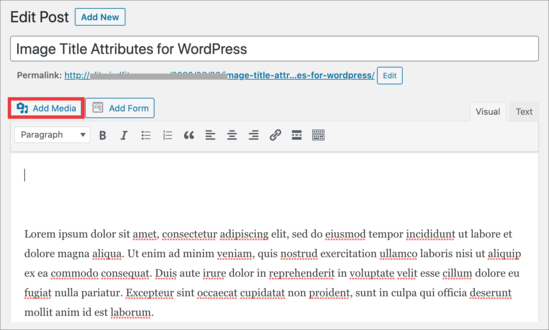
In the classic editor, you’ll click the ‘Add Media’ button and then select your image.

Add image classic editor

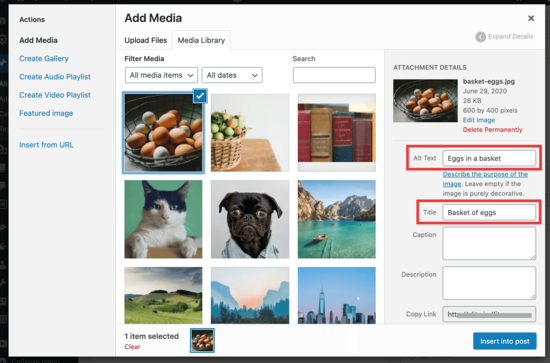
Now, select the image you want to add to your post or page and fill out the Alt Text field and Title field.

Please keep in mind that this title is used by WordPress internally and is not the image title attribute.

Select image classic editor

Click the ‘Insert into post’ button at the bottom of your screen and then you’ll see your image in your classic post editor.

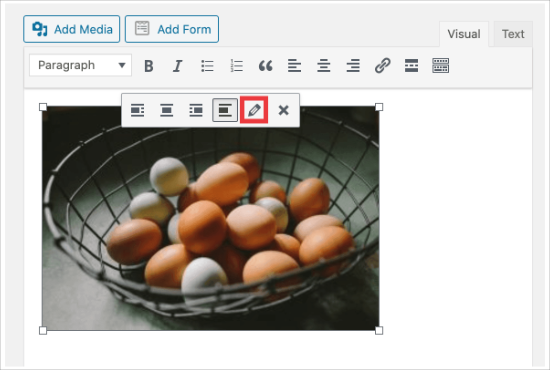
Edit image in post

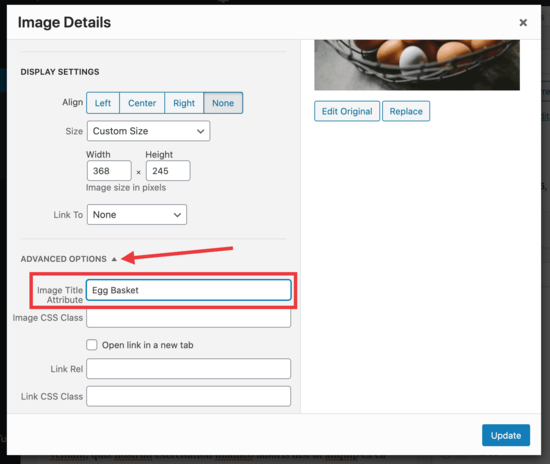
From there, click to select your image and then click on the little pencil icon. This will bring up the ‘Image Details’ popup. From here, you need to click the Advanced Options dropdown to enter your Image Title Attribute.

Image title attribute field

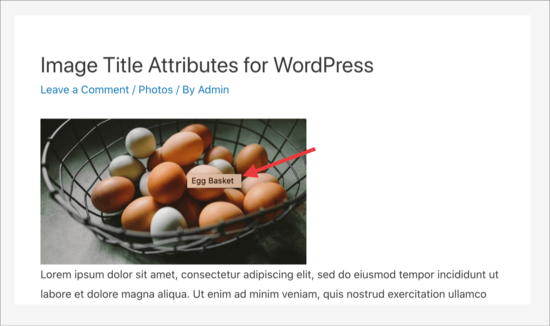
Don’t forget to click on the ‘Update’ button at the bottom, then save your post and check it in your browser. you’ll see the popup showing your image title attribute when you hover your mouse over the image.

Image title attribute popup

We hope this article helped you easily add the title attribute to images in WordPress. You may also want to take a look at how to fix most common image issues in WordPress, and how to save images optimized for web speed.

If you liked this article, then please subscribe to our YouTube Channel for WordPress video tutorials. You can also find us on Twitter and Facebook.

The post How to Easily Add Title Attribute to Images in WordPress appeared first on WPBeginner.


July 07, 2020 at 05:00PM

Monday, July 6, 2020

How to Add a Free Shipping Bar in WooCommerce

Do you offer free shipping on your WooCommerce store?

Offering free shipping is a proven way to reduce cart abandonment and increase overall sales conversion. The challenge is that most store owners fail to clearly highlight the free shipping offer.

In this article, we’ll teach you how to add a free shipping bar in WooCommerce to boost sales.

Adding a free shipping bar in WooCommerce

Adding a Free Shipping Bar in WooCommmerce

Shipping costs are one of the top reasons behind abandoned cart sales. Many online stores deal with this by offering free shipping.

Letting customers know about your free shipping offer is a great way to boost sales from your online store.

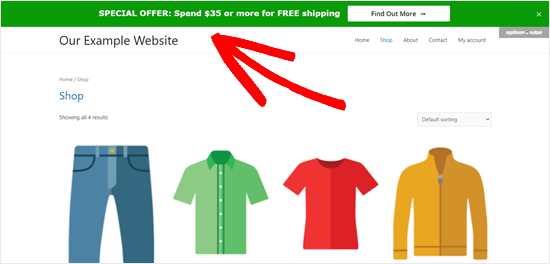
Here’s an example of a free shipping bar. It’s a prominent website element that stays at the top of the screen as the user scrolls down:

Free shipping bar example

As you can see, the example store above is encouraging users to spend a certain amount to get free shipping. This is a great to boost cart order value and over sales volume.

You can enable incentivized free shipping by using the Advanced Coupon plugin for WooCommerce.

Regardless of how you enable free shipping, properly highlighting it on your site is key, and that’s where a free shipping bar comes in.

To create the shipping bar, we’ll be using OptinMonster. It’s a powerful tool for creating all types of WordPress popups.

Creating an OptinMonster Account and Connecting WordPress

First, you’ll need to visit the OptinMonster website and sign up for an account.

Note: OptinMonster was co-created by Syed Balkhi, WPBeginner’s founder. It’s an extremely popular optin tool that we use here on WPBeginner and we highly recommend it.

After you’ve signed up for OptinMonster, the next step is to install and activate the free OptinMonster plugin for WordPress. If you’re not sure how, check out our step by step guide on how to install a WordPress plugin.

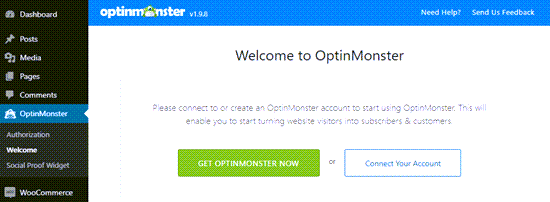
This plugin connects the OptinMonster app to your WordPress site. After activating it, click on the OptinMonster menu in your WordPress dashboard. Then, click the ‘Connect Your Account’ button and connect WordPress to your OptinMonster account.

Connect OptinMonster to your WordPress site

Creating The Free Shipping Bar for WooCommerce

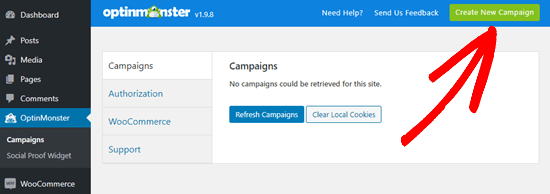
Now, you can create your free shipping bar. First, go to the OptinMonster page in your WordPress dashboard and then click the ‘Create New Campaign’ button on the top right.

Creating a new campaign in OptinMonster

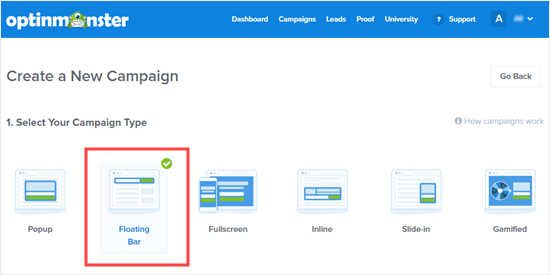
This will take you to the OptinMonster campaign builder where you need to select ‘Floating Bar’ as your campaign type.

Select the Floating Bar campaign

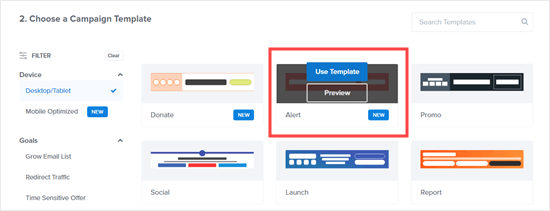
Next, scroll down and choose your campaign template. OptinMonster has a great range of professional templates to choose from. We’re going to use the Alert template for our WooCommerce free shipping bar.

Bring your mouse cursor over the template and click the ‘Use Template’ button:

Select the Alert template to start building your free shipping bar

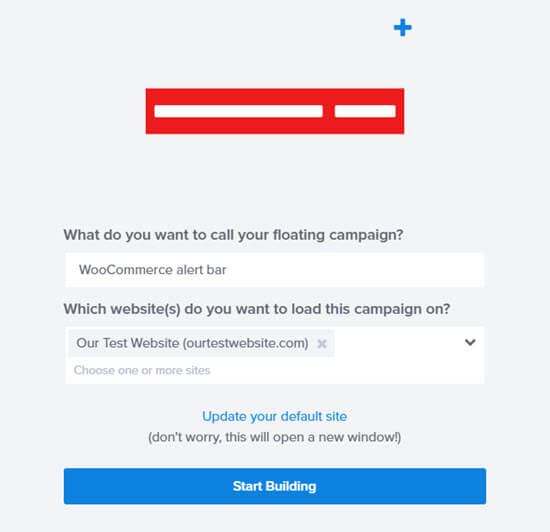
OptinMonster will now prompt you to name your campaign. You can use any name that you like here.

Name your OptinMonster campaign

You can also choose which website(s) you want to run the campaign on. OptinMonster should have added your website here for you.

Once you’re ready, click the Start Building button.

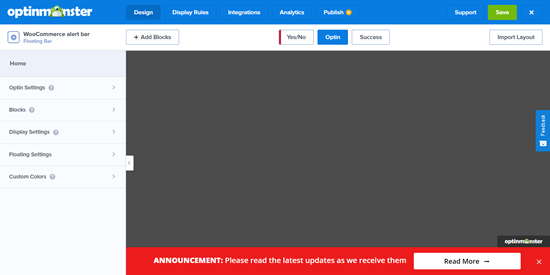
You’ll then see the OptinMonster builder interface. It’ll look like this:

The default alert bar template in OptinMonster

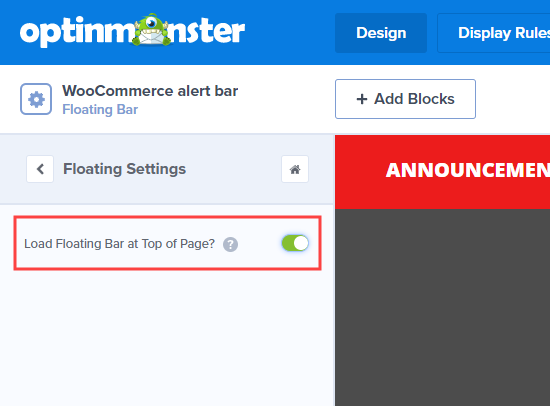
By default, the floating bar will stick to the bottom of the screen. If you want it at the top of the screen instead, that’s easy to change.

Simply click on Floating Settings in the left-hand menu. Then, turn on the ‘Load Floating Bar at Top of Page?’ option.

Load the floating bar at the top of the page

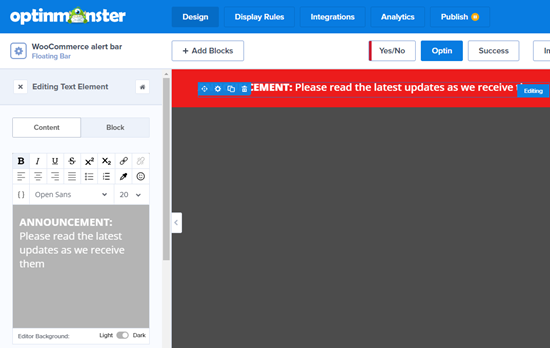
To change the text in the bar, simply click on it. The text editor will open up on the left-hand side of your screen.

Editing the text of your floating bar in OptinMonster

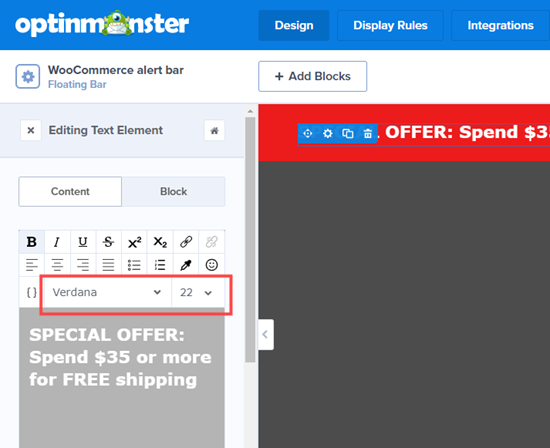
You can customize the text as needed. You can also change the font style, color, font size, and more. The preview of your campaign will automatically update to show how it’ll look live.

Here, we’ve changed the text and the font. We’ve also slightly increased the font size:

Change the text of your floating bar

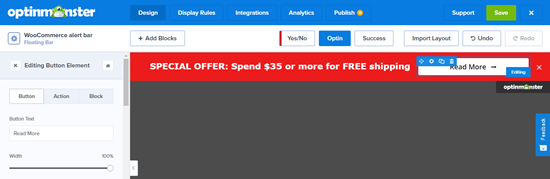
You can change the button on your free shipping bar, too. Simply click on the button, and the settings will open up in the left hand panel. You can change the text of the button there.

Editing the button on your free shipping bar

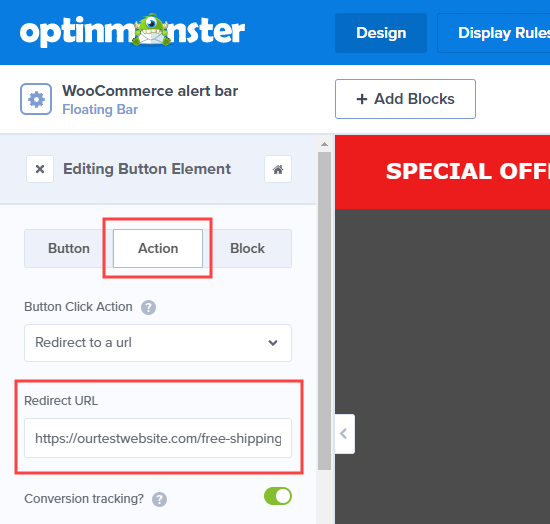
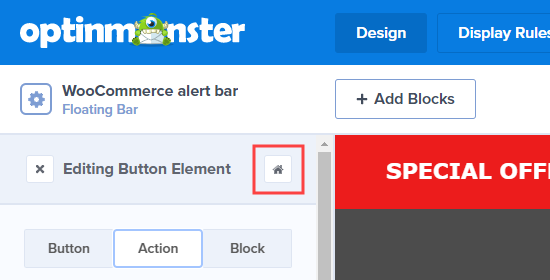
To direct customers to a page on your website about free shipping, click on the Action tab. Then, enter the correct Redirect URL:

Edit where the button redirects to on your website

If you want to use a different color for your free shipping bar, that’s easy too. First, click on the Home button to return to the main design settings:

Click the Home button to return to the main display settings for your campaign

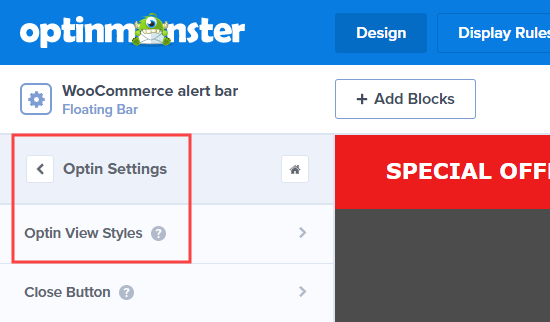
Then, you can go to Optin Settings » Optin View Styles to change the color of your optin.

Go to Optin Settings - Optin View Styles to change the colors of your optin

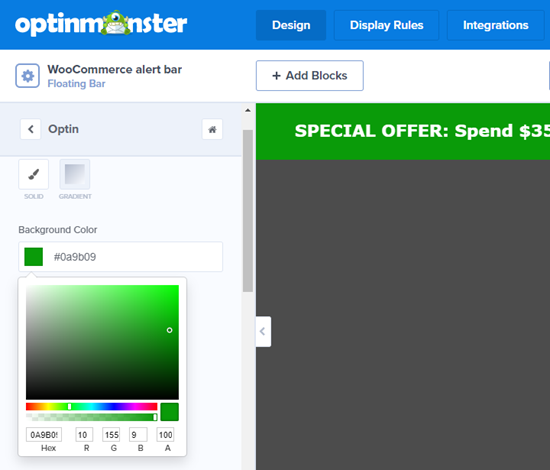
After you click in the Background Color box, you can select a new color. You can either enter the hex code or use the color picker. We’ve chosen green for ours:

Changing the background color for your campaign

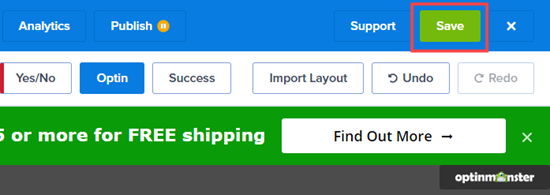
Once you’re happy with your free shipping bar, click the Save button on the top right.

Save your campaign using the green Save button at the top of the screen

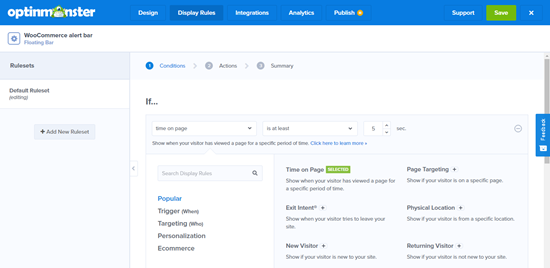
Next, you’ll need to select the display rules which controls who should see the free shipping bar on your site. Simply click on the Display Rules tab at the top of your screen.

Setting your display rules in OptinMonster

By default, OptinMonster displays your floating bar after the user has been on any page of your site for 5 seconds.

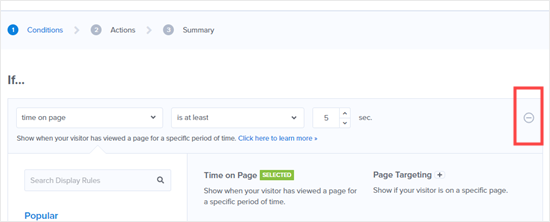
You may want to have your free shipping bar load instantly. To do this, simply remove this rule. Click the minus icon on the right hand side to do so:

Have your free shipping bar appear instantly

Now, you should be left with the rule ‘Current URL path is any page.’

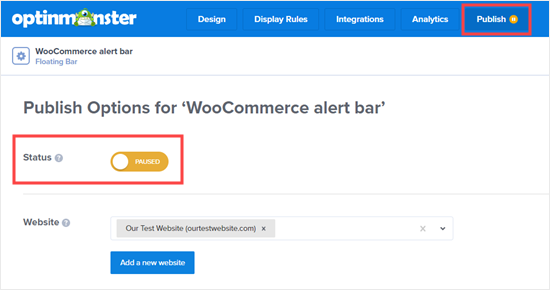
The final step is to put your campaign live on your site. Click the Publish tab at the top of the screen. While you’re building your campaign, it’s paused by default. You can switch it on here.

Switch on your campaign under the Publish tab in OptinMonster

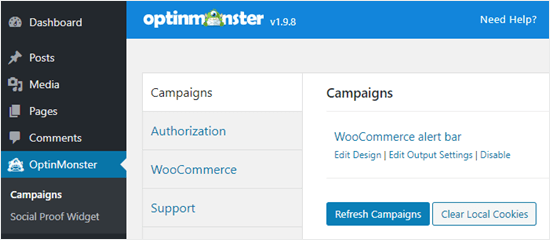
To put your free shipping bar on your WordPress site, go to OptinMonster » Campaigns in your WordPress dashboard. Click the Refresh Campaigns button to see your free shipping bar campaign listed here.

Refresh your campaigns list in the WordPress dashboard

Now, you can visit your site and see your free shipping bar live:

Free shipping bar example

We hope this article helped you learn how to add a free shipping bar in WooCommerce. You might also want to check out our list of the best WooCommerce plugins for your online store, and our comparison of the best business phone services with smart call routing features.

If you liked this article, then please subscribe to our YouTube Channel for WordPress video tutorials. You can also find us on Twitter and Facebook.

The post How to Add a Free Shipping Bar in WooCommerce appeared first on WPBeginner.


July 06, 2020 at 04:23PM

Saturday, July 4, 2020

WPBeginner Turns 11 Years Old – Reflections and Updates (+ Giveaway)

Today is July 4th which means WPBeginner is officially 11 years old. We’ve come a long way :)

Like every year, I want to take a few minutes and do a quick recap of all the major things happening in business as well as my personal life.

Bonus: I’m also doing a Website Toolkit giveaway which includes a Macbook Air, Free domain + Hosting, and my favorite premium WordPress plugins.

WPBeginner 11th Birthday

Since this is a long article, you can easily skip to the section you’re most interested in:

WPBeginner Story

I started using WordPress when I was 16 years old and started WPBeginner at age 19 with a single mission: make WordPress easy for beginners.

Since then WPBeginner has become the largest free WordPress resource site for beginners.

For those of you who’re new, you can read the full WPBeginner story on our about page and use the Start Here page to get the most out of WPBeginner.

Personal Updates

My son, Solomon, is now 3.5 years old. He’s growing up fast, and he now even suggests keywords that I should mention in my email newsletters to WPBeginner audience.

Since the last WPBeginner anniversary post, we travelled to Turkey, Germany, Austria, Bahamas, Pakistan, Mexico, and several places in US.

Balkhi Family Photo Collage

Of course all of our travels came to a stop in February due to COVID-19. We’ve been staying home and spending a lot of family time.

I’ve also been working a lot during this lockdown – focusing on creating more content as well as revamping various product features.

If you didn’t get a chance to read my 2019 recap, I highly recommend checking it out on my personal blog where I share lessons learned from last year.

WPBeginner Updates

Thanks to our awesome community, WPBeginner has continued to grow in double-digit (year over year). Aside from tons of amazing WordPress tutorials on our blog, there have been several notable updates from last year, that I’d like to highlight.

1. We launched Three New Free Business Tools

Since last year, we have launched 3 new free business tools to help you do more with WordPress.

The first is a smart business name generator to help you find brandable company name ideas with available domains, so you can start your online business idea.

The second is a WordPress theme detector that helps you find out what WordPress theme your competitor’s website is using. Simply put, if you have ever wondered what WordPress theme a website is using, this tool can help you find that.

Last but not least, we launched a free WordPress Call Button plugin to help you easily add a click to call button on your website.

2. WPBeginner Engage Facebook Group is now Over 48,000 Members
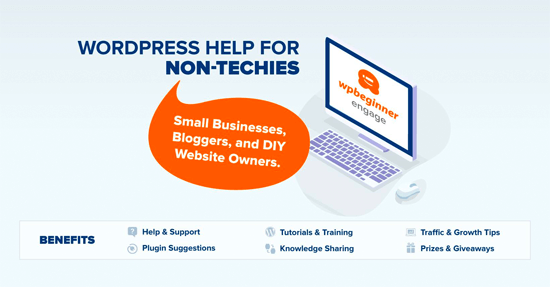
WPBeginner Engage - Facebook Group

To celebrate our 10th anniversary, we launched the WPBeginner Engage Facebook group to offer WordPress help for non-techy users.

This was something that a lot of you had been asking for, and I’m extremely pleased with the progress thus far. We now have over 48,000+ members in our Facebook group, and I believe it’s now the largest WordPress user group on Facebook.

For those of you who’re not members yet, the goal of this group is to share and learn WordPress tips while getting to know other motivated website owners like yourself.

Aside from peer-to-peer support and knowledge sharing, we also do monthly giveaways, have exclusive video content from myself, and our WPBeginner experts are also there answering questions (for free).

What are you waiting for? Go ahead and join the WPBeginner Facebook Group. I look forward to connecting with you :)

3. WPBeginner YouTube Channel Now Has 191,000+ subscribers

Our WPBeginner YouTube channel passed 191,000+ subscribers, and I believe we will pass 200k goal by end of this year.

We have hundreds of free WordPress video tutorials, and we have also been creating a lot of YouTube exclusive content.

For example, you can watch our playlists to learn how to Make Money Online, learn WordPress SEO, and more.
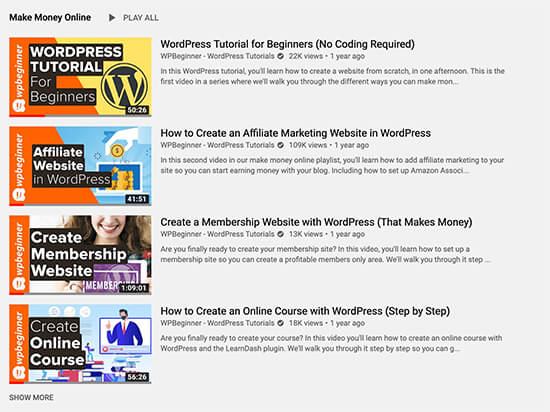
WPBeginner Playlists on YouTube

We are also doing monthly State of WPBeginner videos where we share what’s happening in the WordPress ecosystem, summary of Awesome Motive products, and more.

Also I’m personally making more appearances on the channel in the interview style videos.

If you’ve not subscribed to our YouTube channel yet, it’d mean the world to me if you can subscribe and hit the bell button, so we can pass the 200,000 goal.

4. We switched our WordPress hosting to SiteGround (Google Cloud)

Last year, I was extremely excited about our private cloud hosting platform that we built, but it led to many complexities.

That’s why earlier this year, we switched WPBeginner hosting to SiteGround Enterprise (which is powered by Google Cloud).

I wrote about 6 reasons why we switched to SiteGround.

If you’re looking to switch hosts, I highly recommend SiteGround – their customer service and new tech platform is really robust.

5. New Acquisitions & Investments (All in One SEO, Smash Balloon, & more)

As you know, two years ago I created the WPBeginner growth fund to invest in WordPress focused companies.

This past year, I’m proud to welcome the following companies to our family of products:

All in One SEO Pack is the original WordPress SEO plugin used by over 2 million websites. In January, we acquired AIOSEO to bring it under the Awesome Motive umbrella, and I’m working with the team to build tons of amazing SEO features to help you rank higher.

If you’re looking for a SEO plugin, try AIOSEO – there’s a free version available here as well.

Smash Balloon offers the most popular social media feeds plugin for WordPress. Over 1.3 million websites use Smash Balloon plugins to display their social media content.

If you’re looking to create and display custom Instagram photo feeds, Facebook feeds, Twitter feeds, and YouTube feeds, then there’s no better plugin that Smash Balloon. There’s a free version for all four plugins that you can try.

I also invested in Rymera Web, the parent company behind Wholesale Suite and Advanced Coupons for WooCommerce. These are extremely useful plugins for WooCommerce store owners.

Product Updates

One of the questions that I often get asked via our contact form is what is WPBeginner’s income, and how does WPBeginner make money by giving away all WordPress tutorials for free.

Well, we make money indirectly through our suite of premium WordPress plugins that are now running on over 15 million websites.

WPForms

WPForms is our drag & drop WordPress form builder plugin that’s now being used by over 3 million websites.

Since last July, WPForms has launched numerous exciting features including integrations for Authorize.net (payment forms), ActiveCampaign (CRM), WPML (translations), smart access controls (security), and improved Entry management.

Aside from that, they also added many powerful form fields like multiple file uploads, number slider, text limits, improved reCAPTCHA, etc.

You can download the free version of WPForms or get WPForms Pro to unlock even more powerful features.

MonsterInsights

MonsterInsights is the most popular WordPress analytics plugin. Over 2 million website owners use MonsterInsights to see the stats that matter right inside the WordPress dashboard.

Since last July, MonsterInsights has added smart analytics features such as Email Summaries, PDF export for reports, smart date range, multi-site network wizard, improved Pretty Links integration, and more.

You can download the free version of MonsterInsights or get MonsterInsights Pro to unlock more powerful features.

WP Mail SMTP

WP Mail SMTP is the most popular SMTP plugin for WordPress. Now over 1 million website owners use this plugin to fix the WordPress not sending email issue.

It’s a must have plugin on all our websites. Simply put, this plugin fixes WordPress email deliverability issues by letting you send emails using Amazon SES, MailGun, G Suite, and other more reliable email platforms.

We launched the premium version last year to add smart features like Email Logs, Email Control, Pro integrations, and a White Glove Setup for business owners.

You can download the free version of WP Mail SMTP or get WP Mail SMTP Pro to unlock more powerful features.

OptinMonster

OptinMonster is the best WordPress plugin to convert website visitors into subscribers and customers.

Simply put, it helps you get more email subscribers.

This year we added several exciting features into OptinMonster including: new personalization workflow, A/B testing for campaign types, mobile exit-intent, new integrations for email providers, and more.

OptinMonster truly is the #1 most powerful conversion optimization toolkit in the world. It will help you instantly boost leads and grow revenue by converting and monetizing your existing website traffic.

This is my not-so secret website tool that I use on all our websites because it just works!

RafflePress

RafflePress is the best WordPress giveaway and contest plugin. It’s a new product that we launched last year to unlock viral growth on our sites.

We’ve been using it on WPBeginner and our products to grow our email list, increase engagement, and generate more sales.

RafflePress helps you turn your visitors into brand ambassadors. As a result, you get more website traffic, email
subscribers, and social media engagement FASTER without buying any paid ads!

You can download the free version of RafflePress or get RafflePress Pro to unlock more powerful features.

WPBeginner Birthday Giveaway

To celebrate the 11th birthday of WPBeginner, we are offering an Ultimate Website Toolkit to one lucky reader.

The prize includes a Macbook Air, free domain + 1 year GoGeek hosting from SiteGround, 1 hour Zoom call with Syed (me), and pro licenses to all our premium WordPress plugins: WPForms, OptinMonster, MonsterInsights, WP Mail SMTP, SeedProd, RafflePress, TrustPulse, All in One SEO, Smash Balloon, MemberPress, Affiliate Royale, Thirsty Affiliates, Pretty Links, Formidable Forms, Wholesale Suite, and Advanced Coupons for WooCommerce.

Winners will be chosen randomly using a random generator script.

All you have to do is enter the giveaway using the widget below:

* No purchase is required to enter this giveaway.

Giving Back (Opportunity)

As you know that WPBeginner is a 100% free resource, and I don’t really ask for much in return. Your kindness and generosity in supporting our premium WordPress plugins make this business sustainable for us.

A big priority for Amanda and I is to help others, and we do a ton through our Balkhi Foundation.

Since it’s our family foundation, we don’t ask for donations there. However if you’ve ever found WPBeginner to be helpful and want to give back, then I would appreciate you supporting some of my favorite charities below:

Thank You Everyone

I want to say thank you to everyone who has supported us in this journey. I really do appreciate all of your retweets, personal emails, content suggestions, and the in-person hugs / interactions at the events.

You all are AMAZING and without you, there is no WPBeginner.

I look forward to another solid year ahead of us.

Syed Balkhi
Founder of WPBeginner

P.S. We’re hiring for several roles as our company grows. If you or someone you know would be interested in being part of our fast-growing team, then please apply here.

The post WPBeginner Turns 11 Years Old – Reflections and Updates (+ Giveaway) appeared first on WPBeginner.


July 04, 2020 at 06:31PM