Friday, October 30, 2020

9 Best Knowledge Base Plugins for WordPress (Compared)

Are you looking for a knowledge base plugin for WordPress?

A knowledge base plugin allows you to easily publish documentation, tutorials, and how-to articles. You can organize these resources efficiently while keeping them apart from your blog and landing pages.

In this article, we’ll show you the best knowledge base plugins for WordPress that you can use.

Comparing the best WordPress knowledge base plugins

What to Look for in a Knowledge Base WordPress Plugin?

Whether you run an online store or sell services on your WordPress website, having a knowledge base section allows you to help your customers without opening a support ticket or live chat window.

This boosts customer satisfaction while reducing customer support requests. Customer happiness helps you bring more business and sell more products.

Normally, you can publish your support guides as individual pages in WordPress. You can also publish them as posts and organize them with categories and tags.

However, this makes it difficult to keep support pages separate from sales pages or blog posts.

A knowledge base plugin allows you to keep your how-to resources separate and organize them more efficiently.

That being said, let’s take a look at the best knowledge base plugins for WordPress.

1. Heroic KB Plugin
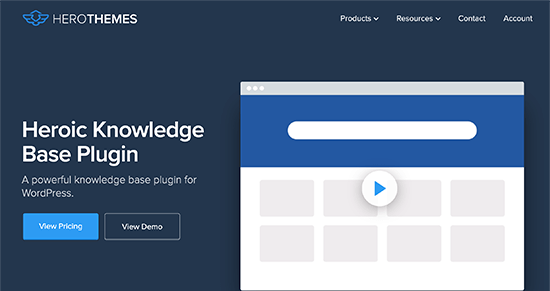
HeroicKB WordPress Plugin

Heroic KB plugin is an easy to use WordPress knowledge base plugin that’s extremely powerful and fully-featured.

It allows you to add searchable knowledge base to your existing site, so your visitors can easily find answers to their questions. It comes with lightning fast AJAX search feature which adds real-time answers.

You get all the features you’d expect from a powerful knowledge base plugin such as content categorization, drag & drop content ordering, article attachments, display widgets, and more.

The best part about the plugin is their built-in analytics and user feedback feature that lets you collect insights to improve your existing documentation, so you can reduce support, save time, and grow sales.

We used this plugin to build our developer docs on WPForms website. Although our team has since customized it much further, this is still the best solution in the market.

2. BetterDocs

BetterDocs

BetterDocs is a powerful WordPress knowledge base plugin that is both easy to use and comprehensive.

It comes with ready to use knowledge base templates for WordPress. It also includes support for page builders with widgets. You can also use shortcodes to create your own layouts and insert knowledge base articles anywhere.

It includes a powerful search, floating table of contents, a knowledge base bot that automatically tries to find answers to reduce support requests. The plugin also includes user role-based control and insights to view what users are looking for.

3. Echo Knowledge Base

Echo Knowledge Base

Echo Knowledge Base is one of the best knowledge base plugins for WordPress. It comes with an easy set up wizard that walks you through plugin settings. You also get multiple layouts to choose from with options to customize every aspect.

You can choose from Basic, Tabs, or Category focused layouts. Each layout has a fast search bar on the top, which helps users quickly find answers. You can further organize articles in categories and tags.

The plugin also comes with 500+ icons that you can use. It also includes shortcodes and templates to create FAQs section and display knowledge base articles across your website.

4. weDocs

weDocs

weDocs is another excellent WordPress knowledge base and documentation plugin. It is easy to use and allows you to sort your documentation pages into sections, hierarchical docs, and tags.

It has a simpler interface to manage all your docs from one screen. The plugin does not include additional templates but works well with all popular WordPress themes.

The knowledge base layout is simple but efficient with sidebar navigation and bread crumbs menu.

5. Encyclopedia / Glossary / Wiki

Encyclopedia / Glossary / Wiki

Encyclopedia / Glossary / Wiki plugin is a flexible WordPress knowledge base plugin that allows you to organize your documents in a glossary format. You can organize your docs and articles alphabetically or by category and tags.

It includes a simple template to list all glossary items. You can add a search widget, enable comments for individual articles, and add a filter index to sort items by alphabet.

The plugin provides an excellent option if you want to organize your support pages in a glossary or encyclopedia style. It supports WPML and can be used on multilingual websites.

6. WP Knowledgebase

WP Knowledgebase

WP Knowledgebase is another great option to create a knowledge base section in WordPress. The plugin comes with an easy to use set up with simpler settings.

You can organize your knowledge base articles by categories and tags. The plugin uses a simple template with a powerful instant search feature on the top. It automatically creates a knowledgebase page upon activation which you can edit and change its title or URL slug.

It also includes widgets for search, categories, and tags which allow you to easily display knowledge base items across your website. You can turn on comments on each article and rearrange their display order with simple drag and drop.

7. BasePress
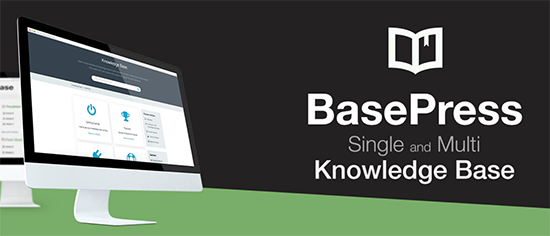
BasePress

BasePress is a useful WordPress knowledge base and documentation management plugin. It allows you to easily build support pages and documents section for your products or services.

It comes with three templates to choose from with an advanced instant search bar that helps users quickly find the answers. You can organize articles in sections, categories, and tags with an easy drag and drop interface to reorder articles.

You can add an image and description for each section which creates a very neat index page for users to browse. The plugin also provides easy customization options to control the appearance of your article pages.

8. KB Support

KB Support

KB Support is WordPress support and knowledge base plugin that is easy to use and extend. The plugin comes with a ticket management system and knowledge base platform to offer a complete support system that runs on your WordPress website.

You can easily add articles to your knowledge base section and sort them into categories and tags. After that, there is a simple shortcode that you can add to a WordPress page to display your knowledge base articles.

Customers can then submit a ticket when they are unable to find an answer. This ticket appears on your WordPress dashboard and you can reply to the user directly. There are paid add-ons to extend the plugin’s functionality like the ability to send emails, WooCommerce integration, canned replies, and more.

9. Very Simple Knowledge Base

Very Simple Knowledge Bas

Very Simple Knowledge Base is a very simple and minimalist knowledge base plugin for WordPress.

It basically allows you to use your existing posts for knowledge base articles and then display them with a shortcode. It then displays the items sorted by categories and you can choose multi-column layouts to show more categories and articles.

The plugin works with any custom post type including products or events. It offers flexibility but does not include any of the features you may find in other knowledge base plugins on this list. The plugin also does not offer an option to easily keep your regular blog posts separate from knowledge base articles.

Bonus Solutions

Customers may not always find the answer to their question in your knowledge base articles. For instance, they may have some pre-sale questions, a bug report, or they may simply need a more personal response.

The following tools allow you to take support beyond knowledge base articles and boost customer satisfaction.

10. WPForms

WPForms

WPForms is the best WordPress form builder plugin on the market. It allows you to easily create any type of form in WordPress including a support request form.

As a small business, you may not be able to justify the cost of a full-fledged customer support platform. WPForms allows you to add a customer support form to your website and then answer customer queries via email.

It has a built-in entry management system that allows you to keep a record of all customer requests. You can even export this data and use it in CRM software to manage all possible leads.

11. LiveChat

LiveChat is the best live chat support software for small businesses. It allows you to add a live chat to your WordPress website and help customers instantly reach out for help.

Adding LiveChat helps you convert more visitors into customers. You can display a live chat popup across your website with targeted messaging. Users browsing the knowledge base will always have the option to get more help without leaving your website.

12. ChatBot

The ChatBot website

A lot of companies these days are choosing to use ChatBot as an alternative to LiveChat, and sometimes as a pre-live chat solution because it’s more cost effective.

ChatBot.com uses a smart algorithm to help you better serve your customers while growing sales. It’s the best chatbot software for small businesses, and we’re in the process of using it on our sites as well.

We hope this article helped you find the best WordPress knowledge base plugin for your website. You may also want to see our comparison of the best business phone services for small businesses, and our step by step guide on how to add web push notifications in WordPress to increase your traffic.

If you liked this article, then please subscribe to our YouTube Channel for WordPress video tutorials. You can also find us on Twitter and Facebook.

The post 9 Best Knowledge Base Plugins for WordPress (Compared) appeared first on WPBeginner.


October 30, 2020 at 05:00PM

Thursday, October 29, 2020

How to Easily Import and Export WordPress Users

Do you want to import and export WordPress users from one website to another?

This could be really helpful when you are merging multiple sites and want to automatically shift all users to the new site.

In this article, we will show you how to easily import and export users in WordPress. We’ll also show you how to import export WooCommerce customers as well.

Importing and exporting WordPress users and WooCommerce customers

Why or When You May Need to Import and Export Users in WordPress?

While there are several use-cases for importing and exporting WordPress users, the most common scenarios when you need to import and export users are:

  • When you purchase a website and want to merge the content and user base.
  • When you want to consolidate two sites and merge their content and user base.
  • When you want to import customer information into an email list or your CRM.

If you run a membership website or WooCommerce store, then you may also want to keep all your customer data and allow your customers a seamless login experience on the new site aswell.

Let’s take a look at how you can easily import and export users from one WordPress site to another, or move WooCommerce customers from one store to another.

Exporting Users in WordPress

First thing you need to do is install and activate the Import and Export Users and Customers plugin. For more details, see our step by step guide on how to install a WordPress plugin.

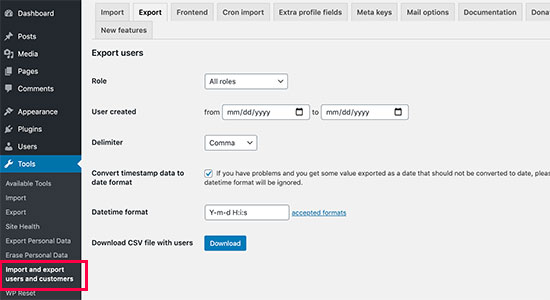
Upon activation, you need to visit the Tools » Import and export users and customers page in WordPress admin area and switch to the Export tab.

Export WordPress users and WooCommerce customers

From here, you can choose which users you want to export. For instance, you can select by user role and choose to export WooCommerce customers, customers from your membership plugin, or all users.

You can also filter users by date. For instance, you can select users that were created between a specific period.

You can leave the rest of the options to their default values and click on the Download button. The plugin will prepare and download a CSV file to your computer.

CSV or ‘Comma Separated Values’ is a file format which allows you to store data with fields separated by commas. You can open these files in any spreadsheet software like Google Spreadsheets or Microsoft Excel.

Importing WordPress Users

The plugin also makes it easy to import the users back to the same website or a different website.

If you are importing the users to a different WordPress website, then you’ll need to install the plugin on that website as well.

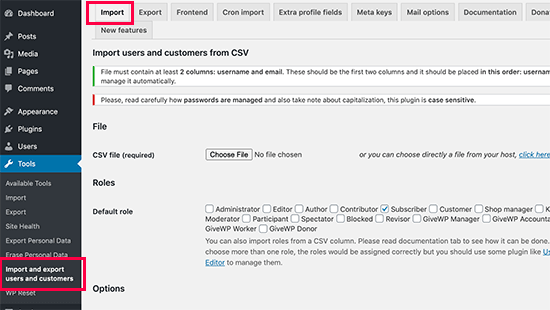
After that, you can go to the Tools » Import and export users and customers page and switch to the ‘Import’ tab.

Import WordPress users / WooCommerce customers

From here, click on the ‘Choose File’ button to select the CSV file you downloaded earlier.

Below that, you can configure plugin settings to your own requirements. For instance, you can import only users with specific user roles, choose what to do with empty data fields, send emails to users with login link and their credentials, and more.

After reviewing the options, go ahead and click on the ‘Start Importing’ button.

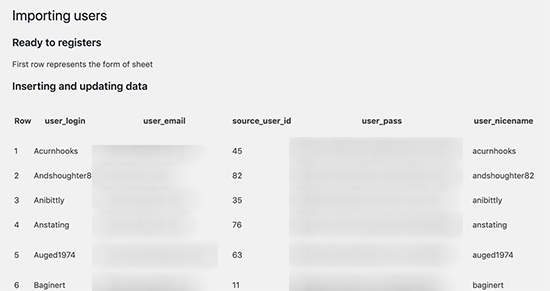
The plugin will start importing WordPress users and will show you a list of users imported.

Imported users in WordPress

You can now go to Users » All Users page to see the imported users.

Sending Email to imported users

Now, if you are moving user accounts, then you may want to let them know about the change by sending them an email. The plugin can do that for you during the import but you may want to change the email with your own message.

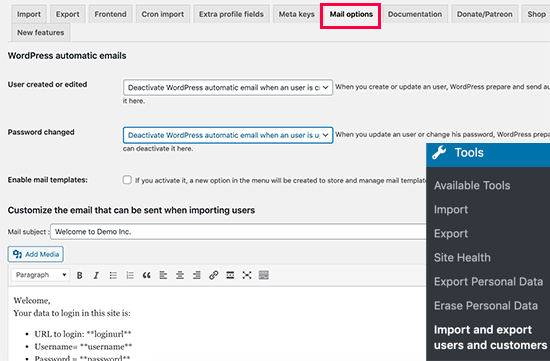
Simply head over to the Tools » Import and export users and customers page and switch to the Mail Options tab.

Send user email

By default, the plugin sends the login details to the users in the email. You can add your own message here offering users more details about why they are seeing this email.

Tip: Make sure your WordPress site is able to send email notifications. If you have a lot of users/customers then the plugin may not be able to send notifications. We recommend using the WP Mail SMTP plugin to ensure maximum deliverability. For details, see our guide on how to fix WordPress not sending email issues.

We hope this article helped you easily import and export WordPress users and WooCommerce customers. You may also want to see our guide on how to monitor user activity in WordPress and our ultimate WordPress security guide to keep your website safe.

If you liked this article, then please subscribe to our YouTube Channel for WordPress video tutorials. You can also find us on Twitter and Facebook.

The post How to Easily Import and Export WordPress Users appeared first on WPBeginner.


October 29, 2020 at 04:00PM

Wednesday, October 28, 2020

How to Prevent Text Selection and Copy/Paste in WordPress (Easy)

Recently, one of our readers asked us how they can prevent text selection and copy/paste in WordPress?

Many publishers who want to stop people from stealing their content may want to apply this. This basically just makes it a bit harder for people to copy text from your website.

In this article, we’ll show you how to easily prevent text selection and copy/paste in WordPress.

Preventing text selection and copying & pasting in WordPress

Why Prevent Text Selection and Copy/Paste on Your WordPress Site?

Many bloggers find that their content gets stolen and used without permission.

This can happen through automated content scraping. It can also happen if someone manually copies part or all of your content.

One way to make this more difficult is to prevent people from copying and pasting your text. You can do this by making it harder for them to select the text on your website.

Remember, tech savvy users can still view the source code or use the Inspect tool to copy anything they want. These techniques will also not stop people who are using auto-blogging tools to fetch the content using RSS.

Keeping this in mind, let’s take a look at a few ways to prevent text selection and copying in WordPress.

Method #1: Preventing Text Selection Using CSS

This method is simpler, and you’ll just need to add some custom CSS code to your WordPress theme. If you haven’t done this before, then take a look at our guide on adding custom CSS to your site before you begin.

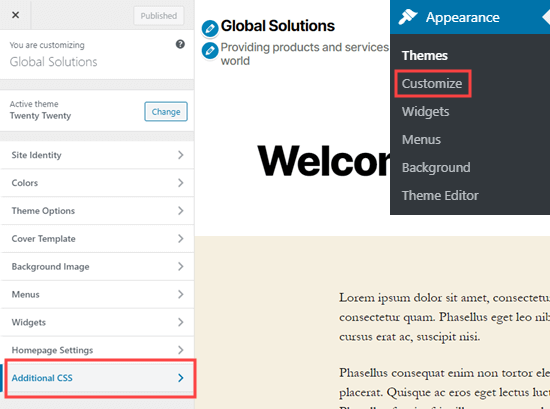
First, you need to visit the Appearance » Customize page in WordPress admin area to launch the theme customizer.

Opening the theme customizer to add custom CSS

In theme customizer, you need to click on the Custom CSS tab from the left column.

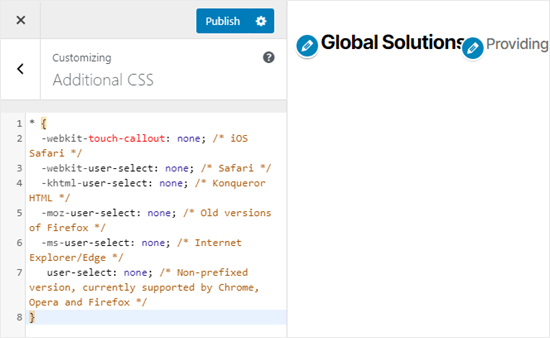
Now, you will see a box to add custom CSS to your WordPress theme. Simply copy and paste the following CSS code into that box.

* {
  -webkit-touch-callout: none; /* iOS Safari */
  -webkit-user-select: none; /* Safari */
  -khtml-user-select: none; /* Konqueror HTML */
  -moz-user-select: none; /* Old versions of Firefox */
  -ms-user-select: none; /* Internet Explorer/Edge */
   user-select: none; /* Non-prefixed version, currently supported by Chrome, Opera and Firefox */
}

(Code source)

This is how the code will look when added.

Adding the CSS code to prevent text selection and copy/paste

Now, go ahead and try to select some of the text on your page in the live customizer. You will find that you cannot select it.

Don’t forget to click the ‘Publish’ button at the top of the screen to put your changes live for everyone.

Method #2: Preventing Text Selection Using a Plugin

For this method, we will be using a WordPress plugin that disables text selection and right-click. This would also protect images from being downloaded and reused.

First, you need to install and activate the WP Content Copy Protection plugin. For more details, see our step by step guide on how to install a WordPress plugin.

Upon activation, the plugin will work straight out of the box. Users will no longer be able to copy and paste text from your site. They also will not be able to right click or print your content.

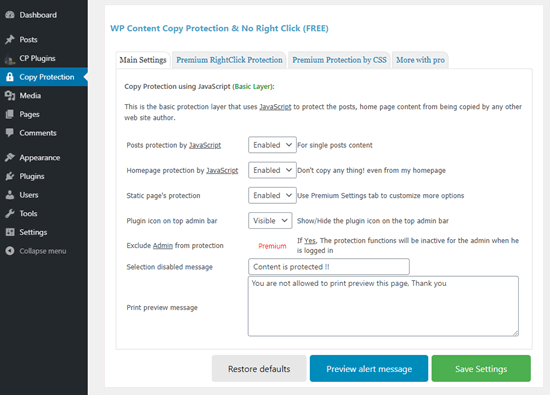
If you want to change the plugin’s settings, it’s easy to do so. Simply go to the Copy Protection page in your WordPress admin. Here, you can choose to enable or disable protection for specific types of content.

The settings for the WP Content Copy Protection & No Right Click plugin

Make sure you click the Save Settings button after making any changes.

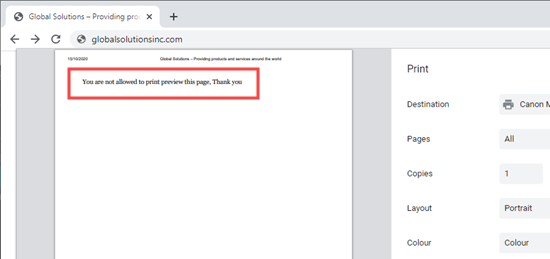
You can also change the message that will appear if someone tries to print your content. The message will display like this in the print preview and on the printout itself.

The default message that users will see if they try to print a protected page/post

Is it a Good Idea to Prevent Text Selection in WordPress?

While many new website owners want to stop people from copy/pasting content from their site, these techniques do not really prevent content theft.

Any slightly tech savvy user can easily open your website code source to copy any content that they want.

Also not everyone copying your text will be a content thief. For instance, some people may want to copy the title to share your post on social media.

This is why it’s not best practice to prevent text selection. We recommend you only use this method if you feel it’s truly needed for your site.

In most cases, it’s better to look for an alternative way to prevent content theft. If a site is re-publishing your content without permission, then you could find out who is hosting the website and send a DMCA takedown notice.

We hope this article helped you learn how to prevent text selection and copy/paste in WordPress. You might also want to see our guide on how to create a membership site with protected content, and our comparison of the best email marketing services for subscriber only content.

If you liked this article, then please subscribe to our YouTube Channel for WordPress video tutorials. You can also find us on Twitter and Facebook.

The post How to Prevent Text Selection and Copy/Paste in WordPress (Easy) appeared first on WPBeginner.


October 28, 2020 at 05:00PM