Wednesday, November 11, 2020

How to Connect Salesforce to Your WordPress Forms

Do you want to connect Salesforce to your WordPress forms?

Salesforce is one of the most popular customer management software on the market. Connecting it to your WordPress forms allows you to automatically add leads, customers, and other contacts to your CRM.

In this article, we’ll show you how to easily connect Salesforce to your WordPress forms.

Connecting Salesforce to WordPress forms

Why Connect Salesforce to Your WordPress Forms?

Salesforce is one of the best CRM (customer relationship management) software on the market. Many of the world’s largest businesses use it to manage customers, leads, and business contacts from one single dashboard.

Most business websites use contact forms to generate leads and then manually add them to their CRM software. This takes time, and you may still forget to follow up with a potential customer.

Connecting Salesforce to your WordPress contact form allows you to remove this hurdle. As soon as a user submits their information, it will automatically be added to your Salesforce contacts.

From there, you can follow up with customers to boost conversions and sales from your website.

That being said, let’s take a look at how to easily connect Salesforce to your WordPress forms.

Setting Up WPForms to Connect With Salesforce

For this tutorial, you’ll need WPForms. It is the best WordPress contact form plugin used by over 3 million website owners.

You can use it to easily create any type of form using a simple drag and drop form builder.

WPForms is a premium WordPress plugin, and you’ll need their Elite plan to use the Salesforce addon.

First, you need to install and activate the WPForms plugin. For more details, see our step by step guide on how to install a WordPress plugin.

Upon activation, you need to visit the WPForms » Settings page to enter your license key. You can find this key under your account on the WPForms website.
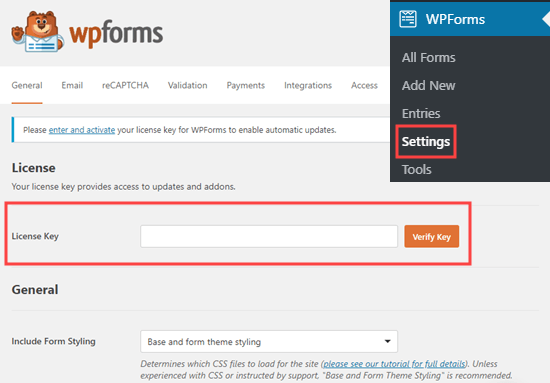
Entering your license key for WPForms

Setting Up the Connection Between WPForms and Salesforce

Now, you need to set up a connection between WPForms and Salesforce. WPForms comes with the Salesforce addon which lets you easily connect the two apps together.

Simply go to the WPForms » Addons page and locate the Salesforce addon. Click on the Install button and it will be installed and activated automatically.
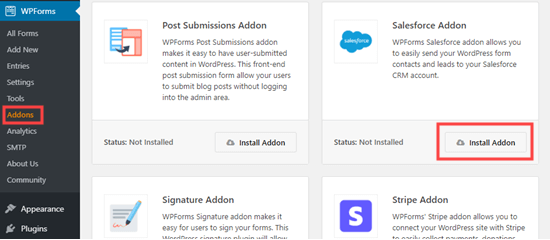
Installing the WPForms Salesforce addon

After that, go to the WPForms » Settings » Integrations page. Here, you need to click on the Salesforce integration to open it up.
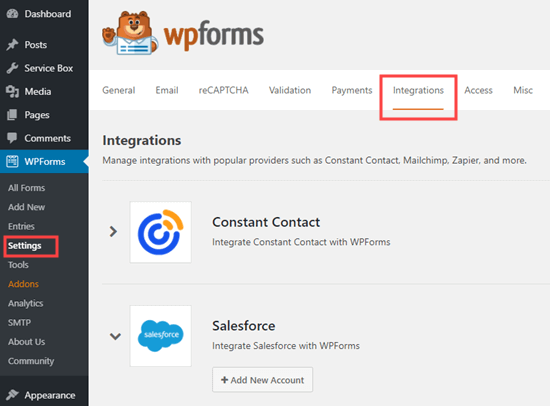
WPForms' Settings - Integrations tab in the WordPress admin

Under Salesforce settings, click on the Add New Account button. WPForms will show you Salesforce settings with a Callback URL.
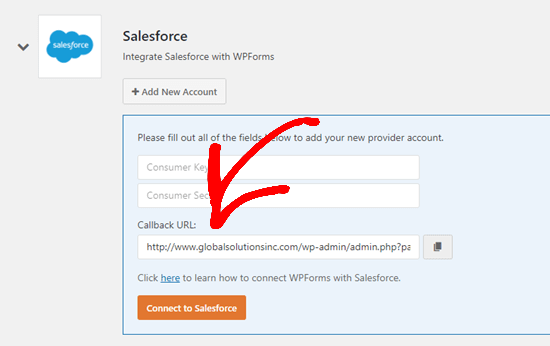
Get your Callback URL for Salesforce

Simply keep the tab open in your browser or copy the Callback URL to a safe place. You’ll need it in a later step.

Now, you need to create an app in your Salesforce account. We’ll walk you through the process step by step.

Important: You need to have an Enterprise, Unlimited, Performance, or Developer edition of Salesforce. Otherwise, you will not be able to connect your WordPress forms.

You can check what edition you have by switching to the Classic view of Salesforce (see below). Then, go to Administer » Company Profile » Company Information. You will see your edition listed next to ‘Organization Edition’ on the left-hand side of the screen.

If you don’t already have an account, go to Salesforce’s Developers website. Simply click on the Sign up button at the top and then fill in your details.
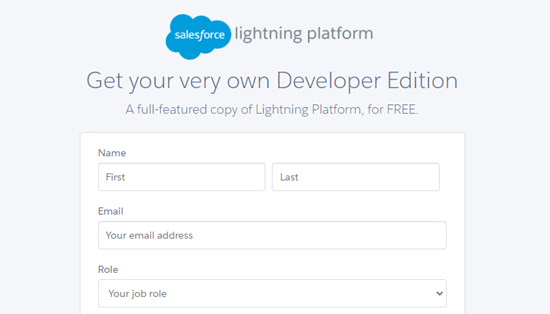
Sign up for a Salesforce account (Developer version)

After completing the signup, you’ll reach your Salesforce account dashboard. From here, you need to switch to the Salesforce Classic dashboard by clicking on your profile icon on the top, and then click the ‘Switch to Salesforce Classic’ option.
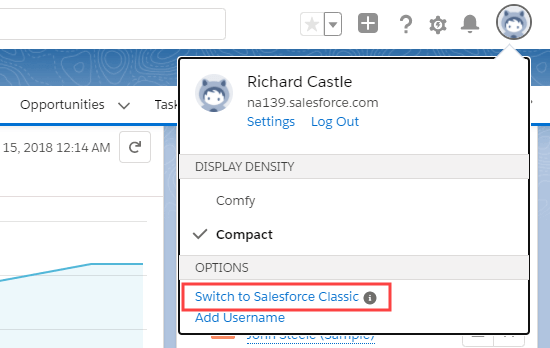
Switch to the Classic view of Salesforce

Next, you need to click on the Setup link at the top to access the Salesforce dashboard settings.
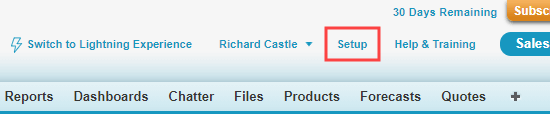
Click the Setup link in the Salesforce menu bar

On the next screen, Navigate to the click Build » Create » Apps menu from the column on your left hand.
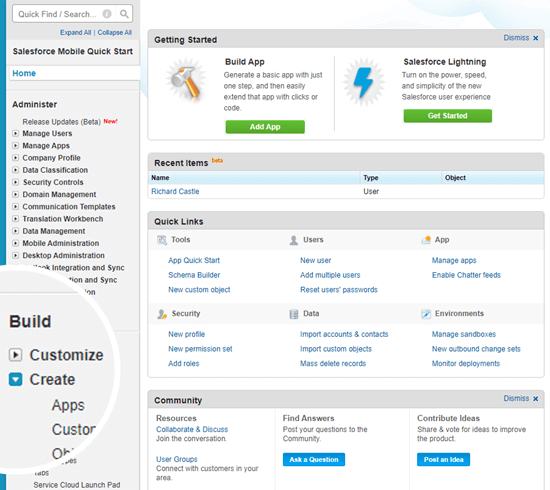
Create an app in Salesforce

This will bring you to the Apps section. From here, click on the New button under the Connected Apps section:
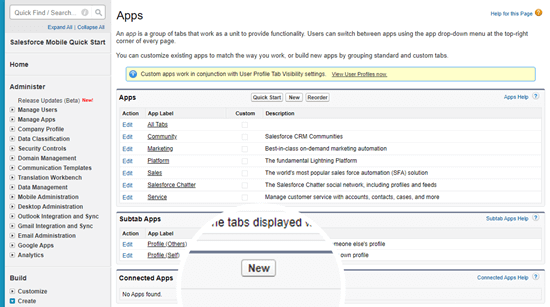
Creating a new Connected App in Salesforce

You now need to fill in the details for your app.

For the Connected App Name, enter a name you want to use. Other users for your Salesforce account will see this.

The API name will default to the Connected App Name. You don’t need to enter or change it.

For the contact email, enter your email address.

You don’t need to enter the logo image, icon, info URL, or description. These fields are for Salesforce users who will be publishing their app.
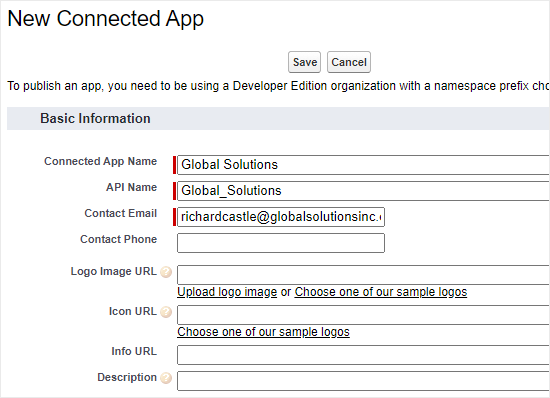
Entering the details for your Salesforce app

Below this, you need to check the ‘Enable OAuth Settings’ box:

Enabling the OAuth settings for your Salesforce app

Once you check the box, you will see the OAuth settings:
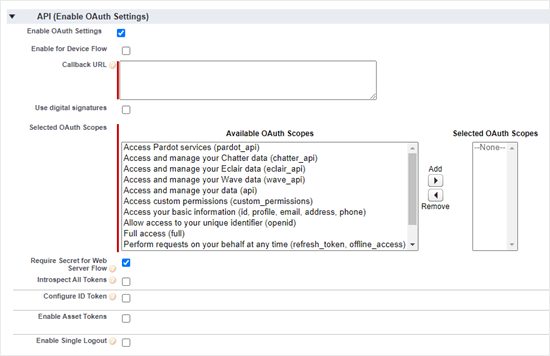
Completing the OAuth settings section

First, you need to enter the Callback URL that you found earlier in your WPForms account.
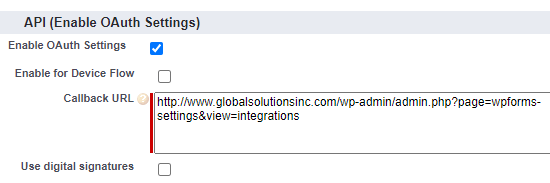
Entering the callback URL for Salesforce

The Selected OAuth Scopes let Salesforce know what permissions your app should have. You need to enable 2 permissions here. They are ‘Access and manage your data’ and ‘Perform requests on your behalf at any time’.

Simply select these and then click the ‘Add’ arrow to add those permissions:
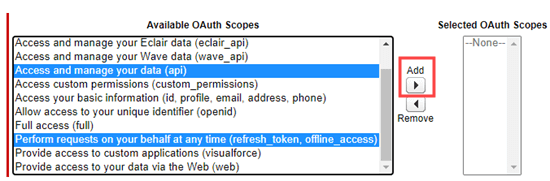
Selecting the OAuth permissions for your app

There’s nothing else you need to change on this page. After adding the permissions, simply click the Save button at the bottom of the page.

You should then see a message telling you to allow 2 – 10 minutes for your changes to take effect:

Salesforce will show a message letting you know that your app has been successfully created

Click on the Continue button and you’ll see your API information:
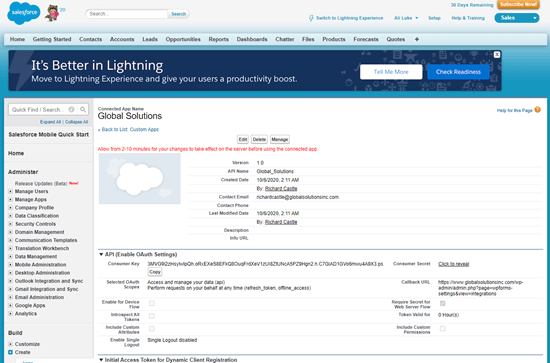
You will see the details for the app you've created

We recommend that you wait 10 minutes before using your app. That way, you can be sure that your app will be ready.

After the 10 minutes is up, you need to copy your Consumer Key and Consumer Secret to WPForms.

Your Consumer Key is shown just below the API (Enable OAuth Settings) section:

The Consumer Key for your app

Your Consumer Secret is next to it. You need to click the ‘Click to Reveal’ link to see your Consumer Secret:

The Consumer Secret for your app

Now, simply switch back to the tab with your WPForms Salesforce settings. If you closed this, it’s easy to find it again in your WordPress admin. Just go to the WPForms » Settings » Integrations page.

Simply copy and paste the Consumer Key and Consumer Secret into the Salesforce settings for WPForms:
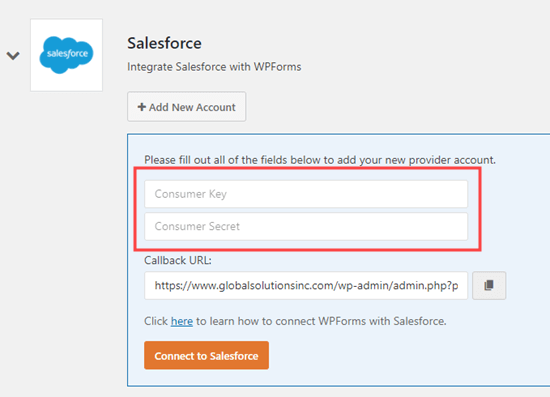
Adding your Consumer Key and Consumer Secret in your WPForms settings

Then, go ahead and click the ‘Connect to Salesforce’ button:

You will then be prompted to log in to your Salesforce. Simply log in to your account using your username and password.

Next, you need to click the ‘Allow’ button to give WPForms access to your Salesforce account:
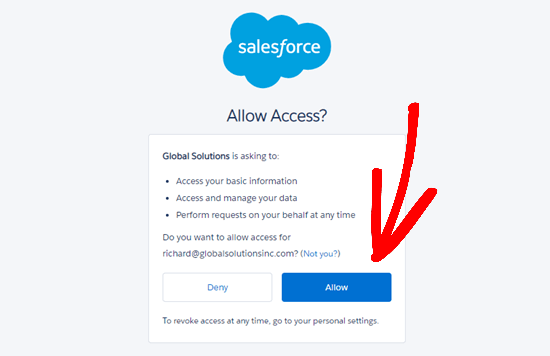
Allow WPForms to access your Salesforce account through your app

After this, you will see your Integrations page again. There should be a message at the top of the screen to let you know that the connection was successful:
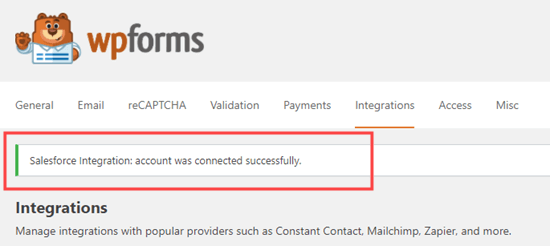
The success message letting you know that Salesforce and WPForms have been successfully integrated

Now that you have connected WPForms to your Salesforce account. You can start creating forms and send entries directly to your Salesforce account.

Creating a WordPress Form with Salesforce Integration

The next step is to create your form.

Simply go to the WPForms » Add New page. This will launch the WPForms drag and drop form builder. Enter a name for your form and then click on a template.
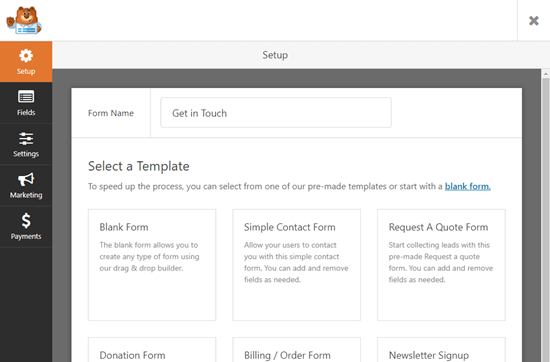
Choosing a template for your form

You can connect any type of form to Salesforce. We’re going to use the basic contact form:
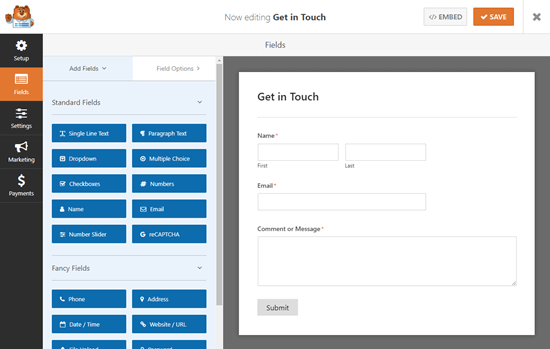
The default contact form template in the WPForms form builder

It’s easy to add, edit, or remove any of the fields you want from the default form. For instance, you could add a phone number field.

Once you are satisfied with the form, go to the Marketing » Salesforce tab to connect it with your Salesforce account.
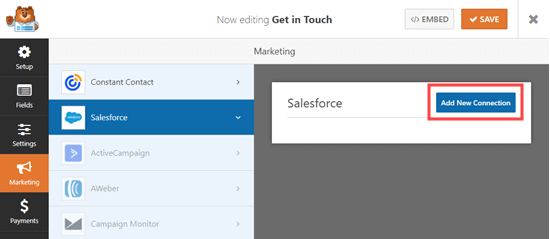
Go to the Marketing -- Salesforce tab to add a new Salesforce connection for your form

You will then see a popup where you need to name your connection. Your site’s visitors will not see this. It’s just for your own use.

Just enter the name you want to use. Then, click the ‘OK’ button.
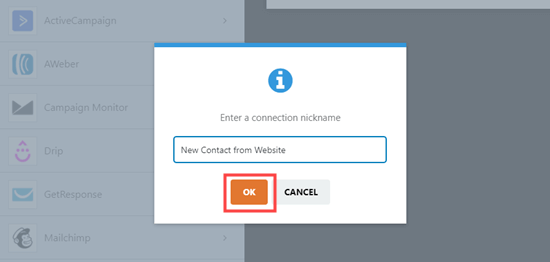
Give your Salesforce connection a name

Now, you need to select your Salesforce account and Salesforce Object. This is the type of data you are sending to Salesforce, such as a contact or a lead.
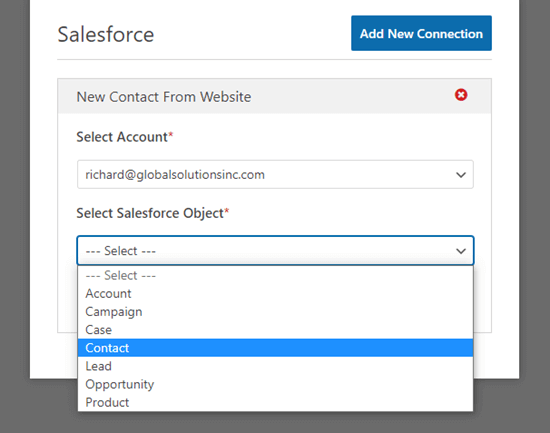
Choose the Salesforce Object from the dropdown list

Once you’ve chosen your Salesforce Object, you will see some new dropdowns:
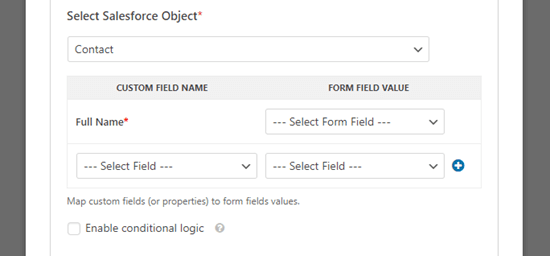
The new field boxes for the Salesforce Object

Here, the ‘Custom Field Name’ column is the name of the field in your Salesforce account. The ‘Form Field Value’ is the name of the field on your form.

You need to select a Form Field Value for each custom field you want to use. This means your form data will be entered into the correct field in Salesforce.

The only required field is the Full Name field in Salesforce. For this, select ‘Name’ as the Form Field value.

Next, go ahead and select a different field from the dropdown below this. Simply choose which WPForms field you want to map it to. To add more fields, click the blue + button.

We have included the email and phone fields from our form here:

Mapping fields between Salesforce and WPForms

Don’t forget to click the Save button at the top of the screen after adding your Salesforce connection.

Adding Your Form to a WordPress Page or Post

WPForms makes it super easy to add forms anywhere on your WordPress website.

Simply edit the post or page where you want to add the form or create a new one. On the content editor screen, click on the (+) add new block button and then add a WPForms block to your page:
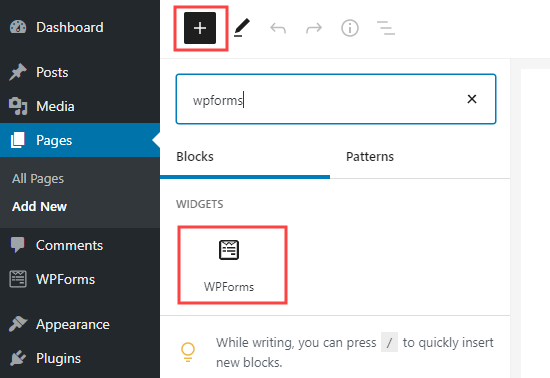
Add a WPForms block to your page in WordPress

Next, you need to choose your contact form from the dropdown list within the block. Finally, go ahead and publish your page to see your form live on your site.
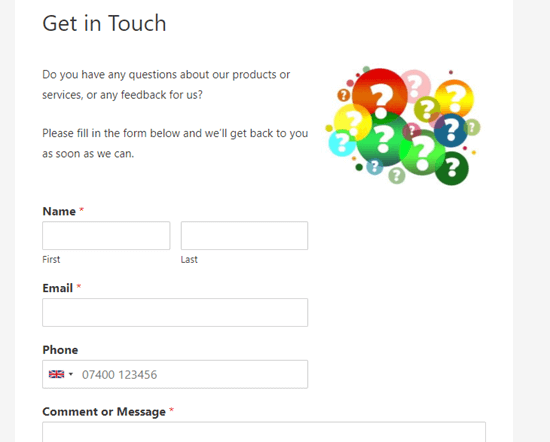
Our contact form live on our demo website

For more detailed instructions, check out our step by step guide to creating a contact form in WPForms.

It’s best practice to test your form to make sure that you’ve correctly connected Salesforce.

Simply fill in some test data and click Submit.
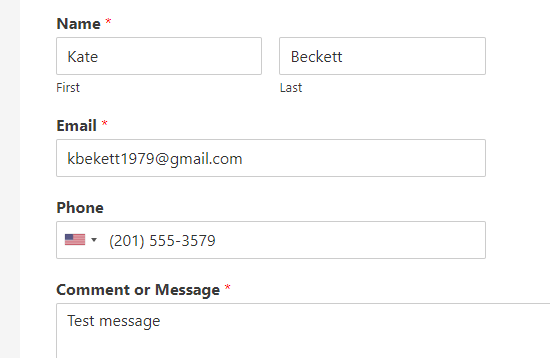
Creating a form entry to test out the Salesforce connection

After that, switch to your Salesforce account dashboard and you should see a new item listed on your homepage.
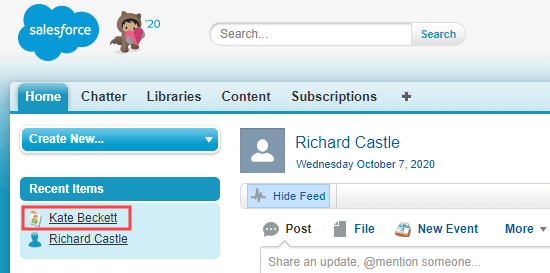
The new contact has been created in the Salesforce CRM

Just click on the name, and you will see the information for that contact. The email address, phone number, and any other details you mapped from your form will be included:
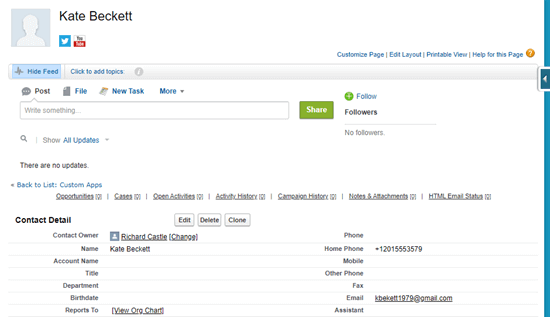
Viewing the contact's detalis that have been added to Salesforce

You’ve successfully connected Salesforce to WPForms. Now, all your new contacts will be automatically added to Salesforce for you.

We hope this article helped you learn how to connect Salesforce to your WordPress forms. You might also like our article on how to send contact form details to multiple recipients, and our pick of best business phone services for online businesses.

If you liked this article, then please subscribe to our YouTube Channel for WordPress video tutorials. You can also find us on Twitter and Facebook.

The post How to Connect Salesforce to Your WordPress Forms appeared first on WPBeginner.


November 11, 2020 at 05:40PM

Tuesday, November 10, 2020

How to Rearrange Post Edit Screen in WordPress

Do you want to change the look and feel of the post edit screen when creating WordPress posts?

WordPress comes with an intuitive content editor, with different sections and toolbars. To reduce distraction, you may want to hide the areas that you don’t use.

In this article, we’ll show you how to rearrange the post edit screen in WordPress.

How to rearrange post edit screen in WordPress

Rearrange WordPress Post Edit Screen

By default, the WordPress block editor offers a sleek user experience. However, as you get used to it, you’ll notice that you use some areas more than others.

There are a few built-in options that you can use to customize the post editor to your own liking.

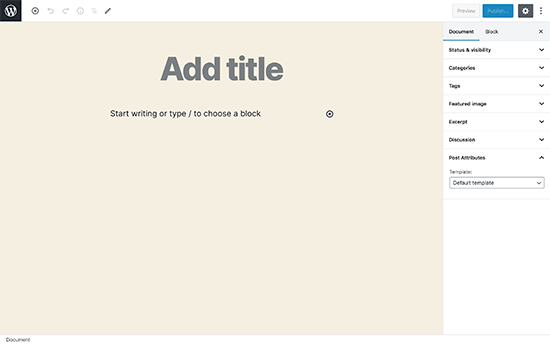
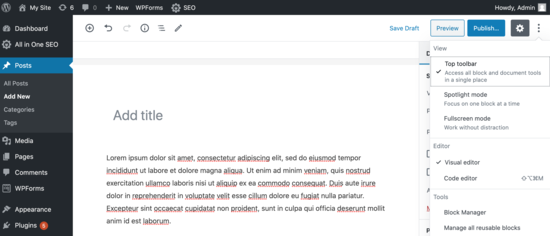
Here’s what the standard editor looks like:

Default post editor view

On the right, you have your document settings and block settings, which show up when you click on any block on your post.

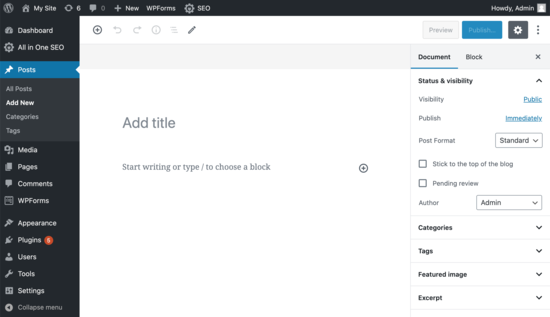
If you have been using WordPress for a while, then your default editor view may also include the WordPress admin sidebar.

If you don’t see it, then there’s an option to view the admin sidebar by switching off the full-screen mode (we’ll show you how later in this article).

Standard WordPress Post Editor

Show / Hide Panels in WordPress Post Editor

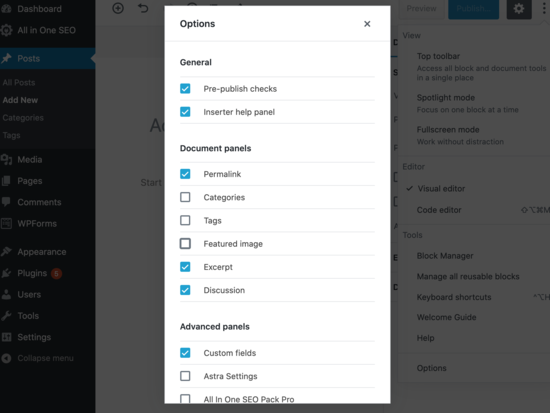
What if you want to hide some of the panels in the WordPress content editor? Let’s say you want to get rid of the categories, tags, featured images, and excerpts?

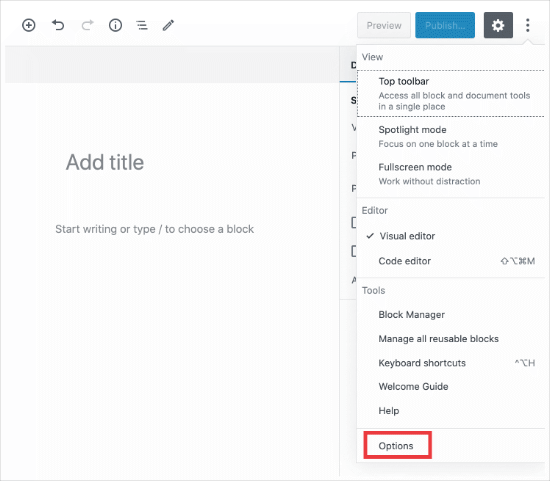
First, you’ll need to click on the 3 dots menu in the upper right corner and then select ‘Options’ from the menu.

Settings options link

This will bring up a popup with a list of panels that you can show or hide.

Options choices

Now you can check or uncheck any of the boxes you want to be displayed in the right panel.

This is helpful if you’re not using certain panels very often.

Stick Block Toolbar to the Top

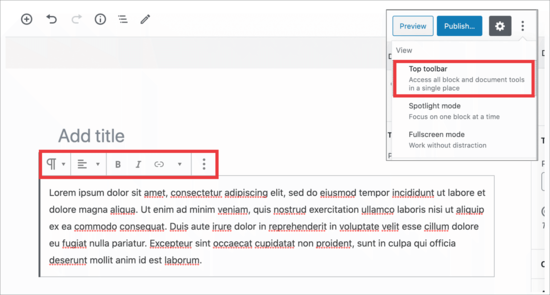
When you are working on a block, the editor shows a block toolbar right above it. The toolbar is displayed as you move between blocks.

Original block toolbar

If you find the toolbar to be distracting, then you can move it to the top.

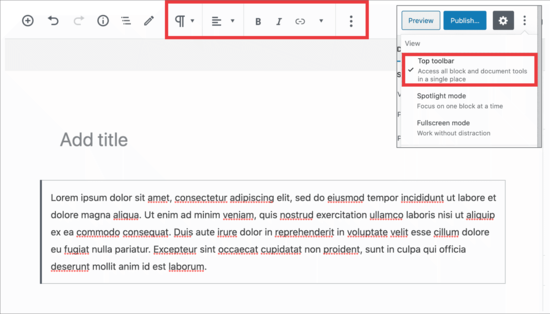
To do this, you’ll want to click on the 3 dots in the upper right corner and then you’ll see the ‘Top toolbar’ option.

Clicking on it will move the block toolbar to the top making your blocks less distracting.

Here’s how it would look:

Top toolbar

This setting can make it easier to edit each block when you are working on complex layouts with columns, groups, and tables.

Bonus: See our list of the best Gutenberg block plugins to get the most out of the new block editor.

Remove Right Side Panel

Want to remove the panel on the right side, so you can focus on the content?

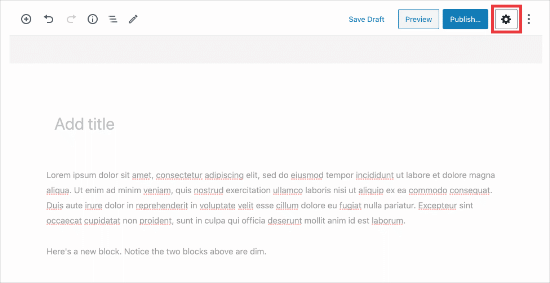
WordPress makes this super easy. Simply click on the gear icon at the top and the right column will disappear.

Gear remove sidebar

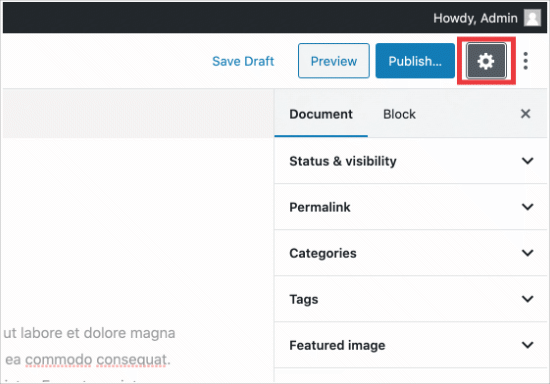
Clicking the gear again will display the right column, so you can use your document and block settings.

Gear in sidebar

Using The Fullscreen Editor in WordPress

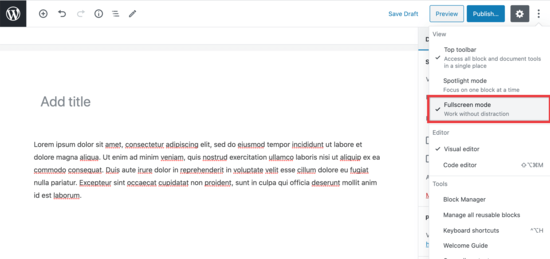
WordPress editor comes with a fullscreen editor that removes the WordPress admin sidebar and toolbar. You can enter the fullscreen editor or exit it any time you want.

All you need to do is click on the 3 dots menu in the upper right corner and then select ‘Fullscreen mode’ in the dropdown.

Fullscreen view

Repeat the same steps when you want to exit the fullscreen editor.

Before fullscreen

WordPress will remember your preference and next time it will open the post editor in the same view that you had selected.

For more on this, here’s how to disable the fullscreen editor in WordPress.

Use Spotlight Mode in Post Editor

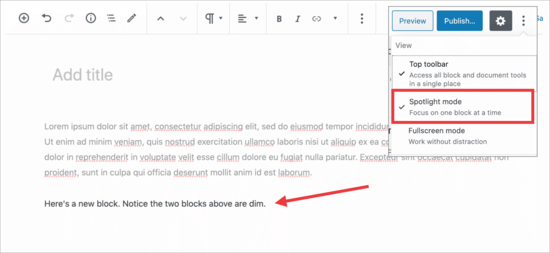
By default WordPress uses the spotlight mode to highlight the block you have been working on. Basically, it just dims the opacity of other blocks, so you can focus and locate the block you are currently editing.

Spotlight mode turned on

However, sometimes you want to see all your blocks together to get an idea of how they’ll look. You can turn off spotlight mode by simply clicking on the three dot menu icon and selecting ‘Spotlight Mode’.

Repeat the same steps when you want to turn it back on.

Collapse Document Panel Sections

The document panel in the right column shows all the standard WordPress settings for a post. Your WordPress plugins and themes may also add sections to this panel.

This would make the panel a bit longer and difficult to locate things.

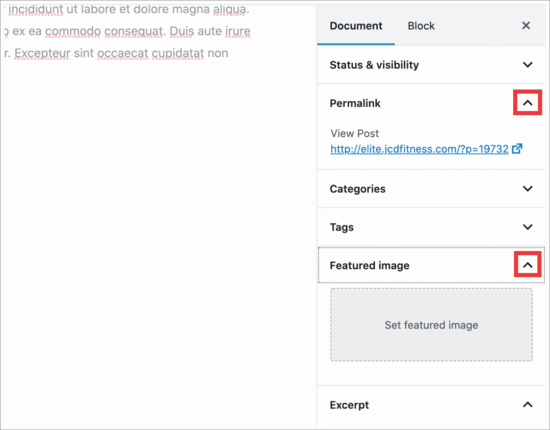
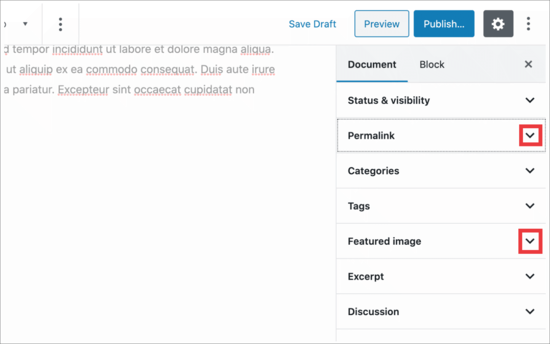
You can simply collapse document sections by clicking on the upward arrow next to each section.

Expanded panels

And when you click on the arrows, you’ll collapse them, making your document look much cleaner.

Collapsed panels

That’s all.

We hope this article helped you learn how to rearrange post edit screen in WordPress. You may also want to see these useful WordPress keyboard shortcuts to save time, and our guide on how to create members only content in WordPress.

If you liked this article, then please subscribe to our YouTube Channel for WordPress video tutorials. You can also find us on Twitter and Facebook.

The post How to Rearrange Post Edit Screen in WordPress appeared first on WPBeginner.


November 10, 2020 at 04:00PM

Monday, November 9, 2020

How to Enable GZIP Compression in WordPress (3 Ways)

Do you want to enable GZIP compression in WordPress? GZIP compression makes your website faster by compressing the data and delivering it to the user’s browsers much quickly.

A faster website improves user experience and brings in more sales and conversions for your business.

In this article, we’ll show you exactly how to easily enable GZIP compression in WordPress.

Enabling GZIP compression in WordPress

What is GZIP Compression?

GZIP compression is a technology that compresses data files before it is sent to users’ browsers. This reduces the file download time which makes your website faster.

Once the compressed data arrives, all modern browsers automatically unzip the compressed files and display them. GZIP compression doesn’t change how your website looks or functions.

It just makes your website load faster.

GZIP is supported by all popular web browsers, server software, and all best WordPress hosting companies.

How does GZIP compression work?

Gzip compression uses compression algorithms that work on website files like HTML, CSS, JavaScript, and more. When a user requests a page from your website, the algorithm sends the output back in a compressed format.

Depending on data size, the compression can reduce file sizes by up to 70%.

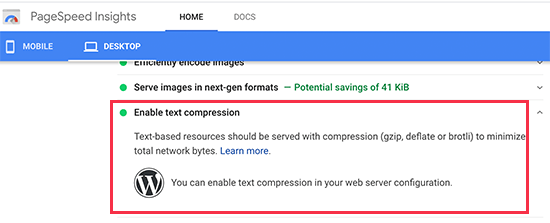
This is why most website speed test tools like Google Pagespeed Insights highly recommend enabling gzip compression. These tools will also show a warning if gzip compression is not enabled onn your website.

Pagespeed Insights

Note: By default, Gzip compression does not compress images or videos. For that you’ll need to optimize images for web on your WordPress site.

Why You Need to Enable GZIP Compression in WordPress?

Plain raw data takes longer to download which affects your page load speed. If several users arrive at the same time, then it will further slow down your WordPress website.

Using GZIP compression allows you to efficiently transfer data, boost page load times, and reduce the load on your website hosting. It is an essential step in improving your website speed and performance.

Now, you might think that GZIP sounds very technical and complicated. However, there are many WordPress plugins that make it super easy to add GZIP compression on your WordPress website.

In some cases, you may even have GZIP already enabled by your WordPress hosting company.

Bluehost an officially recommended WordPress hosting provider automatically enables GZIP compression on all new WordPress sites.

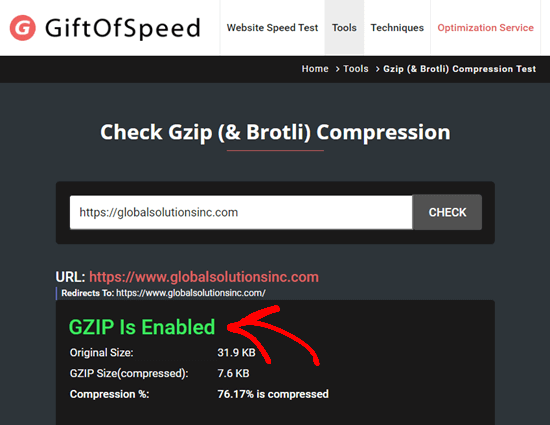
To test if GZIP is enabled on your site, simply go to this GZIP tester and enter the URL of your site. If GZIP is working on your site, you will see a ‘GZIP Is Enabled’ message.

Using a GZIP test tool to see that GZIP is enabled on the specifed website

If you need to add GZIP compression by yourself, then you can use any of the following methods to do so:

Enabling GZIP Compression with WPRocket

WP Rocket is the best caching plugin for WordPress. It is incredibly easy to use and turns on all the essential speed optimization features out of the box, including GZIP compression.

First, you need to install and activate the WP Rocket plugin. For more details, see our step by step guide on how to install a WordPress plugin.

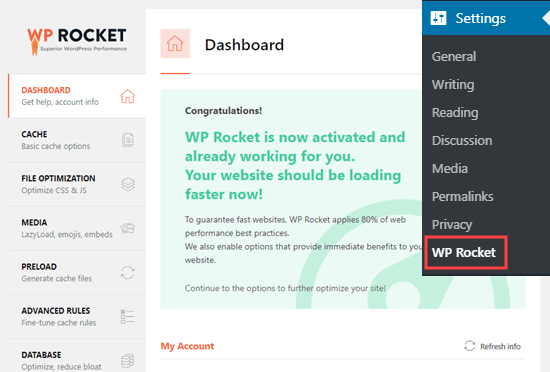
Upon activation, your license key should be automatically activated for you. You can check this by going to the Settings » WP Rocket page in your WordPress admin.

You should see a message letting you know that WP Rocket is active and working.

The message showing that WP Rocket is active and working on your site

WP Rocket automatically enables GZIP compression for you if you’re using an Apache server. Most WordPress web hosting providers use Apache for their servers. You don’t need to take any additional steps.

For a breakdown of all WP Rocket features, check out our guide on installing and setting up WPRocket.

Enabling GZIP Compression with WP Super Cache

WP Super Cache is a free WordPress caching plugin. It is also a great way to enable GZIP compression on your WordPress site.

First, you need to install and activate the WP Super Cache plugin. For more details, see our step by step guide on how to install a WordPress plugin.

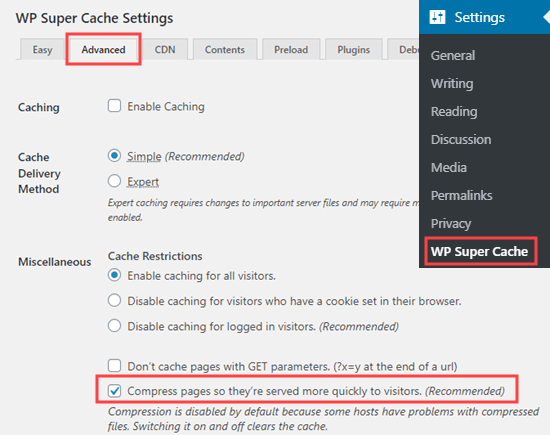
Upon activation, go to the Settings » WP Super Cache page » Advanced in your WordPress dashboard. Then, simply check the box ‘Compress pages so they’re served more quickly to visitors’ box.

Check the box to compress pages

You then need to scroll down the page and click the ‘Update Status’ button to save your changes. WP Super Cache will now enable gZip compression on your WordPress website.

Enabling GZIP Compression with W3 Total Cache

W3 Total Cache is another great WordPress caching plugin. It’s not quite so beginner-friendly as WP Rocket, but there’s a free version. This makes it a good option if the costs of creating a WordPress site are adding up.

First, you need to install and activate the W3 Total Cache plugin. For more details, see our step by step guide on how to install a WordPress plugin.

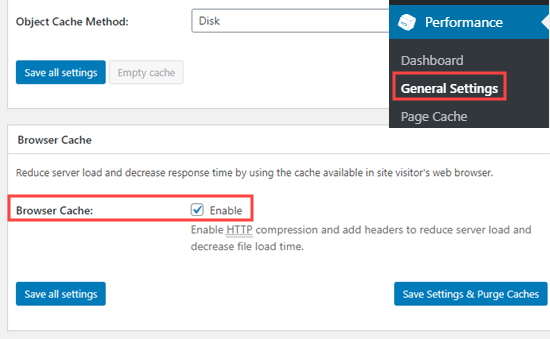
Upon activation, GZIP compression will be automatically enabled on your website. You can check or change this by going to the Performance » General Settings page in your WordPress dashboard.

Scroll down this page to Browser Cache and make sure there is a check in the Enable box:

Make sure the browser cache box is checked

Don’t forget to click the ‘Save all changes’ button if you make any changes.

Checking that GZIP is Enabled on Your Website

After enabling GZIP, you may notice that your website pages load a bit faster. However, if you want to check that GZIP is running, you can simply use a GZIP checker tool.

Using a GZIP test tool to see that GZIP is enabled on the specifed website

We hope this article helped you learn how to enable GZIP compression in WordPress. You may also want to see our ultimate guide to speeding up WordPress, and check out our 27 proven tips on how to increase your website traffic.

If you liked this article, then please subscribe to our YouTube Channel for WordPress video tutorials. You can also find us on Twitter and Facebook.

The post How to Enable GZIP Compression in WordPress (3 Ways) appeared first on WPBeginner.


November 09, 2020 at 06:00PM