Thursday, December 10, 2020

How to Create Automated Workflows in WordPress with Uncanny Automator

Have you ever wanted to create automated workflows in WordPress to reduce admin tasks and save time?

Many users perform manual tasks in WordPress to manage their website. Wouldn’t it be nice if you can automate these tasks and create smarter workflows for your users?

In this article, we’ll show you how to easily create automated workflows in WordPress with Uncanny Automator. This will allow you to save time, provide a better user experience, and grow your business.
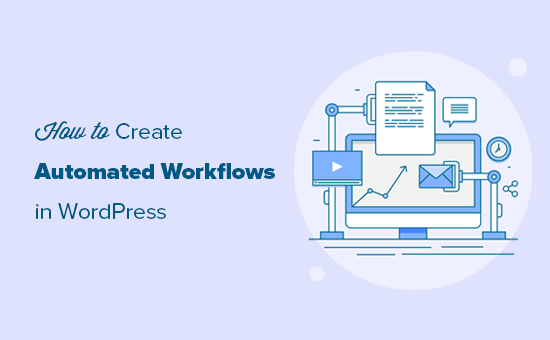
Using automation to create workflows in WordPress

Why Create Automated Workflows in WordPress?

Website owners spend a lot of their time doing repetitive tasks in WordPress. For instance, processing form data, upselling products, or offering support.

Creating automated workflows for these repetitive or manual tasks can save you time. It also provides your customers with an uninterrupted, interactive, and much better user experience.

Now you would think that it shouldn’t be difficult to automate these tasks. However, the problem is that WordPress plugins don’t talk to each other or third-party apps very well.

For instance, if you are using WooCommerce and a contact form plugin, then those two can’t communicate with each other unless one plugin makes an add-on to do just that.

This is where Uncanny Automator comes in.

Uncanny Automator

What is Uncanny Automator?

Uncanny Automator is the best WordPress automation plugin that helps you create automated tasks and workflows without writing any code.

It acts as a bridge by helping you integrate different WordPress plugins and allow them to talk with each other.

For example, you can use a contact form submission and add it as a membership subscription.

You can even connect 2 separate WordPress websites to work together. For instance, you can sell products on one while creating users and setup access on another.

To summarize, Uncanny Automator is like Zapier for WordPress websites.

In fact, it works with Zapier too, so you can integrate WordPress actions with over 2,000 external apps, including Google Drive, Slack, Asana, Twitter, Instagram and more.

That being said, let’s take a look at how to use Uncanny Automater to create automated workflows in WordPress.

Create Automated Workflows in WordPress

First thing you need to do is install and activate the Uncanny Automator plugin. For more details, see our step by step guide on how to install a WordPress plugin.

Upon activation, you will also be asked to install the free version of Uncanny Automator core plugin. This light version of the plugin is limited in features but is used as the base for the pro version.

Next, you need to head over to Automator » License Activation page to enter your license key. You can find this information under your account on the Uncanny Automator website.
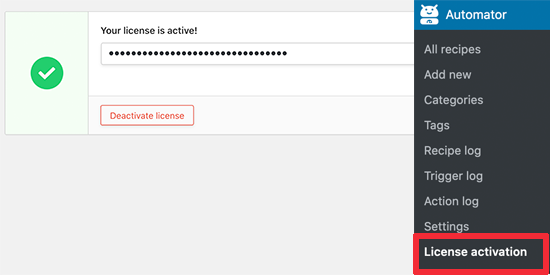
Uncanny Automator license key

After activating the license, you are now ready to create automated workflows in WordPress. The Uncanny Automator calls them ‘Recipes’.

Simply head over to Automator » Add New page to create your first recipe. You’ll be asked to select whether you want to create a ‘Logged-in’ recipe or an ‘Anonymous’ recipe.

Logged-in recipes can be triggered by logged in users only, and anonymous recipes can be triggered by any user.
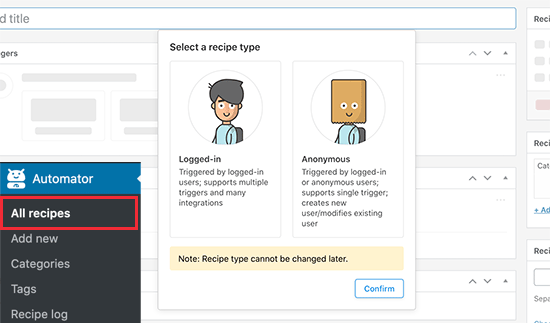
Choose recipe type

Choose a recipe type based on the workflow you want to create and then click on the confirm button.

For the sake of this tutorial, we will be creating an anonymous recipe using the WPForms plugin. It is the best WordPress contact form plugin used by over 4+ million websites.

It also has a limited free version called WPForms Lite which you can use to try out this recipe.

Pro Tip: You can look at all UncannyAutomator recipes and plugin integrations here.

Next, you need to provide a title for your recipe. This title will not be publicly visible to the users because it’s only there to help you identify a recipe.

For this tutorial, we will be adding a new WordPress user account when someone submits a contact form on our website.

Each recipe in Uncanny Automator has two parts called Triggers and Actions.
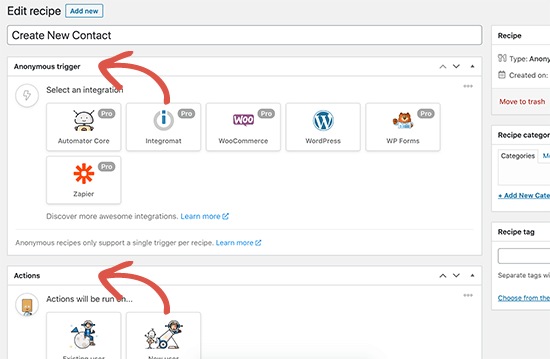
Actions and Triggers in Uncanny Automator

Triggers are the events that will start the recipe and run the processes you define. Actions are the tasks that you want to perform when the recipe runs.

First, you need to set the trigger part of the recipe by choosing an integration.

The Automator will detect any existing integrations that you may have installed on your site. As you can see in the screenshot, it automatically detected WooCommerce and WPForms.

Click on WPForms as your integration to continue.
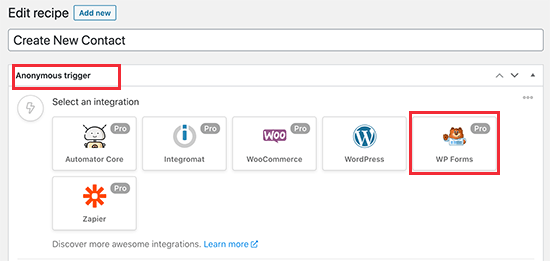
Choose the integration that triggers the recipe

Next, you will be asked to select the event that will trigger this recipe. Go ahead and choose when a form is submitted.
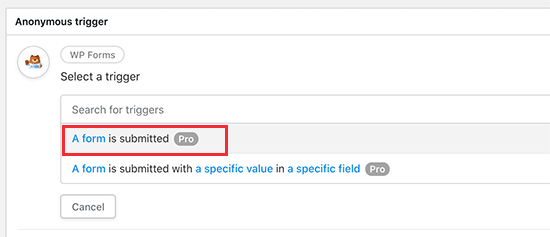
Choose trigger event

After that you will be asked to choose which form will trigger the action. You will see a dropdown list of all the forms you have created with WPForms.
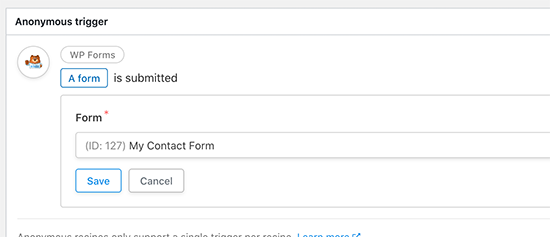
Choose your form

Simply choose your contact form and then click on the Save button.

The Automator will now save your trigger, and you can move on to the Actions section. Depending on your recipe type, you will see different options for anonymous and logged-in recipes.

Since we are creating an anonymous recipe, you will only see the options to perform this action on an Existing user or a New user.
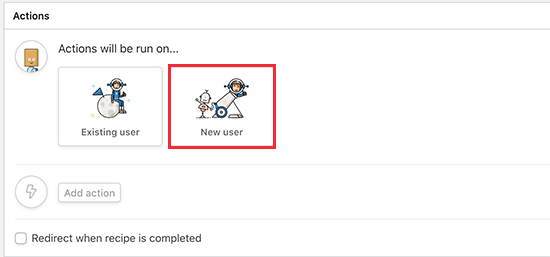
Perform action on a new user

Click on ‘New User’ to continue.

Automator will now ask you to set the user data that you want to use. You will see a form with the fields to create a new user in WordPress. You need to click on the ‘Asterisk’ sign next to each field and select your WPForms contact form.
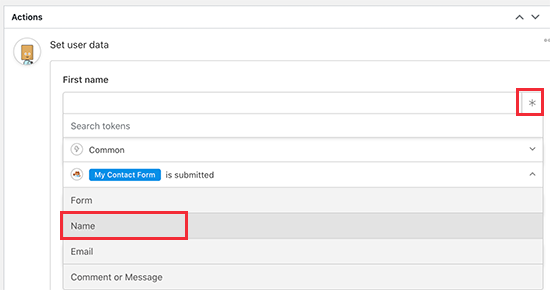
Select data from your form fields

The automaton will then show you the form fields that you can use here. For instance, we will use Name field for the first name, and email address field as the username and email address for the user account.
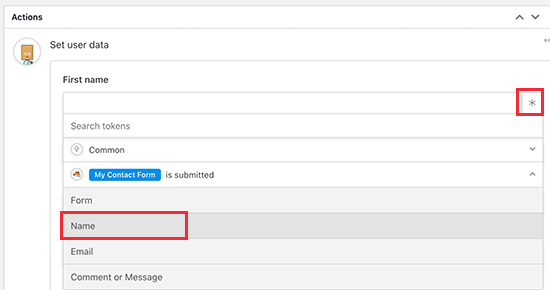
Set fields to use form data

Below that, you will see settings like user role and what to do if the user already exists. You can choose subscriber as the user role and ‘Do nothing’ for existing users.
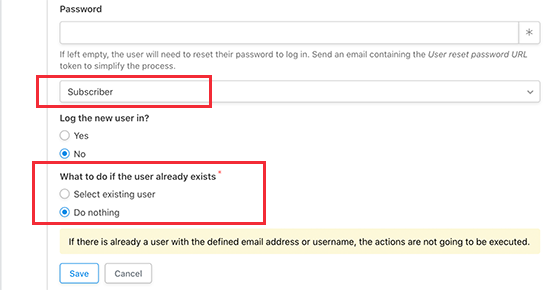
Data options

Click on the ‘Save’ button to continue.

After setting the data, you need to click on the ‘Add action’ button and choose an integration. In this case, it would be WordPress.
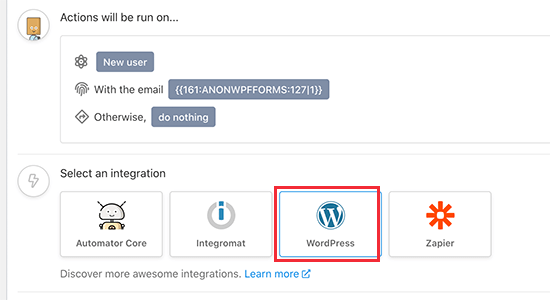
Choose action integration

Next, the Automator will show you a list of actions you can perform on this integration. Go ahead and select ‘Create a user’ from the dropdown menu.
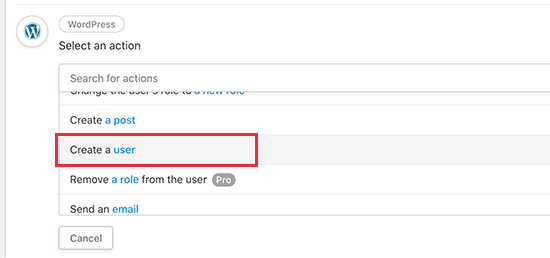
Select action you want to perform

Once again, you will be asked to pair the user account fields to the form data fields. Simply click on the asterisk icon and map your form fields.
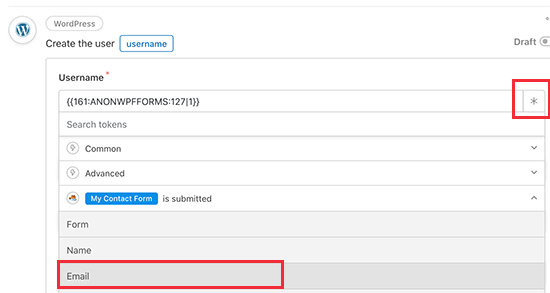
Map form fields

After matching your form fields click on the ‘Save’ button to store your action.

You can now go ahead and turn on this recipe by switching the Draft toggle under the ‘Recipe’ box.
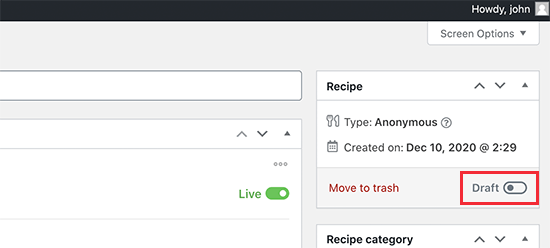
Publish your recipe

Don’t forget to test your workflow and make sure that the recipe is triggered and performs the tasks you set as actions.

Viewing Your Automation Logs in WordPress

Once you have created a few automated workflows on your website, you’ll want to keep an eye on all those automation tasks happening in the background.

Uncanny Automator keeps track of all the automation recipes, triggers, and actions performed by the plugin. You can view them by visiting Automator » Recipe Log page.
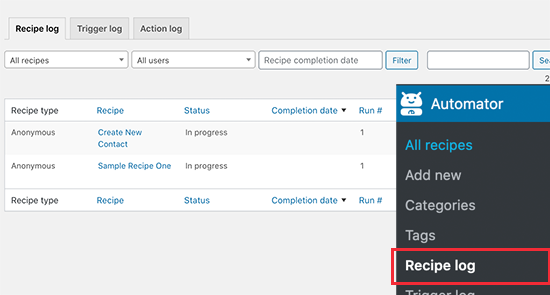
Recipe logs

In this tutorial, we just scratched the surface of how truly powerful Uncanny Automator plugin really is. You can use it to connect Elementor, WooCommerce, Formidable Forms, GiveWP, and dozens of other WordPress plugins to work together with smart workflows.

This is why earlier this year, we invested in Uncanny Automator through our WPBeginner growth fund. If you would like for us to add integrations with specific plugins, please leave the feedback on Uncanny Automator website.

We hope this article helped you create automated workflows in WordPress with Uncanny Automator. You may also want to see our comparison of the best drag & drop WordPress page builders to create custom layouts, and our step by step guide on how to create a business email address for your blog.

If you liked this article, then please subscribe to our YouTube Channel for WordPress video tutorials. You can also find us on Twitter and Facebook.

The post How to Create Automated Workflows in WordPress with Uncanny Automator appeared first on WPBeginner.


December 10, 2020 at 06:50PM
Wednesday, December 9, 2020

How to Create a Custom Facebook Feed in WordPress

Do you want to create a custom Facebook feed on your site?

Custom Facebook feeds allows you to display Facebook posts from your business page or group on your WordPress site, so you can improve engagement.

In this article, we’ll show you how to easily create a custom Facebook feed in WordPress without slowing down your website.

How to create a custom Facebook feed in WordPress

Why Create a Custom Facebook Feed in WordPress?

Facebook is the largest social media platform in the world. As a website owner, you may already be engaging with your audience through your Facebook page or by creating a Facebook group.

However, all the posts you make on Facebook are not visible to the people visiting your website. By adding a custom Facebook feed you can show what’s happening on your Facebook page or group to your site visitors.

This will allow more of your users to see your posts and will help you get more Facebook likes. If you are using the Facebook remarketing/retargeting pixel on your website, then you can show your ads to those users on Facebook as well.

Having said that, let’s take a look at how to add a custom Facebook feed to your WordPress site.

Since this is a comprehensive, we have created an easy table of content:

Adding a Custom Facebook Feed Plugin in WordPress

The first thing you need to do is install and activate the Smash Balloon Custom Facebook Feed plugin. For more details, see our step by step guide on how to install a WordPress plugin.

For our article, we’re using the Pro version of Smash Balloon Facebook feed plugin because it offers all the powerful features. There’s also a free version available that you can use as well.

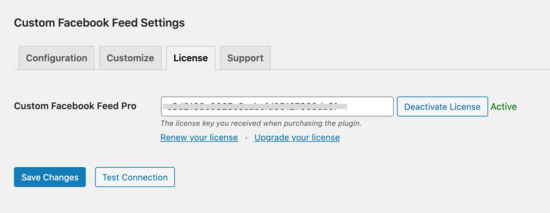
After installation, you’ll need to visit the Facebook Feed » Settings page in your WordPress admin and then go to the ‘License’ tab to enter your activation code.

Enter smash balloon activation key

Once you have activated your license key, you are good to go.

Let’s start by adding your Facebook page to your custom feed.

Connect Your Facebook Page Feed to WordPress

SmashBalloon Custom Facebook Feed plugin allows you to create feeds for your Facebook pages and groups. You can create multiple Facebook feeds and even merge feeds to create a custom feed.

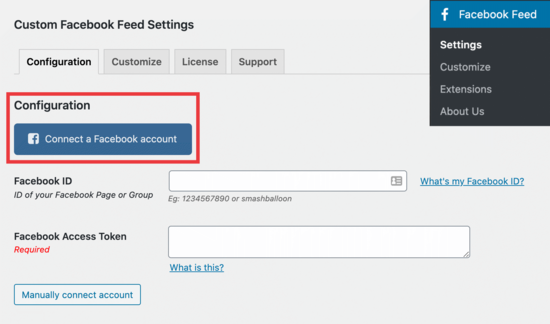
To create a feed, you need to visit your Facebook Feed » Settings page to configure the plugin. From here you need to click on the ‘Connect a Facebook account’ button.

Connect your Facebook account

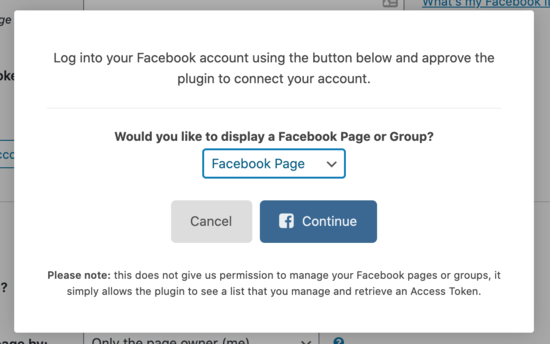
Next, you need to select whether you would like to connect a Facebook page or a group. After that click on the ‘Continue’ button.

Continue Facebook connection

This will take you to Facebook website where you will be asked to continue with your Facebook account.

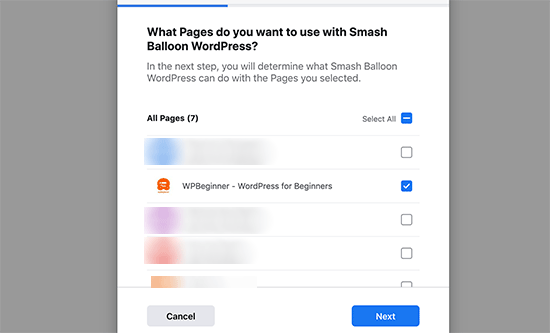
After that, you’ll see a list of your Facebook pages. Select the page that you want to include in your feed and then click Next.

Select your Facebook page

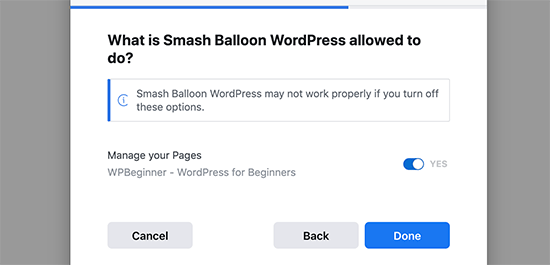
Now Facebook will ask your permission to allow Smash Balloon to manage pages for you. Click on Done to give permission.

Allow plugin to manage your Facebook pages

You will now return back to your WordPress website and see the list of pages you have authorized. Select your page and then click on the ‘Connect this page’ button.

Facebook connected in WordPress

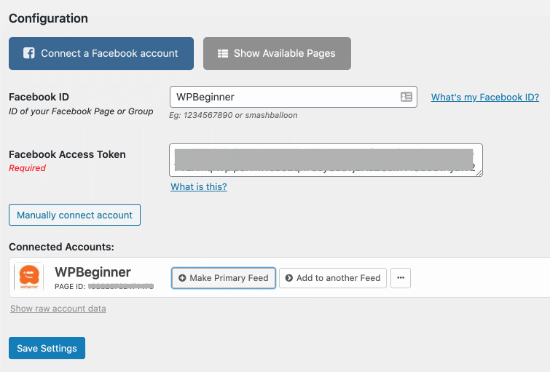
Your connected Facebook page will now appear under plugin settings.

Configured Facebook page

Don’t forget to click on the ‘Save Settings’ button to store your custom Facebook feed.

We’ll show you how to add it to your blog post or pages later in this article. Before that, let’s see how to connect a Facebook group to create a custom group feed for your website.

Connect Your Facebook Group Feed to WordPress

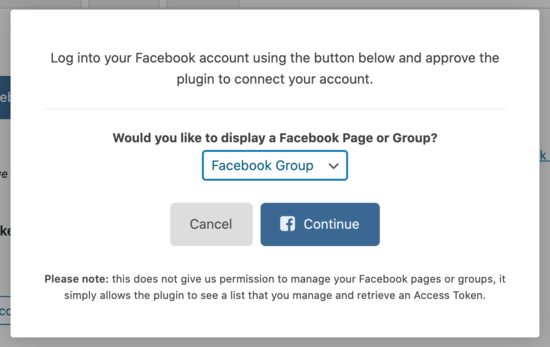
First, you need to visit the Facebook Feed » Settings page and click on the ‘Connect a Facebook Account’ button. From drop-down menu select ‘Facebook Group’ and click ‘Continue’.

Connect Facebook group

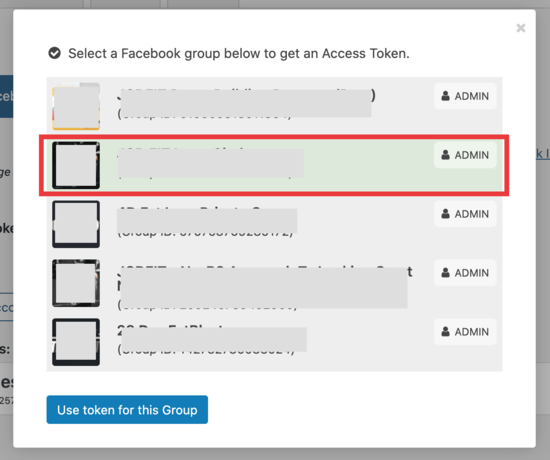
After you click on the ‘Continue’ button, you’ll be able to select which group you want to connect.

Connect your Facebook group

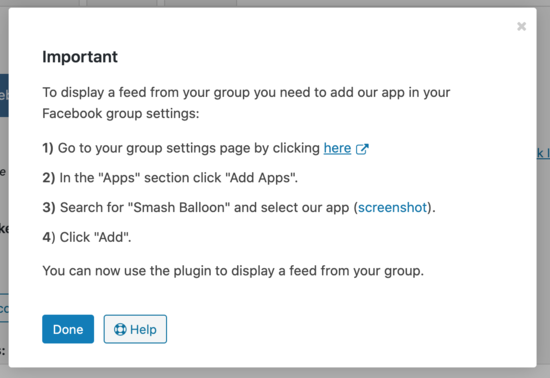
Click on the ‘Use token for this Group’ button and you’ll get the following message:

Connect Smash Balloon App

Follow step one above by clicking on the ‘here’ link and then go to the apps section on that page.

When you search for ‘Smash Balloon,’ here’s what you’ll see:

Find Smash Balloon App

Click that button to add the app, and you’re done.

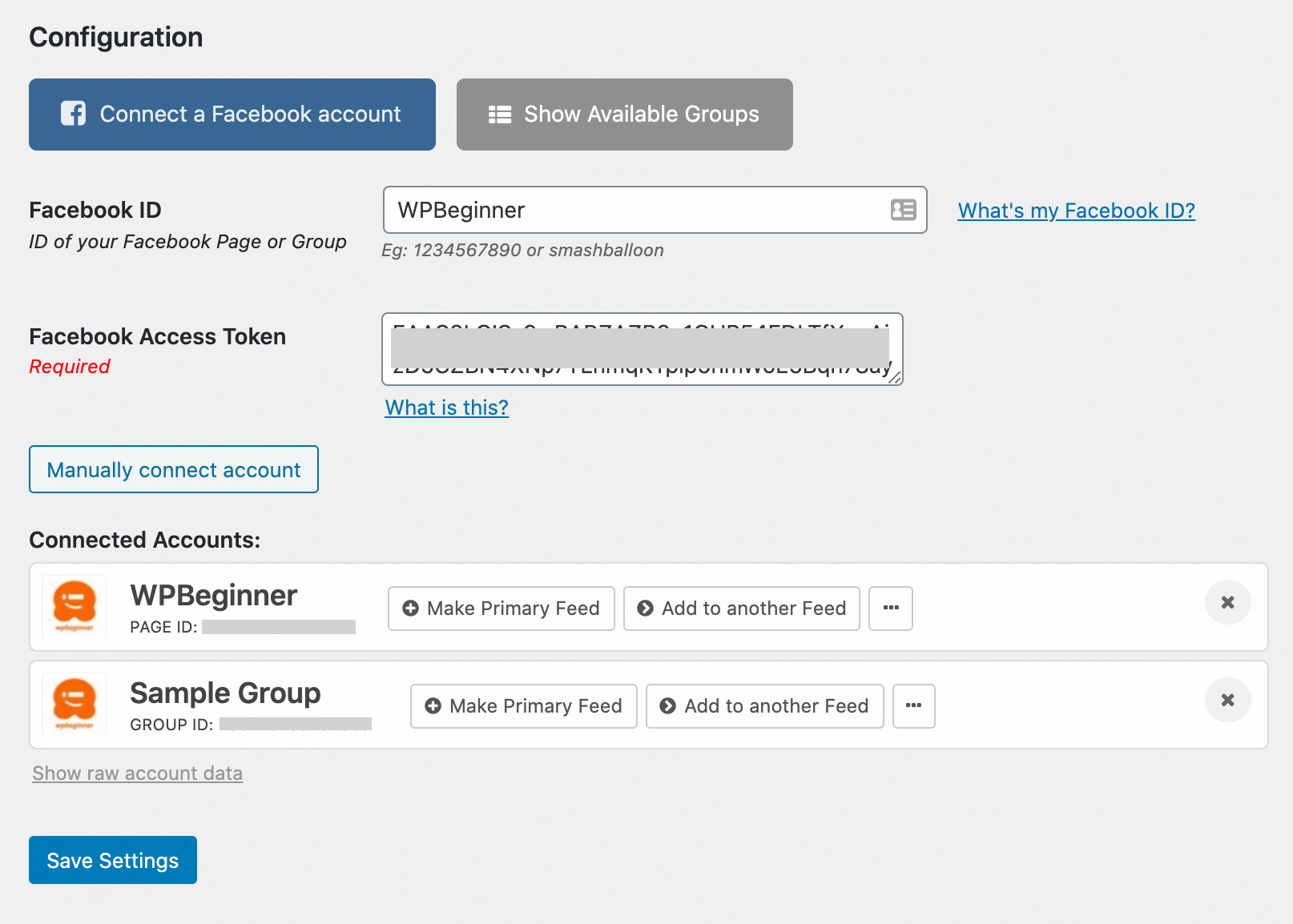
Now, in the configuration section, you’ll see your page and group connected.

Connect Facebook group

Click on ‘Save Settings.’

Now, it’s time to embed your Facebook feed on your WordPress website.

Create & Display a Custom Facebook Feed in WordPress

Smash Balloon allows you to display custom Facebook feeds in a post, page, or in a sidebar widget. For our example, we’ll embed it in a page.

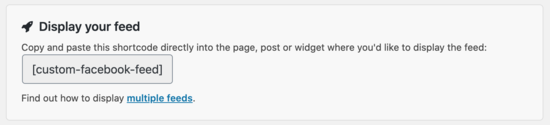
First, you need to go to your Facebook Feed » Settings page, and scroll down to see the Facebook feed shortcode:

Copy and paste Facebook feed shortcode

You need to copy the shortcode, and then open the WordPress content editor to create or edit a page where you want to embed the feed.

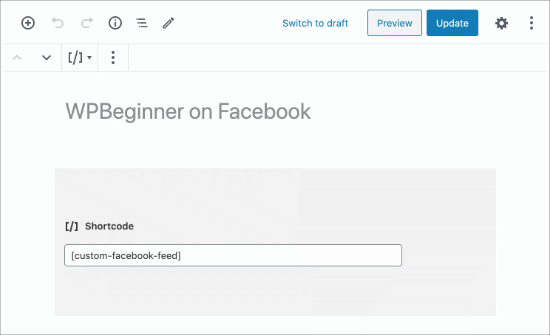
In the content editor, simply click the (+) icon to add a shortcode block, and then paste the shortcode in there:

[custom-facebook-feed]

Add shortcode to WordPress page

After that you can save your page and preview it. Smash Balloon will fetch and display the latest posts from your Facebook page or group on your WordPress page.

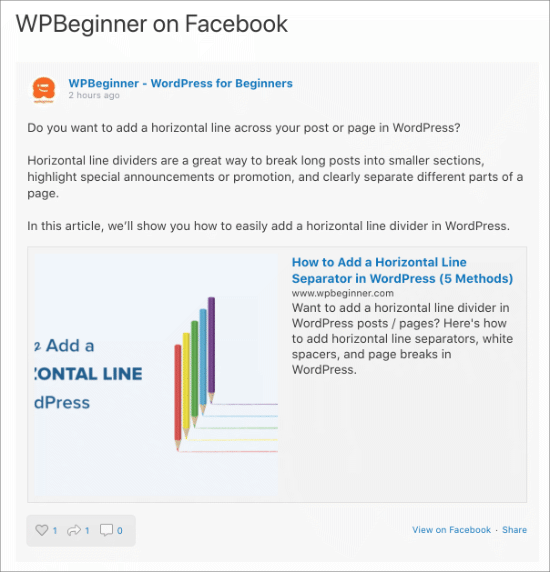
Facebook feed on WordPress page

Displaying Multiple Facebook Feeds

Let’s say you want to display more than one custom Facebook feed on your WordPress blog. The plugin’s settings only allow you to add one page or group ID.

However, you can easily use the shortcode to display any other custom Facebook feed you want.

Simply add the shortcode like this:

[custom-facebook-feed id=wpbeginner]

The plugin’s shortcode comes with a whole range of parameters. You can visit the plugin’s website to see the complete list of parameters that you can use.

Customize The Appearance of Your Facebook Feed

The plugin allows you to personalize the appearance of your custom Facebook feed on your website. You can visit the Facebook Feed » Customize page to edit the settings.

This section is divided into different tabs, giving you plenty of options to choose from.

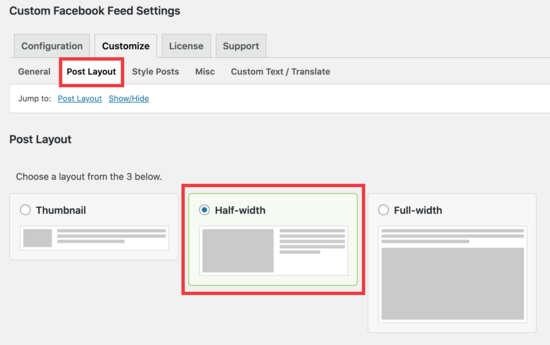
Click on the ‘Post Layout’ tab.

Post layout settings

We chose the ‘Half-width’ option, so the image and text will display evenly.

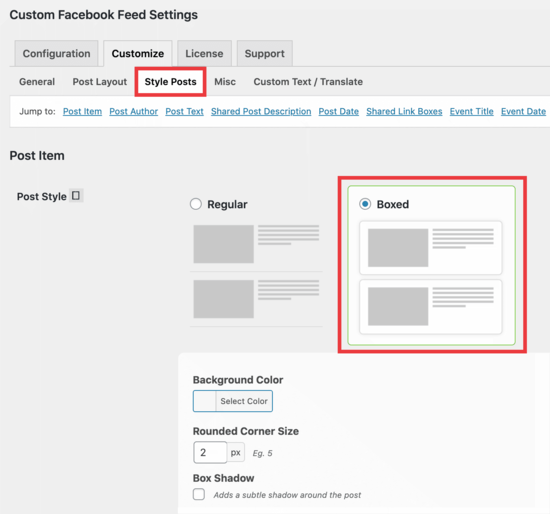
The next step is to select the ‘Style Posts’ tab to the right. Here, you can customize how the post looks, adding a background or box shadow for contrast.

Style posts screen

Once you are satisfied with the layout, don’t forget to click on the save changes button and preview your feed.

Combine Feeds to Create a Social Wall

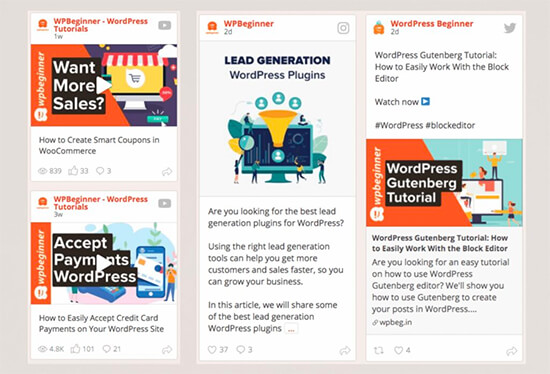
Want to take your social feeds even further? Smash Balloon comes with a WordPress Social Wall addon that allows you to combines your content from Facebook, Instagram, Twitter, and YouTube on a single feed.

Smash Balloon Social Wall

This allows you to maximize your engagement and gain followers across all social platforms.

We hope this article helped you add a custom Facebook feed in WordPress. You may also want to see our guide on how to add web push notification on your site to get more traffic, and our comparison of the best WordPress membership plugins to create & sell courses on your website.

If you liked this article, then please subscribe to our YouTube Channel for WordPress video tutorials. You can also find us on Twitter and Facebook.

The post How to Create a Custom Facebook Feed in WordPress appeared first on WPBeginner.


December 09, 2020 at 06:00PM

Tuesday, December 8, 2020

What’s New in WordPress 5.6 (Features and Screenshots)

WordPress 5.6 was released earlier today, and it is the last major release of 2020.

This new release is packed with a lot of improvements and new features. It also includes a brand new default WordPress theme.

In this article, we’ll share what’s new in WordPress 5.6, and which features you should try after updating your websites.

Take a look at what is new in the new WordPress 5.6

WordPress 5.6 is a major release, and unless you are on a managed WordPress hosting service, you’ll have to manually initiate the update.

Important: Don’t forget to create a complete WordPress backup before initiating the update.

With that said, here’s all that’s new in WordPress 5.6.

Twenty Twenty-One – The New Default WordPress Theme

WordPress traditionally releases a new default theme each year which is usually named after the year. WordPress 5.6 comes with Twenty Twenty-One as the new default WordPress theme.

This new theme provides a canvas for the WordPress block editor and the site editing features. It is designed to be simple, aesthetically pleasing, un-opinionated, and refreshing.

New default WordPress theme Twenty Twenty-One

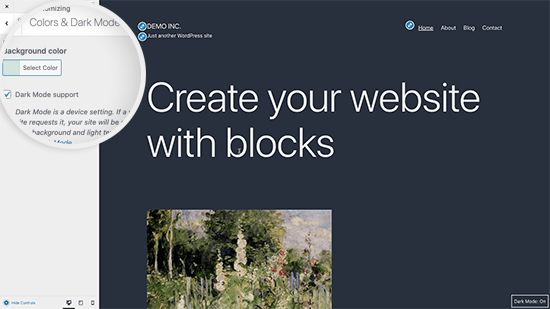
Twenty Twenty-One uses a pastel green background color, and two shades of dark grey for text. It also ships with colors for the dark mode which can be enabled by customizing the theme.

Twenty Twenty-One dark mode

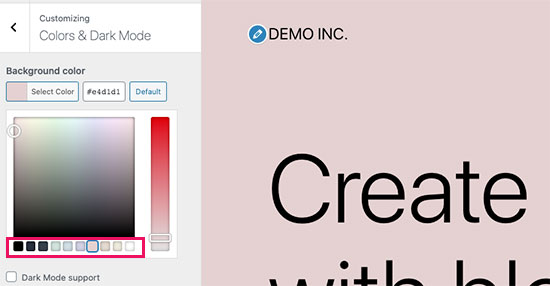
You can also change the background color by choosing from several pastel color schemes or choose your own colors. The theme will automatically adjust text color as well.

Choose a background color scheme

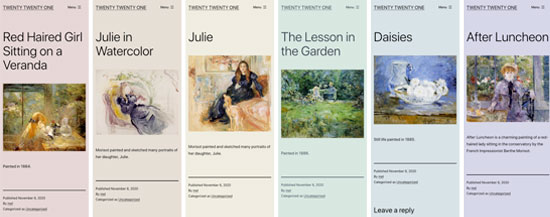
Here is a preview of what these built-in color combinations would look like.

 Pastel color schemes in Twenty Twenty-One

For typography, designers opted to go with the default system fonts. This means no extra font files to load and easy to build child themes that have their own typography and fonts.

If you are testing the theme with a fresh WordPress website, then you can try out the new homepage layout. Simply go to the Appearance » Customize page and click on the Publish button to generate basic website pages including a homepage.

This sample homepage gives you an idea of what you can do with the block editor. You can simply edit the page and replace it with your own content.

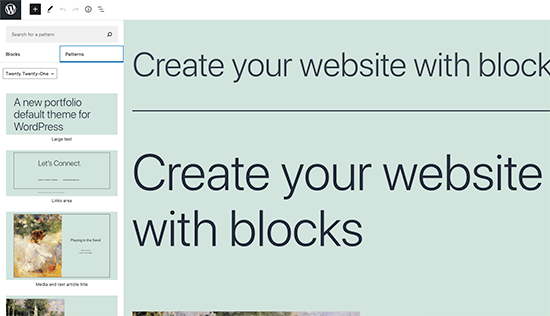
Earlier this year, WordPress 5.5 introduced patterns for the block editor. Twenty Twenty-One utilizes this feature by adding new block patterns that you can use in your posts and pages.

Twenty Twenty-One patterns

Overall this is a beautiful WordPress theme, that is easy to customize and can be used to make any type of website.

The Block Editor Improvements

The WordPress content editor is where users spend most of their time writing blog posts, creating pages, and making layouts. WordPress 5.6 brings several improvements to the block editor.

Here are some of the most noticeable changes to the block editor in WordPress 5.6.

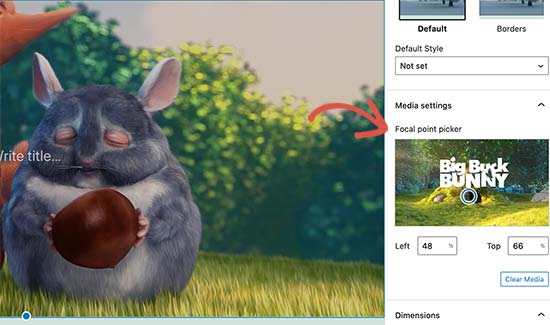
Video Position Control for The Cover Block

Previously cover block only showed position controls for images. With WordPress 5.6, the cover block now allows users to set video position inside the cover block.

Cover block with video focal point picker controls

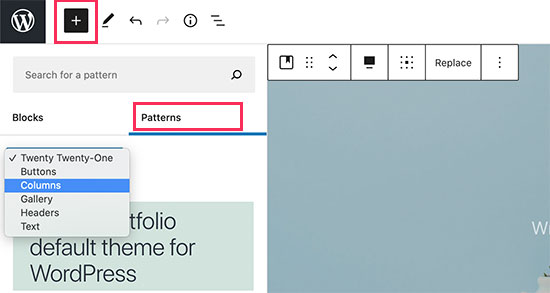
Patterns Organized in Categories

The patterns panel under the ‘Add new block’ column now has a category switcher. This makes it super easy for users to find and use a pattern they need. Users will also be able to see the patterns available with their theme and distinguish them from the default patterns.

Pattern categories in WordPress 5.6

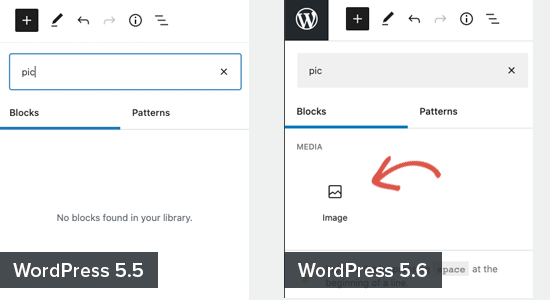
Keyword Variations to Improve Block Search

The block editor now allows developers to store keyword variations that may help users find a block. This would improve the block search feature and will allow users to discover blocks added by block libraries or third-party plugins.

Keyword variations make it easier to find common blocks

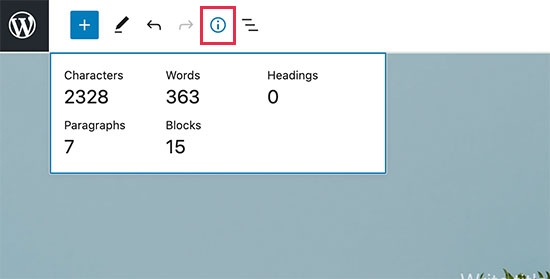
Characters in The Information Panel

The information panel will now show characters along with words, paragraphs, and blocks used in your content.

Information panel in WordPress 5.6

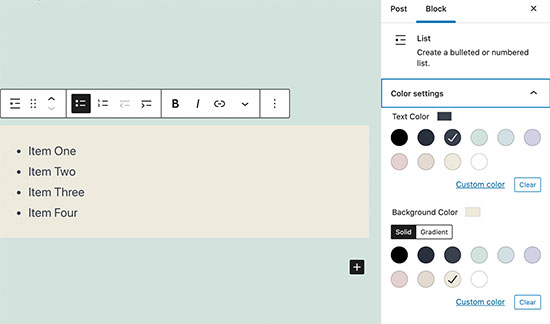
Color Support for The Lists Block

The lists block now has the option to choose text and background colors without adding the list into another block.

List block color settings

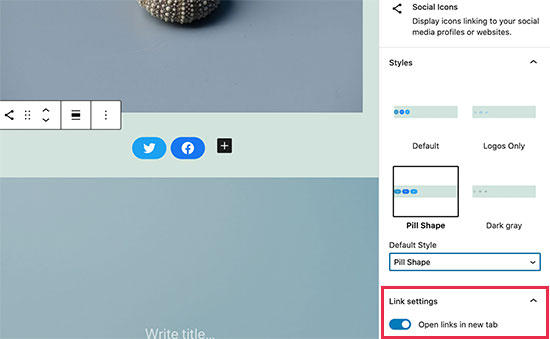
Social Icons Block

Social Icons block has two improvements. First, there is a new gray style for social icon buttons. Secondly, users can now choose to open all links in the block in a new window.

Social Icons block in WordPress 5.6

Bonus: want to add social share counts? Here’s how to add social share counts in WordPress.

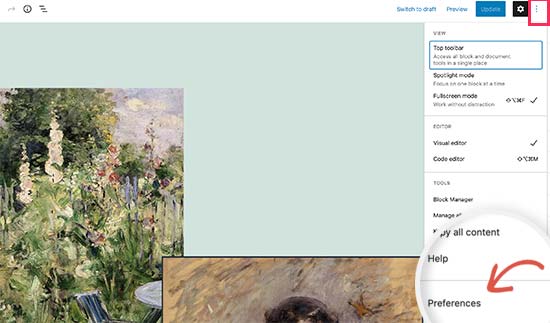
Editor Options are Now Called Preferences

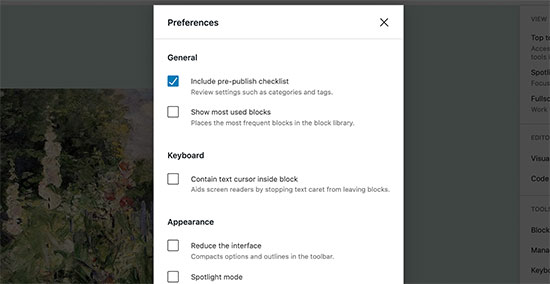
The default block editor has a settings panel where you can set up the editor to your own liking. In WordPress 5.6, this modal is now called ‘Preferences’ instead of ‘Options’.

Editor preferences setting

The modal itself now is more helpful with descriptions for different items. This would make it easier for beginners to decide which items they want to enable.

Editor preferences menu

Automatic Updates for Major WordPress Releases

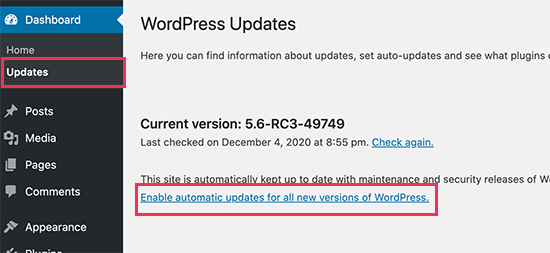
Earlier this year, WordPress 5.5 made it easier for users to turn on automatic updates for specific plugins. WordPress 5.6 extended this by adding the option to turn on automatic updates for major WordPress releases as well.

You can go to Dashboard » Updates page inside WordPress admin area and click on the ‘Enable automatic updates for all new versions of WordPress’ link.

Enable automatic updates for major WordPress releases

This is totally optional for you to decide whether you want to enable this feature or not. If you are using a managed WordPress hosting, then you don’t need to worry about that as they will automatically update WordPress for you.

Support for PHP 8

PHP 8 support in WordPress 5.6

WordPress is written mainly with the PHP programming language. Just like WordPress, PHP also releases new versions to improve performance, add features, and fix bugs.

They were expected to release PHP 8 on November 26 closer to the release of WordPress 5.6. The core team planned and worked hard to catch and fix any known compatibility issues with PHP 8.

This will ensure that users who upgrade to the latest PHP version will not face any major issues. However, theme and plugin developers may still need to test their own code for compatibility.

Application Passwords for REST API

The REST API in WordPress allows developers to communicate with a website outside the WordPress installation itself.

To keep it safe, WordPress used cookies and nonce keys to ensure that only legitimate users can access the API. For developers, these methods were not very efficient to work with.

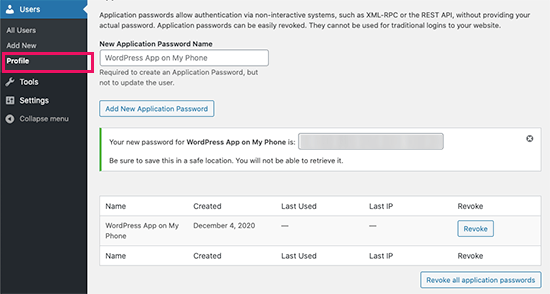
WordPress 5.6 will allow developers to use application passwords in WordPress. Just like popular platforms Facebook and Google, the users can now give apps access to their website and manage it from the Users » Profile page. Users can also revoke an app’s access at any time.

Application passwords in WordPress 5.6

Under The Hood Changes

WordPress 5.6 has arrived with tons of features and improvements targeted towards developers. The following are some of the most significant under the hood changes.

WordPress 5.6 continues the second phase of the three-step plan to upgrade the core jQuery bundled with WordPress. Theme and plugin developers relying on jQuery are already testing their code for any issues so it is not likely to affect large number of users. (See details)

The new 5.6 release also includes REST API Batch Framework for making a series of REST API calls in one request to the server. (See details)

A new action wp_after_insert_post is also available in WordPress 5.6. It allows theme and plugin developers to run custom code after a post and its terms and meta data have been updated. (See details)

WordPress 5.6 has replaced older-style PHP type conversion functions with type casts. (#42918)

WordPress 5.6 also introduced the ability to merge WP_Error objects into one another. This would allow developers to add more than one item of data to the WP_Error object. (#38777)

We hope this guide helped you explore what’s new in WordPress 5.6. We are particularly excited about the new default theme and the improvements made to the block editor.

What are you excited about? Let us know in the comments below.

If you liked this article, then please subscribe to our YouTube Channel for WordPress video tutorials. You can also find us on Twitter and Facebook.

The post What’s New in WordPress 5.6 (Features and Screenshots) appeared first on WPBeginner.


December 09, 2020 at 05:33AM