Thursday, January 14, 2021

What is an XML Sitemap? How to Create a Sitemap in WordPress?

Are you wondering what is an XML sitemap, and how to add it to your WordPress website?

An XML sitemap helps search engines easily navigate through your website content. It gives them a list of all your content in a machine-readable format.

In this article, we will explain what is an XML sitemap, and how to easily create a sitemap in WordPress.
What is an XML Sitemap and how to create one for your WordPress site

What is an XML Sitemap?

An XML sitemap is a file that lists all your website content in an XML format, so search engines like Google can easily discover and index your content.

Back in the early 2000s, government websites used to have a link on their main pages, titled “Sitemap”. This page usually contained a list of all the pages on that website.

While some websites still have HTML sitemaps today, the overall usage of sitemaps have evolved.

Today sitemaps are published in an XML format instead of HTML, and their target audience is search engines and not people.

Basically, an XML sitemap is a way for website owners to tell search engines about all the pages that exist on their website.

It also tells search engines which links on your website are more important than others, and how frequently you update your website.

While XML sitemaps will not boost your search engine rankings, they allow search engines to better crawl your website. This means they can find more content and start showing it in search results thus resulting in more search traffic, and improved SEO rankings.

Why You Need an XML Sitemap?

Sitemaps are extremely important from a search engine optimization (SEO) point of view.

Simply adding a sitemap does not affect search rankings. However, if there is a page on your site that is not indexed, then sitemap provides you a way to let search engines know about that page.

Sitemaps are extremely useful for when you first start a blog or create a new website because most new websites don’t have any backlinks. This makes it harder for search engines to discover all of their content.

This is why search engines like Google and Bing allow new website owners to submit a sitemap in their webmaster tools. This allows their search engine bots to easily discover and index your content (more on this later).

Sitemaps are equally as important for established popular websites as well. They allow you to highlight which part of your websites are more important, which parts are more frequently updated, etc, so search engines can visit and index your content accordingly.

That being said, let’s take a look at how to create XML sitemap in WordPress.

How to create a Sitemap in WordPress?

There are several ways to create an XML sitemap in WordPress. We will show you three popular methods to create an XML sitemap in WordPress, and you can choose one that works best for you.

Method 1. How to Create an XML Sitemap in WordPress without a Plugin

This method is very basic and limited in terms of features.

Until August 2020, WordPress didn’t have built-in sitemaps. However in WordPress 5.5, they released a basic XML sitemap feature.

This allows you to automatically create an XML sitemap in WordPress without using a plugin. You can simply add wp-sitemap.xml at the end of your domain name, and WordPress will show you the default XML sitemap.
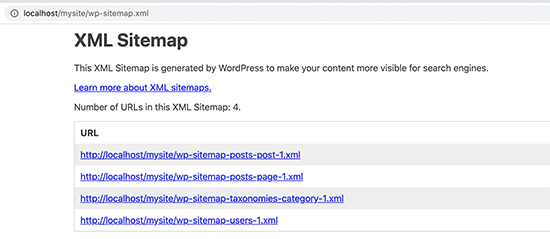
Default WordPress XML sitemap

This XML sitemap feature was added to WordPress to make sure that any new WordPress website does not miss out on the SEO benefits of an XML sitemap.

However, it is not very flexible, and you cannot easily control what to add or remove from your XML sitemaps.

Luckily, almost all top WordPress SEO plugins come with their own sitemap functionality. These sitemaps are better, and you can control which content to remove or exclude from your WordPress XML sitemaps.

Method 2. Creating an XML Sitemap in WordPress using All in One SEO

The easiest way to create an XML sitemap in WordPress is by using the All in One SEO plugin for WordPress.

It is the best WordPress SEO plugin on the market offering you a comprehensive set of tools to optimize your blog posts for SEO.

First, you need to install and activate the All in One SEO plugin. For more details, see our step by step guide on how to install a WordPress plugin.

Note: Sitemap feature is also available in AIOSEO Free version. However to get advanced news sitemap and video sitemaps, you’ll need the Pro version.

Upon activation, go to the All in One SEO » Sitemaps page to review sitemap settings.
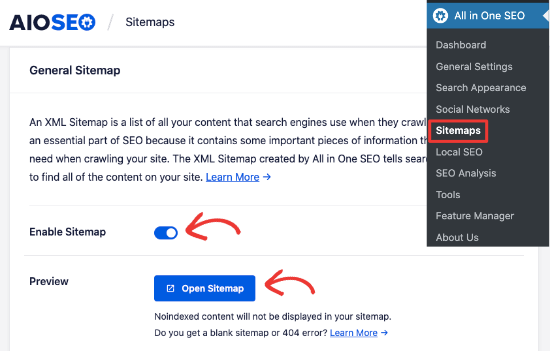
Enable sitemap in All in One SEO

By default, All in One SEO will enable the Sitemap feature for you and replace the basic WordPress sitemaps.

You can click on the ‘Open Sitemap’ button to preview it to see what it looks like. You can also view your sitemap by adding ‘sitemap.xml’ to the URL such as https://ift.tt/XxxkvM.
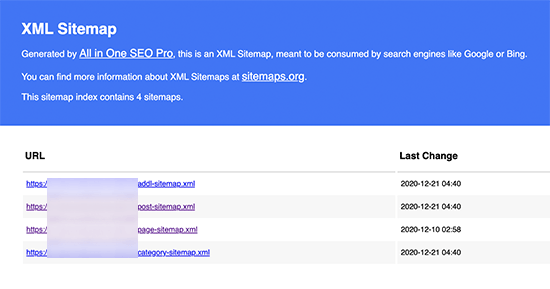
All in One SEO XML sitemap preview

As a beginner, you don’t need to do anything as the default settings would work for all kinds of websites, blogs, and online stores.

However, you can customize the sitemap settings to control what you want to include in your XML sitemap.

Simply scroll down to the Sitemap settings section.
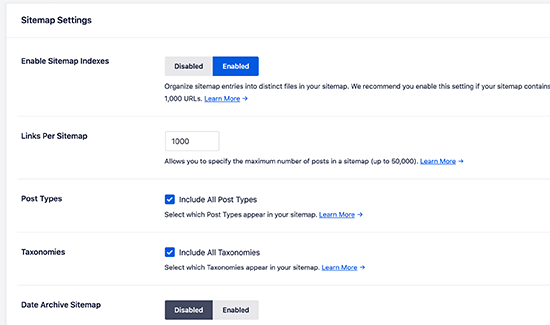
AIOSEO Sitemap settings

This section gives you options to manage sitemap indexes, include or exclude post types, taxonomies (categories and tags). You can also enable XML sitemaps for date-based archives and author archives.

All in One SEO automatically includes all your WordPress content in XML sitemaps. However, what if you have stand-alone pages like a contact form, a landing page, or Shopify store pages that are not part of WordPress?

Well, AIOSEO is the only plugin that lets you add external pages in your WordPress sitemap. Simply scroll to the Additional Pages section and turn it on. This will show you a form where you can add any custom pages that you want to include.
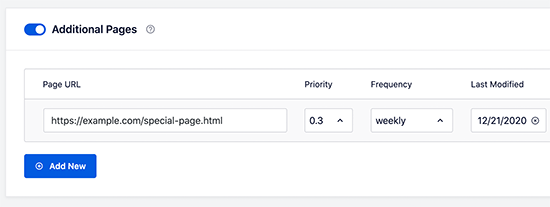
Adding additional pages to your WordPress XML sitemap

You simply need to add the URL of the page that you want to include and then set a priority where 0.0 is the lowest and 1.0 is the highest, if you are unsure then we recommend using 0.3.

Next, choose the frequency of updates and the last modified date for the page.

You can click on the ‘Add New’ button if you need to add more pages.

Don’t forget to click on the ‘Save Changes’ button to store your settings.

Excluding Specific Posts / Pages from your XML Sitemap

All in One SEO allows you to exclude any post or page from your XML Sitemaps. You can do this by clicking on the Advanced Settings section under the All in One SEO » Sitemaps page.
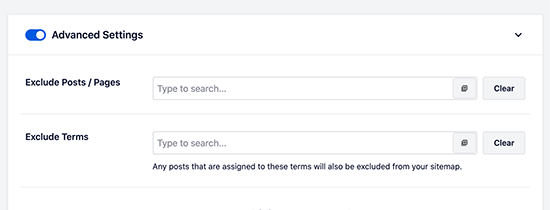
Excluding items from your WordPress XML sitemap

You can also remove a post or page from your XML sitemaps by making it no-index and no-follow. This will block search engines from showing that content in search results.

Simply edit the post or page that you want to exclude and scroll down to the AIOSEO Settings box below the editor.
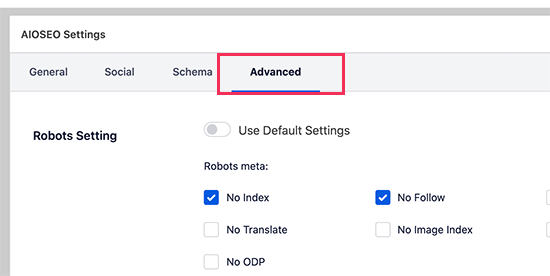
Removing a post or page from XML sitemap using robots.txt

From here you need to switch to the Advanced tab and check the boxes next to ‘No Index’ and ‘No Follow’ options.

Creating Additional Sitemaps

All in One SEO allows you to create additional sitemaps like a video sitemap or a news sitemap.

You can create a video sitemap if you regularly embed videos in your blog posts or pages. It allows search engines to display posts in search and video search results along with a video thumbnail.

Video search results showing video thumbnail

You can also create a News sitemap if you run a news website and want to appear in Google News search results.

Simply go to All in One SEO » Sitemaps and switch to the Video Sitemap or News Sitemap tabs to generate these sitemaps.
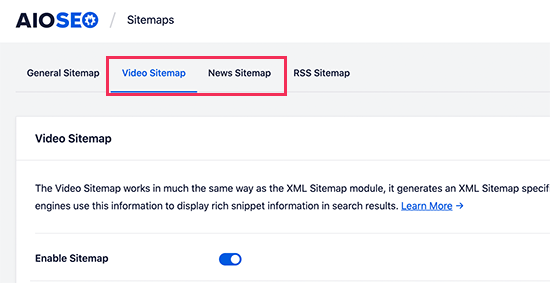
Generating video and news sitemaps in All in One SEO

Overall, AIOSEO is the best WordPress plugin because it gives you all the flexibility and powerful features at a very affordable price.

Method 3. Creating an XML Sitemap in WordPress using Yoast SEO

If you are using Yoast SEO as your WordPress SEO plugin, then it also automatically turns on XML sitemaps for you.

First, you need to install and activate the Yoast SEO plugin. For more details, see our step by step guide on how to install a WordPress plugin.

Upon activation, go to SEO » General page and switch to the ‘Features’ tab. From here, you need to scroll down to the ‘XML Sitemap’ option and make sure that it is turned on.
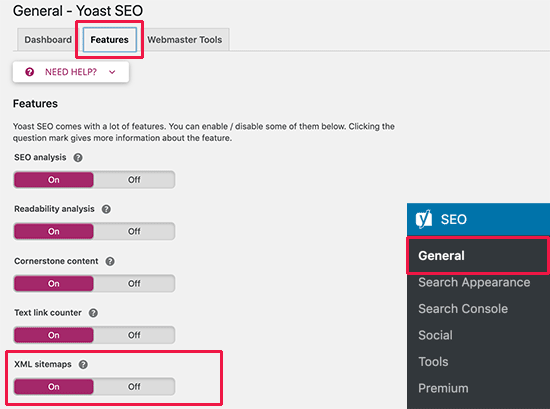
Yoast SEO XML Sitemap option

Next, click on the save changes button to store your changes.

To verify that Yoast SEO has created an XML Sitemap, you can click on the question mark icon next to the XML Sitemap option on the page.
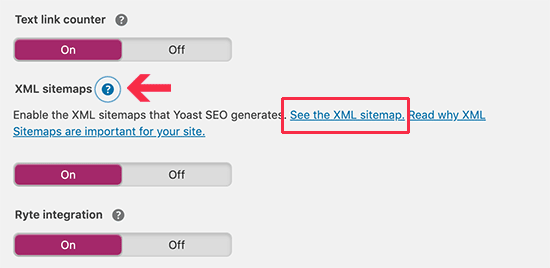
View XML Sitemap created by Yoast SEO plugin

After that, click on the ‘See the XML Sitemap’ link to view your live XML sitemap generated by Yoast SEO.

You can also find your XML sitemap by simply adding sitemap_index.xml at the end of your website address. For example:

https://www.example.com/sitemap_index.xml
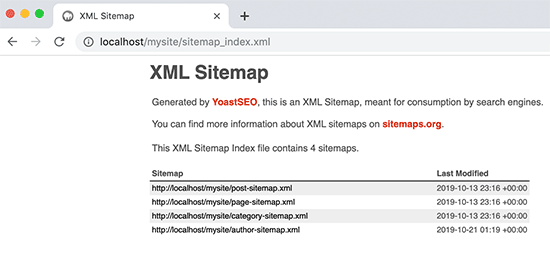
Yoast SEO sitemap

Yoast SEO creates multiple sitemaps for different types of content. By default, it will generate sitemaps for posts, pages, author, and categories.

How to Submit Your XML Sitemap to Search Engines

Search engines are quite smart in finding a sitemap. Whenever you publish new content, a ping is sent to Google and Bing to inform them about changes in your sitemap.

However, we recommend that you submit the sitemap manually to ensure that search engines can find it.

Submitting Your XML Sitemap to Google

Google Search Console is a free tool offered by Google to help website owners monitor and maintain their site’s presence in Google search results.

Adding your sitemap to Google Search Console helps it quickly discover your content even if your website is brand new.

First, you need to visit the Google Search Console website and sign up for an account.

After that, you will be asked to select a property type. You can choose a domain or a URL prefix. We recommend choosing URL prefix as it is easier to setup.
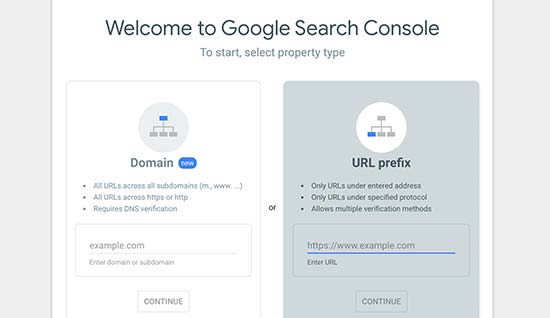
Select property type

Enter your website’s URL and then click on the continue button.

Next, you will be asked to verify ownership of the website. You will see multiple methods to do that, we recommend using the HTML tag method.
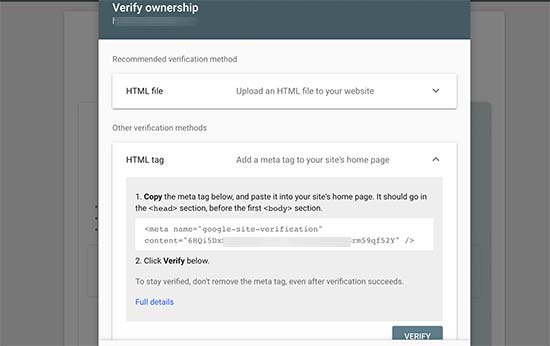
Google Search Console verify site ownership

Simply copy the code on the screen and then go to the admin area of your WordPress website.

If you’re using AIOSEO, then it comes with easy webmaster tools verification. Simply go to All in One SEO » General Settings and then click the Webmaster Tools tab. After that, you can enter the code from Google there.
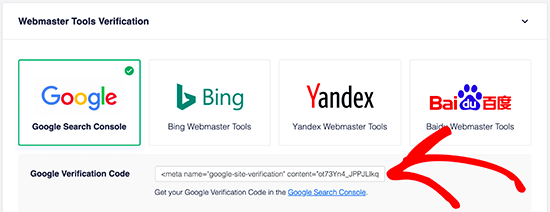
AIOSEO Site Verification

If you’re not using AIOSEO, then you need to install and activate the Insert Headers and Footers plugin. For more details, see our step by step guide on how to install a WordPress plugin.

Upon activation, you need to visit Settings » Insert Headers and Footers page and add the code you copied earlier in the ‘Scripts in Header’ box.
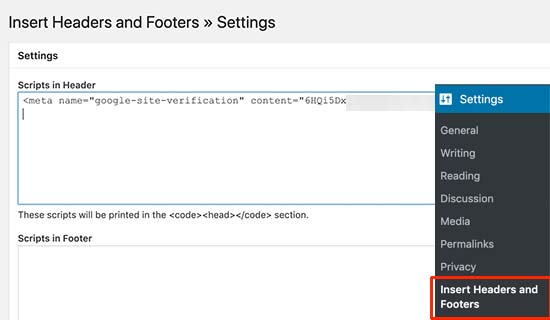
Add your verification code in the header section

Don’t forget to click on the save button to store your changes.

Now, switch back to the Google Search Console tab and click on the ‘Verify’ button.

Google will check for verification code on your site and then add it to your Google Search Console account.

Note: If the verification is unsuccessful, then please make sure to clear your cache and then try again.

Now that you have added your website, let’s add your XML sitemap as well.

From your account dashboard, you need to click on ‘Sitemaps’ from the left column.
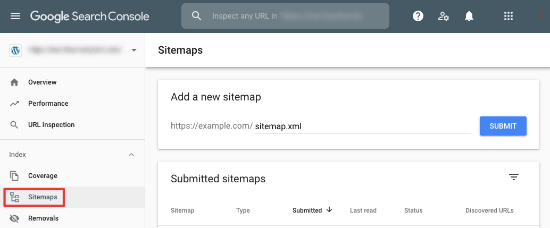
Add sitemap to Google Search Console

After that, you need to add the last part of your sitemap URL under the ‘Add new sitemap’ section and click the Submit button.

Google will now add your sitemap URL to your Google Search Console.

It will take Google some time to crawl your website. After a while, you would be able to see basic sitemap stats.

This information includes the number of links Google found in your sitemap, how many of them got indexed, a ratio of images to web pages, and more.
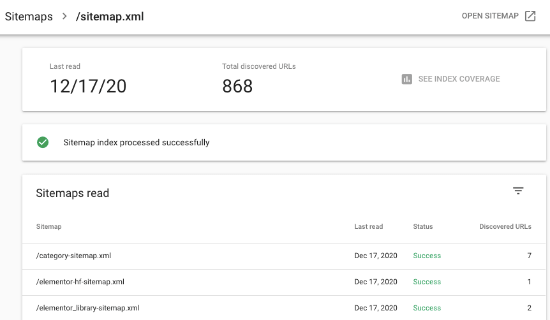
Sitemap stats in Google Search Console

Submitting Your XML Sitemap to Bing

Similar to Google Search Console, Bing also offers Bing Webmaster Tools to help website owners monitor their website in the Bing search engine.

To add your sitemap to Bing, you need to visit the Bing Webmaster Tools website. Here, you’ll see two options to add your site. You can either import your site from Google Search Console or add it manually.
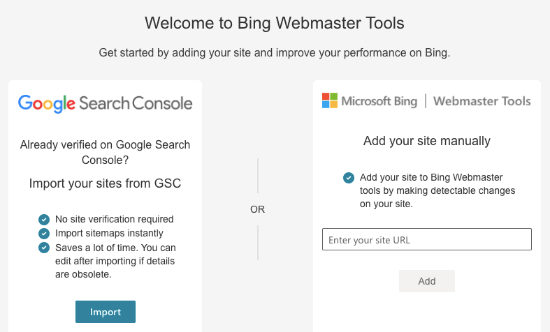
Create account in Bing Webmaster Tools

If you’ve already added your site to Google Search Console, we suggest importing your site. It saves time as your sitemap will automatically be imported for you.

If you choose to add your site manually, you need to enter your site’s URL and then verify the site.

Bing will now ask you to verify the ownership of your website and will show you several methods to do that.

We recommend using the Meta tag method. Simply copy the meta tag line from the page and head over to your WordPress admin area.
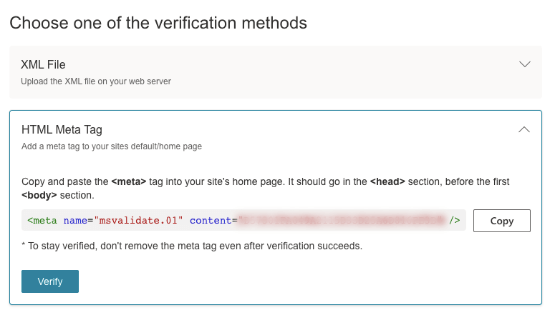
Copy meta tag to verify site in Bing Webmasters Tool

Now, install and activate the Insert Headers and Footers plugin on your website.

Upon activation, you need to visit Settings » Insert Headers and Footers page and add the code you copied earlier in the ‘Scripts in header’ box.
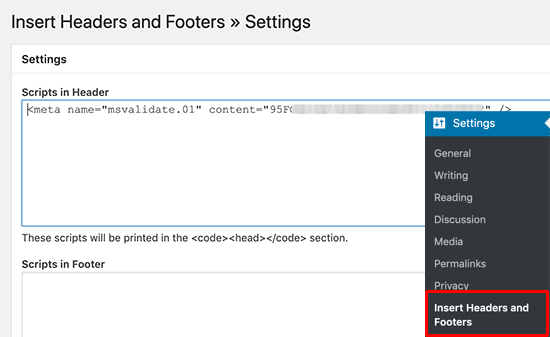
Add Bing verification code

Don’t forget to click on the Save button to store your changes.

How to Utilize XML Sitemaps to Grow Your Website?

Now that you have submitted the XML sitemap to Google, let’s take a look at how to utilize it for your website.

First, you need to keep in mind that the XML sitemap does not improve your search rankings. However, it does help search engines find content, adjust crawl rate, and improve your website’s visibility in search engines.

You need to keep an eye on your sitemap stats in Google Search Console. It can show you crawl errors and the pages excluded from search coverage.
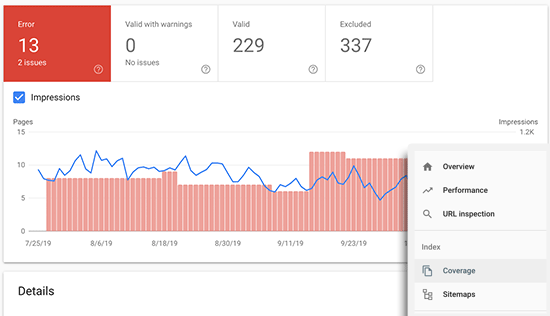
Sitemap coverage

Below the charts, you can click on the tables to view actual URLs excluded or not indexed by Google.
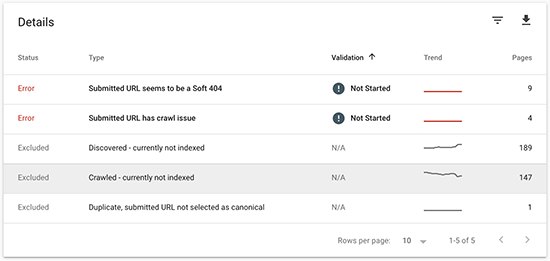
Sitemap URLs reports

Normally, Google may decide to skip duplicate content, pages with no content or very little content, and pages excluded by your website’s robots.txt file or meta tags.

However, if you have an unusually high number of excluded pages, then you may want to check your SEO plugin settings to make sure that you are not blocking any content.

For more details, see our complete Google Search Console guide for beginners.

We hope this article helped answer all your questions about XML sitemaps and how to create an XML sitemap for your WordPress site. You may also want to see our guide on how to quickly increase your website traffic with step by step tips, and our comparison of the best keyword research tools to write better content.

If you liked this article, then please subscribe to our YouTube Channel for WordPress video tutorials. You can also find us on Twitter and Facebook.

The post What is an XML Sitemap? How to Create a Sitemap in WordPress? appeared first on WPBeginner.


January 14, 2021 at 04:45PM

Wednesday, January 13, 2021

How to Track User Journey on WordPress Lead Forms

Do you want to track user journey on WordPress lead forms?

Tracking user journey allows you to see exactly which pages your visitors view before they fill out a form on your website. This information can help you capture more leads and grow your business.

In this article, we’ll show you how to easily track user journey on your WordPress contact form and lead forms.

Tracking user journey on WordPress lead forms

Why Track User Journey for Your WordPress Forms?

Ever wondered why some users fill out forms on your website and some don’t? Well, the answer often lies in how users interact with your website.

Wouldn’t it be nice if you can see the steps users take on your website before they actually fill out a form?

This information is called user journey and by tracking it you can learn a lot about user behavior and activity on your website.

Once you find out what compels users to fill out forms on your website, then you can replicate it to generate more leads and grow your business.

How to track user journey for your WordPress forms?

If you are already tracking conversions in WordPress using Google Analytics, then you can get some insights into user activity before filling out a form on your website.

However, you’ll not be able to match it to the actual user who submitted the form and the data they submitted.

This is where WPForms comes in.

It is the best WordPress form builder plugin on the market that’s used by over 4 million websites. You can use it to create any kind of forms in WordPress.

WPForms seamlessly integrates with all top email marketing services, supports multiple payment gateways, and is super easy to use.

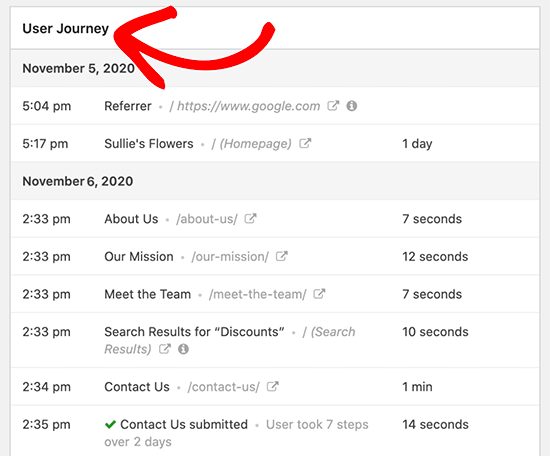
It also comes with a User Journey addon, which allows you to see where your users came from and what path they took that led them to a successful form submission.

User journey steps

You can also see how much time they spent on each page before filling out the form.

That being said, let’s take a look at how to easily track user journey for WordPress forms.

Tracking User Journey for WordPress Lead Forms

First thing you need to do is install and activate the WPForms plugin. For more details, see our step by step guide on how to install a WordPress plugin.

Note: You’ll need at least the PRO plan of the plugin to access the User Journey addon.

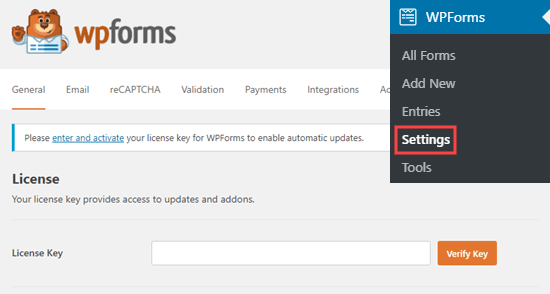
Upon activation, you need to visit the Settings » License page to enter your license key. You can find this information under your account on the WPForms website.

Entering your WPForms license key on your site

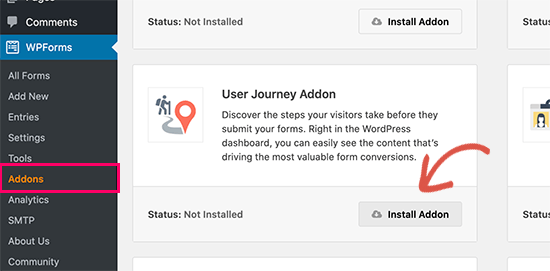
Next, you need to visit WPForms » Addons page and click on the ‘Install Addon’ button under the ‘User Journey Addon’.

Install user journey addon in WordPress

After that, you can start creating your forms. WPForms makes it super easy to create any kind of form. You can create a simple contact form, an email sign up form, user registration and login forms, booking forms, and more.

For the sake of this tutorial, we will create a contact form.

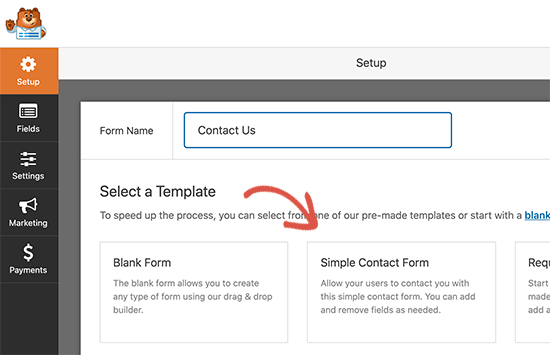
Simply go to WPForms » Add New page to create your form. You’ll be asked to provide a title for your form and then select a template.

Create new contact form

We’ll use the simple contact form template.

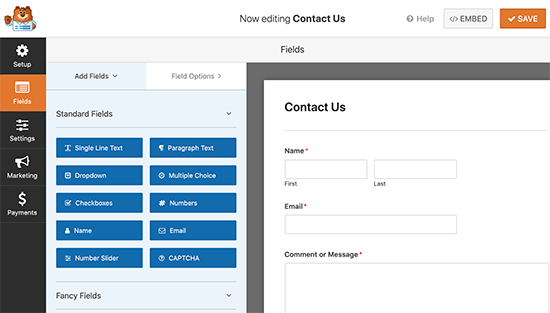
WPForms will now load their drag and drop form builder with typical contact form fields already created for you.

Edit contact form

You can add new form fields from the left column, edit or remove existing fields, or rearrange fields by moving them up or down.

Once you are satisfied with your form, you can click on the ‘Save’ button to store your form and exit the form builder.

You can now add this form to any WordPress post or page. Simply edit the page where you want to display the form.

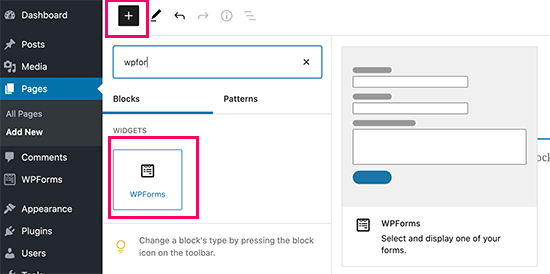
On the post edit screen, you need to click on the add new block button (+) and then add WPForms block to your content area.

WPForms block

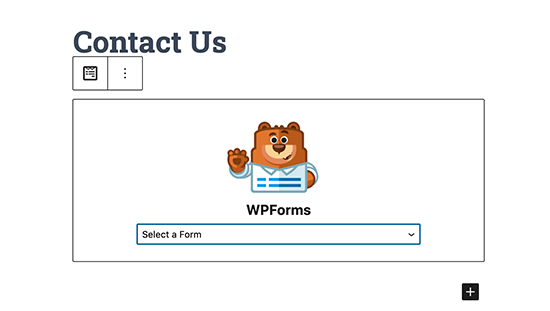
In the WPForms block settings, you need to click on the drop-down menu to select the form you created earlier.

Select your form

WPForms will display a preview of your form in the content area.

You can now save your post or page and preview it to see your form in action.

Viewing User Joruney Reports for Your Forms in WordPress

After a few users have submitted the form, you can view the user journey reports for all form entries.

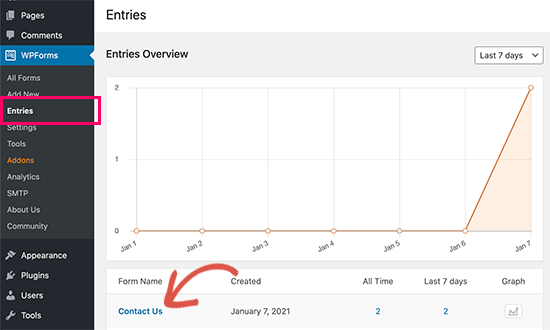
Simply go to the WPForms » Entries page and click on the form you created earlier.

Select the form you want to view

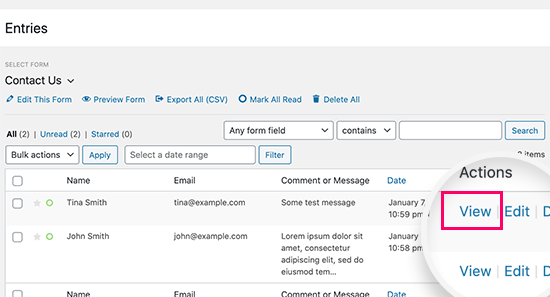
You’ll see a list of form entries submitted by users. Simply click on the ‘View’ link next to a form entry to see full details.

Viewing form entries

On the entry details page, you will see the form fields submitted by the user at the top. Below that, you’ll see the ‘User Journey’ section.

User journey steps

It will show you the referral source that sent the user to your website. Below that, you’ll see the path they took with all the pages visited leading up to the form submission.

It also shows how much time users spent on each step of their journey. This helps you understand which content they found more engaging or helpful.

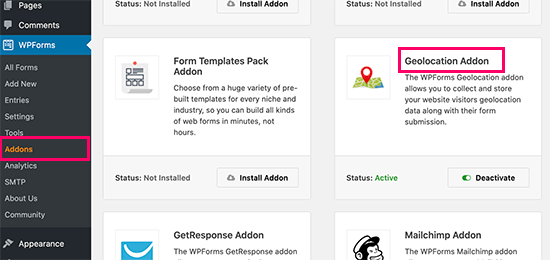
If you also want to track the user’s geographic region, then you can go to WPForms » Addons page and install the Geo Location Addon.

Geo Location Addon in WPForms

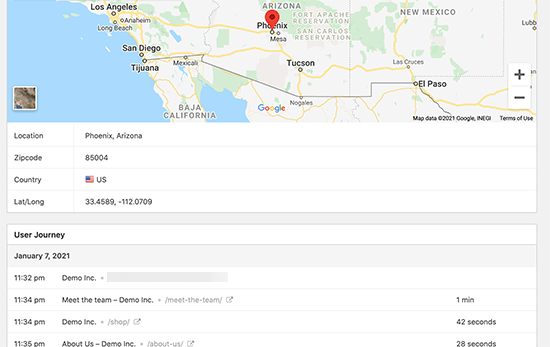
This would allow you to view the user’s geographic location along with the rest of user journey data.

Geo location tracking for form submissions in WordPress

Making Use of User Journey Data to Capture More Leads

Now that you can track user journey for your lead forms in WordPress, the next step is to use this data to capture more leads and grow your business.

Luckily, there are lots of tools you can use to nudge users into right direction.

1. OptinMonster

OptinMonster

OptinMonster is the best lead generation and conversion optimization software on the market. It helps you capture more leads without affecting user experience on your website.

It comes with smart lightbox popups, mobile popups, slide-in scroll boxes, countdown timers, floating banners, and more. You can also use powerful display rule features to dynamically show personalized content to users at the precise time.

All these tools help you improve the user journey and create an effective path for higher form conversion rates.

2. SeedProd

SeedProd

SeedProd is the best WordPress landing page builder on the market. It allows you to quickly create landing pages for your WordPress lead forms, sale campaigns, advertising campaigns, and more.

You don’t need any design skills to create those pages. You can pick from dozens of beautiful templates and then use a simple drag and drop tool to make it your own.

Most importantly, all of these templates are designed to improve user journey, generate more leads, and boost conversion rates.

3. All in One SEO for WordPress

AIOSEO

All in One SEO for WordPress is the best WordPress SEO plugin on the market. It allows you to easily optimize your WordPress website to get more free traffic from search engines like Google.

All in One SEO comes with powerful SEO tools that just work out of the box. You don’t even need to be an SEO expert to use it.

It includes local SEO, rich schema, eCommerce support. advanced XML sitemaps, SEO health check, and more. These tools make sure that users can easily find your website in search results.

You can use AIOSEO to further optimize your popular pages to boost your organic traffic and leads.

We hope this article helped you learn how to easily track user journey in WordPress lead forms. You may also want to see our ultimate guide on conversion tracking in WordPress for more practical tips to boost conversions

If you liked this article, then please subscribe to our YouTube Channel for WordPress video tutorials. You can also find us on Twitter and Facebook.

The post How to Track User Journey on WordPress Lead Forms appeared first on WPBeginner.


January 13, 2021 at 06:00PM
Tuesday, January 12, 2021

How to Create a Custom Page in WordPress

Do you want to create a custom page in WordPress?

A custom page lets you use a different layout from your regular pages in WordPress. Many WordPress sites have custom page layouts for their sales pages, landing pages, webinar pages, and more.

In this article, we will show you how to easily create a custom page in WordPress, step by step.

How to create a custom page template in WordPress

Understanding Custom Pages in WordPress

By default WordPress allows you to create posts and pages.

Your WordPress theme controls the appearance of your pages using a template file called page.php.

This template file affects all single pages that you create in WordPress.

However, as you already know that not all pages are the same. For instance, you may want to create a landing page that looks quite different from your regular website pages.

In the past, creating a custom page in WordPress meant coding your own custom template using HTML, CSS, and PHP. We will cover that method, but we do not recommend it for beginners.

Instead, we suggest using SeedProd or another page builder plugin to create your custom page. Simply use these quick links to jump straight to the different methods.

Using SeedProd to Create a Custom Page in WordPress

SeedProd is the best drag and drop page builder for WordPress. It comes with 100+ professionally designed templates that you can use as the basis for your page.

Alternatively, you can create a completely custom WordPress page without writing any code using their drag & drop builder.

SeedProd is designed to be easy to use, even for total beginners. However, it also has advanced options that let you build visually stunning pages to engage your visitors and increase conversions.

First, you need to install and activate the SeedProd plugin. For more details, see our step by step guide on how to install a WordPress plugin.

Note: there’s a free version of SeedProd plugin available as well. However for our example, we’ll be using the Pro version since it has many powerful features.

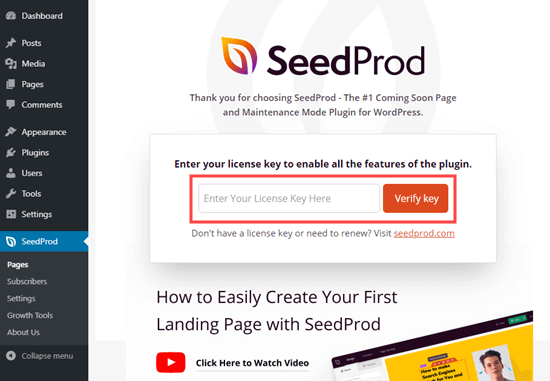
Upon activation, you should see the welcome page. You need to enter your license key here and click the ‘Verify key’ button. You will find your license key in your account area on the SeedProd website.

Entering your license key for SeedProd

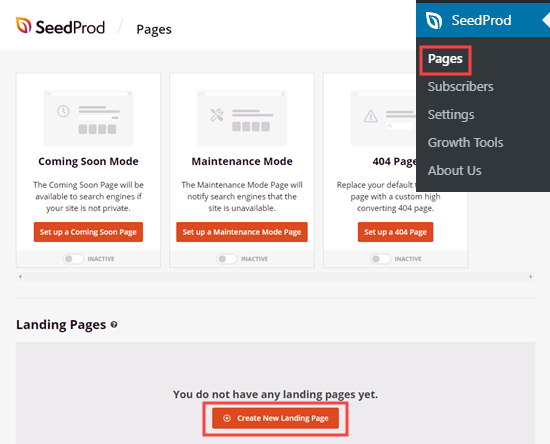
Next, go to SeedProd » Pages in your WordPress admin. Then, simply click the ‘Create New Landing Page’ button.

Creating a new landing page in SeedProd

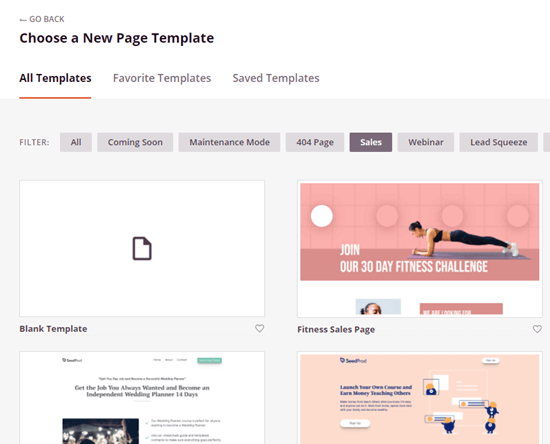
Next, you will be prompted to choose a template. You can filter these to find templates for the type of page you are creating. If you prefer to start from scratch, then simply use the blank template.

Choosing your page template in SeedProd

For the sake of this tutorial, we’re going to use a ‘Course Sales Page’ template.

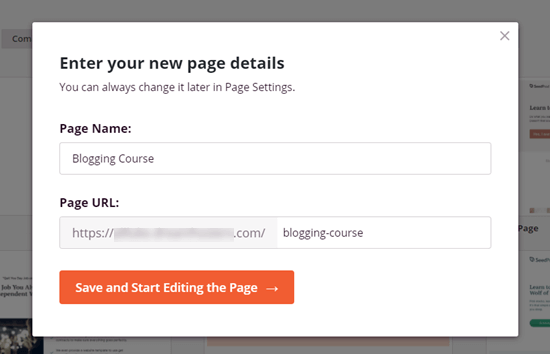
You will be prompted to give your page a name and set the URL. After doing so, go ahead and click the ‘Save and Start Editing the Page’ button.

Giving your page a name and URL in SeedProd

The template you chose will now load up in the SeedProd page builder.

The SeedProd page builder interface

To change anything in the template, simply click on it. It’s easy to change text directly in the page builder itself. For instance, here we are editing the page headline.

Editing your page headline in SeedProd

You can format your text, change the alignment, add links, and more.

It’s also easy to edit images using the SeedProd page builder. Simply click on the image that you want to change.

In this example, we have replaced the default image at the top of the page with our own image.

Uploading a new image into SeedProd

Go ahead and change anything you want by simply clicking on it. This will open the editing pane on the left hand side of the page.

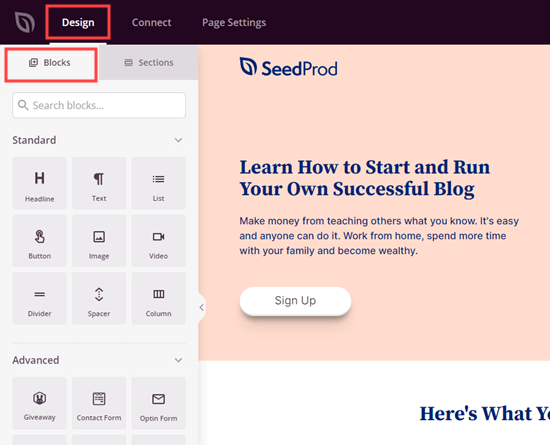
To add new blocks (elements) to your page, simply click on the Design tab at the top of the page. Just choose any Standard or Advanced block and simply drag and drop it into place on your page.

Adding blocks in SeedProd

After adding a block, you just need to click on it to edit it. Here, we’ve added a list block to our page.

A list block in SeedProd

If you make a mistake at any point or change your mind, don’t worry. Simply click the ‘Undo’ button at the bottom of the page to reverse what you did.

The Undo button in SeedProd

You will also find the redo button, revision history, layout navigation, mobile preview, and global settings for your page here.

Once you are happy with your custom page, it’s time to preview or publish it. To publish the page, first click the dropdown arrow next to the Save button at the top of the screen. Then, select the Publish option.

Saving or publishing your page in SeedProd

You will see a message letting you know that your page has been published. To check it out straight away, simply click the ‘See Live Page’ button.

The SeedProd message letting you know that your page has been published

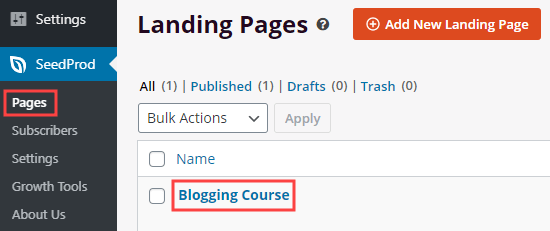
To edit your custom page at any point in the future, simply go to SeedProd » Pages in your WordPress admin.

You should see your saved page in the list of landing pages. Simply click on the title to edit it.

Editing your existing landing page in SeedProd

The benefit of using SeedProd over any other page builder in WordPress is that it will not slow down your site. SeedProd is the fastest page builder, and it lets you create completely custom page layouts that are independent of your theme design, so you can have custom header, footer, etc.

Using Beaver Builder to Create a Custom Page in WordPress

Beaver Builder is a popular and well-established drag and drop page builder for WordPress.

You can use it to easily create custom pages on your website or blog. We recommend using the full version of Beaver Builder. There’s also a free version of Beaver Builder available with limited features.

First, you need to install and activate the Beaver Builder plugin. For more details, see our step by step guide on how to install a WordPress plugin.

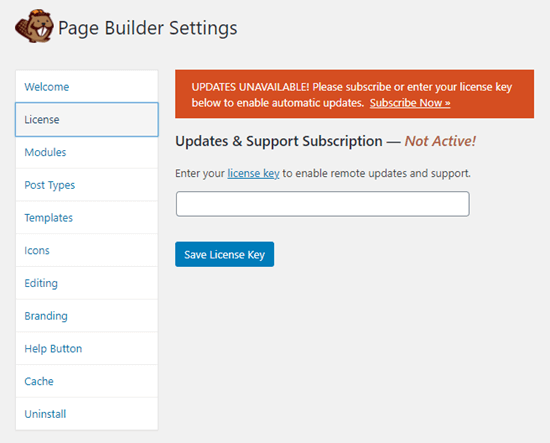
Upon activation, you will see the Beaver Builder welcome screen. Simply click on the License tab to enter your license key. You will find this in your account area on the Beaver Builder website.

Don’t forget to click the ‘Save License Key’ button to save your license key.

Adding your license key to Beaver Builder

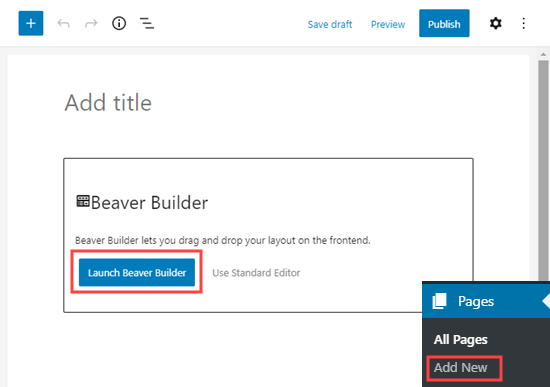
To use Beaver Builder, simply go to Pages » Add New in your WordPress admin to create a new page. Then, click the ‘Launch Beaver Builder’ button.

Launch the Beaver Builder editor when creating a new page

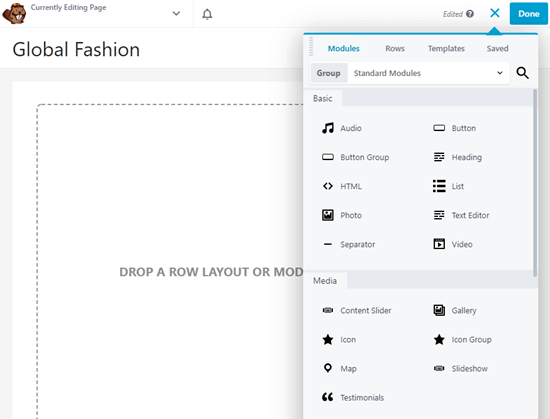
The Beaver Builder editor will then open up. You need to add rows and modules to create your page. Simply click on the element you want to use, and drag it onto your page.

Selecting modules or rows to drag and drop using Beaver Builder

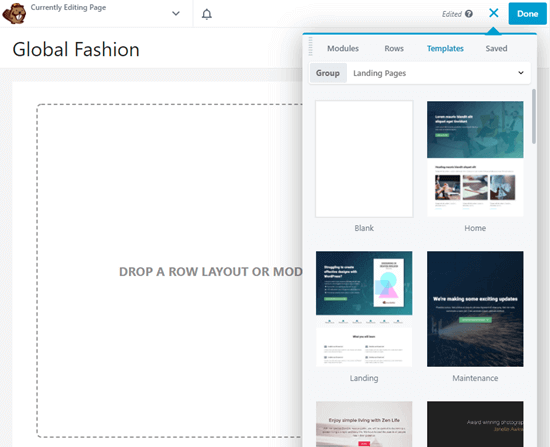
Alternatively, you can start with a template. Go ahead and click the Templates tab, then choose a template to use.

Choosing a template in Beaver Builder

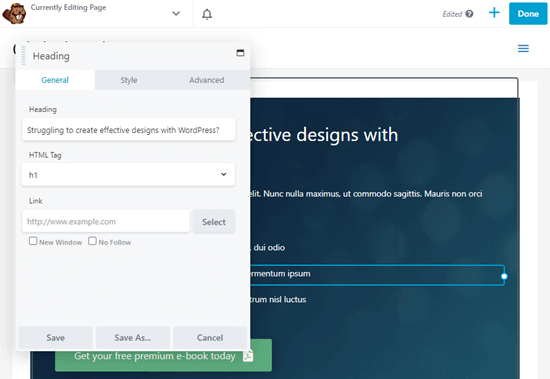
You can then click on any part of the template to change it. For instance, you can change the text, images, colors, and more.

Here, we’re editing the heading of the page. Beaver Builder’s editing process isn’t quite so smooth as SeedProd’s, as you need to type the text into a separate popup box.

Editing a heading in Beaver Builder

Once you’ve finished making changes to your page, simply click the Done button on the top right. You will then be able to save or publish your post.

Saving your post in Beaver Builder

Creating a Custom Page Template Manually

If you prefer not to use a plugin, you can create a custom page template manually in WordPress.

Editor’s note: It’s completely fine to have many plugins running on your WordPress site. Take a look at our post on how many WordPress plugins you should install if you are worried about having too many plugins.

First, you need to open a plain text editor like Notepad on your computer. In the blank file, add this line of code at the top:

<?php /* Template Name: CustomPageT1 */ ?>

This code simply tells WordPress that this is a template file, and it should be recognized as CustomPageT1. You can name your template anything you want as long as it makes sense to you.

Once you have added the code, save the file to your desktop as, custompaget1.php.

Go ahead and save the file with any name, just make sure that it ends with the .php extension.

For this next step, you will need to connect to your WordPress hosting account using an FTP client.

Once connected, go to your current theme or child theme folder. You will find it in the /wp-content/themes/ directory. Next, upload your custom page template file to your theme.

Now you need to login to your WordPress admin area to create a new page or edit an existing one.

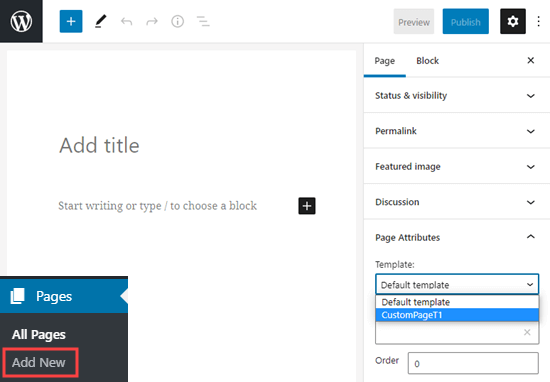
On the page editing screen, scroll down to the ‘Page Attributes’ section. You will see a Template dropdown menu. Clicking on it will allow you to select the template you just created.

Selecting your custom page template

If you select your new template and visit this page on your site right now, then you will see a blank page. That’s because your template is empty and does not tell WordPress what to display.

Don’t worry, we will show you how to easily edit your custom page template.

Editing Your Custom Page Template

Your custom page template is like any other theme file in WordPress. You can add any HTML, template tags, or PHP code in this file.

The easiest way to get started with your custom page is by copying the existing page template provided by your theme.

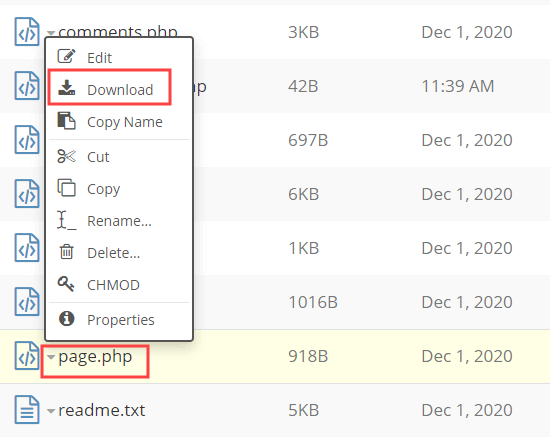
Open your FTP client and go to your theme folder. There you will find a file called page.php. You need to download this file to your computer.

Downloading the page php file for your site

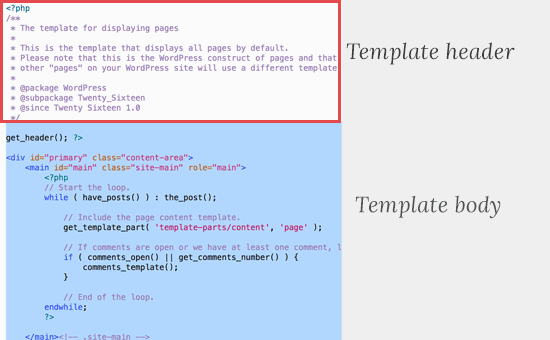
Open the page.php file in a plain text editor like Notepad, and copy all its content except the header part.

Template header of a typical page php file in WordPress

The header part is the commented out part at the top of the file. We are not copying it, because our custom page template already has one.

Now you need to open your custom page template file and paste all the code you have copied at the end.

Your custom page file would now look something like this:


<?php /* Template Name: CustomPageT1 */ ?>

<?php get_header(); ?>

<div id="primary" class="content-area">
        <main id="main" class="site-main" role="main">
                <?php
                // Start the loop.
                while ( have_posts() ) : the_post();

                        // Include the page content template.
                        get_template_part( 'template-parts/content', 'page' );

                        // If comments are open or we have at least one comment, load up the comment template.
                        if ( comments_open() || get_comments_number() ) {
                                comments_template();
                        }

                        // End of the loop.
                endwhile;
                ?>

        </main><!-- .site-main -->

        <?php get_sidebar( 'content-bottom' ); ?>

</div><!-- .content-area -->

<?php get_sidebar(); ?>
<?php get_footer(); ?>


Simply save your custom page template file and upload it back to your theme folder using FTP.

You can now visit the page you created using the custom page template. It should look exactly like your other pages in WordPress.

Next, continue editing your custom page template file. You can customize it in any way you want. For example, you can remove the sidebar by removing the line that starts <?php get_sidebar.

You can also add custom PHP code or add any other HTML you want.

To add the actual content for your page, just edit the page as normal in WordPress.

You could also leave the content area in the page editor completely empty, and add custom content directly to your page template. That way, the content you add will appear on all pages using the custom template.

We hope this article helped you add a custom page in WordPress. You may also want to see our guide on the most important types of WordPress pages that every website should have, and our list of the must have WordPress plugins for all websites.

If you liked this article, then please subscribe to our YouTube Channel for WordPress video tutorials. You can also find us on Twitter and Facebook.

The post How to Create a Custom Page in WordPress appeared first on WPBeginner.


January 12, 2021 at 06:00PM