Monday, February 1, 2021

How to Fix Broken Twitter Card Images in WordPress

Do you want to fix broken Twitter card images in WordPress?

Twitter automatically tries to display a thumbnail image when someone shares a link from your WordPress site. However, sometimes it may show the incorrect thumbnail which makes your website look unprofessional.

In this article, we will show you how to easily fix broken Twitter card images in WordPress.

Fixing broken or missing Twitter card images in WordPress

Why Twitter Card Images are Broken for Some Websites?

Twitter uses Open Graph metadata to look for images when a link is shared. This is similar to how Facebook shows thumbnails when you share a link on a page or group.

WordPress does not support Open Graph meta tags by default. This is why when you share a link on Twitter, it may not always display a Twitter card image.

A link without Twitter card image

Twitter card images help you get user’s attention and encourage them to click on a link. This means more traffic for your website from Twitter.
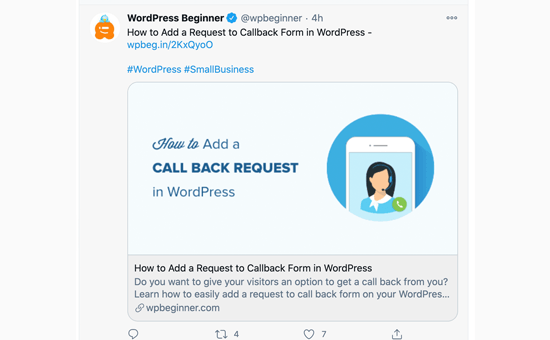
A link with a large Twitter card image

That being said, let’s take a look at how to easily fix the broken Twitter Card images in WordPress.

Here is a quick overview of the topics we’ll cover in this article. You can jump to the section that interests you or follow the instructions step by step.

Fix Broken Twitter Card Images Using All in One SEO for WordPress

First, you need to install and activate the All in One SEO for WordPress plugin. For more details, see our step by step guide on how to install a WordPress plugin.

All in One SEO is the best WordPress SEO plugin on the market. It allows you to easily optimize your WordPress website for search engines and social media platforms including Twitter.

Note: There’s also a free version of All in One SEO that you can use to fix Twitter card images. Pro version comes with more powerful SEO features.

For the sake of this tutorial, we will demonstrate the Pro version because that’s what we use, but instructions are similar for free version too.

Upon activation, you need to visit the strong All in One SEO » General Settings page to enter your license key. You can find this information under your account on the plugin website.
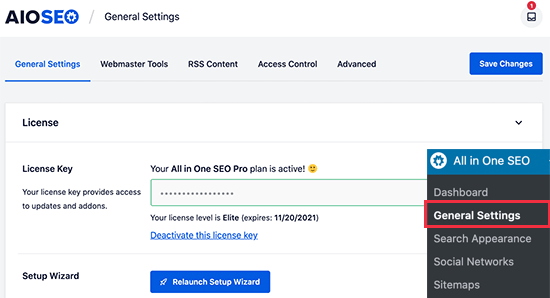
All in One SEO license

All in One SEO gives you complete control of which images to be used with Twitter cards on your website. We’ll walk you through all the steps.

First, you need to add your social media profile URLs. This would associate your website with your Twitter profile.

Simply go to the All in One SEO » Social Networks page and enter your social media profile URLs including Twitter.
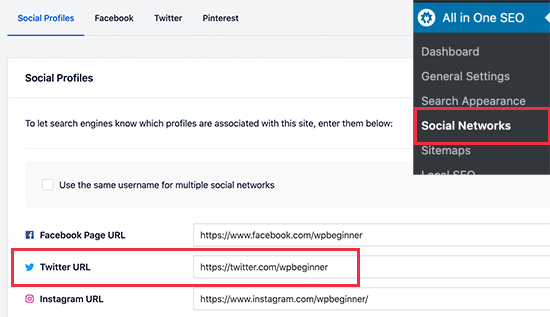
Add your social media profile URLs

Set a Default Twitter Card Image

Next, you need to switch to the ‘Twitter’ tab and click the toggle next to the ‘Enable Twitter Card’ option.
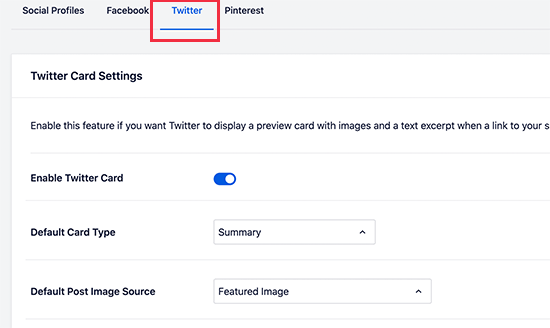
Turn on Twitter Card settings in AIOSEO

Below that, you will see the default settings for Twitter cards which would work for most websites, but you can change them as needed.

Particularly, you would want to change the ‘Default Post Image Source’. All in One SEO gives you a bunch of options.

For instance, you can choose the featured image, attached image, first image in content, image from a custom field, post author image, or first available image.

We recommend using the featured image, as most WordPress themes support featured images that are suitable to be used as Twitter card images.

Below that, you’ll find the option to select a default term image source. This image is used when someone shares a URL to a category, tag, or other taxonomy term archive page.
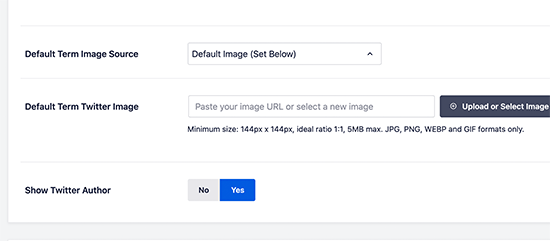
Setting a default term image

You can upload a default image here, or you can upload a custom image for each category or tag (we’ll show you how to do that later).

After selecting the default Twitter Card image source, don’t forget to click on the Save Changes button to store your settings.

Set a Default Twitter Card Image for Homepage

Now let’s take a look at how to set a default Twitter card image for your website’s homepage.

If you are not using a static homepage, then you can set a default Twitter card image directly from All in One SEO » Social Networs page under the Twitter tab.
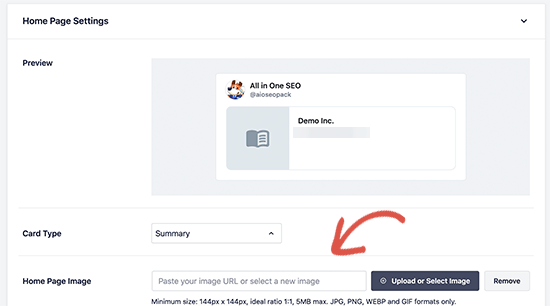
Add a custom image for your homepage

However, if you are using a custom home page, then you will see the link to edit your homepage.
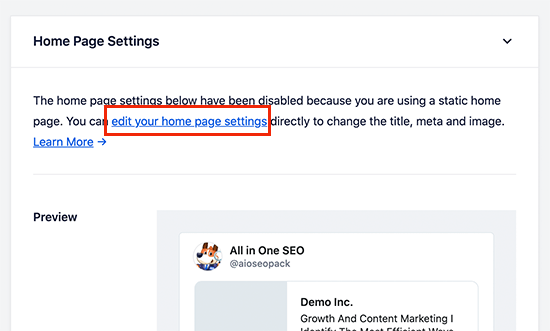
Edit your homepage to add custom Twitter card image

On the page edit screen, simply scroll down to the ‘AIOSEO Settings’ box below the content editor. From here, you need to switch to the ‘Social’ tab and then select Twitter.
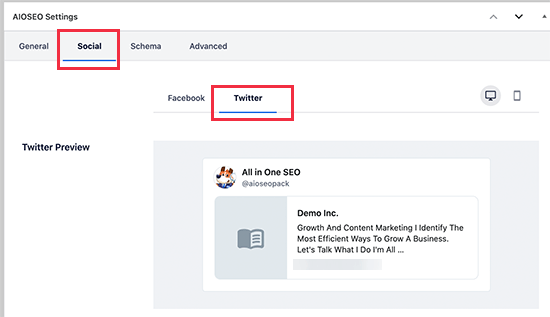
Fixing Twitter card image for your WordPress homepage

Under Twitter settings, you can override the default options and provide a custom Twitter card image to be used specifically for your homepage.
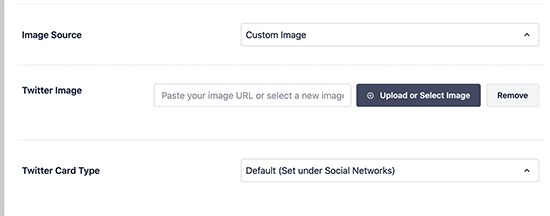
Custom Twitter card image for your WordPress homepage

Simply click on the drop down menu next to ‘Image Source’, and you will see a bunch of options to choose from. You can choose one of the options or select custom image to upload a new image that you would like to use.

Once you are done, don’t forget to update and save your page changes.

Use a Custom Twitter Card Image for Each Post or Page in WordPress

A lot of bloggers like to create custom social media images for different platforms like Facebook, Twitter, Pinterest, and more.

All in One SEO makes it easy to override your default Twitter card image settings and provide a custom image for any post or page.

Simply, edit the post or page and scroll down to the ‘AIOSEO Settings’ box below the content editor. From here, you need to switch to the ‘Social’ tab and then select ‘Twitter’.
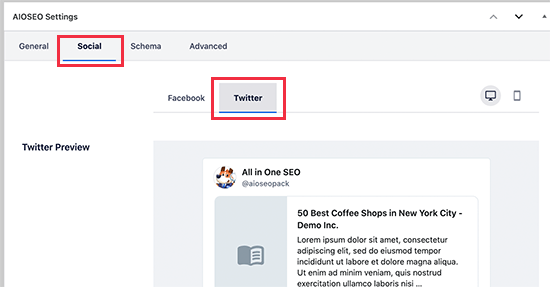
Twitter settings for individual posts and pages in WordPress using AIOSEO

Next, you can set custom Twitter open graph data including a custom image used specifically for this article. Simply scroll to the ‘Image source’ section and click on the dropdown menu.
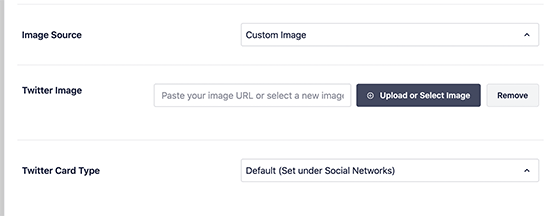
Setting custom Twitter image for post or pages

You can choose from a bunch of options or select ‘Custom Image’ to upload a new Twitter image.

After that, you can just click on the ‘Upload or Select Image’ button to upload an image from your computer, or use one from your WordPress media library.

Once finished, don’t forget to Update or Publish your post / page to save your changes.

Setting Custom Twitter Card Image for Categories & Tags in WordPress

Just like posts and pages, All in One SEO also makes it easier to upload a custom image for individual categories, tags, product categories (if you are using WooCommerce) and other taxonomies.

Simply, go to Posts » Categories page and click on the Edit link below the category where you want to upload a custom Twitter card image.
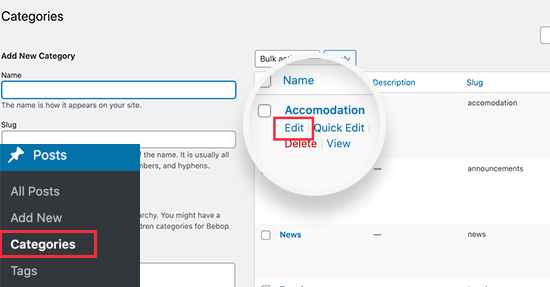
Edit category

This will take you to the ‘Edit Category’ screen where you need to scroll down to the ‘AIOSEO Settings’ box. From here, switch to the ‘Social’ tab and select ‘Twitter’ under it.
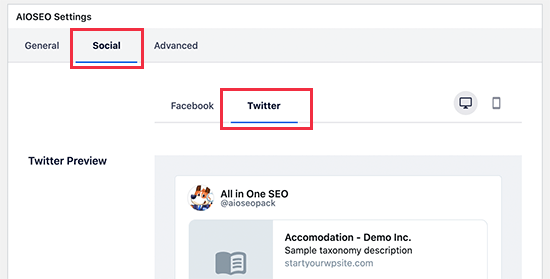
Setting Twitter card image for a WordPress category

Now, you need to scroll down to the Image source section and click on the dropdown menu. You can choose from a bunch of options or select ‘Custom Image’ to upload a new Twitter image.
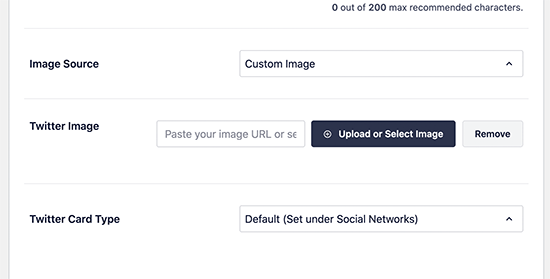
Adding your custom image to be used as Twitter card for category

After that, you can just click on the ‘Upload or Select Image’ button to upload an image from your computer or use one from your WordPress media library.

Once you are finished, don’t forget to click on the ‘Update’ button to save your changes.

Testing / Troubleshooting Twitter Card Images

Once you have set up Twitter card images, you would want to test them to make sure that they appear correctly when someone shares a link from your WordPress website.

Simply copy the URL of the page or post you want to test and then go to the Twitter Card Validator website. Paste the URL under the Card URL field and click on the ‘Preview card’ button.
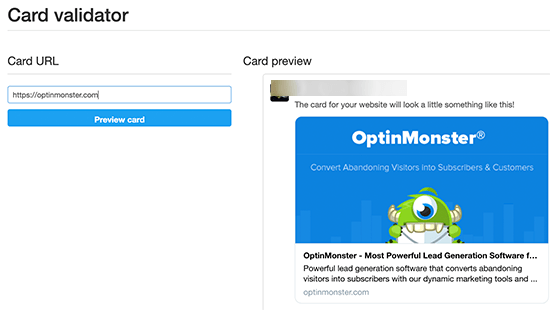
Preview and test your Twitter card images

Card validator tool will then fetch the link and show you a preview of how it would look when someone shares it on Twitter.

Troubleshooting Broken Twitter Card Images in WordPress

If you followed the above steps and still can’t see the correct Twitter card image, then you can try these easy tips for troubleshooting.

Clear WordPress Cache

The most likely cause of broken Twitter images is WordPress caching plugins. Even though, you have set the Twitter card image in All in One SEO, your cache plugin may still be showing an outdated version.

To fix this, you need to clear your WordPress cache and then test again using the Twitter Card Validator tool.

Choose Correct Image Sizes

Make sure that the image you have set to use as Twitter card is neither too small or too large. Twitter recommends images to be a minimum of 144 x 144 pixels in size and less than 5MB in filesize.

Tip: You can learn all about social media image sizes in our ultimate social media cheat sheet for WordPress beginners.

We hope this article helped you fix broken Twitter card images in WordPress. You may also want to see our expert pick of the best social media plugins for WordPress, and our ultimate guide on how to increase your blog traffic.

If you liked this article, then please subscribe to our YouTube Channel for WordPress video tutorials. You can also find us on Twitter and Facebook.

The post How to Fix Broken Twitter Card Images in WordPress appeared first on WPBeginner.


February 01, 2021 at 05:00PM
Sunday, January 31, 2021

How to Find Which WordPress Theme a Site is Using

Have you ever come across a great-looking WordPress site and wished you could get the exact same theme?

Often we hear from readers asking us for help finding the name of a theme that they love on someone else’s website.

Luckily, it’s easy and free to check a site’s theme. In this article, we’ll show you how to find which WordPress theme a site is using.

Finding out which WordPress theme a website is using

When you’re creating a website, one of the biggest decisions you’ll face is choosing your theme.

There’s a lot to think about when selecting the perfect WordPress theme for your site. If you come across a site with a layout and features that you love, then that could be a great shortcut to finding the right theme for you.

Some websites use custom themes, which you probably won’t be able to use yourself. However, in many cases, you’ll find that sites are using one of the best free WordPress themes or a popular premium theme.

If so, you can find out the name of the theme and download or buy it yourself.

It’s really easy to find out which WordPress theme a website is using. We’re going to walk you through three different methods.

Video Tutorial

If you prefer written instructions, just keep reading.

Method 1. Use WPBeginner’s WordPress Theme Detector Tool

The easiest way to find which theme any WordPress website is using is by using our WordPress theme detector tool.

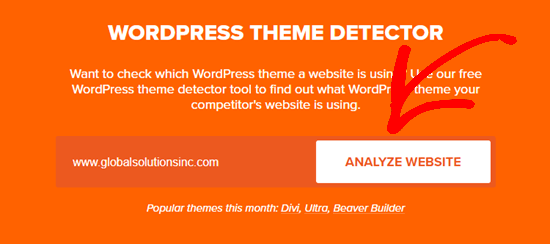
It’s completely free to use. All you need to do is enter the website URL and then click the “Analyze Website” button.

Type in the name of the website you want to analyze

Our theme detector will look through the website’s source code and show you the name of the WordPress theme they’re using.

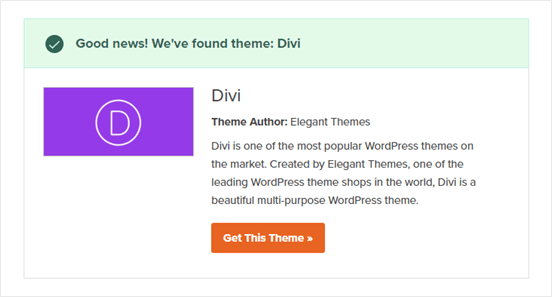
For example, if a website is using the popular Divi theme, then our theme detector will show something like this:

The WordPress Theme Detector in action, detecting the Divi theme

However if it’s a less popular theme or a custom theme, then our tool will show you the name of the theme without the screenshot.

All you have to do then is to copy / paste that theme name in Google search to see if you can find the download link.

If it’s a custom theme, then you will not find it. However if it’s one of the thousands of free / premium WordPress theme, then you’ll be able to download and use it.

Method 2. Use IsItWP to Detect the Site’s WordPress Theme

Another easy way to detect the WordPress theme used by a website is with IsItWP, a website theme detector.

IsItWP is a free online tool that tells you the theme and plugins used by a WordPress website.

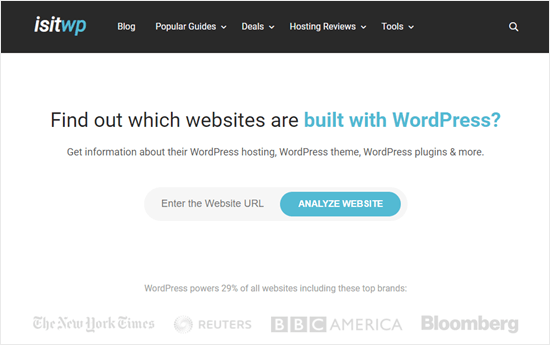
Just open up the IsItWP website and enter the URL of the site you want to check.

Checking a website's theme and plugins using IsItWP

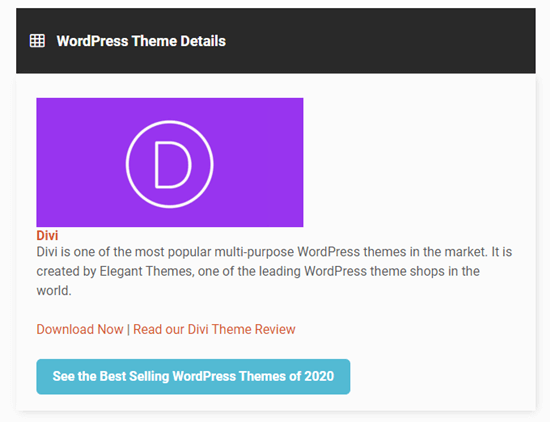
IsItWP will first check if the website is using WordPress. If so, IsItWP will detect which WordPress theme the site is using and show you the results:

IsItWP showing details of the theme detected

It’ll also try to detect the WordPress hosting provider and WordPress plugins used by the website. You’ll see a list of these with download links plus links to IsItWP’s reviews of the plugins:

IsItWP's details of plugins being used by the site being examined

Sometimes, you’ll see a result like this for the site’s theme:

IsItWP will give the name of a custom or child theme

IsItWP may not be able to give you details about a custom WordPress theme or a child theme.

It will display the name of the theme, though, so you can search for it online and see if it’s available to download or buy.

Method 3. Manually Detect WordPress Theme Used by a Website

Sometimes website owners change their WordPress theme’s name. This stops tools like our WordPress theme detector or IsItWP from detecting which WordPress theme they are using.

However, you can often use the website’s code to find out which theme it’s using.

Let’s get started.

Every WordPress theme has a style.css file. This file contains a theme header which tells WordPress the name of the theme, theme author, URI, version, and more. It also contains the CSS styles used by the theme.

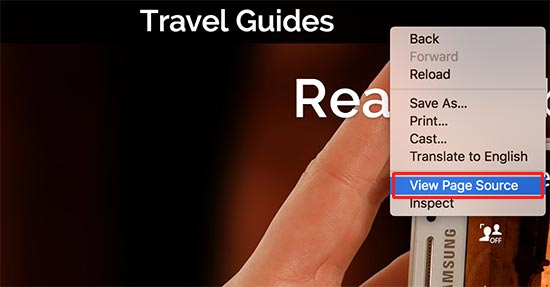
To find this file, go to the website that you want to examine. Right click anywhere on the screen and select ‘View Page Source’ from the menu.

View page source of a WordPress website

This will open the source code of the page in a new browser tab. Now you need to find a line in the source code that looks something like this:

<link rel='stylesheet' id='themename_style-css'  href='http://example.com/wp-content/themes/theme-name/style.css?ver=1.1.47' type='text/css' media='all' />

You can click on the URL in this line to open the style.css file.

Tip: There will normally be several style.css files linked to from the page source. You need to find the one with /wp-content/themes in the URL.

At the top of the style.css file, you will see the theme header block which contains information about the theme used by the WordPress blog. Typically, it would look something like this:

Theme Name:     Theme Name 
Theme URI:      https://example.com
Author:         ThemeAuthorName
Author URI:     https://example.com
Description:    My Theme is a flexible WordPress theme designed for portfolio websites
Version:        1.1.47
License:        GNU General Public License v2 or later
License URI:    http://www.gnu.org/licenses/gpl-2.0.html
Text Domain:    hestia
Tags: blog, custom-logo, portfolio, e-commerce, rtl-language-support, post-formats, grid-layout, one-column, two-columns, custom-background, custom-colors, custom-header, custom-menu, featured-image-header, featured-images, flexible-header, full-width-template, sticky-post, theme-options, threaded-comments, translation-ready

You may be able to find the Theme’s URL or Theme Author’s URL here which will lead you to the theme used by the website.

Finding The Parent Theme

Many WordPress sites use child themes to customize their websites. In that case, their theme header will contain information about the parent theme they are using.

*
Theme Name:   My Child Theme
Description:  Just a child theme
Author:       Peter Smith
Author URL:   Write here the author's blog or website url
Template:     hestia
Version:      1.0
License:      GNU General Public License v2 or later
License URI:  http://www.gnu.org/licenses/gpl-2.0.html
Text Domain:  my-child-theme
*/

In the above example, this header block has an extra ‘Template’ parameter in the theme header block. This template is the parent theme used by this website.

You can also find out the parent theme by looking at the website’s source code. You’ll find that there’s another style.css file loaded from another theme.

This other style.css file is the parent theme’s stylesheet and clicking on it will tell you which parent theme a site is using.

That’s all for now, we hope this article helped you learn how to find which WordPress theme a site is using. You may also want to see comparison of the best WordPress page builder plugins to create custom layouts, and our step by step guide on how to create an email newsletter to grow your website traffic.

If you liked this article, then please subscribe to our YouTube Channel for WordPress video tutorials. You can also find us on Twitter and Facebook.

The post How to Find Which WordPress Theme a Site is Using appeared first on WPBeginner.


January 31, 2021 at 05:47PM

Saturday, January 30, 2021

How to Disable WordPress Admin Bar for All Users Except Administrators

Do you want to easily disable the admin bar in WordPress?

By default, you can easily disable the WordPress admin bar for any user from the dashboard. But this method can take time if you have a lot of registered users on your site.

In this article, we’ll show you how to disable the WordPress admin bar for all users except administrators.

Disabling WordPress admin bar for all users except administrators

What is WordPress Admin Bar?

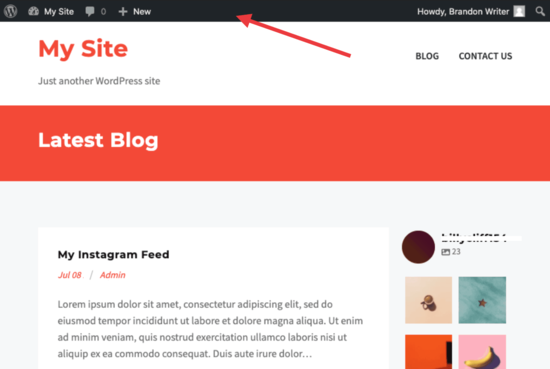
By default, WordPress displays an admin bar on the top for all logged-in users. This toolbar is visible in the WordPress admin area as well as all other pages when you are logged in.

WordPress admin bar

The WordPress admin toolbar contains useful shortcuts to different WordPress sections. The shortcuts available in the admin bar change based on a users’ role and permissions in WordPress.

However, when viewing the public pages on the front-end of your website, the admin bar can be a bit distracting. It may also affect your website’s design and user experience.

Luckily, there are multiple ways to easily disable the WordPress admin bar for all users except administrators.

Method 1. Disabling The WordPress Admin Bar for Any User

WordPress allows each user to disable the admin bar by simply editing their user profile. As a site owner, you can also edit other user’s profiles and disable the admin bar for them.

If you want to disable the admin bar for any particular user in WordPress, you’ll need to edit their user profile.

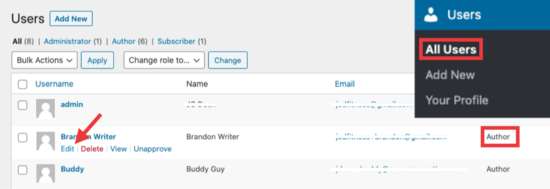
Simply go to the Users » All Users page and then click on the ‘edit’ link for any user you want to disable the admin bar for.

Edit user settings

This will bring you to the user profile editor page. From here, uncheck the box next to the ‘Show toolbar when viewing site’ option.

Disable admin bar

Scroll down and click the ‘Update User’ button to save your changes.

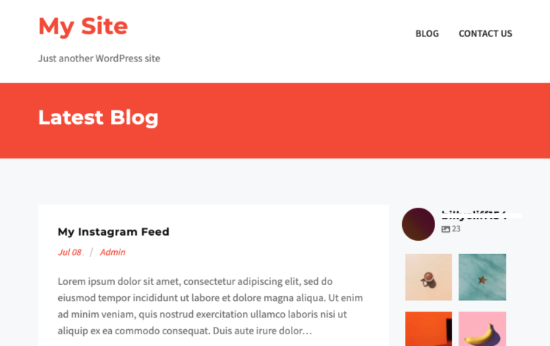
This will disable the admin bar for that particular user when they visit the website.

Site without admin bar

If you have a handful of users, then you can go ahead and manually disable the admin bar for all of them. However, if you run a membership site with a lot of users, then this method wouldn’t work.

Luckily, there are other ways to quickly disable the admin bar for all users except administrators.

Method 2. Disable Admin Bar for All Users Except Admins with a Plugin

This method allows you to quickly disable the WordPress admin for all users.

First, you need to install and activate the Hide Admin Bar Based on User Roles plugin. For more details, see our step by step guide on how to install a WordPress plugin.

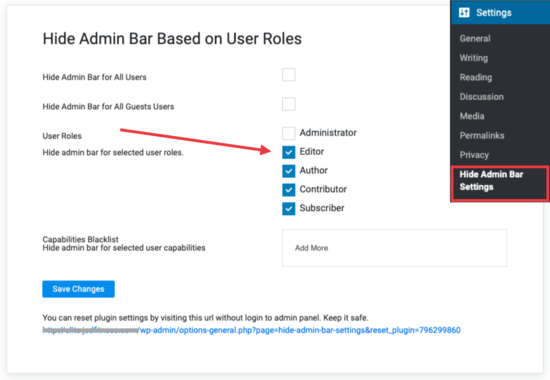
Upon activation, go to the Settings » Hide Admin Bar Settings page. From here, check the boxes next to the user roles where you want to disable the admin bar.

Hide Admin settings with a plugin

Don’t forget to click on the ‘Save Changes’ button to store your settings.

Method 3. Disable Admin Bar for All Users Except Administrators Using Code

This method requires you to add code to your WordPress theme files. If you have not done this before, then check out our guide on how to copy and paste code snippets in WordPress.

Simply add the following code to your theme’s functions.php file or a site-specific plugin.

add_action('after_setup_theme', 'remove_admin_bar');
function remove_admin_bar() {
if (!current_user_can('administrator') && !is_admin()) {
  show_admin_bar(false);
}
}

This code checks if the current user is not an administrator, and they are not viewing the admin dashboard. If both conditions match, then it will disable the WordPress admin bar.

Don’t forget to save your changes and check your website to make sure everything is working fine.

Method 4. Disable Admin Bar for All Users Including Admins

What if you wanted to disable the admin bar for all users including yourself and any other administrator on your site?

You can do this by modifying the code we showed earlier.

Simply add the following code to your theme’s functions.php file or a site-specific plugin.

/* Disable WordPress Admin Bar for all users */
add_filter( 'show_admin_bar', '__return_false' );

This code will disable the admin bar for all users when viewing the public pages of your website. All users will still be able to see the toolbar inside the WordPress admin dashboard.

We hope this article helped you learn how to disable the WordPress admin bar for all users except administrators. You may also want to see our ultimate WordPress security guide and our comparison of the best WordPress page builder for creating custom page layouts without any code.

If you liked this article, then please subscribe to our YouTube Channel for WordPress video tutorials. You can also find us on Twitter and Facebook.

The post How to Disable WordPress Admin Bar for All Users Except Administrators appeared first on WPBeginner.


January 30, 2021 at 06:00PM