Wednesday, February 3, 2021

How to Change the Category Order in WordPress

Do you want to change the category order in WordPress?

By default, when you list categories in WordPress they are displayed in alphabetical order. Some users may want to change that to their own custom category order.

In this article, we’ll show you how to easily change the category order in WordPress.

Changing category order in WordPress

Why Change Category Order in WordPress

By default, when you list categories by using the Categories widget or the block, WordPress will list them in alphabetical order.

Many website owners use categories to organize their blog content. You may want to change the default category order and customize it to your own liking.

For instance, some websites may not want their ‘Announcement’ category to be the first on the list.

If you run a WooCommerce store, then you may want to adjust product category order to display your top-selling product categories on the top.

However, the default category widget or the block does not have any options to change that order.

Luckily, there are WordPress plugins that you can use to change the category order and manually adjust how they are displayed on your website.

That being said, let’s take a look at how to easily change category order in WordPress.

Changing Category Order in WordPress

First thing you need to do is install and activate the Category Order plugin. For more details, see our step by step guide on how to install a WordPress plugin.

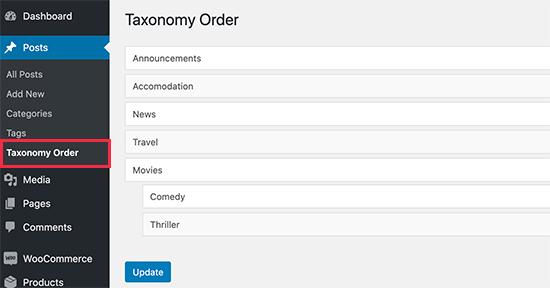
Upon activation, simply head over to Posts » Taxonomy Order page to rearrange your WordPress category order.

Taxonomy order page

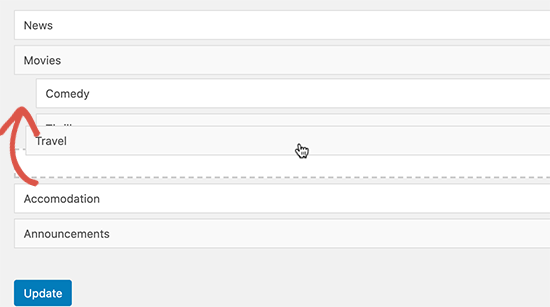
The plugin will simply list all your categories on that page, and you can manually drag and drop to rearrange category order.

Simply click on a category and move it up or down.

If you are using child categories, then moving the parent category will also move the child categories.

Move categories up and down to rearrange

Don’t forget to click on the ‘Update’ button when you are finished rearranging the category order.

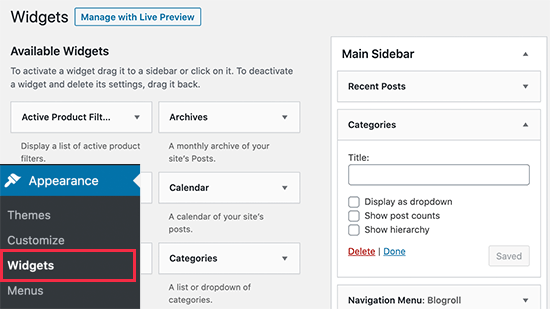
You can now add the ‘Categories’ widget to your WordPress sidebar by visiting Appearance » Widgets page.

Categories widget

After that, you can visit your WordPress blog to see the categories listed in the order you choose.

Reordered categories list

Change Product Category Order in WooCommerce

The plugin also works for WooCommerce product categories. This allows you to choose custom product category order and list your most popular product categories at the top.

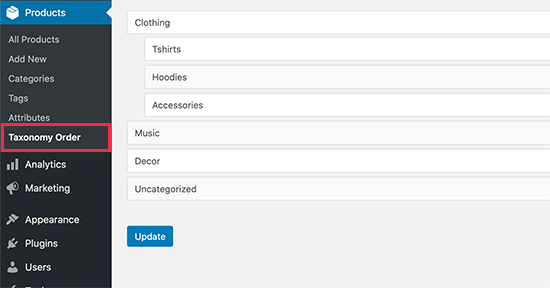
Simply visit Products » Taxonomy Order page to rearrange product categories.

Reorder product categories in WooCommerce

The plugin will list all your WooCommerce product categories. You can simply drag and drop to rearrange them in any order.

Don’t forget to click on the ‘Update’ button when you are finished.

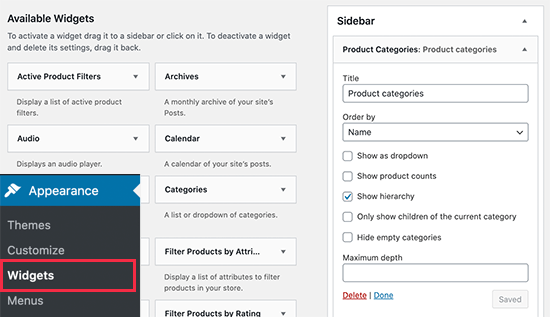
You can now add the ‘Product Categories’ widget to your online store’s sidebar by visiting Appearance » Widgets page.

Product categories widget

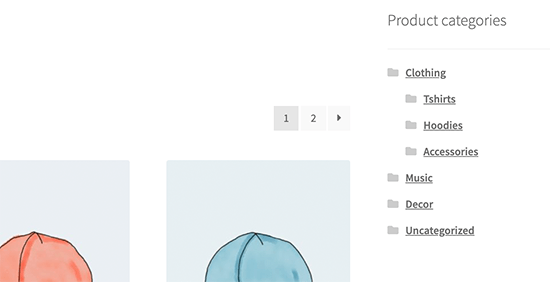
After that, you can visit your online store website to see your product categories listed in your custom product category order.

Product categories reordered

We hope this article helped you learn how to change category order in WordPress. You may also want to see our ultimate list of must have WordPress plugins for all websites, and our comparison of the best email marketing services to grow your traffic and sales.

If you liked this article, then please subscribe to our YouTube Channel for WordPress video tutorials. You can also find us on Twitter and Facebook.

The post How to Change the Category Order in WordPress appeared first on WPBeginner.


February 03, 2021 at 06:00PM

Tuesday, February 2, 2021

How to Add Categories and Subcategories in WordPress

Recently, a reader asked us how to create subcategories in WordPress.

In WordPress, your posts can be organized into different categories and tags. You can even create subcategories for further organization.

It’s important to use categories and subcategories correctly, so you can help your readers find the content they’re most interested in. Proper content categorization can improve your website’s SEO rankings as well.

In this article, we’ll show you how to add categories and subcategories in WordPress, step by step.

Adding categories and subcategories to WordPress

Understanding Parent and Child Categories in WordPress

Categories are a powerful tool. They’re not just a way to sort your content. They also help you develop a proper site structure that is meaningful and semantic. This is great for your WordPress SEO.

Important: If you’re not clear about the difference between categories and tags, take a look at our guide on categories vs tags. This explains why categories and tags are different, and how to use them correctly.

Now you might be wondering why and when would someone need to use child categories (subcategories) on their WordPress website?

Let’s say you’re creating a travel blog for different destinations around the world. You might want users to be able to find articles by both country and city.

For example, you might have an article about the best waterparks in the United States. It would make sense to use ‘United States’ as the category for that post.

But you might also have articles about the best places to eat in New York City, Los Angeles, Chicago, and more.

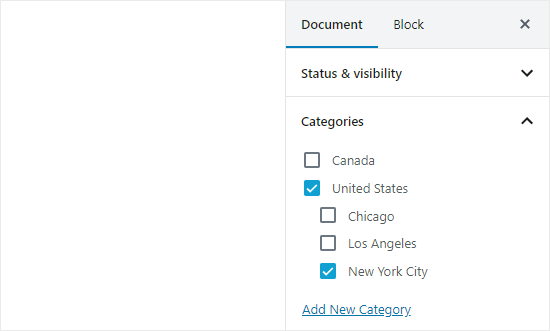
This is where you can use child or sub categories. ‘United States’ can become a parent category, and the cities can become child categories.

Child and parent categories in WordPress

A post filed under a child category doesn’t need to also be filed under the parent category. In our example, we could have left ‘United States’ unchecked and just put the post in the ‘New York City’ category.

If you file a post under the child category but not under the parent category, then your post will appear only on the archive pages of the child category. This is particularly helpful when you want to avoid duplicate content.

Having said that, let’s take a look at how to add both regular categories and child categories in WordPress.

Adding a Category in WordPress

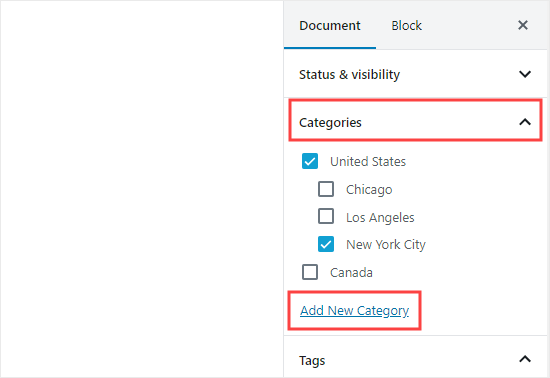
You can easily add a new category in WordPress when writing a post. In the Document panel on the right hand side, open up the Categories tab.

Then, you can simply click the ‘Add New Category’ link to create your new category.

Adding a new category in the document settings of a post

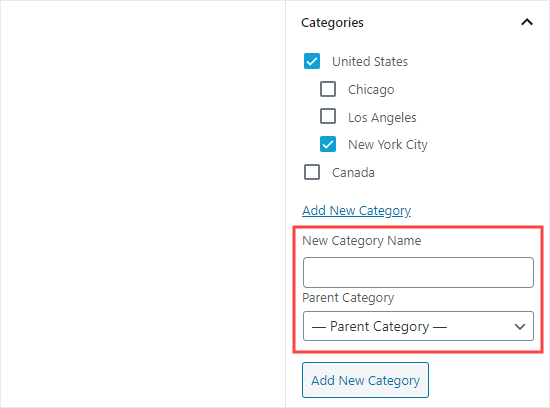
Once you click the link, two new boxes will appear where you can add your category. For a regular category, you don’t need to select anything from the Parent Category dropdown.

The boxes to add your new category are now visible

Once you’ve typed in the name for your category, click the ‘Add New Category’ button.

The box for that category will then be automatically checked for your current post. You can uncheck it if you want.

The new category has now been added to your site

You can also add a new category without editing a post.

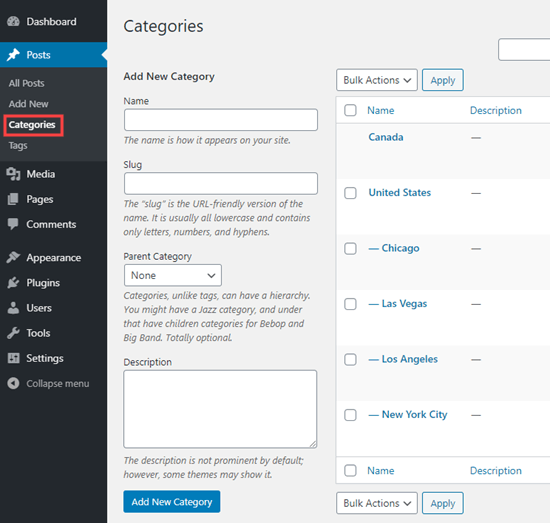
Simply go to Posts » Categories and add your new category. This is handy if you want to create all your categories before adding content.

This method also lets you edit the slug (URL) for your categories. You can delete and rename categories here, too. You can even give them a description. See how to to add SEO keywords and descriptions in WordPress.

Adding a new category under Posts - Categories in WordPress

Adding a Child Category (Sub Category) in WordPress

You can add and edit child categories in exactly the same way you added your parent categories.

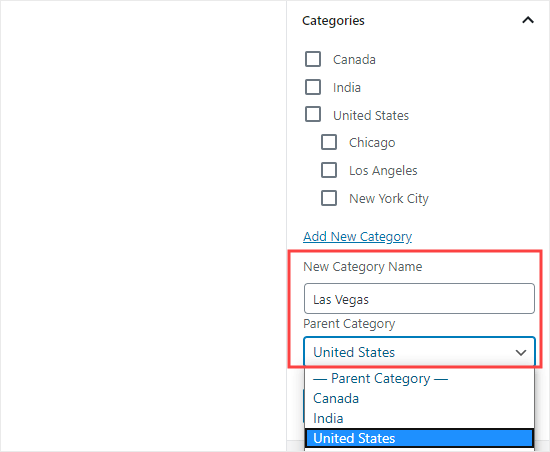
When you’re editing a post, open up the Categories tab and type in the name for your child category. Select the category that you want to use as the parent from the dropdown list.

Adding a new child category while creating a post

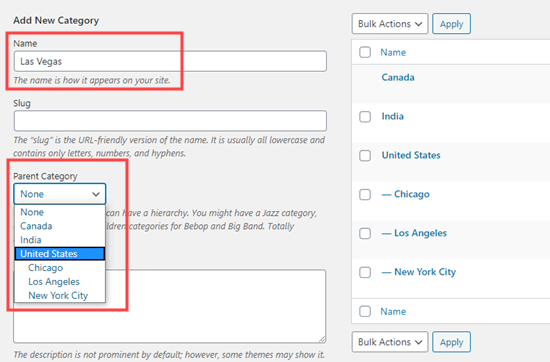
Similarly, you can also go to Posts » Categories to add child categories. Just type in the name for your child category and select the parent category from the dropdown menu.

Adding a new child category under Posts - Categories

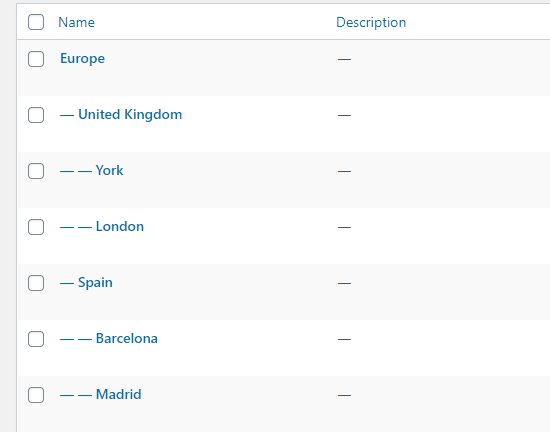
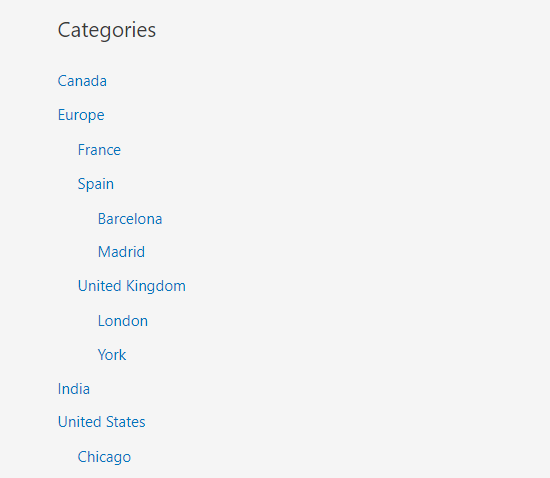
Your child categories can also have their own child categories, if you want. For instance, we might decide to develop a category structure that used continents, countries, and cities, like this:

A list of child categories with their own children

Here, Europe is a category, with the United Kingdom and Spain as child categories. These then have their own child categories: York and London for the United Kingdom, and Barcelona and Madrid for Spain.

Categories on the same level within a parent category are sometimes called “sibling” categories. For instance, United Kingdom and Spain are sibling categories here.

Categories can only have one parent. You can’t add one sub-category under two different parent categories.

SEO Benefits of Category Based Site Structure

Your category URLs will look something like this:

http://example.com/category/united-states/new-york-city/

This is meaningful and helps search engines and visitors understand what your page is about. You also get a chance to add keywords into your URL. Keywords help people find content on search engines.

WordPress also allows you to easily change the /category/ prefix your category URLs. You can even remove it completely if you want.

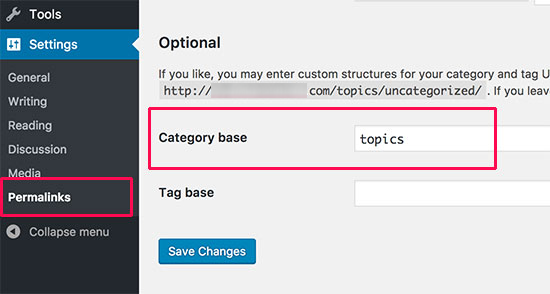
Simply go to Settings » Permalinks page and scroll down to ‘Category base’ section.

Changing category base section

Here you can enter the prefix you would like to use and click on the Save Changes button to store your changes.

The ‘category’ prefix in your category URLs doesn’t add any benefit to your SEO. You might want to get rid of it by installing the FV Top Level Categories plugin. Simply install the plugin and it will remove the word ‘category’ from your category archive pages’ URLs. Instead, they’ll look like this:

http://example.com/united-states/new-york-city/

Important: If you decide to change category base on an existing WordPress site, then you’ll need to set up redirects to avoid 404 errors for search engine visitors. For more detailed instructions, please follow our guide on how to change the category base prefix in WordPress.

How to Display Categories and Child Categories in WordPress Sidebar

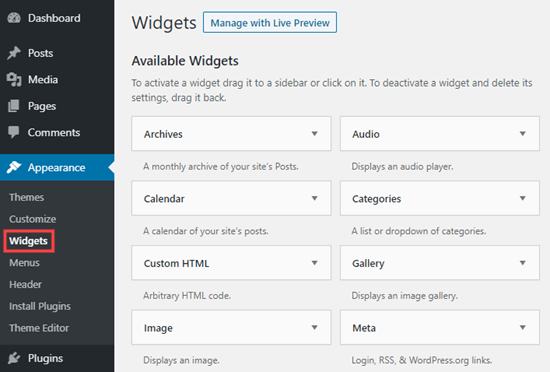
You can add a widget to your WordPress sidebar or footer to show a list of categories. In your WordPress dashboard, go to Appearance » Widgets.

Adding a new widget to your sidebar

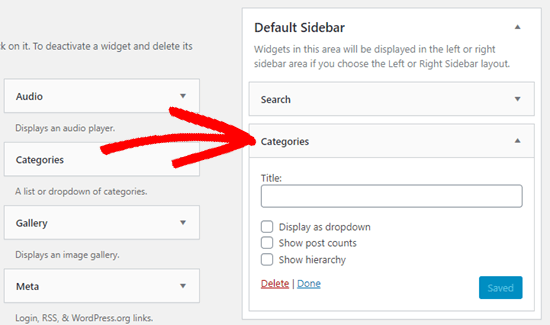
If you haven’t changed your widgets from the ones that WordPress puts there by default, you should see the Categories widget already in place. If not, you can drag and drop it from the list of Available Widgets on the left hand side.

Dragging and dropping the categories widget into place on your sidebar

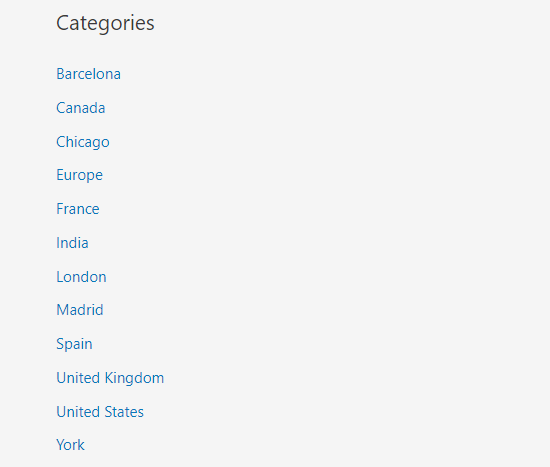
By default, the widget will show all your categories in a flat list, in alphabetical order:

A flat list of categories

Tip: Categories will only display on the list if you’ve assigned at least 1 published post to them.

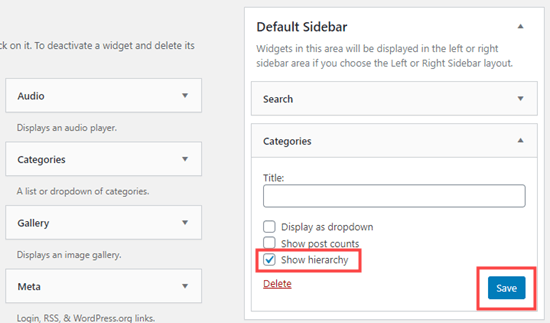
You can change it to show the child categories (subcategories) beneath their parent categories, if you want. Simply check the ‘Show hierarchy’ box in the widget like this. Don’t forget to click the Save button.

Check the 'Show hierarchy' box to list child categories beneath their parents

On your site, you should now see your parent categories with the child categories nested beneath them.

A hierarchical list of categories in WordPress

Tip: If your sidebar changes don’t show up, you might need to clear your WordPress cache.

Aside from the default category widget, you can also create custom category menu links using the WordPress navigation menu. After that, you can add that menu in your header menu, sidebar, footer, or other menu locations.

We hope this tutorial helped you learn how to add categories and child categories in WordPress. You may also want to take a look at our article on how to create an email newsletter to grow your website traffic, and our comparison of the best WordPress page builders to create custom layouts.

If you liked this article, then please subscribe to our YouTube Channel for WordPress video tutorials. You can also find us on Twitter and Facebook.

The post How to Add Categories and Subcategories in WordPress appeared first on WPBeginner.


February 02, 2021 at 05:40PM

Monday, February 1, 2021

How to Fix Broken Twitter Card Images in WordPress

Do you want to fix broken Twitter card images in WordPress?

Twitter automatically tries to display a thumbnail image when someone shares a link from your WordPress site. However, sometimes it may show the incorrect thumbnail which makes your website look unprofessional.

In this article, we will show you how to easily fix broken Twitter card images in WordPress.

Fixing broken or missing Twitter card images in WordPress

Why Twitter Card Images are Broken for Some Websites?

Twitter uses Open Graph metadata to look for images when a link is shared. This is similar to how Facebook shows thumbnails when you share a link on a page or group.

WordPress does not support Open Graph meta tags by default. This is why when you share a link on Twitter, it may not always display a Twitter card image.

A link without Twitter card image

Twitter card images help you get user’s attention and encourage them to click on a link. This means more traffic for your website from Twitter.

A link with a large Twitter card image

That being said, let’s take a look at how to easily fix the broken Twitter Card images in WordPress.

Here is a quick overview of the topics we’ll cover in this article. You can jump to the section that interests you or follow the instructions step by step.

Fix Broken Twitter Card Images Using All in One SEO for WordPress

First, you need to install and activate the All in One SEO for WordPress plugin. For more details, see our step by step guide on how to install a WordPress plugin.

All in One SEO is the best WordPress SEO plugin on the market. It allows you to easily optimize your WordPress website for search engines and social media platforms including Twitter.

Note: There’s also a free version of All in One SEO that you can use to fix Twitter card images. Pro version comes with more powerful SEO features.

For the sake of this tutorial, we will demonstrate the Pro version because that’s what we use, but instructions are similar for free version too.

Upon activation, you need to visit the strong All in One SEO » General Settings page to enter your license key. You can find this information under your account on the plugin website.
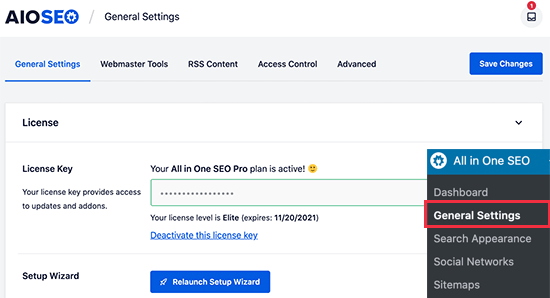
All in One SEO license

All in One SEO gives you complete control of which images to be used with Twitter cards on your website. We’ll walk you through all the steps.

First, you need to add your social media profile URLs. This would associate your website with your Twitter profile.

Simply go to the All in One SEO » Social Networks page and enter your social media profile URLs including Twitter.
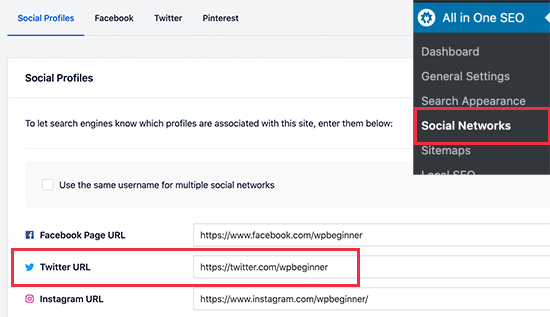
Add your social media profile URLs

Set a Default Twitter Card Image

Next, you need to switch to the ‘Twitter’ tab and click the toggle next to the ‘Enable Twitter Card’ option.
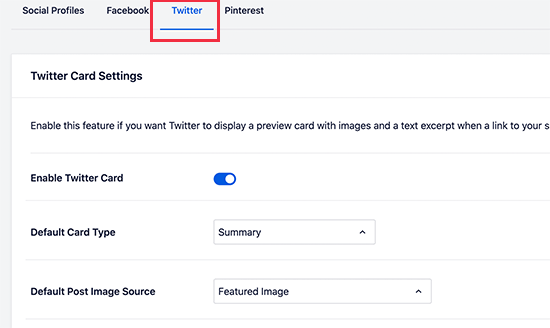
Turn on Twitter Card settings in AIOSEO

Below that, you will see the default settings for Twitter cards which would work for most websites, but you can change them as needed.

Particularly, you would want to change the ‘Default Post Image Source’. All in One SEO gives you a bunch of options.

For instance, you can choose the featured image, attached image, first image in content, image from a custom field, post author image, or first available image.

We recommend using the featured image, as most WordPress themes support featured images that are suitable to be used as Twitter card images.

Below that, you’ll find the option to select a default term image source. This image is used when someone shares a URL to a category, tag, or other taxonomy term archive page.
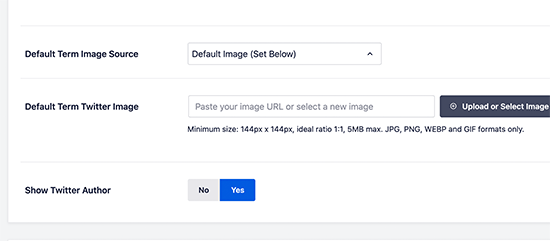
Setting a default term image

You can upload a default image here, or you can upload a custom image for each category or tag (we’ll show you how to do that later).

After selecting the default Twitter Card image source, don’t forget to click on the Save Changes button to store your settings.

Set a Default Twitter Card Image for Homepage

Now let’s take a look at how to set a default Twitter card image for your website’s homepage.

If you are not using a static homepage, then you can set a default Twitter card image directly from All in One SEO » Social Networs page under the Twitter tab.
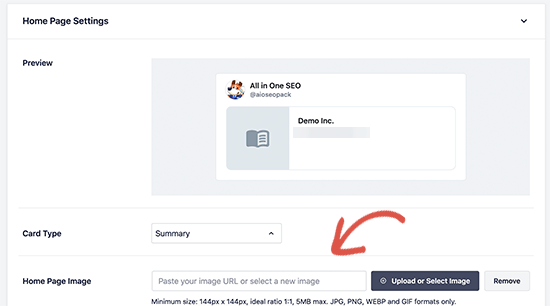
Add a custom image for your homepage

However, if you are using a custom home page, then you will see the link to edit your homepage.
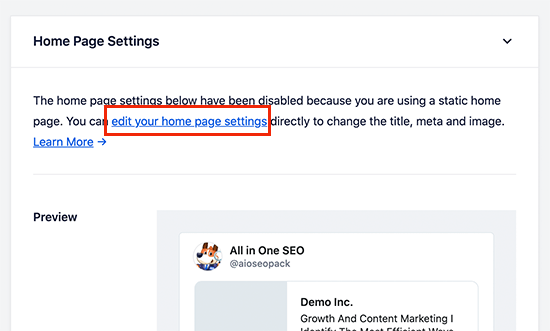
Edit your homepage to add custom Twitter card image

On the page edit screen, simply scroll down to the ‘AIOSEO Settings’ box below the content editor. From here, you need to switch to the ‘Social’ tab and then select Twitter.
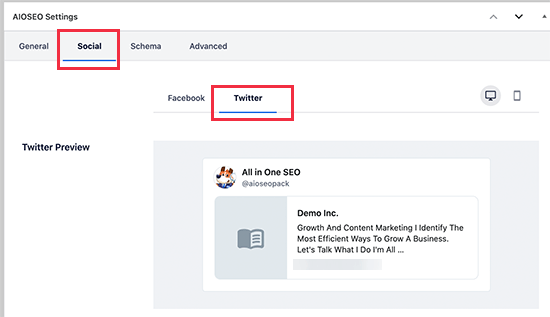
Fixing Twitter card image for your WordPress homepage

Under Twitter settings, you can override the default options and provide a custom Twitter card image to be used specifically for your homepage.
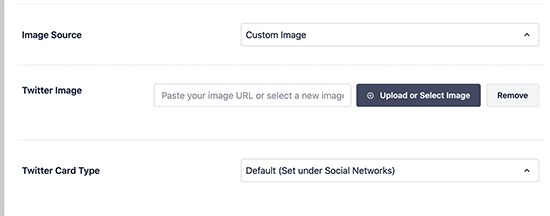
Custom Twitter card image for your WordPress homepage

Simply click on the drop down menu next to ‘Image Source’, and you will see a bunch of options to choose from. You can choose one of the options or select custom image to upload a new image that you would like to use.

Once you are done, don’t forget to update and save your page changes.

Use a Custom Twitter Card Image for Each Post or Page in WordPress

A lot of bloggers like to create custom social media images for different platforms like Facebook, Twitter, Pinterest, and more.

All in One SEO makes it easy to override your default Twitter card image settings and provide a custom image for any post or page.

Simply, edit the post or page and scroll down to the ‘AIOSEO Settings’ box below the content editor. From here, you need to switch to the ‘Social’ tab and then select ‘Twitter’.
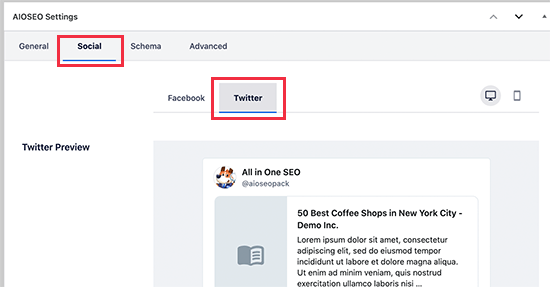
Twitter settings for individual posts and pages in WordPress using AIOSEO

Next, you can set custom Twitter open graph data including a custom image used specifically for this article. Simply scroll to the ‘Image source’ section and click on the dropdown menu.
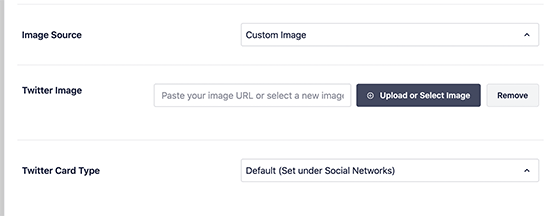
Setting custom Twitter image for post or pages

You can choose from a bunch of options or select ‘Custom Image’ to upload a new Twitter image.

After that, you can just click on the ‘Upload or Select Image’ button to upload an image from your computer, or use one from your WordPress media library.

Once finished, don’t forget to Update or Publish your post / page to save your changes.

Setting Custom Twitter Card Image for Categories & Tags in WordPress

Just like posts and pages, All in One SEO also makes it easier to upload a custom image for individual categories, tags, product categories (if you are using WooCommerce) and other taxonomies.

Simply, go to Posts » Categories page and click on the Edit link below the category where you want to upload a custom Twitter card image.
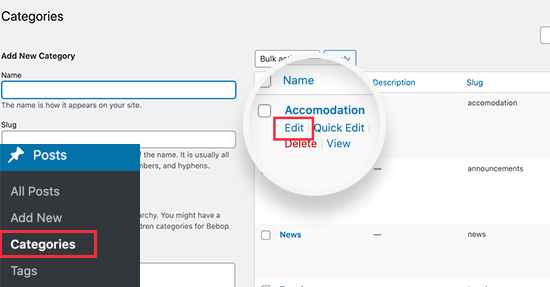
Edit category

This will take you to the ‘Edit Category’ screen where you need to scroll down to the ‘AIOSEO Settings’ box. From here, switch to the ‘Social’ tab and select ‘Twitter’ under it.
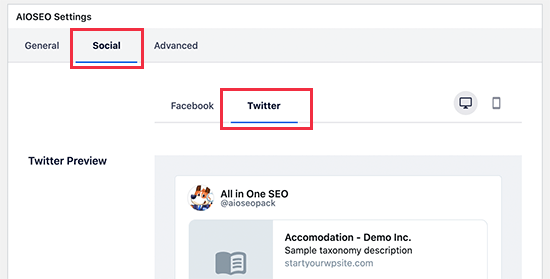
Setting Twitter card image for a WordPress category

Now, you need to scroll down to the Image source section and click on the dropdown menu. You can choose from a bunch of options or select ‘Custom Image’ to upload a new Twitter image.
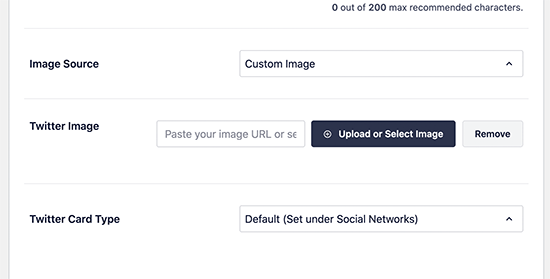
Adding your custom image to be used as Twitter card for category

After that, you can just click on the ‘Upload or Select Image’ button to upload an image from your computer or use one from your WordPress media library.

Once you are finished, don’t forget to click on the ‘Update’ button to save your changes.

Testing / Troubleshooting Twitter Card Images

Once you have set up Twitter card images, you would want to test them to make sure that they appear correctly when someone shares a link from your WordPress website.

Simply copy the URL of the page or post you want to test and then go to the Twitter Card Validator website. Paste the URL under the Card URL field and click on the ‘Preview card’ button.
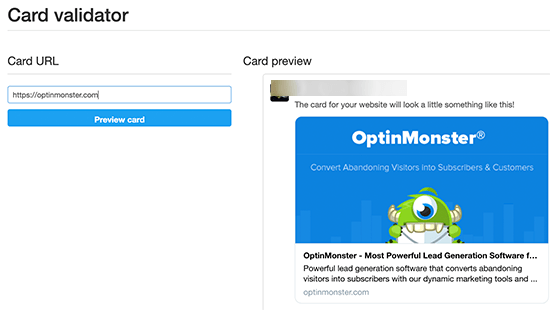
Preview and test your Twitter card images

Card validator tool will then fetch the link and show you a preview of how it would look when someone shares it on Twitter.

Troubleshooting Broken Twitter Card Images in WordPress

If you followed the above steps and still can’t see the correct Twitter card image, then you can try these easy tips for troubleshooting.

Clear WordPress Cache

The most likely cause of broken Twitter images is WordPress caching plugins. Even though, you have set the Twitter card image in All in One SEO, your cache plugin may still be showing an outdated version.

To fix this, you need to clear your WordPress cache and then test again using the Twitter Card Validator tool.

Choose Correct Image Sizes

Make sure that the image you have set to use as Twitter card is neither too small or too large. Twitter recommends images to be a minimum of 144 x 144 pixels in size and less than 5MB in filesize.

Tip: You can learn all about social media image sizes in our ultimate social media cheat sheet for WordPress beginners.

We hope this article helped you fix broken Twitter card images in WordPress. You may also want to see our expert pick of the best social media plugins for WordPress, and our ultimate guide on how to increase your blog traffic.

If you liked this article, then please subscribe to our YouTube Channel for WordPress video tutorials. You can also find us on Twitter and Facebook.

The post How to Fix Broken Twitter Card Images in WordPress appeared first on WPBeginner.


February 01, 2021 at 05:00PM