Thursday, February 11, 2021

How to Allow Users to Upload Images on a WordPress Site

Do you want users to be able to upload images on your WordPress site?

If you want to accept guest post submissions, product reviews, or run a photo contest, then you will need to allow users to upload images. However, you may not want to give them access to your WordPress admin area.

In this article, we’ll show you how to safely allow users to upload images on a WordPress site without giving them access to WordPress admin.
How to allow users to upload images on a WordPress site

Allowing Users to Safely Upload Images in WordPress

If you want to run a multi-author blog, then the easiest way to allow users to upload images is by adding them as an author on your website.

However giving users access to the WordPress admin area isn’t ideal for one-time scenarios such as guest post submission, product reviews, photo contests, etc.

Luckily there are several WordPress plugins that let users upload images, without compromising your website security or giving them access to the WordPress admin area.

Having said that, let’s take a look at some ways to easily allow users to upload images in WordPress.

Method 1. Let Users Upload Images Using a File Upload Form

This method comes in handy when you only need users to upload an image or another file such as resumes, cover letter, etc.

You can simply create a file upload form that collects the user’s name, email address, the photo / file itself, and any message they want to include.

First, you will need to install and activate the WPForms plugin. For more details, see our step by step guide on how to install a WordPress plugin.

WPForms is the best WordPress form builder plugin that’s used by over 4 million websites. It comes with a file upload field that we’ll be using in this tutorial.

Upon activation you need to visit the WPForms » Settings page in your WordPress dashboard to enter your license key. You can find your license key in your account area on the WPForms site, under the ‘Downloads’ tab.

This is how it will look when you enter it on your site:
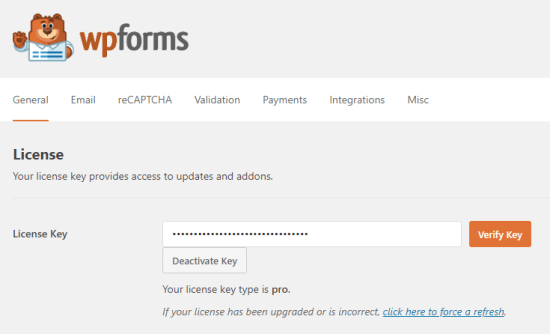
Entering your license key for WPForms

Now, go to WPForms » Add New to create your form. We’re going to use the ‘Simple Contact Form’ for this example. Click on it, and your new form will appear.
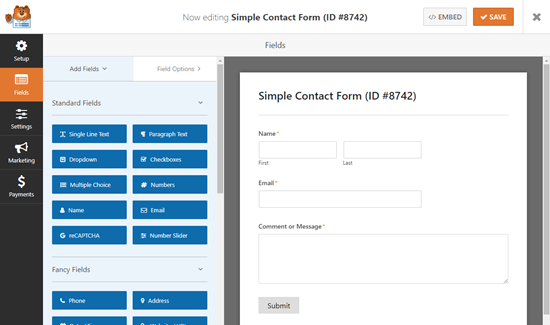
The default simple contact form, showing fields for Name, Email, and Message

Next, drag and drop a ‘File Upload’ field onto your form. You can find this field under the ‘Fancy Fields’ section on the left.
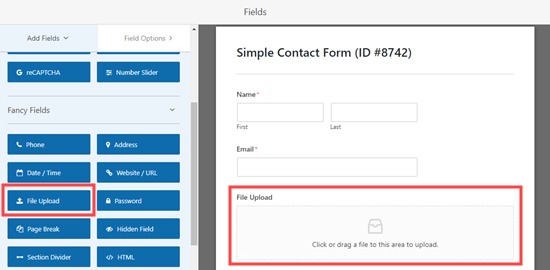
Adding a File Upload field to the form

Once added, click on the File Upload field on your form to edit it.

We’ll change the name of this field (its label) to “Your Photograph” and specify which file extensions are allowed. We only want image files, so we’re going to allow JPG/JPEG, GIF, and PNG files.

Note: By default, WordPress only allows certain file types to be uploaded. For instance, users won’t be able to upload .svg images, or .zip files unless you explicitly add them to the allow list. We’re going to explain how to do that in a moment.

For now, let’s continue tweaking our field settings. We recommend specifying a maximum file size of 5 MB and check the box next to ‘Required’, so that the user can’t submit the form until they’ve uploaded an image.

The file size limit helps you save disk cost on your WordPress hosting account.
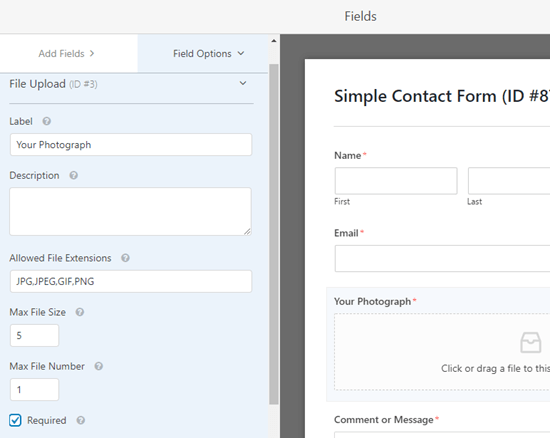
Editing the file upload field. Label now reads 'Your Photograph'.

You can also set further options for this field by clicking the downward arrow next to ‘Advanced Options’.

Here, you can choose the style of your upload field. It defaults to a ‘Modern’ drag and drop field. If you want, you can replace it with a ‘Classic’ field that looks like this instead:
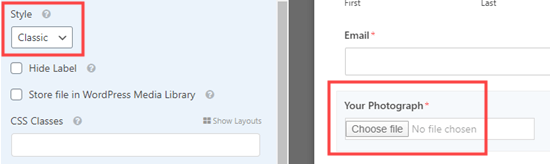
Switching to the Classic upload field

You can also choose to store the image in the WordPress Media Library by checking that box. This is a good idea if you’re going to collate your submitted images for a blog post or similar.

Once you are satisfied with your form, you can save and exit the form builder.

Adding Your Image Upload Form in WordPress

Next, you would want to add your form to a WordPress post or page. WPForms makes it super easy to add your forms anywhere on your website.

Simply edit the post or page where you want to add the image upload form. In the WordPress content editor, you need to add the WPForms block to your content area.

Adding a WPForms block to your page

After that, you need to select the form you created earlier from the dropdown menu. WPForms will display a preview of your form inside the content area.

You can now save your post or page and view it live to see your image upload form in action.

Allowing Additional File Types to Be Uploaded

Sometimes, your users might see this error when trying to upload a file, even when you’ve allowed that file type in your upload field’s settings:

Sorry, this file type is not permitted for security reasons

The problem is that WordPress only allows certain file types by default. The easiest way to allow more file types is to use a companion plugin.

We recommend the File Upload Types plugin from WPForms.

Once you’ve installed the plugin in WordPress and activated it, go to Settings » File Upload Types.

You can then pick file types from the list that you want to allow, or you can add custom file types.
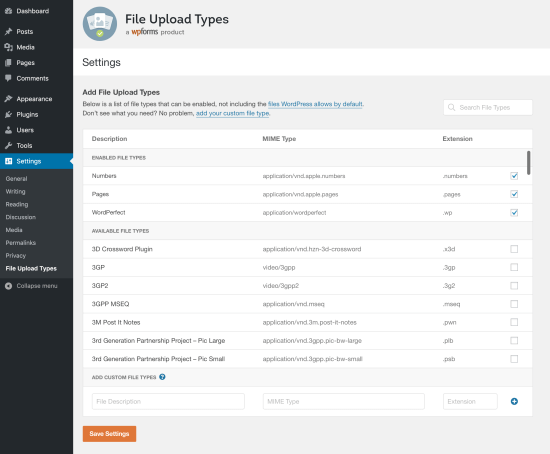
Whitelisting additional file types in WordPress
Note that the list doesn’t include the types that WordPress already allows by default.

Method 2. Allow Users to Upload Images as Guest Authors

A key reason to let users upload images is if you’re collecting guest post submissions. You could also use a very similar method for other user-generated content, like testimonials.

First, you will need to install and activate the WPForms plugin. For more details, see our step by step guide on how to install a WordPress plugin.

Note: You’ll need the ‘Pro’ version (or higher) in order to use the ‘Post Submissions’ addon.

After activating the plugin, you need to visit the WPForms » Settings page in your WordPress dashboard to enter your license key. You can find your license key under the ‘Downloads’ tab of your account on the WPForms site.

This is what you’ll see when you enter the license key on your site:

Entering your license key for WPForms

Next, go to WPForms » Addons to install the Post Submission Addon. Click the ‘Install Addon’ button. It will automatically install and activate
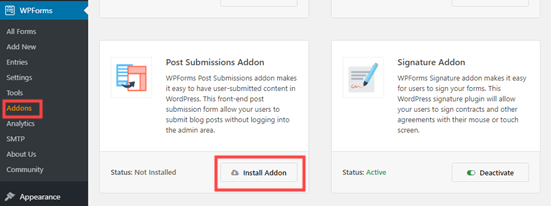
Installing the WPForms post submissions addon

Now, you can start building your guest post submission form.

Go to WPForms » Add New, then scroll down to find the Blog Post Submissions Form.
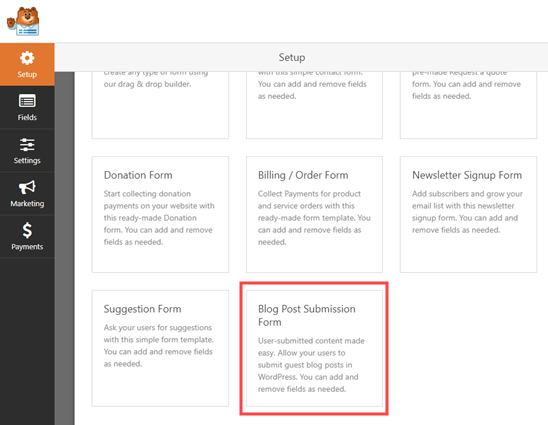
Creating a Blog Post Submission form

Click on it, and your new form will be created for you. This will have default fields for the guest author’s details as well as the post’s proposed title, content, featured image, post excerpt, and category.

You can add more fields (sections of your form) if you want. For instance, you might want to add a ‘Website / URL’ field where the author can enter their own blog’s URL.
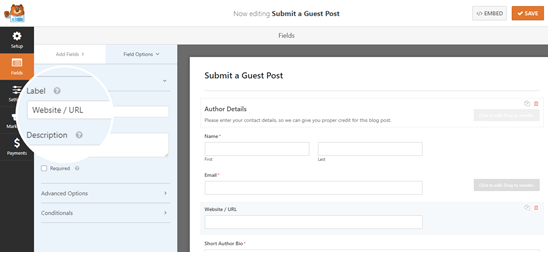
Adding a website/URL field

To change the label on a field or any text on the form, just click on it.

For instance, you can click on the ‘Featured Image’ box and change the ‘Description’ to give your preferred size for featured images.
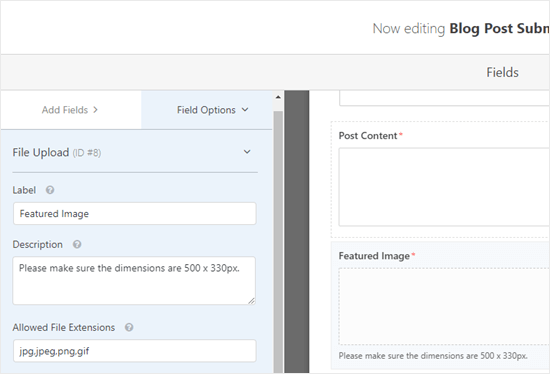
Editing the File Upload field in WPForms

Files uploaded through the preset ‘Featured Image’ field will be stored in your Media Library within WordPress.

You can toggle this option on and off by clicking on the ‘Advanced Options’ dropdown for the field.
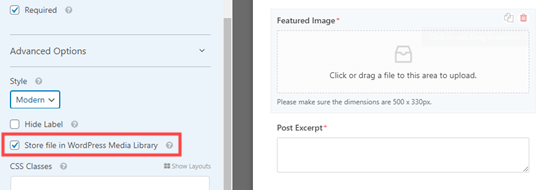
Choose whether to store uploaded images in the Media Library

Tip: If you want to create a form from scratch, note that the ‘File Upload’ field does not store files in the Media Library by default. Make sure you switch this setting on if you want to use it.

If you want, you can change the image types that the ‘File Upload’ field will accept. For instance, you might want users to only upload PNG files.

You can also enter a maximum file size, in MB. If you want, you can allow users to upload 2 or more files.
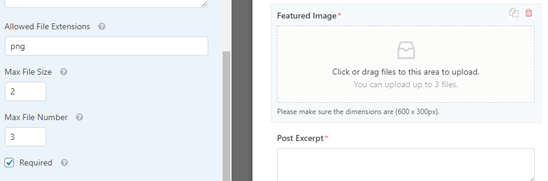
Changing the file upload settings

The ‘Modern’ upload field (the default) allows users to drag and drop files. If you prefer, you can change it to a ‘Classic’ field under advanced options. Note that this only allows users to upload a single file.
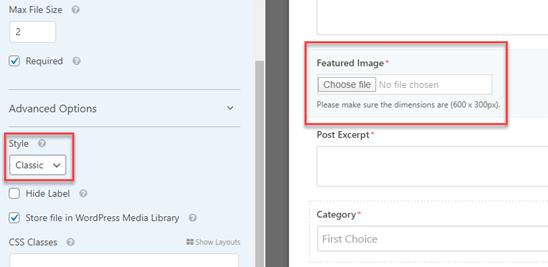
Switching to the classic upload

Once you’ve got all the fields you want on your form, go to the ‘Settings’ tab. You may want to change details under ‘Notifications’ here.

For instance, if your guest posts go to an editor, you’ll want their address in the ‘Send to Email Address’ box.
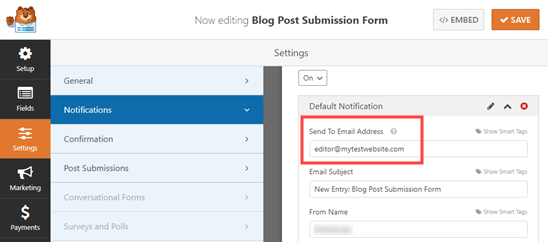
Changing your form's settings

You might also want to change the confirmation message that a user sees after submitting the form. You can do this under Settings » Confirmation.

Once you’re happy with your form, click the ‘Save’ button at the top of the screen.

Adding the Guest Post Submission Form to Your Site

You can add your form to your site in any post or page. You might want to create a new page specifically for guest post submissions.

If you’re using the Gutenberg (block) editor, simply click the (+) icon to create a new block. Then, select ‘WPForms’ from the ‘Widgets’ section.
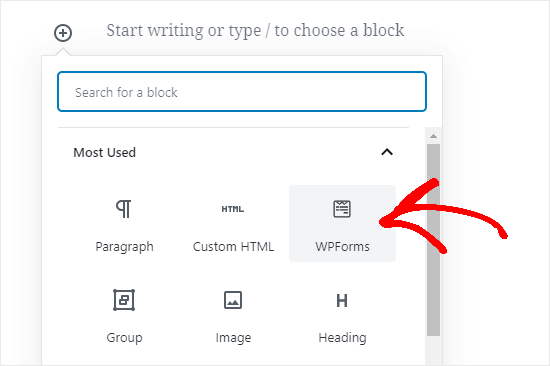
Adding a form to your page using the block editor (Gutenberg)

Next, you’ll see a WPForms dropdown. Select your form from the list and it’ll be added to your post.

Tip: If you’re still using the Classic editor, then you’ll see an ‘Add Form’ button next to ‘Add Media’ instead. Click this to get a dropdown list of your forms. Select the one you want, then click ‘Add Form’ to put it into your post.

You can use the ‘File Upload’ field in any form you create, of course. That means you can use the above method for any type of user-generated content you’d like to collect.

Method 3. Allow Users to Upload Photos for a Contest

While a file upload form allows users to upload any type of file, it may not be the best solution if you’re running a photo contest.

That’s because WPForms is a form builder, not a contest plugin. It doesn’t come with features like selecting winners, viral sharing, etc.

That’s where RafflePress comes in. It’s the best WordPress giveaway plugin that lets you create viral contests to grow your traffic and social media followers.

You can use it to design a contest widget that lets users upload photos, but also incentivize sharing and other engagement actions to grow your following.
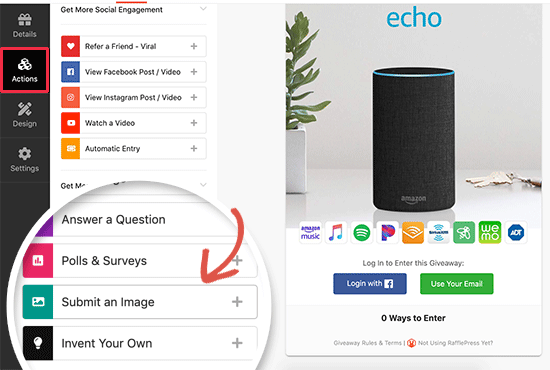
Submit an image action

We have created a detailed guide on how to create a photo contest in WordPress with RafflePress that you can follow more details.

We hope this article has helped you learn how to allow users to upload images on a WordPress site. You may also want to see our comparison of the best email marketing services and best push notification software to connect with your visitors after they leave your website.

If you liked this article, then please subscribe to our YouTube Channel for WordPress video tutorials. You can also find us on Twitter and Facebook.

The post How to Allow Users to Upload Images on a WordPress Site appeared first on WPBeginner.


February 11, 2021 at 05:00PM

Wednesday, February 10, 2021

How to Hide Pinterest Images in Your WordPress Blog Posts

Do you want to learn how to hide a Pinterest image in WordPress?

Pinterest can be a great way to drive traffic to your blog, but displaying a Pinterest image in your post can make your content harder to read.

In this article, we’ll show you how to easily hide a Pinterest image in blog posts while still letting readers pin a custom Pinterest image when they share your content on Pinterest.

How to Hide Pinterest Images in WordPress Blog Posts

Why Hide Pinterest Images on WordPress Posts?

Using Pinterest can be a great way to increase blog traffic.

But, the Pinterest recommended image sizes don’t always look good when added to blog posts. That’s because the Pinterest image dimensions are long and narrow (3:2) which doesn’t fit most blog layouts.

Not to mention, these large images have the potential to slow down your website.

So you might be wondering why do bloggers use longer Pinterest images?

  • They stand out in the Pinterest pin feed and search results
  • They allow you to repin your content with new fresh images
  • They get more traffic than traditional image sizes

By hiding the Pinterest images, you can improve the appearance of your blog posts and make your site faster. All while reaping the benefits of letting readers pin a high-quality image.

Does Hiding Images Interfere with Pinterest Terms of Service?

You might have heard that hiding Pinterest images on your WordPress blog goes against the Pinterest Terms of Service (TOS).

But, this isn’t true.

Hiding a Pinterest image on your website is allowed, as long as you meet the following requirements:

  • The Pinterest image matches the content of your post
  • The Pin description matches the content or title of your post

Essentially, you can hide images on your WordPress blog as long as the image you’re hiding is relevant to your page.

Does Hidden Pinterest Images impact Google Ranking?

For Google to properly rank your site it needs to be able to index your content. This means the search engines crawl your website to see what pages and media your website contains.

Google isn’t necessarily a big fan of hidden images or hidden content. Especially, since hidden content can be associated with spam websites.

However for legitimate use-cases like this one, it’s completely ok for you to hide Pinterest images without impacting your Google ranking.

How to Hide Pinterest Images in WordPress

There are several WordPress plugins that makes it easy to hide Pinterest images in WordPress. There are premium sharing plugins like WPTasty or Grow by Mediavine (formerly Social Pug).

However, we recommend using the free Shared Counts plugin, and their free Shared Counts – Pinterest Image addon.

These plugins are extremely well coded and will not impact your WordPress website speed. Not to mention, they’re 100% free.

This is the plugin that we’re using on WPBeginner to add our social share buttons.

The first thing you’ll need to do is install the Shared Counts plugin. For detailed instructions, please read our step-by-step guide on how to install a WordPress plugin.

The plugin settings are fairly straight forward, but we do have a detailed tutorial on adding social sharing buttons to WordPress that you can use as a guide to get started.

Once the Shared Counts plugin is fully set up, you’ll need to install and activate the Shared Counts – Pinterest Image addon to your site.

There are no unique settings to configure for this plugin.

It automatically adds a custom Pinterest image box to your blog posts.

Instead of having users pin random images from your blog post, you can create a higher-quality image that’ll perform better on Pinterest.

When your website visitors click on your Pinterest share button, Pinterest will pop up with the perfect image you’ve created for your post.

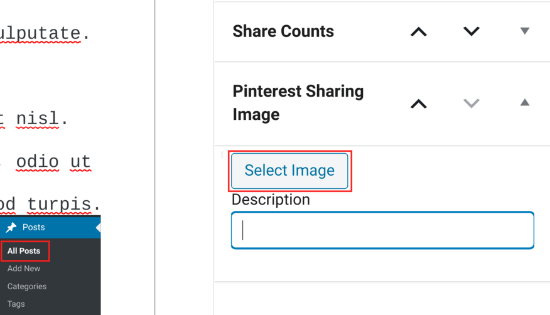
To add your custom Pinterest image for your blog posts, simply go to Posts » All Posts in your WordPress dashboard and open up the post you want to edit.

In the WordPress content editor, you’ll see a meta box labeled ‘Pinterest Sharing Image’ in bottom right-hand corner.

Select Pinterest hidden image

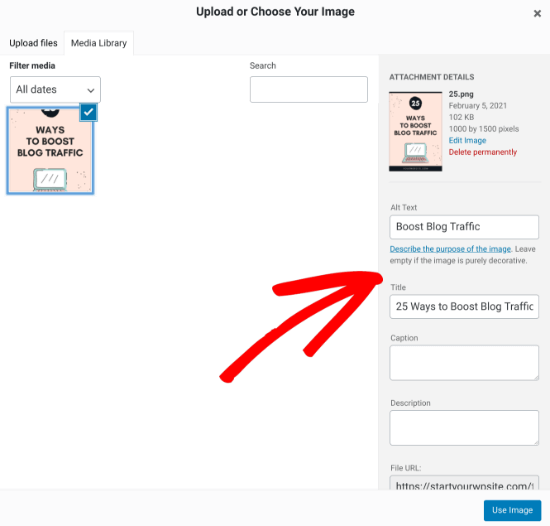
You need click on the ‘Select Image’ button and upload a new image or choose an existing image from your media library.

When you’ve found the image you’d like to use, you can add the ‘Title’ and ‘Alt Text’, then click the ‘Use Image’ button.

Upload Pinterest hidden image

Next, click ‘Publish’ to publish your new post with the Pinterest sharing image, or ‘Update’ if the post is already live.

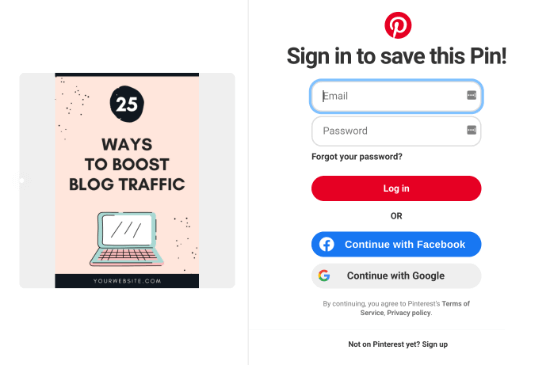
Now, when your visitors click the Pinterest share button there will be a pop-up that has your Pinterest image with the proper dimensions.

Pinterest share image popup

One of the best parts about using this plugin is that it automatically hides the Pinterest image for you.

Once you add your Pinterest featured image to your blog post, the plugin will add it to the bottom of your post, and apply the “display:none;” element automatically. This makes it completely hidden from view.

There is no need to add the image to your post and manually hide it or make any additional changes.

You might have seen other methods online, like using CSS to hide your Pinterest images, or adding HTML code with the “display:none;” element, but you don’t need to worry about any of that.

The plugin addon takes care of everything for you, which is why we recommend this option above all else.

Finally, it’s important you optimize your images before uploading them to WordPress. This plugin hides the image from view, but it still loads on your post. So, if it’s not properly optimized, then it could slow down your website.

We hope this article helped you learn how to hide Pinterest images on your WordPress blog posts. You may also want to learn how to verify your site on Pinterest for added functionality, and our expert pick of the 40 useful tools to manage and grow your blog.

If you liked this article, then please subscribe to our YouTube Channel for WordPress video tutorials. You can also find us on Twitter and Facebook.

The post How to Hide Pinterest Images in Your WordPress Blog Posts appeared first on WPBeginner.


February 10, 2021 at 05:00PM

Tuesday, February 9, 2021

How to Disable Automatic Update Email Notification in WordPress

Do you want to disable automatic update email notifications in WordPress?

By default, WordPress sends email notifications for automatic updates of WordPress plugins, themes, and the core itself.

In this article, we will show you how to easily disable automatic update email notifications in WordPress.

Disabling automatic update email notifications in WordPress

About Automatic Update Notifications in WordPress

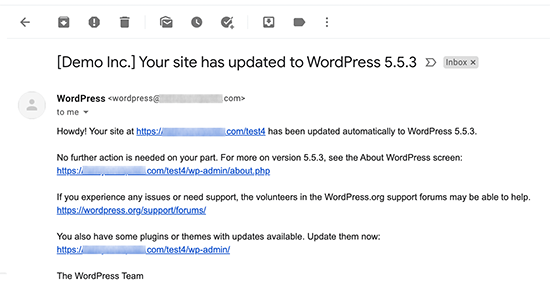
WordPress is open-source content management platform that is regularly maintained and updated. Some of these updates are automatically installed, and you will receive an email notification that your site has been updated.

Email notification preview after an auto-update

Similarly, WordPress also allows you to enable automatic updates for WordPress plugins and themes too. This means you spend less time updating plugins and more time on growing your business.

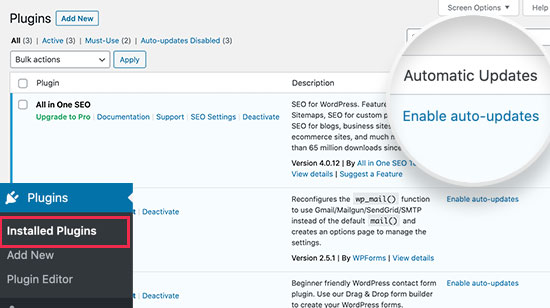
You can enable automatic updates for plugins that you trust by visiting Plugins » All Plugins page. Simply click on the ‘Enable auto-updates’ link next to the plugin that you want to update itself.

Enable automatic updates for WordPress plugins

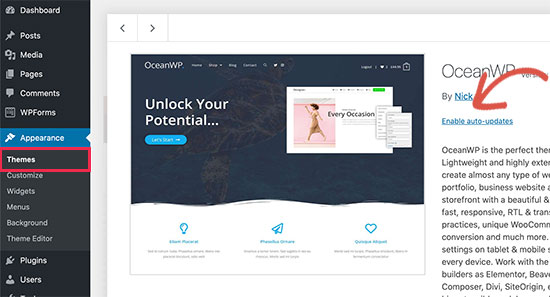
For WordPress themes, you can visit the Appearance » Themes page and click on a theme. This will bring up theme information popup where you can click on ‘Enable auto-updates’ for that theme.

Enable theme auto-updates

WordPress will send you an email notification when any of your plugins, theme, or WordPress core is updated.

This can get annoying particularly for users who manage multiple WordPress websites. Wouldn’t it be nice if you can control and turn off these email notifications?

Let’s take a look at how to easily disable automatic update email notifications in WordPress.

Method 1: Disable Automatic Update Email Notification Using Plugin

This method is simpler and does not require you to add any code to your WordPress site. It also gives you the flexibility to select which notifications you want to disable.

First thing you need to do is install and activate the Manage Notification E-mails plugin. For more details, see our step by step guide on how to install a WordPress plugin.

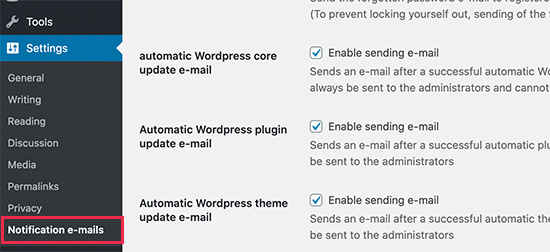
Upon activation, you need to visit the Settings » Notification e-mails page. This is where the plugin allows you to manage all WordPress notification emails including auto-update notifications.

Disable email notifications

Simply scroll down to the auto-update options and uncheck the box next to the notifications that you want to disable.

Don’t forget to click on the ‘Save Changes’ button to store your settings.

That’s all, you have successfully disabled WordPress auto-update email notifications for your website.

Method 2: Disable Automatic Update Email Notification Using Code

This method requires you to add code to your WordPress files. If you haven’t done this before, then take a look at our beginner’s guide on pasting snippets from web into WordPress.

You can use Code Snippets plugin to add custom code in WordPress or manually add this code to your theme’s functions.php file or a site-specific plugin. A better approach would be to use Code Snippets plugin to add custom code in WordPress.

1. Disable Auto Update Notification Emails for Core Updates

Simply add the following code to disable notification emails for automatic updates of the WordPress core.

add_filter( 'auto_core_update_send_email', 'wpb_stop_auto_update_emails', 10, 4 );
 
function wpb_stop_update_emails( $send, $type, $core_update, $result ) {
if ( ! empty( $type ) && $type == 'success' ) {
return false;
}
return true;
}

This code adds a filter to disable email notifications after automatic core updates.

2. Disable Auto Update Notification Emails for Plugins

Add the following code to disable notification emails for automatic updates of WordPress plugins.

add_filter( 'auto_plugin_update_send_email', '__return_false' );

This filter simply disables email notifications for plugin auto-updates.

3. Disable Auto Update Notification Emails for Themes

Add the following code to disable notification emails for automatic updates of WordPress themes.

add_filter( 'auto_theme_update_send_email', '__return_false' );

This filter simply disables email notifications for theme auto-updates.

Rolling Back WordPress Updates if Something Goes Wrong

Because WordPress plugins run on various independent WordPress hosting and sever configurations, it is possible that sometimes a plugin update may result in breaking a feature on your website or making it inaccessible.

This is easy to troubleshoot and fix. First, you need to figure out which plugin has caused the issue by deactivating all WordPress plugins and reactivating them one by one.

Once you have isolated the plugin causing the issue, then you can use WP Rollback plugin. It allows you to switch to the previous version of a WordPress plugin or theme.

For details, see our guide on how to rollback WordPress plugins and themes with step by step instructions.

Improving WordPress Email Deliverability

Even if you disable WordPress auto-update emails, there are other WordPress notification emails that you may not want to miss.

For instance, if you run a WooCommerce store, then you would want to receive notifications when new order is placed.

Similarly, if you sell an online course or run a membership website, then you may want to receive email alerts when new users sign up.

You would also want to make sure that emails sent to users are delivered. Like forgot password emails, payment receipt emails, or order confirmation notifications.

To send emails, WordPress uses the PHP mail function. This function is easily misused by spammers, and your emails may end up in spam.

To make sure all your important WordPress notification emails reach user’s inbox, you need to use a proper SMTP service to send emails.

This is where WP Mail SMTP plugin comes in. It allows you to use an SMTP service to send all your WordPress notification emails.

You can use it with a paid SMTP service provider as well as a free SMTP service like Gmail combined with the free version of WP Mail SMTP plugin.

For more details, see our guide on How to set up WP Mail SMTP on your WordPress site.

That’s all, we hope this article helped you learn how to disable automatic update email notification in WordPress. You may also want to see our guide on 24 must have WordPress plugins for business websites, and our comparison of the best email marketing services to grow your sales.

If you liked this article, then please subscribe to our YouTube Channel for WordPress video tutorials. You can also find us on Twitter and Facebook.

The post How to Disable Automatic Update Email Notification in WordPress appeared first on WPBeginner.


February 09, 2021 at 03:40PM