Saturday, March 6, 2021

How to Optimize Your WordPress Robots.txt for SEO

Recently one of our readers asked us for tips on how to optimize the robots.txt file to improve SEO.

Robots.txt file tells search engines how to crawl your website which makes it an incredibly powerful SEO tool.

In this article, we will show you how to create a perfect robots.txt file for SEO.

Using WordPress robots.txt file to improve SEO

What is robots.txt file?

Robots.txt is a text file that website owners can create to tell search engine bots how to crawl and index pages on their site.

It is typically stored in the root directory, also known as the main folder, of your website. The basic format for a robots.txt file looks like this:

User-agent: [user-agent name]
Disallow: [URL string not to be crawled]

User-agent: [user-agent name]
Allow: [URL string to be crawled]


Sitemap: [URL of your XML Sitemap]

You can have multiple lines of instructions to allow or disallow specific URLs and add multiple sitemaps. If you do not disallow a URL, then search engine bots assume that they are allowed to crawl it.

Here is what a robots.txt example file can look like:

User-Agent: *
Allow: /wp-content/uploads/
Disallow: /wp-content/plugins/
Disallow: /wp-admin/

Sitemap: https://example.com/sitemap_index.xml

In the above robots.txt example, we have allowed search engines to crawl and index files in our WordPress uploads folder.

After that, we have disallowed search bots from crawling and indexing plugins and WordPress admin folders.

Lastly, we have provided the URL of our XML sitemap.

Do You Need a Robots.txt File for Your WordPress Site?

If you don’t have a robots.txt file, then search engines will still crawl and index your website. However, you will not be able to tell search engines which pages or folders they should not crawl.

This will not have much of an impact when you’re first starting a blog and do not have a lot of content.

However as your website grows and you have a lot of content, then you would likely want to have better control over how your website is crawled and indexed.

Here is why.

Search bots have a crawl quota for each website.

This means that they crawl a certain number of pages during a crawl session. If they don’t finish crawling all pages on your site, then they will come back and resume crawl in the next session.

This can slow down your website indexing rate.

You can fix this by disallowing search bots from attempting to crawl unnecessary pages like your WordPress admin pages, plugin files, and themes folder.

By disallowing unnecessary pages, you save your crawl quota. This helps search engines crawl even more pages on your site and index them as quickly as possible.

Another good reason to use robots.txt file is when you want to stop search engines from indexing a post or page on your website.

It is not the safest way to hide content from the general public, but it will help you prevent them from appearing in search results.

What Does an Ideal Robots.txt File Look Like?

Many popular blogs use a very simple robots.txt file. Their content may vary, depending on the needs of the specific site:

User-agent: *
Disallow:
 
Sitemap: http://www.example.com/post-sitemap.xml
Sitemap: http://www.example.com/page-sitemap.xml

This robots.txt file allows all bots to index all content and provides them a link to the website’s XML sitemaps.

For WordPress sites, we recommend the following rules in the robots.txt file:

User-Agent: *
Allow: /wp-content/uploads/
Disallow: /wp-content/plugins/
Disallow: /wp-admin/
Disallow: /readme.html
Disallow: /refer/

Sitemap: http://www.example.com/post-sitemap.xml
Sitemap: http://www.example.com/page-sitemap.xml

This tell search bots to index all WordPress images and files. It disallows search bots from indexing WordPress plugin files, WordPress admin area, the WordPress readme file, and affiliate links.

By adding sitemaps to robots.txt file, you make it easy for Google bots to find all the pages on your site.

Now that you know what an ideal robots.txt file look like, let’s take a look at how you can create a robots.txt file in WordPress.

How to Create a Robots.txt File in WordPress?

There are two ways to create a robots.txt file in WordPress. You can choose the method that works best for you.

Method 1: Editing Robots.txt File Using All in One SEO

All in One SEO also known as AIOSEO is the best WordPress SEO plugin in the market used by over 2 million websites.

It’s easy to use and comes with a robots.txt file generator.

If you don’t have already have the AIOSEO plugin installed, you can see our step by step guide on how to install a WordPress plugin.

Note: Free version of AIOSEO is also available and has this feature.

Once the plugin is installed and activated, you can use it to create and edit your robots.txt file directly from your WordPress admin area.

Simply go to All in One SEO » Tools to edit your robots.txt file.
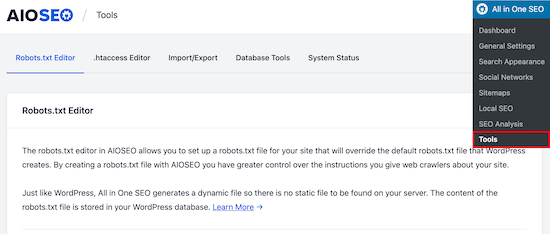
AIOSEO robots.txt editor

First, you’ll need to turn on the editing option, by clicking the ‘Enable Custom Robots.txt’ toggle to blue.

With this toggle on, you can create a custom robots.txt file in WordPress.
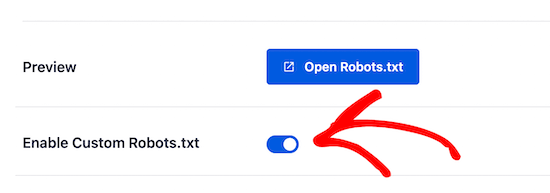
AIOSEO enable custom robots.txt

All in One SEO will show your existing robots.txt file in the ‘Robots.txt Preview’ section at the bottom of your screen.

This version will show the default rules that were added by WordPress.
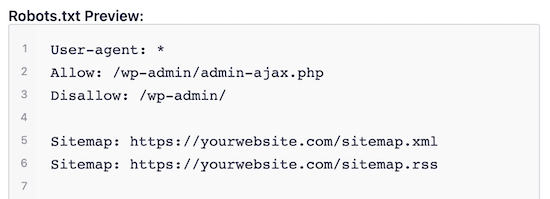
Robots.txt default rules

These default rules tell the search engines not to crawl your core WordPress files, allows the bots to index all content, and provides them a link to your site’s XML sitemaps.

Now, you can add your own custom rules to improve your robots.txt for SEO.

To add a rule, enter a user agent in the ‘User Agent’ field. Using a * will apply the rule to all user agents.

Then, select whether you want to ‘Allow’ or ‘Disallow’ the search engines to crawl.

Next, enter filename or directory path in the ‘Directory Path’ field.
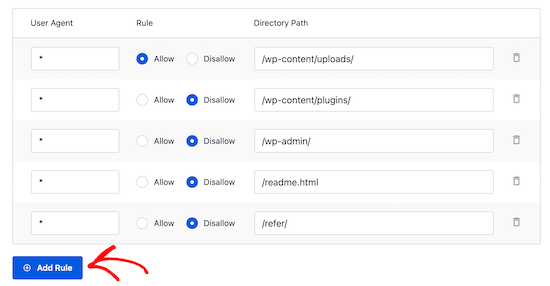
Add rule in robots.txt

The rule will automatically be applied to your robots.txt. To add another rule clicks the ‘Add Rule’ button.

We recommend adding rules until you create the ideal robots.txt format we shared above.

Your custom rules will look like this.
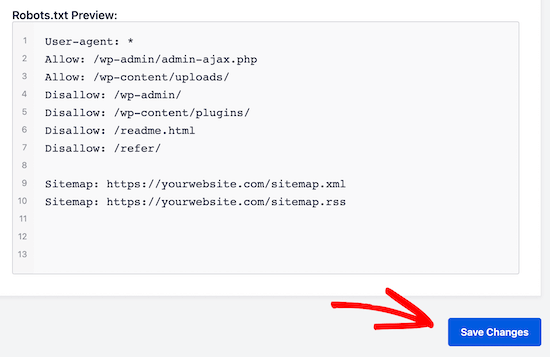
Robots.txt custom rules file

Once you’re done, don’t forget to click on the ‘Save Changes’ button to store your changes.

Method 2. Edit Robots.txt file Manually Using FTP

For this method, you will need to use an FTP client to edit robots.txt file.

Simply connect to your WordPress hosting account using an FTP client.

Once inside, you will be able to see the robots.txt file in your website’s root folder.
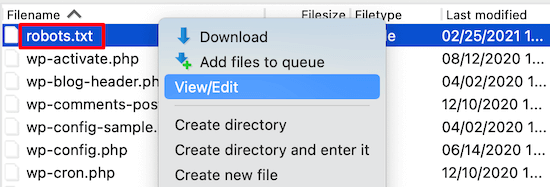
FTP connection robots.txt

If you don’t see one, then you likely don’t have a robots.txt file.

In that case, you can just go ahead and create one.
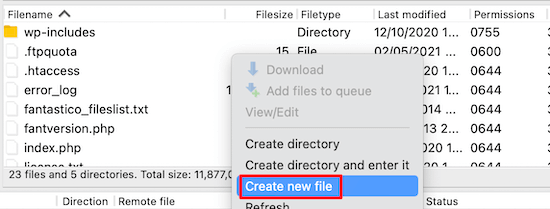
FTP connection create robots.txt

Robots.txt is a plain text file, which means you can download it to your computer and edit it using any plain text editor like Notepad or TextEdit.

After saving your changes, you can upload it back to your website’s root folder.

How to Test Your Robots.txt File?

Once you have created your robots.txt file, it’s always a good idea to test it using a robots.txt tester tool.

There are many robots.txt tester tools out there, but we recommend using the one inside Google Search Console.

First, you’ll need to have your website linked with Google Search Console. If you haven’t done this yet, see our guide on how to add your WordPress site to Google Search Console.

Then, you can use the Google Search Console Robots Testing Tool.
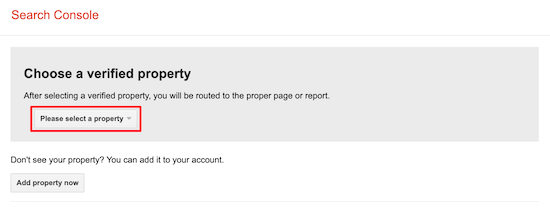
Select website property robots.txt tester

Simply select your property from the dropdown list.

The tool will automatically fetch your website’s robots.txt file and highlight the errors and warnings if it found any.
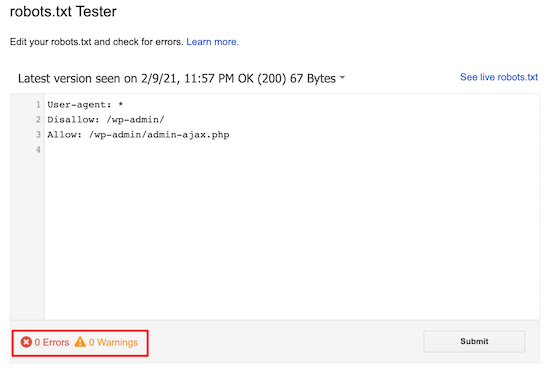
Robots.txt tester results

Final Thoughts

The goal of optimizing your robots.txt file is to prevent search engines from crawling pages that are not publicly available. For example, pages in your wp-plugins folder or pages in your WordPress admin folder.

A common myth among SEO experts is that blocking WordPress category, tags, and archive pages will improve crawl rate and result in faster indexing and higher rankings.

This is not true. It’s also against Google’s webmaster guidelines.

We recommend that you follow the above robots.txt format to create a robots.txt file for your website.

We hope this article helped you learn how to optimize your WordPress robots.txt file for SEO. You may also want to see our ultimate WordPress SEO guide and the best WordPress SEO tools to grow your website.

If you liked this article, then please subscribe to our YouTube Channel for WordPress video tutorials. You can also find us on Twitter and Facebook.

The post How to Optimize Your WordPress Robots.txt for SEO appeared first on WPBeginner.


March 06, 2021 at 03:20PM

Friday, March 5, 2021

7 Best Auction Plugins for WordPress (2021)

Are you looking for the best auction plugins for WordPress?

An auction plugin allows you to run online auctions on your website and create an eBay like store using WordPress.

In this article, we’ll show you our top pick of the best auction plugins for WordPress.

Auction plugins for WordPress and WooCommerce compared

Before You Get Started

WordPress has many different auction plugins available. Some are available as standalone WordPress plugins whereas others are available as WooCommerce extensions.

Depending on the option you choose, your set up will be different.

For example, a WooCommerce plugin will require you to set up an online store. You’ll need a WooCommerce hosting provider like SiteGround.

Whereas for other plugins, you can simply create a WordPress website and install it like you would do for any other plugin.

If you’re expecting a lot of bidding in your auctions, then you may want to consider your website speed and performance issues by using a managed WordPress hosting provider. This ensures that your website does not go down during critical auction times.

With that said, let’s take a look at the best WordPress auction plugins that you can use.

1. YITH WooCommerce Auctions

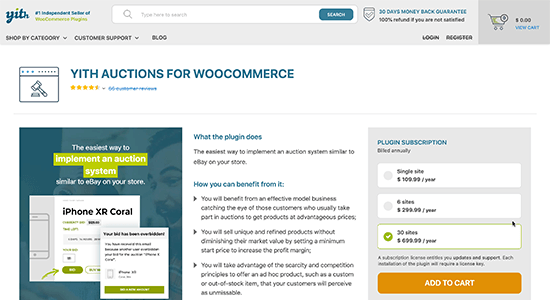
YITH Auctions for WooCommerce

YITH WooCommerce Auctions is the complete auctions plugin for WooCommerce and allows you to build an ebay-like website in minutes.

It is super easy to use and you can easily add any type of products that you want to auction. You can set up a minimum bid amount, minimum bid increment, reserve price, buy it now price, and more.

You can also choose to set a schedule for an auction, extend an auction, add a grace period, and have full control over the process.

It runs on top of WooCommerce, so you can easily set it up by setting up an online store first. After that, you can install the plugin and then add auction products like you would add any other WooCommerce product. This also makes it easier for you to accept payments and use all the powerful eCommerce features of WooCommerce.

The plugin can also be converted into a multi-vendor marketplace, which would allow other sellers to list their own products for auction on your site. Allowing you to make additional money by providing a platform to third-party sellers.

For more details, see our step by step guide on how to build an auction site in WordPress.

2. WP Auctions

WP Auctions

WP Auctions is another easy solution to run auctions on your WordPress website. It allows you to easily add auctions to your site, set starting price, date, and wait for bids to come in.

After that, you can send the winning bid to a page where they can pay via PayPal. Alternatively, you can accept payments manually or via wire transfer by emailing the user.

You can add the auction to a post, page or a sidebar widget on your website. You can also manually add it to your custom WordPress theme by adding a template tag.

The downside is that there are limited payment options, and it lacks many of the features you would get with some other plugins on the list. However, it is an excellent option if you don’t want to install an eCommerce plugin.

3. Ultimate WordPress Auction

Ultimate Auctions for WordPress

Ultimate WordPress Auction is another good way to add auctions to your WordPress website or WooCommerce store.

It allows you to add auction products, set bidding time, and manage your auctions using a simple dashboard. The free version allows you to accept payments via PayPal. The pro version allows you to accept payments via Stripe too.

Using it on WooCommerce also allows you to use a multi-vendor plugin. This enables other sellers to auction their own products on your platform.

4. WP Ebay Products Feed

WP eBay Product Feeds

WP Ebay Products Feed allows you to fetch and display your eBay auctions on your WordPress website. This is particularly useful for sellers that are already selling on eBay.

It also helps if you want to show your existing users that you are a reputable seller and have been an active seller.

The plugin is quite easy to use. Simply add the eBay ID and use a third-party service to convert it into a usable RSS feed. After that, you can set how you want products to be displayed in your feeds.

The plugin allows you to use your own Affiliate ID with eBay links. It also supports Gutenberg block editor, and you can display the auction feed anywhere on your website.

It can be used with other auction plugins for WordPress and WooCommerce, or as a standalone solution to simply send users to make the bid on your eBay profile.

5. Auctions Made Easy for WooCommerce

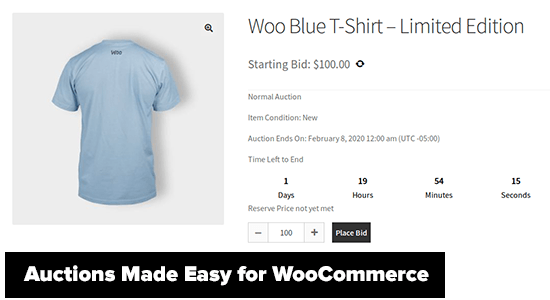
Auctions Made Easy for WooCommerce

Auctions Made Easy for WooCommerce is a WordPress auction plugin made specifically for WooCommerce stores.

The plugin supports normal, reverse auctions, sealed auctions, proxy auctions, and more. It allows customers to log in and view their own auction dashboard. Once they have won an auction, they will see a link to make the payment to complete the purchase.

Adding products to the auction works like any other product you add in WooCommerce. After you set up the product to be an auction product, you’ll see the options to set up the schedule, starting bid, and other settings.

It beautifully displays your auction products with a countdown timer to trigger the FOMO effect on the product page.

Being an extension of WooCommerce, it allows you to use multiple payment gateways and extend your site functionality using popular WooCommerce plugins and tools/

6. WP-Lister Lite for eBay

WP-Lister Lite for eBay

WP-Lister Lite for eBay is a WooCommerce plugin that allows you to easily add your WooCommerce products to your eBay store.

You can easily list products on your online store and your eBay store at the same time. It does not allow you to run an auction on your WooCommerce store.

However, you can use a different WooCommerce auction plugin or run the auction on eBay using the same product data without having to enter it again.

The plugin is a bit complicated to get used to as you need to set it up to work with an API. However, once it is set up the whole process runs quite smoothly.

7. Auction Nudge

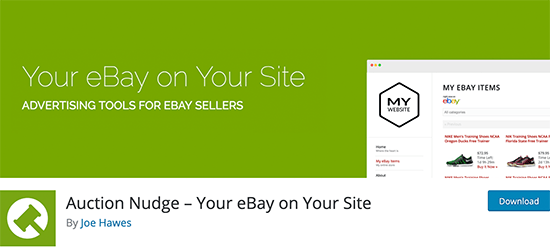
Auction Nudge

Auction Nudge allows you to bring your eBay profile to your WordPress website or WooCommerce store.

It is particularly useful when you want to show that you are a well-reputed seller or just want to promote your eBay auctions. The plugin does a good job of bringing content from your eBay account to WordPress.

It is quite simple to use and comes with flexible options to display your eBay products, profile information, and your most recent feedbacks.

You can use it alongside any WordPress auctions plugin on the list and allow users to see your past activity on the platform.

We hope this article helped you find the best auction plugins for WordPress. You may also want to see our guide on best email marketing services to improve your auction bids and best live chat software to answer questions during live auctions.

If you liked this article, then please subscribe to our YouTube Channel for WordPress video tutorials. You can also find us on Twitter and Facebook.

The post 7 Best Auction Plugins for WordPress (2021) appeared first on WPBeginner.


March 05, 2021 at 03:42PM

Thursday, March 4, 2021

How to Hide a Mobile Menu in WordPress (Beginner’s Guide)

Do you want to hide a mobile menu in WordPress?

Most WordPress themes come with built-in styles that automatically transform your navigation menus into a mobile menu. However, you may not wish to use the same menu on mobile or may want to use a different menu style.

In this article, we will show you how to easily hide a mobile menu in WordPress using a plugin or code method.

Hiding a WordPress menu on mobile

Method 1. Hide a Mobile Menu in WordPress using a Plugin

This method is easier and is recommended for beginners. We’ll use a plugin to hide your existing mobile menu provided by your WordPress theme and then use a different menu or no menu at all on mobile devices.

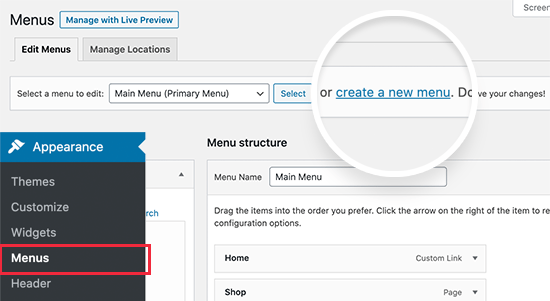
First, you need to visit the Appearance » Menus page and create a new navigation menu that you would like to display on mobile devices.

Create a new menu to be used on mobile devices

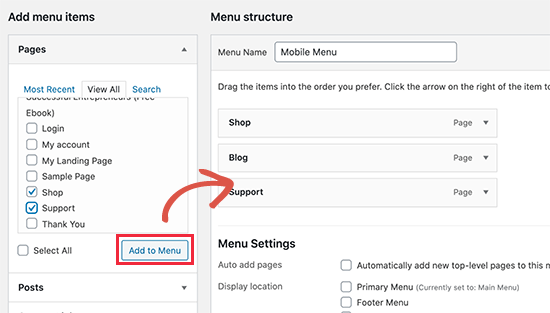
On the next screen, you need to provide a name for your new menu that helps you identify it later. We’ll call it ‘Mobile Menu’. After that, you can select the items you want to add to your menu from the left column.

Adding menu items

Once you are finished adding items to your menu, don’t forget to click on the Save Menu button to save your menu.

If you need help creating a new navigation menu, then follow our beginner’s guide to creating a navigation menu in WordPress.

Next, you need to install and activate the WP Mobile Menu plugin. For more details, see our step by step guide on how to install a WordPress plugin.

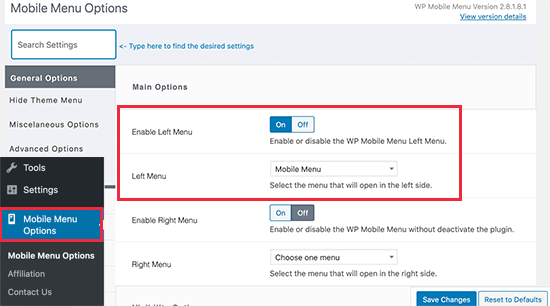
Upon activation, you need to visit Mobile Menu Options page to configure plugin settings. From here, you need to select whether you want to display your mobile menu on the right or to the left by turning the toggle On.

Choose mobile menu and its direction

From the drop-down menu, select the mobile menu you created earlier.

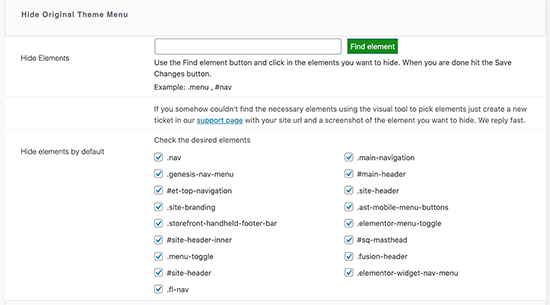
Next, you need to scroll down to the ‘Hide Original Theme Menu’ section. This is where you can tell the plugin to hide a mobile menu created by your WordPress theme.

Hide theme mobile menu in WordPress

By default, the plugin will use commonly used element identifiers used by most popular WordPress themes. Most users wouldn’t need to do anything here.

However, if the plugin fails to hide your theme’s menu, then you can come back here and click on the ‘Find Element’ button to simply point to your theme’s navigation menu.

Don’t forget to click on the Save Changes button to store your settings.

Now that we have set up the plugin, we need to tell WordPress site to display our mobile menu to the new menu location added by the plugin.

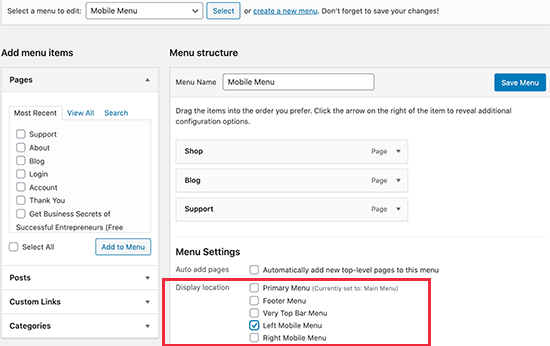
Simply, go to the Appearance » Menus page. Make sure the mobile menu you created earlier is selected in the drop down menu. Below your menu item choose the location you selected in the plugin settings (e.g. Left Mobile Menu or Right Mobile Menu).

Menu location

You can now visit your website to see your new menu in action. The plugin will now hide your theme’s mobile menu and display a custom menu instead.

Mobile menu replaced

WP Mobile Menu plugin allows you to change the color of the menu bar, change opacity, add icons, and more in the settings. Feel free to play around with those settings.

Method 2. Hide Mobile Menu using CSS Code

This method is a bit advanced and requires some custom CSS to be used.

For this method, you can choose to use two different approaches. You can just hide a complete mobile menu using CSS, or you can hide individual menu items on mobile devices.

1. Hiding a complete menu on mobile devices using CSS

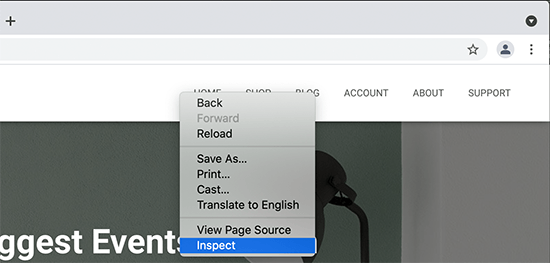
First, you need to figure out the element you need to modify using custom CSS. To do that, simply go to your website and take the mouse over to your navigation menu. After that, right click and select Inspect tool.

Inspect tool

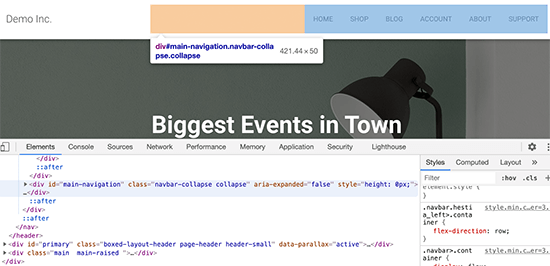
Your browser screen will split into two, and you’ll see the source code of your webpage. Now this navigation menu is not the one you need to target because it is visible on the desktop screen.

Source code while viewing your desktop menu

You need to rearrange your browser screen by dragging it from the corner to a smaller size until the desktop navigation menu is replaced by the mobile menu.

Mobile menu identifier

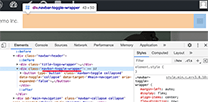
You need to figure out the identifier and CSS class used by your WordPress navigation menu. You can do that by moving your mouse on the source code until the menu area is highlighted.

As you can see in the screenshot above, our test theme is using the navbar-toggle-wrapper class.

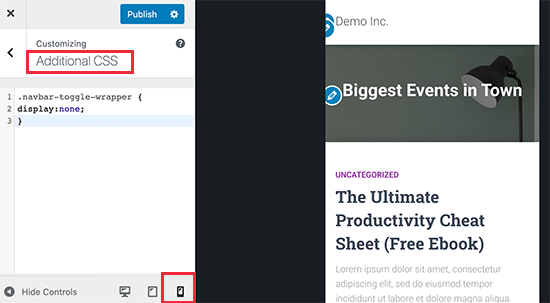
After that, you need to go to Appearance » Customize page in WordPress admin area to launch theme customizer. Here, you need to switch to the ‘Additional CSS’ tab and click on the mobile icon at the bottom right corner of the left panel.

Adding custom CSS to hide complete menu

The customizer will now show a preview of how your site will look on mobile devices. You can now enter the following CSS code and see your mobile menu disappear in the preview panel.

.navbar-toggle-wrapper { 
display:none; 
} 

Don’t forget to replace the .navbar-toggle-wrapper with the identifier used by your WordPress theme.

After that, click on the ‘Publish’ button at the top to save your changes.

2. Hiding specific menu items in mobile menu using CSS

This method allows you to create a navigation menu and then selectively show or hide items that you don’t want to display on mobile or desktop devices.

The advantage of this method is that you can use the same navigation menu for mobile and desktop and simply hide the items that you don’t want to be seen.

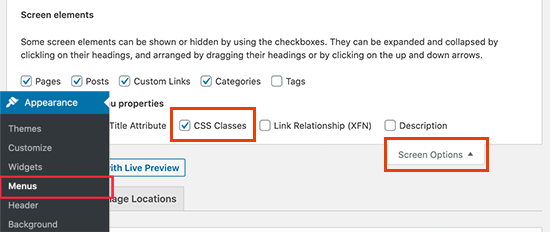
First, you need to go to Appearance » Menus page and click on the Screen Options button at the top right corner of the screen. From here, you need to check the box next to the ‘CSS Classes’ option.

Screen Options

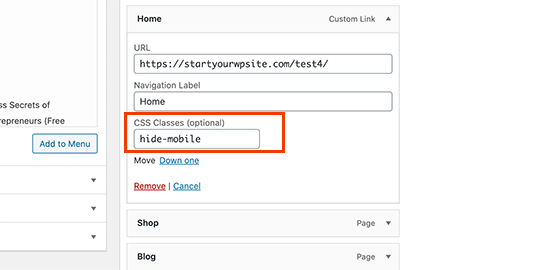
After that. you need to scroll down to a menu item that you want to hide on mobile devices and click to expand it. In the menu item settings, you’ll now see the option to add a CSS class. Go ahead and add .hide-mobile CSS class there.

Add CSS class

Repeat the process for all menu items you don’t want to show on mobile.

Similarly, you can also click on the menu items that you want to hide on desktop computers. This time, add the .hide-desktop CSS class instead.

Once you are finished, don’t forget to click on the Save Menu button to store your changes.

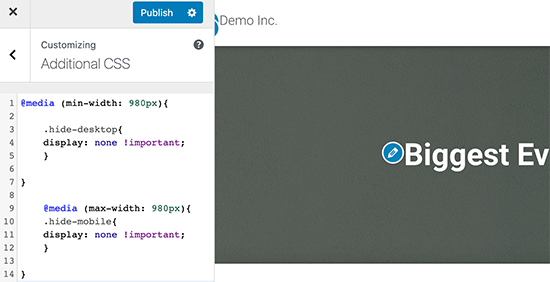
Now we will add custom CSS to hide these menu items. Simply go to the Appearance » Customize page to launch the Theme Customizer and click on the Additional CSS tab.

You need to add the following CSS code in the CSS box.

@media (min-width: 980px){

    .hide-desktop{
    display: none !important;
    }

}

    @media (max-width: 980px){
    .hide-mobile{
    display: none !important;
    }

}

Add your custom CSS

Don’t forget to click on the Publish button to save your changes.

You can now visit your website and you will notice that items that you wanted to hide on desktop are no longer visible in the menu. Adjust your browser screen to a smaller size and you will notice the same for the mobile menu as well.

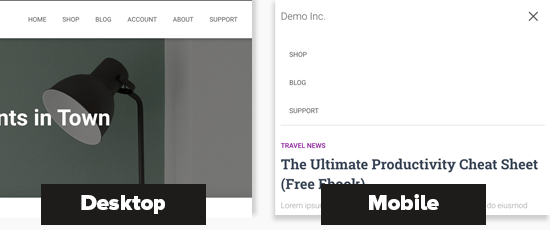
Different menus on desktop and mobile screens

We hope this article helped you learn how to easily hide a mobile menu in WordPress. You may also want to see our article on how to create custom pages in WordPress or how to create a custom theme from scratch without writing code.

If you liked this article, then please subscribe to our YouTube Channel for WordPress video tutorials. You can also find us on Twitter and Facebook.

The post How to Hide a Mobile Menu in WordPress (Beginner’s Guide) appeared first on WPBeginner.


March 04, 2021 at 06:00PM