Tuesday, March 9, 2021

7 Best Customer Reviews Plugins for WordPress Compared (2021)

Are you looking for the best customer reviews plugins for WordPress?

Customer reviews can help you build social proof and gain the trust of your visitors, which means more sales for your business.

In this article, we’ll share the best WordPress review plugins to help you easily add customer reviews to WordPress.
Best customer reviews plugins for WordPress compared

Why Use a Customer Reviews Plugin for WordPress?

A customer reviews plugin makes it easy to add different types of reviews to WordPress.

For example, you can embed reviews from social media, let customers submit their own reviews, add engaging product reviews, and more.

The alternative is doing all of these tasks manually.

But, the time spent collecting, managing, and formatting is better spent elsewhere. Plus, it would be hard to achieve the same level of functionality as a plugin, unless you’re a WordPress developer.

Your WordPress theme might have built-in review features, like Divi or Elementor. However, most themes won’t have this out of the box.

Why are customer reviews important?

  • Reviews act as free advertising for your products and services
  • Can enhance your site’s appearance in the Search Engine Results Pages (SERPS)
  • Allows you to gather feedback to improve your products and services
  • Can highlight features or benefits you missed in your product copy
  • Positive reviews act as social proof

That being said, let’s take a look at some of the best WordPress customer review plugins you can try.

1. Smash Balloon

Smash Balloon

Smash Balloon is the best social media plugin for WordPress used by over 1.3 million WordPress sites. It gives you a way to add social media feeds to WordPress and display your social media reviews.

Smash Balloon is a collection of social media plugins, so you can decide which social media networks you want to add to WordPress.

For example, you can use the Custom Facebook Feed Reviews Extension to embed customer reviews from your Facebook page.

Smash Balloon Facebook customer reviews

Or, if you have an engaged audience on Twitter, then you can use the Custom Twitter Feeds Pro plugin to embed reviews and testimonials.

You can easily filter your Twitter feed by displaying specific hashtags or using the advanced search feature to only show reviews about your company.

2. WPForms

WPForms

WPForms is the best WordPress form plugin in the market used by over 4 million WordPress sites.

With WPForms, you can create a simple customer review form that lets your customers send reviews directly to you.

The free version of the plugin lets you simply create a customer review form using the front-end drag and drop editor.
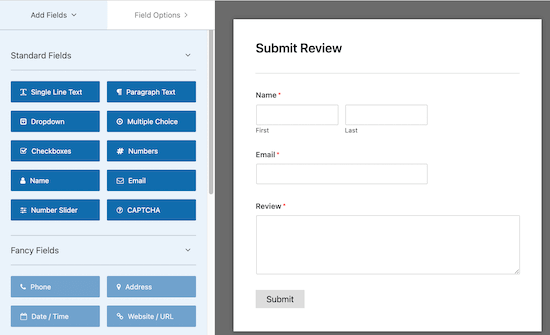
WP Forms drag and drop editor

If you need more functionality, there are advanced addons available that will add features like testimonial functionality.

The Form Templates Pack addon includes a Testimonial Form Template.
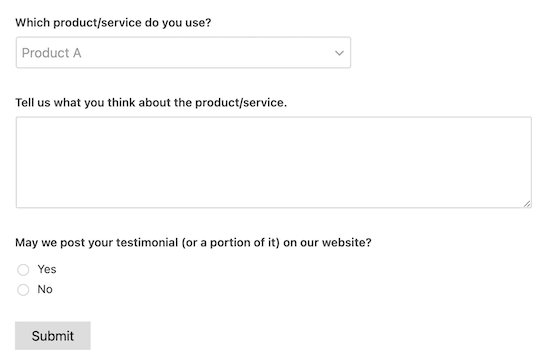
WP Forms testimonial template

With this you can create a testimonial form easily and modify the form template however you like.

You can also use WPForms to let users submit attachments with their review entries. For example, they can include a product image with their review or a headshot with their testimonial.

Another option is collecting user reviews and data by using the Survey and Polls addon. With this you can easily create survey forms with detailed reports of your user data.

3. WP Business Reviews

WP Business Reviews

WP Business Reviews is an all-in-one WordPress plugin that lets you add Yelp, Facebook, and Google reviews to WordPress.

With this plugin, you can easily showcase your reviews from multiple platforms. You can choose to display reviews from all your platforms together or just one.

This helps local business owners improve social proof by bringing together reviews from platforms like Google My Business (formerly Google Places).

You can even set up the plugin to automatically add new reviews when they’re posted on other platforms.

WP Business Reviews carousel

The additional filtering options let you hide negative reviews, add custom reviews you’ve collected from your site, and change the layout to suit your needs.

For more details, see our step by step guide on how to show Google, Facebook, and Yelp reviews in WordPress.

4. AIOSEO

AIOSEO

AIOSEO is the best SEO plugin for WordPress in the market used by over 2 million WordPress websites.

This plugin lets you simply add product review schema to your posts and pages. Schema markup helps the search engines better understand and display your posts and review content.

Rich snippets are more likely to receive clicks in the search results:

AIOSEO schema search results

AIOSEO will automatically detect the right schema type based on your existing content.

You can also change the schema type and enter relevant schema information.
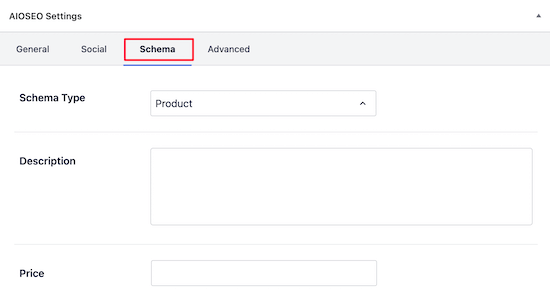
AIOSEO schema settings

There is a free version of the plugin available, but you’ll need the pro version to select the schema type.

The right schema will enhance how your website looks in the search engines, which means more traffic for your WordPress blog.

5. WP Product Review Lite

WP Product Review Lite

WP Product Review Lite is the best WordPress product review plugin. It’s easy to set up and comes with a detailed customization menu, so you can display your product reviews exactly how you want.

This makes it perfect for bloggers and those running review websites.

It’s very simple to add a product review using this plugin. When you’re writing a blog post, simply turn on the ‘Is this post a review’ toggle, and the plugin will enable the review custom post type.

This lets you highlight important product features, add pros and cons, slider or star ratings, images, and more, all from your WordPress post editor.

Plus, there are built in styling options like unlimited colors and typography choices, with no need to add custom CSS.
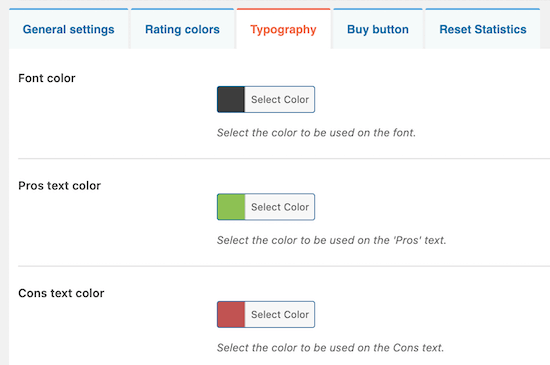
WP Product Review settings

There’s also a review box widget that lets you add important review information to your sidebar. You can even let your visitors submit their own reviews and ratings in the comments.

The built-in rating system lets you decide how much a user review will influence the rating you’ve given the product.

For more details, see our step by step guide on how to create a reviews site with WordPress.

6. Customer Reviews for WooCommerce

Customer Reviews for WooCommerce

The Customer Reviews for WooCommerce plugin lets you add more detailed customer reviews to your ecommerce store.

The goal of this plugin is to improve your online store social proof, so when visitors land on your product pages, they’re more likely to buy.

It has a built-in system to verify that reviews came from actual buyers. People who purchased the product will have a trust badge next to their names.
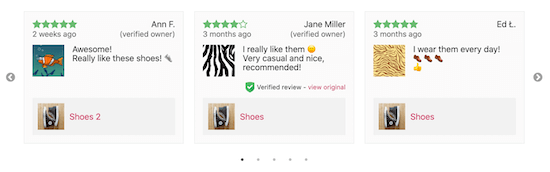
Customer reviews for WooCommerce reviews

With this plugin, customers can attach pictures, vote on reviews, and add a question and answer section to your products (just like Amazon).

You can also enable automatic review reminders to improve the number of reviews on your products.

The premium version of the plugin lets you customize your review section, remove their branding, and change the default email address to your business email address.

7. Easy Testimonials

Easy Testimonials

Easy Testimonials is a free plugin from WordPress.org that lets you showcase online reviews and testimonials across your WordPress website.

Once you’ve collected testimonials and reviews with a plugin like WPForms, you’ll want an easy way to add them to WordPress.

This user-friendly plugin lets you do just that. You can add reviews to your sidebar, widget section, or use the shortcode to embed your reviews into posts and pages.
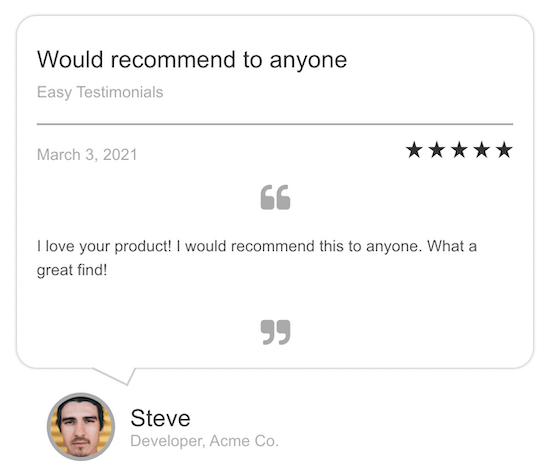
Easy testimonials plugin review example

You have full control over how your reviews display and the types of reviews you want to feature. For example, you can insert your entire list, display one at random, or even showcase them all in a slideshow.

There’s a collection of 25 different templates for displaying your reviews on your site.

For more details, see our step by step guide on how to add a customer reviews page in WordPress.

You might have come across other customer reviews plugins like WP Review Pro by MyThemeShop, Taqyeem, and WP Customer Reviews. However, we kept the list short to make your plugin decision much easier.

We hoped this article helped you find the best customer reviews plugins for your WordPress website. You may also want to see our list of the best email marketing services, and our expert picks of the must have WordPress plugins for businesses.

If you liked this article, then please subscribe to our YouTube Channel for WordPress video tutorials. You can also find us on Twitter and Facebook.

The post 7 Best Customer Reviews Plugins for WordPress Compared (2021) appeared first on WPBeginner.


March 09, 2021 at 10:00PM

MemberPress Creators Have Earned over $1 billion dollars (Milestone Update)

It’s always mind blowing for me to see the impact WordPress makes on the global economy.

MemberPress, the leading WordPress membership and course platform, announced today that they have passed the milestone of $1 billion dollars in creator earnings.

This is a conservative estimate and likely MemberPress creators have earned way more than that.

MemberPress Billion Dollar Creator Earning Milestone

With the digital acceleration from last year, they are estimating that MemberPress site creators are projected to earn over $600 million dollars in 2021 alone.

For those who don’t know, I invested in MemberPress in 2018 as part of our WPBeginner Growth Fund.

It’s been an exciting journey to work alongside with Blair Williams, founder & CEO of MemberPress.

The impact our users (website creators) are making through their online courses and membership sites is truly humbling to watch.

Note: Want to add premium content on your site? See our step by step guide on how to create a membership site, and how to sell online courses in WordPress.

Product Update from MemberPress

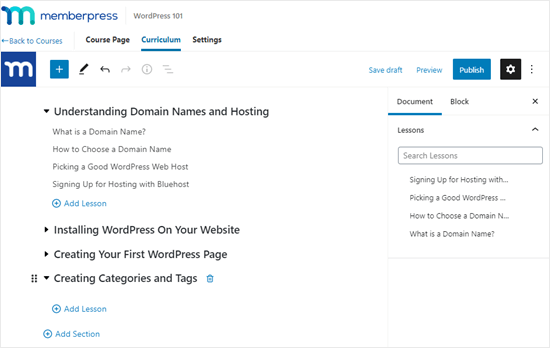
Last year, MemberPress launched an easy to use online course builder that works on top of the WordPress block editor. This makes it easy for non-techy website owners to create courses, add lessons, manage access control, and more.

Creating the sections and lessons for your course

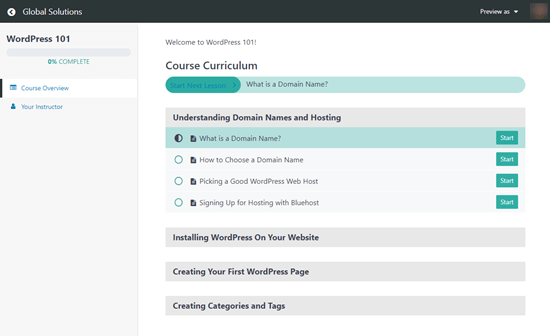
The team also added a Classroom mode to offer a distraction-free learning experience that’s focused on content consumption and course completion rate. This immersive learning mode works with all WordPress themes.

The MemberPress course curriculum that users see, showing their progression through the course

Aside from the huge update on Courses, MemberPress also made it seamless to add premium content protection for various top page builder plugins such as Divi, Elementor, Beaver Builder, WP Bakery, etc.

They also made significant improvements to add drip content in WordPress, ability to gift memberships, added PDF invoices, integrations with PushEngage, and more.

I also got a sneak peek of some big features they’re working on, and it’s going to be an exciting 2021.

What Can You Use MemberPress for?

MemberPress is the best WordPress membership plugin and online course platform for many reasons.

Here’s what you can do with MemberPress:

Basically if you want to restrict access to any type of premium content in WordPress, then you should use MemberPress.

Final Thoughts on WordPress & Creator Economy

The WordPress economy and indirectly the creator economy is huge. In the State of Word for 2020, Matt Mullenweg, co-founder of WordPress shared that WooCommerce facilitated over $20 billion in sales in 2020.

Other third-party online course platforms like Teachable reported that course creators earned over $456.7 million in 2020. Thinkific is also estimating their course creators to earn around $550 million in 2021.

MemberPress is estimating that creators using MemberPress will surpass estimated $600 million in sales in 2021, and this is a conservative estimate.

The creator economy has been on the rise since I started WPBeginner in 2009, but it’s never been stronger than right now.

If you have the knowledge and passion for teaching others, then you can start a very successful online business today.

The combination of YouTube, membership platforms, and social networks for building community provide a unique opportunity for anyone who has a desire to succeed.

As a content creator myself, it’s extremely rewarding for me to see others succeed in their online journey.

I want to congratulate Blair and the MemberPress team in their role for building a robust platform that supports thousands of creators find success online.

Here’s to an amazing 2021!

P.S. If you have a WordPress product that’s empowering website owners to succeed online and want to work with us, then I would love to chat with you. Click here to learn more about WPBeginner Growth Fund.

The post MemberPress Creators Have Earned over $1 billion dollars (Milestone Update) appeared first on WPBeginner.


March 09, 2021 at 06:06PM

Monday, March 8, 2021

How to Make a Gaming Website With WordPress in 2021 (Step by Step)

Do you want to learn how to make a gaming website with WordPress?

Gaming has never been more popular. With your own gaming website, you can create a gaming community, start a popular gaming blog, and even earn a side income.

In this article, we’ll show you how to easily make a gaming website with WordPress without any technical skills.

How to make a gaming website with WordPress

What Do You Need to Build a Gaming Website Site Using WordPress?

You will need the following things to make a gaming website with WordPress.

  • A domain name (This will be the name of your website that people type to find your site online e.g. wpbeginner.com)
  • A web hosting account (This is where your website’s files will be stored)
  • A WordPress theme (This will control how your site looks and functions)
  • The right WordPress plugins (This is how you will add the specific gaming features you require)
  • SSL certificate (You need this if you’re planning on selling products or adding Twitch streams)
  • Your undivided attention for 1 hour

Depending on the type of gaming website you’re building, it’s entirely possible to build it in under an hour. We’ll walk you through the entire process, step by step.

In this tutorial, we’ll cover the following:

  • Different types of gaming websites you can make
  • How to get a free domain name
  • How to choose the best website hosting
  • How to choose the best WordPress gaming theme
  • What WordPress gaming plugins can enhance your site
  • Best resources to grow your gaming website

That being said, let’s get started.

Step 0: What Kind of WordPress Gaming Site Will You Make?

If you love video games, then there’s nothing better than being involved in the space.

Gaming blogs and websites cater to the large community of gamers who are looking for articles about the latest games, consoles, hardware, events, and more.

What kind of gaming websites can you make with WordPress?

  • A dedicated gaming forum for your favorite game
  • A gaming review site and news blog
  • A site that hosts simple and fun online games
  • A site that sells products to the gaming community

Maybe your new gaming website will be the next IGN, Kotaku, or GamesRadar?

Whatever kind of gaming website you want to make, this tutorial will help you build it using WordPress.

Step 1. Choosing the Right Website Platform

To start, you need to choose the right website builder, and since you’re reading this, you’re on the right track.

You’re going to want to use WordPress. But, there are two types of WordPress software that share the same name, so it’s easy to get confused.

First, you have WordPress.com, which is a blog hosting platform. The second is WordPress.org, which is the self-hosted version of WordPress.

We recommend using the self-hosted WordPress.org version because it gives you more freedom, control, and access to all WordPress features.

For a comparison, see the difference between WordPress.com and WordPress.org.

Next, you’ll need a domain name and web hosting. But, you don’t want just any web hosting company. You need a high-quality hosting provider that’ll support your WordPress website as it grows.

A domain name typically costs $14.99 / year, and web hosting starts around $7.99 per month. If you’re just getting started, this can be a big investment.

Fortunately, Bluehost, a hosting provider recommended by WordPress, has agreed to offer our readers a free domain, SSL certificate, and discount on their web hosting.

Basically, you can get started for $2.75 / month.

→ Click Here to Claim This Exclusive Bluehost Offer ←

After you purchase hosting through Bluehost, they will automatically install the WordPress content management system (CMS) for you.

If you prefer, you can install WordPress yourself. For more details, follow our complete WordPress installation tutorial.

Once you have WordPress installed, it’s time to set up the rest of your WordPress gaming website.

You can follow our step by step tutorial on how to make a website for complete setup instructions.

Step 2. Choosing the Perfect WordPress Gaming Theme

The next step after setting up your WordPress is site is to select the perfect WordPress gaming theme.

Gaming Website Layouts

When you’re searching for the best WordPress gaming theme, you’ll come across several choices that have gaming-related features baked right in.

Even though it may seem like a good idea, you’ll actually want to avoid using these themes.

You don’t need a WordPress theme that’s built for gaming.

Most gaming WordPress themes are bloated and will lock you into using them forever. You could even run into compatibility issues when trying to add new features to your site.

It’s better to choose a flexible, high-quality theme and add more functionality with WordPress plugins. There are all kinds of plugins to help you add the features you’re looking for.

By taking this approach, you have the flexibility to change themes in the future while keeping the same features and not having to hire a WordPress developer.

We have an in-depth article that’ll help you select the perfect WordPress theme.

If you want to shortcut the process, then check out our picks for the best WordPress magazine themes.

A magazine template can be perfect for gaming websites since it models what other large successful sites are doing in the gaming space.

Once you’ve found a theme you like, you can install and activate the theme. If you need help installing the theme, see our step by step guide on how to install a WordPress theme.

Step 3. Installing the Right WordPress Gaming Plugins

After that, it’s time to add more functionality to your website with WordPress gaming plugins.

Plugins are like apps for your WordPress site. They allow you to add all sort of features to your website. There are over 58,000+ free plugins for WordPress.

What kind of gaming features can you add to WordPress?

  • Detailed video game reviews
  • A community gaming forum
  • Twitch video streaming
  • Real-time games visitors can play
  • Selling game-related products

Adding Game Reviews to WordPress

If you’re a gaming blogger that’s blogging about games, hardware, and consoles, then you’ll want to add advanced review functionality to your site.

That way, when you’re writing product reviews, you can add starred ratings and improve the appearance of your reviews.

Look how your reviews will stand out in the search engines:

Gaming product review search results

The best way to do this is by using the WP Product Review Lite plugin. It lets you manage and display gaming reviews on your site.

The plugin gives you customization options to add pros and cons, product images, ratings, and more to your reviews.

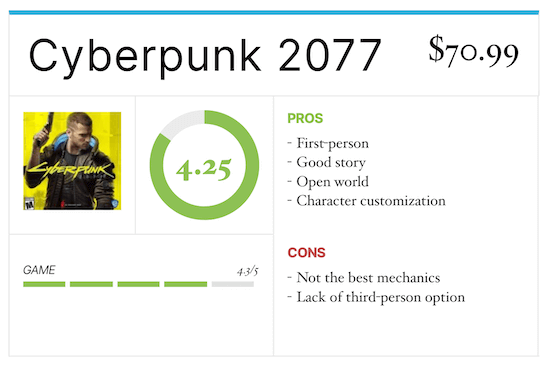
Game reviews WordPress widget

There’s even a feature to add a sidebar, top products, and wrap-up widgets to your site.

For more details, see our guide on how to create a reviews site with WordPress.

You may also want to use plugins like Pretty Links or ThirstyAffiliates to better monetize your website with affiliate marketing.

Creating a Game-Related Forum in WordPress

Another great feature you may want to add to your site is a forum for your gaming community.

A forum can be a discussion board, a place to share tips about a specific game, or even a question-and-answer platform.

Forums allow your visitors to feel like part of your website. When they participate in the discussion and share with others, they’re more likely to come back to your WordPress blog and engage in other ways.

The best way to add forum functionality is with a WordPress plugin like bbPress or BuddyPress. These are two of the best WordPress forum plugins and will help you easily add forum functionality to your site.

bbPress gaming forum

For more details, see our guide on how to add a forum in WordPress with bbPress.

Adding Streaming Functionality to WordPress

If you’re a streamer or want to embed popular Twitch and Esports video streams into your gaming site, you can do that easily.

The best way to add this feature is with a WordPress plugin.

We recommend using the Twitch TV Easy Embed plugin. It lets you embed Twitch.tv streams into WordPress and customize the appearance.

To install the plugin, see our step by step guide on how to install a WordPress plugin.

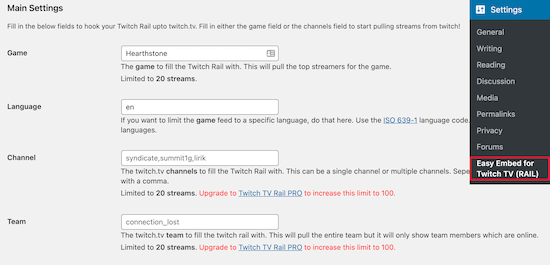
After the plugin is installed and activated simply navigate to Settings » Easy Embed for Twitch TV (Rail).

On this screen you’ll find the ‘Main Settings’ where you can set up the streams you want to display.

Twitch WordPress embed settings

Using the free version of the plugin, you can enter the ‘Game’ or ‘Channel’ you want to stream.

Finally, make sure you click ‘Save Channel’ before existing the screen.

Here’s how it will display when adding the Twitch game ‘Hearthstone’.

Twitch streaming embed example

To add Twitch streams to WordPress you can use the shortcode [getTwitchRail].

Simply copy the shortcode and paste it into any page or post, or even in your sidebar widget.

Twitch embed shortcode

Just make sure you click the ‘Publish’ or ‘Update’ button to save your page and make your Twitch stream live.

If you want to add an entire wall of Twitch streams to WordPress, then you can use the Twitch TV Easy Embed (Wall) plugin. It’s created by the same team of web developers and follows the same setup instructions as above.

Adding Simple Fun Games to WordPress

You might be wondering how do you add games to a WordPress website?

Adding games to your site can give your visitors something fun to do and will hopefully leave them with a positive impression.

The best way to add games to your website is with a WordPress gaming plugin.

There are plugins like Dinosaur Game and the Word Search Puzzles Game that let you add simple games to your site.

Dinosaur game plugin

To install the plugin, see our step by step guide on how to install a WordPress plugin.

If you want to turn your WordPress website into an online gaming platform we recommend using MyArcadePlugin. It’s a premium plugin that’s used by over 100,000 WordPress sites.

MyArcadePlugin example

Selling Game-Related Products in WordPress

Maybe your goal when creating a gaming website is to sell your own gaming guides and gear.

This could be a custom gaming eyewear you’ve created to help reduce eyestrain.

Or, you’re the master at a specific game, and you want to sell courses and walkthrough guides.

WordPress makes it easy to create your very own eCommerce store, selling digital or physical products.

WooCommerce gaming shop example

To start selling products with WordPress, you’ll need to use the WooCommerce plugin.

For more details, see our step by step guide on how to start an online store.

For selling courses and exclusive membership content, take a look at our guide on how to create a membership site in WordPress.

Step 4. Taking Your WordPress Gaming Site to the Next Level

WordPress is a powerful and flexible platform that gives you access to thousands of different plugins you can use to grow your gaming website.

The following plugins can help you grow your gaming website today.

WPForms Lite – It’s the best contact for plugin for WordPress and lets you quickly create contact forms using the drag and drop builder.

AIOSEO – It’s the best WordPress SEO plugin and will help you rank higher in the search engines.

MonsterInsights – It allows you to easily install Google Analytics in WordPress, so you can understand where your visitors are coming from and what content on your site is the most valuable.

Smash Balloon – It’s the best social media feeds plugin for WordPress and let’s you add your social network feeds directly into WordPress.

SeedProd Lite – It’s the best page builder plugin that lets you easily customize your website with a drag and drop builder, no HTML needed.

For more plugin recommendations check out our list of 24 must have WordPress plugins for business websites.

Step 5. Mastering WordPress to Grow Your Website

WordPress is easy to use yet extremely powerful. From time to time, you may find yourself looking for some quick answers.

Here are some useful resources that will help you learn WordPress:

  • WPBeginner Blog – This is where we publish our WordPress tutorials, how tos, and step by step guides.
  • WPBeginner Videos – These step by step videos will help you learn WordPress FAST.
  • WPBeginner on YouTube – Need more video instructions? Subscribe to our YouTube channel with more than 230,000 subscribers and 21 Million+ views.
  • WPBeginner Dictionary – The best place for beginners to start and familiarize themselves with the WordPress lingo.
  • WPBeginner Blueprint – Check out plugins, tools, and services we use on WPBeginner.
  • WPBeginner Deals – Exclusive discounts on WordPress products and services for WPBeginner users.

Here are few of our guides that you should bookmark right away. It will save you lots of time and money in the future.

Many of our users use Google to find answers on WPBeginner. Simply type keywords for what you are looking for and add wpbeginner.com at the end.

Can’t find an answer? Send your question directly using our contact form and we will try our best to answer.

We hope this article helped you make a gaming website with WordPress. You may also want to see our guide on how to create an email newsletter and how to add web push notifications to connect with your visitors after they leave your website.

If you liked this article, then please subscribe to our YouTube Channel for WordPress video tutorials. You can also find us on Twitter and Facebook.

The post How to Make a Gaming Website With WordPress in 2021 (Step by Step) appeared first on WPBeginner.


March 08, 2021 at 06:00PM