Wednesday, April 7, 2021

How to Send Twilio SMS Notifications from WooCommerce (Step by Step)

Do you want to send Twilio SMS notifications from WooCommerce?

With SMS notifications, you can stay in touch with your customers, notify them of order updates, send coupon codes, and more.

In this article, we’ll show you how you can add Twilio SMS notifications from your WooCommerce online store.
How to send Twilio SMS notifications from WooCommerce

Why Add SMS Notifications to WooCommerce?

SMS notifications are the best way to give your customers information about their orders. Text messages are highly personal, and they are usually viewed and opened within seconds of receiving.

You can use SMS notifications to give your WooCommerce buyers updates about their orders. You can also deliver special coupon codes to encourage buyers to shop again.

SMS notifications give you creative ways to stay in touch with your customers and deliver value.

  • You can send out flash sale notifications
  • Alert your customers their favorite products are back in stock
  • Use SMS messages to deliver promo and coupon codes
  • Send order confirmation and shipping messages

Step 1. Set Up Your Twilio SMS Account

First thing you’ll need is a Twilio account.

Twilio is an online service that offers phone, voice messaging, and SMS services you can use with applications like WordPress and WooCommerce.

You can take advantage of the free trial to set up your account and experiment with the service. You’ll pay $0.0075 per message sent, with bulk messaging rates available.

To start, head over to the Twilio website and sign up for the free trial.

Twilio website sign up

On the signup page, you’ll be asked to enter your personal information.

Then, you’ll need to verify your email address and your phone number.
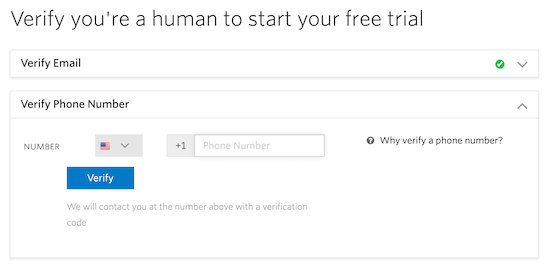
Verify Twilio account

After that, select the products you want to use. In this case, it’s ‘SMS’ and ‘Alerts & Notifications’.

Then, select the ‘With minimal code’ option and ‘PHP’ below that.
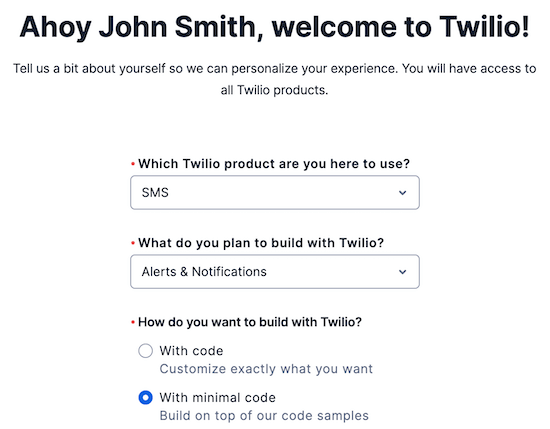
Twilio sign up information

Once you enter your information, click ‘Get Started with Twilio’.

After you sign up for an account, you’ll be taken to the Twilio dashboard. You need to click the ‘Get your first Twilio number’ button to get a phone number for your account.

This will bring up a popup that contains your new number.
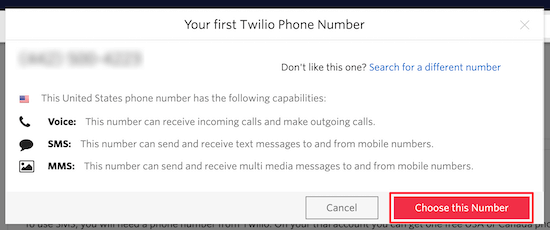
Twilio phone number

If you like the number, then click ‘Choose this Number’ to keep it.

Your Account SID, Auth token, and new Twilio number are also listed on this screen.

You’ll need this information later, so keep this tab open.
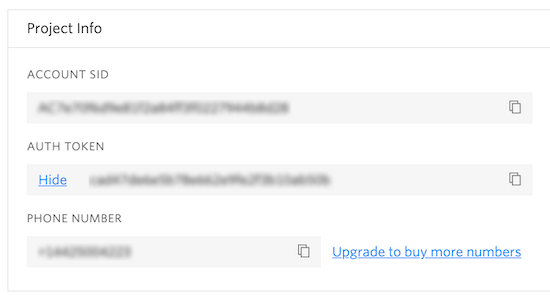
Twilio project info screen

Step 2. Install and Activate Uncanny Automator

To send SMS messages from WooCommerce, we’re going to be using an automation plugin.

The best WordPress automation plugin is Uncanny Automator. It acts as a bridge between different WordPress plugins and applications and lets them talk to each other.
Uncanny Automator plugin

This plugin is like Zapier for WordPress websites. It’s incredibly beginner-friendly and comes with all kinds of automated workflows you can set up in a couple of clicks (no coding needed).

For more details, see our guide on how to create automated workflows in WordPress with Uncanny Automator.

Step 3. Create an SMS Notification with Uncanny Automator

Once Uncanny Automator is activated and set up, you can add a WooCommerce SMS notification.

First, you’ll need to connect your Twilio account to the Uncanny Automator plugin.

To do this navigate to Automator » Settings. Then, click the ‘Twilio’ option.

Here you’ll enter your Account SID, Auth Token, and your Twilio number.
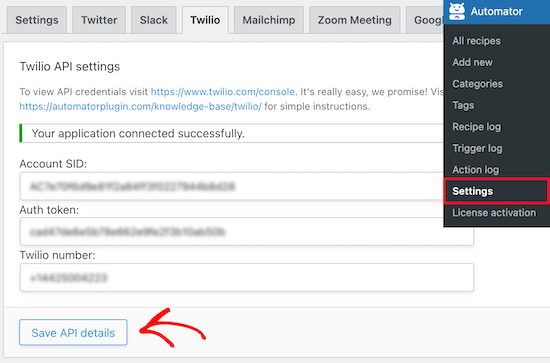
Connect Twilio account

Then, click ‘Save API Details’.

Now, you can set up a notification, so when a user places an order in WooCommerce, it’ll automatically send them an SMS message.

To do this, navigate to Automator » Add new. Then, you’ll be prompted to choose ‘Logged-in’ or ‘Anonymous’.

We’re going to choose ‘Anonymous’ so all users will receive an SMS notification, even if they check out with a guest account.
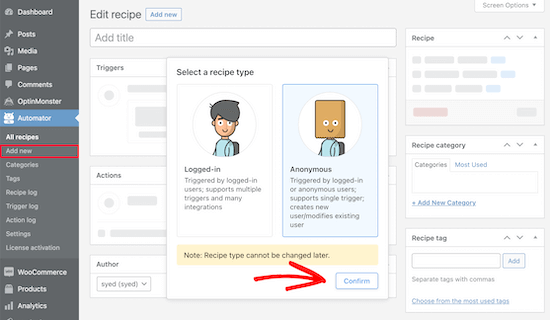
Uncanny Automator anonymous recipe

Next, you can give your recipe a name.

After that select ‘WooCommerce’ in the ‘Anonymous trigger’ meta box.
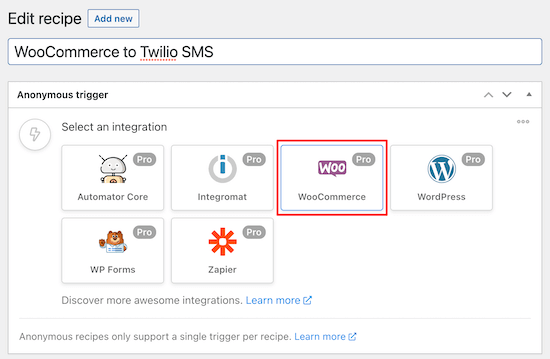
Select WooCommerce integration

Now, you can choose your trigger.

We’ll use the first option since they’re all related to making a WooCommerce purchase.
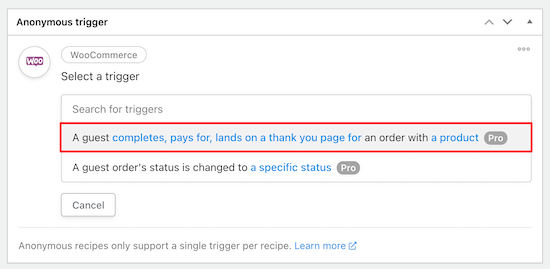
Add WooCommerce trigger

Next, choose the trigger condition.

From the drop-down menu, select ‘completes’, to trigger the automation when a customer completes a purchase. Then, click ‘Save’.
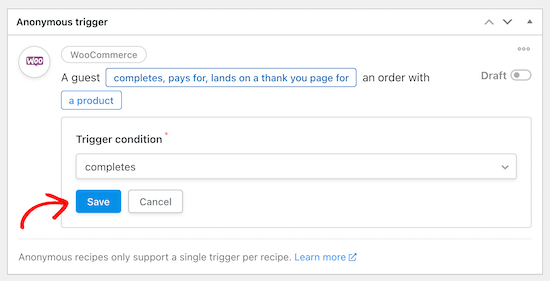
Completes order trigger

Once you’ve done that, you can choose a specific product or any product in your store.

To choose all products in your store, select the ‘Any product’ option, then click the ‘Save’ button.
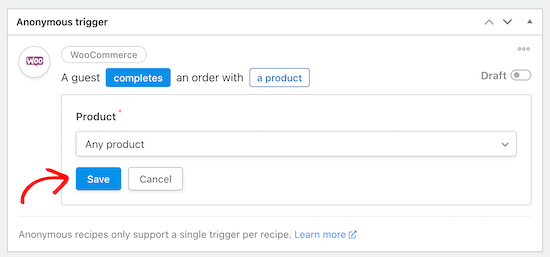
All products trigger

The Automator will now save your trigger, and you can move on to the Actions section. You’ll see different options depending on if you choose anonymous or logged-in recipes.

Since, we chose an anonymous recipe, there’s the option to perform the action on an Existing user or New user.
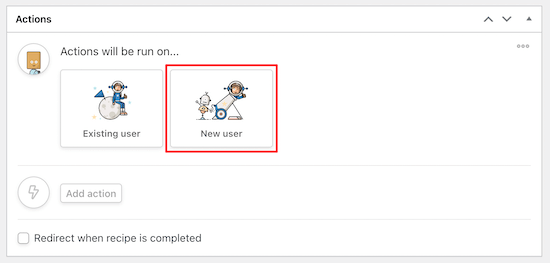
Set action on new users

To continue, click on ‘New user’.

Automator will now have you set the user data you want to use.

You need to click the ‘Asterisk’ sign next to each field and select the corresponding WooCommerce field. For example, we’ll be using ‘Billing first name’ for the ‘First name’ field.
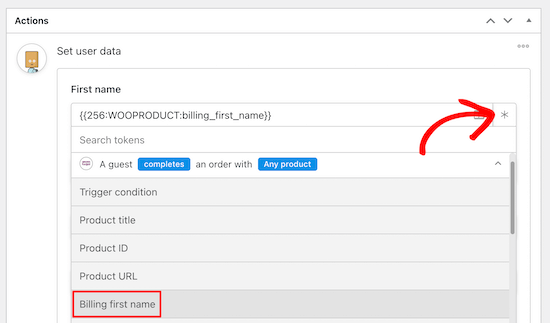
Set user data WooCommerce first name

Below you’ll see the user role setting and what to do if the user already exists. You can select subscriber as the user role and ‘Do Nothing’ for existing users.

Then, click the ‘Save’ button to continue.

After saving, click the ‘Add action’ button and select the ‘Twilio’ integration.
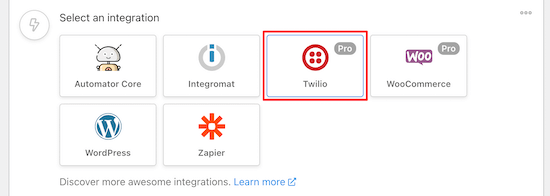
Select Twilio integration

From the drop down menu, select ‘Send an SMS message to a number’.

This will bring up a new box where you can add the To address and the Body of your text message.
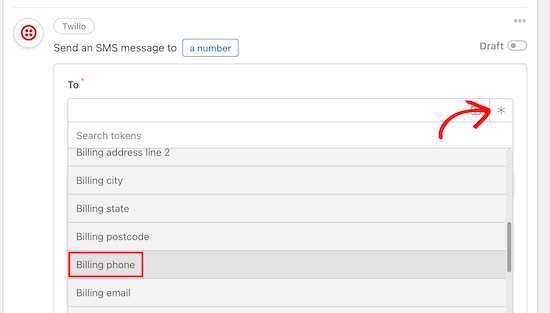
In the ‘To’ field, you need to click the ‘Asterisk’ button and select ‘Billing phone’ from the drop down list.

Then, you can customize the text message content you want to send to your customers. By clicking the ‘Asterisk’, you can add data from their order, like the name of the product, city, total price, and more.
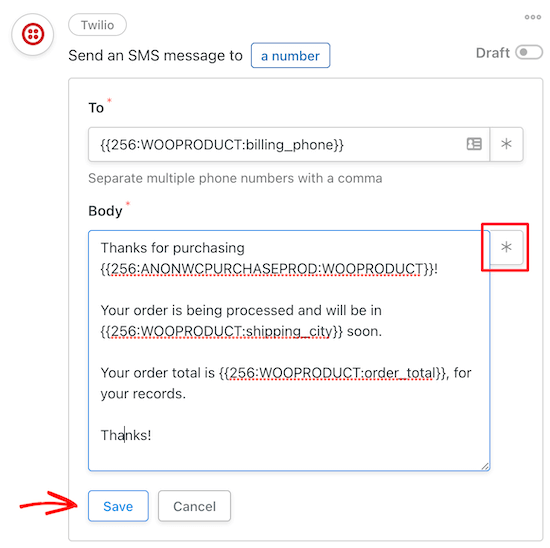
Customize Twilio SMS message

Once you’re satisfied with your message, click ‘Save’.

Now, you can view the full action summary.
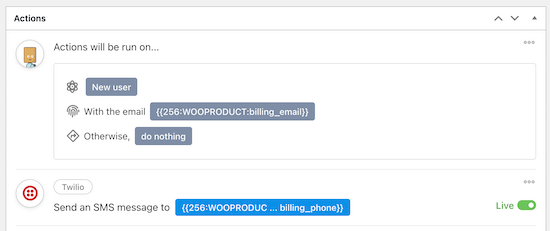
Twilio full trigger and action setting

After that, you can go ahead and make this recipe active.

At the top of the editor in the ‘Recipe’ box, you can switch the ‘Draft’ toggle to Live.
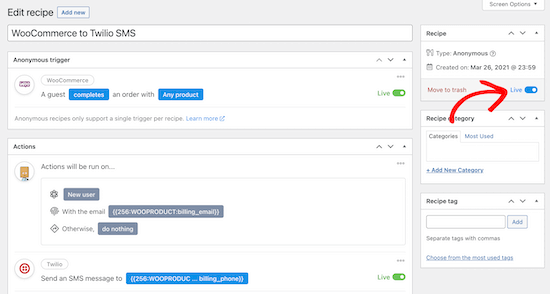
Make recipe live

Your new recipe will now be active, and you’ll automatically send Twilio SMS notifications to your customers once they complete a purchase in WooCommerce.

Make sure to test your workflow to see that the recipe is triggered and the correct action is performed.

We hope this article helped you learn how to send Twilio SMS notifications from WooCommerce. You may also want to see our ultimate WooCommerce SEO guide and our expert list of the best WooCommerce plugins for your store.

If you liked this article, then please subscribe to our YouTube Channel for WordPress video tutorials. You can also find us on Twitter and Facebook.

The post How to Send Twilio SMS Notifications from WooCommerce (Step by Step) appeared first on WPBeginner.


April 07, 2021 at 04:00PM

Tuesday, April 6, 2021

How to Highlight Author’s Comments in WordPress

Do you want to highlight the author’s comments in WordPress posts on your website?

Highlighting the author’s comments in your WordPress blog can help you build engagement. Users are more likely to leave a comment when they see the author is actively participating in the discussion.

In this article, we’ll show you how to easily highlight the author’s comments in WordPress to boost engagement.

Highting comments by an author in WordPress blog posts

Why Highlight Author’s Comments in WordPress?

Comments are a great way to build user engagement on your website. If you want to get more comments on your articles, then you can encourage that by actively participating in the discussions.

For a new WordPress blog, you can easily reply comments during comment moderation. If you run a multi-author blog, then you can encourage authors to take part in the discussion as well.

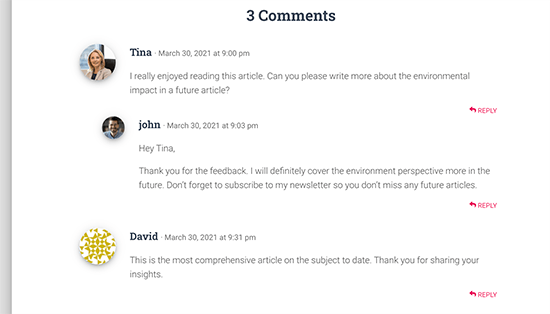
However, most WordPress themes don’t distinguish between comments and list them using the same style.

Regular comments layout with no author highlighting

A casual reader may scroll through the comments, not realizing the additional content contributed by the author in the discussion.

Highlighting author’s comments helps you remedy that and makes the author’s comments stand out and be more noticeable.

The ultimate goal here is to encourage new users to join in the comments and ultimately subscribe to your newsletter or become a customer.

That being said, let’s take a look at how to easily highlight author comments in WordPress.

Highlighting Comment Author in WordPress

The easiest way to highlight comments by post author is by adding custom CSS to your WordPress theme. This allows you to easily add the code needed and see a live preview of how it would look on your website without saving it.

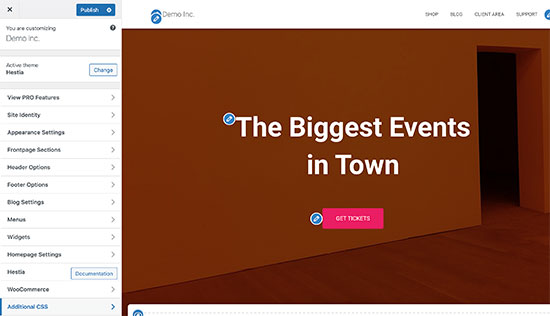
First, you need to visit Appearance » Customize in WordPress admin area. This will launch the WordPress theme customizer interface. You’ll notice a bunch of options in a column on your left and a live preview of your website.

Theme customizer in WordPress

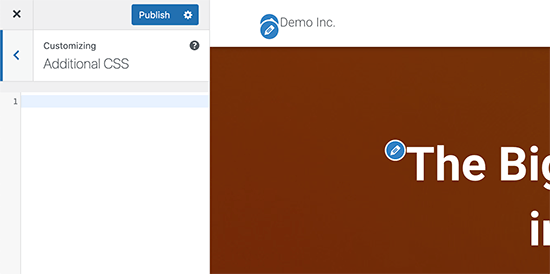
From here, you need to click on the Additional CSS tab. This will open a text area where you’ll be adding the Custom CSS.

Additional CSS tab

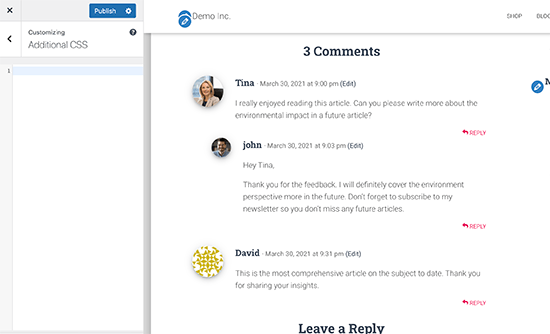
However, you would want to see how the custom CSS will look when applied. To do that, you need to navigate to a blog post that contains comments by a post author.

Viewing comments in Theme Customizer

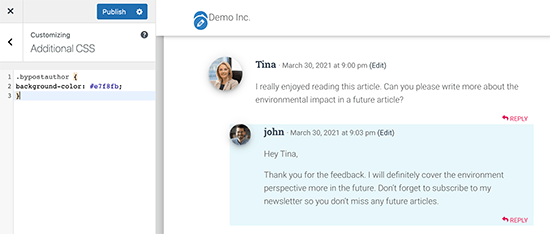
Scroll down to the comments section and then add the following custom CSS in the Custom CSS box on the left.

.bypostauthor { 
background-color: #e7f8fb;
}

You’ll immediately notice the author comment change matching the Custom CSS you entered.

Author's comment highlighted with a different background color

So how does this all work?

You see WordPress adds some default CSS classes to different areas of your website. These CSS classes are there regardless of which WordPress theme you are using.

In this sample code, we have used the .bypostauthor CSS class which is added to all comments added by a post author.

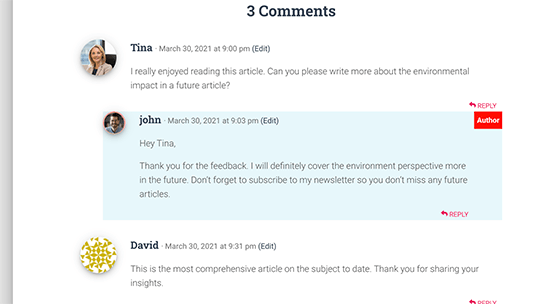
Let’s add some more CSS styles to make it even more prominent. Here is a sample code that adds a small ‘Author’ label to the comments by the post author and a border around the author’s avatar image.

.bypostauthor:before { 
content:"Author";
float:right;
background-color:#FF1100;
padding:5px;
font-size:small;
font-weight:bold;
color:#FFFFFF;
}
.bypostauthor .avatar {
border:1px dotted #FF1100;
}

This is how it looked on our test website.

Comment author highlighted with the Author label

Highlighting Comments by User Role in WordPress

Now, many WordPress blogs have team members responsible for answering comments. Popular websites may have post author, administrator, and moderators all answering comments to boost user engagement.

How do you highlight a comment added by a staff member that is not the actual author of the post?

There is an easy hack to achieve that. However, it requires you to add custom code to your WordPress website. If you haven’t done this before, then see our article on how to easily add custom code in WordPress.

First, you need to add the following code to the code snippets plugin or your theme’s functions.php file.

if ( ! class_exists( 'WPB_Comment_Author_Role_Label' ) ) :
class WPB_Comment_Author_Role_Label {
public function __construct() {
add_filter( 'get_comment_author', array( $this, 'wpb_get_comment_author_role' ), 10, 3 );
add_filter( 'get_comment_author_link', array( $this, 'wpb_comment_author_role' ) );
}
 
// Get comment author role 
function wpb_get_comment_author_role($author, $comment_id, $comment) { 
$authoremail = get_comment_author_email( $comment); 
// Check if user is registered
if (email_exists($authoremail)) {
$commet_user_role = get_user_by( 'email', $authoremail );
$comment_user_role = $commet_user_role->roles[0];
// HTML output to add next to comment author name
$this->comment_user_role = ' <span class="comment-author-label comment-author-label-'.$comment_user_role.'">' . ucfirst($comment_user_role) . '</span>';
} else { 
$this->comment_user_role = '';
} 
return $author;
} 
 
// Display comment author                   
function wpb_comment_author_role($author) { 
return $author .= $this->comment_user_role; 
} 
}
new WPB_Comment_Author_Role_Label;
endif;

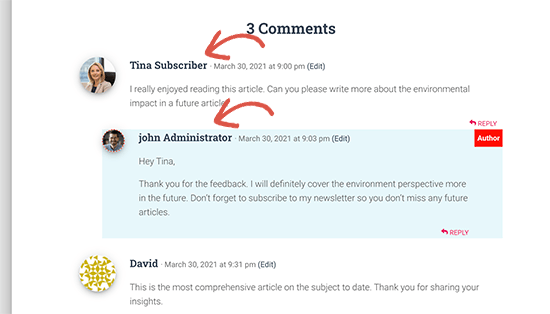
This code simply adds the user role label next to the comment author’s name. This is how it would look without any custom styling.

User role labels added to comments

Let’s make it a little prettier by adding some custom CSS. Go to Appearance » Customize page and switch to the Additional CSS tab.

After that, you can use the following CSS to style the user role label in the comments.

.comment-author-label {
    padding: 5px;
    font-size: 14px;
    border-radius: 3px;
}
 
.comment-author-label-editor {  
background-color:#efefef;
}
.comment-author-label-author {
background-color:#faeeee;
}
 
.comment-author-label-contributor {
background-color:#f0faee;   
}
.comment-author-label-subscriber {
background-color:#eef5fa;   
}
 
.comment-author-label-administrator { 
background-color:#fde9ff;
}

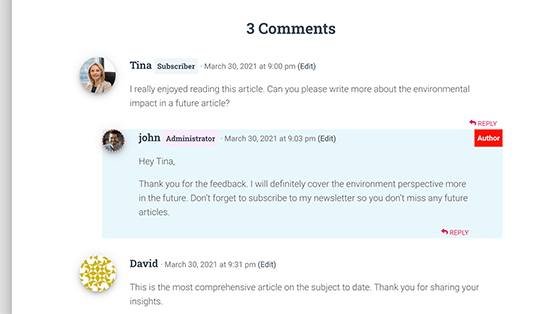
This is how it looked on our test site. Feel free to modify the code to match your theme’s colors and style.

User role highlighted

For more details, you may want to read our article on how to add user role labels to WordPress comments.

We hope this article helped you learn how to highlight author comments in WordPress. Want to see how users interact with your website? See our tutorial on how to track user engagement in WordPress, and how to add web push notification on your WordPress site to grow your traffic.

If you liked this article, then please subscribe to our YouTube Channel for WordPress video tutorials. You can also find us on Twitter and Facebook.

The post How to Highlight Author’s Comments in WordPress appeared first on WPBeginner.


April 06, 2021 at 02:30PM

Monday, April 5, 2021

How to Create a WordPress Popup Based on Location (Step by Step)

Do you want to create a WordPress popup based on the location of your visitors?

Creating WordPress popups based on location helps you deliver the right marketing message, to the right people, at the right time. This means a better user experience and more revenue for your WordPress site.

In this tutorial, we’ll show you how to create popups based on a user’s location and add them to WordPress.

 How to create a WordPress popup based on location

What Are Location Based Popups?

Location based popups are similar to standard popups, but they only display for visitors from specific locations.

So, visitors from the US will be shown different popups than visitors located in the UK or in Spain.

You can narrow down your location targeting even further, and target specific states and cities. This way visitors in Florida can be shown a different popup than visitors in California.

This process is known as geotargeting, and it lets you encourage your visitors to take specific actions on your site based on where they live.

Why Add WordPress Popups Based on Location?

Using location-based popups in WordPress gives your visitors a highly relevant experience. It shows your visitors that you understand their needs and can lead to better conversions.

This level of personalization can help you reach your website goals, like growing your email list or making money online.

Using geolocation popups can help your business website in a lot of ways.

  • Boost website credibility by showing visitors you’re aware of their location
  • Run eCommerce coupons and specials for visitors in certain areas
  • Promote local events and conferences to your visitors
  • Highlight products that are relevant to visitors in different locations

How to Create a WordPress Location-Based Popup

The easiest way to add popups to your WordPress website is using a plugin.

We recommend using OptinMonster. It’s the best WordPress popup plugin in the market with over 1.2 million users.

You can use the OptinMonster drag and drop editor to simply create a popup campaign in minutes. Plus, you can easily personalize your popups based on what page their viewing, actions they’ve taken on your site, and more.

The first thing you’ll need to do is install and activate the plugin. For more details, see our guide on how to install a plugin in WordPress.

The OptinMonster plugin acts as a link between your WordPress site and the OptinMonster software.

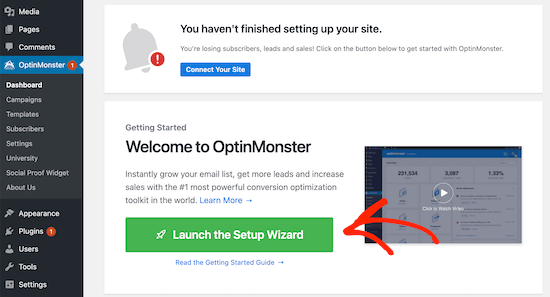
Once the plugin is activated, you’ll have a new menu item called ‘OptinMonster’ in your WordPress admin dashboard.

Open OptinMonster dashboard

Click ‘OptinMonster’ to open your OptinMonster dashboard.

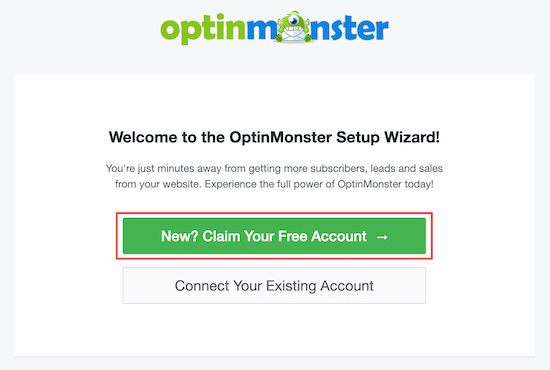
Then, click ‘Launch Setup Wizard’ to connect your site to OptinMonster. If it’s your first time, then you can create a new account for free.

OptinMonster launch setup wizard

After you’re done going through the setup wizard, your site will now be connected to OptinMonster.

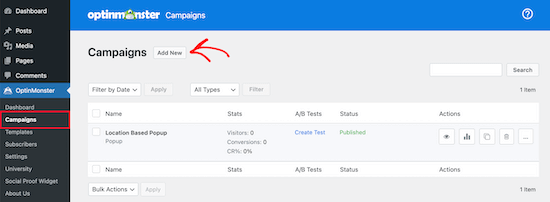
To create your location based popup navigate to OptinMonster » Campaigns.

Then, click ‘Add New’ to create a new popup campaign.

Add new OptinMonster popup campaign

Once you’ve done that, select the ‘Popup’ campaign type.

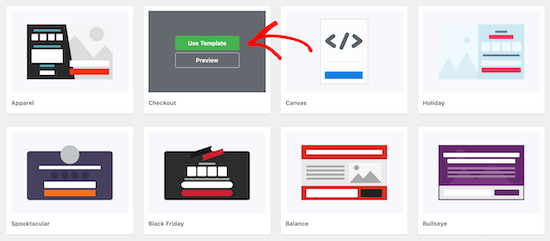
Next, you’ll select the campaign template. Your template forms the foundation for the design of your popup. So, choose a template that closely resembles the design you want.

For this tutorial, we’ll select the Checkout template. Once you find a template you like, hover over it and click ‘Use Template’.

Select OptinMonster template

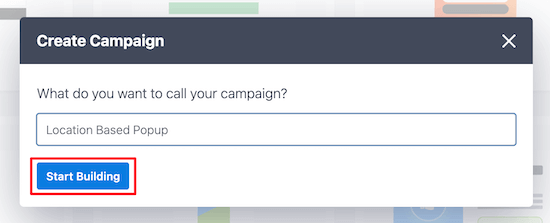
Then, you’ll need to name your campaign.

This name won’t appear in your design. Instead, it’s to help you remember what kind of campaign you created.

Start building popup

Next, click ‘Start Building’.

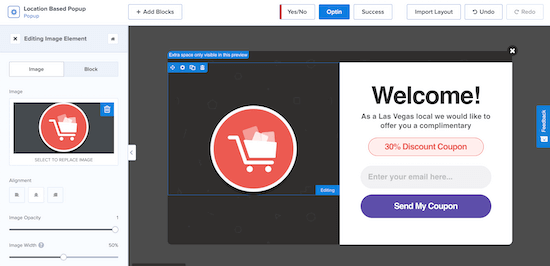
This will bring you to the OptinMonster app, where you can customize the appearance of your popup.

Customize location based popup

You can totally customize your popup by adding new blocks, text, headings, and more. Just click on the element you want to edit and the options menu will appear on the left.

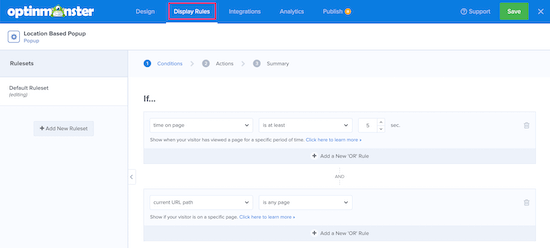
Once you’re satisfied with how your location based popup looks, click ‘Save’, then click on the ‘Display Rules’ tab at the top of the screen.

Set popup display rules

This is where you’ll set your location triggers.

The default rule is your popup will appear on any page after a visitor is on the site for 5 seconds.

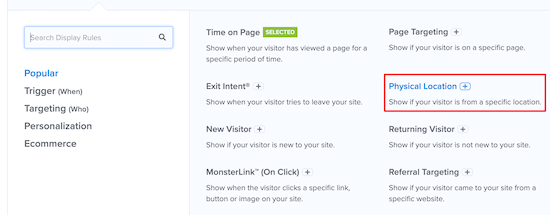
You’ll need to change the first rule to the visitor’s physical location. To do this, click on the ‘time on page’ display rule, then select ‘Physical Location’.

Set physical location rule

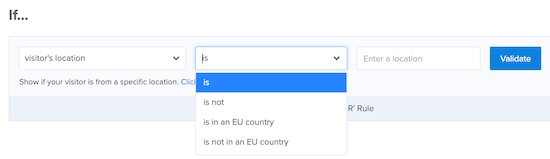
Now you can set the popup to display for visitors who are in a specific location.

You also have the option to include or exclude visitors who are in an EU country.

Popup visitor location settings

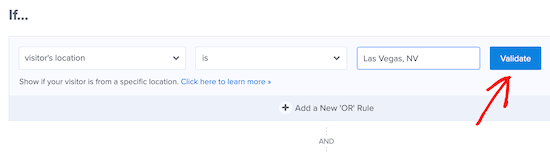
We’re going to set the rule so the popup will show when a visitor is in Las Vegas, NV.

Next, click ‘Validate’.

Set visitor location

Now, a popup will appear that lists available locations based on what you entered. Simply select the location you want and then click ‘Next Step’.

OptinMonster also gives you the option to add an animated effect or sound on the next screen, but we’ll leave the default settings.

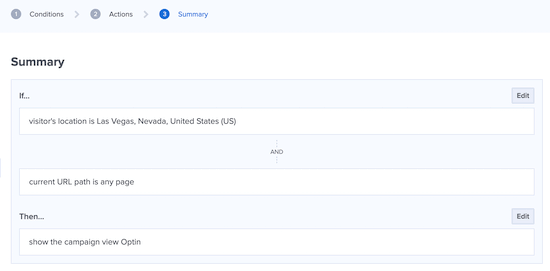
Once you’ve done that, click ‘Next Step’ again, and you’ll be taken to the summary page where you can review your location popup settings.

Location popup display rules summary

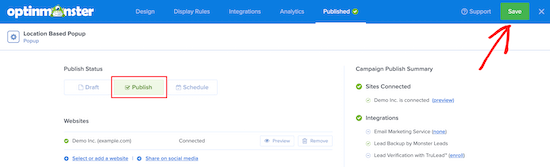
If your settings are correct, then navigate to the ‘Publish’ tab and switch the ‘Publish Status’ from Draft to Publish.

Next, click ‘Save’ and exit the screen.

Publish location popup

Your popup based on your user’s location will now be live on your site.

If you want to create multiple popups based on location, then follow the same process above and change the ‘Display’ rules to the new user location.

With OptinMonster, you can have multiple popup campaigns running at once and provide a targeted experience for all your visitors.

We hope this article helped you add a WordPress popup based on location to WordPress. You may also want to see our list of the best email marketing services and best live chat software to boost your sales.

If you liked this article, then please subscribe to our YouTube Channel for WordPress video tutorials. You can also find us on Twitter and Facebook.

The post How to Create a WordPress Popup Based on Location (Step by Step) appeared first on WPBeginner.


April 05, 2021 at 05:00PM