Saturday, April 10, 2021

Wix vs WordPress – Which One is Better? (Pros and Cons)

Are you trying to decide between Wix vs WordPress to build your website? While WordPress is the most popular website builder in the world, it is not the only option.

After seeing TV commercials for Wix, some of our users asked us to do a detailed comparison of Wix vs WordPress to find out which is the better choice.

In this article, we will compare Wix vs WordPress and highlight the pros and cons. Our hope is that with this Wix review and comparison, you’ll be able to decide which platform is right for your needs.
Comparing Wix vs WordPress

Note: This article compares Wix vs Self Hosted WordPress.org NOT WordPress.com. See the difference between self-hosted WordPress.org vs WordPress.com sites.

We have broken down this comparison into 7 categories:

Let’s see how Wix and WordPress stack up into each of these categories.

1. Pricing and Costs

The cost of website building is an important factor when choosing your site builder platform. The total costs of developing and maintaining your site will entirely depend on your needs. Our goal is to make sure that you can do whatever you need within your budget.

Let’s compare the pricing of Wix and WordPress to find out which one gives you more bang for the buck.

Wix Pricing Comparison:

Wix offers a basic website builder for free. However, there are two major downsides to it.

First, it adds Wix branded advertisements on the top and bottom of your website. Second, you cannot use a custom domain name for your site, so your website address will be: username.wix.com/sitename

Apart from that, the basic plan does not offer necessary add-ons such as Google Analytics, Favicons, eCommerce, etc. To remove ads and get additional features from their apps market, you’ll have to upgrade to one of the premium plans they offer.

Each Wix premium plan has different storage and bandwidth limitations. You can pay monthly or choose a yearly plan.
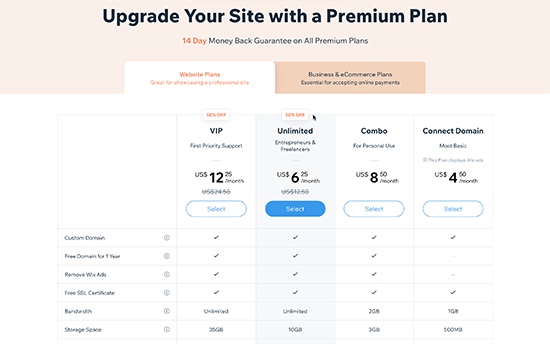
Wix Pricing Plan

The best value plans on Wix is the Unlimited plan ($12.50 / month).

If you need eCommerce and business features, then you need to select a Business & Ecommerce plan.
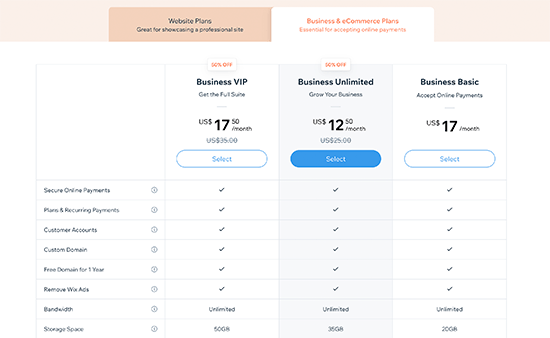
Wix eCommerce and business plans

Pricing for small business website and eCommerce plans start from $17 / month.

Regardless of which plan you choose, this cost does not include any apps that you later choose to buy from the Wix app market to use on your website.

WordPress Pricing Comparison:

The WordPress software is open source, and it is available for free for anyone to use.

We often get asked about why is WordPress free and what’s the catch?

Well, the biggest catch is that you need your own domain name and web hosting to install it.

There are several WordPress hosting providers that you can choose from. See our guide on how to choose the best WordPress hosting company.

Depending on your budget, you can start with a basic plan with a WordPress hosting provider like Bluehost that will cost you $2.75 per month and includes a free custom domain name.
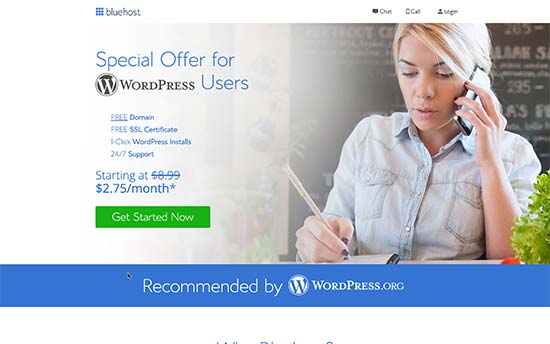
Bluehost WordPress hosting

If your budget permits, then you can use a managed WordPress hosting provider like WP Engine which costs $29 per month.

The cost of a WordPress site will increase if you decide to use premium WordPress themes or plugins (similar to apps in WordPress).

However, there are thousands of free WordPress themes and plugins available that you can use to reduce costs. You can add any feature to your WordPress site using a plugin without upgrading your hosting plan.

For more information, see our guide on how much does it cost to build a WordPress website.

WordPress comes with full support for eCommerce out of the box. You can install the WooCommerce plugin to create an online store on your website. Just like WordPress, WooCommerce itself is free and opensource.

For more information, see our article on how much it costs to build an eCommerce website.

Conclusion:

WordPress beats Wix with flexible plans available from a variety of web hosting companies. The cost depends on how much resources you use, and you are free to use your WordPress website in any way you want.

2. Ease of Use

Most beginners choose Wix or WordPress because they don’t want to hire a website designer. Both Wix and WordPress allow you to create websites without learning to code.

Let’s take a look which one of them is easier to use for beginners with no coding experience.

Wix:

Wix comes with powerful and easy to use tools to build your own website. It offers a simple drag and drop interface where you can select any element on your site and start editing it in a WYSIWYG interface.
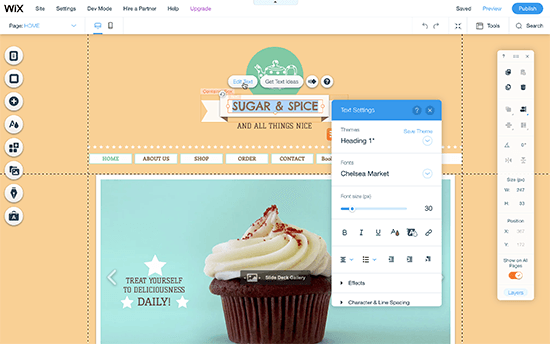
Wix Editor

You can drag and drop items anywhere on your site, rearrange things on your pages, write content, and add media in a user-friendly environment. Many beginners would find this feature a blessing as it saves them from dealing with code.

WordPress:

WordPress comes with an incredibly powerful WordPress block editor that allows you to edit your pages with a live preview.

This allows you to create visually stunning layouts by adding blocks. There are blocks for all common elements like text, headings, buttons, background images, galleries, and more.
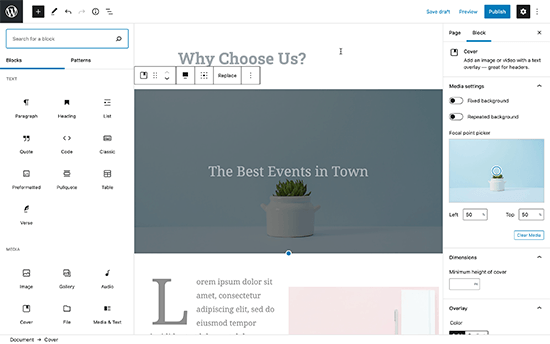
WordPress editor

WordPress also gives you access to thousands of themes (website templates) to use on your site. Each of them is also fully-customizable using the live theme customizer.
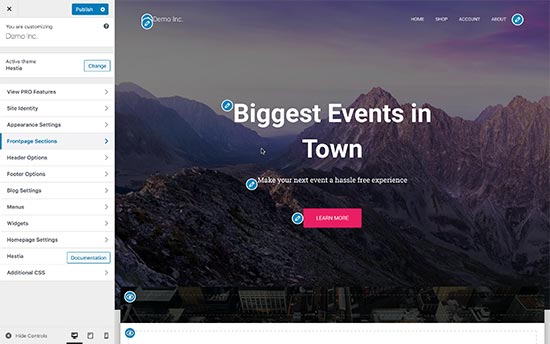
WordPress customizer

Need even more code-free ways to edit your website visually? WordPress has some of the most intuitive drag and drop page builder plugins. These drag-and-drop editor provide you even more tools to create professional-looking websites without writing code.

For example you can use a page builder like SeedProd or Divi that lets you build completely custom websites without writing any code.
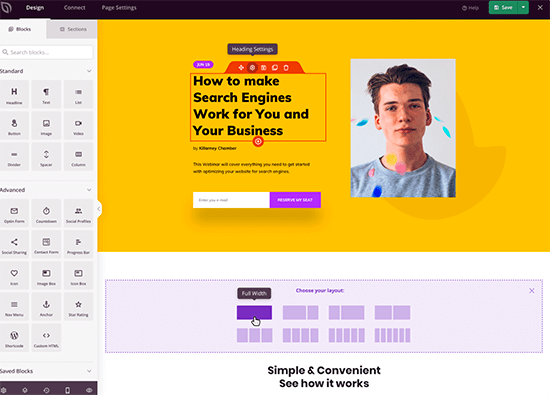
SeedProd Page Builder

All of these options give a lot more choices and tools to edit your website.

Conclusion:

There is a tie when it comes to ease of use between Wix and WordPress. Both offer easy code-free ways to write content, make pages, and manage business and eCommerce websites.

Wix does a great job with their editor interface, but it lacks advanced capabilities. WordPress offers ease of use that can be extended with a little bit of a learning curve which is great in the long run.

3. Design and Layout

Your site’s design and layout play an important role in your success. Every site owner needs a web design that’s not only good-looking but also user-friendly and makes their brand stand-out.

Wix:

Wix comes with more than 900+ pre-made templates to choose from. All Wix designs are fully responsive and written in HTML5. Using the built-in tools, you can further tweak your site design, change the layout, and rearrange items as you see fit.
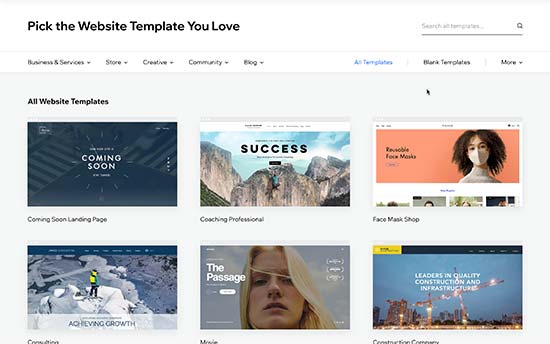
Wix website templates

There are designs available for every kind of site. Templates are divided into categories like business, eCommerce, hobbies, arts & crafts, personal, etc.

One big disadvantage is that once you have selected a template, you cannot change it. You can modify it and customize it as much as you want using only the built-in tools, but you cannot switch to another template.

WordPress:

There are thousands of free and paid themes available for WordPress. Free themes come with limited support, but they also go through a strict review process. Paid themes generally offer more features and come with premium support options.
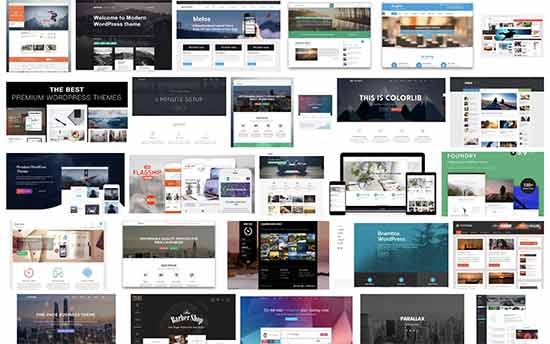
WordPress themes

WordPress themes range from small personal sites to full-fledged eCommerce sites. Most themes come with built-in customization options of their own. You can also use one of the many styling plugins to further style or customize your WordPress themes.

Users can download free themes from WordPess.org directory. For paid themes, there are several WordPress theme shops like Astra, StudioPress, Themify, CSSIgniter, and more. See our list of the best commercial WordPress theme shops.

Furthermore, you can hire a developer or learn to create a completely custom theme for your company.

There are also plugins like SeedProd, a landing page builder plugin that allows you to quickly deploy a website, a sales page, product page, or even a coming soon page regardless of which theme you are using.

More importantly, you can change your WordPress theme anytime you want and use a different theme. This allows your website design to grow and evolve with your business.

Conclusion:

WordPress has a much larger range of themes and design layouts than Wix. WordPress users can also easily switch themes or customize them as much as they want without any restrictions.

4. Plugins and Apps

Plugins and apps are like third-party extensions that you can use with your platform to add more features.

Wix calls them apps, and in the WordPress ecosystem, they are called plugins.

Let’s compare apps and plugins available on both platforms and what you can do with them.

Wix:

Wix comes with nearly 200+ apps that you can add to your site. These apps offer a wide range of features like adding contact forms, gallery, comments, social media buttons, email marketing and so on.
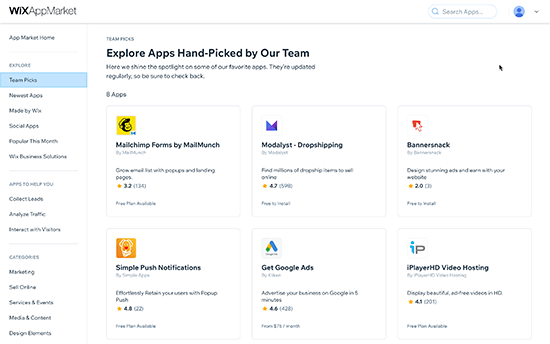
Wix App Marketplace

Many of the apps are free or have a lite version. Other apps require monthly payments and vary in prices. Even though there is a limited collection of apps, they cover the most commonly requested features by site owners.

WordPress:

At the time of writing this article, there are more than 58,000+ free plugins available in the WordPress.org plugin directory alone. Not to mention, premium plugins available on other marketplaces.
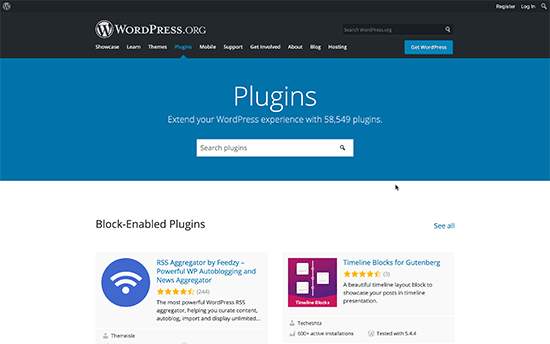
WordPress plugins

The saying goes: if you can think of a feature, there’s probably a WordPress plugin that makes it happen.

Whether you want to create a contact form, install Google Analytics, build a membership website, or sell online courses, there’s a plugin for that.

You can do just about anything you like with WordPress. There are plenty of plugins both free and paid which you can use to build the website of your dreams.

Conclusion:

WordPress easily beats Wix in this area as well. Even though Wix’s app library is growing, it is still limited in comparison to the huge choice available to WordPress users.

5. Wix vs WordPress – Which one is better for blogging?

Many users are looking for an easier platform to start blogging. Wix and WordPress both can be used to create blogs. Let’s take a look at which one does it better.

Blogging with Wix

Wix allows you to easily add a blog section to your website. It has all the basic blogging features you’ll commonly use. For example, categories and tags, photos and videos, archives, etc.
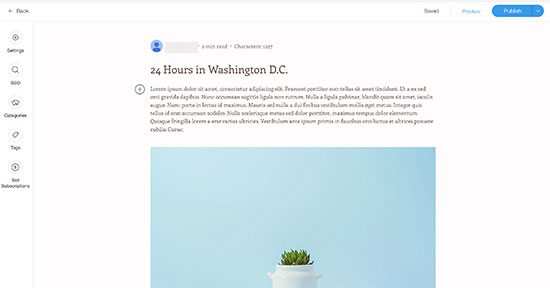
Blogging with Wix

Comments on Wix blogs are slow and not as easy to manage as WordPress. Many users end up installing third-party commenting systems like Facebook or Disqus both of them require users to create accounts.

It also lacks several features like backdating posts, creating private posts, and more.

The writing interface for blog posts is not the same as the Wix website builder. Instead, it uses a plain text editor which is very limited in terms of formatting options.

Blogging with WordPress

WordPress started out as a blogging platform and evolved into a full-blown website builder. Today it powers nearly 40% of all websites.

It has all the blogging features you’ll need like a native commenting system and all other advanced features that are missing from Wix.

Editing blog posts in WordPress

It comes with the powerful Gutenberg block editor which allows you to create beautiful layouts for your blog posts.

Most importantly, you can extend your blog using plugins and add any feature that you can think of.

Conclusion

WordPress totally outshines Wix as a blogging platform. Wix blogs are too basic and lack several important features. If you are thinking about starting a blog, then Wix doesn’t even come close to WordPress.

6. Wix vs WordPress Ecommerce Comparison

Selling things online is another important feature that most beginners look for. Let’s see how WordPress and Wix compare in eCommerce.

Wix:

Wix offers eCommerce with their paid plans. This means users with the free plan cannot run their eCommerce store on Wix without upgrading to a paid plan.
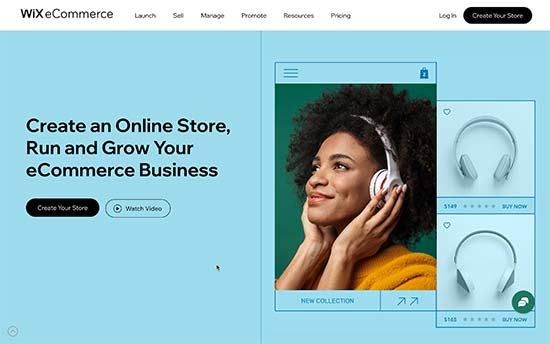
Wix eCommerce

With the Wix Stores, you can accept payments using their own native payments system or use third-party apps to connect different payment gateways including PayPal, Authorize.net, and more.

If you choose to use Wix Payments, then they charge 2.9% of the transaction amount + 0.30 USD for the US region. As you sell more products, this processing fee becomes a substantial amount.

There are a few third-party apps that you can use to help promote your store and sell things online. The overall features of the eCommerce platform are limited too.

WordPress:

WordPress makes it super easy to create your online store using WooCommerce, which is the most popular eCommerce platform in the world.
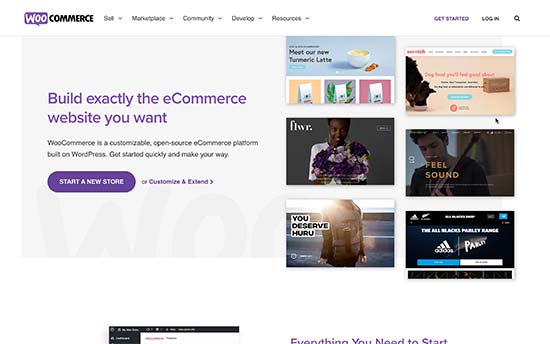
WooCommerce

There are also plenty of other eCommerce plugins available for WordPress that you can use to sell physical or digital goods, services, events, subscriptions, and more.

WordPress is also the best platform to sell digital subscriptions using MemberPress. It allows you to sell online courses, pay per view content, and membership plans for your online community.

Most eCommerce plugins for WordPress even have their own dedicated themes and add-on plugins. See our list of best WooCommerce themes for some excellent examples.

Conclusion:

If you want to build a proper online store and be ready for growth, then WordPress + WooCommerce offers much more flexibility, freedom, and choices when compared to Wix.

7. Data Portability Options in Wix vs WordPress

Data portability allows you the freedom to move your content away when you need it. Let’s take a look at how Wix and WordPress help you move your content and use it elsewhere.

Data portability options in Wix

Wix comes with very limited options to move your content to another platform. You can only export your blog posts in XML format. You’ll have to manually download your pages, images, videos, and other content.

According to Wix documentation, all your content is hosted exclusively on Wix’s servers and cannot be exported elsewhere.

This makes it a bit difficult to move your content to another platform if needed. However, you can still transfer a Wix site. See our article, on how to switch from Wix to WordPress for more details.

Data portability options in WordPress

WordPress is a proper content management system and makes it extremely easy to export your content. It comes with a one-click exporter that allows you to download your content in XML format.
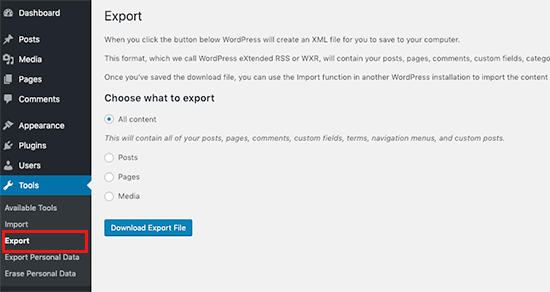
Exporting your WordPress site

Since it is a self-hosted platform, you can also create complete WordPress backups, download your media files, and even manually export your WordPress database.

You can then easily move your WordPress site to a new host if you are not satisfied with your current WordPress hosting company.

Conclusion:

WordPress is a lot better when it comes to downloading and moving your data. Wix, on the other hand, makes it quite difficult to move your content away.

Final Verdict: Wix vs WordPress – Which One is Better?

WordPress is far superior to Wix as a web publishing platform for any kind of website. While Wix offers an easy-to-use website builder, you can accomplish a lot more with WordPress over the long run.

See our guide on how to make a website using WordPress for step by step instructions.

Frequently Asked Questions – Wix vs WordPress

Do you still have a few questions? Here are some of the most commonly asked questions users asked us when deciding between Wix vs WordPress.

1. Which one is cheaper Wix vs WordPress?

Wix has free plans with their own branded domain name and advertisements. Their paid plans allow you to remove the branding and use your own domain name and they start at $4.50 per month with very limited storage and features. Your costs increase if you want to upgrade to more feature rich plans.

On the other hand, WordPress just needs hosting and domain name. For instance, you can get started with Bluehost for $2.75 per month with a free domain name and SSL certificate. Considering that it also gives you flexibility to add any feature you want to your website, WordPress becomes a lot cheaper in the long run.

2. Can I transfer my domain away from Wix?

Yes, you can transfer your domain away from Wix. However, Wix makes it a bit difficult to transfer your website files and content. For more details, see our article on how to transfer a website from Wix to WordPress.

3. What are Pros and Cons of using Wix?

For a quick comparison, here are some of the advantages and disadvantages of using Wix over WordPress.

Pros:

  • You don’t need to install software or manage updates on Wix
  • It offers a simpler and easy to use interface to edit websites
  • Wix is a hosted solution so you don’t need to worry about backups and security

Cons:

  • Wix is more expensive than WordPress in the long run
  • It is very limited in terms of functionality when compared to WordPress
  • It has fewer design choices and third-party integrations
  • The eCommerce and business features are no where close to what other platforms like Shopify and WooCommerce offer

4. Which platform offers more storage and bandwidth?

Most WordPress hosting companies offer unlimited storage and bandwidth. Compared to Wix, which limits the storage space based on the plan you choose. For instance, their basic plan gives users just 500 MB storage, 1 GB bandwidth, and no video hours.

5. Which one is better for SEO Wix vs WordPress

WordPress is better for SEO as you can use SEO plugins and tools, which you can use to do things like adding open graph meta tags, advanced XML sitemaps, On-site SEO analysis, and more.

We recommend using All in One SEO (AIOSEO) plugin to improve your WordPress ranking.

Wix offers some search engine optimization features built into their platform. This allows you to perform basic SEO for your website.

We hope this article helped you compare Wix vs WordPress and learn their pros and cons. You may also want to see our article on easy to start online business ideas and how to increase your website traffic without spending too much money.

If you liked this article, then please subscribe to our YouTube Channel for WordPress video tutorials. You can also find us on Twitter and Facebook.

The post Wix vs WordPress – Which One is Better? (Pros and Cons) appeared first on WPBeginner.


April 10, 2021 at 03:00PM
Friday, April 9, 2021

5 Best Transcription Services of 2021 Compared (Cheap & Accurate)

Are you looking for the best transcription services?

Transcription services let you simply convert speech to text. You can use these transcriptions for video subtitles, podcast notes, additional written content, and more.

In this article, we’ve hand picked some of the best transcription services you can use to transcribe your existing audio and videos.

Best transcription services compared

Why Use a Transcription Service?

Using an online transcription service saves you the time you’d spend trying to transcribe your audio and videos files yourself.

An automated transcription service helps you simply transcribe audio and video content into written text with a couple of clicks.

Transcribed audio helps you remember important details from meetings, calls, and webinars. Plus, it also gives you an easy way to transform & repurpose your existing content into multiple formats.

There are all kinds of ways you can use transcribed text with your WordPress site. Here are a few:

  • Create podcast show notes to post as blog posts
  • Summarize Zoom meeting notes for your remote team
  • Add accurate video captions to your videos to improve accessibility
  • Quickly create written materials to improve your online courses
  • Create content upgrades to grow your email list

That being said, let’s take a look at some of the best transcription services in the market today.

1. Rev

Rev

Rev is a transcription service provider that offers a range of different transcription related services.

You’ll find support for audio transcriptions, video transcriptions, captions, subtitles, and translations for a wide range of audio and video files.

Rev is the best transcription service when it comes error rate and transcription speed. It’s not the fastest provider, but it’s fast enough for providing nearly perfect text.

Generally, easy transcriptions can be completed in a few hours, with an accuracy rate of 99%.

They’re a unique service in that they have humans transcribers that utilize speech recognition AI. This gives you the best of both worlds.

Plus, all transcriptions done through this service are FCC and ADA approved and meet section 508 requirements. So, your transcriptions will be fully compliant with accessibility guidelines.

Beyond transcriptions, captioning, and subtitles, there’s a unique feature that provides live captions for Zoom meetings and webinars.

This ensures your meetings and online presentations are accessible to all.

Another unique feature Rev provides is support for foreign subtitles. If you have an international audience, then you can simply create multi language subtitles for all the videos you edit.

Finally, there’s a great mobile app for iPhone and Android. It lets you capture your ideas, meetings, lectures, and more on the go. Then, you can transcribe your audios with a single click from the app.

Price: Rev transcriptions start at $1.25 per minute and $0.25 per minute for a machine generated transcript with 80% accuracy.

Rush transcripts are available for an extra dollar per audio or video minute and will be completed 5 times faster.

2. Scribie

Scribie

Scribie is a great transcription provider that offers both automated and manual transcription services. You’ll find a wide range of features and transcription options for any budget.

The manual transcription service is 99% accurate and has a 36 hour turnaround. You also have the option to add a subtitle file, time coding, strict verbatim, speaker tracking, and more.

You can track the progress of your transcription and even download versions as they’re being completed. This can be helpful if you need a working version of the document to use right away.

They also stand behind the quality of their transcripts. If you’re not satisfied with the quality, then you can ask for a free re-review that’ll have a quick one day turnaround.

The transcription process with Scribie is super easy. All you have to do is upload your file, choose your plan, make a payment, and you’ll get a Word file back in your selected timeline.

Price: Scribie pricing starts at $0.80 per minute for manual transcription and $0.10 per minute for automated transcription.

There’s an additional fee of $0.50 per minute for files where the speaker has an accent, the audio file is poor quality, or background noise is present.

3. GoTranscript

GoTranscript

GoTranscript is one of the most accurate transcription services.

They provide very accurate transcriptions for audio files with hard to understand accents. Plus, there’s support for 48 different languages and files that have multiple accents in a single audio.

If you have audio that’s hard to decipher, has a ton of background noise, or is otherwise low quality, then it’s worth testing out GoTranscript.

They do a great job at handling complex projects, like STEM, academic, and technical papers too.

There’s a quick turnaround, especially considering its manual transcription for complex and in-depth topics.

However, if you’re not located in Britain, then the timing can be different since time quotes are based on their timezone.

The pricing is pretty affordable, considering the accuracy of the transcription you’ll be getting.

Price: GoTranscript starts at $0.90 per audio minute. Pricing increases for fast turnaround, low quality audio, number of speakers, and your language preference.

4. Sonix

Sonix

Sonix is a fully automated AI transcription software. Since it’s AI based, it’s incredibly fast, and you won’t have to wait on human transcribers.

But, this also means you won’t get the same level of accuracy as human transcription. Still, the easy to use editing tools and low price can balance this out.

You can use the in-browser editor to polish your transcript. It has features like word-by-word timestamps, commenting and notes for you and your team, speaker labeling, multiple export options, and more.

You’ll also find tools for automated translation, subtitles, and collaboration features. Plus, there are plenty of integrations with tools you already use like Zoom, Vimeo, YouTube, Dropbox, and more.

Price: Sonix pricing starts at $10 per hour of audio, which is just under $0.17 per audio minute.

5. GMR Transcription

GMR Transcription

GMR Transcription is a versatile audio transcription service. It offers standard transcription services, both AI automated or human powered.

You’ll find other related services like video transcriptions and Spanish transcriptions.

Plus, a unique text transcription service that can transcribe physical documents into electronic documents. Perfect for companies transiting into a paperless office.

The transcription quality is very high. But, you’ll pay more and the turnaround is slower than other providers on this list.

However, same day transcription is offered in some circumstances.

Price: GMR Transcription starts at $1.25 per audio minute with rates increasing based on the number of speakers, audio quality, and selected turnaround time.

What is the Best Transcription Service for You?

After reviewing all the most popular transcription services, we believe that Rev is the best transcription service.

Their transcriptions quality is 99% accurate, and their turnaround is pretty fast with very affordable pricing.

You can use it to transcribe your YouTube videos, podcasts, add captions, and there’s even support for foreign language subtitling.

Another great choice is Scribie, which offers very fast and accurate transcriptions at an affordable rate.

Aside from the top transcription services on our list, we also looked at other transcription providers like Temi, TranscribeMe, Trint, Otter, and iScribed.

However, we decided to not list them to help make your choice as easy as possible and avoid decision paralysis.

Best Transcription Services FAQs

Helping tons of our readers find the best transcription services for their needs, we’ve answered a lot of questions.

Below are some of the most frequently asked questions we’ve received about online transcription providers.

What is the going rate for transcribing?

In general, the standard rate for transcribing is going to fall between $0.10 to $1.50 and beyond per audio minute.

The rate you pay will depend on things like the audio quality, accents present, whether or not it’s human or AI transcription, and more.

Overall, the more you pay per audio minute, the more high quality the finished transcription will be.

How long does it take to transcribe 1 hour of audio?

Typically, it takes individual transcriptionists 4 hours to transcribe 1 hour of audio. This will differ based on the transcriber’s skill, whether they’re using AI, and the audio file’s quality.

Different transcription services have different turnaround times, based on what you pay and if you require rush delivery.

What is the best free transcription software?

Some of the best free transcription software includes the Google Docs dictation feature and automatic YouTube transcriptions you can download after uploading a video.

However, the big issue with free transcription apps and software is they aren’t going to be that accurate.

If you’re looking for the cheapest option, then Rev has a free trial that allows you to test out 30 minutes of audio for free. If the quality is up to your standards, then the paid plans start at $10 per hour of audio.

We hoped this article helped you find the best transcription service for you to use along with your WordPress site. You may also want to see our list of the best online course platforms and our expert picks of the must have WordPress plugins for your business.

If you liked this article, then please subscribe to our YouTube Channel for WordPress video tutorials. You can also find us on Twitter and Facebook.

The post 5 Best Transcription Services of 2021 Compared (Cheap & Accurate) appeared first on WPBeginner.


April 09, 2021 at 04:12PM

Thursday, April 8, 2021

How to Increase Pageviews and Reduce Bounce Rate in WordPress

Do you want to increase pageviews and reduce bounce rate in WordPress?

Users who stay on your site longer and view more pages are more likely to join your email list, leave a comment, make a purchase, follow you on social media, and more.

In this article, we’ll show you how to increase your pageviews and reduce bounce rates in WordPress using proven methods.

How to increase pageviews and reduce bounce rate in WordPress

What is Bounce Rate?

Bounce rate is the percentage of visitors who land on your site and leave without continuing to a second page. A high bounce rate means that you couldn’t convince a visitor to stay on your page and take action.

A visitor can bounce from your site in a lot of ways.

  • Clicking the back button
  • Typing in a new URL
  • Closing the tab or window
  • The session times out (from hosting errors)

People leave websites all the time. It’s normal because that’s how people navigate the web. But, there is a difference between a good and bad bounce rate.

A good bounce rate means your visitors had a good user experience and found what they’re looking for on your site. A bad bounce rate means a lot of your visitors land on your site and leave quickly.

What is a Good Bounce Rate?

Good bounce rates will vary by your industry and the type of website that you have.

There are some general rules you can keep in mind when looking at your own data.

  • Over 80% is a very bad
  • Between 70 and 80% is poor
  • Between 50 to 70% is good
  • Between 30 to 50% is great
  • Under 20% is generally a tracking error

There are a lot of reasons your bounce rate could be high. Luckily, most of these reasons can be fixed.

  • Your site loads too slowly
  • Your visitors are having a hard time navigating your site
  • You have a poor design
  • There aren’t any clear calls-to-action

There’s a lot you can do to improve your bounce rates and increase the total number of pageviews your WordPress site receives.

Getting Started

Before you begin, you’ll need to know your existing bounce rate and average number of pageviews.

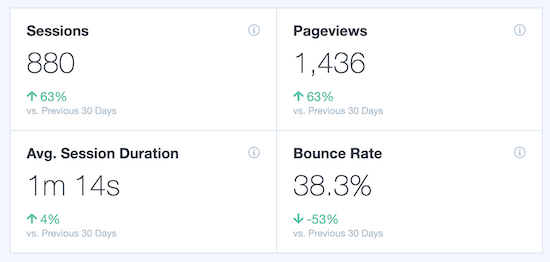
We recommend using Google Analytics with the MonsterInsights plugin. It’s the best analytics solution for WordPress used by over 3 million websites.

This lets you easily view your traffic and user data directly from your WordPress dashboard. As you implement the tips in this post, you’ll see your numbers improve.

MonsterInsights analytics data

For more details, see our guide on how to install Google Analytics in WordPress.

1. Speed Up Your WordPress Site

If you have a high bounce rate, then it’s easy to assume your content or website is to blame. But, your visitors could be leaving before they’ve even had a chance to see your content.

If your site doesn’t load within 2 seconds, then your visitors won’t wait around. This applies to both mobile and desktop visitors.

Speeding up your WordPress site will improve your user experience, increase your total number of pageviews, and help with your WordPress SEO rankings.

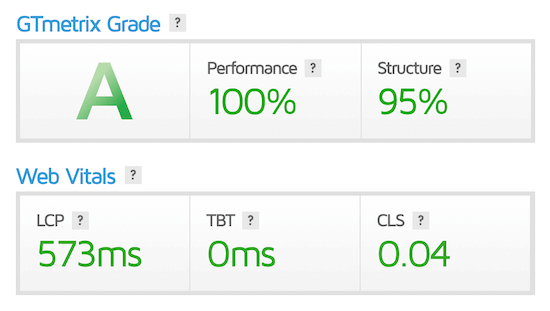
First, you’ll want to run a website speed test, so you can see how your website is currently performing. For more details, see our guide on how to properly run a website speed test.

Website speed test results

Once you know how your site is currently performing, you can start making your WordPress site faster.

Luckily, there are ton of ways you can speed up your WordPress site performance.

For most websites, the biggest things that slow down their site speed is their WordPress hosting or improper WordPress caching configurations.

To help you fix your website speed, we have created an ultimate guide on how to boost WordPress speed and performance.

2. Improve Your WordPress Navigation Menus

Your navigation menu is one of the main ways visitors will navigate around your site. Most website owners don’t think twice about their navigation menus.

But, having a navigation menu that’s too complex or confusing can lead to higher bounce rates.

You want your navigation menu to be simple and help your visitors find exactly what they’re looking for.

Navigation menu optimization

We use a drop down navigation menu to organize thousands of posts on the WPBeginner blog simply. Even when you have a content heavy site, you should still organize your menus in a logical manner.

WordPress makes it easy to create menus and sub-menus across your WordPress site. For more details, see our beginner’s guide on how to add a navigation menu in WordPress.

3. Improve Your Internal Links in WordPress

Internal linking your content together is not only great for SEO, but it’s also one of the best ways to reduce bounce rate while increasing pagviews.

Internal linking is the process of linking from one page on your site to another.

For example, we can link to our best WordPress SEO plugin guide here in this sentence as our internal link.

Internal links are relevant links that enhance your existing content.

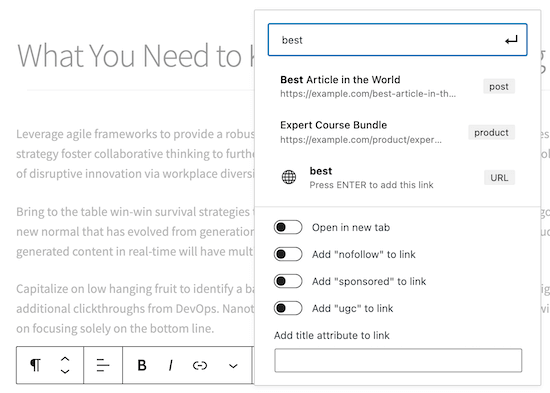
You can easily add internal links directly from your WordPress content editor.

Add internal links in WordPress

For more details, see our beginner’s guide on how to add a link in WordPress.

Note: Some of the additional options that you see in our screenshot above are added by All in One SEO plugin for WordPress. We recommend using AIOSEO to improve your SEO rankings.

4. Add Internal Search to WordPress

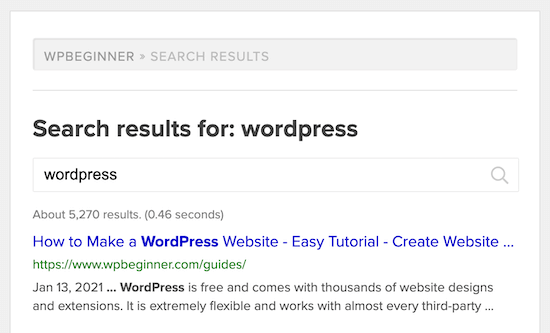
Internal search lets your visitors search your site for the content they’re looking for, just like Google.

Often users will use your website search bar to find the content they’re looking for before leaving your site.

Internal search example

By default, WordPress has a built-in search widget. However, the results algorithm is pretty limited.

We recommend using a WordPress search plugin to enhance your visitor’s search experience. For more details, see our list of the best WordPress search plugins to improve your site search.

5. Open External Links in a New Tab

Linking out to other websites is also great practice. It helps you build relationships with other website owners and makes your content more valuable.

However, external links can make your visitors leave your site, which can increase your bounce rate.

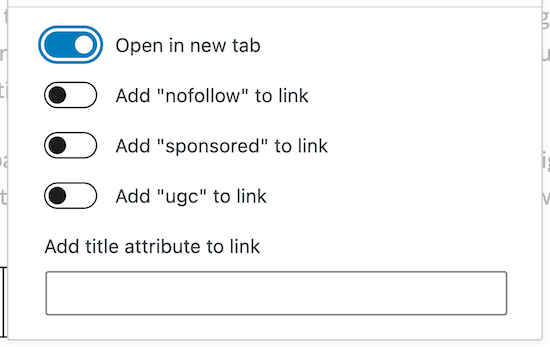
The best way to fix this is by having your external links open in a new tab or window. That way, when a visitor clicks an external link, they won’t leave your website.

Open external links in new tab

WordPress has an option to make your external links open in a new tab within your post editor.

For more details, see our guide on how to open external links in a new window or tab.

6. Add Related Posts or Popular Posts

One reason your visitors are leaving after reading a post is you’re not showing them what to do next.

So, instead of sticking around to read more, they leave.

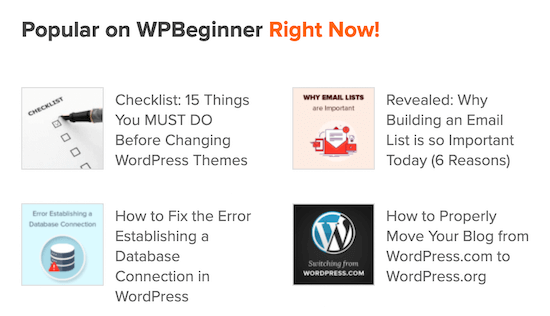
An easy way to remedy this is to add a ‘Related Posts’ or ‘Popular Posts’ section at the end of your post.

If a visitor reads to the bottom of an article, then you know they’re engaged and are enjoying your site. It’s time to encourage them to keep reading.

WordPress related posts

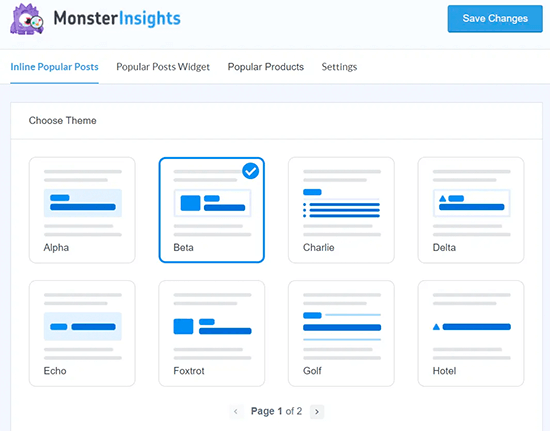
There are a lot of ways you can do this. We recommend using a WordPress popular posts addon from MonsterInsights. This lets you easily add popular posts to WordPress and gives you control over the layouts.

MonsterInsights Popular Post Templates

You can even use it to add inline trend posts within your blog content:

MonsterInsights Inline Popular Posts

7. Make Your Content Readable

Most websites rely heavily on written content. If your content isn’t correctly formatted for the web, then this could be turning off your visitors.

There are a few key parts to making sure your content is easy to read.

First, make sure the text on your site is readable on all devices.

If readers have to zoom in or squint to see your text on mobile, then your font size isn’t big enough. For more details, see our guide on how to easily change the font size in WordPress.

Second, you need to format your content correctly. Readers tend to skim quickly instead of reading line by line. So, your content needs to match the way people read online.

Format content properly

There are a few ways you can format your articles for the web the right way.

  • Use subheadings to break up your content
  • Make your paragraphs short
  • Use bullets and lists when possible
  • Embed videos and add images into your content
  • Write in a conversational tone

8. Optimize Your WordPress Site for Mobile

Over half of all internet traffic comes from mobile devices. If your website isn’t optimized for mobile, then you’re delivering a poor experience for many visitors.

If your bounce rate is high and you haven’t optimized for mobile, then this could be why.

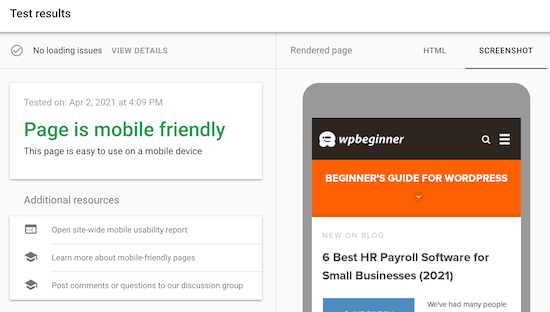
The best way to see if your site is optimized for the mobile web is using Google’s Mobile-Friendly Test.

Mobile friendly test Google

All you have to do is enter your URL, and you’ll get a report that’ll show you how you can optimize your website.

The easiest way to ensure your site is optimized for mobile is by choosing a responsive WordPress theme. A responsive WordPress theme will automatically adjust itself to your visitor’s screen size.

So, your WordPress site will look good on mobile, tablet, and desktop devices.

We’ve compiled a list of the best responsive WordPress themes.

Using a responsive theme makes it easy to optimize for mobile. All you have to do is install and activate the theme, and your site will be mobile-friendly.

There are also ways you can preview and edit the mobile version of your website, so you can make sure it looks great on mobile.

For more details, see our guide on how to preview the mobile version of your WordPress site.

9. Use WordPress Popups the Right Way

Popups can be a great way to grow your email list. But, they can negatively impact the user experience if they’re not used the right way.

You’ve probably been to a website where you were bombarded with popups. When all you were trying to do was read the content.

Instead of creating a poor experience you can create popups that’ll display as visitors are leaving your site.

You can either let them go or try to convert them into a subscriber.

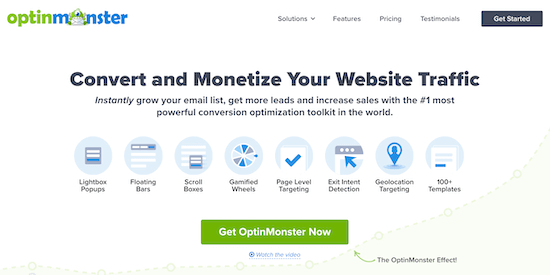
The easiest way to do this is using OptinMonster. It’s the best lead generation software in the market used by over 1.2 million websites. We were able to use OptinMonster to grow our email list by 600%.

Add OptinMonster popup

You can use the Exit-Intent® technology to display popups when visitors are thinking about leaving your site. There’s also advanced targeting features, so you can create and display popups that are highly relevant to your visitors.

For more details, see our guide on how to build your email list with OptinMonster in WordPress.

10. Create a Custom 404 Page in WordPress

A 404 page is what your visitors will see if they come to your site via an invalid link. The page won’t be created on your site yet, so they’ll get an error message instead.

The goal of a 404 page is to redirect visitors to the content they might find helpful, instead of hitting the back button and leaving your site.

Depending on your WordPress theme, your standard 404 page might already list your pages, categories, or posts. But, this still leaves a lot of room for improvement.

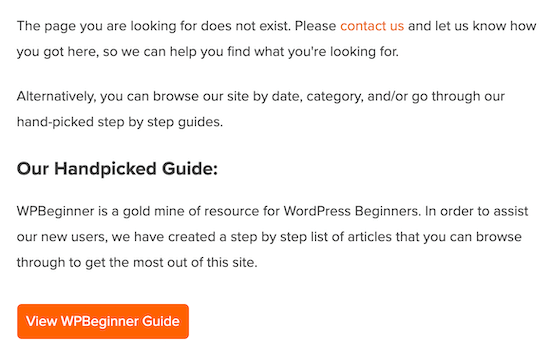
The goal of your 404 page is to give your visitors relevant information, so they can find what they’re looking for and stay on your site.

404 page example

You can get creative with your 404 page. Some websites use humor, while others provide visitors with a helpful search tool.

The easiest way to create a custom 404 page is by using the SeedProd plugin.

For more details, see our list of the best WordPress 404 error page design examples.

11. Improve Your WordPress Sidebar

If your WordPress blog has a sidebar, there’s a lot you can do to optimize this space. For example, you can add things like popular posts, email sign up forms, display ads, and even Instagram photos.

However, since your goal is to reduce bounce rate and increase your pageviews, you should include helpful resources that link to other areas within your site.

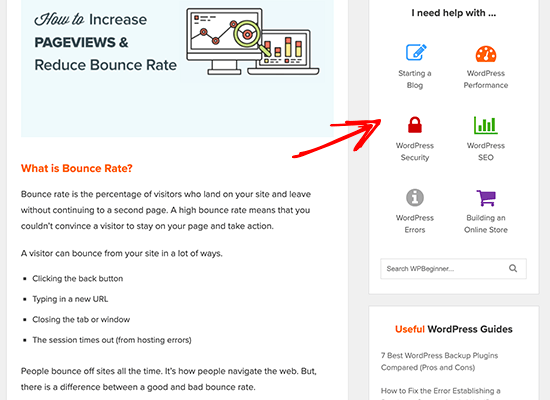
We maximize our sidebar and direct our visitors to other popular resources on our site. As you scroll down the page, you’ll find images that link to detailed tutorials, a search bar, and useful WordPress guides.

WPBeginner Sidebar

Note, if your site doesn’t use a sidebar, then use the rest of the tips in this post to optimize your website.

12. Show WordPress Post Excerpts on Your Homepage

If your homepage contains your latest blog posts, then you can turn these into excerpts instead of entire posts. This helps your website in two ways.

First, it decreases the time it takes for your page to load. Second, it helps increase your pageviews by giving your visitors more options to find the right content.

Our homepage gives readers the chance to check out our 5 latest blog posts.

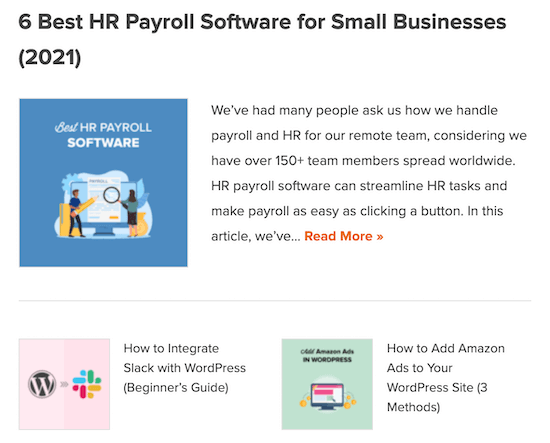
Post excerpts on homepage

Our blog page lists 10 posts, along with post excerpts, and read more links.

You can add post excerpts to multiple locations across your WordPress site.

For more details, see our guide on how to customize WordPress excerpts with no coding required.

Final Thoughts to Increase Your Blog Pageviews

Over 70% of people abandoning your website will never return. This is why it’s important that you have a way to contact them after they leave, so you can get them to come back.

The two best ways to do that is to create an email newsletter and add web push notification to your website.

Both of these will help you increase your website pageviews and overall traffic.

You can also see our ultimate guide on how to increase blog traffic with 27 proven tips.

We hoped this article helped you increase pageviews and reduce bounce rate in WordPress. You may also want to see our expert list of 24 must have WordPress plugins, and our comparison of the best webinar software to engage your audience.

If you liked this article, then please subscribe to our YouTube Channel for WordPress video tutorials. You can also find us on Twitter and Facebook.

The post How to Increase Pageviews and Reduce Bounce Rate in WordPress appeared first on WPBeginner.


April 08, 2021 at 03:44PM