Wednesday, April 14, 2021

How to Optimize Core Web Vitals for WordPress (Ultimate Guide)

Do you want to optimize core web vitals for WordPress?

Core Web Vitals is an initiative by Google which helps website owners improve user experience and quality of their websites. These signals are crucial for the success of any website.

In this guide, we’ll show you how to easily optimize Google Core Web Vitals for WordPress without any special technical skills.
Optimizing Google Core Web Vitals for your WordPress website

Here is a quick overview of what we’ll cover in this guide.

What are Google Core Web Vitals?

Google Core Web Vitals are a set of website performance metrics that Google considers important in a website’s overall user experience. These web vital scores will be a part of Google’s overall page experience score that will impact your SEO rankings.

The truth is that nobody likes a slow-loading website including Google.

Even if your website loads fast, it may not be fully functional for users to do what they want to do or access the information they need.

This is what Web Vitals helps you measure. How quickly does your website loads, becomes visible, and is ready for your users?
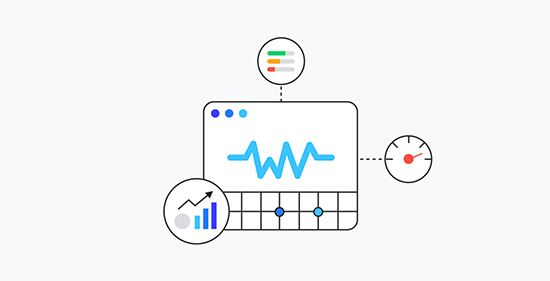
Core web vitals

To do that, Google uses three quality tests (Web Vitals).

  • Largest Contentful Paint (LCP)
  • First Input Delay (FID)
  • Cumulative Layout Shift (CLS)

Now the names of these tests may sound too technical but what they do is quite easy to understand.

Let’s see how each Web Vitals test works, what they measure, and how you can improve your score..

Largest Contentful Paint – LCP

Largest Contentful Paint or the LCP, looks for how quickly the main content (whether it is an image, article, or description) becomes visible to the users.

For example, your website might load fast, but the largest content may not appear on the screen as quickly as the rest of the page.

Other speed test tools will give you a high score, but from user’s point of view, the page is still slow.

This is why Google measures the LCP as part of their web vital score, so website owners can have a more clear understanding.

First Input Delay (FID)

First Input Delay (FID) measures the time it takes a user’s browser to actually be able to begin processing event handlers in response to a user’s interaction.

In plain english, let’s suppose a user is on your contact form page. They fill out the form and click on the Submit button. FID, will measure how quickly your website processes that interaction.

An even simpler example would be the time from when a user clicks on a link to the time their browser starts processing the next sequence of events.

Cumulative Layout Shift (CLS)

Cumulative Layout Shift (CLS) measures the time it takes for a website to become visually stable.

As a website loads, some elements take more time to load than others. During this time, your website’s content may keep moving on the screen.

For instance, if a user is reading a paragraph on a mobile device and a video embed loads above it, this makes the entire content move down. This can be really frustrating if a user was trying to accomplish an action such as adding a product to cart where the button shift down due to other items moving on the page.

How to Test Your Google Core Web Vitals Score

The easiest way to test your Google Core Web Vitals Score is by using the Page Speed Insights tool. Simply enter the URL you want to test and click on the Analyze button.
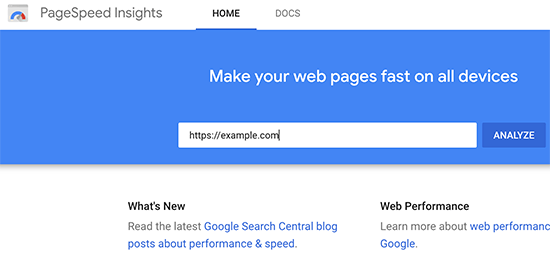
Using Page Speed Insights tool to view the core Web Vitals score

The core vital results are displayed under the section titled ‘Field Data’ section.
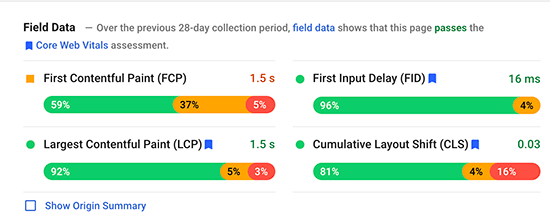
Core Web Vitals report example

To make it simpler, you will see a message at the top saying ‘[…] field data shows that this page passes the Core Web Vitals assessment’.

In the chart below, you can view the actual score of all three core vitals. Here is how much you need to score to pass the core Web Vitals tests for each item.

  • Largest Contentful Paint (LCP) – 2.5 seconds
  • First Input Delay (FID) – Less than 100 milliseconds
  • Cumulative Layout Shift (CLS) – Less than 0.1

How to View Google Core Web Vitals for Full Website?

Now Page Speed Insights tool allows you to check an individual page. If the page you are checking is the root of your domain name, then you can also click on the ‘Show Origin Summary’ checkbox.
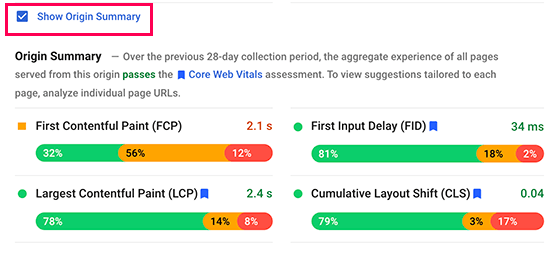
Origin Summary Score

This will show you the score for all pages served from this origin.

However, to really drill down deep, you can access the Core Web Vitals report in your Google Search Console dashboard as well.
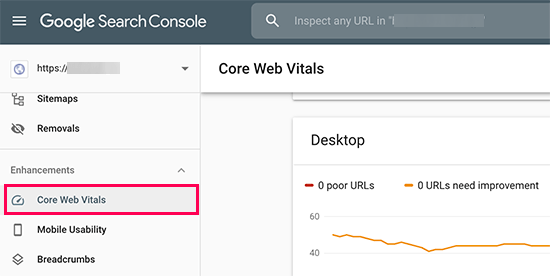
Core web vitals in Google Search Console

This allows you to see how many URLs on your website passed the tests, which URLs need improvement, and which pages have a poor score.

To get even more detailed reports for Web Vitals, you can use the lighthouse speed test by going to Web.dev Measure tool, or by using the built-in test inside Google Chrome browser.

Simply open a website in Chrome, right click anywhere on the screen, and then select the Inspect option. In the tabs, you will see an option called Lighthouse.
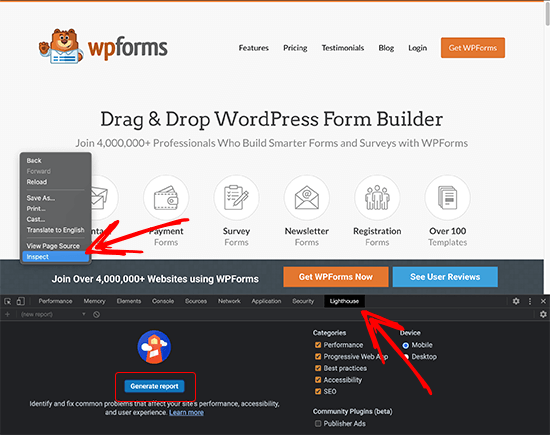
Test Web Vitals in Google Chrome

After that, click the Generate Report button.

Note: You must do the Chrome test in Incognito mode for the most accurate results. Otherwise your browser extensions may negatively impact the core web vital score it shows you.

Why are Core Web Vitals Important?

Core Web Vitals are important because they reflect how your website performs for the users. It is focused not just on the faster loading of a website but on how quickly users can actually use it.

According to a recent study, a 1 second delay in page load time can lead to 7% loss in conversions, 11% fewer page views, and 16% decrease in customer satisfaction.
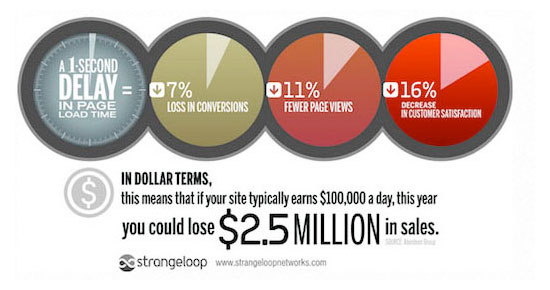
StrangeLoop study

That’s why it is crucial to optimize your website for speed and performance. However, most performance measuring tools didn’t really account for the quality of user experience.

A faster website with poor user experience is still costing you conversions, fewer page views, and poor customer satisfaction. Improving core Web Vitals helps you remedy that.

User experience is also an important factor in SEO rankings. Google has already announced that starting in May 2021 the search algorithm update will include page experience as one of the ranking factors.

That being said, let’s see how you can easily improve your core Web vitals to offer a better user experience on your website.

How to Improve Your Core Web Vitals in WordPress (7 Tips)

Improving your core Web Vitals score in WordPress is not that difficult. Using some essential performance optimization tips you can easily pass the Web Vitals score.

1. Optimize Your WordPress Hosting

Your WordPress hosting company plays the most significant role in your website’s performance.

They are able to optimize their servers for WordPress which gives your website rock-solid platform to build upon.

We recommend using SiteGround for a high-performance website. They are one of the officially recommended WordPress hosting companies, and we use SiteGround for WPBeginner website.

SiteGround

To give your website the performance boost it needs, SiteGround uses Google Cloud Platform for their servers along with ultrafast PHP.

Their SG Optimizer plugin is used by over a million websites. It automatically makes further performance enhancements and turns on built-in caching which does everything WP Rocket does and more.

It’s important to note, that their SG Optimizer plugin only works on SiteGround hosting accounts, and these performance optimizations are available for all plans including the lowest option.

If you’re using another WordPress hosting provider, then we recommend using WP Rocket along with few other tools to achieve better core web vitals score.

WP Rocket is the best WordPress caching plugin on the market. It allows you to easily set up caching on your WordPress website without going into any technical details of server management.

2. Improving Largest Content Paintful (LCP) Score

As mentioned earlier, the Largest Content Paintful (LCP) is literally the largest content part within the viewport of a page. For instance, on a blog post, this could be the featured image or the article text.

The quicker this content loads the higher your LCP score would be.

How do you know which content is considered the largest by the test? Well, you need to scroll down to the test results and expand the ‘Largest Contentful Paint element’ tab.
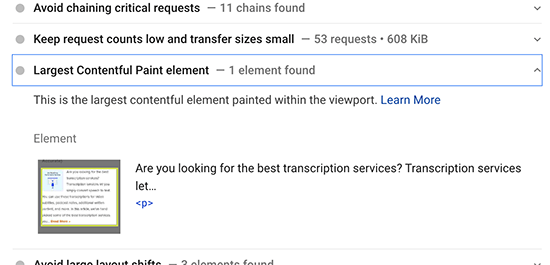
Largest Content Paintful element

You’ll see the elements considered for the LCP score. If it is a larger image, then you can try replacing it with a smaller image or an image with lower file size and quality. See our guide on how to optimize images for web performance.

If it is text, then you can try breaking it into paragraphs and headings.

3. Improving First Input Delay (FID) Score

First Input Delay score measures the time between a user clicking on something on your website and their browsers starting processing elements.

The most important tip to improve that is by using a better web hosting or even managed WordPress hosting platform.

Another easy way to improve FID score is by using a caching plugin like WP Rocket. It comes with a built-in feature that allows you to optimize file delivery.

First you would need to install and activate the WP Rocket plugin. For more details, see our step by step guide on how to install a WordPress plugin.

After that, go to Settings » WP Rocket page and switch to the File Optimization tab.
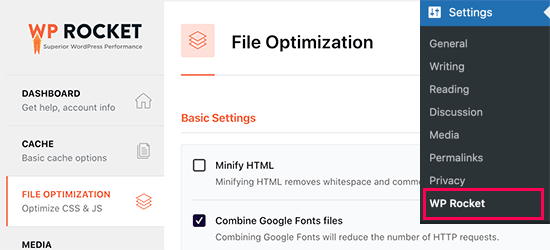
File Optimization in WP Rocket

Scroll down to the bottom of the page and check the box next to the ‘Load JavaScript deferred’ option.
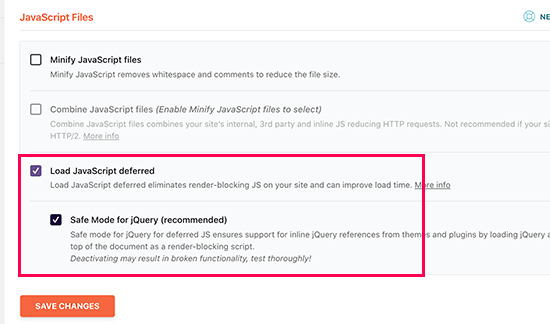
Defer JavaScript

Don’t forget to click on the Save Changes button to store your changes.

Deferring JavaScript allows your website to load without waiting for JavaScript to be loaded. This improves First Input Delay (FID) Score for pages where JavaScript may be the cause.

4. Improving Cumulative Layout Shift (CLS) Score

Cumulative Layout Shift (CLS) score is affected when different elements on a web page are loading slowly and making other elements on the screen move.

You can view which elements are affecting the CLS score by expanding the ‘Avoid large layout shifts’ tab in the Page Speed Insights results.
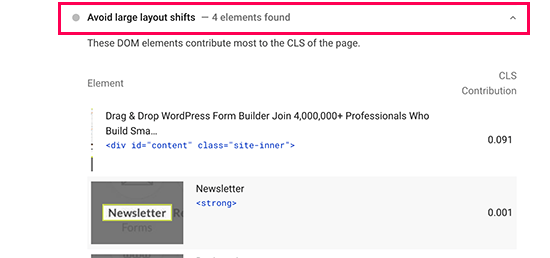
Layout shift elements

This will show you the elements that are causing the most layout shift impact during page load.

To make sure that the visual layout of your page does not shift as other items load, you need to tell browsers about the dimensions (width and height) of the elements like images, video embeds, Ads such as Google AdSense, and more.

WordPress automatically adds height and width attributes to images you add. However, you can still check all other media particularly embeds to make sure that all of them have height and width attributes.

One way to do that is by using the Inspect Tool. Simply right-click in your browser and select Inspect to open the developer console.

You can then point and click on different page elements to highlight their source code. There, you can see if the element has width and height attributes defined.
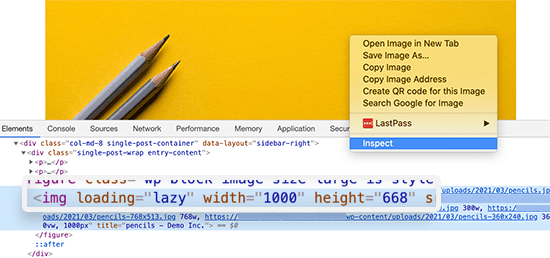
Inspect height and width attributes

5. Eliminate Render Blocking Elements

Render blocking elements are the elements that are slower to load but are blocking other elements from loading first. This affects your overall Web Vitals score and user experience on your website.

Page Speed Insights results will show you the render blocking elements. These are usually JavaScript or CSS files added by your WordPress plugins, third-party tools like Google Analytics, Facebook Pixel, Google Ads, and more.
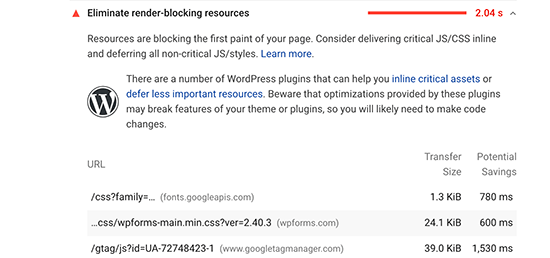
Render blocking elements

However, most such elements are programmatically added to your site by different plugins or theme. This makes it harder for a beginner user to remove or properly load them.

We have a step by step guide on how to easily eliminate render blocking elements in WordPress without messing with any code on your website.

6. Properly Size Images in WordPress

Another common cause of lower core Web Vitals score is very large images. Many WordPress users upload high-resolution images to their websites which take longer to load and in most cases are not necessary.

Optimized vs Unoptimized Images in WordPress

This becomes even more problematic for users on mobile devices. Your responsive WordPress theme and WordPress will automatically fit the image to user’s mobile screen but they would still be loading a larger file.

We have a detailed guide on how to properly optimize images for your WordPress website without losing quality or affecting the performance.

7. Use a CDN to Server to Improve Web Vitals Score

CDN or content delivery network are third-party services that allow you to serve static content of your website from multiple servers around the globe.

This allows users to download those static files like images and CSS from servers that are nearest to them. It also reduces load on your website which can then continue loading other elements.

You can use a cloud firewall app like Sucuri which comes with a built-in CDN service. Sucuri also helps you block malicious and spam requests which further frees up your website resources.

You can also use Cloudflare free CDN as an alternative. It comes with a basic firewall protection and CDN service that would improve your website’s web vitals score.

We hope this guide helped you learn how to optimize core web vitals for WordPress. Another important aspect of good user experience is security. We recommend that you follow our WordPress security checklist to make sure that your website performance is not affected by spam or DDoS attacks.

You may also want to see our comparison of best video editing software and best webinar platforms to create performance optimized media content that doesn’t slow down your website speed.

If you liked this article, then please subscribe to our YouTube Channel for WordPress video tutorials. You can also find us on Twitter and Facebook.

The post How to Optimize Core Web Vitals for WordPress (Ultimate Guide) appeared first on WPBeginner.


April 14, 2021 at 04:00PM
Tuesday, April 13, 2021

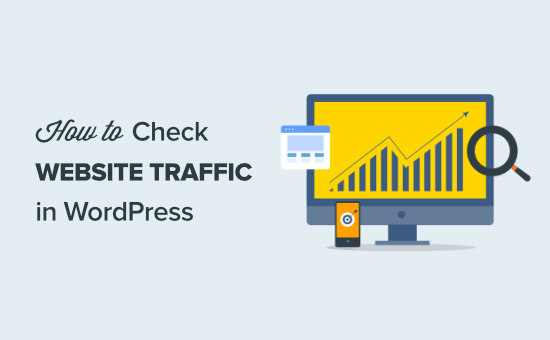
How to Check Website Traffic for Any Site (7 Best Tools)

Do you want to check website traffic for any site, including your own?

Checking website traffic allows you to see how well your site performs and how it compares to your competition.

In this article, we’ll show you how to check website traffic for any website using various online tools.

How to check website traffic for any site (7 tools)

Why Should You Check Your Website Traffic?

By checking your website stats, you can easily see how your website is performing.

Your website traffic data will show you where your traffic is coming from, how visitors engage with your site, and what digital marketing strategies are working.

If you want to get more email subscribers, more sales for your online store, or just more traffic overall, then you need to regularly check your website analytics.

By tracking your site’s traffic, you’ll know where your site currently stands and what you can do to improve.

Why Should You Check Your Competitor’s Website Traffic?

Analyzing your competitor’s website traffic statistics can reveal a lot of helpful information such as:

  • The pages and posts bringing your competitors the most traffic
  • Which keywords your competitors are ranking for
  • The channels that are driving them the most traffic

All of this information can be used to improve your content marketing strategy, link building, keyword research process, and more.

By understanding what brings your competition the most traffic, you’ll be able to target those same keywords and topics to generate more traffic for your website.

Best Tools to Check Any Website Traffic (including Competitors)

There are a lot of free and paid traffic checking tools that you can use. Each one has unique features that set them apart.

Most experts use multiple tools to check website traffic estimates for their competitors. We always recommend readers to try at least two different tools to analyze web traffic stats.

By using various tools, you’ll be able to fill in the gaps and get more accurate traffic stats for any website.

As your WordPress site and budget grow, you can invest in multiple tools to gain more insights and dominate your market.

Having said that, let’s take a look at the best tools to check how much traffic a website gets.

1. SEMRush

SEMRush

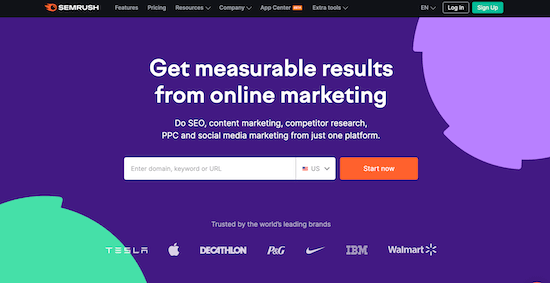
SEMRush is an all-in-one traffic analysis and competition research tool. It’s the best tool for analyzing and monitoring traffic for any website.

We use this tool at WPBeginner for keyword research, tracking keyword rankings, and a lot more.

Once you enter a competitor URL, you’ll get a detailed breakdown of your competitor’s total traffic.

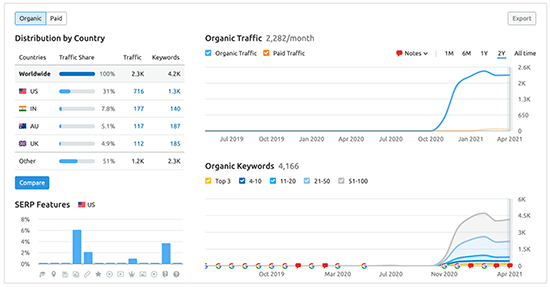
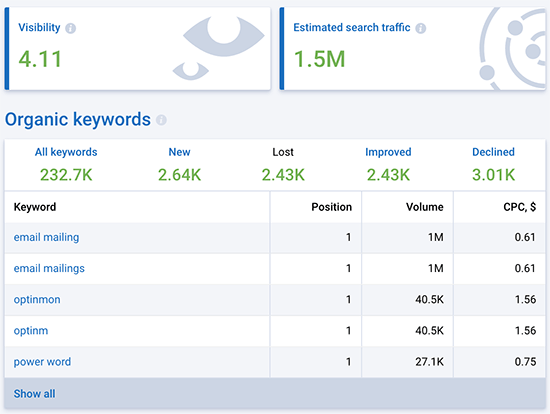
You’ll be able to see important website metrics like the volume of monthly traffic over time, traffic distribution by country, the keywords that bring them the most traffic, and more.

SEMRush Domain Overview Stats

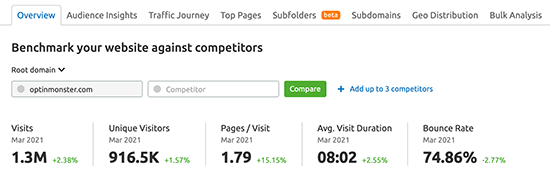
The Traffic Analytics tab gives you the number of unique visitors, total visits, average visit duration, number of pageviews, and the bounce rate the site receives.

This feature is like looking into your competitor’s Google Analytics account.

SEMRush Traffic Analysis

Another excellent feature called Bulk Traffic Analysis lets you analyze traffic levels for multiple competitors at once.

Depending on your pricing plan, you can compare up to 200 websites. This gives you a big picture view of your niche, the websites getting the most traffic, and any traffic opportunities you can act on.

You’ll also find detailed traffic analytics reports that give you information like which sites are sending the most referral traffic, which pages on their site are the most valuable, and which locations bring them the most traffic.

You can take advantage of the 14 day trial, or the limited free plan which gives you access to basic website data.

If you want full reports, then the premium plans start at $119.95 per month, which gives you full access to competitor traffic sources, rankings, social media, and more.

2. SimilarWeb

SimilarWeb

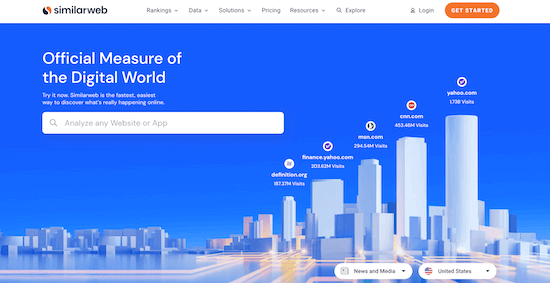
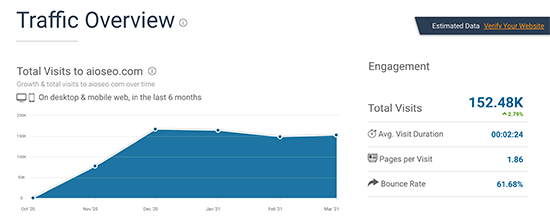
SimilarWeb is an online website traffic checker that gives you an overview of your competitor’s traffic and which channels are the most valuable.

Instead of just providing traffic from search, you’ll get detailed reports of a website’s entire traffic strategy.

Once you run a website through the tool, you’ll get a breakdown of the overall traffic, including a country by country report.

SimilarWeb Traffic Overview Screenshot

You’ll get engagement metrics like bounce rate, number of pages viewed per visit, average visit duration, and the top traffic sources for that website.

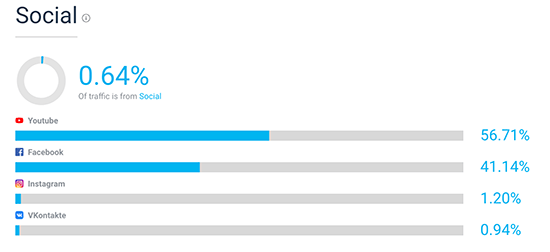
Beyond organic search traffic, you’ll find what paid keywords bring the website traffic, what social channels are the most valuable, and the display networks the site uses to monetize.

SimilarWeb Social Media Overview

Finally, you’ll get a detailed breakdown of the site’s audience, what kind of other sites they’re interested in, the top referring sites, and a list of competitor sites for you to research further.

The free version of the tool provides you with useful traffic data. If you require more detailed reports, then you can create an enterprise account with custom pricing.

3. Google Search Console

Google Search Console

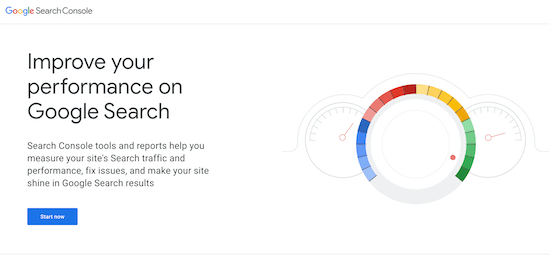
Google Search Console is a free tool from Google that lets you analyze your search engine traffic.

This tool gives you a complete picture of how your site is viewed by the search engines.

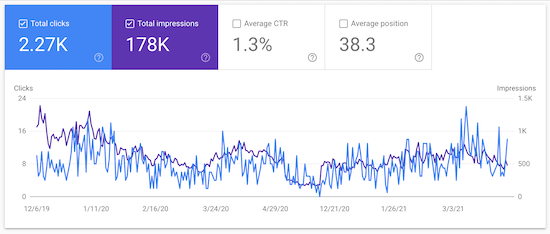
Google Search Console website traffic data

It shows the number of impressions, clicks, click-through rate (CTR), and the average position of your keywords in the search engines.

This helps you understand what keywords you’re ranking for and the search volume they’re bringing in. This information can help you improve your traffic.

For example, if you find that you’re ranking in position 11, then you can optimize the blog post to try to move it to the first page of the search results.

You can also see which pages are indexed, if any errors are present, and more.

Once you add your site to Google Search Console, you can start viewing your website data.

The easiest way is to connect your Google Search Console account with All in One SEO. For more details, see our guide on how to add your WordPress site to Google Search Console.

You can also use the MonsterInsights tool, mentioned below, to view your keyword rankings inside the WordPress admin area using Google Search Console data.

For more details, see our guide on how to see keywords people use to find your WordPress site.

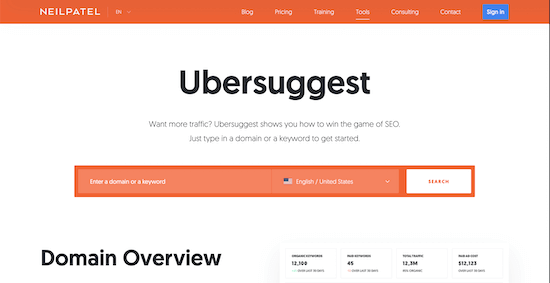
4. Ubersuggest

Ubersuggest

Ubersuggest is a free and premium tool from Neil Patel that offers a ton of useful website traffic data.

It’s straightforward to use and the interface is built for beginners. If you’ve never done keyword research or traffic analysis before, then this tool makes it incredibly simple.

The traffic analyzer feature gives you a detailed breakdown of your competitor’s traffic over time, the keywords bringing them the most traffic, and the most popular pages on the site.

All you have to do is enter the website URL you want to analyze and click ‘Search’.

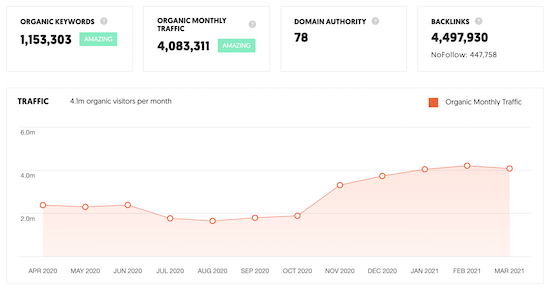
Ubersuggest traffic overview

The ‘Traffic Overview’ page gives you the total number of organic keywords the site ranks for, the organic monthly traffic, domain authority, and the total number of backlinks.

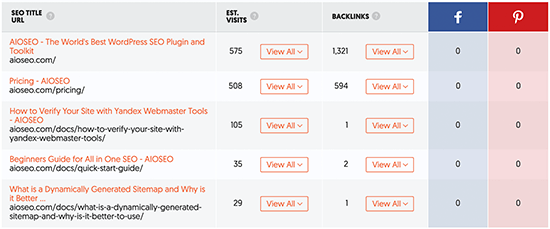
You can also dive deeper into each section of the traffic report. For example, you can expand the ‘Top Pages’ results to get a breakdown of each published page on the site and the estimated amount of traffic it brings in every month.

UberSuggest Top Pages

The results also give you the estimated number of backlinks, along with the number of Facebook and Pinterest shares. This data gives you a general overview of what you’ll have to do to outrank that page in the SERPs.

The free version of the tool gives you access to the last 3 months of data. Premium plans start at $29 per month, making it one of the cheapest tools on this list.

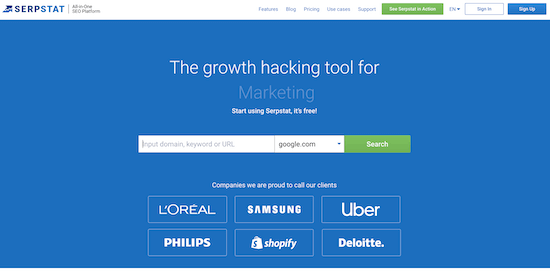
5. Serpstat

SERPStat

Serpstat offers a wide range of different SEO tools. What started as a simple keyword research tool has grown into an all-in-one website analysis tool.

Even though it’s packed with features, it’s still very easy to use. Just enter the URL and the tool will generate a traffic report.

There are traffic checking features along with backlink analysis, site auditing, and rank tracking tools.

The traffic analysis features give you all kinds of useful website data, including the organic and paid keywords that are driving traffic, the average number of visitors the site gets per month, and the pages that get the most traffic.

Serpstat Keyword Preview

You’ll also find trend information, so you can see how the site’s rankings, traffic, and keywords are performing over time.

The free version of the tool gives you access to a portion of the total data that’s available for a domain name. Premium plans start at $69 per month and give you access to all of the data the tool provides.

6. Ahrefs

Ahrefs

Ahrefs is one of the most popular SEO tools in the market trusted by brands like Netflix, Uber, and Facebook. It helps you see how much traffic your competition is getting and why they’re ranking so high.

Ahrefs crawls more than 6 billion web pages every day, with more than 200 million websites in their index. It’s a lot of data, but this gives you actionable insights to help you outrank your competitors and get more traffic.

The interface is very simple and user friendly. Simply enter the website URL in the search field and the tool will pull all available website information.

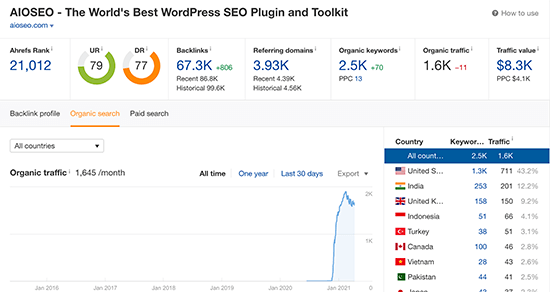
The search overview report gives you an overview of the organic search traffic a site receives, the domain authority, biggest competitors, and much more.

Ahrefs Traffic Stats

You can filter the report to view the traffic stats for the year, last 30 days, or all time.

Even though there’s a ton of data present, it’s easy to filter and find the website metrics you’re looking for.

Keep in mind that the traffic data only shows organic search data and not other sources like social media.

There’s a 7 day trial for $7, after that plans start at $99 per month. Considering the amount of data you have access to, it’s surprisingly affordable.

7. MonsterInsights

MonsterInsights

If you want to analyze your own traffic, then the only tool you should be using is Google Analytics. However, setting up Google Analytics on your own and analyzing your own data can be difficult.

We recommend using MonsterInsights, it’s the best Google Analytics plugin for WordPress and used by over 3 million sites, including Microsoft, Yelp, PlayStation, and more.

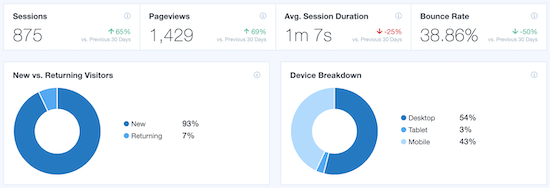
It allows you to easily set up Google Analytics in WordPress and view your traffic data directly in your WordPress dashboard.

MonsterInsights website statistics

You’ll be able to see your top performing posts, pages, landing pages, homepage traffic, and more. This helps you understand user behavior and makes it much easier to grow your WordPress blog.

Final Thoughts on How to Check Traffic on Your Website

There are all kinds of tools you can use to check your website traffic and competitor website traffic.

Checking competitor traffic will give you insights into your market and what you can do to get more traffic. While, monitoring your own website traffic will show you if your SEO, social media, and other traffic generation strategies are working.

The best way to check your own website traffic is with MonsterInsights. In a couple of clicks you can view your website traffic data directly in your WordPress dashboard.

If your goal is to do in-depth competitor research, and you want to check traffic on any website, then SEMRush is our top choice. Not only will it give you accurate traffic data, but it’s one of the best SEO tools in the market.

We hoped this article helped you learn how to check website traffic on any site. You may also want to take a look at our ultimate WordPress SEO guide, and our expert list of 24 must have WordPress plugins for business websites.

If you liked this article, then please subscribe to our YouTube Channel for WordPress video tutorials. You can also find us on Twitter and Facebook.

The post How to Check Website Traffic for Any Site (7 Best Tools) appeared first on WPBeginner.


April 13, 2021 at 05:00PM
Monday, April 12, 2021

How to Improve Organic Click Through Rate (CTR) in WordPress – 12 Proven Tips

Do you want to improve the organic click through rate (CTR) for your WordPress website?

Organic click-through rate is the average clicks a page gets when displayed in search results. Improving your CTR can help improve your SEO rankings and get more traffic to your website from search engines.

In this article, we’ll share our proven tips on how to easily improve organic click through rate (CTR) in WordPress like a total SEO pro.

Improving organic click through rate CTR in WordPress

Here is a quick overview of the topics we’ll cover in this guide.

What is Organic Click Through Rate?

Organic Click Through Rate is the percentage of users who click on an item in the search results.

Let’s suppose, one of your articles appeared 100 times in search results for a particular keyword. Out of those, 3 users clicked to view your article, which gives you a click-through rate of 3%.

Search engine algorithms use organic CTR to analyze the performance of your website in search results. The pages that have a higher click through rate tend to rank higher in search results.

Many SEO experts have found that improving your CTR is the fastest way to improve your SEO rankings.

As a website owner, you can see which pages on your website are getting more clicks, so you can replicate those techniques on other pages.

You can also find out which pages are not getting any clicks and then work to improve them, so they can get higher click through rate.

How to Find Out Organic Click Through Rate?

The easiest way to find out your organic click-through rate is by using Google Search Console.

Google Search Console is the free tool offered by Google to help website owners see how their website is doing in search results.

If you haven’t already done so, then follow our guide to learn how to add your website to Google Search Console.

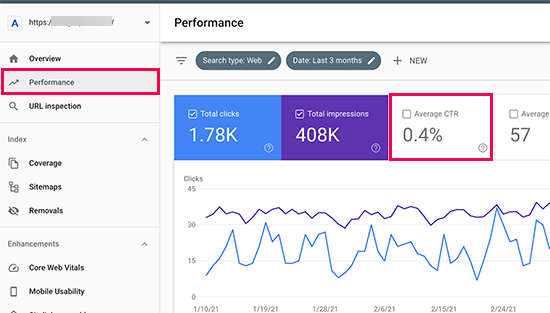
After that, you can login to your Google Search Console dashboard and switch to the Performance tab. At the top, you’ll see your website’s average click-through rate.

Average click through rate

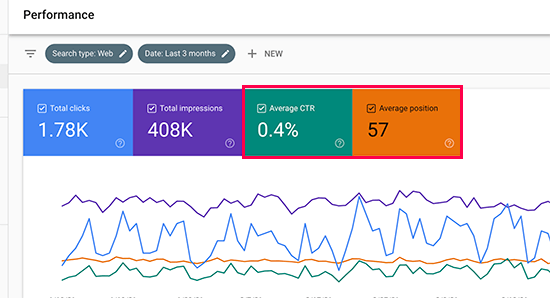
Click on the average click through rate to add it as a metric to your report. Next to it, you’ll also see the average position box, go ahead and click to select it as well.

Add CTR and Average Position to your performance report

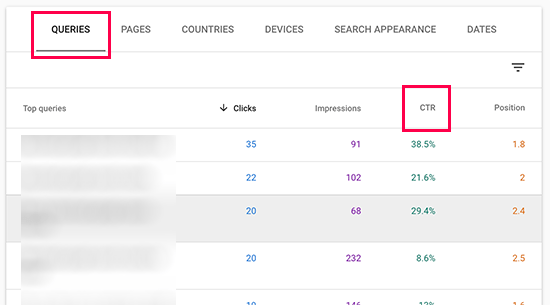
Now you need to scroll down to the detailed report section. Under the Queries tab, you’ll see keywords you rank for with average clicks, impressions, CTR, and position.

CTR details for keywords

You can click on any column to sort the results by position or by CTR.

Similarly, you can switch to the Pages tab to view the results for individual pages on your website instead of keywords.

Improving your Organic Click Through Rate in WordPress

Now that you know how to view your website’s average CTR scores, the next step is to improve your organic click through rate of your WordPress blog posts.

Ideally, you would want to start with pages that already rank higher, have good search impressions, with an average position of 1-10, but very low CTR.

After that, you would gradually move on to low-hanging fruits. These are the pages that rank on page 2 or 3 of the search results. You may want to improve their CTR, so you can rank higher and get more traffic.

That being said, let’s take a look at some of the proven tips that you can use to improve your click-through rates across the board.

1. Write Powerful Headlines and SEO Titles

Your blog post’s title or the headline is the most noticeable thing in search results.

Title in search results

It has to be relevant, catchy, and engaging to compel user’s attention and get them to click.

But how do you figure out which headline will help you get better click through rates in search results?

Luckily, there are several headline analyzer tools that will analyze your headlines and make suggestions for improvements.

We’ll be using the MonsterInsights plugin since it has a built-in headline analyzer. It is the best Google Analytics plugin for WordPress and helps you see where your visitors are coming from and what they do on your website.

First, you need to install and activate the MonsterInsights plugin. For more details, see our step by step guide on how to install a WordPress plugin.

Note: The free version of MonsterInsights also has the headline analyzer built-in.

Next, you’ll need to connect the plugin to your Google Analytics account. It will automatically you walk through it, but if you need help then see our tutorial on how to install Google Analytics in WordPress.

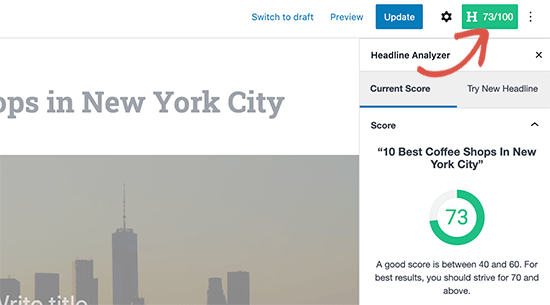
Once it is set up, you can simply edit any post or page where you want to optimize the headline. On the post edit screen, click on the Headline Analyzer button at the top right corner of the screen.

Headline analyzer

This will open the Headline Analyzer tool with a score and some practical tips to improve your post or page title. You can switch to the ‘Try New Headline’ tab and try new headlines without saving them.

Try a new headline

Alternative: You can also try the web version of MonsterInsights headline analyzer tool, or the IsItWP’s Headline Analyzer tool both of which allows you to test headlines outside your WordPress admin area.

2. Use Dynamic SEO Titles for Better Headlines

By default, WordPress automatically uses your page or post title as the <title> tag in the HTML. This title tag is used by search engines to display your website listing.

You can use All in One SEO plugin to automatically generate better SEO titles for your older blog posts and pages.

It is the best WordPress SEO plugin on the market used by over 2 million website owners to improve search rankings and click through rates.

First, you need to install and activate the All in One SEO plugin. There’s also a free version of AIOSEO available.

Upon activation, the plugin will walk you through a guided a set up wizard. You can follow along the instructions and if you need help then see our tutorial on how to properly set up All in One SEO for WordPress.

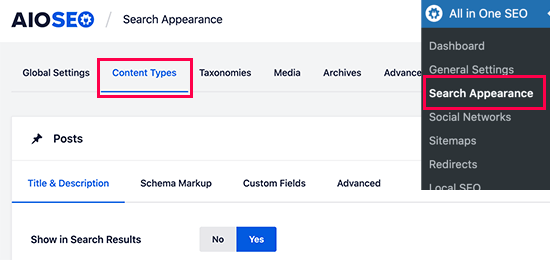
Once finished, you need to visit All in One SEO » Search Appearance page and switch to the Content Types tab.

Setting post types in All in One SEO

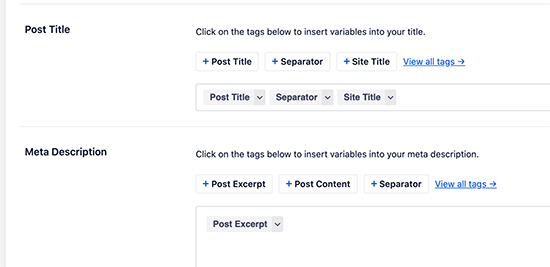
From here, you can set up dynamic SEO titles and descriptions for all your posts, pages, products, or any other post types. This title will be used when a post or page doesn’t have its own SEO title or description.

Dynamic post title and descriptions

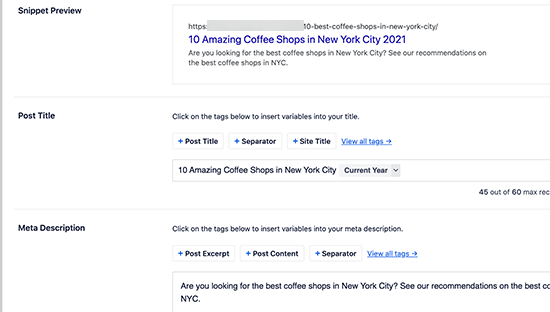
You can also edit any post or page on your WordPress site to edit its SEO title and description. Simply edit the post and scroll down to the ‘AIOSEO Settings’ section below the post editor.

Adding an SEO post title and description in All in One SEO

From here you can add a custom SEO title for your post and page. You’ll see a live snippet preview of how it will look in search results.

You can also use Dynamic tags like Current Month or Year in your post titles, so you don’t have to manually update them each year.

Don’t forget to Save and update your post once you’re done editing it.

3. Write Helpful Meta Descriptions

Most search engines automatically generate the description part when showing search results, so the most relevant content appears in the snippet.

Custom excerpt in Google search result

However, for some results, they would just show the description provided by the website owner. This is why it is important to add an SEO description for all your posts and pages.

If you are using All in One SEO for WordPress, then you can edit each post and page and simply provide your own SEO-friendly description.

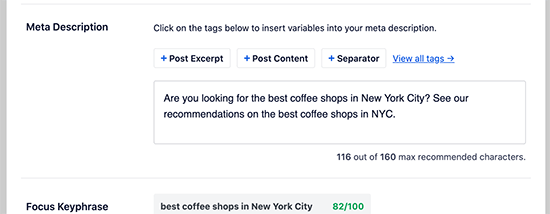
Meta description

Make sure that your SEO description includes your target keywords and explains what users will see when they visit your website. This helps users understand your content better and encourages them to click more often.

4. Use Meaningful URL Slugs

WordPress uses SEO-friendly URL structure. This allows you to create meaningful URLs for your content like this:

https://example.com/best-coffee-shops-in-new-york-city/

The last part of these URLs is called the URL slug, and WordPress automatically generates it based on your post / page title.

However, if your post title contains numbers, years, or is too lengthy, then it could become less user-friendly.

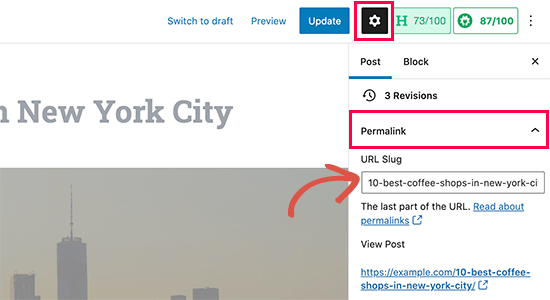
To remedy that, make sure that you manually correct the URL slug before publishing any post or page. You can do that by clicking on the Gear icon at the top right corner of the content editor screen.

Change URL slug for your post or page

Switch to the Post tab and then expand the Permalink option. Here you can replace the default URL slug with your own. Make sure that your URL slug is not using any capital letters, and words are separated by dashes.

Don’t forget to save or update your post / page to store your settings.

5. Aim to Appear in Rich Snippets or Answer Box

What’s better than ranking #1 for a search query?

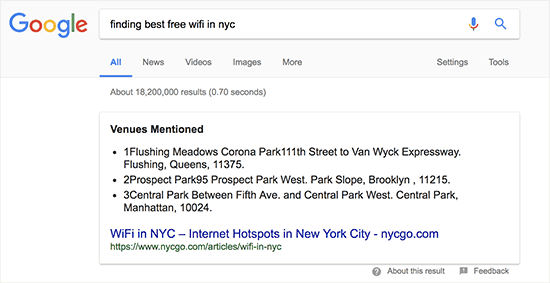
Ranking as the Answer box or Rich Results. The answer box is Google’s attempt to answer user’s search queries right on the search page with more detailed results.

A rich snippet result in Google Search

According to research conducted by Advanced Web Ranking, Answer boxes secure a whopping 32.3% CTR on average.

However, there is no easy shortcut to rank as a rich snippet for a search term. The most common strategy that has worked for most websites is simply improving the content.

For details, check out our complete guide on how to appear in Google Answer box / Rich snippets with real examples and practical tips.

6. Use Rich Snippets Schema Markup to Standout

Rich snippets schema markup allows you to provide structured data along with your content. This structured data is written in a special format called Schema.org markup.

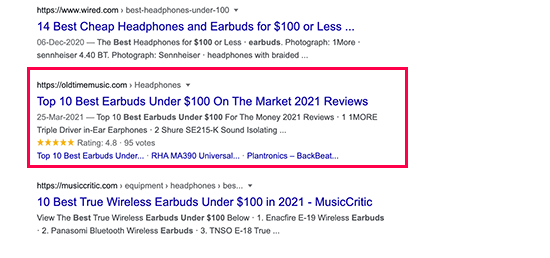
Search engines use this markup to show your content with additional information in search results. This makes your page stand out among other results and improves CTR.

Rich snippets in search results

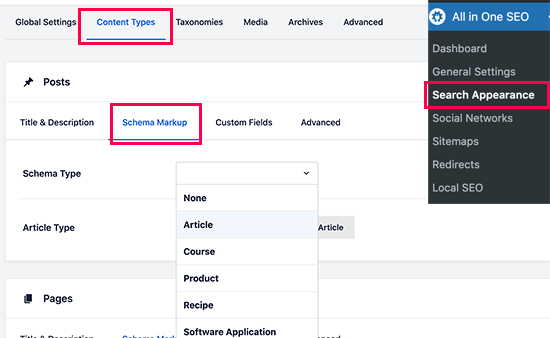
The easiest way to add rich snippets schema markup to your WordPress website is by using All in One SEO plugin. It comes with built-in support for schema markup, allowing you to set it up for each post type like posts, products, reviews, and more.

Setting schema type markup

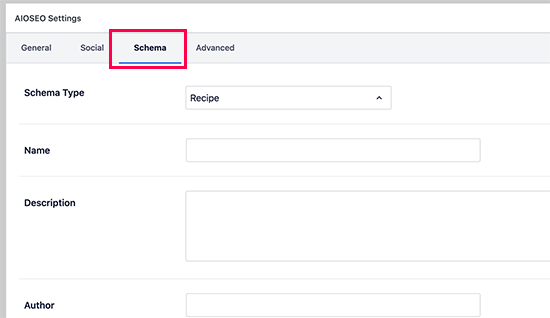
You can also change schema type markup for individual posts and pages. Allowing you to use your blog posts as recipes, reviews, articles, with additional structured data for search engines to use.

Schema markup for individual posts

7. Improve Local SEO for Higher Click-Through Rates

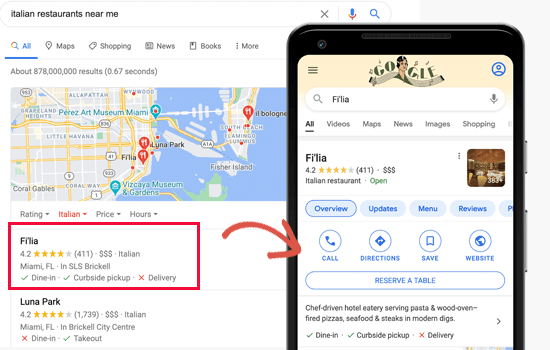
Making your content appear for relevant terms but for the wrong audience can cause lower CTR. Local SEO helps you remedy that by allowing you to target regional audiences.

Local SEO search result example

This allows you to rank for a targetted audience which makes your result more relevant and boosts CTR.

First, you may want to create a Google My Business account. This allows you to add your business listing, prove that you own the business, and manage your business information using Google’s My Business dashboard.

Google My Business

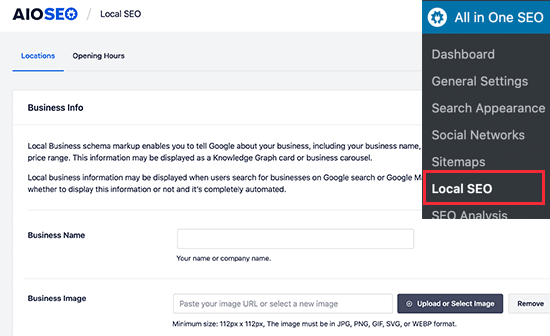
Next, you will need All in One SEO for WordPress plugin which has a Local SEO add-on. This addon allows you to add your local business information as Schema markup to your website.

Local SEO in AIOSEO for WordPress

You can provide your business information and opening hours by simply out the forms and AIOSEO adds the schema markup for search engines to use in their results.

8. Improve Older Articles for Better Click-Through Rates

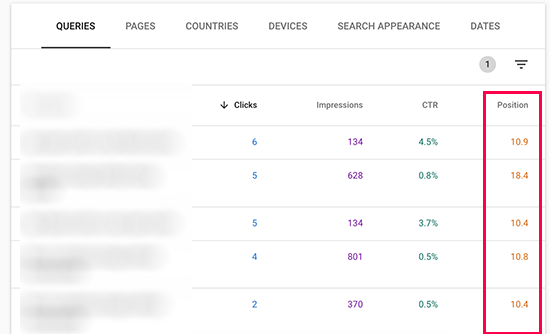
You may have older articles on your website that have become outdated and dropped in ranking. Many WordPress blogs have several articles just ranking somewhere on page 2 of search results.

You can find them by simply sorting the Google Search Console’s Performance report by position.

Low performing search results

It would be quite easy to improve these pages with additional updated content. Making this optimization a part of your regular content review routine is a quick and easy way boost search rankings.

9. Fix Keyword Cannibalization Issues

If your targeted keywords are in a very niche category, and your website has multiple resources on them, then it is likely that some of them will cannibalize others.

This may create a confusing situation for search engines. For instance, they may ignore your most important page for something that is less important or even less relevant.

Contradictory results

You may be able to rank two pages for the same keyword, but they will give a contradictory impression. This can even create confusion for users as well.

We recommend keep an eye on your top keywords and consider merging similar keywords into one comprehensive resource when needed. After that, you can set up 301 redirects to point search engines to the main resource.

Related: See our guide on the best SEO keyword tracking tools.

10. Improve Page Load Times for Better User Experience

As of 2021, Google will be rolling out page experience algorithm updates. These updates will be focused on user experience and website speed.

Speed is already an important factor in SEO. Faster page loads affect your search rankings.

Here are some quick tips that you can apply right away.

We have a complete WordPress performance and speed guide with step by step instructions to optimize your website perfo

11. Keep Users Engaged on Your Site

Some of your pages may already have a very good organic CTR but very high bounce rate. This means users are coming to those pages but leaving without visiting any other pages.

Keeping users engaged allows you to show them other content and lead through your sales funnel to become a customer or a subscriber.

In our experience, nothing works better than internal linking to keep user engaged. Make sure that your top articles are linking to your other articles and giving users plenty of opportunities to click.

You can also add related posts or popular posts widgets to your site to add some more content discovery options for new users.

When users spend more time on a website, they’re more likely to visit more pages, join your email list, and buy your products.

For more details, see our detailed guide on how to reduce bounce rate and increase pageviews in WordPress.

12. Convert Users Into Subscribers and Customers

It is important to keep in mind that bringing traffic to your website is often not enough to grow your online business. Relying heavily on search traffic alone can hit your business hard when the algorithm update.

The ultimate goal for any business is to take advantage of higher CTR and convert those users into customers and subscribers.

This is where you’ll need OptinMonster. They have a free WordPress plugin that you can use.

It is the world’s best conversion optimization software. With OptinMonster, you can easily boost conversion rates, make more sales, and grow your email list.

It comes with beautifully designed lightbox popups, countdown timers, notification bars, slide-in pops, spin the wheel popups, and more.

OptinMonster popup preview

All these tools help you nudge customers to spend more time on your website, buy products / services, follow you on social media or join your email list.

Spin the wheel popup

With powerful display rules, it allows you to show personalized campaigns at just the precise time. For instance, you can geo-target users in particular region with free delivery or give users a discount coupon just when they are about to leave your site.

GeoTargetted Popups in WooCommerce

With dozens of templates, you can easily convert traffic coming from your CTR into sales and returning visitors.

We hope this article helped you improve organic click through rate (CTR) for your WordPress website. You may also want to see our complete WordPress SEO guide for more tips, and our tutorial on how to add push notifications in WordPress to grow your traffic.

If you liked this article, then please subscribe to our YouTube Channel for WordPress video tutorials. You can also find us on Twitter and Facebook.

The post How to Improve Organic Click Through Rate (CTR) in WordPress – 12 Proven Tips appeared first on WPBeginner.


April 12, 2021 at 05:00PM