Saturday, April 24, 2021

How to Fix Error Too Many Redirects Issue in WordPress

Are you trying to fix the ‘Error Too Many Redirects’ issue on your WordPress website?

It is a common WordPress error that may be caused by a plugin or incorrect settings. However, it leaves users locked out of their WordPress websites which makes it particularly troublesome.

In this article, we’ll show you how to easily fix the ‘Error too many redirects’ issue in WordPress. We will also cover how to regain access to your website and troubleshoot the error.

Fixing too many redirects error in WordPress

What Causes The Error Too Many Redirects Issue in WordPress?

The ‘Error too many redirects’ is caused by a misconfigured redirection issue in WordPress.

As you know that WordPress uses an SEO-friendly URL structure feature that uses the redirect function.

Similarly, many popular WordPress plugins use this feature to set up temporary redirects, permanent 301 redirects, and for fixing the 404 errors.

If you are using a plugin to fix the SSL insecure content issue or a WordPress caching plugin, then they may also affect redirects and cause this error.
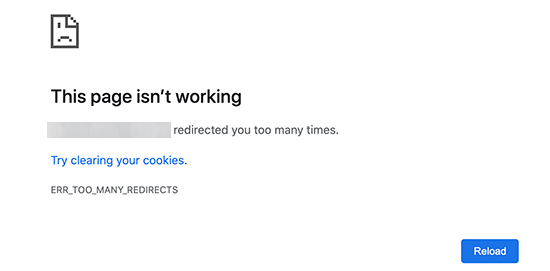
Error Too Many Redirects in Google Chrome

However, this error doesn’t tell you what’s causing the conflict and forcing the redirect loop in WordPress.

This is how the error looks in Firefox with the message ‘The page isn’t redirecting properly’.
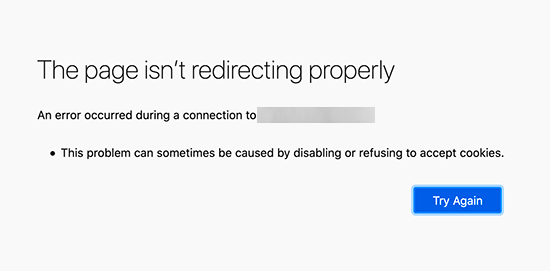
Too many redirects error in Firefox

That being said, let’s take a look at how to fix the error too many redirects issue in WordPress.

We will walk you through step-by-step troubleshooting, getting access to your WordPress site, and fixing the error from reoccurring.

1. Clear Browser Cookies and Cache

A common cause of the error could be your web browser cookies. Try accessing your website using a different web browser like Firefox, Safari, Opera, Microsoft Edge, etc.

If you are able to access your website normally using a different browser, then you need to clear browser cookies and cache on your regular browser.
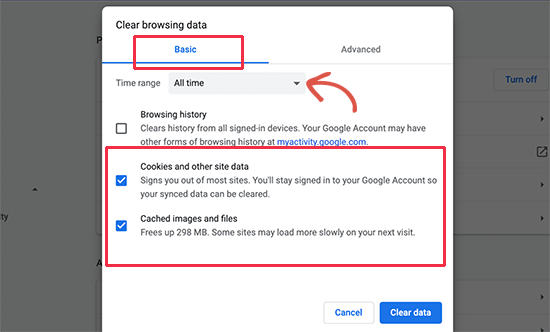
Clear cookies and cache in Google chrome

We have a detailed guide on how to clear browser cache in all major browsers that will help you do that.

On the other hand, if changing the browser doesn’t fix the issue then you can move on to the next step.

2. Deactivate All WordPress Plugins

The most common cause of the WordPress redirect loops or ‘Too many redirects’ issue is a plugin conflict. A plugin trying to set up a redirect in a way that conflicts with default WordPress redirects would end up causing this error.

To fix this, you need to deactivate all WordPress plugins on your website. Now, normally you can just go to Plugins » All Plugins page inside the WordPress admin area and deactivate plugins from there.
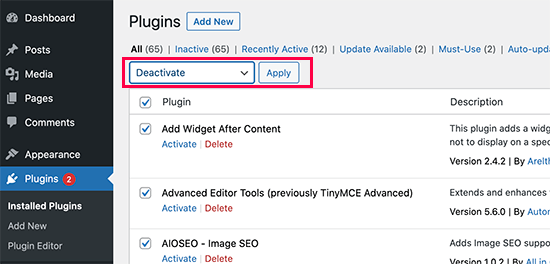
Deactivate all plugins

However, we are assuming that due to the redirect error you may not be able to access the WordPress admin area.

In that case, you will need to deactivate WordPress plugins using an FTP client, or the File Manager app in your WordPress hosting control panel.

Simply connect to your website using an FTP client and go to the /wp-content/ folder.
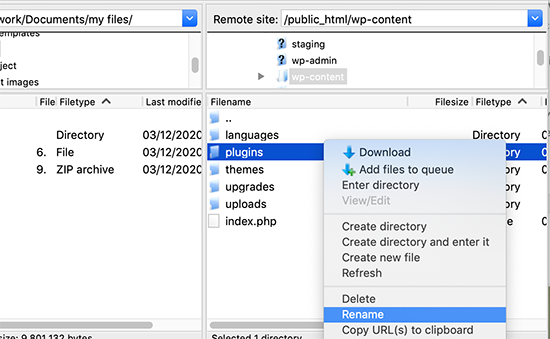
Renaming the plugins folder using FTP

There you’ll find the plugins folder, which you need to rename to ‘plugins.deactivate’ which will deactivate WordPress plugins.
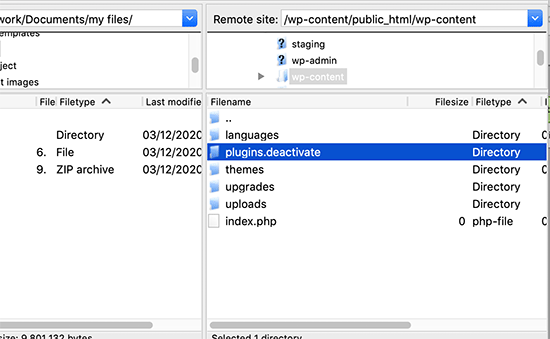
Renamed plugins folder

Basically, WordPress looks for a folder called plugins to load the plugin files. When it does not find the folder, it automatically disables the active plugins in the database.

Now you can try visiting your WordPress website. If you are able to login to your WordPress admin area now, then this means one of the plugins was causing the error.

To figure out which plugin was the culprit, you need to switch back to the FTP client or File Manager app and rename your plugins.deactivate folder back to ‘plugins’.

After that, switch to the WordPress admin area of your website and go to the Plugins » All Plugins page. From here, you can activate your plugins one by one, and then visit your website to see if you can reproduce the error.

Once you find the plugin that is causing the error, you can find an alternative to that plugin or report the issue to the plugin’s support forum.

3. Fix WordPress URLs

Another major cause of this error is a misconfiguration in WordPress URL settings. Normally, you can view these options under Settings » General page.
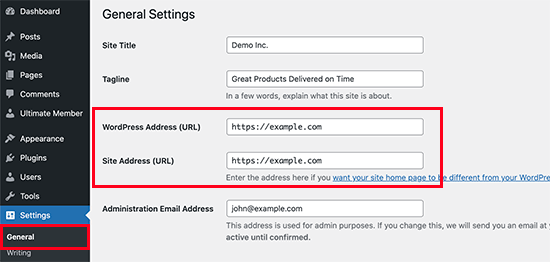
WordPress URL settings

For most websites, the URLs in the WordPress Address and Site Address field have to be the same. However, some users may end up using www in one URL and non-www URL in the other.

Since you may not have access to the WordPress admin area, you may need to fix the WordPress URLs using an FTP client or the File Manager app.

Simply connect to your WordPress site using an FTP client and go to /wp-content/themes/your-theme-folder/.

Edit functions.php file

From here you need to locate the functions.php file and edit it using a plain text editor like Notepad or TextEdit.

Next, you need to add the following code at the bottom:

update_option( 'siteurl', 'https://example.com' );
update_option( 'home', 'https://example.com' );

Don’t forget to replace https://example.com with your own site URLs. You can now save your changes and upload the file back to your website.

After that, you can try visiting your website to see if this resolves the error.

For more methods, see our tutorial on how to easily change WordPress URLs.

4. Reset WordPress .htaccess File

The .htaccess file is a special file that is used by website server to manage redirects and other server settings. WordPress also uses this file for SEO friendly URLs and other redirects.

Sometimes WordPress plugins may make changes to your website’s .htaccess file which may trigger this error. It is also possible that dectivating a plugin will not remove those changes form your .htaccess file.

In that case, you’ll need to manually reset your WordPress .htaccess file.

Again, you will need to access your website using an FTP client or the File Manager app in your hosting dashboard. Once connected, you’ll see the .htaccess file in the root folder of your website.
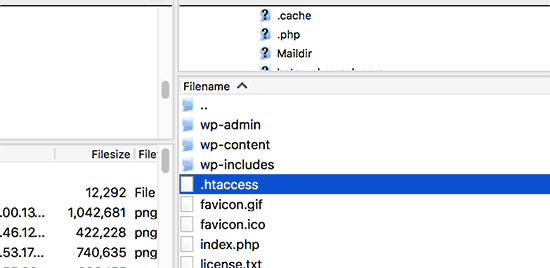
Editing .htaccess file via FTP

Note: If you cannot find your .htaccess file, then see our guide on how to find .htaccess file in WordPress.

First, you need to download a copy of your .htaccess file to your computer as a backup.

After that, you can go ahead and delete the file from your website. You can now try visiting your WordPress blog, and if everything works normal, then this means your .htaccess file was causing the redirect error.

Now, since we deleted the .htaccess file you need to recreate it. Normally, your WordPress website can do it on its own but to make sure you can go to Settings » Permalinks page and click on the ‘Save changes’ button at the bottom.
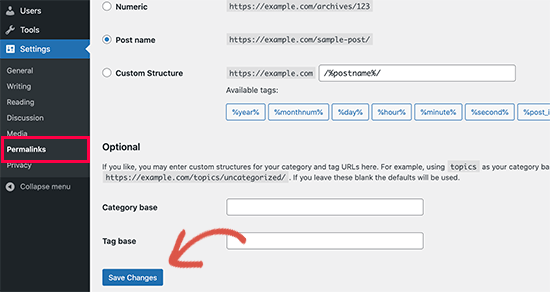
Refresh permalinks to create .htaccess file

5. Preventing Error Too Many Redirects in WordPress

Hopefully, the above mentioned steps would have fixed the redirect issue on your website. If they did not fix the issue, then you may need to talk to your WordPress hosting company to make sure that it is not due to a server issue.

Once they fix the issue on your site, you should also figure out what caused the issue.

If it was a plugin, then you need to report the issue to plugin’s support forum. See our guide on how to ask for WordPress support. However, if you are unable to get help then you can always find an alternative plugin that does the same thing.

If the error was caused by a WordPress site misconfiguration, then you can make a note of it and ensure that your site settings are properly set up.

For more tips, see our detailed tutorial on how to troubleshoot WordPress issues on your own like a total WordPress pro.

We hope this article helped you resolve the error too many redirects issue on your website. You may also want to bookmark our ultimate handbook of common WordPress errors and how to fix them.

If you liked this article, then please subscribe to our YouTube Channel for WordPress video tutorials. You can also find us on Twitter and Facebook.

The post How to Fix Error Too Many Redirects Issue in WordPress appeared first on WPBeginner.


April 24, 2021 at 03:00PM

Friday, April 23, 2021

13 Best WordPress Multisite Plugins You Should Use (Expert Pick)

Are you looking for the best WordPress multisite plugins?

WordPress multisite plugins can help extend your multisite network’s features and make it much easier to manage your network of websites.

In this article, we’ve hand picked the best WordPress multisite plugins for your WordPress multisite network.

Best WordPress multisite plugins (super useful)

For those who’re new, WordPress multisite network allows you to run and manage multiple WordPress sites or blogs from a single WordPress installation.

There are many benefits to using a multisite network such as, you can install plugins & themes for multiple sites from a centralized dashboard.

If you haven’t created your WordPress multisite network yet, then we have a step by step guide on how to install and set up a WordPress multisite network.

It walks you through the process of choosing the right WordPress hosting, setting up your network, launching your network of sites, and more.

Having said that, let’s take a look at the best WordPress multisite plugins that you should use.

Note: Most WordPress plugins work seamlessly with WordPress multisite environments. However there are always few that aren’t compatible. Below is our list of the most useful plugins for all multisite networks.

1. MonsterInsights

MonsterInsights

MonsterInsights is the best Google Analytics solution for WordPress used by over 3 million websites. It lets you easily add Google Analytics to WordPress and view your traffic data directly from your WordPress admin dashboard.

With easy access to this data you can grow your traffic, email list, and revenue.

On a WordPress multisite network, all your subsite analytics is available in one place. This lets you see which sites are performing well at a glance.

When you set up MonsterInsights, you get to choose which sites you want to enable or disable the analytics feature.

We have several guides that’ll show you how to set up Google Analytics in WordPress and how to track user engagement.

There is a free version of MonsterInsights available, however the premium version unlocks the true power of this tool.

2. WP Mail SMTP

WP Mail SMTP

WP Mail SMTP is the best WordPress SMTP plugin in the market used by over 2 million WordPress sites. An SMTP plugin will ensure that any emails sent from your WordPress site will reach your users.

Most WordPress hosting companies don’t have the function set up to send emails through WordPress properly. Some even block this functionality entirely.

WP Mail SMTP fixes this problem by letting you send emails through an SMTP service provider like Amazon SES, Gmail, Mailgun, etc. This ensures your emails will actually get delivered and not end up in spam.

With WP Mail SMTP multisite, you can specify different email accounts for each WordPress blog or site on your network.

The free version of WP Mail SMTP will work for most multisite networks.

However, the paid WP Mail SMTP Pro offers white glove set up and support to configure the plugin to work for you.

3. AIOSEO

All in One SEO

All in One SEO is the best SEO plugin for WordPress in the market used by over 2 million WordPress sites.

It’s a comprehensive SEO solution that offers all the features you need to improve your onsite SEO across your network of websites.

The plugin can help you optimize your meta title, meta descriptions, create sitemaps, optimize for social media, connect your sites to Google Search Console, and more.

For more details, see our guide on how to set up All in One SEO for WordPress correctly.

There is a free version of All in One SEO available. However, the pro version has additional features like local SEO, WooCommerce SEO, image SEO, and much more.

If you have a variety of different types of sites on your multisite network, then this can help you optimize them perfectly.

4. Multisite Enhancements

Multisite Enhancements

Multisite Enhancements is a powerful multisite plugin that’ll help you customize your entire multisite network’s WordPress admin area.

The plugin will display information about the sites on your network including, the resources the sites are using, the active plugins, themes, child themes, and more.

It also lets you optimize the admin dashboards for your subsites. This allows you to show the information that’s useful for each admin and hide the unnecessary details from the backend.

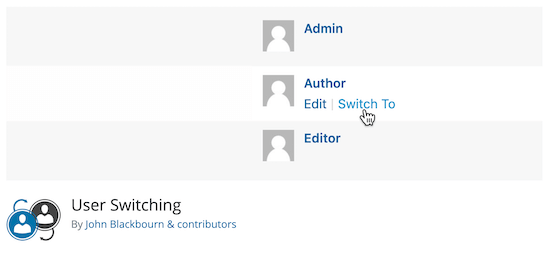
5. User Switching

User Switching

User Switching is a plugin that’ll let you switch between different user roles with a couple of clicks.

For example, maybe you need to switch between different user roles to troubleshoot or test a site? This plugin lets you instantly switch from one account to another with a single click.

The plugin maintains high security levels, and it’ll never reveal account passwords. Users are only allowed to switch between accounts that have already been authorized.

If you’re running an online store using WooCommerce, then this plugin integrates and allows you to manage these users as well.

6. InfiniteWP

InfiniteWP

InfiniteWP is one of the best tools for managing multiple WordPress sites. It lets you simply manage WordPress plugin, theme, and core updates from a single dashboard.

It’s a great solution for freelancers and agencies who manage websites for clients.

The free version gives you control over site updates. However, the premium plugin unlocks more features like on-demand backups, migrations, staging sites, post and page publishing, malware scanning, and more.

This plugin gives you ultimate control over all of the sites on your multisite network.

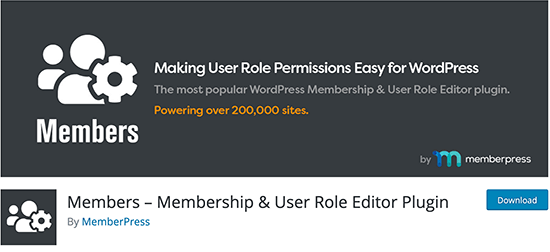
7. Members

Members - User Role Editor Plugin

Members is a user role editor plugin that lets you simply create, manage, and change user roles across your entire network of WordPress sites.

If you’re running a network of sites with a large number of WordPress users, then this plugin makes it super easy to oversee and manage access & permissions.

Often administrators use this plugin to create custom user roles with specific permissions to enhance security.

This plugin is maintained by the team behind MemberPress which is the best WordPress membership plugin that lets you create and sell online courses, premium content, and more.

8. OptinMonster

OptinMonster

OptinMonster is one of the best lead generation tools in the market. It’s trusted by over 1.2 million sites, including ClickBank, Pinterest, Patreon, and more.

This tool lets you create high converting popups modals and lead generation forms across your entire network of WordPress sites. There’s a network activation feature that lets you create different campaigns for every site on your network.

OptinMonster has a large template library and an extensive drag and drop builder to create custom popups, slide-ins, content upgrades, and more.

The Exit-Intent® technology helps you convert visitors who are leaving your sites into subscribers and customers.

With a multisite installation, all of your campaign data is available in one place. This lets you see the results of your lead generation efforts and improve your conversions across multiple websites.

9. Duplicator

Duplicator

Duplicator is the best WordPress migration plugin. It allows you to easily migrate your WordPress blog between different servers and WordPress hosting accounts.

The plugin is very easy to use. It lets you simply download all of your website files and upload them to your new server.

There is a free version of the plugin, but to migrate a network of sites, you’ll need the plugin’s premium version. Migrating an entire WordPress multisite network might seem stressful, but this plugin simplifies most of the process.

You can copy your entire multisite network on all plans, but to easily reinstall new sites, you’ll need a premium plan.

10. WPForms

WPForms

WPForms is the best WordPress contact form plugin in the market. Over 4 million WordPress sites use it.

It’s very easy to create simple contact forms, user registration forms, multi-page forms, and more.

Running a multisite network means you’ll have various form needs. This plugin can help you meet all of them.

Even though it’s packed with features, it’s very easy to use. They have a drag and drop form builder to help you quickly build advanced contact forms and customize them to match your website.

There’s a large template library to help you add a variety of forms to your sites quickly.

The free version WPForms Lite can be used if you only need to add simple contact forms to your sites.

11. WP Rocket

WP Rocket

WP Rocket is one of the best WordPress caching plugins in the market.

A caching plugin can help boost your WordPress website speed and performance with no technical skills.

Once the plugin is installed and activated on your site, it’ll automatically improve your loading speeds. There are all kinds of advanced features you can customize depending on the type of website you run.

It’s one of the few caching plugins equipped with lazy loading, minification, page caching, cache preloading, static file compression, font loading, and more.

WP Rocket lets you improve your site speed without impacting your pages and posts on any site.

12. UpdraftPlus

UpdraftPlus

UpdraftPlus is the best backup plugin for WordPress. You can simply backup your WordPress sites with a couple of clicks.

Your WordPress multisite network could have dozens or even hundreds of subsites, so you must use a backup plugin to keep every site on the network safe.

This plugin helps you create automated backups for every site on your network.

You can save your backups to your computer or integrate with other cloud storage services. There’s a great feature to restore a site with a single click.

For more details, see our guide on how to backup and restore your WordPress site with UpdraftPlus.

There’s a free version of the plugin available, but the paid plans offer you priority support and even more features.

13. Multisite Language Switcher

Multisite Language Switcher

Multisite Language Switcher adds multilanguage capabilities to your WordPress multisite network.

There are various plugins you can use to create a multilingual WordPress site. But, this plugin is dedicated to WordPress multisites.

It allows you to manage translations across multiple sites. You can oversee translations for pages, posts, taxonomies, and tags across all your properties.

With this plugin, managing translations for entire websites or translating individual pieces of content across your entire network is easy.

Final Thoughts + More WordPress Multisite Plugins

There are over 58,000 WordPress plugins available, and most of them will work on a multisite network.

Depending on your needs, you may want to see our following expert picks:

We hope this article has helped you find the best WordPress multisite plugins for you. You may also want to see our ultimate guide on how to create a business email address, and how to get virtual a business phone number for your website.

If you liked this article, then please subscribe to our YouTube Channel for WordPress video tutorials. You can also find us on Twitter and Facebook.

The post 13 Best WordPress Multisite Plugins You Should Use (Expert Pick) appeared first on WPBeginner.


April 23, 2021 at 02:48PM

Thursday, April 22, 2021

How to Change the Author of a Post in WordPress

Do you want to change the author of a post in WordPress?

Sometimes you may need to change a post to a different author than the user who first uploaded the post. You can do this without having to copy and paste the post with a different account.

In this article, we’ll show you how to simply change the author of a post in WordPress with just a few clicks.

How to change the author of a post in WordPress

Before You Change the Author of a WordPress Post

If you just want to show your own name on a post written by another user on your WordPress site, then you’re ready to follow the instructions in this article.

But, if you want to show a different user as the author, then you need to make sure this user exists on your WordPress site first. See our guide on how to add new users and authors in WordPress for detailed instructions.

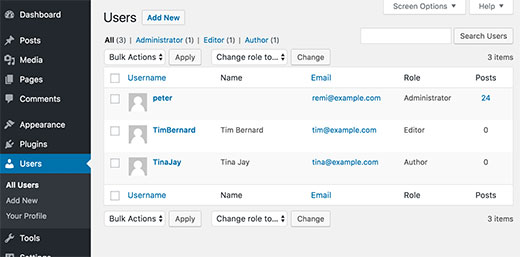
You can view and manage all the users on your WordPress site by visiting the ‘Users’ menu item when logged in with your WordPress administrator account.

Managing users in WordPress

If you only want to change the way your name is displayed, then check out our guide on how to add or change your full name in WordPress.

Having said that, let’s look at how to quickly and easily change the author of a post in WordPress.

Video Tutorial

If you don’t like the video or need more instructions, then continue reading.

How to Change the Author of a Single WordPress Post

First you need to open the post or page where you want to change the author name.

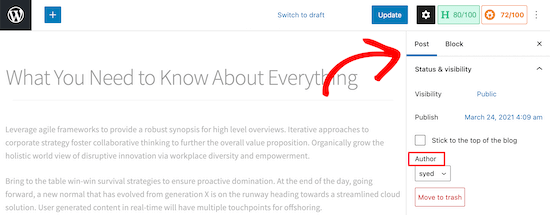
On the post edit screen, you need to make sure ‘Post’ is selected in the right-hand sidebar.

Then, locate ‘Author’ under the ‘Status & Visibility’ section.

Locate post then author section

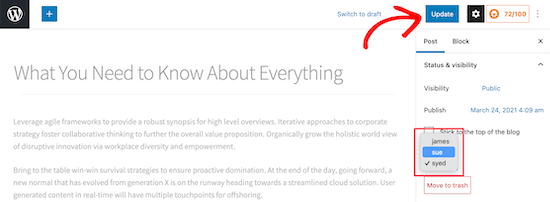
Next, select the new author name from the drop down menu.

You’ll see a list of available authors to choose from.

Select new author drop down

Once you’ve done that, make sure you click ‘Update’ or ‘Save Draft’ to save your changes.

That’s it, you have successfully changed the author of a post in WordPress.

How to Change the Author of Multiple WordPress Posts

Changing the author by editing a single post is easy.

However, if you want to change the author for multiple posts, then this would take a lot of time.

Luckily, there’s an easier way to quickly change the author for multiple WordPress posts at once.

To bulk update authors, click on the ‘Posts’ menu item from your WordPress admin menu. This will list all the posts on your WordPress site.

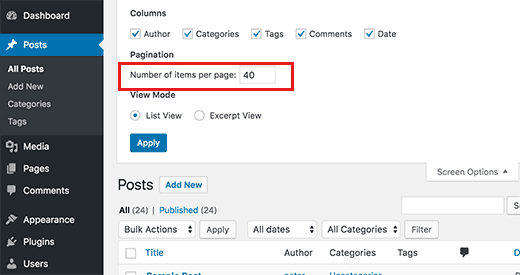
By default, WordPress shows 20 posts per page. If you want to display more posts, then you need to click on ‘Screen Options‘ and change the number of posts you want to display.

Show more posts in admin area

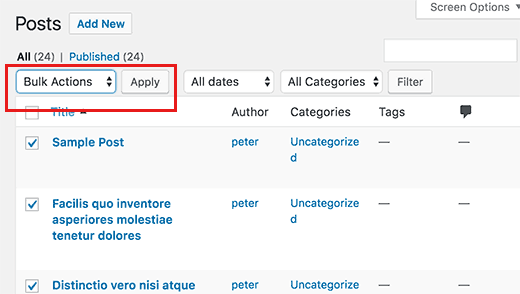
Now you need to select the posts where you want to change the author.

After selecting posts, select ‘Edit’ from ‘Bulk Actions’ dropdown menu and then click the ‘Apply’ button.

Bulk edit posts in WordPress

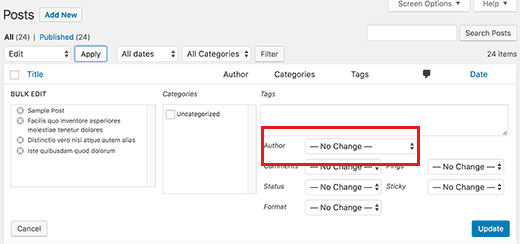
WordPress will now show you ‘Bulk Edit’ metabox.

You need to select the new author by clicking on the dropdown menu next to Author option.

Bulk edit author for multiple posts in WordPress

Don’t forget to click on the ‘Update’ button to save your changes.

That’s it, you have successfully changed the author for multiple WordPress posts without editing them individually.

How to Optimize Your Author Profiles for SEO

Finally, you may want to optimize your author profile pages to improve your SEO rankings.

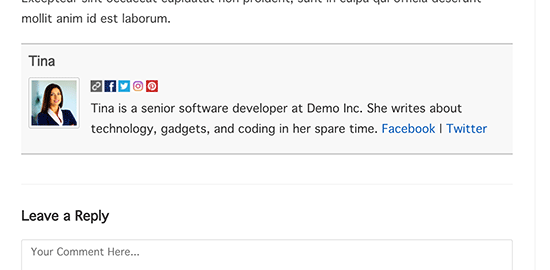
The author profile is what appears at the bottom of blog posts published under your name.

Author info box plugin preview

Here you can add a brief bio, links, and even your social media profiles.

By showcasing your author bio, you can build more credibility and give your readers a chance to learn more about you and the authors on your site.

WordPress allows you to add a brief author bio, but to add social media links you’ll need to use a WordPress author bio plugin.

Aside from that, you’ll also want to improve your Author archive pages where WordPress displays a list of posts written by that author.

To optimize author pages for SEO, we recommend using All in One SEO. It’s the best SEO plugin for WordPress used by over 2 million websites.

For more details, see our guide on how to install a WordPress plugin.

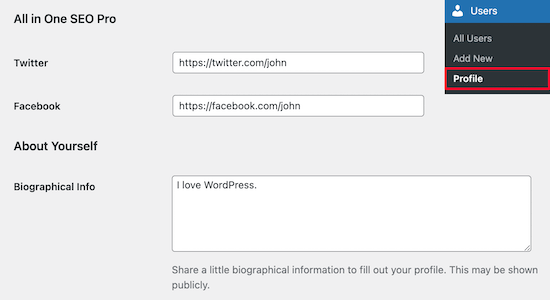
Upon activation, simply navigate to Users » Profile to edit your author profile.

Next, scroll down to the ‘All in One SEO Pro’ section where you can add links to your Facebook and Twitter profiles and create an author bio.

Author profile SEO

Once you’ve made the necessary changes, make sure you click ‘Update Profile’ at the bottom of the page.

Users will now see your new author bio at the bottom of any post you publish or change to your name.

We hope this article helped you learn how to change the author of a post in WordPress. You may also want to see our expert list of the best WordPress plugins for websites, and our comparison of the best online course platforms.

If you liked this article, then please subscribe to our YouTube Channel for WordPress video tutorials. You can also find us on Twitter and Facebook.

The post How to Change the Author of a Post in WordPress appeared first on WPBeginner.


April 22, 2021 at 04:17PM