Wednesday, June 2, 2021

How to Find Out Who Actually Owns a Domain Name? (3 Ways)

Do you want to find out who actually owns a domain name?

Looking up who owns a domain can help you find the owner’s contact information, so you can purchase the domain name.

In this article, we’ll show you how you can find out who actually owns a domain name, step by step.

How to find out who actually owns a domain name (3 ways)

Why Find Out Who Owns a Domain Name?

Finding out who owns a domain name can tell you valuable information about the domain name owner.

Usually, this information will include an email address and other contact information, so you can get in touch to purchase the domain name.

It also shows you useful domain name information, like the last time it was registered, how many owners the domain has had, and more.

If you find that multiple people have owned a specific domain name, then this increases chances of the domain being used for spam.

When you’re creating a WordPress website, one of the biggest decisions you’ll make is choosing the perfect business name and matching domain.

If you’ve found a great domain, but it’s already registered, then you’ll want to reach out to the owner to see if they’re willing to sell it to you.

There are multiple ways you can find out who owns a domain name. We’ll show you the 3 easiest ways to quickly find out the owner of a domain name.

Method 1: Search for a Domain With Domain.com WHOIS Lookup Tool

Domain.com is one of the most popular domain name registrars. It lets you register all top-level domain name extensions (TLDs) and dozens of top country code top-level domains (ccTLDs).

They offers nearly every feature you’d expect from a top domain name registrar, including private registration, domain name management, email accounts, easy transfers, and even web hosting.

One very useful tool they offer is the WHOIS lookup tool. This will search the public WHOIS database for any available domain name information.

To use this tool, navigate to the Domain.com WHOIS lookup and enter the domain name.

Domain.com WHOIS lookup

Then, the tool will display the available WHOIS results.

It will show you information like the domain name registrar, who owns the domain, when it was registered, and any available contact information.
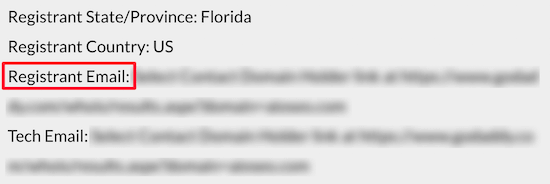
Registrant email contact

If the email address is available, then it will appear in the ‘Registrant Email’ field.

You can also try to get in touch with the domain name owner via the domain name registrar, more on this below.
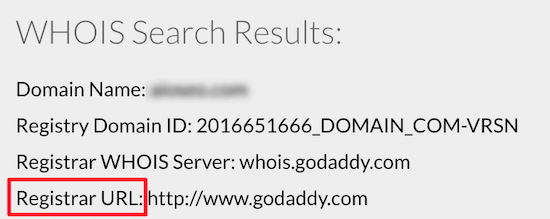
Domain name registrar contact

Note: if you’re going to register a new domain name through Domain.com, then make sure to use our Domain.com coupon code to get 25% off your purchase.

Method 2: Search for a Domain With Network Solutions WHOIS & Domain Lookup

Network Solutions is one of the biggest domain name registrars in the world, with over 7 million domains registered with them. You can register a wide variety of top domain name extensions with this service.

They also offer nearly everything you need to launch your WordPress small business website, including web hosting, security tools, SEO services, and more.

To find out who owns a domain name, you can use the WHOIS lookup and domain lookup tool.

Simply enter the domain you want to look up and click ‘Search’.
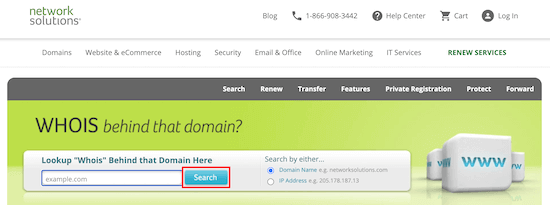
Network Solutions WHOIS lookup

After that, the tool will display any available domain registration information.

Network Solutions will only display detailed WHOIS information if that domain is registered with their service.

However, Network Solutions also has a unique addon service that will negotiate purchasing the domain name anonymously.

If you decide to use this service, then simply click the ‘Backorder’ button, put down a deposit, and their team will get to work.
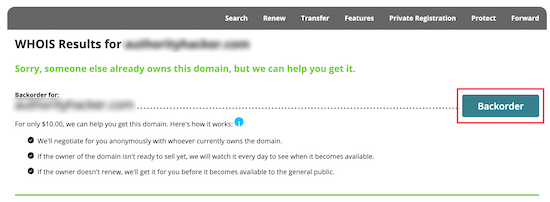
Network Solutions backorder domain

This can be a great way to purchase a domain name from an owner without doing all the work yourself.

Note: if you’re going to register a new domain name, then make sure to use our Network Solutions coupon code for 25% off your domain purchase.

Method 3: Search for a Domain With GoDaddy WHOIS Domain Lookup

GoDaddy is one of the longest running and largest domain name registrars in the world, managing over 77 million domain names. They offer competitive pricing and a great selection of domain name extensions to choose from.

To look up who owns a domain name, you’ll use the GoDaddy WHOIS Database tool. It works similarly to the tools above.

Simply enter the domain name into the WHOIS database lookup, and the tool will find the relevant domain name information.
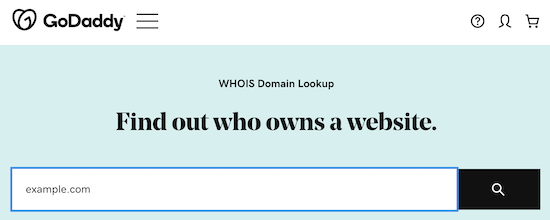
GoDaddy WHOIS lookup

You might notice the results are similar to the previous tools.

However, it can be helpful to try the domain name search with multiple tools. If the domain is hosted at a specific registrar, then you can get more accurate information.

What To Do if the Domain Registration Information is Hidden?

Many domain name registrars today offer domain name privacy, which keeps a domain name owner’s information hidden from WHOIS searches.

This service, along with recent the GDPR law, can make it difficult to find out who owns a domain.

If you’ve used the tools above to search for a domain and weren’t able to find out who owns it, then you can contact the domain registrar to see if they can forward your request.

The domain owner’s information will often be hidden, but the domain name registrar will be visible.
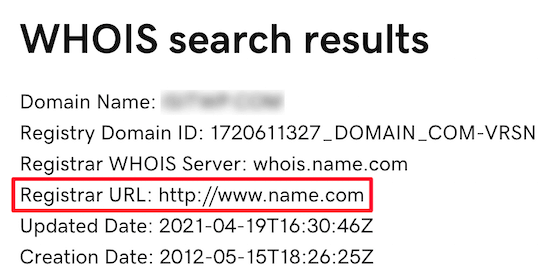
Contact domain name registrar

In this case, simply email the registrar and let them know you’re interested in buying the domain or want to notify them about a spam domain.

Your final option is to simply email the domain name owner through their website contact form if their website is currently online.

There’s a lot of other information you can find about websites online. For example, you can find the WordPress theme a site is using, and find out who is hosting a certain website.

We hope this article helped you learn how to find out who actually owns a domain name. You may also want to see our expert picks of the best WordPress hosting and our list of the must have WordPress plugins for business websites.

If you liked this article, then please subscribe to our YouTube Channel for WordPress video tutorials. You can also find us on Twitter and Facebook.

The post How to Find Out Who Actually Owns a Domain Name? (3 Ways) appeared first on WPBeginner.


June 02, 2021 at 04:29PM

Tuesday, June 1, 2021

How Fast PHP & MySQL Can Boost Website Speed (Beginner’s Guide)

Ever wondered what’s the impact of PHP and MySQL on your website speed?

WordPress is written in PHP programming language and uses MySQL as the database. Both programs run on your web server thus impacting overall performance.

In this article, we’ll discuss how fast PHP and MySQL can boost website speed. We’ll also talk about how to enable it for your website.

Improving website speed with fast PHP and MySQL

How Faster PHP + MySQL Affects WordPress Performance

WordPress is mainly written in PHP, a programming language that runs on your web server. It stores your website content in a MySQL database.

Both PHP and MySQL run on your web server as an application. When more users visit your website, PHP and MySQL take up more server resources.

Most websites address this by using a WordPress caching plugin. However, processes like .htaccess rules, PHP extensions, and SQL queries can still increase server load.

Faster PHP and MySQL optimize these regular processes to improve their performance and speed. The more traffic your website gets, the more of a performance improvement you’ll see.

This is where Ultrafast PHP can help.

What is Ultrafast PHP?

Ultrafast PHP is an optimized version of PHP which is built by the team at SiteGround. Since WPBeginner is hosted on SiteGround’s Enterprise hosting plan, we were one of the first websites to try it and see the speed benefits.

Now SiteGround is making this feature available to all their customers on their GrowBig, GoGeek and Cloud hosting plans.

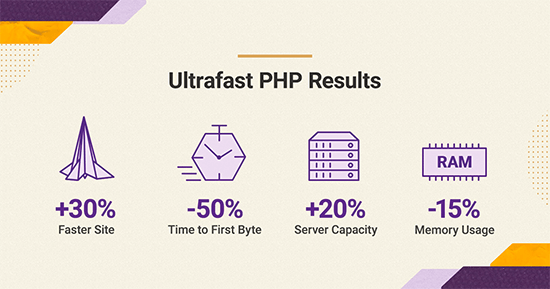
For high-traffic websites, Ultrafast PHP can increase performance by up to 30% and reduce TTFB (time to first byte) by 50%.

Ultrafast PHP stats by SiteGround

Your server load will also be reduced, and it will be able to run up to 20-30% more processes while consuming 15% less memory (RAM).

SiteGround is one of the best WordPress hosting companies on the market. They are also an officially recommended WordPress hosting provider.

Since they use Google Cloud Platform for their servers, this allowed them the flexibility to work on an optimized PHP setup (Ultrafast PHP) that is optimized for their customers’ needs.

Who Needs Ultrafast PHP?

If you have a medium sized WordPress website or an online store, then you need Ultrafast PHP to help you boost performance.

Ultrafast PHP is currently available to users on the GrowBig, GoGeek, and Cloud plans. Usually, these are the users with busier websites that often end up hitting server resource limitations.

This feature is not available to users using the old control panel on SiteGround. However if your hosting account dashboard is using SiteGround’s new client area and Site Tools control panel, then you can turn on Ultrafast PHP. We’ll show you how below.

SiteGround new client area and dashboard

If your website is super small, then you may not notice much difference. We recommend that you use a caching plugin like WP Rocket or SiteGround’s own SG Optimizer plugin.

If you have a small business website or new blog with not much traffic yet, then you may not need Ultrafast PHP because the latest version of PHP is already optimized for performance. So make sure you are using the latest PHP version for your website.

How to Enable Ultrafast PHP on SiteGround

It is super-easy to enable Ultrafast PHP for your WordPress website on SiteGround. Your hosting account should meet the following criteria:

  • Your sites are hosted on SiteGround’s GrowBig, GoGeek or Cloud plans
  • Your account is using the new client area and site tools control panel

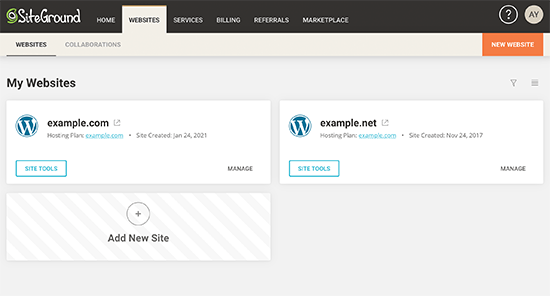
Simply log in to your account and click on the ‘Websites’ menu on the top. After that, click on the Site Tools button next to the website where you want to enable Ultrafast PHP.

SiteGround Site Tools

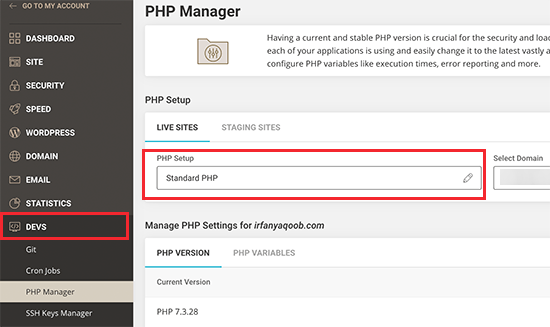
From here, you need to click on the PHP Manager menu located under the Dev tab in the left column.

PHP Manager in SiteGround

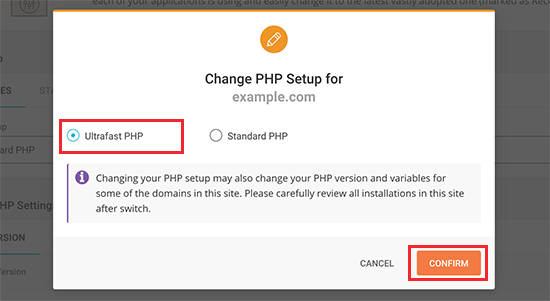
Now, you need to click on the Standard PHP option to change it. This will bring up a popup where you can switch to Ultrafast PHP.

Select Ultrafast PHP

Click on the Confirm button to continue.

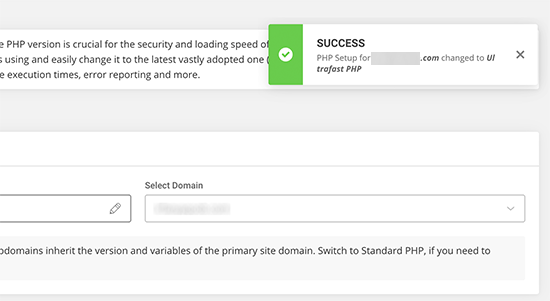
You will now see a success message informing you that Ultrafast PHP is now enabled for your website.

Ultrafast PHP enabled

Testing Your Website Speed after Enabling Ultrafast PHP

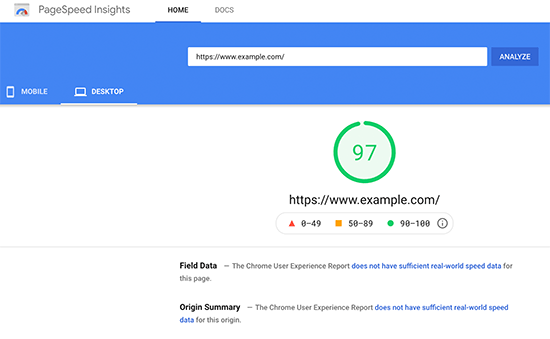
You can use Google Pagespeed Insights or any other website speed testing tool to test your performance.

Pagespeed Insights

Take a look at metrics like server response time and time to first byte to gauge the performance of your website.

We hope this article helped you learn how fast PHP and MySQL can boost website speed. You may also want to see our complete WordPress performance optimization guide for more tips to speed up your website, and check out the best email marketing services for small business.

If you liked this article, then please subscribe to our YouTube Channel for WordPress video tutorials. You can also find us on Twitter and Facebook.

The post How Fast PHP & MySQL Can Boost Website Speed (Beginner’s Guide) appeared first on WPBeginner.


June 01, 2021 at 06:51PM

Monday, May 31, 2021

How to Get a Google Featured Snippet with Your WordPress Site

Do you want to get a Google featured snippet with your WordPress site?

Featured snippets are the highlighted results for a Google search. Users are more likely to click on a featured snippet than a plain search result.

In this article, we will show you how to get a Google featured snippet with your WordPress site without any technical knowledge.

how to get Google featured snippets for your WordPress website

Here is a quick overview of things we’ll cover in this article:

What are Google Featured Snippets?

Google featured snippets are highlighted results that’s shown at the top of the page above position one that’s why they’re also known as position 0.

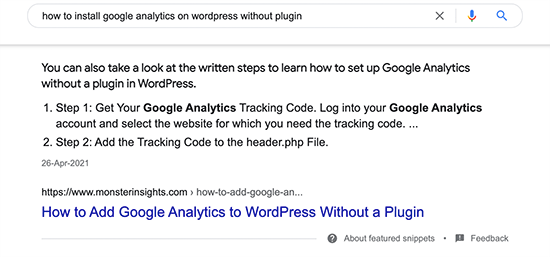
In the featured snippet, Google may display a search result in the Answer box or highlight it using microdata from your website.

For example, if Google thinks that your website will answers user’s question adequately, then it will appear on top with relevant text displayed as the description.

Answer box

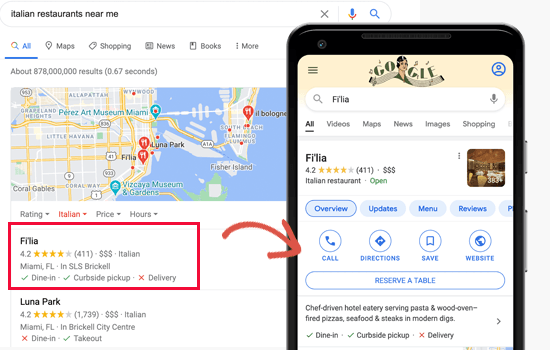
Similarly, Google also uses Schema.org metadata to fetch important information from websites and display them in search results at the top. For example, if you search for a local business, then their relevant business information will be at the top.

Local search results preview

Featured snippets can enhance product pages for your online store, better showcase your recipes, highlight your real estate listings, and more.

Product results with ratings and reviews

The enhanced search display of featured snippets improves your organic click-through rate and brings more free traffic to your website.

This is why all smart business owners optimize their website, so they can have maximum chances of appearing as featured snippets in Google search.

That being said, let’s take a look at how to get Google featured snippets for your WordPress posts and pages.

Getting Google Featured Snippet using All in One SEO

Google uses Schema.org metadata and their knowledge graph API to display different types of featured snippets.

Schema markup is a special vocabulary that you can use in your content’s HTML code to give search engines more context about your website and individual pages.

In the early days, this used to be hard for small businesses because it involved a lot of coding.

But that’s not the case anymore, thanks to plugins like All in One SEO for WordPress.

It is the best WordPress SEO plugin on the market that’s used by over 2 million websites. They help you easily optimize your website for higher search engine rankings.

AIOSEO automatically adds Schema.org support which helps you provide information for Google Knowledge Graph. It has full WooCommerce SEO support, local SEO, images, news, video optimization, and more.

First, you need to install and activate the All in One SEO for WordPress plugin. For more details, see our step by step guide on how to install a WordPress plugin.

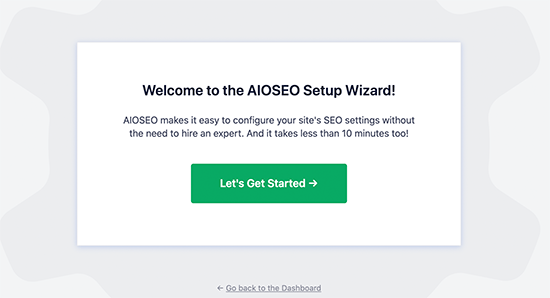
Upon activation, you’ll be asked to run the setup wizard. It is the easiest way to quickly select the best SEO settings for your website.

All in One SEO set up wizard

Need help with the setup? See our complete guide on how to install and set up All in One SEO for WordPress.

Now, if you have followed the setup wizard, the basic settings for your website to appear in featured snippets are already set.

But we’ll show you what they do and how to change them if you need to.

Setting up Knowledge Graph Information in WordPress

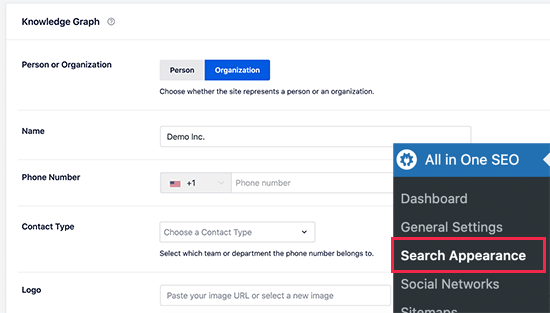
First, you need to visit All in One SEO » Search Appearance page and scroll down to the Knowledge Graph section.

Knowledge graph information

From here, you can tell the search engines who your website represents (i.e. An organization or an individual). After that, you can provide your business phone number, logo, and contact type information.

Don’t forget to click on the Save Changes button to store your settings.

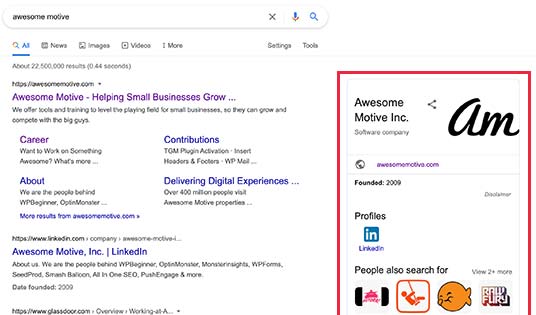
Knowledge Graph information is used by search engines to display knowledge panels. These panels appear when someone searches for an organization or individual person.

Knowledge panels in Google Search

Adding Local Business Information to Featured Snippets

More than 40% of all searches on the internet have a local intent. Majority of these searches lead to sales as users are looking for directions and things to buy near them.

Many businesses and organizations have retail locations and offices that customers can visit.

You can add this information using All in One SEO and let search engines automatically display it in featured snippets.

Local search results preview

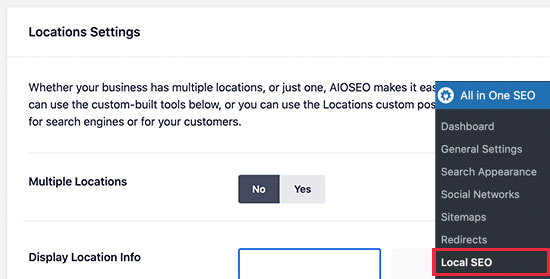
First, go to the All in One SEO » Local SEO page and activate the Local SEO feature.

Choose single or multiple locations

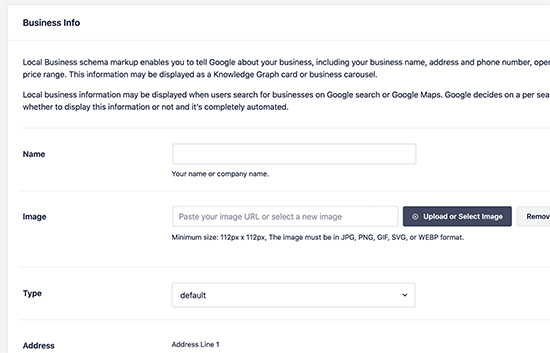
Upon activation, you can choose if your organization or business has multiple locations. If you do, then you can go ahead and start adding those locations otherwise you can scroll down to add your business information.

Business information

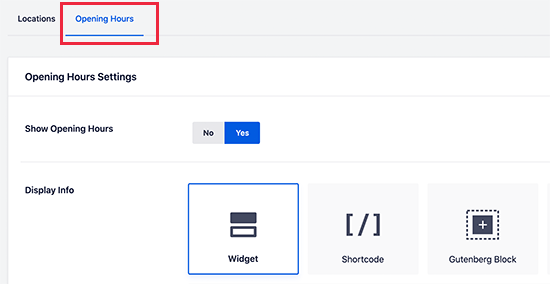
After that, switch to the Opening Hours tab to add your business hours.

Opening hours for your business

For more details, check out our article on how to add business hours in WordPress.

Finally, you need to connect and verify your business using Google My Business website. This gives you more control over your business’s appearance in Google search results and improves your chances appearing more often in featured snippets.

Add SEO Schema Markup in WordPress Posts / Pages

All in One SEO automatically adds the correct Schema markup for your content. However, you can review these settings and change them if needed.

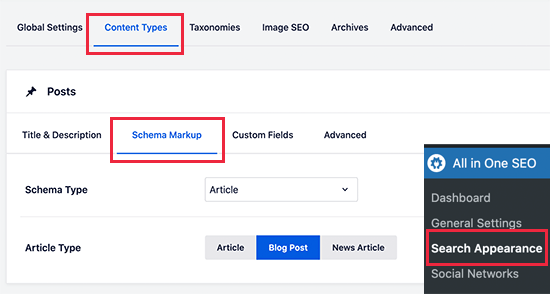
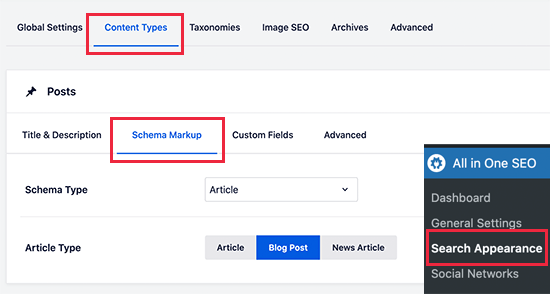
Simply go to All in One SEO » Search Appeaerance page and switch to the content types tab. From here, you’ll see all your post types listed (posts, pages, products).

You need to click on the ‘Schema’ for a post type to change its default settings.

Default schema settings

What if you didn’t want to change schema type for all posts? Well, AIOSEO let’s you change Schema markup for individual posts, pages, and other post types as well.

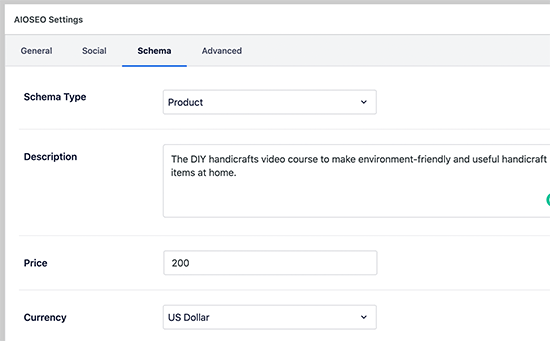
Simply edit the post or page you want to change and scroll down to the AIOSEO settings box below the post editor.

Default schema settings

This feature is particularly useful for businesses that use Pages to sell products with or without using an Ecommerce plugins. You can then simply edit your product landing page and change its schema type to Product.

Changing any page schema to a product in WordPress

Another way to turn your search listing into a more enhanced featured snippet is by using Breadcrumb navigation.

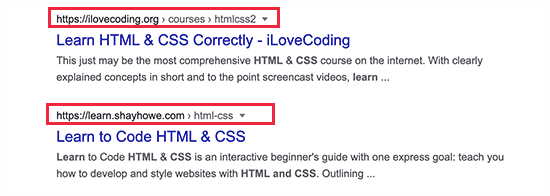
Breadcrumb navigation tells users where they are on a website relative to the homepage. It is then displayed as a trail of links and would also appear in search results.

Breadcrumb navigation in search results

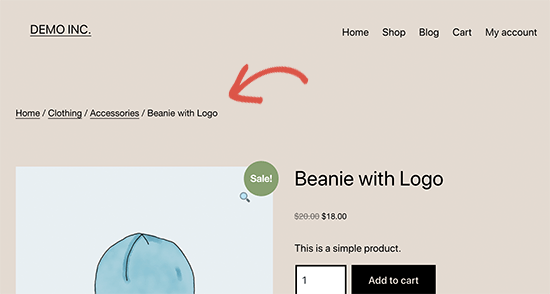
You can also display the breadcrumb navigation trail on your website. This allows users to go up and down, browse categories, and discover more products and content.

Breadcrumbs on a WooCommerce store product page

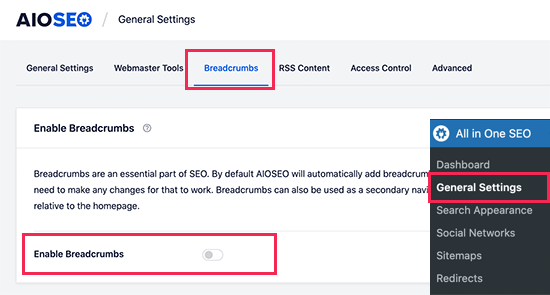
For search engines, All in One SEO automatically adds the required markup to your website’s HTML code. However, if you want to display breadcrumbs on your site too, then you can go to All in One SEO » General Settings page and switch to the Breadcrumbs tab.

Enable breadcrumbs display in All in One SEO

From here, you need to Enable Breadcrumbs and then use one of the available methods to display the links. For more details, check out our article on how to add breadcrumb navigation links in WordPress.

Get Site Links for WordPress in Google Search

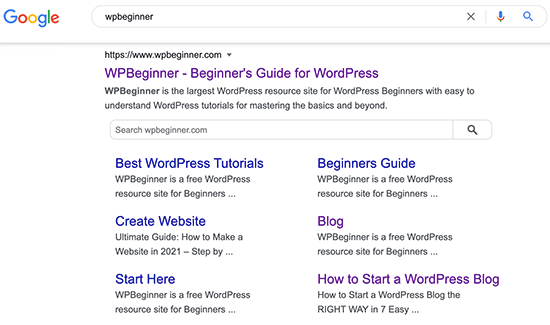
Site Links are the additional links that Google may show below a particular search term. They usually appear for brand and website names, but they may appear for other types of searches as well.

Site Links

To get site links, you need to add your website to Google Search Console and submit your XML sitemap.

Add sitemap to Google Search Console

You can increase your chances of getting site links by creating a proper website structure. This includes adding all the important pages for your website and use categories to properly organize your website structure.

Appear in The Answer Box for Google Search

What’s better than ranking #1 for a keyword?

Ranking #0 in the answer box.

Answer boxes are the search results that appear on the top and Google considers them to be answering user’s search intent.

Answer box

Answer boxes have an average click-through rate of 32% which makes them highly lucrative. Particularly for keywords with a purchase intent Answer boxes can lead to sales and boost conversions.

The only way to appear in the answer boxes is to improve the quality of your content. Make sure it is comprehensive and answers users’ questions from different angles.

See our detailed tutorial on how to appear in the Google Answer boxes with your WordPress posts and pages.

We hope this tutorial helped you get featured snippets with your WordPress site. You may also want to see our guide on how to get more traffic to your website with proven tips, and our comparison of the best email marketing services.

If you liked this article, then please subscribe to our YouTube Channel for WordPress video tutorials. You can also find us on Twitter and Facebook.

The post How to Get a Google Featured Snippet with Your WordPress Site appeared first on WPBeginner.


May 31, 2021 at 03:25PM