Thursday, October 14, 2021

How to Exclude Pages from WordPress Search Results (Step by Step)

Do you want to learn how to exclude pages from the WordPress search results?

By default, the internal search on your WordPress site will include all posts and pages in the search results. To make it easier for your site visitors to find what they’re looking for, you may want to exclude certain content, so it never appears in those results.

In this article, we’ll show you how to exclude certain pages from the WordPress search results, step by step.
How to exclude pages from WordPress search results (step by step)

Why Exclude Pages from WordPress Search Results?

The default WordPress site search includes all of your posts, pages, and custom post types in the search results. This works well enough for many WordPress website owners.

However, if you’re running an online store, then you may want to hide pages like your account page, checkout page, thank you page, and more.

The same goes for those running membership websites or online courses. You may want to hide subscriber-only content from appearing in search.

With that said, let’s show you how to exclude pages from your sitewide WordPress search results.

Note: This guide covers on-site search results, when a visitor to your website uses a search box to search through your website content. If you’re looking to exclude pages from Google search results, then you should see our guide on how to hide a WordPress page from Google.

Create a New WordPress Search Algorithm with a WordPress Plugin

The easiest way to exclude pages from the WordPress search results is by using the SearchWP plugin. It’s the best search plugin for WordPress used by over 30,000 websites.

It’s very easy to use and gives you complete control of your WordPress search results.

First thing you need to do is install and activate the plugin. For more details, see our step by step guide on how to install a WordPress plugin.

Upon activation, navigate to Settings » SearchWP and then click the ‘License’ menu option.
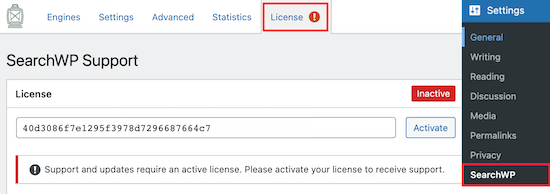
Enter SearchWP license key

Then, you can enter your license key into the ‘License’ box and click the ‘Activate’ button. You can find this information in your account on the SearchWP website.

After that, you need to click on the ‘Engines’ menu option.
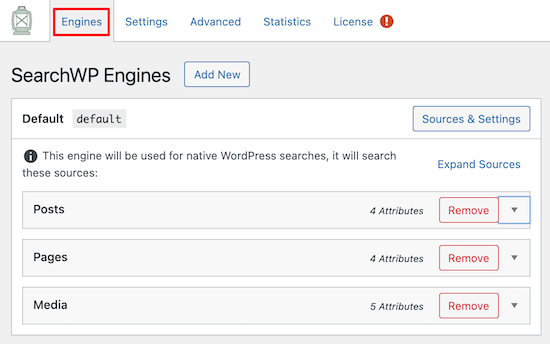
SearchWP default engine settings

This takes you to a page where you need to set your default search engine settings. Think of it like creating your own Google search algorithm that’s only for your website.

With SearchWP, you need to create a sitewide search engine before you can start excluding pages from the WordPress search results.

You can change the search engine settings by clicking on the ‘Posts’, ‘Pages’, ‘Media’, and other custom post type drop downs.

Each section has a weight multiplier that will change how the search engine ranks your website’s content.

For example, if you move the ‘Title’ slider down and the ‘Content’ slider up, then the content will hold more value than the title.
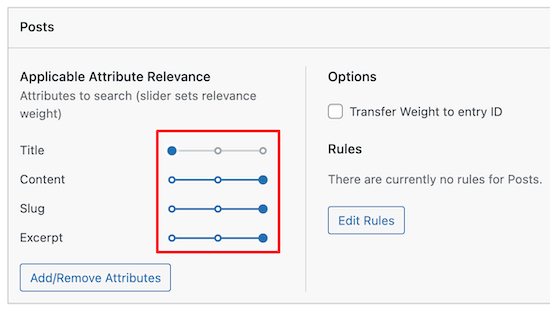
Customize search engine weight

You can also completely remove all pages from appearing in the WordPress search here.

Simply click the ‘Remove’ button in the ‘Pages’ section.

Click button to remove page source

This brings up a popup where you need to uncheck the ‘Pages’ box.

Then, click the ‘Done’ button to remove all pages from appearing in search.
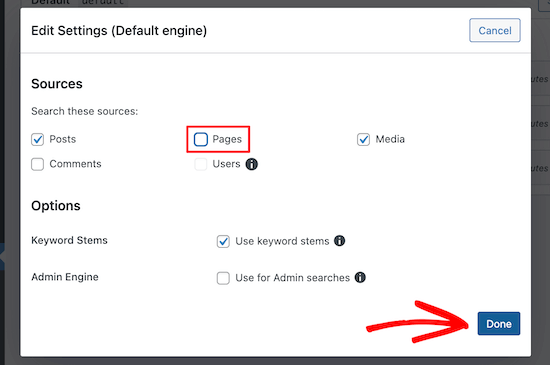
Uncheck pages box and save

After you’re done customizing the default search engine settings, you need to click the ‘Save Engines’ button to create your first engine.
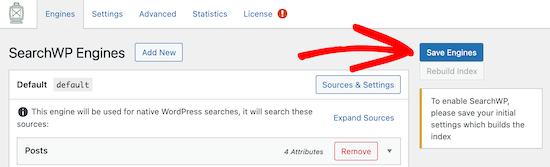
Save default SearchWP engine

Exclude Specific Pages From the WordPress Search Results

If you only want to exclude specific pages from the search results on your website, then this section is for you.

To do this, we’ll be using the Exclude UI extension from SearchWP. When you’re logged into your SearchWP account, go to the Exclude UI download page and click ‘Download Extension’.
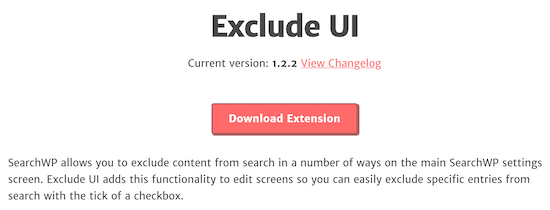
SearchWP exclude UI extension

Then, install and activate the extension as you would any other WordPress plugin.

After that, open up the page that you want to exclude from the search results.

Next, make sure the ‘Page’ option is selected in your right hand menu, and simply check the ‘Exclude from search’ checkbox.
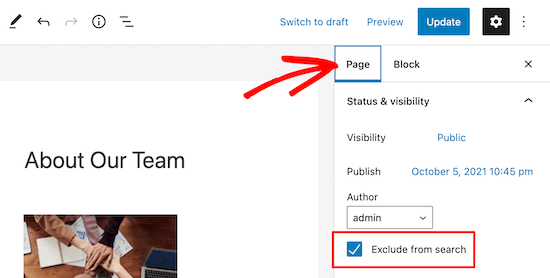
Exclude from search checkbox

Then click the ‘Update’ button, and that page will now be
hidden from the search results. Even if your visitors enter the exact title of the page into your search bar, it will not appear.

If you want to hide more individual pages from the search results, then simply follow the above steps again.

To exclude specific blog posts from WordPress search results, you can follow the same steps above. The only difference is that the right-hand menu will say ‘Post’ instead of ‘Page’.

We hope this article helped you learn how to exclude pages from the WordPress search results. You may also want to see our beginner’s guide on how to get a free SSL certificate for your website and our best business phone services for small businesses.

If you liked this article, then please subscribe to our YouTube Channel for WordPress video tutorials. You can also find us on Twitter and Facebook.

The post How to Exclude Pages from WordPress Search Results (Step by Step) appeared first on WPBeginner.


October 14, 2021 at 01:30PM

Wednesday, October 13, 2021

How to Properly Move from Ghost to WordPress (Free Tool)

Do you want to move your website from Ghost to WordPress?

Ghost is a website builder that allows you to easily create websites. Due to its limitations, many users realize that they would be better off with WordPress.

In this article, we will show you how to easily move from Ghost to WordPress.

Moving from Ghost to WordPress

Moving From Ghost to WordPress

There are many similarities between Ghost and WordPress, but Ghost lacks certain features that make WordPress the best website builder on the market. You can read more about these features in our side-by-side comparison of Ghost vs WordPress.

When we say WordPress, we are talking about self-hosted WordPress.org and not WordPress.com which is a hosting service. To understand the difference, see our guide on the difference between WordPress.com vs WordPress.org.

Many users who start with Ghost soon realize the limitations of the platform and want to move to WordPress. This article will help you do that.

Here is what we will cover in this article:

Step 1. Getting Started with WordPress

To start a WordPress website, you need a domain name and website hosting.

A domain name is the name of your website (e.g. wpbeginner.com), and it’s what users will type in their browsers to visit it. A web hosting account is where all your website files are stored.

While WordPress itself is free, both domain name and web hosting come at a cost ($14.99 / year for domain and $7.99 / month for web hosting).

Thankfully, Bluehost, an official WordPress recommended hosting provider has agreed to offer our users a free domain name and over 60% off on web hosting.

→ Click Here to Claim This Exclusive Bluehost Offer ←

Note: You may already have a domain name for your Ghost website, which you can point to WordPress after moving your website. However, if you don’t have a domain name, then you can get one for free when signing up for Bluehost.

Once you have signed up for a hosting account, you can follow our instructions on how to install WordPress.

Tip: If your Ghost website uses a custom domain name that you would like to keep for your WordPress website as well, then you can still install WordPress on a temporary subdomain. We will show you how to add your domain to your WordPress hosting account later in this article.

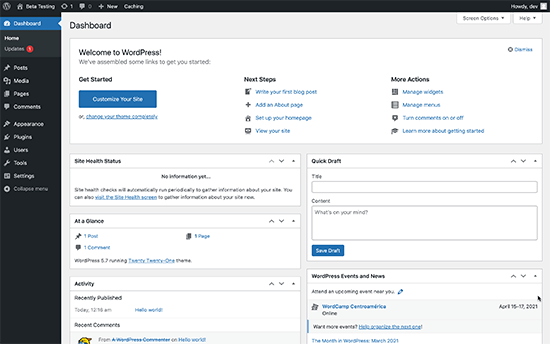
After installing WordPress, you will see the WordPress admin dashboard which looks like this:

WordPress dashboard

Step 2. Export Content from Ghost

Ghost allows you to easily export content from your account.

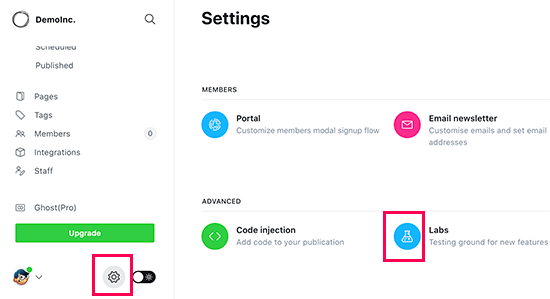
Simply log in to your account dashboard and click on the Settings icon located at the bottom of the left column.

Accessing the labs page from Ghost settings

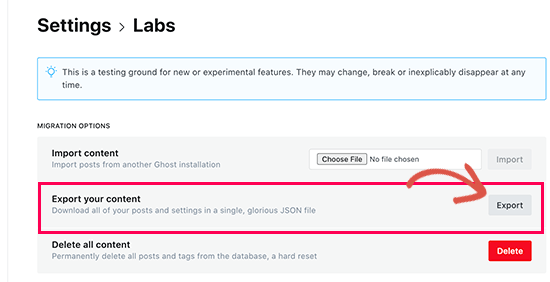
From here you need to click on the Labs menu. This will bring you to Ghost features that are still under development. Click on the Export button next to the ‘Export your content’ section.

Exporting content from your Ghost website

Your browser will now download an export file in JSON format. However, this format is not supported by WordPress importer tools, so you’ll need to convert it to WordPress XML format.

Step 3. Converting Ghost Export File to WordPress Format

The default Ghost export file does not use a format supported by WordPress, and there used to be no reliable way to safely convert it into the correct format.

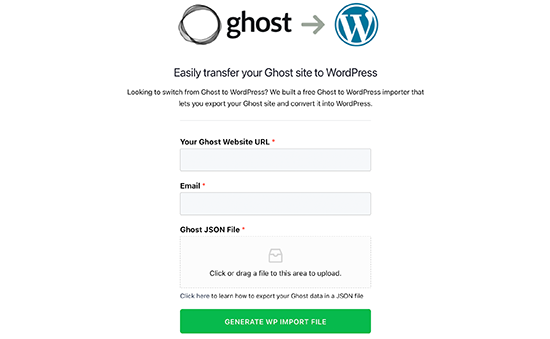
We decided to fix this issue and created the Ghost to WordPress Importer tool. This tool is completely free to use and allows you to convert your Ghost JSON export file into a WordPress compatible XML file.

Simply go to the Ghost to WordPress migration tool website and fill in the form. Next, you need to select the Ghost export file you downloaded earlier.

Ghost to WordPress migration tool

Click on the Generate WP Import File button to continue.

The Ghost to WordPress migrator tool will then convert your Ghost export file into WordPress XML format. Once finished, you’ll be able to download the file to your computer.

Now you’re ready to start importing content to your WordPress website.

Step 4. Import Content in WordPress

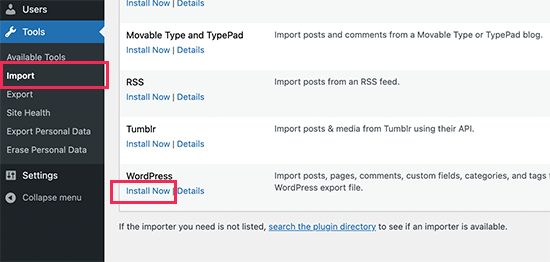
From your WordPress admin area, you need to visit the Tools » Import page and click on the Install Now link below the WordPress importer.

Install WordPress importer

WordPress will now install the importer plugin. Once finished, the install link will change to say ‘Run Importer’. Go ahead and click on the Run Importer link.

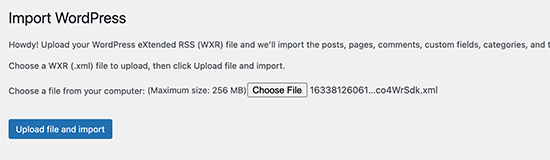
On the next screen, you need to click on the Upload file button to select the WordPress XML file you downloaded in the previous step.

Upload import file

Click on the Upload file and import button to continue.

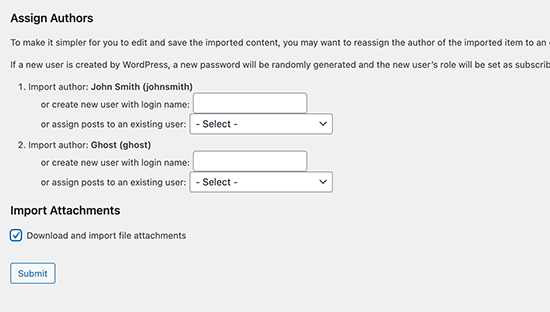
WordPress will now upload the import file. After that, you will be asked to assign authors.

You can import an author from your Ghost website, create a new author, or assign all content to an existing WordPress user.

Import settings

Don’t forget to check the box next to ‘Download and import file attachments’. It will attempt to fetch images from your Ghost website and import them into the WordPress media library, so you can use them later.

Once the importer has finished running, you will see a success message.

WordPress import successful

In rare cases, you might see an issue like some posts are missing, or the importer timed out. Don’t worry, you can run the importer as many times as you like. It will automatically avoid duplicate imports and will only import items that it missed.

Depending on how much content you have, the importer may fail to import images inside posts and pages to your WordPress media library

Let’s see how to easily fix this and import images from Ghost to WordPress.

Step 5. Import Images from Ghost to WordPress

The WordPress importer will try to import images from your Ghost website to your WordPress media library.

However, it may miss some images or not import any images at all. Your website would still show images from your Ghost website, which would become an issue if your Ghost website is deleted.

Luckily, there is an easy way to import external images into the WordPress media library using a plugin.

Simply install and activate the Auto Upload Images plugin. For more details, see our step by step guide on how to install a WordPress plugin.

Upon activation, you simply need to edit and update your blog posts and the plugin will then import any external images in those articles to your media library.

You can also bulk update all your blog posts to quickly import images from your Ghost site. For more details, see our tutorial on how to easily import external images in WordPress.

Step 6. Pointing Your Domain to WordPress

Once you have successfully migrated content from Ghost to WordPress. It is time to start pointing your users to the new WordPress website.

If your website was using a Ghost branded sub-domain (e.g. yourwebsite.ghost.io), then you cannot point that link to your new WordPress website. Instead, we recommend editing your Ghost website and add a plain text notification informing users to check out your website on the new location.

On the other hand, if you were using a custom domain like yourdomain.com, then you can change its DNS settings and point it to your new WordPress hosting provider.

In order to change domain settings, you will need to log in to your domain registrar account and find the option to change the DNS settings.

In the DNS settings area, you need to enter your new WordPress hosting provider’s nameserver information. Usually, it looks something like this:

ns1.bluehost.com
ns2.bluehost.com

For other domain registrars, see our complete guide on how to easily change DNS nameservers.

Once you change the DNS name server, your domain will start showing your WordPress website instead of your older Ghost website. Note that it can take a couple of days for the changes to take effect.

The next step is to redirect users from each page of your Ghost website to the correct post or page in WordPress.

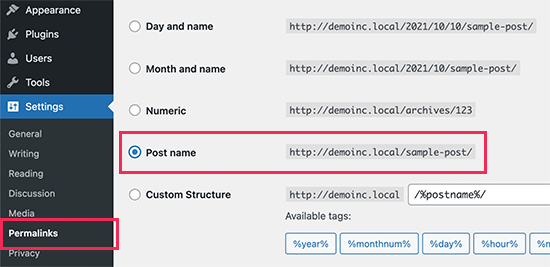
By default, Ghost websites use the post or page name as the default permalink structure. You can match them on your WordPress site by simply going to Settings » Permalinks and choosing Post Name as your URL structure.

Setting up permalinks in WordPress

Don’t forget to click on the Save Changes button to store your changes.

Note: If your Ghost website used a subdomain, then you’ll not be able to set up redirects by changing permalinks.

Step 8. Essential WordPress Plugins and Tools

Now that you have transferred from Ghost to WordPress, it’s time to take advantage of WordPress plugins and tools to grow your website.

1. WPForms – WPForms is the best WordPress contact form plugin. It allows you to easily create any type of form on your WordPress website without writing any code.

2. All in One SEO – AIOSEO is the most comprehensive WordPress SEO plugin on the market. It is super easy to use and comes with a set up wizard, SEO audit tool, TruSEO score for posts and pages, and other features to help you get more traffic.

3. PushEngage – Want to send instant notifications to users on mobile and desktop devices? PushEngage is the best push notification service on the market and helps you bring back website visitors, increase pageviews, and boost conversions.

4. MonsterInsights – MonsterInsights helps you easily install Google Analytics in WordPress and shows you easy-to-understand website traffic reports right inside your dashboard.

Need more tools and tips to grow your new WordPress website? See our full list of essential WordPress plugins for all types of websites.

We hope this article helped you move you properly move from Ghost to WordPress. You may also want to see our checklist of things to do after installing WordPress or see our tips on how to make money online with your WordPress website.

If you liked this article, then please subscribe to our YouTube Channel for WordPress video tutorials. You can also find us on Twitter and Facebook.

The post How to Properly Move from Ghost to WordPress (Free Tool) appeared first on WPBeginner.


October 13, 2021 at 03:00PM

Tuesday, October 12, 2021

How to Make a Separate RSS Feed for Each Category in WordPress

Do you want to make a separate RSS feed for each category in WordPress?

Categories allow you to easily sort your content into major sections. Adding category RSS feeds can help your users subscribe to specific areas of your website that interest them.

In this article, we will show you how to easily make a separate RSS feed for each category in WordPress. We’ll also talk about how you can use them effectively to grow your website.

Making RSS feeds for categories in WordPress

Locating RSS Feed for Categories in WordPress

Categories and tags are two of the main default taxonomies in WordPress. They allow you to easily sort and organize your content into different subjects and topics.

By default, each category on your WordPress website has its own RSS feed. You can locate this RSS feed by simply adding ‘feed’ at the end of the category page URL.

For instance, if you had a category called ‘News’ with a URL like this:

https://ift.tt/3DwEp9r

Then its RSS feed would be located at the following URL:

https://ift.tt/3FBxxtn

Tip: You can find your category URL by visiting Posts » Categories page and clicking on the View link below a category.

View category URL

Display Your Category RSS Feed Links in WordPress

Now that you have located the RSS feed URLs for your categories, let’s take a look at some of the ways that you can share them with visitors on your WordPress website.

1. Add Links to Category RSS Feeds in WordPress

The easiest way to point users to a category RSS feed is by adding a link to the category feed.

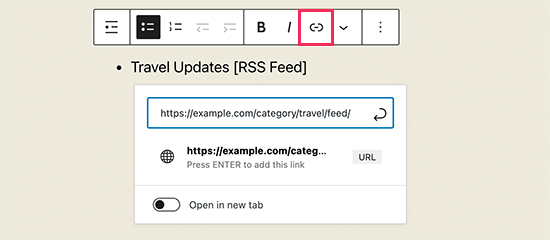
You can simply edit a post or page and add a plain text link anywhere you want.

Manually adding link to a category RSS feed in WordPress

You can use this method to manually create a list of links to all your category RSS feeds.

However, what if you add, delete, or merge categories in the future, then you will have to manually update that list.

Wouldn’t it be nice if you can show a dynamic list of category RSS feeds that is automatically updated? Next we’ll show you how to do just that.

2. Manually Display a List of Category Feeds

This next method allows you to display a list of categories with links to the category-specific RSS feed. Best of all, the list will update automatically if you add or remove a category on your site.

For this method, you’ll need to add some custom code to your WordPress website. If you haven’t done this before, then take a look at our guide on how to easily add custom code snippets in WordPress.

First, you need to find an image that you want to use as the RSS feed icon. For this tutorial, we are using the RSS feed icon that is 32×32 pixels in dimensions.

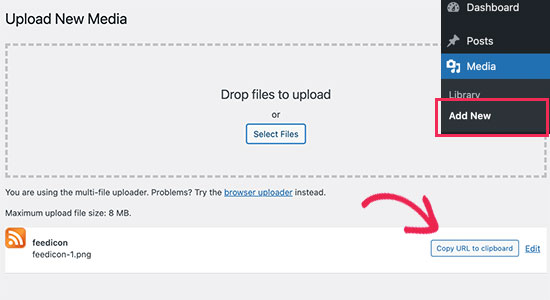
After that, you need to upload that image to your website. Simply go to Media » Add New page to upload your image and then click on the ‘Copy URL to Clipboard’ button.

Copy feed image URL

Now paste this image URL in a plain text editor like Notepad or TextEdit. You’ll need it in the next step.

After that, you need to paste the following code to your theme’s functions.php file or a site-specific plugin.

function wpbeginner_cat_feed_list() { 
$string .=  '<ul>'; 
$string .= wp_list_categories( array(
        'orderby'    => 'name',
        'show_count' => true,
        'feed_image' => '/path/to/feed-image.png'
        'echo' =>
    ) );     
$string .= '</ul>'; 
return $string; 
}
$add_shortcode('wpb-cat-feeds', 'wpbeginner_cat_feed_list' );

You will need to replace the ‘/path/to/feed-image.png’ with the URL of the feed icon image you copied earlier.

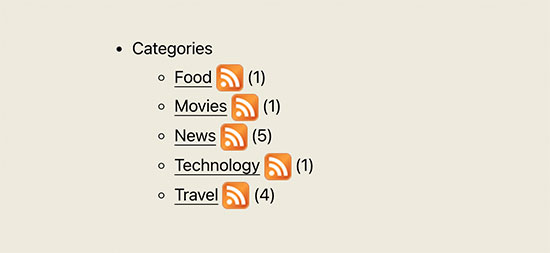
Now you can use the [wpb-cat-feeds] shortcode anywhere on your WordPress website to display the list of categories with the RSS feed icon next to each category.

Category list with RSS feed subscription icon

3. Show RSS Feed Subscription Option on Category Pages (Advanced)

Normally, WordPress category archive pages don’t have an option to subscribe. You can easily change that by adding a link to the RSS feed subscription on each category page.

To do that, you’ll need to make changes to your WordPress template files. Simply add the following code to the category.php or archive.php template in your WordPress theme.

<?php                
if ( is_category() ) { 
$category = get_category( get_query_var('cat') );
if ( ! empty( $category ) )
echo '<div class="category-feed"><p><a href="' . get_category_feed_link( $category->cat_ID ) . '" title="Subscribe to this category" rel="nofollow">Subscribe</a></p></div>';
}
?>

After you save your changes, you can visit any category page to see the subscribe link in action.

RSS feed subscribe link on category page

Tip: Need help finding out which file to edit in your WordPress theme? See our complete WordPress template hierarchy cheat sheet for beginners to figure this out.

How to Take Advantage of Category RSS Feeds in WordPress

Category RSS feeds allow your users to subscribe only to areas that interest them the most.

For instance, if you have a technology news blog, then your users can choose to subscribe only to news about the devices that they use.

However, a plain RSS feed isn’t readable without a feed reader. And nowadays, most users don’t use a feed reader to subscribe to their favorite websites.

This is where it gets tricky. How do you use your category RSS feeds if your users don’t use feed readers?

Luckily, you can use your category feeds to deliver content to your users anywhere they want.

For instance, you can ask users to sign up for your email newsletter with an option to get updates only for specific categories.

With an email marketing service like Constant Contact, Sendinblue, and others, you can easily set up an automated RSS-to-email newsletter only for specific categories. See our guide on how to notify subscribers of new posts for step-by-step instructions.

Similarly, you can also allow users to get instant push notifications for each category using PushEngage. It is the best push notification service on the market and allows you to send messages directly to your users’ devices (desktop as well as mobile phones).

PushEngage allows you to set up automatic push notifications using RSS feeds. You can simply enter your category RSS feed URL, and a push notification will go out whenever a new post is published in that category.

We hope this article helped you learn how to make separate RSS feed for each category in WordPress. You may also want to see these easy tips to grow your blog traffic or take a look at our comparison of the best live chat software for small business.

If you liked this article, then please subscribe to our YouTube Channel for WordPress video tutorials. You can also find us on Twitter and Facebook.

The post How to Make a Separate RSS Feed for Each Category in WordPress appeared first on WPBeginner.


October 12, 2021 at 05:00PM