Monday, November 29, 2021

How to Resend New User Welcome Emails in WordPress

Do you want to resend welcome emails to your WordPress users?

A welcome email helps build trust with new users and ensures that people remember your website. However, your welcome emails can sometimes end up in spam, or users didn’t receive the email. That’s why it’s important to resend welcome emails.

In this article, we’ll show you how to resent new user welcome emails in WordPress.
How to Resend Welcome Emails to New Users in WordPress

Why Resend Welcome Email to New Users in WordPress?

Creating welcome emails is a great way to customize the emails that new users receive when they register on your website. This helps build your brand and makes your site memorable for new users.

However, it’s possible that the welcome emails that you sent didn’t make it to your user’s inbox. Plus, email providers like Gmail can also flag your emails as spam.

One of the reasons for this issue is that WordPress hosting services don’t configure the mail function properly. As a result, your welcome emails fail to reach your users or land in the spam folder.

To overcome this issue, you can use an SMTP (Simple Mail Transfer Protocol) service. It allows you to use an SMTP server to send WordPress emails and ensure your emails reach your users.

An SMTP service also allows you to log any emails that don’t get delivered, so you can easily resend them.

That said, let’s look at how you can log welcome emails that didn’t reach new users in WordPress.

Set Up Email Logs in WordPress

WP Mail SMTP is the best SMTP service for WordPress. It’s super easy to use and easily conencts with popular email services like Sendinblue, Gmail, Office 365, and more.

With WP Mail SMTP, you can track email deliverability in WordPress. The plugin keeps a record of every email sent from your website and lets you resend emails that aren’t delivered.

Note: You’ll need the WP Mail SMTP Pro version to use the Email Log feature and resend welcome emails to new users. There is also a free version of WP Mail SMTP that you can use to get started.

First, you’ll need to install and activate the WP Mail SMTP plugin on your website. For more details, please see our guide on how to install a WordPress plugin.

Upon activation, you can head over to WP Mail SMTP » Settings from your WordPress dashboard and then enter the license key. You can find the key in your WP Mail SMTP account area.
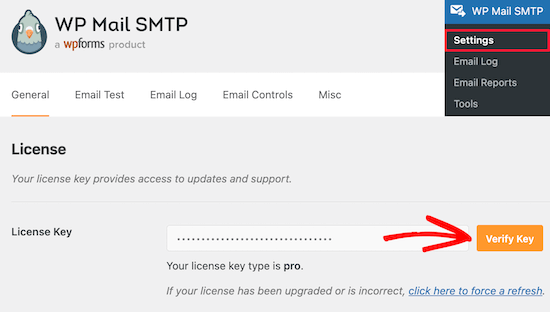
Enter WP Mail SMTP license key

After entering the license key, go ahead and click the ‘Verify Key’ button.

Next, you can scroll down to the Mailer section and choose how you’d like to send your WordPress emails.
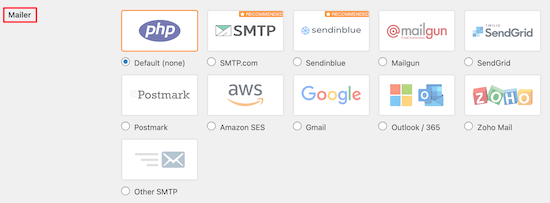
Select SMTP mailer

All you have to do is select your preferred mailer. The PHP mail will be selected by default, but we don’t recommend using this method as it’s not reliable.

You can follow our detailed guide on how to use free SMTP server to send WordPress emails.

After that, you can go to the ‘Email Log’ tab in WP Mail SMTP settings and check the box for the ‘Enable Log’ option. This way, you’ll be able to track email deliverability in WordPress.
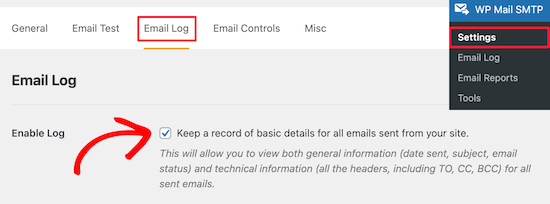
Enable email log tracking

When you enable the option, you’ll see additional email tracking settings under the Email Log tab.

Go ahead and check the boxes for Log Email Content, Save Attachments, Open Email Tracking, and Click Link Tracking, so you have more data about email deliverability.
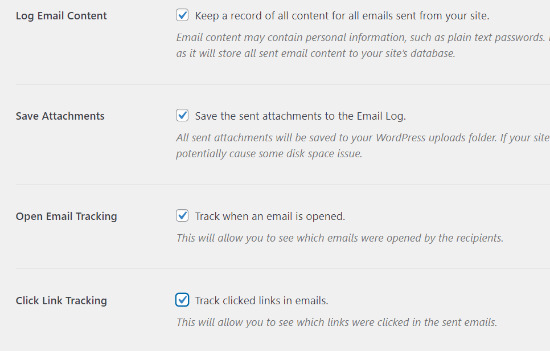
Additional email log settings

Next, you can select the time period to retain the email logs. Simply choose an option from the dropdown menu for ‘Log Retention Period’ and click the ‘Save Settings’ button.
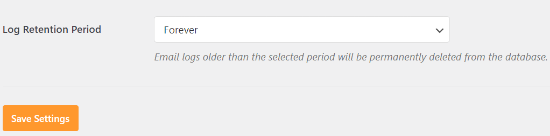
Select log retention period

Resending New User Welcome Emails

After setting up email logs, you can now see which welcome emails didn’t reach your users and which need to be resent.

To start, simply navigate to WP Mail SMTP » Email Log from your WordPress admin area.
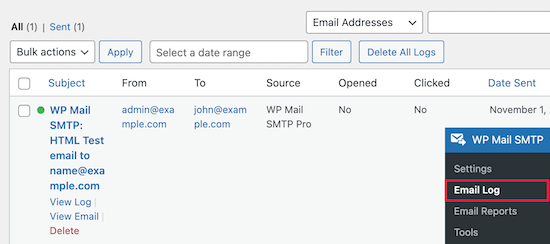
View email log opens and clicks

The plugin will show all your emails under this section. You can see the email subject, who it’s been sent to, the source, and whether users opened and clicked the email.

If you see a red dot for any email, then it means it wasn’t delivered. On the other hand, a green dot shows the email has reached the user’s inbox.

To resend a welcome email that didn’t get delivered, go ahead and click the ‘View Log’ option.
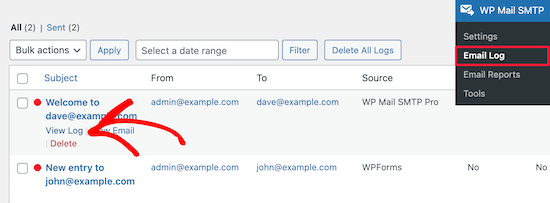
View email logs for resend

Now, you’ll see logs for the individual email. After that, navigate to the ‘Actions’ tab and click the ‘Resend’ button.
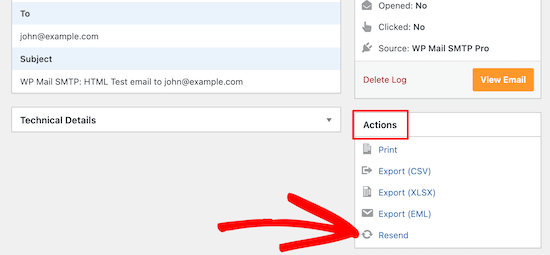
Click resend button

A popup window will now appear. Simply enter the recipient’s email address and click the ‘Yes’ button to resend the email.
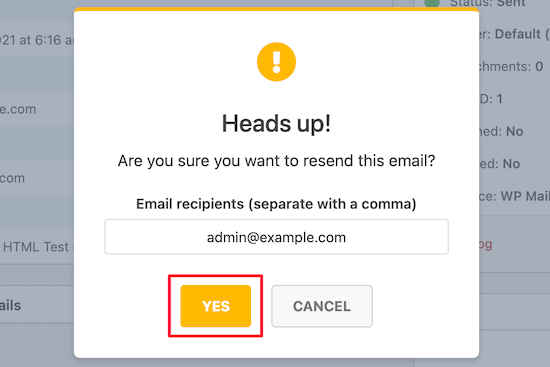
Click yes to resend email

Next, if you see multiple emails that failed to deliver, then you can use the bulk resend feature from the email log screen.

Go ahead and check the box next to the emails that you want to resend. After that, select the ‘Resend’ option from the dropdown menu for Bulk Actions.
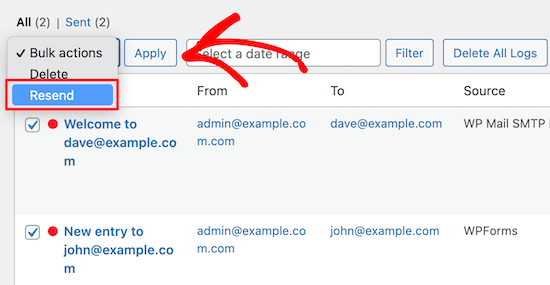
Resend multiple emails

When a popup window appears, you can click the ‘Yes’ button to resend multiple emails.
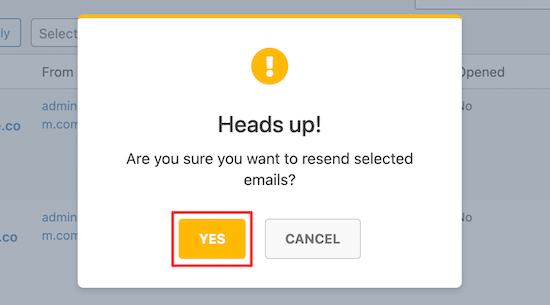
Click yes to resend multiple emails

That’s it! WP Mail SMTP will resend welcome emails and any other email that fails to reach the new users.

We hope this article helped you learn how to resend new user welcome emails in WordPress. You may also want to check out our guide on how to choose the best website builder and the best WooCommerce plugins.

If you liked this article, then please subscribe to our YouTube Channel for WordPress video tutorials. You can also find us on Twitter and Facebook.

The post How to Resend New User Welcome Emails in WordPress first appeared on WPBeginner.


November 29, 2021 at 03:30PM
Friday, November 26, 2021

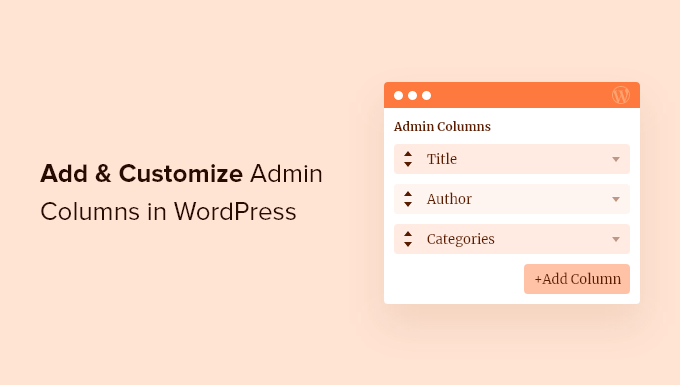
How to Add and Customize Admin Columns in WordPress

Are you looking for a way to add and customize admin columns on your website?

WordPress shows built-in columns by default for posts, pages, comments, users, and more. However, you can make your editorial workflow faster and smoother by adding more admin columns.

In this article, we will show you how to add and customize admin columns in WordPress.

Add and customize admin columns in WordPress

Why Add Admin Columns in WordPress?

By default, WordPress only shows a few built-in columns. For instance, in the posts section, you can only view the post’s title, author, categories, tags, and date.

Managing a WordPress site with lots of content or multiple authors means more tasks for admins to perform.

Admins of growing WordPress sites are always looking for tools and plugins to improve their editorial workflow.

A lot of the tasks that need to be performed can be done quicker if you can see all the useful information on one screen.

That’s when admin columns come in handy.

You can display additional columns in the WordPress admin area and have complete control over all columns for pages, posts, media, comments, and users.

Let’s look at how you can add and customize admin columns in WordPress.

Adding and Customizing Admin Columns in WordPress

The easiest way to add more columns in the admin area is by using the Admin Columns plugin.

It’s a free WordPress plugin that lets you manage and organize columns in the WordPress admin panel and get a clear overview of your editorial workflows.

First, you’ll need to install and activate the Admin Columns plugin on your website. For more details, please see our guide on how to install a WordPress plugin.

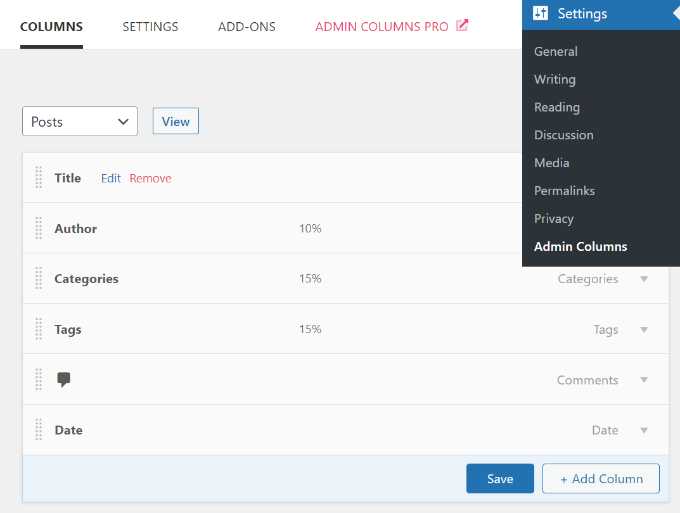
After activation, you can navigate to Settings » Admin Columns to configure admin columns.

Edit existing columns

You can customize existing admin columns by simply using the drag and drop interface and rearranging items in the order you want.

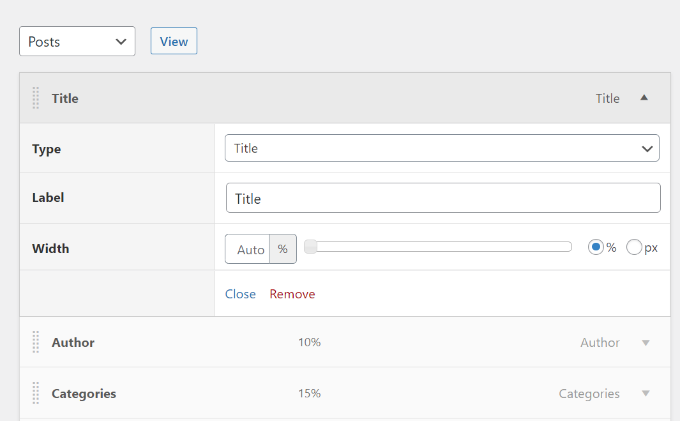
The plugin also lets you edit existing columns. For instance, you can click the ‘Edit’ button for any column and then change its type, label, and width.

Editing admin columns

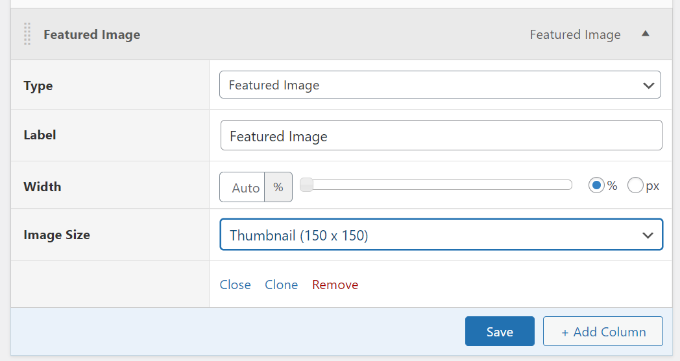
In addition to the default columns, you can add more admin columns by clicking the ‘+ Add Column’ button.

Add new admin column

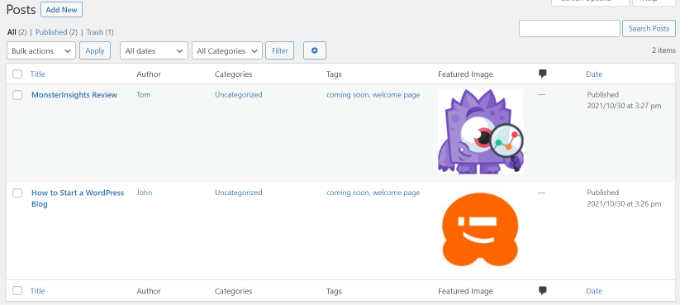
For example, we added the featured image admin column for the posts screen. Admins will now see the featured images of all the blog posts in the admin panel and won’t have to view each article individually.

It’s important to note that if your thumbnails appear too big or in the wrong size, then you will need to regenerate thumbnails for new image sizes in WordPress.

After adding columns for the posts section, don’t forget to click the ‘Save’ button.

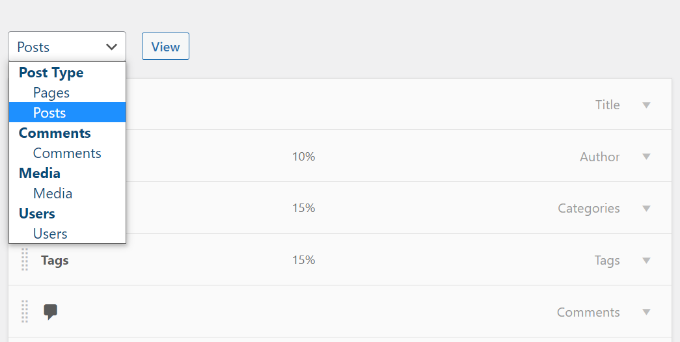
You can now do the same for other sections on your WordPress website. Simply click on the dropdown menu at the top and select a section for your site.

Add columns to other sections in WordPress

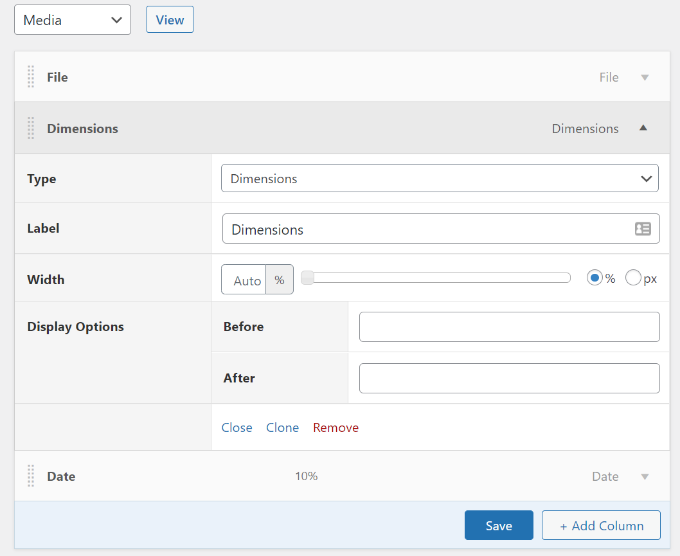
For example, on the media screen, you can add image dimensions, EXIF data, Alt text, and caption.

Dimensions column in media

After adding these columns in the plugin, you can now head over to the WordPress admin panel to see them in action.

Here’s a preview of how a featured image column will look like in the posts section on our demo website.

Admin columns preview

Customize Other Admin Columns in WordPress

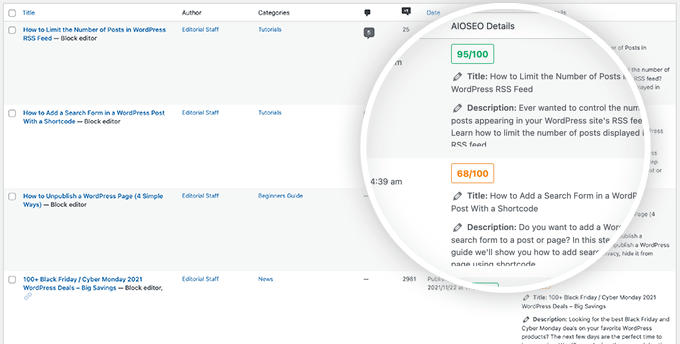
Certain popular WordPress plugins All in One SEO for WordPress and others will also automatically add columns in the admin area.

This can help you bulk edit SEO titles, meta descriptions, and more right from the post edit screen.

All in One SEO Bulk Edit Meta Description

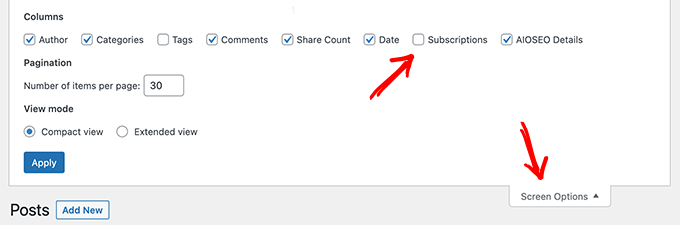
If you see any plugin that’s adding an admin column that you do not want, then you can easily hide it by clicking on the Screen Options menu on the top right.

This will slide down a menu where you can simply uncheck the column that you don’t want to see.

Hide admin columns in WordPress using Screen Options

We hope this article helped you customize and add admin columns in WordPress. You may also check out our guide on how to choose the best web design software and the best WooCommerce plugin.

If you liked this article, then please subscribe to our YouTube Channel for WordPress video tutorials. You can also find us on Twitter and Facebook.

The post How to Add and Customize Admin Columns in WordPress first appeared on WPBeginner.


November 26, 2021 at 04:00PM

Thursday, November 25, 2021

How to Limit the Number of Posts in WordPress RSS Feed

Do you want to limit the number of posts in your WordPress RSS feed?

By default, WordPress displays the ten most recent posts in the main RSS feed. You can change that to include more or fewer articles in the feed.

In this tutorial, we’ll show you how to easily limit the number of posts in the WordPress RSS feed. We’ll also show you how to easily create an RSS sitemap for search engines as well.

Limit number of posts in WordPress RSS feed

Video Tutorial

If you don’t like the video or need more instructions, then continue reading.

Change Posts Limit in WordPress RSS Feed

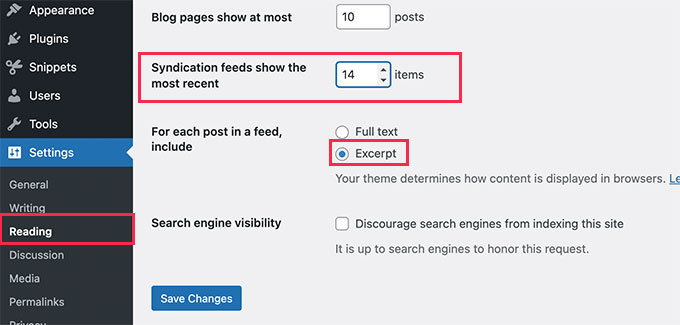
First thing you need to do is go to Settings » Reading page in your WordPress admin dashboard.

From here, you need to change the value next to the ‘Syndication feeds show the most recent’ option. Simply enter the number of posts you want to be shown in your RSS feed.

Change posts limit in RSS feed

Below this option, you’ll also see the option to show either the full text or excerpt of your posts in RSS feeds.

We recommend using the Excerpt option because it reduces the feed size and increases your page views.

After that, don’t forget to click on the Save Changes button to store your settings.

That’s all, you have successfully limited the number of posts displayed in RSS feed of your site.

Create RSS Sitemap for Search Engines

If you only want to change the number of posts in your RSS feeds for more search engine visibility, then increasing posts in your main WordPress RSS feeds is not the best way to do this.

Many popular search engines like Google and Bing support RSS sitemaps.

Unlike XML sitemaps which contain most of your content, an RSS sitemap provides search engines with the latest posts on your site.

This helps search engines quickly find the updated posts on your website. You can set a different limit of posts that you want to include without affecting your main WordPress RSS feed.

The easiest way to add an RSS sitemap in WordPress is by using All in One SEO for WordPress. It is the best WordPress SEO plugin on the market and allows you to easily optimize your website without any SEO skills.

First, you need to install and activate the All in One SEO for WordPress plugin. For more details, see our step-by-step guide on how to install a WordPress plugin.

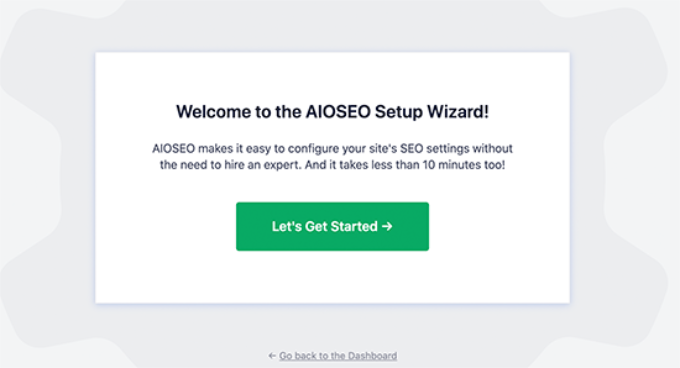
AIOSEO setup wizard

This will bring up the All in One SEO setup wizard. Follow the on-screen instructions or check out our tutorial on how to properly set up All in One SEO for WordPress.

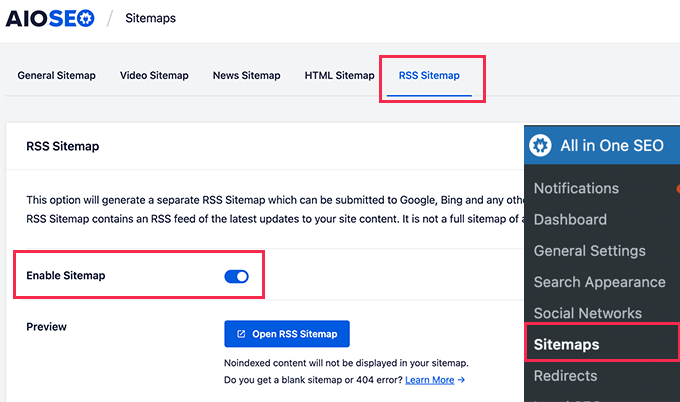
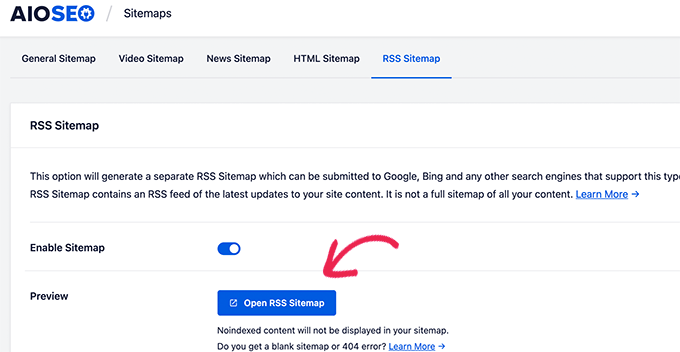
After that, you need to go to the All in one SEO » Sitemaps page and switch to the RSS Sitemap tab.

Enable RSS sitemap

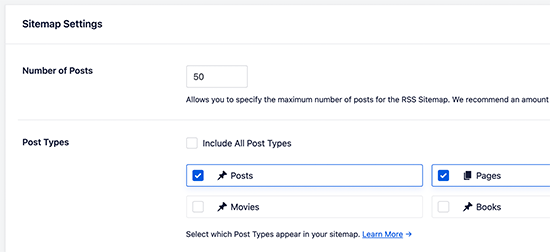
From here you can enable the RSS Sitemap and also set the number of posts you want to include in the sitemap.

Set post limit for RSS sitemap

This sitemap includes all your post types. This means it will include posts, pages, products, or any custom post types you may have.

If you only want to include blog posts, then uncheck the ‘Include All Post Types’ and then select ‘Posts’.

Once you are satisfied, don’t forget to click on the Save Changes button to store your settings.

You can now click on the Open RSS Sitemap button to copy the URL of your RSS sitemap.

View RSS sitemap

Next, you need to submit your RSS sitemap to Google Search Console. See our step by step tutorial on how to add your WordPress site to Google Search Console.

We hope this article helped you limit posts in your WordPress RSS feed. You may also want to see our guide how to choose the best business VoIP provider and our expert pick of the must have WordPress plugins for your website.

If you liked this article, then please subscribe to our YouTube Channel for WordPress video tutorials. You can also find us on Twitter and Facebook.

The post How to Limit the Number of Posts in WordPress RSS Feed first appeared on WPBeginner.


November 25, 2021 at 04:00PM