Thursday, January 6, 2022

WordPress vs Ghost – Which Is the Better Blogging Platform?

Are you comparing WordPress vs Ghost and wondering which is best for you?

WordPress and Ghost are both popular blogging and website building platforms. However, both have pros and cons that you’ll want to compare before starting your new blog.  

In this article, we’ll compare WordPress and Ghost with their strengths and weaknesses, so you can decide which is the better platform for you. 
WordPress vs Ghost - which is better?

What to Look for in a Blogging Platform?

Before we compare WordPress vs Ghost, let’s highlight the main things you should be looking for when choosing a blogging platform for your next project. 

We’ll use these factors for our WordPress and Ghost comparison. You can click on any of the quick links below to jump straight to the relevant section.

  • Overview – An introduction to WordPress and Ghost
  • Costs – How much does it cost to start a blog?
  • Ease of Use – How easy are they to learn and use for an absolute beginner?
  • Design & Templates – What are your blog design and customization options?
  • Ecommerce – Can you use it to sell things from your blog?
  • SEO – Can you easily optimize your website for search engines and get traffic?
  • Addons & Integrations – Can you extend the platform’s functionality with addons and third-party tools? 
  • Support – Can you get help quickly and easily when you need it?

Note: This is a comparison between Ghost and self-hosted WordPress.org. For more details, see the differences between self-hosted WordPress.org and WordPress.com.

Overview: WordPress vs. Ghost

Before we go into our in-depth comparison of the two popular blogging platforms, it’s important we cover the basics of what each platform is.

What is WordPress?

WordPress is the most popular website builder and content management system (CMS) in the world. It powers over 43% of sites on the internet and has been around for over 18 years. 

It can be used to create nearly any kind of website or blog, and it’s used by some of the most successful WordPress blogs in the world. 

To start a new WordPress blog, you need both a domain name and web hosting. There are plenty of great WordPress hosting companies that offer a 1-click WordPress installation and easy blog setup. 

What is Ghost?

Ghost launched in 2013 with the goal of creating a streamlined publishing platform for writers, publishers, and journalists.

It has over 3 million installs with an active monthly user base of over 10,000.

It’s a very clean and minimalist platform with fast loading speeds. Those looking to get started blogging as fast as possible can begin in a couple of minutes. 

Ghost is available as a hosted platform, or as software that you can install and host yourself. For our comparison, we’ll focus on the more popular hosted version of Ghost, since the self-hosted version is very complex to set up.

Costs: Ghost vs WordPress

For most users, the cost of building a blog will be the main factor in which platform you choose. 

If you’re just starting online, then you’ll probably want to keep your costs as low as possible, then invest more as you begin to make money blogging.

Let’s look at the costs of building a blog with Ghost and WordPress and the steps you can take to keep costs as low as possible. 

WordPress — Costs

The WordPress CMS software is free and open source. But, you need to purchase a domain name and hosting to have a website live on the internet. 

Usually, a domain name costs $14.99 per year, and website hosting starts at $7.99 per month when paid annually. This can be a pretty big investment when you’re just starting out.

Luckily, Bluehost has agreed to offer our readers a 69% discount on hosting, plus a free domain name, and SSL certificate. Basically, you can get started for as low as $2.75 per month.

→ Click Here to Claim This Exclusive Bluehost Offer ←

Bluehost is one of the best WordPress hosting providers and is an officially recommended host by WordPress.org.
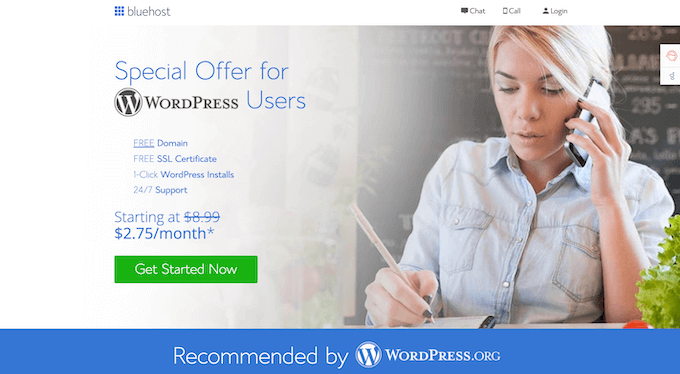
Bluehost

WordPress also has a massive ecosystem of free plugins and themes you can get started with to help you keep your costs down.

There are over 59,000 free plugins available in the WordPress.org plugin repository alone and over 9,000 free themes to choose from.
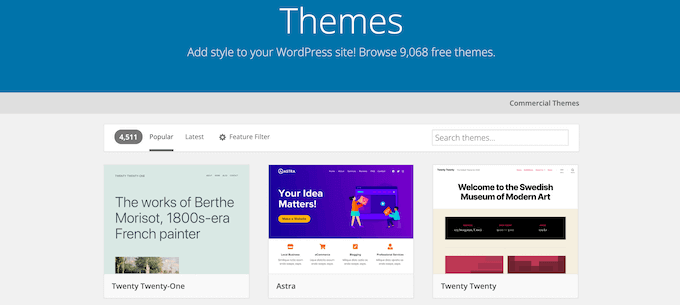
Free WordPress themes

If you purchase any premium WordPress themes, plugins, or third-party services and software, then this can increase the price of using WordPress.

You can build your blog with free plugins and themes to keep costs as low as possible. Most premium plugins and themes also have free versions with slightly less functionality. Then, as your website grows, you can begin to invest in premium themes or plugins as needed.

Another great thing about WordPress costs is that you have complete control over your site. You can modify the code or add as many users or members to your site as you want, for no additional fees.

For more details, see our guide on the cost of building a WordPress site. It gives you a detailed breakdown of different scenarios and the steps you can take to spend as little as possible. 

Ghost — Costs

With Ghost, you pay a monthly fee based on your audience size and the plan you choose. Currently, the cheapest plan you can get is the Starter plan for $11 per month when paid annually.

This plan supports one user, up to 500 members, and gives you access to the official Ghost themes for building your blog. A free domain name and hosting are included in your account when you sign up.

If you want to add another user to your team and get access to custom themes and integrations, then you’ll need the Creator plan for $33 per month when paid annually. There are also higher priced plans for larger teams who need support for 5+ users.

Ghost defines “members” as people who can sign up for your newsletter or buy paid subscriptions. If you have more than 500 members, it will multiply the cost of any plan. For example, the Creator plan becomes $65/month when you have 5,000 members.

You can take advantage of the 14-day free trial to fully test the platform to see if it’s right for you.

Winner — WordPress

WordPress gives you the same features as Ghost at lower costs. Plus, you can add even more features using free plugins. With WordPress, you can even create an email newsletter and online store without additional costs.

As your site grows, you can choose to invest more money into your blog, but when you’re just starting, it’s easy to keep costs as low as possible. 

Ease of Use: WordPress and Ghost

Most users starting a blog aren’t programmers or coders. They need an easy to use platform to quickly build a blog and publish content without having to learn how to code. 

Let’s see how WordPress and Ghost stack up.

WordPress – Ease of Use

Overall, WordPress is pretty easy to use, but there is a slight learning curve. Since it’s open source software, you need to install it yourself and manage updates and backups

If you’re just getting started, you’ll also want to spend time learning about WordPress terms, themes, plugins, and more. 

To quickly grow your skills, see our guide on how to learn WordPress for free in a week or less.

Once you’ve learned the core concepts, it’s pretty easy to customize your blog and start creating content. 

WordPress comes with an intuitive visual editor called the block editor. This is what you’ll use to create your posts and pages. It lets you easily create beautiful layouts without writing any code.
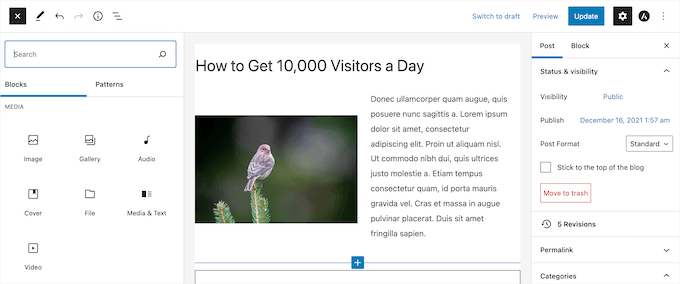
WordPress block editor

You can also build custom pages using a drag and drop page builder.

These page builders are available as plugins that you install on your site, and they allow you to drag and drop different elements onto your page and easily customize them.
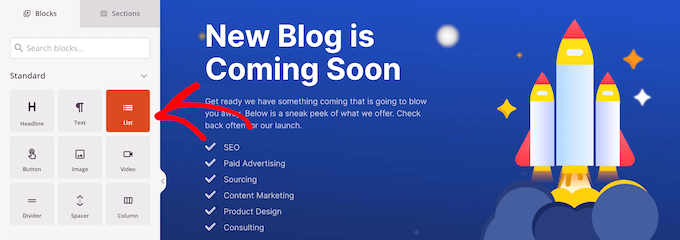
SeedProd page builder example

WordPress also has a massive plugin library to help you do anything you want to do with your blog, without having to know any code.

Ghost – Ease of Use

Ghost lets users write and publish content easily. Since the entire goal of the platform is publishing and monetizing content, it’s very beginner friendly.

As soon as you log in to your account, you’ll be taken directly to your account dashboard. Here you can create posts and pages, customize your website, and manage your members.
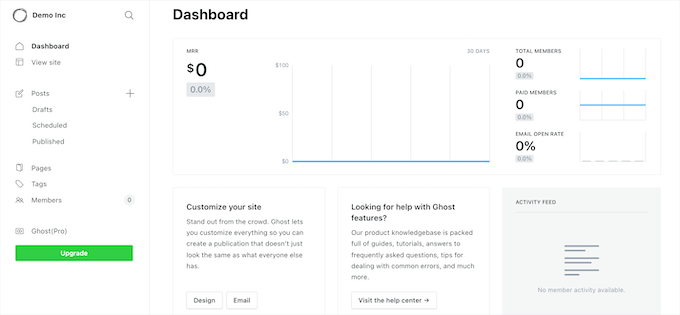
Ghost dashboard

The post dashboard is quite similar to the WordPress block editor.

You can add images, HTML, galleries, buttons, videos, and more. 
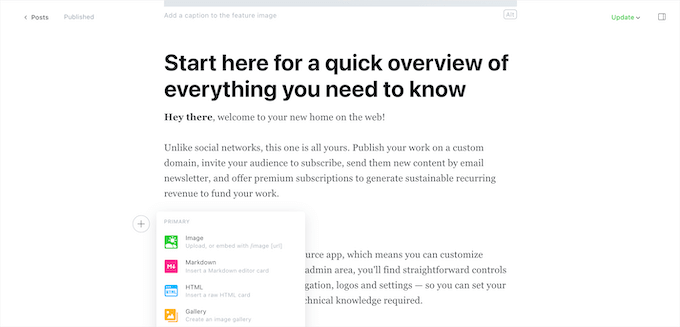
Ghost post editor

Ghost is made for writers and bloggers looking to publish and monetize quickly.

Winner — Tie

Both WordPress and Ghost have a point and click editor, customizable templates and layouts, and a similar page and post editor.

The Ghost platform is easier to use, but fewer customization options are available. It’s mostly a pure content publishing platform. 

Once you learn the core concepts of WordPress, customizing your site, publishing posts, and creating pages become easy. 

Design and Templates: Ghost and WordPress

As a beginner, you want an easy way to create a blog with a professional design.

Let’s look at how WordPress and Ghost handle design, customizations, and the whole website building process. 

WordPress — Design and Templates

As you saw above, WordPress gives you access to thousands of free themes you can use to create and customize your WordPress blog. Many of these are very feature-rich and mobile-friendly right out of the box.

You can get started with any theme you want to give your blog a professional design. You’re free to switch your WordPress theme at any time and are never stuck with your current design. 

Every theme can be customized with the built-in WordPress theme customizer. Some themes also handle customizations with their own theme options panel.
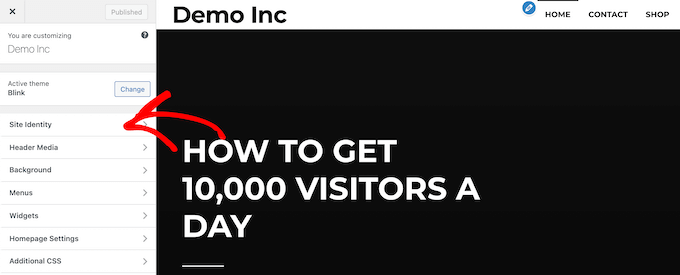
WordPress theme customizer

WordPress keeps the design of your site separate from the content. This not only helps to keep a consistent design, but it makes it easy to change WordPress themes in the future without losing your content.

Another option is to use a WordPress theme along with a page builder plugin like SeedProd to create custom pages and landing pages. 

Page builders also come with their own professionally designed templates you can completely customize with a beginner-friendly drag and drop builder. 
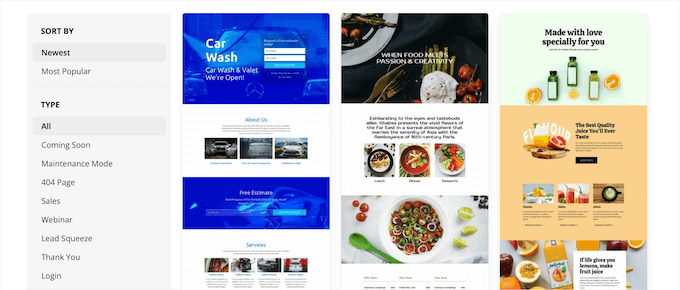
SeedProd template selection

You can easily create coming soon pages, sales pages, landing pages, and more without writing any code. 

Ghost — Design and Templates

Compared to WordPress, the amount of design and customization options is limited. The platform comes with a theme repository similar to WordPress, but there are just over 20 free themes available.
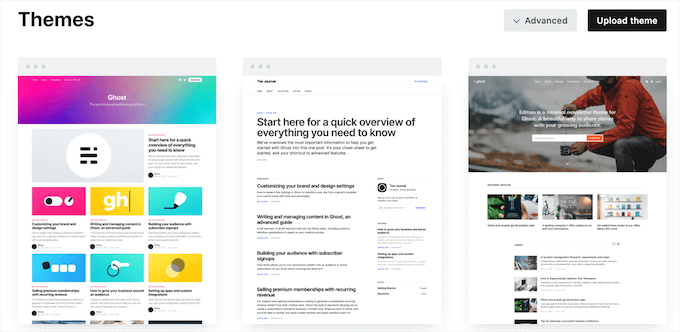
Ghost themes

If you have a larger budget, then you can purchase a premium theme, but there are still only around 100 of these to choose from. 

Customizing your theme is done within the settings panel. You can control the color scheme, fonts, icons, site logo, and more. 
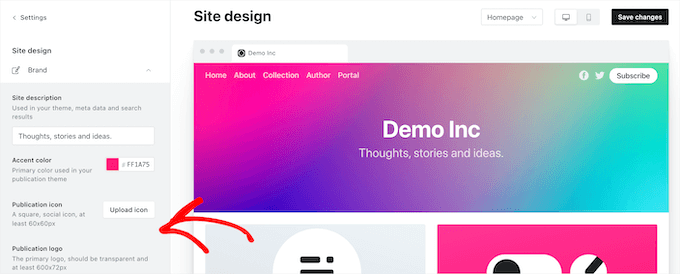
Ghost theme editor

Your settings menu is where you’ll also set up your website navigation menus, email opt in templates, and more. 

There’s also a built-in option within the platform to hire theme developers to create a completely custom design. 

Winner — WordPress

WordPress offers a greater theme selection and a nearly endless selection of plugins. No matter your niche, you’ll be able to find the perfect WordPress theme for your needs.

Plus, you have much more flexibility by separating content and functionality from the design. 

Users can completely customize every aspect of their theme and even use WordPress page builders to create custom pages without writing any code. 

Ecommerce: WordPress vs Ghost

Adding eCommerce functionality to your site lets you sell things online. You can sell subscriptions, products, courses, and more.

Let’s look at how Ghost and WordPress handle eCommerce. 

WordPress — Ecommerce

To add eCommerce functionality to WordPress, you’ll be using the free WooCommerce plugin. It’s the most popular eCommerce platform in the world used by millions of online stores, both big and small.

It lets you easily sell any kind of products you’d like, digital or physical.
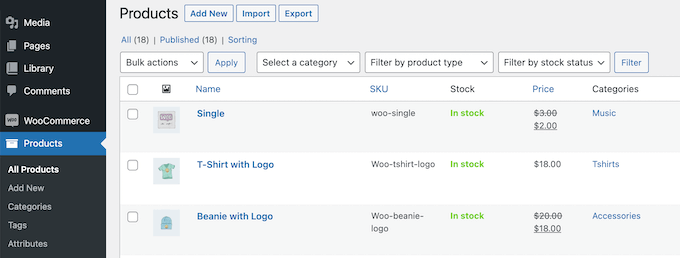
Manage WooCommerce products

WooCommerce comes with its own addons and plugins you can use to add new features to your online store. 

There are also hundreds of WooCommerce themes you can choose from to create a professional online store.
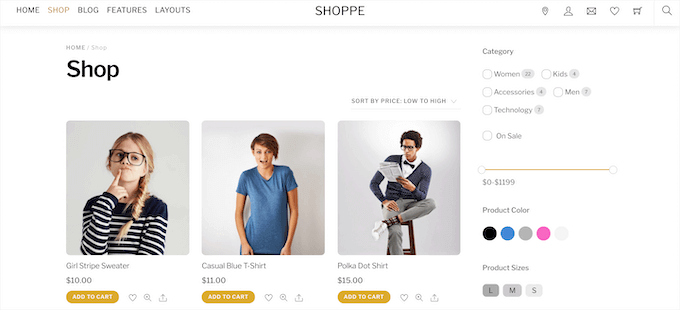
WooCommerce store example

You can truly create any kind of eCommerce site you want, whether that’s selling online courses, paid newsletters, digital and physical products, adding content paywalls, and more. 

Plus, you can choose from a wide range of different payment gateways like PayPal, Authorize.net, Stripe, and more. 

Ghost — Ecommerce

Ghost does eCommerce a little bit differently. With Ghost, you won’t be creating an online store. Instead, you can sell memberships to access your content, similar to other platforms like Substack

When you’re writing a post, you can choose who will get access to your content. It can be publicly available, or gated for all members or paid members only.
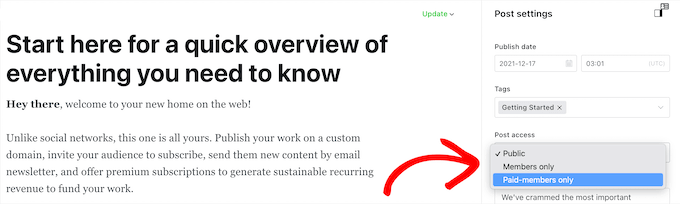
Ghost paid membership settings

Essentially, with Ghost, you’re putting content behind a paywall for your premium subscribers. 

This functionality is integrated into the platform, so managing members and creating paid newsletters is easy.

Winner — WordPress

WordPress offers a flexible platform to help you sell anything you want. You can use WooCommerce or another eCommerce plugin to get started. It supports more addons, payment options, and various types of products. 

You can sell premium content, digital and physical products, membership subscriptions, and much more. 

Ghost has built-in eCommerce functionality, and you can start selling as soon as you create an account. However, you’re limited to selling premium content and paid newsletters. 

SEO: WordPress and Ghost

If you want to rank high in the search engines and get more website traffic, then you’ll need to use a search engine friendly platform. 

Some platforms are better than others and make it easier to rank, while some actively make it more difficult.

Let’s see which platform is better for SEO, WordPress or Ghost. 

WordPress — SEO

Right of the box, WordPress is very search engine friendly. The core platform is built with SEO best practices in mind, so it’s easy to boost your website traffic and rankings.

There are all kinds of built-in settings for you to configure to help optimize your website.

For example, you can change your permalink settings and create SEO-friendly URLs, create categories to organize your content, add tags, edit your image alt text, and more. 
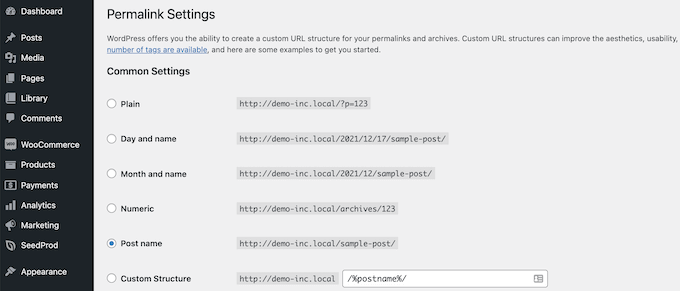
WordPress permalink settings

Beyond the default settings, you can maximize your WordPress SEO with the help of WordPress SEO plugins and tools

For example, you can use a plugin like All in One SEO (AIOSEO) to fully optimize your site without having to learn complex SEO terms or hire an expert.

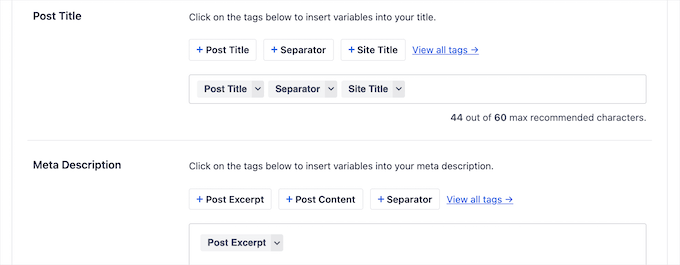
With this plugin, you can add title tags and meta descriptions, choose a focus keyword, and get detailed page analytics with recommendations to optimize your blog posts

AIOSEO post optimization settings

It will even automatically generate XML sitemaps, manage and create redirects, automatically apply the right schema, and more.

You can also control how your site appears on social media, connect to Google Search Console, and even add breadcrumbs to help your visitors more easily navigate your website. 

Ghost — SEO

Ghost has a handful of built-in features to help optimize your posts and pages for the search engines. You have complete control over your URLs and permalinks, page title, and meta description. 
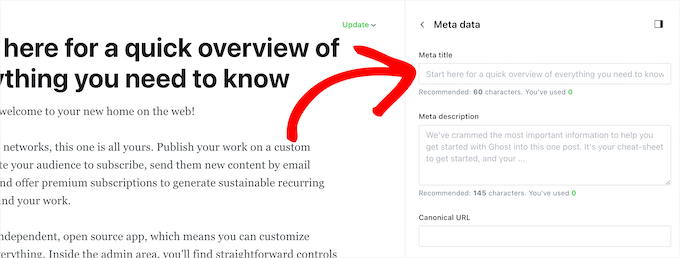
Ghost post metadata

There are also built-in settings to automatically create a website sitemap, assign canonical tags for your posts, and integrate your website with Google Search Console.

It also has a built-in feature to add multiple authors to post bylines. This is useful if you have a multi-author blog and want to highlight each author. 

However, since a lot of your website content will be protected and for members-only, this content won’t rank in the search engines. You’ll need to publish additional content for free to rank in the search results. 

Winner — WordPress

When it comes to optimizing your website for the search engines to increase your blog traffic, WordPress offers more options and flexibility. You can use WordPress SEO plugins to boost your rankings further and access more features.

Ghost has solid built-in SEO settings, but doesn’t quite get to the level of depth that WordPress offers.

Addons and Integrations: Ghost vs WordPress

No blogging platform will have everything you need right out of the box. Using addons and integrations helps you add more features and sync your site with third-party services. 

Let’s take a look at how Ghost and WordPress handle addons and integrations. 

WordPress — Addons and Integrations

You can truly unlock the power of WordPress by using WordPress plugins. Think of them like apps for your WordPress site.

To add new features and functionality, all you need to do is install and activate a plugin.

There are over 59,000 free WordPress plugins available from the WordPress plugin repository. Plus, thousands more premium plugins are available.
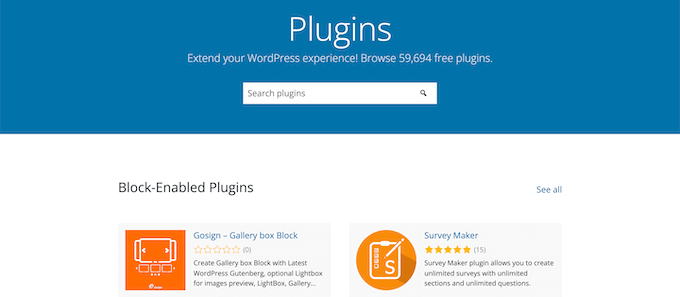
Free WordPress plugins

You can add nearly any feature you like to your blog, including contact forms, Google Analytics tracking, social media feeds, and more.

Plus, WordPress easily integrates with many other popular tools or services you need to grow your blog. 

This includes popular email marketing services, market research tools, live chat software, CRM software, business phone services, and much more.

Ghost — Addons and Integrations

Ghost doesn’t offer any additional addons to add more features to your site. All of the functionality is built right into the platform. 

However, they do have a variety of built-in integrations to link your website with third-party services, like Google Analytics, Stripe, Zapier, ConvertKit, and more. 
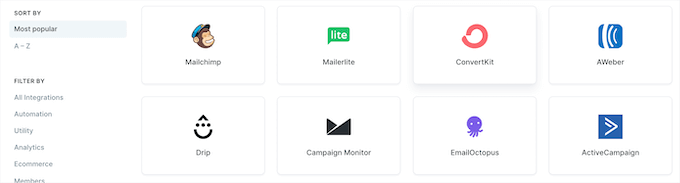
Ghost integrations

There are detailed instructions that show you how to add the integration to your blog.

Winner — WordPress

WordPress wins this category with thousands of different plugins and third-party services you can use to add whatever functionality you require to your blog. 

Support: WordPress or Ghost

Everyone needs help with their blog occasionally, whether it’s a question about building your site, adding a new feature, or troubleshooting an error. 

Let’s take a look at the different support options for Ghost and WordPress. 

WordPress — Support

WordPress has a large and helpful online community with all kinds of valuable free resources available. For example, you have the official WordPress support forums, tutorial and resource sites like WPBeginner, Facebook groups like WPBeginner Engage, and much more. 
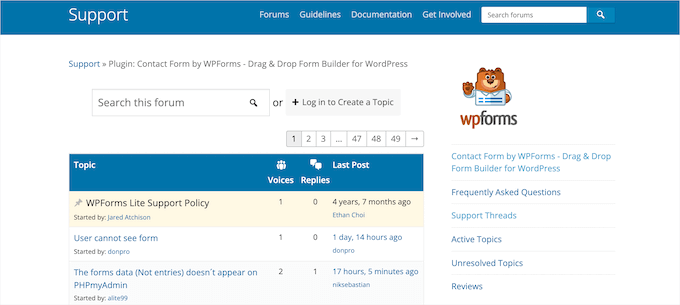
WPForms support forum example

Plus, most WordPress themes and plugins have their own dedicated support forums, either on WordPress.org or through their own websites.

To learn more, see our guide on how to properly ask for WordPress support and get it. 

Usually, you’ll be able to find answers to all of your WordPress related questions with a simple Google search.

You can also follow our WordPress tutorials for step by step instructions on how to extend the functionality of WordPress.

For more details, see our guide on how to make the most out of WPBeginner’s free resources.

If you need more help, then you can always hire a WordPress developer. Since WordPress is so popular, there are thousands of high-quality and affordable developers to help with your blog.

Ghost — Support

Ghost has an online help center with dozens of in-depth guides to help you get started with the platform.

It includes tutorials on editing your website, publishing content, setting up membership levels, connecting to social media, and more. 
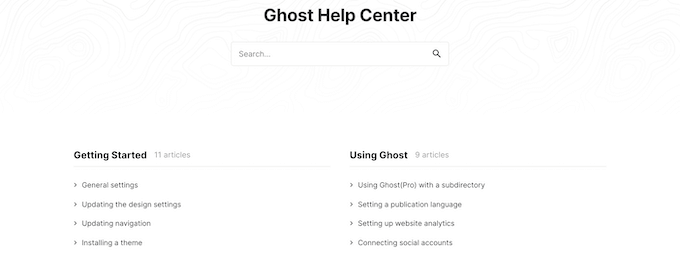
Ghost help center

Beyond that, you can reach out to their support team via email. Ghost also maintains an active resource section with useful articles on building, growing, and making more money from your website.

Winner — WordPress

WordPress is the largest website building platform in the world and has much more support options for its users.

WordPress support is available from plugin and theme developers, available in multiple languages, and there’s a lot of free support options too.

Ghost only offers a single support channel and a small library of how-to articles.

WordPress or Ghost – Which is Better?

Judging by the comparison criteria we set above, WordPress is a much better option for starting a new blog.

It offers more flexibility, design options and themes, eCommerce options, and more. Plus, it does all of this at a lower monthly price. You’re in complete control over how much you spend when building your new blog.

Ghost offers users a fast and simple blogging and monetization platform. However, it’s limited by its customization options, ways you can make money, and overall flexibility.

If you’re ready to get started with WordPress, see our complete step-by-step guide on how to create a WordPress website.

We hope this article helped you compare WordPress vs Ghost with their pros and cons. You may also want to see our guide on how to get an email domain, and our expert picks on the best HR payroll software for small businesses.

If you liked this article, then please subscribe to our YouTube Channel for WordPress video tutorials. You can also find us on Twitter and Facebook.

The post WordPress vs Ghost – Which Is the Better Blogging Platform? first appeared on WPBeginner.


January 06, 2022 at 05:00PM

Wednesday, January 5, 2022

How to Create a Video Membership Site in WordPress

Do you want to make a video membership site?

A video membership website allows you to create subscription plans for your video content. Instead of relying on ads, you can let your users pay directly to watch your video content.

In this article, we’ll show you how to create a video membership site in WordPress with step by step instructions.

Making a video membership website in WordPress

What Do You Need to Start a Video Membership Website?

Making a video membership website these days is quite easy.

Using WordPress as your website platform gives you access to all the tools you’ll need to make a custom video membership website.

Here is what you’ll need to get started:

  1. A domain name. This will be your website’s address (e.g. wpbeginner.com).
  2. A website hosting account. This where all your website files will be stored.
  3. A membership addon to create subscription plans and restrict access to paid content.
  4. A video hosting platform so that you can securely deliver videos only to paid subscribers.

Basically, you can create a fully functional video membership website in less than 60 minutes, and we’ll walk you through every step of the way.

Below are the steps that we will cover to help you make a powerful membership website with WordPress.

  1. Getting Started with a Video Membership Website
  2. Choosing a Video Membership Addon
  3. Setting Up Your Video Membership Website
  4. Adding Payment Methods
  5. Creating Subscription Plans
  6. Creating Access Rules
  7. Creating Members Only Content
  8. Uploading Your Members-Only Videos
  9. Create a Pricing Page for Video Subscriptions
  10. Create Sign up and Login Forms
  11. Edit Outgoing Email Templates
  12. Growth Hacking a Video Membership Website

Ready? Let’s get started.

Step 1. Getting Started with a Video Membership Website

The easiest way to build a video membership website is by using WordPress. It is the best website builder on the market and allows you to create any kind of website imaginable.

Before you get started, you’ll need to make sure you are using the right type of WordPress. There are two kind of WordPress on the market.

First, there is WordPress.com which is a website hosting service. Then, there is WordPress.org also known as self-hosted WordPress. For details, see our comparison of WordPress.com vs WordPress.org.

We’ll be using self-hosted WordPress.org as it gives you complete freedom and instant access to all WordPress features out of the box.

For a self-hosted WordPress website you’ll need a domain name and a website hosting account.

A domain name typically costs about $14.99 per year and web hosting plans start from $7.99 per month.

If you are just starting out, then you would want to cut costs whenever possible without compromising your business.

Luckily, Bluehost has agreed to offer WPBeginner users a generous discount on hosting with a free domain. Basically, you can get started for $2.75 per month.

Bluehost is one of the largest hosting companies on the market and they are an officially recommended WordPress hosting provider.

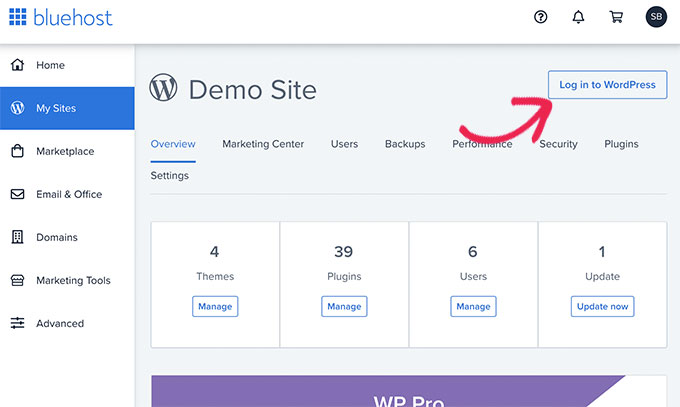
Once you have signed up for your hosting account, Bluehost will automatically install WordPress for you. You can simply login to your WordPress dashboard directly from your hosting account.

Login to your WordPress dashboard

If you need more help, see our WordPress installation tutorial or follow our step by step guide on how to start a blog.

Step 2. Choosing a WordPress Video Membership Addon

There are several WordPress membership addons that allow you to create a membership website. However, each one of them has their own pros and cons.

For more details, see our full comparison of the best WordPress membership plugins.

Before you choose a membership addon, first, you need to choose what kind of video membership site you want to make.

For instance, if you just want users to register and be able to download a few small videos, then you can do that with WPForms. It comes with support for popular payment gateways like PayPal and Stripe.

Plus, you can redirect users to download a file or to any URL once they have submitted a form.

However, if you want proper access control, subscription plans, multi-level subscriptions, and more, then you’ll need a complete WordPress video membership addon like MemberPress.

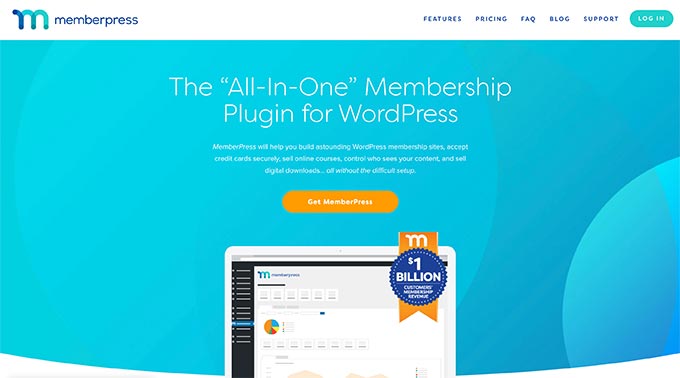
MemberPress website

MemberPress is the best WordPress membership plugin on the market. It allows you to accept payments, create membership levels, restrict access to video pages based on levels, and more.

You can also use it to sell courses online. Plus, if you choose to host your videos on AWS (more on this later), then MemberPress comes with an extension to host your video files on the cloud.

Basically, it has all the features you’ll need to run a video membership website and integrates with all the tools that you may want to use to grow your business.

Step 3. Setting Up Your WordPress Video Membership Website

We’ll be using MemberPress to set up a video membership website in WordPress.

First, you need to install and activate the MemberPress plugin. For more details, see our step by step guide on how to install a WordPress plugin.

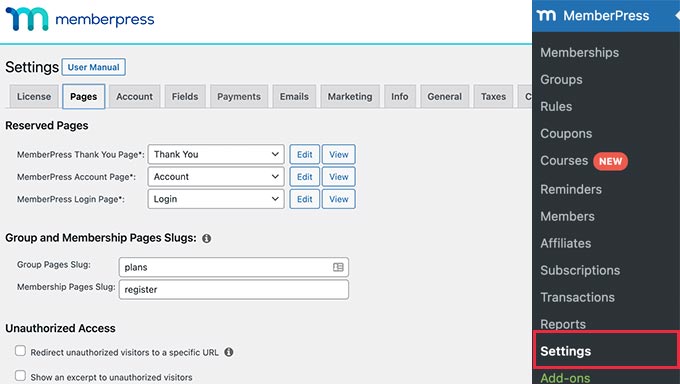
Upon activation, you need to visit the MemberPress » Settings page to configure the plugin settings.

MemberPress settings

We’ll walk you through the most important settings to configure in the next few steps.

Step 4. Adding Payment Methods

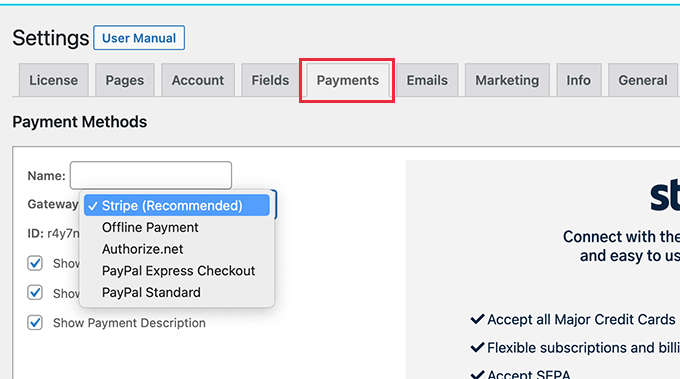
The settings page is divided into different tabs. The first thing you need to set up is a payment gateway, because it allows you to accept payments on your membership site.

Setup payments method

Out of the box, MemberPress supports PayPal (Standard, Express, and Pro), Stripe, and Authorize.net. You simply need to select the payment method you want to set up and provide the required credentials.

Optionally, you can also choose to add multiple payment methods. For instance, you can add Stripe and then add PayPal for users who prefer not to share their credit card details.

After adding payment methods, don’t forget to click on the Update Options button to save your settings before moving on to the next step.

Step 5. Creating Subscription Plans for Video Membership Site

Next, you need to create different subscription levels that users can subscribe to.

For instance, you can create plans with different perks, access levels, and features. You can even create a free membership plan where users can watch demo videos and access free content.

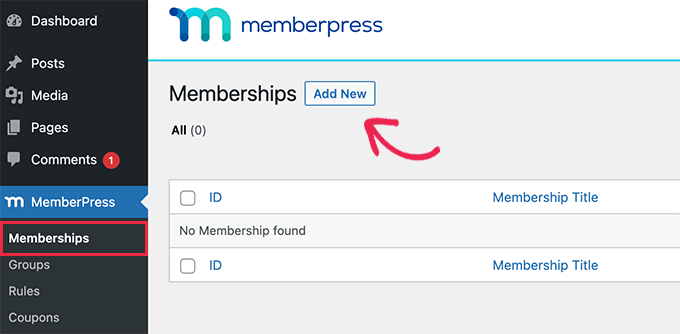
To create a new membership plan, simply go to the MemberPress » Memberships page and click on the ‘Add New’ button at the top.

New membership plan

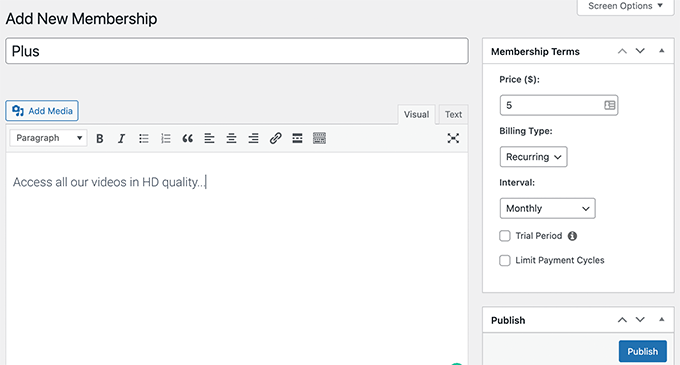
On the next screen, you need to provide a title for the membership plan and then add details in the post editor.

Next, you need to set the pricing, billing type, interval, and expiration for this plan under the ‘Membership Terms’ section in the right column.

Enter membership plan details

For instance, in the above screenshot, we created a video membership plan with recurring monthly payments.

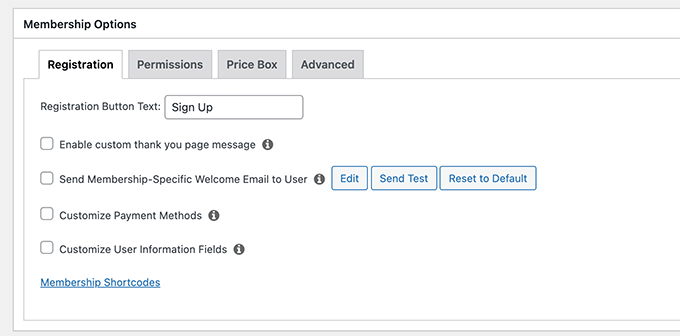
Now, you need to scroll down to the Membership Options box below the editor. From here, you can customize plan permissions and membership options.

Configure plan options

After you are satisfied with the plan, you can go ahead and publish it.

If you want to create more membership levels, then simply repeat the process to create other membership plans as needed.

Step 6. Create Access Rules for Video Membership Plans

Now that you have set up membership levels, the next step is to set up access rules.

MemberPress comes with powerful access control rules, which allow you to restrict access to any content on your website based on a user’s membership plan.

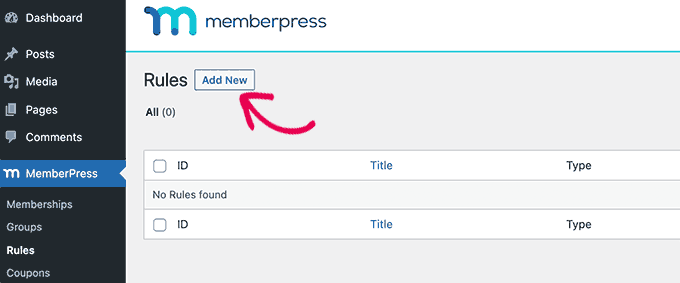
To set up rules, simply head over to the MemberPress » Rules page and click on the Add New button to create a new rule.

Add new rule

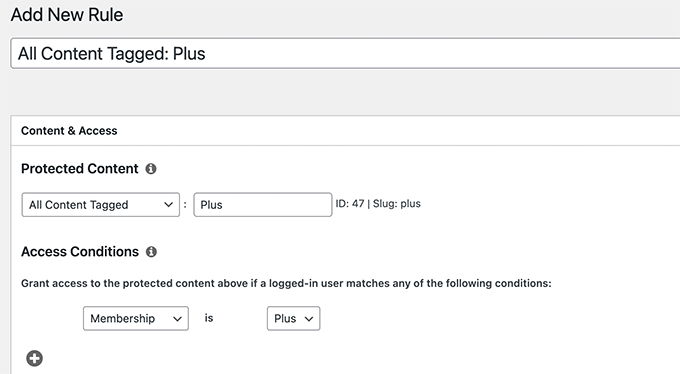
The rule edit page allows you to select different conditions and associate them to any membership plan.

For instance, you can select all content that matches a particular tag or category to be available only to members with the Plus plan.

Setting up access rules

You can also target specific posts and pages, a specific URL, and more.

Setting Up Drip Content Rules

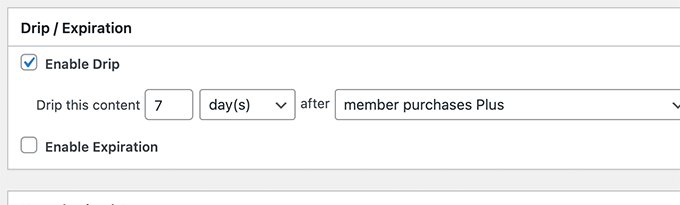
MemberPress also comes with a drip content feature. This allows you to automatically give users access to your videos on a schedule, instead of giving them access to all premium content as soon as they sign up.

The drip content feature allows you to keep users engaged for longer, which provides you opportunities to upsell more products or simply offer users a better experience.

For instance, you can create a separate rule for posts with a specific tag to be available one week after a user registers.

Drip content

Once you are satisfied with the Rules settings, you can go ahead and click on the Save Rule button to apply it.

Feel free to create more rules for your video membership plans as needed.

Step 7. Adding Members-Only Content in MemberPress

MemberPress makes it very easy to add members-only content to your website.

First, you will need to create a post or page where you will be adding your video and restrict access to that page as needed.

After that, we will show you how to embed members-only videos with privacy and security, so that they are not easily stolen from your website.

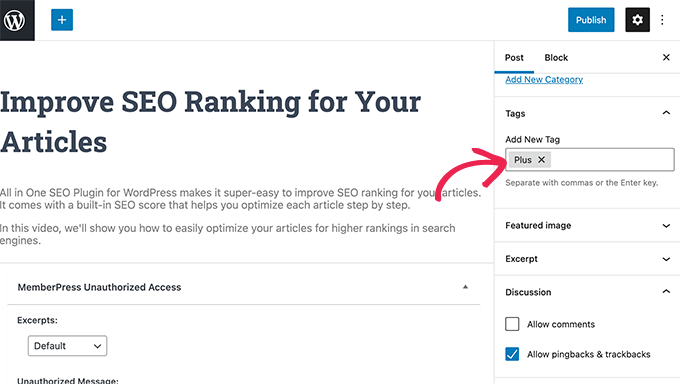
To get started, simply create a new post or page in WordPress and then add the tag or category that you previously added as a rule in Step 6.

Restrict content in MemberPress

When it’s ready, you can simply go ahead and publish your restricted post or page.

Step 8. Uploading Members-Only Videos in MemberPress

One of the major challenges that video subscription websites face is how to offer the best viewing experience with full control on who has access to paid videos.

We strongly recommend that you do not just upload videos to your WordPress media library and add them to your posts and pages.

First, it is not secure or private. Secondly, video files take a lot of bandwidth, storage, and server resources, which will slow down or even crash your website.

For more on this topic, see our article on why you should never upload videos in WordPress.

We recommend two possible solutions that will work reliably for your video membership website: Vimeo or AWS.

Method 1. Embedding Members-Only Videos via Vimeo

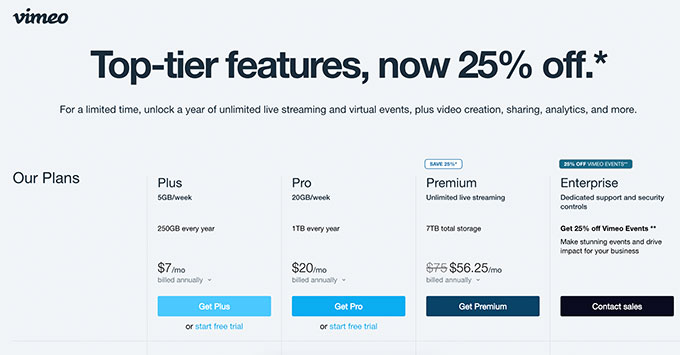
The first one is Vimeo. Their paid plans give you greater privacy controls to easily embed videos on your membership website.

With Vimeo Plus you can:

  • Make your videos private
  • Make videos unavailable on Vimeo itself. You can still upload and manage videos from your Vimeo dashboard, but others cannot view them on Vimeo.
  • Set domain level restriction so your members-only videos can only be embedded and played on your own website.
  • Password protect videos
  • and more.
Vimeo pricing

Apart from privacy and security features, Vimeo also offers a much better streaming experience for your users.

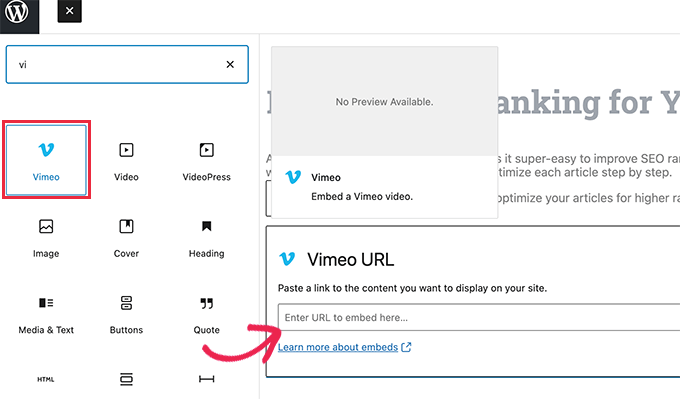
Embedding Vimeo videos in your members-only website is super easy. You only need to copy and paste the video URL in your content and WordPress will automatically fetch and embed it.

Embedding Vimeo video in WordPress

Method 2. Upload Members-Only Videos via AWS

For this method, you’ll be hosting your videos on Amazon’s AWS platform. This allows you to only programmatically give MemberPress access to your video files which are stored on Amazon cloud servers.

Note: Amazon Web Services is a pay-as-you-go service. They have a limited free tier, then after that, you’ll be charged for bandwidth and storage used by your videos.

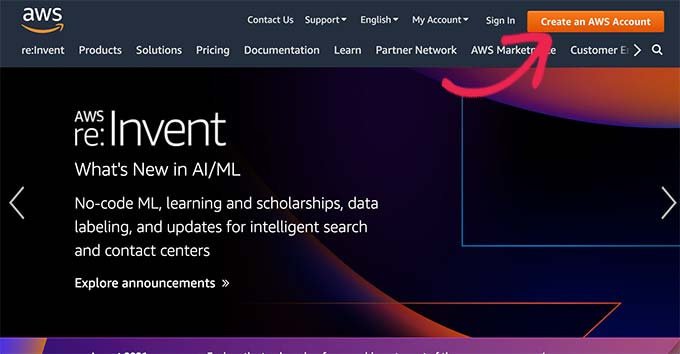
First, you need to visit the Amazon Web Services (AWS) website and sign up for an account.

Sign up for AWS account

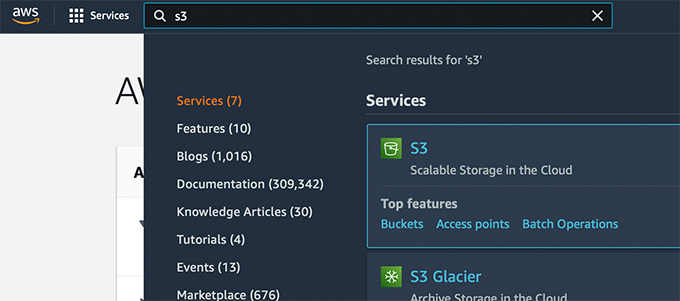
AWS comes with a bunch of cloud services that you can use. For a video membership website, we’ll be using Amazon S3 cloud storage to host our video files.

Simply click on the Services menu at the top and then look for S3.

Add Amazon S3 service to your account

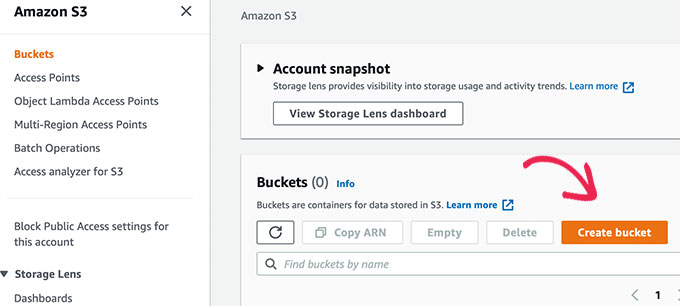
This will bring you to the S3 cloud storage dashboard. S3 cloud storage is organized in buckets. You can create multiple buckets for each of your websites or projects.

Let’s create a bucket to store our members-only video files.

Create bucket for your video files

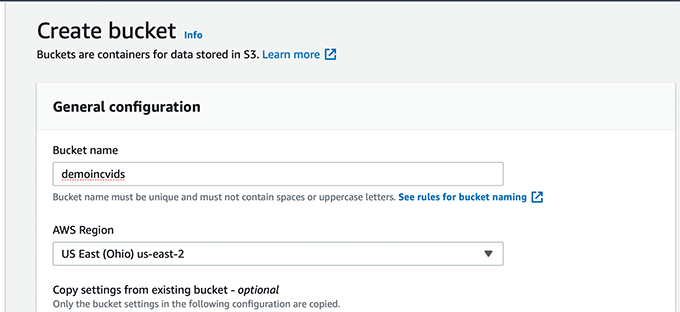
On the next screen, you need to provide a name for your bucket and choose a region.

Make sure that your bucket name is in lowercase only and that you use a region close to most of your users.

Bucket settings

You can leave the rest of the settings as they are and click on the ‘Create Bucket’ button to continue.

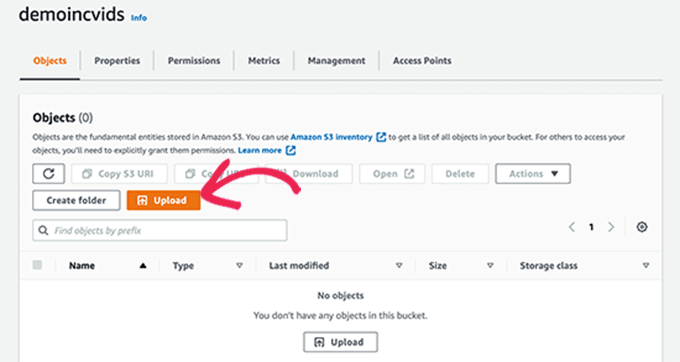
AWS will now create a bucket where you can upload files. Simply click on your bucket name to open it and click on the Upload button to add your first video.

Upload your video files

Repeat the process if you need to upload more files right now or later in the future.

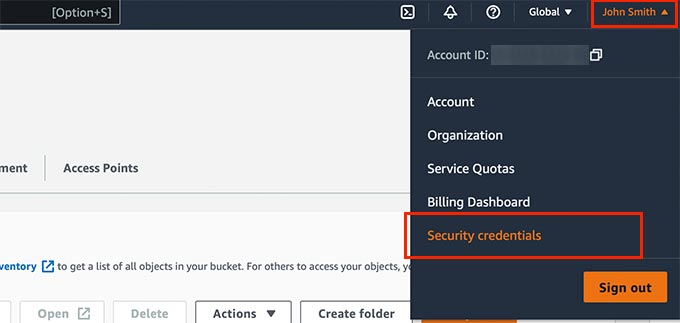
Once you have uploaded video files to AWS, they are not publicly visible. To do that, you will need to generate security credentials first.

Simply click on your Account title at the top right corner of the screen and then select ‘Security Credentials’.

Generating security credentials

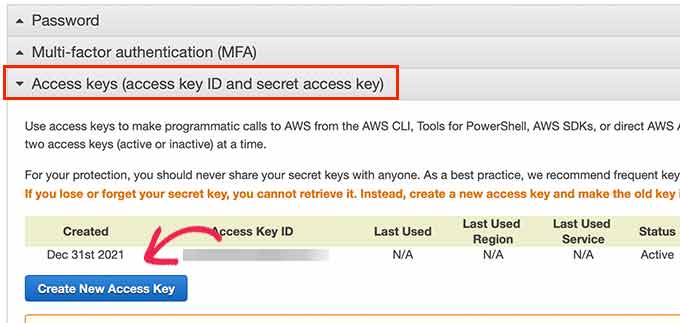
On the next screen, click on the Access Keys tab to expand it. From here, you need to click on the ‘Create New Access Key’ button to generate new keys.

Generate new access keys

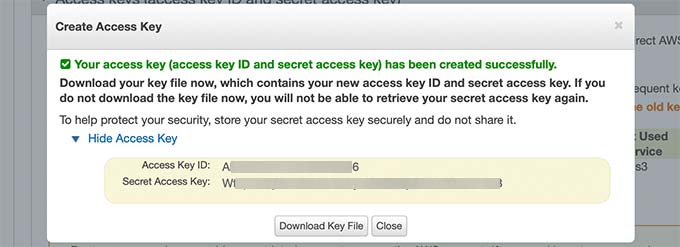
This will bring up a popup where you need to click on the Show Access Keys link and then copy your Access Key ID and Secret Access Key.

Copy your access keys

Copy and paste both keys to a text file as you’ll need them later.

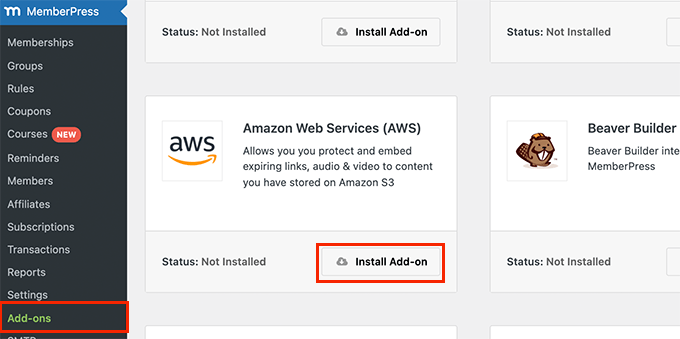
Next, switch to the admin area of your WordPress website and go to the MemberPress » Add-ons page.

From here, you need to scroll down to Amazon Web Services (AWS) and click on the Install Add-on button.

MemberPress AWS Add-on

After that, you need to connect MemberPress to your AWS account.

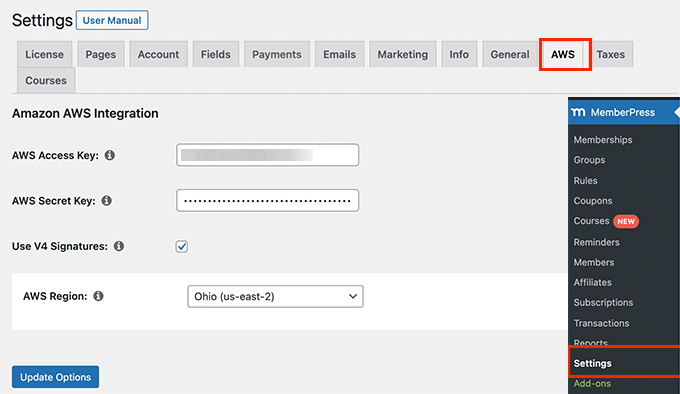
Simply go to the MemberPress » Settings page and switch to the AWS tab.

Configure AWS

Here, you need to copy paste the Access and Secret Keys you copied earlier.

Below that, check the box next to the V4 Signature option and then select your AWS region. This is the same region that you choose when setting up your S3 Bucket.

Don’t forget to click on the Update Options button to save your settings.

Adding AWS Hosted Videos to Your WordPress Site

Now that you have connected MemberPress to your AWS account, you can go ahead and add your videos to your members-only posts and pages.

You will need to embed video using a shortcode like this:

[mepr-s3-video src=”demoincvids/video-tutorial-001.mp4″]

You’ll simply need to replace the part in quotes, which is the video’s location.

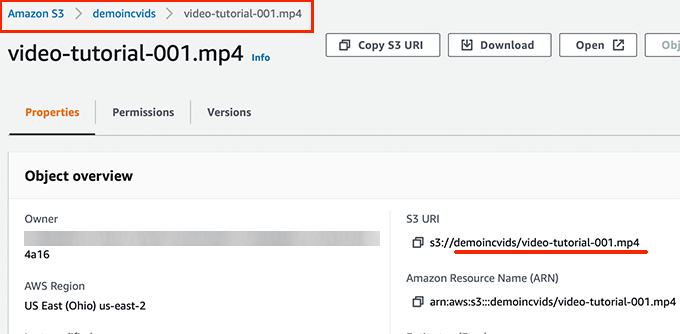
You can find your video’s location in the S3 dashboard for your Amazon AWS account. Simply click on your bucket and then the file name and you’ll see file location.

File location in your S3 storage

After adding the shortcode, you can save your post or page and preview it to see your video embed in action.

AWS video embed preview

Repeat the process to add more members-only videos to your website.

Step 9. Create a Pricing Page for Your Membership Plans

Now if you have multiple plans, then you may want to create a pricing page where users can compare and choose a plan.

Users who try to access the restricted or paid areas of your website will also be redirected to your pricing page.

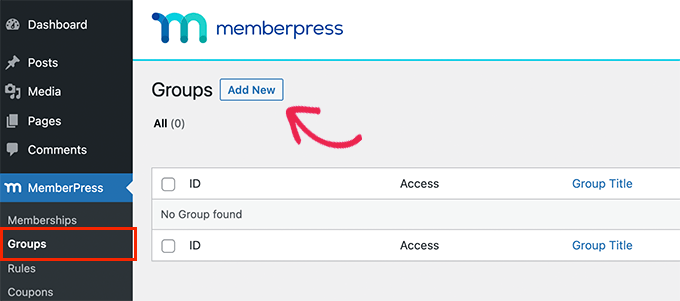
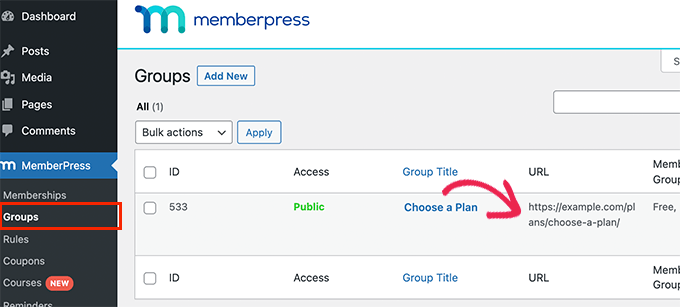
You can configure this by going to MemberPress » Groups page and clicking on the Add New button at the top.

MemberPress groups

On the next screen, you need to provide a title for your pricing page. It will also be used in your group pricing page URL.

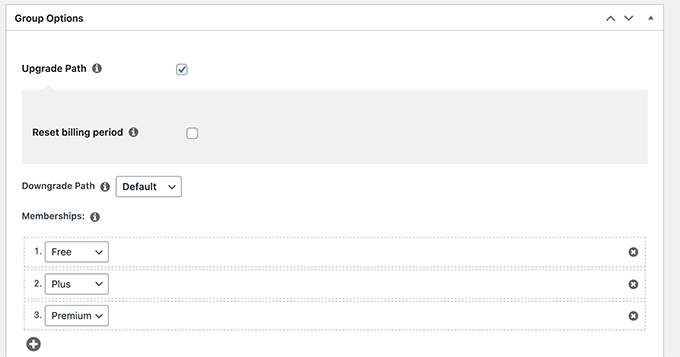
Below that, you need to choose which plans you want to include.

Add memberships to your pricing group

You can also select a theme for the pricing table. MemberPress comes with few ready-made templates for that.

Once satisfied, click on the ‘Publish’ button to make your plan publicly visible.

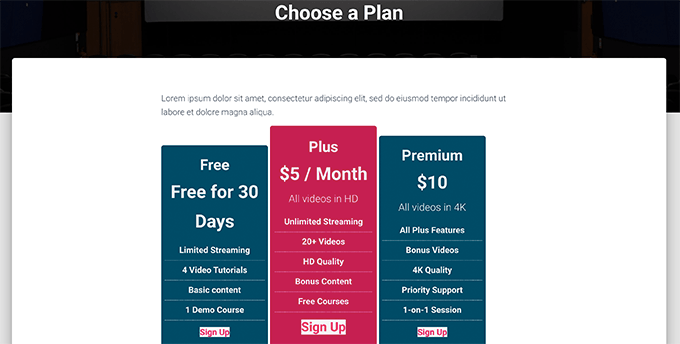
To preview your pricing page, click on the ‘View Group’ link after publishing it.

Pricing page example

Redirecing Users to Your Membership Plans Page

Now that you have created a pricing page, you would want to automatically redirect users to compare plans and make a purchase.

To do that, first you need to visit MemberPress » Groups page and copy the URL next to the group you created earlier.

Copy your plan URL

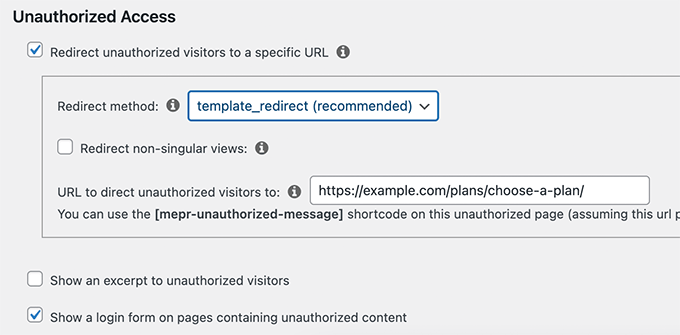
After that, go to MemberPress » Settings page and switch to the Pages tab. From here, you need to scroll down to the ‘Unauthorized Access’ section.

You need to check the box next to ‘Redirect unauthorized visitors to a specific URL’ option and then paste the group URL you copied earlier.

Don’t forget to click on the ‘Update Options’ button to save your settings.

Now unauthorized users will be redirected to the pricing plans page when they try to access your members-only content or videos.

Step 10. Create Login and Sign Up Forms for Your Video Membership Site

Now that everything is set up, let’s allow users to easily login to their accounts or signup.

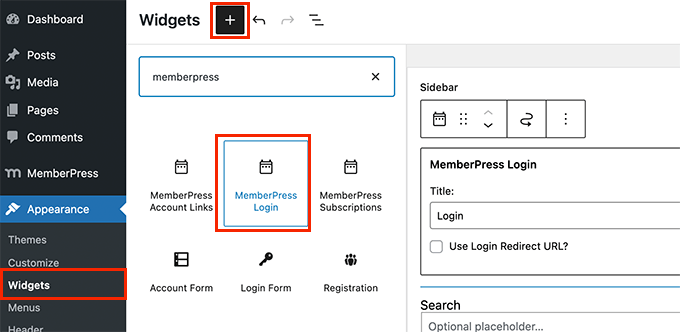
MemberPress makes it very easy to add login forms to your website. Simply go to the Appearance » Widgets page and add the ‘MemberPress login’ widget to a sidebar.

MemberPress login widget

Don’t forget to click on the Update button to save your widget settings.

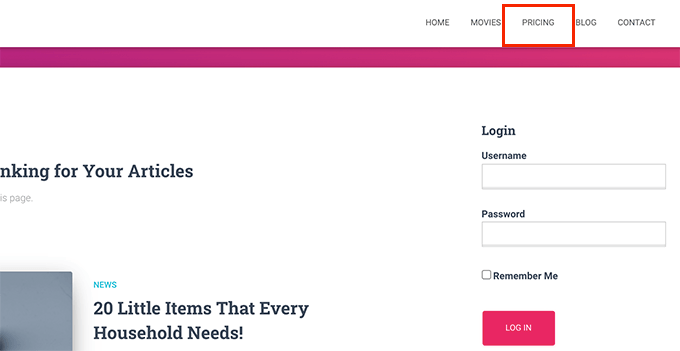
Next, let’s add a link to the pricing page to your website’s navigation menu.

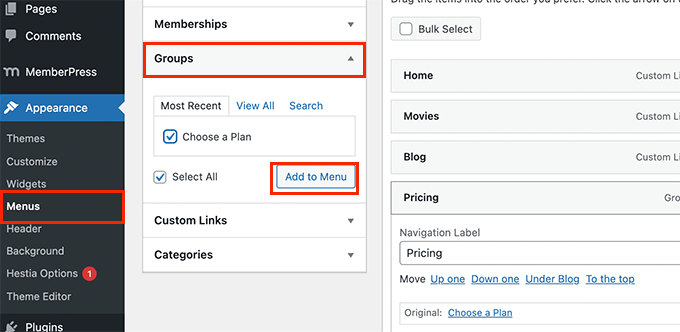
Simply go to the Appearance » Menus page and click on the Groups tab to expand it. Select your pricing plan group you created earlier and then click on the Add to Menu button.

Link to Pricing page

Don’t forget to click on the Save button to store your changes.

You can now log out of the admin area and visit your website to see everything in action.

Video membership site preview

Step 11. Customizing Email Templates for Your Membership Site

Your video membership website will send users emails when they sign up or forget a password, when their membership is about to expire, and so on.

You can customize these email templates in MemberPress.

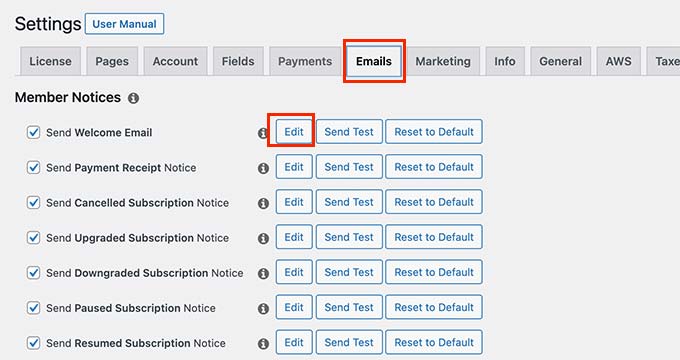
Simply go to the MemberPress » Settings page and switch to the Emails tab. From here, you’ll see the list of emails your video membership site will send, and you can edit any of them.

Edit emails

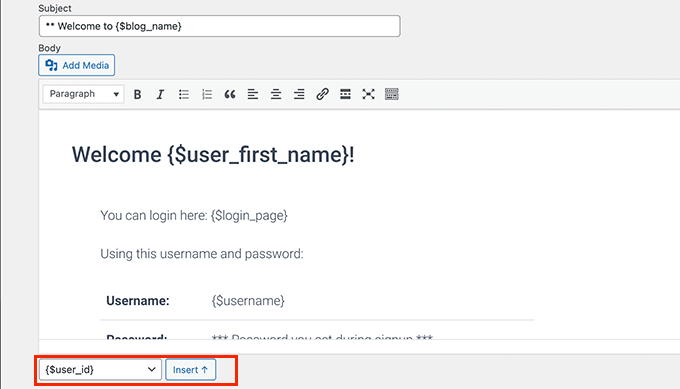
This will open the email template in a plain text editor. You can use smart tags below to personalize messages and match them to your own brand’s tone and messaging.

Email template

Important: Don’t forget to send test emails to make sure they are working. For more help, see our guide on how to fix WordPress not sending email issue.

Step 12. Growing Your Video Membership Website

Now that your video membership site is ready, let’s talk about how to get more users to visit your website and sign up.

Luckily, using MemberPress and WordPress gives you access to incredibly powerful tools to grow your business.

  1. OptinMonster – It is the best lead generation and conversion optimization tool on the market and allows you to easily convert website visitors into paid subscribers.
  2. All in One SEO – It is the best WordPress SEO plugin that allows you to optimize your videos and entire website for search engines without any technical skills.
  3. SeedProd – The best WordPress page builder plugin to easily create beautiful custom landing pages for your video membership website.
  4. WPForms – It is the best WordPress form builder on the market and allows you to create contact forms, login and sign up forms, user registration forms, and more.
  5. MonsterInsights – Allows you to easily track your website performance using Google Analytics. It shows beginner friendly reports to see your top content and track conversions to boost sales.

Need more recommendations? See our list of the must-have WordPress plugins for all websites.

We hope this article helped you build a video membership website in WordPress. You may also want to see these tips on improving WordPress speed and our tested hacks to grow an online business.

If you liked this article, then please subscribe to our YouTube Channel for WordPress video tutorials. You can also find us on Twitter and Facebook.

The post How to Create a Video Membership Site in WordPress first appeared on WPBeginner.


January 05, 2022 at 04:49PM