Thursday, February 3, 2022

6 Best Product Review Plugins for WordPress

Are you looking for the best product review plugins for WordPress? 

Product review plugins can help you get more traffic from search engines, boost affiliate link clicks, add user-submitted reviews to your website, and more.

In this article, we’ve hand-picked the best product review plugins for WordPress.

5+ best product review plugins for WordPress

Why Use Product Review Plugins in WordPress?

What do you do when you want to buy something online? If you’re like most people, then you probably check out product reviews to compare different options.

If you have an online store, then allowing your customers to submit reviews is a smart way to add social proof and boost sales.

Even niche review sites where you’re writing all the reviews yourself can use a product review plugin. The right review plugin will help you to optimize your reviews in search results so you can get more clicks and traffic.

WordPress makes it easy to add new blog posts and create important website pages, but writing review content or adding reviews to your website requires additional features offered by WordPress plugins. 

Product review plugins can help you make more sales, let users add reviews to your website, add reviews from third party platforms, and more. 

That being said, let’s take a look at some of the best product review plugins you can use on your WordPress site. 

1. WP Review Pro
WP Review Pro

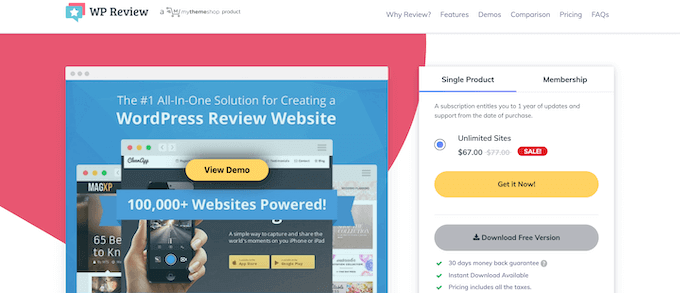
WP Review Pro is the best WordPress product review plugin. It gives you full control over your WordPress product reviews and also makes it easy to create product comparisons and more. 

It includes a library of pre-designed templates you can customize to match the design of your website. There are different types of rating systems you can use, like percentage, star rating, points, and more. 
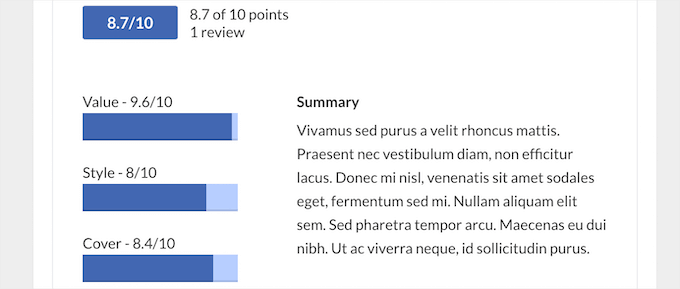
WP Review point rating example

By creating a custom review box, you can present all the important product information for your visitors, including a link to buy the product. Review schema markup is also automatically included, so you can show star ratings in the search results. 

You can also let your users add their own reviews to your products, rate features, and vote on other user’s comments. 
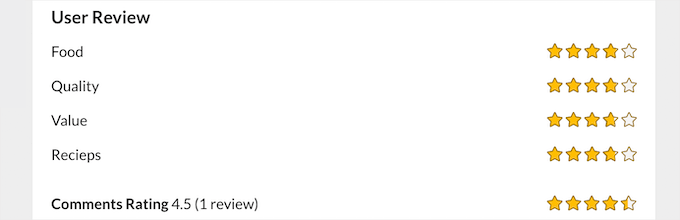
WP Review Pro user rating example

The plugin also lets you display reviews from third party sources like Facebook, Google Places, and Yelp, so you can easily add social proof to your WordPress website

2. AIOSEO

AIOSEO

All in One SEO (AIOSEO) is the best SEO plugin for WordPress in the market used by over 3 million websites. It offers the most beginner friendly and comprehensive SEO toolkit to help you get more traffic from the search engines.

It includes a setup wizard that will automatically help you choose the best SEO settings for your website to help improve your rankings.

Plus, it lets you easily add product review schema to your review blog posts. Schema markup doesn’t appear on your website for visitors to see, but it helps the search engines better understand your content and display your product reviews properly.

Rich snippets will catch potential visitor’s attention and are more likely to get clicks from the search results.

Rich snippets product schema example

When you’re writing your product reviews, AIOSEO will automatically detect the right type of schema based on what you’re writing. 

You also have full control over the product review schema and can enter relevant product information for search engine bots to read.
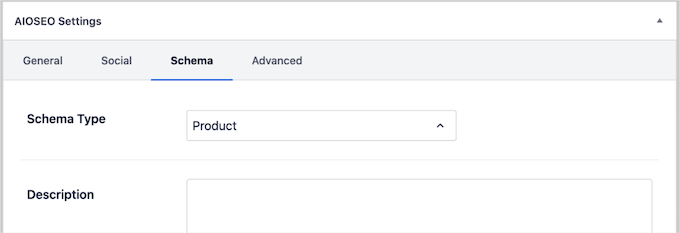
AIOSEO product schema

You can also add existing customer reviews to improve the search appearance even more.

You’ll find this option below the review schema box in your post editor.
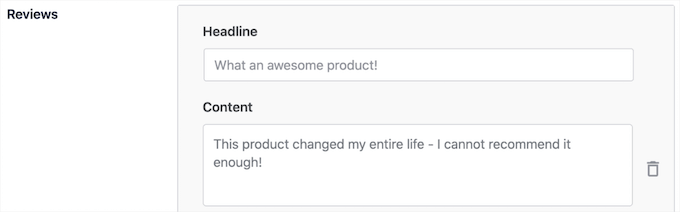
AIOSEO customer reviews box

There is a free version of the plugin available, but you’ll need the pro version of the plugin to access the product review schema feature.

3. WP Customer Reviews

WP Customer Reviews

WP Customer Reviews allows you to collect customers reviews and testimonials as well as create your own product reviews. 

For example, you can create a specific page on your website to showcase your testimonials to help improve your social proof and conversions. 

You have full control over your review forms and the information you want to collect from your users. To display reviews, you can use shortcodes or the included block. 

You can review the reviews in your WordPress dashboard, so you have complete control over the ones that are displayed.

It also has the option to turn any existing WordPress blog post into a product review, and it adds product review schema to improve the search engine appearance of your review. 

4. Site Reviews

Site Reviews

Site Reviews is an easy to use review plugin that lets you collect customer reviews for your products, services, or local business, similar to a site like TripAdvisor or Yelp.

You can even let users review certain parts of your website, like posts, products, pages, and more. 

It comes with a simple settings page that allows you to control how you want to gather reviews and how you want to display them on your website. You can customize the review form and display it anywhere on your site.

You can also pin your best reviews to the top, so your customers will see them first.

Site Reviews sample review

It also integrates with WooCommerce, so you can improve how customers leave reviews on your WooCommerce product pages

You can display your reviews using the included Gutenberg block or shortcode to show specific reviews. 

5. Customer Reviews for WooCommerce

Customer Reviews for WooCommerce

Customer Reviews for WooCommerce lets you easily add more detailed reviews to your store.

This plugin helps to improve your social proof, so when visitors go to your product pages, they’re more likely to make a purchase. 

Your customers can attach pictures and vote on reviews, plus you can add a question and answer section, so your product listings look the same as Amazon.
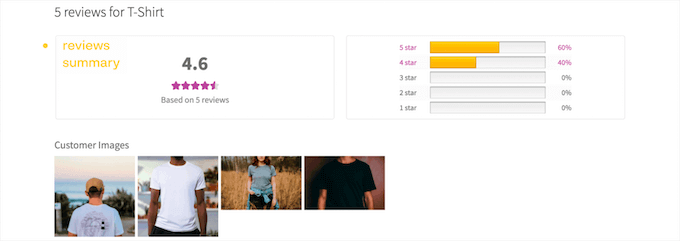
Improved WooCommerce product page with reviews

There’s also a feature to send automated emails after a customer makes a purchase to help you generate more reviews. You can also send a coupon after a review is left on your product.

6. Schema — All in One Schema Rich Snippets
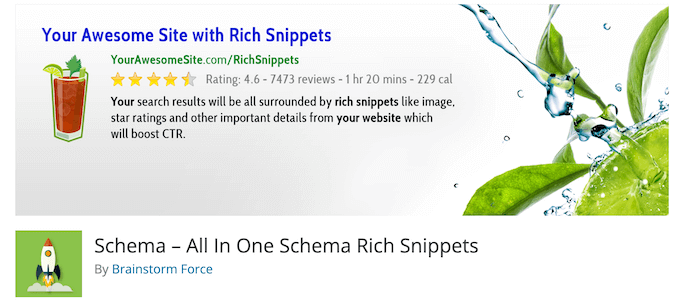
Schema All in One Schema Rich Snippets

Schema is a simple free plugin that lets you add product schema markup to your reviews, so you can display rich snippets in the search results.

It’s not as in-depth as the AIOSEO schema feature mentioned above, but it’s a solid free option. 

When you select the review schema type, you’ll have additional product details to fill in, like reviewer name, product name, price, star rating, and more. 

It also supports other types of schema markup, including articles, recipes, software, and events. 

Bonus: OptinMonster
OptinMonster

OptinMonster is the best popup plugin for WordPress used by over 1.2 million websites. You can easily create high-converting popup campaigns to grow your email list.

It comes with a library of over 400 templates you can use to quickly create spin to win optins, alert bars, yes/no optins, and many other types of popup campaigns for your website. 

You can use these popups in creative ways. For example, you can create a popup that displays a coupon for the product you’re reviewing in the article. 
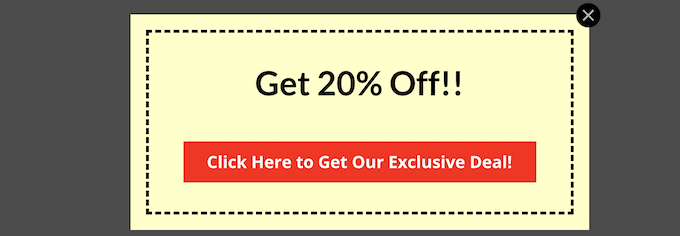
OptinMonster affiliate popup example

This is a common way to increase affiliate income and earn more revenue that many of the most successful WordPress blogs use on their product review articles. 

Aside from OptinMonster, the two other plugins that could be useful based on your use case are Smash Balloon and Uncanny Automator.

Smash Balloon is the #1 social media feeds plugin for WordPress. It lets you show user generated content and product reviews from social media on your website without any code.

Uncanny Automator is the best WordPress automation plugin. It lets you automate the process of collecting reviews from customers after they purchase. It also helps you create other automated workflows on your site without any code.

We hope this article helped you find the best product review plugins for WordPress. You may also want to see our guide on how much it costs to build a WordPress website and our expert picks of the best business phone services for small businesses. 

If you liked this article, then please subscribe to our YouTube Channel for WordPress video tutorials. You can also find us on Twitter and Facebook.

The post 6 Best Product Review Plugins for WordPress first appeared on WPBeginner.


February 04, 2022 at 12:28PM

How to Disable Widget Blocks in WordPress (Restore Classic Widgets)

Do you want to restore the classic widgets editor in WordPress?

The release of WordPress 5.8 removed the classic widgets editor in favor of Gutenberg widget block editor to control your website widget areas.

In this article, we’ll show you how you can disable widget block editor in WordPress, step by step.

How to restore classic widgets (disable widget blocks) in WordPress

Why Restore Classic Widgets in WordPress?

The widget block editor offers a lot of the same functionality as the classic widget editor. Plus, it gives you more control over the appearance of your widgets.

However, if you’ve been using WordPress for a while, then you may be more comfortable using the classic widget editor on your WordPress website.

Or, you enjoy the simplicity of the classic widget editor and want to disable widget blocks, like how some users prefer disabling the block editor.

That being said, let’s take a look at how to restore the classic widget editor in WordPress. Simply use the quick links below to jump straight to the method you want to use.

Method 1. Restore Classic Widgets by Using a WordPress Plugin

The easiest way to restore the classic widget editor is by using the Classic Widgets plugin. This plugin is developed and maintained by the WordPress core team.

First thing you need to do is install and activate the plugin. For more details, see our beginner’s guide on how to install a WordPress plugin.

Upon activation, your WordPress blog will go back to the classic widget editor. There are no settings for you to configure.

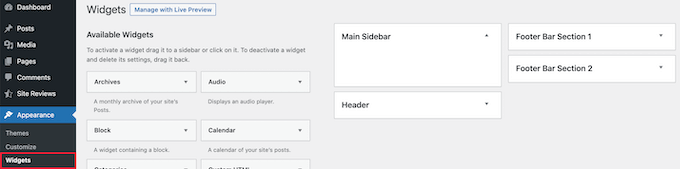
Now, you can navigate to Widgets » Add New in your WordPress admin panel to go to the widget dashboard.

Go to classic widget area

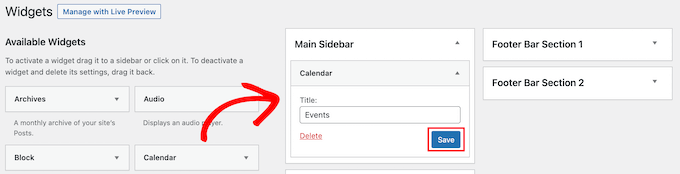
To add new widgets, simply drag a widget to an available widget area.

Then, you can customize the widget settings. Make sure you click the ‘Save’ button to save your widget.

Add new classic widget

If you want to use widget blocks at any point in the future, then simply deactivate the plugin.

You can also disable Gutenberg and keep the classic editor on pages and posts as well. For more details, see our guide on how to disable Gutenberg and keep the classic editor in WordPress.

Method 2. Restore Classic Widgets by Adding Code to WordPress

Another way to disable widgets blocks is by adding code to WordPress. If you haven’t done this before, then see our beginner’s guide on how to copy and paste code in WordPress.

Next, you need to add the following code snippet to your functions.php file, in a site-specific plugin, or by using a code snippets plugin

function example_theme_support() {
    remove_theme_support( 'widgets-block-editor' );
}
add_action( 'after_setup_theme', 'example_theme_support' );

The code snippet above simply disables the Gutenberg block editor in your widget area. However, it keeps the block editor in your pages and posts.

Now, when you go to Widgets » Add New you can add widgets using the classic editor.

Go to classic widget area

We hope this article helped you learn how to disable widget blocks and restore classic widgets in WordPress. You may also want to see our guide on how to easily create a custom WordPress theme and our expert picks of the must have WordPress plugins for business websites.

If you liked this article, then please subscribe to our YouTube Channel for WordPress video tutorials. You can also find us on Twitter and Facebook.

The post How to Disable Widget Blocks in WordPress (Restore Classic Widgets) first appeared on WPBeginner.


February 03, 2022 at 02:00PM

Wednesday, February 2, 2022

How to Add Post Thumbnails to Your WordPress RSS Feeds

Do you want to show your post thumbnails in your WordPress RSS feeds?

RSS feeds help you promote your content in directories, feed readers, and other applications that use RSS feeds. However, the sad truth is that your blog posts featured images will not show up in your RSS feeds.

In this article, we will show you how you can add post thumbnails to your WordPress RSS feeds.

Add post thumbnails to WordPress RSS feeds

What is WordPress RSS Feed?

RSS or Really Simply Syndication allows users and applications to receive regular updates from a website or a blog in a web feed.

RSS feeds help you get updates from your chosen websites without having to visit them manually. It helps save time, and you get to see the latest content in your email, feed readers, and other devices.

If you have a WordPress blog, then RSS feeds can help you promote your content and drive traffic to your blog. You can make new articles easily discoverable for readers and keep them coming back to your site for fresh content.

However, the problem with WordPress RSS feeds is that they don’t show your blog posts’ featured images.

Adding post thumbnails helps you customize the RSS feed. It also helps enhance the feed and provide a better user experience.

That said, let’s take a look at how you can add post thumbnails to WordPress RSS feeds. We’ll show you 2 ways to do this, including using a WordPress plugin and adding a simple function to your theme files.

Adding Post Thumbnail to RSS Feeds Using a Plugin (Easy Way)

The easiest way to show featured images in the RSS feed is by using the Featured Images in RSS for Mailchimp & More plugin.

It’s a free WordPress plugin that helps you add images to your RSS feed so that they’ll display in your RSS email campaigns and anywhere else your RSS feed is used.

First, you’ll need to install and activate the plugin. If you need help, then please see our guide on how to install a WordPress plugin.

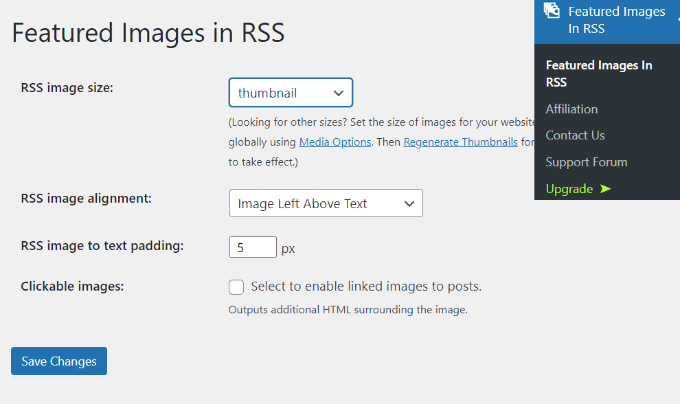
Upon activation, you can head over to Featured Images in RSS from your WordPress dashboard.

The plugin lets you change the RSS image size, alignment, text padding, and choose if you want to make the images clickable.

Featured images in RSS settings

When you’ve made your desired changes, don’t forget to click the ‘Save Changes’ button.

Manually Add Post Thumbnail to RSS Feeds (Coding Required)

Another way you can display post thumbnails in WordPress RSS feeds is by adding a code snippet to your theme’s function.php file.

We won’t recommend directly editing the functions.php file because the slightest mistake can break your WordPress site. An easier way of adding code is by using the Code Snippets plugin.

First, you’ll need to install and activate the Code Snippets plugin. You can follow our tutorial on how to install a WordPress plugin.

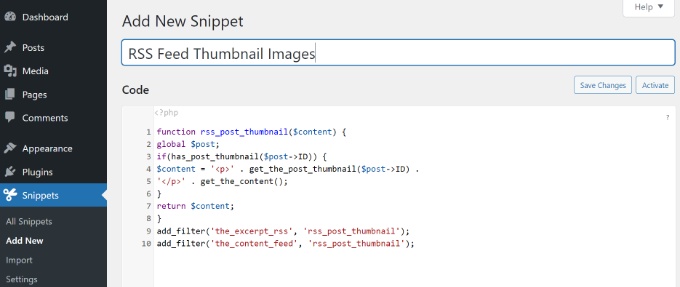
Once the plugin is active, you can go to Snippets » Add New from the WordPress dashboard. After that, you have to copy the following code:

function rss_post_thumbnail($content) {
global $post;
if(has_post_thumbnail($post->ID)) {
$content = '<p>' . get_the_post_thumbnail($post->ID) .
'</p>' . get_the_content();
}
return $content;
}
add_filter('the_excerpt_rss', 'rss_post_thumbnail');
add_filter('the_content_feed', 'rss_post_thumbnail');

Next, go ahead and paste the code in the ‘Code’ section and give your snippet a title. After entering the code, don’t forget to click the ‘Activate’ button.

RSS feed code for thumbnail images

You can follow our tutorial on how to easily add custom code in WordPress for more details.

For more tips on adding featured images to your blog posts, you can see our guide on how to add post thumbnails in WordPress.

We hope this article helped you learn how to add post thumbnails to your WordPress RSS feeds. You can also go through our guide on the best free business name generator and how to choose the best website builder.

If you liked this article, then please subscribe to our YouTube Channel for WordPress video tutorials. You can also find us on Twitter and Facebook.

The post How to Add Post Thumbnails to Your WordPress RSS Feeds first appeared on WPBeginner.


February 02, 2022 at 01:11PM