Tuesday, March 22, 2022

How to Add or Remove Blank Space Between WordPress Blocks (4 Ways)

Do you want to add or remove blank space between WordPress blocks?

Adding or removing blank space between your WordPress blocks gives you more control over the design of your WordPress site.

In this article, we’ll show you how to add or remove blank space between WordPress blocks, step by step.

How to add or remove blank space between WordPress blocks (4 ways)

Why Add or Remove Blank Space Between WordPress Blocks?

WordPress makes creating custom pages and posts easy with the built-in WordPress block editor.

However, you may notice that when you add certain blocks, there’s too much or too little spacing. By adding or removing blank space between your WordPress blocks, you can create custom page layouts exactly as you’d like.

With more control over your final WordPress website design, you can offer your visitors a better user experience.

That being said, let’s take a look at how to add or remove blank space between WordPress blocks on your website. Simply use the quick links below to jump straight to the method you want to use.

Method 1. Adding Blank Space Between WordPress Blocks with Block Editor

The easiest way to add blank space between your blocks is using the WordPress block editor. There’s a built-in spacing block that lets you add blank space with a couple of clicks.

To use this, open up the post or page you want to edit and click the ‘Plus’ add block button.

Then, search for ‘Spacer’ and select the block.
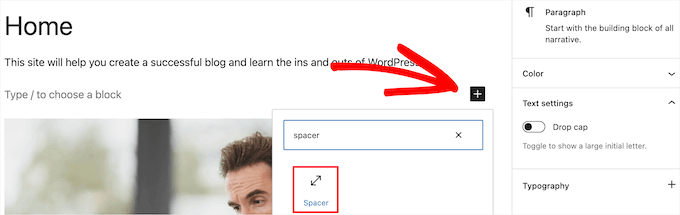
Add spacer block to page

This will automatically insert a spacer into the page. 

You can make it bigger or smaller by dragging the block up or down.
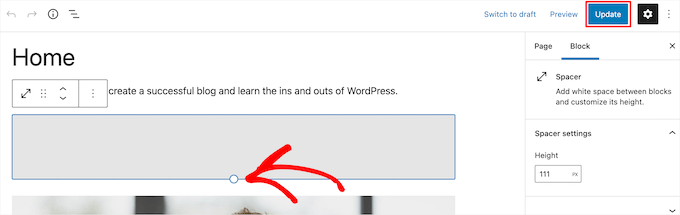
Resize spacer block

Once you’re finished, click the ‘Update’ button to save your changes.

Keep in mind, this method only allows you to add space between blocks. To remove space, you will need to use one of the other methods below.

Method 2. Adding or Removing Blank Space Between WordPress Blocks by Adding Custom CSS

Another way to both add and remove blank space between your blocks is by adding custom CSS code to your theme.

If you haven’t done this before, then we recommend you take a look at our guide on how to easily add custom CSS to your WordPress site before you begin.

Next, open up the page or post you want to edit and then click on the block where you want to add or remove the blank space.

Then, click the ‘Block’ menu item in the right hand options panel.

Click block menu option

After that, scroll down to the ‘Advanced’ drop down and click it. This brings up a set of additional options for that block.

Then, in the ‘Additional CSS classes’ box add the following code:

.add-remove-bottom-space

This snippet creates a new CSS class specifically for that block. 

Add new CSS class

After that, click the ‘Update’ button to save your changes.

Next, navigate to Appearance » Customize to bring up the WordPress theme customizer.
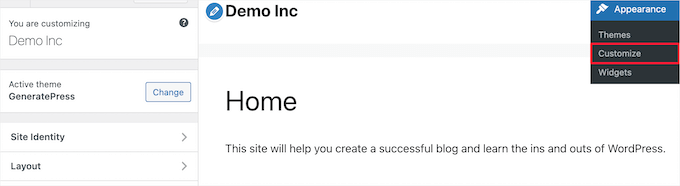
Go to WordPress theme customizer

Then, scroll down and click the ‘Additional CSS’ menu option.

This brings up a field where you can add CSS code.

Click additional CSS

Next, paste the following code snippet into the box.

.add-remove-bottom-space {

 margin-bottom: 0;

}

This code snippet sets the bottom margin to zero and will remove the blank space from the block. If you want to add space to the bottom, then simply change the ‘0’ to something like ’20px’.
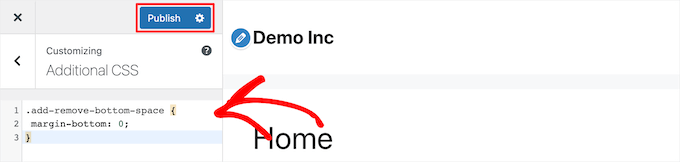
Add CSS code

Once you’ve made your changes, make sure to click the ‘Publish’ button to make your changes live. 

Saving Custom CSS Code Using a Plugin

By adding custom CSS to the WordPress theme customizer, it will only save for the theme you’re currently using. If you change the WordPress theme, then you’ll need to copy over the CSS code to your new theme.

If you want your custom CSS to apply no matter what theme you’re using, then you’ll need to use the Simple Custom CSS plugin. 

First thing you need to do is install and activate the plugin. For more details, see our guide on how to install a WordPress plugin.

Upon activation, simply go to Appearance » Custom CSS and add your custom CSS code.
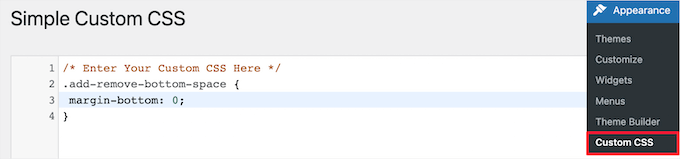
Add code with Simple Custom CSS plugin

When you’re finished, click the ‘Update Custom CSS’ button to save your changes.

Method 3. Adding or Removing Blank Space Between WordPress Blocks with CSS Hero

Another beginner friendly way to add or remove blank space between WordPress blocks is by using a WordPress custom CSS plugin. This lets you make visual changes to your WordPress blog without editing any CSS code.

We recommend using the CSS Hero plugin. It lets you edit almost every CSS style on your WordPress site without writing a single line of code. 

Deal: WPBeginner reader’s can get a 34% discount by using our CSS Hero coupon code.

First thing you need to do is install and activate the plugin. For more details, see our beginner’s guide on how to install a WordPress plugin.
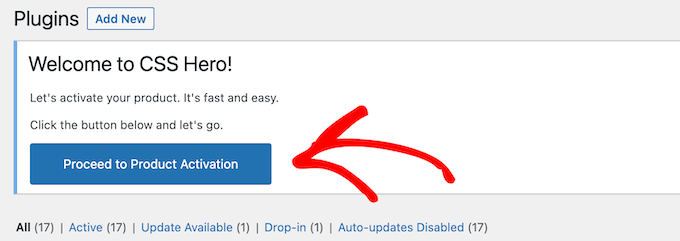
Activate CSS Hero plugin

Upon activation, you need to click the ‘Proceed to Product Activation’ button to activate the plugin. You’ll find the button directly above your list of installed plugins.

This brings you to a screen where you need to enter your username and password. Then, follow the on-screen instructions, and you’ll be redirected back to your dashboard once your account is verified.

Next, you need to open up the page or post you want to edit, then click the ‘CSS Hero’ button at the top of your WordPress admin toolbar.

Click CSS Hero

This will open up the same page with CSS Hero running on top of it. The plugin uses a visual editor, so you’ll be able to make your changes in real-time.

When you click on any element on your page, it will bring up a toolbar on the left side of the page for you to make customizations.

CSS Hero page customizer

To remove or add blank space between your blocks, simply click the ‘Spacings’ option and then scroll down to the ‘Margin-Bottom’ section.

Here you can move the slider up or down to add or remove blank space.
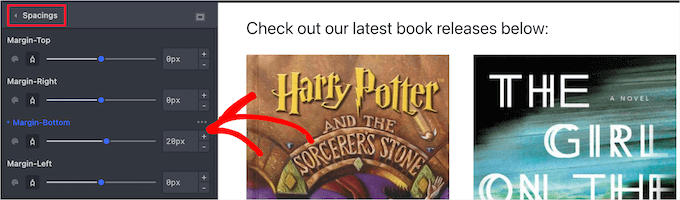
CSS Hero change bottom margin

Any changes you make will automatically show up on your page.

Once you’re done making changes, you need to click the ‘Save’ button to make your changes live. 

Method 4. Adding or Removing Blank Space Between WordPress Blocks with SeedProd

SeedProd is the best drag and drop page builder used by over 1 million websites.

SeedProd

You can use the library of 150+ templates to create custom 404 pages, sales pages, landing pages, and much more. SeedProd can even be used to create a custom WordPress theme without writing any code.

With the drag and drop builder, you have full control over the design of your site, and you can easily remove or add spacing to any website element.

To learn more, see our guide on how to create a custom page in WordPress.

As you’re customizing your page, you can add space anywhere by using the Spacer block.
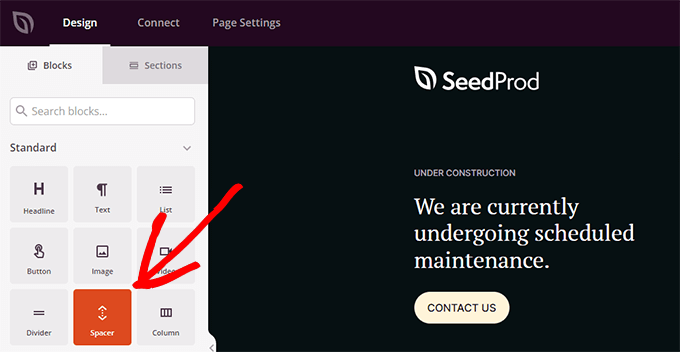
SeedProd spacer block

Simply drag and drop it anywhere on the page where you want to add more space between blocks.

Then you can use the slider to adjust its height.
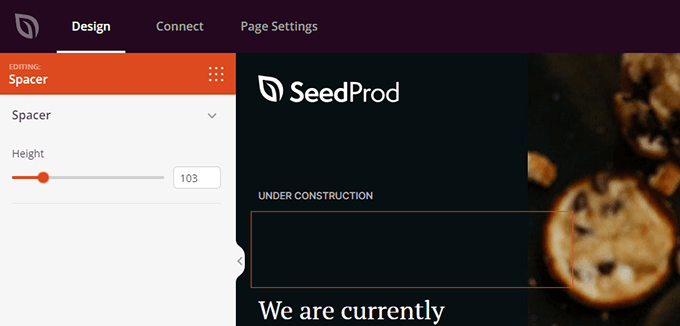
Use the slider to adjust the height of the SeedProd Spacer block

You can also control the spacing between any block. To do that, simply click on any block that you want to add or remove space from.

This brings up the options panel on the left. Then, click on the ‘Advanced’ tab.
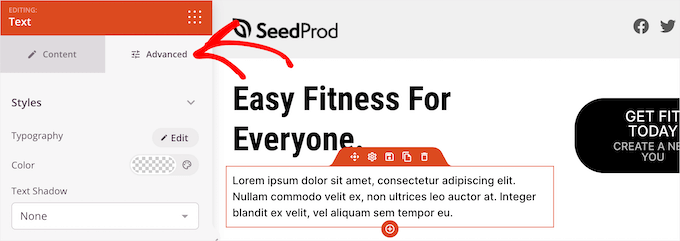
Click advanced tab in SeedProd builder

Next, scroll down to the ‘Spacing’ drop down and click it.

This brings up a menu where you can control the ‘Margin’. Simply enter a number into the bottom margin box to add space, or delete the number to remove any existing blank space.
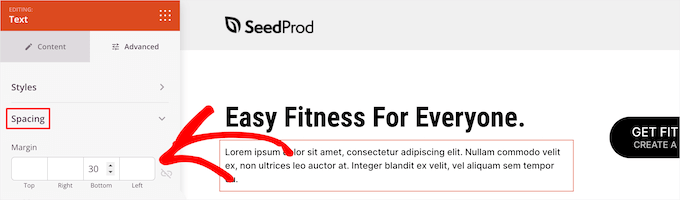
Change bottom margin

Once you’re finished making changes, click the ‘Save’ button and select the ‘Publish’ drop down to make your changes live.
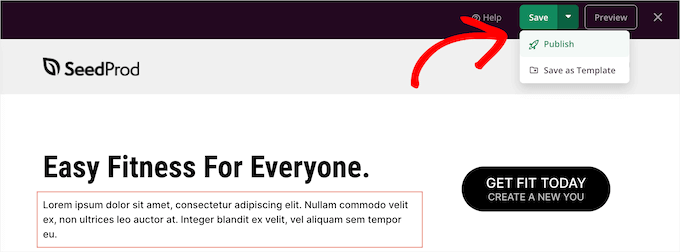
Save and publish SeedProd page

We hope this article helped you learn how to add or remove blank space between WordPress blocks. You may also want to see our guide on how to start your own podcast and our expert picks of the best free website hosting compared. 

If you liked this article, then please subscribe to our YouTube Channel for WordPress video tutorials. You can also find us on Twitter and Facebook.

The post How to Add or Remove Blank Space Between WordPress Blocks (4 Ways) first appeared on WPBeginner.


March 22, 2022 at 04:00PM

Monday, March 21, 2022

How to Properly Use Focus Keyphrase in WordPress (Beginner’s Guide)

Are you wondering how to properly use a focus keyphrase in WordPress to improve SEO?

The focus keyphrase is the primary topic of a specific piece of content. It is the phrase or keyword that you believe users will type in search engines to find that particular information.

In this article, we’ll show you how to properly use focus keyphrase in WordPress to improve your content and boost SEO rankings.

Using focus keyphrase to improve WordPress SEO

What is Focus Keyphrase in WordPress?

Focus Keyphrase is the keyword you want to rank for in search engines.

It is an important part of WordPress SEO best practices, and every website owner should apply it to their content creation process.

For instance, if you were writing an article about the best coffee shops in New York City, then your focus keyphrase could be ‘best coffee shops in New York City’.

You can also use variations of the keyphrase. For example, ‘coffee shops in NYC’ could be a good alternative to rank for.

Once you have a focus keyphrase in mind, you can focus on that particular topic and make it more comprehensive in order to improve your blog post for SEO.

All of the top WordPress SEO plugins can help you set a focus keyphrase when writing a post or page.

For instance, All in One SEO allows you to easily set a Focus Keyphrase for each post, page, product, and custom post types. The plugin then shows a TruSEO score with suggestions to improve your content.

All in One SEO focus Keyphrase

Similarly, Yoast SEO also comes with a Focus Keyphrase feature that helps you analyze your content.

Focus Keyphrase option in Yoast SEO

How to Properly Use Focus Keyphrase in WordPress

For this tutorial, we’ll be using All in One SEO for WordPress which is the best WordPress SEO plugin on the market. It’s used by over 3 million websites, and this is the plugin we use here on WPBeginner.

With that said, the basic concept is the same, and the tutorial would work for any other SEO plugin that supports the focus keyphrase feature.

One of the advantages of using All in One SEO for WordPress is that it supports multiple focus keyphrases.

Plus, you also get a free Semrush integration that helps you unlock additional keyword ideas to make your content more comprehensive.

First, you need to install and activate the All in One SEO for WordPress plugin. For more details, see our step by step guide on how to install a WordPress plugin.

Note: There’s also a free version of AIOSEO plugin available that you can use as well, but for the sake of our screenshots, we’re using the Pro version.

Upon activation, the plugin will launch the setup wizard that will help you set up the plugin.

AIOSEO setup wizard

If you need help, see our tutorial on how to properly install and setup All in One SEO for WordPress.

Setting Focus Keyphrase in WordPress

After the setup, you can add a new blog post or page, or edit an existing one.

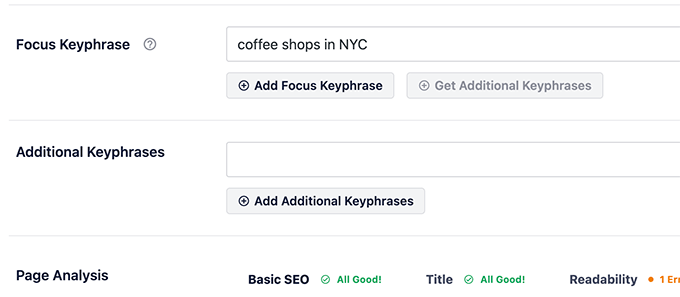
On the post edit screen, scroll down to the AIOSEO Settings section. From here, you’ll find the option to set a focus keyphrase for that particular post or page.

All in One SEO focus Keyphrase

Simply enter your focus keyphrase and click on the Add Focus Keyphrase button.

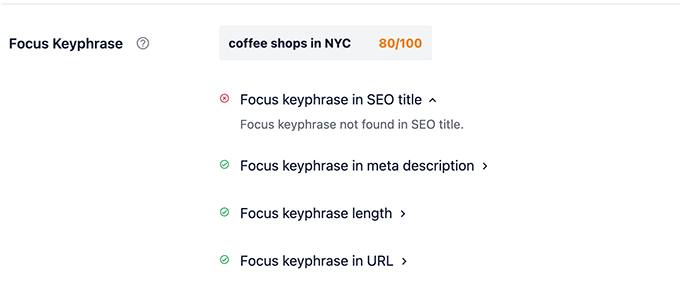
As soon as you set a focus keyphrase, All in One SEO will analyze your content for that particular keyphrase and will show you a score.

Focus keyphrase score

Improving Your Content for Focus Keyphrase

All in One SEO shows a score after you set your focus keyword with practical tips to improve your content for that particular keyphrase.

For instance, in the above screenshot the plugin is telling us to include the focus keyphrase in the SEO title.

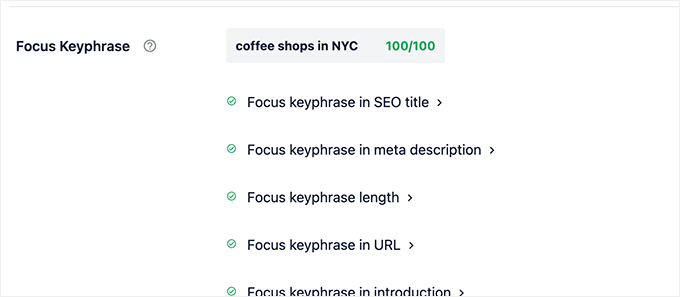
Following all the recommendations will give your focus keyphrase the perfect score.

Perfect focus keyphrase score

Let’s break down these recommendations so that you have them in mind when writing your content.

1. Focus Keyphrase in SEO Title

The plugin recommends adding your primary focus keyphrase in the SEO title.

By default, All in One SEO uses your post title in the SEO title. That means that if you used focus keyword in the post title, then the SEO title will automatically include that.

You can also choose to have a custom SEO title and manually edit it in the AIOSEO settings for that particular post.

Focus keyword in post title

2. Focus Keyphrase in Meta Description

Meta description is the short SEO description for that particular content. By default, the plugin will pick it up from the post excerpt.

However, we recommend manually writing a meta description of no more than 160 characters for best results. This way you can creatively use your focus keyphrase in the meta description.

Adding focus keyphrase in meta description

For more information, take a look at our guide on SEO title, meta description and keywords.

3. Focus Keyphrase Length

All in One SEO recommends using a focus keyphrase no more than four words. However, you can use a longer focus keyphrase if you feel that you would be able to use it properly in your content.

4. Focus Keyphrase in URL

WordPress supports SEO friendly URL structures, which allows you to use meaningful URLs for your posts and pages.

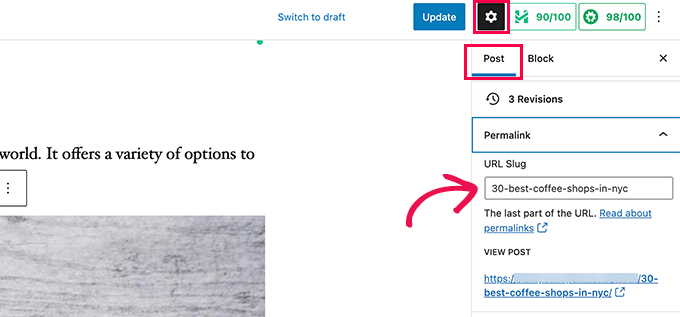
This URL is usually automatically generated from your post title. If you have used your focus keyphrase in your post title, then it will also be included in the URL.

However, you can also manually edit the URL under the Permalink section in Post settings column.

Focus keyphrase in URL

5. Focus Keyphrase in Introduction

Adding your focus keyword in the introduction section of your article is highly recommended for SEO purposes.

The intro section is the first sentence or paragraph of your article. If possible, try to use the focus keyword as early as possible.

Using focus keyphrase in the intro

6. Focus Keyphrase in Subheadings

Subheadings are essential in making your content more readable. That’s why search engines consider them important.

Using your focus keyphrase in a subheading adds more weight to it.

Focus keyphrase in a subheading

7. Focus Keyphrase in Image Alt Attributes

Image SEO can help your content rank higher in search engines, since images play an important role in improving user experience as well as SEO.

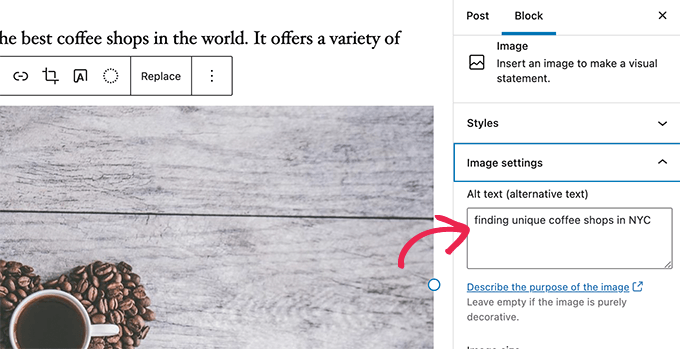
The alt attribute is a meta tag that describes an image for visually impaired users, machine readers, and search engines.

Using your focus keyphrase in Alt attribute for an image

Make sure that you use your focus keyword at least once in the alt attribute for all images inside your article.

Using all the above mentioned tips for your primary focus keyword will give you a perfect focus keyphrase score.

Using Multiple Focus Keyphrases in WordPress

Search engines usually will look for more complete sources to show in search results, to make sure searchers get the information they’re searching for. That’s why longer blog posts often tend to rank better.

You can make your content more complete by trying to cover all the necessary information and keyphrase variations that a user may be looking for.

For instance, users looking for best coffee shops in NYC may also be looking for famous coffee shops in Brooklyn.

All in One SEO for WordPress allows you to optimize your content for multiple focus keyphrases.

After you have optimized your content for the primary keyphrase, you can add more keywords under ‘Additional Keyphrases’.

Using multiple keyphrases

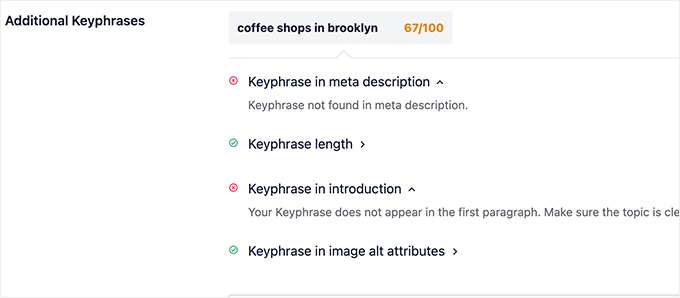
All in One SEO for WordPress will show a score for each additional keyphrase that you add.

It will also show more recommendations for each keyphrase.

Additional keyphrase score

Now, it is important to understand that sometimes you may not be able to include a secondary keyphrase in meta description, intro, or post title.

Don’t sacrifice user experience for SEO and only apply these suggestions if you can do that without affecting readability and user experience.

Find More Focus Keyphrase Ideas

Now when it comes to keyword ideas, most beginners often rely on their own instincts to guess what users may be looking for.

However, it is not necessary to use guess work when you can get actual data.

All in One SEO for WordPress comes with built-in integration with Semrush to provide you with additional keyword ideas right inside the post editor. Semrush is the most comprehensive SEO tool on the market that helps you find smart insights with actual data.

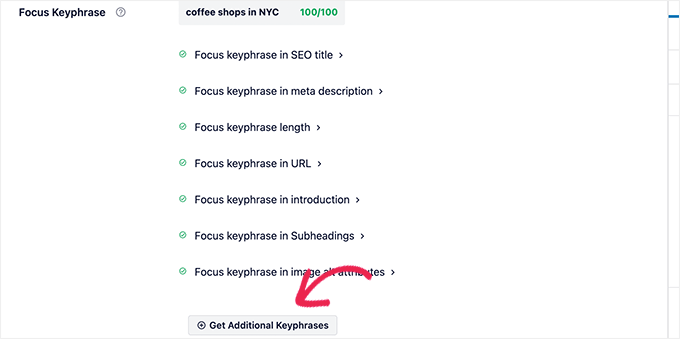
Simply click on the Get Additional Keyphrases button under AIOSEO settings when writing a post.

Get additional keyword ideas

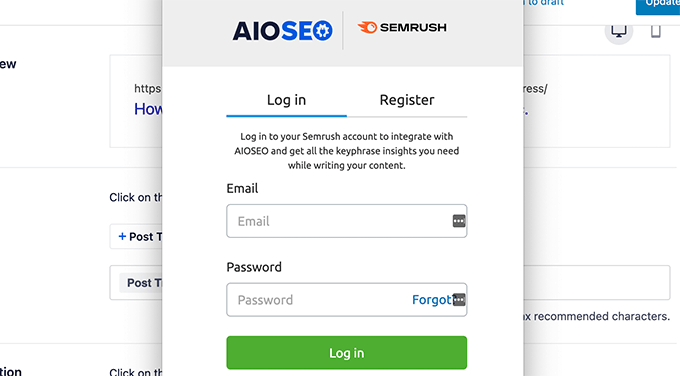
This will launch a popup wizard where you can either login to your Semrush account or sign up for a new free Semrush account.

Note: If you want to try the pro version, you can use our exclusive Semrush coupon code to get a free 30-day trial.

Connect your Semrush account

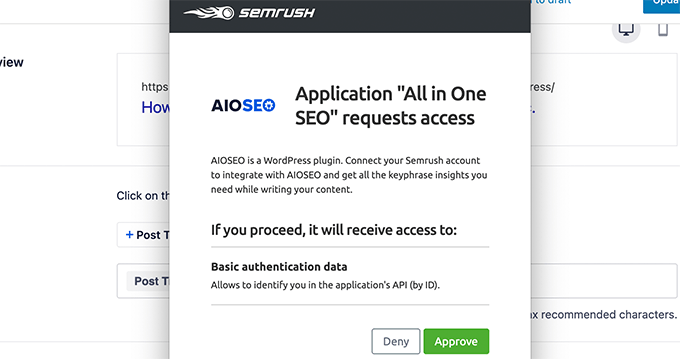
After that, you’ll be asked to give AIOSEO permission to connect to your Semrush account.

Click on the Approve button to continue.

Approve access to Semrush

That’s it!

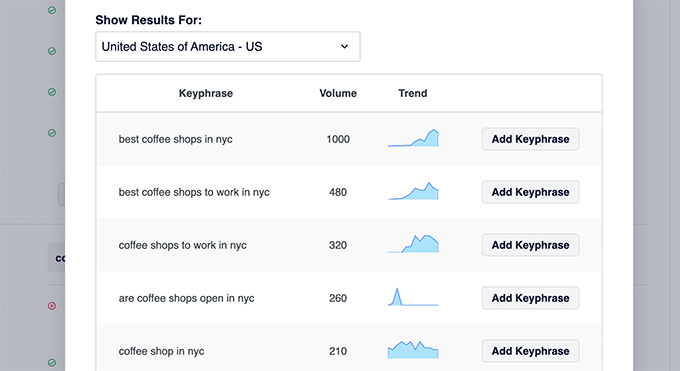
Once your site is connected to your Semrush account, the plugin will close the popup and fetch the additional keyword ideas.

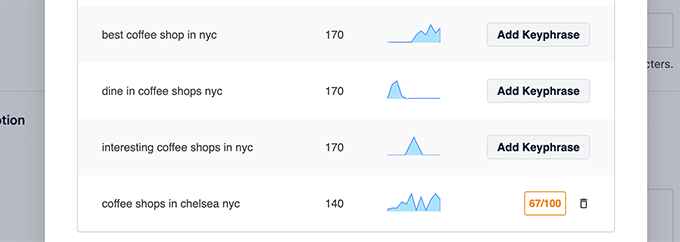
You’ll see a list of keyphrases with volume and trend graph. Ideally, you would want to include keyphrases with more search volume and a growing trend.

Simply click on the ‘Add Keyphrase’ button to select a keyphrase and All in One SEO will show a keyphrase score right away.

Keyphrase score for secondary keyphrase

Tip: It is important that you need to write for humans first. Avoid changing your content unnecessarily just to stuff additional keyphrases.

We hope this article helped you learn how to properly use focus keyphrase in WordPress. You may also want to see our guide on how to improve your organic click through rate to get more free traffic from search engines, and our comparison of the best SEO rank tracking tools that you can use to see how your website is performing.

If you liked this article, then please subscribe to our YouTube Channel for WordPress video tutorials. You can also find us on Twitter and Facebook.

The post How to Properly Use Focus Keyphrase in WordPress (Beginner’s Guide) first appeared on WPBeginner.


March 21, 2022 at 03:00PM
Friday, March 18, 2022

12 Best WordPress Database Plugins – Expert Pick (2022)

Are you looking for the best WordPress database plugins for your site?

WordPress database plugins can help you clean up your database to improve website performance, assist with website migrations, and more. 

In this article, we’ve hand picked some of the best database plugins for your WordPress site.

12 best WordPress database plugins

Why Use a WordPress Database Plugin?

WordPress stores a lot of information in your database, from comments, to posts, user information, plugin data, and more. 

Over time your database can become cluttered, which can slow down your website and even cause WordPress errors. WordPress database plugins can help optimize and clean up your database to make sure your site is as fast as possible.

Other WordPress database plugins can help you store and display data, backup your database to keep your site safe, and more.

With that said, let’s show you some of the best WordPress database plugins you can use with your site.

1. UpdraftPlus

UpdraftPlus

UpdraftPlus is the best WordPress backup plugin used by over 3 million websites.

It allows you to create a complete backup of your WordPress website and store it safely in the cloud or your computer. You can choose to backup your entire WordPress site and databases or select specific website files. 

You can also backup your site and databases to Dropbox, Amazon S3, FTP, email, Google Drive, and more. 

The premium version comes with more addons to migrate and clone websites, use database search and replace, access multisite support, and more. 

For more details, see our guide on how to backup and restore your WordPress site with UpdraftPlus.

2. WP-DBManager

WP-DBManager

WP-DBManager is an all in one tool for WordPress database optimization. The plugin is very feature rich, but it’s still beginner friendly. 

It lets you optimize your databases, repair and restore databases, create database backups, and delete database backups you’ve created. 

Plus, once you configure the initial settings, it will run in the background, so your WordPress database will always be optimized. 

3. WPForms

WPForms

WPForms is the best contact form plugin for WordPress used by over 5 million websites.

It lets you easily create any kind of form for your WordPress website like contact forms, order forms, user registration forms, and more.

There’s a library of over 300+ templates you can use to get started, and every template can be completely customized with the drag and drop builder.

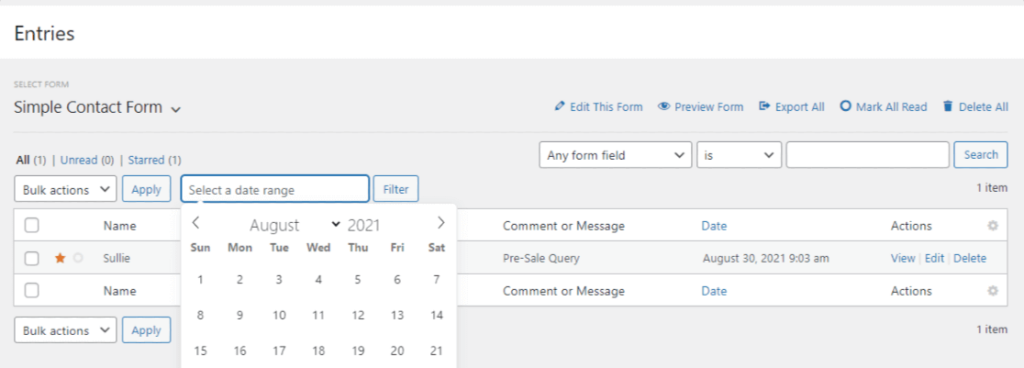
When a user submits a form on your site, all form data is automatically saved in your WordPress database.

WPForms then takes this data and makes it easy to view within your WordPress dashboard. You can see all the contact data, field labels, number of entries, and more. It’s essentially a frontend database of your contact list.

WPForms form entries

To learn more, see our guide on how to save contact form data in the WordPress database.

You can connect your WordPress forms to Google Sheets or any other email marketing service as well to help improve your workflows and save time.

4. Better Search Replace

Better Search Replace

Better Search Replace is a useful plugin that can help with moving WordPress to a new domain and various other quick find & replace tasks.

When you’re migrating a website, you usually need to make changes to the database, URLs, media files, and more.

This plugin makes it easy to run a search and replace in your WordPress database. It also has advanced controls, so you can select specific tables, see what fields will be replaced before running the plugin, and more.

It even supports a WordPress multisite network, if you’re migrating an entire network of WordPress sites at once. 

5. WP-Sweep

WP-Sweep

WP-Sweep is a WordPress database plugin that makes it easy to clean up your WordPress database and improve your WordPress performance and speed

It lets you easily clean up areas like your post metadata, comments, post revisions, uninstalled plugins, and more. 

There’s a user friendly settings screen that lets you choose which areas of your database to clean up with a single click. 

The plugin also uses the WordPress delete function to remove database data, which helps to ensure there’s no accidental data loss. 

6. Formidable Forms 

Formidable Forms

Formidable Forms is a relational database plugin and the most advanced WordPress form builder in the market. 

With this plugin, you can upload and collect data through front end forms, then you can display that data on your website in a variety of different ways. 

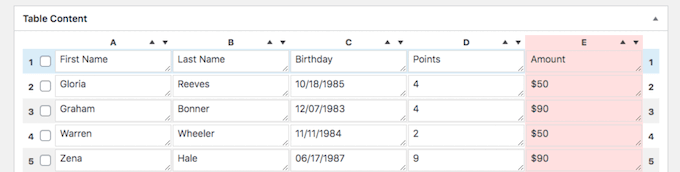
The Formidable Views addon available on the Plus plan lets you display data in a grid, table, calendar, and other formats. This is useful for creating a job board, showing real estate listings, displaying registered users, and more. 

Formidable Forms table example

All data submitted through the forms you create with the plugin automatically goes to your WordPress database. Then, you can use the backend interface to sort, filter, and search through your data. 

You can also allow users to upload images, blog posts, and other forms of data. 

Formidable Forms lets you create a frontend database for WordPress with their advanced Views addon.

7. Easy Username Updater

Easy Username Updater

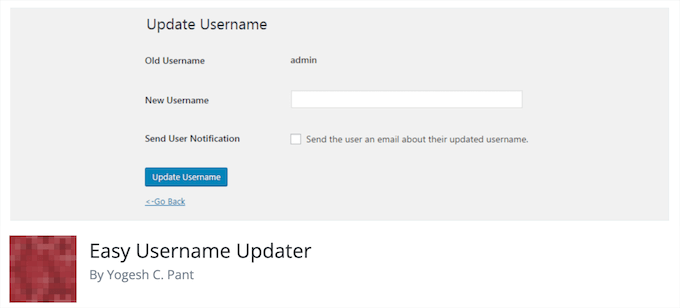
Easy Username Updater is a free plugin that makes it easy to change your WordPress username. 

WordPress makes it easy to change your full name from your user profile. But, if you want to change your username, then you’ll need to use a tool like phpMyAdmin to make changes to your database.

This plugin simplifies the process and lets you simply change your username and the usernames of other users right from your WordPress admin panel. 

To learn more, see our guide on how to change your WordPress username.

8. JetPack Backup (VaultPress)

JetPack Backup (VaultPress)

JetPack Backup is a popular WordPress backup plugin by Automattic, the company behind WordPress. It was initially launched as VaultPress but has been relaunched and redesigned as Jetpack Backup.

The plugin offers daily automated backups without slowing down your website. These backups also include a full WordPress database backup.

This backup solution is also geared towards WooCommerce store owners, so your order and customer data are always safe. 

Beyond backups, you can restore your entire site to a previous version with a single click.

9. TablePress

TablePress

TablePress is one of the best WordPress table plugins you can use to display your data. 

The plugin makes it easy to create beautiful tables without writing any code. There are unique features that make your tables more interactive, like pagination, filtering, sorting, and more. 

TablePress example

You can import and export existing tables in CSV, Excel, HTML, and JSON format. This makes it easy to migrate your tables from another table plugin.

TablePress stores all of the table data in your WordPress database. 

For more details, see our guide on how to add tables in WordPress posts and pages.

10. SearchWP

SearchWP

SearchWP is the best WordPress search plugin and makes it easy to improve WordPress search.

The plugin gives you complete control over your website search algorithm, so you can choose how you want content to rank in your WordPress search results. 

It creates its own custom WordPress database to store and maintain its own search index. 

This means you get access to your search data, so you can improve your content and create a better user experience. 

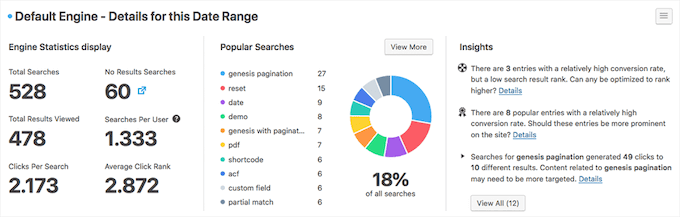
SearchWP metrics

For more details, see our guide on how to use multiple search forms in WordPress.

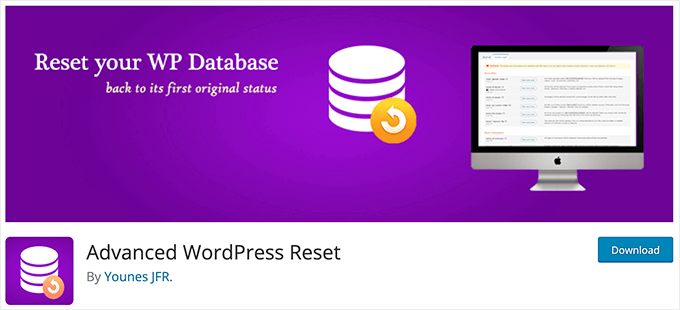
11. Advanced WordPress Reset

Advanced Database Reset

Advanced WordPress Reset lets you reset and restore your WordPress database to it’s original status like a fresh WordPress install.

You can also reset specific areas of your WordPress site such as clean up uploads folder, delete all comments, remove all plugins, etc.

This is a really powerful plugin that’s often used by developers and freelancers when building staging websites or testing. It’s not something you want to use on a live website. 

12. wpDataTables

wpDataTables

wpDataTables is a premium table plugin that makes it easy to add visually stunning tables to WordPress. 

The plugin has an easy to use table builder, so you can create feature rich tables without writing any code.

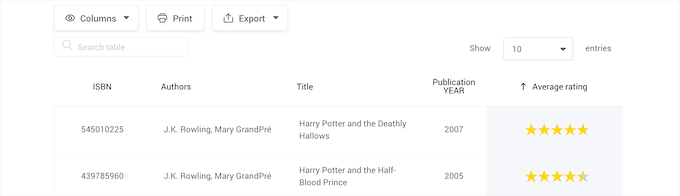
It’s equipped with features that let you add star ratings, style different cells, add shortcodes, and much more. 

wpDataTables example

It also has unique features that prevent deleting tables in the WordPress database and can connect your tables to multiple WordPress databases. 

Final Thoughts on WordPress Database Plugins

While the above list contains the most popular use-cases of WordPress database plugins, it’s important to emphasize that almost all WordPress plugins interact with the database.

So it’s really impossible to create a best WordPress database plugin list without fully understanding the use-case.

Here are some other bonus WordPress plugins that interact with the database:

  • AIOSEO – best WordPress SEO plugin used by over 3 million sites. It stores your website’s SEO data in WordPress database including all 404 errors and other useful insights.
  • SeedProd – best drag & drop website builder for WordPress. It lets you create custom WordPress themes without any code, and all data is stored in the database.
  • HubSpot – one of the best WordPress CRM software that helps you create a contact database in WordPress. It works well with WPForms.
  • MonsterInsights – best WordPress analytics plugin that brings your Google Analytics data inside your WordPress dashboard.
  • MemberPress – allows you to create a members only area and sell courses in WordPress. Lets you store a members directory in WordPress database.
  • AffiliateWP – best WordPress affiliates plugin that allows you to create and manage a partner referral program in WordPress database and dashboard.
  • Sugar Calendar – simple and light-weight event management system allowing you to use your WordPress database as a calendar solution.
  • WP Mail SMTP – stores a log of all emails sent by your WordPress site in a database, so you can ensure emails are actually getting delivered to your customers.

That’s just a quick list of bonus plugins that interact with the WordPress database that you may want to use.

We hope this article helped you find the best WordPress database plugins for your site. You may also want to see our guide on how to move WordPress from HTTP to HTTPS and our expert picks of the best business phone services for small businesses.

If you liked this article, then please subscribe to our YouTube Channel for WordPress video tutorials. You can also find us on Twitter and Facebook.

The post 12 Best WordPress Database Plugins – Expert Pick (2022) first appeared on WPBeginner.


March 18, 2022 at 03:03PM