Monday, May 16, 2022

How to Fix WordPress Search Not Working (5 Common Errors)

Are you trying to fix issues with WordPress search not working on your website?

While WordPress comes with basic search feature, it has some common errors and limitations that can keep your visitors from finding what they’re looking for.

In this post, we’ll show you how to fix problems with WordPress search not working.

How to fix WordPress search not working

Why Do WordPress Search Errors Happen?

Most websites have a search feature that helps visitors find interesting content on your WordPress blog or products that they may want to buy on your online store.

However, WordPress’ built-in search feature is very basic.

By default, it doesn’t search all types of content such as comments, reviews, or custom post types. This may stop the visitor from finding what they’re looking for.

The built-in search also focuses on matching search words with the post or page content without paying attention to things such as tags, categories, or custom fields. This is important information that can help your visitors get more accurate search results.

Lastly, there’s no easy way to customize the built-in search. For example, if you wanted to prioritize a post’s titles over its excerpt, or exclude certain pages from WordPress search, you would need to edit the code.

With that in mind, let’s look at how you can easily fix common problems with WordPress search not working. Simply use the quick links below to jump straight to the issue you’re having with WordPress search.

How to Fix WordPress Search Box Not Appearing

While WordPress has built-in search feature, not all themes may come with a search bar design. If your theme doesn’t come with a search bar, then there are a few ways that you can create one.

You can add a Search block to any widget-ready area of your WordPress website such as the header or footer. This is a quick and easy way to show a search bar across every page of your WordPress site.

To add a Search block, simply go to Appearance » Widgets. You can then find the area where you want to add a search bar, and click on its arrow icon to expand.

Adding a search bar to a widget ready area

Then, just click on the + icon.

In the popup that appears, type in ‘search’ and then select the Search block.
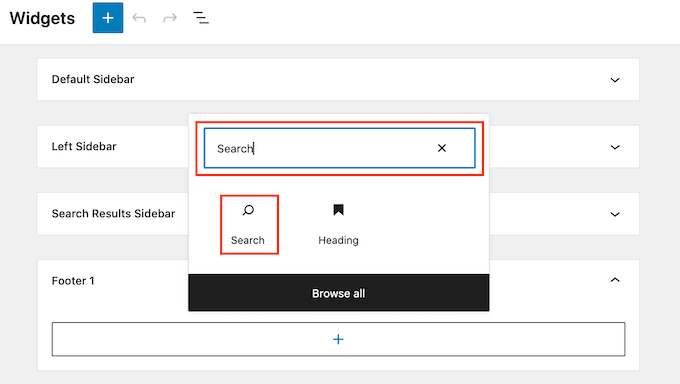
The WordPress search block

Once you’ve done that, you can customize the Search block using the row of icons that appears above the block. This includes changing the size of the search button and adding some text.

When you’re happy with how your Search block looks, go ahead and click on the ‘Update’ button. You can now visit your website to see the search bar live.

Another option is adding the Search block to a specific page or post. For example, you might just want to show a search bar on your homepage or landing page.

To do this, just open the page or post where you want to show your search bar. You can then click on the + icon and add a Search block following the same process described above.
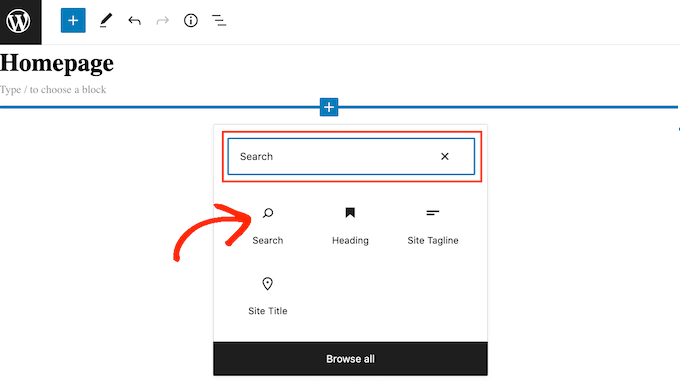
Adding a search bar to the WordPress homepage

WordPress’ ready-made Search block is an easy way to add basic search to your site. However, if you want complete control over how your search bar looks and acts, then you’ll need a page builder plugin.

SeedProd is the best drag and drop page builder for WordPress and comes with over 80 professionally-designed blocks including a Search Form block. This allows you to instantly add a search bar to any area of your WordPress website.

All you need to do is open SeedProd’s editor and then drag and drop the Search Form block into place on your website’s layout.
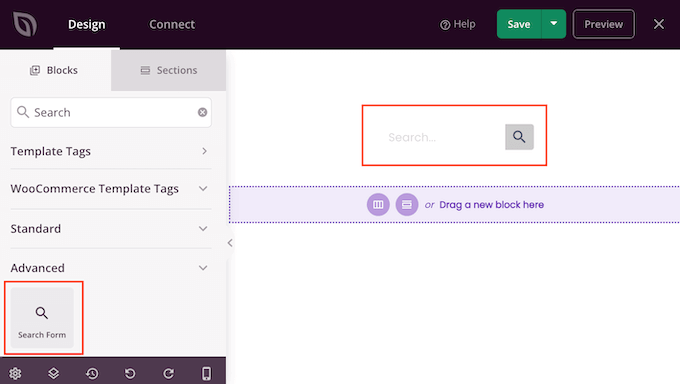
The SeedProd Search Form block

Once you’ve done that, you can customize it using all the settings in the left-hand menu.

Once you’ve added a search bar, you can use the SeedProd theme builder to design a completely custom search results page that perfectly matches your brand. For more information, please see our guide on how to easily create a custom WordPress theme.

How to Fix WordPress Search Showing 404 Error

When a visitor performs a search, your site may show a 404 error such as ‘This page could not be found!’

A WordPress 404 error

You can often fix 404 errors by regenerating your permalinks. This rebuilds and repairs the WordPress permalink structure without changing anything on your site.

This may sound complex, but WordPress does all of the hard work for you.

To regenerate your permalinks, simply go to Settings » Permalinks.
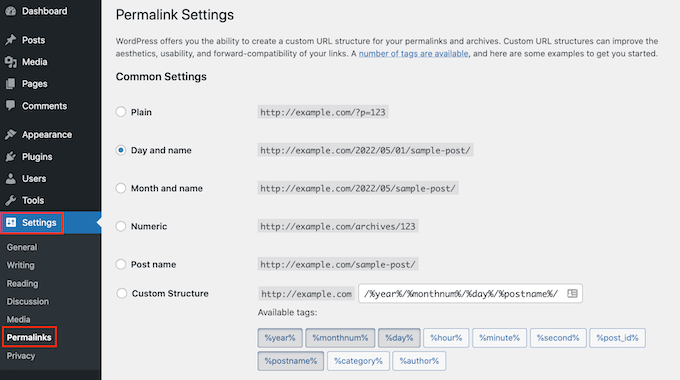
WordPress' permalink settings

Then, scroll to the bottom of the page and click on the ‘Save Changes’ button.

That’s it. WordPress will now regenerate your permalink structure. To make sure it worked, head over to your site and try performing a search.

For a more detailed look at rebuilding your permalink structure, see our complete guide on how to regenerate your permalinks in WordPress.

How to Fix WordPress Search Showing Irrelevant Results

Every time a visitor performs a search, you’ll want to show relevant search results. This helps visitors find interesting content, which will keep them on your site for longer and increase your sales and conversions.

However, the built-in WordPress search doesn’t always show the most accurate results. This is because it looks for the search term in your post’s title and content only.

With that in mind, we recommend installing an advanced search plugin.

SearchWP is the best custom search plugin for WordPress, used by over 30,000 websites. SearchWP can search every part of your site including custom fields, WooCommerce products, categories and tags, PDF files, and more.

You can use SearchWP to adjust your website’s search algorithm and make sure your most important content appears at the top of the visitor’s search results.

The first thing you need to do is install and activate the SearchWP plugin. For more details, see our step by step guide on how to install a WordPress plugin.

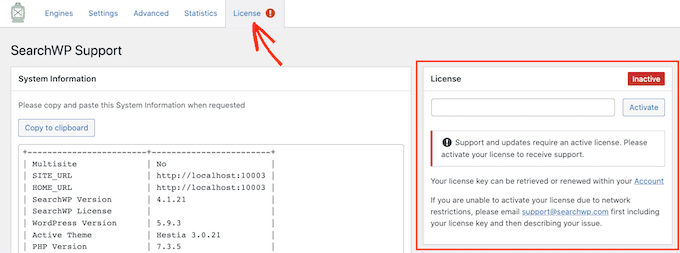
Upon activation, click on the new ‘SearchWP’ button in your website’s toolbar. You can then go ahead and click on ‘Activate License.’
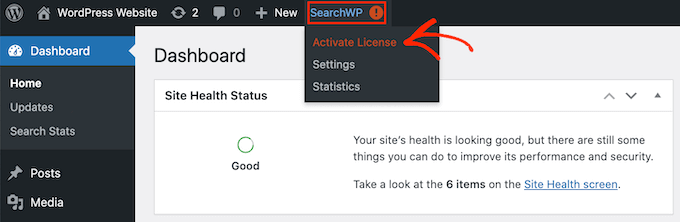
Activating the SearchWP WordPress plugin

Once you’ve done that, click on the ‘License’ tab.

You can now either paste or type your license into the ‘License’ box. You’ll find this key in the email you got when you purchased SearchWP.
The SearchWP advanced search WordPress plugin

After that, go ahead and click on the ‘Activate’ button.

SearchWP integrates with WordPress search automatically, so right away your site will start showing more accurate results. However, to get the best results you’ll want to customize SearchWP’s search engine settings.

Here it helps to think about the way that search engines such as Google rank their content.

These search engines use algorithms to find high-quality content that closely matches the search term. It then ranks this content to make sure the best matches appear at the top of the search results page.

With SearchWP you can build your own algorithms and set your own rules, just like Google. This can improve the visitor experience, boost your conversions, and help you make money online with WordPress.

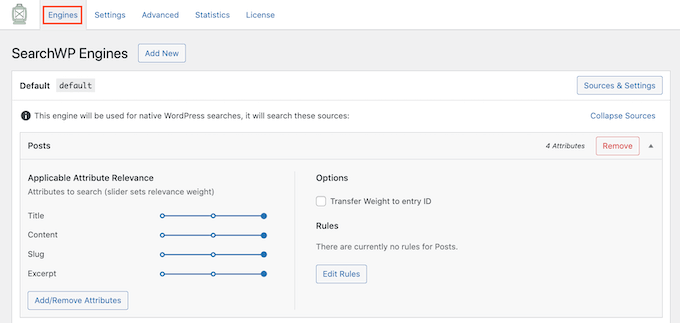
To configure SearchWP’s settings, click on the ‘Engines’ tab.
The SearchWP search engine settings

On this screen, you’ll see sections for the different types of WordPress content such as pages and posts.

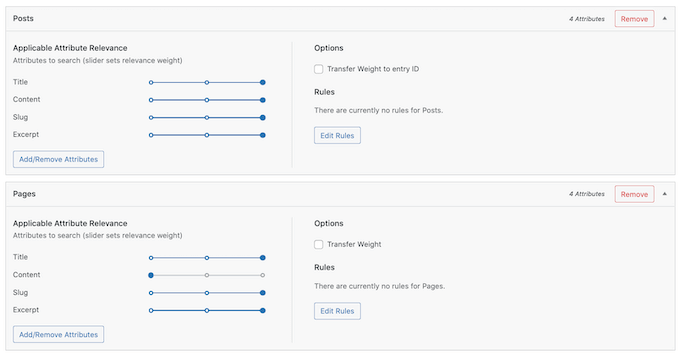
For each section, SearchWP shows the attributes it looks at when performing a search. In the following image, we can see that SearchWP searches the page’s title, content, slug, and the page’s excerpt.
The SearchWP search algorithm settings

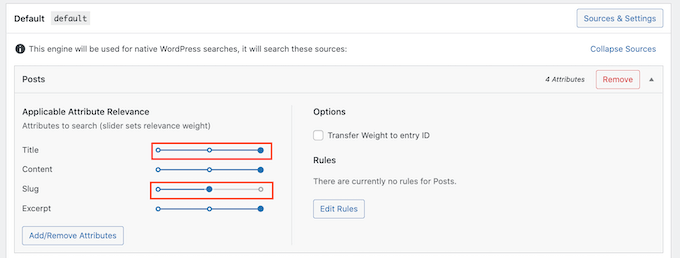
There is also an ‘Applicable Attribute Relevance’ scale for each attribute. This is the weight that SearchWP gives to each attribute when ranking its search results.

In the following image, we can see that a post’s title has more weight than its URL slug.
The SearchWP WordPress settings

You can make an attribute more or less relevant using its slider.

There are no settings that are guaranteed to provide accurate results for every website. With that in mind, you may want to try different relevancy settings to see what gives you the most accurate search results.

You can also add different types of content to be included in your search results. For example, you can add PDF searching and indexing in WordPress if you have PDF files you want your visitors to be able to search for.

If you have any custom taxonomies or fields, then you can also tell SearchWP to look at this content when searching your site.

To add or remove attributes, click on the ‘Add/Remove Attributes’ button.
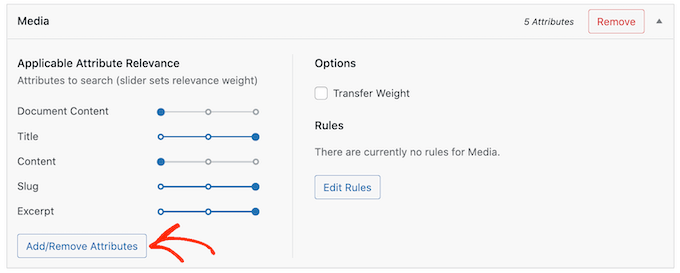
The SearchWP Add/Remove attributes button

This opens a popup. To get SearchWP to ignore an attribute, simply uncheck its box.

If you want to add an attribute, then click to check its box.
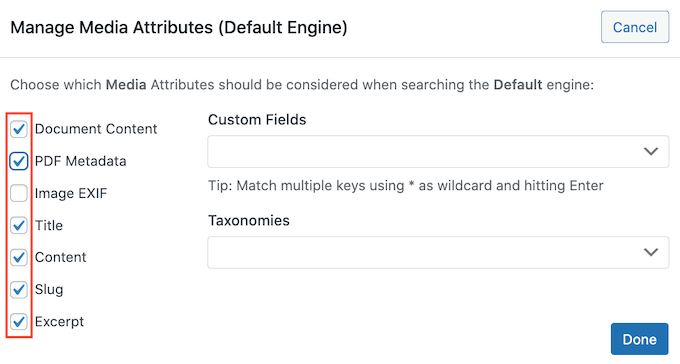
Removing attributes from WordPress search

Want to include a custom field or taxonomy in your searches?

Simply type in the name of that field or taxonomy, and then select it when it appears.
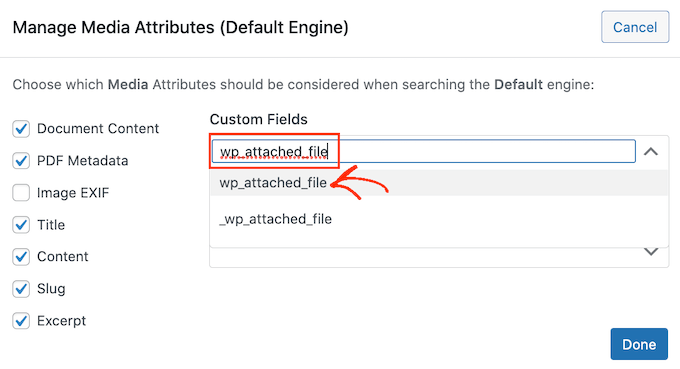
Adding a custom field to WordPress search

Once you’re happy with your attributes, click on the ‘Done’ button.

You can now change the relevancy for your new attributes following the same process described above.
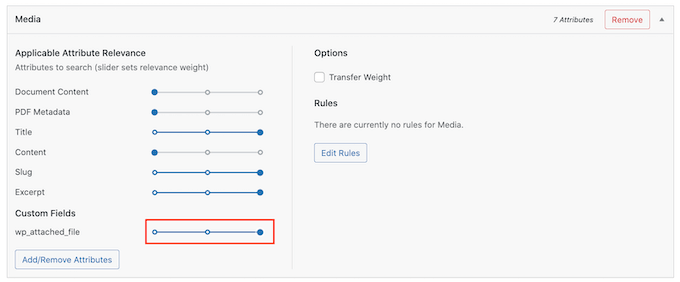
SearchWP's custom relevancy settings

To learn more, please see our step by step guide on how to improve WordPress search with the SearchWP.

Once you’ve finished customizing SearchWP’s settings, make sure to click on the ‘Save Engines’ button to save your changes.
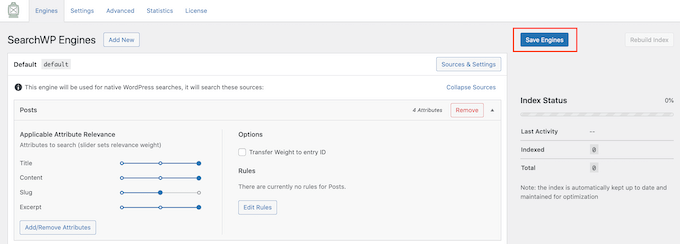
Saving your WordPress custom search settings

SearchWP will now use these new settings for all of its searches.

It’s worth visiting your site and performing a few searches just to check that you’re getting accurate results.

If you don’t see any improvement, then your WordPress theme may be performing its own search. This is known as a redundant search.

The easiest way to check whether this is happening with your theme, is by opening its search.php file.

To access this file, you’ll need an FTP client, or you can use the file manager of your WordPress hosting cPanel. If this is your first time using FTP, then you can see our complete guide on how to connect to your site using FTP.

Once you’re connected to your site, you can use FTP to open the wp-content/themes/ folder.
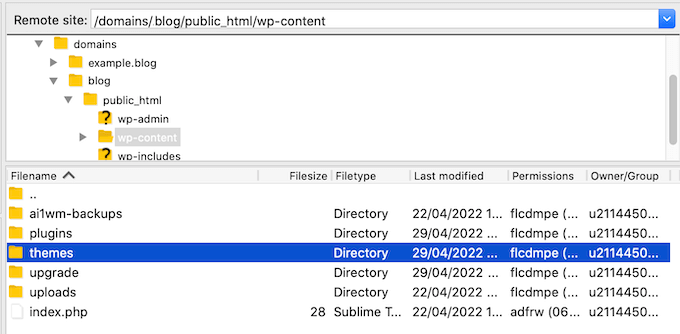
The FileZilla FTP client

Inside the ‘themes’ folder, find the theme you’re currently using on your WordPress website. You can then open this folder and find the search.php file.

Next simply click on the search.php file and select ‘View/Edit.’
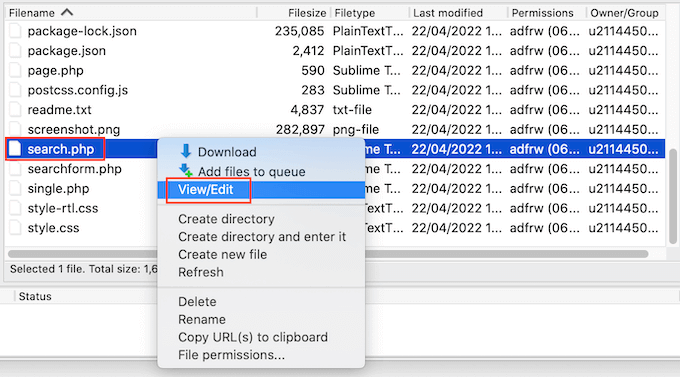
Editing the WordPress search.php file

This will open search.php in your computer’s default text editor.

Now, check this template for any queries that contain query_posts, new WP_Query, or get_posts. This usually means that your theme is performing a redundant search.

If search.php has any of these queries, then we recommend switching to an alternative WordPress theme. To help you out, we’ve created a list of the most popular and best WordPress themes.

Another option is to hire a WordPress developer who can write a new template that doesn’t perform a redundant search.

How to Fix WooCommerce Product Search Not Showing Accurate Results

If you have a WooCommerce store, then search results can help customers find products to buy. To sell more products, you’ll need to display accurate product search results.

However, by default WordPress doesn’t look at your product reviews, attributes, or the product description when performing its searches.

SearchWP can easily fix the problems with WooCommerce search.

You can set up SearchWP by following the same process described above.

Once you’ve done that, go to Settings » SearchWP. You can then click on the ‘Sources & Settings’ button.
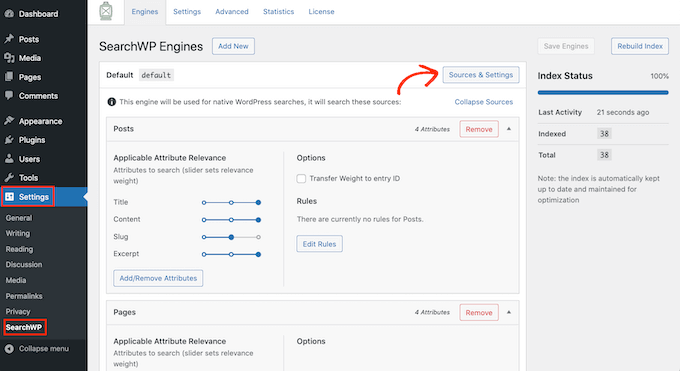
SearchWP's source settings

In the popup, make sure you check ‘Products.’

After that, just click on the ‘Done’ button to close the popup.
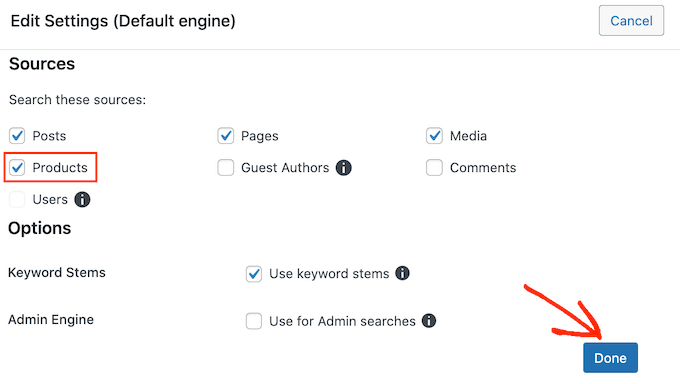
Creating a custom WooCommerce product search

You can now scroll to the new ‘Products’ section.

Here, you can customize the attributes that WordPress uses in its product searches by following the same process described above.
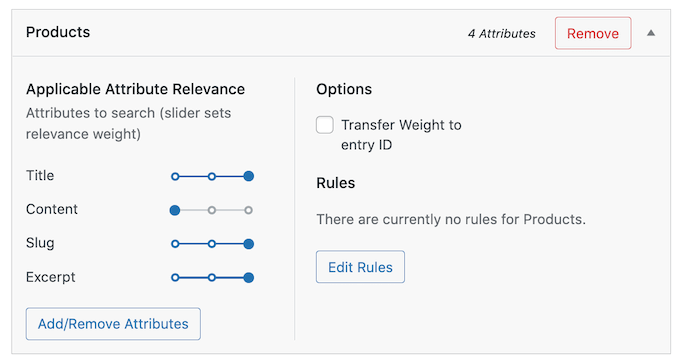
SearchWP's WooCommerce product search settings

For more information, please see our complete guide on how to make a smart WooCommerce product search.

Fast search helps visitors find what they’re looking for in less time. This will improve the user experience and can increase your pageviews and conversion rate.

Unfortunately, the built-in WordPress search isn’t particularly fast. As you add more content, you may notice that your site takes longer and longer to return the search results.

The good news is that there are ways to speed up your site’s search. If you’re using an advanced search plugin like SearchWP, then you’re already off to a great start.

SearchWP is designed to deliver search results, fast. It’s also fully customizable, so you can ignore some of your site’s content when performing a search. For example, you may tell SearchWP to ignore your media metadata. This can speed up your search by reducing the amount of content it has to look through.

You can also improve the search experience by adding live Ajax search to your WordPress site. This is a dropdown that guesses what visitors are searching for as they type, which can make your searches feel instant.

Live Search Preview

For more information, please see our guide on how to add live Ajax search to your site.

Anything you do to improve your website’s overall performance will also speed up your search. You can see our ultimate guide on how to speed up your WordPress site and boost performance.

We hope this article helped you learn how to fix problems with WordPress search not working. You may also want to see our guide on how to get a free SSL certificate for your website, or our expert comparison of the best chatbot software for small business.

If you liked this article, then please subscribe to our YouTube Channel for WordPress video tutorials. You can also find us on Twitter and Facebook.

The post How to Fix WordPress Search Not Working (5 Common Errors) first appeared on WPBeginner.


May 16, 2022 at 04:00PM

Friday, May 13, 2022

6 Best Patreon Alternatives to Monetize Your Audience in 2022

Are you looking for a Patreon alternative to make more money from your YouTube and other social channels?

Patreon is a popular crowdfunding platform that helps content creators monetize their work. Fans can subscribe and pay a regular fee to support their favorite artist or creator. However, Patreon may not be the right platform for many people due to fees and censorship issues.

In this article, we’ll share the best Patreon alternatives to monetize your audience.

Best Patreon alternatives to monetize audience

Why Do You Need a Patreon Alternative?

Patreon provides a platform for vloggers, musicians, writers, journalists, podcasters, and other creators to generate a consistent income stream from their content, but it has several big shortcomings.

First, it’s hard to create your own brand since there are over 6 million monthly active users on Patreon. You’ll compete with other creators in your niche, and it can be challenging to make your content discoverable for new users. Not to mention, you get limited tools to promote your content.

Then there is an issue of censorship. Patreon’s content restrictions can be strict for people in particular niches, as political content creators faced crackdowns in the past. As a result, their fan base reduced dramatically.

Lastly, the fee charged by Patreon can be a big turn-off for some content creators. For instance, it charges a flat 5%, 8%, and 12% on top of the payment processing fee on your monthly income on Patreon, depending on the pricing tier you’re subscribed to.

Creators just don’t need another tax on their earnings.

This is why many power users switch away to Patreon alternative like WordPress because it’s more powerful, and it gives you full control.

Let’s look at why you should use WordPress as a Patreon alternative.

What Makes WordPress a Great Alternative to Patreon?

WordPress is a popular website builder powering more than 43% of all the websites on the internet, and it’s free to use. You might think that starting a website from scratch is a lot of work and takes too much time, but that’s not the case anymore.

You can create a WordPress website of any type in no time using a drag and drop website builder like SeedProd, which requires no coding at all.

WordPress comes with over 59,000+ free plugins that you can use to maximize your earnings, grow your traffic, get more followers, and build an email subscriber base that can never be taken away from.

Another benefit of using WordPress is that it offers more control over your content than Patreon. You’ll be protected from changes in terms of service and don’t have to worry about losing your fan base due to content restrictions.

With WordPress, you can even offer different payment options on your site and make money online without worrying about paying a portion of your earnings to Patreon.

Here’s what you’ll need the following to create your WordPress website:

  1. A domain name. This will be the address of your online store (e.g. wpbeginner.com).
  2. A WordPress hosting account. This is where your website files will be stored.
  3. An SSL certificate. This allows you to securely accept payments online.

Normally, web hosting costs $7.99 per month, a domain name starts at $14.99 per year, and an SSL certificate costs around $69.99 per year.

This can be a big investment when you’re just starting out.

Luckily, Bluehost has agreed to offer our readers a big 60% discount on web hosting, plus a free domain name and SSL certificate. 

Bluehost

Basically, you can get started for as low as $2.75 per month. 

Simply click on the Bluehost button below, and the discount will automatically be applied.

That said, let’s look at some WordPress tools and plugins that you can use as Patreon alternatives.

1. MemberPress

MemberPress

MemberPress is the best membership plugin for WordPress and it is super easy to use. It lets you create a membership website and have full control over who can access your premium content.

It’s a great alternative to Patreon because the plugin lets you set up multiple membership tiers and enables you to restrict access to any premium content based on the user’s membership level. You can even use the plugin to create a video membership website in WordPress.

Besides that, it comes with a powerful course builder. You can create and sell online courses using MemberPress. They also have a content drip feature that allows members to see the content after they’ve completed a certain course or been a member for a particular time.

Another advantage of using MemberPress is that it easily integrates with popular payment providers like Stripe and PayPal, and all the best email marketing services.

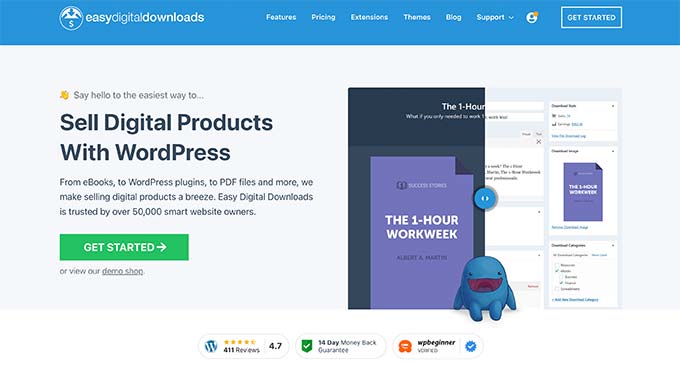
2. Easy Digital Downloads

Easy Digital Downloads

Easy Digital Downloads is one of the best eCommerce plugins for WordPress and lets you sell digital products.

If you’re an artist, musician, writer, developer, or any other content creator that sells digital products like music, ebooks, PDF files, videos, premium software licenses, and more, then Easy Digital Downloads is the perfect Patreon alternative for you.

Using the plugin, you can manage and sell files with ease. It has a built-in shopping cart system that makes it effortless for users to purchase your digital products.

You can also track the download activity of your customers inside the WordPress dashboard and get reports to see how your downloads are performing.

Note: There’s also a free version of Easy Digital Downloads that you can install in WordPress. Alternatively, you can use SiteGround’s EDD hosting which comes with WordPress and EDD pre-installed.

3. WooCommerce

WooCommerce

WooCommerce is one of the best eCommerce plugin in the market, and you can use it create an online store in no time.

Using WooCommerce, you can sell digital and physical products. It’s excellent for content creators that want to sell merchandise to their fans. Plus, it offers an inventory management feature that helps you keep track of how many products you have available for purchase.

There are also tons of WooCommerce plugins and extensions to help you grow your website. Many website themes for WooCommerce are also available, so you can design an online store just the way you want.

You can even design a custom WordPress theme using a compatible drag and drop builder like SeedProd.

WooCommerce also supports popular payment gateways like Stripe and PayPal. Other than that, the plugin offers extensive documentation, community forums, and support to help you out.

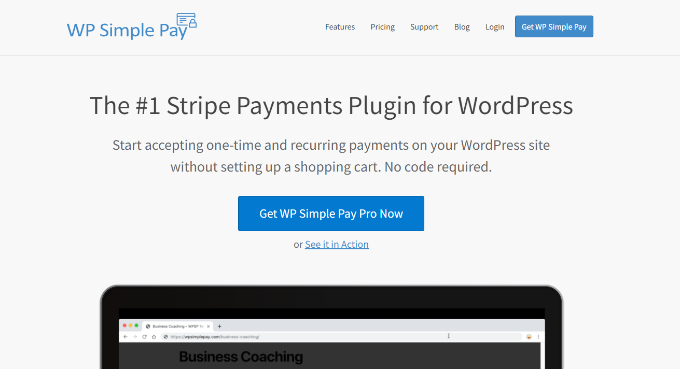
4. WP Simple Pay

WP simple pay homepage

WP Simple Pay is the best Stripe payment plugin for WordPress. As a content creator, you can monetize your site by adding a payment button using the plugin, and there’s no need to set up a shopping cart.

Simply add the payment option to your site to let your fans support you. Using the plugin, you can easily accept credit card payments, Apple Pay, Google Pay, ACH payments, iDEAL, and more.

You can even set up different subscriptions for recurring payments, just like Patreon only with much lower fees.

WP Simple Pay also helps in collecting donations. You also get an option to set up discount coupon codes, allow users to subscribe or pay one-time, add free trials, and more.

Note: There’s a free version of WP Simple Pay plugin available that you can use as well.

5. Blubrry

Blubrry

Blubrry is one of the best WordPress podcast hosting services in the market. It’s a perfect Patreon alternative for podcasters who want more control over their content.

You can create a podcast website in no time with Blubrry. Another advantage is that you can easily distribute your podcast to popular platforms like Spotify, Apple Podcasts, Google Podcasts, Amazin Music, TuneIn, iHeart Radio, Pandora, and more.

Blubrry comes with a powerful podcast plugin called PowerPress that lets you manage your podcast files in WordPress. Blubrry also has a large community of podcasters, and you can easily find forums to learn from other experienced and successful podcasters.

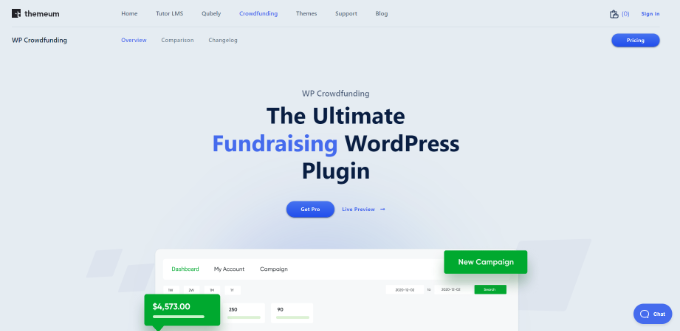
6. WP Crowdfunding

WP Crowdfunding

WP Crowdfunding is a powerful WordPress fundraising plugin that you can use as a Patreon alternative to create a fundraising site like GoFundMe and Kickstarter.

The plugin is based on WooCommerce and allows you to raise funds for your creative project. Its native wallet system helps keep track of all the funds you’ve raised.

WP Crowdfunding also easily integrates with payment gateways like Stripe, PayPal, Authorize.net, Skrill, and more. The plugin is super easy to use and offers a beginner-friendly user interface.

Which is the Best Pateron Alternative?

After carefully evaluating all the popular Patreon alternatives, we believe the top Pateron alternative is MemberPress. It lets you restrict premium content, sell courses, and offers a comprehensive set of features.

Easy Digital Downloads is a close second.

If you’re just looking to accept simple one-time or recurring payments from subscribers, then you can also use WP Simple Pay or their free version.

We hope that this article helped you find the best Patreon alternative to monetize your audience. You may also want to see our guides on how to choose the best blogging platform and the most important reasons why you should use WordPress.

If you liked this article, then please subscribe to our YouTube Channel for WordPress video tutorials. You can also find us on Twitter and Facebook.

The post 6 Best Patreon Alternatives to Monetize Your Audience in 2022 first appeared on WPBeginner.


May 13, 2022 at 04:00PM

Thursday, May 12, 2022

How to Add Document Collaboration in WordPress Block Editor (Google-Doc Style)

Do you want to add document collaboration and editing to the WordPress block editor, similar to Google Docs?

Google Doc-style inline commenting can make collaboration and editing a lot easier in WordPress for multi-author blogs.

In this article, we’ll show you how to easily add Google-Doc style document collaboration and editing in WordPress block editor.

Google Docs like inline commenting and collaboration in WordPress

Why Use a Collaborative Editing Plugin for WordPress?

If you run a multi-author WordPress website, then you may often come across situations where you may want to leave a suggestion or feedback for an author.

Similarly, you may need to work with multiple authors on the same article in WordPress. However, you’ll have to rely on external tools like email, Google Docs, or text to communicate with other authors.

Wouldn’t it be nice if you could communicate right inside the WordPress block editor?

This way your team can more efficiently collaborate to create better content for your users.

That being said, let’s take a look at how to easily make collaborative editing possible in WordPress.

Adding Document Collaboration in WordPress Editor

By default, WordPress doesn’t come with a built-in solution for teams to communicate inside the WordPress admin area, so in this tutorial we’ll be using a collaborative editing plugin.

First, you need to install and activate the Multicollab plugin. For more details, see our step by step guide on how to install a WordPress plugin.

Upon activation, you need to edit an existing WordPress post or page, or create a new one.

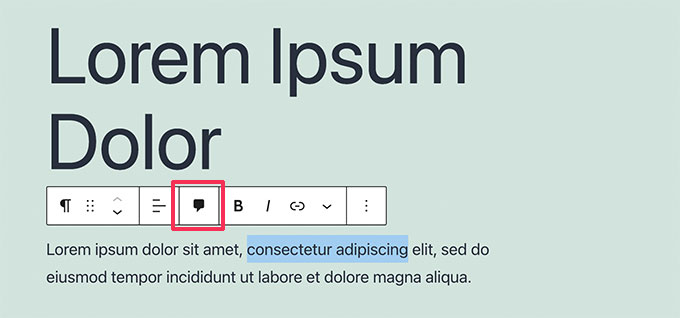
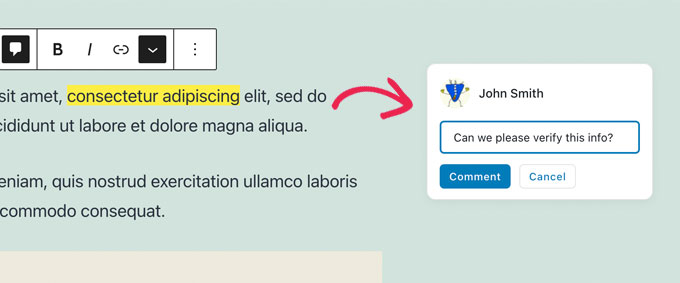
On the post edit screen, select any text that you want to highlight for your team members and click on the Comment button in the toolbar.

Select text and click on the comment button

This will bring up a popup where you can leave a comment for other team members to view.

Simply type in the field and click the Comment button when you’re done.

Leave comment or feedback

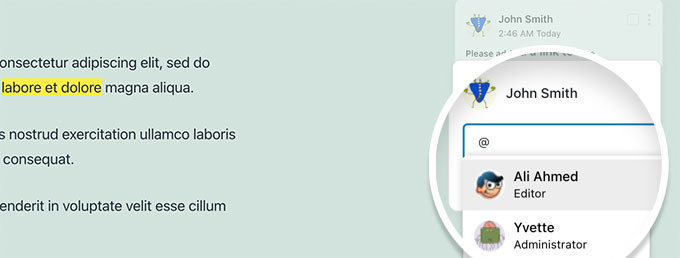
If you want to add a particular user to the conversation, that’s easy.

Just type the @ sign and select their username from the dropdown.

Tag and invite a user to edit

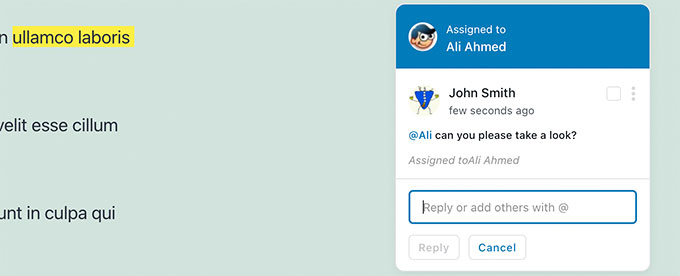
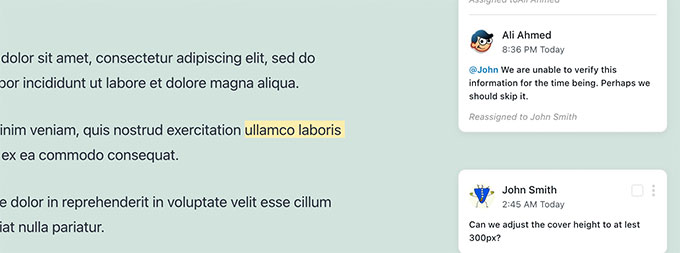
You can also choose to assign a particular comment to the tagged user.

This will allow them to track any tasks and feedback assigned to them and mark them complete.

Assign a comment to specific user

You’ll notice the comment assigned to the specific user you have tagged.

Assigned comment

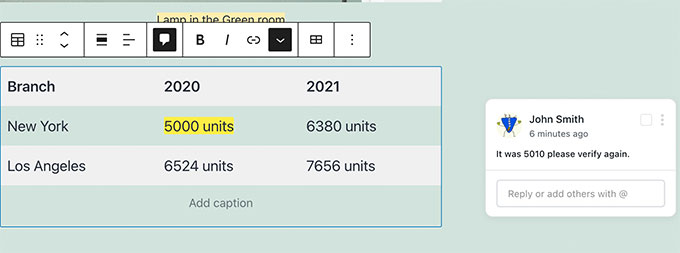
You can add comment on almost any text anywhere in the post or page.

The comment button will appear on most blocks including headings, tables, columns, blockquotes, and more.

Leave comment in Table block

You can also add comment to the caption fields for images, audio, and video embeds.

Comment in movie block

Note: Adding the comment does not save them. Your comments will only be saved when you save the post or page you are editing.

Now, you may want to see how it would appear for other users. To do that, you can simply log in to your WordPress website with another account.

Make sure this other account has the user role or permission to edit the post or page where you left comments.

Highlighted text

Upon login, simply edit the post, and you’ll see that the text areas where you left comments earlier are highlighted. Clicking on them will bring up the comment popup.

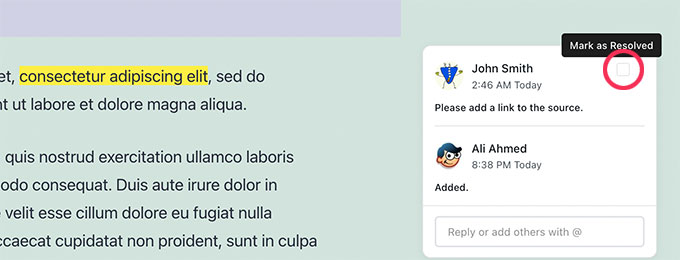
Go ahead and feel free to add a reply to one of the comments. Your reply will then appear below the original comment.

Once an issue is fixed, you can close that comment thread by clicking on the Resolved checkbox.

Resolved comment

Managing Document Activity and Comments

Want to view all of a post’s comments in one place?

You can view and manage all document activity and comments by clicking on the Multicollab button at the top right corner of the screen.

Plugin panel

It will show you recent comments under the Activities tab. From here, you can directly reply to a comment or mark it as resolved.

If you don’t want to see comments while working on an article, then simply switch to the Settings tab and turn on the Hide Comments option.

Hide comments

The plugin also lets you see the overall summary of activities on the current document under the Summary tab.

Here you can see last edited by information and overall comment stats for the current article.

Comments summary

Send Email Notifications for Editorial Comments in WordPress

The premium version of the plugin allows you to send email notifications for each comment.

We recommend using WP Mail SMTP plugin to make sure that email notifications are delivered. There’s also a free version available that’s more than sufficient.

WP Mail SMTP

By default, WordPress uses PHP mail() function to send emails. However, this function can be easily abused, and most WordPress hosting companies don’t have it properly configured.

WP Mail SMTP fixes this problem by allowing you to easily send WordPress emails using a proper SMTP server.

For more details, please take a look at our guide on how to fix WordPress not sending email issue to fix this.

We hope this article helped you add Google-Doc like document collaboration and editing to your WordPress website. You may also want to see our pick of the best author bio box plugins and our tips on securing your WordPress website.

If you liked this article, then please subscribe to our YouTube Channel for WordPress video tutorials. You can also find us on Twitter and Facebook.

The post How to Add Document Collaboration in WordPress Block Editor (Google-Doc Style) first appeared on WPBeginner.


May 12, 2022 at 04:00PM