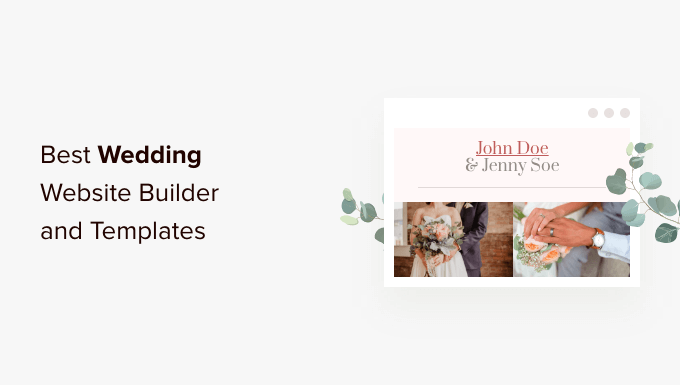
Are you looking for the best wedding site builder and templates to create the perfect wedding website?
The good news is that there are plenty of ways to create a beautiful website that has everything you need for your special day.
In this guide, we’re going to compare the best wedding website builders that you can use to build a wedding website without writing any code.
How to Find the Best Wedding Website Builder for You?
Creating a wedding website helps your guests find all the information they need to prepare for your big day.
For instance, you can inform them about the travel information, accommodation details, gift registry, seating chart, and other wedding details. Plus, it also helps share your love story, wedding party details, engagement photos and videos, and send guests digital Save the Date option.
When considering which wedding website builder you should use, you’ll want to look for features that make the following tasks easy.
RSVP management: You’ll need a way for wedding guests to register for your wedding and manage these easily.
Calendar for events: If you have an eventful wedding planned, then you’ll need a way for guests to keep up with the timeline for your wedding.
Design and templates: You’ll want to pick a site builder with a wide range of wedding templates and design options. You’ll also want the builder to be easy to use and customize so that you can create a wedding site just as beautiful as your wedding.
Content management features: Beyond building a website, you’ll need an easy way to add pages like an FAQ page, your story, venue directions, and more.
Gift registry: It’s not a requirement, but many website builders and platforms let you embed your gift registry or easily add links.
With that said, let’s take a look at some of the pros and cons of the most popular wedding website builders, so you can choose the right software for your needs.
1. WordPress.org
WordPress.org is the most popular platform for creating websites. It powers over 43% of all the websites on the internet, and it is 100% free to use. WordPress.org is open source software, and you can easily use it to create a wedding website.
There are multiple WordPress plugins, themes, and website builders that give you complete freedom and flexibility when it comes to creating a website. To start, all you need is a web hosting service and a domain name.
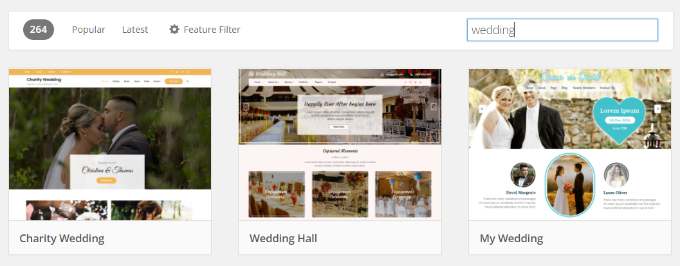
Normally the domain name costs $15 per year, and web hosting can cost you upwards of $7.99 per month.
Luckily, the folks at Bluehost have agreed to offer our readers a 60% discount + free domain name which means you start your wedding website for $2.75 per month.
Bluehost is an official WordPress recommended hosting partner.
After getting a website hosting, you can then use a website builder like SeedProd. It is the best drag and drop WordPress page builder and custom theme builder in the market that’s used by over 1 million sites.
It lets you create completely custom WordPress themes without writing a single line of code. This means you can build the wedding website of your dreams with all the features you need. You can use the pre-built collection of themes and customize every element.
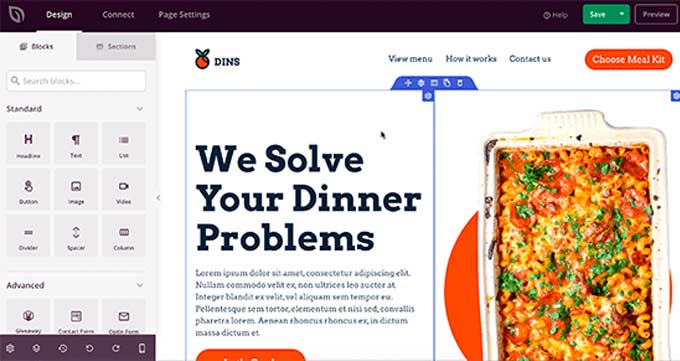
You can add multiple pages to your WordPress wedding website, like a custom RSVP page, rehearsal dinner page, bridal shower page, and a section for engagement photos and videos.
Pros
- It’s open-source software that is 100% free and super easy to use.
- You get complete control over your website design, functionality, and data.
- There are numerous free and paid WordPress plugins and themes for customizing your WordPress wedding website.
- You can create an eCommerce store section, sell digital products, accept online payments, and make money from your website.
- WordPress.org websites easily integrate with Google Analytics and help you track their performance and see which strategies are working.
Cons
- To run a WordPress.org website, you’ll need website hosting. The initial cost isn’t expensive and could cost you around $3 to $10 per month. However, as your website grows, the cost of hosting will also increase since you’ll need more space to store website files and deliver fast performance.
- With WordPress.org, you’ll have to make sure of website backups. Luckily there are many WordPress backup plugins you can use.
- Similarly, you’ll also have to ensure that your site, plugins, and themes are up to date.
Pricing
WordPress is free, but you’ll need to pay for a domain name and web hosting. A domain name costs typically around $15 per year, and web hosting costs $7.99 per month.
Luckily, Bluehost, one of the largest hosting providers, has agreed to offer WPBeginner readers a 60% discount on hosting, plus a free domain name and SSL certificate.
You can get started for as low as $2.75 per month.
If you need help setting up your website, then see our ultimate guide on how to make a website.
2. Web.com

Web.com is another popular website builder for small businesses that offers a user-friendly tool. You can easily create a wedding website of your choice in no time using their website builder.
It comes with a DIY builder which lets you drag and drop different elements for your website. Plus, there are over 150 different templates, including wedding themes that you can use to get started.
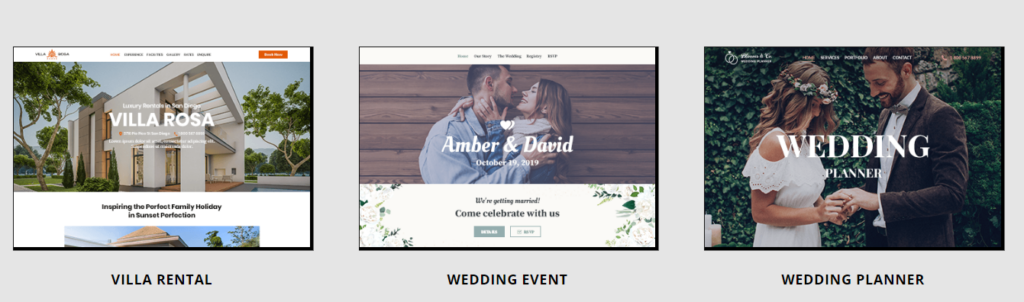
With Web.com, you can also create a WordPress website. It offers its own web hosting service and automatically installs WordPress. You also get 1-year domain registration, unmetered bandwidth, automatic WordPress updates, and more.
Pros
- Web.com offers an easy-to-use drag and drop website builder that makes it effortless to create any type of website.
- There are over 150 different website templates to choose from, so you can get started quickly and customize the web design according to your needs.
- The builder also offers powerful features like photo galleries, testimonial sliders, social media buttons, and more.
- You easily create an online store using the website builder, accept credit card payments online, manage your products and inventory, and more.
- With Web.com, you get different customer support options, including detailed documentation, phone call support, email support, and live chat.
Cons
- Web.com is a great solution for small businesses, but as your site grows, it lacks some powerful features that you might need to grow your business.
- The online store builder is relatively new and doesn’t offer as many features as you would get in WooCommerce.
- If you’re looking to start a blog using Web.com, then you will get limited features.
Pricing
Web.com prices start from $4.95 per month with the Website Essentials plan, and you get free SSL, free domain, secure web hosting, and more. If you want different marketing tools and basic analytics, then you can choose the Business Essentials plan, which will cost you $7.95 per month.
Besides that, Web.com also offers an eCommerce Essentials plan for $13.95 per month and an eCommerce Premium plan for $19.95 per month.
3. Wix

Wix is a drag-and-drop website builder that makes it easy to create a website without writing code. The best part is that you can create a free wedding website in no time.
The template library includes hundreds of beautiful wedding templates you can use as a starting point for your website.

These templates also include standard wedding website features like an online RSVP system, a location map, links to your gift registry, and a calendar for your wedding events.
Beyond the selection of wedding themes, there’s an included Wix logo maker to create a wedding couple logo and a wedding playlist creator.
Pros
- The drag and drop builder makes it very easy to customize your beautiful wedding template.
- It supports all kinds of integrations if you need to add more features to your website.
Cons
- The Free and Connect plans will show branded ads on your site.
- It’s a difficult process if you ever want to move your website away from Wix.
- Once you choose a template for your website, you won’t be able to change it.
Pricing
You can get the basic Wix website builder for free. However, with the free account, your wedding website will be on a subdomain, have ads, and a Wix logo.
If you want access to a free custom domain and remove the Wix ads, then paid plans start at $14 per month.
4. WordPress.com

WordPress.com is an all-in-one website hosting platform with the same underlying code as WordPress.org.
It’s easy to get confused about the difference between WordPress.com and WordPress.org. To learn more, see our comparison of WordPress.com and WordPress.org and which is best.
It does offer a free plan, but it’s quite limited, and there are restrictions on what you can do with your website compared to WordPress.org.
However, you will find a few wedding-specific free themes that give you features like a guestbook template, large featured images, and guest RSVP to create a free wedding website.
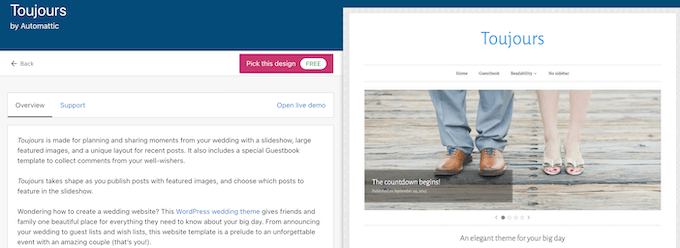
If you’re looking to quickly build a simple wedding website with limited features, then it might be the right choice.
Pros
- Your website will be hosted on WordPress.com, so backups, updates, and security are handled for you.
- You can move from WordPress.com to WordPress.org in the future.
Cons
- You won’t have the same level of customization as you would with other website builders.
- You’re limited in storage size, so you won’t be able to add many high-resolution photos.
Pricing
You can use the free plan with a subdomain (such as yourname.wordpress.com), but it’s very limited in features and storage space, and they will show ads on your website.
Paid plans start at $15 per month when billed annually and include a custom domain name.
5. Joy
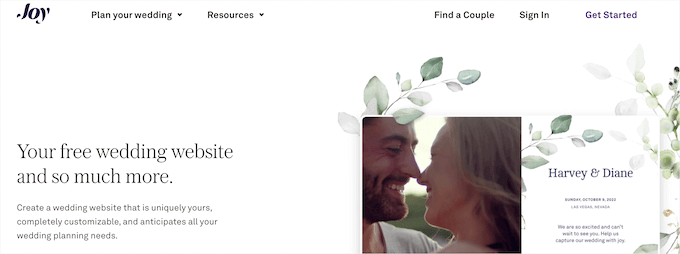
Joy is a free wedding website builder app. Instead of simply being a website builder, it includes additional features to help you manage and even organize your wedding.
For example, you’ll find features for managing your guest registry, creating a guest list, sending out save the dates, storing photos, and more. There’s also a unique feature that creates your own wedding app for you and your guests.
You can choose between hundreds of different wedding website templates. They aren’t highly customizable, but you can control the fonts, colors, and more.
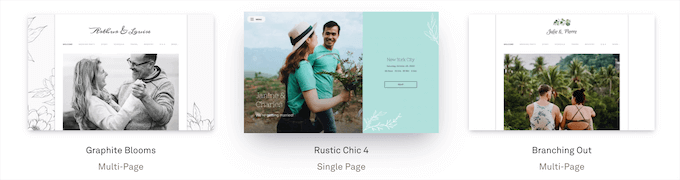
You can create a guest FAQ section for common questions, provide travel and flight information, create wedding bios for your guests, and more.
Pros
- There’s an easy-to-use dashboard for managing all of your website and wedding planning features, so you only need to keep track of one tool.
- It’s almost impossible to find all of the features this platform offers at such an affordable price.
Cons
- The themes are beautiful, but they may be too simplistic for some users.
- You don’t have many options for creating a unique site with custom features. It will look very similar to other websites using the same platform.
- Once you build your website, you won’t be able to migrate it away from the platform.
Pricing
Joy is completely free. You don’t have to pay a dime to use the service or build a wedding website.
Instead, they earn a commission on any item that gets sold through the wedding registry. However, if you want a custom URL, then you’ll need a custom domain name and it will cost you $19.99.
6. Squarespace

Squarespace is a popular drag and drop website builder that helps you create a website for your wedding day. The design has always been at the core focus, so you’ll find a template library filled with beautiful modern templates.
There are currently dozens of different wedding templates available you can customize using the drag and drop builder.
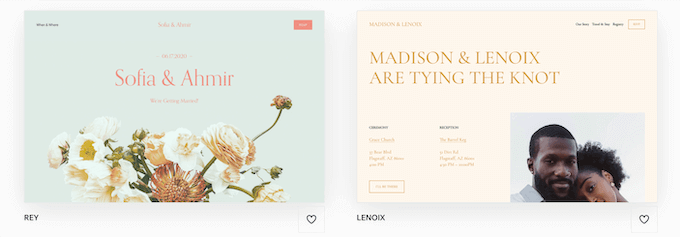
Plus, when you choose a wedding template, it includes other helpful features like a wedding gift registry, RSVP pages, wedding invitations, and creating and sharing photos with friends and family.
Pros
- The platform is easy to use and built for beginners.
- The theme templates are beautiful and focus on high-quality images, videos, and font choices.
Cons
- There are limited integrations built into the platform, so you can only add the included tools and features.
- The price point can be a limiting factor, especially if you want to accept cash donations instead of gifts.
Pricing
Squarespace offers a variety of different pricing plans depending on your needs.
Pricing for the Personal plan starts at $14 per month when paid annually and includes all the features you need to build your wedding website.
However, if you want to accept cash donations as a cash gift registry, then you’ll need at least the Business plan that starts at $23 per month when paid annually.
7. The Knot
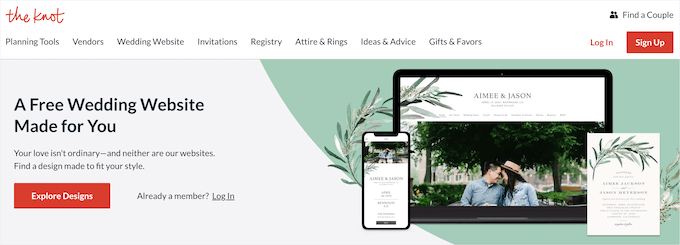
The Knot is another free option and a wedding planner platform you can use to create a website quickly.
The website builder offers hundreds of different wedding templates that can be customized with a simple drag and drop editor.
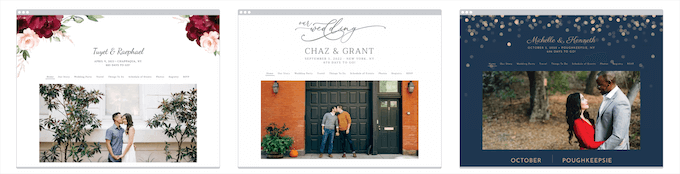
You have control over your site images, color scheme, page layouts, and more.
If you’re ordering wedding invitations and other paper goods through their service, then it’s really simple to have these match the design of your website.
Beyond quickly building a wedding website, it offers different wedding planning tools like you can integrate your registries, view an event timeline, manage and track RSVPs, and more.
Pros
- It’s truly an all-in-one platform, so you can manage your website, send wedding invitations, buy gifts, use budgeting tools, and even find vendor recommendations during the planning stage.
- There are unique live chat, and live streaming features integrated into the tool to keep all of your guests updated.
Cons
- Although the website builder is free, most of the wedding websige designs are quite simple and don’t offer a lot of customization options compared to other tools.
- The platform might be too complex for users looking to simply build a wedding website.
Pricing
The Knot is entirely free to build a wedding website and access the wedding planning features. However, if you want to use a custom domain name, then you’ll need to purchase a custom domain name for $20.
8. Appy Couple
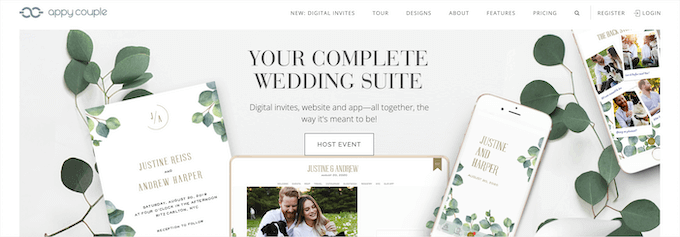
Appy Couple is an all-in-one wedding platform and wedding website builder that includes over 500 different wedding templates you can choose from.
When you choose a wedding template, it also includes a mobile app with a similar design.

As you customize your site, you can choose from pre-set sections like save the date, RSVP forms, and more. You can also use drag and drop widgets to add image galleries, highlight hotel reservations and travel deals, and more.
There’s also a helpful guest list manager that lets you manage your guest list from both the website and mobile app.
Pros
- You can use the Android and iOS apps to build your site on your mobile device.
- The platform includes advanced features to take care of everything related to your wedding, even helping your guests get reservations.
- The template library is smaller, but they offer unique designs from artists you can’t find anywhere else.
Cons
- Some users may find the back and forth between the website and mobile app confusing.
- You can’t purchase a custom domain elsewhere, and you’ll have to buy it through the platform for an added fee.
Pricing
Appy Couple is either $49 per year or $12 per month, giving you access to all the platform features.
You can also add a custom domain name (such as www.mywedding.com) for $20 per year. Otherwise, you’ll get a free subdomain (mywedding.appycouple.com) when you sign up.
Expert Pick: What is the Best Wedding Website Builder?
WordPress.org is the best solution to build a wedding website. It offers lots of freedom and flexibility in how your website will look and function. Plus, you have complete control over your data as you own the website.
With WordPress.org, you get free and paid WordPress plugins, themes, and page builders to get started and customize every element of your wedding website.
For example, you can use SeedProd to create a website. The builder comes with a theme and template library and can be used to create an entire WordPress site perfect for your wedding without writing any code.
You can even create a simple one-page site with all the details about your wedding.

It’s also very affordable since you can use the Bluehost web hosting deal to get a free domain name and discount hosting.
If you need to add any other wedding-related features like a gift registry, RSVP management system, email notifications for wedding updates, and more, then you can always use a popular WordPress plugin.
We hope this article helped you learn about the best wedding website builders and templates. You may also want to take a look at our guide on how to create a free business email address and how to create an email newsletter for your website.
If you liked this article, then please subscribe to our YouTube Channel for WordPress video tutorials. You can also find us on Twitter and Facebook.
The post 8 Best Wedding Website Builder and Templates of 2022 (Compared) first appeared on WPBeginner.
July 01, 2022 at 04:00PM