Saturday, July 16, 2022

How Much Does a Custom WordPress Theme Cost?

Do you want to know how much it costs to build a custom WordPress theme?

Creating a custom theme gives a lot of freedom and flexibility over the layout and design of your WordPress site. However, many people don’t opt for a custom theme because they think it will be expensive.

In this article, we will share how much does a custom WordPress theme cost, as well as a few tips on how you can save money and avoid overpaying.
How much does a WordPress theme cost

What is a Custom WordPress Theme?

A custom WordPress theme has a unique design, layout, and set of features that are made specifically for your business needs.

There are many free and premium WordPress themes available, but a custom WordPress theme helps your company or brand to stand out with a unique look.

The benefit of getting a custom WordPress theme is that you’re not limited by the constraints of a pre-existing template or layout. You have full freedom to customize your website and get any specific functionality built into your theme.

Create Custom Themes Using a Plugin vs Hiring a Designer

You now have lots of options to choose from when creating a WordPress theme. There are DIY theme builders that you can use on your own, or you can hire a freelance designer and agency to create a WordPress theme.

Let’s take a closer look at which is better, using a plugin or hiring a professional.

Using a WordPress Theme Builder Plugin

To create a custom WordPress theme, you no longer need to depend on someone who can design and code your theme for you.

SeedProd is a WordPress page builder that has made it super easy to create a custom theme from scratch without coding. It offers pre-built templates that you can use to get started quickly or use a blank template to create a custom theme.
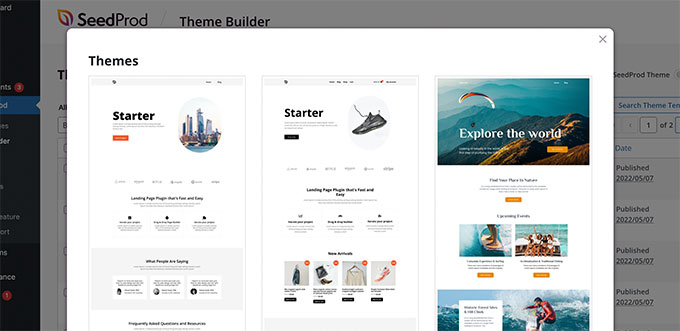
SeedProd starter themes

Using the DIY drag and drop page builders, you can then easily customize every element of your theme.

Simply add and remove blocks from your theme, rearrange their order, edit the color, size, font, background image, add your logo, and change anything in the template.
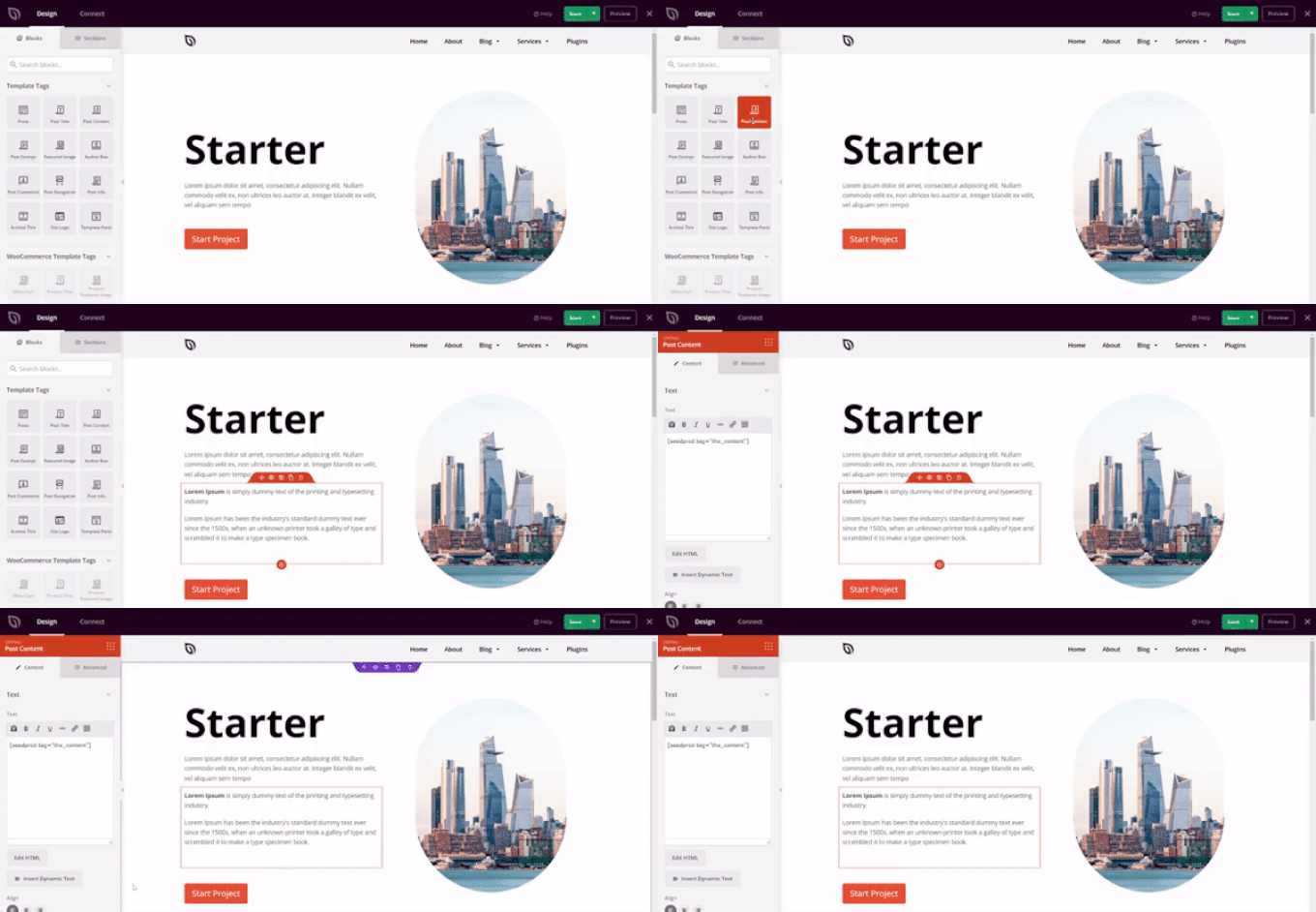
SeedProd drag and drop theme builder

Using SeedProd is the best choice if you want to create your own custom theme on a budget.

Hiring a Designer and Developer to Create a Custom Theme

On the other hand, you may be able to find an individual who can do both designs and develop the site depending on your needs. However, it’s hard to find a person who’s excellent at both design and code.

When you go with a full-service agency, it’s a one-stop-shop because they have designers and developers on their team. This is also the reason why agencies are usually more expensive. Alternatively, you can hire an individual freelance designer and developer separately and manage the project yourself.

However, design and development is a creative process, so the project cost varies based on expertise, experience in the field, and creativity.

Well reputed WordPress development agencies may cost more than an individual developer or freelancer. A well-known WordPress developer can sometimes charge even more than an agency. Plus, placing change orders to make revisions to a theme can make it more expensive to develop.

Keep Costs Low by Having a Clear Scope of the Project

Whether you choose to hire a professional or choose a theme builder plugin, a pro tip for keeping costs low is by having a clear scope of the project.

For instance, when you’re building a house, you typically have a list of features that you want, such as 4 bedrooms, 3 bathrooms, a living room, etc.

You need to make a similar list for your WordPress website and list down all the things that you would like to have such as:

  • Editable home page with a testimonial slider and services list
  • Contact page with a contact form and a Google map with the ability to find directions
  • Gallery area to showcase the work
  • Blog section with social media share buttons

Having a detailed list makes it easier for someone to give you an accurate quote. It also helps limit revisions or change-order fees and helps you keep within your budget.

Factors that Affect the Cost of a Custom WordPress Theme

Since each custom WordPress theme is built specifically for the individual client, the cost of the project varies based on the requirements.

Below are some of the factors that will impact the cost of your custom WordPress theme:

Features, Functionality, and Expectations

Adding more features and functionality to your custom theme will increase the development time and cost. Usually, clients have higher expectations than their budget allows.

High-quality work with custom features will take more time, and hence it will cost more.

Similarly, you may require premium WordPress plugins to get the functionality you need for your website. This will add to the cost of developing a custom theme.

Change Orders and Revisions

If you change the scope of your custom WordPress theme project in the middle of the process, then this can significantly increase your cost.

While minor changes are ok, freelancers and agencies often charge change-order fees for major change requests.

Hosting, Maintenance, and Support

A custom WordPress theme does not include WordPress hosting, website maintenance, or offering support after the delivery of the project.

Some agencies and freelancers might offer these services at an additional cost.

How Much Does a Custom WordPress Theme Actually Cost?

Cost of building a custom WordPress theme

Previously, it was extremely difficult to explain how much a custom WordPress theme costs in fixed numbers because there were several factors to consider.

However, if you select a drag and drop WordPress page builder, then the cost of building a custom WordPress theme drops considerably.

For example, SeedProd offers its theme builder in the Pro plan, which starts at $199.50 per year. You can simply use the plugin to create a custom WordPress them yourself. Plus, if you add that with the cost of web hosting, domain, and SSL certificate, you can easily make a custom theme for under $500.

These days, even the large numbers of freelancers use drag & drop page builders now to create custom WordPress themes because it helps them build custom websites faster.

You can see our detailed guide on how much does it really cost to build a WordPress website for more details.

On the other hand, when you hire a freelancer or an agency, then a the cost of a custom WordPress theme for a business / personal website could cost between $1,500 – $5,000. A custom WordPress theme with additional built-in features or companion plugins can cost anywhere between $6,000 – $10,000.

If you have a complex enterprise-level project, then it is not uncommon for custom theme project prices to go above $30,000.

Therefore, we would highly recommend using a page builder to create a custom theme because the total cost will be lower, and you won’t have to spend a lot of money on freelancers and agencies.

How to Avoid Overpaying for a Custom WordPress Theme?

Avoid overspending on custom theme

With over a decade of experience in the WordPress industry, we have a few tips that you can use to avoid overpaying for a custom WordPress theme.

Find Live Website Examples for Inspiration when Possible

Going along with a detailed scope and having a list of inspirations really help with the design process.

You can have a list of websites and list out what you like about each of them.

This gives the designer a clear idea of what you’re looking for this reduces the revisions and overall cost.

Use Premium Plugins vs Custom Built Functionality

Most reputable WordPress professionals will always choose a premium WordPress plugin vs building it out from scratch because it’s more efficient and saves cost.

However, as a customer, we always recommend that you do your own research as well. Often the developer that you choose may have other suggestions, and it’s important that you understand why they decide to choose one plugin over another.

Customize Premium Themes vs Build from Scratch

One of the ways to significantly reduce cost while still getting a ‘custom’ look and feel is to find an existing theme that has 90% of what you want. While this cheats the custom theme concept, it can significantly reduce the overall cost.

Powerful drag and drop WordPress page builders like SeedProd, Beaver Builder and Divi have given birth to an entirely new industry of Website Assemblers. They come with various templates, so you can easily choose one and customize it according to your needs.

Professional website assemblers use existing WordPress plugins combined with a drag & drop page builder to build you a custom-looking WordPress site at a much more affordable price.

Find the Right Developer or Agency for a Custom WordPress Theme

Hire an agency or a designer

Due to its ease of use and low barrier of entry, there is a wide range of people and companies offering custom WordPress theme services.

Finding a developer or agency with the right experience and skillset can be a bit difficult. Especially because a lot of ‘website assemblers’ also call themselves developers.

Here are some places where you can find experienced developers for your custom WordPress theme project.

Codeable – This is our #1 pick for finding high-quality WordPress developers that are vetted by an expert team. You can post your project there and get a free estimate.

WPHired – This is a job board where you can post your WordPress jobs. Developers can then apply for the job, and you can discuss your project with them. You’ll have to look for developers with relevant experience and skills.

WordPress Jobs – Another WordPress-specific job board where you can post jobs and interview developers.

Upwork – An online freelancing website where you can post your job and interview developers from all over the world. This would allow you to find developers with lower rates. It is an enormous community with designers and developers of varying skills and expertise.

A custom WordPress theme can make your website stand out with its unique design and custom features. However, not all beginners and small businesses can afford that right away.

If you are just starting out, then you can use a page builder like SeedProd or a premium multipurpose theme to build your website theme at a fraction of the price.

With a custom theme, you get unique branding, custom design, and tailor-made functionality to help you grow your business faster and give you an edge over your competitors.

We hope this article helped you understand how much does a custom WordPress theme cost and how you can avoid overpaying. You may also want to see our guide on the best free business name generator and how to register a domain name.

If you liked this article, then please subscribe to our YouTube Channel for WordPress video tutorials. You can also find us on Twitter and Facebook.

The post How Much Does a Custom WordPress Theme Cost? first appeared on WPBeginner.


July 16, 2022 at 03:00PM
Friday, July 15, 2022

How to Get Word Count Stats in WordPress (3 Ways)

Do you want to get word count stats in WordPress?

When writing a post, you may have a specific word count that you’re aiming to reach. Plus, monitoring your word count stats can give you insights like what post length gets the most traffic and engagement.

In this article, we will show you how you can show detailed word count stats in WordPress.

How to get word count stats in WordPress

Why Get Word Count Stats for Your WordPress Website?

There are many reasons why you may want to get the word count for your WordPress website.

If you’re a freelance writer, then you may charge per word or your clients might have strict word count goals that you need to meet.

If you’ve added multiple authors to your WordPress blog, then monitoring their word count stats can help you identify the authors who are contributing the most to your website.

This insight can help you manage your multi-author WordPress blog more efficiently. For example, you might reward the author who has the highest word count, or schedule meetings with any writers who are underperforming.

Even if you’re the only person working on a website, word count stats can still be interesting. By looking at how your word count changes over time, you may be able to spot patterns and ways to be more productive.

With all that in mind, let’s look at a few different ways to get word count stats in WordPress. If you prefer to jump straight to a particular method, then you can use the links below.

Method 1. How to Check the Word Count on an Article in WordPress

The WordPress block editor makes it easy to see the word count for any page or post.

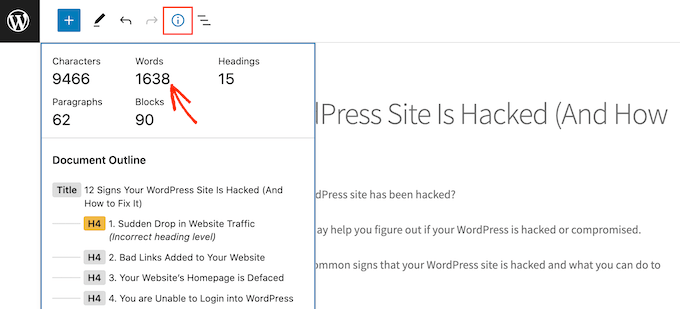
Simply click on the ‘i’ icon at the top of the screen, and WordPress will show some basic stats for the page or post, including the word count.

Getting the word count in the WordPress block editor

Even better, this word count will update automatically as you write.

If you have a word limit, then this is a quick and easy way to make sure you don’t go over that limit.

Method 2. Get Detailed Word Count Stats in WordPress With a Plugin

Sometimes you may want to see word count stats for a particular author, type of post, or even your entire website.

The easiest way to get these detailed stats is by using the WP Word Count plugin. This plugin shows how many words you’ve written based on month, author, and post type.

If you’re using custom post types, then WP Word Count can also show statistics for your custom posts.

First, you’ll need to install and activate the plugin. If you need help, then please see our guide on how to install a WordPress plugin.

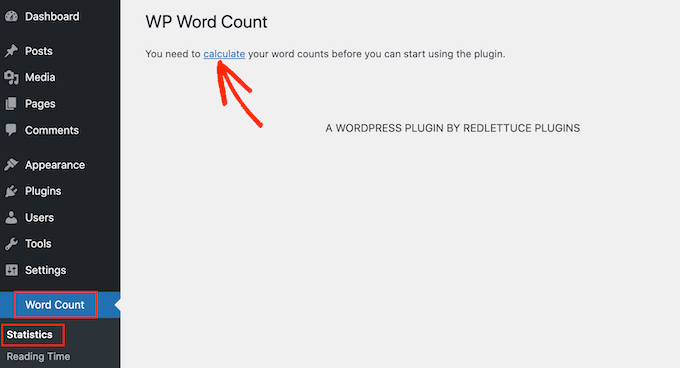
Once you’ve done that, go to Word Count » Statistics. Before you can get your stats, you’ll need to click on the ‘calculate’ link.

Calculating the word count for your WordPress website

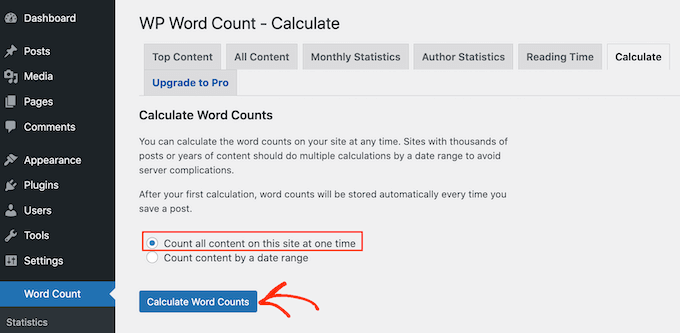
WP Word Count will ask whether you want to count the words for all your content, or to only count content that was created within a certain date range.

To calculate the total word count for your entire site, click on the ‘Count all content on this site at one time’ option. Then, go ahead and click on Calculate Word Counts.

Getting word count stats in WordPress

After a few moments, you should see a ‘Word counts calculated successfully’ message.

WP Word Count will now continue to calculate your stats automatically as you add more posts and pages to your site. This means you won’t need to click on the ‘calculate’ link every time you want to see the latest word count stats.

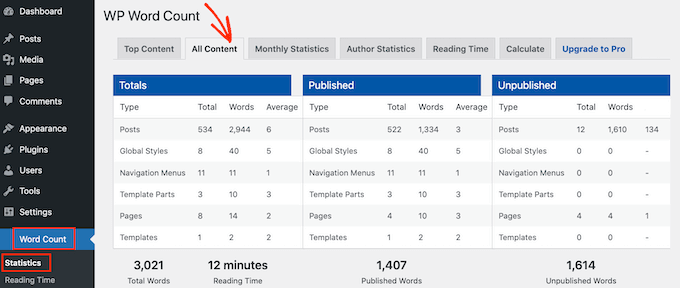
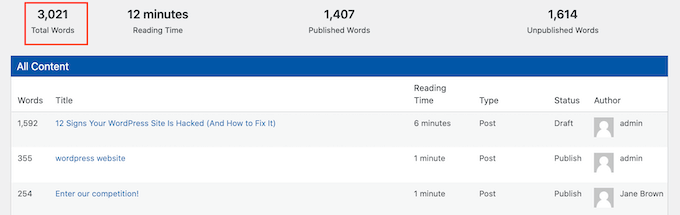
Now, anytime you want to see your stats, you can go to Word Count » Statistics. To see the total word count for all your content, click on the All Content tab.

On this screen, you’ll see the total word count for the different post types, divided into published and unpublished content.

Word count statistics in the WordPress dashboard

‘Total Words’ is your total word count across all content types.

This number combines both your published and unpublished content, so it isn’t necessarily the amount of words that visitors will see live on your website.

The WP Word Count plugin

This screen also shows separate word counts for published and unpublished content.

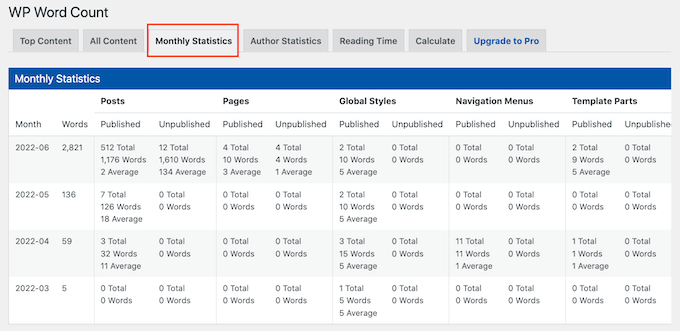
If you want to see the word count for specific months, then simply click on the ‘Monthly Statistics’ tab. This can help you spot trends including your most productive months, and times when you wrote fewer words compared to other months.

Monthly word count stats in WordPress

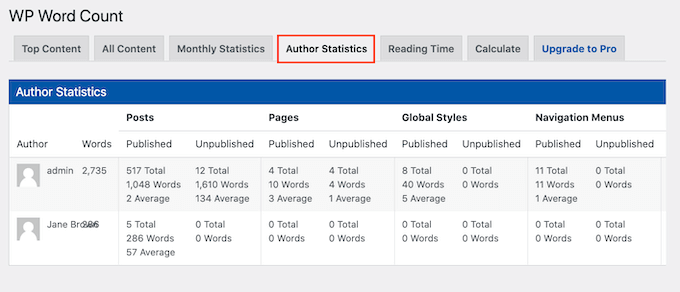
If multiple people write for your WordPress blog, then you may want to take a look at the ‘Author Statistics’ tab.

This lets you explore your site’s word count stats by author.

Author word count statistics in WordPress

You might also want to track the traffic that each of your authors brings to your website. To do that, you can see our guide on how to set up author tracking in WordPress.

By monitoring these important metrics on your WordPress site, you can identify what’s working on your website and what isn’t.

You can then use this insight to fine-tune your content calendar to get even more visitors to your website, and make money online blogging with WordPress.

Method 3. How to Add Word Count Stats in WordPress Using Code

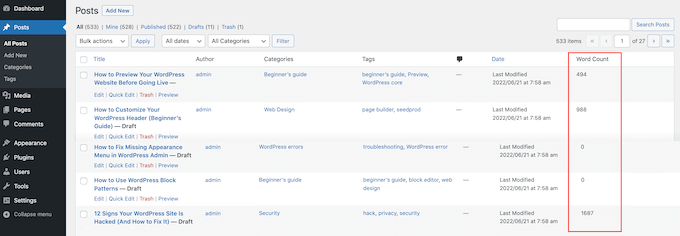
Another option for tracking word counts is a code solution. This code snippet will show the word count next to each post on the Posts » All Posts screen.

Adding a word count to the WordPress dashboard

This is an easy way to spot your site’s longest posts, or check for any posts that don’t meet a required word count.

To show a word count on the All Posts screen, you’ll need to add some code to your site. We recommend doing this by creating a site-specific plugin or using a code snippets plugin.

No matter what option you choose, you’ll need to add the following code:

add_filter('manage_posts_columns', 'wpbeginner_add_column');
function wpbeginner_add_column($wpbeginner_wordcount_column) {
    $wpbeginner_wordcount_column['wpbeginner_wordcount'] = 'Word Count';
    return $wpbeginner_wordcount_column;
}
 
//Link the word count to our new column//
add_action('manage_posts_custom_column',  'wpbeginner_display_wordcount'); 
function wpbeginner_display_wordcount($name) 
{
   global $post;
   switch ($name)
{
     case 'wpbeginner_wordcount':
                //Get the post ID and pass it into the get_wordcount function//
            $wpbeginner_wordcount = wpbeginner_get_wordcount($post->ID);
            echo $wpbeginner_wordcount;
     }
}

function wpbeginner_get_wordcount($post_id) {
     //Get the post, remove any unnecessary tags and then perform the word count// 
     $wpbeginner_wordcount = str_word_count( strip_tags( strip_shortcodes(get_post_field( 'post_content', $post_id )) ) );
      return $wpbeginner_wordcount;

You can then save your changes.

Now, if you visit the Posts » All Posts screen, you’ll see the word count in a new column.

We hope this guide helped you learn how to get word count stats in WordPress. You may also want to learn how to set up Google Analytics goals for your WordPress site, or check out our list of the best email marketing services for small businesses.

If you liked this article, then please subscribe to our YouTube Channel for WordPress video tutorials. You can also find us on Twitter and Facebook.

The post How to Get Word Count Stats in WordPress (3 Ways) first appeared on WPBeginner.


July 15, 2022 at 02:00PM

Thursday, July 14, 2022

How to Upgrade jQuery to Latest Version in WordPress

Is the jQuery version running on your WordPress site up to date?

Your theme and plugins, as well as WordPress itself, rely on jQuery. An out of date version may place your website at risk.

In this article, we’ll show you how to update jQuery to the latest version in WordPress.

How to Upgrade jQuery to Latest Version in WordPress

Why Upgrade jQuery to Latest Version in WordPress?

Your WordPress website, as well as many plugins and themes you use, rely on JavaScript in combination with jQuery to create fast, interactive and engaging features.

It’s important to keep jQuery up to date to maintain the security of your website. The latest version fixes bugs and vulnerabilities in previous versions that may place your site at risk.

If you are running the latest version of WordPress, then you don’t need to manually update jQuery. It’s automatically done for you. But if you’re using an older version of WordPress such as WordPress 5.4 or earlier, then it’s recommended that you do the update.

Also, if you’ve replaced the default WordPress jQuery with Google Library, then it wouldn’t automatically update to the latest version.

Editor’s Note: it’s important to highlight that updating jQuery may break older plugin functionality, so after the update, you should test your website. In most cases, it’s not an issue, but in case you run into problems, then you can easily return to the older version.

With that being said, let’s take a look at how to upgrade jQuery to the latest version in WordPress. Here’s what we’ll cover in this tutorial:

How to Determine if Your Version of jQuery Is Out of Date

You can easily find the version of jQuery your website is running using the Javascript console in your web browser.

First, you will need to visit your website and then open the JavaScript console. If you are using Google Chrome, then you can do this by selecting View » Developer » JavaScript Console from the menu.

Next, you should paste the following command into the console:

jQuery.fn.jquery

This command will display the version of jQuery your website is running.

Discover the Version of jQuery Your Website Is Running

You should hopefully see version 3.5.1 or higher. If your website is running a version that starts with 1.7 or lower, then you should definitely upgrade.

Method 1: Upgrade jQuery to the Latest Stable Version

The jQuery Updater plugin updates jQuery to the latest official stable version. This is likely to be more current than the version that comes with WordPress.

First, you need to install and activate the jQuery Updater plugin. For more details, see our step by step guide on how to install a WordPress plugin.

Upon activation, your website will start running the latest version of jQuery. However, before you see the change, you may need to clear your browser cache and WordPress cache.

The plugin includes the jQuery Migrate script to help with backward compatibility. However, if you find that you have trouble with some of your plugins, then you can simply deactivate the jQuery Updater plugin to return your site to its original state.

Method 2: Control the Version of jQuery That Is Run on Your Website

The Version Control for jQuery plugin allows you to control the version of jQuery that is run on your website. This allows WordPress users to run a stable WordPress website, and WordPress developers can check if their code works with various versions of jQuery.

To get started, you need to install and activate the jQuery Updater plugin. If you need help, then see our step by step guide on how to install a WordPress plugin.

Upon activation, the plugin will default to the latest pre-release version of jQuery. It also installs the jQuery Migrate script to help with backward compatibility.

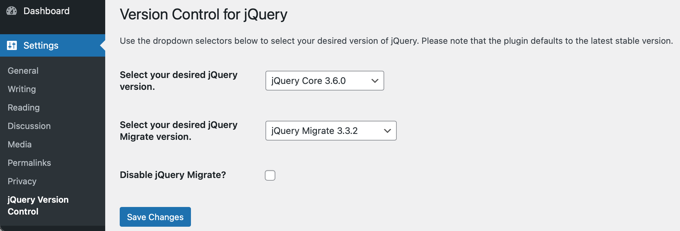
If you need to, you can select a different version of jQuery by visiting the Settings » jQuery Version Control page.

Choose the Version of jQuery You Wish to Run

From here, you can select the jQuery and jQuery Migrate versions you wish to run on your site. Make sure you click the ‘Save Changes’ button to store your settings.

If the updated version of jQuery breaks some of your older plugins, then you can simply select an earlier version from the drop down menu. Alternatively, if you deactivate the Version Control for jQuery plugin, then your site will return to its original state.

We hope this tutorial helped you learn how to update jQuery to the latest version in WordPress. You may also want to learn how to increase your blog traffic, or check out our list of the most common WordPress errors and how to fix them.

If you liked this article, then please subscribe to our YouTube Channel for WordPress video tutorials. You can also find us on Twitter and Facebook.

The post How to Upgrade jQuery to Latest Version in WordPress first appeared on WPBeginner.


July 14, 2022 at 04:00PM