Monday, October 3, 2022

How to Redirect Users After Form Submission in WordPress

Are you looking for a way to redirect users after they’ve submitted a form on your WordPress site?

You can lead users to your top-performing blog posts, display the latest deals, or show a thank you page to build a relationship with your audience.

In this article, we’ll show you how to redirect users after form submission in WordPress.
How to redirect users after form submission in WordPress

Why Redirect Users After Form Submission?

When a user submits a form on your WordPress site, many business owners might think that’s the end of the process. However, you can use forms to increase user engagement on your website and get even more conversions.

For instance, you can direct users to a thank you page after form submission and list your high-converting articles. This way, you can get more pageviews to your best content and drive more sales.

On an online store, you can upsell products and offer incentives like discounts and free shipping when a visitor submits a form.

You could even redirect users to a page where they can download a free resource after submitting the form. For example, you can create a lead magnet where people can fill out a form in exchange for a free resource like an eBook, podcast, media file, or PDF.

That said, let’s see 4 different ways you can easily redirect users after form submission in WordPress. Simply click the links below to jump ahead to your preferred section:

Redirect Users After Form Submission in WordPress

The easiest way of redirecting users after they’ve filled out a form is by using WPForms. It’s the best contact form plugin for WordPress, and over 5 million professionals use it to create different types of forms for their websites.

WPForms comes with a built-in setting to let you choose if you’d like to show a thank you message, show a specific page, or redirect users to another URL altogether. Plus, you get a drag-and-drop form builder to easily customize your form.

For this tutorial, we’ll use the WPForms Lite version because it is free to use, and you can redirect users after form submission in just a few clicks. There is also a WPForms Pro version which offers more pre-built form templates, customization options, and powerful addons.

First, you’ll need to install and activate the WPForms plugin. For more details, please see our guide on how to install a WordPress plugin.

Upon activation, you will see the WPForms welcome page in your WordPress dashboard. Go ahead and click the ‘Create Your First Form’ button.
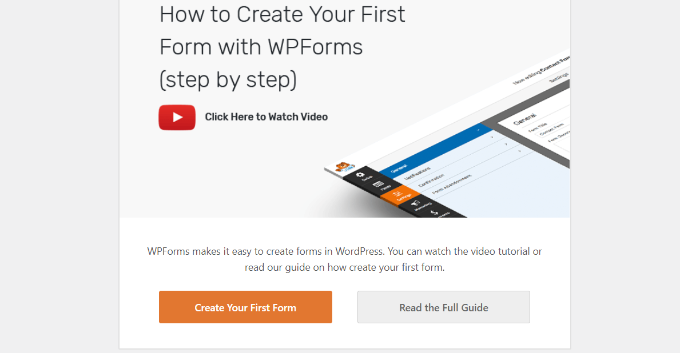
Create your first form

After that, WPForms will have you choose from multiple, free form templates. You can select any template and quickly customize it according to your needs.

Let’s start by entering a name for our form at the top and then selecting the ‘Simple Contact Form’ template.
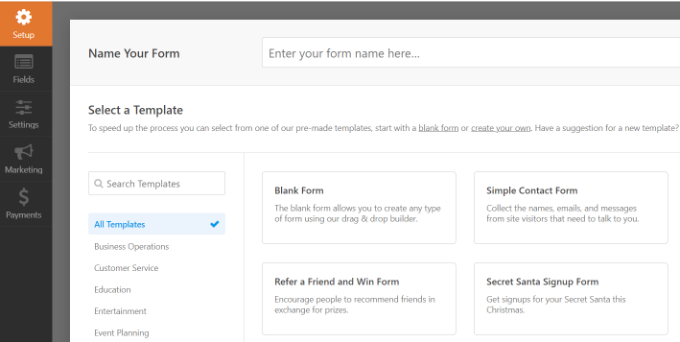
Choose a form template

After selecting a template, the WPForms form builder will launch.

Here, you can customize your form and add new fields from the menu on your left. Simply drag and drop the fields you’d like to add. You can then rearrange their order to your liking.
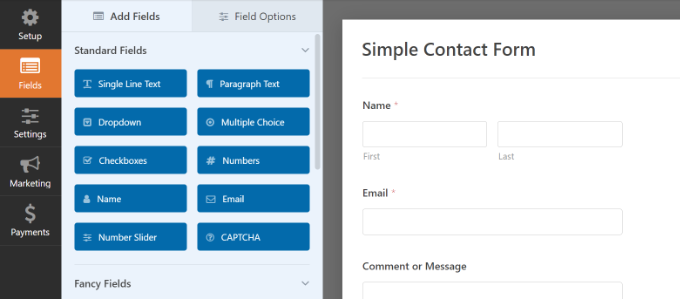
Add new form fields to your template

If you want to add fancy fields like a website URL, phone number, address, file upload option, and more, then we recommend upgrading to the WPForms Pro license.

You can also further customize existing fields on the template. For more details, please see our guide on how to create a contact form in WordPress.

Set Up the Redirect URL after Form Submission

Once you’ve customized your contact form, simply go to Settings » Confirmations in the form builder.

Under the Confirmation Type setting, click the dropdown menu and select the ‘Go to URL (Redirect)’ option.
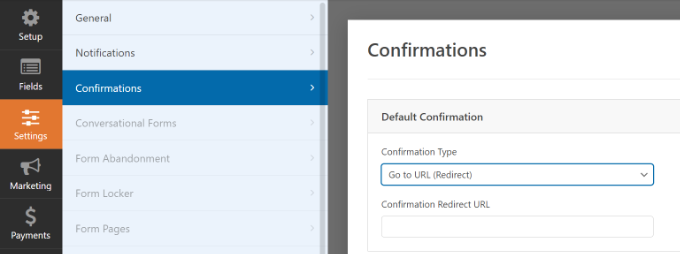
Select go to URL option

After that, simply enter a link in the ‘Confirmation Redirect URL’ field and specify where you’d like to redirect users after they’ve submitted a form.

How to Embed Your Form in WordPress

Once you’ve added a redirect URL, the next step is to embed the form on your website.

Go ahead and click the ‘Save’ button at the top to store your form settings and then click the ‘Embed’ button beside it.
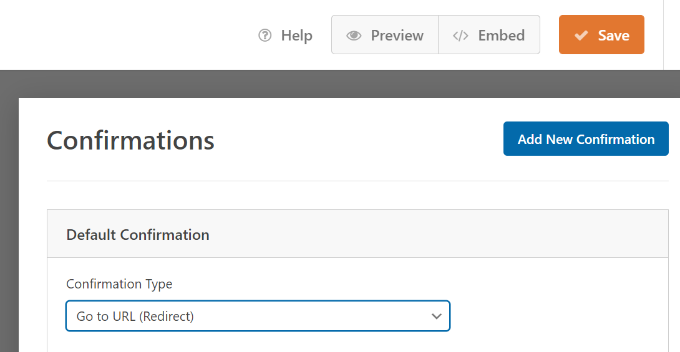
Embed your form

WPForms will now ask if you’d like to embed the form on an existing page or on a new page.

We’ll choose the ‘Create New Page’ option for this tutorial.
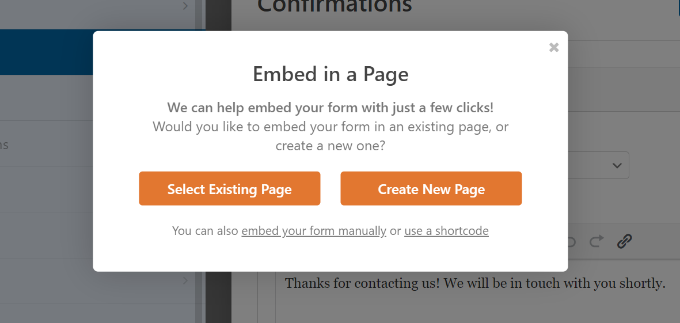
Embed a form in page

Next, you’ll need to enter a name for your new page.

After entering the name, simply click the ‘Let’s Go’ button.
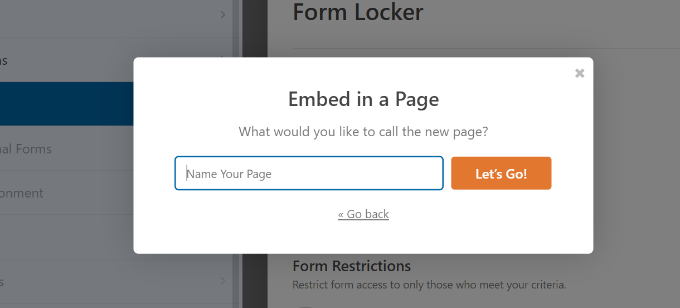
Enter name for your new page

The plugin will now automatically add your form to the WordPress content editor inside the WPForms block.

When you’re ready, simply click the ‘Publish’ button at the top.
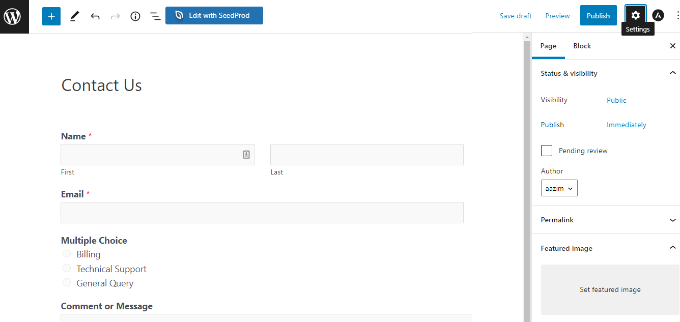
Preview and publish your form

Redirect Users Based on Their Responses After Form Submission

WPForms also lets you set up conditional logic, which automatically redirects users to different pages based on their responses when submitting a form.

For example, let’s say you have different teams that handle questions sent by users, like billing, technical support, and general inquiries. Based on the choice a user selects in the form, you can redirect them to a specific URL that relates to their needs.

Note that you’ll need a WPForms Pro license to use the conditional logic feature. You also get more form fields to add to the template, and you can use addons like User Journey to see how people interact with your forms.

First, you can add a multiple choice, checkbox, or any other field that allows users to select different options. We’ll add a ‘Multiple Choice’ field in our tutorial.
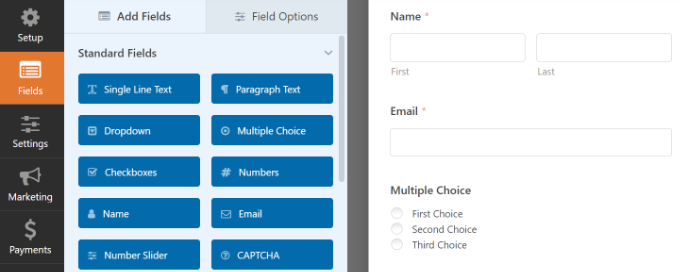
Add a multiple choice field

Next, you can edit the options in the ‘Multiple Choice’ form field by simply clicking on the fields in the template to the right.

For instance, you can see in the image below that we renamed the options to different departments that would handle specific questions.
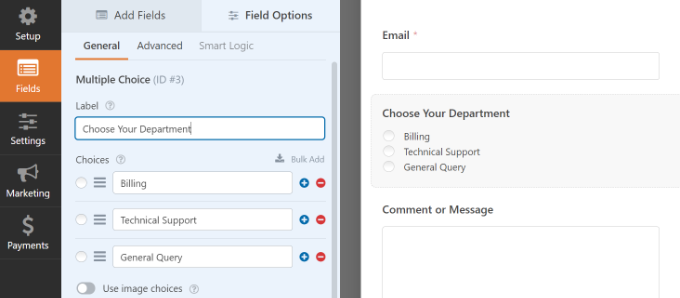
Rename multiple choice options

After that, you can head to Settings » Confirmations in the form builder.

Now click the ‘Add New Confirmation’ button to set up conditional logic.
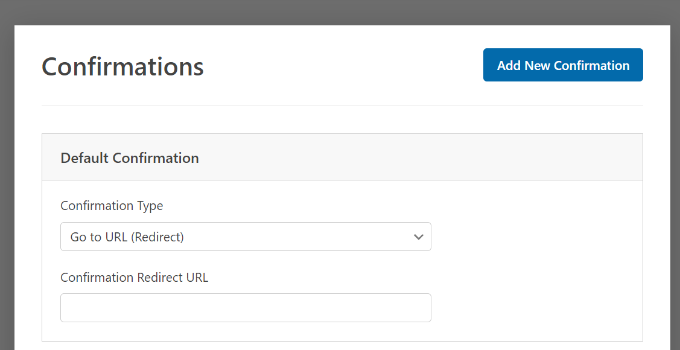
Add a new notification

Next, you will have to enter a name for your new redirect. Be specific so you are able to track it easily.

Simply click the ‘OK’ button when you’re done.
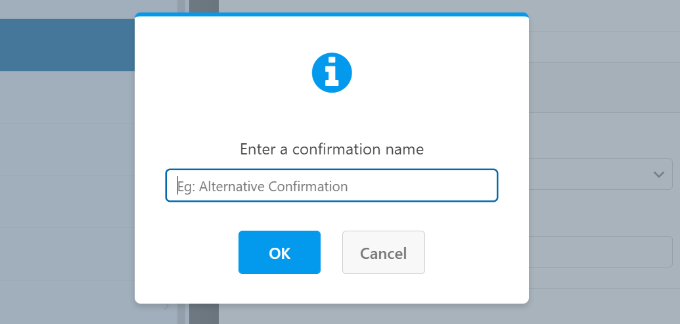
Enter a name for new notification

For this tutorial, we want to direct users to specific pages based on the department they select in the form.

First, you can select ‘Go to URL (Redirect)’ from the Confirmation Type dropdown menu and then enter a link to the respective page in the ‘Confirmation Redirect URL’ field.
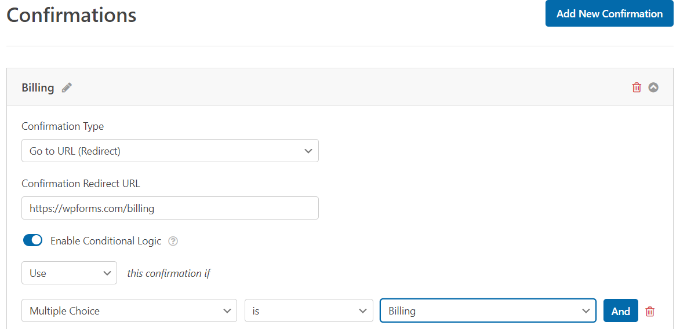
Set up conditional login for new notification

Next, you will need to click the ‘Enable Conditional Logic’ toggle. Once you do that, more options will appear.

Go ahead and select ‘Use’ this confirmation if ‘Multiple Choice’ is ‘Billing’ in the conditional logic settings. This will redirect users to a URL that holds more information about billing when they submit a form.

That’s all! Simply save the form and the WPForms block you added earlier will automatically redirect users to different the URL you set based on their responses.

Next, you can just repeat this step for other multiple choice options in the form and create new confirmation notifications with conditional logic.

Redirect Users After Comment Submission in WordPress

Did you know that you can redirect users to different pages if you have first-time commenters on your WordPress site?

For example, you can show a simple thank you page with an email signup form and get users to subscribe to your newsletter after commenting. Similarly, you can redirect people to a page with your social media links and increase followers.

Redirecting users after comment submission can also help boost pageviews and conversions. You can redirect commenters to your top blog posts, show a special offer or coupon page, or display a lead magnet page to get more conversions.

The easiest way of setting comment redirects is by using the Yoast Comment Hacks plugin. For more information, see our step-by-step guide on how to install a WordPress plugin.

It lets you choose which page to display after a first-time user leaves a comment.

All you have to do is navigate to Settings » Comments Hacks in your WordPress admin dashboard. Then just select the specific page you want to send them with the ‘Redirect to’ dropdown.

Be sure to save the page to store your settings when you’re finished.
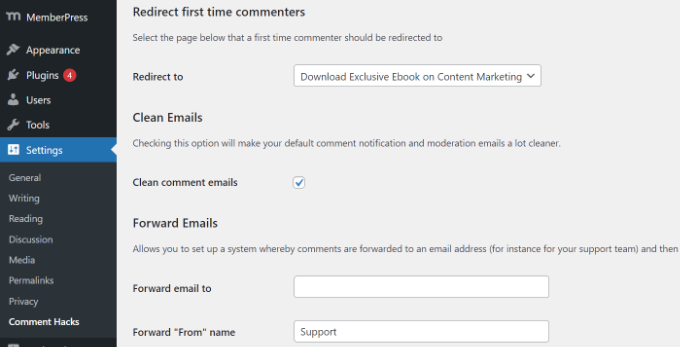
Set up comments redirect

For more details, please see our guide on how to redirect your user’s attention with a comment redirect.

Redirect Users After Registration Form Submission

If you allow user registration on your website, then redirecting people can come in handy.

For instance, if you run membership website or sell online courses, you can redirect users to their account area or dashboard upon submitting a registration form. This way, users can access their download files, license keys, course materials, curriculums, and more.
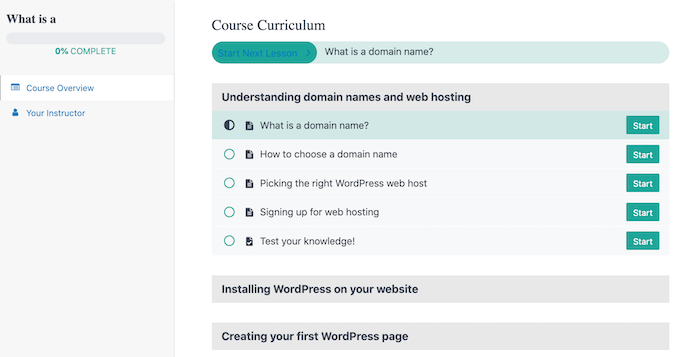
A course curriculum created using the MemberPress LMS

With MemberPress, you can easily restrict access to different sections of your website. It’s the best membership plugin for WordPress and allows you to set up multiple membership levels.

Using MemberPress, you can also create a pricing page using one of the plugin’s built-in templates. If an unregistered user tries to access restricted content, then you can redirect them to a pricing page.

Once you’ve created a custom pricing page, simply enter the URL in the ‘Unauthorized Access’ section of MemeberPress to redirect unregisted users to your pricing page or registration page.
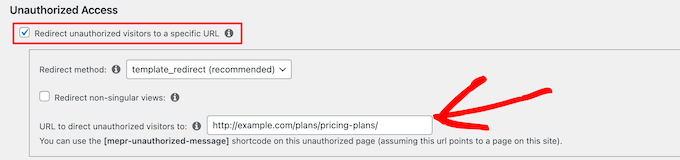
Enter pricing page URL for unauthorized access

If you want even more options, we recommend using a page builder like SeedProd. SeedProd is a drag-and-drop page builder that makes it super easy to customize the layout and design of any page.

You can add elements like a ‘Pricing Table’ to the page you redirect users to. For more details, please see our guide on how to add a beautiful pricing table in WordPress.
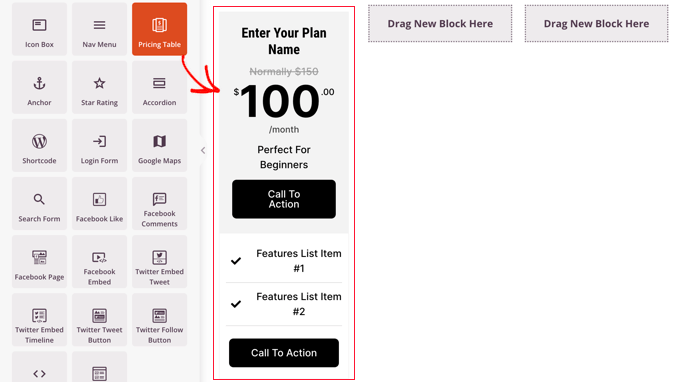
Add a SeedProd Pricing Table Block to Each Column

The default WordPress registration page is plain and only contains the WordPress logo and branding.

You can make it more engaging by using a SeedProd template and then adding a ‘Pricing Table’ block to create a custom login and registration page.
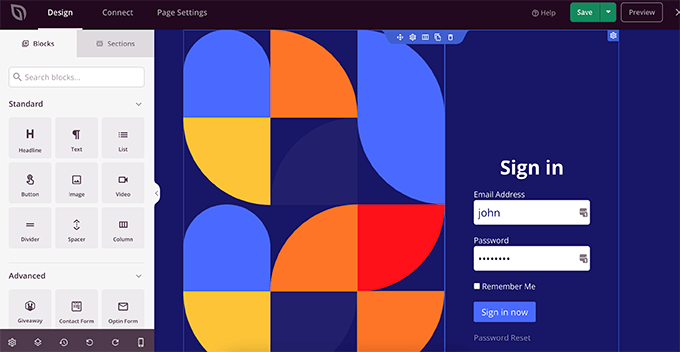
Editing your login page in SeedProd

If you need help, then please see our guide on how to create a custom user registration form in WordPress.

We hope this article helped you learn how to redirect users after form submission in WordPress. You may also want to see our guide on how to choose the best design software and a comparison between WordPress.com vs WordPress.org.

If you liked this article, then please subscribe to our YouTube Channel for WordPress video tutorials. You can also find us on Twitter and Facebook.

The post How to Redirect Users After Form Submission in WordPress first appeared on WPBeginner.


October 03, 2022 at 03:52PM
Saturday, October 1, 2022

How to Manage WordPress Comment Notification Emails

Do you want to improve your WordPress comment notification emails?

Comments drive discussion and user engagement on many blogs. However, WordPress doesn’t do such a great job when it comes to notifying users about comment activity.

In this article, we will show you how to better manage WordPress comment notification emails to boost user activity on your website.

How to manage WordPress comment notification emails

Why Improve WordPress Comment Notification Emails

Comments are an important element of many WordPress websites, particularly on news sites and WordPress blogs. More comment activity means a more engaged audience which results in more page views and ultimately more revenue.

However, the comment system that comes with every WordPress website is fairly limited. It sends comment notifications only to site administrators and article authors. Apart from that, there isn’t a default option for other site users to be notified of new comments.

Wouldn’t it be nice if users were able to get comment notifications for the posts they like or when someone replies to a comment they left?

That said, let’s see how you can enhance the default WordPress comment system and notification emails for a more engaging user experience on your website.

The Default Comment Notification Options in WordPress

By default, WordPress does not have an option to send notifications to commenters.

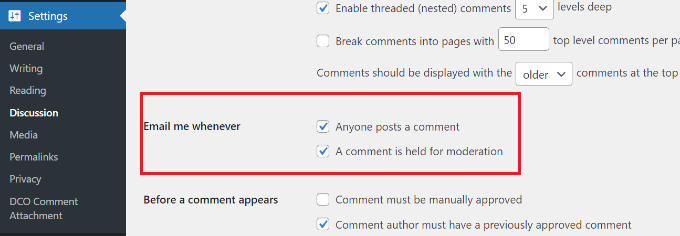
However, it does have an option to send email notifications to site administrators when a new comment is published and when a comment is held for moderation.

You can view these options by going to Settings » Discussion from your WordPress dashboard and navigating to the ‘Email me whenever’ section.

Email me whenever settings

Both these notifications are only sent to the site administrators. However, WordPress also sends an email notification to the post author about new comments.

If you get a lot of comments on your website, you might not want to receive email notifications for all comments held for moderation. You can simply uncheck the box here to disable those.

How to Let Users Know When Their Comment is Approved

If a user’s comment is held for moderation, they will see a message telling them so. However, they will have no idea whether you approve it or not without returning to your site.

Unfortunately, many of these users never return to your website to check, so they won’t ever know that you approved their comments.

You can fix this by using the Comment Approved Notifier Extended plugin. For more details, see our step-by-step guide on how to install a WordPress plugin.

Comment Approved Notifier Extended will notify users when their comment is approved. It works right out of the box, and there are no additional settings you need to configure.

You can also see our list of best plugins to improve WordPress comments.

How to Allow Users to Subscribe to Comments in WordPress

In addition to not knowing if their comment was approved, commenters will not be notified about replies, either.

Once they leave a comment, they will have to manually visit your website again to see if someone has replied.

To solve this, you need to install and activate Subscribe to Comments Reloaded plugin. For more details, see our guide on how to install a WordPress plugin.

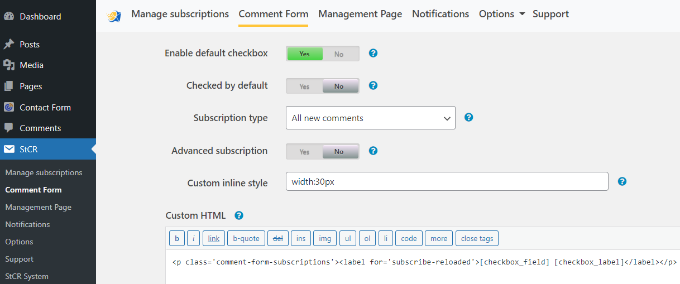
It allows your users to subscribe to comments on any article with or without leaving comments. Users can also easily unsubscribe at any time.

StCr settings in WordPress

For detailed step-by-step instructions, see our article on how to allow users to subscribe to comments in WordPress.

How to Allow Users to Subscribe to Just their Own Comments in WordPress

Many users may not want to receive notifications for all comments on an article. However, they may want to know if someone replied only to their own comments.

You can add this feature as well using the same Subscribe to Comments Reloaded plugin. First, you’ll need to install and activate the plugin. If you need help, then please see our guide on how to install a WordPress plugin.

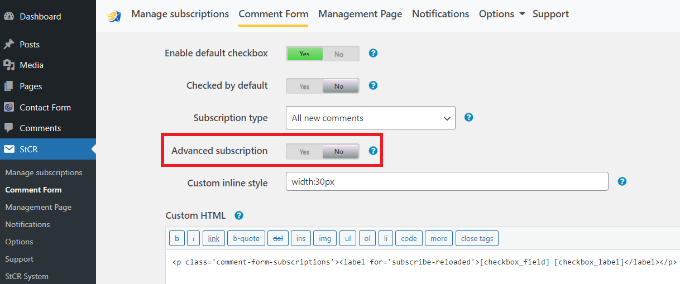
Next, simply visit the StCR » Comment Form in your WordPress dashboard. From here, click on ‘Yes’ next to the ‘Advanced Subscription’ option.

StCr settings in WordPress

Users will now see a new option under the comment box whether they’d like to subscribe to all comments or just their own comments.

For more details, see our article on how to notify users of replies to their own comments in WordPress.

How to Allow Authors to Subscribe to Other Author’s Posts

If you run a multi-author blog, then other authors may want to keep up with discussions across your website. If you already have comment subscriptions enabled, then each author can manually go and subscribe to comments.

However, if you want certain users to receive all comment notifications, then you can do this with Better Notifications for WordPress plugin. For more details, then please see our guide on how to install a WordPress plugin.

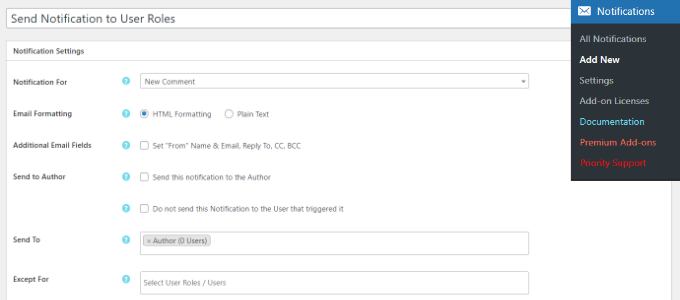
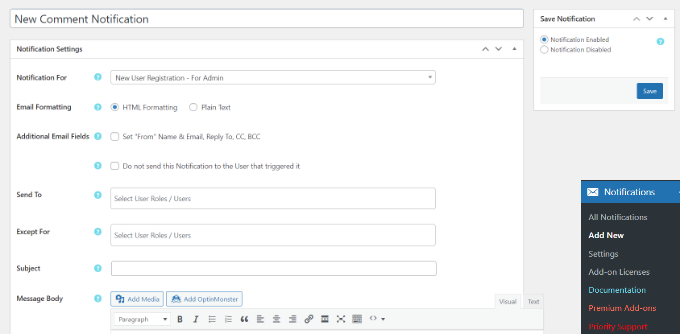
Once the plugin is active, you can head to Notifications » Add New from your WordPress dashboard and can enter a title for your notification at the top.

Next, you can select ‘New Comment’ from the ‘Notification for’ dropdown menu. After that, simply add the user roles that will receive these notifications in the ‘Send To’ field.

Comment notifications for certain user roles

The plugin also offers an option to send notifications to the post’s author and even exclude user roles from receiving email notifications for new comments.

How to Create Custom Comment Notification in WordPress

Want to create your own custom comment notifications in WordPress? Custom notifications can allow you to replace the default WordPress notification with your own.

First, you will need to install and activate the Better Notifications for WordPress plugin. For more details, see our step-by-step guide on how to install a WordPress plugin.

Upon activation, you need to visit the Notifications » Add New page from your WordPress admin panel to create your custom comment notifications.

Create a custom notification

You can edit the notifications for new comments, comments awaiting moderation, and comment replies. Additionally, you can send notifications to any user role or to individual users.

The plugin also lets you add email addresses manually that are not even connected to a user on the site.

You have the option to completely customize the comment notification sent by WordPress and use shortcodes inside the email text to add custom tags.

For more details, see our article on how to add better custom notifications in WordPress.

How to Improve Deliverability of WordPress Email Notifications

All the above tips will fail if your WordPress site fails to send email notifications or if those emails are marked spam by email providers.

To fix WordPress email issues and improve email deliverability, you need to install and activate the WP Mail SMTP plugin. For more details, see our step-by-step guide on how to install a WordPress plugin.

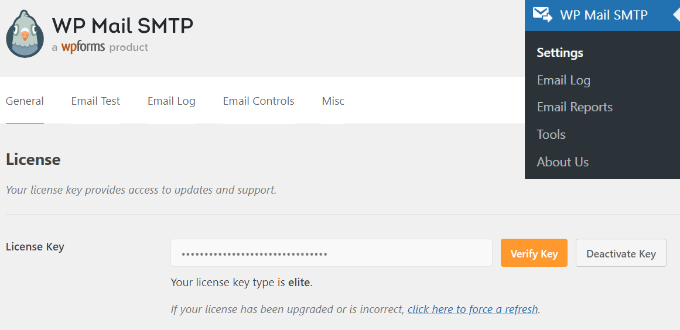
Upon activation, visit the Settings » WP Mail SMTP page to configure plugin settings.

WP Mail SMTP settings

This plugin allows you to use SMTP (Simple Mail Transfer Protocol) to send emails. SMTP is a much better and more reliable method than the default mail function used by WordPress.

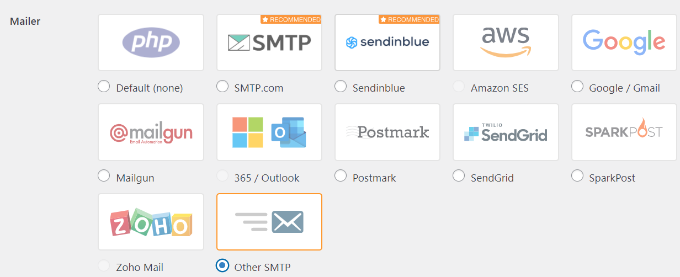
It works with any email service that supports SMTP. This includes your free Gmail account as well as Google Workspace, Mailgun, and Sendgrid.

Choose Other SMTP as mailer

For details, see our article on how to use SMTP server to send WordPress emails.

We hope this article helped you learn how to manage WordPress comment notification emails. You may also want to see our ultimate step-by-step guide on improving WordPress speed and performance for beginners and how to start an online store.

If you liked this article, then please subscribe to our YouTube Channel for WordPress video tutorials. You can also find us on Twitter and Facebook.

The post How to Manage WordPress Comment Notification Emails first appeared on WPBeginner.


October 02, 2022 at 12:04AM

Friday, September 30, 2022

2022 Blogging Statistics, Trends & Data – Ultimate List (UPDATED)

Are you looking for the latest blogging statistics, trends, and data?

To get more blog readers, it’s important to know what’s new and exciting in the world of blogging. However, it can be difficult to keep up with the latest trends and facts.

In this ultimate guide, we’re sharing the latest blogging statistics, trends, and data for 2022, and what they mean for you.

2022 blogging statistics, trends and Data - Ultimate list (updated)

Ultimate List of Blogging Statistics 2022

We’ve divided these blogging statistics into several different categories so that you can easily find the information you’re most interested in. Simply use the table of contents below to jump to a particular section.

Growth Blogging Statistics

Growth blogging statistics
  • There are 1.9 billion websites in the world and over 600 million blogs spread across platforms such as Tumblr, Wix, and LinkedIn. That means that the blogging industry makes up a third of the web.
  • People publish 70 million new posts on WordPress.com every month.
  • WordPress powers 43% of all websites, making WordPress the world’s most popular content management platform.
  • People post over 75 million new comments on WordPress.com blogs every month.
  • 22% of bloggers post every single week.
  • 2% of bloggers post daily and 1% of bloggers even post multiple times a day.

Blogging is no longer the only way that people can share their thoughts online. Social media, podcasts, and forums have all given internet users more ways to connect with one another.

Despite this, the blogging industry takes up a third of the web, and WordPress powers 43% of all websites. This shows that people are still writing posts and that WordPress is still the best blogging platform.

For more information on why WordPress has such a big market share, see our guide on the most important reasons to use WordPress.

General Blogging Statistics

General blogging statistics
  • 71% of WordPress blogs are written in English.
  • Spanish is the second most used language to write blog content on WordPress (4.7%) and Indonesian is the third most used language (2.4%). Thankfully, it’s easy to create a multilingual WordPress site and connect with a global audience.
  • When asked why they read blog posts, 33% of people said they wanted to learn something new.
  • How-to articles are the most popular content for bloggers to write. In fact, 76% of bloggers now publish how-to articles.
  • 45% of bloggers publish long form content such as guides and ebooks.
  • 27% of bloggers post gated content.
  • Roundup blogs and showcases are the most effective for bloggers, but only 24% of bloggers write roundups.
  • The highest recorded salary for a blogger in the United States is $104,191 per year.
  • As a benchmark, a blogger based in the United States can make up to $82,080 per year with a typical salary of $50,445 per year.
  • 44% of bloggers edit their own work.
  • Bloggers who work with editors are twice as likely to report “strong results.” However, just 17% of bloggers work with a formal editor.

These studies and surveys show that bloggers are creating a mix of different content, which makes WordPress the perfect choice for the modern blogger.

With the right plugin, it’s easy to extend the WordPress platform and post any type of content you want. For example, you can add downloadable long-form content such as ebooks to your blog and even sell them as digital downloads.

There are also lots of different ways to post gated content including creating a membership site with exclusive members-only blog posts.

For more plugin recommendations, you can see our expert pick of the must-have plugins for WordPress business websites.

SEO Blogging Statistics

A search bar and magnifying glass
  • 71% of bloggers agree that optimizing for search engines is the best way to get more traffic.
  • 51% of companies measure the success of their blog content based on organic traffic, while 42% say that search ranking is the most important metric for measuring success.
  • 27% of bloggers always research keywords, but 15% of bloggers admit they never do keyword research.
  • When we look at the bloggers who always research keywords, 37% say they get “strong results” from their posts. This is a big contrast to the bloggers who never research keywords, as just 11% of those writers get strong results.
  • 29% of bloggers always check their Google Analytics. Worryingly, 4% say they don’t even have access to Google Analytics.
  • When we focus on the bloggers who always check their Google Analytics, 36% of those people get “strong results” from their posts.
  • Unsurprisingly, just 10% of bloggers who never or rarely check their Google Analytics get “strong results.”

The statistics show just how important it is to improve your SEO and monitor results.

If your blog content isn’t optimized, then search engines such as Google won’t know when to include it in the search results. When people search for the topics that you write about, your blog won’t appear in their results and you’ll miss out on visitors.

This explains why bloggers who follow simple SEO best practices, such as keyword research, get much more traffic.

SEO may be important but most SEO guides are too technical for new users to get started. With that in mind, we’ve created an ultimate WordPress SEO guide for beginners.

Blogging Traffic Statistics

A line of vehicles
  • Over 409 million people visit WordPress.com websites every single month.
  • 49% of bloggers say that getting traffic is their biggest challenge.
  • Blog posts that have ‘Guide’ in the title get three times more organic traffic.
  • Posts that have both ‘Guide’ and ‘How to’ in their headlines get the most organic traffic.
  • Blogs with seven or fewer words in their H1 tags get 36% more organic traffic compared to posts that have 14 or more words.
  • Headlines that ask a question get around 23% more social shares.
  • Blogs with one or two lists every 500 words get 68% more traffic compared to blogs that don’t use lists. That being said, it’s unsurprising that 54% of bloggers use listicles.

Your title is the first thing that people will see in the search engine results so it’s crucial to your blogging efforts. Thankfully our traffic stats show some very clear rules for writing a successful headline.

However, it’s still a good idea to go one step further and use a headline analyzer to evaluate your title and help you get more clicks and visitors. A headline analyzer will provide data-driven suggestions and insights that you can use to create click-worthy titles and improve your organic search engine rankings.

To learn more, please see our guide on how to use a headline analyzer in WordPress.

Social Media Blogging Stats

Social media blogging stats
  • The majority of bloggers (90%) promote their posts on social media. This includes adding social share buttons to their content and running social media contests.
  • 56% of bloggers report that social media is their most important traffic source.
  • 78% of blog posts under 500 words have not been shared on social media.
  • Only 10% of bloggers use influencer partnerships to drive traffic to their content.
  • Although a small number of bloggers collaborate with social media influencers, an impressive 43% of those bloggers get “strong results.”

These social media blogging statistics show how crucial it is to promote your WordPress blog on social media.

With 56% of bloggers reporting that social media is their most important traffic source, you don’t want to miss out on this effective strategy.

If you want to become a social media expert fast, then check out our ultimate social media cheat sheet for WordPress.

But promoting your posts on social media isn’t the only way to boost traffic to your site. For more details, you can see our complete guide on how to increase your blog traffic.

Digital Marketing Statistics for Bloggers

Tools used by digital marketers and content marketers
  • 48% of companies that have a content marketing strategy also have blog sites.
  • 76% of content marketers use a blog to distribute content. In fact, blogs are much more popular with content marketers than newsletters and email marketing.
  • 77% of marketers agree that blogging gets results.
  • 10% of marketers say that blogs are the type of content that delivers the best return on investment.
  • 36% of marketers use content creation for lead generation.
  • 36% of marketers agree that blog posts brought them the best results in 2021. In fact, these marketers got better results from blog posts than case studies, webinars, infographics, ebooks, and podcasts.
  • 43% of B2B marketers do guest blogging.
  • 55% of marketers say that improving the quality of their content made the biggest impact on the success of their campaigns. In fact, focusing on high-quality content delivered better results than optimizing blog posts for SEO, partnering with influencers, and optimizing their website.
  • Bloggers rate “quality content” as the top factor in running a successful blog.

There are lots of new and exciting ways to do content marketing but these stats prove that blogging is still the best way to build brand awareness, connect with your target audience, and attract more leads and customers.

If you’ve just created a new blog, then it can be difficult to know where to start. With that in mind, we’ve put together some expert tips that everyone should know before starting a blog.

If you’re using blogs to get more leads, then you may want to take a look at OptinMonster. It is the best lead generation plugin for WordPress that can help you get more leads and improve monetization.

eCommerce Statistics for Bloggers

An eCommerce website and online store
  • 59% of shoppers use Google to research a product they plan to buy.
  • 56% of people have bought something from a company after reading their blog.
  • 73% of shoppers would rather learn about a product by watching video content.
  • 88% of people have bought a product or service after watching a video.

These eCommerce blogging statistics prove that shoppers are researching online before they buy.

If you run an online store using a plugin such as WooCommerce, then a blog is the perfect place to post about your products. Whether it’s how-to guides, product roundups, reviews, or other content, a blog can give shoppers easy access to the information they’re looking for.

Based on the statistics, it’s also smart to create video content for your products or services. These might be video advertisements, guides on how to use your products, a recorded customer testimonial, or anything else your customers might enjoy.

You can then embed these videos in your blog posts and get more sales.

Blogging Visual Content Statistics

A video play button
  • 47% of all blogs have 2-3 images.
  • 42% of bloggers who get “strong results” use more than 10 images per post.
  • Posts with more than seven images get 116% more organic traffic compared to posts that have no images.
  • Blog posts with videos get 83% more traffic than those without video.
  • Blog posts with more than three videos get 55% more backlinks compared to posts that have no videos.
  • The average person spends 100 minutes watching online videos every single day.

Images and videos instantly make your blog posts look more engaging and interesting. You can also use them to break up text-heavy posts and show complicated topics in a more user-friendly way.

This explains why blogs with images and videos get much more engagement and traffic compared to text-only posts.

If you’re using WordPress then there are lots of ways to add media to your posts including creating image galleries and adding a background image to your blog.

WordPress users can also embed videos from all the popular video platforms including YouTube. You can even embed an entire YouTube playlist in WordPress.

A graph showing blogging trends and blogging statistics

By keeping up with the latest blogging trends, you can stay ahead of the competition and get more visitors to your site. With that being said, here are some of the biggest blogging trends to look out for this year.

Bloggers prioritize updating old content over writing new content:

  • 65% of companies who say their content marketing is very successful, do content audits more than twice a year.
  • 25% of marketers already do a content audit more than three times a year.
  • 46% of companies who said their content marketing was unsuccessful in 2021 didn’t perform a content audit.
  • 43% of bloggers confirmed that their traffic or rankings improved after doing an audit.
  • 45% of bloggers say their engagement went up after updating their older content.

Writing new content helps to keep your blog fresh and relevant. However, these blogging statistics show that updating your old content is just as important.

Content marketers and bloggers who perform regular content audits get much better results compared to people who never review their old content.

Updating your old posts might be as simple as adding some new images, or fixing outdated references or statistics. Other posts may need a full rewrite.

No matter how you update your old posts, we also recommend doing an SEO audit. This will give your updated blogs the best chance of climbing the search engine rankings and getting on the first page of Google.

As blogging gets more competitive, writers will spend more time on each post:

  • The average blog post already takes four hours and one minute to write.
  • Bloggers spend more time on each post every year. In fact, the average blogger spent 67% more time writing a post in 2021 compared to 2014.
  • Bloggers who spend over six hours working on a single post are far more likely to get strong results.

More people are blogging than ever before, but that also means more competition.

One way that bloggers are responding to this competition is by spending more time fine-tuning each post.

No matter whether you’re business blogging or running your own blog, it’s not always possible to spend over six hours writing a single post. However, the statistics suggest that the more time you invest in each post, the better the results.

Already struggling with a busy schedule? Thankfully there are tools that can give your posts an advantage without taking up lots of your time.

To start, we recommend taking a look at the free Google tools that every blogger should use and some useful tools to manage and grow your WordPress blog.

Blog posts will get longer:

  • In 2021, the average length of a blog post was 1416 words.
  • The average blog post length has increased 57% since 2014.
  • 78% of blog posts that have fewer than 500 words get no shares on social media.
  • Posts with over 3,000 words get 138% more visitors than posts that have fewer than 500 words.
  • Currently, just 4% of bloggers write posts that are over 3,000 words.

Blog posts are getting longer and more successful. With that in mind you may want to set a minimum word count for WordPress posts, particularly if you accept guest posts on a multi-author blog.

However, we recommend keeping the reader’s experience in mind. The best blog posts stay on topic and don’t have lots of unnecessary information.

You can think of the perfect blog post like a school essay. If you add lots of fluff just to meet the minimum word count, then you will probably get a low grade.

A good trick is to focus on exploring the topic in-depth, while using as few words as possible.

Sources: Internet Live Stats, Techjury, Glassdoor, WordPress.com, Content Marketing Institute, Think with Google, W3Techs, HubSpot, Semrush, Orbit Media Studios, Zenith, Cisco, Wyzowl, Statista, GrowthBadger, Backlinko.

We hope this ultimate guide helped you learn all about the latest blogging statistics, trends, and data. You may also want to see our guide on how to choose the best blogging platform and proven ways to make money online blogging.

If you liked this article, then please subscribe to our YouTube Channel for WordPress video tutorials. You can also find us on Twitter and Facebook.

The post 2022 Blogging Statistics, Trends & Data – Ultimate List (UPDATED) first appeared on WPBeginner.


September 30, 2022 at 04:15PM