Sunday, February 5, 2023

How to Delay Posts From Appearing in WordPress RSS Feed

Do you want to delay posts from appearing in your site’s RSS feed?

Delaying posts from appearing immediately can save you from sending out unfinished work accidentally, give you time to edit typos you might see, and help you beat content scrapers in SEO.

In this article, we will show you how to delay posts from appearing in WordPress RSS feed.
How to Delay Posts From Appearing in WordPress RSS Feed

Why Delay Your RSS Feed in WordPress?

Sometimes you may publish a something on your WordPress blog with a typo that you just didn’t see. The mistake is then distributed to your RSS feed and all of your subscribers. If you have email subscriptions on your WordPress blog, then those subscribers will get it as well.

By adding a delay between your RSS feed and your live site, you get a little window of time to catch an error on a live site and fix it.

RSS feeds are also used by content scraping websites. They use it to monitor your content and copy your posts as soon as they appear live. If you have a new website with little authority, then a lot of times these content scrapers may end up beating you in the search results.

By delaying an article in your RSS feed, you can give search engines enough time to crawl and index your content first.

Having said that, let’s see how to easily delay posts from appearing in WordPress website‘s RSS feed.

How to Delay Posts in Your WordPress RSS Feed

To begin, we recommend using WPCode to delay posts from appearing in your site’s feed. WPCode lets you add custom code to WordPress safely and easily without having to worry about your site breaking.

For advanced users, you can copy/paste the following code into your theme’s functions.php file instead. You’ll need to modify the code to change the time interval. Remember that editing your core WordPress files can be dangerous, which is why we recommend WPCode. You’ll also lose any custom code snippets when you update your theme.

For details, see our article on how to paste code snippets from the web into WordPress.

function wpb_snippet_publish_later_on_feed( $where ) {

        global $wpdb;

        if ( is_feed() ) {
                // Timestamp in WP-format.
                $now = gmdate( 'Y-m-d H:i:s' );

                // Number of unit to wait
                $wait = '10'; // integer.

                // Choose time unit.
                $unit = 'MINUTE'; // MINUTE, HOUR, DAY, WEEK, MONTH, YEAR.

                // Add SQL-sytax to default $where. By default 10 minutes.
                $where .= " AND TIMESTAMPDIFF($unit, $wpdb->posts.post_date_gmt, '$now') > $wait ";
        }

        return $where;
}

add_filter( 'posts_where', 'wpb_snippet_publish_later_on_feed' );

Now we’ll show you how to do this the easy way with WPCode.

First, you will need to install and activate the free WPCode plugin. For details, you can follow our step-by-step guide on how to install a WordPress Plugin.

Upon activation, you can navigate to Code Snippets » Add Snippet. After that, simply search for ‘rss’ or scroll down to the ‘RSS Feeds’ category.

Then, just hover your mouse over ‘Delay Posts in RSS Feeds’ in the results and simply click on ‘Use snippet.’
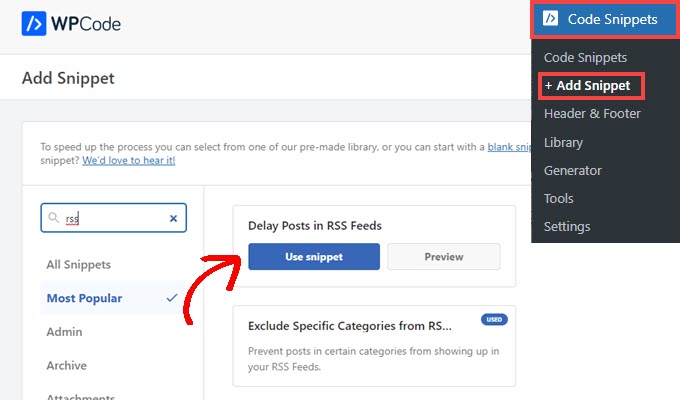
Add a snippet using WPCode

Next, you will be taken to the ‘Edit Snippet’ screen, where WPCode has pre-configured the snippet settings for you.

By default, your posts will be delayed from appearing in your RSS feed by 10 minutes from the time it’s published.

If that delay is good for you, then all you have to do is click on the switch to change it to ‘Active’ and press the ‘Update’ button.
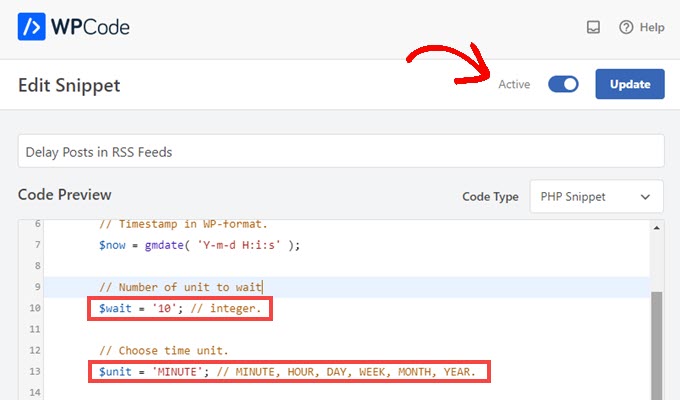
Adjust the time your posts are delayed in RSS feed

If you want to alter the length of the delay, you can do so by changing the number on Line 10 and the unit of time on Line 13.

For example, you can delay the post by one hour if you replace $wait = '10'; and $unit = 'MINUTE' with $wait = '1' and $unit = 'HOUR'.

If you need to adjust the delay again, simply repeat those steps, and if you want the posts to go back to hitting the feed immediately, simply toggle the switch back to ‘Inactive’ and press ‘Update.’

Don’t Forget to Check Out the WPCode Snippet Library

WPCode also comes with a huge collection of other code snippets, too. You can see what’s there at Code Snippets » Library in your admin dashboard.
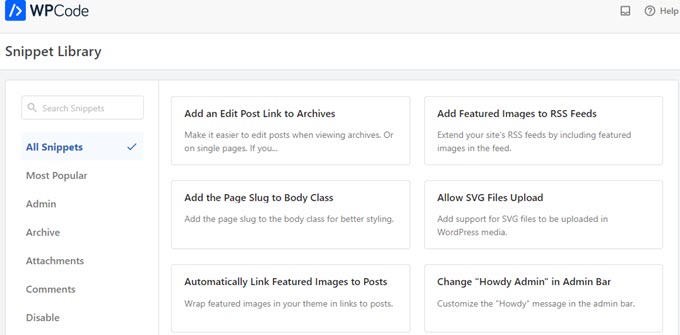
WPCode library of code snippets

You may be able to replace some single-use plugins on your site by simply activating snippets you find in the library.

For example, you can find snippets that will let you disable automatic updates, allow SVG uploads, set a minimum word count for posts, and much more.

We hope this article helped you learn how to easily delay posts from appearing in WordPress RSS feed. You may also want to see our guide on how to create an email newsletter the right way, or see our expert pick of the best live chat software for small business.

If you liked this article, then please subscribe to our YouTube Channel for WordPress video tutorials. You can also find us on Twitter and Facebook.

The post How to Delay Posts From Appearing in WordPress RSS Feed first appeared on WPBeginner.


February 05, 2023 at 08:00PM

Saturday, February 4, 2023

How to Create GDPR Compliant Forms in WordPress

Do you want to create GDPR-compliant forms in WordPress?

European Union’s new GDPR law requires explicit user consent to store personal information so that users can have more personal control over their data stored on websites.

In this article, we will show you how to easily create GDPR-compliant forms in WordPress.

How to Create GDPR compliant forms in WordPress

What is GDPR?

The General Data Protection Regulation (GDPR) is a European Union (EU) law that became effective on May 25th, 2018. This new law aims to give EU citizens control over their personal data and change how companies and businesses handle data privacy around the world.

For more details, see our ultimate guide to WordPress and GDPR compliance which will answer all your GDPR-related questions in plain English.

A typical WordPress site may collect users’ personal information in a number of ways. One of which is by adding forms to the site. Most forms collect personal information, and you may want to make sure that your WordPress forms comply with GDPR.

What is Required to Make a Form GDPR Compliant

In order to make your WordPress forms GDPR compliant, you will need to add the following features:

  • Ask users to give explicit consent for storing and using their personal information.
  • Allow users to request access to their own personal information stored on your website.
  • Allow users to request the deletion of their data from your website.

Having said that, let’s take a look at how to easily create GDPR-compliant WordPress forms. You can click the links below to jump ahead to any section:

How to Make a GDPR Compliant Form in WordPress

We recommend using WPForms to make GDPR-compliant WordPress forms. It is the best contact form plugin for WordPress and has built-in GDPR enhancement features.

For instance, you get a 1-click GDPR Agreement field for your forms, GDPR-compliant data retention best practices, easy entry management system to quickly find, export, or delete user data upon request.

First, you need to install and activate the WPForms plugin. For more details, see our step-by-step guide on how to install a WordPress plugin.

For this tutorial, we’ll use the WPForms Pro version because it includes the disable user cookies and user details options. However, you can also use the WPForms Lite version to create a GDPR-compliant form.

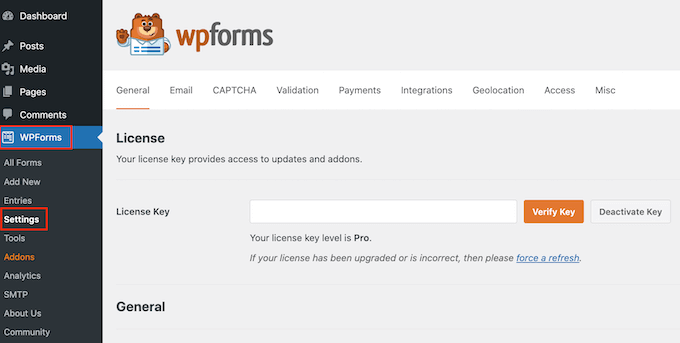
Upon activation, you need to visit WPForms » Settings page and enter your license key. You can find the license key in the WPForms account area.

Entering the WPForms license key

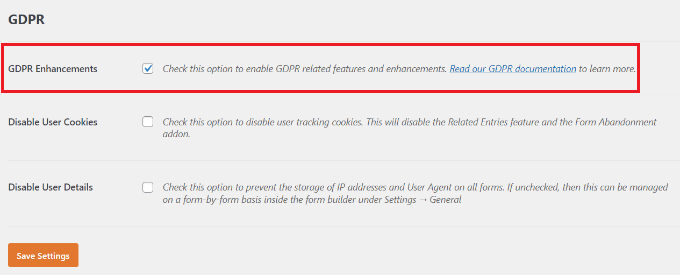
Next, you’ll need to scroll down to the GDPR section.

There, you need to check the box next to the GDPR Enhancements option.

Enable GDPR enhancement option

Enabling the GDPR Enhancements option will reveal two more GDPR-related settings.

The first option, ‘Disable User Cookies,’ will stop WPForms from storing user sessions. This cookie contains a random unique identifier that helps WPForms add features like related entries, form abandonment, and geolocation. Disabling it will also disable those features.

The second option, ‘Disable User Details,’ will stop WPForms from storing user IP addresses and browser information. Both of these settings are optional, and you can check them if you feel that you don’t need these features.

Don’t forget to click the ‘Save Settings’ button to store your changes.

Select Form Template and Add GDRP Agreement Field

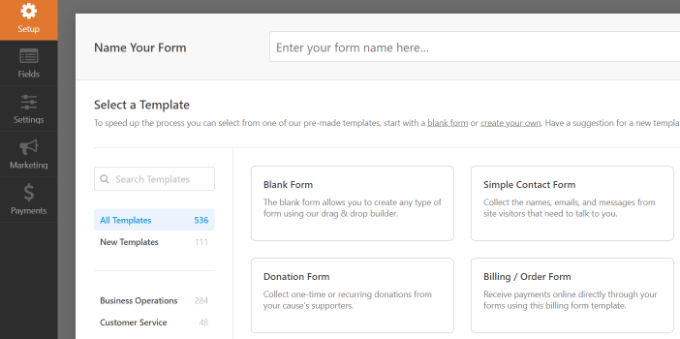
WPForms is now ready to create GDPR-compliant forms in WordPress. You can now go to WPForms » Add New page to create a new form.

You will be asked to enter a title for your form and select a template. These templates are ready-made forms that you can use as a starting point. In this tutorial, we’ll use the ‘Simple Contact Form’ template.

Add a new form

This will launch the WPForms builder interface.

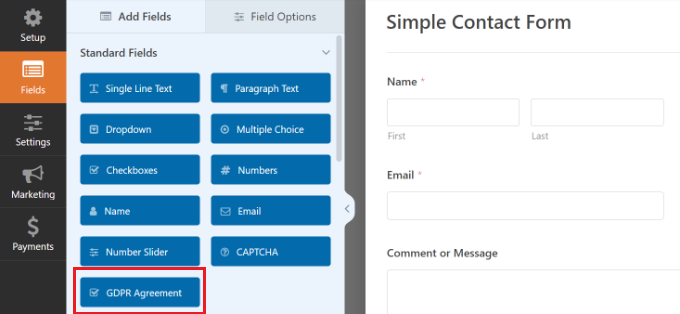
You will see your form preview in the right column, and on the left, you will see all the fields that you can add to your form.

Add the GDPR agreement field

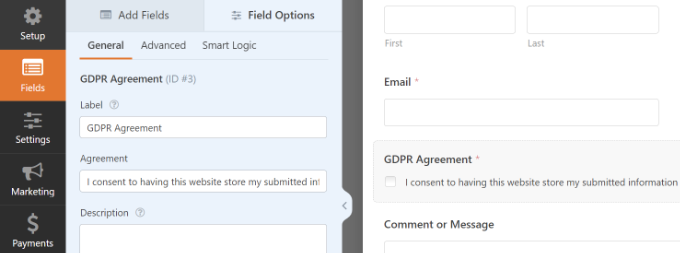
Simply drag the ‘GDPR Agreement’ field and add it to your form.

You will now see it appear at the bottom of your form. If you click on it, more options will appear in the settings panel on the left.

Edit the GDPR agreement

You can change the title of the form field and agreement text, and then use the description box to add details like a link to your privacy policy or terms and conditions pages.

Note: The GDPR Agreement field is always a required field, and it cannot be pre-checked to comply with the GDPR law. You can only add one GDPR agreement field to each form.

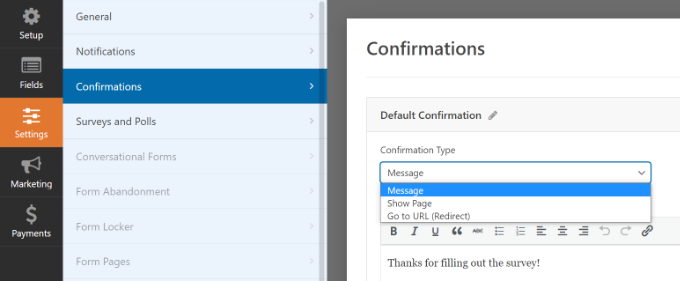
Next, you can go to the Settings » Confirmations tab in the form builder. Here, you’ll get different options to select when a user submits a form. For instance, you can show a message, a page, or to redirect users to another URL.

Edit form confirmation settings

Once you are satisfied with the form, don’t forget to store your changes.

Adding GDPR Compliant Form to WordPress

WPForms allows you to easily add forms anywhere on your website.

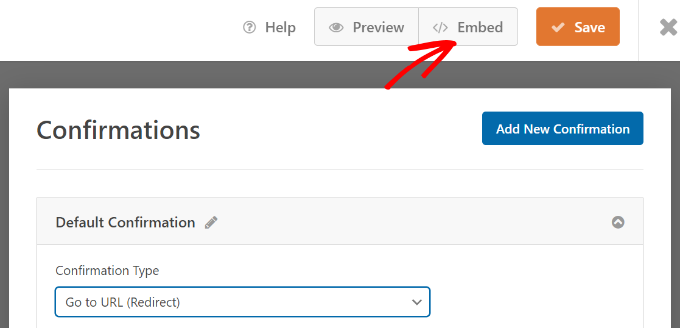
You can simply click the ‘Embed’ button at the top of the form builder to get started.

Click the embed button

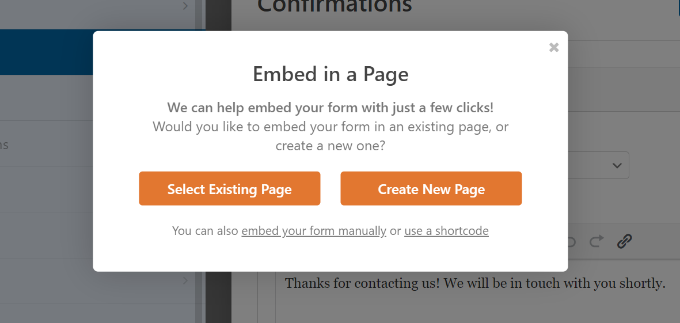
Next, a popup will open, which will ask you to create a new page or select an existing page.

We’ll use the ‘Create New Page’ option for this tutorial.

Embed a form in page

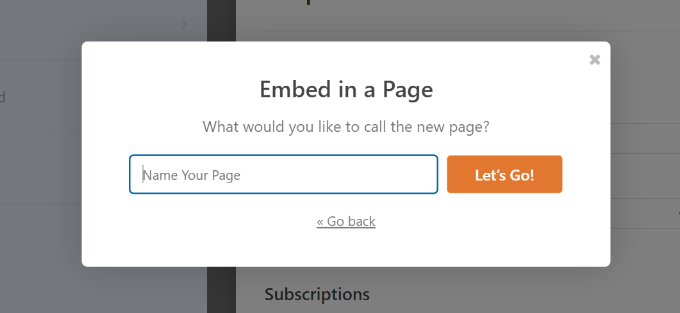
After that, you’ll need to enter a name for your page.

Once that’s done, simply click the ‘Let’s Go’ button.

Enter the name of the page

Your form will now appear in the WordPress content editor.

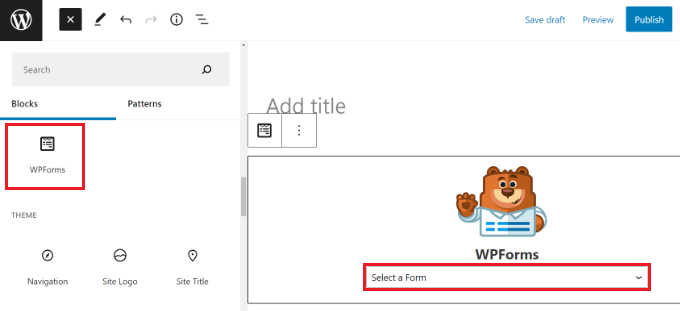
Another way to add forms to any page or post is using the WPForms block. Simply add the block to your content and select your form from the dropdown menu.

Add a WPForms block in wordpress

You can now save or publish your post or page.

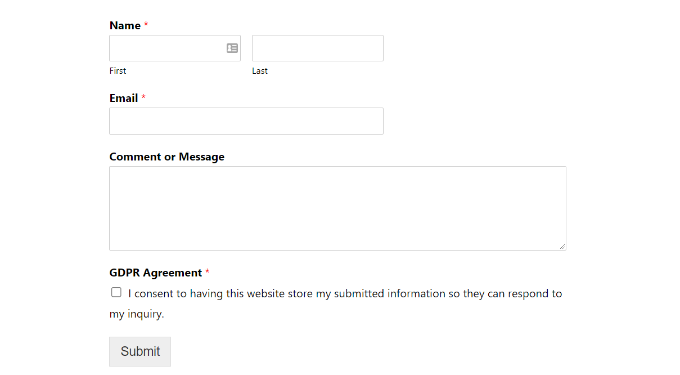
Simply visit your website to see your GDPR-ready WordPress form in action.

GDPR form preview

Managing Data Access and Deletion Requirements with WPForms

One of the requirements for GDPR compliance is to give users access and allow them to request the deletion of their data.

To do that, you can create a ‘Data access/delete form’ and add it to your privacy policy page. Users who wish to access their stored data or want it to be deleted can use that form to send you a request.

WPForms has an excellent entry management system that allows you to quickly find any data submitted via your forms.

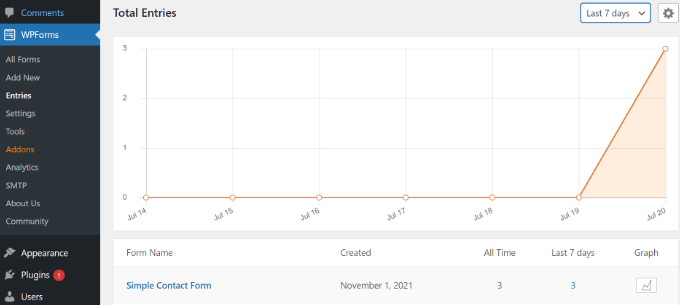
You can access all form entries by visiting WPForms » Entries page from your WordPress dashboard and selecting the form you wish to view.

View form entries in WPForms

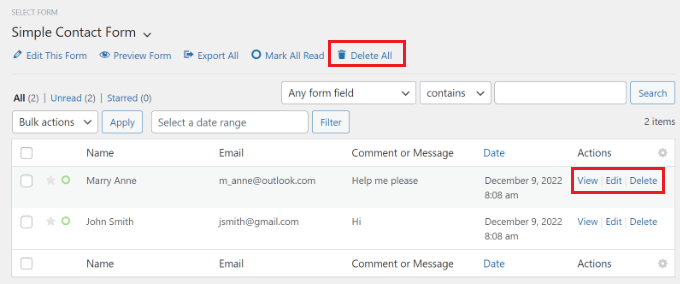
WPForms will show you all entries submitted using that form. You can search for a form entry by entering a name, email address, IP address, or keyword.

From here, you can simply click the ‘Delete All’ option at the top to remove form entries.

Delete form entries

You can also delete individual entries or click the view button to see all data stored for that entry.

Disabling User Details for Specific Forms

With WPForms, you get full control over which forms can store user data. You can disable user details to be stored for each individual form.

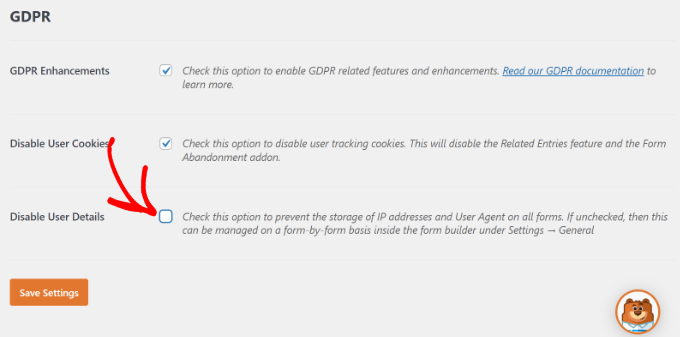
First, you’ll need to go to WPForms » Settings from your WordPress dashboard and scroll down to the ‘GDPR’ section.

Here, ensure that the ‘Disable User Details’ option is unchecked.

Disable user details is unchecked

Don’t forget to click the ‘Save Settings’ button when you’re done.

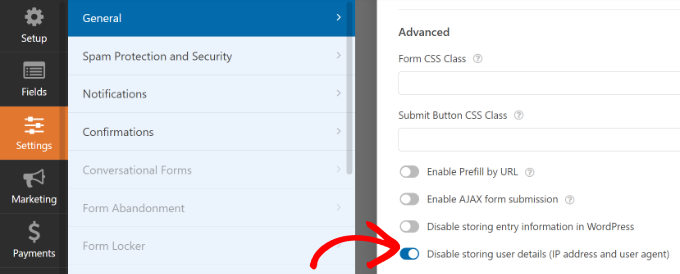
After that, you can change each form’s settings in the form builder.

All you have to do is head to Settings » General in the form builder. Next, click the ‘Advanced’ section to expand it. From here, simply click the toggle for the ‘Disable storing user details (IP address and user agent)’ option.

Disable storing user details-settings

This will prevent extra user information from being stored for individual forms.

We hope this article helped you learn how to easily create GDPR-compliant forms in WordPress. You may also want to see our article on how to track user engagement in WordPress using Google Analytics and the ultimate WordPress SEO guide for beginners.

If you liked this article, then please subscribe to our YouTube Channel for WordPress video tutorials. You can also find us on Twitter and Facebook.

The post How to Create GDPR Compliant Forms in WordPress first appeared on WPBeginner.


February 04, 2023 at 02:10PM

Friday, February 3, 2023

How to Use Cookie Retargeting in WordPress to Show Custom On-Site Messages

Do you want to use cookie retargeting in WordPress?

Cookie retargeting is the secret tool already used by many of the most popular websites. It allows you to show custom on-site messages to your users based on their past behavior which helps you boost sales.

In this article, we’ll show you how to use cookie retargeting in WordPress to show custom on-site messages and boost conversions.

How to use onsite cookie retargeting in WordPress

What is Cookie Retargeting?

Cookie retargeting is a marketing technique where websites use cookies to track user behavior and offer a personalized experience.

There are two types of cookie retargeting techniques.

First, there is off-site cookie retargeting. This method is used to track user activities across the web.

Facebook pixel and Google remarketing are two of the most popular advertising programs that allow you to use their massive reach and show targeted ads to people who visit your website.

Secondly, you have on-site cookie retargeting, which allows you to show targeted messages to users based on how they interact with your WordPress website.

What are cookies?

Cookies are small text files containing pieces of data. Websites set cookies in users’ browsers to store temporary information such as login status, user preferences, session details, and more.

How to Use On-Site Cookie Retargeting to Boost Conversions?

There are a number of ways website owners use on-site retargeting messages to boost conversions and increase sales.

For instance, eCommerce stores can show custom offers to users based on how they interact with other offers. This allows you to create a dynamic sales funnel that leads users to make a purchase.

Another use-case scenario would be lead generation. With on-site retargeting, if a user closes one sign-up form, then you can show them a different message with another offer.

On-site retargeting messages are highly effective because:

  • It shows personalized messages to users at a time when they are already engaged with your website.
  • Allows you to create customized campaigns that get better with each user interaction until they convert
  • You save money on paid advertising campaigns by utilizing your existing website traffic to the max

That being said, let’s take a look a how to use cookie retargeting in WordPress.

Creating On-Site Retargeting Campaign in WordPress

The best way to create on-site retargeting messages is by using OptinMonster. It is the best conversion optimization and lead generation software in the world.

You can use it to easily create attention-grabbing signup forms, popups, welcome mats, in-line offers, custom offers, and more.

First, you need to signup for an OptinMonster account by visiting the website and clicking the ‘Get OptinMonster Now’ button. You’ll need at least their Pro plan for cookie retargeting and Growth plan for follow-up campaigns.

OptinMonster

Next, you’ll need to install and activate the OptinMonster plugin. For more details, see our step-by-step guide on how to install a WordPress plugin.

This plugin acts as a connector between your WordPress site and the OptinMonster app.

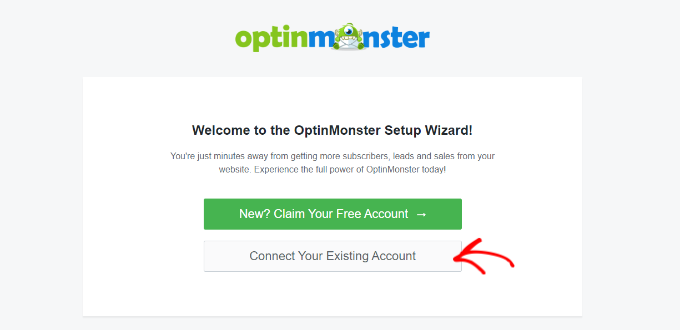
Upon activation, you will see the welcome screen. Simply click the ‘Connect Your Existing Account’ button.

Connect your existing account

Next, a new window will open, where you’ll need to sign in to your account and connect your website with OptinMonster.

Go ahead and click the ‘Connect to WordPress’ button.

Connect OptinMonster to WordPress

Now, you’re ready to create a new campaign.

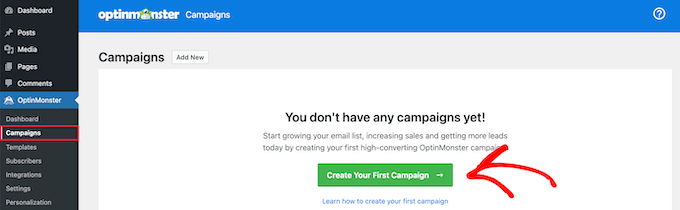
First, you’ll need to go to OptinMonster » Campaigns from your WordPress admin panel and then click the ‘Create Your First Campaign’ button.

Create first OptinMonster campaign

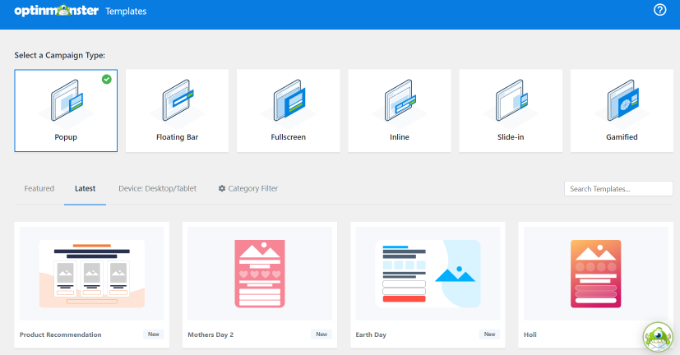
This will take you to the OptinMonster website, where you’ll be asked to choose a campaign type and a template.

You can choose any campaign type or template, but for this tutorial, we’ll be creating a lightbox popup.

Choose a campaign type and template

You can select any template that you’d like to use for your campaign.

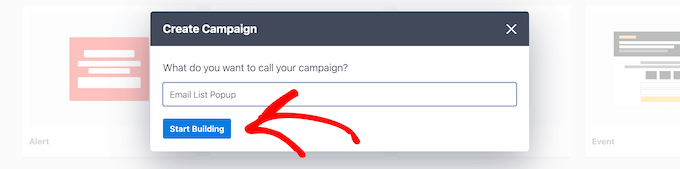
Next, you’ll be asked to provide a name for your campaign and click the ‘Start Building’ button.

Click start building

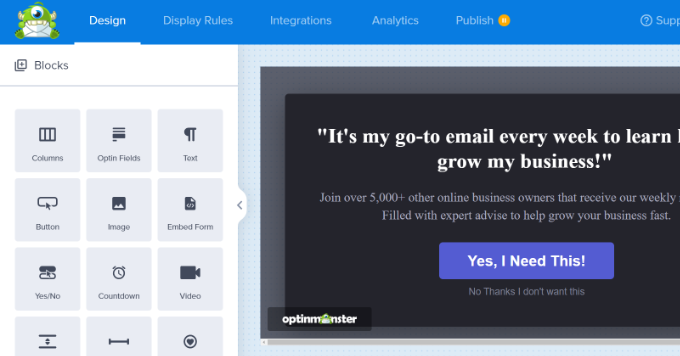
After that, you’ll enter the drag-and-drop campaign builder interface.

It is a powerful design tool where you can simply point and click on any item to edit it. You can also add new items like buttons, images, columns, and more to your popup campaign.

Edit your onsite targeting campaign

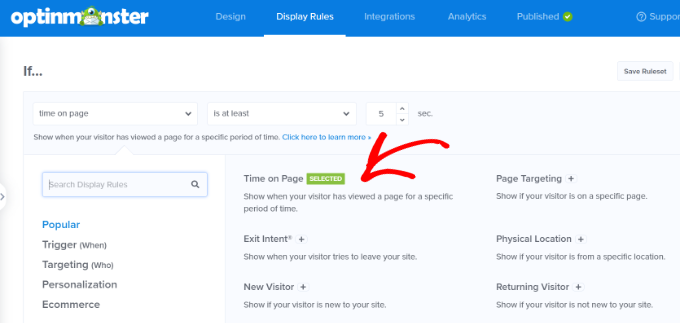
Next, you can switch to the ‘Display Rules’ tab at the top.

Here, OptinMonster will give you different options for displaying your onsite targeting campaigns.

Select display rules

For instance, you can show the popup after users spend a certain time on the page, are from a particular location, or are about to exit your website.

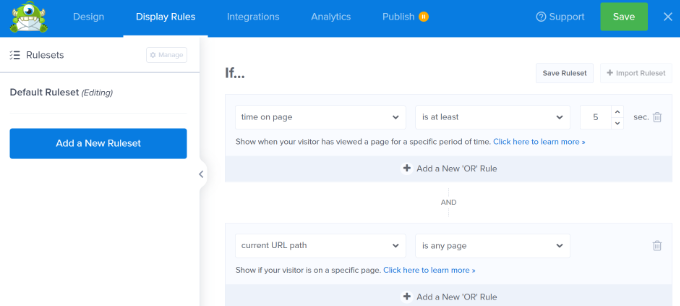
By default, OptinMonster will show your campaign after a visitor spends at least 5 seconds on the site. Plus, it appears on all the pages.

Set up display rules

Once you are satisfied, simply switch to the publish tab.

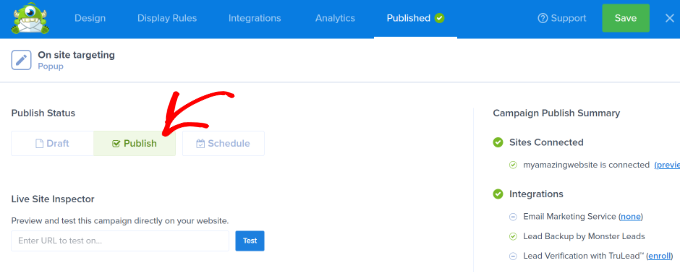
Next, you’ll need to make your campaign live by changing its status from Draft to Publish. Don’t forget to click the ‘Save’ button when you’re done.

Publish your onsite targeting campaign

Now by default, OptinMonster will show this campaign to all users who visit your website. Users will be able to close the popup or perform their desired action.

Creating a Retargeting Campaign to Show Custom Messages

Now that you have launched your first campaign, let’s add another campaign using the follow-up retargeting feature.

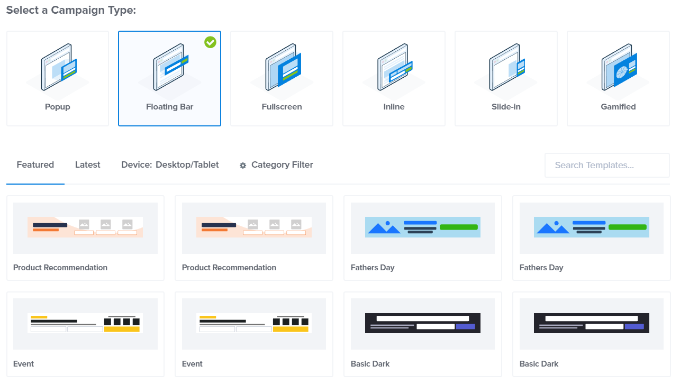
Click on the create new campaign button in the OptinMonster dashboard and select your campaign type and template. Since we have used a lightbox popup, we’ll be using a ‘Floating bar’ as our retargeting campaign.

Choose a floating bar template

After selecting a template, you’ll enter your campaign name.

Then simply click the ‘Start Building’ button to continue.

Click start building

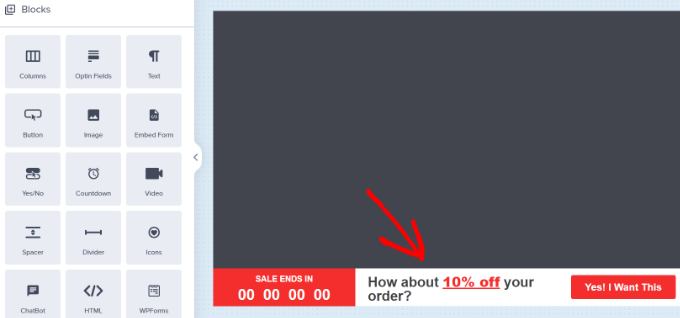
After that, you’ll enter the OptinMonster builder where you can design your campaign using simple drag-and-drop tools.

You can edit the optin text, adjust the countdown timer to generate FOMO, add a coupon, and so much more.

Edit the floating bar campaign

Once you are satisfied with the design, it is time to select which users you want to show this custom message to.

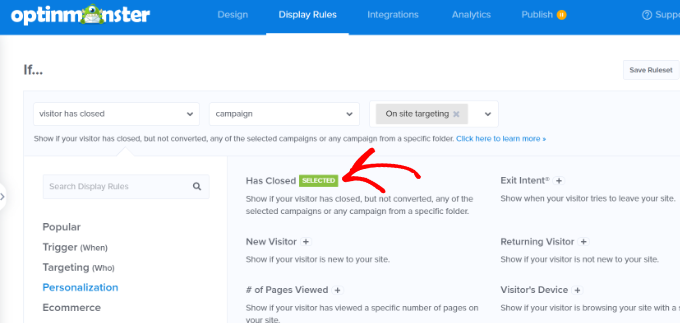
Simply switch to the Display Rules tab at the top of the builder. OptinMonster offers a ton of display rules that you can choose from. You can also add multiple rulesets.

Choose has closed display rule

Next, under the If menu, go to the ‘Personalization’ display rules options and select Has Closed.

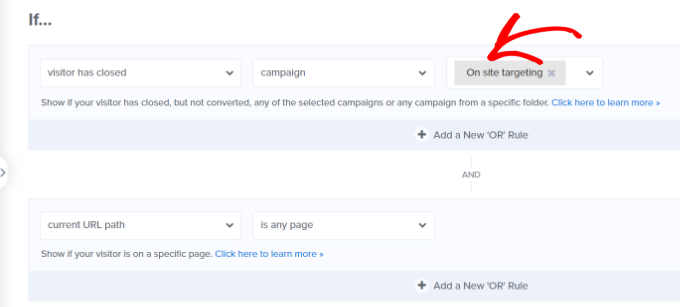
After that, select ‘Campaign’ and then select your previous campaign.

Select previous campaign

Next, you need to switch to the ‘Publish’ tab.

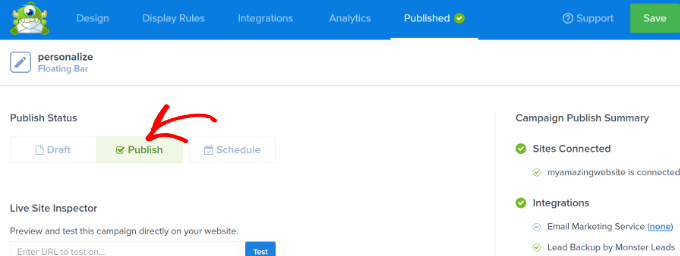
Here, simply change your campaign status from Draft to Publish under ‘Publish Status.’ Once that’s done, simply click the ‘Save’ button and exit the campaign builder.

Publish has closed campaign

You can now visit your website in the incognito browser tab to see your campaign and the follow-up retargeting message.

Adding Cookie Retargeting with Custom Messages

Cookie retargeting allows you to show custom messages to users based on their previous actions, cart status, shopping history, and more.

This allows you to create promotions and upsells designed for customers at different stages of your sales funnel.

When customizing your campaign, simply switch to the ‘Display Rules’ tab.

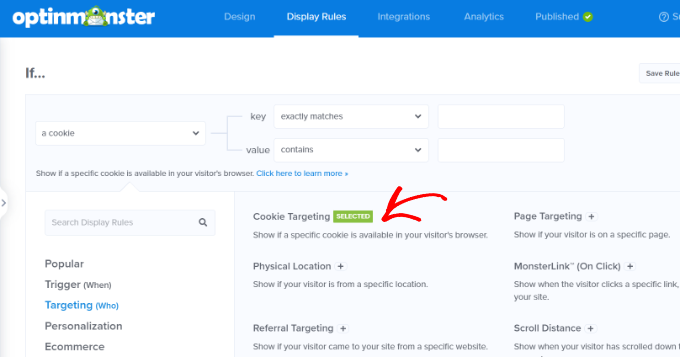
Under the If menu, you can go to the ‘Targeting (Who)’ display rules options and select Cookie Targeting.

Select cookie targeting

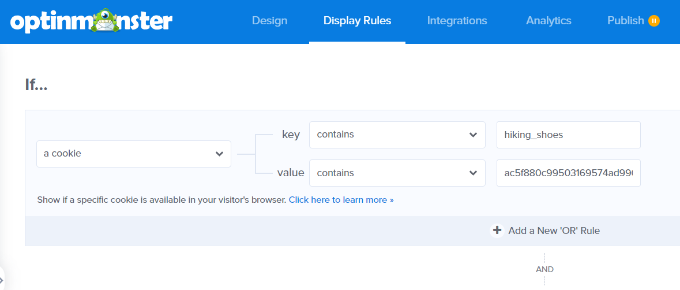
Next, you’ll need to enter the cookie key and value. The key is the cookie name, and the value parameter is the contents of the cookie.

OptinMonster lets you select different operators to use for the display rule. These include options like match exactly, contain, exist, start with, ends with, and more operators.

For instance, if you are using WooCommerce, then you can use WooCommerce cookies to target users who have added products to their cart. This way, you can cross-sell items in their cart, reduce cart abandonment, and more.

Enter cookie key and value

After adding cookie retargeting rules, go to the ‘Publish’ tab.

From here, simply change the Publish Status from Draft to Publish for your campaign.

Publish has closed campaign

OptinMonster will now display your custom message based on the cookie-targeting rules you have set.

We hope this article helped you learn how to use cookie retargeting in WordPress to show custom on-site messages. You may also want to see our guide on how to recover abandoned cart sales in WooCommerce as well as our comparison of the best live chat software for websites.

If you liked this article, then please subscribe to our YouTube Channel for WordPress video tutorials. You can also find us on Twitter and Facebook.

The post How to Use Cookie Retargeting in WordPress to Show Custom On-Site Messages first appeared on WPBeginner.


February 04, 2023 at 01:03AM