Friday, March 31, 2023

9 Best Front-End Posting Plugins for WordPress (2023)

Do you want to allow users to submit content and upload files on the front end?

Using a front-end posting plugin, you can allow people to upload different types of files without giving them access to the WordPress dashboard. They can submit documents, images, videos, PDFs, guest posts, and more.

In this article, we will show you the best front-end posting plugins for WordPress.
Best front end posting plugins for WordPress

Why Use a Front-End Posting Plugin for WordPress?

By default, WordPress doesn’t allow users to upload or submit content on the front end.

This means if you want to accept guest posts from a user, or want them to upload files on your site, then you would have to give them access to the admin area of your website.

This can be a time-consuming process and a security risk, as unknown users could then view your WordPress dashboard.

That’s where a front-end posting plugin can help. It allows you to collect user-generated content and accept all types of files without editing code or giving anyone access to the admin area.

For example, you can allow guest post submissions, real estate listing submissions, create a multi-vendor marketplace, collect testimonials from users, and more.

That being said, let’s look at the best front-end posting plugins for WordPress.

1. WPForms
The WPForms form builder plugin and signature addon

WPForms is the best WordPress form builder plugin in the market used by over 5 million websites. It offers a drag-and-drop interface that you can use to create any type of form.

They have a post-submission addon that lets you collect user-generated content without creating an account. Your visitors can easily submit content on the front end. Plus, you can accept payments for a post submission, like property listings or business directories.

WPForms also gives you full control over which content to accept, and how you’d like to receive it. For example, you can map certain fields in your form to a new WordPress post such as Post Title, Content, and Featured Image.
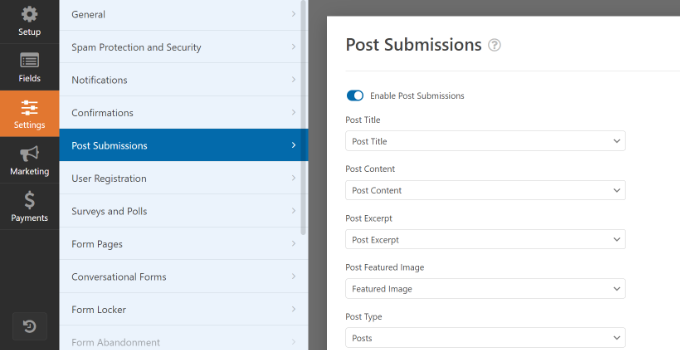
Post submission settings in WPForms

You can also create a file upload form to collect user-generated content. It comes with a file upload form field that lets people submit guest posts, upload images, share presentations and documents, and more.

Besides that, WPForms offers other powerful features such as spam protection, conditional logic, form abandonment, online signatures, locking specific forms, tracking user journeys, and more.

WPForms also easily integrates with payment services like PayPal, email marketing tools like Constant Contact, and other third-party tools like Zapier, Google Sheets, and Uncanny Automator.

2. Formidable Forms
The Formidable Forms plugin and Signature addon

Formidable Forms is another powerful form builder plugin for WordPress that you can use to allow front-end posting.

It offers a user-submitted posts and pages feature that allows front-end publishing. Your visitors can create new posts using the plugin, and they don’t require admin access. This way, you can gather community content, guest posts, resources, databases, listings, and other user-generated content.

Formidable Forms also offers a file upload feature that lets users submit different files without the need to log in to the admin area.

When a user submits a file using the form, it is automatically stored in your WordPress media library. From here, you can easily browse, view, and filter different submissions.

With Formidable Forms, you can also create advanced forms, like mortgage calculators, payment forms, quote calculators, surveys, and more. The plugin offers a drag-and-drop form builder, pre-built templates, and powerful integrations.

3. Easy Digital Downloads
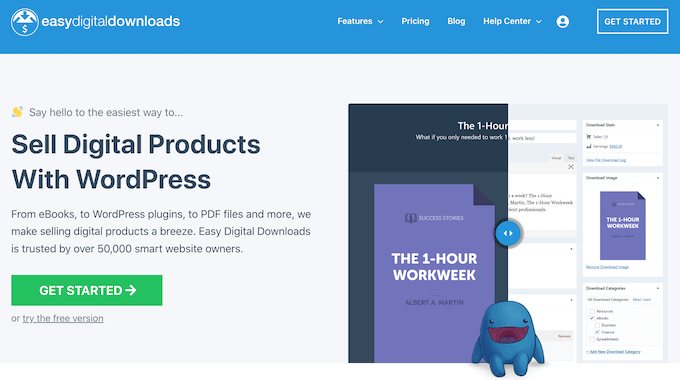
The Easy Digital Downloads WordPress plugin

Easy Digital Downloads (EDD) is one of the best eCommerce plugins for WordPress. You can use it to sell digital products like ebooks, music, PDFs, spreadsheets, recipes, software, and more.

Easy Digital Downloads offers a frontend submissions extension that lets you create websites that work like Amazon, AirBnB, and eBay.

The EDD extension allows you to create a multi-vendor marketplace where users can register as vendors from the front end, and then they can use your site to upload and sell digital products.

Users can create new products, update existing products, access earning details, communicate with customers, and more from the front end.

Besides that, you can use Easy Digital Downloads to track and record vendor commissions, review new vendor registrations, and get email notifications when a vendor adds a new product.

The best part is that you get a drag-and-drop form builder to create forms for vendor registration, product submission, and vendor profiles.

On top of that, EDD also integrates with payment services like PayPal and Stripe. You can connect the plugin with email marketing tools and other third-party software.

4. MemberPress
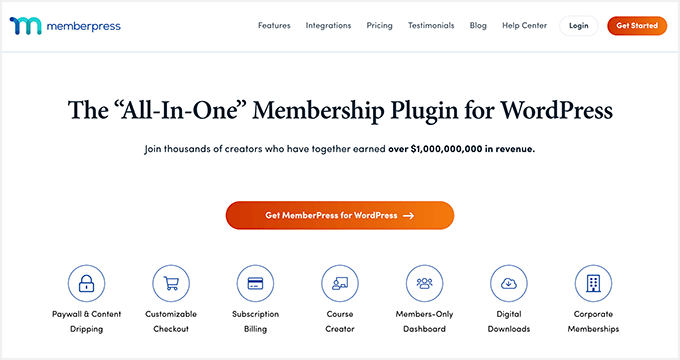
MemberPress

MemberPress is the best membership plugin for WordPress that is super easy to use. You can create unlimited premium memberships and restrict access to pages, content, and files for subscribers only.

Using MemberPress, you can create a membership site to get user-generated content. For instance, you can set up members-only associations like Young Entrepreneur Council. This way, premium members submit guest posts for the site itself. In addition, they can get access to forum discussions, share other content, and more.

MemberPress offers a file upload option that you can show in the account area. This way, subscribers can share different content on your membership site.

The plugin also offers powerful content restrictions and access controls. You can lock premium forums and upload content for members only. Other than that, MemberPress easily integrates with different payment providers, email services, WordPress plugins, and third-party tools.

5. Thrive Ovation
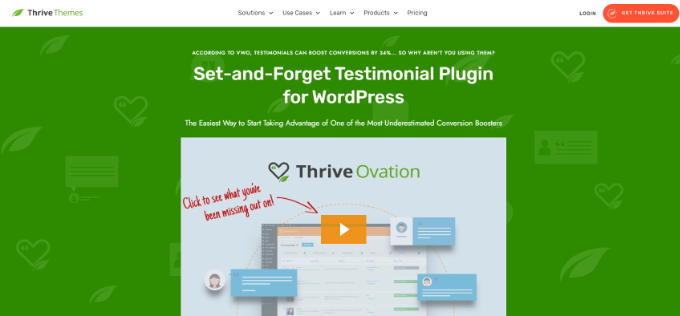
Thrive Ovation

Thrive Ovation is a popular testimonial plugin for WordPress. You can use the plugin to collect user-generated content in the form of testimonials.

Testimonials are incredibly powerful for driving sales and getting new users, and this plugin makes it super easy to gather reviews and feedback from existing customers.

It has an autopilot feature that automates the process of asking for feedback from customers.

Besides that, you can use Thrive Ovation to convert WordPress comments into testimonials with a single click. It also helps convert social media comments into testimonials for your website.

The plugin offers a testimonial library where you can easily manage user-submitted content, WordPress comments, and other imported feedback from your WordPress dashboard.

6. WordPress File Upload

WordPress File Upload

WordPress File Upload is the next free front-end posting plugin on our list. It allows users to submit content from any page, post, or sidebar on your WordPress site.

You can simply use a shortcode to add a file upload form to your website or use the sidebar widget. The plugin also lets you manage the uploaded content from your WordPress dashboard. The uploaded files can be added to the media library or stored in an FTP location.

Besides that, you can set up file upload filters for multiple WordPress user roles, add file size limits, and control which file extensions users can upload.

WordPress File Upload also offers different customization options and lets you show an upload progress bar. However, if you’re looking for more options to edit your forms, then you can use other plugins on our list, like WPForms and Formidable Forms.

7. WP User Front-end
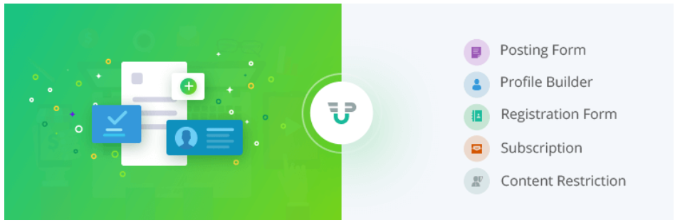
WP User Frontend

WP User Front-end is a flexible and beginner-friendly WordPress plugin for accepting front-end submissions.

The plugin comes with a drag-and-drop form builder and offers multiple customization options. You can place the form anywhere on your site to allow users to create a new post and submit guest posts, images, and other content.

It also lets users edit their profiles from the front end. This is great as you don’t have to give access to the main dashboard for users to set up a profile.

Besides that, you can use the WP User Front-end plugin to create subscriptions and membership packs. It lets you add pay-per-post, manage transactions, and easily receive payments.

8. User Submitted Posts

User submitted posts

User Submitted Posts is a simple and free WordPress plugin that you can use to allow file upload on the front end of your website.

It is a great solution to accept guest posts, customer reviews, testimonials, images, and other user-generated content. The plugin offers basic form fields like name, email, URL, post title, content, post category, post images, and agree to terms.

You can display the front-end posting form anywhere on your site using a shortcode. The User Submitted Posts plugin also offers a login and registration form, so users can create a profile without requiring access to your site’s dashboard.

That said, the plugin doesn’t offer a lot of customization options, form templates, and features to control file upload compared to other plugins like WPForms.

9. AccessPress Anonymous Post
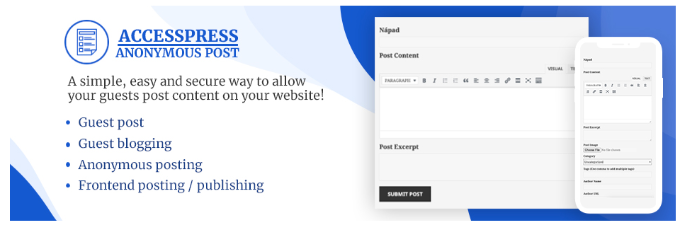
AccessPress anonymous post

AccessPress Anonymous Post is another free WordPress plugin you can use to accept guest posts and allow front-end posting. It offers a responsive form that is easy to customize and place anywhere on your website.

Users can simply use the form to upload content, add a title, and enter tags, categories, URLs, images, and more. All the submitted content is stored in the WordPress database, and you can access it from your dashboard.

Besides that, you can also add a captcha for verification, receive emails when someone uploads a file, and make different form fields required.

Bonus: File Upload Types by WPForms
File Upload Types

File Upload Types by WPForms is a free WordPress plugin that lets you accept different file extensions on your WordPress site. By default, WordPress only allows a handful of file types that users can upload to the media library.

If someone is submitting a post for the site on the front end, but uploads a file that has an extension not supported by WordPress, then they’ll see a ‘Sorry, this file type is not permitted for security reasons’ error message.

This is where the File Upload Types by WPForms plugin comes in handy. It allows users to post any type of file. For instance, you can accept file extensions like .zip, .xml, .ai, .csv, .svg, and more.

An important thing to note is that the plugin will let you accept additional file types, but it doesn’t have a feature to accept front-end posting. That’s where you’ll need another plugin like WPForms or any other on our list.

Which is the Best Front-End Posting Plugin for WordPress?

In our research, we found that WPForms is the best front-end posting plugin. It allows you to allow file upload and accept guest posts, images, quotes, and other user-generated content.

On top of that, you get over 600+ pre-built from templates, a drag-and-drop form builder, and lots of customization options to edit your form. You can add a file upload form field and display your form anywhere on the website.

Plus, its field-mapping feature makes drafting and editing on the front-end a breeze and is perfect for sites that have user-submitted content like real-estate listings or guest posts.

If you want to create complex and advanced forms like mortgage calculators, then you can use Formidable Forms. It also comes with a file upload feature and allows easy front-end posting.

On the other hand, you can use Easy Digital Downloads if you’re selling digital products. The plugin offers an upload file extension that allows users to submit documents, images, and other content on the front end. And their front-end submissions extension allows you to create a multi-vendor marketplace.

We hope this article helped you find the best front-end posting plugin for WordPress. You can also see our guide to the best WooCommerce plugins for your store and how to increase your blog traffic.

If you liked this article, then please subscribe to our YouTube Channel for WordPress video tutorials. You can also find us on Twitter and Facebook.

The post 9 Best Front-End Posting Plugins for WordPress (2023) first appeared on WPBeginner.


March 31, 2023 at 04:21PM
Thursday, March 30, 2023

Ultimate WordPress Migration Guide for Beginners (Step by Step)

Are you looking to move your website to WordPress, or thinking about migrating an existing WordPress site to a new domain or host?

WordPress is the most popular website builder powering over 43% of all websites on the internet. That’s because it’s easy to use and

gives you control over every aspect of your website.

In this article, we’ll show you how to migrate your blog or website to WordPress with little downtime and without losing SEO. We’ll also show you how to move your WordPress site to a new server or domain.

Ultimate WordPress Migration Guide for Beginners (Step by Step)

Why Migrate Your Website to WordPress?

Small businesses and individuals are starting websites all the time. They realize that having an online blog or website have significant benefits that help them grow their brand and keep in touch with clients.

However, many beginners choose a blogging platform other than WordPress. These platforms help them get started quickly, but as their websites grow, they begin to run into limitations.

For example, they may not be able to install plugins that add the features they need, there may be limited options in customizing the appearance of their site, or the platform may become too expensive as their requirements grow.

We believe that self-hosted WordPress outperforms all other blogging and website platforms. It is powerful, easy to use, affordable, and the most flexible of all available blogging platforms. Here are all the reasons why you should use WordPress.

Note: When we speak of self-hosted WordPress, we mean WordPress.org. This is different from WordPress.com, which is a hosting service. We show you how to migrate from WordPress.com to self-hosted WordPress at the end of this article.

The good news is, that you can migrate your blog to WordPress and begin to take advantage of its power and flexibility.

How to Migrate Your Blog to WordPress Yourself

Migrating a blog isn’t as simple as just moving information from one platform to another. However, that’s definitely something you need to get right, otherwise, you may lose content.

It’s also essential to choose a reputable WordPress hosting company that’s fast and reliable. Luckily, most hosting services will install WordPress for you automatically and free of charge.

You also need to make sure you don’t lose SEO so that your posts rank lower on Google. You should also set up

an SEO-friendly URL structure for your future posts.

Now you don’t want your visitors or search engines to lose track of your posts because the old URLs stop working. You need to take care of this by creating redirects.

Besides these, there may be some additional steps you need to take to migrate everything over and improve your blog.

That’s a lot to keep track of, so we created specific step-by-step guides on how to migrate from your specific blogging platform to WordPress:

1. Migrating Self-Hosted WordPress to a New Server or Domain

You may already be using a self-hosted WordPress website and decide to migrate it to a new hosting service or domain. For example, you may decide to upgrade to a more reliable web hosting company.

You will need to move your WordPress files and databases from the old provider to the new one. If you’re not careful, then you may lose data, or take your website down and lose sales.

That’s why we created a step-by-step tutorial that shows you how to safely migrate WordPress to a new host or server without any downtime.

However, if you are moving your website to a new domain name, then you have a little more work to do. This would be if you are changing the URL of your website from, say, johnsmith.com to smithconsultingservices.com.

In that case, you simply need to follow our detailed guide on how to easily move WordPress to a new domain.

Tip: Some hosting providers, such as SiteGroundHostingerWP Engine, and GreenGeeks offer a free migration service for WPBeginner users. It might not be listed on their website, so all you have to do is ask.

2. Migrating From Blogger to WordPress

Blogger is a free blogging service by Google. It offers a quick and easy way to create a blog for non-tech-savvy users. All you need is a Google account to start a free blog on Blogger.

However, as your website grows, you will be limited to basic blogging tools and won’t be able to add new features. There are also not many ways to customize the appearance of your blog.

WordPress, on the other hand, gives you complete ownership of your website and allows you to add the necessary features to grow and monetize your blog. We have created a detailed side-by-side comparison of WordPress vs Blogger.

The good news is that WordPress is set up to natively import your Blogger posts. However, you will need to follow our instructions carefully, or your new blog’s URLs might not match.

If you have a free Blogger account, then you will have a website address that looks like myblog.blogspot.com. In that case, you should follow our guide on how to switch from Blogger to WordPress without losing Google rankings.

However, Blogger also allows users to connect custom domain names to their blogs such as myblog.com. If you have a custom domain Blogger blog, then you will need to follow our guide on how to move a custom domain Blogger blog to WordPress.

3. Migrating From Ghost to WordPress

Ghost is a minimalist blogging platform with features entirely focused on writing blog posts. It is available as a hosted platform, and also as software that you can install, though many users find installing it difficult.

While a simplified user interface can be a good thing, it also means your options for customizing Ghost’s features and appearance are very limited. This can become frustrating.

On the other hand, WordPress allows you to customize your site by installing plugins and themes. It is also much easier to install yourself. You can learn more about the differences between these platforms in our side-by-side comparison of Ghost vs. WordPress.

Unfortunately, migrating from Ghost is difficult because the

default Ghost export file does not use a format supported by WordPress. So we decided to fix this issue and created the Ghost to WordPress Importer tool.

We show you how to use this free tool to migrate your blog in our guide on how to properly move from Ghost to WordPress.

4. Migrating From GoDaddy Website Builder to WordPress

GoDaddy is one of the biggest hosting and domain name companies in the world. To help their many users get started with building their website, they offer a basic website builder tool called GoDaddy Website Builder.

Many users choose this tool because it’s a convenient way to get started. However, it is missing many of the key features of more powerful blogging platforms, as you can see in our detailed comparison between GoDaddy Website Builder vs WordPress.

This means that users will quickly realize its many limitations and want to move their website to a more flexible and powerful platform like WordPress.

Unfortunately, there is no export tool to move your site from GoDaddy Website Builder to WordPress. That means that the process will be time-consuming and have a lot of manual steps, making it easy to make a mistake.

You’ll find every step clearly explained in our guide on how to move a GoDaddy Website Builder site to WordPress.

5. Migrating From Gumroad to WordPress

Gumroad

Gumroad is a popular eCommerce platform that allows users to sell digital goods online, such as games, music, courses, and videos. However, many users are looking to switch away from the platform because they have raised their fees to 10% for each transaction.

This fee does not include credit card processing or PayPal fees. Plus, an additional 10% fee is charged if a product is sold through the ‘Gumroad Discover’ feature or their ‘Global Affiliates’ program. That’s a lot of fees.

On the other hand, WordPress is free and doesn’t charge you any fee for the items you sell. Unlike Gumroad, it also lets you sell physical goods and you can use any payment gateway you want and promote your website freely.

You can easily install a plugin like Easy Digital Downloads to make WordPress the perfect platform for selling digital goods. We have even partnered with SiteGround, and they are offering special EDD hosting for our readers.

You can learn how to do this in around 30 minutes by following our guide on how to switch from Gumroad to WordPress.

6. Migrating From Joomla to WordPress

Joomla

Joomla is a good content management system that has a lot in common with WordPress. For example, they are both open-source software written in the PHP programming language and use a MySQL database.

They also have similar requirements, which means you won’t need to change hosting companies.

However, Joomla is more complicated to use. It is also not as powerful or flexible as WordPress because there are fewer extensions and designs available for you.

On the other hand, WordPress is easier to use and offers tons of extensions and design choices. See our comparison of Joomla vs WordPress for more details.

Luckily, there is a plugin you can use to easily import your Joomla content into WordPress. We carefully take you through every step you need in our guide on how to easily move your site from Joomla to WordPress.

7. Migrating From Medium to WordPress

Medium is a good blogging platform for new writers. It allows you to publish your posts with very little setup.

But because you don’t own the platform, content from other authors often gets displayed below your own story.

The platform is quite limited compared to WordPress. When you switch from Medium to WordPress, you will own your own blog and can add all the features you need using plugins.

Simply follow our complete step-by-step guide to help you properly move all your content from Medium to WordPress.

You can retain the look of your old blog by installing a Medium-style theme or go for a new blog design using one of the best and most popular WordPress themes.

Tip: If you’re not ready to completely migrate away from Medium, then you can learn how to embed Medium blog posts in WordPress.

8. Migrating From Shopify to WordPress

Shopify is an all-in-one

eCommerce solution that makes it easy for you to create an online store, accept payments, and manage your inventory, all from a single platform.

You don’t need to worry about the technical aspects of managing an eCommerce site, but it comes with slightly higher costs and limited control of your website.

On the other hand, you can turn WordPress into a full-featured online store by installing the WooCommerce plugin and customize every aspect of your store. You can compare the differences between the platforms in our comparison of Shopify vs WooCommerce.

Unfortunately, migrating away from Shopify is difficult because it doesn’t provide an easy way to export data to a WordPress-supported format. So we built an easy importer tool to help you do the Shopify to WooCommerce migration for free.

We take you through the entire migration process step-by-step in our guide on how to properly move from Shopify to WooCommerce.

Note: If you’re not ready to completely migrate away from Shopify, then you can learn how to easily integrate Shopify with WordPress.

9. Migrating From Squarespace to WordPress

Squarespace is a website-building service that focuses on small business owners. It allows you to create beautiful websites using easy drag-and-drop tools.

However, compared to WordPress, it costs more and offers less scope for design and flexibility. And while it does offer a limited set of extensions and integrations, they don’t compare with the power and breadth of the WordPress plugin ecosystem.

Unfortunately, it is difficult to migrate away from Squarespace because it offers limited export functionality. Depending on what content you have on your site, you may need to manually copy and paste some content from your Squarespace website.

In our guide on how to properly move from Squarespace to WordPress, we clearly list the content that can be automatically exported, and the content you will have to move manually to successfully migrate your site.

10. Migrating From Tumblr to WordPress

Tumblr is a little different than other blogging platforms. It is a microblogging platform with social networking features like following other blogs, reblogging, and built-in sharing tools.

The platform is easy to use and comes with its own audience. As a microblogging tool, Tumblr makes it easy to quickly blog videos, GIFs, images, and audio formats.

However, unlike WordPress, Tumblr’s features are limited and cannot be extended. To learn more about WordPress and what you can do with it, please see our complete WordPress review with pros and cons.

If you’re thinking about migrating from Tumblr to WordPress, then you will be glad to know that WordPress can natively import your Tumblr posts.

However, there is a lot involved in a website migration, and you’ll find all the steps in our comprehensive guide on how to properly move your blog from Tumblr to WordPress.

11. Migrating From Weebly to WordPress

Weebly is a well-known website builder platform owned by Square’s payment platform. It offers easy-to-use website-building tools for business websites and eCommerce stores along with free blog templates that you can add to your website.

However, that free plan has limited features and bandwidth, and upgrading to a paid subscription is expensive compared to top blogging websites. Besides that, Weebly’s blogging and SEO features are just not as powerful as other blogging platforms.

By contrast, WordPress can be hosted on any server and has all the features you can dream of like online stores, contact forms, galleries, portfolios, SEO, and more. When you compare Weebly vs WordPress you might start to think about switching.

The migration will take about an hour, and it’s worth it. Don’t worry, we’ve helped hundreds of people switch with the step-by-step directions in our guide on how to properly move from Weebly to WordPress.

12. Migrating From Wix to WordPress

Wix is a popular hosted platform that lets you quickly create simple websites using a drag-and-drop website builder. You can add a blog using the Wix Blog app.

However, when you compare Wix vs WordPress you see that Wix has incredibly limited options and adding extra features can become quite expensive.

For all but the simplest websites, WordPress is by far the better choice because it has a much larger range of themes and layouts, as well as a huge selection of plugins that add new features to your website.

Unfortunately, Wix makes it quite difficult to move your content away, but after reviewing various different ways to move from Wix to WordPress, we believe the easiest method is by importing your blog posts via RSS.

We show you how to do this step-by-step in our guide on how to properly switch from Wix to WordPress. On an average Wix blog, the migration takes around an hour.

13. Migrating From WordPress.com to Self-Hosted WordPress

WordPress.com is a blog hosting service offered by Automattic, a company created by WordPress.org co-founder Matt Mullenweg. Basic blog hosting is free and you can purchase additional options like a custom domain name, additional storage, and premium services.

This appeals to new users because no setup is required. However, compared with a self-hosted WordPress website, there are limited options to extend your blog. For example, you can’t use custom themes and plugins for customizing your blog.

You can learn more by viewing our comparison chart on WordPress.com vs WordPress.org.

If you’re ready to move from WordPress.com to a self-hosted WordPress blog, then see our guide on how to properly move your blog from WordPress.com to WordPress.org. Make sure you follow our steps carefully so you don’t lose data, visitors, or SEO.

After you migrate to a self-hosted WordPress blog, you may find you are missing some features you enjoyed on WordPress.com. Don’t worry, you can easily add those features by following our guide on how to get WordPress.com features on self-hosted WordPress blogs.

Special Offer: Our Team of Experts Can Move Your Blog for Free

Here’s a special offer. If you wish to migrate from Blogger, Medium, Weebly, or WordPress.com to a self-hosted WordPress website, then we can do it for you for free.

One of our expert team members will do the entire migration for you (100% free). Yes, you can literally switch from any of those specific platforms to WordPress without any risk.

There are just two conditions:

  • First, you need to sign up for your new web hosting service using our link. This will make sure you get the best price on hosting.
  • Second, your blog can’t have more than 1,000 posts. We can offer a migration service for larger blogs, but that will be a paid service.

Sound good? You can learn more on our Free WordPress Blog Setup page. We’ve already helped over 100,000 people, so get started now.

Free Blog Setup

We hope this tutorial helped you learn how to migrate your website to self-hosted WordPress. You may also want to see our guide on how to create an email newsletter the right way, or our expert pick on must have WordPress plugins to grow your site.

If you liked this article, then please subscribe to our YouTube Channel for WordPress video tutorials. You can also find us on Twitter and Facebook.

The post Ultimate WordPress Migration Guide for Beginners (Step by Step) first appeared on WPBeginner.


March 30, 2023 at 02:12PM
Wednesday, March 29, 2023

What’s New in WordPress 6.2 (Features and Screenshots)

WordPress 6.2 has just been released, and it is the first major WordPress release of 2023.

This new version is packed with significant improvements and new features. Many of them focused on the block editor and site editing in WordPress.

In this article, we’ll show you what’s new in WordPress 6.2 and which features you should try after the update.

An overview WordPerss 6.2 release with features and screenshots

Note: WordPress 6.2 is a major release, and unless you are on a managed WordPress hosting service, you’ll have to initiate the update manually. Here’s how to safely update WordPress.

Important: Don’t forget to create a complete WordPress backup before updating.

That being said, here’s all that’s new in WordPress 6.2.

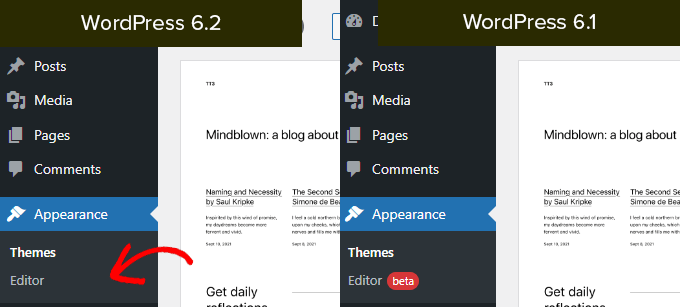
WordPress Site Editor Comes out of Beta

The site editor comes out of the beta.

It has been around for the past few WordPress releases, the removal of the beta label is merely an invitation for more users to try it.

Site editor comes out of beta

This also indicates the completion of phase 2 of the WordPress development roadmap which started out with the release of the new block editor back in WordPress 5.0 (late 2018).

WordPress 6.2 includes several new features added to the site editor, including some brand-new tools which we’ll talk about later in this article.

Note: Full site editor is available with block themes that support this feature. You can try it out even if you are using the older classic editor with a block-enabled theme.

Improved Navigation Menu Block

Navigation menus help you define your website layout to your users. However, creating them in the full site editor had been a bit difficult for beginners.

WordPress 6.2 now comes with an improved ‘Navigation’ block.

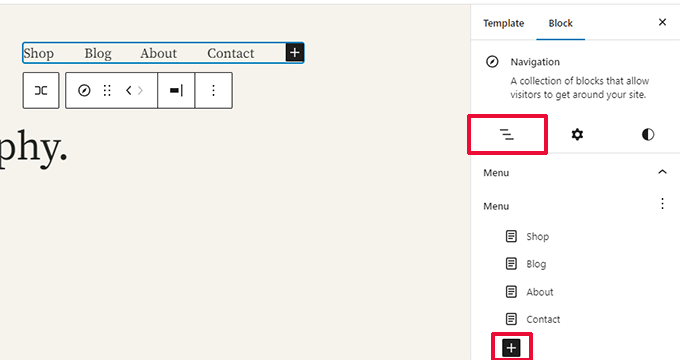
You can now create and manage the Navigation block by editing items in the sidebar.

Managing menu items in block panel

To add a new menu item, simply click on the ‘add (+)’ button. You can also drag and drop menu items to rearrange them.

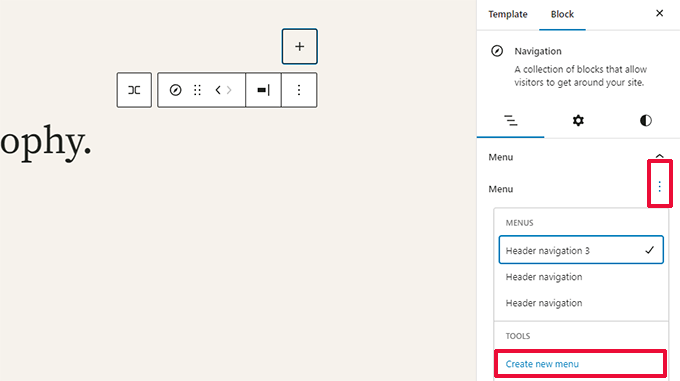
Want to use a different menu? You can now easily switch between menus you have created earlier by clicking on the Three-dot menu in the sidebar.

Manage menus

Overall, this is a significant improvement to the older Navigation block where you had to edit items inline which was not a good experience for beginners.

Improved Template Browsing Experience

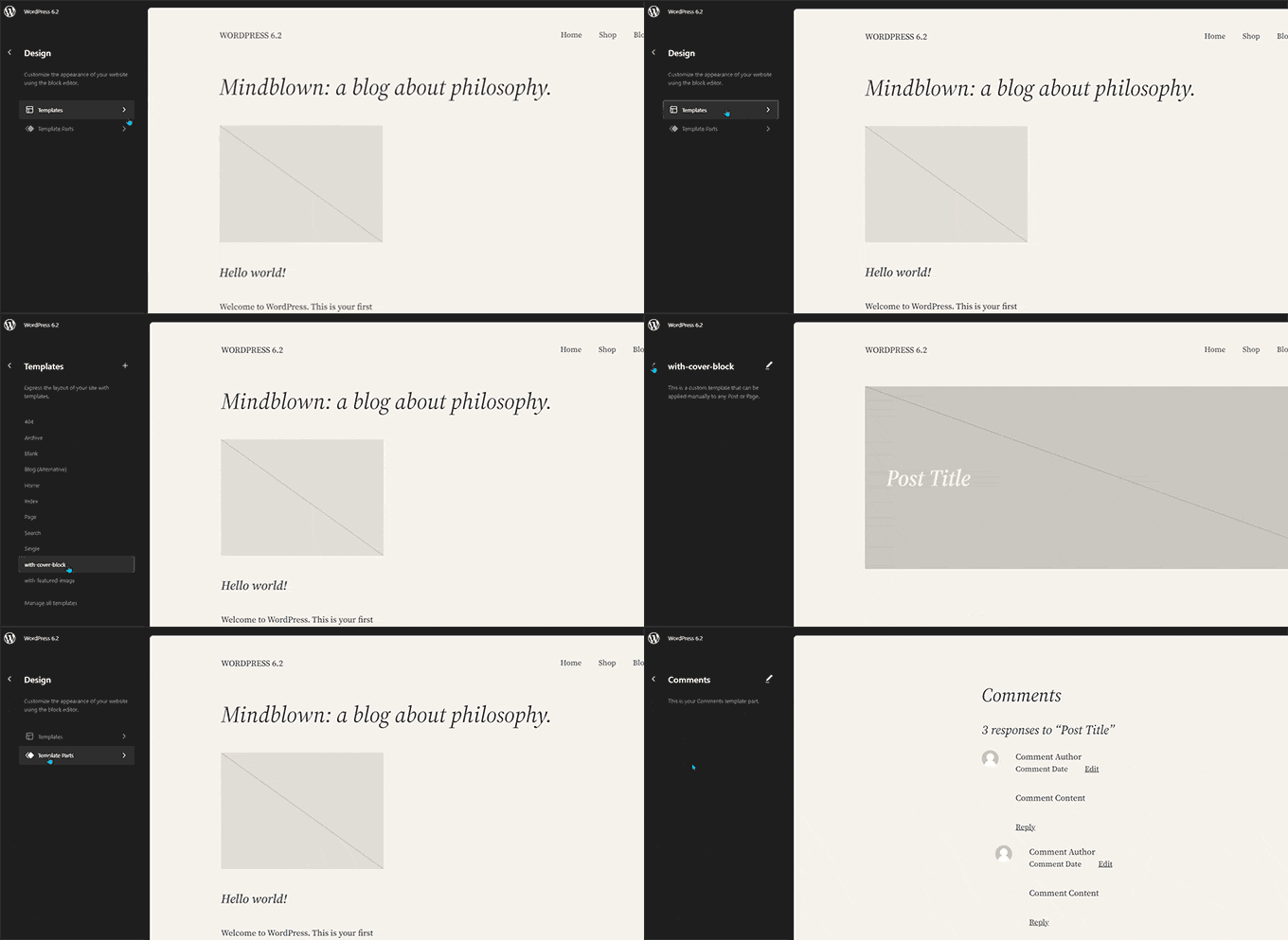
WordPress 6.2 comes with a new template browsing experience.

This allows users to browse different templates to find out which one they need to edit if they want to make changes to a certain area of their website.

Template browser in WordPress 6.2

To edit a template or template part, simply click to load it inside the preview window. After that, just click on the preview window to start editing.

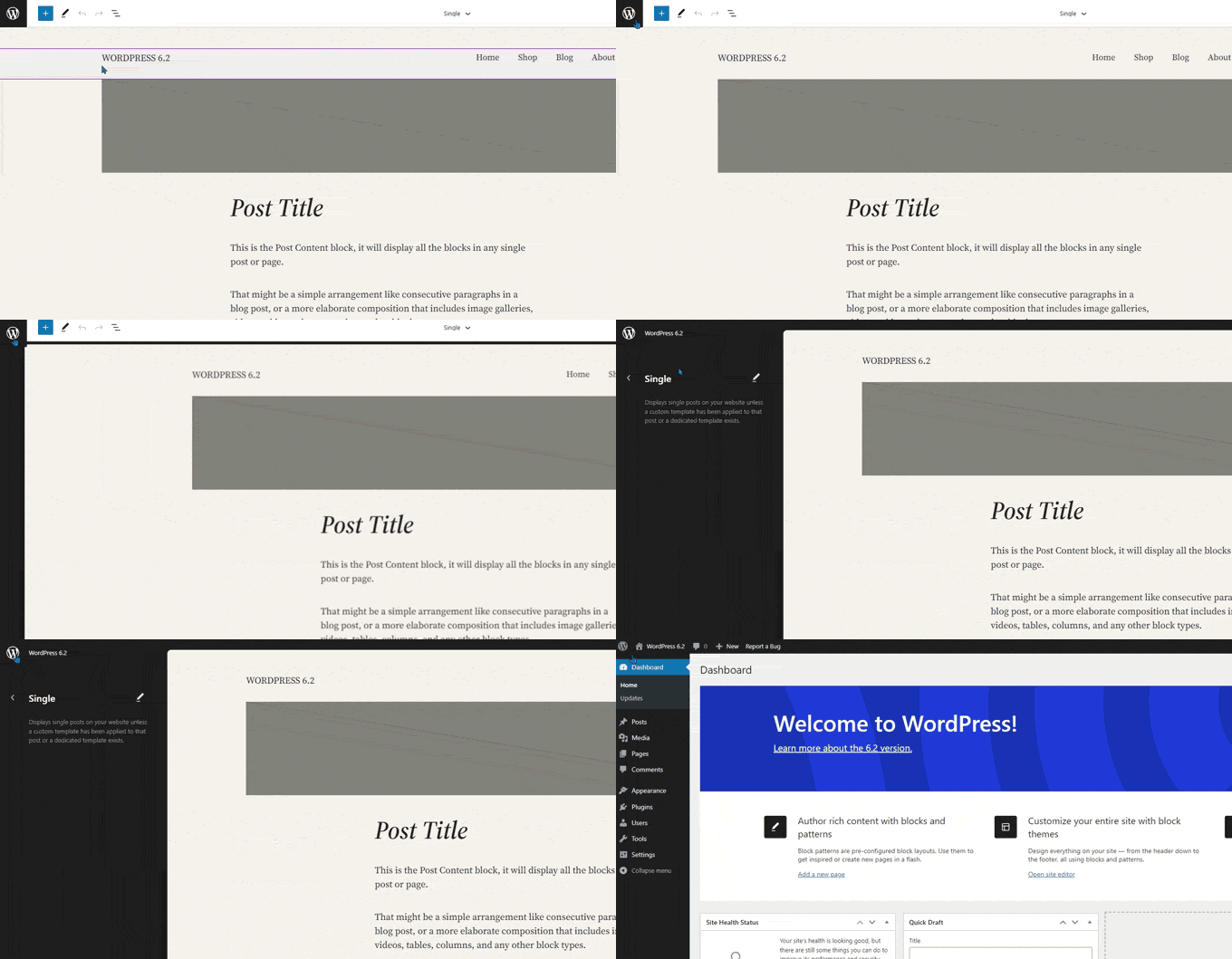
Want to exit the site editor?

Simply click on the WordPress or your site logo at the top left corner of the screen to enter the template browser. Then click again to exit and return to the WordPress dashboard.

Exit site editor

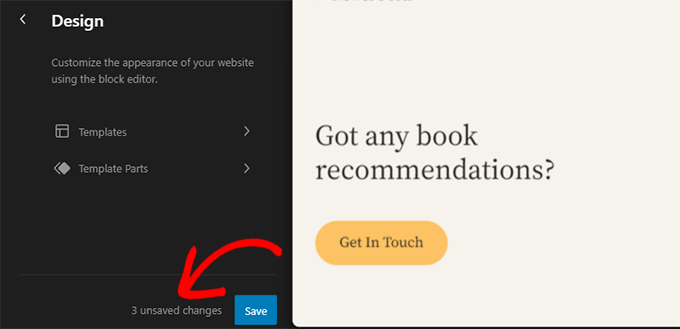
The template browser screen will now also show you that you have unsaved changes.

It also offers an improved saving experience showing what changes you are saving.

Unsaved changes in site editor

Template Parts Highlighted with Colors

A template in the site editor may include several template parts, like the header and footer.

These are global elements that can be used in multiple places on your WordPress website. If you edit a template part on one page, those changes will be reflected all over your site.

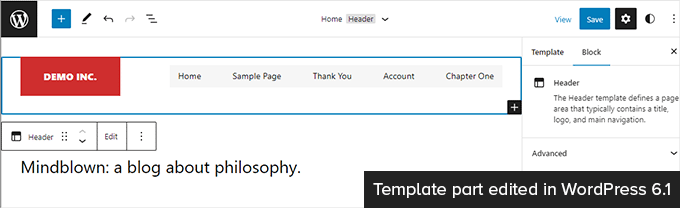
Previously when editing a template part, the only indication was the label at the top changed to show the template part name.

Template part editing before WordPress 6.2

Editing template parts affects all templates that include those elements. This makes it important to indicate that users are editing a global template part and not simply the page they are looking at.

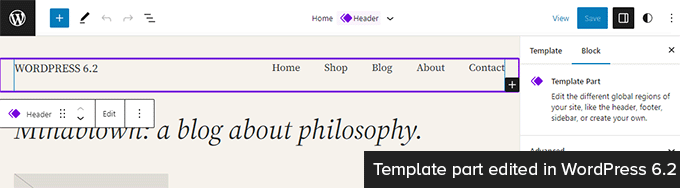
WordPress 6.2 now makes this more noticeable by adding colors and an icon to indicate that you are editing a template part.

Template part edited in WordPress 6.2

Modify Your Theme With The Style Book

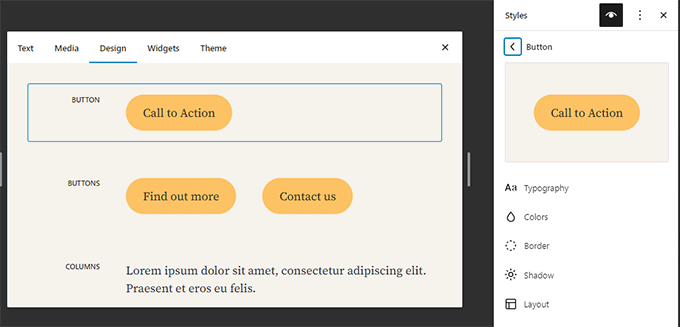
WordPress 6.2 comes with a style book feature in the site editor.

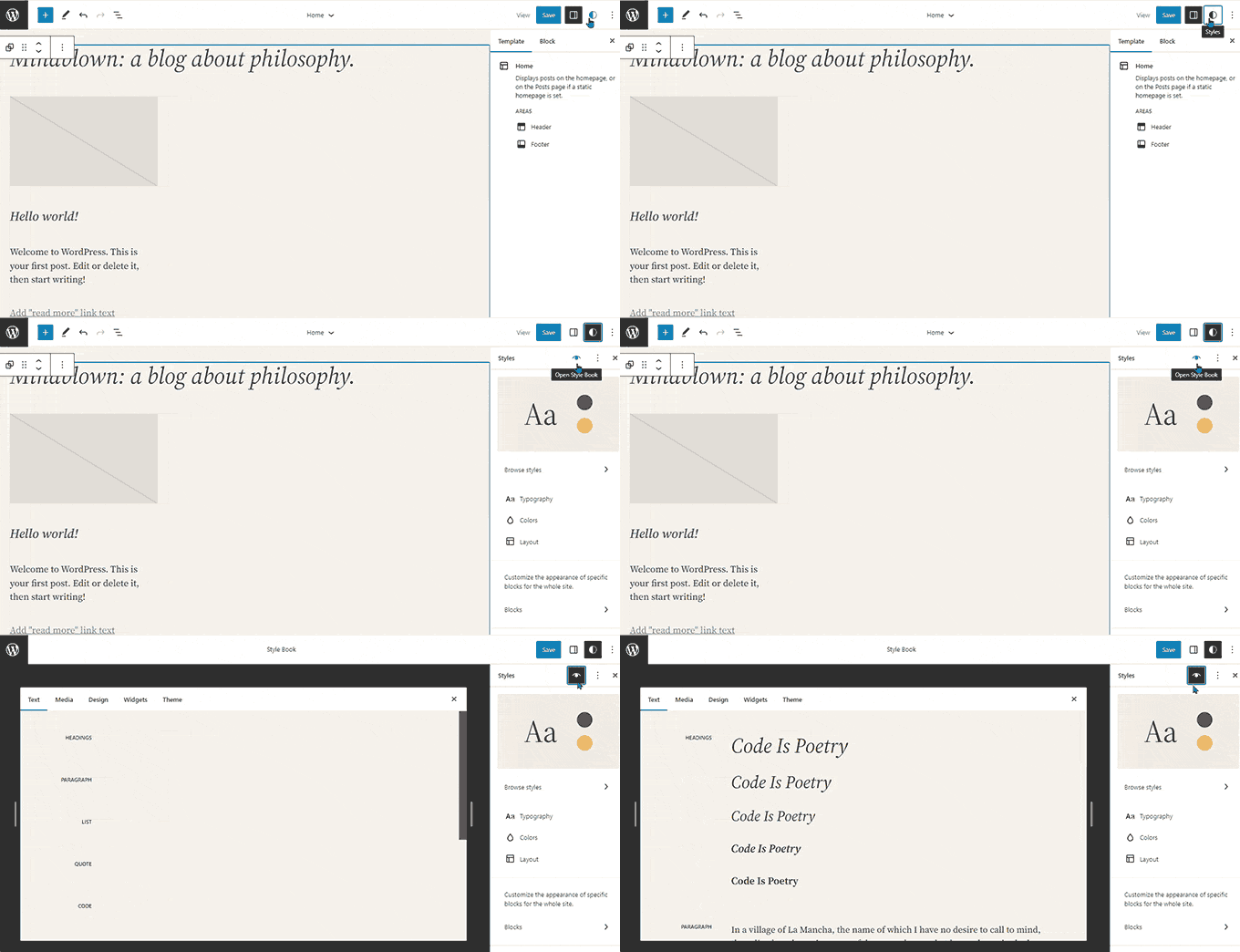
This is basically one convenient place to browse how your theme displays all the blocks. To access it you need to switch to the Styles panel and then click on the Style Book icon. It is the one that looks like an eye.

Style book shows all block styles at one place

This will show you all the blocks, and how they are styled in your theme. They are organized into different categories so that you can easily locate the block you want to edit.

Click to start editing a block and you will see all the tools that you can use in the sidebar panel. Changes you make here will apply globally to your theme.

Edit block directly from style book

Basically, you can change the appearance of your entire theme by editing individual blocks here and creating a completely new style of your own.

Want to edit block styles individually? Don’t worry there are even more design tools at your disposal to edit blocks.

Ability to Add Custom CSS to Your Theme or Blocks

By default, the site editor hides the legacy Theme Customizer interface. Many users added their custom CSS in the ‘Additional CSS’ panel available with the legacy customizer.

Until 6.2, it was a problem to add custom CSS using the default tools available.

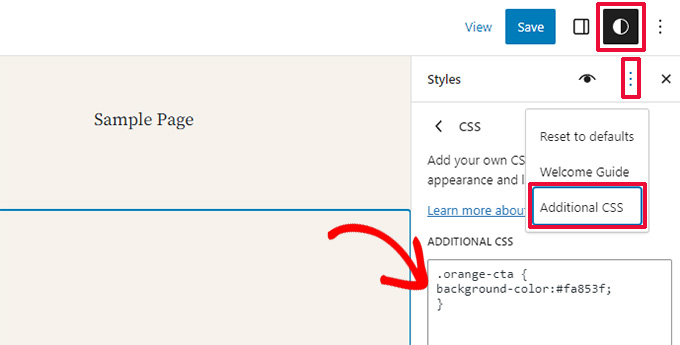
WordPress 6.2, however, now allows you to add custom CSS that applies to your entire site. Simply click on the Styles panel and choose Custom CSS under the three-dot menu.

Custom CSS in site editor

You can also add custom CSS to individual blocks as well.

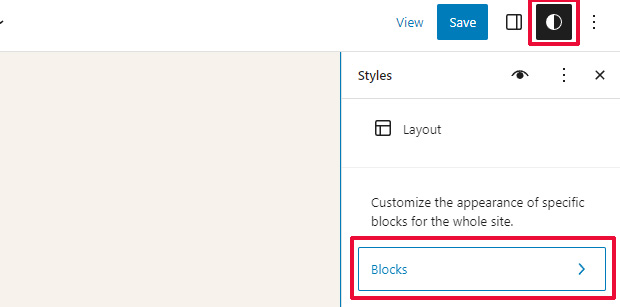
Switch to the Style panel and then click on Blocks.

Block styles

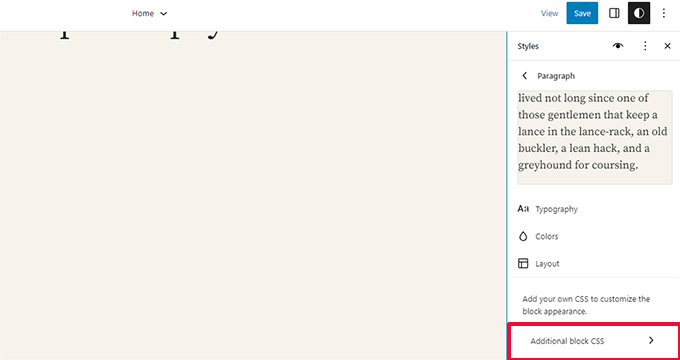
Now, you need to select the block that you want to modify.

After that, click on the ‘Additional Block CSS’ tab to enter your custom CSS code.

Block styles custom CSS

WordPress 6.2 makes it easier to add custom CSS if you need to. However, it comes with a ton of built-in design tools which are much easier to use than adding custom CSS.

Copy and Paste Block Styles

Another styling feature that reduces the need to add custom CSS is the ability to simply copy and paste block styles.

Let’s say that you just made some changes to a block and want to make the same changes on another block as well.

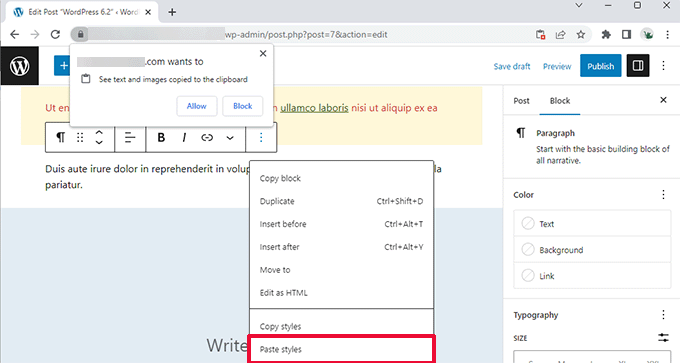
With WordPress 6.2 you can simply click on ‘Copy styles’ under the block options.

Copy styles

After that, click on the block options for the block where you want to paste the style and select ‘Paste styles.’

Note: Your browser will ask for permission to allow your website to view the contents of the clipboard. You need to click ‘Allow’ to continue.

Paste styles

Improved Pattern Insertion

WordPress block patterns are a collection of pre-made design elements that you can use for creating custom content layouts faster.

By default, WordPress comes with several built-in patterns. Your WordPress theme may also include its own pattern. Plus, you can find more patterns in WordPress Patterns Directory.

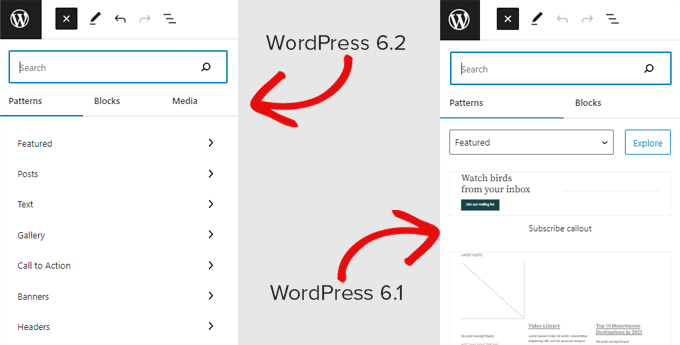
WordPress 6.2 comes with an improved pattern insertion interface.

Easier pattern insertion

Openverse Free Media Library Integration

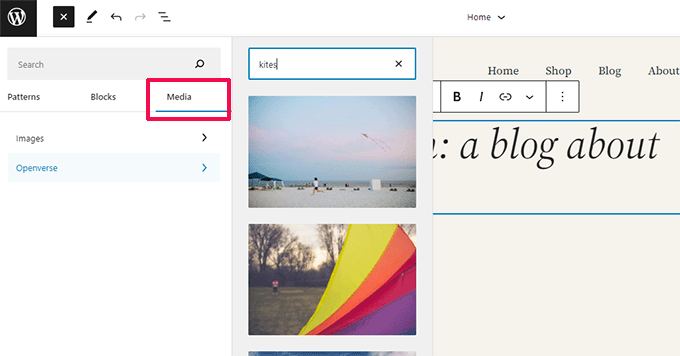
WordPress 6.2 now adds a ‘Media’ tab in the inserter as well.

Here, you can choose media from your own WordPress media library or browse royalty-free images from Openverse.

Openverse Integration in WordPress 6.2

Openverse is a sister project of WordPress.org. It allows openly licensed and public domain works to be discovered and used by everyone.

Once you select an image it will be inserted into the editor and downloaded to your WordPress media library as well.

WordPress will also save the image caption which may include a link back to the original source. You can delete this caption if the image is in the public domain.

New Sub Panels for Block Settings & Styles

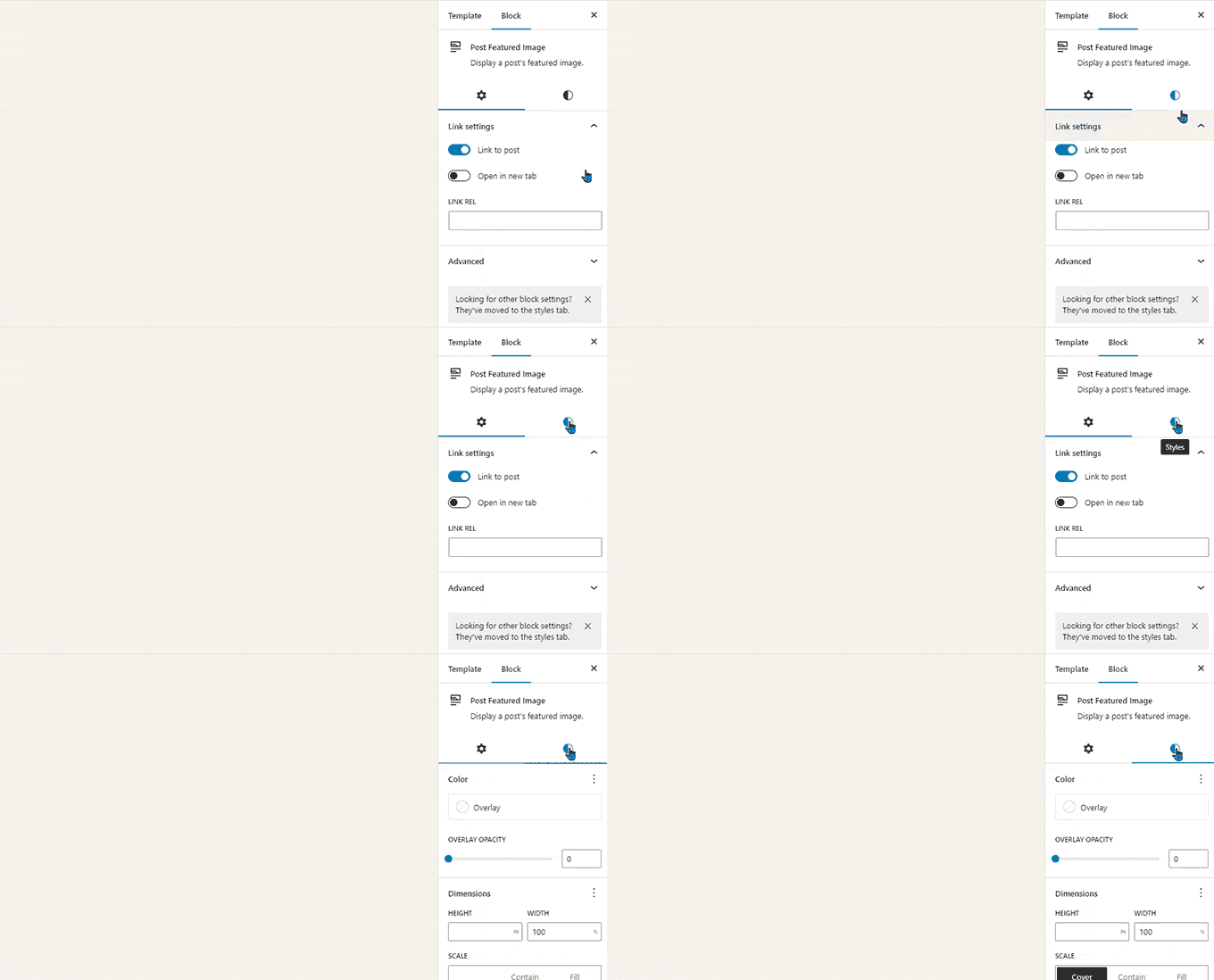
WordPress 6.2 now uses sub-panels to separate block settings and styles.

This helps users understand where they need to look if they want to change the appearance of a block.

Sub panels for block settings and styles

New Distraction-Free Mode

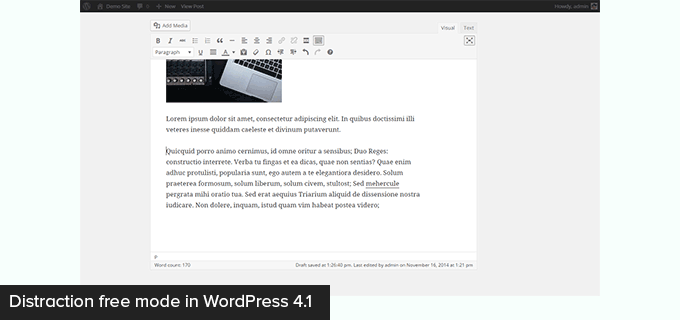
Historically, WordPress has always provided options to hide the formatting buttons and toolbars on the post editor screen.

Here is how it looked in WordPress 4.1 with the older classic editor.

Distraction free mode in older classic editor

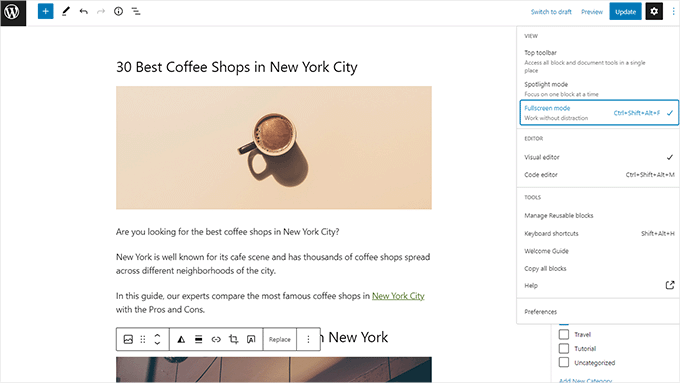
However, the block editor had the option to be used in full-screen mode. WordPress 5.4 started using the full-screen mode as the default.

This allowed users to have a much cleaner writing interface, but there was no distraction-free mode.

Full-screen mode

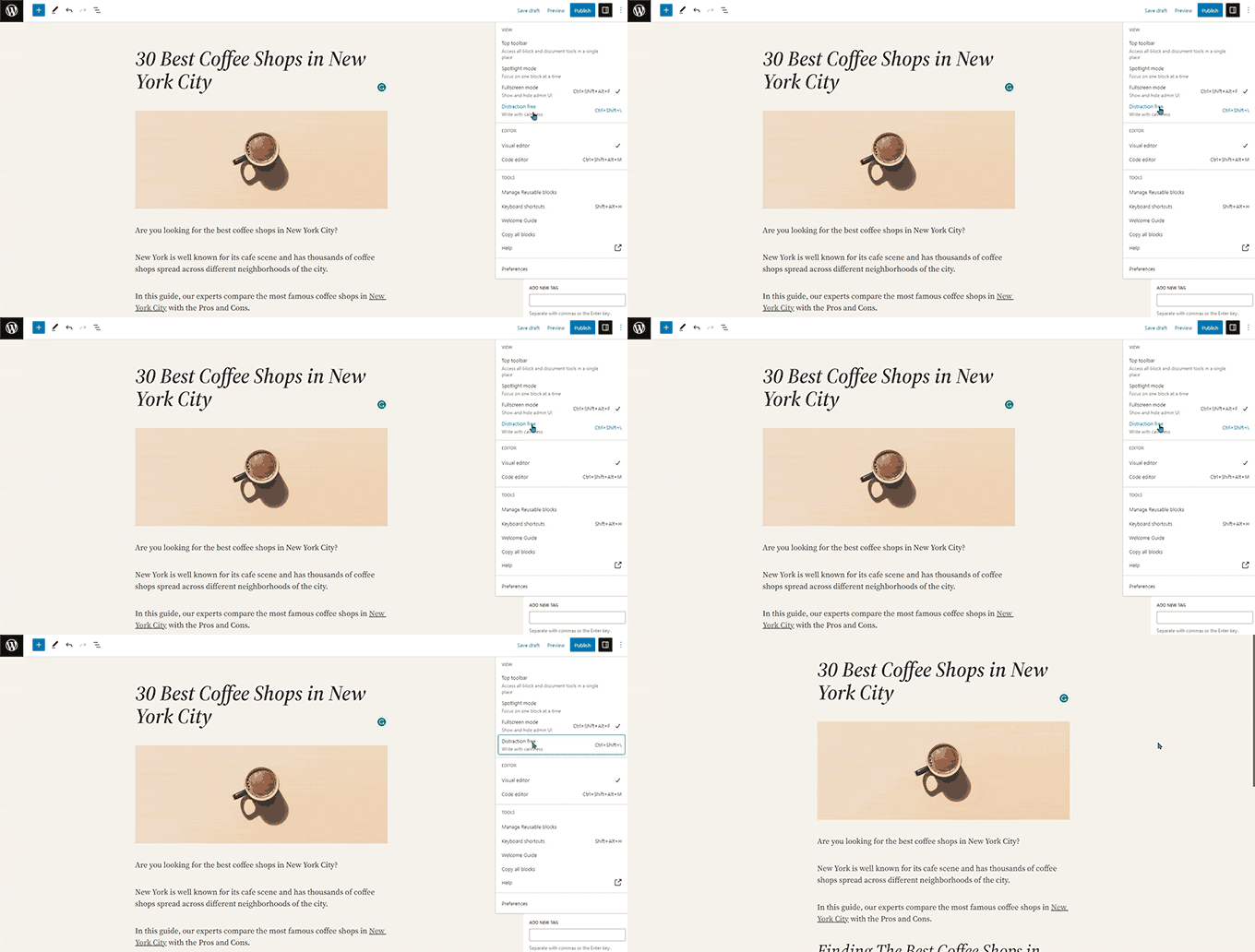
WordPress 6.2 now comes with a completely clean and calm distraction-free mode.

Users will be able to choose it from the editor settings, and it removes all toolbars and editing panels from the screen.

Distraction free mode in WordPress 6.2

Import Classic Widgets as Template Parts in Block Themes

WordPress 6.2 provides a nice fallback for importing classic legacy widgets in block themes when switching themes.

Users with classic widget themes lost their legacy widgets when they switched to a block theme. Now, you can import them as template parts.

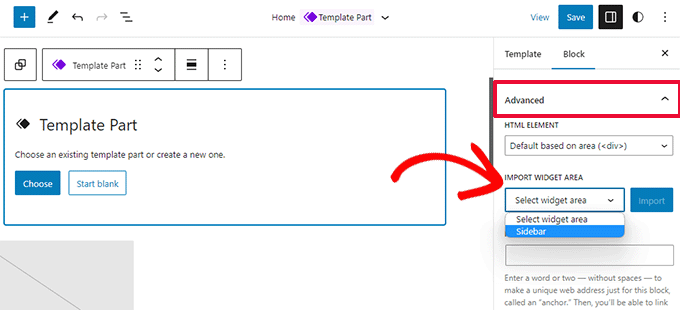
Simply create a new template part by clicking on the ‘Add New Block’ button (+).

Import classic widgets into template part

From the template part settings panel, click on the Advanced tab to expand it, and you’ll find the option to import a widget area from your previous theme.

Miscellaneous Enhancements

WordPress 6.2 contains a ton of enhancements. It merges 10 Gutenberg releases (‘Gutenberg’ is the codename for the original block editor project) into WordPress core so there are many refinements and new features to explore.

Here are some of the most useful enhancements.

1. Captions Button in Image Block Toolbar

Previously WordPress automatically added the caption area below the image and moved the cursor automatically to the caption.

This led many users to continue writing their text not realizing that they are writing it in the caption area.

WordPress 6.2 fixes this by adding a caption button to the toolbar. Users can now use it to add a caption if needed.

Add caption button

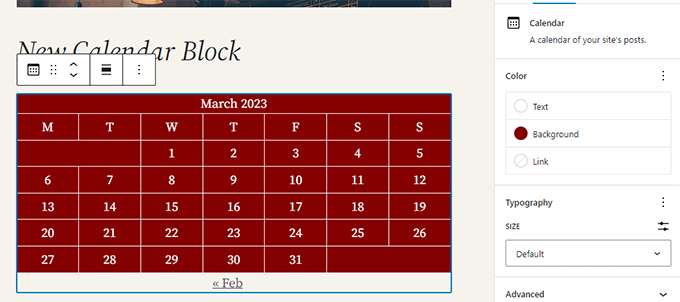
2. Improved Calendar Block

The calendar block now comes with more color options.

Improved color block

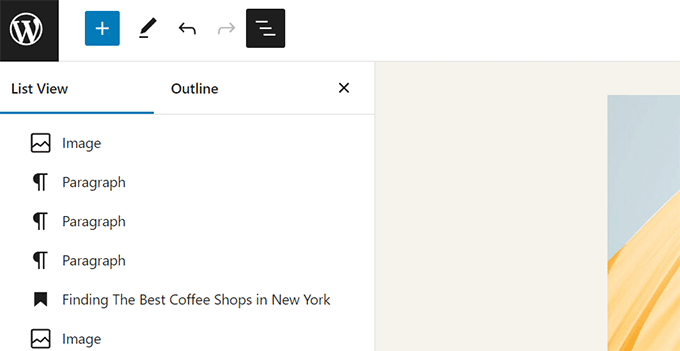
3. The List, Outline, and Info Panels are Merged

The list view, outline, and info panel are now merged into one convenient location.

List block now shows outline and information panel

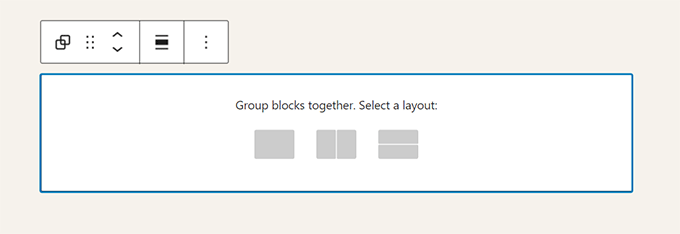
4. Group Block Layout

The ‘Group’ block now lets you choose a layout.

Group block layout

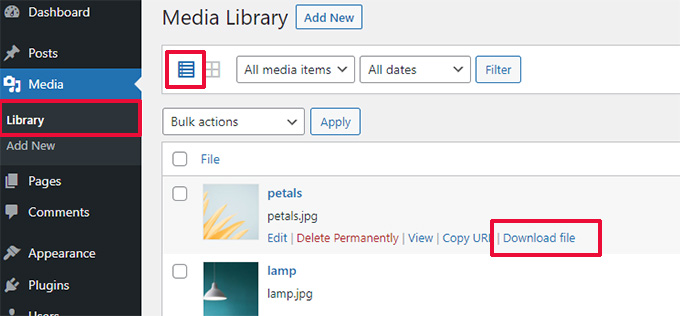
5. The Download Link for Media Files

The media screen will now show a ‘Download File’ link in the list view.

Download link for media files

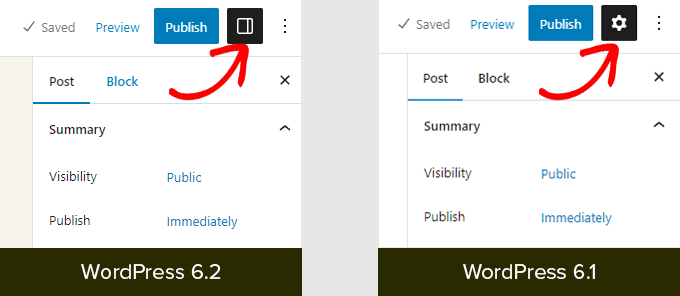
6. New Icon for Settings Panel

The icon to display the settings panel previously used a gear icon. It is now presented with a panels icon.

Settings icon

Under The Hood Changes

WordPress 6.2 also includes a ton of changes intended for developers. Following are some of these changes:

  • A new HTML API called WP_HTML_Tag_Processor is introduced. (Details)
  • A new client-side filter called blockEditor.useSetting.before is introduced. It allows developers to change block settings before the editor is rendered. (Details)
  • Patterns API extended to include template_types property. (Details)
  • Faster updates by moving directories instead of copying them. (Details)
  • A new switch_to_user_locale() function is introduced. (Details)
  • Create autosave revisions only when content is changed. (Details)
  • Add a style variation tag to themes that use style variations. (Details)

We hope this article helped you uncover what’s new in WordPress 6.2 and which new features to try out. We are particularly excited about all the changes to the site editor and performance improvements for block themes.

If you liked this article, then please subscribe to our YouTube Channel for WordPress video tutorials. You can also find us on Twitter and Facebook.

The post What’s New in WordPress 6.2 (Features and Screenshots) first appeared on WPBeginner.


March 30, 2023 at 02:00AM