Thursday, April 27, 2023

How to Create and Manage Ads.txt files in WordPress

Do you want to create and manage an ads.txt file in WordPress?

If your website gets caught up in fraudulent advertisements, then it can damage your reputation and cost you money. By adding a simple ads.txt file to your website, you can protect your site, partners, and publishers from advertising fraud, and possibly increase your ad revenue.

In this article, we will show you how to easily create and manage an ads.txt file in WordPress.

How to create and manage ads.txt files in WordPress

Why Create and Manage Ads.txt files in WordPress?

Selling advertising space is a great way to make money online blogging with WordPress. However, online advertising fraud is also a huge problem for both brands and website owners.

Let’s look at an example. Imagine a brand wants to place an ad on your WordPress website. They find a seller who claims they have a relationship with you, and can place advertisements on your website.

This third party might be one of your approved partners, or they might be committing online advertising fraud by selling unauthorized ads.

If your site gets caught up in advertising fraud, a third party may buy advertising space on your website and then resell it without your approval. This can lead to spammy or malicious advertisements on your WordPress blog.

Here, an ads.txt file can help keep your site safe.

Ads.txt file stands for ‘Authorized Digital Seller.’ It was developed by IAB Tech Lab to help stop fraud in online advertising. In this file, you can list all the companies that have permission to sell advertising space on your website.

An ads.txt file is publicly available, so advertisers, publishers, and resellers can use it to check that they’re dealing with an approved company.

If you sell ads on your WordPress blog using Google Adsense, DoubleClick, or Ad Exchange, then we recommend adding an ads.txt file to your site.

With that being said, let’s see how you can create and manage an ads.txt file in WordPress.

How to Create and Manage Ads.txt Files in WordPress

The easiest way to create an ads.text file is by using Ads.txt Manager. This free plugin adds a simple code editor where you can type in all your authorized platforms and networks.

The first thing you need to do is install and activate the Ads.txt Manager plugin. For more details, see our step-by-step guide on how to install a WordPress plugin.

Upon activation, head over to the Settings » Ads.txt page.
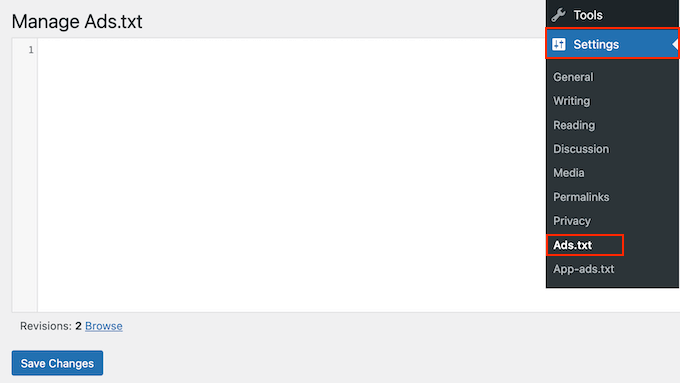
Creating an ads.txt file for your WordPress website

This opens a simple code editor where you can add each platform or reseller on its own line. For example, here we’re adding Google AdSense as an approved advertising platform:

google.com, pub-0000000000000000, DIRECT, f08c47fec0942fa0

The first field is the domain of the company that is allowed to sell or resell your ad inventory. In the above example, that’s google.com.

After that, you’ll add the publisher ID, which is unique to your account. If you’re not sure where to find this ID, then you can check the network or platform’s online documentation for more information.

The third section declares the relationship type, which is either DIRECT or RESELLER. Direct means the publisher works directly with the AdTech vendor. Meanwhile, reseller means the publisher has authorized a third party to resell on their behalf, such as an ad network or ad management solution.

The last field is the ID of the advertising platform, which is optional.

You can now add as many platforms and resellers as you want. Simply add each organization on its own line.

When you’re happy with the information you’ve entered, click on the ‘Save Changes’ button.
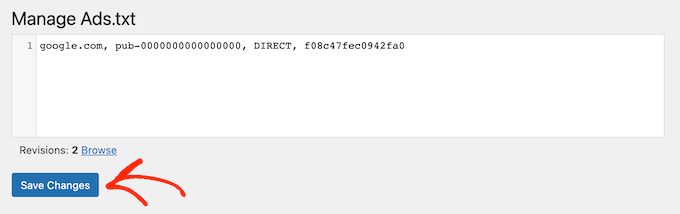
Publishing an ads.txt file on your website or blog

Now, anyone can read your site’s ads.txt file.

To see the file in action, simply add ads.txt to the end of your domain name, such as https://ift.tt/J1kiY0m
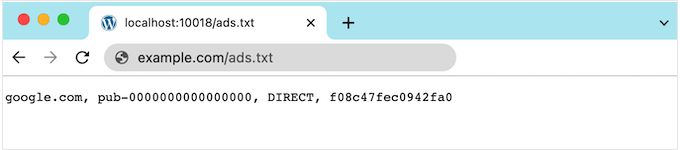
An example of an ads.txt file in WordPress

Fixing the ‘Earnings at risk Error’ in Adsense

If you use Google AdSense, then you may see the following error in your AdSense account:

Earnings at risk – One or more of your ads.txt files doesn’t contain your AdSense publisher ID. Fix this now to avoid severe impact to your revenue.

This just means your ads.text file doesn’t have the right publisher ID.

To fix this issue, log into your AdSense page using your Google email address and password. You’ll find the ID next to the following field: ‘This email is associated with the AdSense account.’
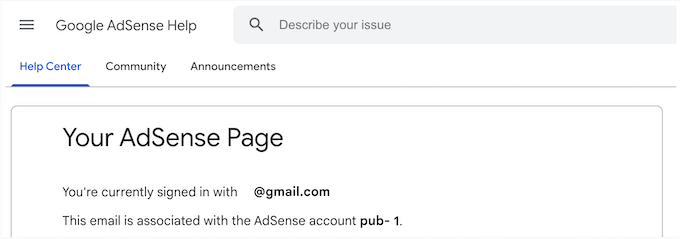
The Google AdSense advertising platform

Now, simply go to Settings » Ads.txt in your WordPress dashboard and find the line that adds Google AdSense as an authorized provider.

You can now change the text so that it uses the right ID.

After that, don’t forget to click on ‘Save Changes’ to store your settings. Now if you visit your Google AdSense account again, the error message should have disappeared.

We hope this tutorial helped you learn how to create and manage ads.txt files in WordPress. You may also want to learn how to increase your blog traffic or check out our expert pick of the best WordPress popup plugins.

If you liked this article, then please subscribe to our YouTube Channel for WordPress video tutorials. You can also find us on Twitter and Facebook.

The post How to Create and Manage Ads.txt files in WordPress first appeared on WPBeginner.


April 27, 2023 at 10:30PM
Should I Give Permission for WordPress Plugins to Collect Data?

One of our readers recently asked whether it’s ok to give WordPress plugins on your site permission to collect usage data.

They were concerned about whether there are security concerns in sharing website usage data with plugin developers, and whether there are any benefits for doing so.

In this article, we’ll discuss the pros and cons of letting plugins collect data from your WordPress site, and when it poses an unacceptable security risk.

Should I Give Permission for Plugins to Collect Data From My Site?

Which WordPress Plugins Collect Data From Your Website?

Most plugins DO NOT collect any data from your WordPress website. However, some plugins may ask you to share anonymous usage data with the developers, so that the plugin can be improved.

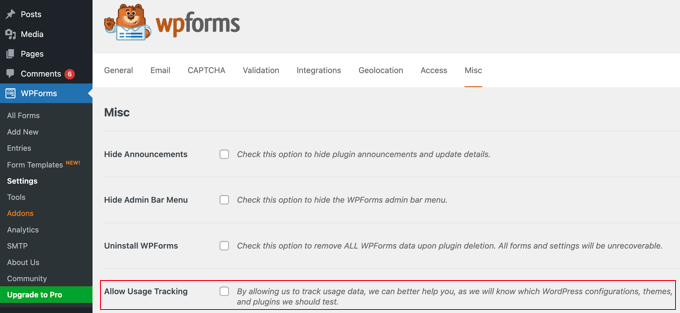
For example, on the WPForms plugin’s Miscellaneous Settings page, you will find an option called ‘Allow Usage Tracking.’

Some Plugins Ask You to Allow Usage Tracking

The description explains, ‘By allowing us to track usage data, we can better help you, as we will know which WordPress configurations, themes, and plugins we should test.’

Similar to leaving plugin reviews, sharing anonymized data with reputable plugins is a helpful way to support plugin developers.

WordPress.org rules require that all free plugins MUST get user’s consent before enabling such usage tracking, so you can be certain that no one will collect your website’s data unless you specifically authorize them to do so.

Now you may be interested to learn about the types of usage data that help plugin developers.

How Do We Use Usage Data Collected by Our Plugins?

It may be helpful to give you our perspective, and let you know about the types of data we collect from our plugins, as well as how we use the data to improve our products.

Awesome Motive, the company behind WPBeginner, develops a suite of free and premium WordPress plugins that are used by over 25 million websites.

Our plugins include OptinMonster, MonsterInsights, WPForms, SeedProd, WP Mail SMTP, RafflePress, All in One SEO, Smash Balloon, and many more.

Some of our plugins give you the option to enable anonymous usage tracking. This helps us to improve each plugin and make better decisions about future feature development.

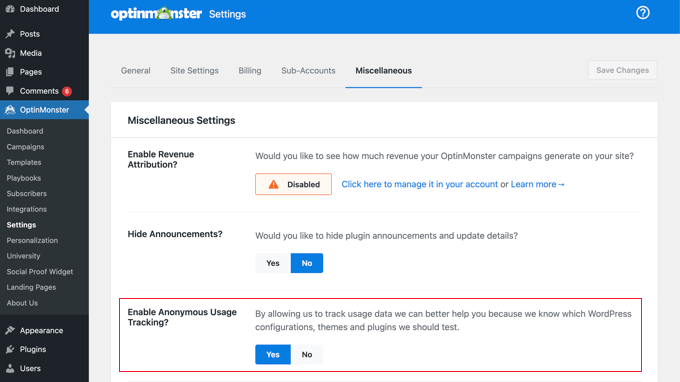
The data we collect is always anonymous. It is not tied to your website in any way. For example, here is a screenshot from the OptinMonster Miscellaneous settings page.

OptinMonster Asks You to Share Anonymous Usage Tracking

You can think of the data we collect as telemetry. It allows us to monitor how our plugin is being used in real-time.

It is important to understand that we are looking for how our plugins are being used across our entire user base, not on your particular website.

That means we will never know which settings and plugins are being run on a specific website such as syedbalkhi.com. But we will be able to discover, for example, the percentage of all users who have installed a specific version of our plugin.

We also find it useful to collect information about the server environment being used by your WordPress hosting provider, including your PHP version, MySQL version, and locale / language.

This allows us to test our plugins for the most popular versions among our users. It also allows us to improve coding standards by safely deprecating older versions.

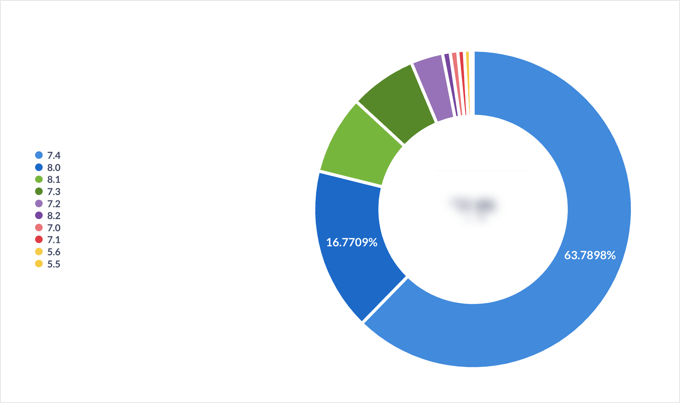
For instance, the diagram below shows the different versions of PHP being used by one of our plugins’ users. It shows that PHP 5.5 is used by very few users, and this helps us to decide whether to deprecate support for that version of PHP.

The Data We Collect Lets Us Make Decisions About Which Versions of PHP to Support

We’re also interested in which plugin features are being used and which settings are active. This information gives us a better idea of which features are doing well, and which aren’t.

Besides that, we gather aggregated data to improve our cross-plugin and theme compatibility to ensure that our plugin updates does not lead to any conflict with other popular plugins that happens so often in the WordPress industry.

Again, this is all general, aggregated data and not tied in any way to you and your specific website.

We NEVER collect any data about your website’s visitors, customers, or any other personal identifiable information.

Should You Allow WordPress Plugins to Collect Data From Your Site?

Now that you can see the benefits sharing usage data gives to the plugin developer, we’ll answer the question of whether you should allow plugins to collect data from your WordPress site. This decision needs to happen on a case-by-case basis. Here are some guidelines.

Anonymous Usage Tracking

When a reputable plugin collects data from your website anonymously, then it is normally safe to share usage data with the developer.

You can look for the author’s reputation. If the plugin is popular, then you can be confident they will collect and use the data responsibly. You could even reach out to them and ask how they use the data they collect.

Also, if you rely on the plugin to add needed features to your website, then you can help the developer to improve the plugin and add features by sharing anonymous usage data.

Data Tied to Your Website or Email Address

However, not all data is collected anonymously. For example, there may be plugins that tie your usage activity to your specific website or even an individual email address.

In these cases, you should exercise caution. It is normally not a good idea to freely share such detailed information about your website with third parties.

You can learn more by reading our guide on WordPress security best practices.

Nulled or Pirated Plugins

Also, if you want to keep your website secure, then you should never use nulled themes and plugins, or pirated copies of premium WordPress products.

That’s because you have no way of knowing how they have been modified. They might collect sensitive information about your website without your permission. They may even spread malware to your users or give hackers access to your site.

Nulled and pirated plugins pose a serious security risk. That’s why we recommend that you do not ever allow data collection from a nulled or pirated plugin or theme. For more details, see our guide on why you must avoid nulled WordPress themes and plugins.

We hope this tutorial helped you learn whether you should give permission for plugins to collect data from your site. You may also want to learn how to speed up your WordPress performance, or our expert pick of must-have WordPress plugins for business sites.

If you liked this article, then please subscribe to our YouTube Channel for WordPress video tutorials. You can also find us on Twitter and Facebook.

The post Should I Give Permission for WordPress Plugins to Collect Data? first appeared on WPBeginner.


April 27, 2023 at 04:46PM

Wednesday, April 26, 2023

How to Send Email to All Registered Users in WordPress

Do you want to send an email to all registered users in WordPress?

Sometimes you may need to send a mass email to everyone who has an account on your website. This may include customers, members, subscribers, and even other WordPress users.

In this article, we will show you how to send an email to all registered users in WordPress.

How to send email to all registered users in WordPress

Why and When You Need to Send Email to All Registered Users in WordPress?

If you allow user registration on your WordPress site, then there are a few different reasons why you may need to email all registered users. For example, you might want to let your site’s Authors and Editors know about a new plugin you’ve added to help them write great posts.

If you run an online store, then you may be launching a giveaway or contest in WordPress, exclusively for people who have the ‘Customer’ role.

Depending on how you’ve set up user registration, you may not add all users to your email list automatically. This can make it difficult to contact everyone who uses your site.

Thankfully, there are other ways to bulk message everyone who has an account with your WordPress website.

Before contacting your users, you’ll want to make sure you’re not breaking any laws. That said, we recommend reading our ultimate guide to WordPress and GDPR compliance.

Now, let’s see how you can easily email all registered users on your website.

How to Make Sure Your Emails Are Delivered Safely

Before we start, you want to make sure that users will receive the emails you send.

Sometimes, your WordPress hosting server may not be properly configured or email providers such as Gmail might use filters and tools that wrongly flag your emails as spam.

You can follow our tutorial on how to fix WordPress not sending email issue for more details.

With that in mind, we recommend using an SMTP service provider to improve your email deliverability and make sure all registered users receive their messages safely.

WP Mail SMTP is the best WordPress SMTP plugin on the market. It allows you to connect your WordPress site with a mailer service. This means your emails always end up in the user’s inbox, and not in the spam folder.

We recommend buying the paid version called WP Mail SMTP Pro as it allows you to send emails in WordPress using Gmail SMTP, SendLayer, Sendinblue, and more. You can also see the open and click-through rates for your emails, so you can monitor the success of your different email campaigns.

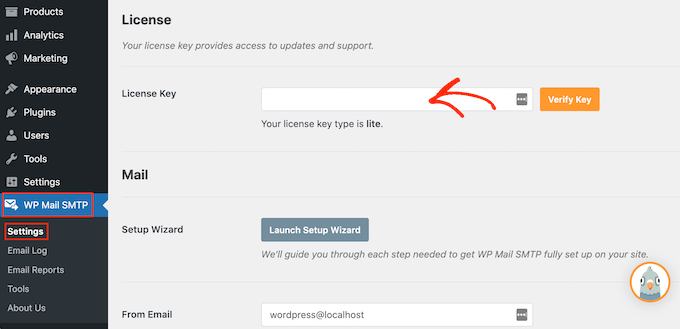
Upon activation, you need to visit the Settings » WP Mail SMTP page.

Here, enter your license into the ‘License Key’ field.

Entering your license key into the WP Mail SMTP WordPress plugin

You can find this information by logging into your WP Mail SMTP account.

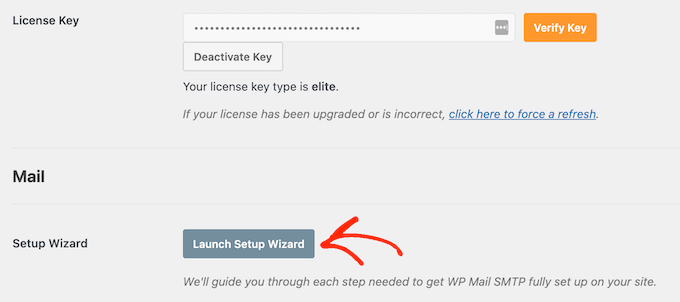
After entering the license key, click on the ‘Verify Key’ button. Now you’ve activated WP Mail SMTP, go ahead and click ‘Launch Setup Wizard.’

Launching the WP Mail SMTP setup wizard on your WordPress website

On the next screen, select ‘Let’s Get Started.’

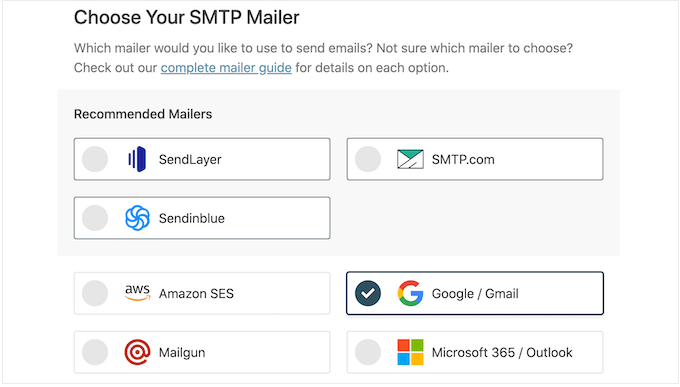
WP Mail SMTP will now ask you to choose the mailer that you want to use with your WordPress website.

How to connect an SMTP email provider to WordPress

We recommend using SendLayer, SendinBlue, or SMTP.com as they’re reasonably priced and can scale to support your growing business.

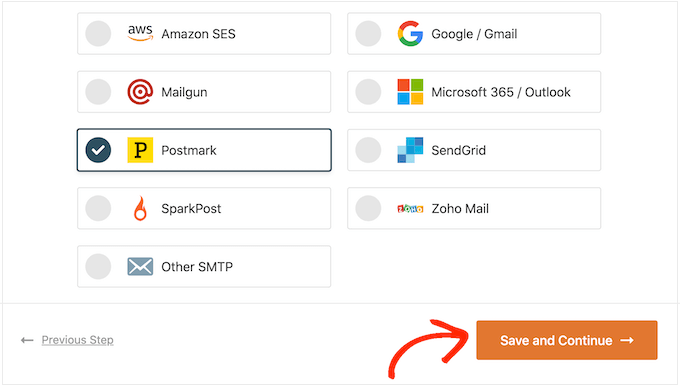
After choosing your SMTP mailer, click on the ‘Save and Continue’ button.

Configuring your SMTP service provider

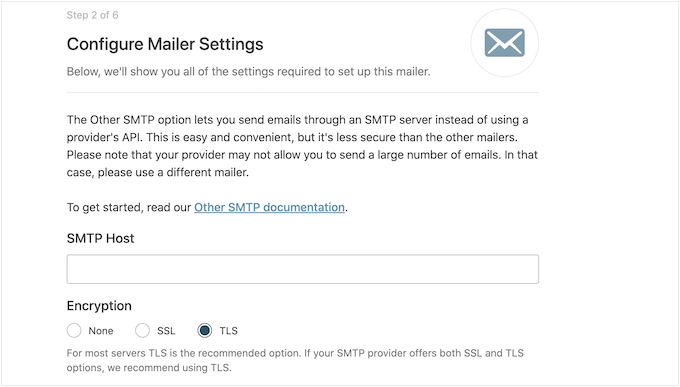
WP Mail SMTP will now show you how to configure this mailer.

If you need help, then see our ultimate guide on how to set up WP Mail SMTP with any host.

How to configure your email service provider in WordPress

If you want to use third-party mailers, then you can follow our guide to send WordPress emails via Gmail SMTP. We also have a similar guide for the Sendinblue SMTP setup.

Sending Email to All Registered Users in WordPress

The best way to email all your registered users, is by using Send Users Email. This simple plugin lets you send bulk messages based on the user’s role.

Before you get started with this plugin, you may want to check your user roles. You can then make any changes so that your users are properly organized by role.

For more details, see our beginner’s guide to WordPress user roles and permissions.

When you’re happy with how your roles are set up, the next step is installing and activating the Send Users Email plugin. For more details, please see our step-by-step guide on how to install a WordPress plugin.

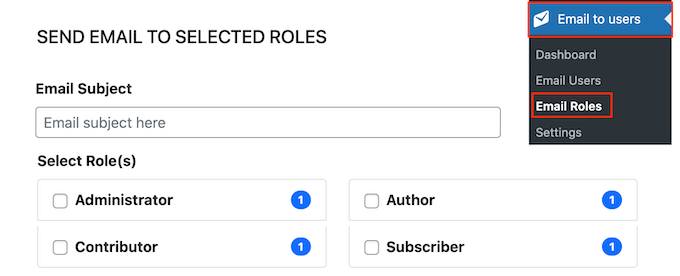
Upon activation, go to Email to users » Email Roles in your WordPress dashboard.

Sending a bulk email to all users with an assigned user role

Here, you can choose which users will receive the email based on their role on your WordPress blog.

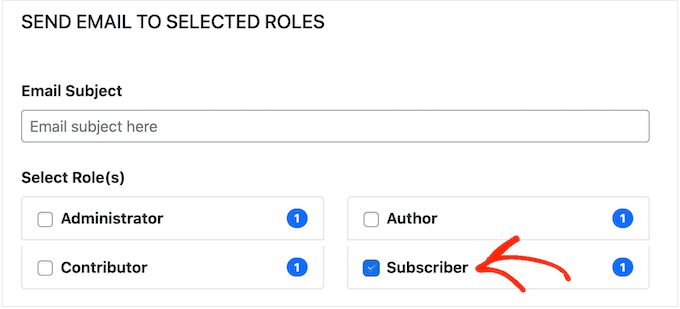
For example, in the following image, we’re messaging everyone who has the ‘Subscriber’ role.

Sending an email to all subscribers on your WordPress website

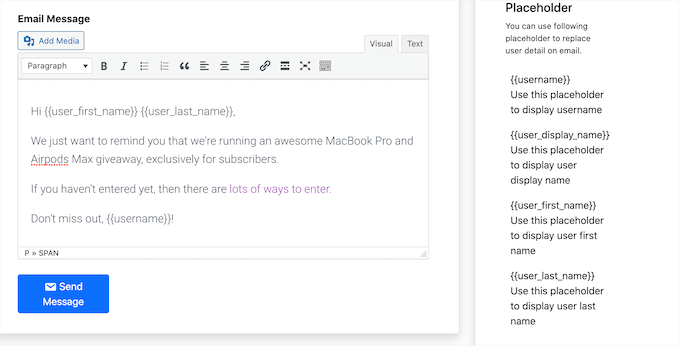
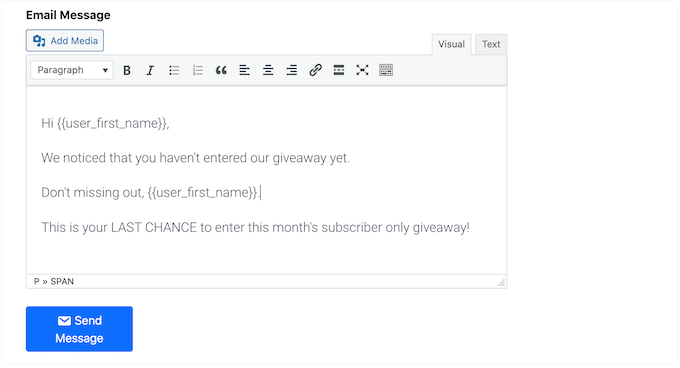
You can now type the email that you want to send to all registered users. The Send Users Email plugin also has a few placeholder tags that you can use to add user information to the message.

For example, you can address the user by name using the placeholder. When Send Users Email creates each email, it will replace the placeholder with the recipient’s first name.

By using a combination of plain text and placeholders, you can send a personalized email to all registered users.

How to email all registered users in WordPress

When you’re happy with the information you’ve entered, click on the ‘Send Message’ button.

WordPress will now email everyone who has the selected user role.

How to Email Specific Registered Users in WordPress

The the Send Users Email plugin also lets you send an email to a small group of registered users, or even to a specific user. For example, you may want to send a follow-up email to a particular Subscriber, after sending a bulk email.

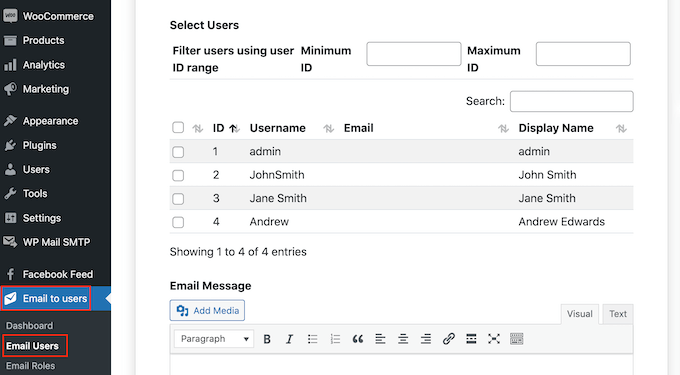
To message individual users, simply go to Email to users » Email Users. This shows a list of all your registered users.

Sending emails to a specific user

To message a user, simply check the box next to their username.

After selecting all the people you want to email, you can go ahead and create your message.

Messaging a specific person using a WordPress plugin

When you’re happy with the message, simply scroll to the bottom of the screen and then click on Send Message.

We hope this article helped you learn how to send an email to all registered users in WordPress. You may also want to see our guide on how to create an email newsletter and our expert pick of the best email marketing services for small businesses.

If you liked this article, then please subscribe to our YouTube Channel for WordPress video tutorials. You can also find us on Twitter and Facebook.

The post How to Send Email to All Registered Users in WordPress first appeared on WPBeginner.


April 26, 2023 at 11:30PM