Monday, May 1, 2023

How to Choose a Target Audience for Blogs (+ Examples)

Are you looking for the best practices on choosing a target audience for your blog?

Choosing a target audience allows you to create better content that resonates with your users. This helps you get more conversions and sales.

In this article, we’ll show you how to easily choose the target audience for your blog with examples.

How to find your target audience

Here is a quick overview of the topics we’ll cover in this article.

What is a Target Audience?

A target audience is a group of people that a business wants to reach with its products, services, or content.

This group of people would have similar interests, needs, demographics, or other characteristics that make them more likely to be interested in what your business has to offer.

Whether you are starting a blog or an online business, choosing a target audience helps you create effective messaging that really connects with that intended audience.

For instance, a blog about tennis or football may want to reach out to an audience interested in that particular sport, rather than sports content in general.

Similarly, an online store selling pet toys may want to target people who have pets and live around the areas where the store can easily ship products.

Why Choosing a Target Audience is Important

Choosing a target audience is important for a blog or online business because it helps them create content and products tailored to that particular group of people.

This means that the content and products will be more valuable and relevant to the audience which can lead to more user engagement, higher conversions, and increased sales.

Finding your target customers

Another benefit of choosing the right target audience is that it allows you to plan a more consistent and focused marketing strategy.

By understanding the interests, age, gender, and location, you can reach the right audience by creating organic content or running paid ads on Google or Facebook.

Not choosing a target audience has some significant disadvantages as well.

For instance, you may end up creating content that does not fit any specific customer persona and doesn’t motivate users to spend more time on your blog or WordPress website.

You may also end up wasting time and resources acquiring leads and customers who may not find your content or products relevant to their needs.

That being said, let’s understand what some common types of target audiences are and how you would go about finding the right target audience for your blog or online business.

Types of Target Audience for Your Blog or Business

Marketers categorize their target audience based on their intent, interests, location, and other information.

Following are a few examples of different types of target audiences:

1. Buying Intent Audience

This type of target audience is looking to make a purchase.

For example, let’s say you run an eCommerce store selling gym equipment. You may want to target an audience more interested in buying equipment.

To do that, you will need to create content like a sales funnel to drive customers toward making a purchase.

2. Information / Educational Audience

This type of target audience is looking for information about specific topics.

For instance, they may need information about workout plans, healthy food recipes, fitness advice, and more.

To target this audience, you’ll need to create content that provides this informational and educational value.

Now as you can see, you can still have an eCommerce store selling gym equipment, yet you have two different types of target audiences that you can create content for.

3. Demographic Target Audience

This type of target audience is selected based on their demographic information, such as age, gender, location, occupation, income group, and more.

For instance, you may have certain products women are more interested in. Similarly, you may want to reach people in specific locations where you can ship products.

Now let’s say you want to run Google or Facebook Ads. You can target these specific demographics to make your ads more effective.

To summarize:

  • Target audience types can be segmented based on their intents, challenges, and segments.
  • A business can have multiple target audiences with different intents.
  • Each target audience can be further divided into narrower segments to make your campaigns even more effective.

Finding Your Target Audience

Most blog and business owners already have some very basic idea of who their target audience is.

For instance, if you run a travel blog, then you may already have some idea of your target audience and what their interests are.

However, often it is just guesswork and may not be enough to get you the desired user engagement and customer acquisition that you seek.

Finding Your Target Audience Using Google Analytics

Smart marketers rely on actual marketing data to choose their target audience and learn more about them.

The biggest source of this data is Google Analytics.

It is a free tool provided by Google that allows you to see where your website visitors are coming from, what they look at, where they are located, and more.

You can also use it to collect demographic data, which allows you to see your audience’s age, gender, and interests as well.

Setting Up Google Analytics for Audience Insights

The easiest way to set up Google Analytics on your blog is by using MonsterInsights. It is the best Google Analytics plugin for WordPress and allows you to easily set up Google Analytics for your WordPress blog.

First, you need to install and activate the MonsterInsights plugin. For more details, see our guide on how to install a WordPress plugin.

Note: There is also a free version of the plugin called MonsterInsights Lite that you can try. However, we recommend upgrading to the pro version to take full advantage of the plugin.

Once you have activated the plugin, visit the Insights » Settings page in your WordPress admin area and then click on the Connect MonsterInsights button.
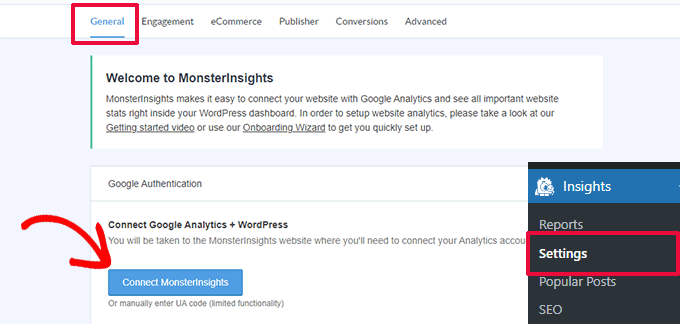
Connect MonsterInsights

After that, you can follow the on-screen instructions to connect Google Analytics to your WordPress website.

To learn more, see our tutorial on how to install Google Analytics in WordPress, which has detailed step-by-step instructions.

Once you have connected to Google Analytics. You’ll need to turn on demographics data in your Google Analytics account settings.

Simply log in to your Google Analytics account and click on the Admin gear in the lower corner.
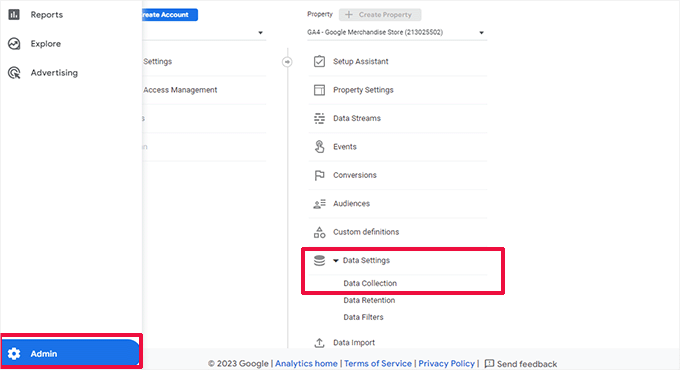
Admin data settings

Next, under the property column, click on Data Settings » Data Collection menu.

This will slide open the Data Collection page. From here, you need to turn on the ‘Google signals data collection’ option.
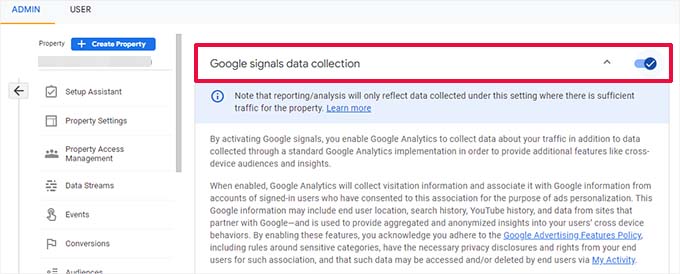
Turn on Google signals data collection

Google Analytics will now start collecting demographic data for your website visitors.

To view this report on your WordPress website, switch back to your WordPress admin area and go to the Insights » Settings page.

From here, you need to click on the Engagement tab and turn on the checkbox next to the ‘Enable Demographics and Interests Reports for Remarketing and Advertising’ option.
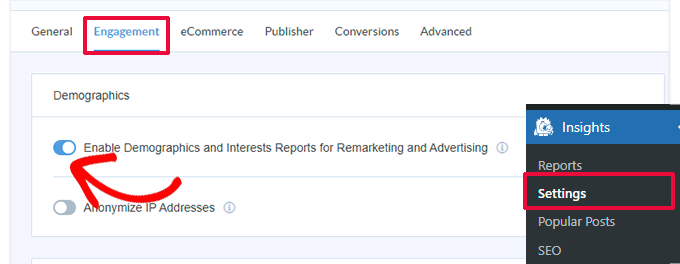
Turn on demographics in MonsterInsights

Don’t forget to click on the Save Changes button to store your settings.

Viewing Google Analytics Reports for Your Target Audience

Now that you have set up Google Analytics and turned on demographics data, you’ll need to wait for Google Analytics to collect some data.

After a while, you can visit the Insights » Reports page. Under the overview tab, you’ll see the overall traffic performance of your website.
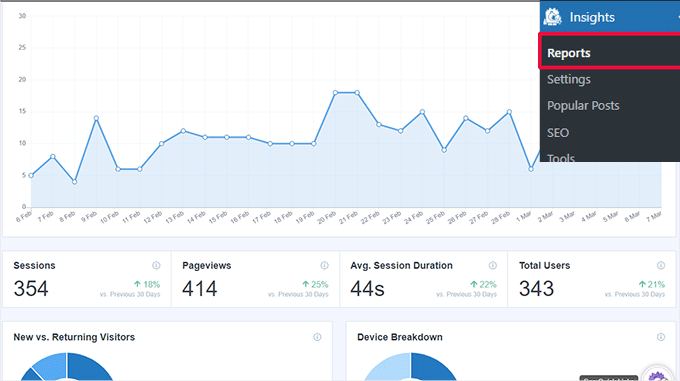
Reports overview

You can also see new vs returning users and a device breakdown chart.

The device breakdown chart will show you what kind of device your users are using Desktop, tablet, or mobile.

You’ll also find the top countries your visitors are coming from and your top posts and pages.

Next, you need to switch to the Publisher tab and scroll down a little. From here, you’ll see Age and Gender charts.
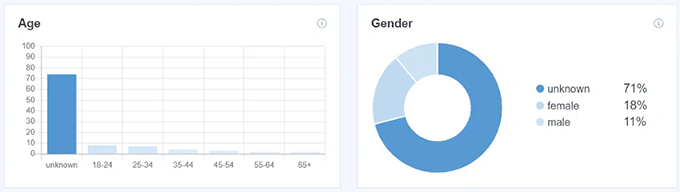
Age and gender demographic charts

The chart will show you a breakdown of users by age and gender.

Note: It is normal to have a large chunk of users marked as unknown. Google only collects data from users who are logged in and have opted in for ad personalization.

Below that, you’ll find the Interests report. This data is collected by Google Signals to help marketers target the right audience. It also helps publishers see the interests of their current website audience.

Interest report

This gives you an idea of what topics interest your target audience the most.

You can further drill down these reports inside the Google Analytics dashboard. Simply go to the Demographics » Demographic details report under your Google Analytics account.
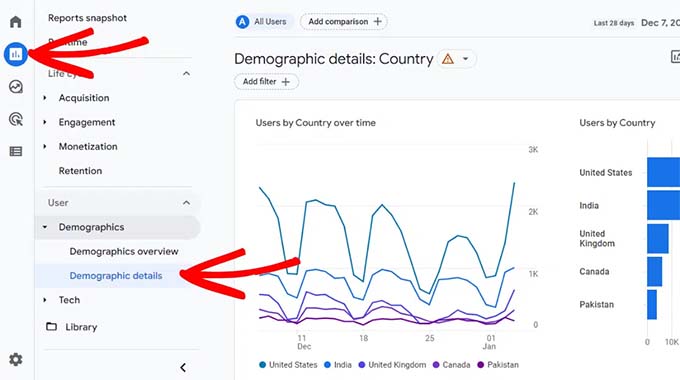
Google Analytics demographics details

From here you can narrow down your audience by country and city. You can also see more detailed reports of interests, age, and gender breakdowns.

All of this data gives you a much clearer image of your website’s current audience and from here you can choose the target audience that you want to focus on.

Building Customer Personas for Your Target Audience

Building ‘Customer Personas’, also known as buyer personas, is a marketing exercise that helps you better understand your target audience.

These customer profiles use the target audience based on the data you have collected in the earlier step.

A good customer persona focuses on the following key elements.

  1. Goals – What the user wants to achieve?
  2. Pain points – What are the hurdles and challenges they face in achieving those goals?
  3. Values and motivations – What drives them to achieve their goals? For instance, it could be personal, professional, or business growth, faith, beliefs, lifestyle, or more.
  4. Solutions – How your product, services, or content can help them?

There are many ways to generate customer profiles using surveys, customer feedback, and other data sources.

You can also use customer persona generators to fill in the data.
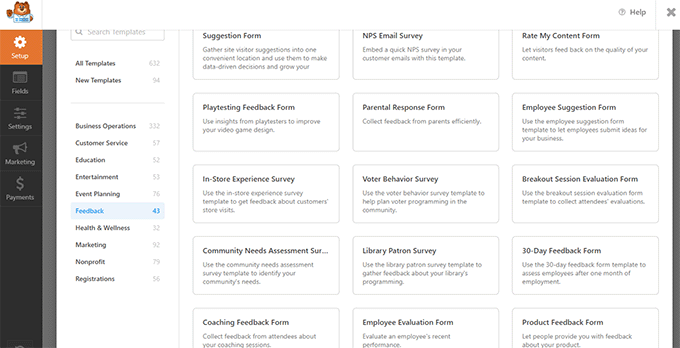
1. WPForms

WPForms templates

Perhaps the best way to create a target audience profile is by collecting user data directly on your website. You can do so by running surveys, polls, Net Promoter score surveys, feedback forms, and more.

WPForms is the best WordPress form builder on the market that allows you to create all types of survey and feedback forms for your website.

It comes with built-in templates to quickly create forms and surveys.

Plus, you can save form data, export it, and use it in other third-party apps to better understand your website audience.

2. Customer Avatar Cheat Sheet by Digital Marketers
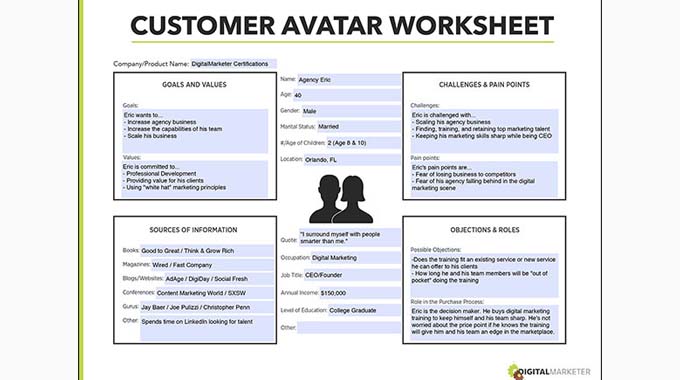
Customer Avatar Cheatsheet

This downloadable cheat sheet helps you fill in a template to generate a customer avatar for your target audiences.

You can provide a name to each customer persona and fill in their average age, gender, and location based on the demographics data you collected using Google Analytics.

After that, you will need to answer the four main sections about their goals, challenges, objections, and sources of information.

The purpose of the exercise is not only to give you a better understanding of each customer persona but also to help you answer and address their objections.
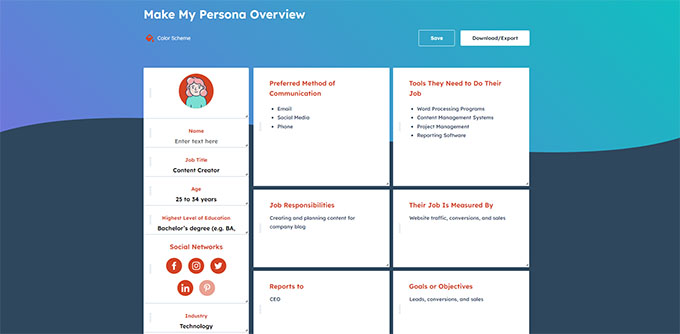
3. HubSpot’s Make My Persona

Make my persona

Make My Persona is a free tool created by HubSpot. It allows you to simply answer a few questions to generate a persona for your target audience.

You can then edit the template by manually creating your own sections and adding information to them.

Depending on your business needs, you can then segment your target audience into different categories and create different reader profiles for each segment.

Creating Content for Your Target Audience

Once you have chosen your target audience, the next step is to reach out to them with the right content.

You can now narrow down your list of content ideas to match your target audience’s goals and pain points.

For instance, your audience’s goal could be “losing weight,” and their challenge is that they cannot go to the gym.

This allows you to look for ideas around ‘working out at home’ and ‘exercising without gym equipment.’

To learn more, see our beginner’s guide on how to do keyword research for your WordPress blog.

Following are some essential WordPress tools that you can use to optimize your content for your target audience further.

1. All in One SEO for WordPress

Once you start writing content for your specific audience, you will realize that there is already a lot of similar content out there.

How do you beat them and make sure that your customer can find you?

This is where All in One SEO for WordPress comes in. It is the best WordPress SEO plugin on the market and allows you to optimize your content for more visibility on search engines.
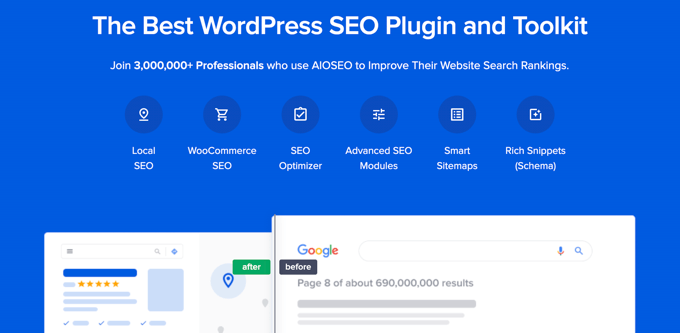
All in One SEO

It shows the TruSEO score inside the WordPress editor with practical tips to improve your content.

Plus, it comes with a built-in headline analyzer tool to help you write catchy headlines to improve your organic click-through rate.

All in One SEO TruSEO score

AIOSEO also includes integration with ChatGPT AI to generate your SEO title and meta descriptions.

Other notable features include powerful XML sitemaps, schema markup, focus keyphrases, and free Semrush integration.

To learn more, see our tutorial on how to set up All in One SEO for WordPress.
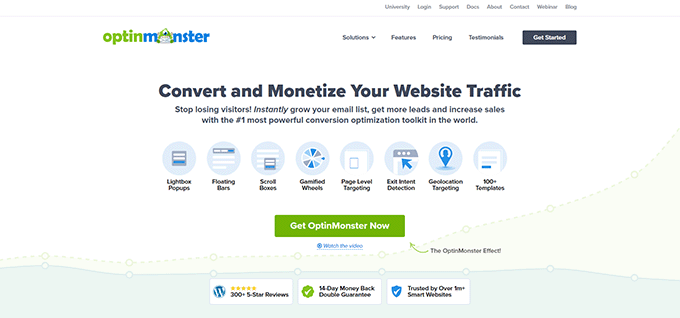
2. OptinMonster

OptinMonster website

Bringing your target audience to your website is only the first part of the customer journey. Next, you need to convince them to make a purchase or sign up.

Research shows that more than 70% of people visiting your website will leave in merely a few seconds without making a purchase.

Luckily, there are tools like OptinMonster. It is the best conversion optimization software on the market. It allows you to easily convert your target audience into paying customers and subscribers.
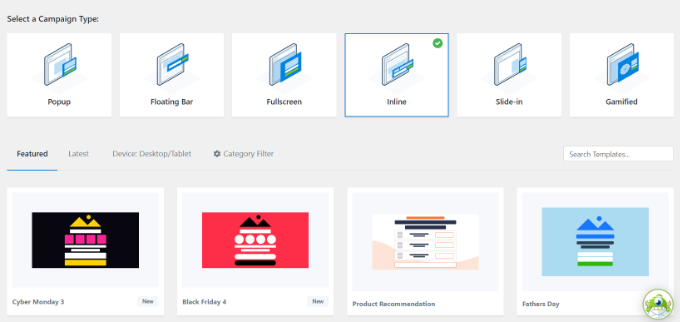
OptinMonster campaigns

It allows you to use intuitive marketing tools like lightbox popups, countdown timers, header and footer banners, and more to convert users.

With its powerful targeting features, you can show personalized messages to users at a precise time for maximum impact.
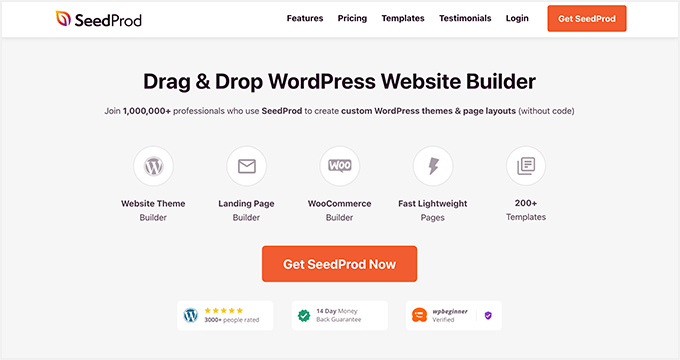
3. SeedProd

SeedProd website builder

Now let’s say you want to run an ad campaign for upcoming holidays. This campaign targets a specific segment of your target audience.

However, sending them directly to your homepage doesn’t show them the most relevant and effective content.

This is where SeedProd can help. It is the best WordPress page builder plugin on the market and allows you to create beautiful landing pages for your website quickly.
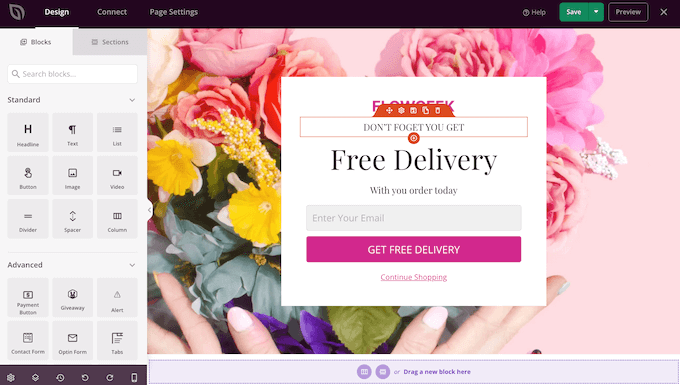
The SeedProd page builder plugin

It uses an intuitive drag-and-drop design tool and comes with dozens of templates that are optimized for sales and conversions.

It comes with support for WooCommerce and dozens of ready-made templates to easily create any kind of page you need.

For details, see our guide on creating landing pages in WordPress.
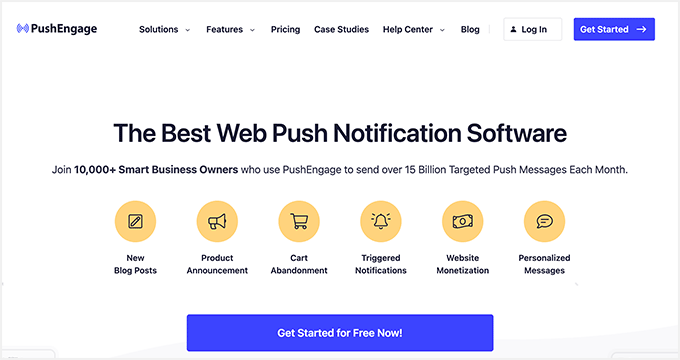
4. PushEngage

PushEngage

As a marketer, your goal is to open a communication channel with your users before they leave your website.

There are a bunch of tools you can use to achieve this. This includes social media marketing, email marketing, paid search campaigns, or push notifications.

Push notifications are custom messages with links that you can send as notifications to users’ web browsers.

PushEngage is the best push notification software on the market. It enables you to send push notifications to your users regardless of which device they are using (mobile or desktop).

It comes with powerful targeting features that allow you to send personalized messages to your users. Plus, you can automatically segment your target audience for more effective messaging.
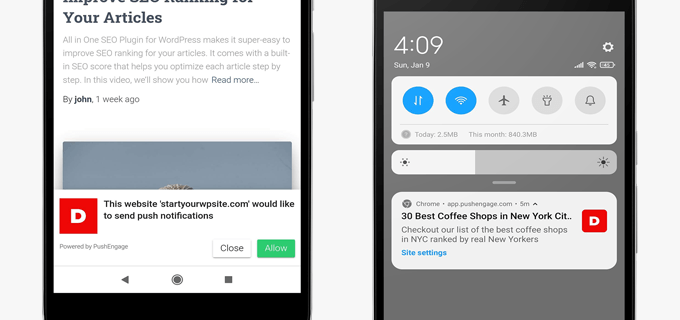
Mobile web push notifications

For more details, see our tutorial on how to add web push notifications to your WordPress site.

We hope this article helped you learn how to choose a target audience for blogs. You may also want to see our complete WordPress SEO guide or take a look at our tutorial on how to get more traffic to your website.

If you liked this article, then please subscribe to our YouTube Channel for WordPress video tutorials. You can also find us on Twitter and Facebook.

The post How to Choose a Target Audience for Blogs (+ Examples) first appeared on WPBeginner.


May 01, 2023 at 03:34PM

Friday, April 28, 2023

22 Best WordPress Themes for Startups (2023)

Are you looking for WordPress startup themes for your site?

You need a reliable platform for your website, something that can scale quickly as your startup grows. You also need a theme that lets you showcase your work and projects professionally.

In this article, we will share some of the best WordPress themes for startups that you can use to create your business website.

Best WordPress Themes for Startups

Building Your Startup Site With WordPress

WordPress is one of the most popular website builders in the industry. It’s the top choice among startups to launch a business website.

There are 2 types of WordPress websites, which can be confusing for beginners. First, there is WordPress.com, which is a hosted solution, and then you have WordPress.org, also called self-hosted WordPress. For more details, check out our side-by-side comparison of WordPress.com vs. WordPress.org.

To create a website for your startup, you will need to use self-hosted WordPress.org. It gives you instant access to all features and third-party resources.

You will also need a domain name and web hosting account. A domain name is your site’s address on the web, such as wpbeginner.com. Web hosting is the storage for all your website files.

We recommend using Bluehost. It is an officially recommended WordPress hosting provider and one of the largest web hosting providers in the world.

Bluehost WordPress Hosting offer for WPBeginner Users

For WPBeginner users, Bluehost offers a free domain name, a free SSL certificate, and a BIG discount on web hosting.

You can get started for just $2.75 per month, making it a very affordable option for even the smallest startups.

After buying web hosting, simply follow our step-by-step guide on how to make a website from scratch.

Now, let’s take a look at some of the best WordPress themes for startups.

1. Astra

Astra Startup Theme

Astra is a modern WordPress theme built for startups, business websites, and eCommerce stores. It comes with dozens of starter sites that you can use to launch your startup website quickly.

Astra is highly flexible, letting you change your colors, font, background, header, footer, and sidebar.

It integrates with popular drag-and-drop page builders such as Elementor and WPBakery to customize your landing pages. It also works perfectly with WordPress’s built-in block editor (Gutenberg editor).

2. SeedProd

SeedProd Startup Template

SeedProd is the most popular WordPress theme and website builder plugin. It comes with dozens of site templates, including a fully functional website layout for startups and small businesses.

It has a powerful drag and drop builder that you can use to easily customize your website. You just need to replace the dummy content with your text and images, and your website will be ready.

SeedProd gives you full control to customize colors, font, background, and other styling options on your site. It’s highly flexible with everything you need for your startup website.

3. Hestia Pro

Hestia Pro

Hestia Pro is a beautiful WordPress multipurpose theme for business websites and startups. It’s compatible with top WordPress plugins, so you can add any feature to your website easily.

It lets you add an image slider and background video to your website. Hestia Pro has full compatibility with WooCommerce to start an online store.

Also, Hestia Pro is fully responsive and retina ready. That means your site will offer a great user experience on all devices.

4. Divi

Divi Startup Theme

Divi is a powerful WordPress all-purpose theme to create any type of website. It offers hundreds of website and blog layouts, a theme options panel, and a built-in page builder for you to set up your startup site without editing any code.

It has lots of customization options, including effects and animations, to make your website engaging without touching a single line of code. The theme provides ready-made and full website templates for different business niches. It’s also SEO-friendly.

With Divi, you get all Google Fonts built-in. You can also add custom fonts to your site.

5. OceanWP

OceanWP Startup Theme

OceanWP is a beautiful and responsive WordPress theme designed specifically for small businesses, eCommerce, and startup sites. It comes with a one-click demo content importer and multiple built-in website layouts to get started quickly.

It has free and premium demos, powerful addons, theme extensions, and more. With page builders like Beaver Builder, you can fully customize your website in just a few minutes.

6. Ultra

Ultra Startup Theme

Ultra is a flexible business WordPress theme that you can use for startup sites for all kinds of business niches. It comes with Themify Builder built in. This gives you an easy drag-and-drop interface to create your website.

Ultra has multiple homepage designs and layouts, letting you pick the perfect option for your website. For easier setup, it includes a one-click demo installation and several website templates.

Ultra uses responsive design, so your site will look great on all mobile devices.

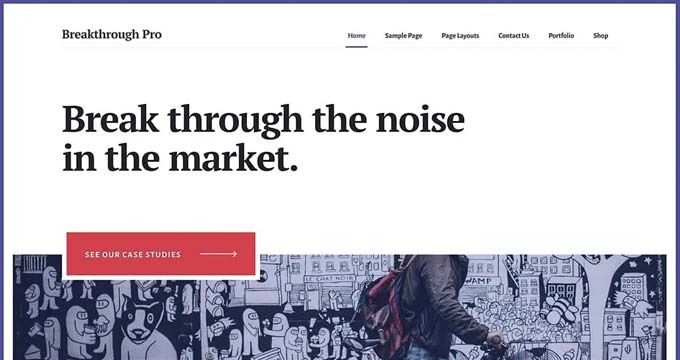
7. Breakthrough Pro

Breakthrough Pro

Breakthrough Pro is a premium WordPress theme. It has beautiful colors and a minimalist layout design that you can use to add content related to your business.

It lets you display services, projects, portfolios, clients, and other details professionally. This makes it a great option for a digital agency, web design agency, or freelancer. It’s a powerful and robust theme that uses modern design and is suitable for any small business.

StudioPress is now part of WP Engine, the most popular managed WordPress hosting company. You can get this theme and all 35+ other StudioPress themes when you sign up for WP Engine hosting to build your website.

Bonus: WPBeginner users also get an additional 20% OFF. Get started with WP Engine today!

8. Sydney Pro

Sydney Pro

Sydney Pro is a stunning WordPress theme for startups. It comes with custom widgets, additional page templates, exceptional page/post options, and WooCommerce support.

For easier customization, it offers new and additional settings in the live theme customizer. Sydney Pro supports video headers to embed custom and self-hosted videos at the top of your website.

9. Bramble

Bramble

Bramble is a beautifully designed WordPress theme for startup sites. It comes with multiple homepage layouts that you can use with a drag-and-drop page builder to design your website the way you want.

It has video backgrounds, page options, contact forms, and portfolios. Bramble is translation ready and lets you create multilingual websites with WPML.

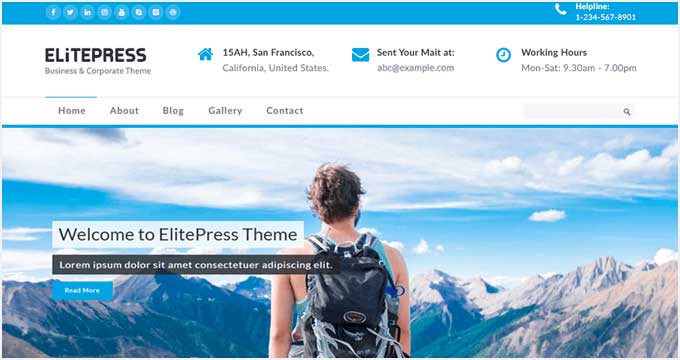
10. ElitePress

ElitePress

ElitePress is a free WordPress theme for startup sites and a great fit for creative agencies. You could also use it for blogging. It comes with a full-width image slider, a detailed header to display information, services, and project sections, and a recent blog post area.

It has a user-friendly customizer that you can use to customize your theme settings. This includes a live preview to see your changes easily.

11. Potenza

Potenza

Potenza is a fantastic WordPress theme for startups and eCommerce stores. It comes with custom widgets, flexible layouts, animations, parallax scrolling, and more.

Other notable features include unlimited color options, background image and video options, and social media integration. It also comes with services, clients, portfolios, and pricing sections.

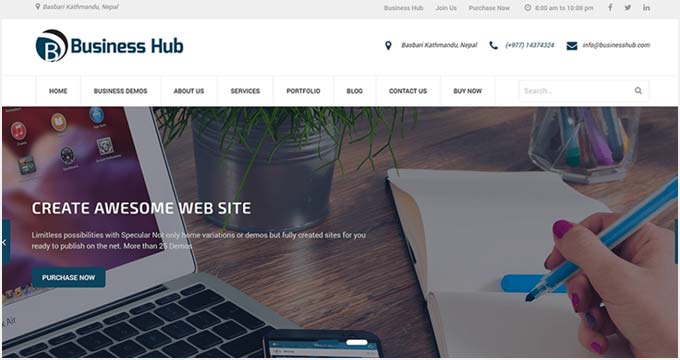
12. Business Hub

Businesshub

Business Hub is a modern and elegant WordPress theme for your startup site. It’s free, and it lets you create a professional business startup website easily.

It comes with event scheduling, social feeds, WooCommerce integration, and a testimonials section. It’s easy to set up, and you can use it with your favorite page design plugin, like Visual Composer.

13. Inspiro Pro

Inspiro Pro

Inspiro Pro is a multipurpose WordPress theme that you can use to build any kind of website. It comes with interactive homepage sliders, a video section, a testimonial section, navigation menu styles, custom widgets, and more.

It has a beautiful videos section to display your story and portfolio. More options include sidebar widgets, footer widgets, and a beautiful portfolio section.

14. Startupzy

Startupzy

Startupzy is a classic WordPress theme for startup and business sites. The theme has an eye-catching homepage layout with welcome text, a background image, and a call-to-action button.

It comes with a native plugin that helps add content in blocks. The theme is easy to set up using the WordPress customizer and page builders.

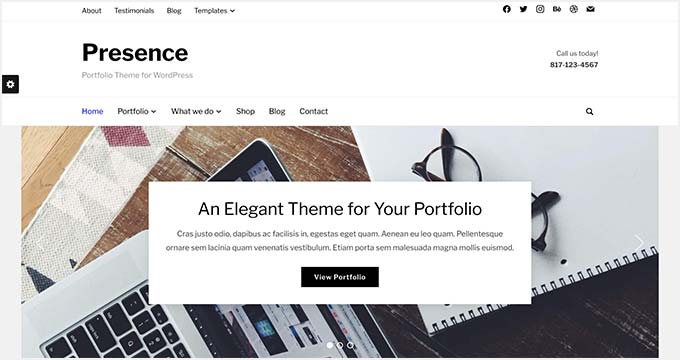
15. Presence

Presence

Presence is a stylish WordPress theme for all kinds of business websites. It comes with a one-click demo installer to help you launch a fully customizable and responsive website instantly.

It has multiple page layouts, color choices, custom widgets, and slider styles. The Presence theme offers a portfolio section, testimonials area, welcome message, and beautiful header styles.

16. Neve

Neve

Neve is a fast and lightweight WordPress theme designed specifically for startups, online stores, and small businesses. It comes with custom header and footer designs and gives you complete control of layout options.

With over 80 starter sites, you get a template for almost any business niche. Neve is designed for good WordPress SEO (search engine optimization) to give your startup a visible online presence.

Plus, Neve is translation ready and supports RTL languages. This is ideal for startups with a global customer base.

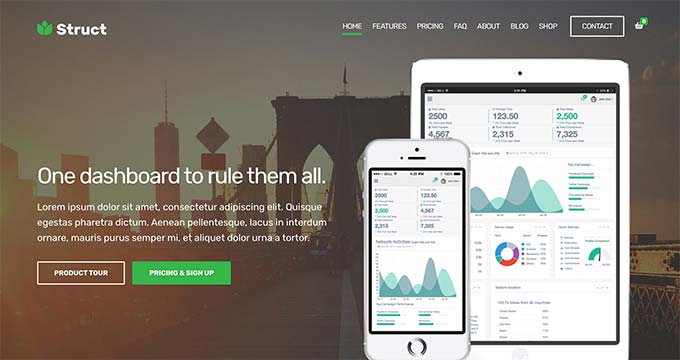
17. Struct

Struct

Struct is a beautiful WordPress theme for startup sites, particularly tech startups. It comes with multiple custom post types that you can use to create pages for services, clients, guides, FAQs, slideshows, and more.

It supports drag-and-drop page builders to let you design your page layouts. Struct offers useful features like custom widgets, beautiful color schemes, additional page templates, call-to-action buttons, and more.

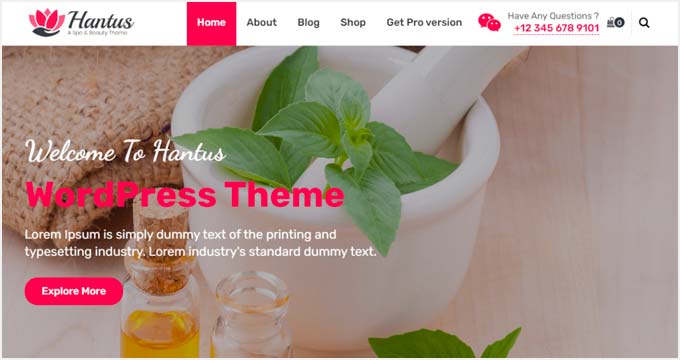
18. Hantus

Hantus

Hantus is a free WordPress startup theme specifically built for spas and wellness businesses. It has a simple and minimal layout design with a custom logo, a navigation menu, and contact details in the header section.

When it comes to theme features, Hantus offers a custom background, a featured image, footer widgets, and eCommerce integration.

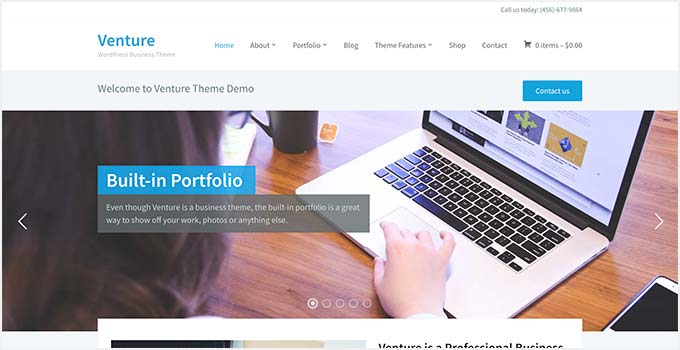
19. Venture

Venture

Venture is a professional and modern WordPress theme for startups. It features a responsive layout, a built-in homepage builder, support for WooCommerce and WooCommerce plugins, and more.

Inside, you will find custom widgets for sub-pages that you can use to create your online business directory. The WordPress customizer comes with additional settings to design a site with a live preview.

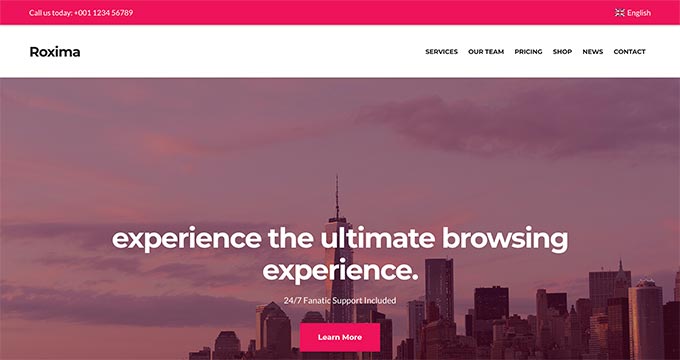
20. Roxima

Roxima

Roxima is a gorgeous WordPress theme for business and startup sites. It comes with a corporate layout design, flexible layout options, and custom widgets.

The homepage has built-in sections for services, portfolios, clients, and team profiles. It’s optimized for speed and performance, which means it’s good for your SEO and for your visitors’ experience on your site.

21. Illdy

Illdy

Illdy is a free WordPress theme with a beautiful design and powerful features to create a startup website. It is a multipurpose responsive theme that you can use to design one-page or multi-page websites. You could even use it for an app landing page.

Illdy is easy to set up and fully customizable, making it a great option for startups on a bootstrap budget. It lets you add sections for testimonials, portfolio, About Us, and an animated counter to your website’s homepage.

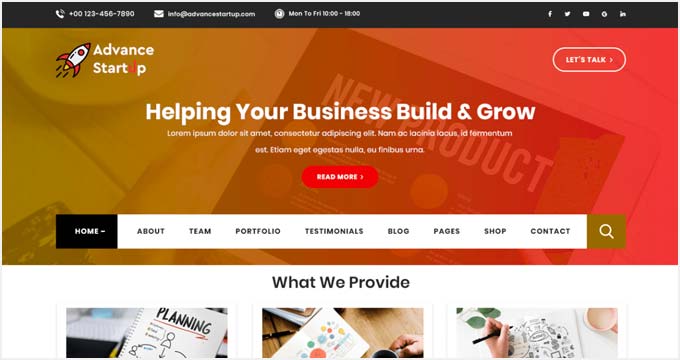
22. Advance Startup

Advance Startup

Advance Startup is a good-looking WordPress theme for business startups. It offers powerful features to create a blog page, landing pages, portfolio pages, and other custom pages.

It supports page builder plugins like Elementor to add drag-and-drop functionality. It also includes a unique header, custom colors, featured content blocks, and more.

We hope this article helped you find the best WordPress theme for startups. You may also want to check out our guide on the best marketing automation tools for small businesses and how to set up business call forwarding from your website.

If you liked this article, then please subscribe to our YouTube Channel for WordPress video tutorials. You can also find us on Twitter and Facebook.

The post 22 Best WordPress Themes for Startups (2023) first appeared on WPBeginner.


April 29, 2023

9 Things to Do if Your WordPress Site Keeps Going Down

Are you wondering what to do if your WordPress site keeps going down?

A website that is down (offline) can hurt your business. It creates a bad user experience for visitors who cannot access your content, and you may even lose customers and potential sales.

In this article, we will share the most important things you need to do if your WordPress website keeps going down.

Things to do if your WordPress website keeps going down

Why Does Your WordPress Website Keep Going Down?

When your WordPress website is down, your users will see an error message that prevents them from visiting the page.

If your website is down due to one of the common WordPress errors, then you can simply fix it to resolve the issue.

However, if the issue keeps happening, or your website is not showing an error, then you will need to investigate it further.

Website downtime can happen for several reasons, including unreliable hosting, an expired domain, security reasons, an error in custom code, and more.

Another reason for downtime can be increased website traffic that exceeds your WordPress hosting resource limits.

No matter the reason, if your WordPress website keeps going down on a regular basis, then it can harm your business. Your conversion rates may fall, and you might lose customers.

Luckily, we have compiled a list of things to do if your WordPress website keeps going down. These steps will help you troubleshoot the cause and fix it easily.

1. Check if It Is Just You or if the Website Is Down for Everyone

Your WordPress website may not be down for everyone. Sometimes you might just be unable to access your site due to a network error or lack of internet connection.

First, you will need to verify that your website is down for everyone and not just you.

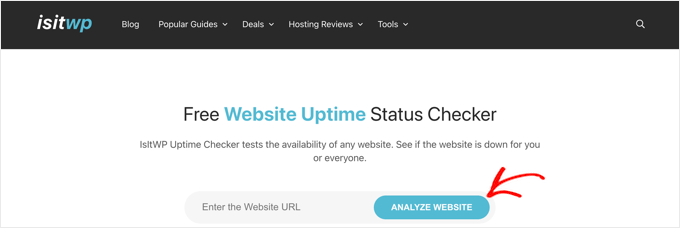
To do that, you can use IsItWP’s free uptime checker.

First, visit the Website Uptime Status Checker website and enter your site URL.

IsItWP Uptime Checker Tool

Click on the ‘Analyze Website’ button, and the tool will tell you if your website is down for everyone or just you.

If it is only down for you, then we recommend checking your internet connection. You can try clearing your browser cache or restarting your network router.

On the other hand, if your website is down for everyone, then continue reading to learn how to fix it.

2. Make Sure Your WordPress Hosting Plan Has Not Expired

One of the most common reasons for website downtime is your WordPress hosting provider. Your plan may have expired, or the provider might be having server problems.

First, you need to make sure that your hosting plan hasn’t expired. You can usually find this information in your hosting account dashboard.

If your plan has not expired, but your WordPress website keeps going down, then you will need to contact your hosting provider. It is possible that they are facing an issue on their end and can provide you with more information about it.

For example, your hosting company might be performing server maintenance, facing DDoS attacks, or may have taken down a few servers. All of these reasons could result in downtime.

Your website may also be down due to the failure of some hardware components of the host’s server.

In these cases, your website should be up and running again once the hosting provider fixes the issues.

If you’re constantly running into issues with your hosting provider, then it’s a good idea to switch to a more reliable managed WordPress hosting company.

We recommend going with either SiteGround, Hostinger, or WP Engine.

3. Make Sure Your Domain Has Not Expired

Sometimes the website goes down because the domain name you bought when starting your website might have expired. If this is the case, it needs to be renewed.

To check if your domain is still valid, you can use a WHOIS lookup tool. You just need to enter your domain name and click the ‘Lookup’ button.

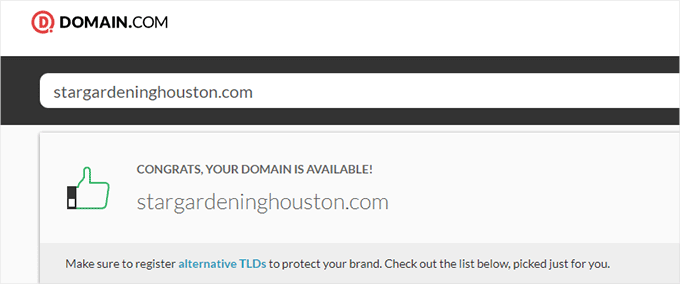
The tool will then look up details of your domain name. If your domain has expired, it might show as available for registration.

Domain available for registration

If your domain has expired, then you can now go ahead and renew it using any domain registrar, such as Domain.com.

You can also obtain a free domain from some hosting providers, including Hostinger. This is a top WordPress hosting company that provides a free domain name with any web hosting plan.

You can also use our Bluehost coupon code, which provides WPBeginner users with a free domain name, SSL certificate, and a discount on web hosting plans.

4. Check Your Plugins and Themes

WordPress plugins or themes can sometimes cause website downtime. The software may be outdated and / or have a vulnerability that hackers can use to take down your site.

Similarly, a WordPress theme can conflict with a particular WordPress version or a plugin on your website.

To see if a plugin or theme is causing downtime, you will need to deactivate all of your plugins and switch to a default theme.

Deactivate All WordPress Plugins

Deactivating all of your WordPress plugins can quickly show you if one of the tools is causing your site’s downtime.

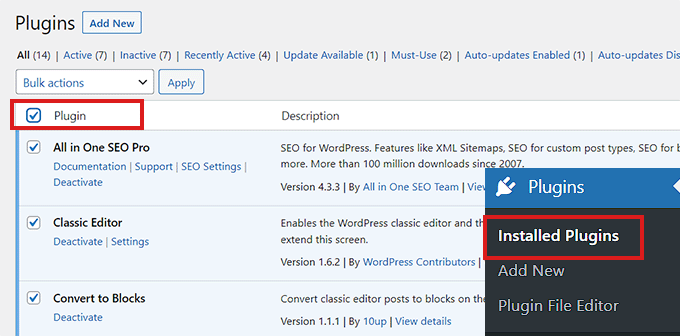
If you have access to the WordPress admin area, then you need to visit the Plugins » Installed Plugins page from the admin sidebar.

From here, you can select all plugins by simply checking the bulk select checkbox at the top.

Check the box next to the Plugins option

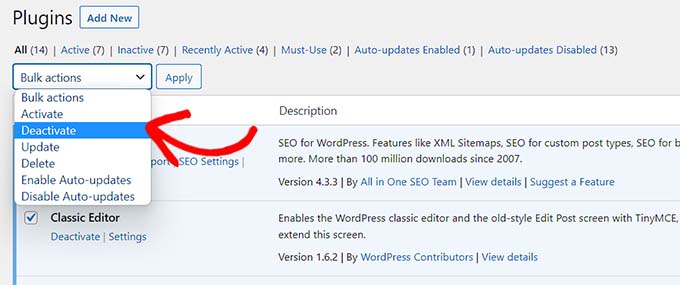
Next, open the ‘Bulk actions’ dropdown menu and select the ‘Deactivate’ option.

After that, click on the ‘Apply’ button to deactivate all of the plugins.

Choose the deactivate option from the Bulk Options dropdown menu

However, if you don’t have access to the WordPress admin, then you can deactivate plugins using a File Transfer Protocol (FTP) client.

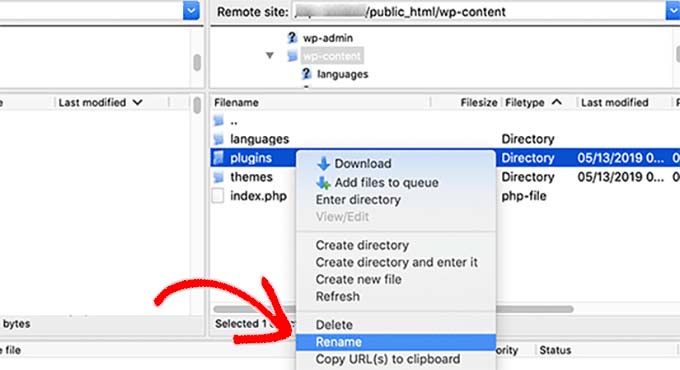
First, you need to connect to your website using an FTP client or the File Manager app in your hosting account control panel. Once your site is connected, head to the /wp-content/ folder.

Inside, you should see a folder named ‘plugins.’ This is where all your WordPress plugin files are stored.

Rename plugins folder

Simply rename the plugins folder to ‘plugins_deactivate.’ This will deactivate all WordPress plugins installed on your website.

For more detailed instructions, please see our tutorial on how to deactivate WordPress plugins when not able to access WP-Admin.

Switch to a Default WordPress Theme

Your WordPress theme may also cause your website to malfunction. This can happen if you are using a poorly coded or outdated WordPress theme that has not been updated for a while.

To find out if your current WordPress theme is causing downtime, you will need to switch to a default WordPress theme.

First, connect to your website using an FTP client or the File Manager app in your hosting account control panel.

After that, go to the /wp-content/themes/ folder.

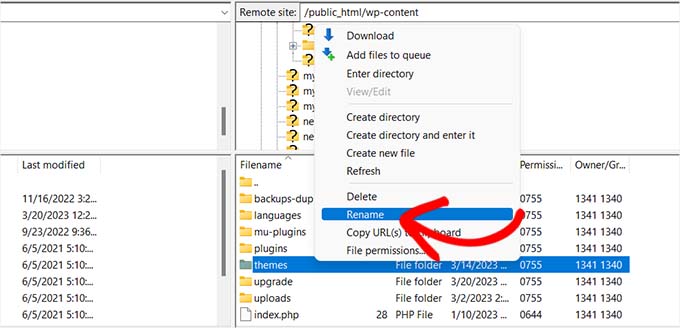
From here, you need to locate the ‘themes’ folder. This is where all the themes from your WordPress website are stored.

Simply rename the folder to ‘themes_deactivate’ to deactivate your current theme.

Rename themes folder

Next, you need to create a new folder named ‘themes.’

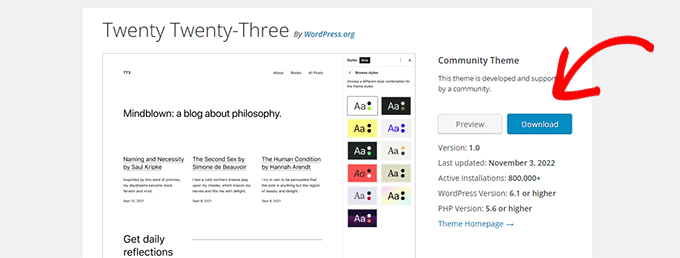
After that, you can go ahead and download a default WordPress theme like Twenty Twenty-Three from the WordPress themes directory.

Downlaod default theme to your computer

Once it has been downloaded, you need to unzip the file.

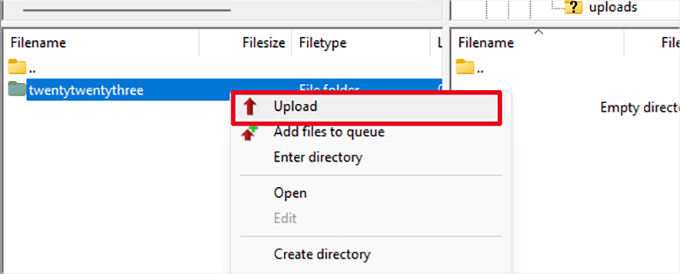
Next, simply upload the downloaded theme file in the new ‘themes’ folder. This will activate it on your WordPress website.

Upload theme folder

You can also delete themes using the WordPress database. For more instructions, you can see our guide on how to delete a WordPress theme.

If changing the theme or deactivating plugins didn’t resolve the issue, then continue reading.

5. Check Your WordPress Settings

Your website may also experience downtime due to incorrect WordPress configuration settings. Most commonly, your site may be using the wrong WordPress address.

First, you will need to check if your WordPress address and site address are the same.

The WordPress address is where your WordPress files and folders are stored. By contrast, the site address points to the part of your website that visitors see and interact with.

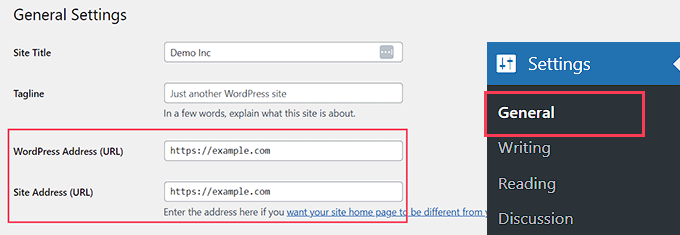
If you have access to the WordPress admin dashboard, then just visit the Settings » General page from the admin sidebar.

From here, make sure that the ‘WordPress Address’ and ‘Site Address’ boxes have the same URL.

Check your WordPress and site address from the WordPress admin

However, if you don’t have access to the WordPress admin, then you can check your site URLs by editing the wp-config.php file.

For more detailed instructions, you can check out our tutorial on how to change your WordPress site URLs.

Permalinks are the permanent URLs for posts and pages on your website.

Your permalinks can break due to installing or updating a particular theme or plugin. Additionally, migrating your website to a new server or domain can also break your permalinks and cause your site to go down.

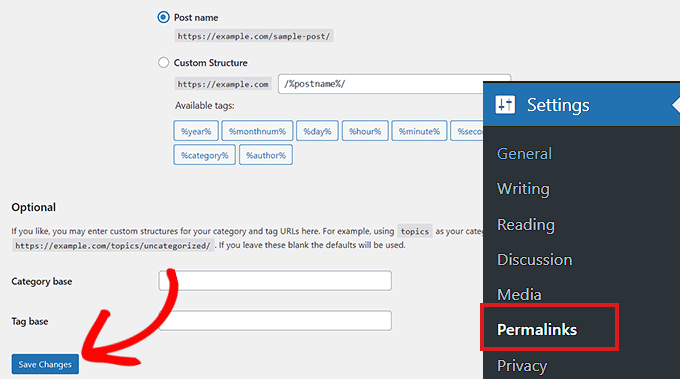
In this case, you can regenerate your site’s permalinks by going to Settings » Permalinks from the admin sidebar. Here, make sure that you have the right permalink structure selected.

Next, you simply need to click on the ‘Save Changes’ button at the bottom to repair the broken permalinks.

Check Permalinks

If this method doesn’t work, we recommend checking out our tutorial on how to regenerate permalinks in WordPress for other solutions.

If your website is still down after repairing its permalinks, then you will need to continue reading.

7. Try Reuploading the WordPress Core Files

Updating the core WordPress software can also cause downtime due to changes or corruption of the core files. When this happens, important system files for your website cannot be accessed.

To fix this problem, you can try reuploading the /wp-admin/ and /wp-includes/ folders from a fresh WordPress install.

Note: This method will not remove any information or content from your site, but it may fix a corrupted core file.

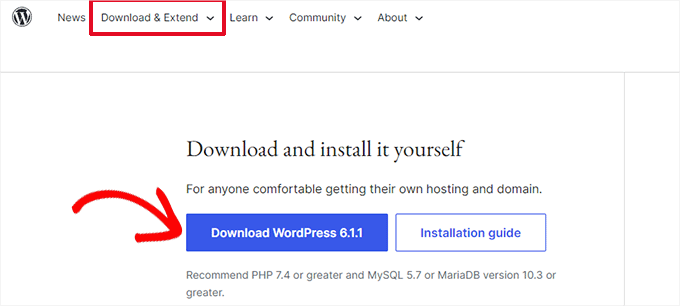
First, you’ll need to visit the WordPress.org website and click the ‘Download & Extend’ menu link, followed by ‘Get WordPress’. Next, click the blue ‘Download WordPress’ button to download the .zip folder to your computer.

How to download WordPress

Next, you’ll need to extract the zip file and find the ‘wordpress’ folder inside of it.

After that, connect to your website using an FTP client. Once you have made the connection, head to the root folder of your website. It is typically called ‘public_html’ and it contains the wp-admin, wp-includes, and wp-content folders, along with other files.

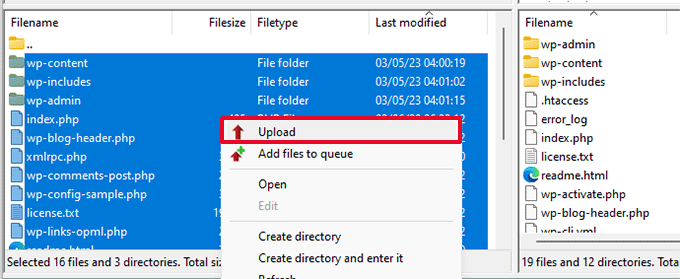
Open the WordPress folder on your computer in the left column. Then, select all of its files and hit ‘Upload’ to transfer them to your website.

Upload core WordPress files

The FTP client will now transfer these folders to your server.

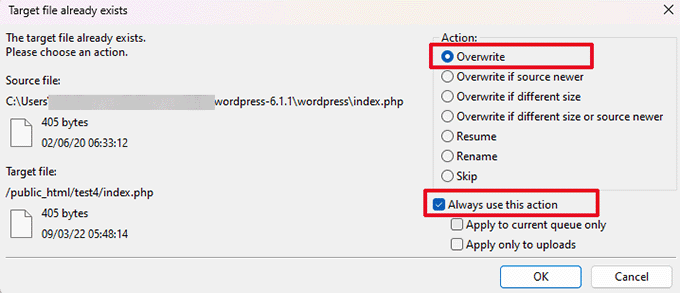
Next, it will ask if you would like to overwrite the files. You need to simply check the ‘Overwrite’ option and then select ‘Always use this action.’

Overwrite WordPress core files

Finally, hit the ‘OK’ button. Your older WordPress files will now be replaced with fresh copies.

If replacing corrupted files doesn’t solve the problem, then you need to move to the next step.

8. Install a Firewall on Your Website

Your WordPress website might also be down due to malware or DDoS attacks.

During a DDoS attack, a hacker sends a large amount of data requests to your WordPress hosting server. This causes the server to slow down and eventually crash.

Similarly, malware is software that injects itself into your WordPress files. It uses up your WordPress server resources by attacking other websites or generating spam.

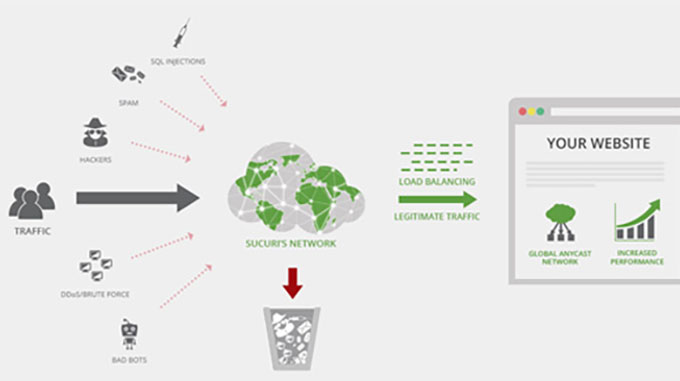
Luckily, you can easily prevent DDoS attacks and malware by using a web application firewall.

The firewall acts as an filter between your website and incoming traffic. It identifies and blocks all suspicious requests before they reach your server.

We recommend using Sucuri because it is the best WordPress security plugin with a website firewall.

It runs on a DNS level and catches DDoS attacks before they can even make a request to your website.

Sucuri Website Application Firewall

However, if you are looking for a free solution, then we recommend using Cloudflare instead.

You may want to read our article on Sucuri vs Cloudflare for a detailed comparison.

For better website protection, you will also need to use security best practices on your WordPress website. For more details, see our complete WordPress security guide with step-by-step instructions on how to secure your site.

9. Move to a Reliable WordPress Hosting Plan

Finally, if you have tried all the steps above and your website keeps going down, then it might be time to move to a reliable WordPress hosting provider.

If you have a small business or blog, then we recommend moving to Bluehost or Hostinger.

If you run an online store, then SiteGround is the go-to hosting provider because it comes with a managed EDD hosting plan. This enables you to launch a ready-to-go eCommerce store.

Alternatively, if you have a rapidly growing business, then you should consider switching to a managed WordPress hosting provider like WP Engine.

Once you have chosen a provider, you will need to move your website to the new host.

Most hosting companies offer a free migration service that allows you to migrate your website without downtime.

You can also move your website on your own. For detailed instructions, you may want to see our tutorial on how to move WordPress to a new host or server.

We hope this article helped you learn what to do if your WordPress website keeps going down. You may also want to see our article on the best email marketing services compared and our tutorial on how to get a free SSL certificate for your website.

If you liked this article, then please subscribe to our YouTube Channel for WordPress video tutorials. You can also find us on Twitter and Facebook.

The post 9 Things to Do if Your WordPress Site Keeps Going Down first appeared on WPBeginner.


April 28, 2023 at 03:57PM