Tuesday, December 24, 2019

How to Track WordPress Category and Tag Analytics (Easy Way)

Do you wish to track the WordPress category and tag analytics? By default, most website analytics solutions tell you about your most popular posts and pages, but very few show any information about your archive pages like categories and tags.

Category and tag pages can be an important source of traffic. This is why you need to track them properly, so you can better understand their impact.

In this article, we will show you how to easily track WordPress category and tag analytics.
Tracking categories and tags in WordPress

Why Track Category and Tag Analytics in WordPress

WordPress category and tags can be an important source of traffic when used properly.

Categories are your website’s main topics. For example, on a travel website, these could be food, tours, accommodation, etc.

On the other hand, tags are specific topics discussed inside an article. For example, coffee shops, free tours, budget hotels, etc.

To learn more, see our complete guide on category vs tags and SEO best practices to use them for maximum benefit.

By default, category and tag pages are indexed by search engines which brings you additional traffic. You will need to learn which category and tags are getting more traffic, and what you can do to improve them.

That being said, let’s take a look at how you can easily track categories and tags in WordPress.

Setting up Google Analytics with MonsterInsights

For this guide, we will be using Google Analytics with MonsterInsights.

MonsterInsights is the best Google Analytics plugin for WordPress. It allows you to easily install Google Analytics and track your website traffic.

The first thing you need to do is install and activate the MonsterInsights plugin. For more details, see our step by step guide on how to install a WordPress plugin.

MonsterInsights is a paid plugin. You’ll need at least their Pro plan to access custom dimensions addon which we will be using for this tutorial.

Next, you need to visit Insights » Settings and scroll down to click on the ‘Launch Setup Wizard’. This will start the MonsterInsights setup, and you just need to follow the on-screen instructions to connect your WordPress site to your Google Analytics account.

For detailed instructions, see our guide on how to install Google Analytics in WordPress.

After that, you need to go to Insights » Addons page and install the Dimensions addon.
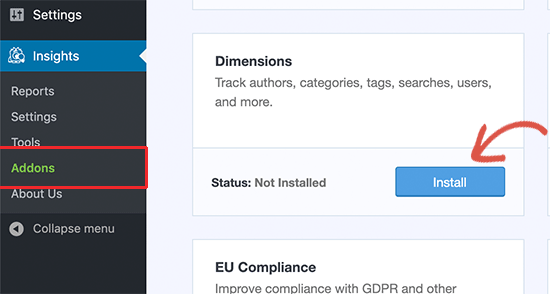
Dimensions addon

MonsterInsights will install and activate the Dimensions addon.

You are now ready to setup category and tags tracking in WordPress.

Adding Custom Dimensions in MonsterInsights for Categories and Tags

MonsterInsights allows you to set dimensions. These are custom parameters that you can use to track different elements on your website using Google Analytics.

First, you need to visit Insights » Settings page and then switch to the ‘Conversions’ tab. Scroll down to the ‘Custom Dimensions’ section and click on the ‘Add New Custom Dimensions button.
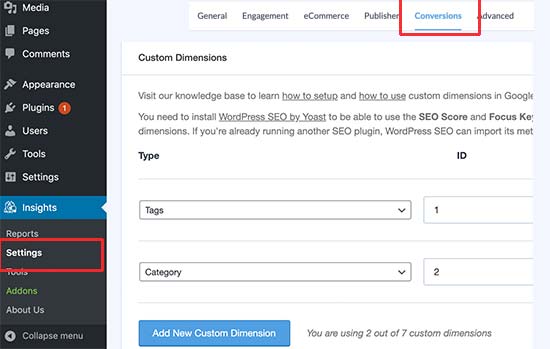
Add dimensions in MonsterInsights

Next, you need to select ‘Tags’ and then click on the button again to add ‘Category’ custom dimension.

Click on the ‘Save Changes’ button at the top to store your changes.

Adding Custom Dimensions in Google Analytics

Now that you have set up custom dimensions in MonsterInsights, the next step is to do the same in Google Analytics.

Open your Google Analytics dashboard and switch to the All Website Data view.

From there, you need to click on the ‘Admin’ button at the bottom left corner of the screen and then select ‘Custom Definitions » Custom Dimensions’ under the Property column.
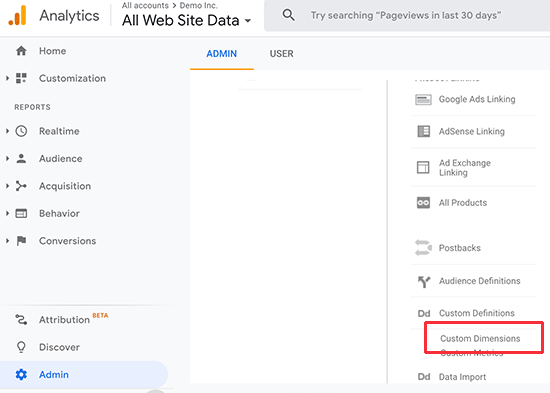
Google Analytics custom dimensions

Next, you need to click on the ‘+ New Custom Dimension’ button and add ‘Category’. Google will then show you a code example, but you can ignore it and click on the Done button. Repeat the process to add ‘Tags’ as well.
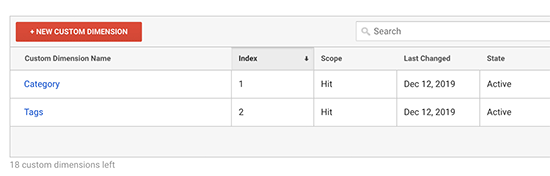
Category and Tags custom dimensions in Google Analytics

You also need to make sure that custom dimensions IDs and Index values match in Google Analytics and MonsterInsights.
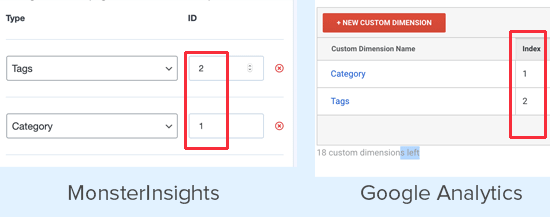
Match IDs

That’s all you have set up category and tag tracking in Google Analytics using MonsterInsights.

Viewing Category and Tags Reports in WordPress

After your website has collected some traffic data, you can view your category and tags tracking reports inside the WordPress dashboard.

Simply go to Insights » Reporting page and switch to the Dimensions tab.
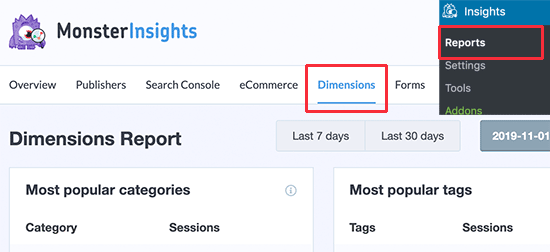
Category and tag reporting in MonsterInsights

You’ll see a list of your most popular categories and tag pages listed there.

How to Improve Your Category and Tag Pages in WordPress

Now that you have started tracking your category and tag pages, you would want to improve them, so that you can get even more traffic to your website.

Following are a few easy-to-implement tips that you can use to improve your category and tag archive pages.

1. Use Excerpts Instead of Full Posts

By default, WordPress displays full posts on your category and tag archive pages. Some WordPress themes provide a solution for that by allowing you to choose between full posts vs summary.

You can also do that on your own. Simply install and activate the Advanced Excerpt plugin. For more details, see our step by step guide on how to install a WordPress plugin.

After that, go to Settings » Excerpt page and scroll down to Display on section. From here, you can select excerpt length and style options for your excerpts.
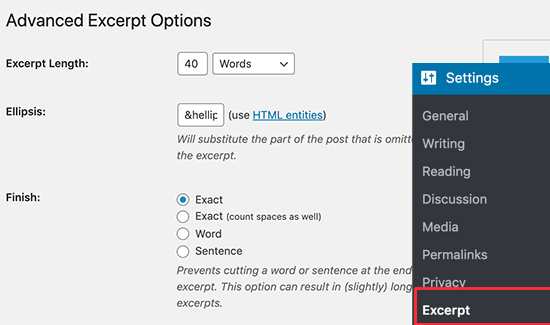
Excerpt settings

Don’t forget to click on the save changes button to store your settings.

That’s all your WordPress categories and tag pages will now show excerpts instead of full posts.

2. Add Category and Tag Descriptions

Just like your posts and pages, you can also add descriptions for your category and tag archive pages. Simply go to Posts » Categories page and click on the Edit link below a category.
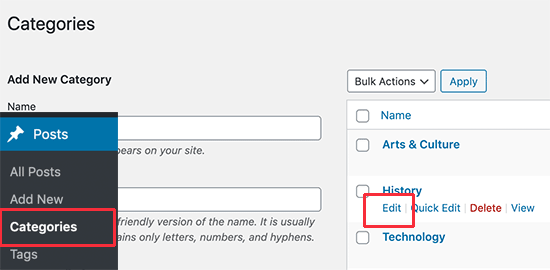
Editing a category in WordPress

This will open the category editor screen. From here, you can edit category name, slug, and provide a description of what kind of articles users will find under this category.
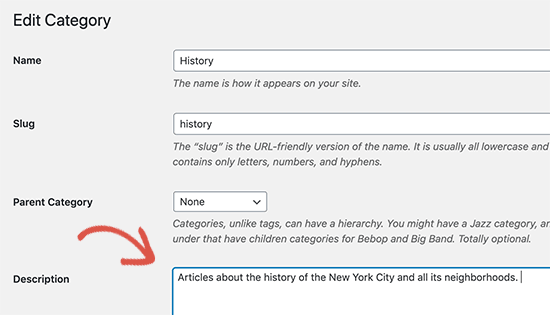
Adding category description

You can now save your changes and visit the category page to see the description in action.
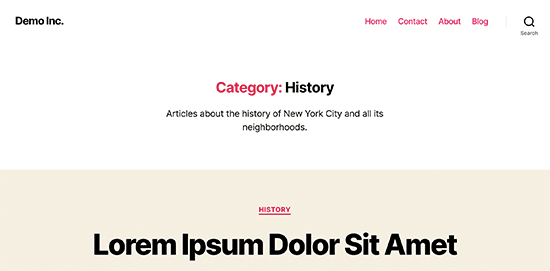
Category page preview

Repeat the process to add descriptions for all your category and tag pages.

Note: All top SEO plugins will automatically use your category description as meta description for category pages.

3. Add Category and Tag Icon Images

By default, all categories and tag pages look quite similar to each other. You can add an image to your category tag page to make them stand apart and look more interesting.

See our tutorial on how to add taxonomy images in WordPress for detailed instructions.

We hope this article helped you learn how to easily track WordPress category and tag analytics. You may also want to see our article on essential website marketing data you must track on all websites.

If you liked this article, then please subscribe to our YouTube Channel for WordPress video tutorials. You can also find us on Twitter and Facebook.

The post How to Track WordPress Category and Tag Analytics (Easy Way) appeared first on WPBeginner.


December 24, 2019 at 05:52PM
Monday, December 23, 2019

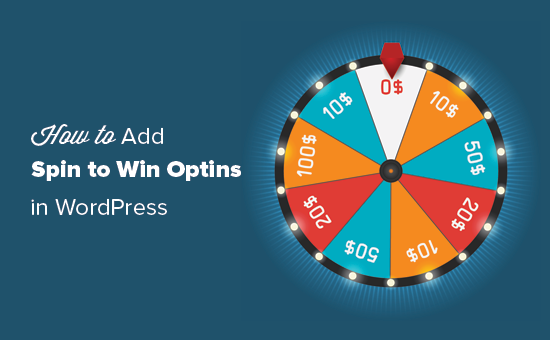
How to Add Spin to Win Optins in WordPress and WooCommerce

Do you want to add spin to win optin to your WordPress site or WooCommerce store? A spin to win optin adds gamification to your sign up forms.

You can use it to share discounts, special offers, and perks as a reward. This kind of optins are proven to increase engagement and sales.

In this tutorial, we’ll show you how to easily add spin to win optin to your WordPress site or WooCommerce store.

How to add a spin to win optin in WordPress

What is Spin to Win Optin?

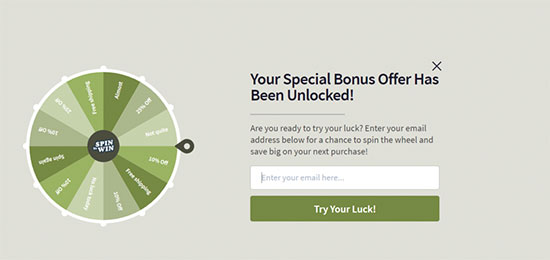
Spin to Win optin is a signup form or a discount coupon wheel which adds gamification to your website. Your users play a game to win discounts, unlock special offers, or access downloads after playing the game.

Example of a spin to win optin

Case studies have shown that gamified optins get conversion rates as high as 30% or more.

The reason for that is quite simple. These gamified optins are fun, interactive, and instantly get users’ attention.

With game rewards and coupons, you also encourage users to complete the game they started by using the reward they have earned (i.e making a purchase using a discount they won).

That being said, let’s see how you can easily add spin to win optins in WordPress and WooCommerce.

Install and Activate OptinMonster in WordPress

For this tutorial, we’ll be using OptinMonster which is the best lead generation software on the market. It helps you grow your email list and convert website visitors into paying customers.

Note: Our founder Syed Balkhi first built OptinMonster to help grow our own subscribers and sales. Now it’s a premium plugin that’s used by hundreds of thousands of websites.

First, you need to visit the OptinMonster website and sign up for an account.

Create OptinMonster account

OptinMonster is a paid service, and you’ll need their ‘Growth’ plan to access the ‘Coupon Wheel Campaigns’ feature.

After that, you need to install and activate the free OptinMonster plugin on your WordPress website. For more details, see our step by step guide on how to install a WordPress plugin.

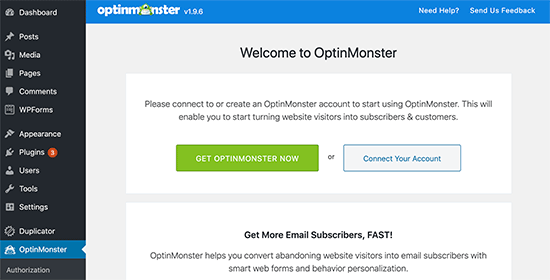
The plugin connects your WordPress website to the OptinMonster app. Upon activation, click on the OptinMonster menu from the admin sidebar to connect your account.

Connect OptinMonster

Creating a Spin to Win Wheel Campaign

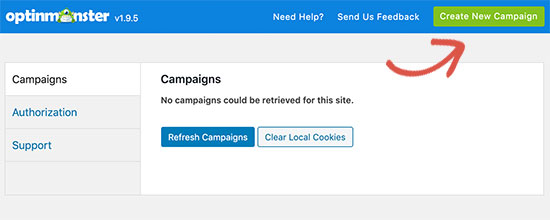
After connecting WordPress to your OptinMonster account, you need to click on the ‘Create New Campaign’ button to create your first spin to win optin.

Create new OptinMonster campaign

This will take you to the OptinMonster website.

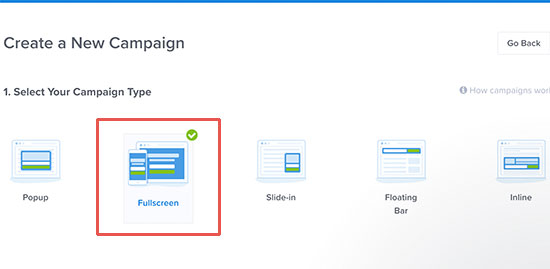
First, you need to choose Fullscreen as your campaign type.

Choose full screen as your campaign type

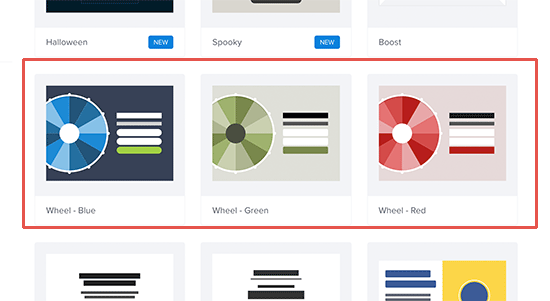
Next, you need to select a campaign template. You’ll need one of the Wheel templates to create a ‘spin to win’ campaign.

Select a template

Once you select a campaign, you’ll be asked to provide a name for your template and select a website where you’ll run the campaign.

After that, you will see the OptinMonster campaign builder interface.

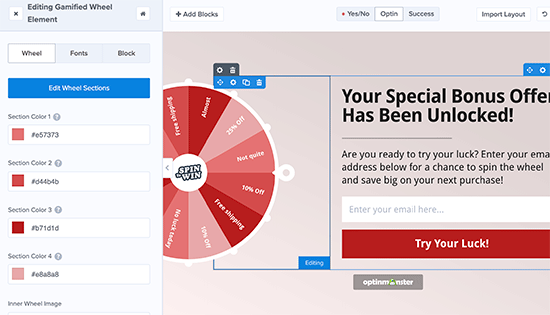
From here you can change your campaign design, colors, fonts, etc. You can simply point and click on any item to edit its appearance.

Go ahead and click on the gamified wheel element to see the options to change its colors.

Editing your wheel campaign

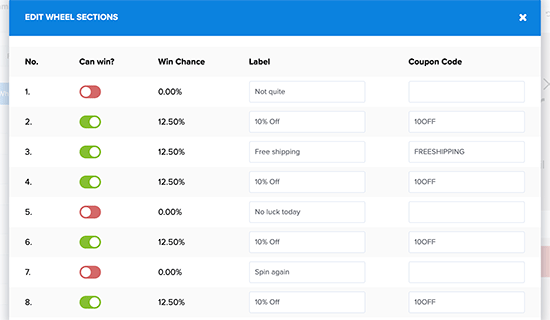
Next, you need to click on the ‘Edit Wheel Sections’ button to edit the values of the coupon wheel sections.

Change wheel options

This allows you to add coupon codes and special offers to the wheel. You can select how often you want an option to win by adding a win percentage value.

Feel free to experiment around with colors, copy, button, and other things. Once you are done, click on the Save button at the top to save your changes.

Choose When to Show The Spin Wheel

Next, you need to select when you want your spin to win the campaign to be displayed on your website or online store.

OptinMonster gives you powerful targeting and display options that allow you to trigger the spinner anywhere and at any time on your website.

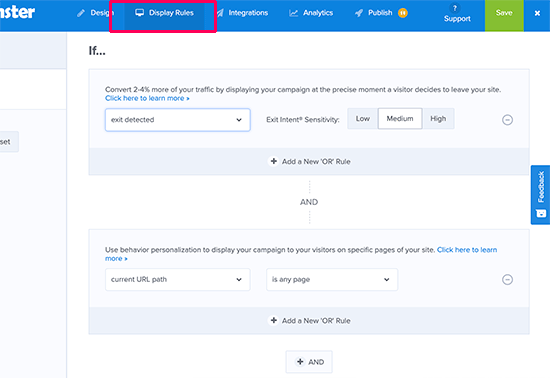
Simply switch to the ‘Display Rules’ tab in the OptinMonster dashboard. From here, you can select different display rulesets for your campaign.

For example, you can use exit intent ruleset to launch the spinner campaign when a user is about to leave your website.

Display rules

You can also combine different rulesets. For example, you can set another rule to launch the campaign on specific pages.

After adding display rules, click on the next step button.

Next, you’ll be asked to select a view. You need to select the Optin view and click on the ‘Next step’ button.

Once you’re done, you’ll see a summary of your display rules. You can now click on the Save button at the top to store your changes.

Adding the Spin Wheel to Your Website

Now that your spin wheel campaign is almost ready, let’s add it to your website.

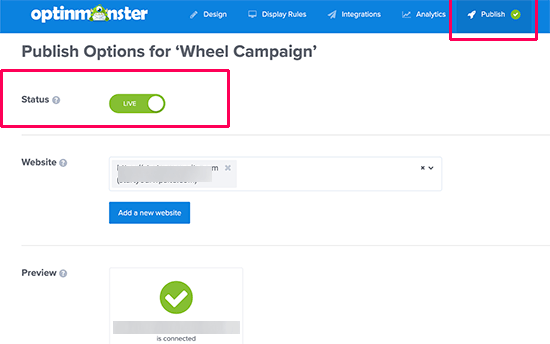
First, you need to publish your campaign. From the OptinMonster dashboard, switch to the ‘Publish’ tab and check the toggle next to the ‘Status’ option.

Save your campaign

Don’t forget to click on the Save button to store your changes.

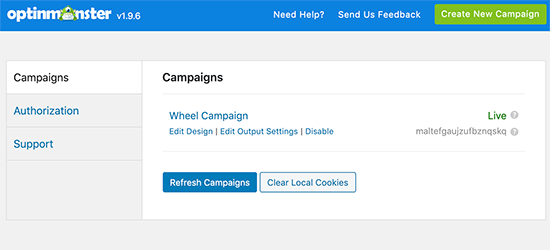
You can now visit your WordPress website and click on the OptinMonster menu item. You should now see a list of campaigns you have created with OptinMonster.

OptinMonster campaigns in WordPress

You’ll see your recently created spin to win wheel campaign with the Live status. If you don’t, then click on the Refresh Campaigns button to fetch data from OptinMonster website.

To see a live preview of your campaign, you can visit your website in a new incognito browser window. Based on your display rules, you’ll see the spin to win wheel popup on the screen.

We hope this article helped you add a spin to win optin to your WordPress website or WooCommerce store. You may also want to see our article on how to how to add a Facebook giveaway in WordPress to boost engagement.

If you liked this article, then please subscribe to our YouTube Channel for WordPress video tutorials. You can also find us on Twitter and Facebook.

The post How to Add Spin to Win Optins in WordPress and WooCommerce appeared first on WPBeginner.


December 23, 2019 at 05:46PM

Saturday, December 21, 2019

How to Enable Automatic Updates in WordPress for Major Versions

Did you know that WordPress comes with automatic updates enabled for minor releases? This means that the WordPress.org team can automatically install security updates without requiring user input.

However, it does not automatically update your website when there is a new major release. Unless you are on a managed WordPress hosting service, you’ll have to manually initiate the update yourself.

In this article, we’ll show you how to easily enable automatic updates in WordPress for major releases as well.

Turning on automatic updates for major WordPress releases

How WordPress Automatic Updates Work

WordPress introduced automatic updates feature in WordPress 3.7 (October 24, 2013). This allowed WordPress to automatically install a new minor release to improve your website security.

There is an option to disable automatic updates in WordPress. However, we recommend that you keep automatic updates enabled because they usually address crucial security issues and vulnerabilities.

Managed WordPress hosting providers like WP Engine and Liquid Web automatically update WordPress for all new releases not just minor ones.

Now if you just run one or two WordPress websites, then you can simply follow our guide to safely update your WordPress site.

On the other hand, if you manage multiple WordPress sites, then updating all of them can be very time consuming.

Luckily, you can also enable auto-updates on a shared hosting provider like Bluehost, SiteGround, etc. You’ll just need to make sure that you have a proper backup system in place, so you can revert updates in case something goes wrong.

That being said, let’s take a look at how to easily setup automatic updates for major WordPress releases.

Preparing for Automatic Updates in WordPress

The most important layer of security you can add to any website is to set up a backup system. Whether you turn on automatic updates or not, you should always have an automatic backup system in place for every WordPress website.

There are several helpful WordPress backup plugins that you can use set up automatic back ups on your WordPress site.

We recommend using the UpdraftPlus plugin because it is the most popular WordPress backup plugin on the market, and it is free. UpdraftPlus allows you to easily set up automatic backups of your complete WordPress website.

It also allows you to automatically store your backup files to a remote location like Google Drive, Dropbox, etc.

Once you have set up automatic WordPress backups, you can go ahead and turn on automated WordPress update for major releases.

Method 1. Enable Automatic WordPress Updates for Major Releases Using a Plugin

This method is easier and recommended for all users.

First, you need to install and activate the Easy Updates Manager plugin. For more details, see our step by step guide on how to install a WordPress plugin.

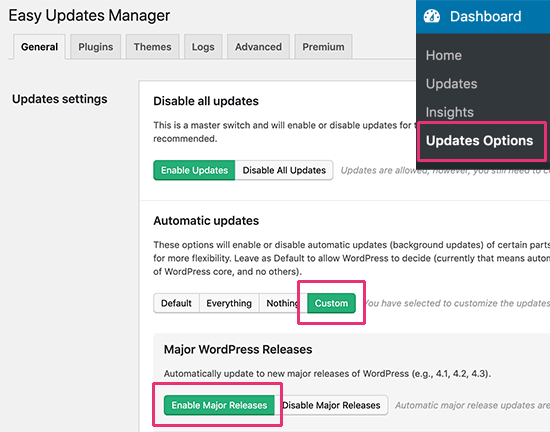
Upon activation, you need to visit Dashboard » Updates Options page to setup the plugin.

Enable automatic updates

Under the ‘Automatic updates’ section, click on the ‘Custom’ option. After that, click on the ‘Enable Major Releases’ button under the ‘Major WordPress Releases’ section.

The plugin will automatically store your settings and enable the major WordPress releases to be automatically updated.

This plugin also allows you to set up other automatic updates or disable them. See our detailed guide on how to better manage automatic WordPress updates for more details.

Method 2. Manually Enable Automatic Update for Major Releases in WordPress

This method requires you to add code to your WordPress files.

First, you need to add the following line of code to your site’s wp-config.php file.

define( 'WP_AUTO_UPDATE_CORE', true );

There is one little problem with this code. It also enables development or nightly updates.

To disable nightly builds and development updates, you need to add the following code in a site-specific plugin or Code Snippets plugin.

add_filter( 'allow_dev_auto_core_updates', '__return_false' );

This filter will disable automatic updates for nightly builds or development updates.

Your WordPress site is now ready to automatically update itself, without your input, whenever there is a new WordPress version available.

Frequently Asked Questions about WordPress Automatic Updates

1. Why do I need to install WordPress updates?

WordPress is a regularly maintained software. Thousands of developers contribute to make WordPress better and secure.

You need to install WordPress updates as soon as they are available. This ensures that your website has the latest security patches, new features, and best speed and performance.

2. Are updates safe for my website?

As the world’s most popular website builder, WordPress updates immediately become available to millions of websites. The core team works very hard to ensure that they are absolutely safe for all websites to install.

However, we recommend everyone to always back your WordPress website before updates. This allows you to quickly revert back in case anything goes wrong after an update.

3. Can I also automatically update WordPress plugins?

By default, WordPress requires you to manually install plugin updates. However, you can enable automatic updates for plugins as well. See our guide on how to enable automatic updates for WordPress plugins.

4. Can I install updates on all my websites from a single dashboard?

By default, you’ll need to login to each WordPress website to install updates. Luckily, you can use tools to manage multiple WordPress sites. These tools make it easier to install updates on all your WordPress sites without having to login to each site.

We hope this article helped you learn how to enable automatic updates in WordPress for major releases. You may also want to see our ultimate list of most wanted WordPress tips, tricks, and hacks.

If you liked this article, then please subscribe to our YouTube Channel for WordPress video tutorials. You can also find us on Twitter and Facebook.

The post How to Enable Automatic Updates in WordPress for Major Versions appeared first on WPBeginner.


December 20, 2019 at 05:00PM