Thursday, April 23, 2020

How to Display Recent Posts in WordPress

Do you want to show your recent posts in WordPress? Displaying recent posts help users easily discover your new content and spend more time on your site.

You can add a list of your latest posts in your sidebar, after the end of your post content, inside your post content with a shortcode, in your footer widget area, or anywhere else you like.

In this article, we will show you how to display recent posts in WordPress using a variety of different methods

Displaying recent posts in WordPress

Why Add Recent Posts in WordPress?

If you have been running a WordPress blog or website for a long time, then you may have some older articles getting regular traffic from search engines and other sources.

Many of these users will check out the information they were looking for and leave. More than 75% of those visitors will never see your website again.

To keep users coming back to your website, you need to ensure that they spend more time on your website.

One way to do this is by showing them other recent posts that they should see. This helps users uncover more content on your website which leads to them spending more time on your website.

As users view more pages, this gives you time to convince them into signing up for your email newsletter or making a purchase.

That being said, let’s take a look at how to easily display recent posts in WordPress using multiple methods. Click on the quick links to jump straight to that method:

Method 1. Use WordPress’s Latest Posts Gutenberg Block

The WordPress block (Gutenberg) editor has a built-in block for displaying your latest posts. You can easily add this to any of the posts or pages on your site.

To use this block, simply edit the post where you to display recent posts. On the post edit screen, you need to add the ‘Latest Posts’ block to the content area.
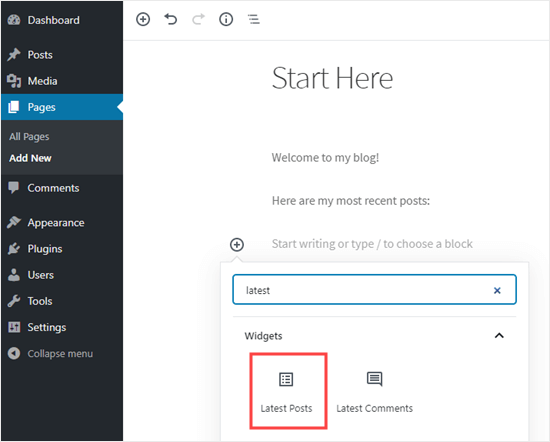
Adding the Latest Posts block to a page

There are lots of different ways you can configure this block. By default, it just shows the post titles, but you can easily customize it.

For example, you can toggle the post content on and off in the right-hand pane. This lets you choose to add post content or excerpt next to the title.

You can also customize excerpt length which defaults to 55 words, but you can pick any value between 10 and 100 words.
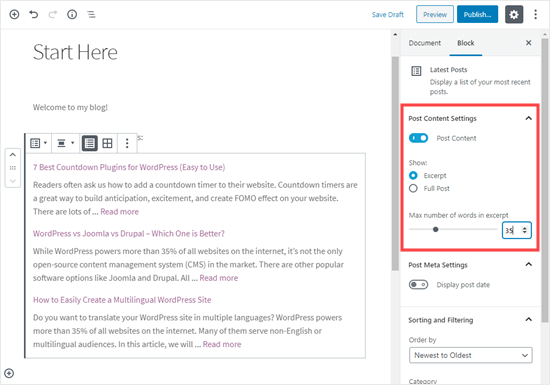
Configuring how the post excerpt should display

If you want, you can display the post date. This will appear just below the title.
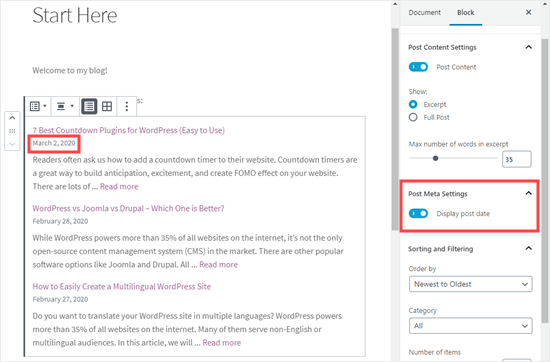
Displaying the dates of your latest posts

You can also choose exactly how your posts will display. You can order them differently from the default ‘Newest to Oldest’, and you can show only the latest posts from a specific category.

From the settings panel, you can also choose how many posts will display. By default, the block shows 5 posts, but you can display anywhere between 1 and 100 posts.
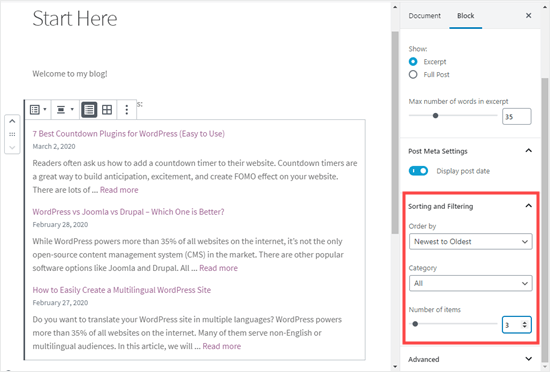
Sorting and filtering the list of latest posts

You also have the option to display your recent posts in a column grid rather than a list.
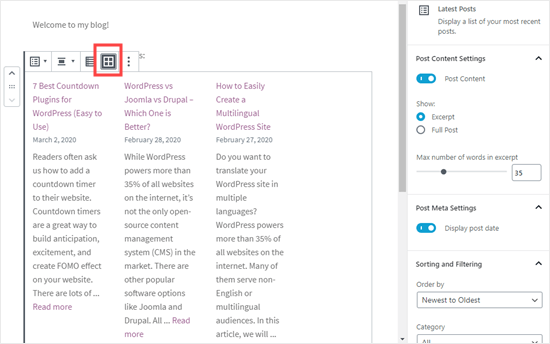
Setting the latest posts to display in a grid format

You can customize the grid to featured images for your posts, resize the image, and align them accordingly:
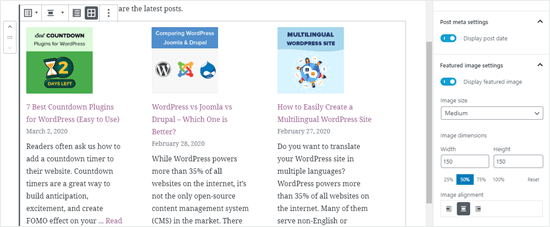
Adding the featured images to your recent posts block

Here’s how the finished block looks live on the website:
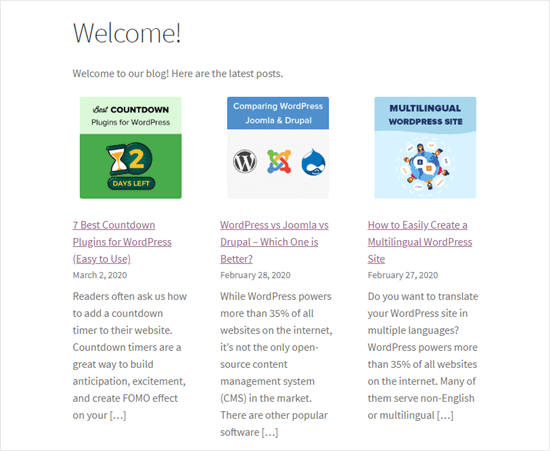
Latest posts block displaying live

Method 2. Use the WordPress Recent Posts Widget

What if you want to show a list of your latest posts in your sidebar instead of on a page? WordPress comes with a built-in default widget to display recent posts in your site’s sidebar or any widget ready area.

In your WordPress dashboard, go to Appearance » Widgets and add the ‘Recent Posts’ widget to your sidebar.
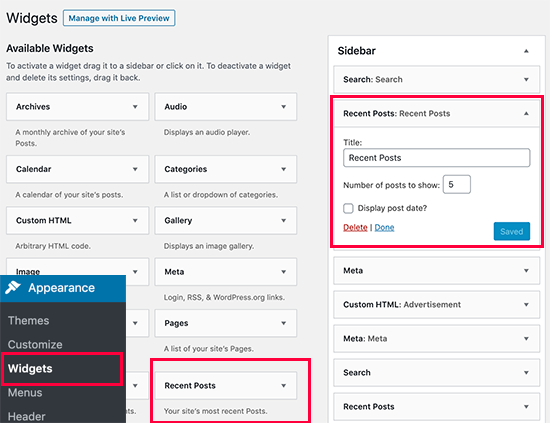
Recent posts widget

The built-in Recent Posts widget doesn’t offer many options. You can give the widget a title, choose whether or not to show the dates of posts, and add the number of posts you want to display.

Once you’re done, click on the ‘Save’ button to store your widget settings.

Here’s the widget live on the blog, with the title ‘New Posts’ and dates enabled:
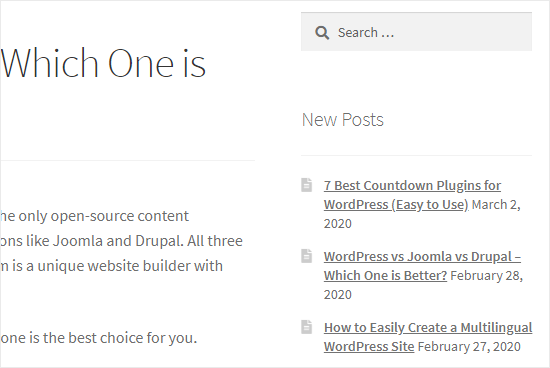
The recent posts displaying in the sidebar on the blog

Method 3. Use the Recent Posts Widget With Thumbnails Plugin

The built-in widget we mentioned above is quite limited.

What if you want to display thumbnails and excerpts with your recent posts? What if you’d like to only show posts from a specific category in your sidebar?

Well, that’s when the Recent Posts Widget With Thumbnails plugin comes in handy. It does a lot more than just thumbnails, and it’s free.

First, you’ll need to install and activate the WordPress Recent Posts Widget With Thumbnails plugin.

Next, go to Appearance » Widgets page where you should see the ‘Recent Posts With Thumbnails’ widget.
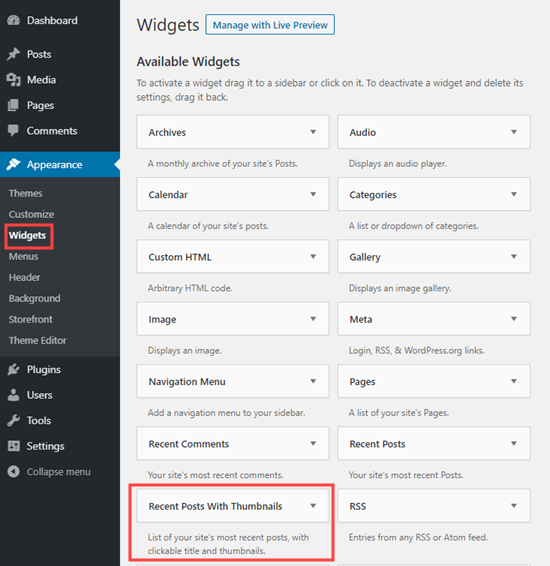
The Recent Posts With Thumbnails widget in the list of available widgets

You need to add it to your sidebar or another widget-enabled area.
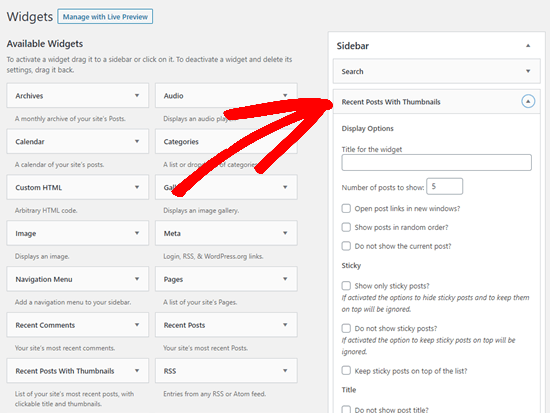
The Recent Posts With Thumbnails widget in the sidebar

The Recent Posts With Thumbnails widget comes with a lot of options. It gives you full control on how you want to display recent posts on your WordPress site.

You can also show excerpts, show posts from specific categories, ignore sticky posts, display random posts, and more.

Once you are done, don’t forget to click on the save button to store your settings. You can now visit your website to see your recent posts with thumbnails.
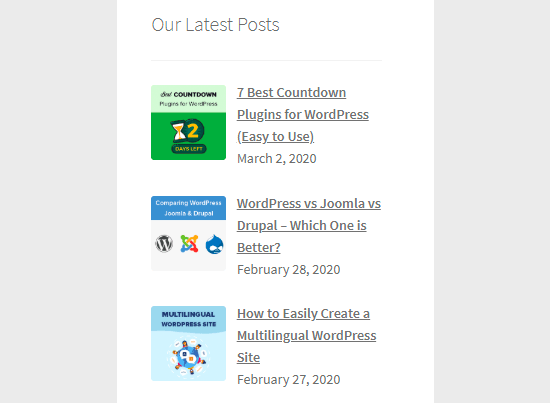
Display Recent Posts in Sidebar

Method 4. Display Recent Posts Using a Shortcode

Using the ‘Latest Posts’ block is definitely the easiest way to display recent posts in WordPress posts and pages. However, if you chose to disable Gutenberg and keep the Classic editor, you can use shortcodes instead.

First, install and activate the Display Posts plugin. It works out of the box, and there are no settings for you to configure.

Simply edit a post or page where you want to display your recent posts. Next, use the shortcode [display-posts]. The plugin offers a whole range of parameters that you can use with the shortcode.

Here are some examples of what you can do using this plugin.

Display 3 recent posts with thumbnails and excerpt:

[display-posts posts_per_page="3" image_size="thumbnail" include_excerpt="true"]

Display recent pages instead of posts:

[display-posts posts_per_page="3" post_type="page"]

Change the order to title instead of date:

[display-posts posts_per_page="3" orderby="title"]

Display recent pages under a specific parent page:

[display-posts posts_per_page="3" post_type="page" post_parent="5"]

You can also include additional styling. For instance, you may want to align your featured images to the left. You can do that using the instructions on the plugin’s website here.

Here’s how our list of recent posts looked, using those instructions:
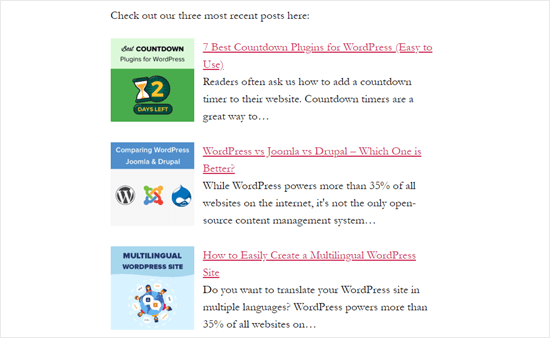
Displaying recent posts using the shortcode widget

For a full list of parameters visit the plugin’s documentation.

You can also use these shortcodes inside a text widget. First, you will need to enable shortcodes in your text widgets by adding this code to your theme’s functions.php file or a site specific plugin.

add_filter('widget_text', 'do_shortcode');

Method 5. Display Recent Posts Manually in WordPress

More advanced WordPress users may want to add recent posts directly in their WordPress theme files. Of course, you should use a child theme for this so that when you update your theme, you don’t lose your changes.

It’s always a good idea to create a backup before you edit your theme files. If anything does go wrong, you might want to take a look at our list of the most common WordPress errors and how to fix them.

The easiest way to manually display recent posts to use the built-in WP_Query class. Simply add this code where you want to display the recent posts.

<ul>
// Define our WP Query Parameters
<?php $the_query = new WP_Query( 'posts_per_page=5' ); ?>

// Start our WP Query
<?php while ($the_query -> have_posts()) : $the_query -> the_post(); ?>

// Display the Post Title with Hyperlink
<li><a href="<?php the_permalink() ?>"><?php the_title(); ?></a></li>

// Display the Post Excerpt
<li><?php the_excerpt(__('(more…)')); ?></li>

// Repeat the process and reset once it hits the limit
<?php 
endwhile;
wp_reset_postdata();
?>
</ul>

This code displays the five most recent posts with their title and excerpt. The WP_Query class has tons of parameters that allow you to customize it any way that you like. For more information please refer to the WordPress developer documentation.

We hope that this article helped you learn how to display recent posts in WordPress. You might also be interested in our article on how to create a separate page for blog posts in WordPress, and our comparison of the best drag and drop WordPress page builder plugins.

If you liked this article, then please subscribe to our YouTube Channel for WordPress video tutorials. You can also find us on Twitter and Facebook.

The post How to Display Recent Posts in WordPress appeared first on WPBeginner.


April 23, 2020 at 05:17PM
Wednesday, April 22, 2020

How to Schedule Coupons in WooCommerce (and Save Time)

Have you ever wanted to schedule coupons on your online store?

Scheduling coupons allows you to easily run seasonal or time-sensitive sale campaigns without having to worry about turning it on / off at specific times.

In this guide, we’ll share our step by step process on how to easily schedule coupons in WooCommerce (and save time).

Scheduling coupons in WooCommerce for more sales

Why Create Scheduled Coupons in WooCommerce?

Coupons are a great way to promote your online store and make more sales.

However creating coupons for different holiday campaigns, making the sale go live at certain times, and then turning it off at the deadline can be a lot of work.

This is why all smart store owners schedule coupons and promotion campaigns (like popups, notice bars, etc), so they can automatically start and end at specific date / time without any manual intervention.

For instance, you can schedule coupons for top holidays like Black Friday, Christmas, New Years, Mother’s day, Valentine’s day, and so on.

This allows you to save extra time, so you can focus on promoting the sale to get maximum results.

Or if it’s a holiday promotion, then you can use this extra time and spend it with your family and friends.

That being said, let’s take a look at how to easily schedule coupons in WooCommerce.

The first part of the tutorial covers scheduling coupons in WooCommerce, and the second part covers how to schedule coupon promotional material such as alert bars, popups, etc, so you can automate the entire process.

Creating a Scheduled Coupon in WooCommerce

For this tutorial, we’ll be using the Advanced Coupons plugin. It is the best WooCommerce coupon code plugin on the market, and it adds tons of powerful features to the default WooCommerce coupon functionality.

First, you need to install and activate the Advanced Coupons plugin. For more details, check out our step by step guide on how to install a WordPress plugin

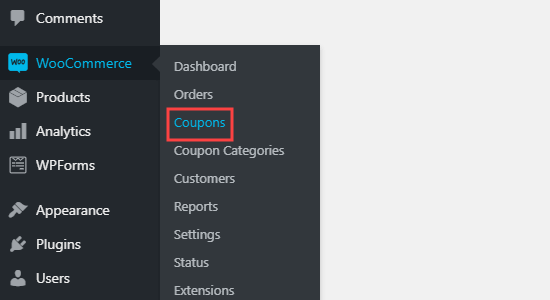
Upon activation, you need to visit WooCommerce » Coupons page in your WordPress dashboard.

The WooCommerce Coupons tab in the dashboard

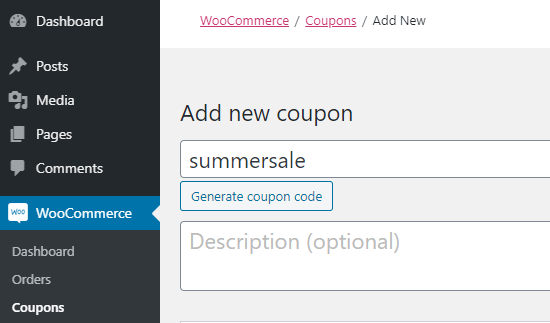
Next, you need to click the ‘Add Coupon’ button to create a new coupon. You will be asked to type in the coupon code you want to use at the top of the screen.

Creating a new coupon using the Advanced Coupons plugin

After that you need to decide what type of coupon you want to use.

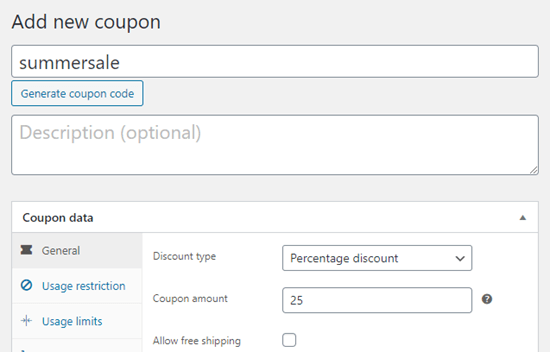
For this tutorial, we’re going to use a percentage discount. You can select the ‘Discount Type’ from the dropdown list and then type in the percentage.

Setting the discount for your coupon

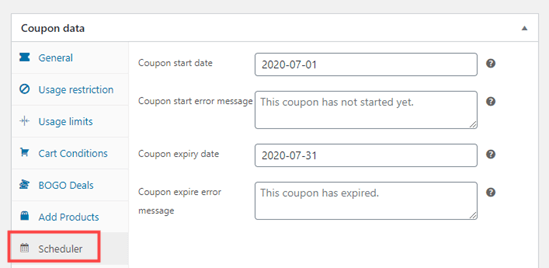
Next, we need to click on the Scheduler tab that’s added by the Advanced Coupon and enter a start date / end date for your coupon.

If you want, you can also change the default error messages that will be shown if customers try to use the coupon code too soon or too late.

Using the scheduler in Advanced Coupons

Tip: The coupon will start at 12:00:00 on the start date and will expire at 23:59:59 on the day before the end date. Advanced Coupons uses the timezone that you’ve set in WordPress. You can check or change this under Settings » General in your WordPress admin area.

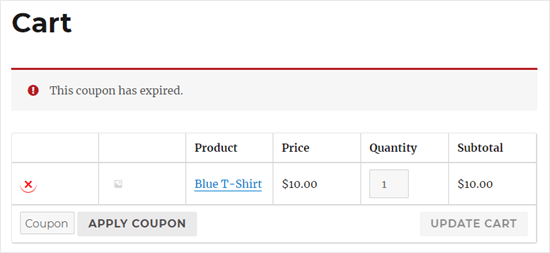
Once you’re done, you can go ahead and publish the coupon. If a customer tries to use it before the correct date, then they’ll see the error message on the shopping cart page.

The message that customers will see if a schedule coupon has expired

Aside from saving you time, another benefit of scheduling coupons is that you can use it to boost your marketing efforts. For example, you can use your email marketing service to send a bulk email to all your affiliates / partners, and let them know about the upcoming promotion and the code, so they can share it with their audience.

With Advanced Coupons plugin, you can schedule as many coupon codes as you want, so you can save time and use it to grow your business.

For our eCommerce sites, we plan our sales calendar at the beginning of the year. Since we run a lot of the same sales, this helps us automate parts of the operation process.

Promoting Your Scheduled Coupons in WooCommerce

Now that you have scheduled coupons for different sale campaigns in your store, you still need to promote them.

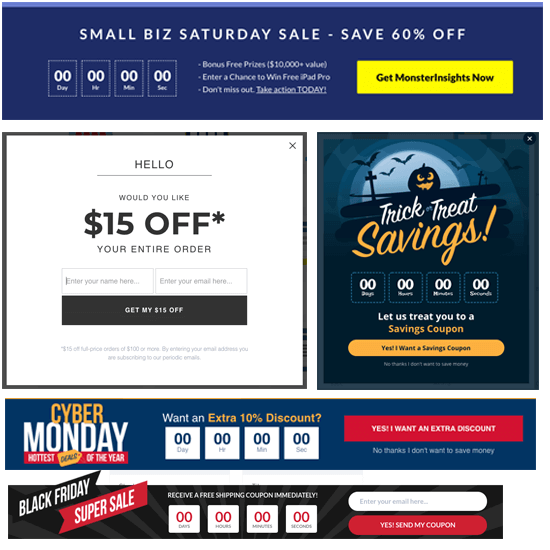
Often popular stores use dynamic website elements like floating header bar, exit intent popups, slide-in scroll boxes, etc to highlight their sales and promotions.

Example of Dynamic Sale Timers - OptinMonster

The best part is that you can automate these too with OptinMonster. It is the best conversion optimization software on the market that helps you convert website visitors into email subscribers and paying customers.

OptinMonster comes with countdown timers, coupon code popup, slide-in boxes, and other tools that help you promote your sales and boost conversion.

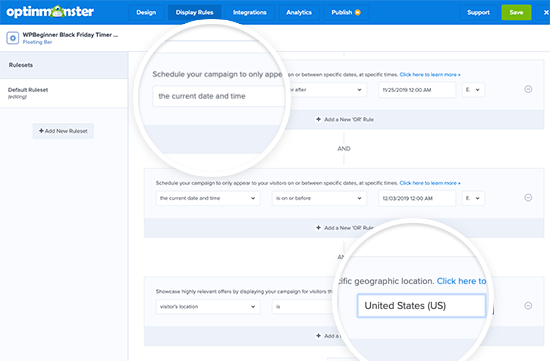
You can use their powerful display rules technology to not only schedule each campaign, but you can even use it to personalize them based on user’s geolocation. For example, you can automatically schedule a Christmas Sale for US and schedule a Diwali sale in India.

OptinMonster Campaign Display Rules for Scheduling and Geolocation

We hope this article helped you learn how to create a scheduled coupon in WooCommerce, so you can automate your sales. You might also like our article on the best WooCommerce plugins for your store, and our comparison of the best WooCommerce hosting companies.

If you liked this article, then please subscribe to our YouTube Channel for WordPress video tutorials. You can also find us on Twitter and Facebook.

The post How to Schedule Coupons in WooCommerce (and Save Time) appeared first on WPBeginner.


April 22, 2020 at 06:24PM

Tuesday, April 21, 2020

How to Fix WordPress Not Sending Email Issue

One of the most commonly asked questions on WPBeginner is how to fix WordPress not sending email problem.

Many of our beginner level users ask us why their contact form plugin is not sending emails, or why they are not seeing any WordPress notifications.

In this article, we will show you how to fix the WordPress not sending email issue, so your website can send emails more reliably and bypass the spam folder.

How to fix the WordPress not sending email issue

Why You’re Not Getting Emails from Your WordPress Site

The most common reason for emails going missing is that your WordPress hosting server is not properly configured to use the PHP mail() function.

Even if your hosting is configured to use it, many email service providers like Gmail and others use a variety of tools to reduce email spam. These tools try to detect that an email is really coming from the location that it claims to be from.

Emails sent by WordPress websites often fail this test.

This means that when an email is sent out from your WordPress site (contact form plugin, admin notification, etc), it may not even make it into the recipient’s spam folder let alone inbox.

This is why we recommend not using WordPress to send your email newsletter.

This is also the reason why we recommend everyone to use SMTP for sending emails in WordPress.

What is SMTP?

SMTP (Simple Mail Transfer Protocol) is the industry standard for sending emails.

Unlike the PHP mail() function, SMTP uses proper authentication which leads to high email deliverability.

WordPress has a WP Mail SMTP plugin that configures your WordPress site to send emails using SMTP instead of the PHP mail() function.

You can use it to connect with any popular SMTP services like SendinBlue, Gmail (G Suite), Office365, Amazon SES, etc.

With that said, let’s take a look at how to fix the WordPress not sending email issue.

Installing the WP Mail SMTP Plugin

Whatever SMTP service you choose, you’ll need to have the WP Mail SMTP plugin installed on your site. This lets you switch WordPress from using the built-in PHP mail() function to using your SMTP service.

First, install and activate the WP Mail SMTP plugin. If you’re not sure how, see our step by step guide on how to install a WordPress plugin.

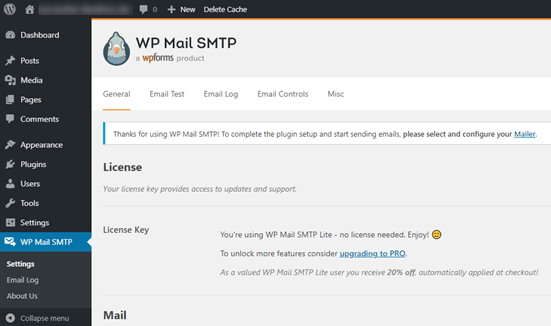
Next, click on WP Mail SMTP in your WordPress dashboard to configure the plugin settings.

The WP Mail SMTP settings page in your WordPress dashboard

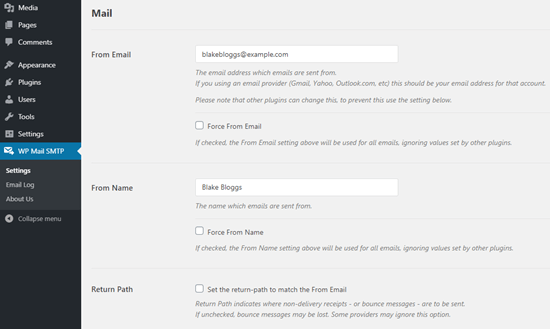
You will need to start by entering the name and business email address you want your site’s emails to come from. Make sure you use the same email address here that you’ll be using for your SMTP mailing service.

Entering the name and email address that you want your WordPress emails to come from

You can choose to force emails to use this name and email address, even if other plugins (like WPForms) have different settings. WP Mail SMTP will override the other plugins’ settings.

After that, you need to choose a SMTP mailing service for your site.

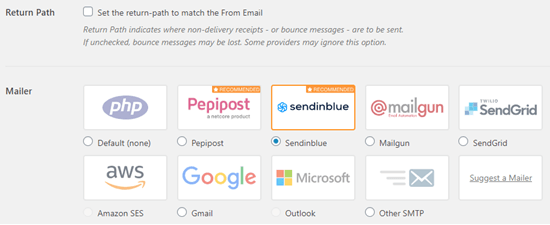
For the sake of this tutorial, we’re going to setup SMTP using Sendinblue. If you’d prefer to use Gmail or Office365, then we’ve got instructions on those later in this article as well.

Select Sendinblue as your mailer in WP Mail SMTP

To finish setting up WP Mail SMTP, you’ll need to create an account with Sendinblue. We’ll move on to that next, and then come back to finalizing the setup on WP Mail SMTP.

Sending WordPress Emails using Sendinblue

Sendinblue is a popular email service provider. They let you send a large number of emails with high deliverability.

You can use Sendinblue to send up to 300 emails per day for free which is more than enough for most small websites.

These could be emails from your contact form, new user account details, password recovery emails, or any other emails sent through your WordPress site.

First, you’ll need to go to the Sendinblue website to create an account. Click the ‘Sign up free’ button to set up your account.

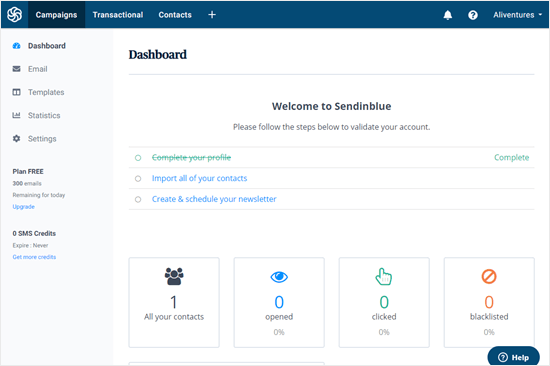
Once you’ve created an account, you’ll see your Sendinblue dashboard. If you didn’t complete your profile during the setup stage, you’ll be prompted to do so here.

The Sendinblue dashboard

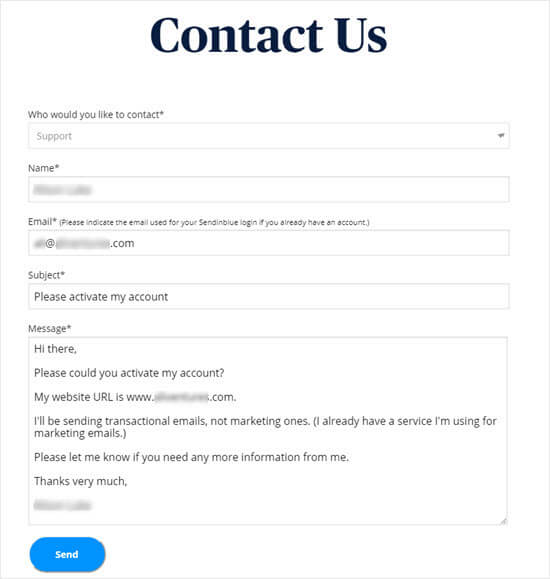
Next, you’ll need to contact the support team to ask them to verify your account, so you can send emails through Sendinblue.

We recommend contacting the support team at this stage as it can take around 24 hours for them to verify your account. You can move on with the other steps while you’re waiting.

Go to sendinblue.com/contact and write a message that includes:

  • A request to activate your account
  • Your site’s URL
  • A note that you’ll be sending transactional emails. If you also want to use Sendinblue for your email newsletter, then you’ll need to state that you’ll be sending marketing emails too.

Contact form message to Sendinblue to request account activation

You may be asked for further information. If not, you should receive an email from Sendinblue letting you know that your account has been approved.

Once you’ve sent your message to the contact team, you can move on to add your domain name to the site.

Remember, you don’t need to wait for a reply before moving on with the next stage of this tutorial.

Setting Up a Subdomain for Your Website

First, you’ll need to set up a subdomain. This is like a separate section of your site. We suggest using mail1.yourdomain.com.

Note: Your WordPress host may not allow you to use mail as your subdomain, which is why we’ve put the 1 in there too.

To add your subdomain, log in to your web hosting account and find the Domains section of your control panel.

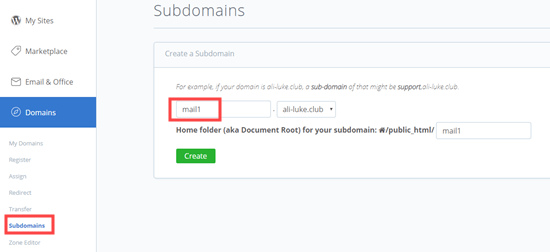
For the sake of this tutorial, we’ll demonstrate how to do that on our example hosting account on Bluehost. After you login, go to Domains » Subdomains.

You can then type in your subdomain and click ‘Create’.

Adding a subdomain in WordPress

If you’re using other hosting companies or if your DNS is managed at domain registrar like Domain.com or GoDaddy, then follow their respective instructions.

After you have created the subdomain, you will need to add it in your Sendinblue account.

Adding Your Subdomain to Sendinblue

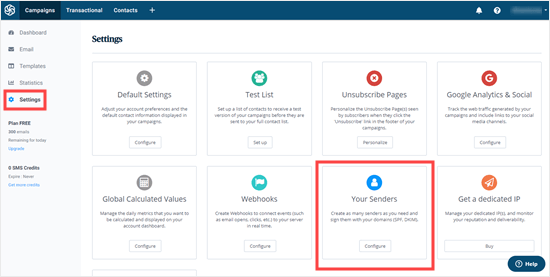
In your Sendinblue account, go to ‘Settings’ then find ‘Your Senders’ and click the ‘Configure’ button:

Configuring your sender settings in Sendinblue

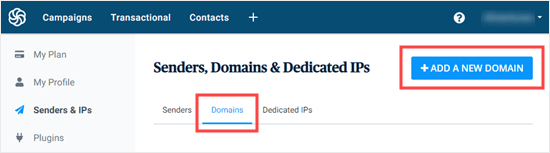
Next, click on the ‘Domains’ tab and then click the ‘Add a New Domain’ button.

Adding a new domain in Sendinblue

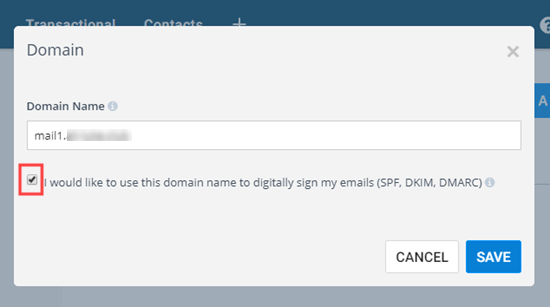
Enter the entire subdomain (e.g. mail1.yoursite.com) and check the box next to “I would like to use this domain name to digitally sign my emails (SPF, DKIM, DMARC)”.

Add your subdomain and check the box

Next, click ‘Save’, and you’ll see a popup with several DNS records listed.

These lines of code let Sendinblue authorize your domain name.

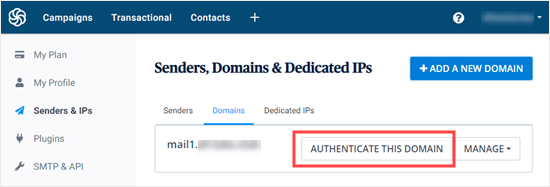
Tip: Don’t worry if you close this popup by accident. You can get back to it by clicking the ‘Authenticate This Domain’ button next to your subdomain:

The Authenticate Domain button which lets you go back to the DNS settions

Open up a new browser tab and log back into your web hosting account. You need to find your domain and open up the DNS records.

In Bluehost, you do this by going to Domains » My Domains then clicking ‘Manage’ next to your domain.

You’ll need to add 3 of TXT records provided by Sendinblue here.

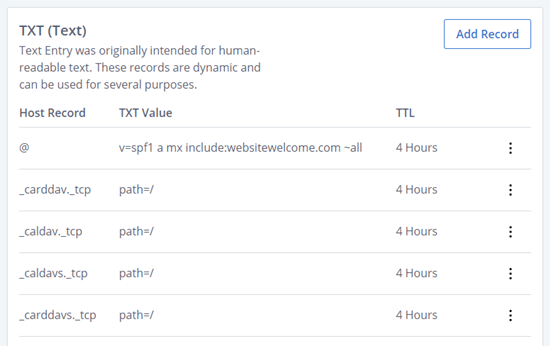
First, scroll down to find the TXT section of your DNS records. It will look something like this:

DNS TXT records in Bluehost

Then, click ‘Add Record’.

Complete the first record as follows:
Host Record: mail._domainkey.mail1
Record Type: TXT
TXT Value: Copy this from Sendinblue.
TTL: 1 day

Tips: Host Record might be called Host or Name by your web host. Change mail1 if you used something different for your subdomain. Record Type may not be required. TXT Value might also be called TXT data: it’s the first, long piece of code in the Sendinblue details. TTL could be 24 hours or 86400 seconds (both are equivalent to 1 day). If you’re using GoDaddy, set it to 1 hour.

Once you have added the first record, click ‘Save’.

Next, you need to add the second record. Complete it as follows:

Host Record: mail1
Record Type: TXT
TXT Value: v=spf1 include:spf.sendinblue.com mx ~all
TTL: 1 day

Once you’re done, click ‘Save’.

After saving that, you need to add the third record. Complete it as follows:

Host Record: mail1
Record Type: TXT
TXT Value: Copy this from Sendinblue. It’s the third piece of code.
TTL: 1 day

Once you’re done, go ahead and save that record too.

Warning: Sendinblue also has a fourth piece of code for a DMARC record. You don’t need this, and we strongly recommend skipping it unless you’re experienced with DMARC configuration.

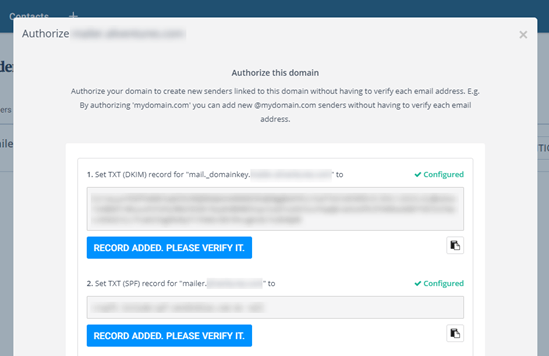
After you’ve added your records, go back to Sendinblue. For each record, click the button ‘Record Added. Please Verify It.’ It may take 24-48 hours before Sendinblue is able to verify your records, but it’s often much quicker.

If nothing happens when you click that button, the records can’t yet be verified. Check again later and see if they’ve been verified. Once they have, you’ll see the word ‘Configured’ next to the records in green:

Sendinblue DNS TXT records once they've been verified

You can keep going with this tutorial while you wait for the verification to take place.

Finishing Setting Up WP Mail SMTP to Use Sendinblue

Go back to your WP Mail SMTP settings in your WordPress dashboard. You should have already entered the From Email and From Name, but if not, you can do that now.

Leave the ‘Return Path’ checkbox unchecked as this option isn’t used by Sendinblue.

Next, click on ‘Sendinblue’ for your mailer.

Select Sendinblue as your mailer in WP Mail SMTP

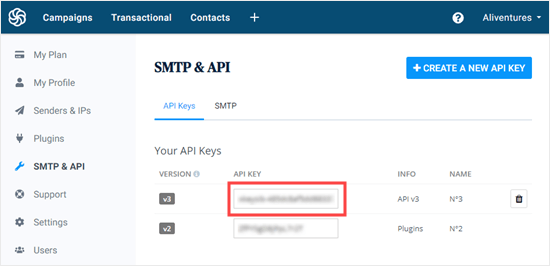
You’ll need go to your Sendinblue account to find your API key. Just click on the link below the ‘API Key’ box and your Sendinblue account dashboard will open up at the right place, in a new tab.

Copy the v3 API key from this page.

Getting the API from Sendinblue

Congratulations. You’ve now set everything up. The final step is to send a test email to make sure everything is working.

Go to the ‘Email Test’ tab of WP Mail SMTP and enter an email address to send an email to. This will default to the site’s admin email. Click ‘Send Email’.

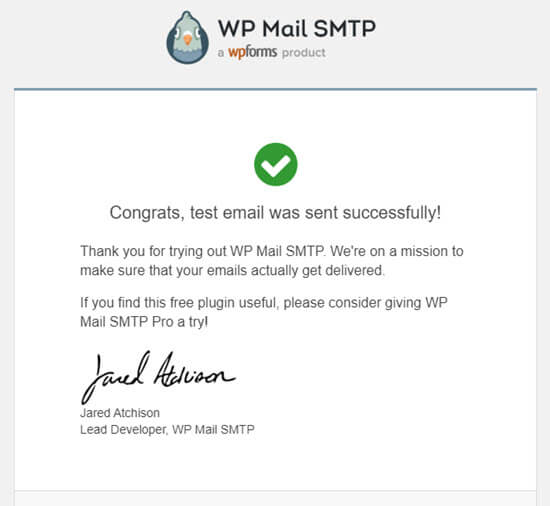
You should see the message ‘Test HTML email was sent successfully!’ Check your inbox to see whether it’s arrived. It’ll look like this:

The test email from WP Mail SMTP

Note: If your Sendinblue account isn’t yet activated, you’ll get the message: [permission_denied]: Unable to send email. Your SMTP account is not yet activated.

Alternative Ways to Fixing WordPress Email Issue

As you can see from the WP Mail SMTP plugin’s list of mailer options, you don’t have to use Sendinblue. While it’s our top free recommendation, there are other options that you can use including Office 365, Gmail / G Suite, Amazon SES, etc.

Using Gmail or G Suite with WP Mail SMTP to Fix WordPress Emails

If you have a Gmail or G Suite account, then you can use that to send your emails. You won’t need to enter your email login details in WordPress when you’re using the WP Mail SMTP plugin.

To use Gmail or G Suite, set up WP Mail SMTP as shown above, and then click the ‘Google’ option for your mailer.

You will need to check the ‘Return Path’ box.

After that you will be asked to enter a ‘Client ID’ and ‘Client Secret’. To get these details, you’ll need to create a web application in your Google account. Don’t worry if that sounds a bit daunting. You can find full instructions in this article on using Gmail to send your WordPress emails.

Note: You can use this process with a regular Gmail account, but your email deliverability will be much better if you are using G Suite. See our guide on how to setup a professional email address with Gmail and G Suite.

There are a couple of key drawbacks to using Gmail or G Suite, however.

One is that you may need to contact your web host to get them to install the right certificate to get it working.

Another is that if you change the email address in the future, you’ll need to go through the entire process again. This will include creating a new web application.

Using Office 365 / Outlook with WP Mail SMTP to Fix WordPress Emails

If you use Microsoft Office 365 or Outlook for your regular email account, then you can also use that to send out emails through WordPress. This isn’t a recommended option, though, because it’s less secure.

You’ll need to set up WP Mail SMTP as above, then click the ‘Other SMTP’ option. This will open up a form to complete. Fill it out using the following settings:

SMTP Host: smtp.office365.com
Encryption: TLS
SMTP Port: 587
Auto TLS: (leave switched on)
Authentication: (leave switched on)
SMTP Username: Your Office 365 account email address
SMTP Password: Your Office 365 account password

A key problem with this method is that it requires storing your password in plain text within WordPress. This isn’t secure and your password will be visible to any other administrators on your account. You can use the instructions in the WP Mail SMTP app to record it in your wp-config.php file instead.

For more details, see the detailed guide on how to setup Outlook with WP Mail SMTP.

Using Amazon SES with WP Mail SMTP to Fix WordPress Emails

Amazon AWS platform has a Simple Email Service (SES) that you can use to fix the WordPress email issue.

The best part about Amazon is that it lets you send up to 62,000 emails every month for free. The downside is that the setup is a bit more challenging for beginners which is why we don’t recommend it as our preferred option.

But as you can imagine, a lot of professionals and experts use Amazon SES for their WordPress email SMTP service, so we couldn’t write an article without mentioning it.

If you’r interested in setting up Amazon SES with WordPress, then see the full instructions on how to setup Amazon SES with WordPress.

Whatever mailer you decide to use, always remember to use the ‘Test Email’ tab to ensure that emails are being successfully sent.

You must make sure to check your inbox too, and confirm that you’ve received the test email.

We hope this article helped you learn how to fix WordPress not sending email issue. You may also want to see our list of the most common WordPress errors and how to fix them.

If you liked this article, then please subscribe to our YouTube Channel for WordPress video tutorials. You can also find us on Twitter and Facebook.

The post How to Fix WordPress Not Sending Email Issue appeared first on WPBeginner.


April 21, 2020 at 04:55PM