Tuesday, January 26, 2021

How to Add New Users and Authors to Your WordPress Blog

Do you want to add new users and authors to your blog?

WordPress comes with a built-in user management system. This lets you add users with different roles and permission levels.

In this article, we will show you how to add new users and authors to your WordPress website.
Adding new users and authors to your WordPress website

Adding a New User or Author on Your WordPress Website

There are 3 ways to add new users to your WordPress website. You can add users manually, let users register themselves for free, or create a paid membership site where users pay to register.

Here’s what we’re going to cover in this article. Simply click on the quick links to jump straight to the section you need.

Manually Adding a New User or Author to Your Website

If you want to add a small number of people to your website, then this is easy to do with WordPress’s built-in user management system.

This method is ideal for:

  • Small businesses that have several different employees managing their website.
  • Organizations such as churches and nonprofits that have volunteers updating their website.
  • Blogs with multiple authors, such as a fashion blog that you are writing with some friends.
  • Online stores that have several people managing inventory, shipping items, etc.

You simply need to go to the Users » Add New page in your WordPress admin area. Next, you just have to fill out the form to create a new user.
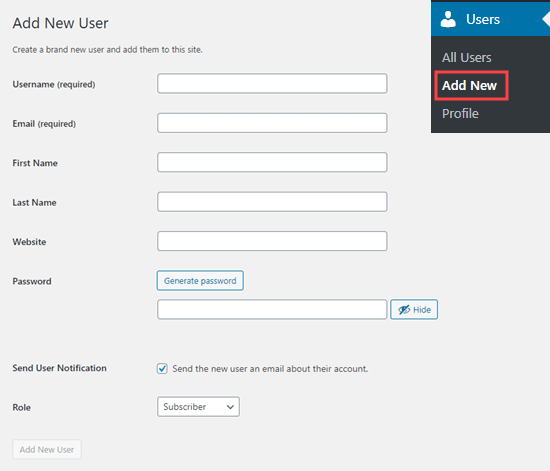
Fill out the form to add a new user to your website

On the form, you first need to enter a username. The user can use this or their email address to login.

Tip: The WordPress username can’t be easily changed later, but all the other details can.

Next, enter the user’s email address. Double-check that you are using the correct email address. Users will need this in order to reset their passwords and receive email notifications.

After that, you can enter the first name, last name, and website URL. Since these are optional fields, you can also leave them blank. Users can edit their own profiles to complete these fields later.

In the next step, you will need to choose a password. We recommend using an online strong password generator for this purpose.

Tip: You can use the ‘Generate password’ button to automatically create a strong password.

Below the password field, you will see a checkbox to send the user an email. If you check this, the user will receive an email letting them know how to log in. This will also have a link, so they can set a different password if they want.

The last option on the page is to choose a WordPress user role from the dropdown list.
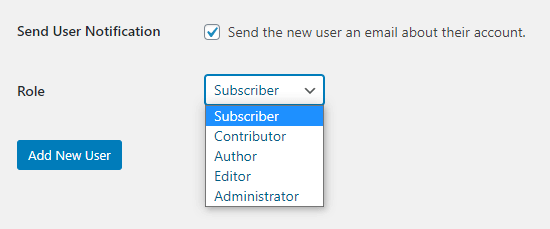
The dropdown list of default user roles in WordPress

Each user role comes with a different set of capabilities. Subscriber is the least powerful role, and Administrator is the most powerful role. You need to choose a role depending on what tasks a user will be performing on your website.

You may already know what role you want to give your user. If so, select the role, then click the ‘Add New User’ button at the bottom of the screen.
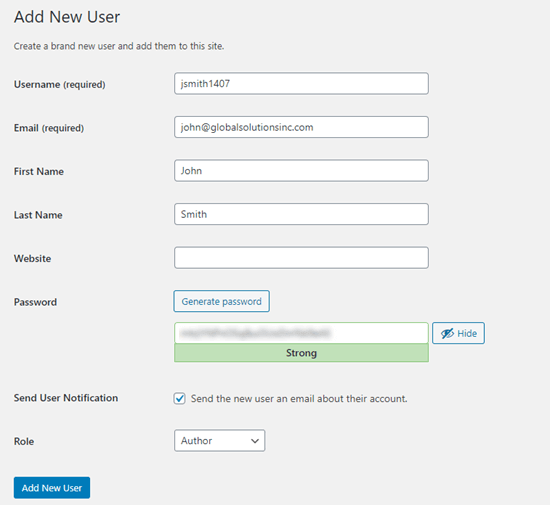
Entering the details for your new user in WordPress

If you’re unsure about the role, don’t worry. We have a detailed explanation of the roles in the next section of this article.

Tip: Some plugins create additional user roles. For instance, WooCommerce adds ‘Customer’ and ‘Shop Manager’ roles. All in One SEO adds the ‘SEO Manager’ and ‘SEO Editor’ roles. Simply check the plugin’s documentation to find out about any additional roles that you see in this list.
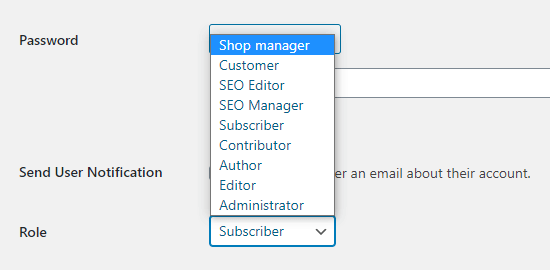
Additional user roles created by WooCommerce and All in One SEO

Understanding User Roles in WordPress

WordPress comes with these default user roles:

  • Administrator
  • Editor
  • Author
  • Contributor
  • Subscriber

Tip: If you have a multisite installation of WordPress, there is also a ‘Super Admin’ role. These users can manage all the websites, whereas regular Administrators manage just one site.

Administrator

An administrator can perform all tasks on your WordPress site.

You should only assign this role to users who you fully trust. You should also feel confident about their technical skills.

With the administrator user role, a user can install plugins, change themes, delete content, and even delete other users. This includes other administrators.

You can learn more about the Administrator role here.

Editor

An editor can add, edit, publish, and delete their own WordPress posts. They can also do all of these actions for posts by all other users.

They cannot access website settings, plugins, themes, and other admin features.

This role is useful if you have an editor for your site who manages a team of authors and publishes content on a regular basis.

You can learn more about the Editor role here.

Author

Authors can add, edit, and publish their own posts. They can upload files, too.

They can’t edit or publish other people’s posts or access features like plugins, themes, settings, and tools.

You may want to use a plugin to restrict authors so they can only write in a specific category.

You could also let authors revise their published posts. Again, you will need to use a plugin to extend the Author user role.

You can learn more about the Author role here.

Contributor

A contributor can add and edit their own posts but cannot publish them.

However, they cannot edit other users’ posts or access features like plugins, themes, settings, and tools.

It’s important to note that contributors cannot upload media files, such as images. The easiest way to get around this is to get contributors to upload their post’s image(s) through a file upload form.

That way, the image(s) can be saved straight to the WordPress media library. This makes it easy for an editor or administrator to add them to the post.

You can learn more about the Contributor role here.

Subscriber

The subscriber role does not let users add or edit posts in any way.

With the default settings, subscribers can create a profile and save their details. This lets them enter them more quickly when leaving comments.

You can also use a membership plugin or LMS plugin to create members-only content that is available to subscribers. We will come onto that later in this article.

You can learn more about the Subscriber role here.

To find out more about all the different user roles in WordPress and how they relate to one another, check out our beginner’s guide to WordPress user roles and permissions.

Managing Users in WordPress

As an administrator, you can add and remove users from your WordPress site at any time. After you have added a user, you can edit their profile at any time and change any information including passwords.

Simply click on the Users tab in your WordPress admin to go to the user page. You can edit or delete a user at any time.
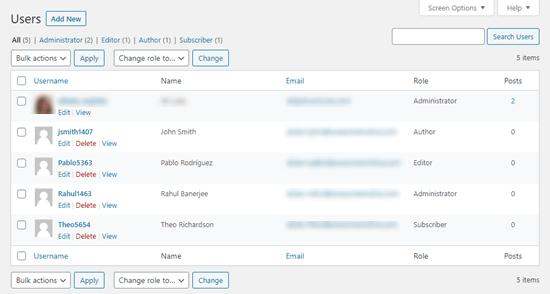
Managing users in WordPress

You can edit the user’s profile to change their password, change their role, and more. You can also bulk edit users to change their role, if you want to upgrade or downgrade several users’ role at the same time.

Users can also edit their own profile by going to Users » Profile in the WordPress dashboard. They can add a profile picture and change most of their details, but they cannot change their role.

Open Your WordPress Site for Anyone to Register for Free

What if you want to let users register on your site for free?

It would be a lot of work to add each user manually. Instead, you can let them create their own account.

First, you need to go to Settings » General in your WordPress admin and check the ‘Anyone can register’ box.
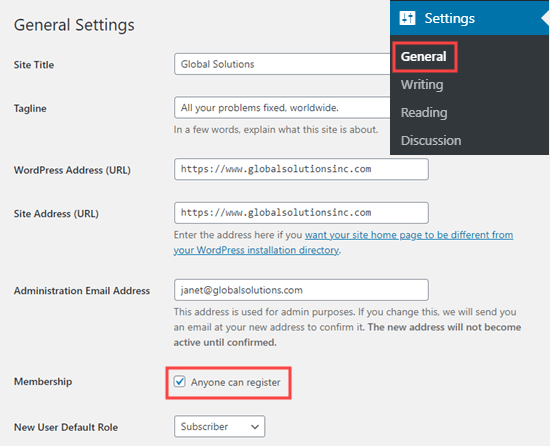
Enabling public registration for your website

By default, new users will be given the Subscriber role. Go ahead and change this to any role you want using the dropdown.

Warning: We recommend only letting users register as Subscribers or Contributors. If you let users register as Authors, they could publish a post without approval. Never use Administrator as the default setting.

Don’t forget to click the ‘Save Changes’ button at the bottom of the page to store your changes.

You also need to add a login form to your site. The best way to do this is with the WPForms plugin. Just follow our guide on how to allow user registration on your WordPress site for help with this.

Tip: You can also disable the WordPress admin bar for subscribers or other user roles.

Another way to add new users to your site is to create a paid membership program that users sign up for.

This allows you to sell members-only content, add premium content behind paywall, sell online courses, and more.

To do this, you need a WordPress membership plugin.

We recommend using MemberPress. It’s the best membership and course creation plugin with all the functionality and flexibility you need.
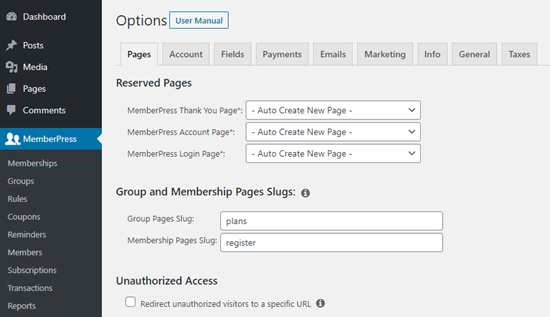
Just some of the setup options in MemberPress

MemberPress lets you lock specific posts and pages on your site so that only registered, paying users can access them. Many sites offer premium content like this as a way to make money online.

With MemberPress, it’s easy to create different access levels. For instance, you might offer a Bronze, Silver, and Gold plan. Or, you could create separate courses for users to sign up for.

You also get access to powerful tools such as MemberPress’s reports to show you your average member lifetime value, how many members you have in total, and more.

MemberPress allows you to add drip content to create evergreen membership site, and you can even sell group memberships in WordPress.

For a step by step tutorial on setting up MemberPress on your site, check out our ultimate guide to creating a WordPress membership site.

We hope this article helped you learn how to add new users and authors to your WordPress website. You may also want to see our comparison of the best email marketing services and how to add push notifications, so you can connect with your users after they leave your website.

If you liked this article, then please subscribe to our YouTube Channel for WordPress video tutorials. You can also find us on Twitter and Facebook.

The post How to Add New Users and Authors to Your WordPress Blog appeared first on WPBeginner.


January 26, 2021 at 04:27PM

Monday, January 25, 2021

How to Add a Blogroll in Your WordPress Site (without a Plugin)

Do you want to add a blogroll on your WordPress site?

Blogroll is a list of links to other blogs that you own, or blogs that you admire, follow, or even compete with. The blogroll has a long history in the blogging culture.

In this article, we will share how to easily add blogroll in WordPress. We’ll also talk about the history of blogroll, and how you can benefit from it today.

Adding a blogroll to your WordPress website or blog

What is a Blogroll?

A blogroll is a list of links to other blogs related to your own blog. It could include links to your other blog sites, or the blogs you like, or any websites you want users to checkout.

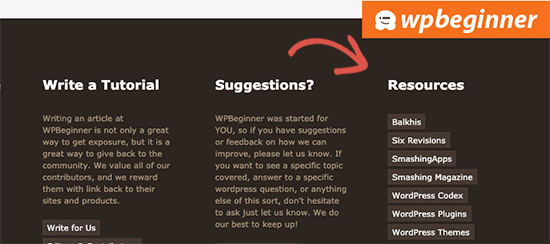
In its early days, blogging was more personal and community-driven. Like-minded folks often linked to other blogs that they enjoyed. Here is how we used to show a blogroll on WPBeginner back in 2009.

Blogroll displayed on WPBeginner

The blogroll was a common feature in those days which is why most blogging platforms supported it by default. However, as blogging became more mainstream and popular, the blogroll feature became less common.

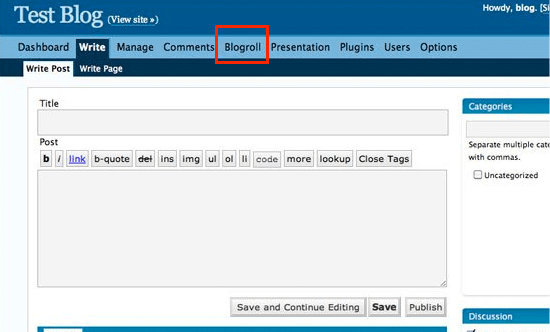
WordPress had a blogroll feature from the very beginning. It was first called Links, then renamed to Blogroll in WordPress 2.1.

Blogroll feature in WordPress 2.1

It was again changed to Links in WordPress 2.5 and remained that way until WordPress 3.5. At that time, the WordPress team decided to remove the feature from core.

The feature was still available as a free plugin called Link Manager. However that plugin hasn’t been updated in years, and you no longer need it to add a blogroll in WordPress.

Tip: If you are interested in how WordPress has changed over time, then do checkout our in-depth article on the history of WordPress.

Why Add a Blogroll in WordPress

Blogroll provides your users with the opportunity to visit other blogs that you recommend.

Normally, these are blogs or website that you or your company owns. However, you can also add links to other blogs that you admire or want your users to check out.

This allows your users to discover other blogs that you own or take a look at other sites that you recommend.

That being said, let’s take a look at how to easily add a blogroll in WordPress, manage links, and easily display it anywhere on your website.

Adding a Blogroll in WordPress

WordPress has an awesome menu management feature which was the reason the core team decided to remove the blogroll feature.

Normally, you would use navigation menus in WordPress to add links to your website’s navigation bar, footer links, or other places.

However, you can also use the same navigation menu to create and manage a blogroll in WordPress.

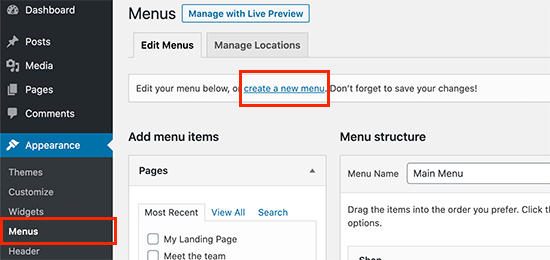
Simply go to Appearance » Menus page and click on the ‘Create a new menu’ link.

Create a new menu in WordPress

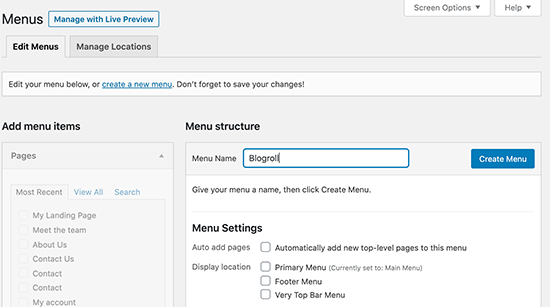
WordPress will now create a new blank menu for you and ask you to provide a name for it. You can name it Blogroll, so it is easy to identify when you are working on your website.

Creating the blogroll menu

Don’t forget to click on the ‘Create menu’ button to save it.

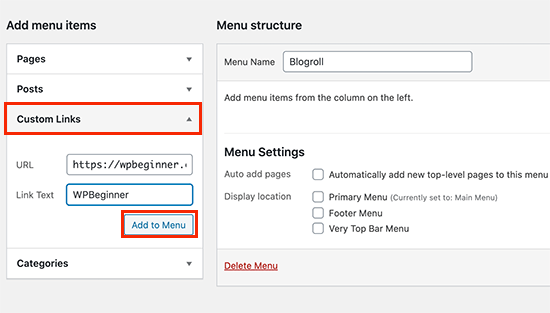
After that, click to expand the ‘Custom Links’ tab under the ‘Add menu items’ column on the left.

Adding a link to blogroll menu

Here, you need to enter the URL of the blog or website, and then add the blog title under the ‘Link text’. After that click on the ‘Add to Menu’ button.

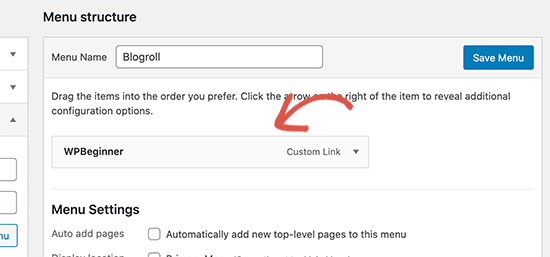
You’ll see an item appear under the right column and your blank Blogroll menu will now have an item in it.

Blogroll link added

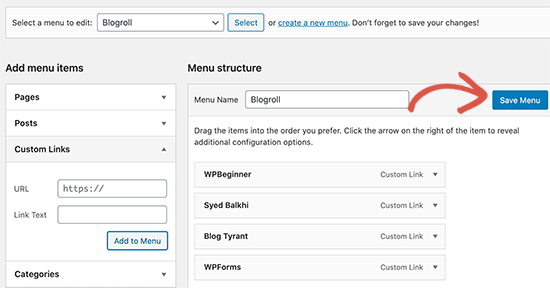
Now you can repeat the process to add other links that you want to display in your blogroll. After you are finished don’t forget to click on the ‘Save Menu’ button to store your blogroll links.

Saving blogroll links

Open Blogroll Links in New Window and Make Them Nofollow

Blogroll links are external links which means they take away users from your website and pass along SEO link juice as well.

Now if you own all the links in your blogroll, and you don’t mind users leaving one of your blogs to view the other one, then you don’t need to add these.

However, if you don’t own those external links, then you may want to open them in a new window and make them nofollow.

These additional options are hidden by default, but you can easily unhide them.

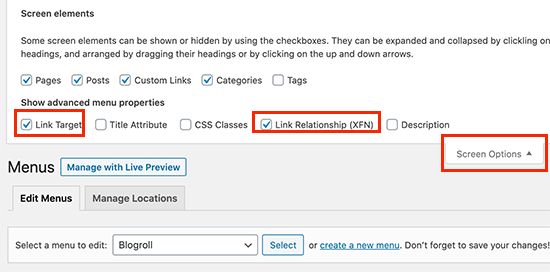
Simply click on the ‘Screen Options’ button at the top right corner of the screen. It will display a flydown menu where you need to check the box next to ‘Link Target’ and ‘Link Relationship (XFN)’ options.

Show advanced link options for WordPress menus

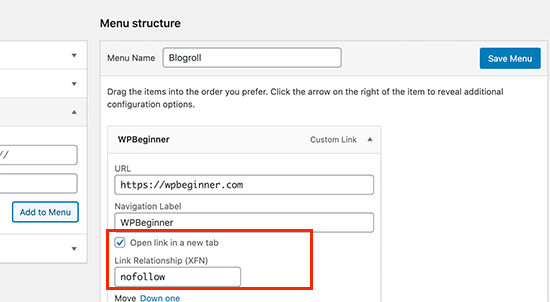
After that, scroll down to the links you added earlier and then click on any link to expand it. You can now check the box next to the ‘Open link in a new tab’ option and then enter ‘nofollow’ under the ‘Link Relationship (XFN)’ field.

Open a blogroll link in a new window and make it nofollow

You can repeat the process for all the links that you want to nofollow or open in a new window. After that, don’t forget to click on the ‘Save Menu’ button to save your changes.

Displaying Blogroll on Your WordPress Site

Now that you have created the blogroll, you can go ahead and add it to your WordPress blog.

The most common place to display a blogroll is in your website’s sidebar.

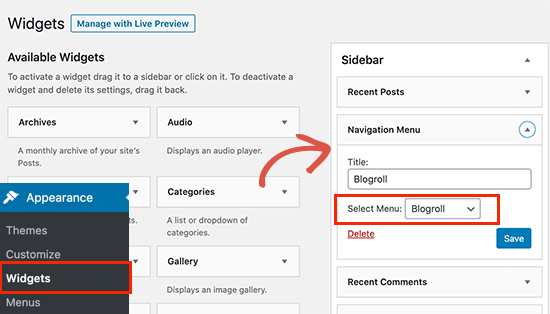
Simply, go to the Appearance » Widgets page and add the ‘Navigation Menu’ widget to your sidebar.

Adding navigation menu widget to sidebar

After that, enter the title you want to display for blogroll and then select the menu you created earlier from the drop-down menu.

Don’t forget to click on the Save button to store your widget settings.

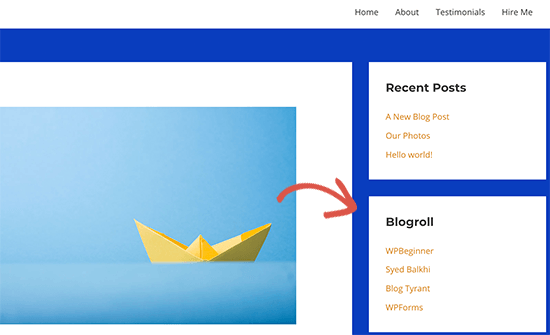
You can now visit your website to see your Blogroll displayed in sidebar. Here is how it looked on our test blog.

Blogroll sidebar preview

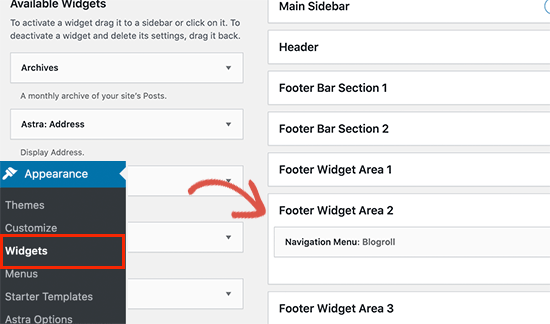
You can also show the blogroll in the footer area if your WordPress theme has a Footer widget area. You can check that by going to Appearance » Widgets page.

Footer widget area

Simply add the Navigation Menu widget to the footer widget area and select the blogroll menu. Don’t forget to click on the Save button to store your changes.

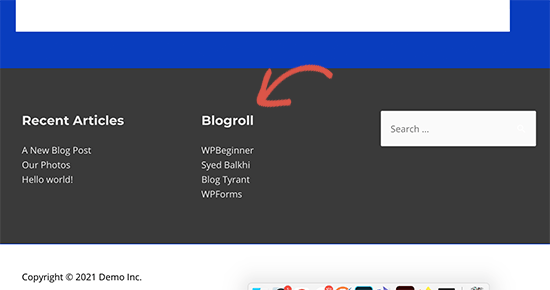
You can now visit your website to see the blogroll links displayed in action.

Blogroll in footer widget area

We hope this article helped you learn how to easily add a blogroll in WordPress. You may also want to see our guide on how to create an email newsletter to connect with visitors after they leave your website, and our comparison of the best push notification software to grow your traffic.

If you liked this article, then please subscribe to our YouTube Channel for WordPress video tutorials. You can also find us on Twitter and Facebook.

The post How to Add a Blogroll in Your WordPress Site (without a Plugin) appeared first on WPBeginner.


January 25, 2021 at 06:00PM

Saturday, January 23, 2021

7 Best Webinar Software Platform for Small Businesses (Compared)

Are you looking for the best webinar software for your business?

There are many webinar platforms that allow you to run live webinars and automated evergreen webinars to connect with your users and grow your business.

In this article, we will share the best webinar software for small businesses, and compare their features so you can choose the best webinar platform to fit your needs.

Best webinar software for WordPress users

What Kind of Webinar Software is Right for You?

There are many options for webinar platforms out there. Some that run live webinars. Some that do conference meetings, and some that run webinars as a live simulation (called automated webinars) which are often used for lead generation and sales funnels.

When choosing a webinar software, you need to make sure that the platform you are choosing allows you to do what you have in your mind.

A good webinar platform should have the following features:

  • Great video quality and reliable webinar hosting service that doesn’t have delays or downtime
  • Ability to do live webinars and automated webinars for lead generation
  • Real-time chat features, so you can engage with your audience and answer questions
  • Ability to have multiple presenters and hosts
  • Ability for presenters to share screen and record webinar for future webinar replays
  • Seamless integration with third-party email marketing services, marketing automation tools, and CRM software, so you can connect with users after the session
  • Smart webinar registration pages and landing pages to boost registration and attendance
  • Actionable webinar analytics that lets you see what’s working and what’s not, so you can fine-tune your webinar for maximum conversions

Aside from these webinar features, you want a webinar software that offers great support and fair pricing options.

Having said that, let’s take a look at the best webinar software for small businesses.

1. Livestorm

Livestorm

Livestorm is a popular webinar software that offers three types of webinars: live video webinars, on-demand webinars, and automated webinars.

They’re a fast growing webinar platform among marketers because they offer browser-based webinars. This means your users do not have to download any software to join. Frictionless joining is proven to increase webinar attendance rate.

Livestorm web conferencing works on all web browsers including Google Chrome, Firefox, Safari, etc.

It comes with all the powerful webinar features such as HD video, chat messaging during webinars, screensharing, live Q&As, audience polling functionality, automatic email reminders, ability to share documents, and more.

Livestorm aims to be a comprehensive video communication platform, so you can use the webinar for live events, product demos, customer training sessions, company communication, and even teach online courses.

You can invite teammates as moderators to help you host and better engage with your audience. Their webinar data insights allows you to analyze your performance, so you can improve your conversions.

It connects with over 1000+ marketing platforms using built-in integrations and Zapier, so you can send customer data where you need it to improve your workflow.

The best part is that their pricing is very affordable for small businesses.

Pricing: Free plan comes with up to 10 registrants and a 20 minute webinar. Pro plans start at $99 for up to 100 live attendees.

2. GoToWebinar

GoToWebinar

GoToWebinar is one of the original and most popular webinar software platforms on the planet. It is built by the same team behind the GoToMeeting video conferencing suite.

While it started out as a live webinar solution, they have evolved with the industry needs to add automated webinars with their Simulated Live feature that allows you to create and schedule pre-recorded webinars.

Being one of the original webinar platforms, they offer a wide-range of features such as live presentation, webinar templates, event management, custom registration, webinar polls & surveys, webinar recording, and more.

They have seamless integration with all the popular marketing automation tools like Mailchimp and CRM platforms like Salesforce since it’s used by both small businesses and Enterprise companies.

Their analytics reports are very detailed and lets you see who attended, how interested they were, what questions they asked, an so much more, so you can refine your webinar strategy to grow your business.

The best part about GoToWebinar is their video quality and reliability. If you’re looking to host online events or virtual conferences, then they’re a leading webinar platform for that.

Pricing: Starts from $59 per month for up to 100 participants. Their pricing scales with the number of attendees, but it’s very affordable even for large virtual events.

3. EasyWebinar

Easy Webinar

EasyWebinar is a popular webinar platform for marketers because it lets you do both live webinars as well as automated evergreen webinars.

Their live webinars allow you to have high quality video without any delays, real-time chat, multiple presenters, ability to record and archive, screen sharing, and more.

You can use their EasyCast feature to livestream simultaneously on multiple social media platforms like YouTube Live and Facebook Live at the same time.

Their automated webinars allow you to easily run evergreen webinars to reach a larger audience by optimizing for user’s local timezones. You can easily repurpose any of your live webinars and convert them into automated webinars to collect more leads and build a high-converting sales funnel.

You can use their customization options to make the webinar templates match your brand styles. Their registration embed option allows you to host a registration form on your own website, with landing page builders like SeedProd, Clickfunnels, Leadpages, and more.

They integrate with all the popular email marketing services, so you can engage with users by sending them offers, notifications before and after the webinar, and more.

Pricing: Starts at $78 per month with up to 100 live attendees. You can use their YouTube live integration to have unlimited live attendees on this plan.

4. Stealth Seminar

Stealth Seminar

Stealth Seminar is known as the best automated webinar platform because it’s entirely focused on helping you maximize evergreen webinars and automate your sales funnel.

You can use Stealth Seminar to run pre-recorded webinars as if they were live to better leverage user timezones, avoid tech failures such as low internet bandwidth, and remove presentation nerves.

They also allow you to run live webinars as well with YouTube live, or even a hybrid webinar that lets you run pre-recorded webinar with live chat for engagement.

Stealth Seminar comes with customizable pre-made templates that are designed to help you convert more leads. This includes registration templates, smart CTAs, surveys & polls, and scarcity tools like countdown timers.

For small businesses, they do have the option to add faux attendees to make your webinar look more popular and build authority. It’s a grey hat marketing tactic that utilize the fake it till you make it strategy.

Their webinar analytics shows you registration opt-in, webinar attendees, webinar conversion rate, and total sales generated. You can even see engagement reports for specific call-to-actions.

Stealth Seminar allows you to add sales pixel tracking, Facebook and Google retargeting pixels, and split testing to fine tune your strategy further.

Pricing: Starts at $69.96 per month for 150 simultaneous attendees. Also includes worldwide SMS reminders up to 6000 a month.

5. Zoom

Zoom

Zoom is the most trending video conference call company in the market right now for online meetings. What many don’t know however is that Zoom has also gotten into the video webinar market.

Known for their high video quality and reliable streaming, this move was a no brainer.

Now you can use Zoom to run interactive video webinar with screen sharing, Q&A chat, and the ability to like and up-vote questions.

Zoom also allows you to run polls, promote attendees to panelists, have whiteboarding and annotation tools, and more.

Aside from running live webinars, Zoom lets you record webinars and even add transcripts. You can also run practice sessions for pre-event panelists as well.

What’s unique about Zoom’s webinar platform is that it lets you have 100 panelists with over 49 viewable on screen at one time. This allows you to promote attendees to be panelists and join the conversation.

They also allow you to live stream simultaneously to unlimited audiences on Facebook Live, YouTube Live, and other custom streaming services.

Zoom integrates with all the popular email marketing services and CRM platforms. For WordPress website owners, you can use WPForms and Automator Plugin to automatically register users for webinars in Zoom.

Their built-in analytics and marketing tools aren’t as powerful as some of the other webinar software in this list, but their reliability and video quality is superb.

Pricing: Starting at $40 per month for 100 attendees. But as it scales, it does get more expensive. For example 3000 attendees will cost you $990 per month on Zoom vs $499 on GoToWebinar.

6. Demio

Demio

Demio is a fast growing webinar software among marketers because it offers frictionless joining, so your users can join the webinar in the browser with one click without downloading any software.

You can use it to run live webinars with webcam video, screen sharing, and upload your presentation slides directly in Demio.

Their user-friendly platform allows you to engage with your audience using interactive polls with stats, launch offers and call-to-actions during the event, share handout gifts or bonus downloads, organize and answer user’s questions, chat with users through public or private chat, and even bring attendees to stage.

You can also download your live webinars and repurpose them into automated webinars to share recordings or use it in your automated sales funnel. You can also join the automated webinar and interact in the live chat to make it feel more real time.

Pricing: Starting at $49 per month for 50 attendees.

7. GetResponse Webinars

GetResponse

GetResponse is a popular email marketing service that has added a webinar feature to make it easy for users to centralize their marketing efforts.

You can use GetResponse webinars to run both live and on-demand webinars. You can have up to 1000 live attendees, share the stage with multiple presenters, and have unlimited webinars.

The best part is that you can automatically follow up with with your audience, run automated nurturing campaigns, and promote your special offers right from their marketing automation platform which is included in the price.

You have all the powerful webinar features such as polls & surveys, screen sharing, call-to-actions during the webinars, interactive whiteboards, and more.

GetResponse comes with built-in landing pages and sales funnels to help you further optimize your conversions. You can also use the OptinMonster popups integration to get more attendees and subscribers.

Pricing: $99 per month for 300 attendees, and it includes over 1000 email subscribers and all their marketing automation features.

Which is the Best Webinar Software (Expert Pick)?

After reviewing all the popular webinar platforms, we believe that GoToWebinar, LiveStorm, and EasyWebinar are the best webinar software in the market.

They offer all the powerful webinar features that you need with high-quality video streaming and affordable pricing plans.

Their conversion tool are optimized to align with your goals whether it is lead generation, sales, running demos, or anything else. These platforms adapt to your business needs to ensure that you get maximum results.

We hope this article helped you find the best webinar software platform for your business. You may also want to see our comparison of the best business phone services for small business and best push notification software to help you connect with visitors after they leave your website.

If you liked this article, then please subscribe to our YouTube Channel for WordPress video tutorials. You can also find us on Twitter and Facebook.

Disclaimer: To help our readers avoid choice paralysis, we only compared the best webinar software platforms in our expert opinion. This list doesn’t include other webinar services like WebinarJam, WebinarNinja, Bigmarker, Everwebinar, Clickmeeting, Google Hangouts, WebEx, Zoho Meeting, Adobe Connect, MyOwnConference, Bluejeans webinar tool, etc.

The post 7 Best Webinar Software Platform for Small Businesses (Compared) appeared first on WPBeginner.


January 23, 2021 at 04:00PM