Monday, May 24, 2021

How to Quickly Get System Information for Your WordPress Site

Do you need to quickly get system information about your WordPress site?

System information tells you about your hosting environment, PHP version, WordPress settings, and more. You will often need to share this information when asking for support because it can help with troubleshooting WordPress issues.

In this guide, we’ll show you how to easily get system information for your WordPress site without any special technical skills.

Easily getting all the WordPress system information for your site

What is System Information for a WordPress Site

WordPress needs a specific platform to run. This platform is provided by your WordPress hosting company.

It is made of several components like web server software (Apache or NGINX), PHP (programming language), database software (MySQL), and more.

All these software have different features that your WordPress hosting company configures and sets up for you. For more on this topic, see our guide on how WordPress works behind the scenes.

Apart from that, you also have your own WordPress settings. For instance, which WordPress theme or plugins you are using and how your WordPress website is set up.

Together all this information is called System Information. You can use this information to fix common WordPress errors and troubleshoot other website issues.

You may also be asked by other developers on support forums to share system information. This helps them quickly see if a particular feature is available on your hosting server or not.

That being said, let’s take a look at how to easily access system information for your WordPress website without any technical skills.

Getting WordPress System Information Using The Site Health

WordPress comes with a built-in tool called Site Health that helps you quickly access system information about your website.

You can access it by logging into your WordPress admin area and visiting Tools » Site Health page.

Here, WordPress will show a Site Health Status report and highlight any critical issues that need your attention. For more details, see our guide on how to get the perfect WordPress site health score
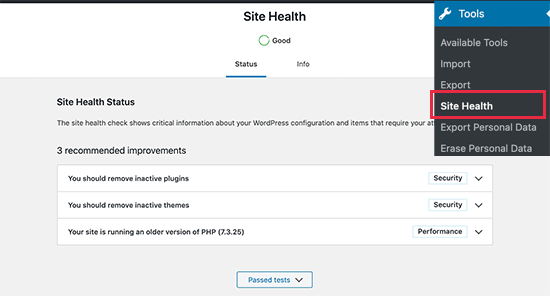
WordPress site health report

To get system information, you need to switch to the ‘Info’ tab on the Site Health page. From here, you will see important system information neatly organized into categories.
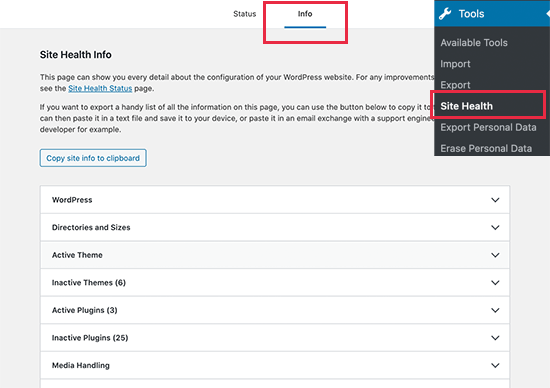
WordPress system information under site health

You can click on the ‘Copy to Clipboard’ button to copy all the information. After that, you can just paste this information anywhere you need to share it.

Ideally, you would also want to save it to your computer in a plain text file using Notepad or any plain text editor app.

If you are looking for specific information, then you can expand the related category and copy that information alone.

For instance, if you were looking for which PHP version your WordPress hosting server is using, then you’ll find this information under the ‘Server’ section.
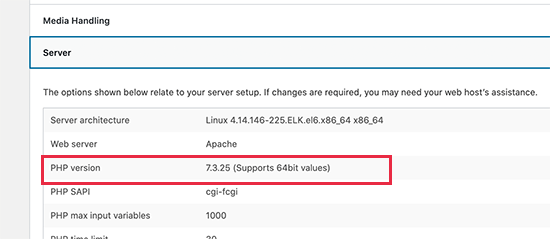
Drill down categories to get specific information

Similarly, let’s say you wanted to check the file size upload limit, then you’ll find this information under the ‘Media Handling’ section.
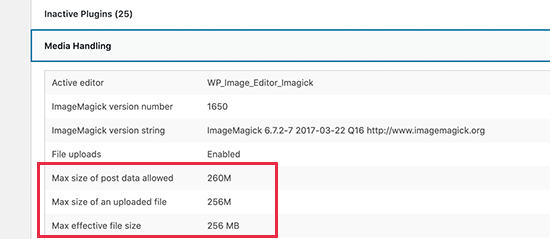
Expand tabs to see detailed information

The site health tool makes it easier to get all the system information you need in a neat and more readable format.

However, there may still be other system information that you can’t find in this report. In that case, this next step will give more comprehensive system information for your site.

Getting System Information in WordPress Using a Plugin

The default Site Health tool in WordPress gives you all the essential information needed for troubleshooting. However, sometimes you may need additional information about PHP configuration on your server.

The easiest way to get this information is by using a WordPress plugin that shows complete PHP information.

First, you need to install and activate the Debug Info plugin. For more details, see our step by step guide on how to install a WordPress plugin.

Upon activation, you need to visit the Tools » Debug Info page in your WordPress admin area.

From here, you’ll first see an overview of system information similar to the Site Health tool. Scroll down to the bottom and then click on the Show Details link.
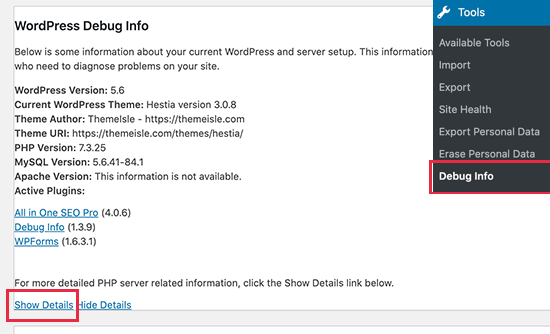
Debug info details

This will show the PHP info page which provides complete information about which PHP features are enabled on your hosting server.
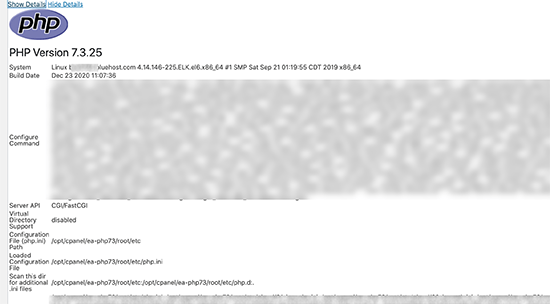
Getting complete PHP info in WordPress

If you know the specific information that you are looking for, then you can look for it here. Alternatively, you can also copy and paste this information and share it with developers or on support ticket.

We hope this information helped you quickly get system information for your WordPress site. You may also want to see our article on how to tighten WordPress security to protect your website against hacking and malicious attacks.

If you liked this article, then please subscribe to our YouTube Channel for WordPress video tutorials. You can also find us on Twitter and Facebook.

The post How to Quickly Get System Information for Your WordPress Site appeared first on WPBeginner.


May 25, 2021 at 12:30PM

How to Add Your WooCommerce Store to Facebook (Step by Step)

Do you want to add your WooCommerce store to Facebook?

Facebook is one of the largest social media networks in the world. By adding your WooCommerce store to Facebook, you can send more traffic to your online store and make more sales.

In this article, we’ll show you how to add your WooCommerce store to Facebook, step by step.

How to add WooCommerce store to Facebook (step by step)

Why Add Your WooCommerce Store to Facebook?

Facebook is one of the most popular social media platforms in the world today. By adding your products to Facebook, you can better promote your online store and generate more sales.

Adding your WooCommerce store to Facebook lets you reach your followers in new ways, so you can:

  • Simply sell more products
  • Expose your Facebook followers to your online store
  • Deepen your customer relationships
  • Grow your revenue

That being said, let’s show you how to add your WooCommerce store to Facebook simply.

How to Add Your WooCommerce Store to Facebook

First, you need to install and activate the Facebook for WooCommerce plugin. For more details, see our step by step guide on how to install a WordPress plugin.

Upon activation, you’ll need to navigate to Plugins » Installed Plugins and turn on ‘Enable automatic updates’.

This will ensure that your WooCommerce store continues to work with Facebook.

Enable automatic plugin updates

After that you’ll have a new menu item labeled ‘Marketing’ in your WordPress admin panel. Navigate to Marketing » Facebook and then click the ‘Get started’ button.

This will take you to a screen where you can connect your Facebook page and WooCommerce store.

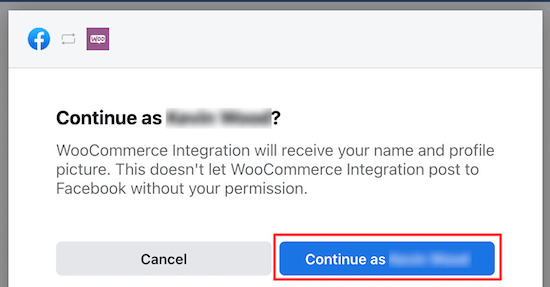
Select the Facebook account that you want to link with your WooCommerce store.

Or, you can login to a different Facebook account and then click ‘Continue as…’.

Login to Facebook continue as

On the next screen, you’ll be asked if you want to open your ‘Facebook Shop’, ‘Facebook Ads’, and ‘Instagram Shopping’.

For this tutorial, we recommend unchecking the ‘Facebook Ads’ and ‘Instagram Shopping’ features. If you want to add these features later on, then it’s much easier to do directly from your Facebook business account.

Next, click ‘Get Started’.

Open shop checkboxes

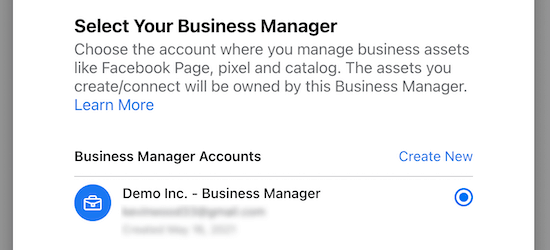
Once you’ve done that you need to select your Business Manager account and click ‘Continue’.

This is a separate profile from a personal Facebook page that lets you manage the business assets connected to your Facebook account.

If you don’t have a Facebook business account, then click ‘Create New’ and follow the steps for creating an account.

Select business manager account

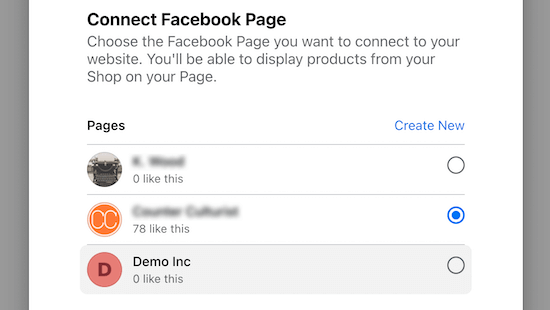
Next, you need to connect to a Facebook page.

Simply choose the Facebook page where you want to display your WooCommerce products and then click ‘Continue’.

Connect to Facebook page

Then, you need to choose an existing WooCommerce product catalog.

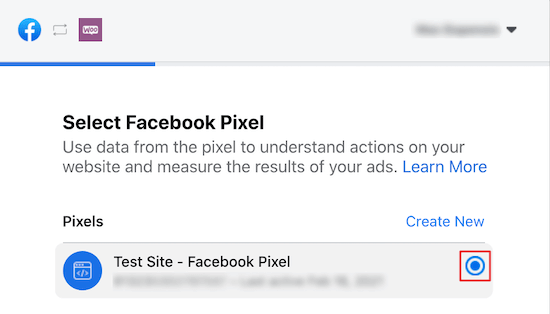
Next, you need to select a Facebook Pixel. This allows you to track your inventory between Facebook and WooCommerce.

Select Facebook Pixel

If you don’t have one created yet, then click the ‘Create New’ button to generate a new Facebook Pixel. You need to give your pixel a name and click ‘Continue’.

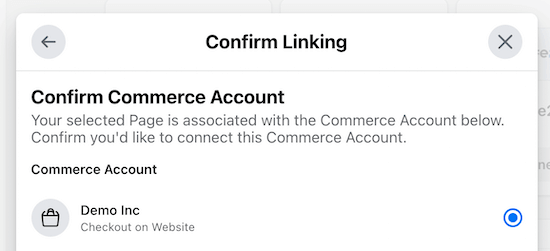
Once you’ve done that, you’ll be asked to confirm your Commerce Account. This account will be used to feature your products across Facebook, and then click ‘Continue’.

Confirm commerce account

Note: At this point, a lot of users report errors with continuing the integration.

Luckily, all of your account data you added so far is saved, so we will continue the integration process from within your Facebook account dashboard.

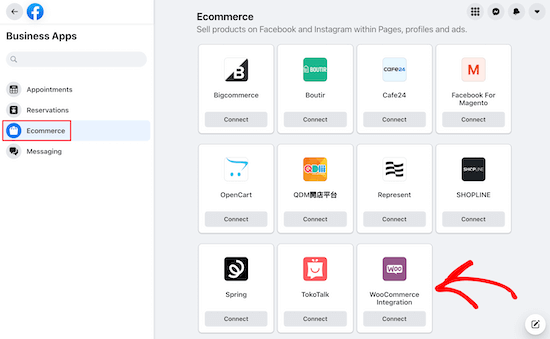
You need to click on the ‘Business Apps’ icon and then click ‘WooCommerce Integration’.

Select business apps WooCommerce integration

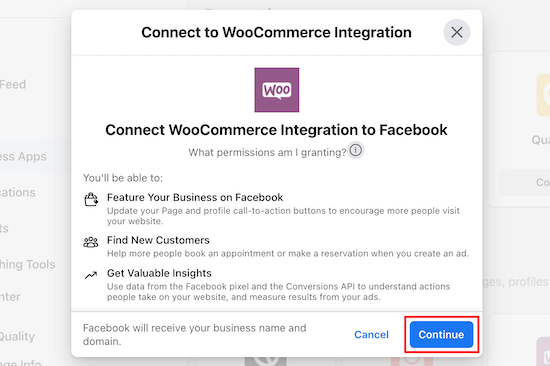
This will take you to a page where you can connect your WooCommerce store.

Next, you need to click ‘Continue’, and the app will integrate with your store.

Connect WooCommerce and Facebook

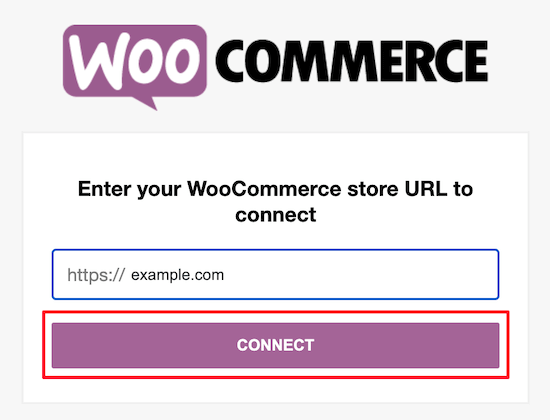
Then, you need to enter your WooCommerce store URL and click ‘Connect’.

Make sure you enter your store URL and not your website URL (sometimes they’re different).

Enter WooCommerce store URL

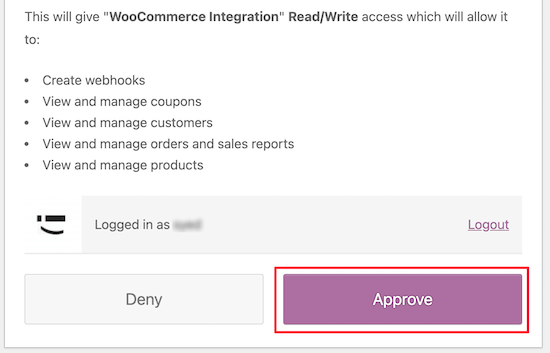
After that, you will confirm the linking of your accounts.

All you need to do is click ‘Approve’.

Give WooCommerce approval

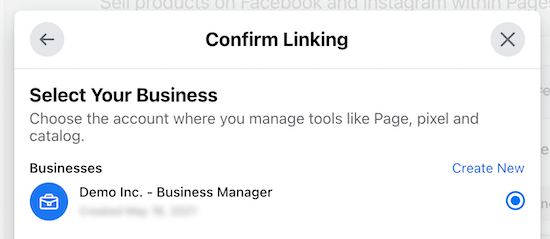
Once you’ve done that select your Facebook Business account and click ‘Continue’.

Confirm linking to Facebook Business account

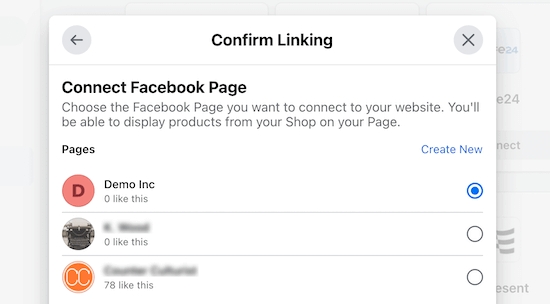
Then, you need to choose the Facebook page you want to connect your WooCommerce store with.

Connect Facebook page

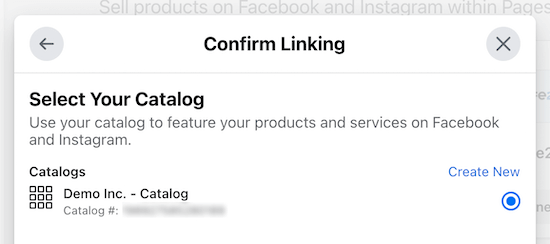
Next, you’ll be asked to select your WooCommerce product catalog and click ‘Continue’.

Select WooCommerce product catalog

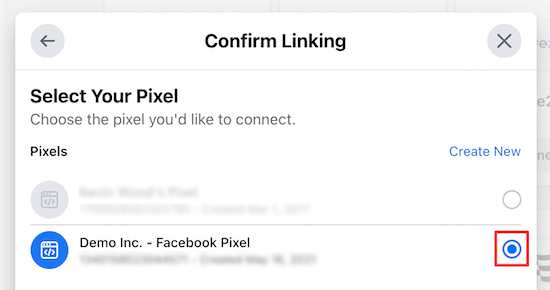
Once you’ve done that, you need to connect your account to the Facebook Pixel for tracking and click ‘Continue’.

Select Facebook Pixel

The final option is choosing how your customers will checkout.

You can allow your customers to checkout via Facebook, Instagram, or checkout on your website.

Checkout on WooCommerce website

We recommend having your customers checkout on your website, since your website have a more optimized checkout process on your online store.

You’ll need to select and then confirm the Commerce account associated with your website and click ‘Continue’.

Confirm commerce account website checkout

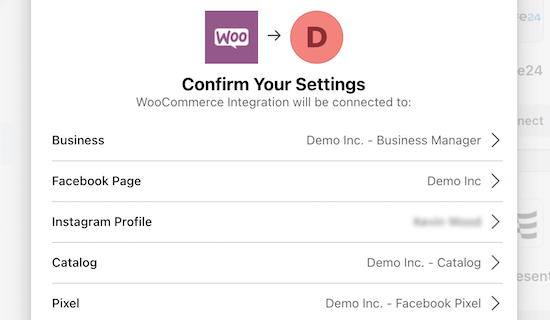
After that, you can review your connection settings.

Once you’ve verified your connection settings are correct, click ‘Continue’.

Confirm Facebook and WooCommerce integration settings

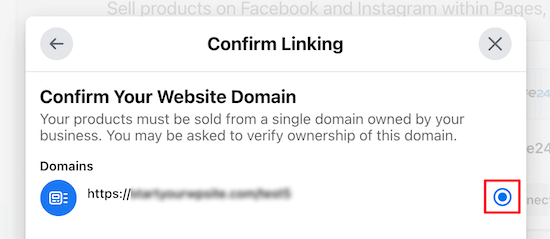
You may be asked to verify your domain name.

If so, then select the domain name linked to your WooCommerce store and click ‘Continue’.

Confirm WooCommerce store domain name

Once you’ve completed the setup wizard, your WooCommerce store will now be linked to Facebook, and your visitors will be able to browse your products to make purchases.

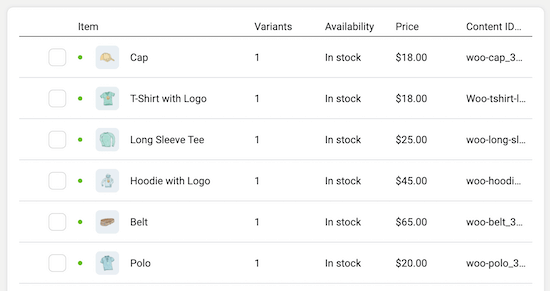
On the backend of your store, you’ll be able to view and manage your WooCommerce product catalog simply.

Facebook to WooCommerce backend products

Keep in mind, Facebook will manually review your store integration, so it can take a few weeks for your store to be live on your Facebook page.

Must-Have Plugins to Grow Your WooCommerce Store

After you’ve added your WooCommerce store to Facebook, you’re probably looking for ways to further improve your traffic and revenue.

The plugins below will help you optimize your WooCommerce store and make more sales.

1. OptinMonster

OptinMonster

OptinMonster is the best lead generation software in the market. With this tool, you can easily convert abandoning website visitors into email subscribers and then into paying customers.

The drag and drop builder lets you create campaigns to improve your sales, reduce cart abandonment, show targeted website messages, grow your email list, and more.

You can even create floating bars to highlight your sales, announce free shipping, showcase your special offers, and a lot more.

2. All in One SEO

AIOSEO

All in One SEO is the best SEO plugin in the market used by over 2 million websites. It lets you simply optimize your WooCommerce store and products to improve your search engine rankings without having to learn SEO.

You can simply generate an SEO title and description for all of your products. You can also create an XML sitemap for your products to help the search engines find and index your products in the search results.

Rich snippets schema markup is also included, which will help your product listings stand out in the search results and bring you more traffic.

3. MonsterInsights

MonsterInsights

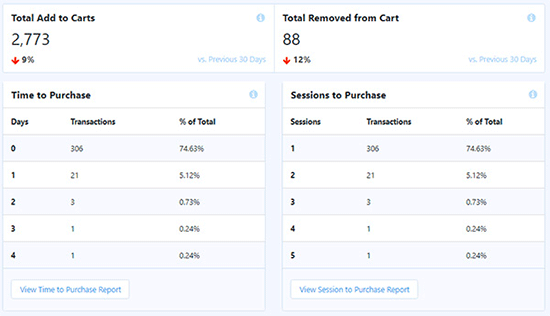
MonsterInsights is the best Google Analytics solution for WooCommerce. It has enhanced eCommerce tracking that lets you easily track your eCommerce data.

Google Analytics can be difficult for beginners. MonsterInsights makes it easy by displaying all of your WooCommerce data directly in your WordPress dashboard.

You can quickly see your top performing products and other important product data at a glance.

MonsterInsights cart report

Plus, you can track your WooCommerce customers in Google Analytics to create a personalized shopping experience.

For more details, see our step by step guide on how to setup WooCommerce conversion tracking.

4. SeedProd

SeedProd

SeedProd is the best WordPress page builder plugin in the market. It lets you simply customize your WooCommerce product pages with the drag and drop builder.

It’s fully compatible with WooCommerce and has many WooCommerce blocks you can use to customize your product pages to improve your conversions, display popular products, customize checkout pages, and more.

SeedProd works with any WooCommerce theme so that you can customize your store without any limitations.

If you’re looking for even more must-have plugins for WooCommerce, then see our expert picks on the best WooCommerce plugins for your store.

We hope this article helped you add your WooCommerce store to Facebook. You may also want to see our expert picks on the best WooCommerce hosting or our list of the best WooCommerce WordPress themes.

If you liked this article, then please subscribe to our YouTube Channel for WordPress video tutorials. You can also find us on Twitter and Facebook.

The post How to Add Your WooCommerce Store to Facebook (Step by Step) appeared first on WPBeginner.


May 24, 2021 at 02:25PM

Friday, May 21, 2021

9 Best YouTube Video Gallery Plugins for WordPress

Do you want to add a YouTube video gallery on your WordPress website?

By default, WordPress makes it easy to embed YouTube videos in your blog posts, but you cannot easily display a list of videos in a gallery layout.

Luckily there are YouTube gallery plugins for that. In this article, we will share the best YouTube video gallery plugins for WordPress to help you easily create video galleries and grow your subscribers.

Best YouTube gallery plugins for WordPress

1. Smash Balloon YouTube Feed Pro

Smash Balloon Feeds for YouTube Pro

Smash Balloon YouTube Feed Pro is the best YouTube gallery plugin on the market. It lets you automatically display YouTube videos in a gallery layout.

The plugin is easy to set up, and there are plenty of options to customize your feed to match your brand.

You can hand select individual videos to create a custom YouTube gallery, or display all videos from your channel. You can even combine multiple YouTube channels into a single feed on your site.

Each embedded video has customizable details such as likes, shares, comments, and reactions. You can also enable the Subscribe button to make it easy for website visitors to subscribe to your YouTube channel.

Smash Balloon’s YouTube feed plugin also supports live streams and can automatically display a YouTube live stream on your WordPress website along with any upcoming YouTube live videos.

The best part about Smash Balloon is that it doesn’t slow down your website. Their built-in YouTube caching feature ensures that your website always load fast which is great for WordPress SEO rankings.

Note: There’s also free version of YouTube feed plugin available with limited features.

The other nice part about Smash Balloon is they offer a suite of that let you combine your social content from Instagram, Facebook, Twitter, and YouTube into a social wall. You can get their All Access Bundle to get all the powerful social media features to grow your online presence.

2. Envira Gallery

Envira Gallery

Envira Gallery is generally known as the best WordPress photo gallery plugin. It also comes with a video addon that allows you to create a gallery of YouTube videos on your site.

They also have support for other popular video hosting services such as Vimeo, Wistia, Dailymotion, Facebook, and Instagram. Plus, you can add self-hosted videos to your gallery as well.

Envira comes with a widget that’s easy to drag-and-drop into any sidebar or any area that accepts widgets on your site.

One downside of using Envira Gallery is that it will not automatically fetch new YouTube videos from your channel.

To add videos to your gallery, you’ll have to manually add the video URL each time.

3. YouTube Showcase

YouTube Showcase plugin

With the YouTube Showcase plugin, you can add a YouTube video gallery or a YouTube video grid to your site. The default layout is beautiful and makes your video gallery look well presented.

This plugin is easy to use and even has a setup assistant to guide you through the steps required. Your users can browse through the videos without being redirected to YouTube.

It comes with two easy-to-use widgets for featured videos and recent videos. You can also organize your videos with categories and tags which helps users easily find the videos they’re looking for.

4. YourChannel

YourChannel: Everything you want in a YouTube plugin

YourChannel offers one of the easiest ways to showcase your YouTube videos on your website. Your visitors can browse through and watch videos on the same page.

To set up this plugin, you simply need to enter your username and channel ID. After that, the plugin will handle the rest of the setup for you. It will fetch the banner images, subscribers, and view counts along with any playlists you have. You can then customize the feed to your liking.

If you want to add the YouTube gallery to any WordPress post or page, you can use the shortcode provided by the plugin.

5. Video Gallery – Origin Code

Video Gallery – Vimeo and YouTube Gallery

Video Gallery by Origin Code creates a responsive video showcase on your site. The plugin works with YouTube and Vimeo. You can even create a single gallery with both YouTube and Vimeo feeds mixed together.

Setting up your gallery only takes a few minutes. If you want the gallery to appear on specific pages or posts, you can use the shortcode provided.

There are multiple ways to upload your videos. The plugin makes creating a video gallery fun with many design options. You also get 7 impressive layout views to display your videos such as a slider view, blog-style view, or thumbnail view.

6. Embed Plus for YouTube

Embed Plus for YouTube – gallery, channel, playlist, live stream

Embed Plus for YouTube allows you to create a gallery for selected YouTube videos, your entire channel, or a playlist.

The plugin by default creates a grid layout of video thumbnails. You can set preferences for auto-play, playback controls, live streams, and premieres.

To embed your video gallery into pages and posts, there’s an easy ‘Insert’ button that pops up in the Visual and Text editor of WordPress. You also have the option of using shortcodes as well to embed the gallery.

In addition, it also lets you show or hide video information and titles.

7. Automatic YouTube Gallery

Automatic YouTube gallery

Automatic YouTube Gallery lets you create unlimited video galleries on your site. As the name suggests, it automates most of the setup process. It takes just a few minutes to get your video gallery up and running.

There are multiple ways to connect your website to your YouTube channel. You can use your username, channel ID, playlist, search terms, or even enter a custom YouTube URLs list to create the gallery.

You also don’t have to worry about videos slowing down your site. The plugin has a caching feature that helps optimize page load times. This will boost your WordPress speed and performance.

8. All-in-One Video Gallery

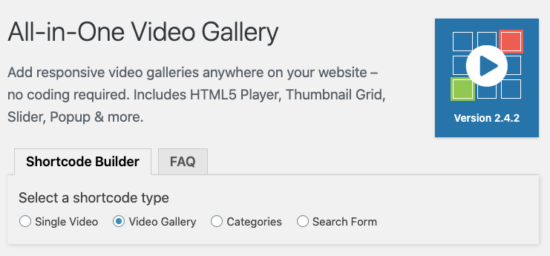
All-in-One Video Gallery helps you build video galleries on your site that are scalable, searchable, and SEO optimized.

You can add videos from YouTube, Vimeo, Dailymotion, and Facebook. It lets you customize the player controls, playback options, and over a hundred other settings.

The default gallery is neatly organized. You can create unlimited categories and subcategories to make it easy for users to search through your videos.

One of the best features of this plugin is that you can customize the logo, branding, and context menu.

9. Video Gallery – Total Soft

Video Gallery

Video Gallery by Total Soft creates a nice and sleek video gallery on your site. It supports YouTube, Vimeo, Wistia, and MP4s.

The video gallery is responsive and touch-friendly with fantastic hover effects. You can choose from 9 layouts and customize a number of settings.

The plugin lets you add an unlimited number of videos and create unlimited galleries on your website.

We hope this article helped you find the best YouTube gallery plugin for your WordPress site. You may also want to see our list of best drag & drop WordPress page builders to create custom designs, and our tutorial on how to create an email newsletter to keep your visitors updated with your new videos.

If you liked this article, then please subscribe to our YouTube Channel for WordPress video tutorials. You can also find us on Twitter and Facebook.

The post 9 Best YouTube Video Gallery Plugins for WordPress appeared first on WPBeginner.


May 21, 2021 at 03:00PM